Deleting Cards
Deleting Cards
Deleting cards is preformed through the Pass/G.C. Cards window. Card deletion is usually be preformed when a card is no longer being used by a patron or if the renewal period for the membership has been exceeded.
- Open the Patron Window.
Click here to learn how to access this window.
- Click on the Pass/G.C.
 tab.
Click here for more information on this tab.
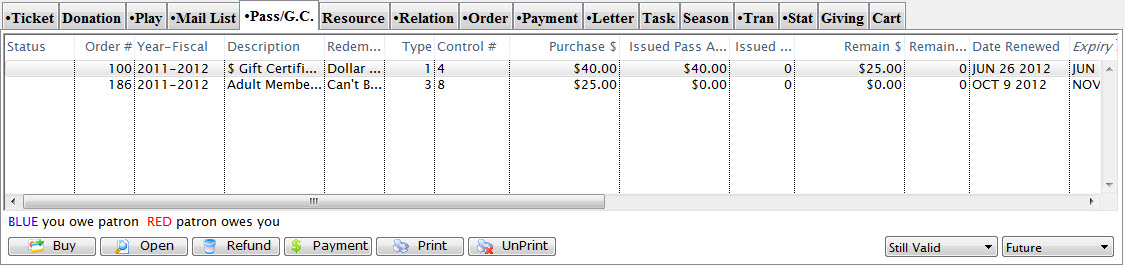
- Select a membership, or Pass or G.C.
Single click to select it.
- Click the Open
 button.
The Pass/G.C. Detail window opens.
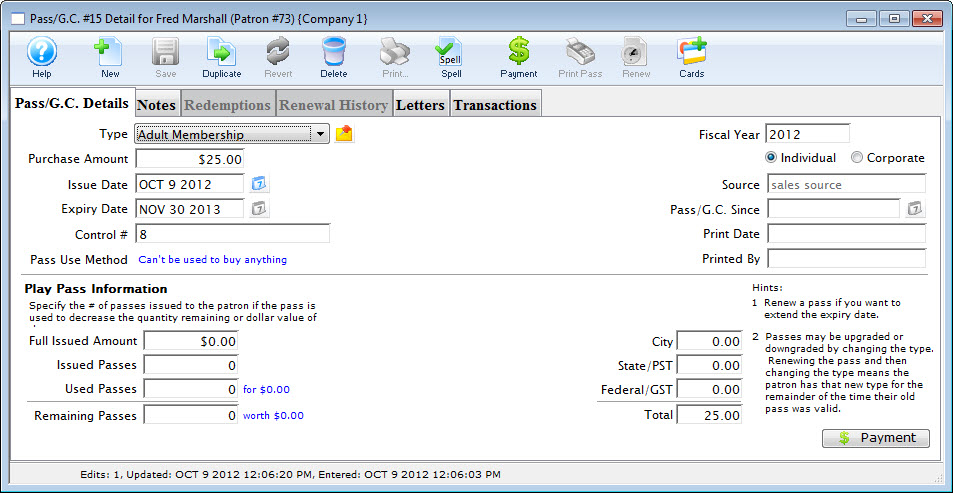
- Click the Cards
 button.
The Cards List opens.
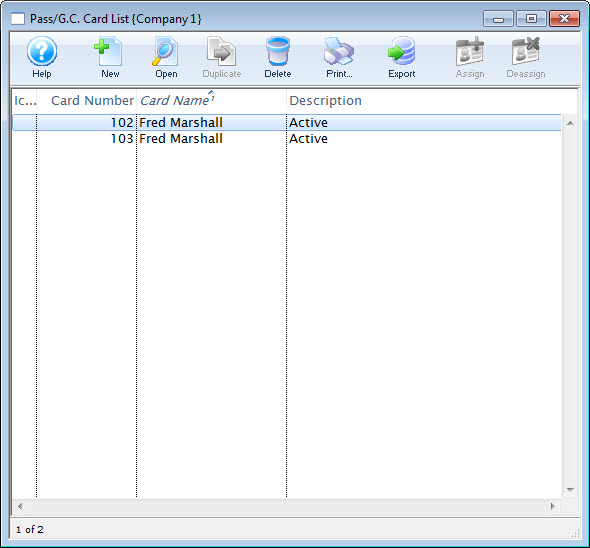
For a detailed description of this window and its functions click here.
- Select the card to delete.
Single click on the card to select it.
- Click the Delete
 button.
A Delete confirmation dialog opens.
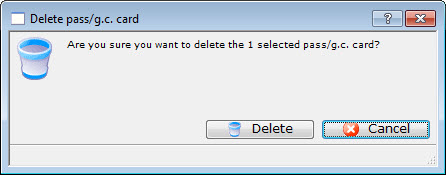
- Click the Delete
 button.
The card is deleted and removed from the Membership Card List window. Clicking Cancel
 button aborts the deletion of the card.