Adjusting/Fixing the map
Adjusting/Fixing the map
NOTE: This only works on TM 64 bit versions to adjust map size.
 |
Adjusting the dimensions of the map's background display only works on 64 bit versions of Theatre Manager that have an SVG map already in place for pick-your-own seats. |
| Step 1 |
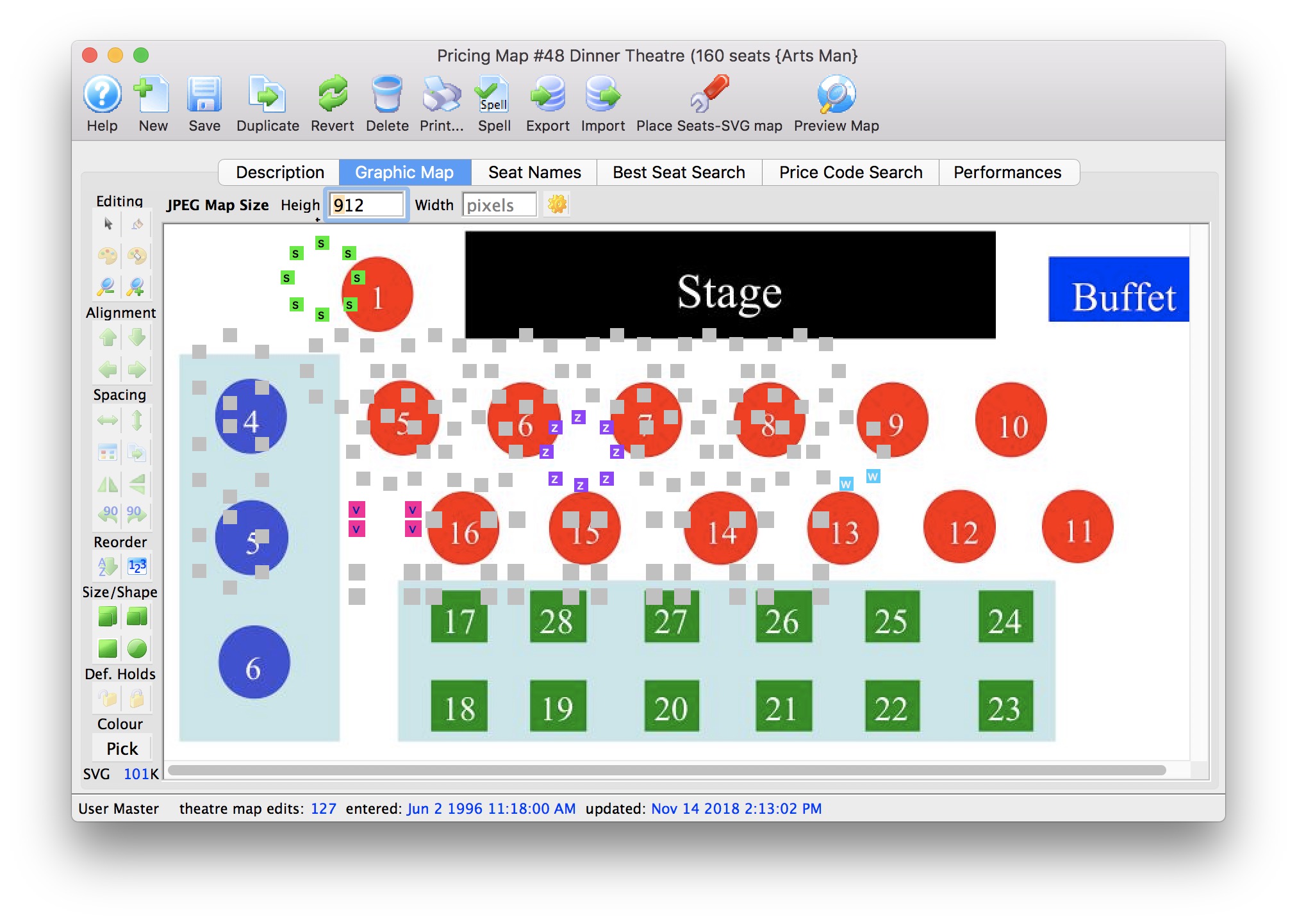 When the maps are showing seats that are offset as per the image to the right, there are five general steps to take as per below. These steps should work if you already have enabled pick your own seats - which means you have previously created the SVG map for this venue. If you see no picture, try step 2 & 3 once. if you still see no picture, then you'll need to drop in your SVG image as if you are making the map from scratch. Click the Graphic Map tab |
| Step 2 | 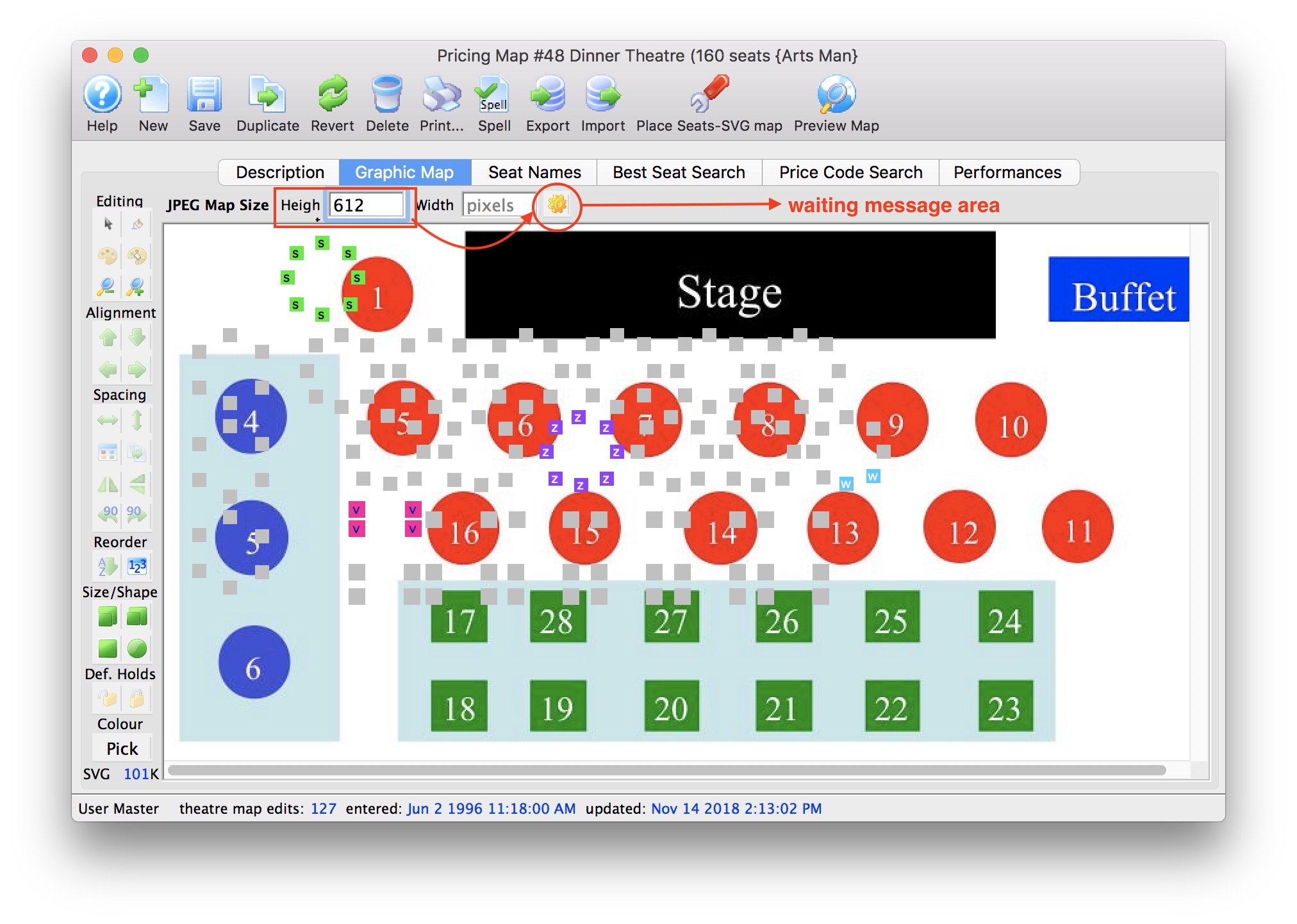 There are three situations that occur:
|
| Step 3 | 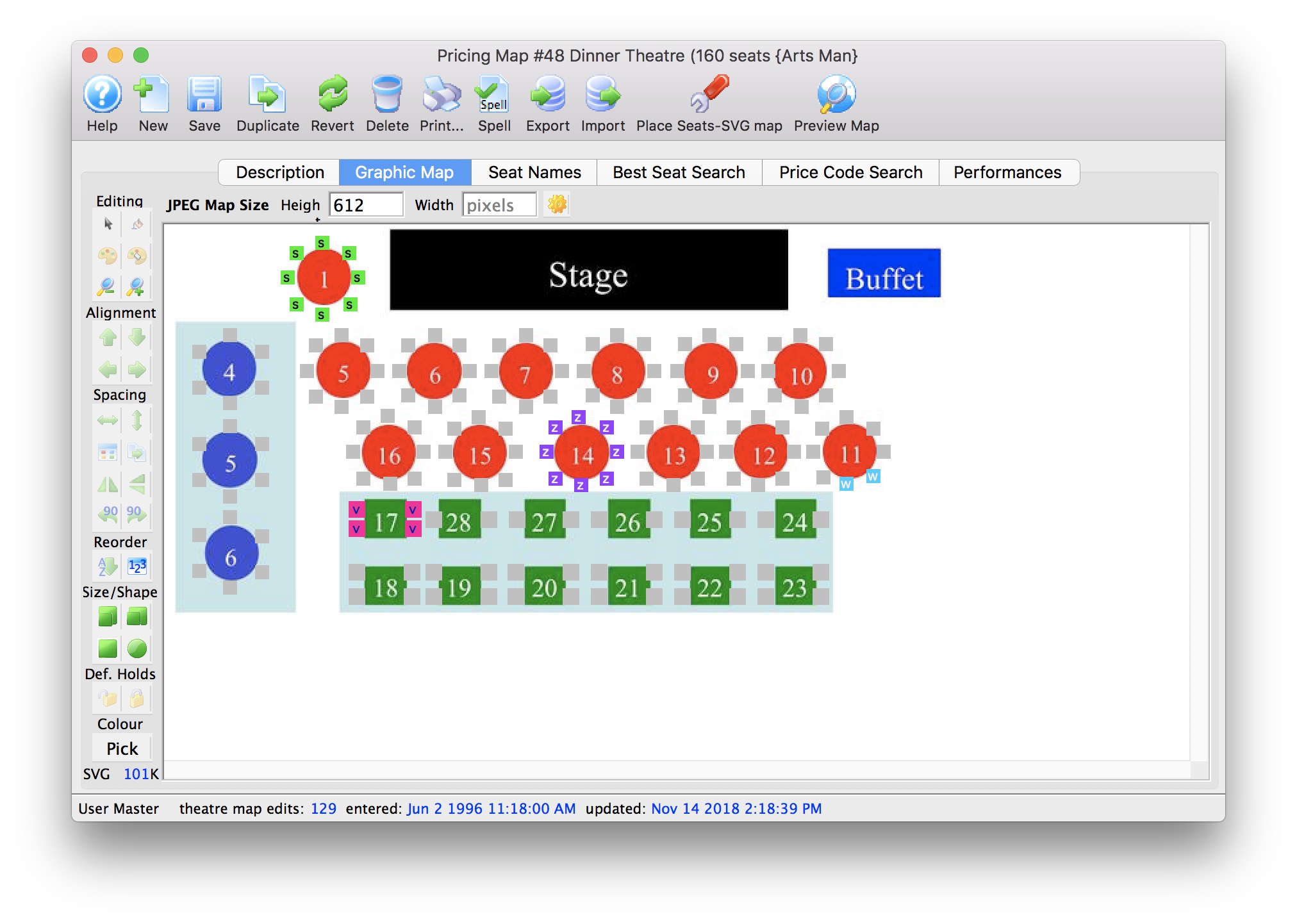 If there are no errors creating the background JPEG, a new image will appear behind the seats.
|
| Step 4 | 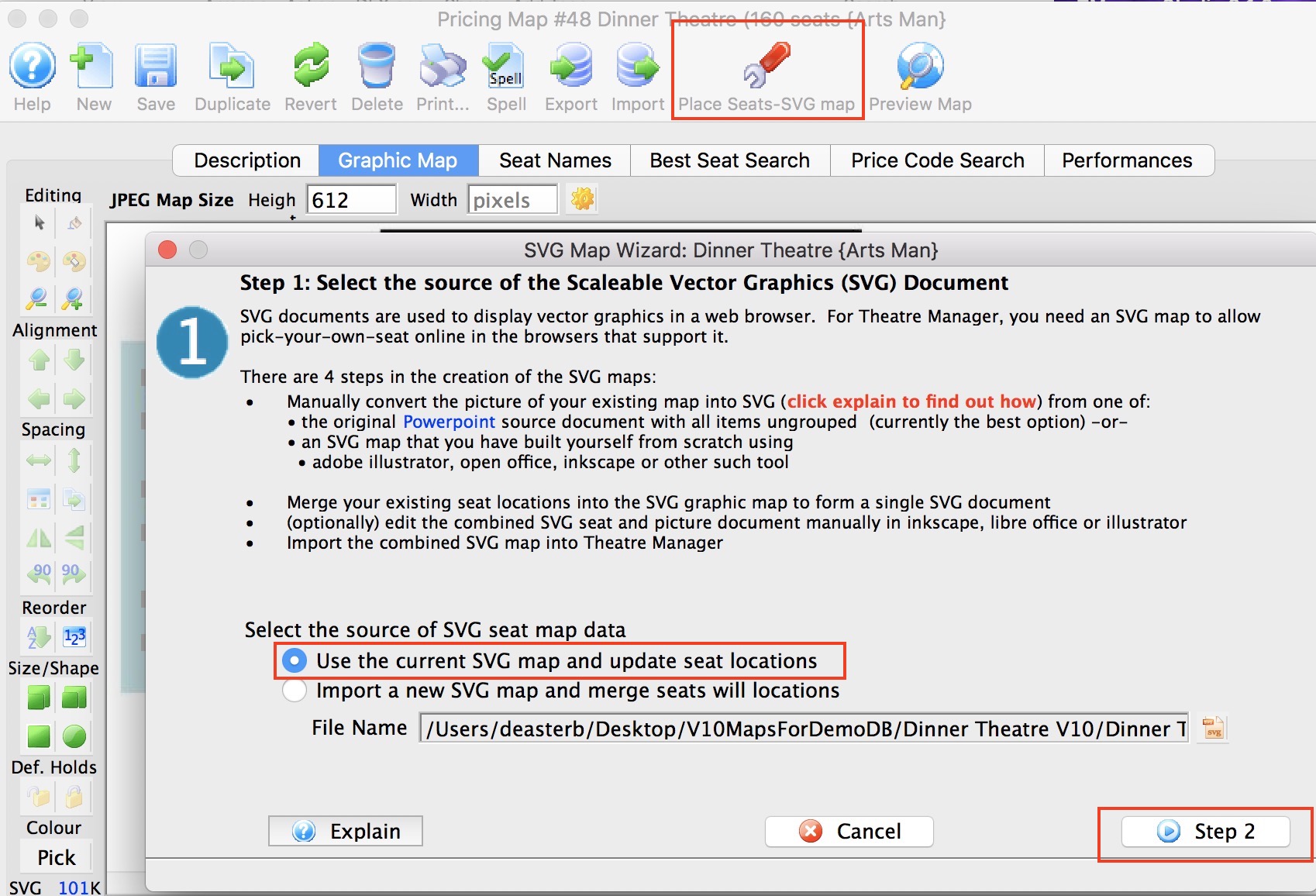 Once seats and background are aligned, you need to rebuild the pick your own seat map.
|
| Step 5 | 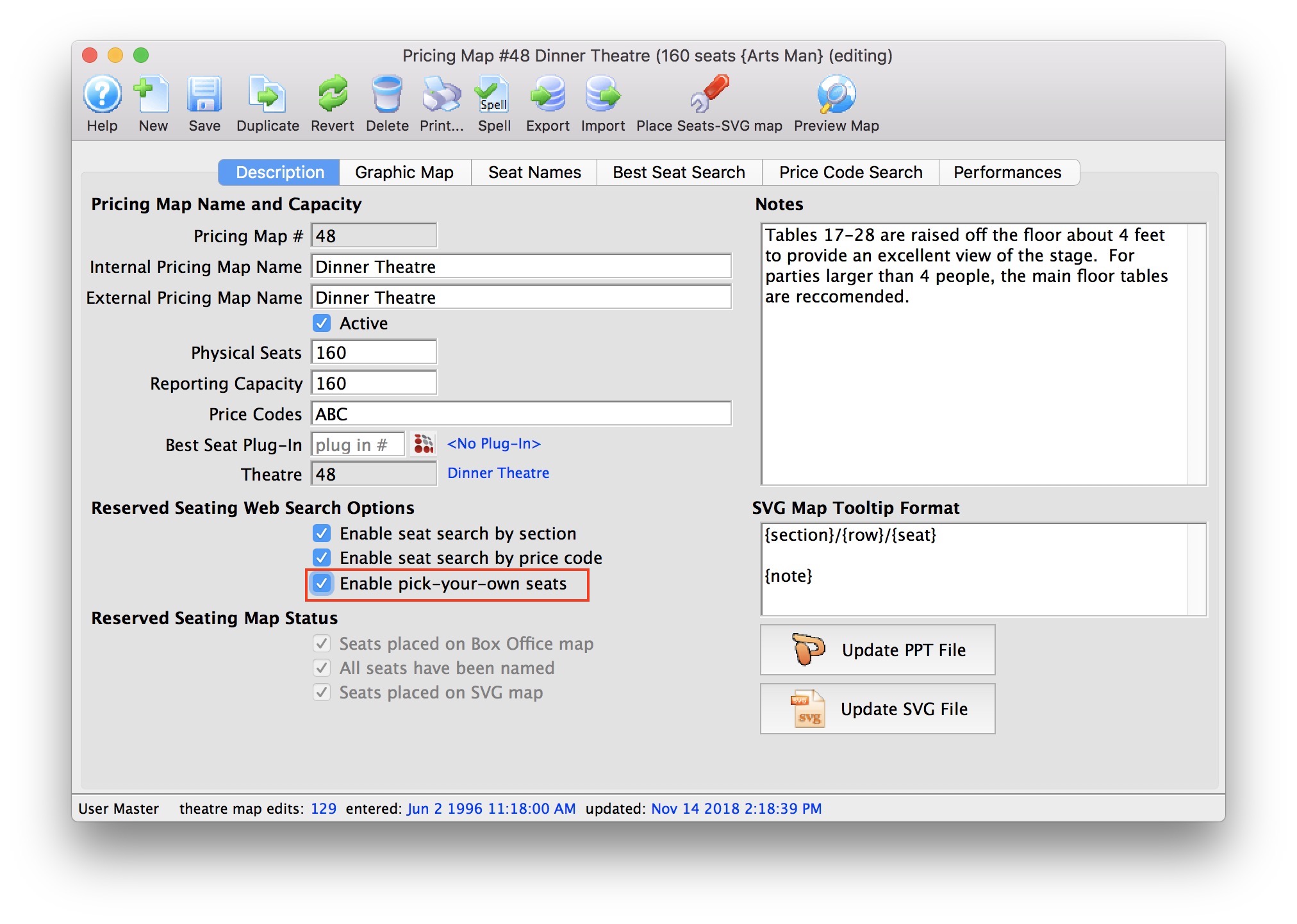 When you are completely satisfied with the look of the map on the Graphic Map tab and the SVG map for pick your own seats.
|