Enabling installation in Security and Preferences
Enabling installation in Security and Preferences
 |
Apple requires that users acknowledge that they trust the installer. The exact message you get may vary depending on the version of macOS you are using.
|
|
You can make apple run any installer option-double clicking on an installer and you should see a button that says 'open anyway' |
|
If you are unable to install, you might need to use the following two commands in terminal before running the installer More info is under disable power saving settings - Step 1:
sudo spctl --master-disable
|
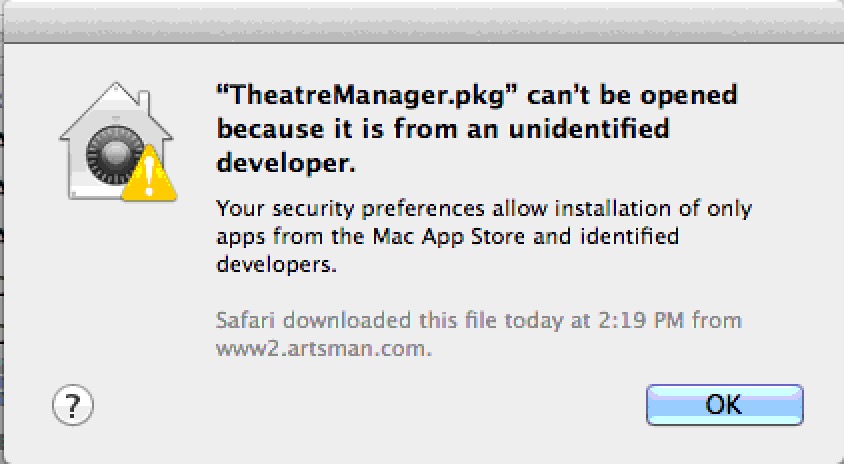
If you run the TM installer and receive a message similar to the one above (implying you have to provide permission). then:
- Select the Apple menu at the upper right of your computer screen
- Select System Preferences
- Select Security & Privacy which is on the top row of the preferences (it may be called Firewall in older versions of macOS).
- Click the General tab
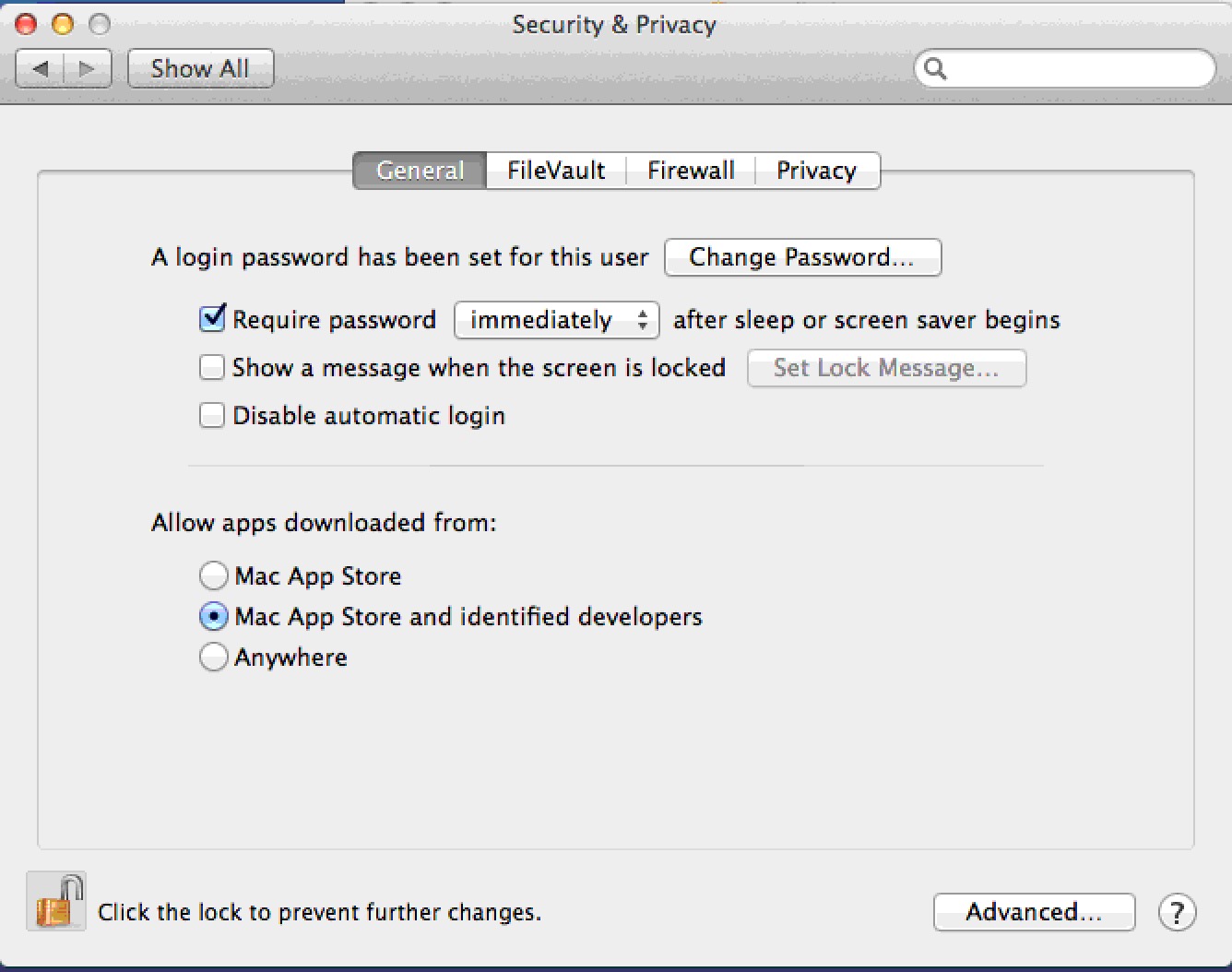
- You will see a screen similar to the one below. Do one of the following
- Click on the third option at the bottom saying Anywhere to allow apps downloaded from 'Anywhere'.
- If that is not visible, then you should see an option to click a button that says Open Anyway to run the installer. If so click Open Anyway
- This will start the installation process