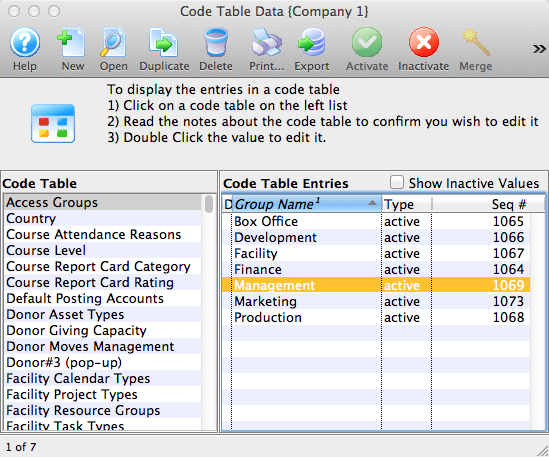
Access groups
Access groups
- As broad as a department
- As specific as a person or two
To use this feature, you need to do three things:
- Create a list of departments of access groups to suit your needs in this code table
- Assign an employee to one or more access groups
- Assign a specific record to one or more groups using the access field on each record. If the employee matches any one of the groups, they will be able to see the data. This applies to:
- Donation records
- Ticket Sales
- Ticket Reporting
- Tasks
- Mail Lists
- Donation Campaigns
- Play Access
- Performance Access
- Volunteer Activities
- and more
Using Access Groups
Using Access Groups
When you click on the popup, there are 3 options to choose from and which are explained below. These security access groupings are defined in code tables and need to be assigned to an employee.
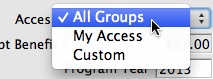
| All Groups | If you have access to all groups (form employee prefernces) or if the current record allows access by all employees, you will be able to set that 'all groups' have access.
This setting means that anybody may view or edit this particular record. |
| My Access | The setting allows you to change the access of the current record to provide at least the same access that you have.
You cannot remove groups that you do not have access to, so that means if you only are assigned the box office and finance groups, and the existing record has box office and marketing, marketing will still have access. |
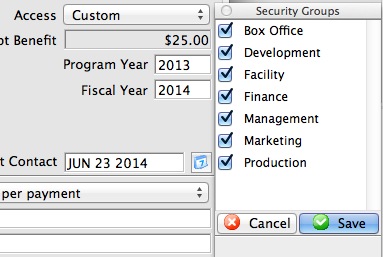
| Custom | If you select this option, you will see a floating window like the image below. You will only see groups to which you are assigned and you can indicate which ones other employees will need to access the record.
If there are groups to which you do not belong and that are part of the security for this record, you will neither see them, nor be able to change them and they will always be put back onto the security string. This means you can
|