Change the Map For an Event
Change the Map For an Event
You can change the Pricing Map an event uses, even if it is reserved seating. it works best if the venues are the same and you are just changing price zones for dynamic pricing. however, you can change to any other venues (larger or smaller) with some ramificatiosn
 |
You can be change a venue to another while sales are occurring. The process takes moments.
You may want to refer to how to Create a new pricing map. |
|
If you change to a venue that is a completely different orientation with more or fewer seats and no tickets have been sold, you may just have to verify seats for the affected performances.
HOWEVER, if it is a reserved seating performance:
|
There are rules for switching Pricing Maps. The new Pricing Map must:
- Be active.
- Have the same valid price codes in the new Pricing Map.
- Have the same seating capacity and seats must be named (reserved seating only).
- When changing the reserved seating map for an event, you can select some other Pricing Map.
- When changing the reserved seating map for one performance, you can only select other pricing maps within the venue.
- When changing the map for a general admission performance, you set the alternate venue as before.
- If using the Outlet Edition, the map MUST be owned by the same outlet. People from outside your outlet cannot change pricesmaps or price codes for you.
To change the Pricing Map, you perform the following steps:
|
If the new map has a price code that is not in the map you copied from, it will NOT be available to add. Also, If you are replacing the pricing map for one or more performances, you must ensure all maps being used have the same price codes. Your pricing map can have unused price codes in its description. |
- Click the Play/Event
 button.
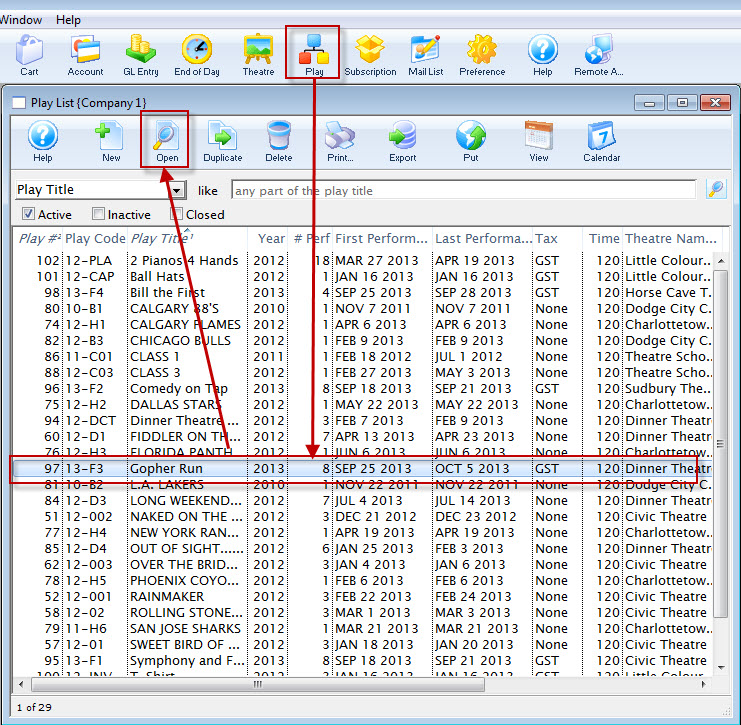
The Play list opens.
- Find the specified event and click the Open
 button.
The Play / Event window opens.
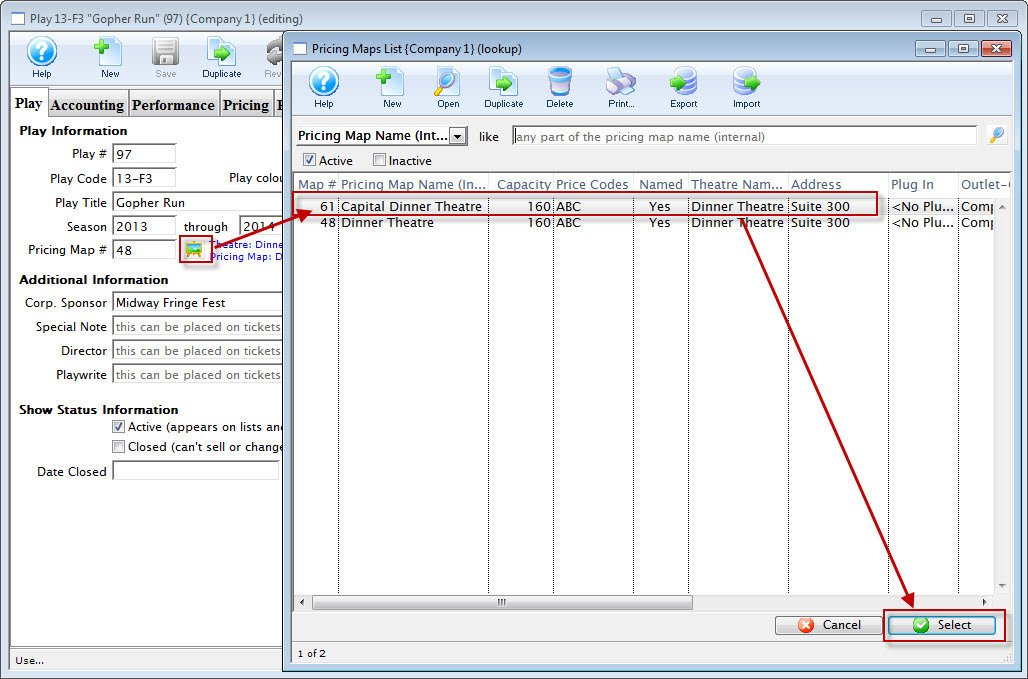
- Click the Venue
 button.
The pricing map list window opens, displaying the alternate maps that match the Pricing Map rules.
- Choose the appropriate map and click the Select
 button.
The Change Map Confirmation opens.
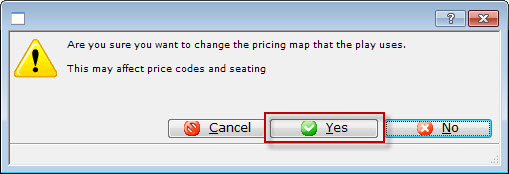
- Click the Yes
 button.
- Verify Seats if capacities are different
Refer to Verifying seats which might be needed after changing venues for a performance.
Ramifications of different Venue Orientation
Ramifications of different Venue Orientation
- Case 1: all general admission performances
- Case 2: reserved seating performance with nothing sold to it yet
- Case 3: changing maps to a venue with the same orientation, seating and capacity - probably duplicated from another map and created for price zone changes
- Case 4: changing map for another venue with completely different seating, orientation, size and with tickets sold
CASE 1: General Admission Performances
You can change the venues at any time.
CASE 2: Reserved Seating Performances with no seats sold
If there are no seats sold yet to the reserved seating performance, then there is little impact.
- Change to the new venue (whether it has more os less seating capacity
- Verify the seats in the performances
- you can now sell tickets
CASE 3: Venue with same orientation and reserved seating, seats can be sold
If a venue is really the same, with same seats, similar size, with perhaps a few seats removed for orchestra pit, or if the price zones are different for the purpose of dynamic pricing.... then change the venue that the performance is in.
- It is assumed that the location of the patrons seats are the same
- Any seat that is in a part of the venue where the seats have been removed - will become general admission and you will need to reseat them
- Verify the seats in the performances
- you can now sell tickets
CASE 4: Reserved seating events with seats sold and completely different venue orientations
However, if seats are already sold, be aware of the following ramification. Seats in the new venue have the same seat numbers as the original venue. This may cause patrons to be split into different areas.
|
Another approach that may help avoid the issue below is using the Transfer seats from one performance to another. |
Refer to the image and the description below:
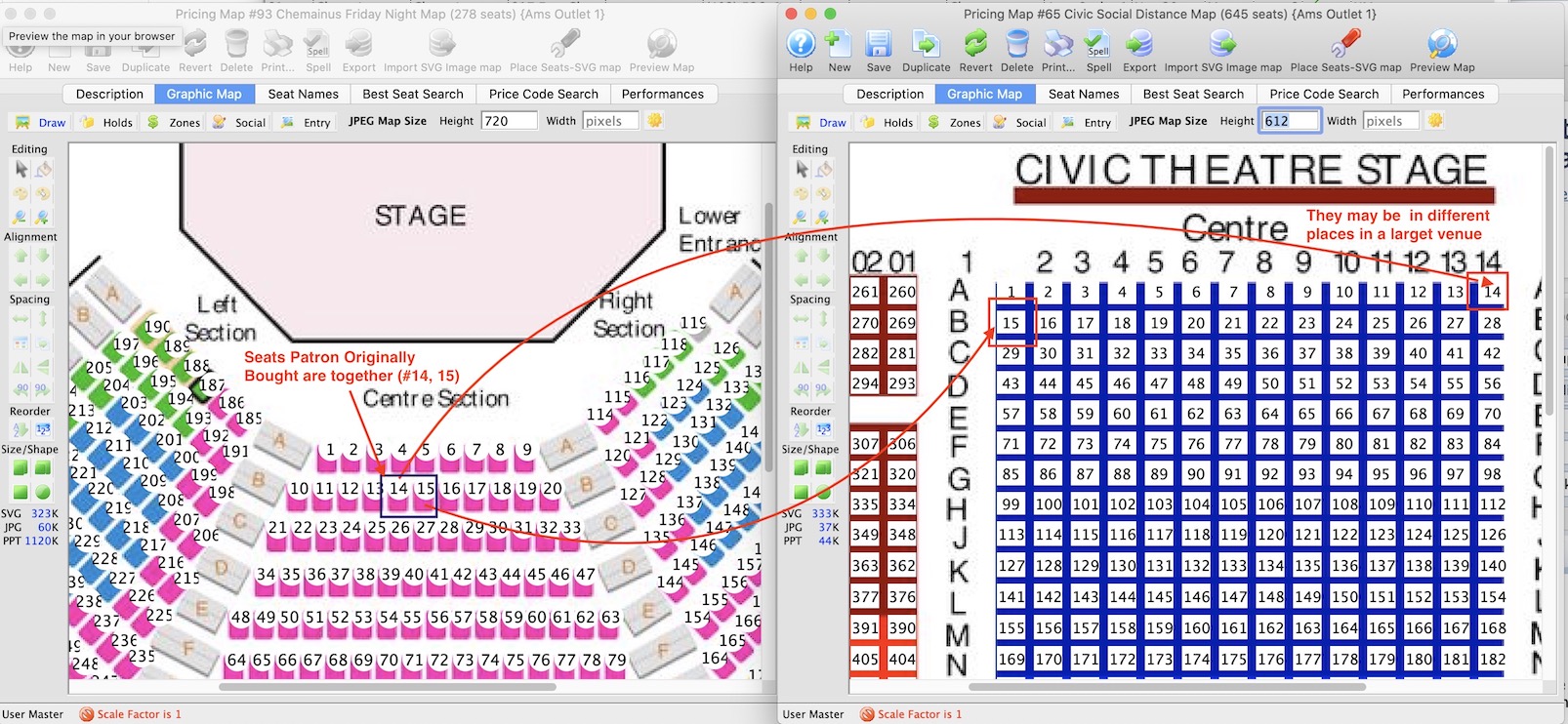
If you simply used the new venue and made more seats, then people may not have seats where you think.
| The left venue represents 'smaller' venue. | The right venue represents a larger venue |
|
|
This happens because Theatre Manager:
- doesn't know anything about spatial orientation.
- all it can do is make an equivalence based on
- they had seats 14 and 15,
- They still have seats 14 and 15
- but they may be called something different and you many not be together.
Updating Holds on a Map
Updating Holds on a Map
Updating Holds on a Map
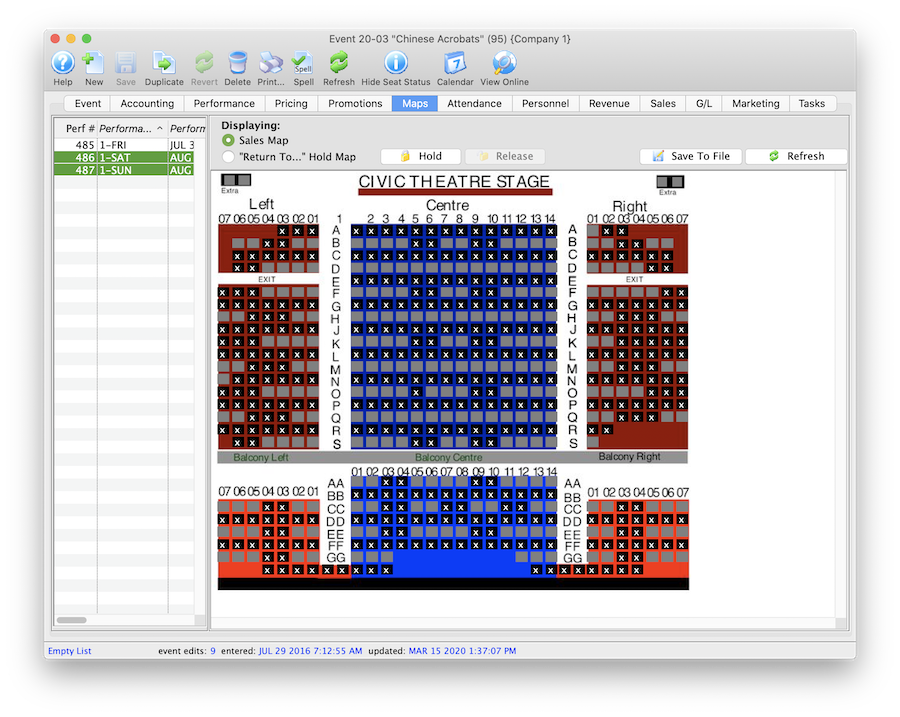
There are times when the map in a performance may need to be updated to reflect the default holds on the venue map for the event. The performance may have been built without using default map holds or the map for the event/performance may have been updated and include new holds. The steps below provide an outline on how to update the performance to reflect the holds using in the venue map:
- Find the event / play you want to hold seats for.
Click here to learn how to find an event / play.
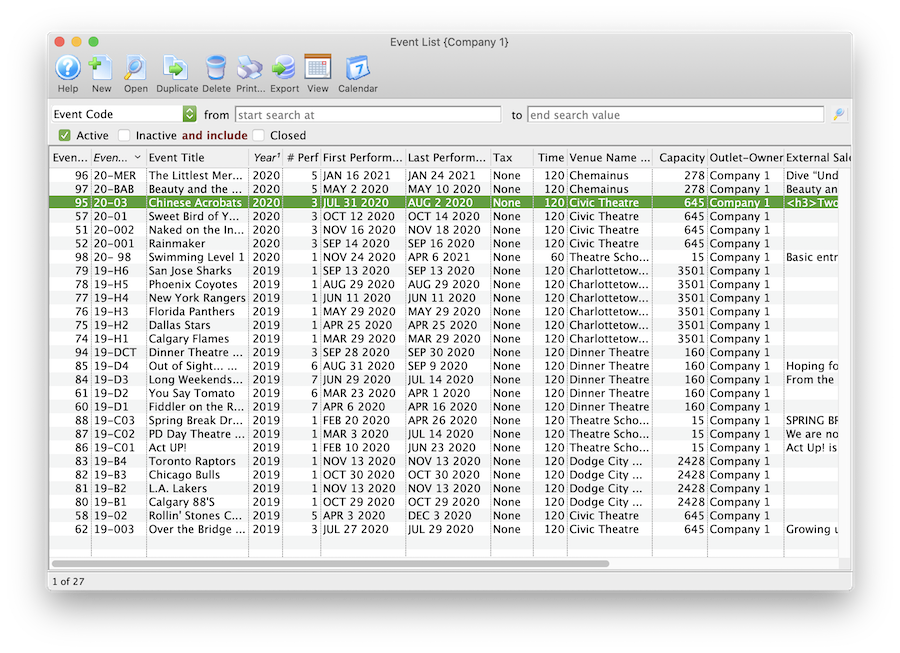
- Open the event / play by selecting it in the list and clicking Open or by double clicking it.
- Select the Maps tab
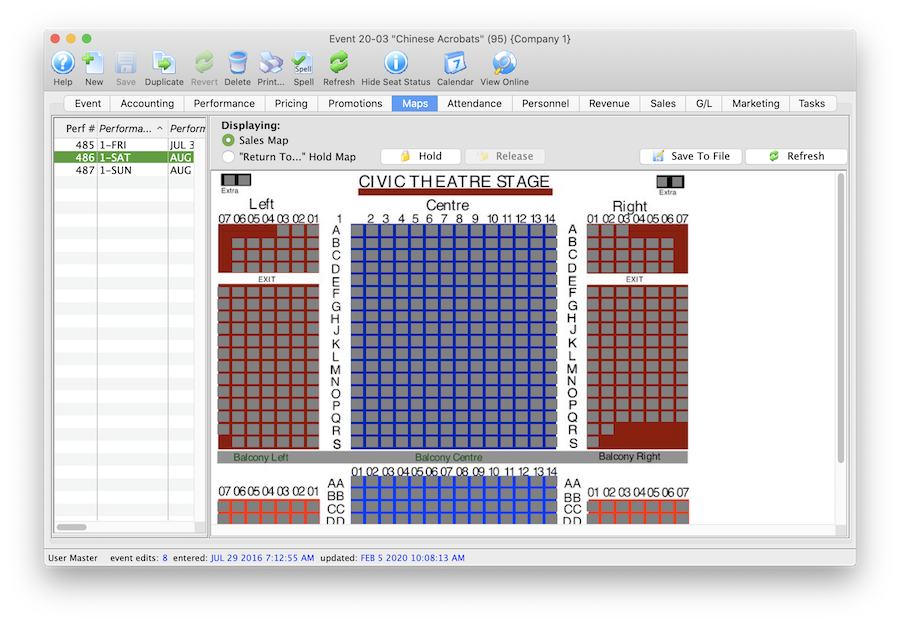
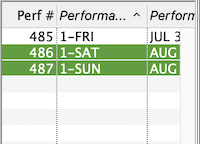
- Highlight the Performance(s) on the left side of the window.
Should you need to hold seats for multiple performances at a time simply select multiple date/times from the list on the left side of the window.
- Right click on the Map to view the options menu.
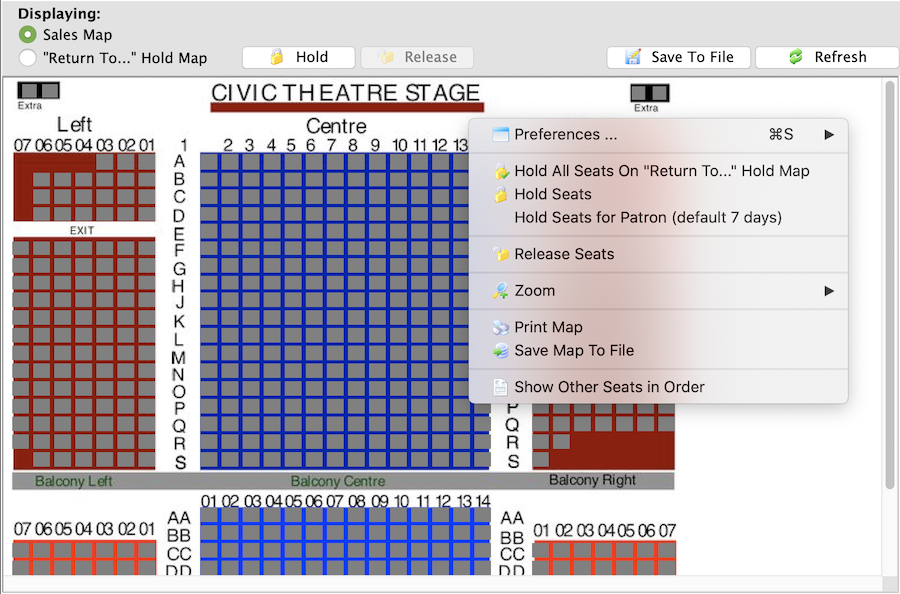
- Select Hold All Seats On "Return To..." Hold Map
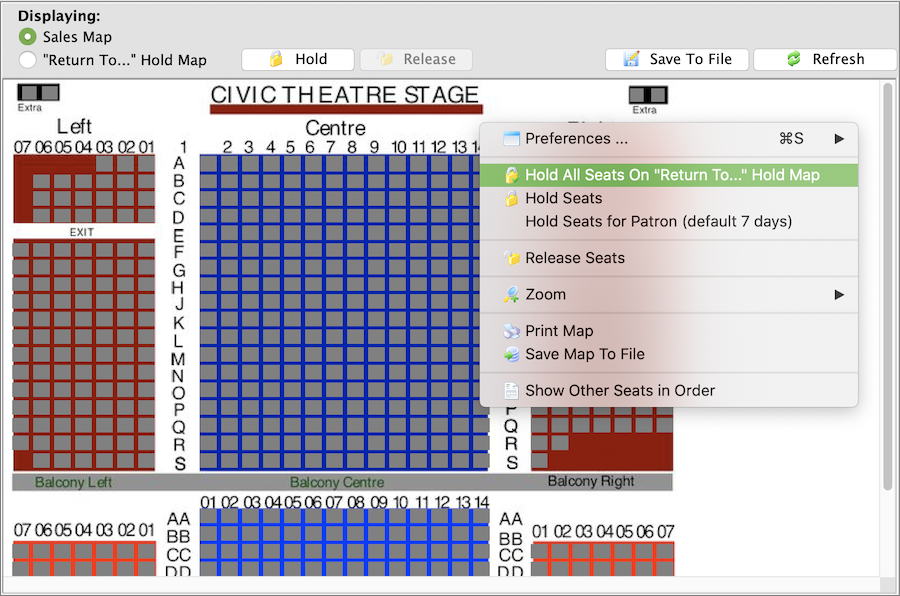
Once the holds have been updated seats will be held with the default letters from the venue map for those performances selected on the left. All holds appear as lower case letters on the map. Changing the hold colour can be done in the Box Office tab of Systems Preferences by a Master User.