Direct ("Cash") Refund
Direct ("Cash") Refund
|
This section presumes you:
|

Creating a Direct Refund
- After highlighting the ticket(s) in the patron record, click the
 button at the bottom of the
 tab.
The Ticket Review tab of the sales process opens. Note--the tickets will have a
 icon next to them in the list.
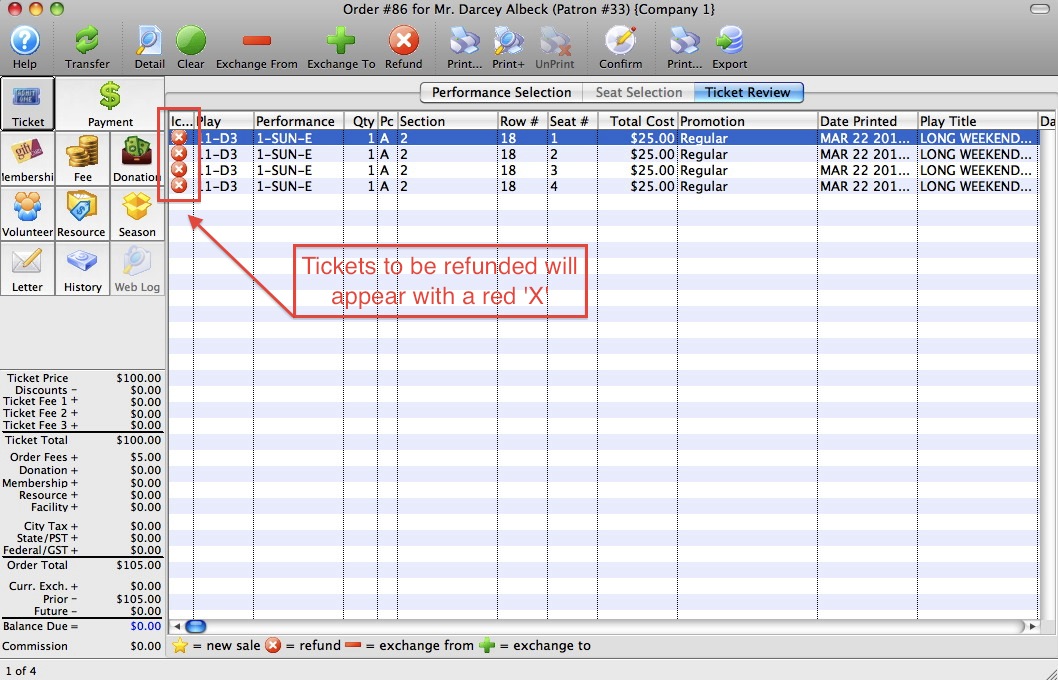
- Highlight all the tickets the patron wants to refund.
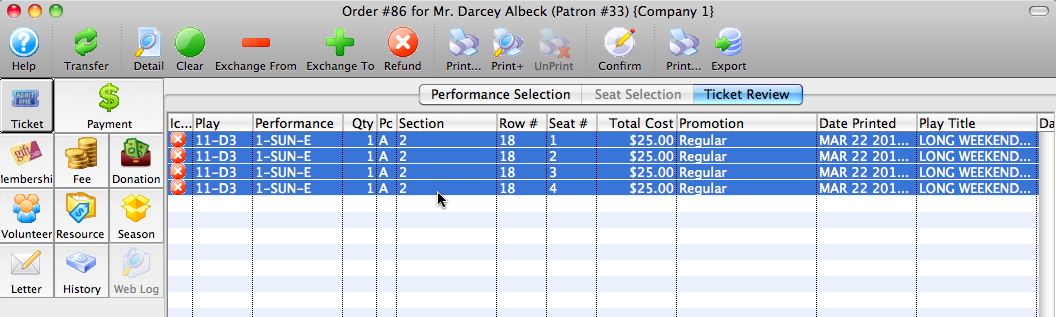
- Click the
 button on the top tool bar.
The tickets disappear. There is now a balance due for the patron, in the lower-left corner, for the value of the tickets.

Note: Theatre Manager will automatically refund the value of the tickets only. Any fees you collected for the sale, are generally non-refundable. However, if you want to refund these fees as well, you may. Simply click on the Fees button in the upper-left corner and delete the appropriate fee.
- Click the
 button in the upper-left corner of the window.
The Payment Window opens.
- Determine the method(s) of payment used for the original transaction.
- Choose the payment method to use for the refund.
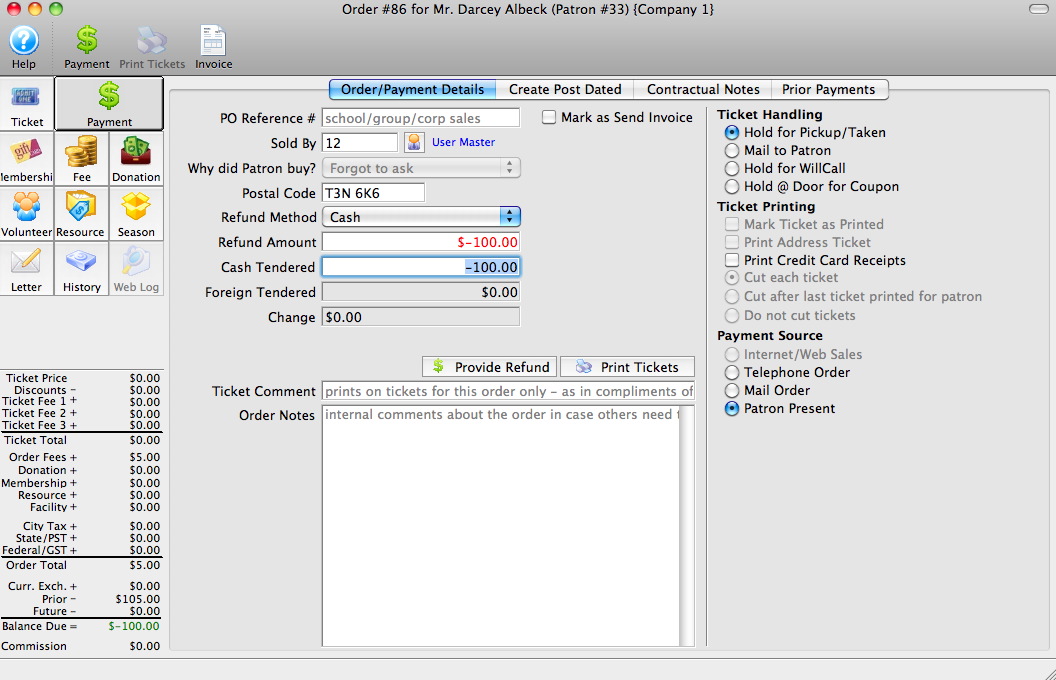
- Click the
 button.
Theatre Manager will journalize the transaction, and return you to the Patron Record.
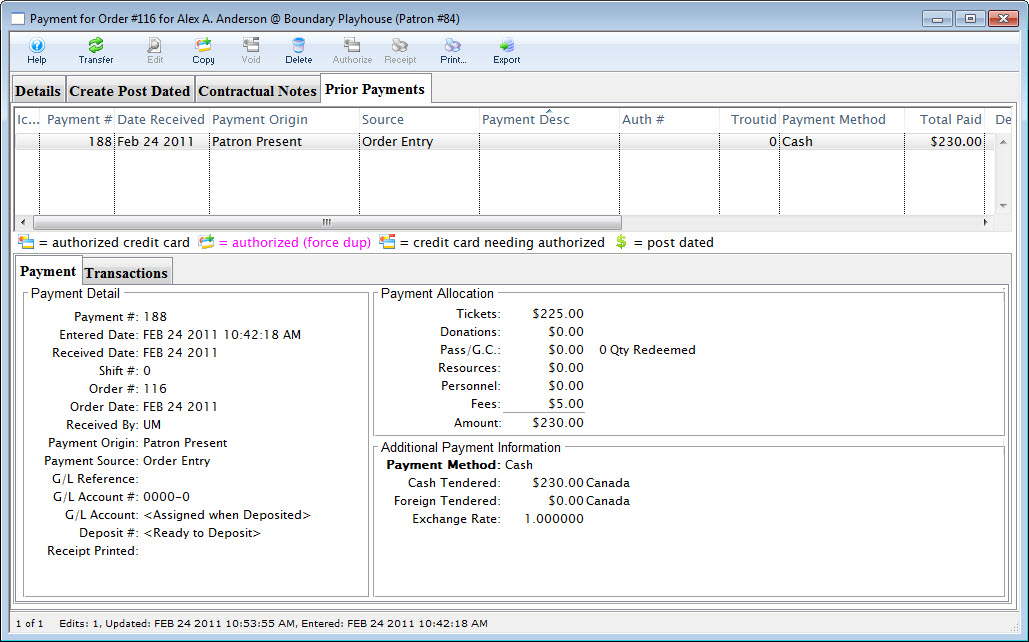
Click on the  tab to see what payments have been previously applied to this order.
|
Note: Normally the refund method should be the same as the method used to originally purchase the tickets. For example, if the patron originally used their VISA card to purchase their tickets, the refund should go on their Visa (and preferably the same VISA card). |
|
From here you can:
|
