Unprinting a Batch of Tickets
Unprinting a Batch of Tickets
The Unprint Batch of Tickets function allows for the 'Printed' flag to be removed from tickets so that they can be printed again. This is helpful when a batch of tickets needs to be reprinted.
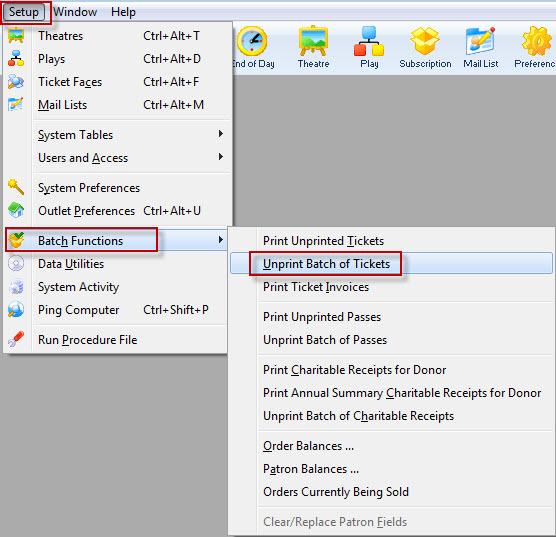
- From the main menu bar, select Setup >> Batch Functions >> Unprint Batch of Tickets.
The Unprint Batch of Tickets window opens.
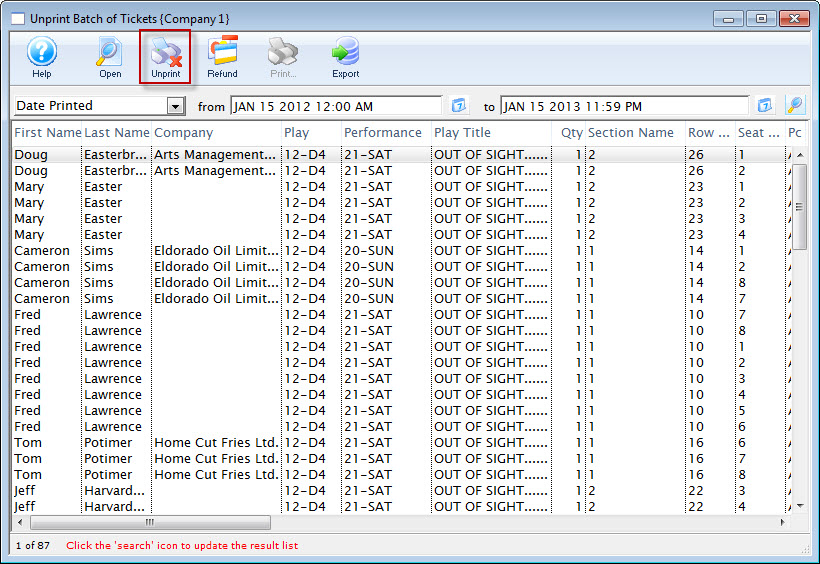
- Enter the date the tickets were printed in the From and To fields.
- Click the Search
 button to begin the search.
Any tickets printed in the date range given will display.
- Highlight the tickets to be unprinted.
Use the <SHIFT> key to highlight a range of tickets. To highlight multiple individual tickets, hold the <CTRL> key (Windows) or the <OPTION> key (Mac).
- Click the Unprint
 button to remove the 'Printed' flag.
The tickets can now be added to a new batch of tickets to be printed.