Refunding a Pass or Membership
Refunding a Pass or Membership
Refunding a Pass or Membership
A Pass or Membership is defined by it's setup. The setup determines how the Pass should behave and how it can be refunded. If there are financial transactions associated with a Pass the process for refunded required honouring the financial transactions created at the time of redemption.
Refunding Membership
Refunding Membership
- Open the Patron window.
Click here to learn how to access this window.
- Click on the Member
 tab.
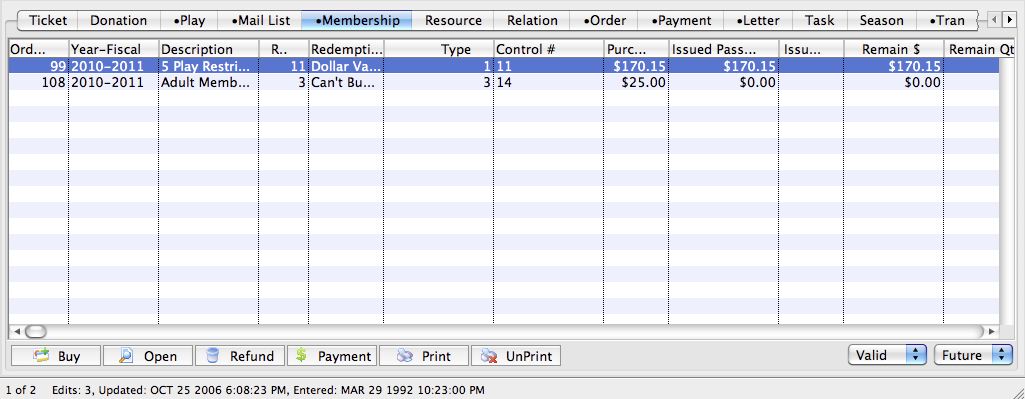
Click here for more details on this tab.
- Select a member type to refund.
Single click on the membership to select it.
- Note the Order Number.
- Click the Refund
 button.
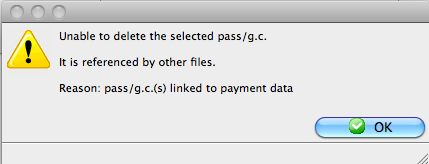
If the record cannot be refunded the following window will appear.
The following confirmation window will appear if the membership can be refunded.
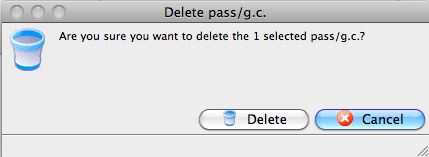
- Click the Delete
 button.
The membership will be deleted. A refund for the value of the Membership needs to be processed.
- Click the Order
 tab.
- Select the Order corresponding to the membership based on the Order Number.
Single click on the Order to select it.
- Click the Payment
 button.
The Payment for Order window will open. Ensure all data is correct before processing.
- Click the Accept Payment
 button.
This refund may also be converted into a donation or ticket sale by clicking the Open
 button rather than the Payment button in step 9.
Refunding A Previously Redeemed Pass
Refunding A Previously Redeemed Pass
Sometimes it becomes important to refund a previously redeemed pass in order to keep the audit trail consistent and allow easier tracking of funds within the transaction history. In order to accomplish this we will need to perform the following steps
First - void the pass used to purchase tickets with so we zero out the balance owing on the pass
Second - Edit the pass to enable Sold for Zero Dollars & Pass Can Be Edited At Time Of Sale
Third - Apply the donation or value of the pass on the Order to reallocate the funds.
- Void the Pass payment
Open the patron record and go to the Payments tab. Select the payment that has the partially used pass and click the Void button in the lower toolbar.
A confirmation window will appear, click Delete/Void to move on to the next step.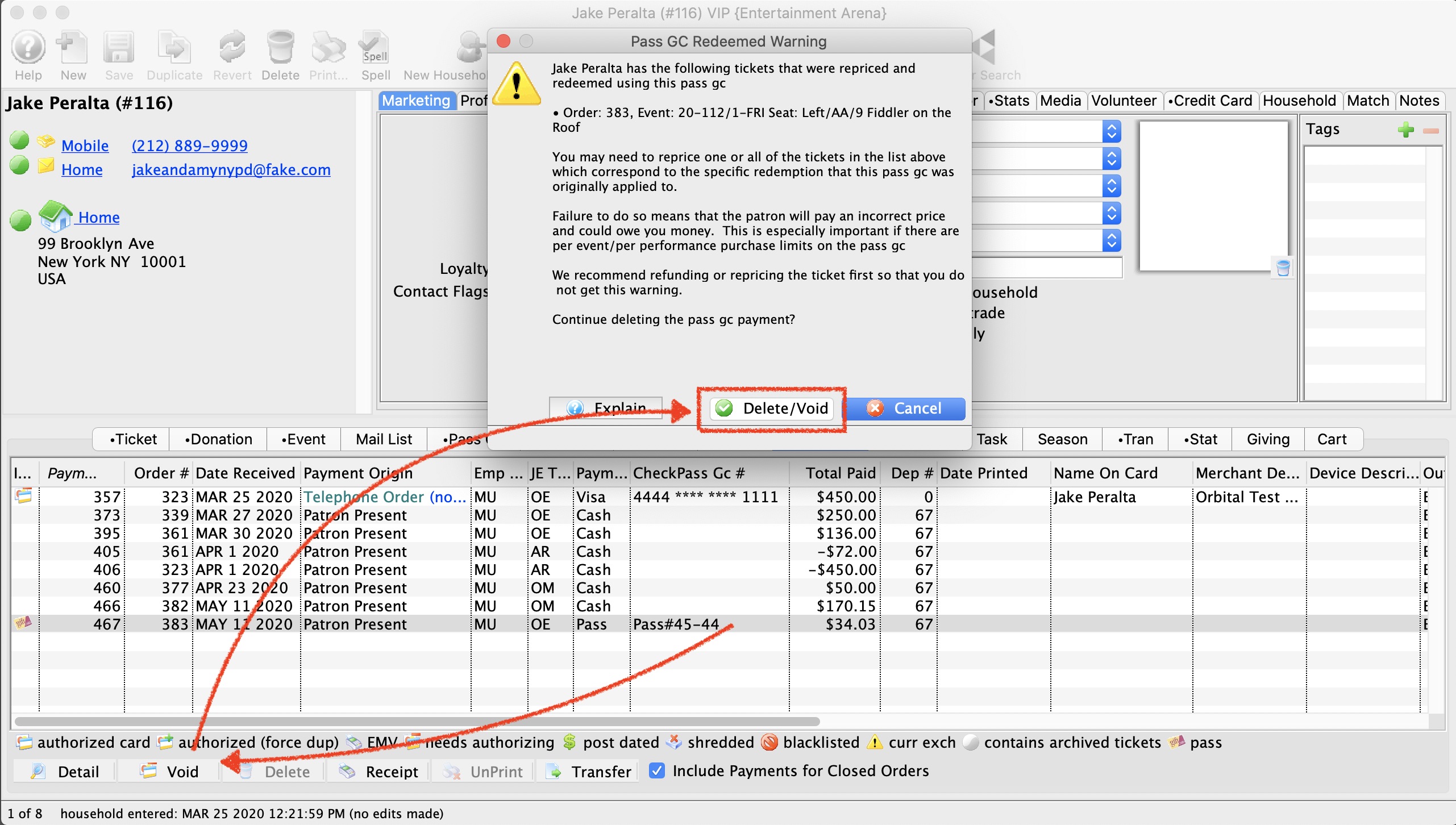
- Edit the Pass
- Value can be changed during purchase
- Sell in even multiples of original value
- Can be sold for a zero value
- Apply the donation or value of the pass
- Use the Balance for other purproses
Now that the pass has been "zero'd out" yoou will notice the balance of the pass is available for other uses such as a donation or gift certificate.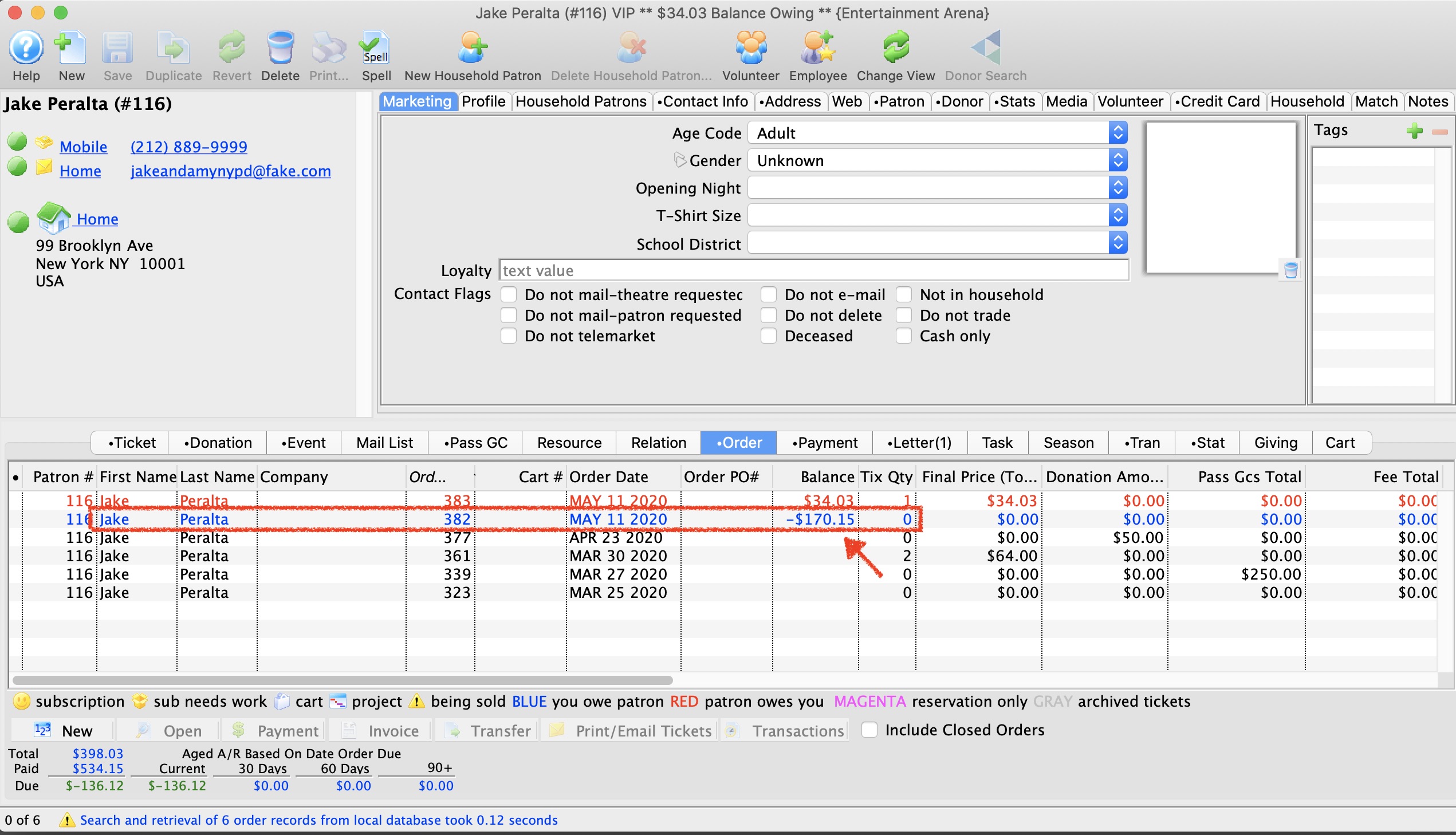
Go to Setup -> System Tables -> Pass Types, then go to the Edits tab.
On the Edits tab we want to make sure the following 3 check boxes are enabled:
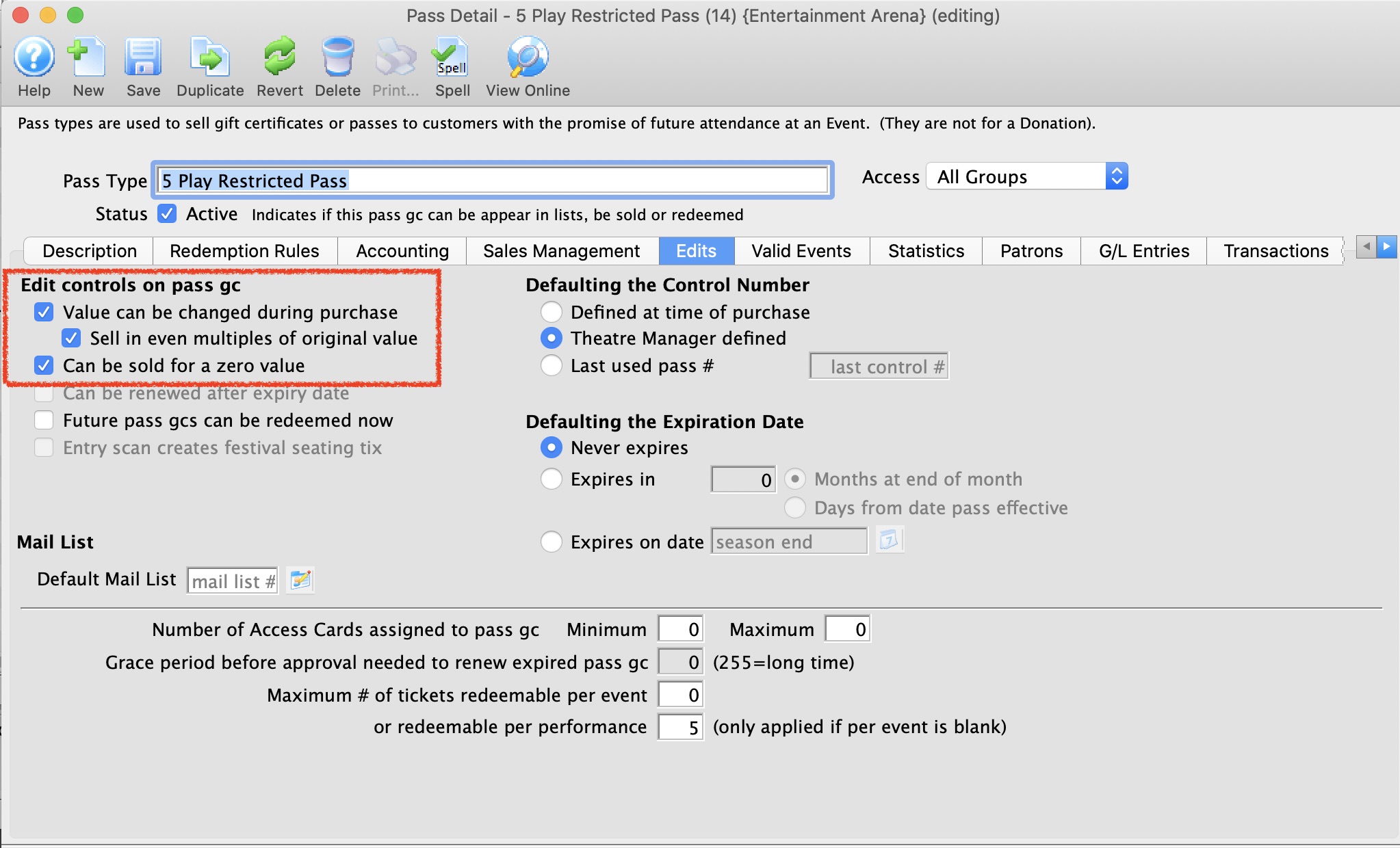
Once the check boxes are checked, click save and close out of the Pass Type setup. Now that the pass is "editable" (as we've turned on "Can be changed during purchase" we are ready to go back to the patron record and edit the value of the previously redeemed pass to zero.
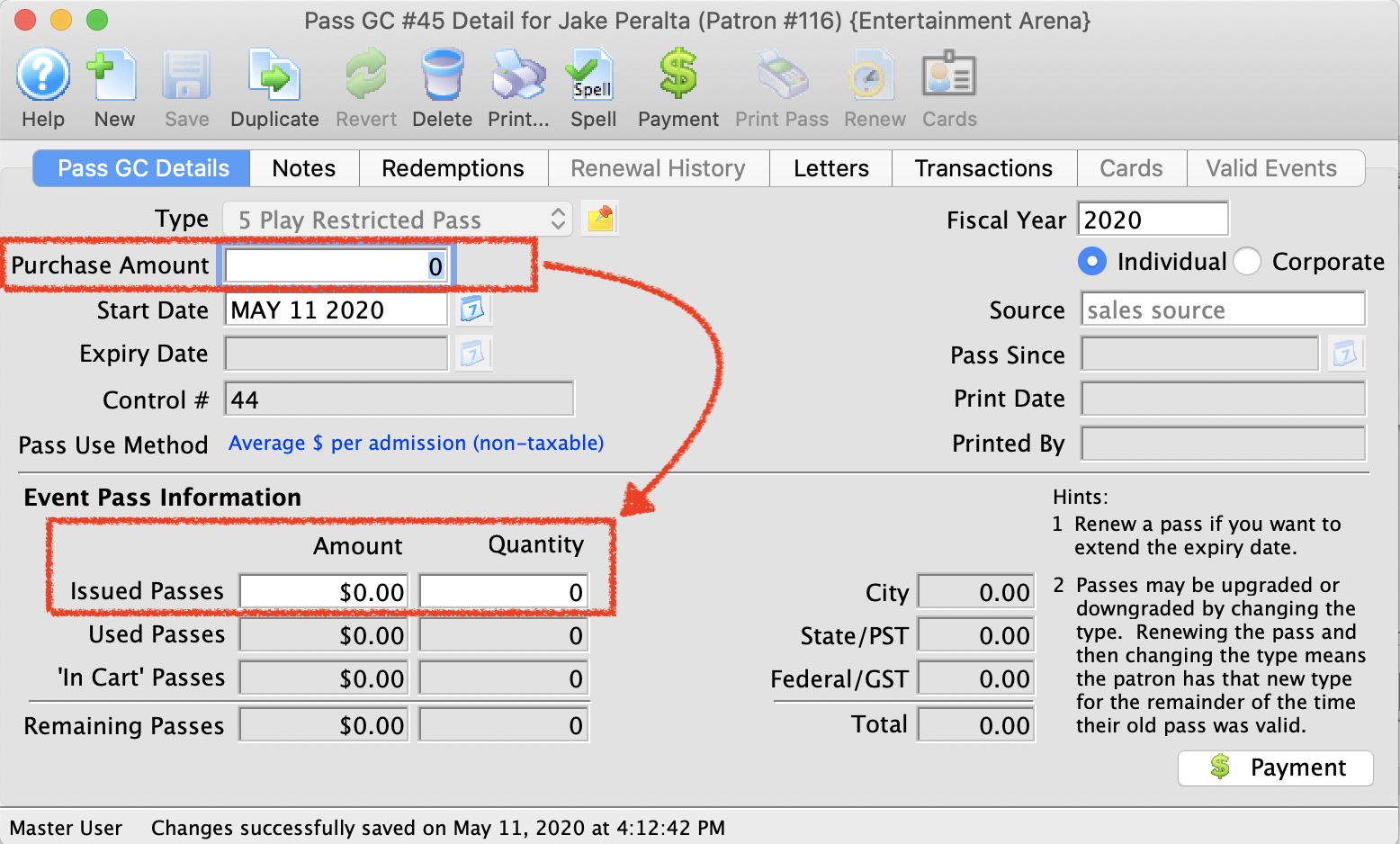
Open the pass in question and on the Pass GC Details tab, change the purchase amount to zero. When you do this, the Issued Passes and Quantity will reset to zero as well.