Redirecting link on your main website specifically for Courses
Redirecting link on your main website specifically for Courses
Creating a link to courses entails using the &search parameter in the event URL. By picking the right &search parameter you can:
- Show all courses by using the parameter &search=PB_SALES_METHOD=6 in the link. This is, by far, the easiest as
- it simply shows all courses -and-
- is immediately effective when new courses are created.
- Show selected events which can in the &search parameter. A sample is shown later on this help page.
- This has the advantage of allowing events sold as courses as well as a final 'parent' performance to be found in one list.
- It has the disadvantage that the web page link must be changed each time you have a new course
- A hybrid approach that may have a &search parameter that show all events sold as courses or some specific 'finale' performances.
An example of showing a link specific courses (Option 2 above)
A company has three Courses that are one-time events or workshops. Patrons can pick and choose or select all three if they'd like.
In our example, the company wants a link redirecting patrons to the list of Events/Courses (we'll discuss a need for a list of Performances/Classes further down).
In the Event List in Theatre Manager, the Courses look like this:
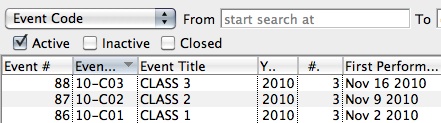
The Event # column is the one at the far left.
Those unique Event #'s - 86, 87, and 88 in the example - will belong to only the corresponding Event in the database and no others.
"x, y and z" are representative of those unique Event #'s in the search string in the link discussed above for creating a link to a list of Events.
A link to these Courses will look like:
https://tickets.myserver.com/TheatreManager/1/login&event=0&search=P_SEQ IN(86,87,88)Similarly, you can create a link to a list of specific Performances for sale. This can be useful if your organization offers a Course made up of a series of Classes which can be purchased separately.
In this case, the Performance # works as the unique identifier for each Class in the Course.
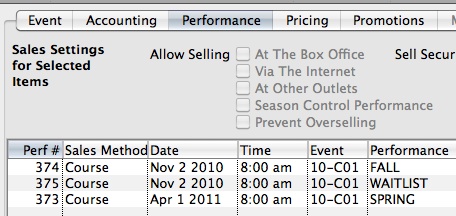
Under the Course (Event) Setup, in the Performance Tab, the Perf # column is on the far left of the list of performances:
In the example image, the Perf #'s are 373, 374 and 375. A link to a list of those Classes would look like:
https://tickets.myserver.com/TheatreManager/1/login&event=0&search=PB_S… IN(373,374,375)
Care should be taken when creating Courses and Classes that you change the Sales Method to "Course" in the Performance Setup stage of the Course Setup.
Online patrons can purchase a Course and then assign another patron as the attendee for the Course (helpful in cases where the parent buys a class for a child who will be attending). For this option to be available, Courses must be setup as Sales Method - Course. For more information about Courses in Theatre Manager, click here.