Printing Season Tickets
Printing Season Tickets
To print a batch of tickets, you perform the following steps:
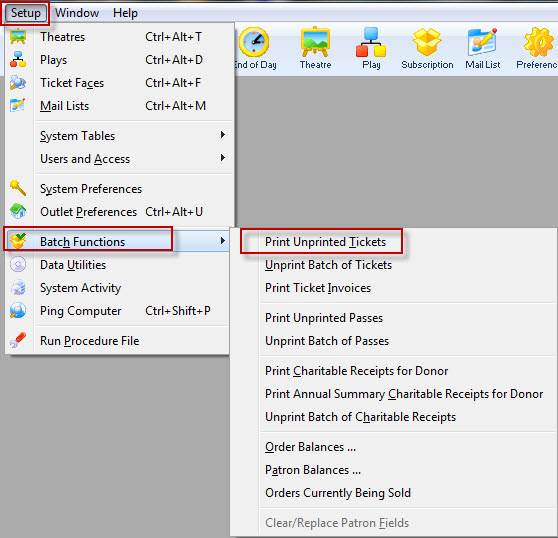
- Choose Setup >> Batch Functions >> Print Unprinted Tickets.
The Batch Ticket Printing window and the Parameters window will both open.
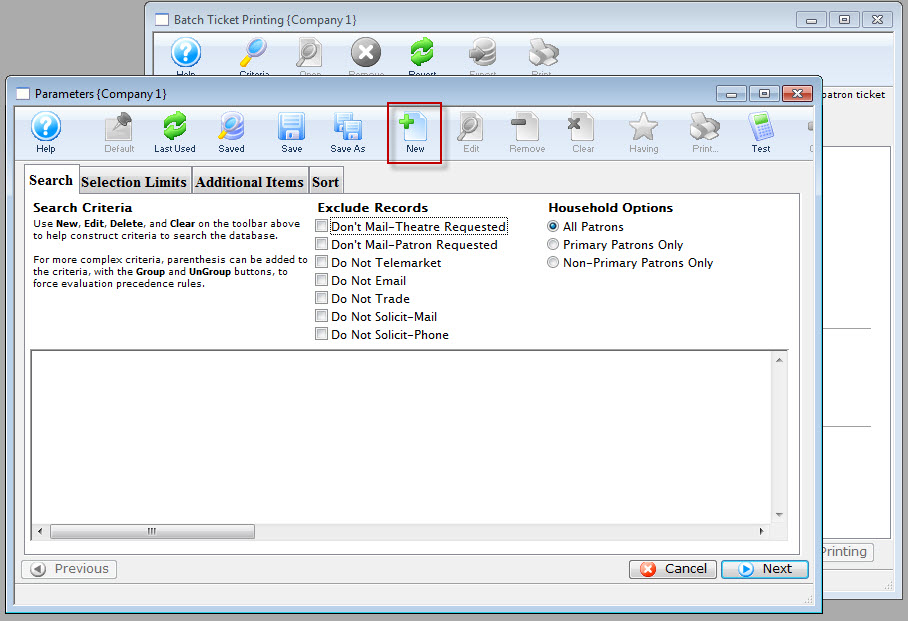
- Click the New
 button
to add a new criteria to the parameters window.
The Add/Edit Criteria window opens.
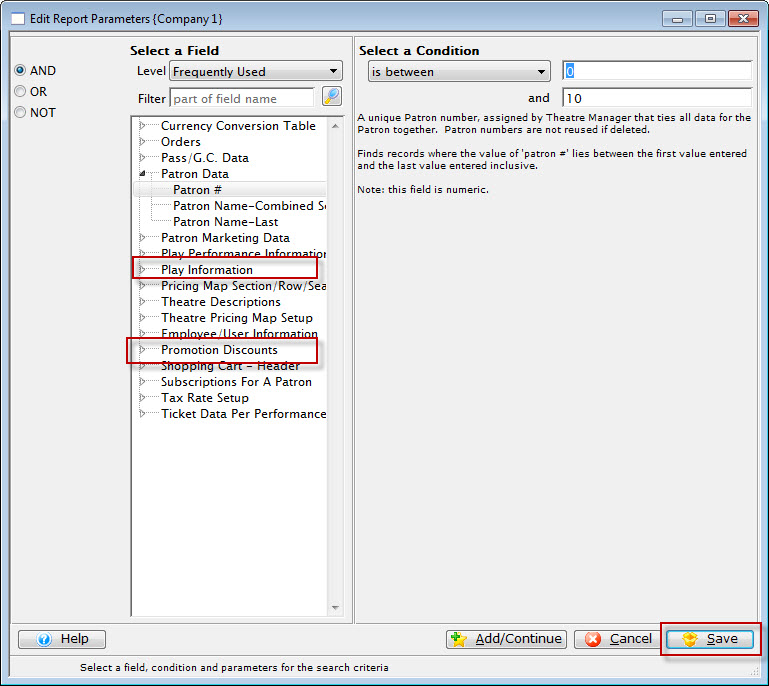
- Select the search Criteria for the tickets to print and
press the Save
 button.
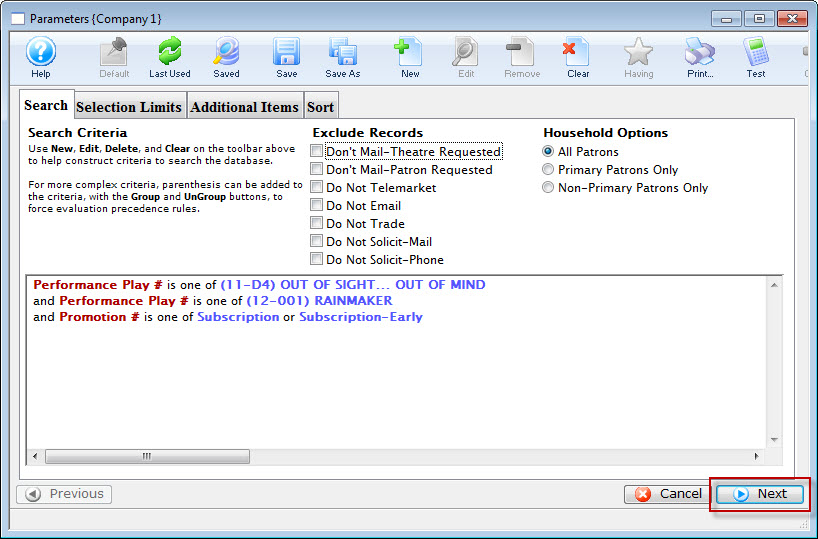
Click here for more information on report criteria. The example above shows criteria that would print all unprinted tickets with the performance codes matching those of the season subscription and with either a subscription or early-subscription price code. To get this criteria, select Promotion # on the left hand side, and select Subscription and Early Subscription on the right hand side.
- Click the Next
 button.
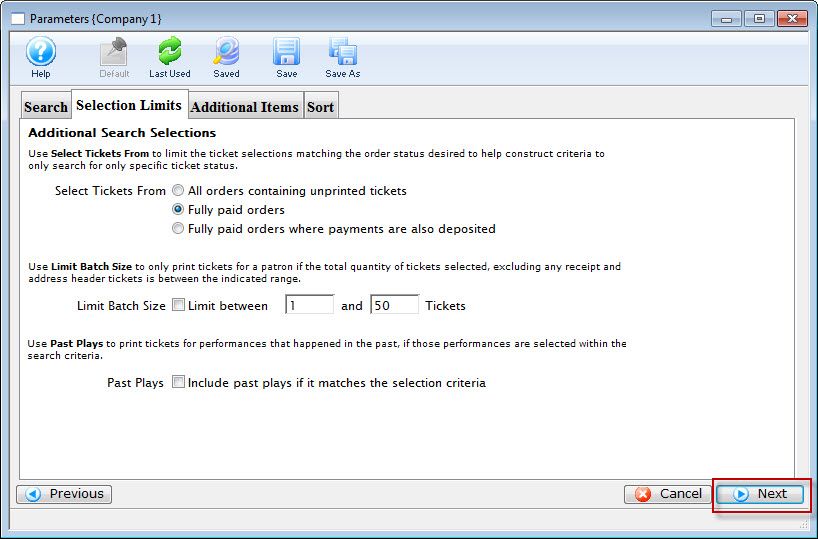
- Choose the option for "All Orders containing unprinted orders."
Select Tickets From
All Orders containing uprinted tickets
Will only select tickets meeting the criteria and that are marked as unprinted.
Fully paid orders
Will only select tickets meeting the criteria and that the order is fully paid for.
Fully paid orders where payments are also deposited
Will only select tickets meeting the criteria and that the order has been process through the End of Day.
Limit Batch Size
Limit between
This allows the batch to print only patron orders that are between the minimum and maximum limit.
Past Plays
Include past play if it matches the search criteria
This will allow tickets to be printed for performances that have occurred already provided they meet the criteria.
- Click the Next button.
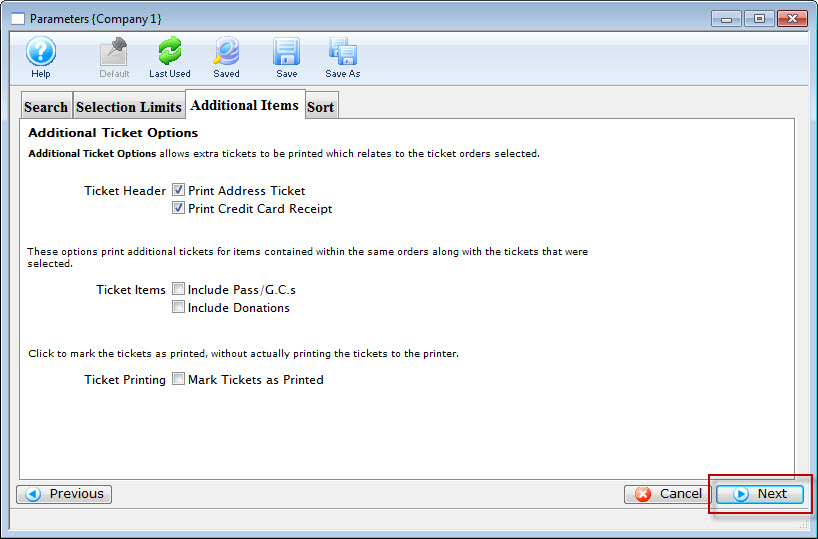
- Select the applicable data for the tickets to print.
Ticket Header
Print Address Ticket
Prints an additional ticket containing the address information of the patron.
Print Credit Card Recipt
Prints an additional ticket containing the credit card receipt if a credit card was used to pay for the order.
Ticket Items
Include Memberships
Prints an additional ticket if a Membership purchase was included on the same order.
Include Donations
Prints an additional ticket if a Donation purchase was included on the same order.
Ticket Printing
Mark Tickets as Printed
This option will print no tickets, but still mark the tickets as printed.
- Click the Next button.
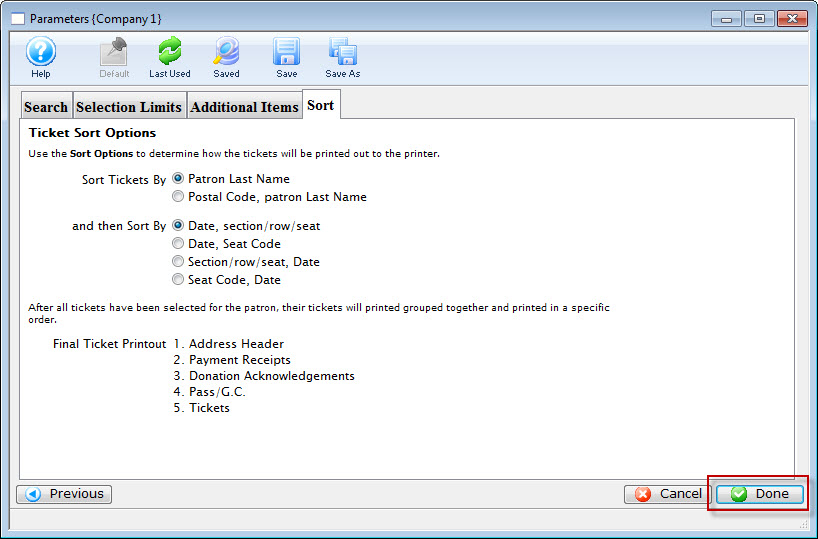
Sort Tickets By
Patron Last Name
All tickets will print in alphabetical order based on the patron's last name.
Postal Code, Patron Last Name
All tickets will be grouped together by postal code, and each group will be in alphabetical order based on the patron's last name.
and then Sort By
Date, Section/Row/Seat
For tickets to multiple performances, the individual tickets will be sorted by the performance date and then the seats.
Date, Seat Code
For tickets to multiple performances, the individual tickets will be sorted by the performance date and then the seat codes.
Section/Row/Seat, Date
For tickets to multiple performances, the individual tickets will be sorted by seat and then by the performance date.
Seat Code, Date
For tickets to multiple performances, the individual tickets will be sorted by seat code and then by the performance date.
- Click the Done
 button.
You are returned to the Ticket Printing window.
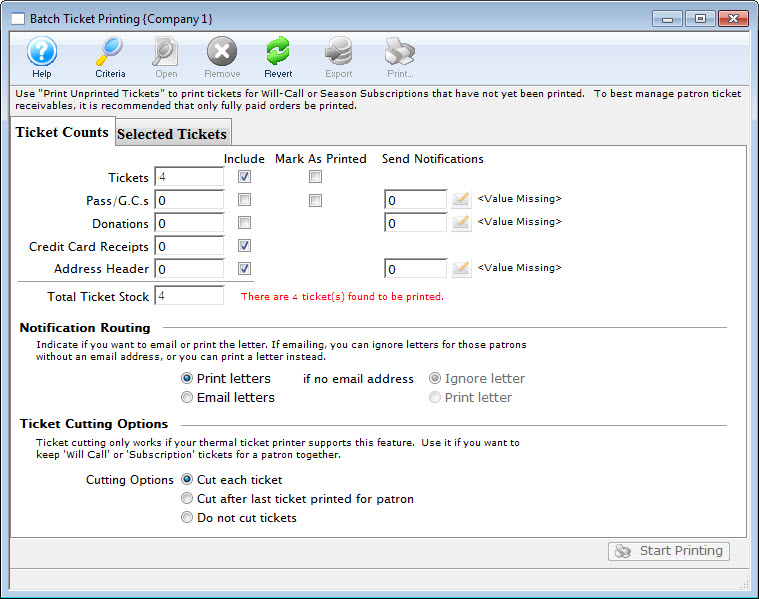
- This window will display the total number of tickets based on the
criteria, and allow any final changes to be made.
Click here for more information about this window.
- Click the Start Printing button when the batch is ready to print.