Form Letter keyboard short cuts
Form Letter keyboard short cuts
There are over 40 keyboard shortcuts for editing text or cursor movement in a document that are listed below. They cover some of the things that people do the most and are intended, as much as possible, to be comparable to the similar keystrokes in Microsoft Word. Using keystrokes will also change the options displayed within the toolbar (example on the right)
There are other methods of formatting your document:
- The Form Letter Menu and SubMenus
- The Form Letter Tools Palette
- Use the context menu to alter the selected object (text, image, table) by right clicking it.
| Form Letter Action | OSX Shortcut Keys | Windows Shortcut Keys | Tools Palette |
| Bolds or unbolds the selected text | Command & B | Ctrl & B |
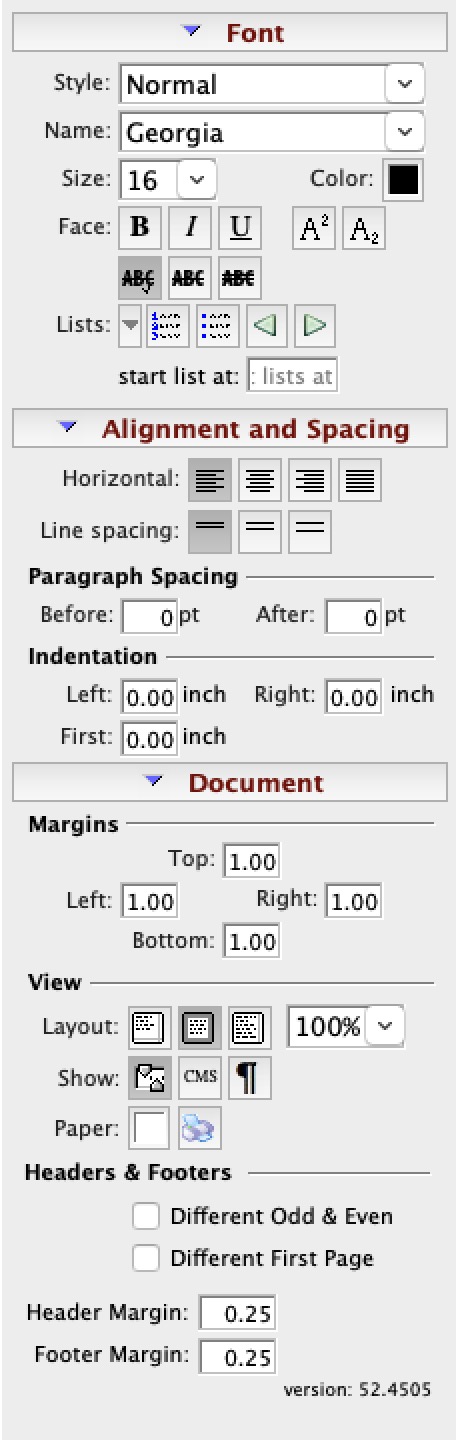
|
| Italicizes or removes italicization from the selected text | Command & I | Ctrl & I | |
| Underlines or removes underlining from the selected text | Command & U | Ctrl & U | |
| Makes the selected text smaller by increments | Command & [ | Ctrl & [ | |
| Makes the selected text larger by increments | Command & ] | Ctrl & ] | |
| Makes the selected text smaller by one point size | Command & Shift & { | Ctrl & Shift & { | |
| Makes the selected text larger by one point size | Command & Shift & } | Ctrl & Shift & } | |
| Hide or show non printable characters | Command & Shift & 8 | Ctrl & Shift & 8 | |
| Selects all text | Command & A | Ctrl & A | |
| Undo the latest change. You can undo multiple times to back out a number of changes | Command & Z | Ctrl & Z | |
| Redo the latest change. You can redo multiple times to roll forward a number of changes | Command & Y | Ctrl & Y | |
| Cut the selected items | Command & X | Ctrl & X | |
| Copy the selected items | Command & C | Ctrl & C | |
| Zooms out on the document (you see more of the document in the same viewing area and everything is smaller) | Command & - | Ctrl & - | |
| Zooms in on the document (you see less of the document in the same viewing area and everything is magnified) | Command & = | Ctrl & = | |
| Paragraph alignment - left justify | Command & Shift & L | Ctrl & Shift & L | |
| Paragraph alignment - right justify | Command & Shift & R | Ctrl & Shift & R | |
| Paragraph alignment - center justify | Command & Shift & C | Ctrl & Shift & C | |
| Paragraph alignment - fully justify | Command & Shift & J | Ctrl & Shift & J | |
| Paragraph spacing - single line | Command & 1 | Ctrl & 1 | |
| Paragraph spacing - double line | Command & 2 | Ctrl & 2 | |
| Paragraph spacing - 1.5 lines | Command & 5 | Ctrl & 5 | |
| Paragraph increase left indentation | Command & M | Ctrl & M | |
| Paragraph decease left indentation | Command & Shift & M | Ctrl & Shift & M | |
| Paragraph increase first line indentation. The first line is indented more within the paragraph. | Command & T | Ctrl & T | |
| Paragraph decrease first line indentation. This can make paragraph out-dents | Command & Shift & T | Ctrl & Shift & T | |
| Previous character | left-arrow | left-arrow | |
| Next character | right-arrow | right-arrow | |
| Previous word | Option & left-arrow | Ctrl & left-arrow | |
| Next word | Option & right-arrow | Ctrl & right-arrow | |
| Previous paragraph | Option & up-arrow | Ctrl & up-arrow | |
| Next paragraph | Option & down-arrow | Ctrl & down-arrow | |
| Beginning of line | Command & left-arrow | Home | |
| End of line | Command & right-arrow | End | |
| Beginning of document | Home | Ctrl & Home | |
| End of document | End | Ctrl & End | |
| Scroll left | Command & Option & left-arrow | Ctrl & Option and left-arrow | |
| Scroll right | Command & Option & right-arrow | Ctrl & Option and right-arrow | |
| Scroll up | Command & Option & up-arrow | Ctrl & Option and up-arrow | |
| Scroll down | Command & Option & down-arrow | Ctrl & Option and down-arrow | |
| Scroll page up | Page Up | Page Up | |
| Scroll page down | Page Down | Page Down |