Step 1 - Installing Scanner Software
Step 1 - Installing Scanner Software
Follow the steps in this section to install the software on the iOS device you are using. If you encounter any issues, check the frequently asked questions for troubleshooting
- Install the TM Scanner app on an iPhone/iPod
- Add the purchased Linea Pro Scanner attachment around the iOS device
- Test the scanner on some sample tickets in your environment
 |
The purchase of the linea pro scanner/licence does not include an iOS device.
It must be acquired separately |
For installation instructions, click on the picture of the scanner.
|
TM Scanner - with Linea Pro Bar Code Scanner
TM Scanner - with Linea Pro Bar Code Scanner
|
The purchase of the linea pro scanner/licence does not include an iOS device.
It must be acquired separately |

|
 You can download the TM Scanner application by visiting the Apple App Store using the link above or typing tm scanner in the app store search The TM Scanner bar code scanner application can be used on iOS with a device like an iPhone in conjunction with a hardware scanner from Linea Pro.
|
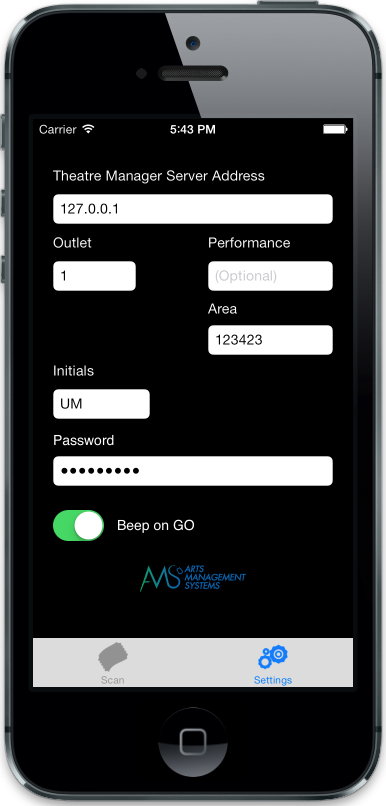 To use this application, you will need to:
- Make sure your ticket face has a bar code that goes all across the ticket so that it can be scanned more easily. Refer to adding a field to the ticket.
- Provide your own iPod or iPhone
- iOS 10 is currently the earliest compatible OS
- It is always recommended to keep the devices updated to the latest version of iOS, in order to maintain security compatibility
- Download the app from Apple's App Store. The app is free and may be installed on any number of devices that you wish.
- Contact our sales department to:
- Purchase the Linea Pro to match your iOS device for rapid scanning.
- Add scanner licensing to your second generation listener (happens automatically when you purchase the above scanner hardware)
- You can also type the ticket number on the screen as an option if you don't want to have a scanner. This approach is far less efficient than having scanner hardware as the ticket number is manually typed rather than scanned.
- Make some settings in the TM Scanner app to talk to your web server
- Set the print at home barcode to QR Code format.