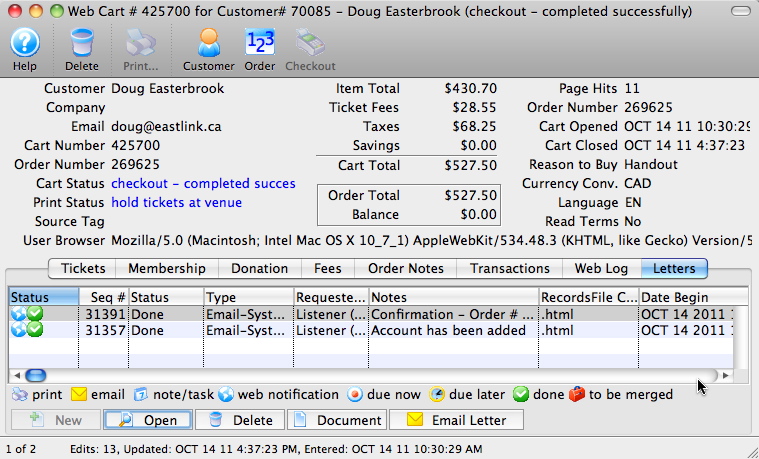
Shopping Cart Detail
Shopping Cart Detail
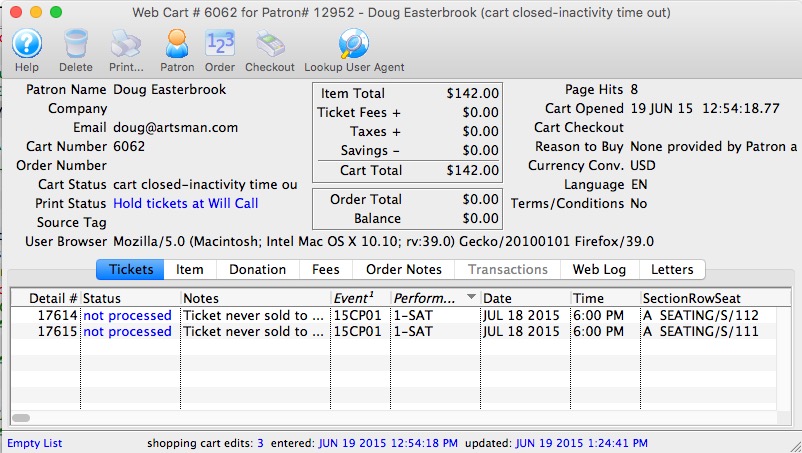
The shopping cart detail window shows what was in the patrons shopping cart and allows you do do some specific things for the patron. Each of the tabs is shown in separate sections.
On the main window, most of the fields deal with the status of the cart and its value. There are two other fields of particular interest:
- Source Tag - which is a convenient way of tying back how people started the shopping cart. This can be used to determine how many people bought from an eblast, or another web site referral -- if the &TMsource=xxx tag is placed on the referring URL.
- User Browser - is the complete string indicating the browser version, platform and application that was talking to the server. You can tell if somebody used a mobile phone, ticket trove, safari and/or a mac, PC or linux machine to talk to the web listener. Refer to the Lookup Use Agent button below.
The Toolbar works as follows:
- Help - Provides help
- Delete - allows a cart with no detail to be deleted
- Print - print some of the lists from the cart
- Customer - if the patron signed in, this will open the patron record for a complete view of the patron. If it is an anonymous cart, you cannot view the patron
- Order - if the patron went through the checkout process, then the cart will be tied to an order. The shopping cart window shows what they wanted to buy - clicking on the 'Order' will open up the order and let you change what they actually bought.
- Checkout - serves two functions, depending on the state of the cart.
- If the cart is 'Active' (and the patron logged in on the web), clicking on the 'Checkout' button will take the cart away from the web listener and add all the items in the cart to an order. At the end, you will be presented with the payment window so that you can ask the patron to provide a credit card.

This helps you assist customers who call in to complete their cart, especially if they are having issues with their card not being accepted or they are uncomfortable providing it online for some reason. - If the cart is 'complete' and already checked out, it is possible that there are some tickets that are still on hold in the cart. This can happen in very rare cases of high server load. If so, then you can complete the process and convert a ticket on hold in the cart to being sold to the patron at the click of a button.
- If the cart is 'Active' (and the patron logged in on the web), clicking on the 'Checkout' button will take the cart away from the web listener and add all the items in the cart to an order. At the end, you will be presented with the payment window so that you can ask the patron to provide a credit card.
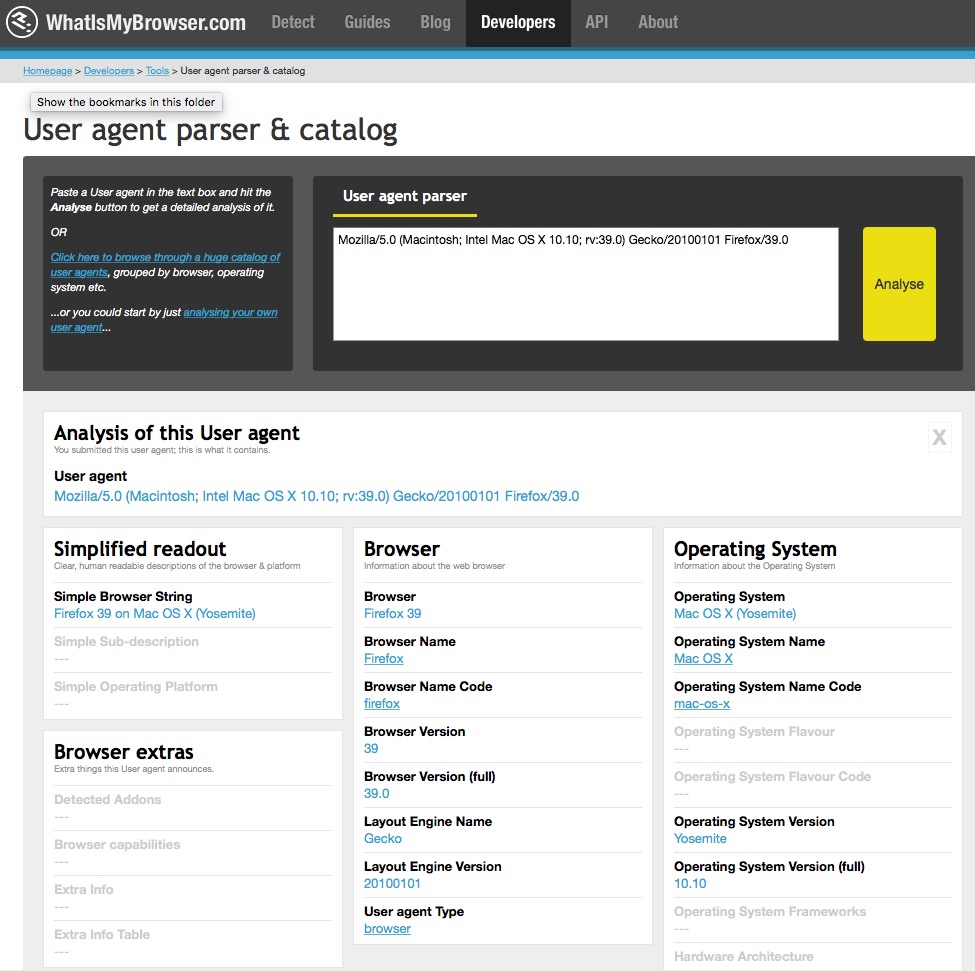
- Lookup User Agent - this will
- copy the user agent string to the clipboard automatically for you
- Open a web site that analyzes what a user string means
- paste in the user string
- Click 'Analyze' and that will interpret what the user string is for you (you can see a sample in the image below).
Web Cart Ticket Tab
Web Cart Ticket Tab
- Ticket purchased successfully - which means the person wanted that ticket and still has it
- Hold expires on xxxx and is for patron - which means that the patron wanted the ticket and has it in their cart but has either not checked out yet, or abandoned the cart, or has checked out and there was a processing issue. In any of those cases, the ticket is on hold for the patron for some period of time
- Ticket is sold to another patron - means that the ticket in this cart is now owned by somebody else. It could be because the patron abandoned the cart, or the ticket was exchanged at some time in the past
- Ticket is not sold to anybody - means that the patron wanted the ticket and some time has passed -- and it is neither held nor sold to anybody. it means it is available should the patron call in and want it.
Web Cart Membership/Pass/GC tab
Web Cart Membership/Pass/GC tab
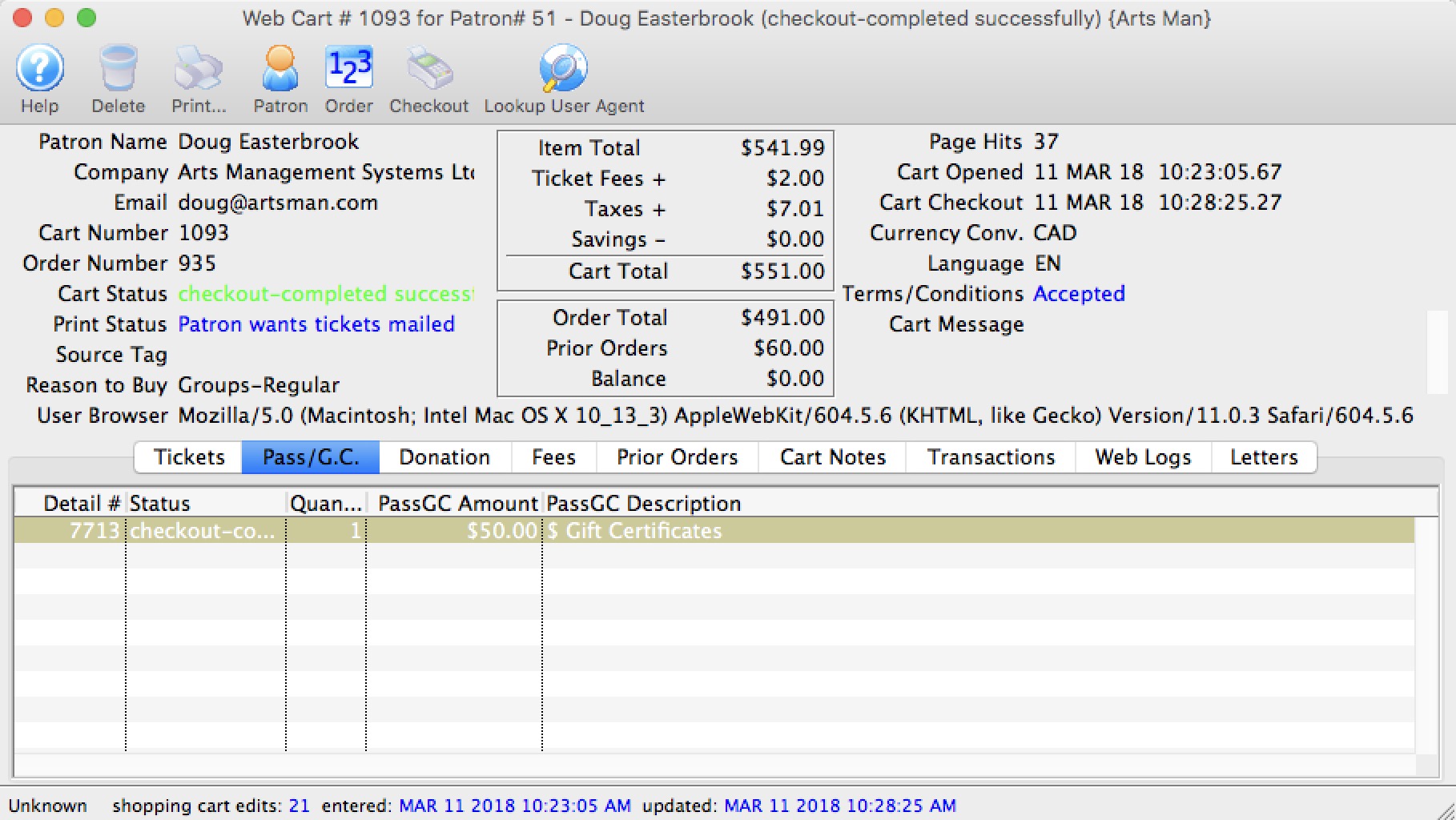
Web Cart Donation Tab
Web Cart Donation Tab
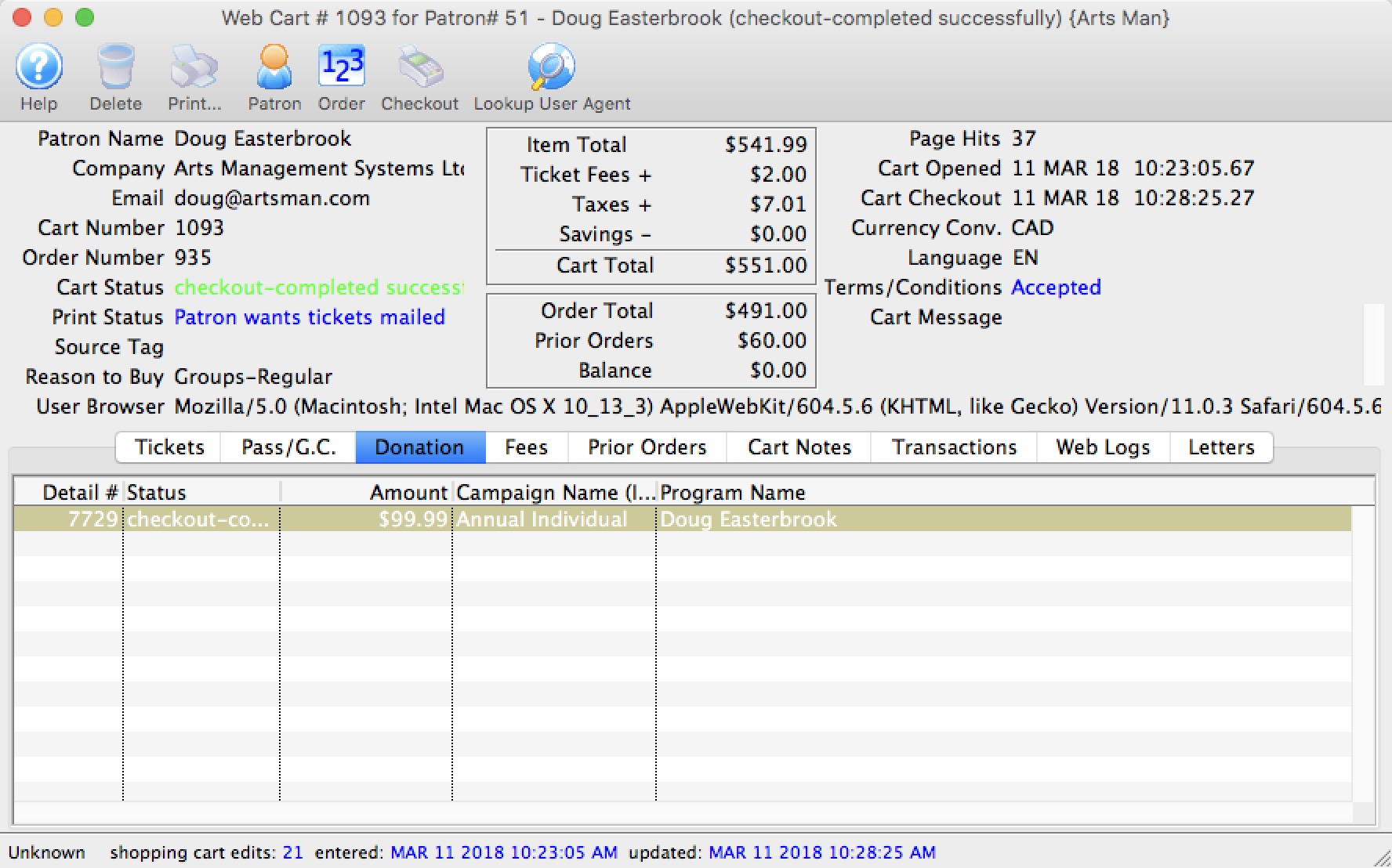
Web Cart Resource Tab
Web Cart Resource Tab
Web Cart Fee Tab
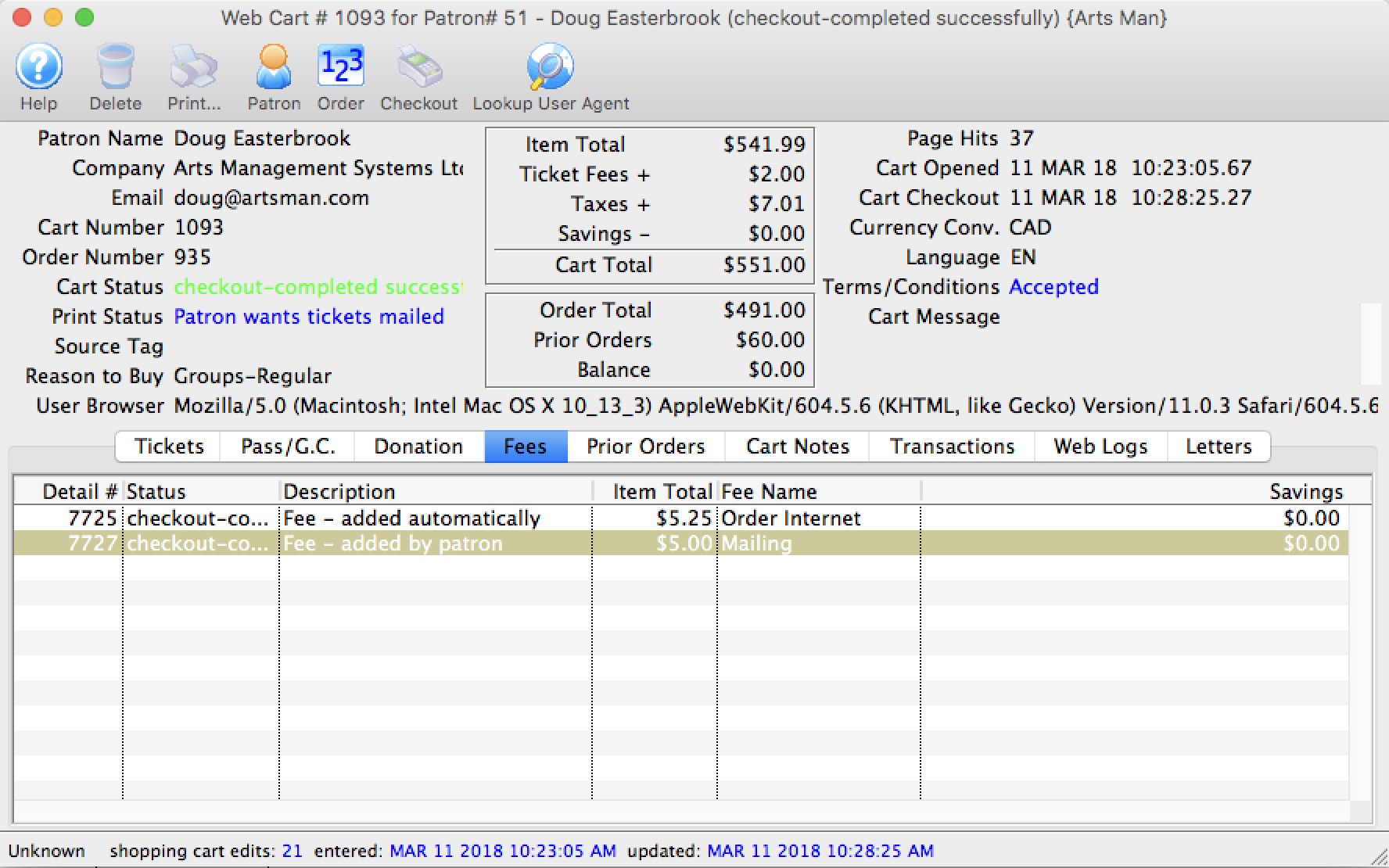
Web Cart Prior Orders
Web Cart Prior Orders
|
A payment for prior orders online follows the rules of applying a single payment for multiple orders
Example: If the prior order was $10.00, you will see THREE payment transactions as follows:
|
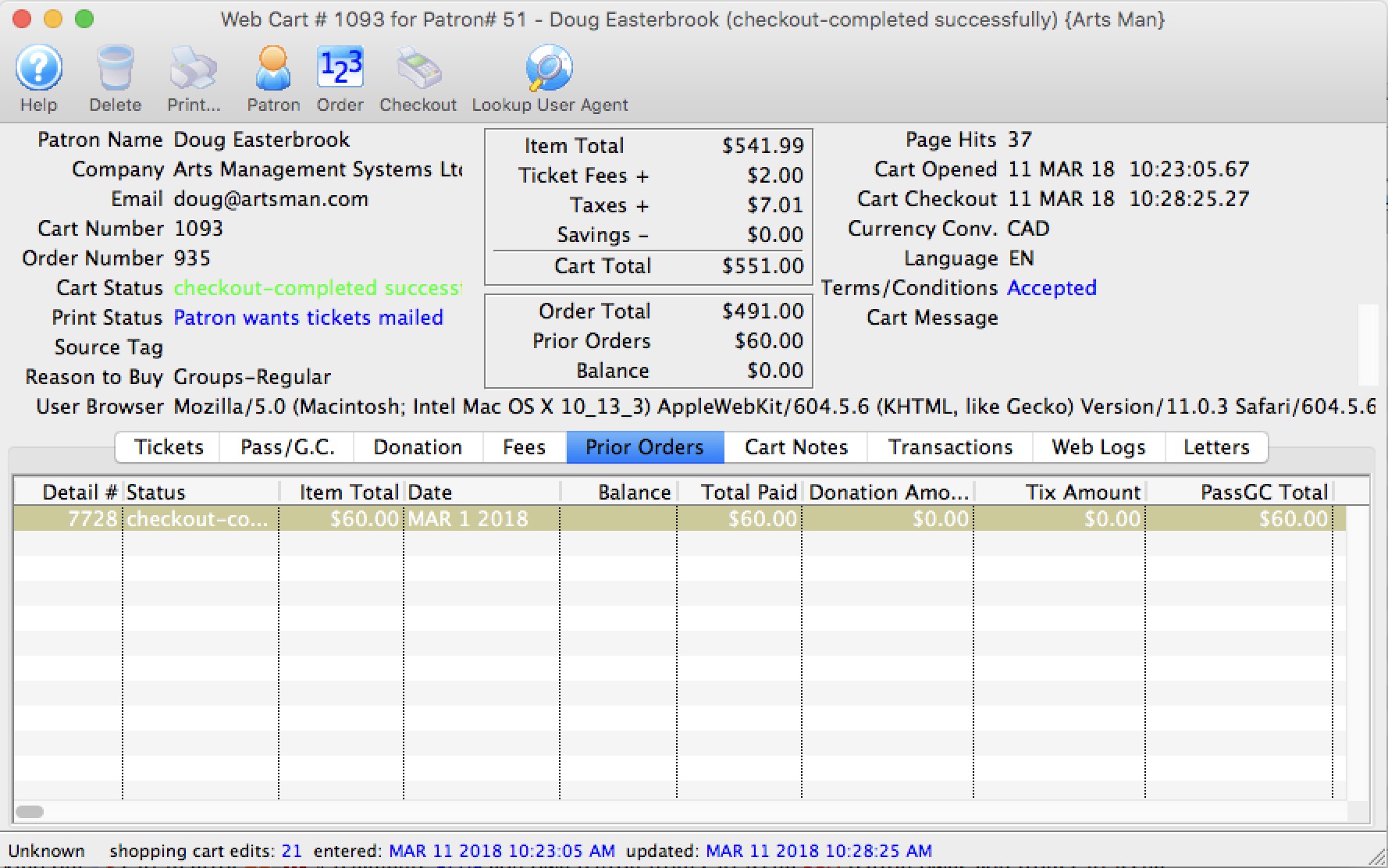
Web Cart Order Notes
Web Cart Order Notes
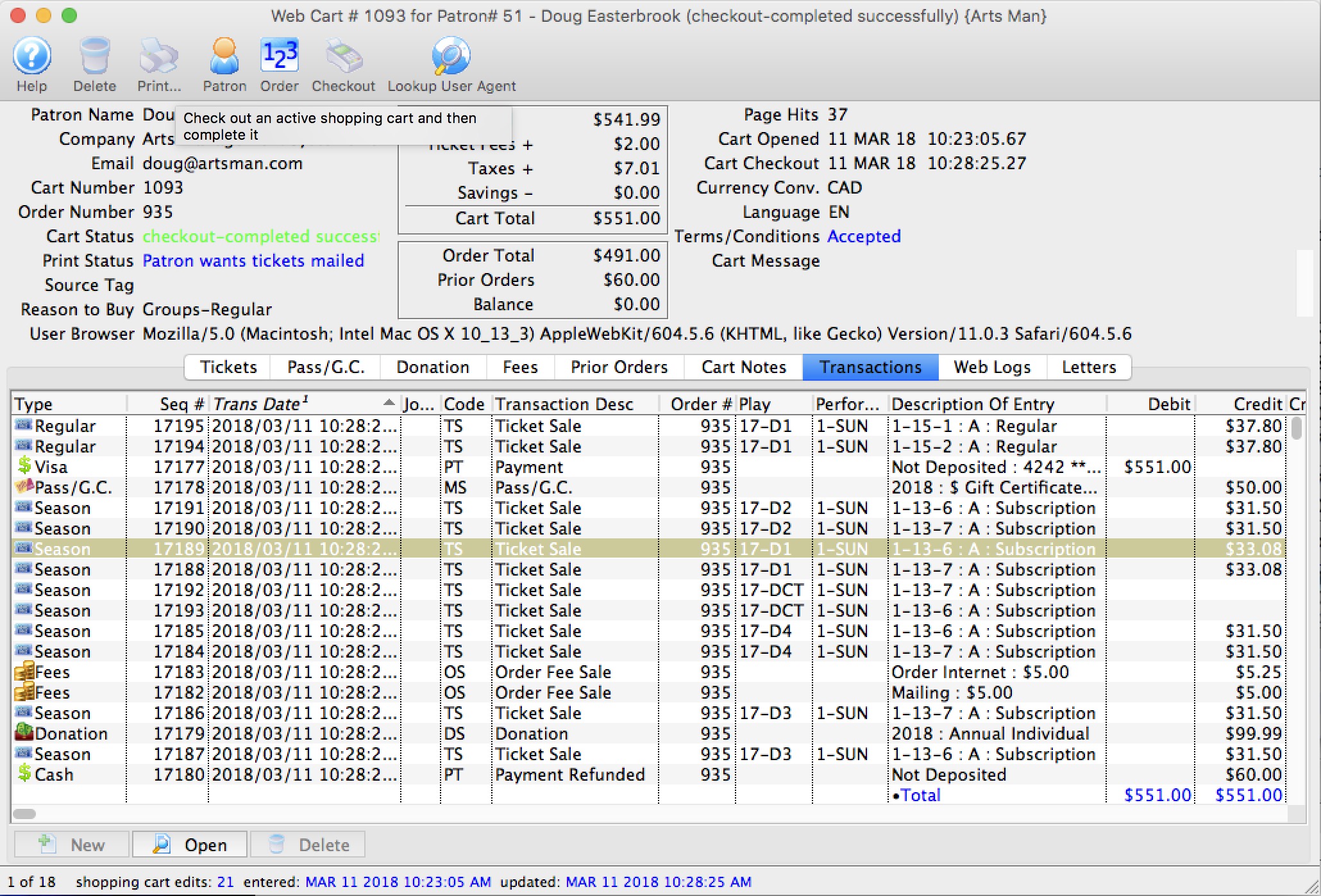
Web Cart Transactions
Web Cart Transactions
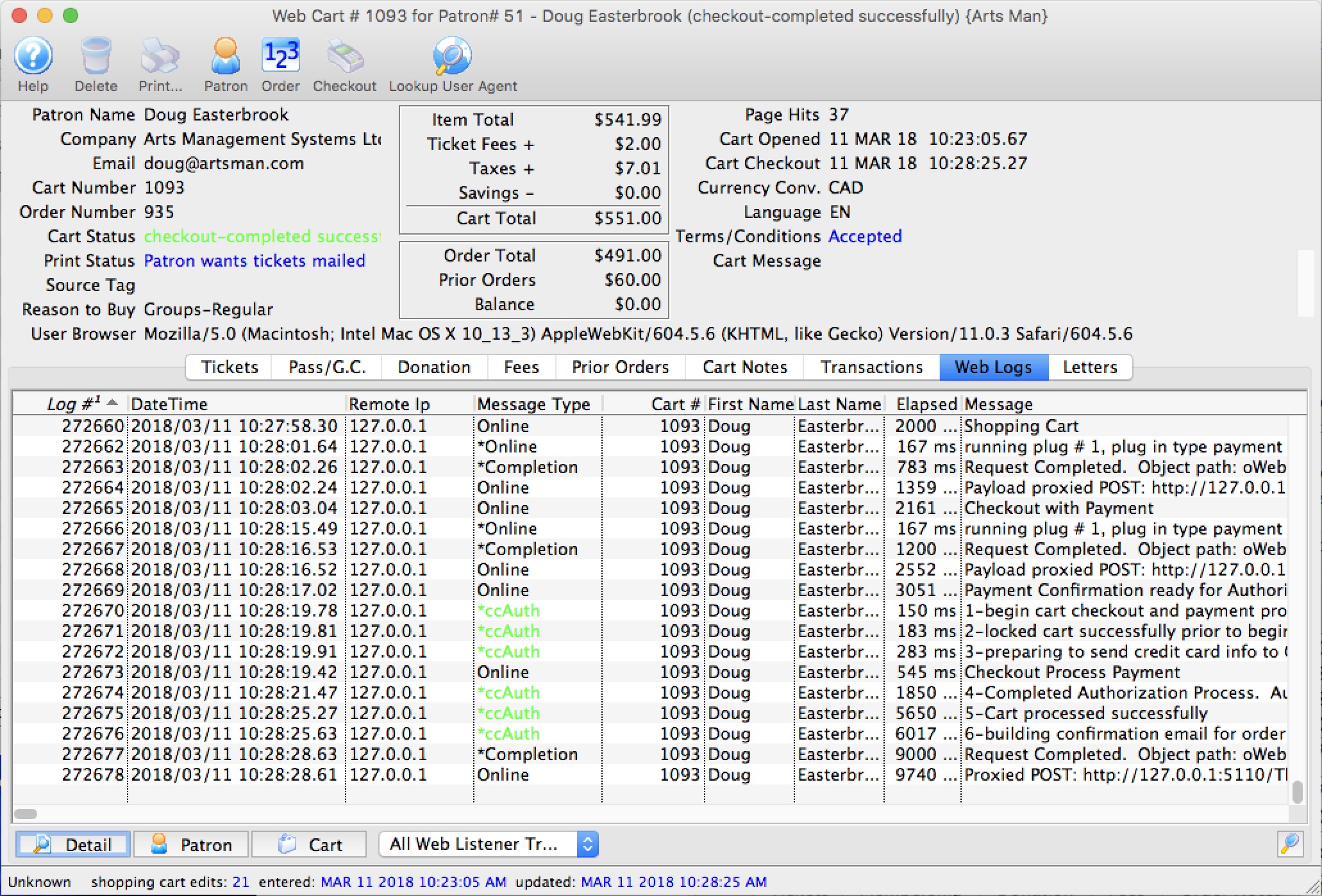
Web Cart Log
Web Cart Log
By looking at the cart, you can tell:
- when they started browsing
- which events they looked at
- what seats they added to their cart and the sections they were interested in
- If they discarded seats
- other fees, coupons, donations, etc that they placed in their cart
- when they logged in - if they were browsing anonymously)
- any issues with checkout such as declined cards
- any TM errors such as seats not priced properly
- and more
If you read this log carefully in the comments on the right side of the list (not shown in picture), you can actually tell which buttons that the patron clicked on their web browser and help them along if you are mentoring them through a sale.
As a patron clicks on web pages, you will need to use the 'search' icon on the lower right of list to refresh the current cart log. If the cart is still active and the patron calls you, you can take over the cart and check the cart out out on their behalf.
|
The most common complaint is card rejection. If a patron
|
Web Cart Letters
Web Cart Letters
Types of letters generated by TM could include:
- Forgotten password requests
- Patron added confirmations
- Patron changed their personal info confirmations
- The actual checkout confirmation emailed to the patron