Pricing and Inventory Tab
Pricing and Inventory Tab
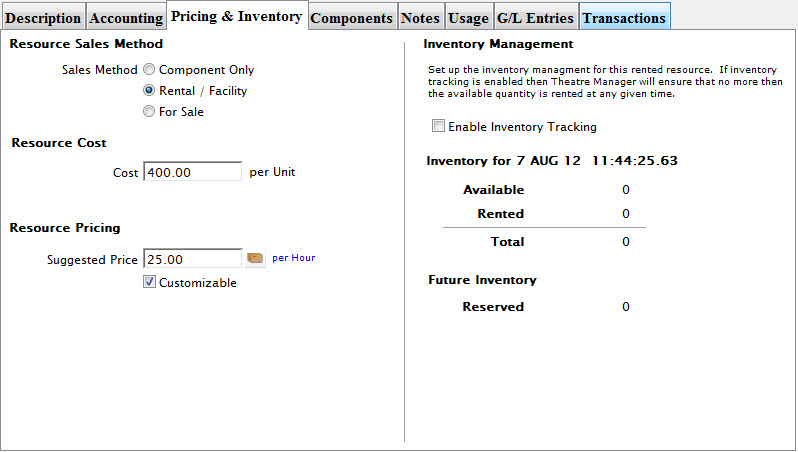
Parts of the Pricing and Inventory Tab
| Sales Method |
The three options are:
|
| Resource Cost | The replacement cost per unit of the resource (unit is set up on the Description Tab). |
| Resource Pricing | The suggested amount is how much should be charged per use of the resource. Usage is defined by the lookup button to the right of the entry field (in the example, it's set to Per Day). |
| Customizable checkbox | When checked, the Suggested Price can be changed when the resource is used. |
| Inventory Management | |
| Enable Inventory Tracking checkbox | Sets up the inventory management for this rental resource. If inventory tracking is enabled, then Theatre Manager will ensure that no more than the available quantity is rented at any given time. Click here to see how to Add Inventory Tracking. |
Enabling Inventory Tracking
Enabling Inventory Tracking
Tracking inventory allows you to specify the number of units available. If tracking is not on, Theatre Manager assumes the number of units available are unlimited. To start tracking inventory for the selected resource, perform the following steps:
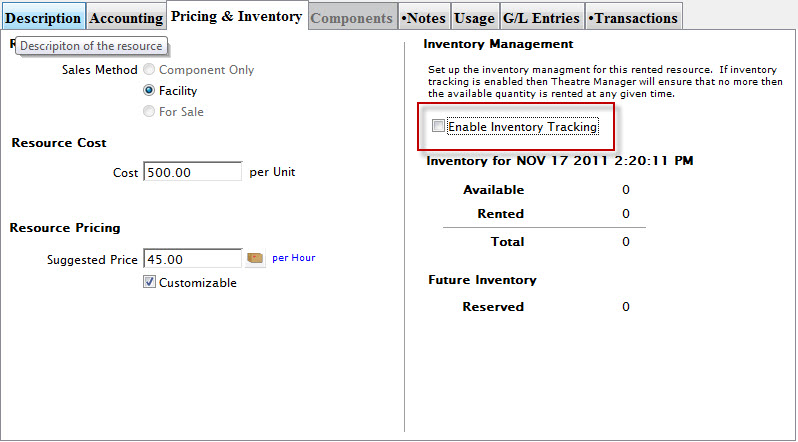
- In the Pricing and Inventory window, click to enable Inventory Tracking.
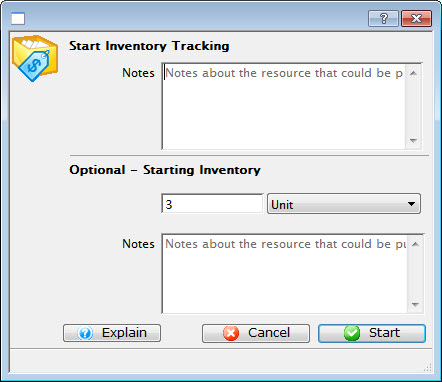
If required, enter Notes about the inventory modification.
Optionally - You can enter the number of units to track.
- To start inventory tracking, click the Start
 button.
The inventory number appears on the Pricing and Inventory tab and in the Resource List.
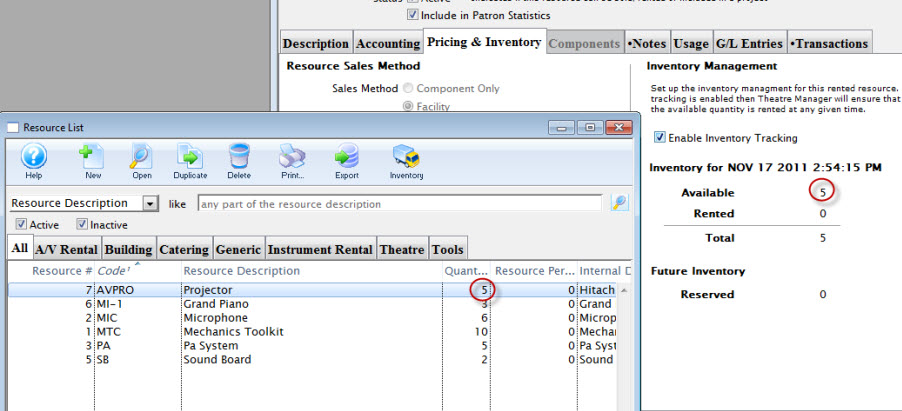
Adjusting Inventory Tracking
Removing Inventory Tracking
Removing Inventory Tracking
You can disable the tracing of a particular resource. To remove tracking for the selected resource, perform the following steps:

- In the Pricing and Inventory window, click the check box
 to disable Inventory Tracking.
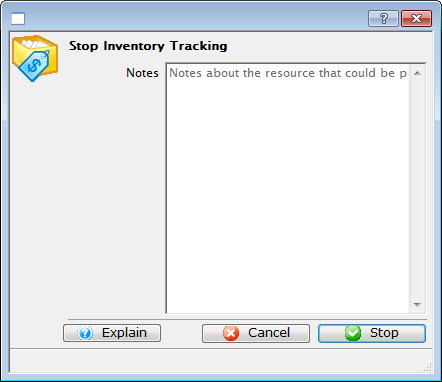
If required, enter Notes, such as a reason the tracking was disabled (for example, the particular unit has been replaced).
- Click the Stop
 button.