Time Available Tab
Time Available Tab
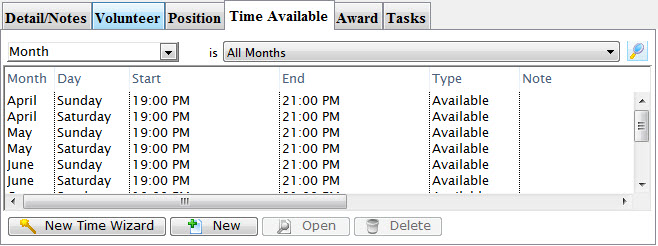
This tab displays the times which the volunteer is available and when there may be a conflict with their schedule.
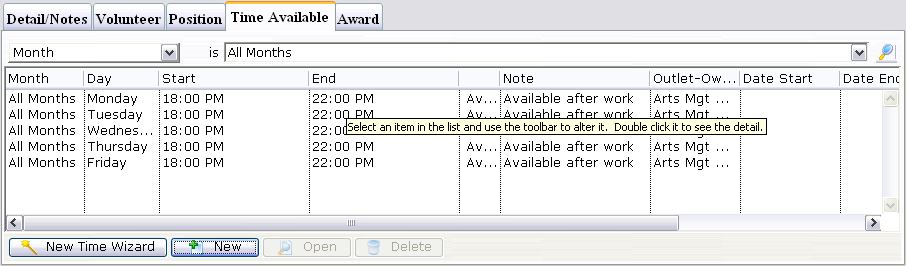
Parts of the Availability Tab
| Month | The month of the entered time. |
| Day | The day of the entered time. |
| Start | The start of the time available or conflict. |
| End | The end of the time available or conflict. |
| Type | The type of time entered i.e. Available or Conflict. |
| Notes | Notes about the time. |
| Outlet | The outlet at which the volunteer works. |
| Date Start | The date that the availability or conflict starts. |
| Date End | The date that the availability or conflict ends. |
| Time Start | The time that the availability or conflict starts. |
| Time End | The time that the availability or conflict ends. |
| Outlet Code | The code for the outlet which the volunteer works at. |
 |
Starts the New Time Wizard. Click here for more information. |
 |
Opens the Time For Window through which you can add conflicting or available times. Click here to learn how to add new times. |
 |
Opens the Time For Window with the data for the selected time(s) allowing for editing if needed. Click here to learn how to edit times. |
 |
Deletes the currently selected time. Click here to learn how to delete times. |
| For Quick Reference Information on Volunteer's Available Times, You can download, the following Quick Reference information. |
Adding, Editing & Deleteting a Volunteer's Available Time
|
 Cheatsheet (draft)
Personnel Management - Creating Availability Times
Personnel Management - Creating Availability Times
If a volunteer knows what times they will be available. You can set them up under the Time Available Tab.
Creating Times Using the Wizard
- Click the New Time Wizard button.
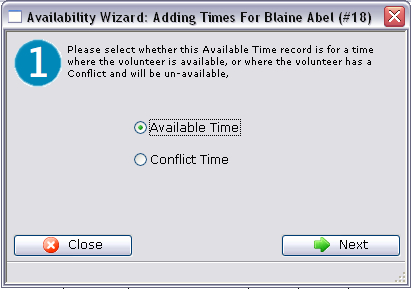
- Select the availability type.
You can choose whether the time being entered is time that the volunteer is available or whether there is a conflict. If it is a conflict time, then a to and from window will appear next.
- Click the Next
 button to proceed.
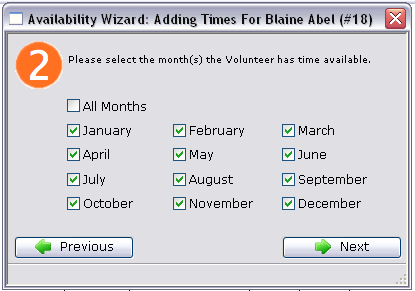
- Select the months which the personnel is available and click the Next button.
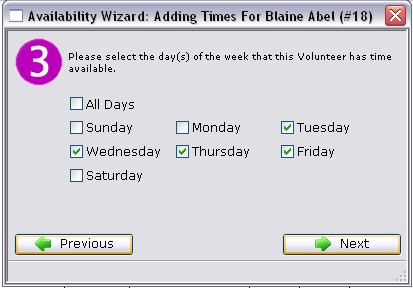
- Select the days of the week the personnel is available and click the Next button.
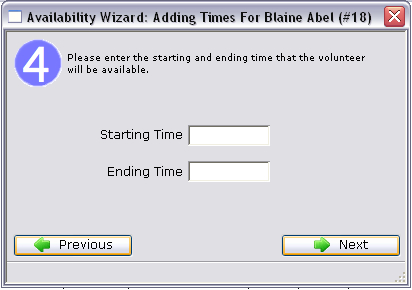
- Enter the Starting and Ending times and click the Next button.
For available times these times will be the time of day. Whereas with conflict dates they will be actual dates i.e. month, day, year.
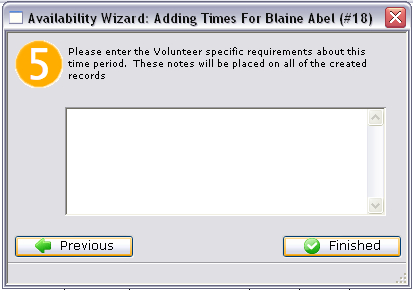
- Enter any notes associated with the time and click the Finished
 button.
The new times will be displayed under the tab.
Creating Times by a Single New Entry
This will allow you to enter a single record of either available or conflicting time.
- Start ny clicking the New
 button on the Times
Available Tab.
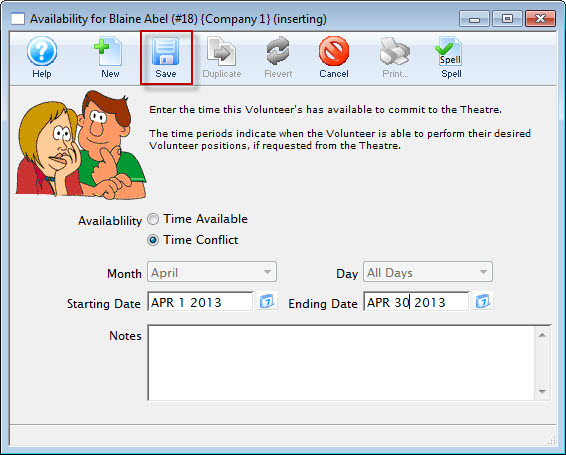
- Choose either "Time Available" or "Time Conflict".
- Select the month and the day of the week for the time.
- Enter the start time and the end time of the time.
- Enter any notes about the time.
- Click the Save
 button to finish creating
the new record.
Editing Availability Times
Editing Availability Times
If a personnel member has availability or conflict times setup they may eventuallly need to be updated.
- Find the Patron Record and open the Volunteer Window.
- Open the Times Available Tab.
- Select the time you wish to edit.
- Click the Open
 button.
The Time Available Window will open with the data of the selected time.
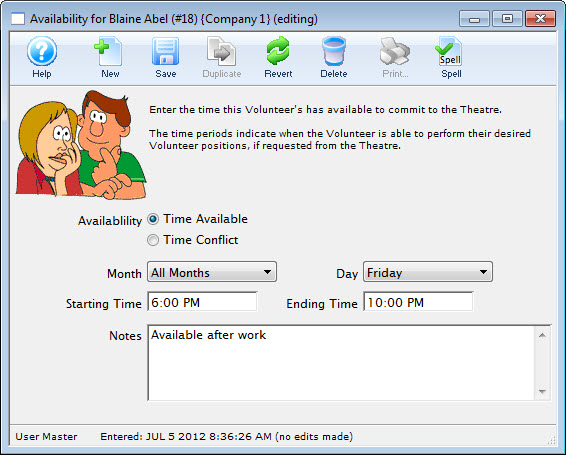
- Make the required changes.
- Click the Save
 button.
The Time Available Window will close and you will return to the Volunteer Window. The time change will appear in the Time Available Tab.
Deleting Available Times
Deleting Available Times
If a volunteer has availability or conflict times setup they may eventually need to be updated.
- Find the Patron Record and open the Volunteer Window.
- Open the Time Available Tab.
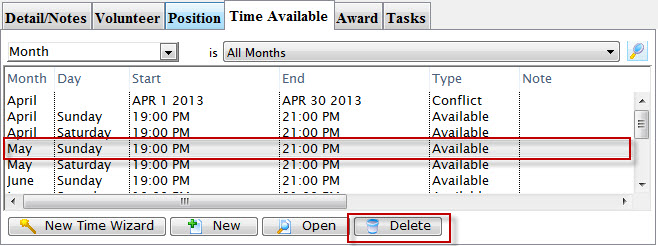
- Select the time to delete.
- Click the Delete
 button.
A Delete confirmation dialog opens.
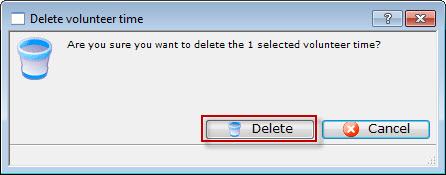
- Click Delete
 to confirm the deletion.
Clicking Cancel
 will abort the deletion.