Manage Volunteers
Manage Volunteers
When a volunteer is scheduled for an event / play or other activity, a record is created showing if they have responded or not. Responses have an initial status, you set up under Setup>>Company Preferences - Meeting Server : Default Acceptance Status for Invitations.
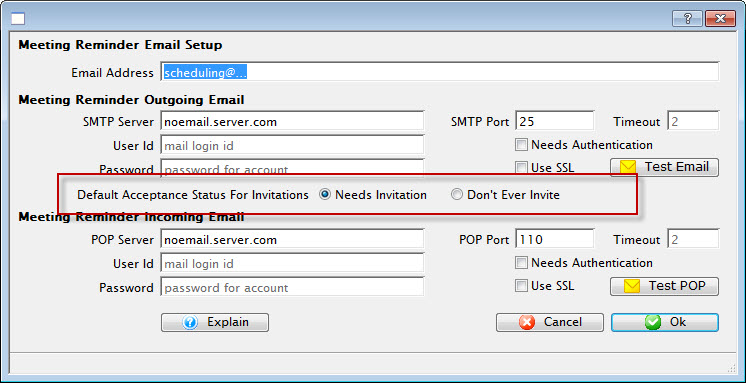
Values you can choose are:
- Needs invitation - an Email invitation is expected to go out.
- Don't ever invite - you are using some means other than Email to let them know about the volunteer opportunity and Email will not be sent.
Click here for more information on the Meeting Server.
When an Email is sent, it includes an industry-standard iCalendar attachment along with the information on the volunteer opportunity and instructions for responding.
When the recipient double-clicks on the attachment, their default calendar application opens and the event added to their calendar. It then give them the opportunity to:
- Accept
- Decline
- Mark the appointment as tentative
When they make their selection, their calendar sends an Email response back to Theatre Manager that updates the database.
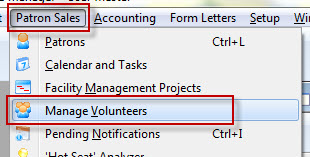
To open the Manage Volunteer window, select menu item Patron Sales>>Manage Volunteers.
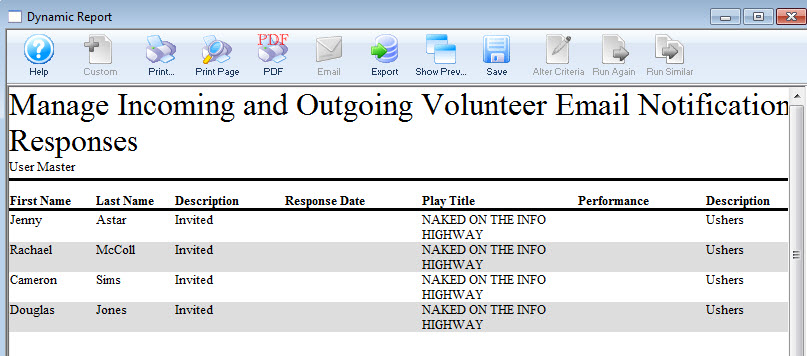
In the Manage Volunteers window you can view all states of outstanding volunteer activities and manage reminders and statuses.
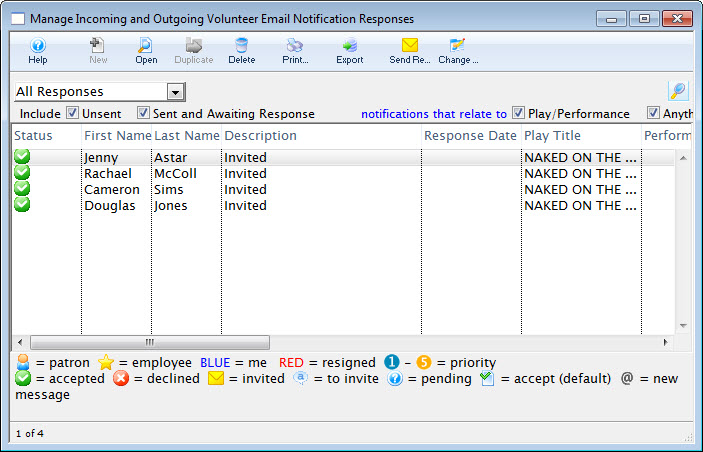
Manage Incoming and Outgoing Volunteer Email Responses
Manage Incoming and Outgoing Volunteer Email Responses
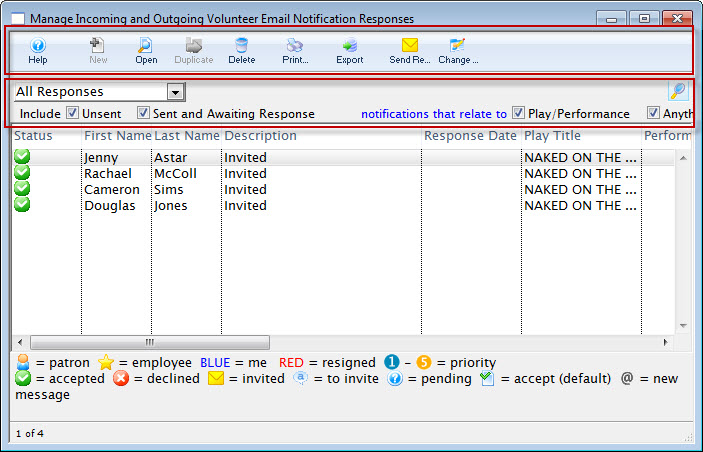
Parts of the Incoming and Outgoing Email Responses Window
 Toolbar / Ribbon Bar | |
 |
When clicked, goes to the online help page for the current window. |
 |
Opens a new record. |
 |
Open the activity window for the currently selected volunteer. |
 |
Duplicates the currently selected record. |
 |
Deletes the volunteer history record. |
 |
Clicking the Print button, opens the selection "List As Shown"  . Choosing List as Shown prints the list as a Report.
|
 |
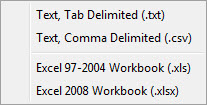 Clicking Export allows you to choose the format to export the current list. |
 |
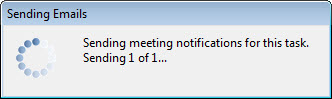 Click the Send Recieve button to send reminders to list. |
 |
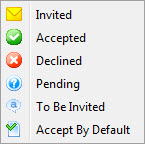 Clicking the Change Status button opens a list of the statuses you can change the currently selected record to. |
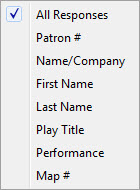 |
Choosing a selection from the drop down list, allows you to refine the list of displayed volunteers. Choices are:
|
 |
|
| Check Boxes |
The check boxes allow you to further refine the list. You can Include:
You can also enable or disable notifications that relate to: |

| Click the Search button to display the list of Volunteers. |