Adding Favorite Seats in the Season Package Window
Adding Favorite Seats in the Season Package Window
To add the patron's favorite seats to their season package, you would perform the following steps:
- Click Patron Sales >> Season Reservations >> Setup Season Packages.
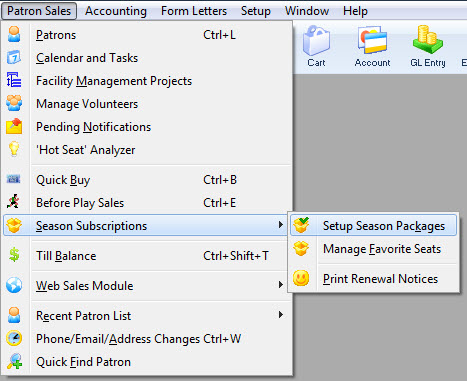
The Season Package List window opens.
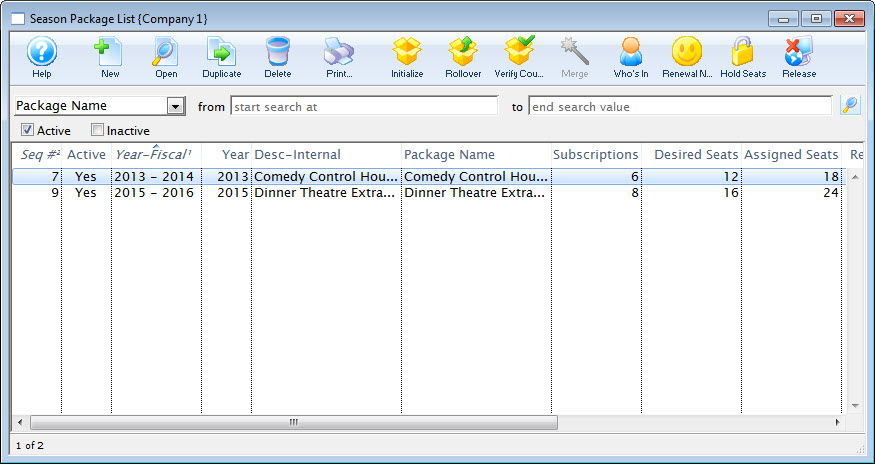
Click here for more information on the Season Package List window.
- Click to highlight the season package, then click the Open
 button in the Season Package List ribbon bar.
The Season Package Detail window opens.
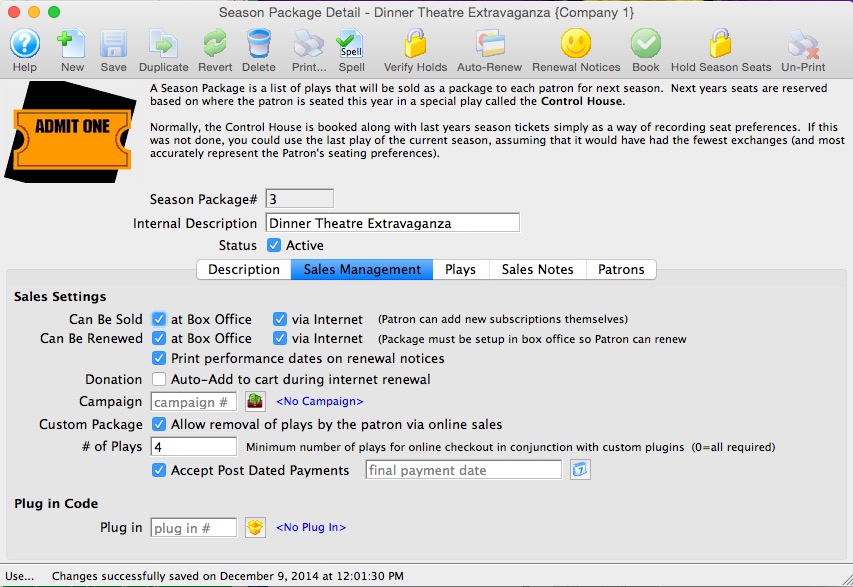
Click here for more information on the Season Package Detail window.
- Select the Patrons
 tab.
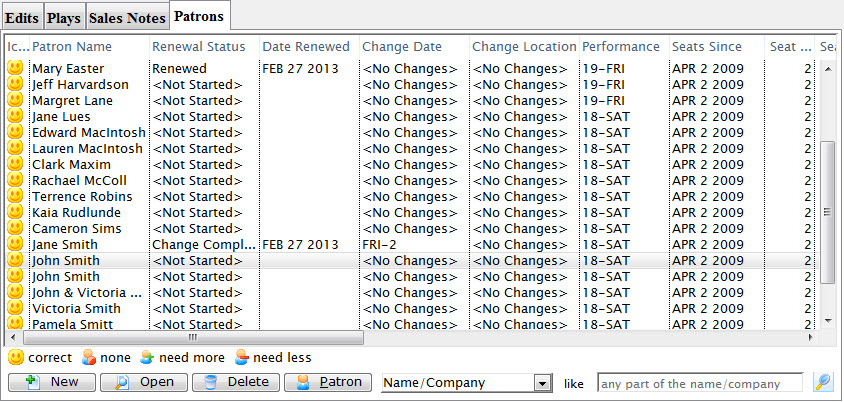
- Click to highlight the patron wanting seats, then click the Detail
 button.
The Patron Subscription Detail window for the selected patron opens.
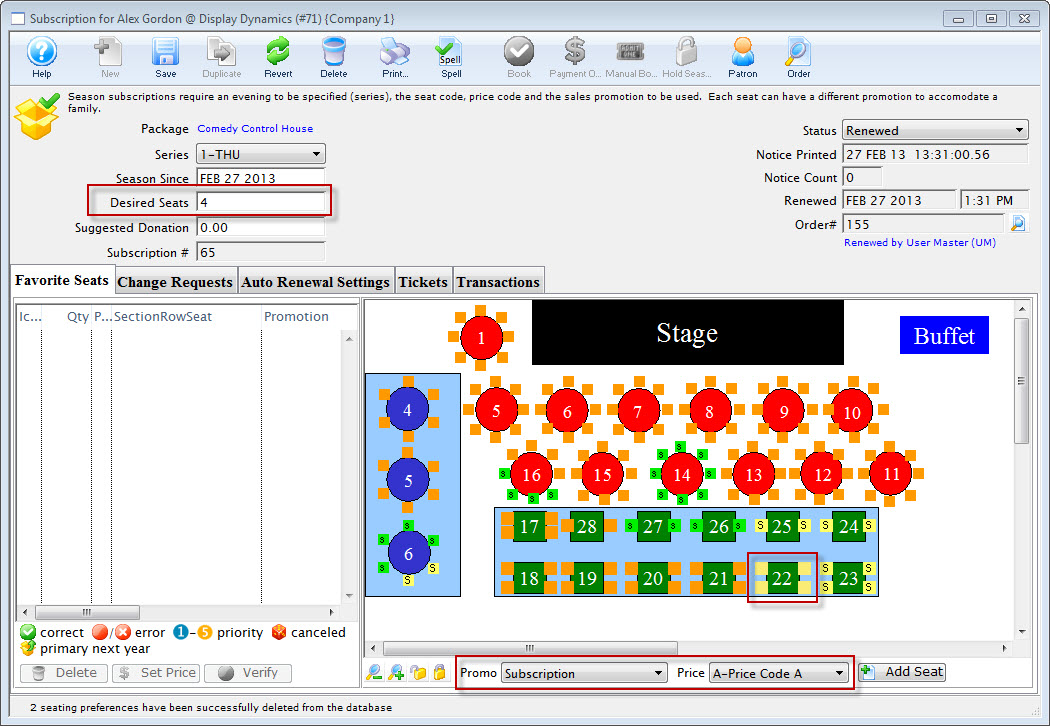
Click here for more information on the Patron Subscription Detail window.
- In the Desired Seats field, enter the number of seats the patron wants in their season package.
- Highlight the seats the patron wants in their subscription.

You can select seats by using the mouse to drag a box over the preferred seats, or by holding the <SHIFT> key and clicking each seat.
- At the bottom of the map, choose the Promotion and Price Codes.
- Click the Add Seat
 button.
The seats are added to the Seat Selection area of the Patron Subscription Detail window.
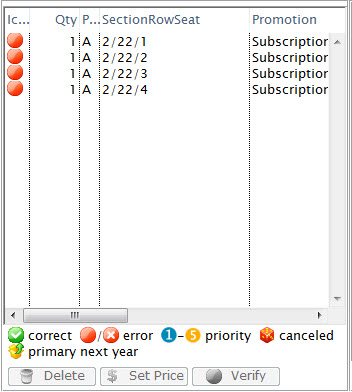
For more information on the Seat List area click here.
- Click the Save
 button.
- Close the Patron Subscription Detail window.
The patron is added to the season package. To learn how to add a patron to a season package click here.