Refunding a Donation
Refunding a Donation
There are three steps to take in order to refund a donation. The first is to refund the payment, second the tax receipt needs to be removed and finally the donation itself needs to be deleted.
- Open the Patron Record.
For details on locating a Patron Record click here.
- Click the Donation
 tab.
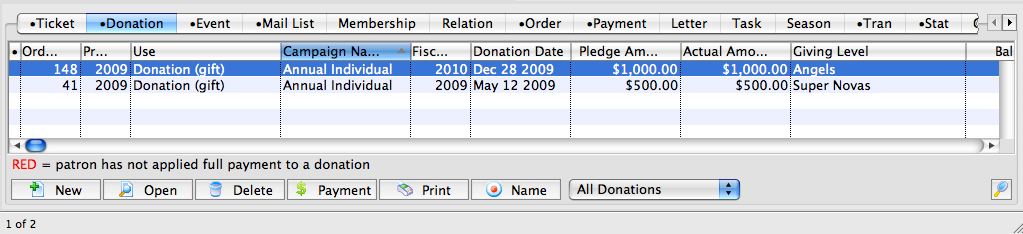
- Select the donation to be refunded.
Single click on the donation to select it.
- Click the Open
 button.
The Donation Detail window will open.
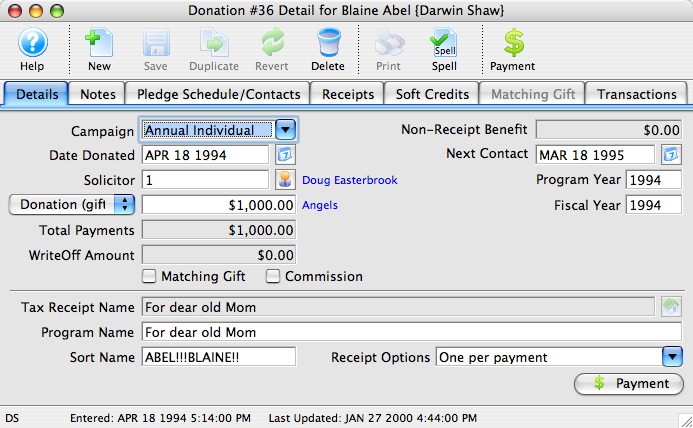
- Click the Payment
 button.
A Payment Warning opens, indicating there is no payment required for this order.
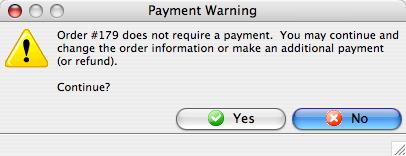
- Click the Yes
 button.
- Enter a negative payment for the value of the donation.
Use the Prior Payments
 tab to review how the original payment was made.
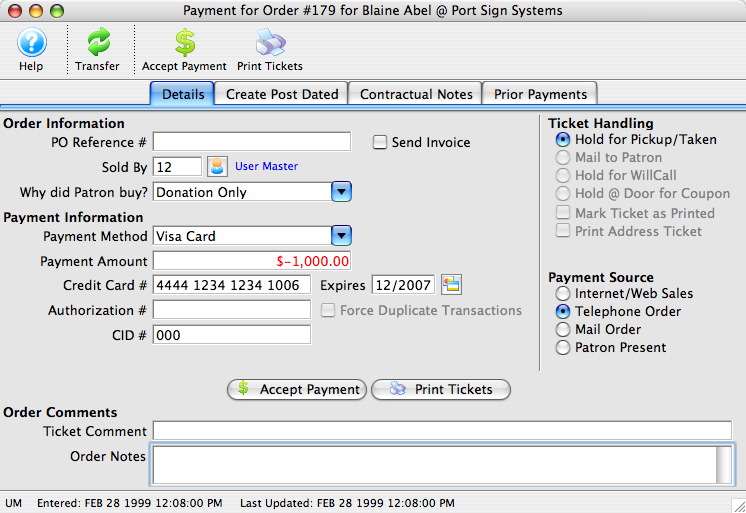
- Click the Accept Payment
 button.
A Payment Warning will appear indicating the payment made does not complete the order.
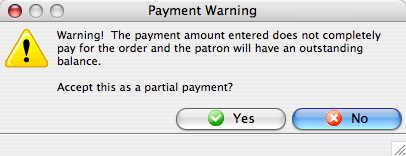
- Click the Yes button.
The Process Another Payment window opens.
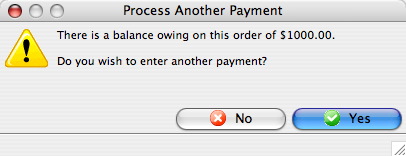
- Click the No
 button.
The Donation Detail window opens.
- Click the Receipts
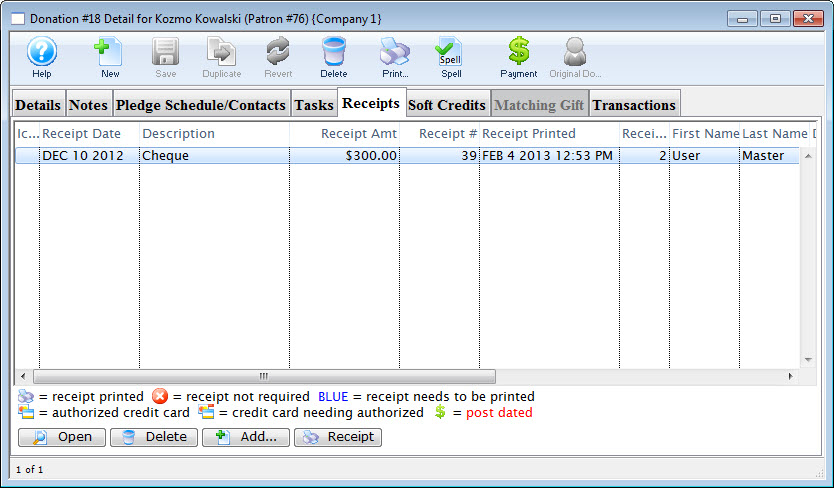 tab.
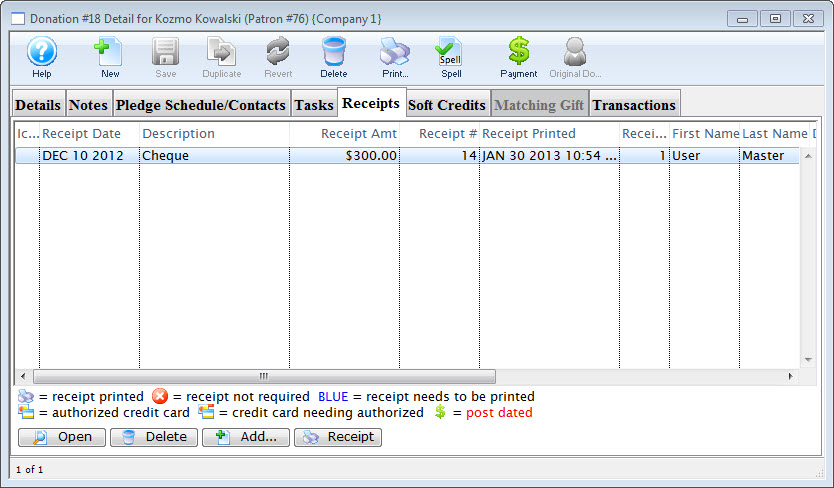
- Click the Open
 button.
The Edit Manual Receipt Detail window will open.
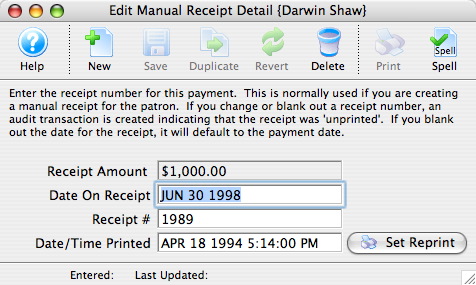
- Delete the Receipt #.
- Close the Edit Manual Receipt Detail window.
- Click the Delete
 button.
The Delete A Record confirmation window opens.
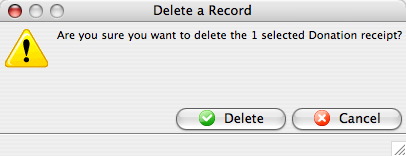
- Click the Delete
 button.
The receipt will be removed from the Donation Detail window.
- Close the Donation Detail window.
The Patron Record will displaying the Donation
tab. - Click the Delete button.
The Delete A Record confirmation window will appear.
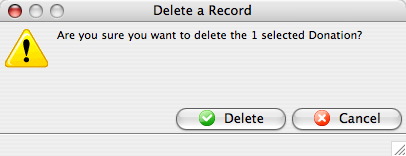
- Click the Delete button.
The Donation is now deleted from the Patron Record.
| For quick reference information in Deleting and Refunding Donations you can access the following: |
Flash |
MP4 |

