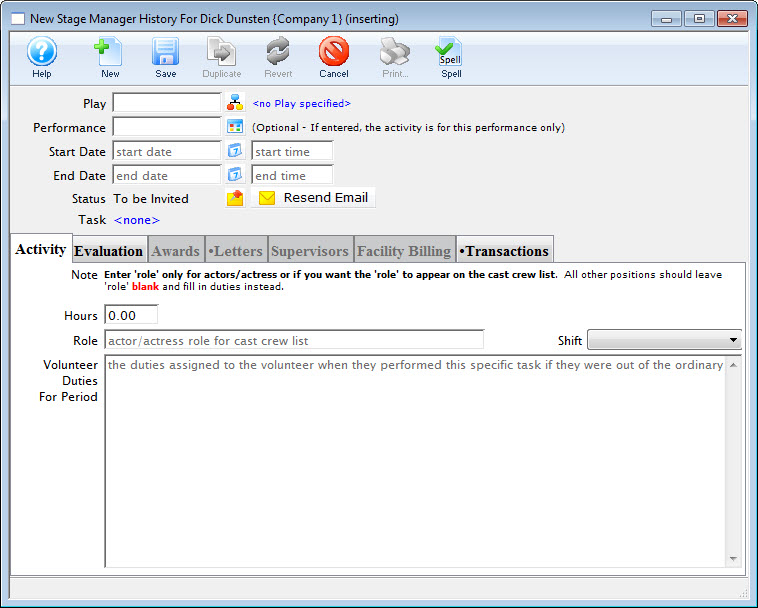
Adding Activity History and Evaluations
Once a volunteer has positions setup they can receive historical and evaluation comments. This data is displayed at the bottom of the Volunteer Window. The history and evaluations can help to choose the best personnel for the position you require.
- Find the Volunteer you are adding an evaluation and history to.
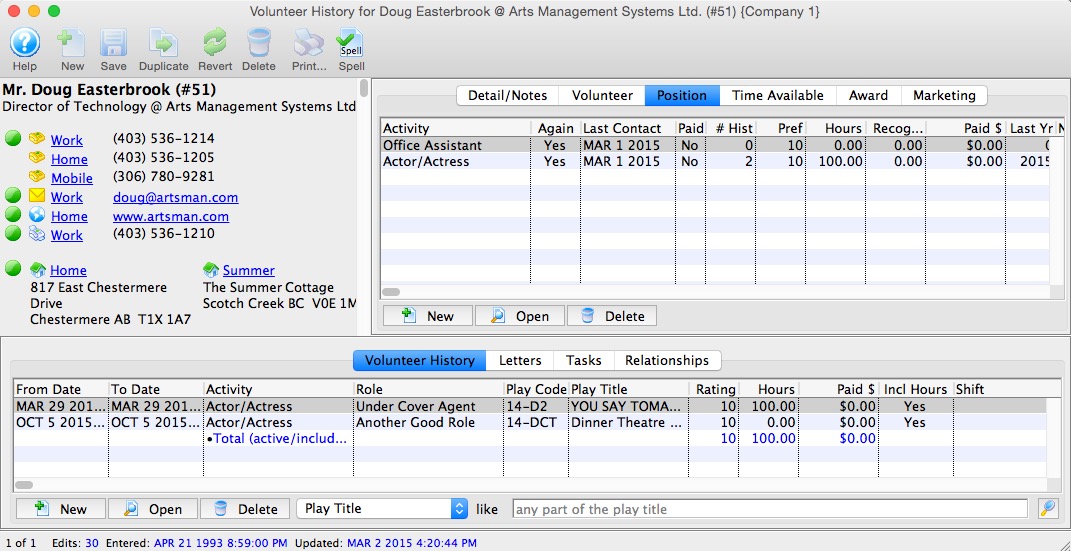
- Click the New
 button at the bottom of the
window.
button at the bottom of the
window.
If the Volunteer selected has more than one position associated with their profile, the New Activity History window opens.
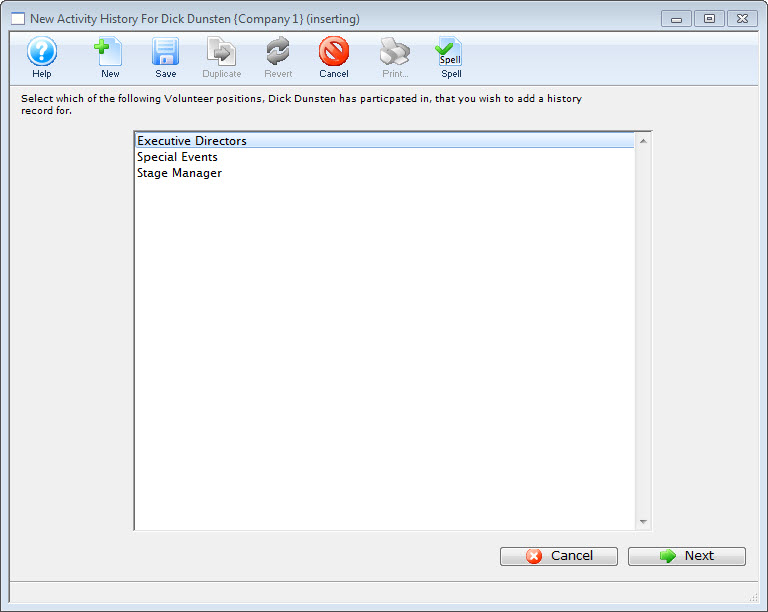
- Select the position the activity was performed under and click the Next button.
Only positions you have setup for the selected volunteer will be displayed. If you need to add a different position for the volunteer, clcik the Cancel button to return to the Volunteer Window where you can add a new position. Click here to learn how to setup positions.
- Click the Play Lookup
 button.
This opens the Play List Window allowing you to search for plays.
- Double click the play for which the activity was performed.
Youare returned to the Activity History Window.
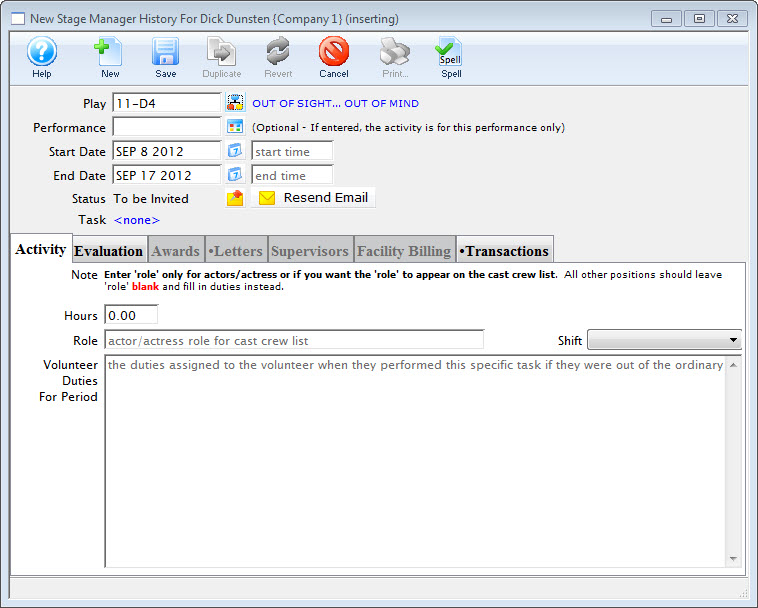
The play code is displayed in the field along with it's title to the right. The From and To fields will be filled with the dates which the play runs.
- Click the Performance Lookup
 button
to specify if this activity is only for one performance.
button
to specify if this activity is only for one performance.
If a performance code is entered, the date will be set, and times will be available to be entered.
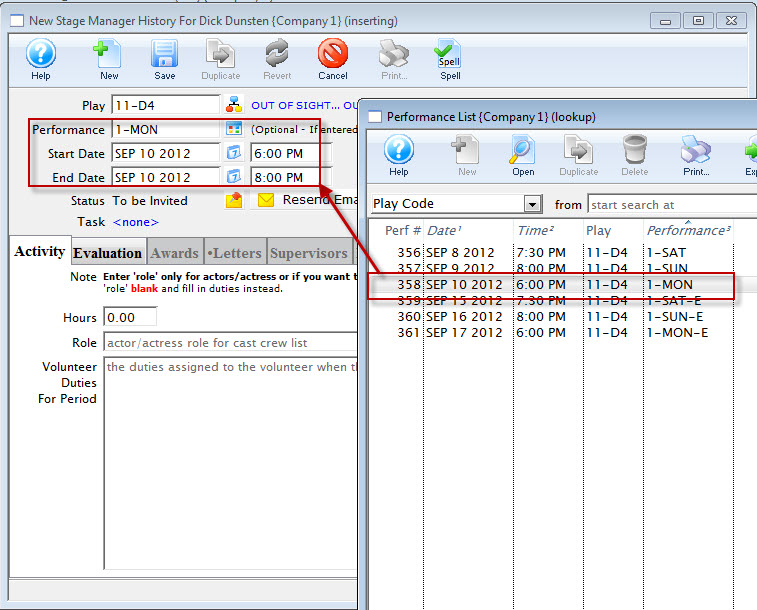
- Change the times if needed.
- Enter the number of hours to be credited to the volunteer for working.
- Enter a role and/or a description of the volunteer duties.
At least one of these fields must be filled to insert the data.
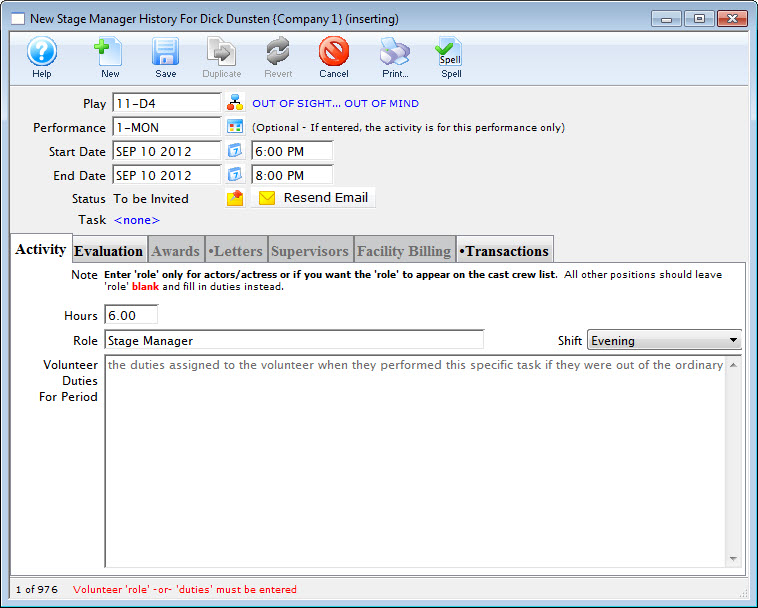
- Click on the Evaluation Tab.
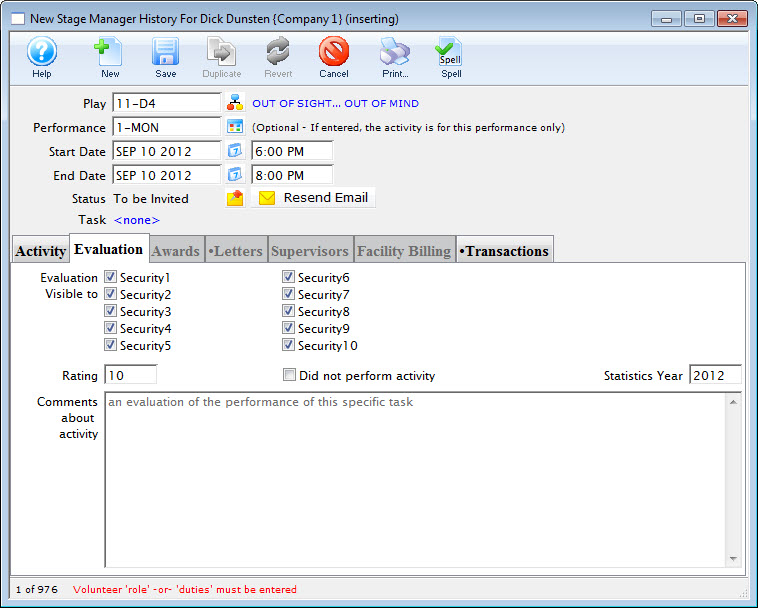
- Set the security level allowing who can view the evaluation of the volunteer.
- Rate the volunteer.
- Enter any comments about the activity.
These comments are to be used to critique the performance of the individual. This can then be used for finding the best volunteer for a particular position in the future.
- Click Save
 .
.
The Awards, Letters, Supervisors and Facility Billing Tabs become available.
The Activity History Widow opens.