Mail List Queries
| You can download quick reference information for Creating a Query by clicking on the icon |
Flash ScreenCast |
MP4 ScreenCast |


Creating the query requires some planning and foresight. To start, you must decide what criteria you want the patrons to meet. If you are looking for very specific patrons, you must know what makes them unique from the rest. You may also narrow down your search by removing certain data from a returned query.
|
There are rules around creating a list of deceased patrons. The names and information of deceased patrons can never be emailed to or have mailing labels printed - ever. If you require a listing of deceased patrons, you can create a mail list of those patrons and print or export the completed listing. Theatre Manager will ask if you want to export deceased patron data when it notices you trying to do that. |
Creating a Database Query
| You can download quick reference information for Creating a Query by clicking on the icon |
Cheatsheet |

To create a Query, you would perform the following steps:
- Open the Mail List - List window.
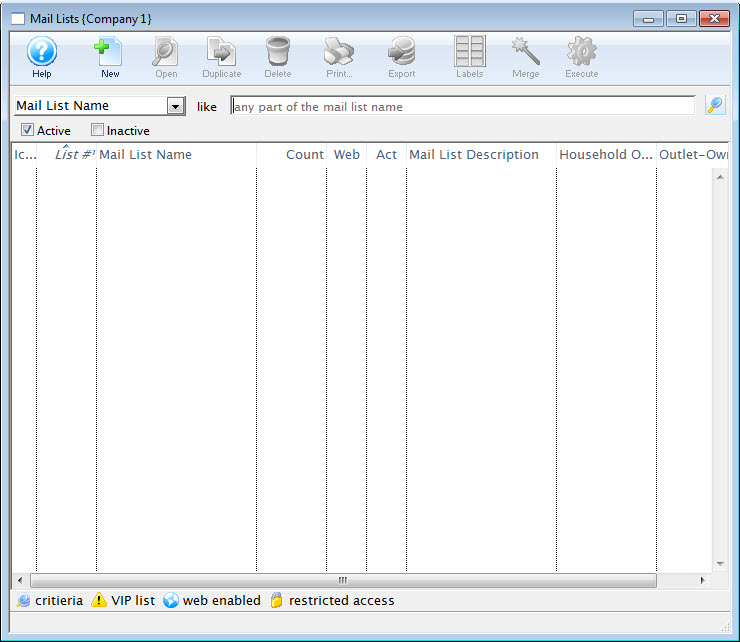
For more information on accessing the Mail List window, click here.
- Click the New
 button.
The Mail List Criteria (inserting) window opens.
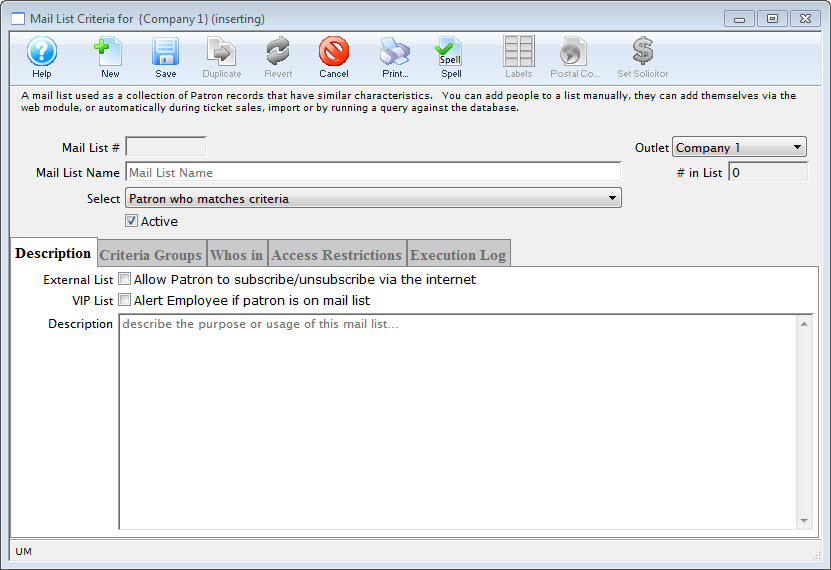
- In the Name field, enter a short name for the Mail List.
- Make a selection for the names to be included on the list.
- In the Description tab, select the appropriate flags and in the description field, enter a detailed description for the Mail List.
This is extremely important for other users who may use the mail list. If the description of the list is good it will not need to be deciphered to understand the reason for the list.
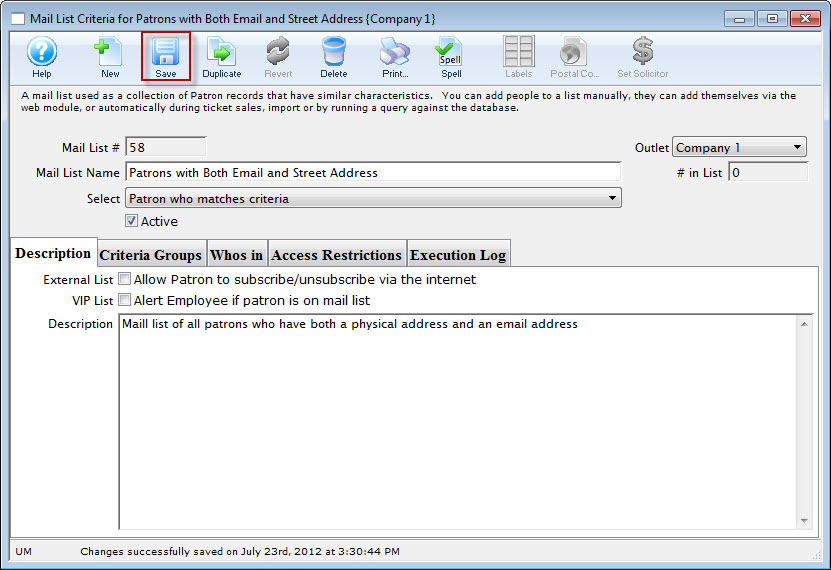
- Click the Save
 button.
 - Click the Criteria Groups
 Tab.
Tab.
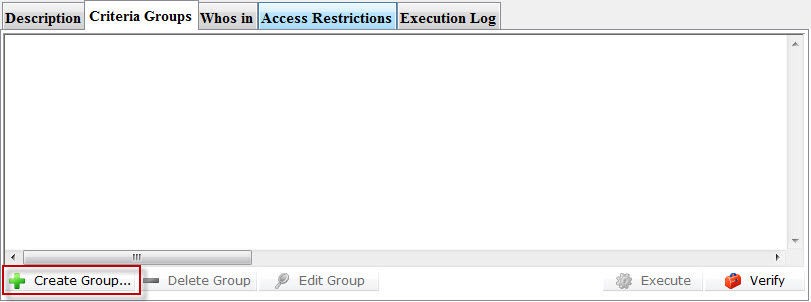
- Click the Create Group
 button.
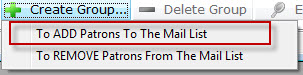
- Choose To Add Patrons To The Mail List.
The Mail List Data Selection window opens. To search for data, you must select a file for the primary source of information for the mail list. Theatre Manager will include information in related parent files.

Patron Data is the PARENT for most data stored in Theatre Manager. When defining criteria, if you select any file as the main file, you can also set criteria for the patron record.
However, the converse is NOT true. Selecting the patron file as the Merge File, it does not include the child information - such as donor inormation.
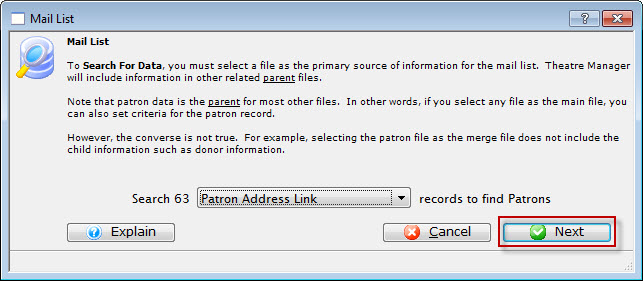
Select a file that contains the data you are searching for. As the example list is searching for patrons who have made donations; the file to use would be "Patron Address Link". Click here for more information on selecting the file.
- Select the "Patron Address Link" file..
- Click the Next
 button.
The Parameter window opens.
Click here for more information on this window. This tab displays the added criteria for the query on the database.
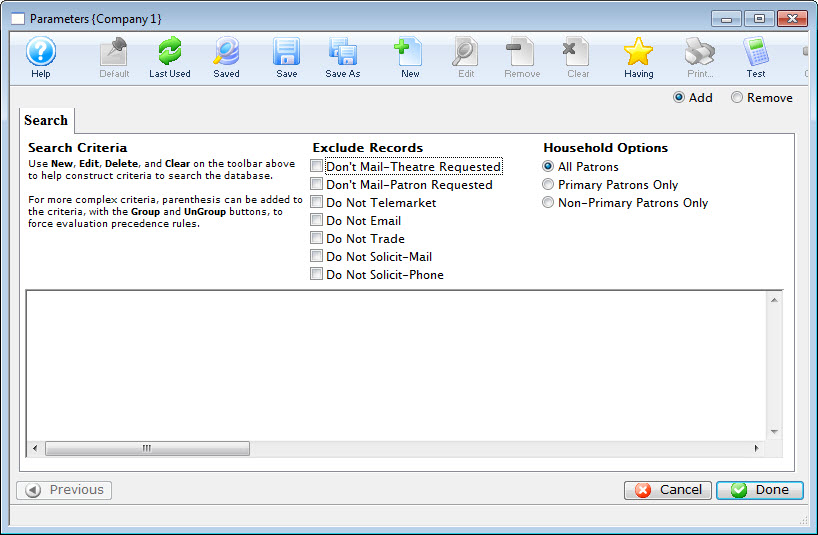
- Click the New button.
The Add/Edit Parameter window opens.
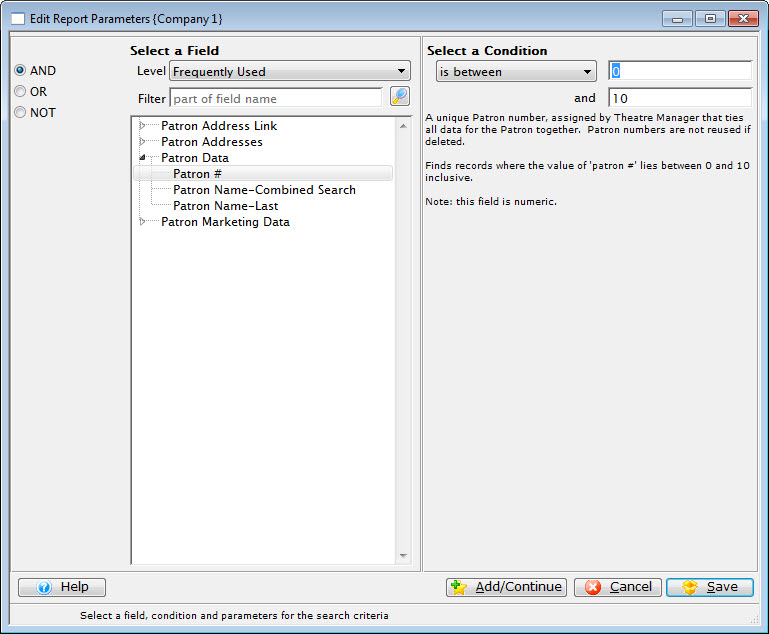
The list contains all the possible searchable fields available in your selected file. The selections on the top left side of the window (and, or, not) are used for searching multiple fields when more then one line of criteria is added within the same file. Click Here for an overview of conditions and search criteria.
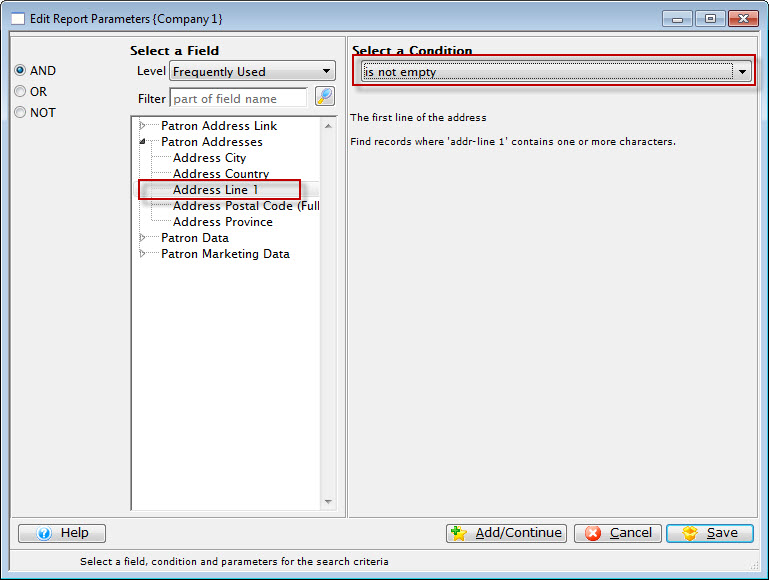
- Select the field to search.
In this example "Patron Addresses>>Address Line 1", will be the selected search field criteria.
- Select a condition, in this example "is not empty".
The condition displayed above will find any patron has aan entry in the street address section of the Patron Record.
- Click either:
- Add / Continue
 if adding another search criteria to the file.
The Criteria window remains open until save or cancel is clicked.
- Save
 if the search criteria for this file is complete.
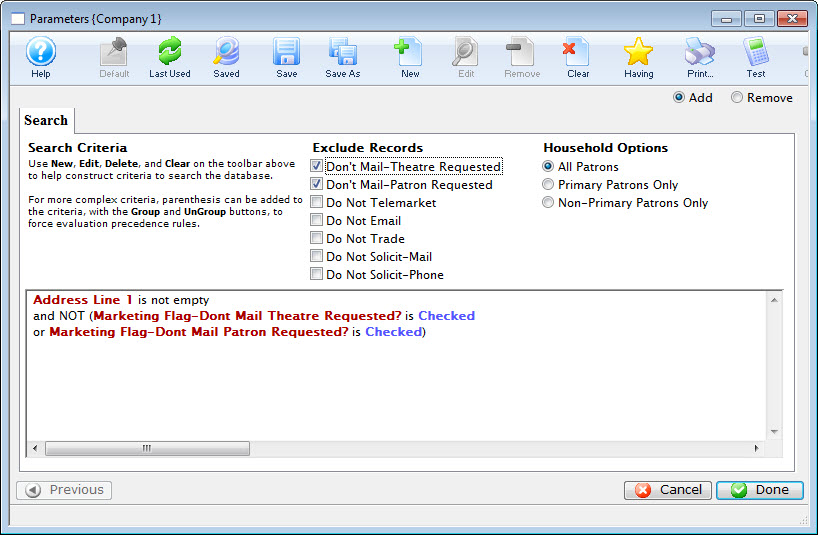
The Parameter window will return and the entered criteria will appear in the list.
- Under Exclude Records, enable the "Don't Mail-Theatre Requested" and the "Don't Mail-Patron Requested" flags, and click the Done
 button.
Now the group and its criteria have been added to the main query. For this example, another group needs to be added to include the patrons who have email addresses.
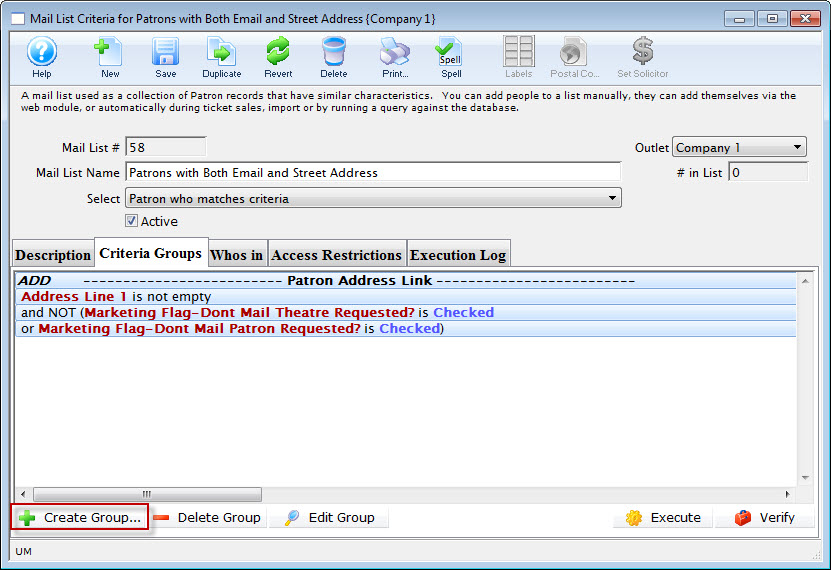
- Click the Create Group button.
- Choose To Add Patrons To The Mail List.
Choose a file containing the required data. This example requires the "Patron Contact Link" file.
- Click the Next button.
- Click the New button in the Parameters window.
In the Edit/Add Parameters window, leave the And
 button selected. The field for this example would be "Patron Contact Data>>Contact Data (eg Phone/email/website)" while the condition would be "contains" and parameter would be "@" (to search for an email address).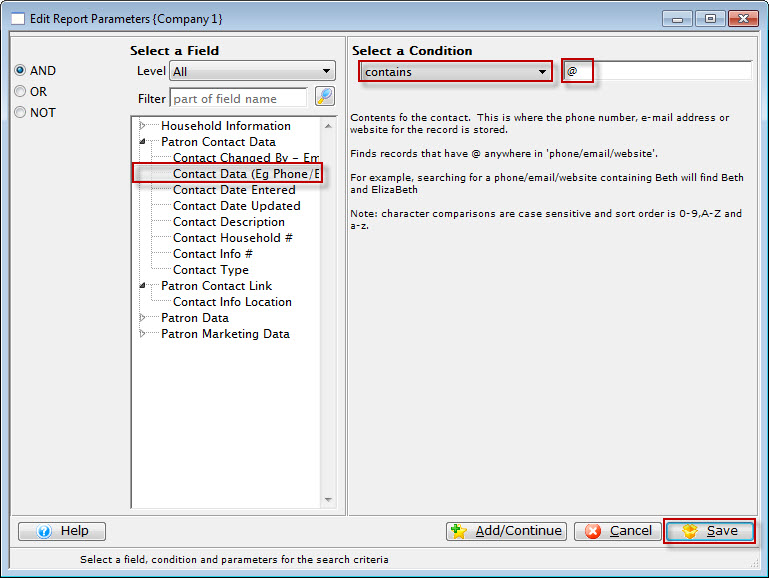
- Click the Save button.
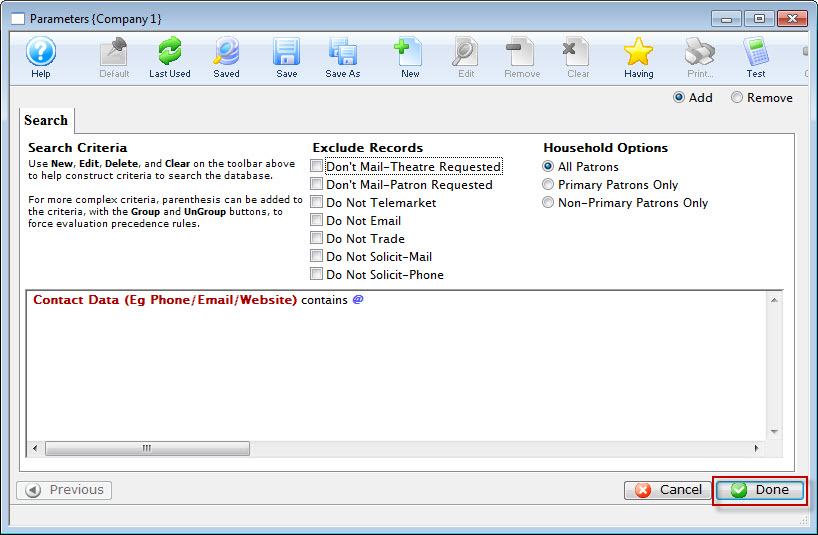
- Click the Done button.
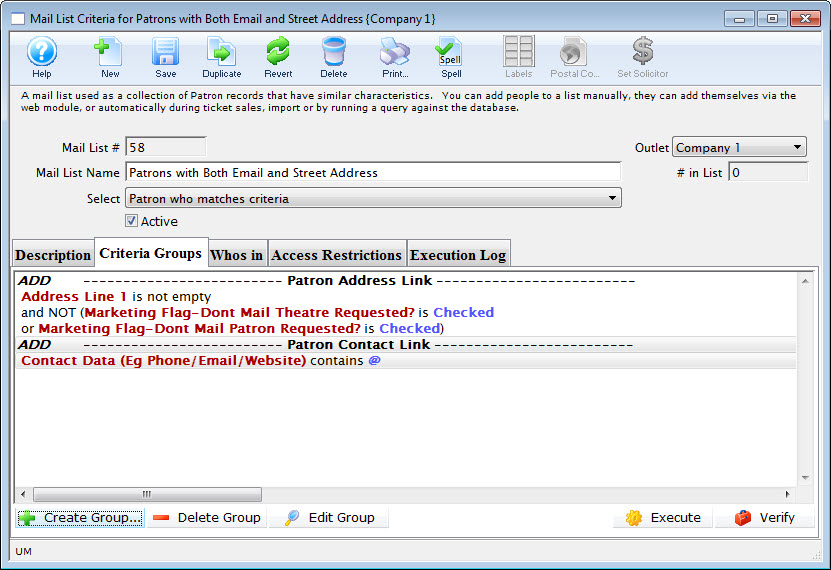
Both of the Search Criteria are added to the query. The group criteria says add any patron who has volunteered their time as well as any patron who has made a donation to the list.
Now, all the criteria have been added to satisfy the description, the database can be searched.
- Want to keep a printed format of your Mail List criteria
- Want to share your criteria with others in the office who may not use Theatre Manager
- Want to email the precise criteria you have been working on to support@artsman.com to ask for help. Emailing a PDF is preferred as it shows all of the criteria, the Description (so we know what you are trying to accomplish), the conjunctions (AND, OR, NOT) and operators (is between, is greater than, is equal to, etc.) used in the criteria. This is the preferred method for Support to receive your criteria help request.
- Click the Execute
 button to begin the Query.
The patrons satisfying the first criteria will be found and added to the list. Once complete, the second criteria will be performed and any patrons matching the second criteria will be added. Any patron matching both criteria will only be displayed once. The Mail List will default to the Who's In
 tab displaying all patrons who match the criteria and are in the list.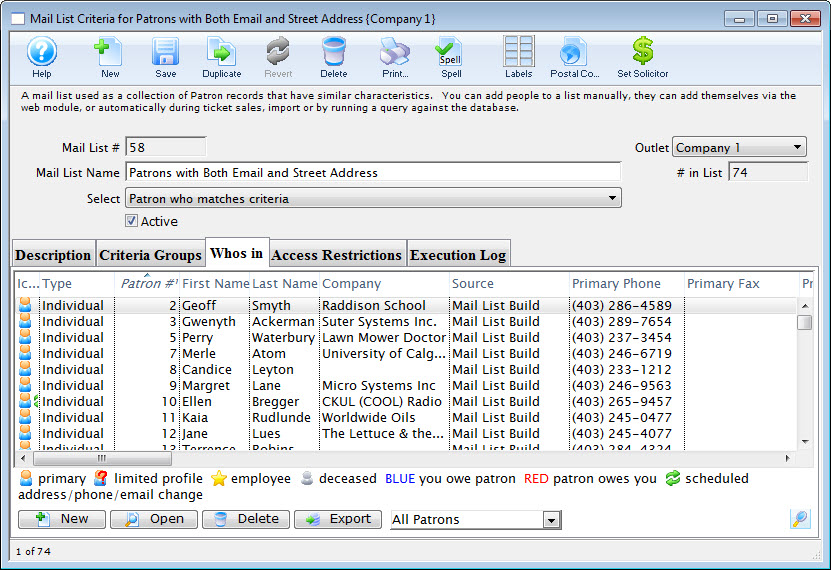
You are returned to the Parameters window.

If you have criteria that you'd like to print and save, while on the
tab, click the  PRINT button at the top of the window. You will get a report that you can then print or save to PDF. This can be handy when you:
- Add / Continue
You can now enter the Criteria.
Complex Query Criteria
If you are designing a very specific mail list you will need to use some complex criteria to ensure you receive the desired data. Complex criteria uses brackets combined with operators and conditions to find specific groups of data. Click Here to view the different types of operators and conditions along with a description of their function.
Mail list of Patrons in a Household With More than One Member
Mail Lists can answer many different "Who" questions.
To create a Mail List that answers the question of the number of Patron Households that have more than one patron, you perform the following steps:
- Click the Mail List
 button in the main Theatre Manager toolbar / ribbon bar.
The Mail Lists window opens.
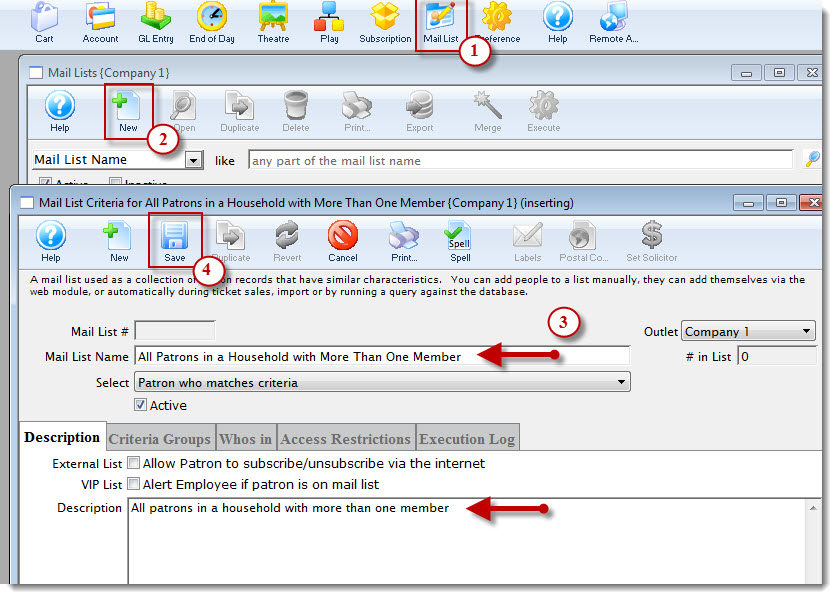
- Click the New button.
The Mail List Criteria window opens.
- Enter a descriptive name in the Mail List Name field and enter a description int the Description tab.
- Click the Save button.
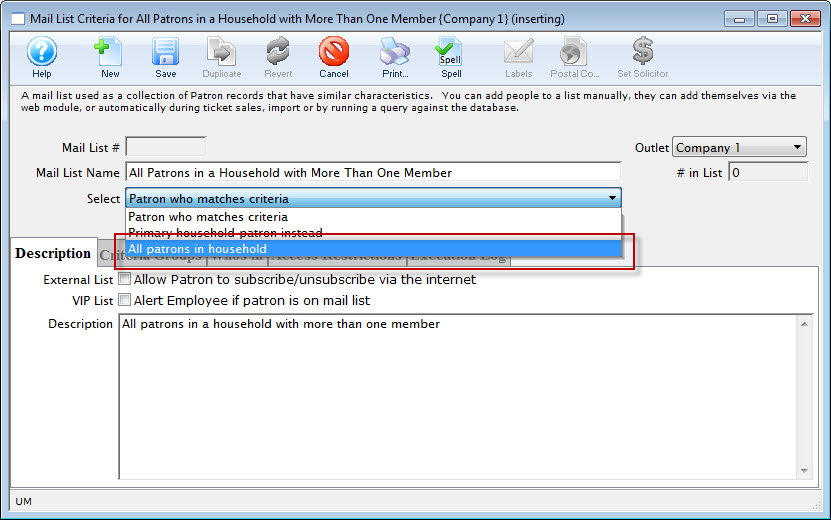
- Change the select drop down to All Patrons In Household and Save .
- Click the Criteria Groups tab.
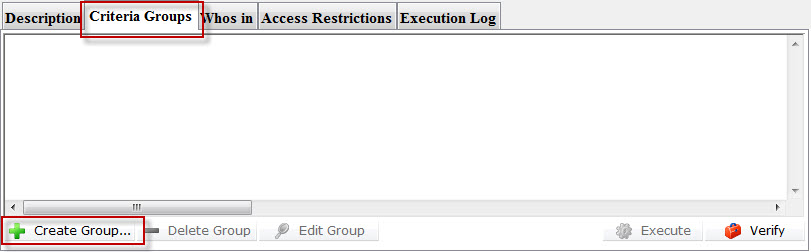
- Click the Create Group
 button and chose To ADD Patrons To The Mail List.
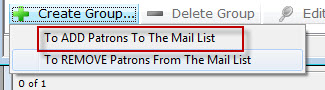
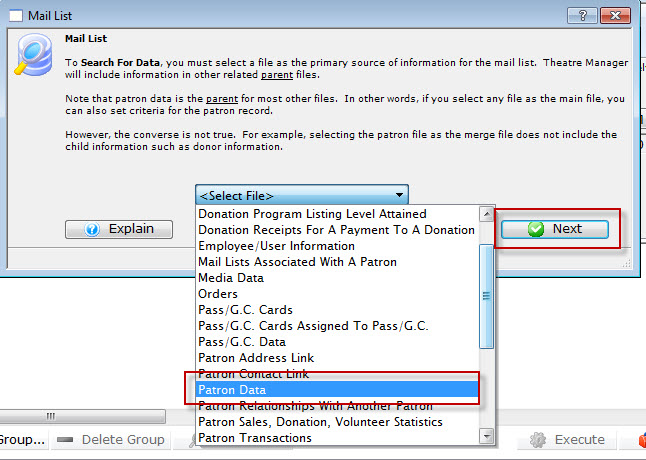
- Chose Patron Data from the drop down list, then click the Next button.
The The Parameters Search window opens.
- Click the New button.
The Edit Report Parameters window opens.
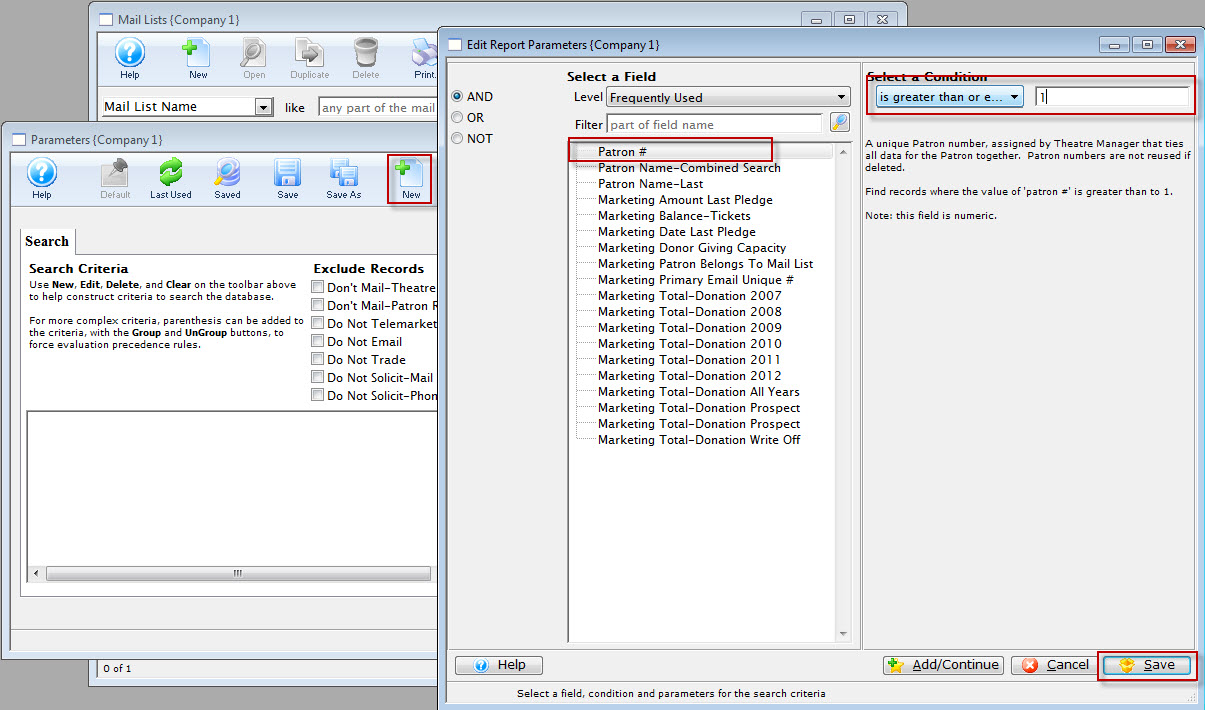
- Choose Patron # and select the condition - is greater than or equal to 1.
- Click the Save
 button.
You are returned to the Parameters window, Search. Note your selected criteria Patron # is greater than or equal to 1.
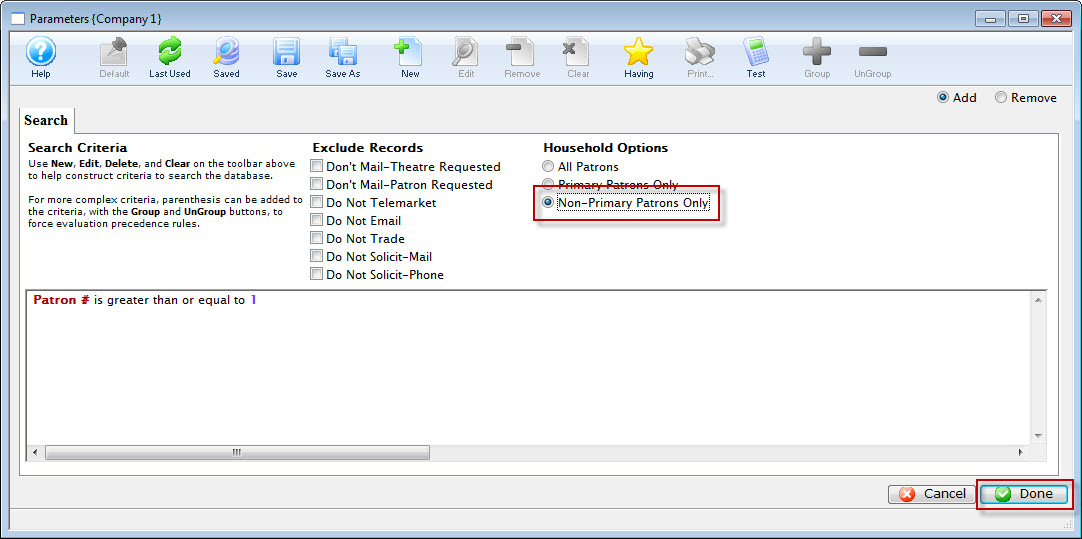 button.
You are returned to the Mail List Criteria window. Your final criteria should look EXACTLY like below.
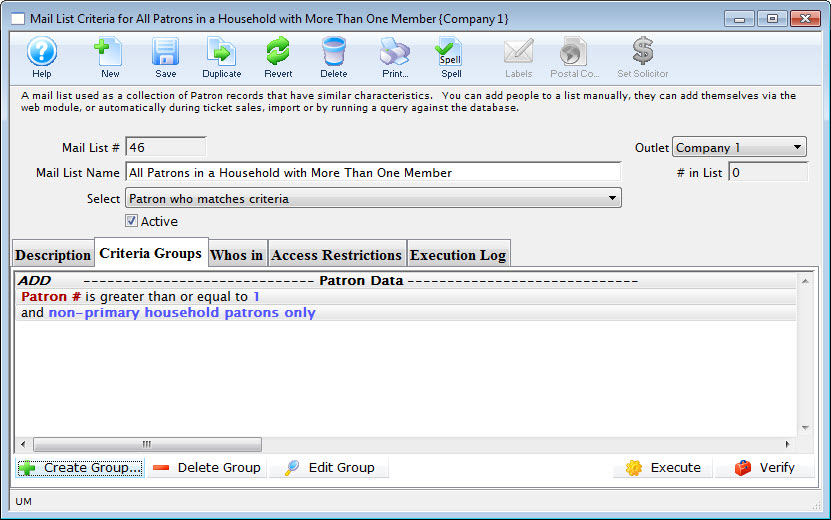
You now have a list of all patrons in the database who are part of a TM household with at least one primary member and one tertiary member.
The Mail List Search window opens.
Mail Lists - Rebuilding a Mail List
After creating mail list criteria and building the mail list, over time some of the patrons on the mail list may no longer meet the criteria to belong to the mail list. The most effective way to remove the patron that no longer meet the criteria is to rebuild the list.
- Open the Mail List Window.
Click Here to learn how to access this window.
- Find the mail list you would like to rebuild.
- Click the Execute button.
The following warning screen will open.
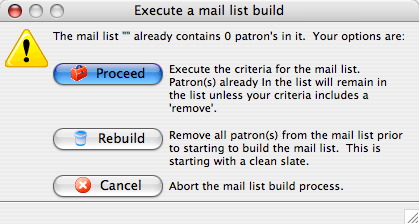
- Click the Rebuild
 button.
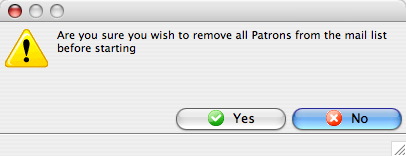
- Click the Yes
 button.
This will remove the current patrons from the list and perform the query again on the new data. Clicking Proceed would have left all current patrons in the list, added patrons who fit the entered criteria and only remove patrons who fit within any "remove" criteria.
Parameters for Mail Lists Window
Parts of the Criteria for Group from Mailing List Window
 |
Default search or sort order for the selected Parameters. |
 |
Inserts the last used criteria for the merge field selected. |
 |
Displays saved criteria options within the selected merge field. |
|
Saves selected criteria. |
 |
Saves the entered criteria to be used again. |
|
Opens the criteria window to insert new criteria. |
 |
Opens the criteria window and allow for modifications. |
 |
Removes the selected line of criteria. |
 |
Removes all lines of criteria in the parameters window. |
 |
Inserts brackets around lines of criteria. |
 |
Removes brackets around lines of criteria. |
 |
Searches the database for patrons who "have" a specified line of criteria. Having criteria is criteria that is based on aggrigate values within the search. Click here for more information on using Having. |
 |
Cancels the entry of criteria. |
|
Completes the entry of criteria. |
Having Criteria
- find donors HAVING a total of all donations over xxx
- find ticket buyers having purchased to multiple distinct events for the current season
- find subscribers that have a subscriber package set up for all of the last 10 years
- find gift certificate purchasers with an average gift certificate purchase over $25
- find auction item buyers with a maximum purchase over $1000 for all items bought
For example: if you used criteria to find all subscriber records in the past 5 years, you would get 1, 2 ,3 4 or 5 records - depending on how many years the person has been a subscriber. Since we know each subscription package has a year associated with it, if you make a having criteria that is having a unique count of subscription year >= 4, you would find people who were 4 or 5 year subscribers.
To create the query, you need two things:
- A normal query that finds all the records you want to aggregate in some way. eg: tickets with date sold since 2004 and price paid > 0
- An additional having clause that uses one field for the aggregation. eg
- sum price paid >500 -or-
- count ticket #> 50 -or-
- distinct count event # > 4
- Open the Mail List you want to add the criteria to.
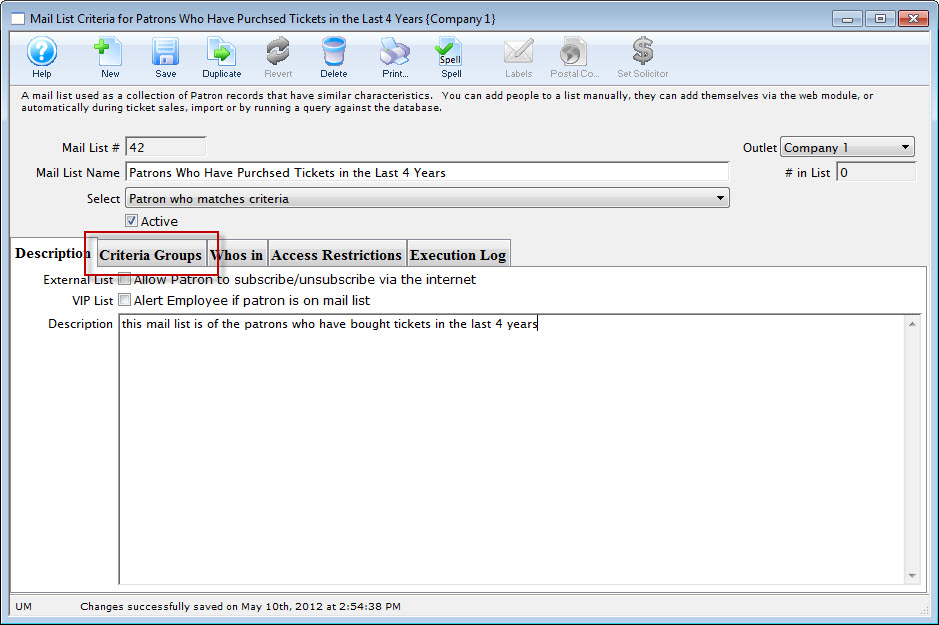
The Mail List Criteria window opens.
- Click the Criteria Groups tab.
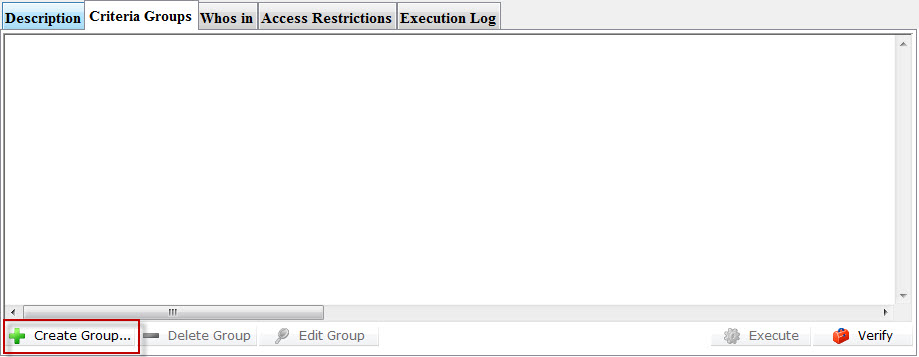
- Click the create Group button.
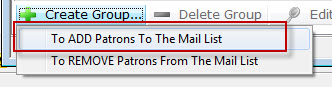
- Make your selection to Add or Remove Patrons from the listing.
The Mail List dialog opens.
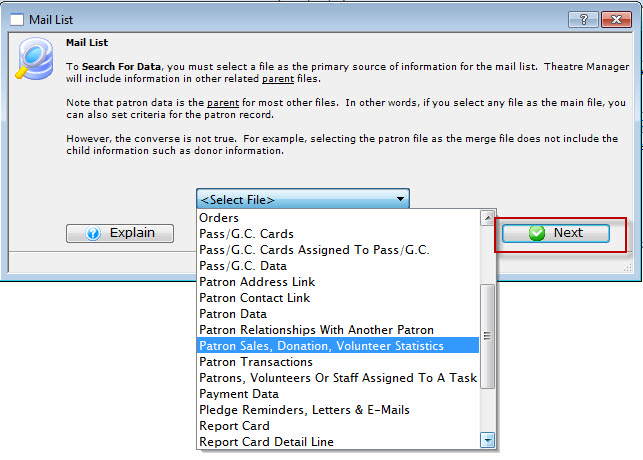
- Select the file for the primary source of information for your list. Then click the Next
 button.
The Parameters window opens.
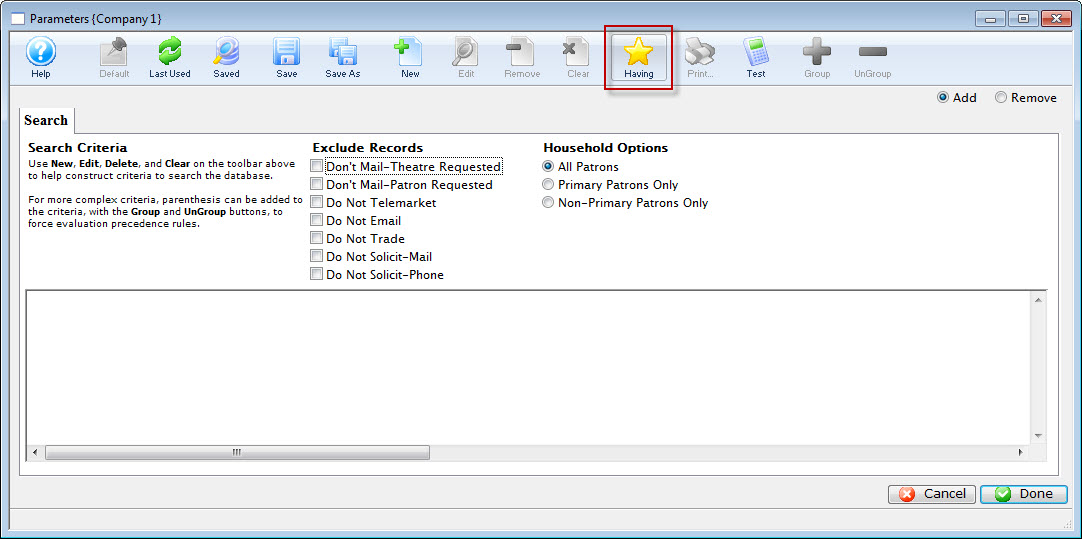
- Click the Having
 button.
The Edit Report Parameters window opens.
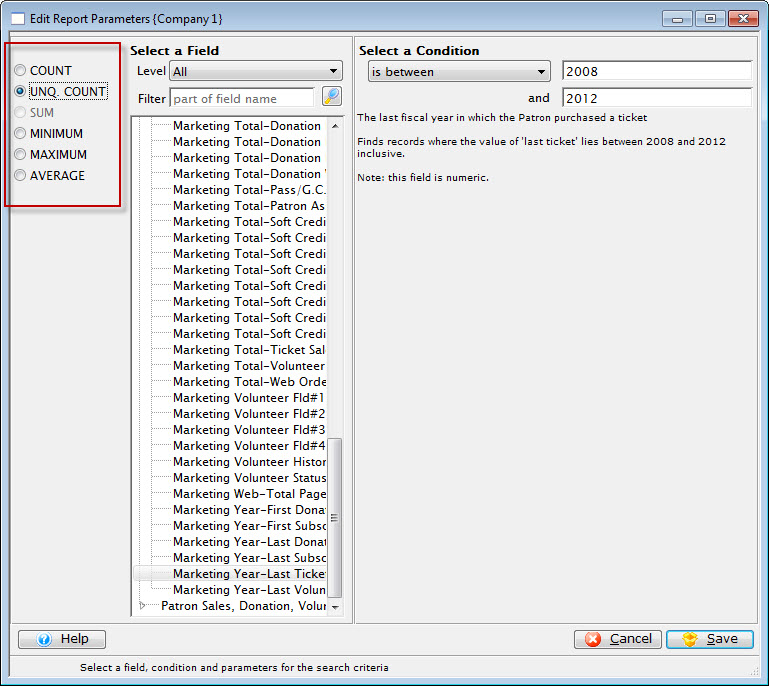
Note the criteria for selection on the left side of the window gives yous different options to choose from.
- Make your selections for the Criteria, and when complete, click the Save
 button.
You are returned to the Parameters window and your criteria selection appears in the search.
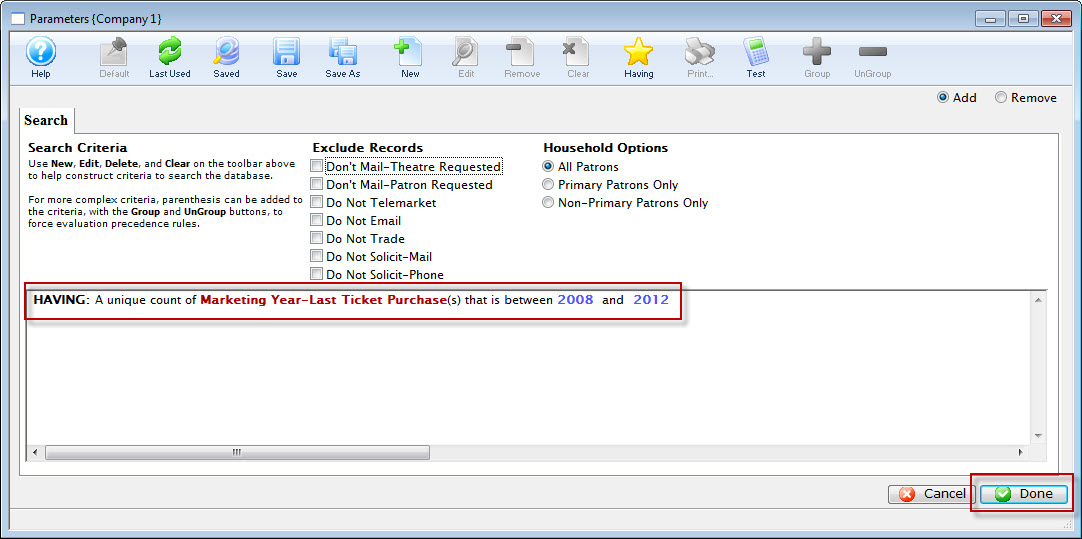
- Click the Done button.
You are returned to the Mail List window.
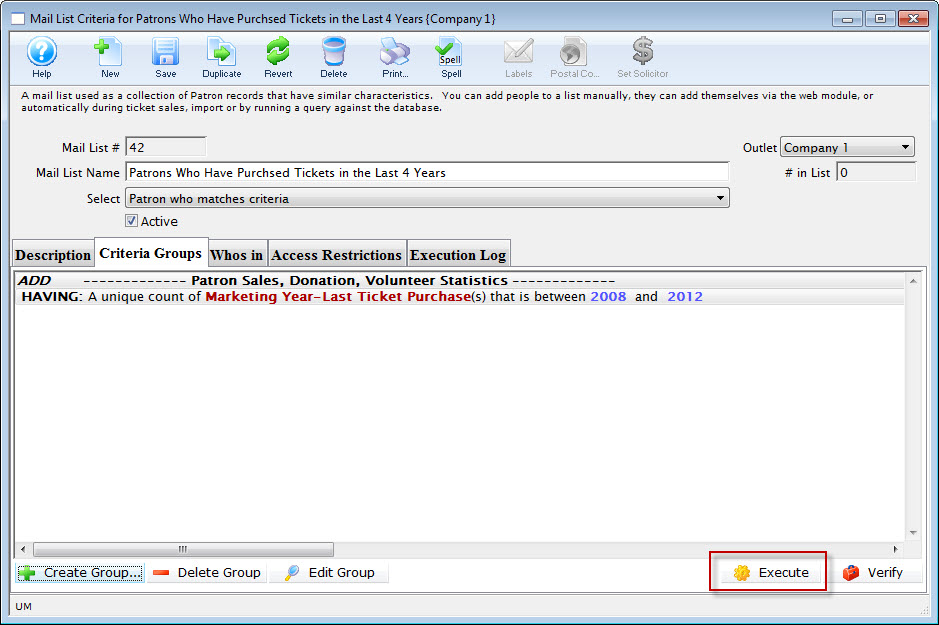
- Click the Execute
 to execute your search.
Donations HAVING given in more than xx years
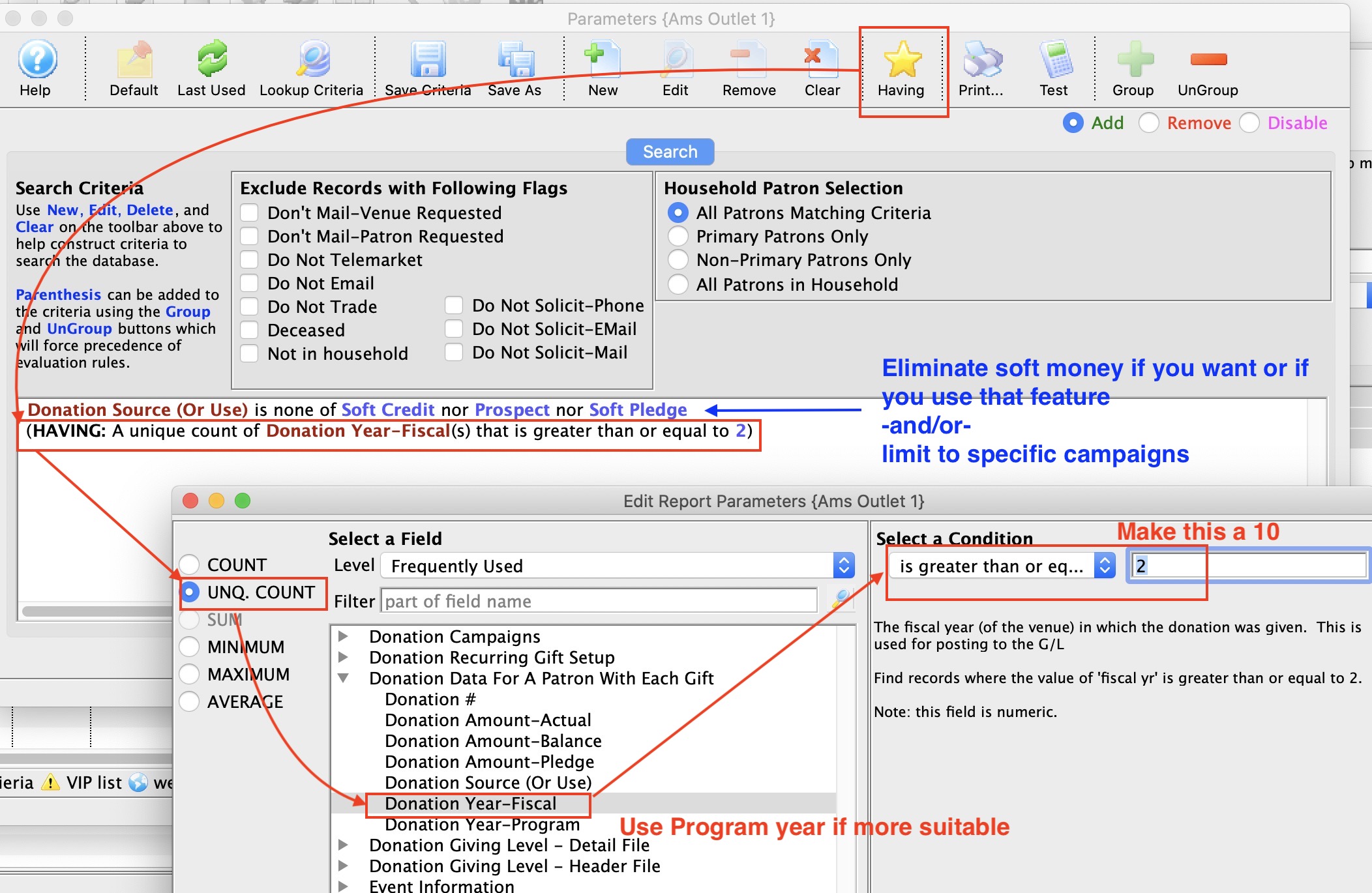
How to find people who have given:
- between xx times in the past number of years
- more than a xx times in the past number of years
Normal Criteria
The normal criteria is optional. If you don't specify anything, you will retrieve all donations. Some things you might want to include in criteria are one or more of:
- criteria to eliminate soft credits, prospects, and hard pledges which are not real money - unless you want to count those amounts towards the patrons giving
- donation date range - if you only want to look at a range of years, or only every second year, or only leap years, or anything you want ...
- Donation Campaigns - if you want to limit search to certain campaigns
- Donation actual amount - if you want to limit search to individual donations between a certain range, over a certain range, or anything you want
- belongs to mail list - if you want to find subscribers in your list, or volunteers, or people who bought giver certificates, or people who returned tickets for donations - anything simple or complex that you want relating to the patron
In short, you can limit the donations selected to ANY criteria you could enter (or select all donations)
Having Criteria
The HAVING clause re-examines the set of data is found using the normal criteria. It then imposes a further restriction on the aggregate set of data. Examples could be:
- the data must HAVE a UNIQUE number of fiscal years donated >=2 per patron (the example above) -or-
- the total count of donations must be >6
- the average donation across the number of years selected must be between x and y
- the distinct number of campaigns given to must between x and y
- and much more
Having - Patrons with count of tickets
The query is based on ticket data for a patron and you can add other criteria such as:
- Only specific shows in the past
- A certain fiscal year, season or range of seasons
- People who have donated money in the past and are large purchasers
- patrons who paid for their tickets (eg total cost > 0)
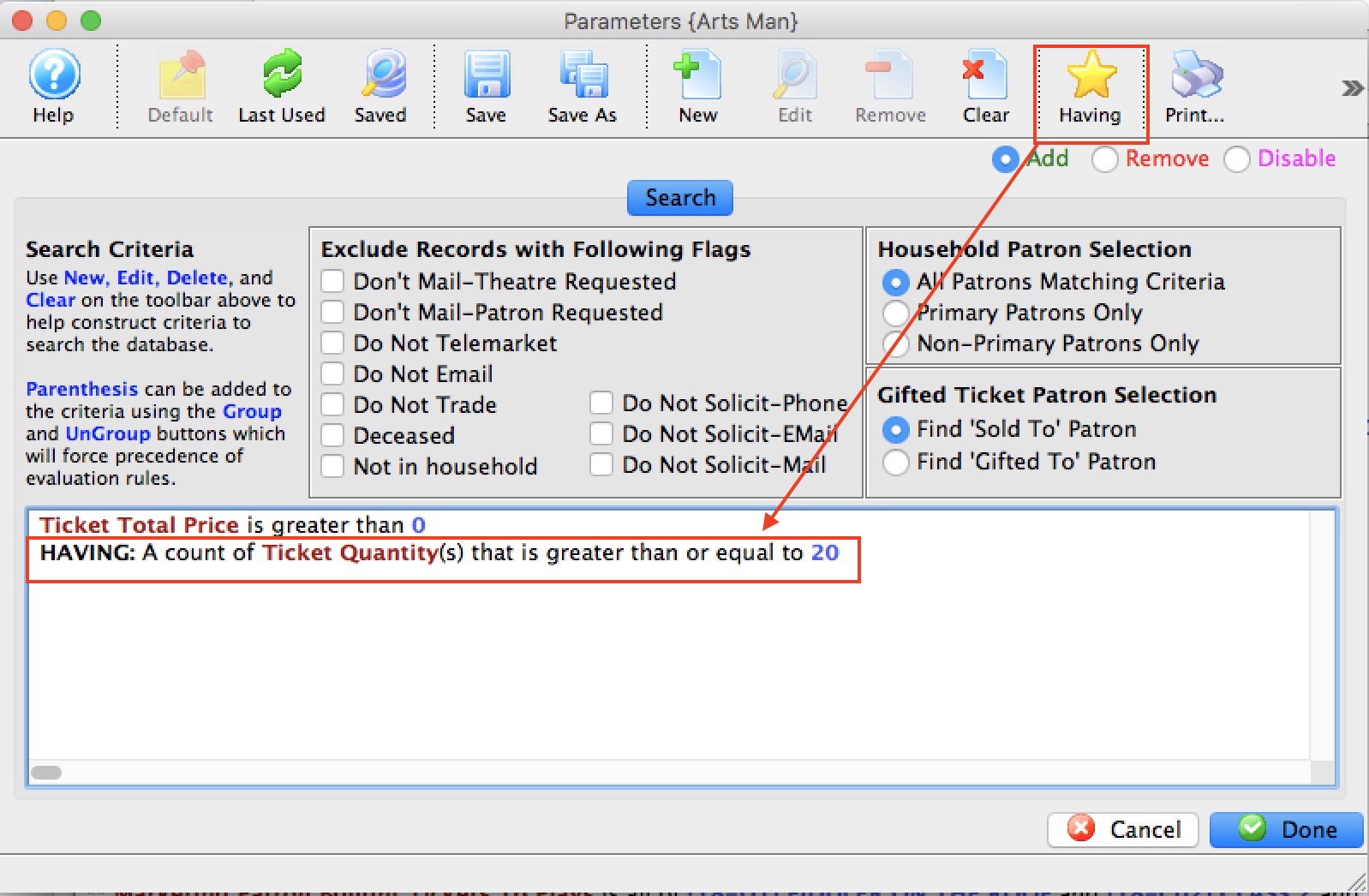
The example below shows the user of Ticket Quantity from the ticket data per performance in the having clause to obtain people who bought more than 20 tickets (in all time). The first line of criteria was added to make sure that they were Paid tickets and not comps.
Removing Patrons Through a Query
If you wish to remove a large number of patrons from a list and they all have a common feature, using a query is the best technique. It is the same procedure as adding a new group except for selecting the Remove function. To ensure that you are removing the correct patrons, place the remove criteria group as the last group to be performed. Click here to learn how to rearrange groups.
- Open the Mail List Window.
Click Here to learn how to open the window.
- Find the mail list you want to remove the patrons from.
- Click the Criteria Groups tab.
The Criteria Groups for the selected mail list are displayed.
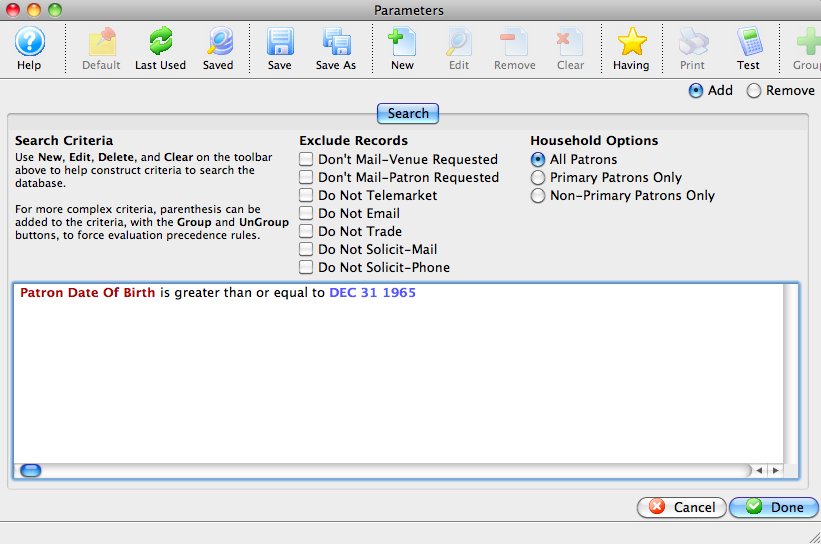
- Click the Create Group
 button.
- Choose "To Remove Patrons From The Mail List".
The group selection dialog opens.
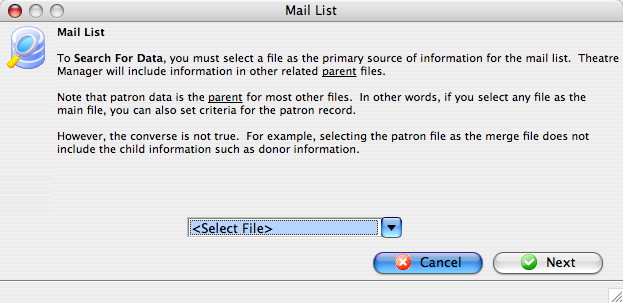
Select a file which contains data all patrons to be removed from the list have in common.
Using the Example List created in Adding Patrons to a Mail List Through a Database Query patrons with last names starting with the letter A will be removed.
The "Patron Data" file will be used for this example.
- Select "Patron Data" from the drop-down list and click the Next
button.
The Parameters window opens.
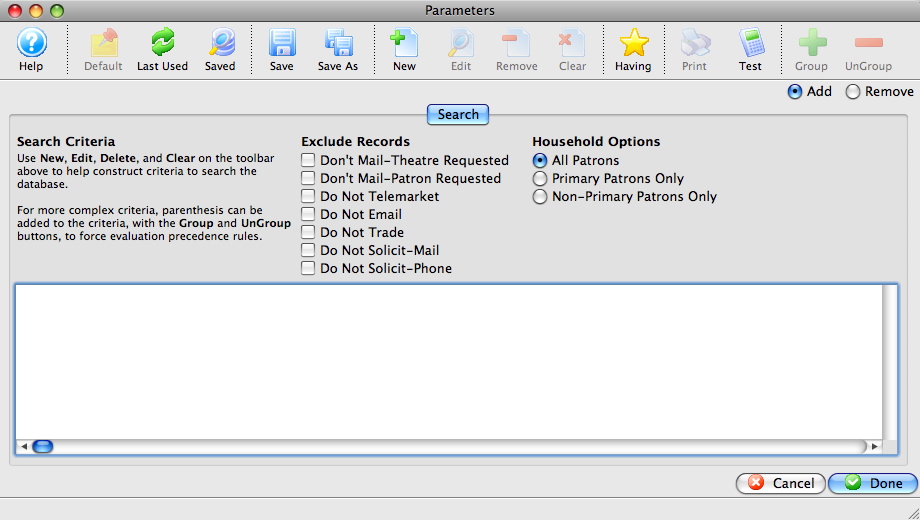
Click Here for a detailed description of the window.
- Click the New button.
The Add/Edit Parameters window opens.
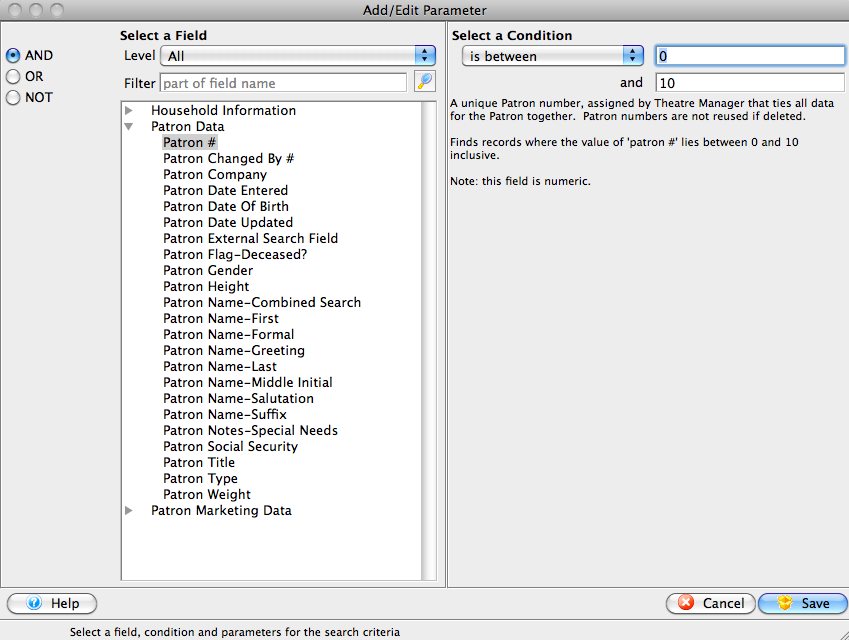
- Select the field to search by.
For this example the "Patron Name-Last " field.
- Fill the search parameters with the information to search by.
For the example use "begins with A".
- Click the Save button.
The Parameters window returns and the selected criteria will appear in the window.
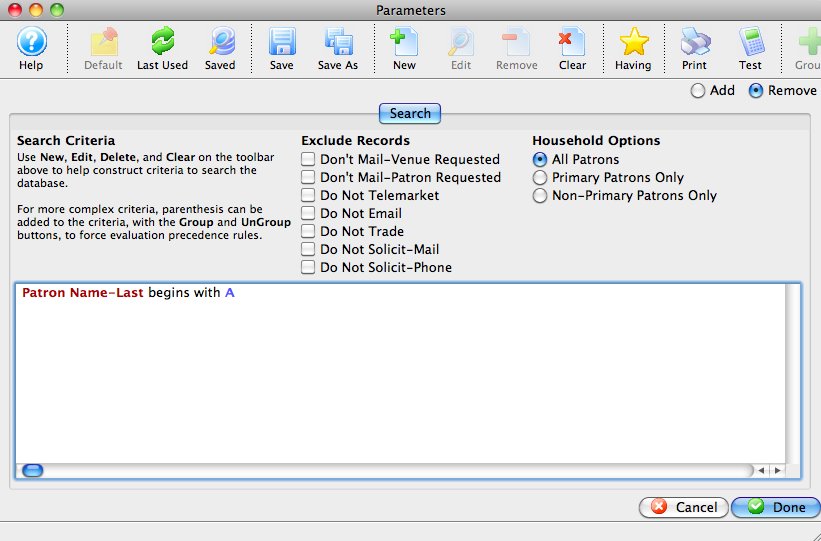
- Click the Done
 button.
The Mail List Criteria window returns.
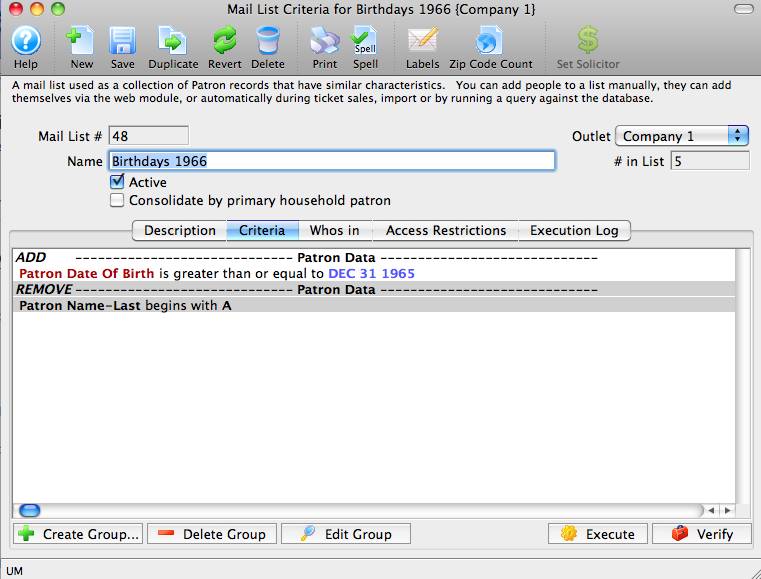
- Click the Execute button.
An Options dialog opens.
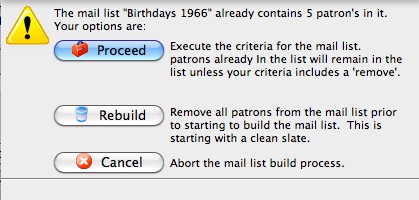
- Click the Rebuild button.
A confirmation dialog is displayed.
- Click the Yes
 button.
Theatre Manager will highlight each group as it is executed.
The Mail List Criteria window opens to the Who's In
tab. Patrons with last names starting with the letter A will now be removed from the list.