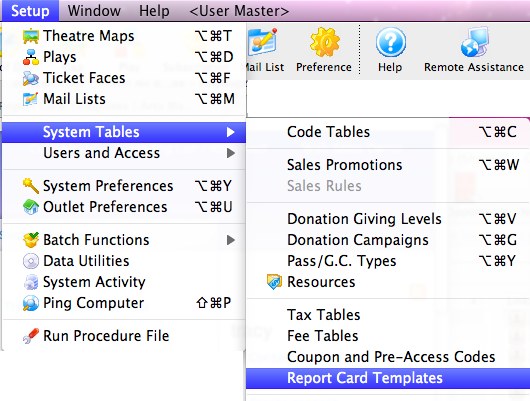
Course Management Items In System Setup
Performance Field #1
Performance Field #1 is a customizable drop-down field used to describe a performance.
For example, you could call it Performance Type and populate it with genre descriptions like Comedy, Drama, or Musical.
You can use the Performance Field #1 in the Course module, to classifying Course Types.
In the example images in this section, Performance Field #1 has been called Course Type, and has been populated with Acting, Movement, Musical Theatre and Voice as groupings for classes. To change the name Performance Field #1 to Course Types, you perform the following steps:
- Choose Setup >> Company (or Outlet) Preferences Appearance Tab and scroll down to Performance Field #1 in the list on the left.
- Select the name on the right from Performance Field #1.
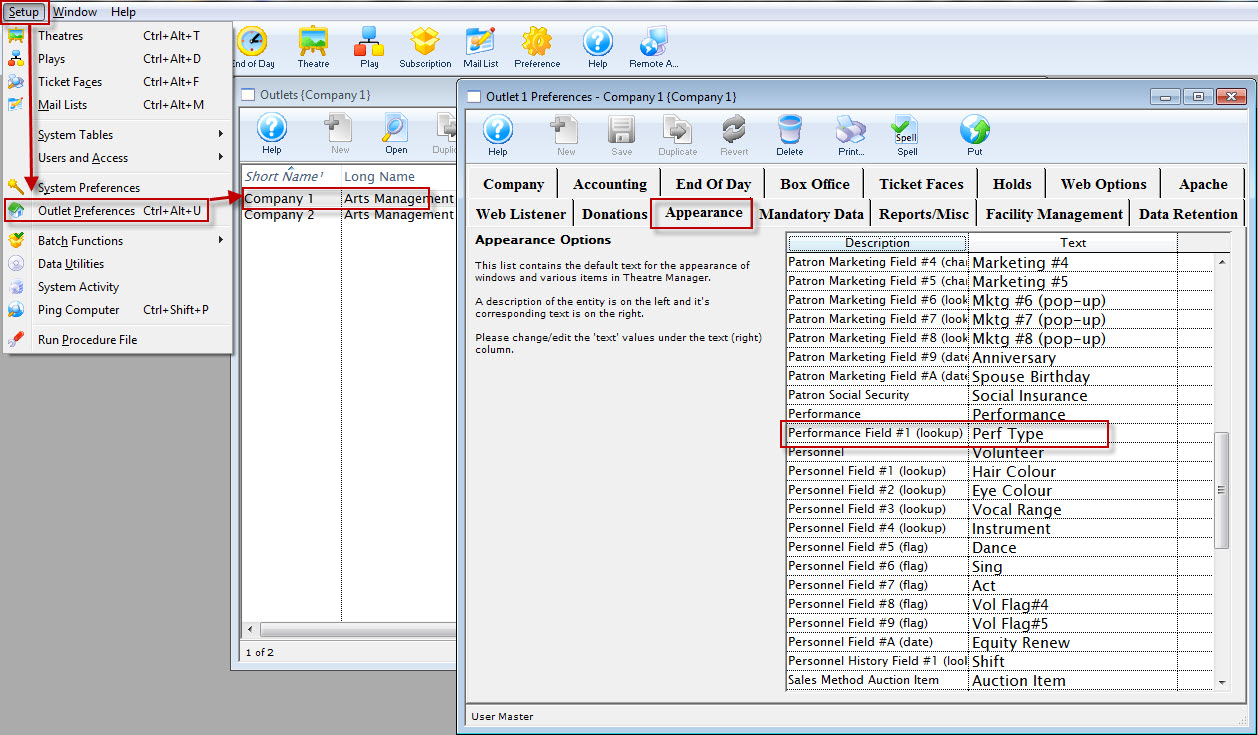
It may be the same, or it may have been previously changed for your organization.
- Change the name on the right to what is appropriate for your organization.
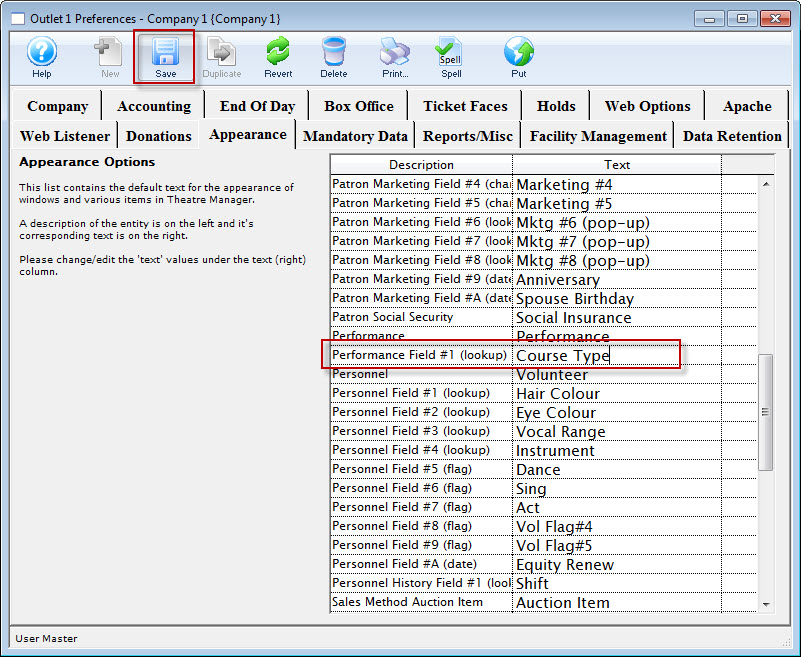

The change you make is Company (or Outlet) wide. Ensure, if the field has been used in the past, it is not currently in use or can it be altered to be more inclusive.
The Code Table name will also change from Perf Type to your entry.
- Click the Save
 button.
To populate the options available in Performance Field #1, please follow the instructions under Course Settings in Code Tables found here.
Searching By Performance Field #1
One of the benefits of using Performance Field #1 in conjunction with Courses is that you can search by that field in the Performance Selection screen while purchasing a Course.
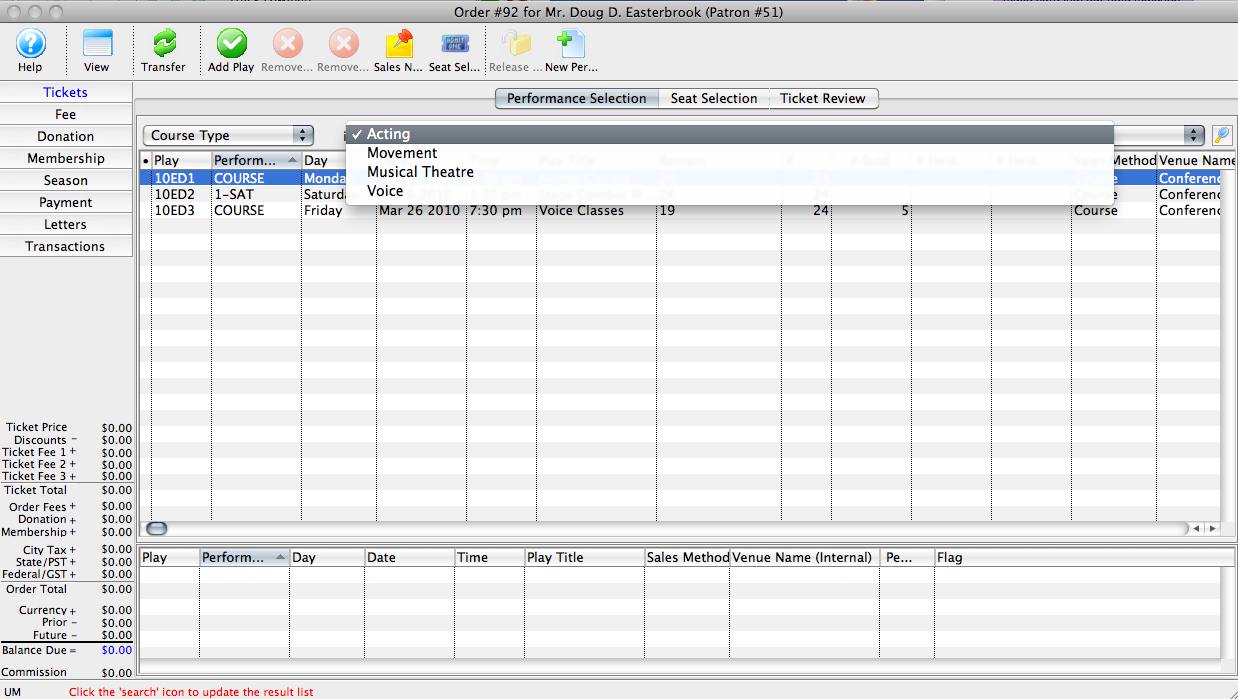
One of the benefits of using Performance Field #1 in conjunction with Courses is that you can search by that field in the Performance Selection screen while purchasing a Course.
Change the drop-down lookup menu at the top left to whatever you have named Performance Field #1 to search just for events or courses that fit one of its descriptors.
Course Settings In Code Tables
There are five code tables found in Setup >> System Tables >> Code Tables that need to be addressed when using the Courses Module. For more information, see:
- Instructor Setup, particularly the area of managing courses online if you wish to enable instructors to track attendance and add people via a tablet interface.
- Course Attendance Reason
- Course Level
- Report Card Categories
- Report Card Ratings
- Perf Type
Report Card Templates