Creating a Coupon Code for Ticket Discounts
Creating a Coupon Code for Ticket Discounts
Using Theatre Manager, you can create Ticket Discount coupon codes.
|
You can create coupon codes for both ticket discounts and presale access. For more information on creating coupons for presale access, click here. |

With Restricted Access Codes, here is an example of restricting the coupon to 10 coupons of 2 redemptions for a maximum of 20 tickets:
- on the availability tab if you set your Max Coupons to 10
- on the promotion tab set you set the max use per coupon to 2
- in the promotion conversion detail you set the maximum Uses to be 20 ( 20 tix max ).
The following occurs
- If everyone only buys 2 tickets per order, the coupon will remain available for all 10 coupons available.
- If someone buys 4, only two ticket will be affected by the coupon.
- If you reach either the 10 coupon threshold or the max uses of 20 no more discounts will be offered.
To create a Coupon Code for Ticket Discounts, you perform the following steps:
- List Codes
Coupon the>
Click here to learn how to access the Coupon Codes List window.
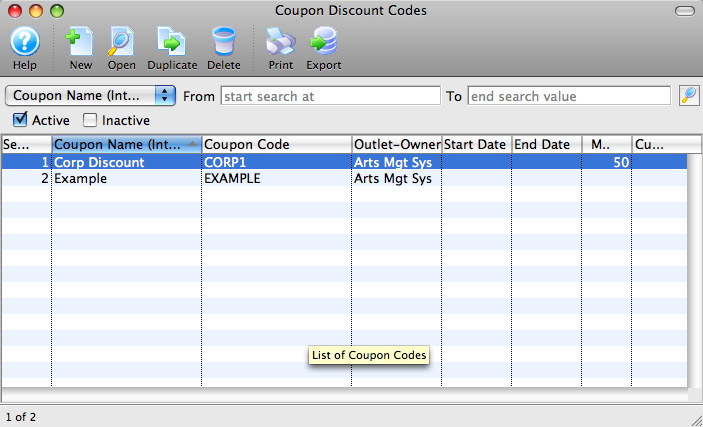
- Click the New
 button.
The Coupon Code Discount Detail window opens.
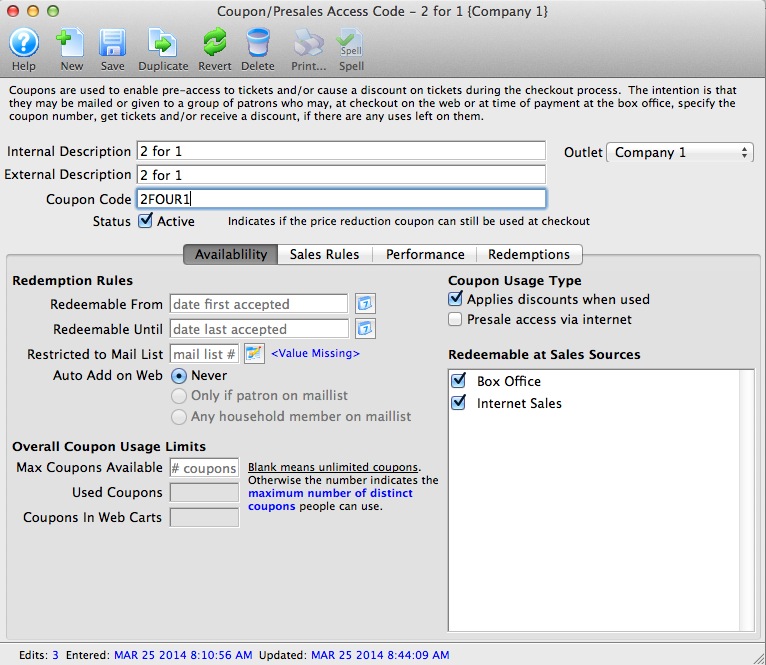
- Enter the Coupon Code Description.
The internal description will only be displayed in Theatre Manager and the external description will be displayed for web sales.
- Enter the code that the Patron will use to receive the coupon discount in the Coupon Code box.
Example: 2FOUR1
- Enter the availability dates detail as needed. ( blank for unlimited )
- Add a Mail list if restricting the coupon to only patron on a particular Mail List.
Leave blank if coupon is unrestricted and can be used by any patron
- Select option for Auto Add
- Check Coupon Usage Type
Note that the default on insert is Applies discount when used
- Click the Save
 button.
The promotion, performance and redemption tabs are now available.
- Click the Promotions
 tab.
For more information on the promotions tab click here.
- Click the New
 button and create a promotion conversion.
For more information on promotion conversions click here.
- Click the New
- Click the Performance
 tab.
- Click the New button.
For more information on the performance tab click here.
The Performance List Lookup window opens.
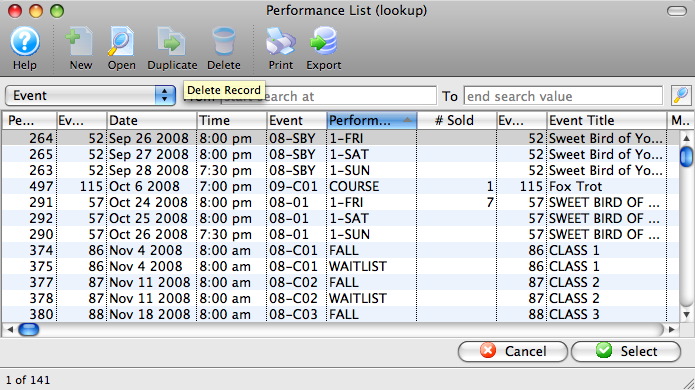
- Select the performance(s) that the coupon will be used for.
To select multiple performances, use the CTRL key (Windows) or the OPTION key (Mac).
- Press the Select
 button.
- Click the Save button.
The Coupon Code has now been created. Click here for more information on editing a Coupon Code or click here for more information on deleting a Coupon Code.
For more information on the availability tab click here.