Editing Values in a Code Table
Editing Values in a Code Table
|
You can edit the value of a entry in a code table but by changing it you will be changing all records which used the previous value. |

- Double Click the value you would like to edit.
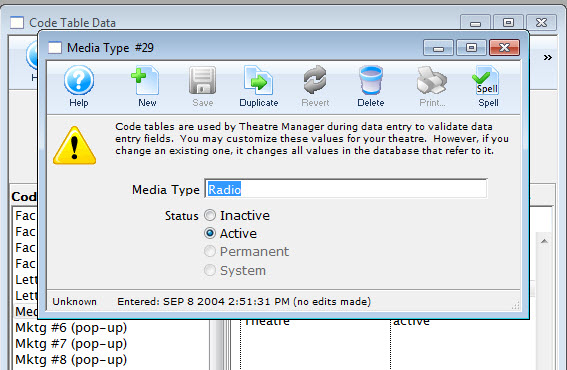
- Change the value as needed and click the Save
 button.
The value will be changed in the code table and on all records which contained that value.
Changing Value Status
Changing Value Status
|
Changing the status of a code table value is a good way to remove a value from use temporarily. |

- Select the Code Table and Table Etrey value you would like to change the status of.
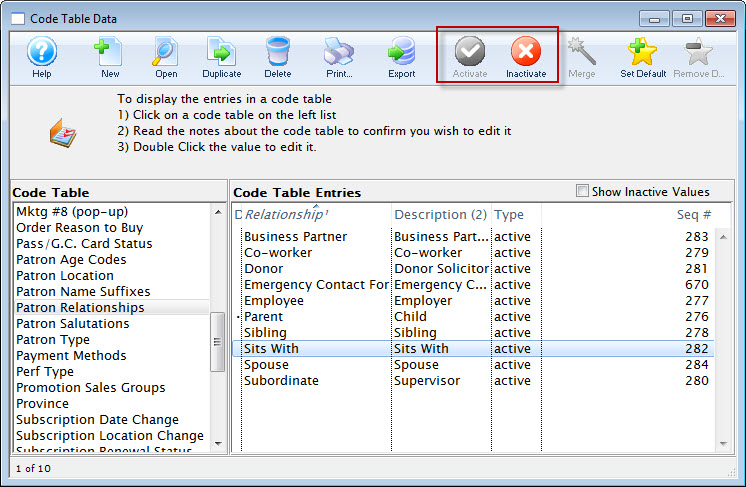
- Click either the Activate
 or Inactivate
 Buttons
depending on which status you would like to change the value of.
Setting or Removing a Default Value
Setting or Removing a Default Value
Some code tables allow setting up a default value to be used when inserting a new record into Theatre Manager. For example, if the salutation code table had a default value of "Mr. and Mrs." This feature reduces the amount of time it takes to input information into Theatre Manager. Values that do not change each time a new record is inserted can be predefined.
Setting a Default
- Select the value from the appropriate code table.
Single click the value to highlight it.
- Click the Set Default
 button.
A bullet should now appear beside the value, signifing the default code table value.
Removing a Default
- Select the default value from the appropriate code table
Single clicking the value to highlight it. This will be the value that is marked by the bullet.
- Click the Remove Default Button

The default should now be removed. If the bullet has disappeared the process was successful. There is no longer a default value.
Merging Code Table Values
Merging Code Table Values
Merging Code Table Values can take some time as it depends on how many values you are merging and the number of times they have been merged. Make a backup of your database before you perform a merge on code table data. Click Here to learn how.
- Select the values that you would like to merge.
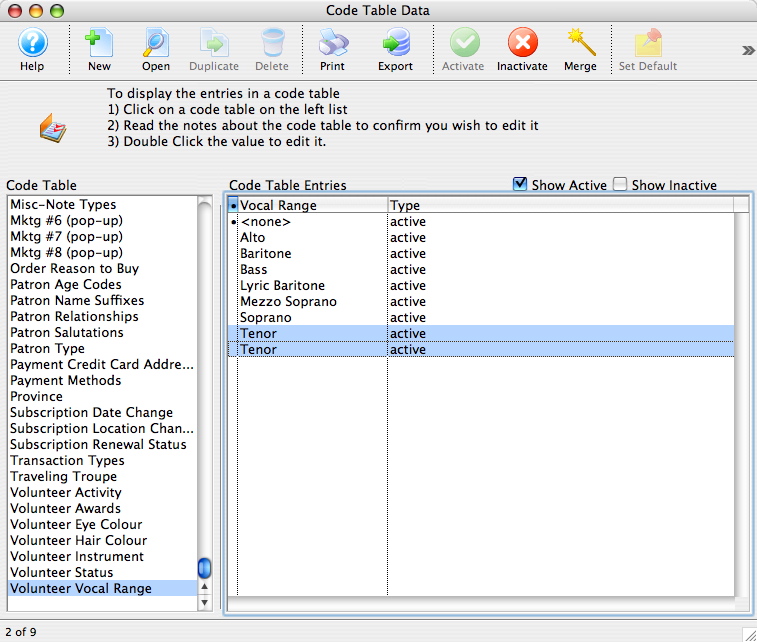
- Click the Merge
 button.
The Duplicate Search Options Window will open.
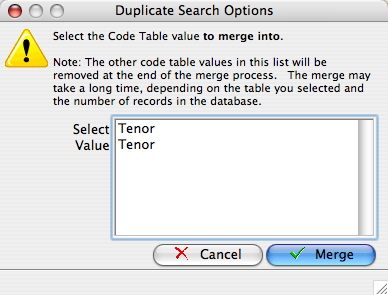
- Select the value you would like to merge all data into then click Merge

A Warning Window will open asking you to confirm the merge.
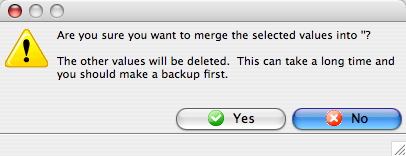
- Click Yes
 to continue with the merge.