Removing Patrons Through a Query
Removing Patrons Through a Query
If you wish to remove a large number of patrons from a list and they all have a common feature, using a query is the best technique. It is the same procedure as adding a new group except for selecting the Remove function. To ensure that you are removing the correct patrons, place the remove criteria group as the last group to be performed. Click here to learn how to rearrange groups.
- Open the Mail List Window.
Click Here to learn how to open the window.
- Find the mail list you want to remove the patrons from.
- Click the Criteria Groups
 tab.
The Criteria Groups for the selected mail list are displayed.
- Click the Create Group
 button.
- Choose "To Remove Patrons From The Mail List".
The group selection dialog opens.
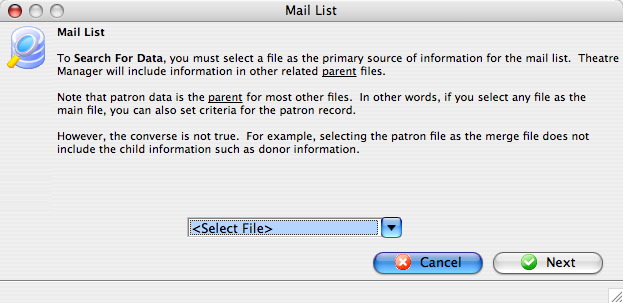
Select a file which contains data all patrons to be removed from the list have in common.
Using the Example List created in Adding Patrons to a Mail List Through a Database Query patrons with last names starting with the letter A will be removed.
The "Patron Data" file will be used for this example.
- Select "Patron Data" from the drop-down list and click the Next
 button.
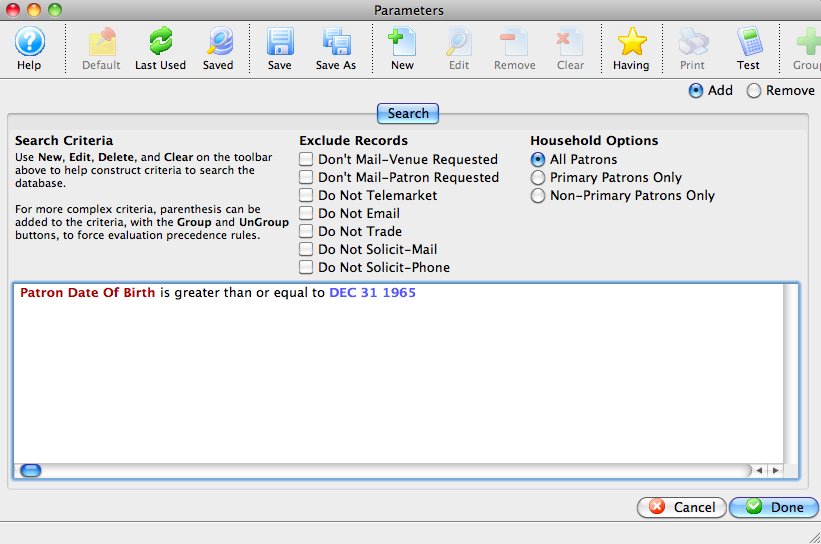
The Parameters window opens.
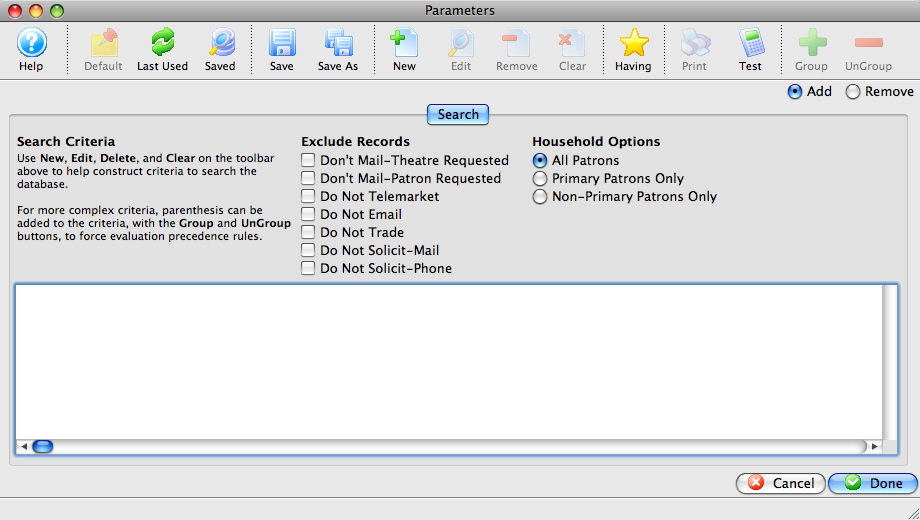
Click Here for a detailed description of the window.
- Click the New
 button.
The Add/Edit Parameters window opens.
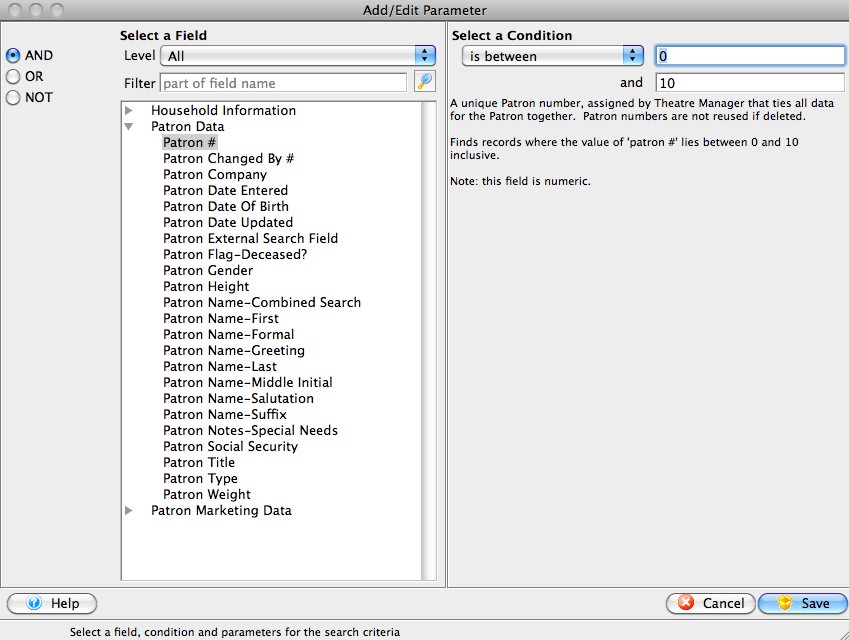
- Select the field to search by.
For this example the "Patron Name-Last " field.
- Fill the search parameters with the information to search by.
For the example use "begins with A".
- Click the Save
 button.
The Parameters window returns and the selected criteria will appear in the window.
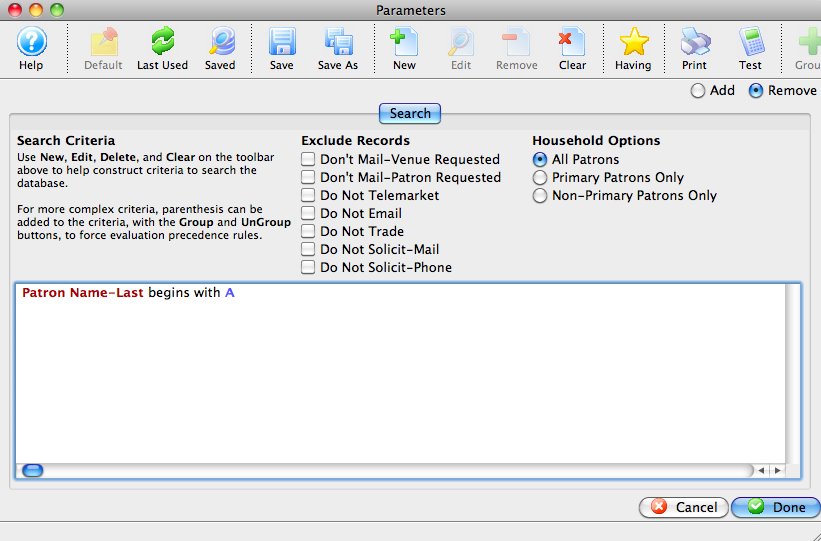
- Click the Done
 button.
The Mail List Criteria window returns.
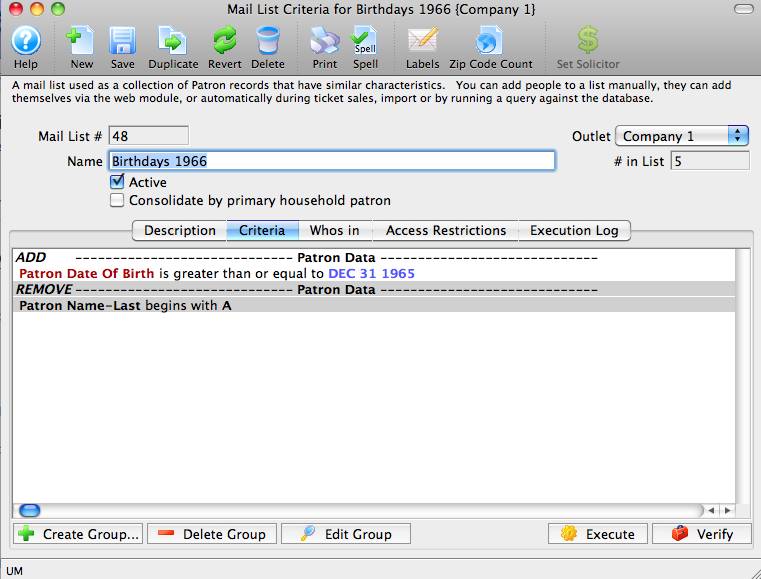
- Click the Execute
 button.
An Options dialog opens.
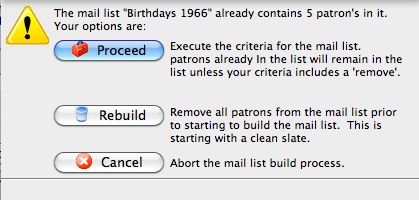
- Click the Rebuild
 button.
A confirmation dialog is displayed.
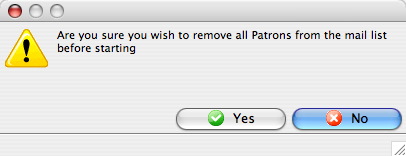
- Click the Yes
 button.
Theatre Manager will highlight each group as it is executed.
The Mail List Criteria window opens to the Who's In
 tab. Patrons with last names starting with the letter A will now be removed from the list.