Correcting Transactions in the G/L
Correcting Transactions in the G/L
The Transaction Detail displays all information pertaining to a specific transaction. To view the detail of a particular transaction, select the transaction tab on a Patron's record and double click on the transaction. For more information on accessing the Patron Transaction tab, click here.
|
|

- Click the Transaction
 Tab in the patron window.
The Transaction History Record opens.

Click the Search
 button to view all transactions.

- Double clicking on the selected transaction opens the Transaction Detail window.
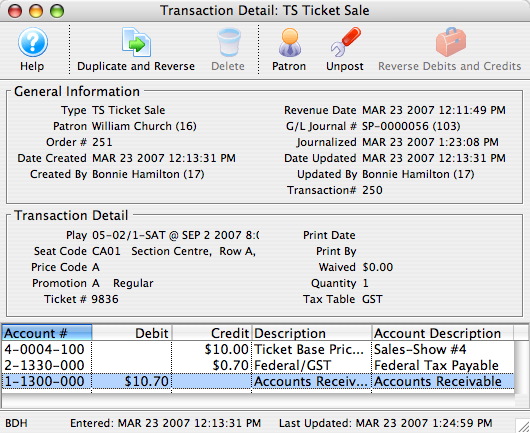
- Click Duplicate and Reverse
 button.
A transaction can be duplicated (and reversed) to make a correction to a transaction that has already been journalized to the General Ledger. The result of duplicating a transaction is an un-posted journal entry which reverses the debit or credit result of the original transaction. This un-posted journal entry will be journalized the next time an End of Day, Create Sales Entry routine is generated.
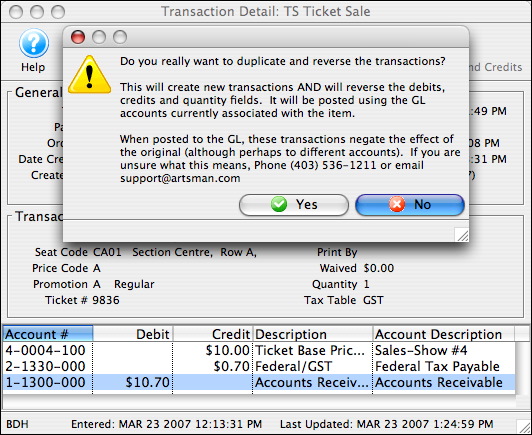
Click the No
 Button to cancel duplicating and reversing the transaction.
- Click the
 to reverse debit or credit created in error.
You use this to correct a transaction that has been created in error and has not yet been journalized to the General Ledger resulting in a reversal of the debit or credit created by this transaction. It can only be preformed by Arts Management. This is an option rarely used.