Printing Unprinted Letters for all Employees
Printing Unprinted Letters for all Employees
To print all unprinted letters for an employee, you perform the following steps.
- Go to Form Letters >> Tasks >> Print Letters/Send Emails.
The Print Letters Criteria window opens.
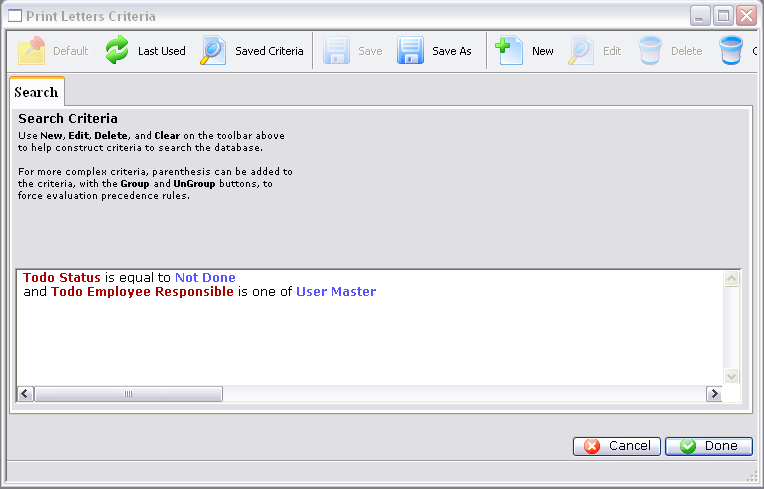
- Click on the "Todo Employee Responsible" criteria and click
the Delete
 button.
The criteria changes to now find all letters that are marked as Not Done.
- Click the Done
 button.
The Patron Letter window opens.
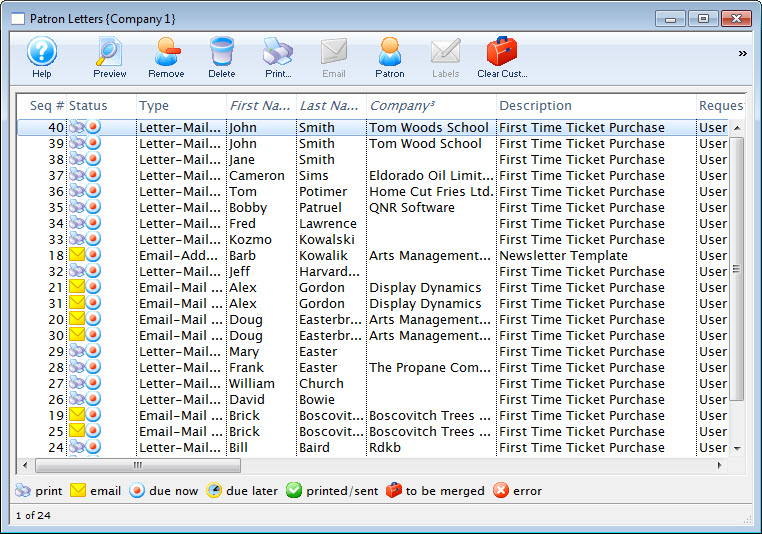
- Make any necessary changes to the letters.
Any letters deleted from this window are deleted from the Patron's record.
Click here for more information on this window.
- Click the Print
 button
to print all letters that are not done or the Send
 button
to send all emails.
The print dialog for the operating system opens.

Remember that in order to send e-mails, a Web Sales listener must be active.
- After printing is complete, you are returned to the Patron Letters window.
All the printed letters will now have a green checkmark in the status column.
For more information about printing address labels, click here.