Deleting a Batch of Merged Letters
Deleting a Batch of Merged Letters
After completing a merge process, and setting it to print or email later, the user may discover the need to delete the batch.
- Go to Form Letters >> Tasks >> Print Letters/Send Emails.
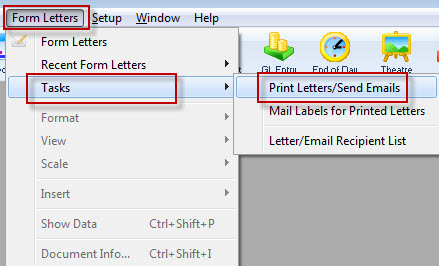
The Print Letters Criteria window opens.
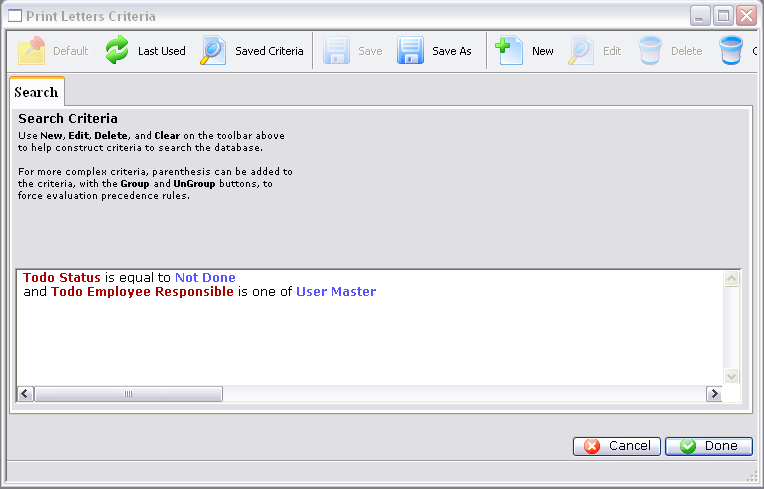
- Adjust the criteria as needed for the employee who created the batch.
To edit a set of criteria, double click on it.
- Click the Done
 button.
The Patron Letter window opens.
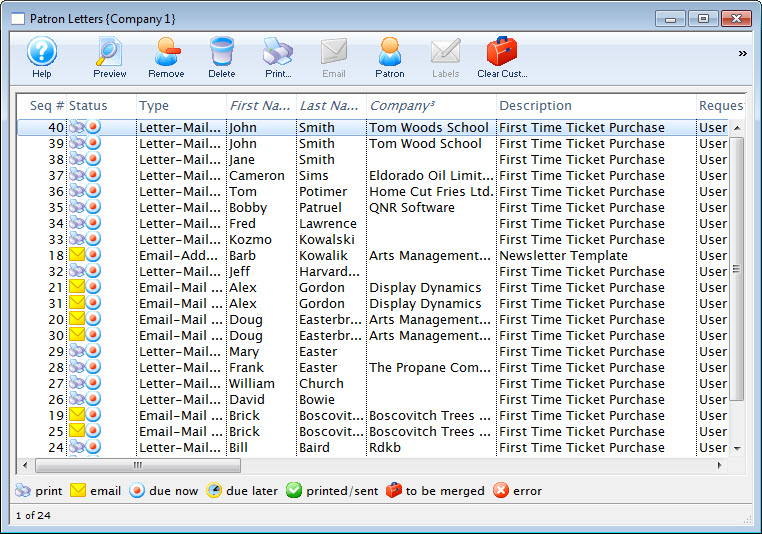
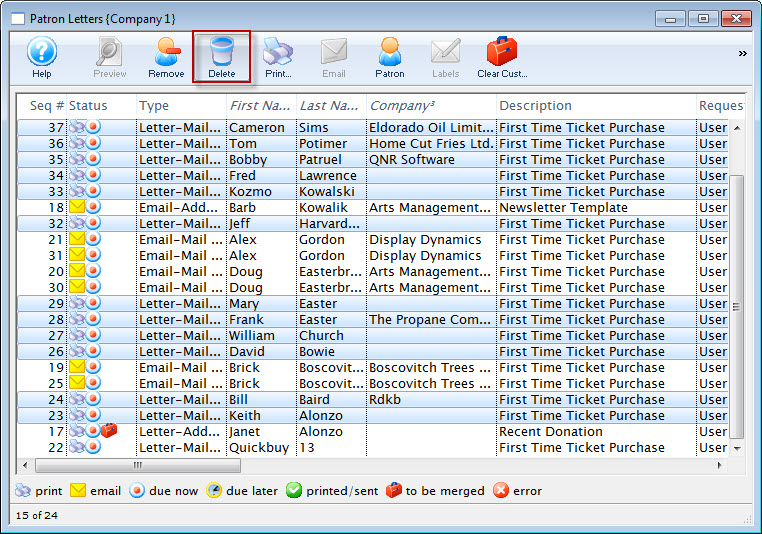
- Select the letters from the batch and click the Delete
 button.
Multiple letters can be selected by using OPTION + click (Mac) or CTRL + click (Windows).
Click here for more information on this window.
A Delete Confirmation opens.
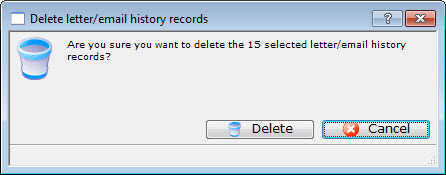
- Click the Delete
 button.
The selected letters/emails are removed from the list.