Microcom Printer - Cutter Offset
Microcom Printer - Cutter Offset
If you are having Microcom Printer issues, in that your Tickets are not cutting at the exact line they should be, you can adjust the Cutter Offset.
 |
NOTE: Do not cut right on the perforation. It will dull the cutting blade faster, causing more frequent blade replacement costs. New blade cutters are supplied directly by Microcom and are not covered by warranty. |
Setting Cutter Offset
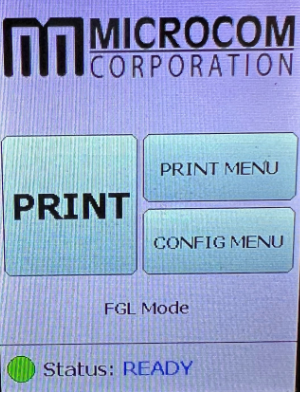
- Press the Print Menu Button
On the Printer itself, click the Print Menu button.
- Click the Next Button Twice
Click the Next button twice to get to the Cutter Offset option.
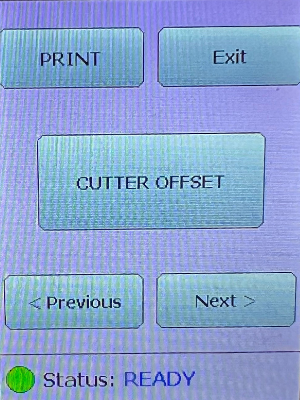
- Select the Cutter Offset Option
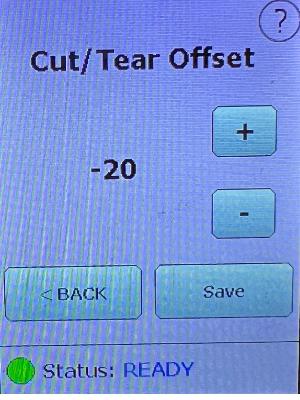
- Select the Offset Measurement
Use the plus + and minus - buttons to set your preferred offset measurement, which are calculated in pixels.
We recommend '-20' as a good starting point.
- Click Save
- Print a Test Ticket