Holding Seats in the Order Window
Holding Seats in the Order Window
Holding Seats in the Order Window
- Create a Buy List
Click here to learn how to create a Buy List. Once the Buy List is complete click Seat Selection tab
 in the Orders window.
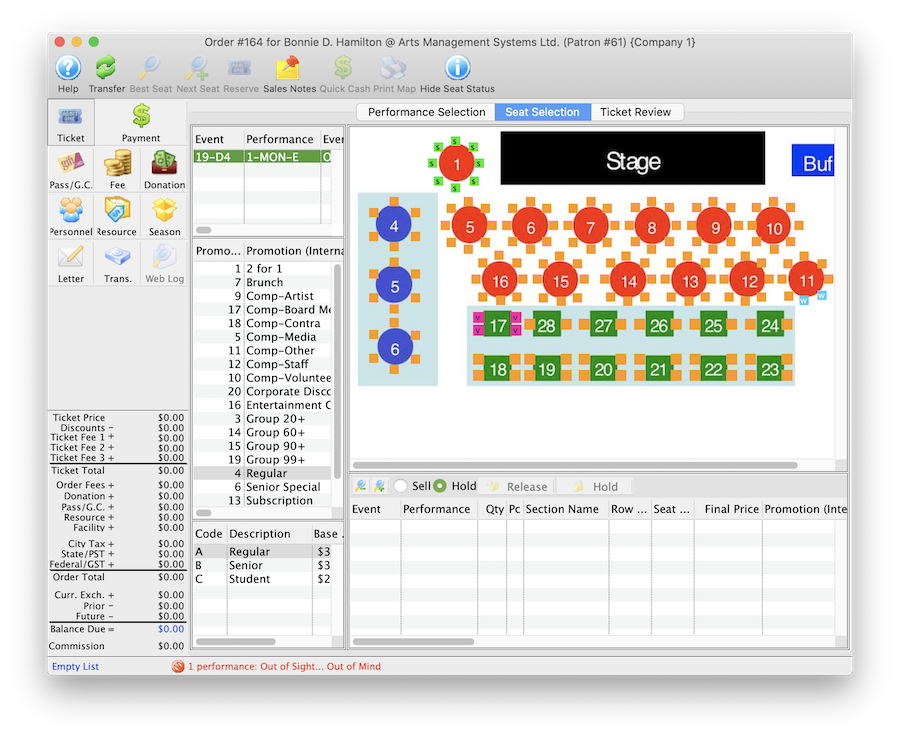
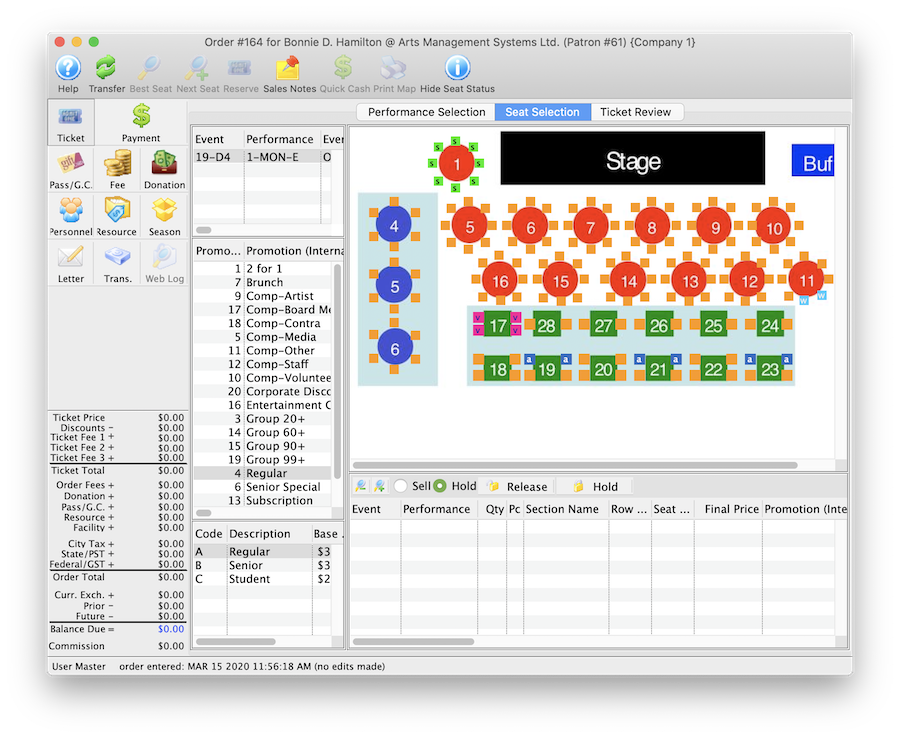
Click here for a detailed description of this window and it's functions.
- Select the Hold option located below the map and above the basket were purchased seats appear.

- Select the seats to be held.
Selected seats will appear as a solid blue. Multiple seats in different sections can be selected by holding down the Shift key on the keyboard.
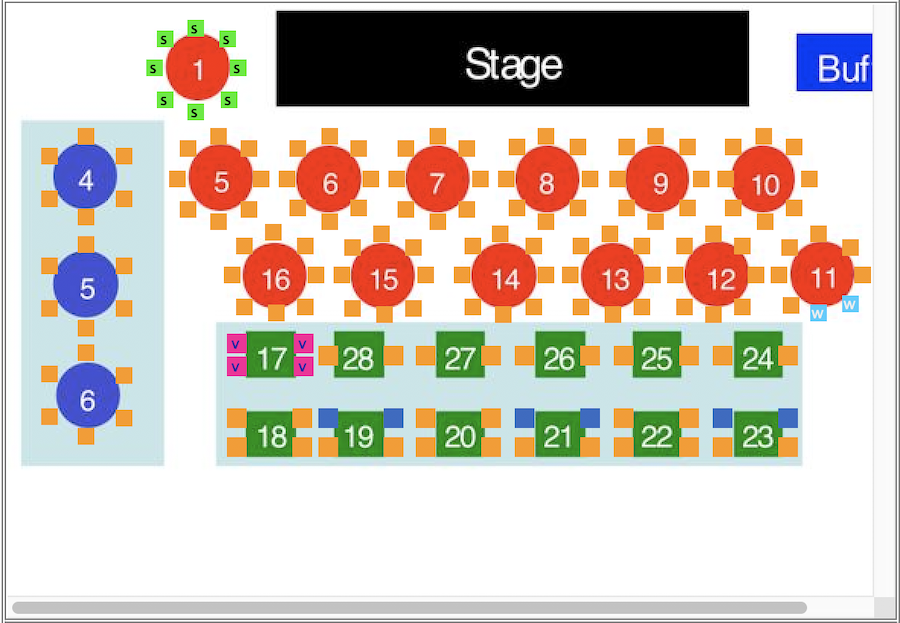
- Click the Hold button located to the right of the Hold option.
Clicking the hold button will provide a menu of hold letters to choose from.
- Select the desired hold letter.
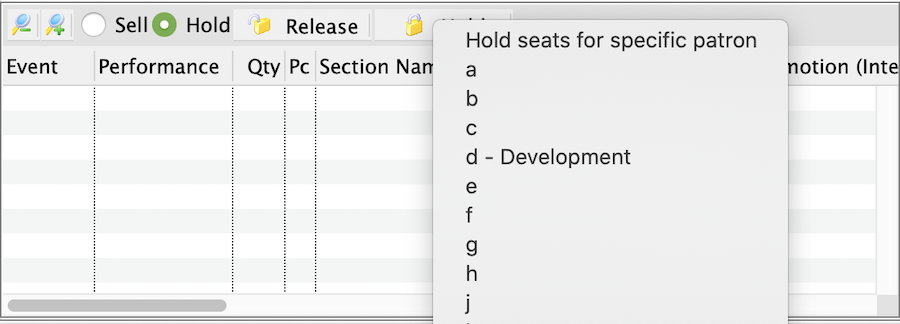
Once the hold letter is selected the seats will be held with that letter on the map for those performances selected on the left. All holds appear as lower case letters on the map. Changing the hold colour can be done in the Box Office tab of Systems Preferences by a Master User.