Ping Computer
Ping Computer
The Ping function allows a computer to send a message to another computer and look for a response in its simplest form. The Ping function is useful for making sure that a workstation is "talking" to the server or that a computer is talking to the outside world.
- From the main menu bar, go to Setup >> Ping Computer.
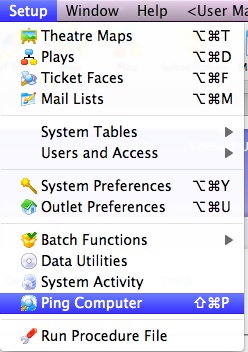
This will open the Ping Computer window.
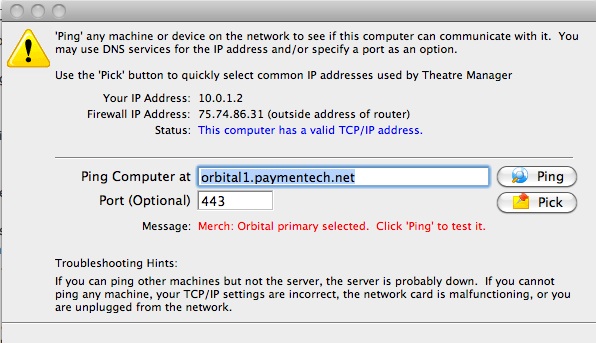
For more information on the Ping Computer window, click here. For more information on how to ping a computer, click here.
The Ping Window
The Ping Window
The Ping window is used to ping another computer to check for communication. The function of ping is to send and receive a message from another computer.
Parts of the Ping Window
Your IP Address |
The IP address of the machine that is currently being used. This is the internal address. |
Firewall IP Address |
The IP address of the network. This is the outside IP address. This is the address that Artsman Support connects to for access to Timbuktu. |
Status |
Verifies that the IP address of the workstation is valid. |
Ping Computer at |
The IP address or URL of the machine to send a ping to. |
Begins the ping process. For more information on using the Ping function, click here. |
|
Port |
An optional port to check on the remote computer. A port check is more specific than a general ping. Leave this blank to generically ping the remote computer. |
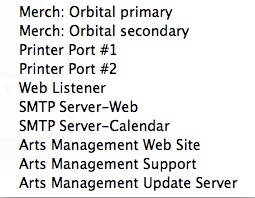
A drop down menu listing machines that would be pinged on a regular basis. |
|
The drop down menu when the Pick button is selected. Selecting any of the items will enter the default IP and port number into the proper fields. |
|
Message |
The message received back from the ping. |
How to use the Ping Function
How to use the Ping Function
The Ping function allows a computer to send a message to another computer and look for a response in its simplest form. The Ping function is useful for making sure that a workstation is "talking" to the server or that a computer is talking to the outside world.
- From the main menu bar, go to Setup >> Ping Computer.
This will open the Ping Computer window.
For more information on the Ping Computer window, click here.
- Enter an IP address or URL into the "Ping Computer at" field.
Optionally, the Pick
 button can be used to choose a default computer to ping.
- Enter the port number to be pinged if necessary.
- Click the Ping
 button to begin the process.
After a few seconds, a message should be displayed showing that the ping was successful.

If the ping was unsuccessful, verify the address settings. If it continues to be unsuccessful, there is either a problem with the workstation or with the remote computer.