City Lookup Table
City Lookup Table
The City Lookup Table allows for automated insertion of the City, Province / State, Country when a specified Postal / Zip Code is entered.
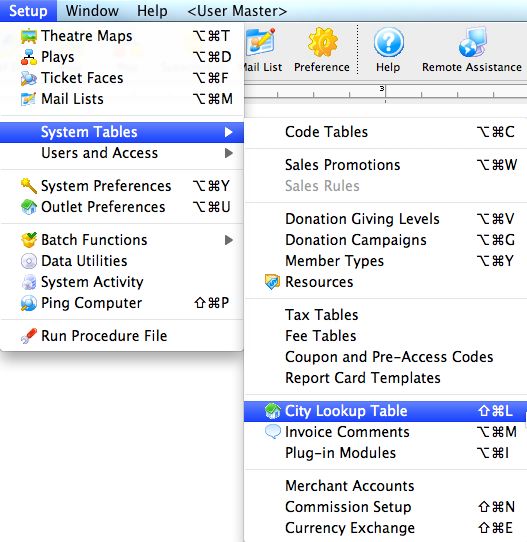
The City Lookup Table Window is accessed through the Setup >> System Tables >> City Lookup Table menu. If you already have a large database of patrons, Theatre Manager can automatically create a lookup list. Depending on the size of your database this process may take upwards of one hour.
The City / Postal Code Window will open.
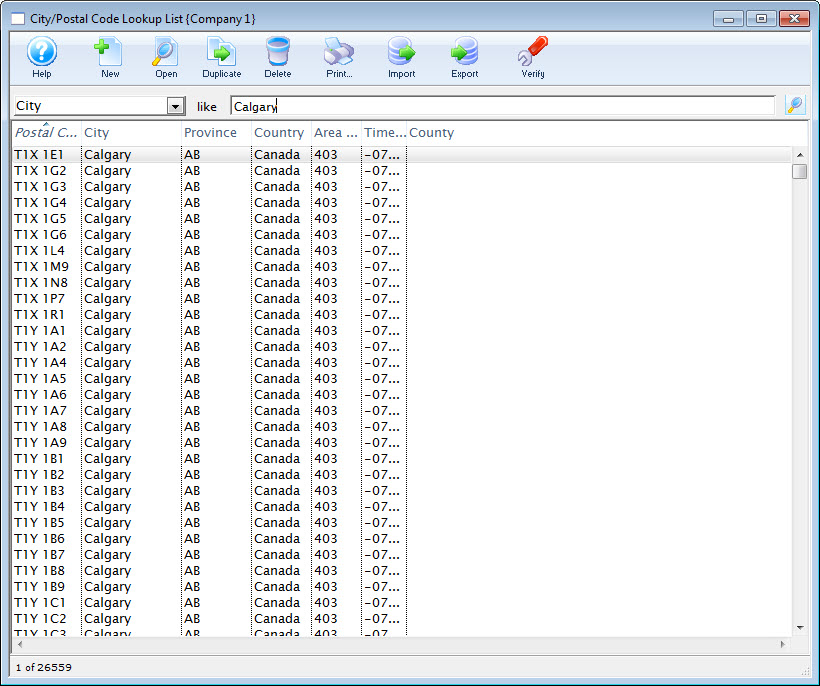
Click here for a detailed description of this window and it's functions.
List Window
List Window
Parts of the City / Postal Code Lookup Window
Postal Code / Zip Code |
The range of the postal / zip codes that apply to the location. |
City |
The city with which the range is associated. |
County |
The range of the Counties (US) which apply to the location. |
Province / State |
The province / state with which the range is associated. |
Country |
Country of the entry as it appears in the Country table of Theatre Manager. |
Area Code |
Telephone area code for the entry. |
Time Zone |
Time zone the entry falls in. |
Inserts a new lookup value. Click here for more information on adding new values to the table. |
|
Opens an existing code value for editing. Click here for more information on editting the selected value. |
|
Duplicates the selected value. |
|
Deleted the selected value. Click here for more information on deleting the selected value |
Imports a list of pre-defined codes. Click here for more information on how to import a list of predefined codes. |
Exports the lookup list. Click here for more information on exporting the lookup list. |
|
The Verify button, checks that the latitude and longitude for full addresses in Canada and the US is set correctly. |


Lookup Detail Window
Lookup Detail Window
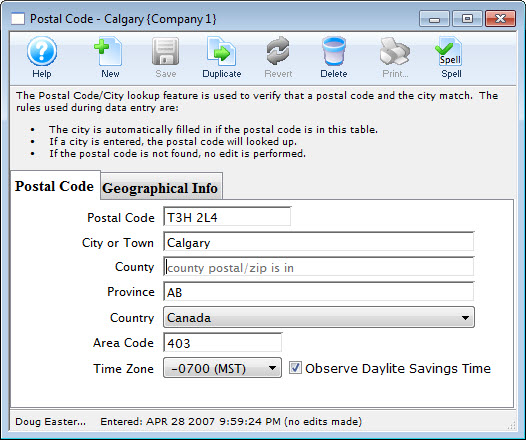
The Lookup Detail Window allows you to enter additional values, or edit and existing value on a one-by-one basis. This can be useful if there are specific towns that are included in a particular postal/zip code that do not already exist on the list.
For more information about the  tab, click here.
For more information about the  tab, click here.
Postal Code Tab
Postal Code Tab
Parts of the City / Postal Code Lookup Detail Window
Postal Code Tab
Postal Code |
Postal or zip code for the entry. |
City or Town |
City the range is associated with. |
County |
County the range is associated with. |
Province |
Province or state the range is associated with. |
Country |
Country of the entry as it appears in the Country table of Theatre Manager. |
Area Code |
Telephone area code for the entry. |
Time Zone |
Time zone the entry falls in. |
Observe Daylite Savings Time |
Indicate if the entry observes daylite savings by checking this option. |
Creates a new item in the lookup list. |
|
Saves changes made to a code. |
|
Copies an existing Code. |
|
Removes changes made to the Code up to the last save point. |
|
Deletes the selected value. |


Geographical Info Tab
Geographical Info Tab
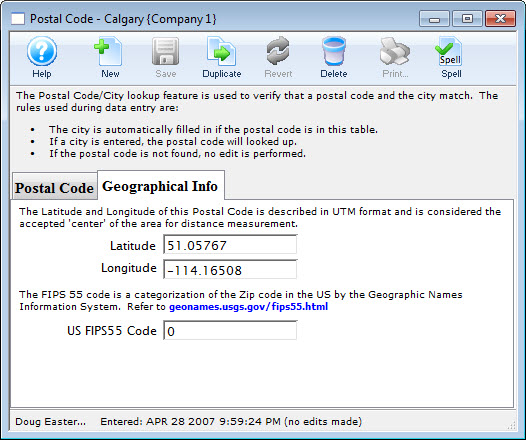
Parts of the City / Postal Code Lookup Detail Window Geographical Info Tab
Latitude |
The accepted "center" (North/South) of the postal / zip code area. |
Longitude |
The accepted "center" (East/West) of the postal / zip code area. |
US FIPS55 Code |
Used for US zip codes, this is a specific categorization by the Geographic Names Information System. For more information, click here. |
Inserting a Lookup Value
Inserting a Lookup Value
To insert a lookup value, you perform the following steps:
- Open the City/Postal Code Lookup List Window.
Click here to learn how to access this window.
- Click the New
 button.
The Postal Code Lookup window opens.
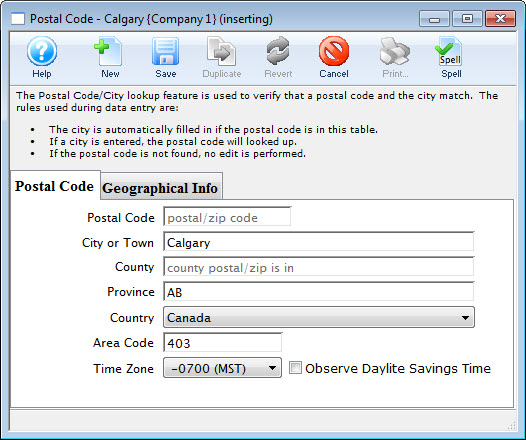
- Enter the range of the postal / zip code
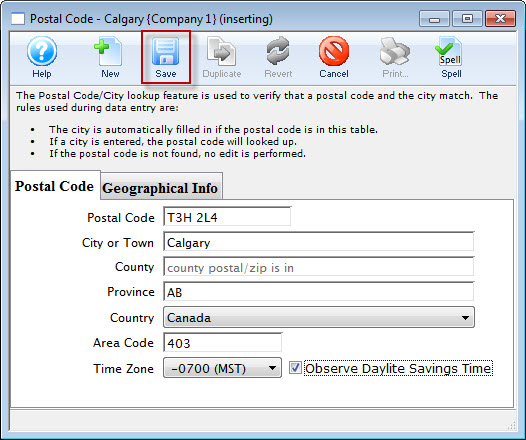
- Enter the city or town to which the entered range applies
- Enter the county to which the entered range applies.
- Enter the province/state to which the entered range applies.
- Use the drop down to select the Country to which the range applies.
- Enter the Area Code to which the range applies.
- Use the drop down to select the Time Zone to which the range applies.
- Check the box if this postal code participates in the Daylight Savings Time program.
- On the Geographical Info tab, enter the Latitude, Longitude, and (optionally) the USGS FIPS 55 Code.
- Click the Save
 button to save the changes.
To cancel the insert, click the Revert
 button.
Editing a Lookup Value
Editing a Lookup Value
To edit a lookup value, you perform the following steps:
- Open the City/Postal Code Lookup List window.
Click here to learn how to access this window.
- Select the lookup value you wish to edit.
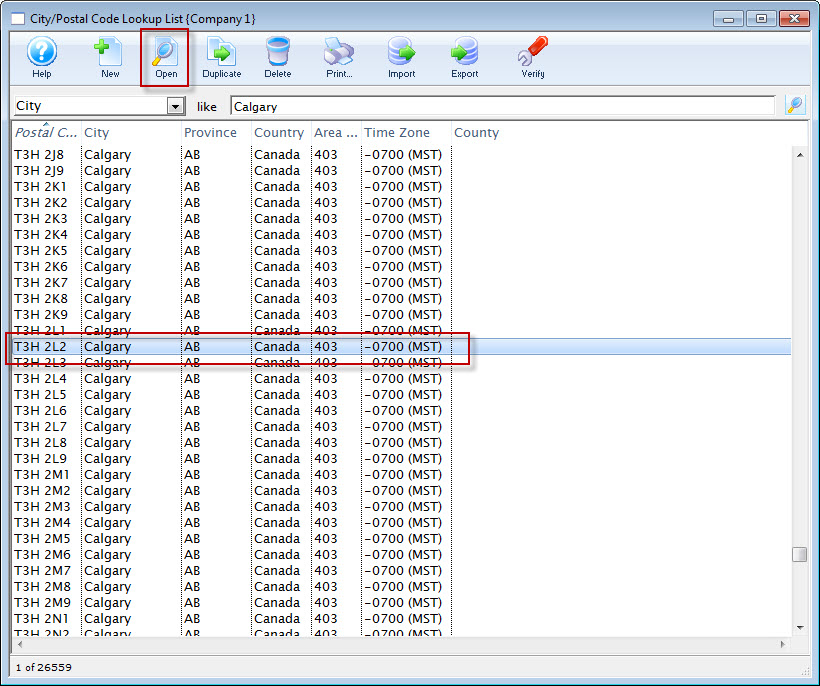
- Click the Open
 button.
The Postal Code lookup window for the selected value opens.
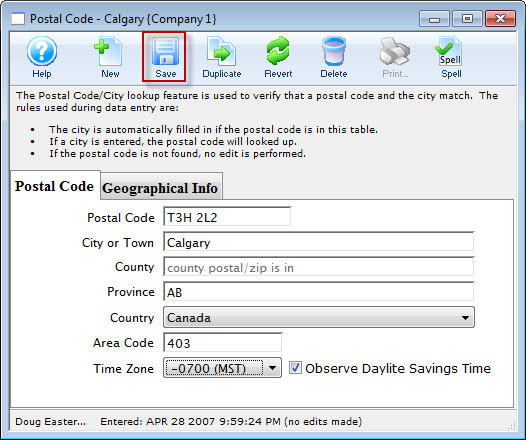
- Modify the details as needed.
- Click the Save button to save the changes.
To cancel the edit click the Revert
button.
Deleting Existing Lookup
Deleting Existing Lookup
- Open the City/Postal Code Lookup List window.
Click here to learn how to access this window.
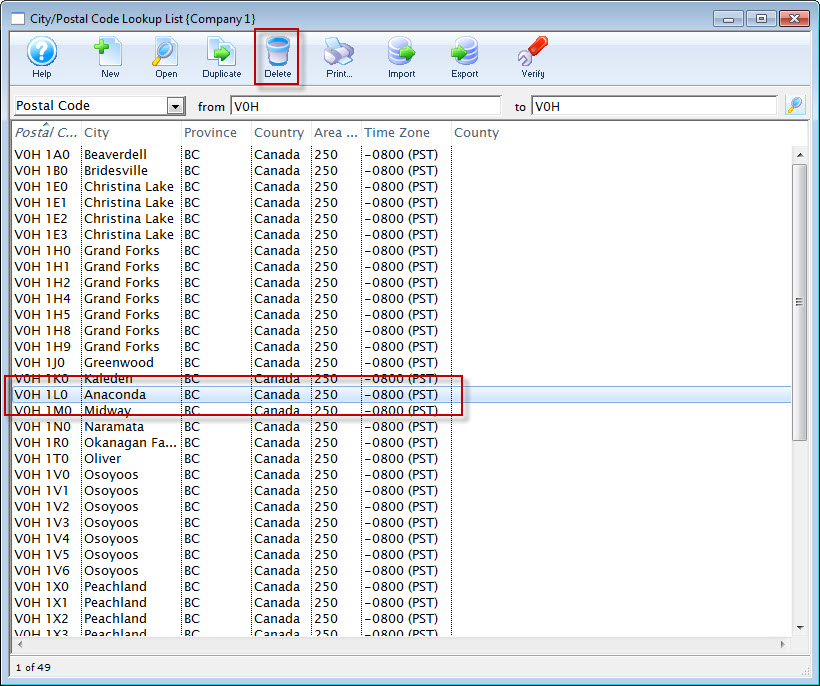
- Select the lookup value to delete.
Single click on a value to select it.
- Click the Delete
 button.
The Delete City Lookup warning dialog opens.
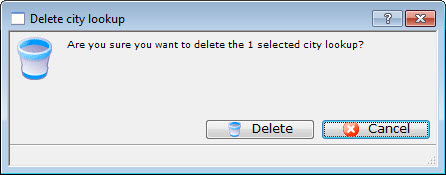
- Click the Delete
 button to continue with the deletion.
Clicking the Cancel
 button aborts the deletion.
The deletion will be confirmed with the following confirmation message.

Importing Values
Importing Values
You can import your own list of values from a tab or comma delimited file into your database using the steps below.
- Open the City/Postal Code Lookup List window.
Click here to learn how to access this window.
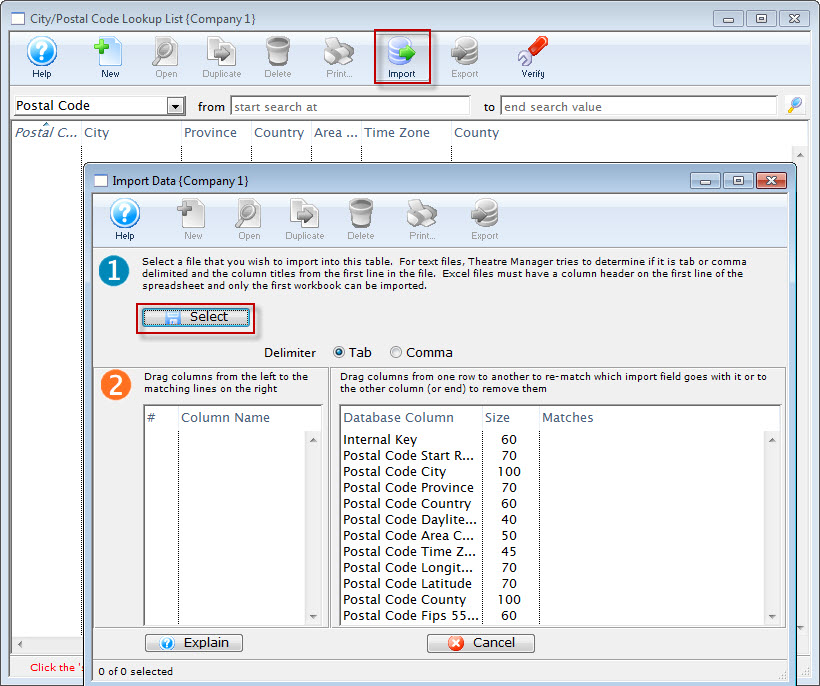
- Click the Import
 button
The Import Data window opens.
- Click the Select
 button.
- Select the file you wish to import.
Do this by single clicking the value.
- Click the Open button.
Exporting a City Lookup Table
Exporting a City Lookup Table
- Open the City/Postal Code Lookup List Window
Click here to learn how to access this window.
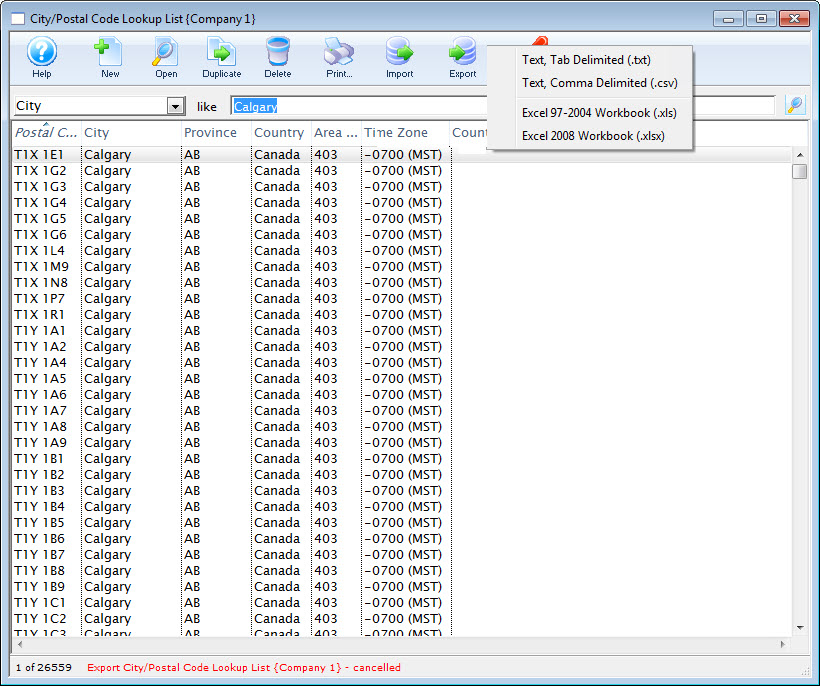
- Click the Export
 button.
- Choose the export format.
The Select Postal Code Export File opens for your Operating System..
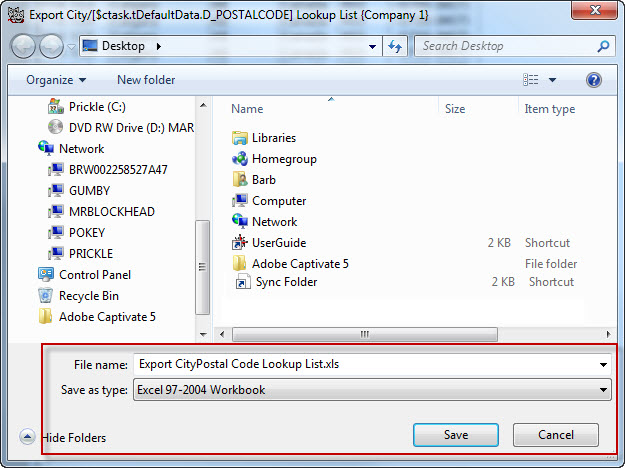
- Browse to where the file will be saved and name the file.
- Click the Save button.
The table will be exported to the location using the file name assigned.