Parts of the Course Detail Window
Parts of the Course Detail Window
The Course Detail window opens when you double click on an existing Course. Through this window you are able to edit course data. Depending on which sales method is being used you may not have access to some data fields. For example if you are using the festival method you will be allowed to modify the quantity of seats you can sell whereas with reserved seating since every patron requires a seat you cannot access this field.
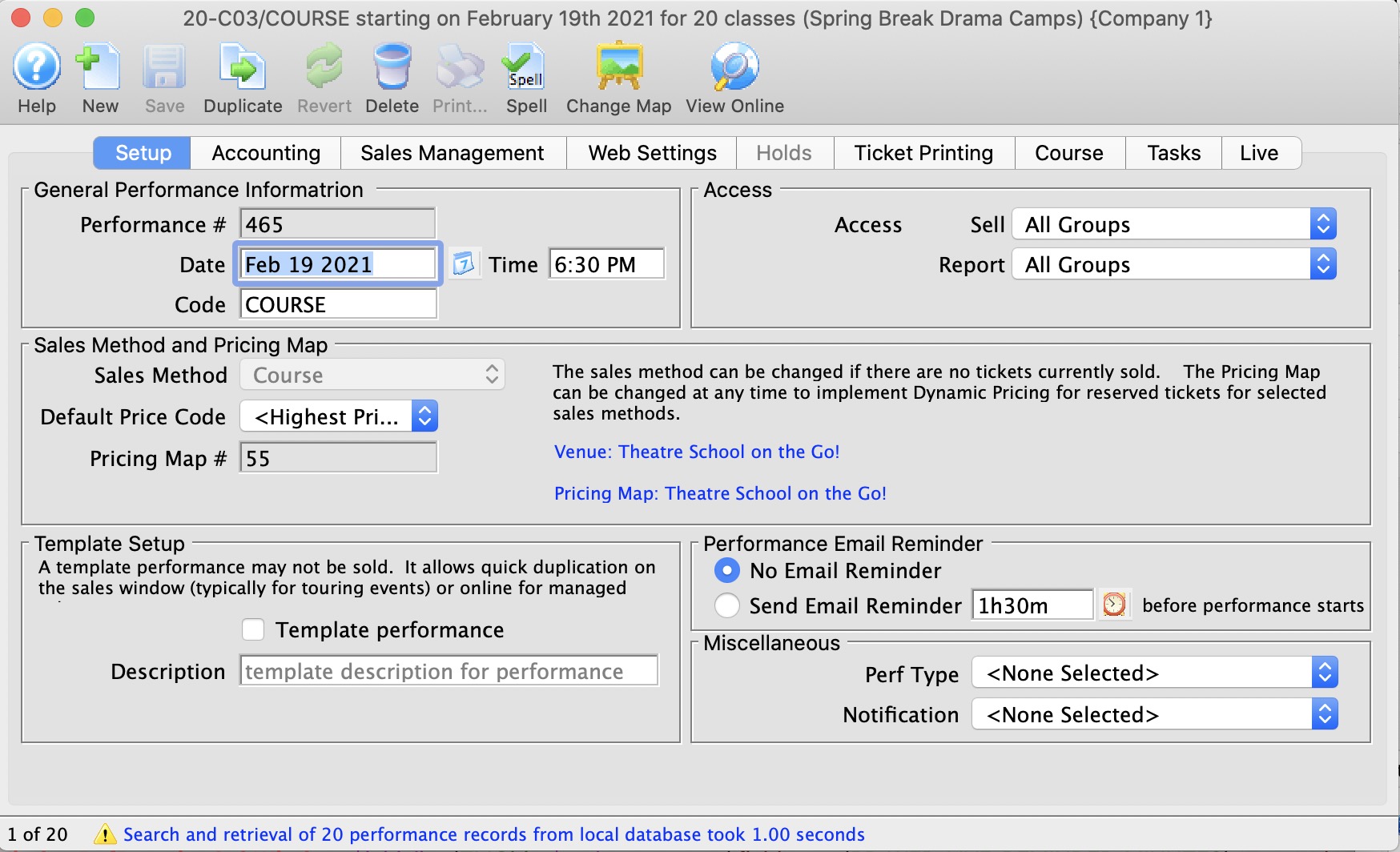
The tabs available within the Course Detail window include:
Course Detail Window - Performance Tab
Course Detail Window - Performance Tab
As indicated in the image, many fields in the Performance Tab are not accessible once the Course has been created and built. For instance, the Quantity to Sell field cannot be changed.
The fields available for editing are:
| Performance Code | Defaults to Course for Course events |
| Default Price Code | You can change from the highest price default setting |
| Ticket Tax Code | where applicable |
| Check Box | for including the performance in annual patron statistics |
| Held Seat Count |
For holding seats (useful if you have overestimated the quantity to sell and have not yet reached full capacity). For example, if the venue usually holds 24 people but you *could* add 6 more chairs, you may have set the Quantity to Sell at 30 and you can hold 6 of those seats here for release once the 24 seats sell. |
Sales Management Tab
Sales Management Tab
In the Sales Management Tab, you can set future onsale dates and times for sales outlets.
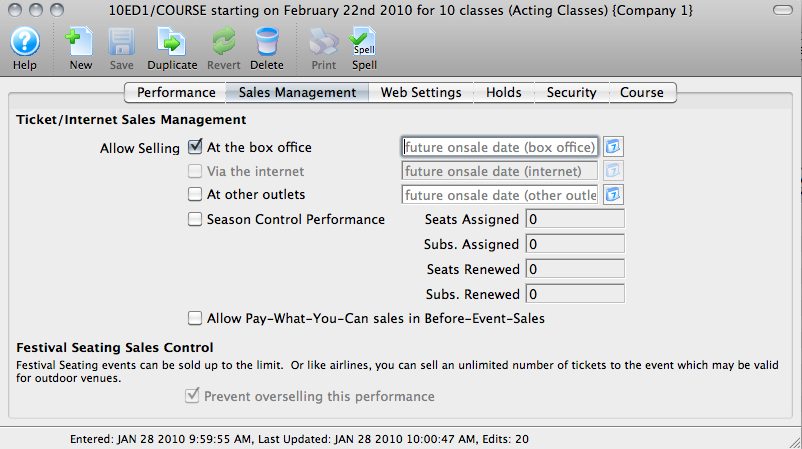
Though not necessarily valid for Courses, you can set a Performance as a Season Control Performance here.
The field for setting a Course or Performance as a Pay What You Can performance in Before Event Sales is found here. Courses can be sold in this way if you choose. For more information about Pay What You Can, click here.
Web Settings Tab
Web Settings Tab
The Web Settings tab allows you to define a number of parameters for how the course is handled in Web Sales.
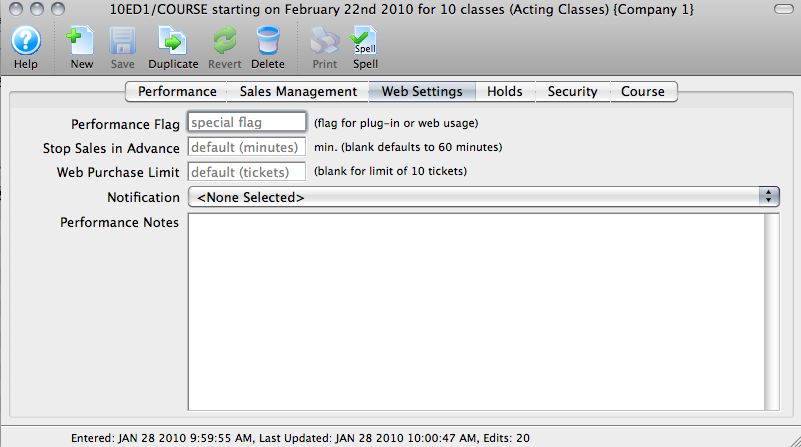
The Web Settings Tab allows you to set:
| Performance Flags | These are most often used for Web Sales plug-ins |
| time limit to stop advance sales | For example, You can shut down sales an hour before the class starts to "cap" it./td> |
| specify a limit of tickets | Limit the number of seats a patron can purchase (defult is 10) |
| Notifications | You can assign notifcations from the drop-down |
| Performance Notes | Anything entered here will be visible to ticket purchasers online |
Holds Tab
Holds Tab
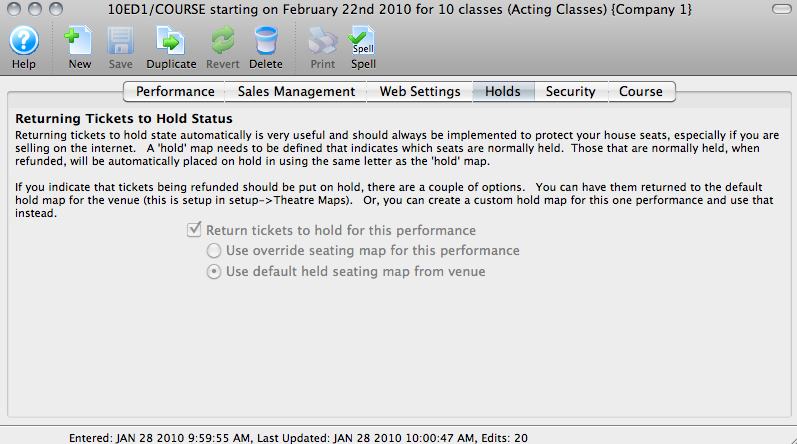
Returning tickets to "hold" only applies to Reserved Seating venues.
If your course is in a General Admission venue, this tab appears as in the image above, with the selection grayed out.
To set a number of holds in a GA venue, use the Holds area on the Performance Tab.
Security Tab
Security Tab
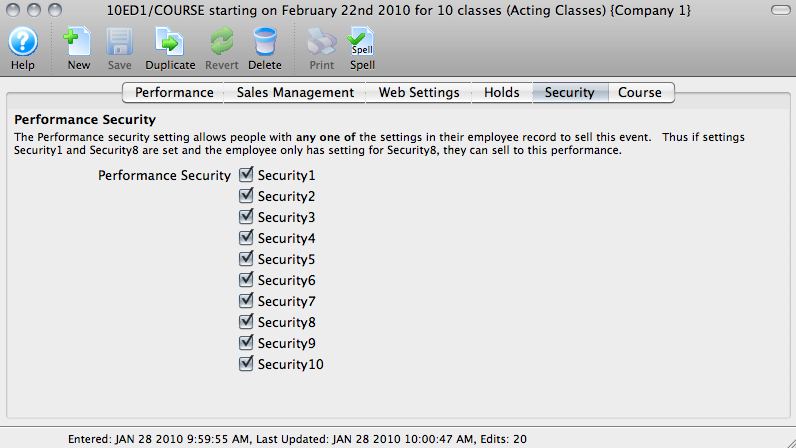 If your organization has Security Settings to determine which employees can sell which events, those can be defined here by checking the appropriate boxes.
Course Tab
Course Tab
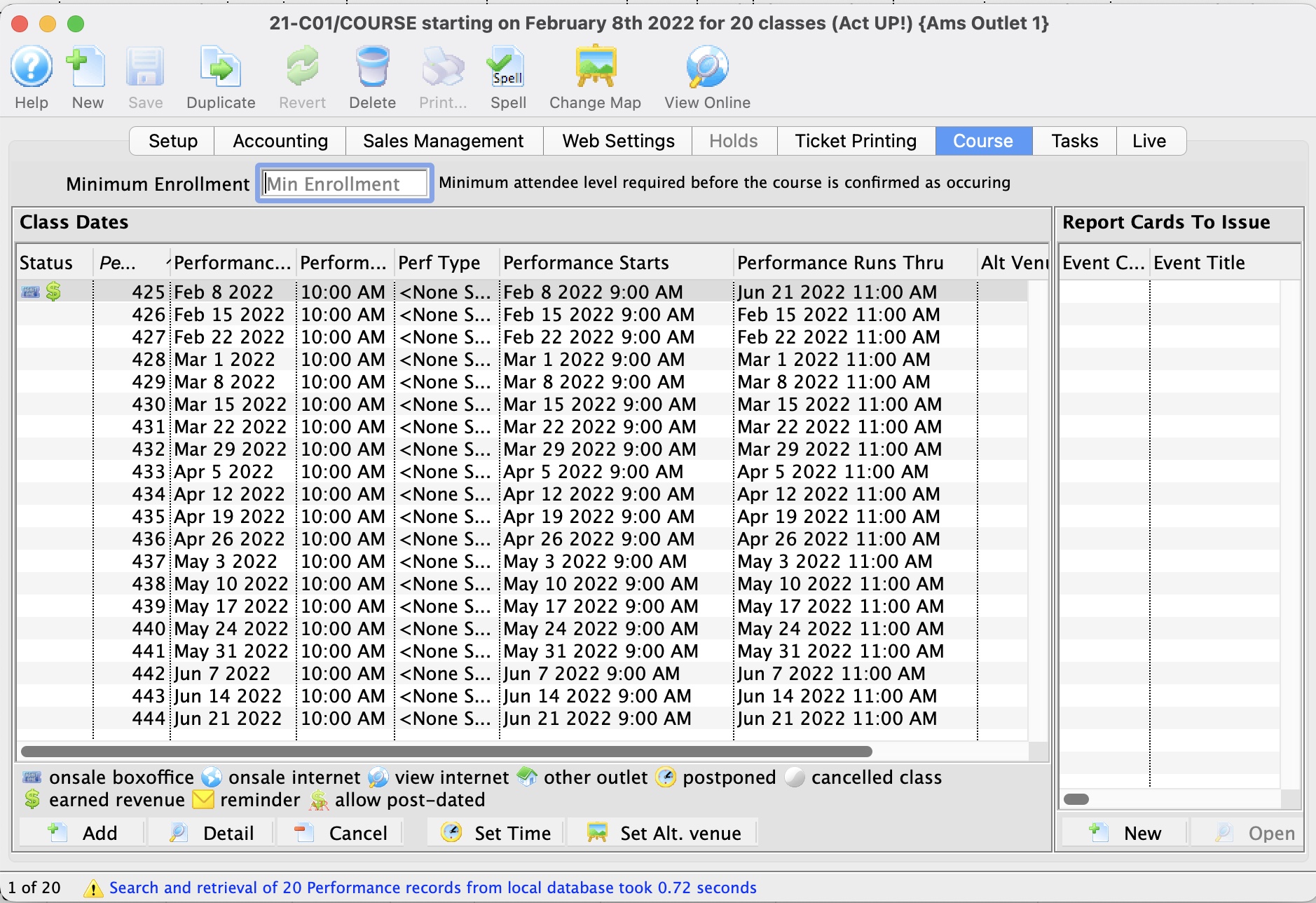
Report Cards
On the right side of the Courses Tab, Report Cards issued for a Course are displayed. For more information about Report Cards, click here.
Class dates
On the left side of the Courses Tab, Class Dates and information are displayed.
- If a Course has been set up, but does not have any transactions associated, you can alter settings in the Course Tab to remove sessions of the course using the Remove
 button.
- Sessions of a Course can be set as active or not active via the checkbox next to their entry on the Courses Tab.
-
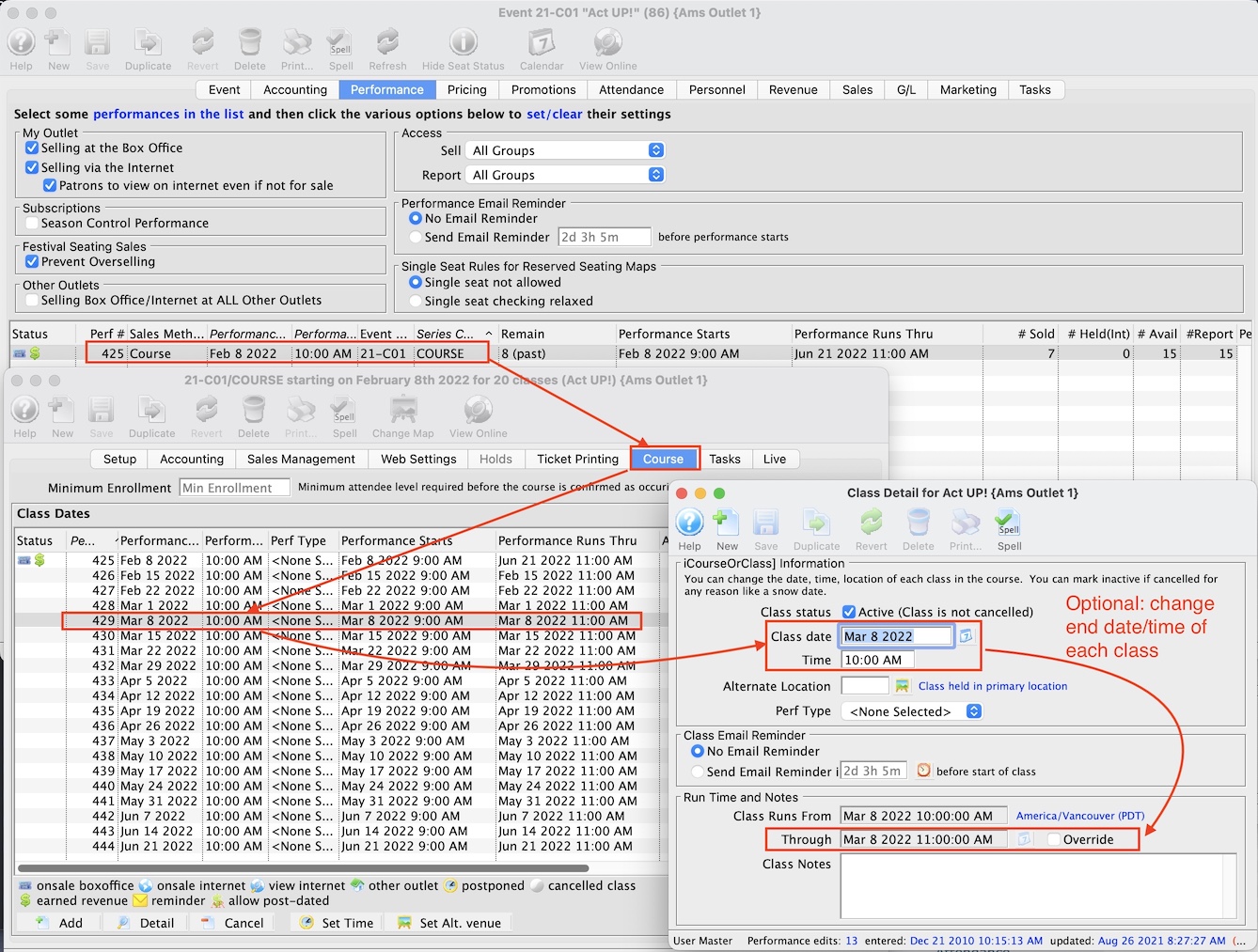
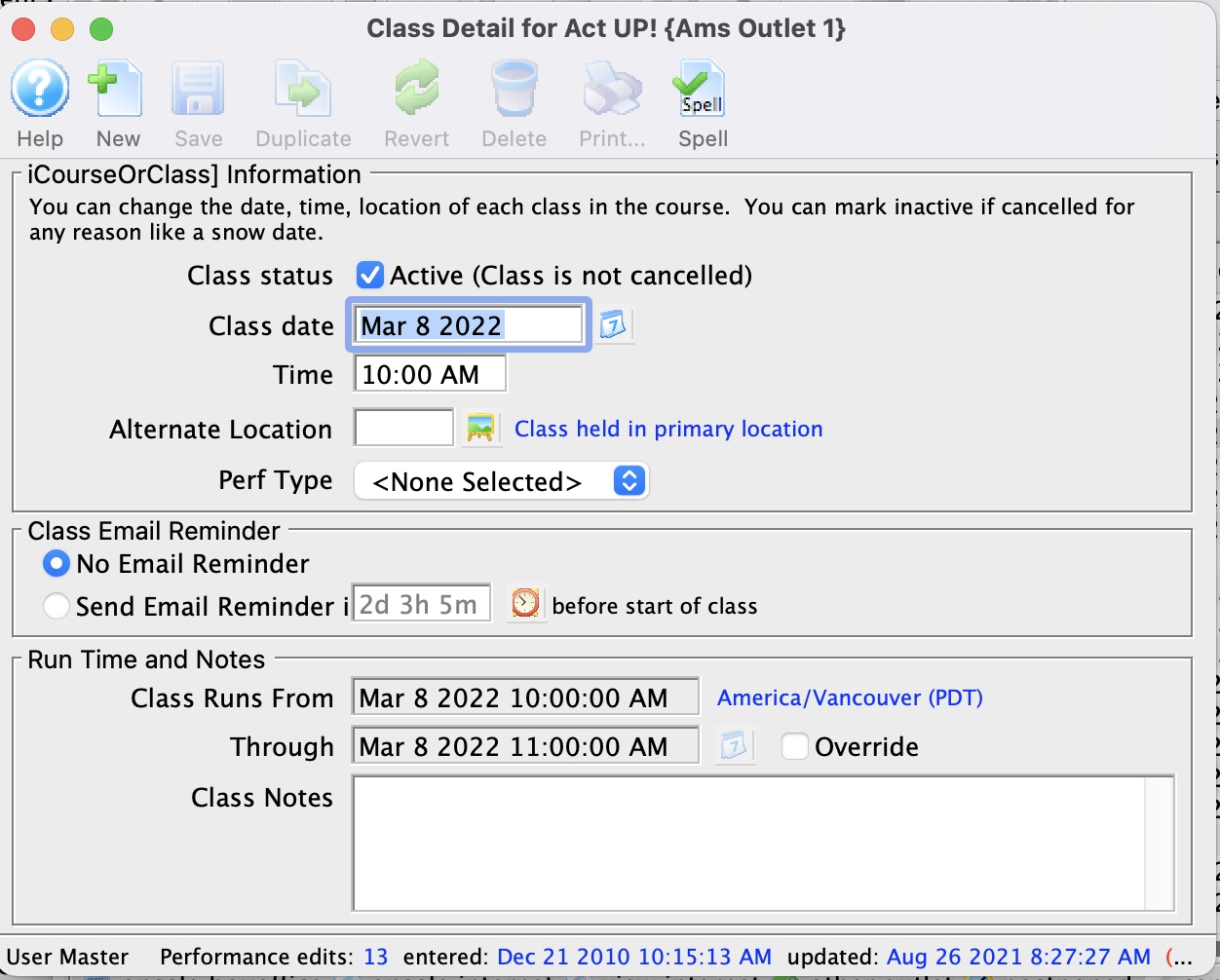 Class dates and times can be changed by:
- double clicking on a class date'li>
- changing the appropriate fields window that opens
- you can change dates even after sales have occurred as it will simply move the class time. This might be useful for 'snow days', 'hurricane moments', 'public holidays' or any other cancellation (see example below)
- You can also tell Theatre Manager if individual reminders for each class are to be sent to the patron
- If your organization wants to alter the value of Performance Field #1 for a class within a Course, you can make that change here.
- If one or more classes for the Course take place in an Alternate Venue, you can change that. For example, a couple of classes could be in the rehearsal hall, some could be offsite at a school. If attendees or instructors have synced their purchase calendar to their devices, they will see the locations.
- For the primary class that is being sold, it is the beginning of the class through the end of the LAST CLASS
- For each of the other classes, the run time is simply the start of the class to the end of the class, based on the duration of each class.
 |
Using an alternate venue will not affect the quantity of seats available for sale.
It only affects where you tell the instructor or students where to meet for that particular class - and shows in your facility management calendars. |
|
The performance runs from and through dates are automatically calculated as follows:
|
Ticket Printing Tab
Ticket Printing Tab
Ticket printing and e-ticket delivery for print at home are normally enabled and disabled on the play window. You can over-ride the settings if you would like them to be different for every performance.
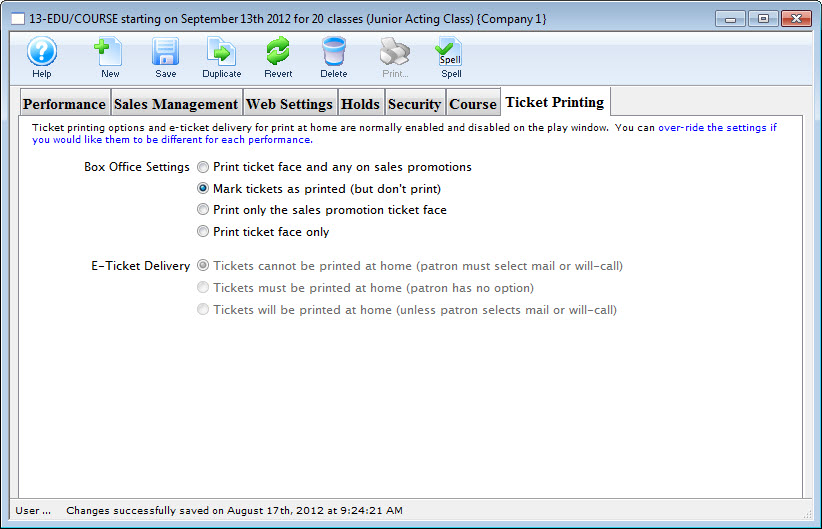
Parts of the Window
| Box Office Settings | Options are:
|
| E-Ticket Delivery | Options are:
|