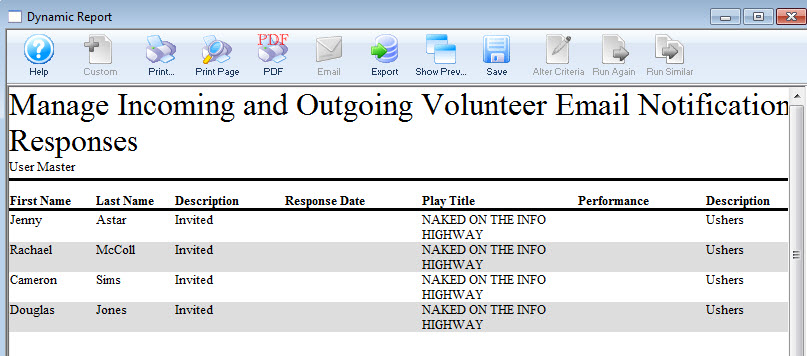
Manage Incoming and Outgoing Volunteer Email Responses
Manage Incoming and Outgoing Volunteer Email Responses
In this window, you can manage all the incoming and outgoing volunteer emails.
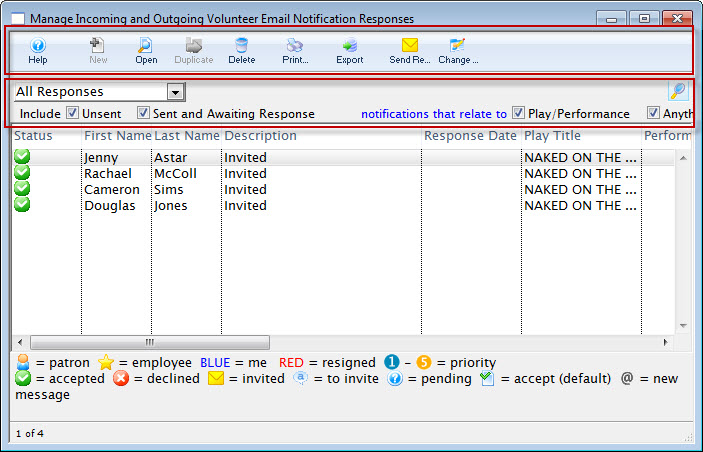
Parts of the Incoming and Outgoing Email Responses Window
 Toolbar / Ribbon Bar | |
 |
When clicked, goes to the online help page for the current window. |
 |
Opens a new record. |
 |
Open the activity window for the currently selected volunteer. |
 |
Duplicates the currently selected record. |
 |
Deletes the volunteer history record. |
 |
Clicking the Print button, opens the selection "List As Shown"  . Choosing List as Shown prints the list as a Report.
|
 |
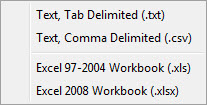 Clicking Export allows you to choose the format to export the current list. |
 |
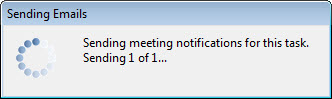 Click the Send Recieve button to send reminders to list. |
 |
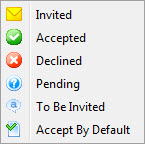 Clicking the Change Status button opens a list of the statuses you can change the currently selected record to. |
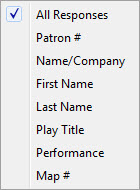 |
Choosing a selection from the drop down list, allows you to refine the list of displayed volunteers. Choices are:
|
 |
|
| Check Boxes |
The check boxes allow you to further refine the list. You can Include:
You can also enable or disable notifications that relate to: |

| Click the Search button to display the list of Volunteers. |