Adding a New Venue / Theatre
Adding a New Venue / Theatre
Click here, for quick reference information for Venues and Maps
When you add the venue, you add:
- Venue Information
- Icons and Notes for your internet sales for the venue
- Then you add the Pricing Maps Venues also have Plays, Tasks, Default Resources and G/L Entries attached to them.
To add a Venue, you perform the following steps:
- Click Setup >> Venue.
The Venue List window opens.
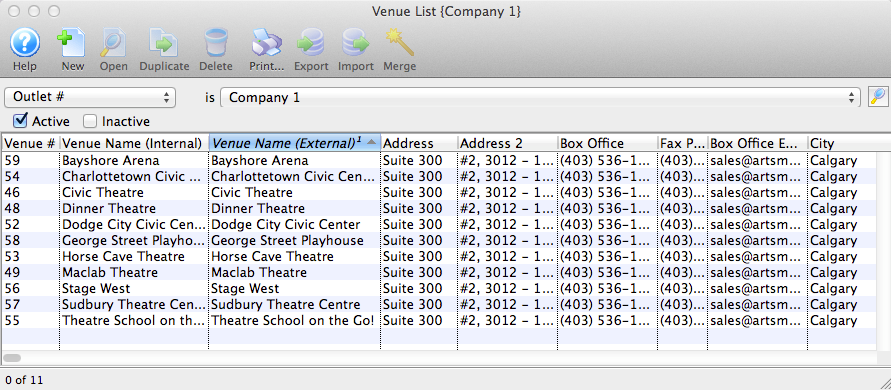
- Click the New
 button.
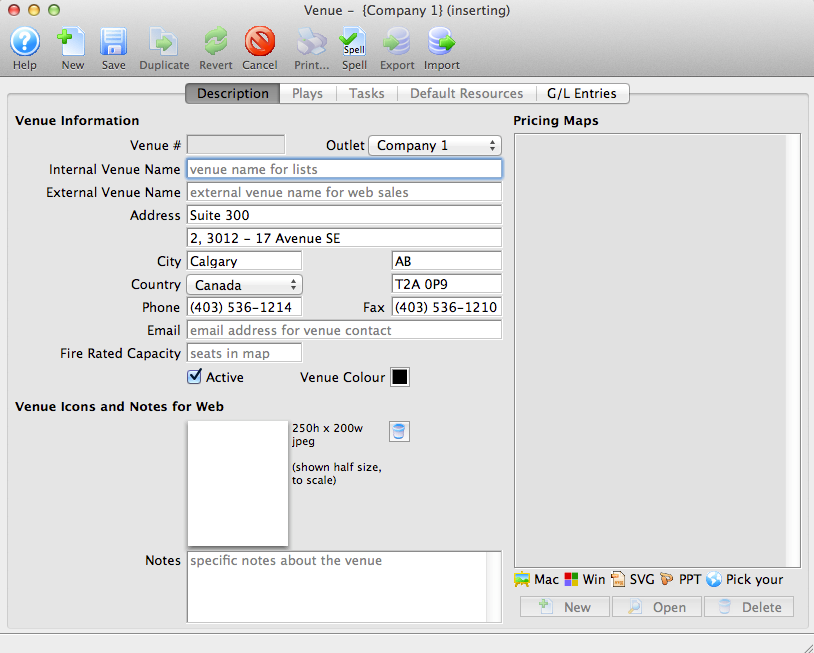
The Venue Inserting window opens to the Description tab. Click here for more information on the parts of the Venue window.
- Enter the Venue Information.
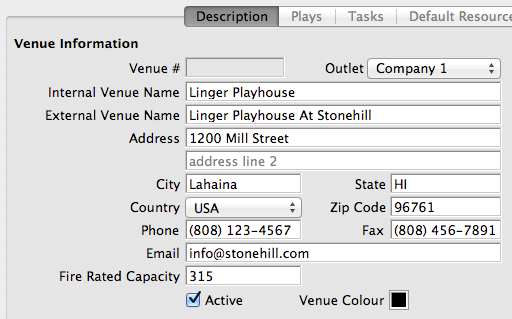
Venue #
Unique number of the map, automaticallly assigned by Theatre Manager Internal Venue Name The internal name used on the sales window External Venue Name The external name for the venue used in web sales and for ticket faces Address The Address information of the venue Phone The telephone and Fax numbers for the Box Office Email Email address of the Box Office Fire Rated Capacity The capacity of the venue as allowed by your local Emergency Services Department Active If enabled the venue will be shown for selection in reports Venue Colour A colour selected here overides the normal task colour shown on the calendar for this venue. - Enter the Icon and Notes for the Web.
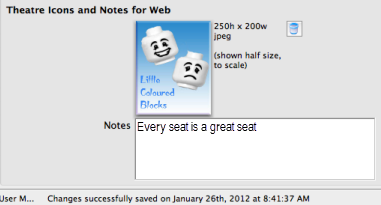
You can add a 200 pixel width by 250 pixel height jpeg that represents the branding for the venue. You only need to do this if your organization uses different icons for the venues instead of a generic icon for the Company. If you leave the field blank, TicketTrove will use the company icon for all venues. Click here for more information on adding a Venue image.
Enter any additional notes about the Venue. The notes entered here will appear in the internet for web sales.
- Click the Save
 button.
- To add a Pricing Map, click the New
 button in the Pricing Maps section of the window.