Gantt Context Menu
Gantt Context Menu
The right click context menu provides shortcuts to the most used tasks you perform in the Gantt Chart.
To view a description of all of the functions of the left side of the window - Tree List context menu - click here.
| Preferences |
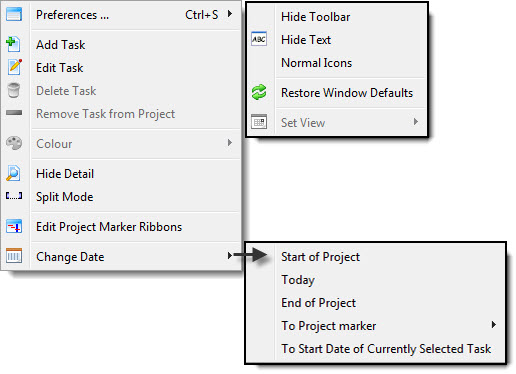
Hide / Show Toolbar - Toggles the Project window toolbar / ribbon bar Hide Toolbar / Show Toolbar - Toggles between displaying and hding the Calendar window toolbar. Hide Text / Show Text - Toggles between showing and hiding the text underneth the icons in the Calendar window toolbar. Small Icons / Normal Icons - Toggles between showing large or small icons in the Calendar window toolbar Retore Window Defaults - If you have moved any of the columns or changed the menu set up, Restore Defaults removes all your changes Set View - Not yet available |
| Add Task | Tasks are the activities for your project. Click here for more information on adding tasks |
| Edit Task | Opens the Task Detail window of the selected task for edititng. |
| Delete Task | Deletes the selected task. |
| Remove Task from Project | Removes the selected task from the project but not from the database. You can then add this task to another project. |
| Colour | Allows you to change the color of the Icon for this group or task |
| Show / Hide Detail | Hiding the detail is the same as clicking on the Normal
 window
icon on the toolbar and hides the detail task window below the treelist
and Gantt chart. |
| Split Mode | Split mode is the same as clicking on the Split
 icon on the
toolbar and changes the cursor to Split mode. When in Split mode, click on
a task to create a suspension at that point. Click here for more information on adding suspensions. |
| Edit Project Marker Ribbons |
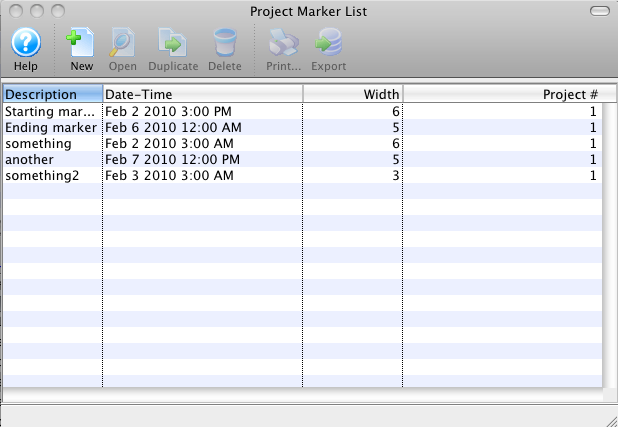
Displays a list of the current project markers, or checkpoint ribbons. These ribbons display a vertical ribbon on the Gantt chart at a given date/time and in a colour of your choosing. From the list you can add, open, duplicate, or delete a ribbon. Click here for more information on Project Marker Ribbons. |
| Change Date | Change date lets you change the date
within the Gantt chart. Choices are:
|
Project Markers
Project Markers
You can move to the Start of Project, Today, End of Project, To Project marker (project markers will be listed in a submenu), or To Start Date of Currently Selected Task.
You can also Edit Project Marker Ribbons. This displays a list of the current project markers, or checkpoint ribbons. These ribbons display a vertical ribbon on the Gantt chart at a given date/time and in a colour of your choosing. From the list you can add, open, duplicate, or delete a ribbon.
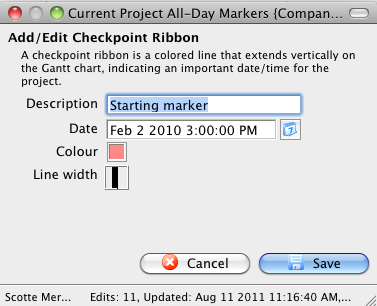
When you add or open a ribbon, the detail screen opens where you can enter a description and date (both required) and select a colour and width for the ribbon.
 Page in process of being updated