Step 4 - Performance Substitutions
Step 4 - Performance Substitutions
In Step 4, you can make a global change to tasks that are attached to different performances in a new project. A list of performances associated with the Project are displayed.
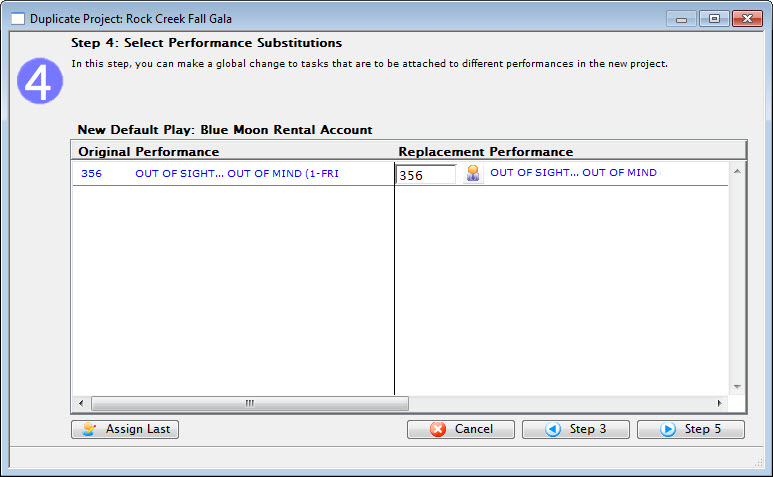
- To change the number of the new performance, enter the new number.

- To Search for a new performance for this task, click the
 button.
The Performance List Lookup window opens.
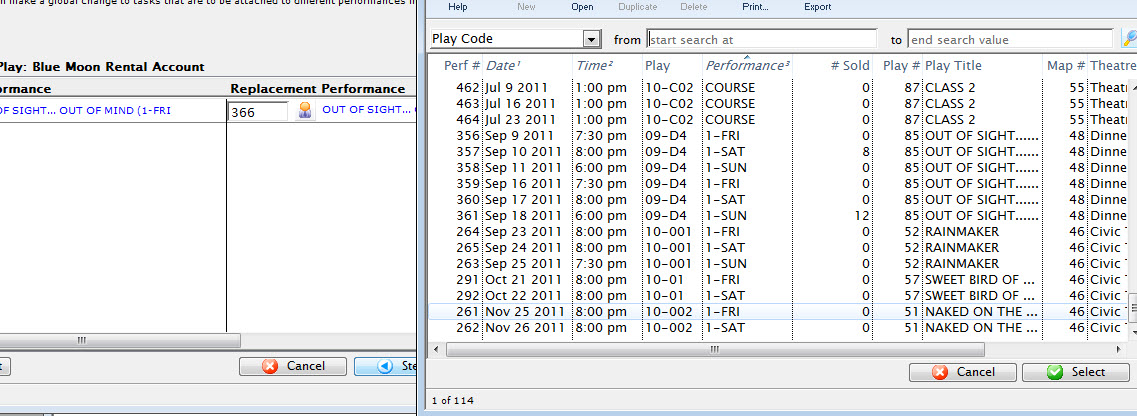
- Make your selection, by double clicking on it or by highlighting it and clicking the Select
 button.
You are returned to Duplicate Project Step 4 and your selection is in the Replacement Performance pane.
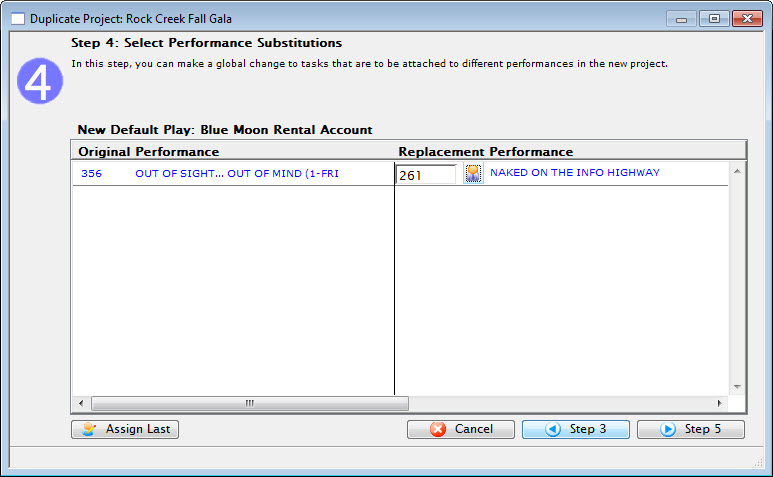
Click the Assign Last button to assign all replacement performances to the original performance. (This is the default.)
- When you have updated Step 4, click the Step 5
 button.
To cancel the Duplication, click the Cancel
 button.
To return to Step 3, click the Step 3
 button.
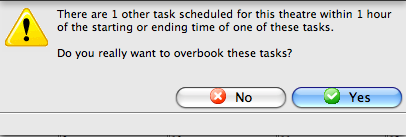
If there are any conflicts, such that you have tasks scheduled in the same venue within 1 hour of some previously assigned task, you will be asked to confirm if you want to overbook the tasks into this venue.