Step 4: Review Performances on Calendar
Step 4: Review Performances on Calendar
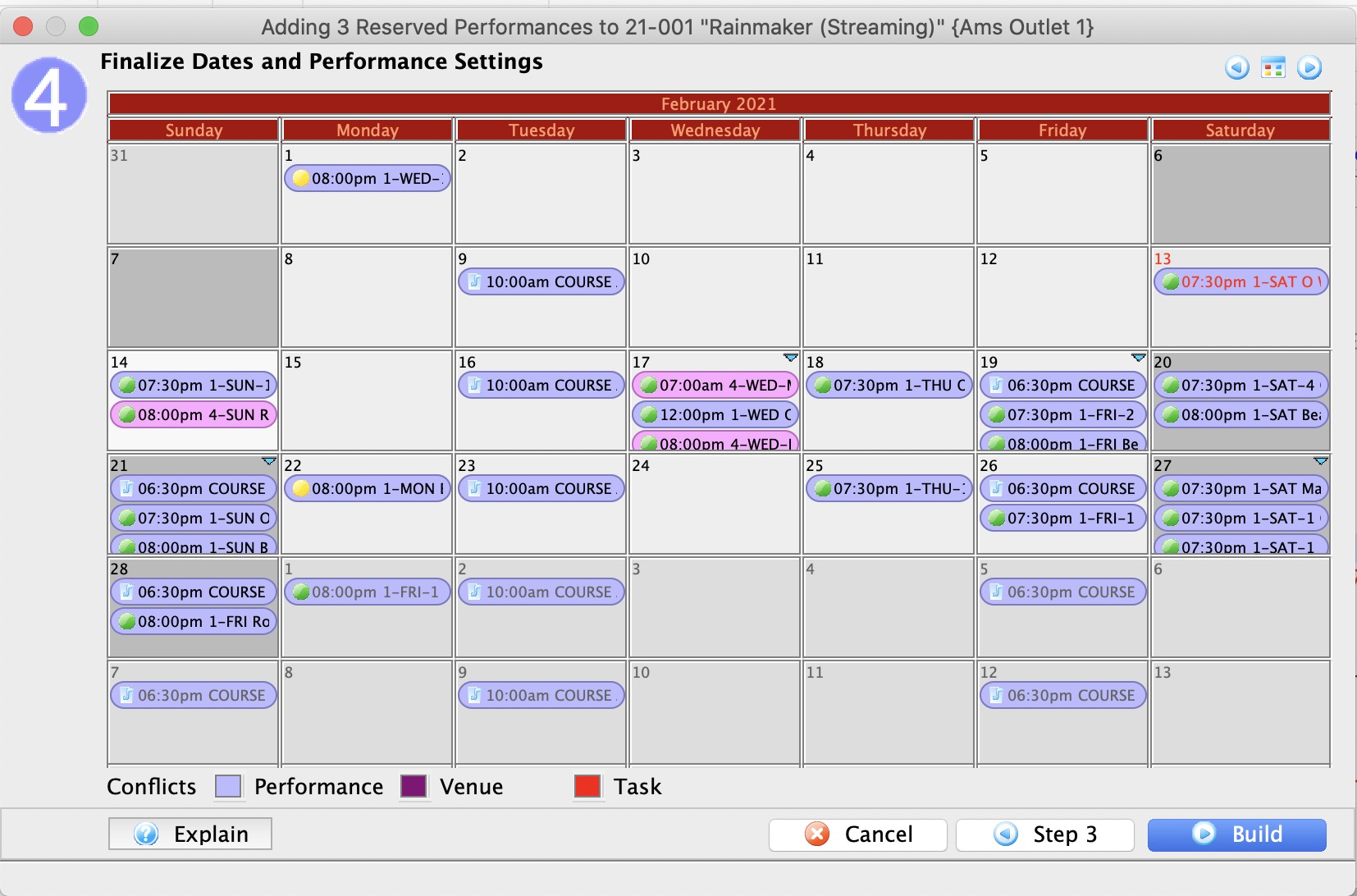
After you click the Step 3 button, the Step 3 window - Adding a Performance, opens.
- Review the calendar.
As performances can span months, use the forward - back
 buttons to move through the calendar.
You can use the middle button to switch the view to 2 week, week or daily view. In those views you can drag events to move them to another time slot or day.
You can also change the time of a performance by right clicking on a performance and changing the time. On the popup list, you can only select from a list of times that have already been used for performances.

Possible 'conflicts' will be colour coded and highlighted on the calendar and are broken into 3 parts:
- Performance - which means there is another performance at any time on that day and possibly in another venue
- Venue - which means that there is something else in that venue
- Task - which means that there is some tasks in the venue that may represent conflicts on those days.
- To finish, click the Build
 button.
To go back, push the Step 2
 , or Cancel
 if you do not want to finish setting up the performance.
When you push the Build
 button, the Build Performance list dialog opens.
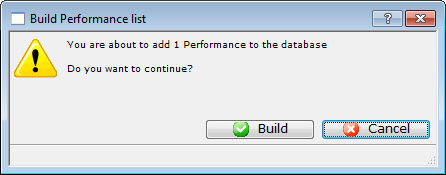
- Click the Build
 button.
The Adding performance verification window opens.
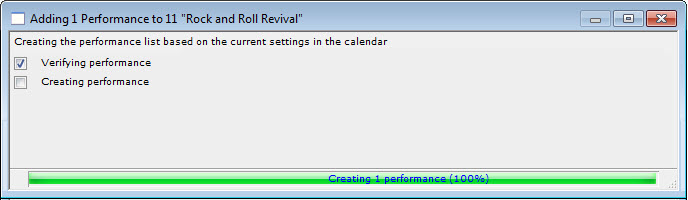
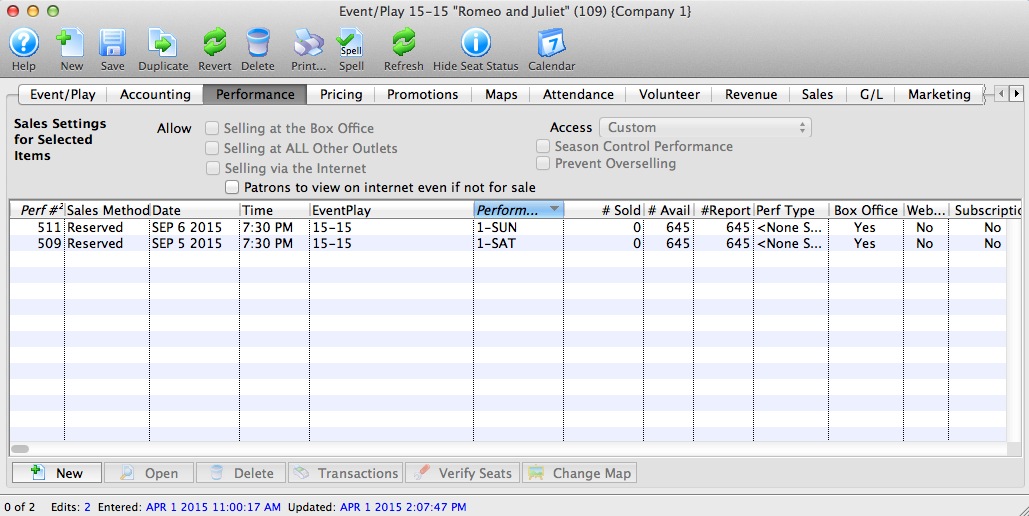
- Close the window and you are returned to the Performance tab of the Play window and the performance you entered is displayed.