Unprint Batch of Passes
Unprint Batch of Passes
The Unprint Batch of Passes function allows for the 'Printed' flag to be removed from passes (Memberships, Gift Certificates, Vouchers) so that they can be printed again. This is helpful when a batch of passes needs to be reprinted. To access the Unprint Batch Of Passes function:
From the main menu bar, select Setup >> Batch Functions >> Unprint Batch of Passes.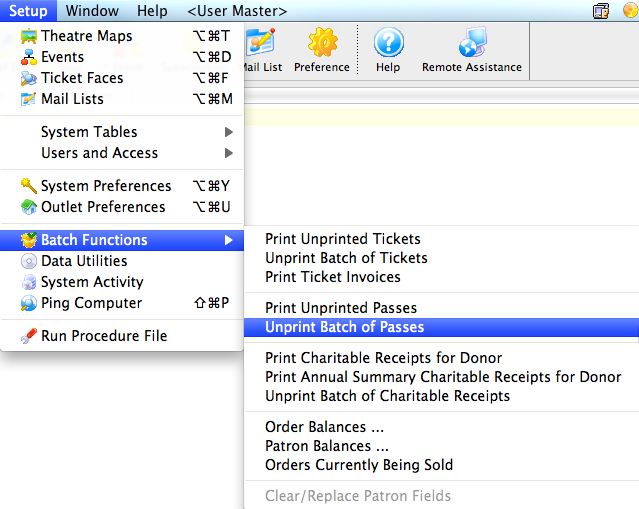
The Unprint Batch of Passess window opens.
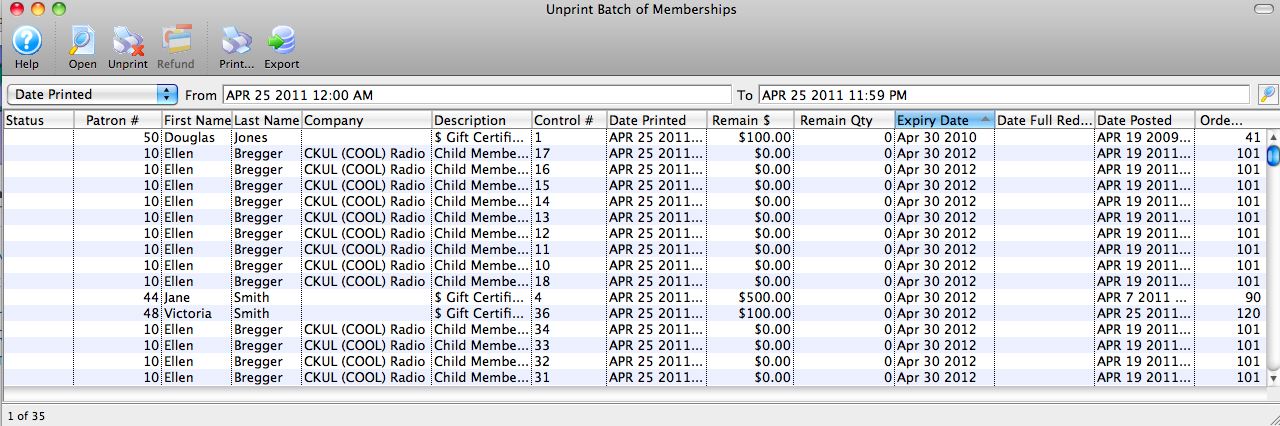
Parts of the Unprint Batch of Passes Window
 |
Clicking "Open" with a pass highlighted opens the Membership detail window. For more on the Membership Detail window, click here. |
 |
Clicking the Unprint button will set the print status on the selected pass(es) to "unprinted." |
 |
Prints the selected pass(es). This option is only available if the selected pass(es) have the print status of "unprinted." |
 |
Exports the selected pass(es) to your choice of text or Excel files |
| Status | The current status of the pass |
| Patron # | The Patron Number to whom the pass(es) were sold |
| First Name | The first name of the patron |
| Last Name | The last name of the patron |
| Company | The company of the patron |
| Description | The type of pass |
| Control # | The unique control number of the pass |
| Date Printed | The date the pass was previously printed |
| Remain $ | The remaining dollar amount (if applicable) on the pass |
| Remain Qty | The remaining quantity of admissions (if applicable) on the pass. |
| Expiry Date | The expiration date (if applicable) of the pass |
| Date Full Redemption | The date the pass was fully redeemed (if applicable). |
| Date Posted | The date the sale of the pass was posted to the General Ledger |
| Order # | The Order number associated with the item |
Other Fields Not Shown |
|
| Membership # | The sequence number (not the control number) of the pass within the database |
| Membership Year-Fiscal | The fiscal year in which the pass was originally sold |
Unprinting a Batch of Passes
- From the main menu bar, choose Setup >> Batch Functions >> Unprint Batch of Passes.
The Unprint Batch of Passes window opens.
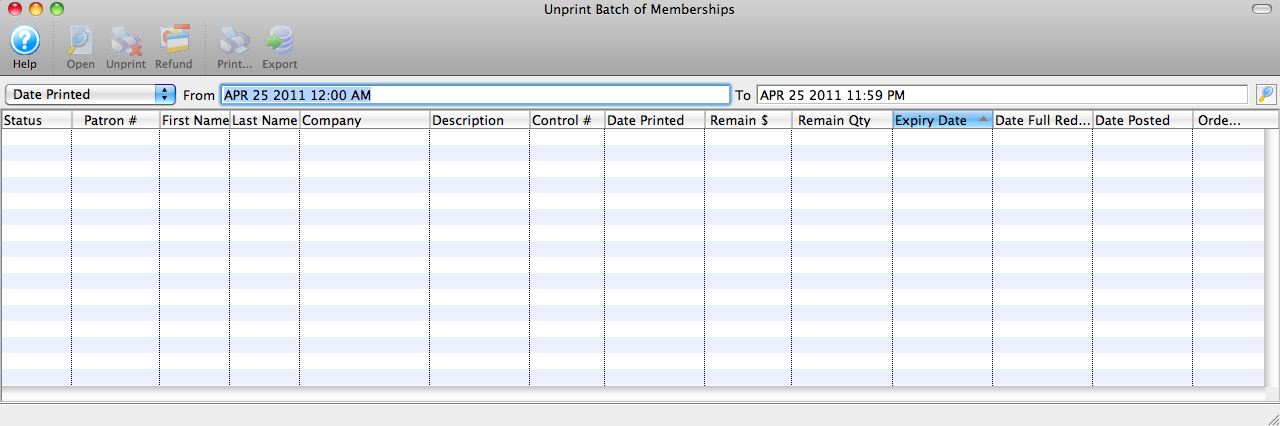
- Enter the date the passes were printed in the From and To fields.
- Click the Search
 button to begin the search.
Any passes printed in the date range given will appear.
- Highlight the passes to be unprinted.
Use the <SHIFT> key to highlight a range of passes. To highlight multiple individual passes, hold the <CTRL> key (Windows) or the <OPTION> key (Mac).
- Click the Unprint
 button to remove the 'Printed' flag.
The passes can now be added to a new batch of passes to be printed.