Combining Mail Lists
Combining Mail Lists
By combining mail lists you can gain access to the data of many lists and from that data form a new list. Unlike merging the mail lists, you are able to keep the original mail lists and their data intact and unchanged.
To combine mail lists, you perform the following steps:
- Open the Mail List Window.
Click Here to learn how to open the window.
- Click the New
 button.
The Mail List Inserting window opens.
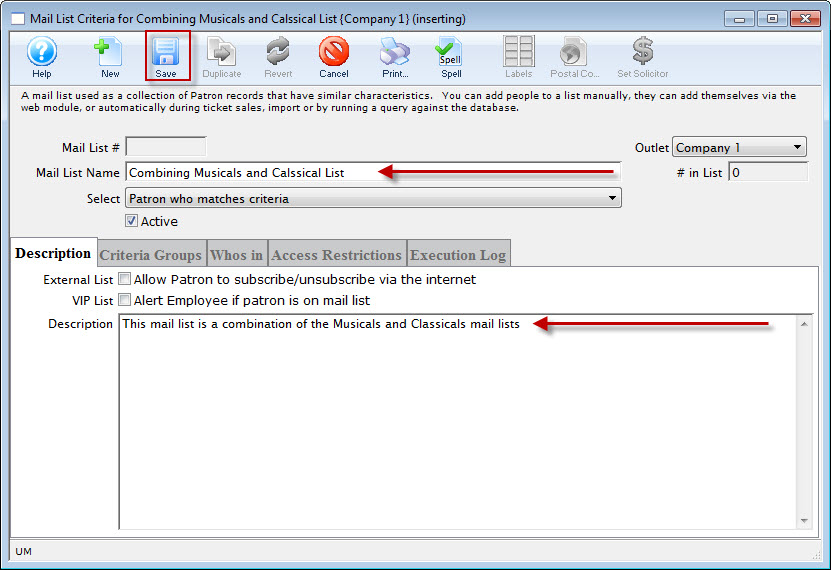
- Enter a Name and Description for the list.
- Click the Save
 button.
- Click the Criteria Groups
 tab.
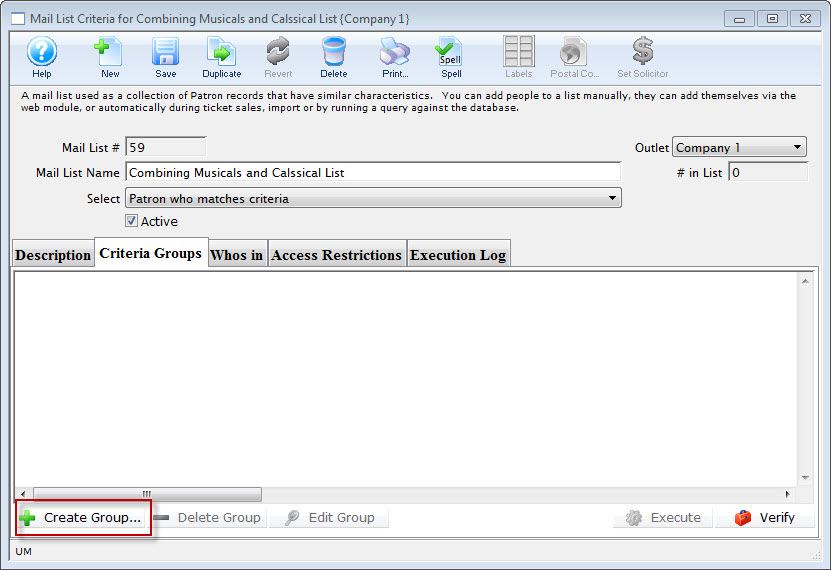
- Click the Create Group
 button and select To Add Patrons to a Mail List.
- Select Mail Lists Associated with a Patron.
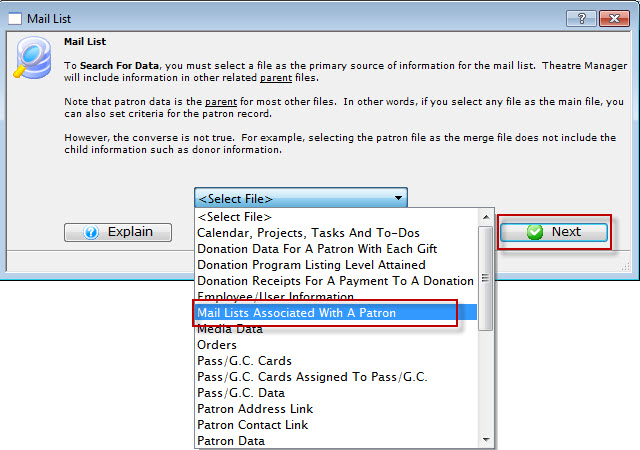
- Click the Next
 button.
The Parameter window opens.
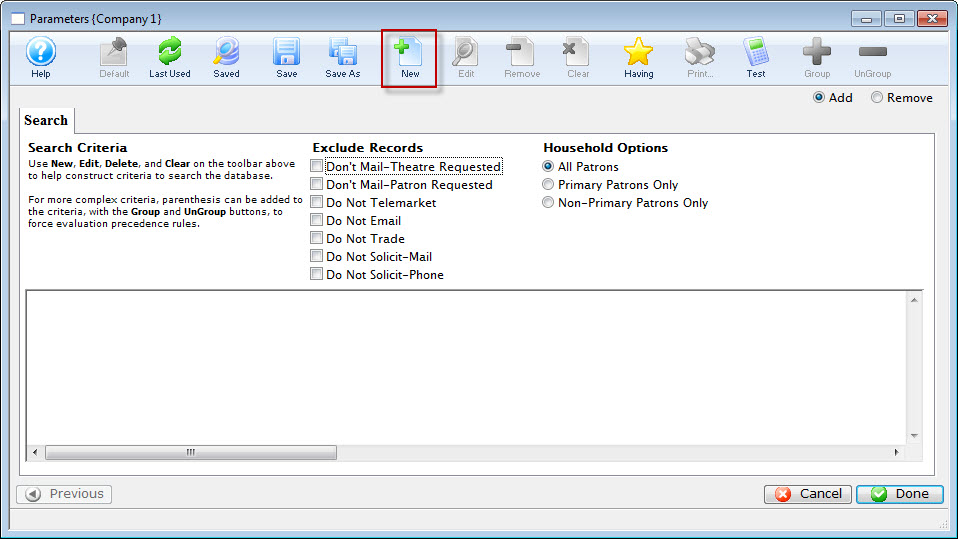
- Click the New button.
The Add/Edit Parameter window opens.
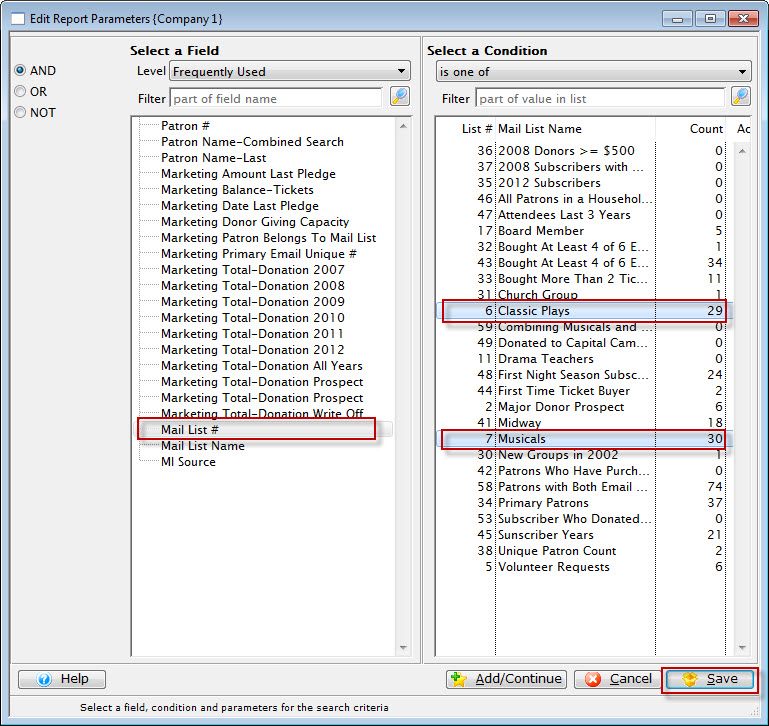
- Select a field and condition.
For this example the field will be "Mail List #" found under Mail List Setup and the condition will be "is one of"
- Select the mailing lists to be combined.
Hold the Ctrl (PC) or Command (Mac) key to select multiple lists at a time.
- Click the Save button.
You are returned to the Parameters window.
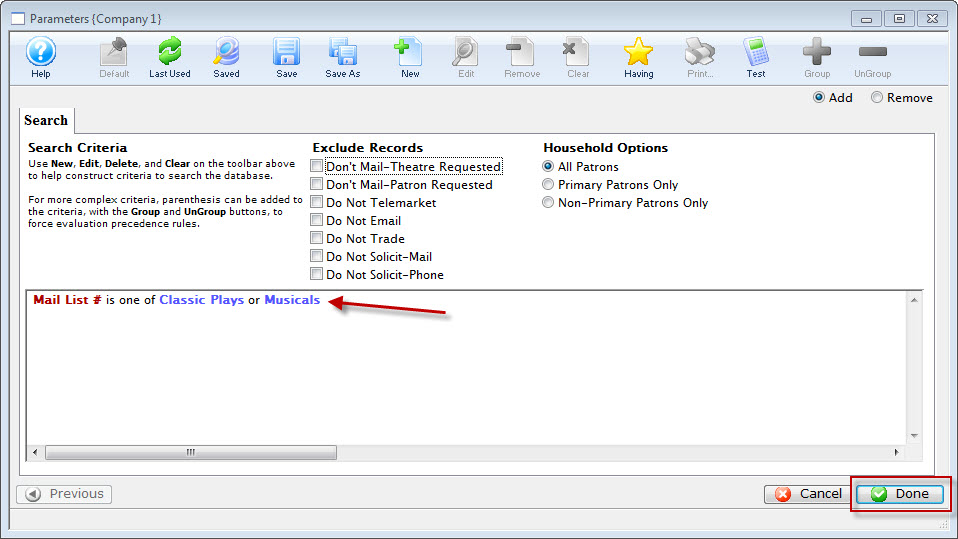
- Click the Done
 button.
You are returned to the Mail List Criteria window.
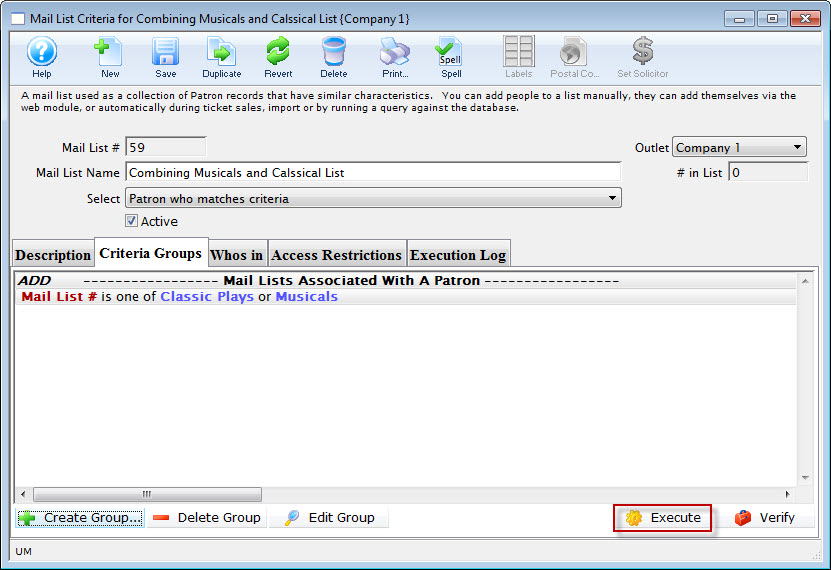
- Click the Execute
 button.
The data from the selected mail lists will be combined.
If the criteria is changed in one of the combined mail lists the combined mail list must be executed again to update the information.