Assigning Report Cards
Assigning Report Cards
To assign a report card to a Course, you perform the following steps:
- Open Play from Setup or use the Plays
 button in the Theatre Manager toolbar / ribbon bar.
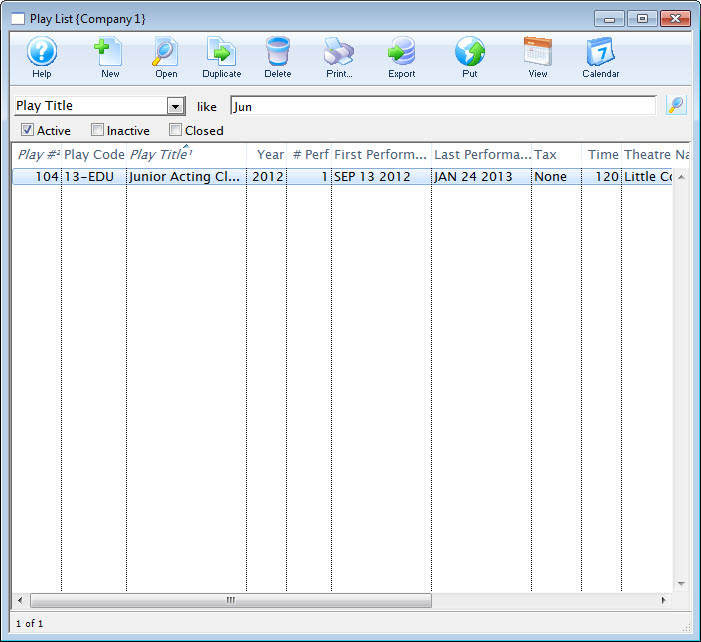
- Search for the Course in the Plays List and select it to open up the Plays and Dates Window.
- Select the Performance Tab.
- Select the Course from the performance list and click the Open
 buttom.
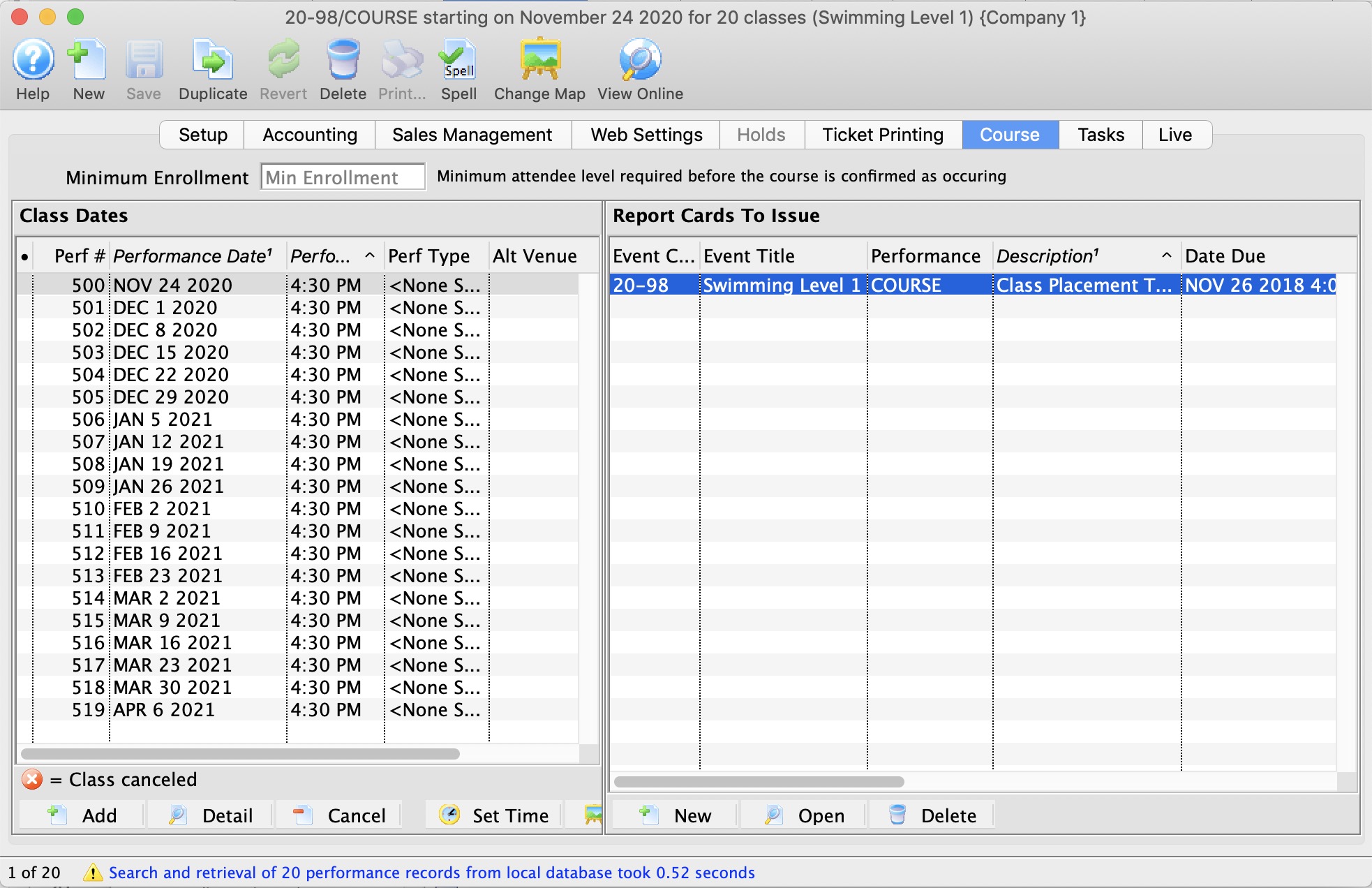
- Select the Course Tab in the Detail Window.
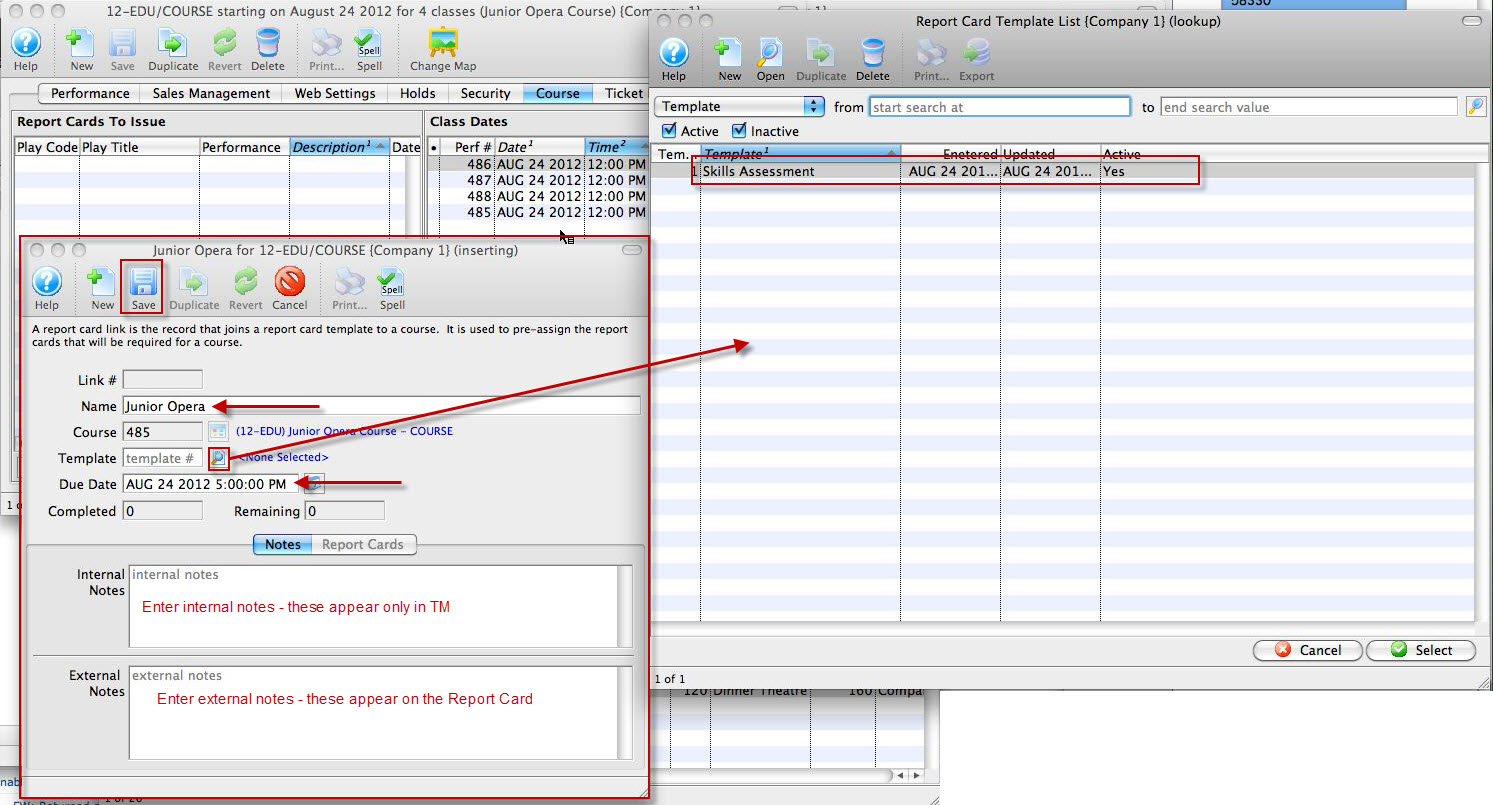
- Under the Report Cards to Issue column on the left, click the New
 button to add a new report card.
- Enter a name for the report card (e.g the name of the course).
- Using the lookup
 button, choose a Template from the list of report card templates.
- Enter a due date for the report card.
- Under the Notes tab, Internal Notes are notes that will only appear within Theatre Manager. External Notes will print on every report card.
- Click the Save
 button.
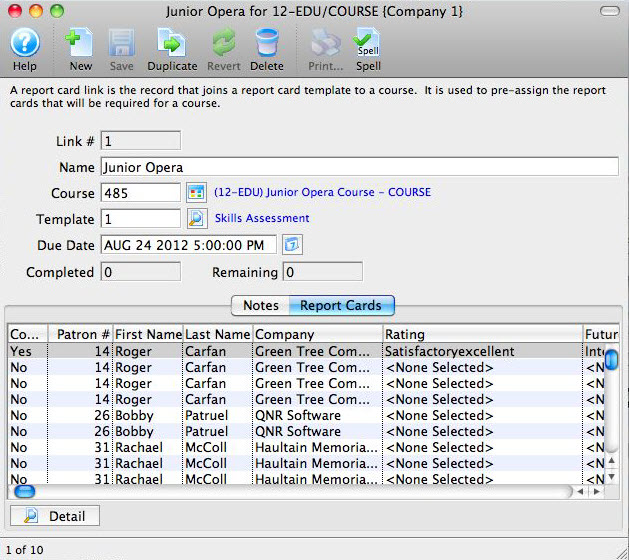
The Report Card tab populates with the name of each student in the Course and enables the report card to be completed.
The Play List window opens.
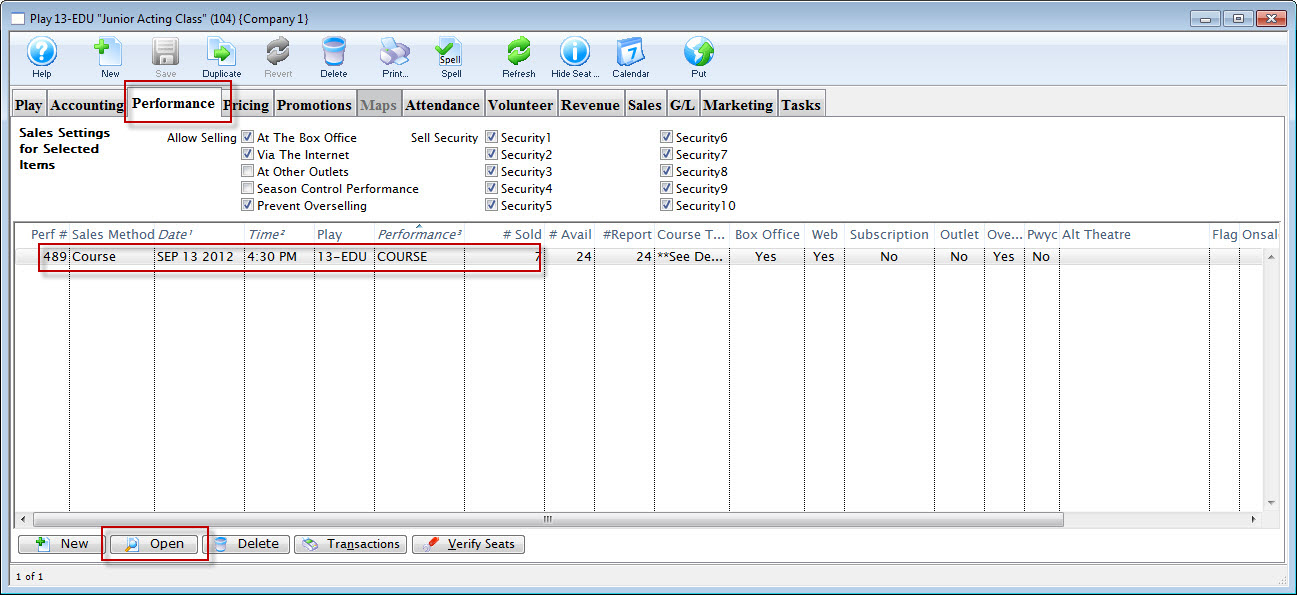
The Performance Detal window opens.
The Report Card Detail window opens.