Step 6 - Finalize dates
Step 6 - Finalize dates
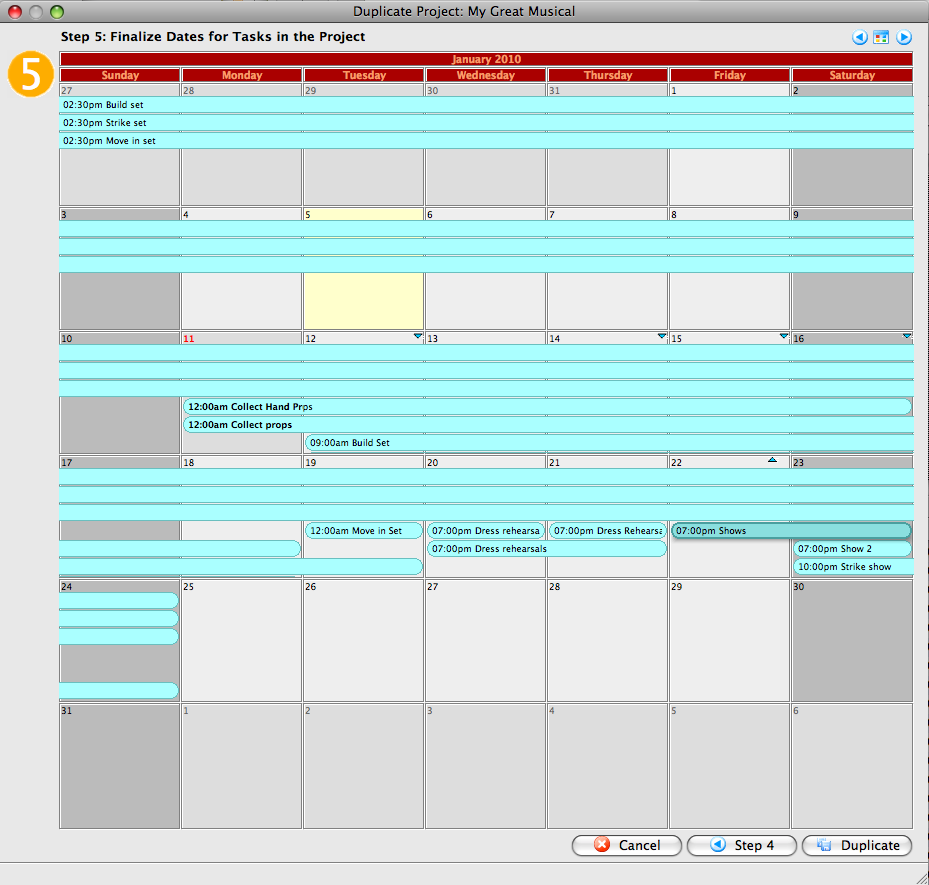
- You can drag tasks to a different day to move them prior to saving the duplicated project. Use the navigation buttons in the upper right to select a different month.
Possible conflicts in venue will be displayed as background tasks on the calendar.
- When you have updated Step 6, click the Duplicate
 button to duplicate the projects and the associated tasks.
To cancel the Duplication, click the Cancel
 button.
To return to Step 5, click the Step 5
 button.
In Step 6, you will see a calendar displaying the tasks associated with this project.