Donation Clearing Account
Donation Clearing Account
- the Donation Account Donations Normally Post to -and-
- the Donation Bank Clearing Account
To set this up, you would change the BANK ACCOUNT in the Campaign setup to the restricted GL account you have assigned to the separate bank account.
In this example, let's assume your general CASH GL account is 1000, and the Capital Campaign GL account is 1008.
|
While the payments for all sales goes into the general operating account at the bank, and the majority of your campaigns are sending those funds directly to the standard 1000 GL account, the Capital Campaign is going into the 1008 account. |
GL entries for the restricted Donation - no payment yet
The next assumption is that a $50,000 donation is pledged - but not paid - to the capital campaign. This simply increases A/R by $50,000, and increases the Capital Campaign donation GL account (in this example, 4125).
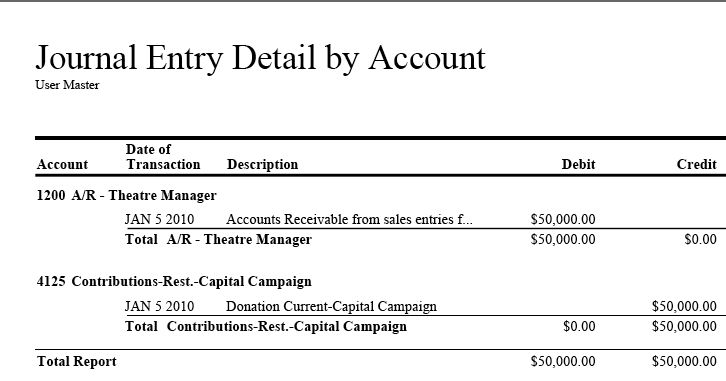
GL entries when part or all of the payment is received
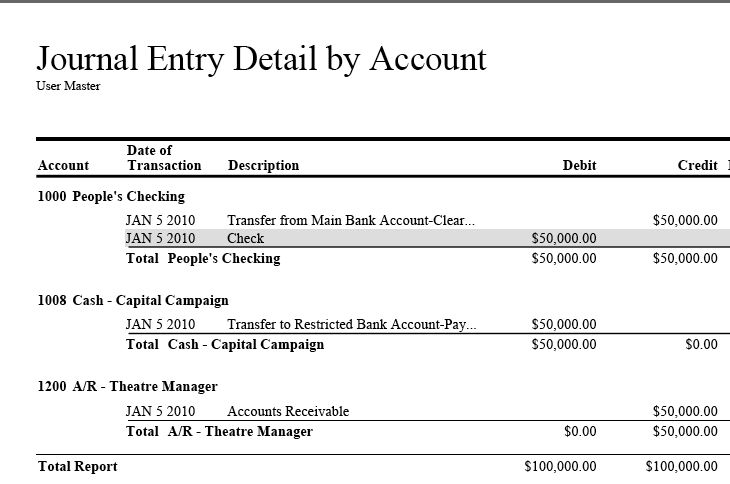
When the donation is paid (either in part or in full), Theatre Manager will tell you through the End Of Day reporting to move the funds from where they were originally posted to the separate bank account.
What this means to Finance
To understand this report, first remove the simple offsetting transactions for Accounts Receivable. eg:
- The final transaction reduces the A/R - and-
- and the second transaction increases the CASH account by $50,000, which is the amount of the payment.
- These are the same transactions we see for every payment in Theatre Manager. Reduce A/R, increase cash.
That leaves us with the two transfer GL entries.
- The first is the Transfer from (1000).
- It is a credit for $50,000
- meaning that you are going to need to manually take the funds OUT of the cash account (main bank account) using your online banking
- The second is the Transfer To:
- which moves the money IN to the other bank account
- which is 1008 (because that is where you are keeping the actual money for the capital campaign).
 |
The Only action you need to do is watch for the transfer out and then do something outside TM to move the funds from your operating account to the restricted asset account for the campaign when the payment is made. |
Donation Clearing Example Setup
Donation Clearing Example Setup
Code Table Default Accounts
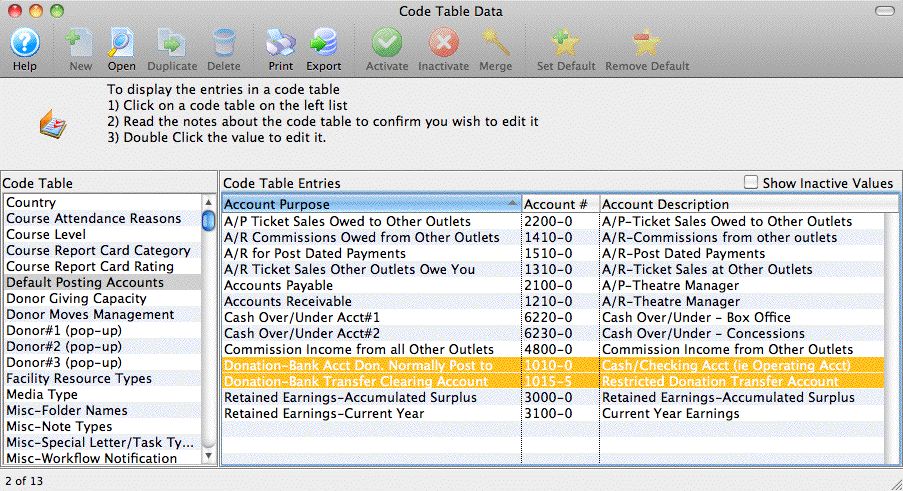
The two highlighted accounts below are what makes the automatic creation of G/L entries for transferring donations to the restricted account work.
- The first is the Donation-Bank Acct. Don. Normally Post To. which really should be the same account number as the operating account. When you look at a normal donation (second picture), you will see this account is placed into the 'Bank Account' field
- The second is the Donation-Bank Transfer Clearing Account. This will be an asset clearing account - which in general means that if something gets posted to this account, you will need to make a manual GL entry in your accounting system to get it moved from this holding place to the right bank account
Typical Donation - Non Restricted
This sample shows how the bank account is entered for almost every donation campaign. Typically these would be referred to as non-restricted. Theatre Manager will put any payments received against these donations into the operating account
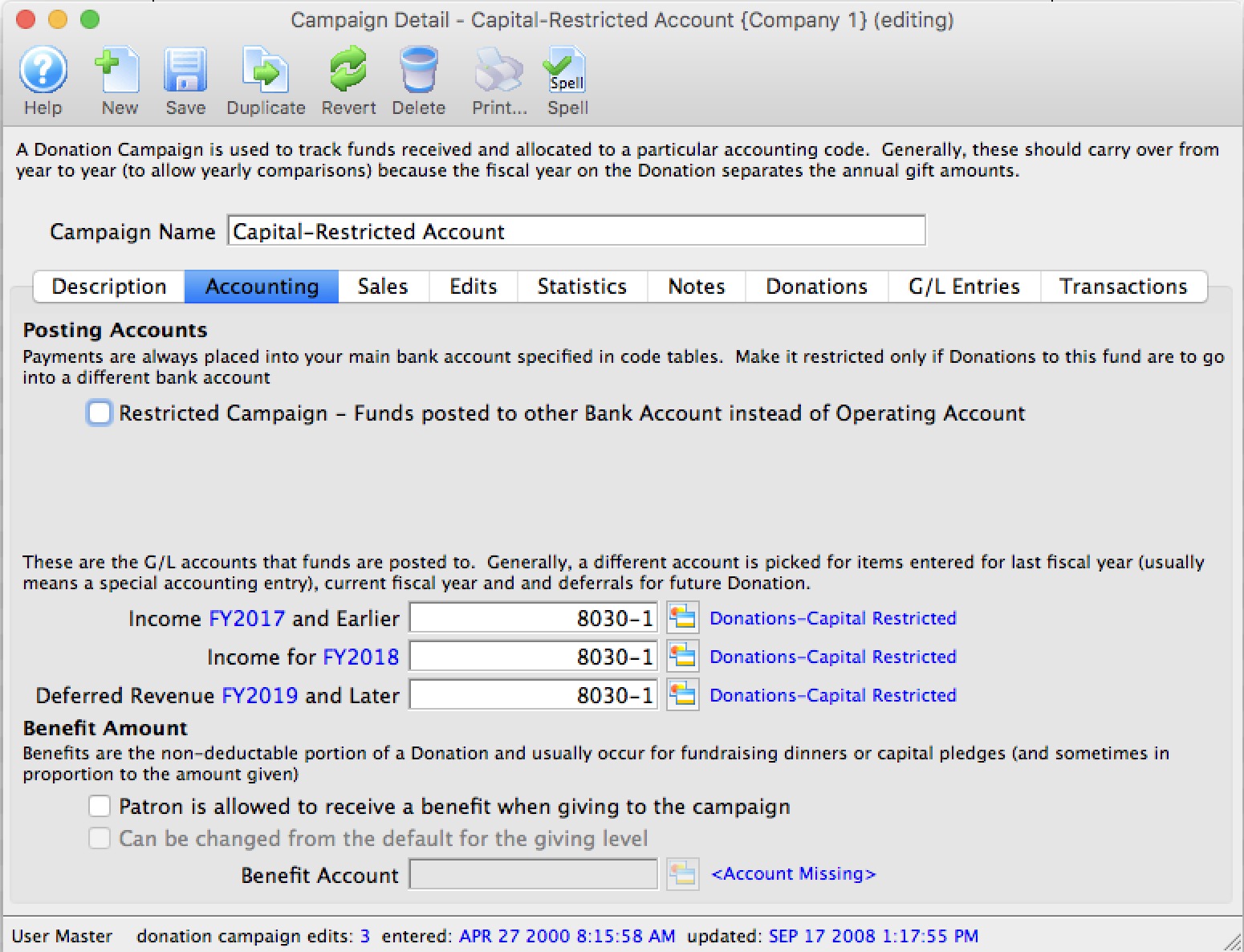
Special Donation - Restricted
This sample shows how the bank account is entered for a donation that is deemed to be 'restricted' - meaning the money needs to be moved to a different bank account, or accounted for in some different manner. When the donation is paid for, Theatre Manager will create a clearing entry for you to this account.

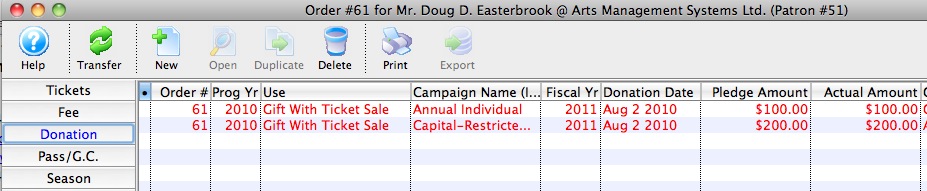
Example of an order
This picture shows an order with two donations in it, one for each of the donation campaigns described above.
Sales Posting
When the sales posting is created, you can see that each of the donations is placed into its own sales/income account. This will happen whether or not there is a payment yet.

Deposit Posting
When the payment is received at some time after the donation is entered (it could be right away, or the payments for some donations can be received in installments), running the deposit process is intelligent enough to:
- Put the entire check into the cash account
- Decrease the receivables account like any other payment
- Add two special entries that offset each other
- The first entry from Theatre Manager is telling you to put some money into the restricted bank account because a payment was received for the donation
- The second entry is in the restricted donation transfer account. Normally the total value of funds in this account is zero. However, as payments for restricted donations are received, this account will increase in size. Theatre Manager tells you which donation the funds are for. At some periodic basis (daily, weekly, monthly), you will need to clear this account to zero. To do this, you go to your web banking and transfer funds from your operating account over to the various restricted accounts as identified by the clearing account.
