Changing Default Auto-Capitalization Settings
Changing Default Auto-Capitalization Settings
To change the default auto-capitalization setting for a field, you perform the following steps:
On a MAC:- Type the word into the field with the capitalization you want to display.
For example: MacDonald
- Press option+tab.
The cursor moves to the next field and your capitalization remains. Or Press option and click to the next database field with your mouse.
For example: MacDonald instead of Macdonald
- Type the word into the field with the capitalization you want to display.
For example: MacDonald
- Press ctrl+Click into the next field.
Your capitalization remains.
For example: MacDonald instead of Macdonald
If necessary, you can change the default auto-capitalization settings for all fields.
|
It is strongly recommended users maintain the auto-capitalization default. This preserves the 'standardization' of name and address data. If the default setting is changed, all users - including employees and patrons using the online interface - will be able to enter information in an incorrect manner.(no capitalization for anything, all caps for everything, etc.) |

- Choose Setup >> System Preferences >> Edits tab.
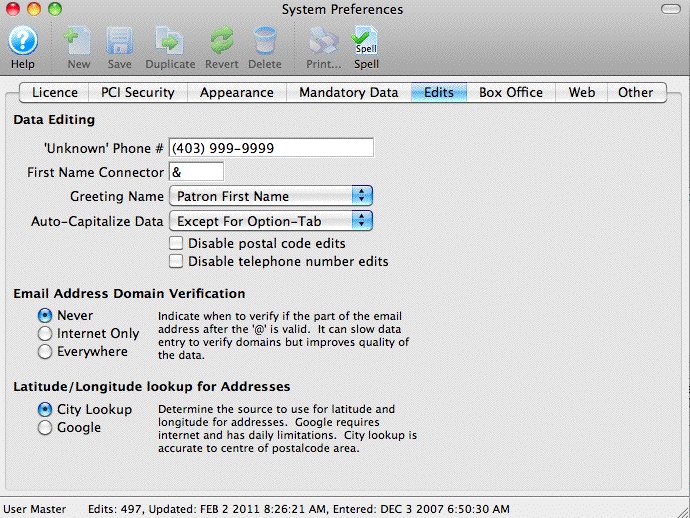
- Change the Auto-Capitalize drop down box to your desired setting.
- Never Capitalize will never auto-capitalize words
- First Time will auto capitalize words the first time they are typed in, but not when they are edited after the first time
- Except for Option-Tab will auto capitalize words except when the methods described above are used
- Always Capitalize will always auto capitalize words