Pledged Donations
Pledged Donations
A pledged donation is when a patron says they are going to give the company X number of dollars over a period of time. A patron may pledge $600, pay $50 immediately and say they will pay $50 a month so there total for the year is $600. Also they may pledge $600 and ask you to post date the payments to be made once a month on there credit card or postdated cheques. Theatre Manager deals with these types of donations within the Donation Detail window which is opened when a new donation is being made or edited.
| For Quick Reference Pledge Scheduling, You can download: Cheatsheets (1-2 pages) and
Screencasts (online video demonstrations of the functions with narration) |
Cheatsheet |
Flash |
Mp4 |


Pledges without Postdated Payments
- Open the Patron Record.
For details on locating a Patron Record click here.
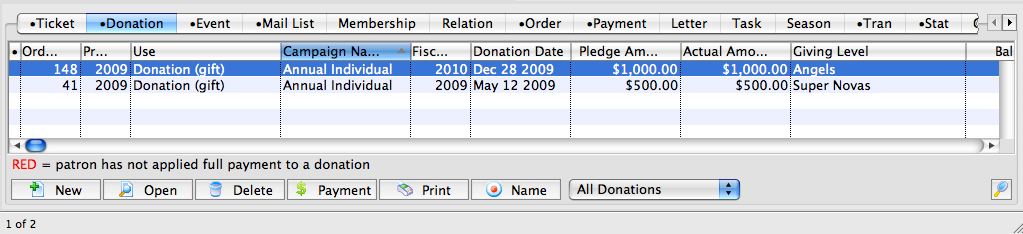
- Click the Donation
 tab.
- Click the New
 button.
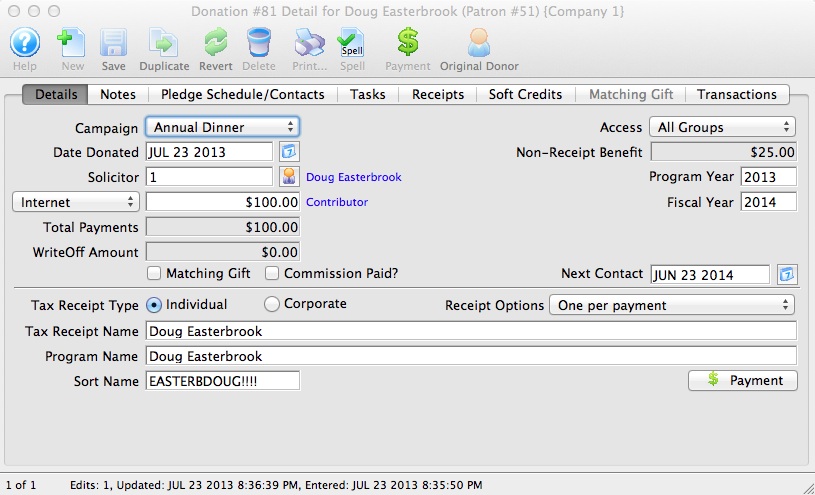
- Enter the Donation Details.
- Click the Pledge Schedule/Contacts
 tab.
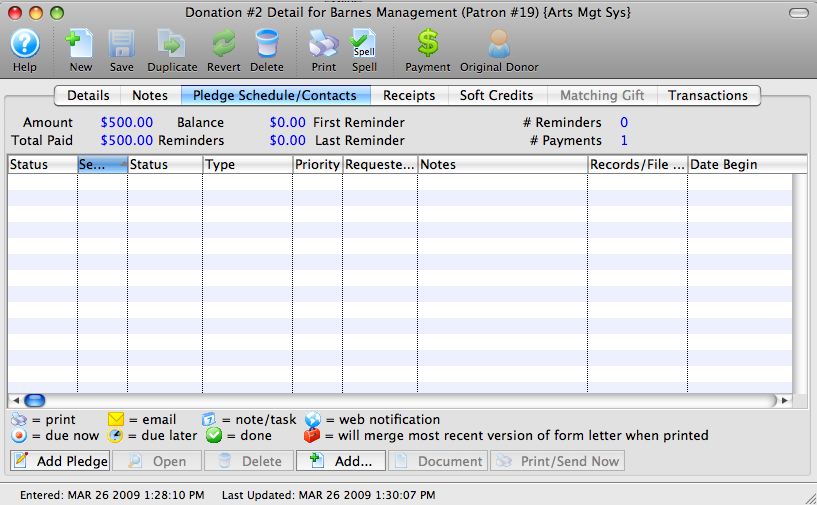
- Click the Add Pledge
 button.
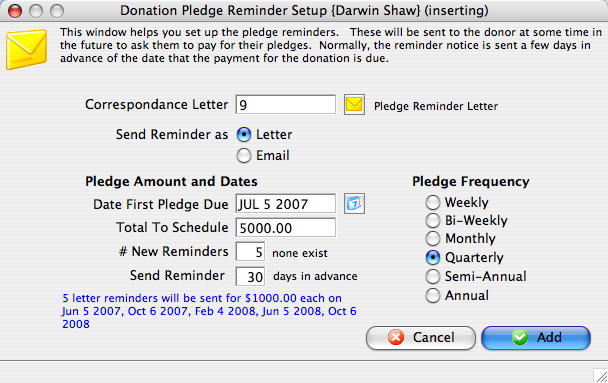
The Donation Pledge Reminder Setup window will open.
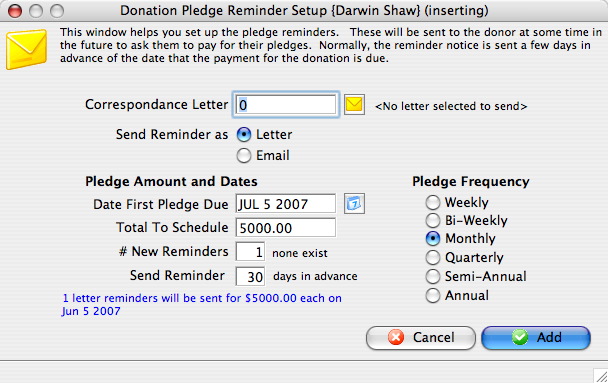
Correspondence Letter
Select a letter to be sent as the reminder.
Send Reminder as
Choose to send pledge reminders as a letter or an email.
Date First Pledge Due
Date the first reminder will be sent.
Total To Schedule
Amount added to the pledge schedule at this time.
# New Reminders
Number of pledge reminders to be added to the donation.
Send Reminder
Number of days ahead of the pledge due date the letter should be sent out.
Pledge Frequency
Amount of time reminders are to be spread out over.
- Click the Letter Search
 button.
The Form Letter Selection window opens.
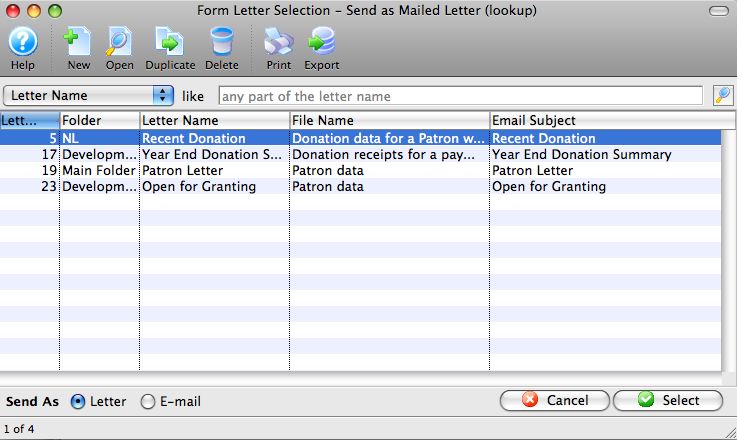
- Select a Form Letter.
Single click on a letter to select it.
- Click the Select
 button.
- Alter the remaining values as required.
- Click the Add
 button.
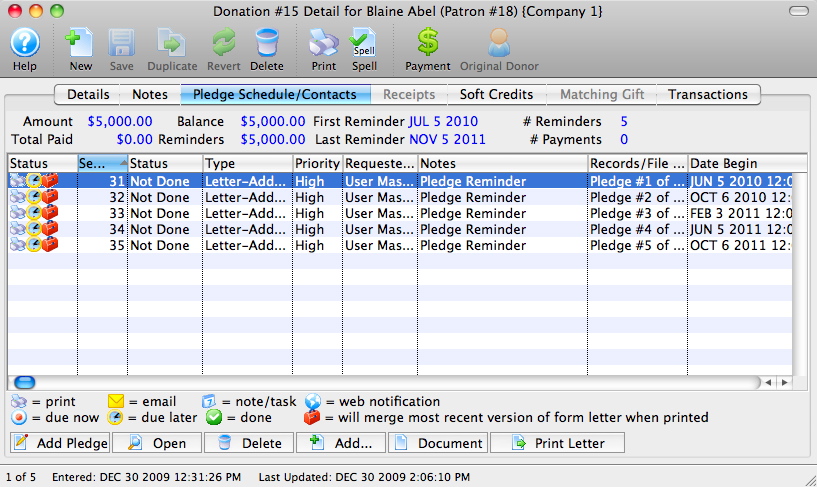
- Click the Payment
 button.
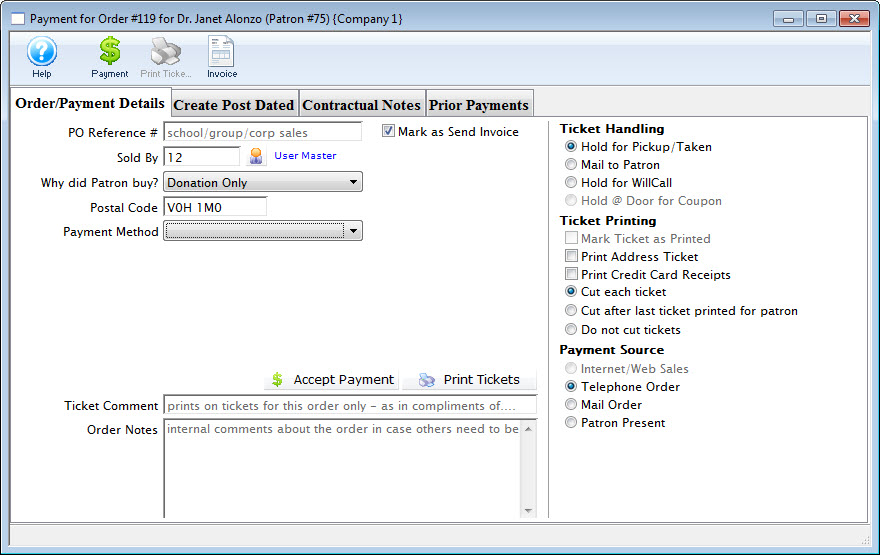
- Change the Payment Amount to reflect the amount the patron will pay at the time the donation is created.
- Click the Accept Payment
 button.
- Place the remaining amount of the pledge On Account.
As they pay more of there pledged amount additional payments will be made to the order. For more information on adding payments to an order click here.
Pledges with Postdated Payments
Another method to deal with the Pledged amount is to use the Create Post Dated tab on the Payment for Order window. Under this tab you can setup a schedule of payments for the pledge.
- Open the Patron Record.
For details on locating a Patron Record click here.
- Click the Donation tab.
- Click the New button.
- Enter the Donation Details.
- Click the Pledge Schedule/Contacts tab.
- Click the Add Pledge button.
The Donation Pledge Reminder Setup window will open.
- Click the Letter Search button.
The Form Letter Selection window will open.
- Select a Form Letter.
Single click on a letter to select it.
- Click the Select button.
- Alter the remaining values as required.
- Click the Add button.
- Click the Payment button.
- Click the Create Post Dated
 tab.
- Enter the Post Dated Payment details.
For more information on entering post dated payments click here.
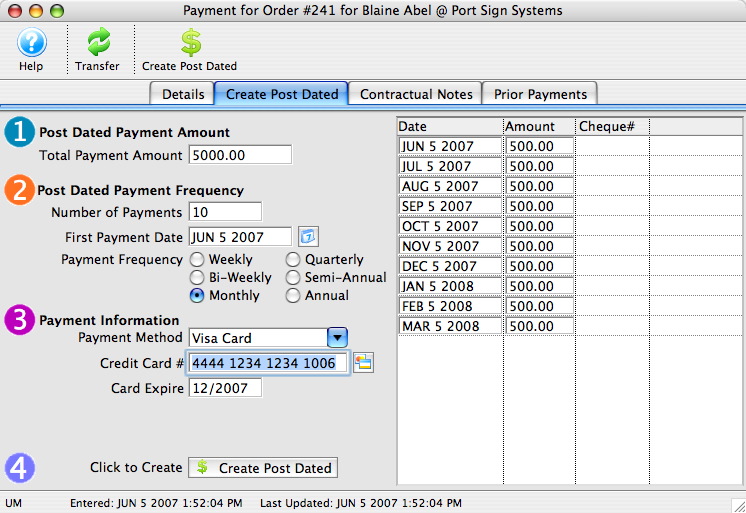
- Click the Create Post Dated
 button.
- Close the Payment for Order window.
Theatre Manager creates the payments for the allotted time period. When viewing the Donation in the Donation tab the Donation Amount Due is blank. The balance is $0.00 because the payments have been guaranteed through the creation of the Post Dated Payments. Theatre Manger will show the posted dated payments in the end of day wizard when they are to be deposited.
Changing the Donor's Credit Card
Changing the Donor's Credit Card
Sometimes, issues may arise if the payments stretch over a long time. If the:
- customer's card number is changed by the bank, you can change all future payments en masse
- patron wants you to substitute a different card for some or all future payments, use the link above
- expiry date changes, you can use the above process, or you can simply find the card in the patrons account and change the expiry date.
- credit card gets declined in end of day, then remove it from the deposit for a few days.. You might do this is the patron says the card is still valid and they need to put money on it,
- the actual payment dates and schedule need changing, you will need to:
- delete the existing post dated payments
- Add the new post dated payment(s) with the revised payment schedule