Importing Seat Names
Importing Seat Names
When importing seat names the file must be in tab delimited format ie. after each entry there is a tab space and a carriage return at the end. Most spreadsheet programs should be able to save in this formation.
- Open the Pricing Map for editing.
Click here to learn how to open Pricing Maps.
- Click the Seat Names
 tab.
The Seat Names window opens.
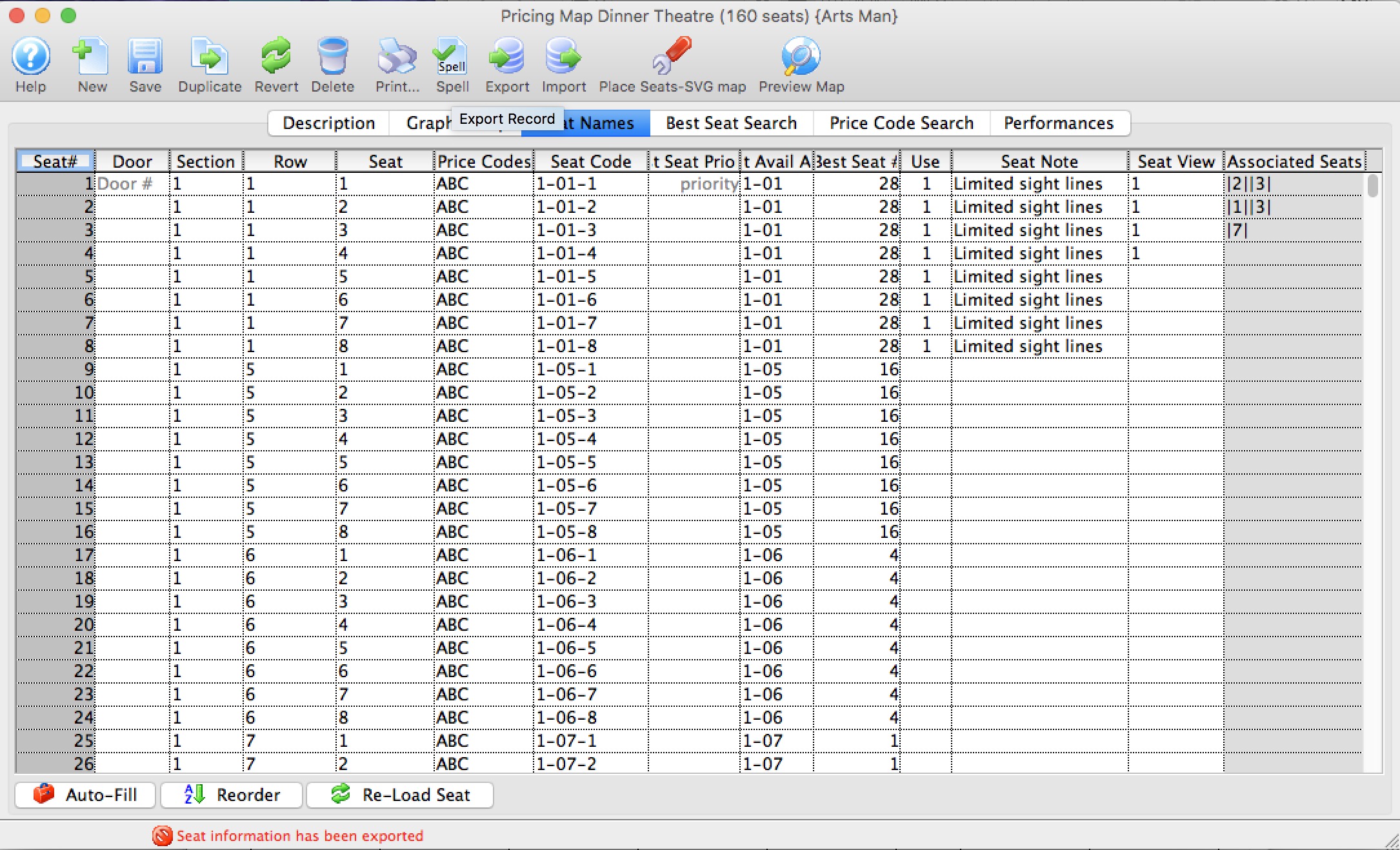
- Click the Import
 button.
The Import Seat Name window opens.
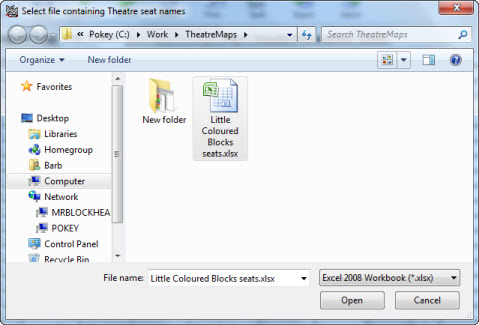
- Select the file containing the seat names to be imported.
The following file formats are supported:
- Excel (.xls)
- Excel (.xlxs)
- Tab delimited (.txt)
- Comma Delimited (.csv)
- Click the Open
 button.
The file will be imported into Seat Names window.
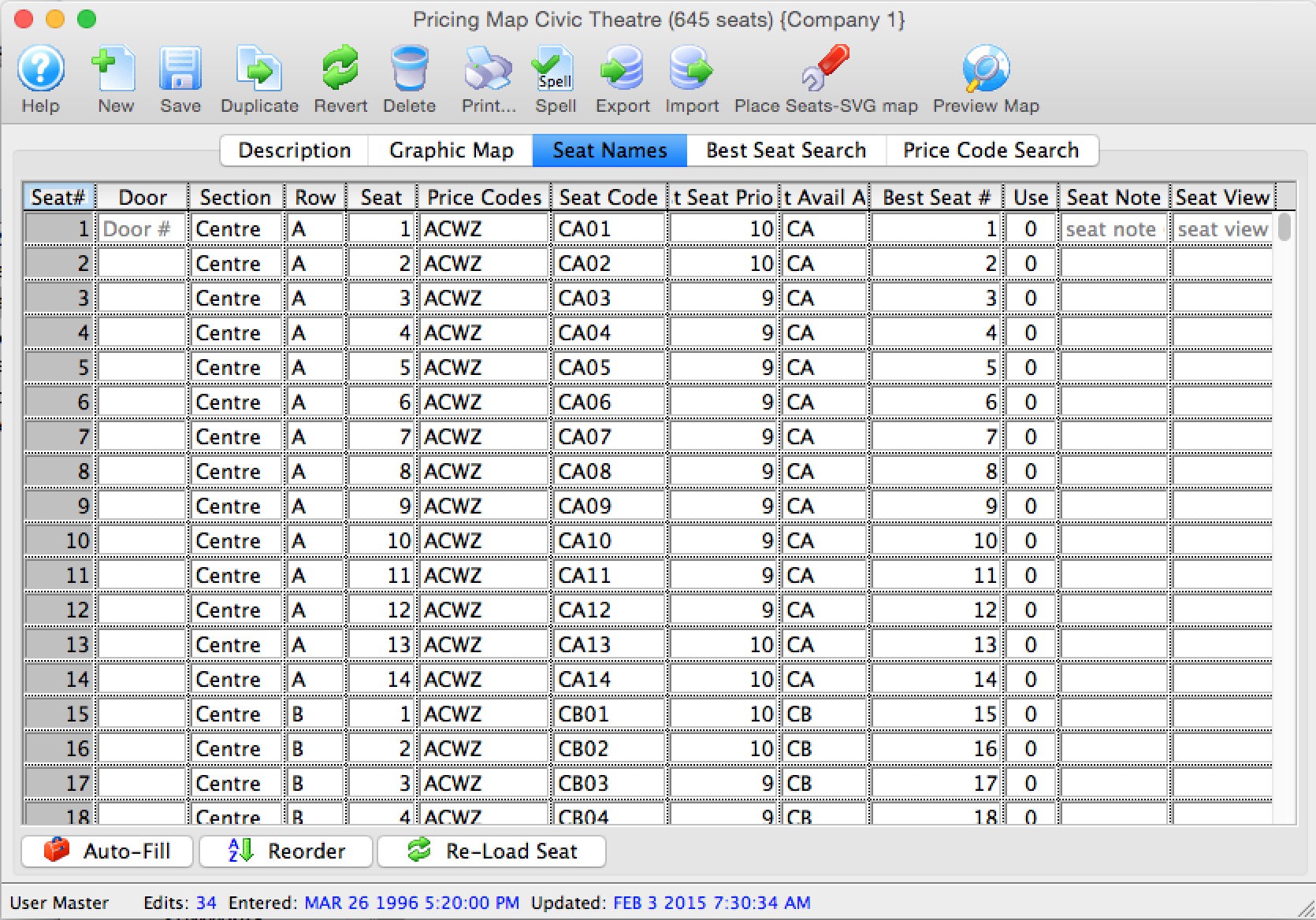
- Click the Save
 button.
The seat names have now been imported into Theatre Manager.
 |
If your spreadsheet has empty lines at the end, which are hard to see for find, you might see a message line the one below.
Theatre Manager is asking if you want lines with a logical seat number of zero and no Door/Section/Row/Seat data to be ignored. |
