Importing a Graphic Map
Importing a Graphic Map
 |
All graphic maps start with e PPT document that is exported to an SVG |
When needed, open the PowerPoint image file in OpenOffice to create the SVG file.
The easiest way to place an SVG graphic map file is to simply DRAG the file from the folder it is located in and DROP it in the white space of the  tab in Theatre Manager.
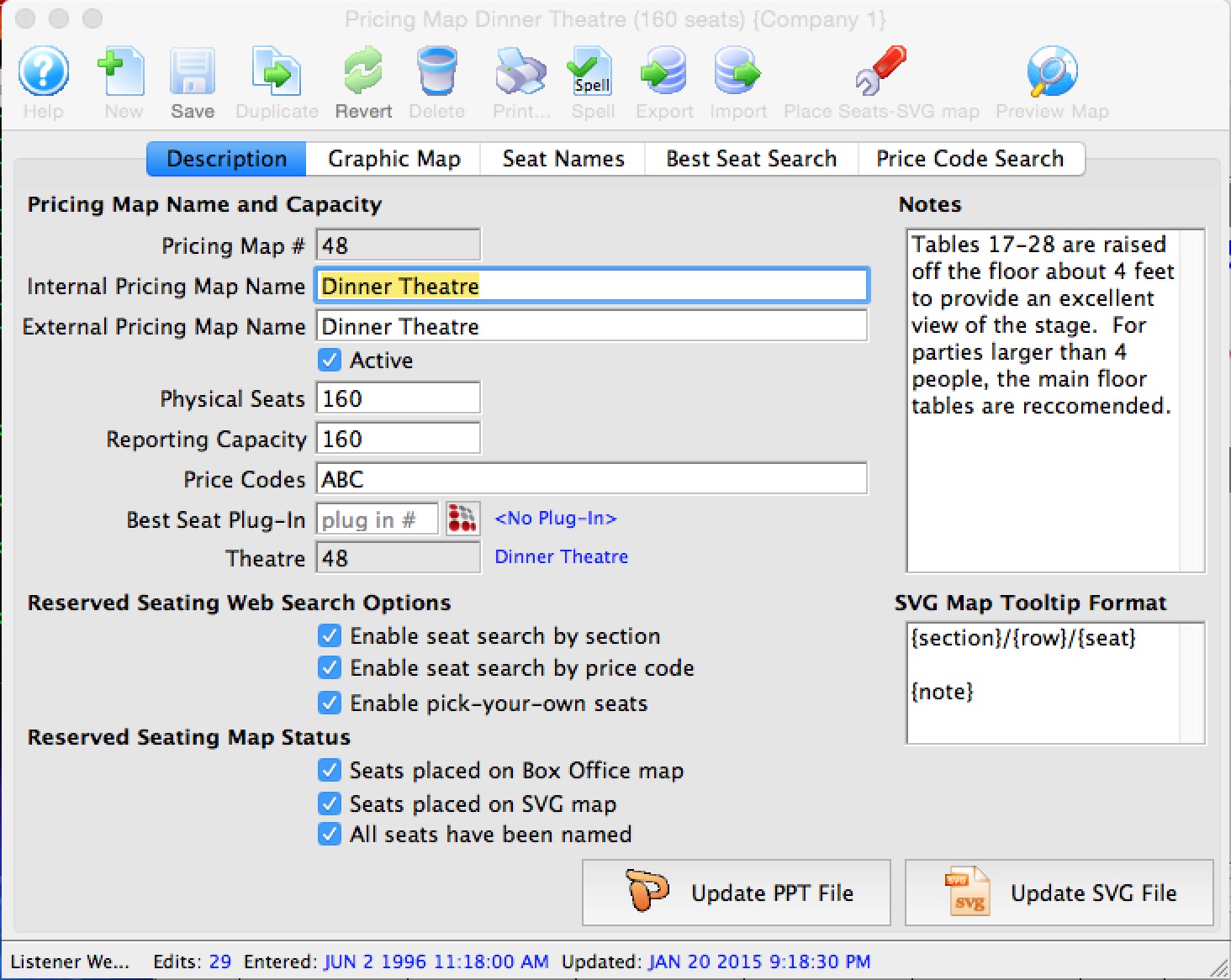
- Open the Theatre Map Window.
Click here to learn how to access the window.
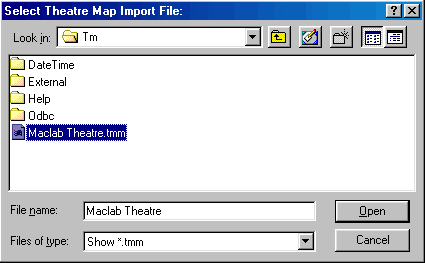
- Click on the Venue you wish to import a Graphic Map to, and then click the
Open
 button.
- Double-click on the Pricing Map on the right-hand side where you want to add a graphic.
- Click on the Graphic Map tab.
- DRAG the SVG file from the folder it is located in and DROP it in the white space of the Map Tab inside Theatre Manager.
The Pricing Map opens. Click here for more information on the Pricing Map window.