
Main menu
You are here
The Formatting Palette

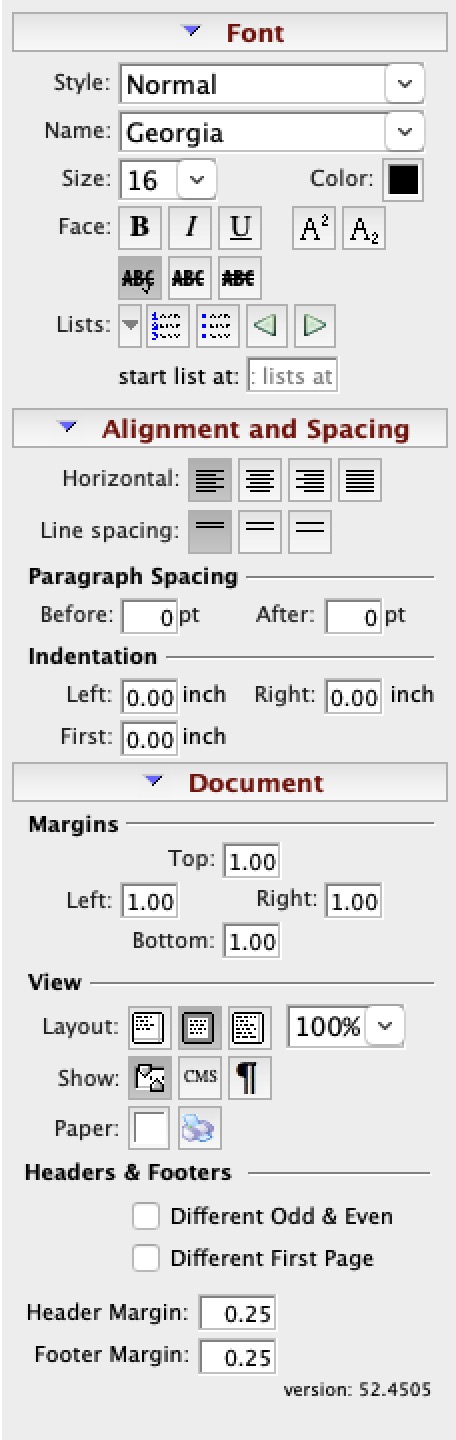
The Formatting Pallete is on the left of each Form Letter Window to allow easy access to common word processor features. A number of these options are also available in:
- The context menu for the word processor window
- The Form Letter menus on the main Theatre Manager menu bar
- Some keyboard shortcuts
Parts of the Formatting Pallette
Font |
|
|
| Style | Templates for font styles. A style may be applied to text to change its formatting. Drop down the menu to change the style. | |
| Name | Name of the current font. Drop down the menu to change the font. | |
| Size | Size of the current font. Drop down the menu to change the size. | |
| Color | Color of the font. Drop down the menu to view the color picker. | |
| Face | Affects the special format of the text. This allows for Bold, Italic, Underlined, Superscript and Subscript text. | |
| Lists | Inserts a list into the current text. The list can be in numbered or bulletted format. The list can also be indented or outdented. | |
Alignment and Spacing |
||
| Horizontal | Changes the horizontal alignment of the text to either Left, Center, Right or Justified. | |
| Line Spacing | Changes the spacing between lines to 1 line, 1.5 lines or 2 lines. | |
Paragraph Spacing |
||
| Before | Changes the spacing between a new paragraph and the preceding paragraph. | |
| After | Changes the spacing after a paragraph and before the following paragraph. | |
Indentation |
||
| Left | Changes the indenation of text on the left side. | |
| Right | Changes the indentation of text on the right side. | |
| First | Changes the indentation for the first line of a paragraph. | |
Document |
||
Margins |
||
| Top | Changes the size of the Top margin of the document. | |
| Left | Changes the size of the Left margin of the document. | |
| Right | Changes the size of the Right margin of the document. | |
| Bottom | Changes the size of the Bottom margin of the document. | |
View |
||
| Layout | Changes the Layout View of the document between:
|
|
| 100% | You can set the zoom in/out of the document view. | |
| Show | The first button will turn on the rulers and the second button will change the rulers from inches to centimetres.
Also on the View Menu |
|
| Show Paragraph | the show paragraph icon will show the hidden text markers like tabs, paragraph markers and other invisible non-breaking spacing characters | |
| Paper Colour | Drop down menu allows for changing the color of the paper via a color picker. | |
| Paper Size |
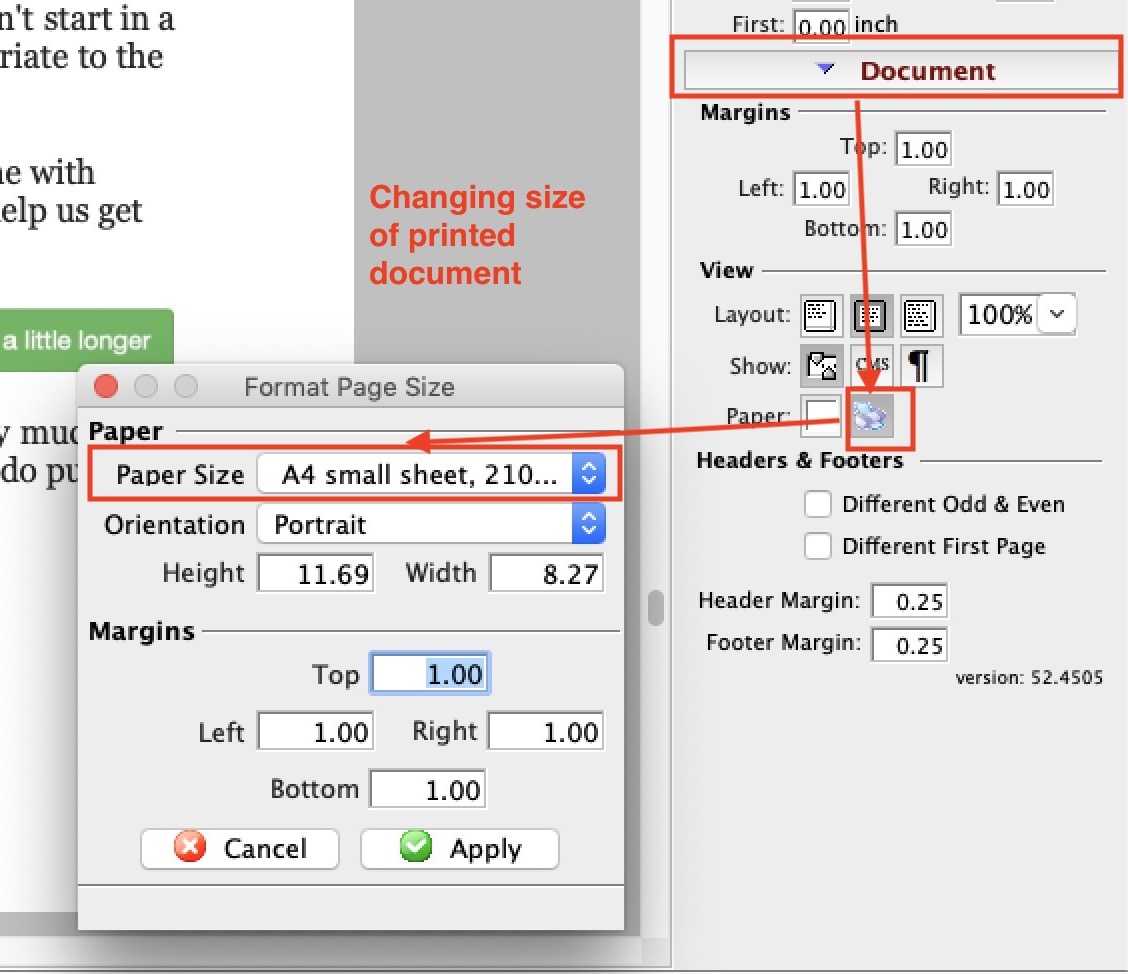 Opens a window that lets you set some page size characteristics based on common paper sizes, or ones that you might want to customize.
This also available on the context menu and the Format Menu |
|
Headers & Footers |
||
| Different | Check for different Odd and Eve and/or Different first page headers and footers | |
| Margins | Define the margins for the headers and footers | |