
Main menu
You are here
Printing Memberships, Passes, G/Cs

Once a Membership has been purchased it can be printed through the Membership tab. Only memberships with a ticket face association will print, and the ticket face must be based on the Member Data file.
- For more information on Member Type setup click here.
- For more information on creating ticket faces click here.
- Find the patron who's membership is to be printed.
Click here to learn how to access this window.
- Click on the Member
 tab.
tab.
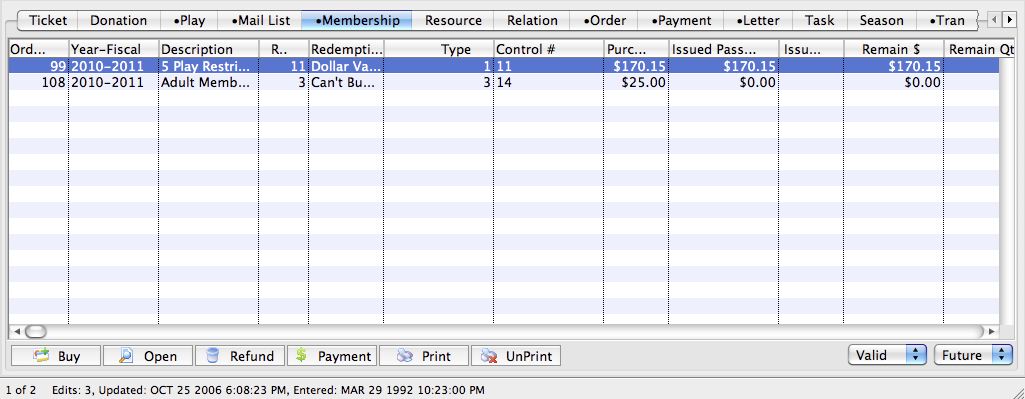
- Locate the membership to print.
Use the filters in the lower right corner to adjust for
 Valid/Invalid/All Memberships, and
 All Years/Specific Year/Future to locate a specific pass.
 - Select the membership to print.
Single click on a membership to select it.
- Click the Print
 button.
The membership will be printed to the default printer.
You can also print a Membership, Pass or G/C as a form letter, through the Detail window. Click here for more information.
Diataxis: