
Main menu
You are here
Emailing an Employee their Password

If an Employee forgets their password, then they can have Theatre Manager email them their password so that they may log back in. This requires ALL the following conditions to be true:
- The Employee must have a valid email address listed in their employee preferences window. This email address their primary email address on the Contact Info tab of their Patron record.
- The Employee must have Normal access. Outlet Administrator or Master User Access passwords cannot be emailed.
- The Employee must not have a Resigned Date in their Employee record.
- Resigned means they made too many attempts to log in and are now locked out.
- They will need reinstated first.
- The number of attempts allowed is determined on the PCI Security tab of Setup>>System Preferences.
|
The proper email settings need to be defined in Company Preferences under Web Email Settings. This allows emails to be sent to the Employee. If you receive an SMTP error when attempting to have your password mailed to you, please have somebody who still has access check the SMTP settings first, then try again. |
For an Employee to get their password emailed to them, they perform the following steps:
- Start Theatre Manager by clicking on the Theatre Manager Desktop
 icon.
icon. -
In the log in window, double click on yourself as if you were going to log n
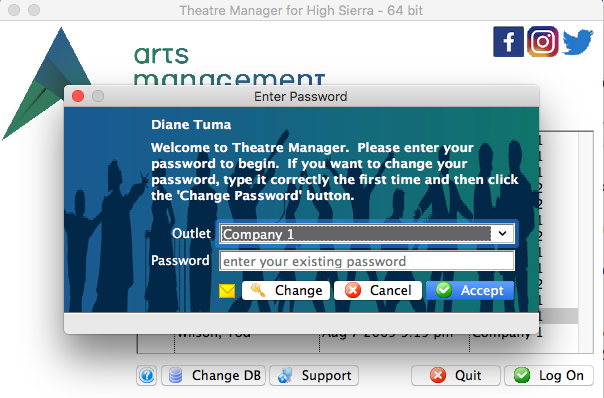
- Click on the yellow 'envelope' at the bottom of the login window.

if the user hovers over the envelope icon, the tooltip will indicate the email address that the password will be sent to.
Theatre Manager will email the password to the primary email address on file in that Employee's patron record.