System Setup
You can customize Theatre Manager for your organization using the system setup functions.
Theatre Maps
Events / Plays and Dates
In this section, we explain the Event/Play setup window and take you through the set up of an event. During the installation of your software, several naming conventions were setup in the Appearance section of Company Preferences. This allows you to name the events "Plays," "Concerts," "Games," "Events," or whatever term your organization uses. The terms are completely interchangeable and mean the same thing. For the purposes of these web pages, we will refer to them as either a Play or an Event.
You must enter Play and date information before tickets can be sold. Each play can have a number of performance dates, called a series. The price code values for each series can be unique.
Opening the Plays and Dates Window
Select Setup >> Plays from Theatre Manager's main menu. Alternatively, click the Play  button in the main Theatre Manager toolbar / ribbon bar.
The Play List window opens.
Event / Play List
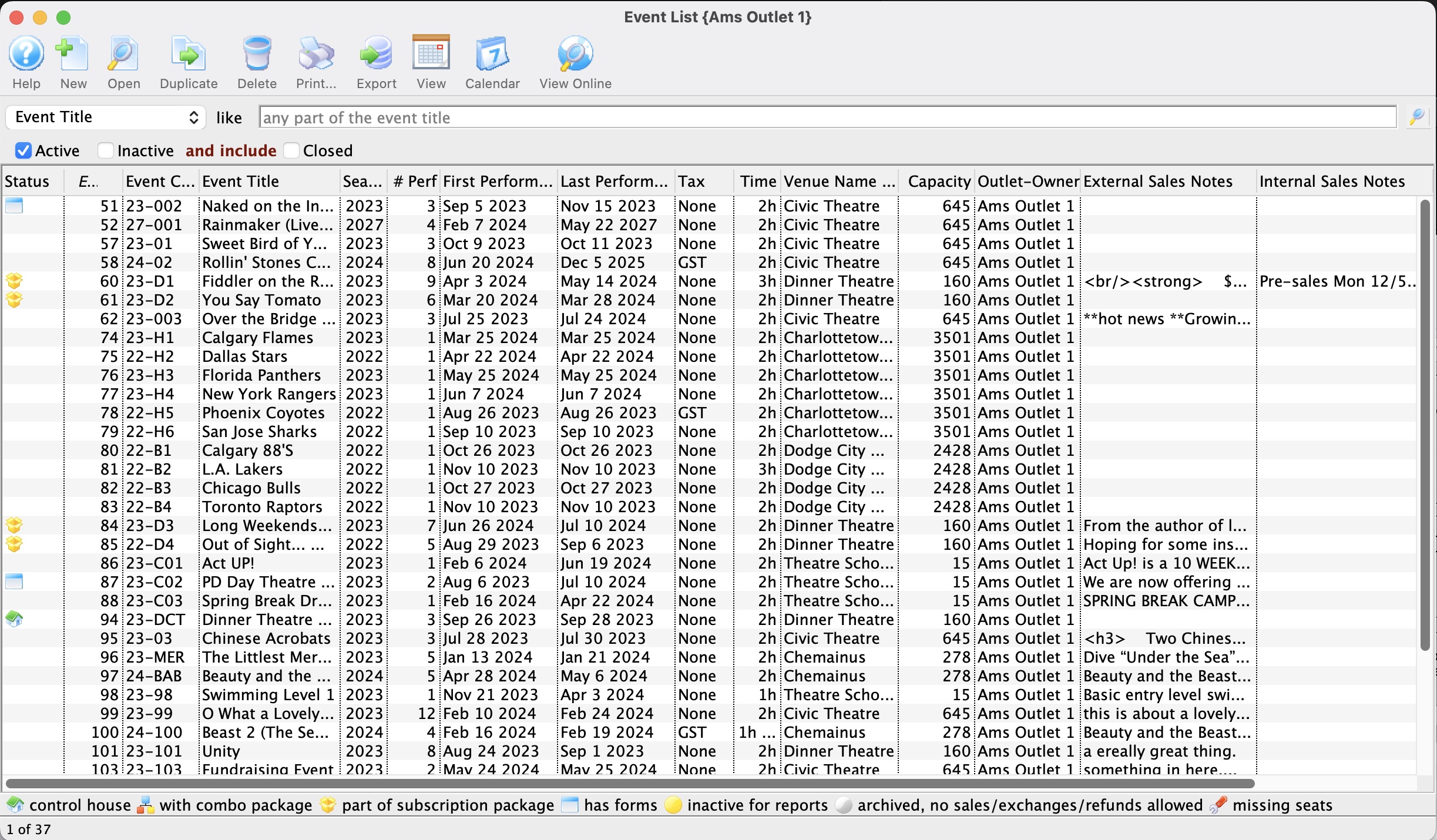
Parts of the Play List Window
 |
Adds a new Play. Click here for more information on creating events. |
 |
Opens the selected Play. Click here for more information on editing an event. |
 |
Creates a copy of the selected event. When you click the button, you are given options how you want to duplicate the event (as per the choices below). you can:
 |
 |
Deletes the selected Play. For more information on deleting events click here. |
 |
Generates a report of the Play List to the screen or default print location. |
 |
Exports the Play List in a tab-delimited format. |
 |
Clicking the button, puts any images or pictures associated with the event, onto the FTP site. |
 |
Changes the view of the plays, from list to calendar or calendar to list. |
 |
View the items attached to the play / event as a calendar. | Search Field | With the search fields, you can change how you search the Play List Window. Click here for more information. |
| Active | Check this to show all active events in the list. |
| Inactive | Check this to show all inactive events in the list. |
| Closed | Check this to show all closed events in the list. |
Duplicating One or More Events
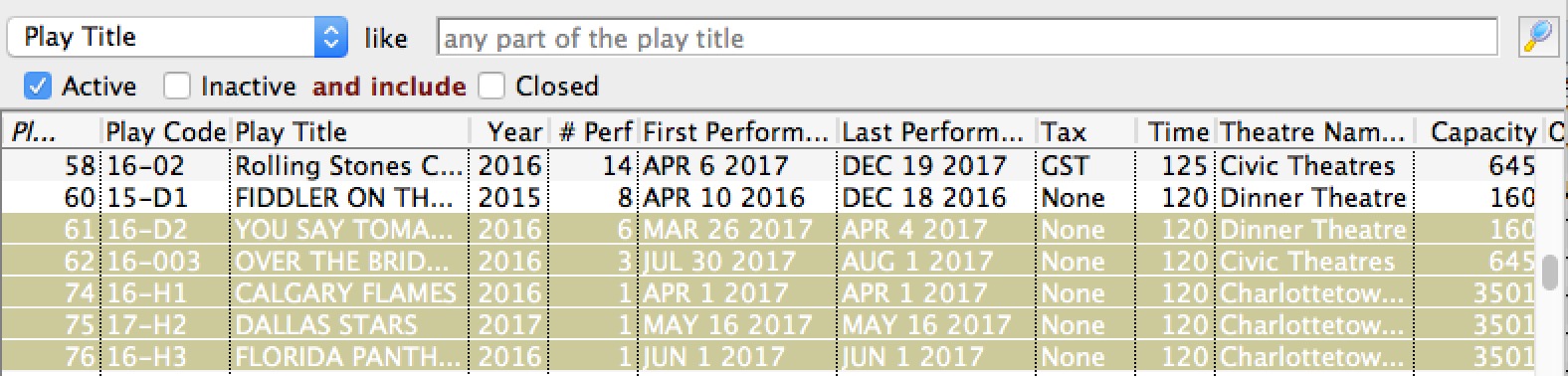
Clicking the duplicate button to copy events will show a sub menu where you can:
- Duplicate multiple events, their performances, pricing and onsale settings - which is useful when preparing for the next season or session of classes.
- Duplicate only the minimal key event header (the play and accounting tabs) so that you can custom build the marketing data, performances and all other information on the event.
Duplicating only event Information (second option above)
If events and performances change significantly from year to year where there is no pattern to the events or pricing, then sometimes the best way to get started with an event is to find one that uses the same accounting and just duplicate the event and accounting tabs. You will have a quick basis for making another event and can add performances as you wish.
Duplicating all data for one or more events
Duplicating an entire event copies everything. This could be used to create the basis for next year's season or for the next session of courses very quickly. The duplication process lets you:
- Enter a starting date for the first event
- Change the day of each event on a one by one basis
- Change the name of the event
- Change performance times
- Change performance codes
- Decrease the number of performances (adding more performances can be done later manually)
- Indicate if the marketing information should e cleared
- Indicate if the onsales flags should be altered for you
IT can be used any number of times on any number of events. For example if you have a set of courses, you may want to do them all at one time. If you have a season of 5 events, you might do this 5 times if the offset dates between events varies from year to year.
Setting key parameters for the copy options
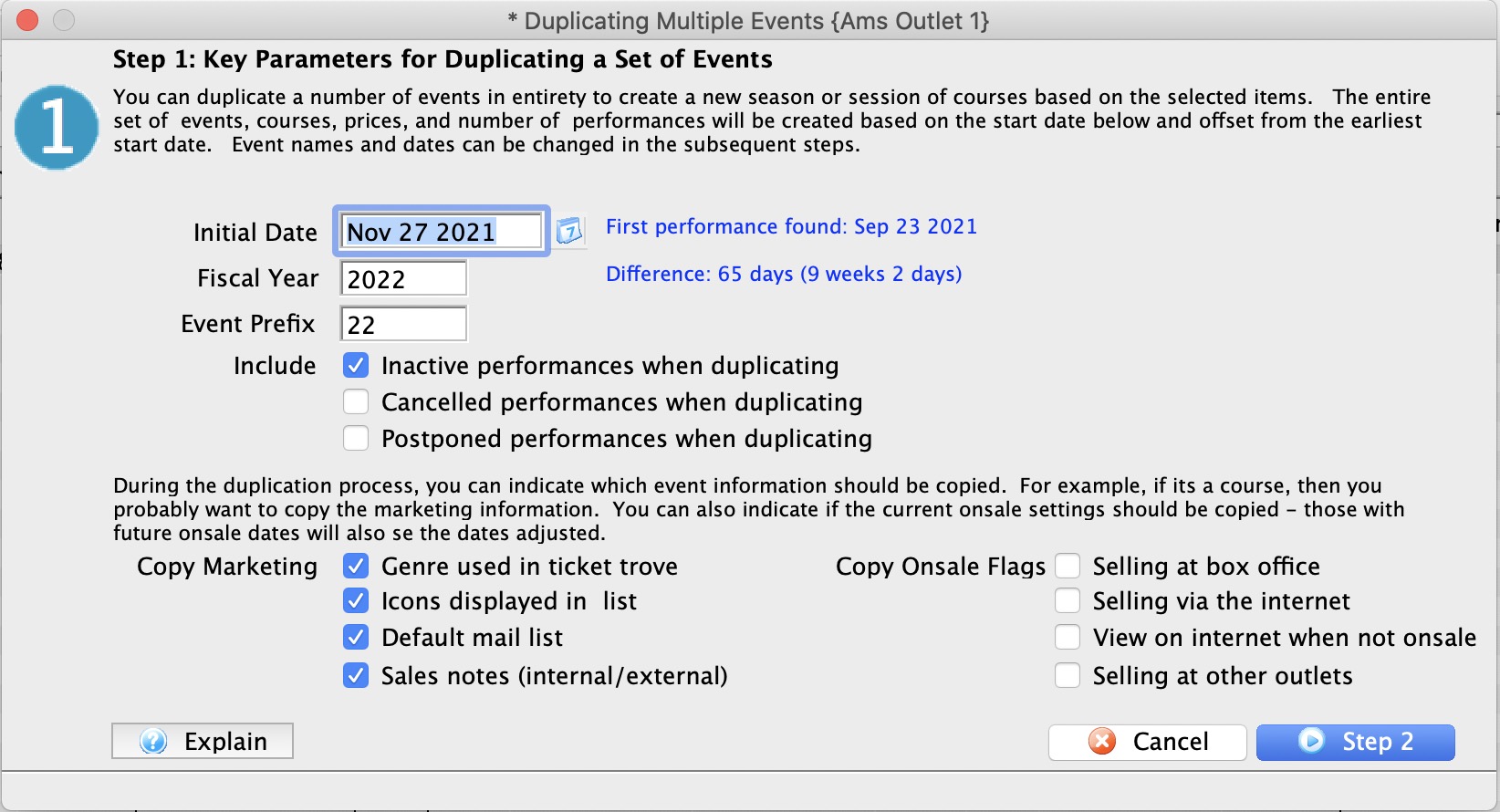
The first step of copying an entire season or session of classes is to provide some key items so Theatre Manager can build a suggestion for you. You will need:
- The initial date for the first performance - when you want the first new performance to occur. All performance and on-sales dates are calculated based on their offset from this date. For example. if the date entered is January 1, and you are duplicating 3 performances that are each two days apart, they receive dates of January 1, 3 and 5
- Fiscal Year All events have a season - you can specify the default for the new events. This can be changed on the second screen on an event by event basis if you are duplicating events that cross seasons.
- The event prefix. The default is the last two digits of the year. However, you can enter up to 5 characters. This will replace the characters in the proposed event list at the beginning. Example: if the event prefix is 17 and the current event codes are 16-ABC and 16-DEF, Theatre Manager will suggest 17-ABC and 17-DEF
- Copy Marketing: indicate which of the fields on the marketing tab should be copied to the new event. For courses, you probably want to copy everything if the sessions are being repeated. For events, you probably do not want to copy anything. If nothing is copied, the data will be set blank.
- Include flags
- Include Inactive Performances will include performances that you have set inactive
- Include Cancelled Performances will included performances that are indicated as cancelled. You probably don't want to do that
- Include Postponed Performances will included performances that are indicated as postponed. You probably don't want to do that
- Copy Onsale Flags: indicate which onsale flags you want to copy from the original events.
- If copied, then the current setting of the flag for that event is copied to the new event.
- If not copied, the event is left off sale.
- If onsale dates were used in the original event, they will be adjusted to be the same number of days prior to performance. Example: if the onsale date was 58 days prior to the performance date, then the copied one will have an onsale date 58 days prior to the new performance date.
Customizing the event list after the proposed dates
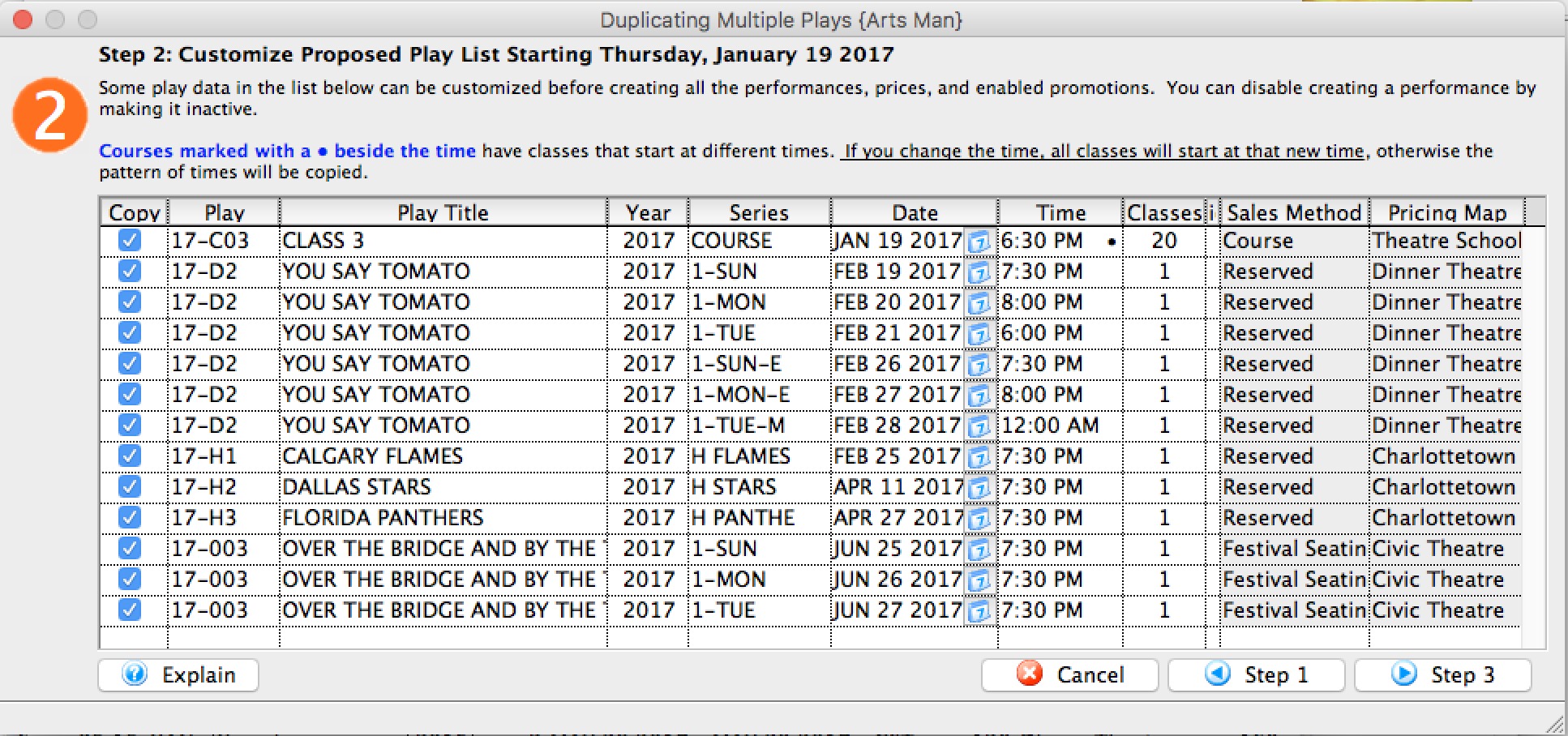 Once you have provided on the initial parameters (and clicked the next button), the system will propose a slate of new events for you.
On this list, you can:
- Disable copying of some of the performances
- Customize some of the event codes. If you change one for one event, it changes all of them for the same event.
- Change the event titles if they are not the same for the next season or session. Sometimes they are, but if not, changing one title for one event will change all similar events to the same title.
- Change the season/fiscal year for an event
- Change the performance code. Changing one of them only changes that specific one - there is no way to change a number of them to be the same.
- Change the date of an individual performance
- Change the time of an individual performance. Note: if there is a '•' after a date, it means that for this course, at least one time is different - meaning that the class dates and times are varied throughout the run of the course. If you do not change the time here, then the copied classes within that course will also have varied times that match the original course. However, if you change this time, then ALL classes in the course will take on the new time.
Finding Events / Plays
You can access the list of Plays (Events) two ways. First, you can to select the list from the main Theatre Manager toolbar / ribbon bar.

Or you can select Plays in the Setup drop down menu.
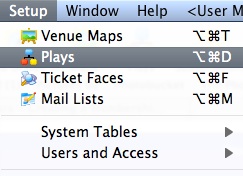
Finding a Play Using the Search Button
This find method is best used when you have the event number since it only returns the event closest to your criteria.
- Open the Play List window.
Click here for more information.
- Press <RETURN> or <ENTER>, or use the mouse to select the Search
 Button.
Finding a Play Using The Play List Window
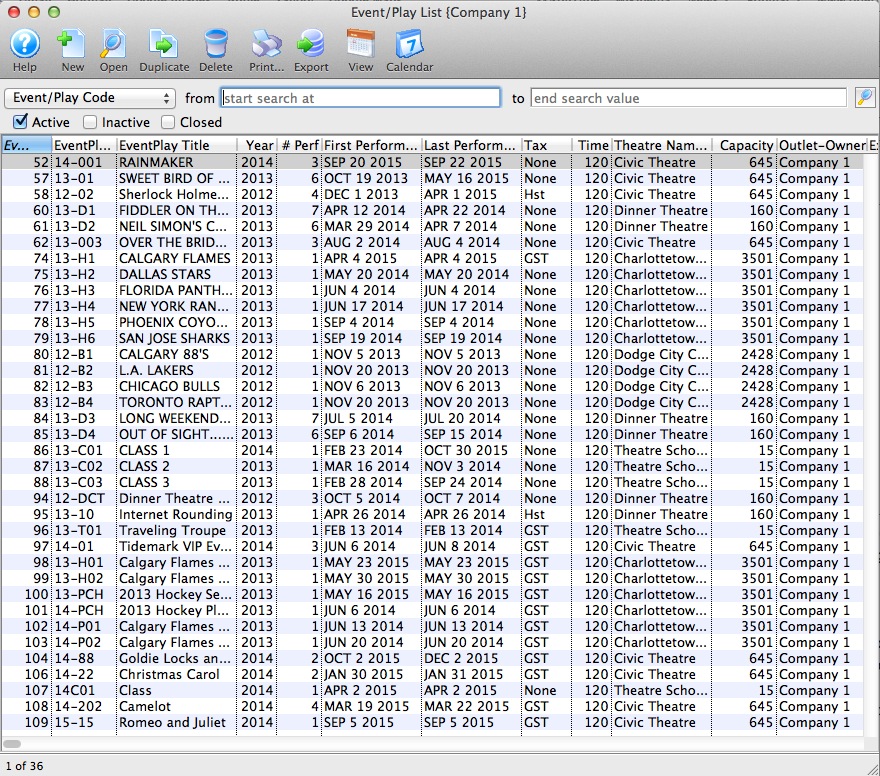
This is a useful search method if you do not have the event number. This method will return a list of all events which match your selected criteria. Then you can choose the correct event.
- Open the Play List window.
Click here for more information.
- Choose a search field from the drop down list.
There are ten fields to choose from:
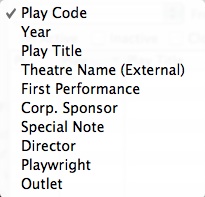
- Enter search criteria in the From and To Fields
The criteria you enter in the "from" and "to" fields will be based on the field selected in the drop down list to the left of the field. In the above picture you search by Event code. When entering criteria you can be specific or general. That is, if you are searching by Event Code, you can enter the entire event code into the search field ("99-01" - will find the specific event) or you can just enter the first part of the event will find all Events that have event codes beginning with "99-").
- Click the Search Button.
All events matching the search criteria are returned.
- Double click on an event to open the Play Setup window.
Tabs In Events / Plays and Dates
Events/Play Tab
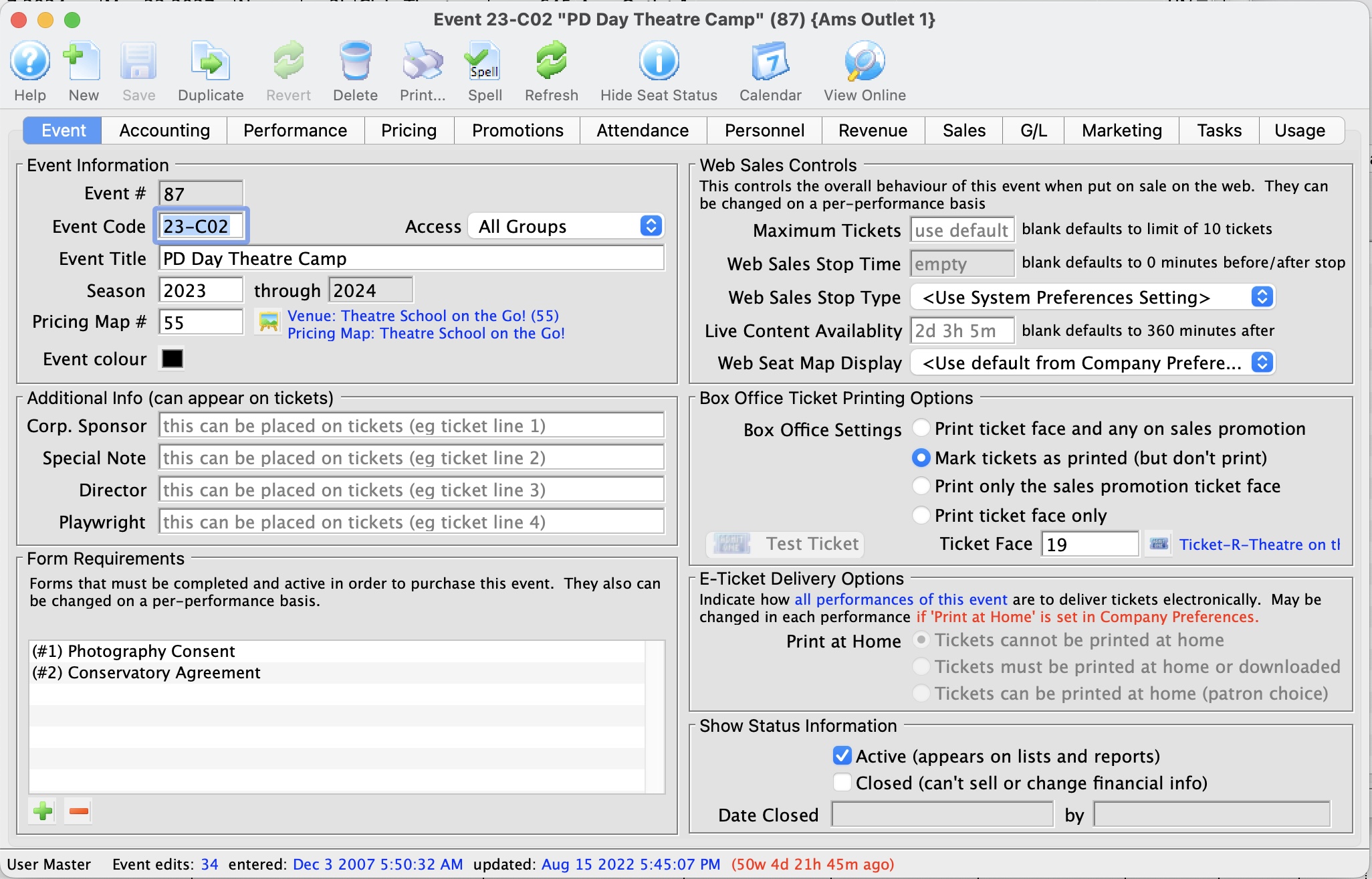
Parts of the Play Tab
Play Information |
|
| Play # | Unique play number generated by Theatre Manager. |
| Access Groups | Specify which groups of people can access the data |
| Play Code | A quick reference for a play. It is recommended that play codes start with the fiscal year of the performance, followed by the play number. This allows for quickly generating reports on plays by year.
If there is more than one venue or different types of series, for example a main-stage and a second stage series, a character code can be included after the year. See below:
|
| Play Colour | You can override the normal play colour displayed on the calendar by selecting a different colour from the colour palette. |
| Play Title | Official title of the play as it will appear on the ticket or internet.
If the play title is perfect for the internet, yet too long to print on a ticket face, you can adjust your ticket face to split it at word boundaries using the tStringFields.$splitString( P_PLAY_TITLE, width, segment) ticket face calculation. |
| Season | Year the play takes place. This is based on the financial year. |
| Pricing Map | Displays the Venue and Number of the Pricing Map that the play will be performed in. Plays which are to be sold with reserved seats must take place in venues that have had seats created. Plays sold as general admission, Festival Sales or Traveling Troupe, may be sold to plays with or without seats created. Click to learn how to change a map for an event. |
 |
Theatre map search button. To open a list of possible theatre maps to choose from click the button. From the list double click on a map to select it. There are rules for switching venues or pricing maps. The new venue or pricing map must:
|
Additional Information |
|
| Corporate Sponsor | Name of the sponsor for the production. Additional sponsors could be entered in the notes field. This information can be printed on tickets. |
| Special Note | Additional information such as warnings or special messages that may be required for an play. This information can be printed on tickets. |
| Director | Director of the play. This information can be printed on tickets. |
| Playwright | Playwright of the play. This information can be printed on tickets. |
Form Requrements |
|
| Forms |
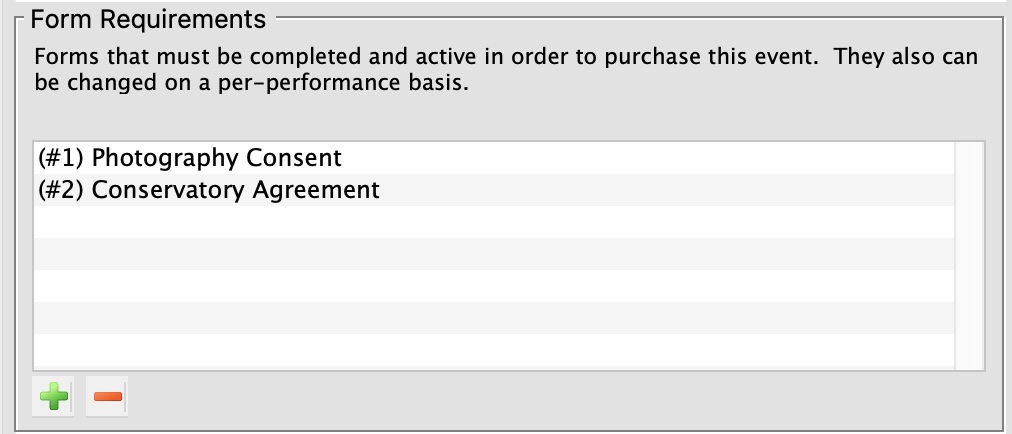 Add or remove the forms that may be required when people buy tickets to the event. You can set the forms on the event (which apply to the entire event) or on the performance, if the performances are to have distinct form requirements.
If the FORM itself is marked:
The forms that a patron has filled out are in the 'forms' tab on the patron window. |
Show Status Information |
|
| Active | Status of the play for reporting purposes. |
| Closed | Status of the play for ticket sales and postings. If a show is closed, it means that no further ticket sales, exchanges, or refunds are allowed. We suggest closing a show shortly after the event is reconciled and any royalties are paid. It means if people miss an event, they can no longer have their tickets exchanged for other events or for a donation - so close it when you figure you no longer want this to happen.
There is a feature during year end rollover that asks you to if you want to close all the prior fiscal year events - we suggest using that feature if you have not closed shows throughout the season. |
| Date Closed | This field displays the date the play was set to prevent sales and financial changes. |
| By | This field displays the initials of the employee who closed the play. |
Web Sales Controls |
|||
| Maximum Tickets | Sets the maximum number of tickets to be sold in an cart for this play via web sales.
If the Box Office will allow a patron to have more than the allotted number of tickets, the tickets will need to be sold by a Box Office staff member and not via the internet. Numbers entered here override those entered as global defaults in the System Preferences Web tab.
|
||
| Web Sales Stop Time | Number of minutes before/after the performance start time in which to remove a performance from the Internet. Time set here overrides the defaults set in the system preferences web tab. Click here for more information.
|
||
| Web Sales Stop Type |
Indicates whether the stop time is before or after the performance begins. Typically, you want the performances to cease being sold online before the actual performance time. However, there are a couple of instances where you might to stop sales after the performance starts, such as:
|
||
| Live Content Availability | The default time, in minutes, after the start of a performance in which a live streaming video will be available. If nothing specified, it uses the default from the system preferences web tab. | ||
| Web Seat Map Display | This option allows you to specify how you would like the map to display for web sales. Options in the Drop Down selection are:
|
||
Ticket Printing Information |
|
| Print selected ticket face | Choose to print ticket for this play (is the default setting) |
| Ticket Face | The ticket face selected for the play. The ticket face number can be typed manually or selected. |
 |
Click to open a list of possible ticket faces to choose from. Double click on a ticket face to select it. By leaving this field blank a built in default ticket face design will be used for printing tickets. |
| Mark ticket as printed (but don't print) | Will not print a ticket for the play all though when tickets are sold they will appear printed. |
| Only Print Sales Promotion ticket face | Prints a ticket based upon the promotion selected. For more information regarding printing tickets by promotion refer to Promotion Detail. |
 |
Click to print a test ticket for this play. | E-Ticket Delivery Options | These indicate how all performances of the play are to deliver electronically. You can change these for each individual peroformance. Click for more information on
|
| Print at Home | Options are:
|
Accounting Tab
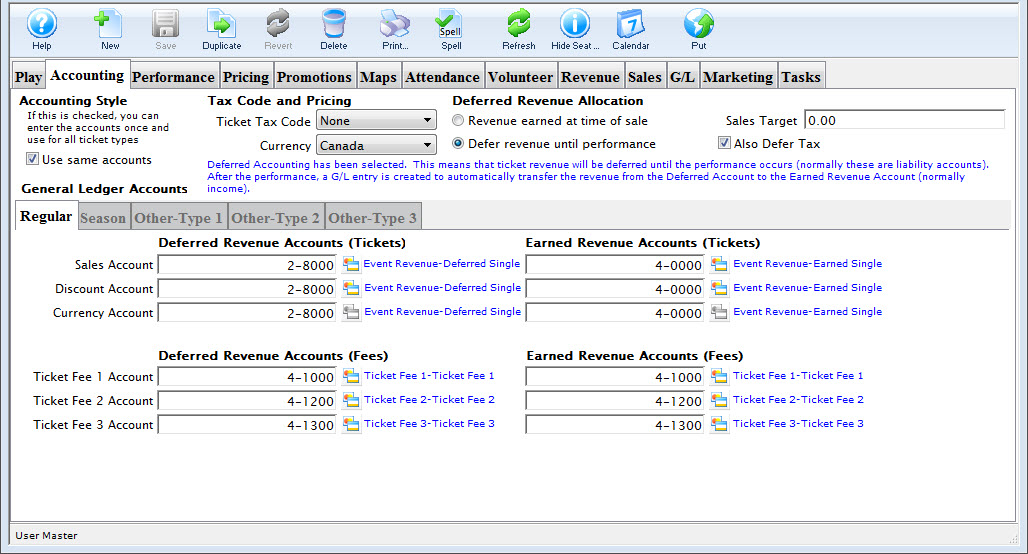
Taxes to Apply to Tickets
Select the tax rate to apply to the BASE PRICE OF THE TICKET ONLY. This will apply up to three taxes to the event. If there are taxes on the various fees in the promotion, then they are set in the sales promotion Calculation Tab.
Deferred Revenue
In general, deferred revenue results when payment for goods and services (tickets to an event) is received in advance of the goods (the event). Deferred Revenue is a Liability until the event has passed. Theatre Manager then transfers the revenue from the liability account to the earned revenue accounts. Checking the box beside Use Deferred Revenue will define this event as a deferred revenue event. You will be required to insert the necessary set of General Ledger Liability Accounts for recording the deferred revenue. Refer to the section, General Ledger Setting Up the Chart of Accounts for more information on determining a Chart of Accounts.
|
If the event is set for deferred revenue accounting and the company preferences is set to roll over all events at year end; Theatre Manager will change the deferred revenue setting to earned revenue for all events that were rolled over.
The reason is so that any new performances or extended runs for rolled over events will take on the earned revenue setting. |
Posting Accounts
There are six different types of accounts used in combination with Events. They are:
- a Sales Account
- an Exchange Account
- a Refund Account
- a Discount Account
- a Markup Account
- three levels of Ticket Fee Accounts.
- Regular
- Season
- Other-Type 1
- Other-Type 2
- Other-Type 3.
As well, there are five different ticket categories for each type of ticket. They are:
Depending on how your accounting system is designed, you may want to set up all account types with the same general ledger account. For example, the same general ledger account can be entered for all revenue accounts -- the general ledger will record all revenue for the event into one account. Separate general ledger accounts can be entered for all revenue accounts -- the general ledger will record each type of revenue for the event in a separate account. Refer to the section, General Ledger Setting Up the Chart of Accounts for more information on determining whether to use a detailed versus a simplified general ledger number setup.
| Sales Account | Designates the general ledger account number used to record revenue received through new ticket sales for the event. |
| Exchange Account | Designates the general ledger account number used to record revenue gain or revenue loss through ticket exchanges for the event. |
| Refund Account | Designates the general ledger account number used to record revenue loss through ticket refunds for the event. |
| Discount Account | Designates the general ledger account number used to record the net value of ticket discounts through ticket sales, ticket exchanges, and ticket refunds for the event. |
| Markup Account | Designates the general ledger account number used to record the net value of ticket markups through to ticket sales, ticket exchanges, and ticket refunds for the event. |
| Ticket Fee Accounts | Designates the general ledger account number used to record the net value of per ticket service charges applied to ticket sales, ticket exchanges, and ticket refunds for the event. |
Ticket Types
Theatre Manager can also breakdown your ticket sales for an event into five separate sections.

This allows you to keep track of how your tickets are being sold. The "Other Type" Tabs can be renamed in Default Data: Appearance. Under each of these tabs are independent deferred revenue and earned revenue accounts for each type. Thus allowing you to designate separate accounts for each revenue for all types.
Performance Tab
 |
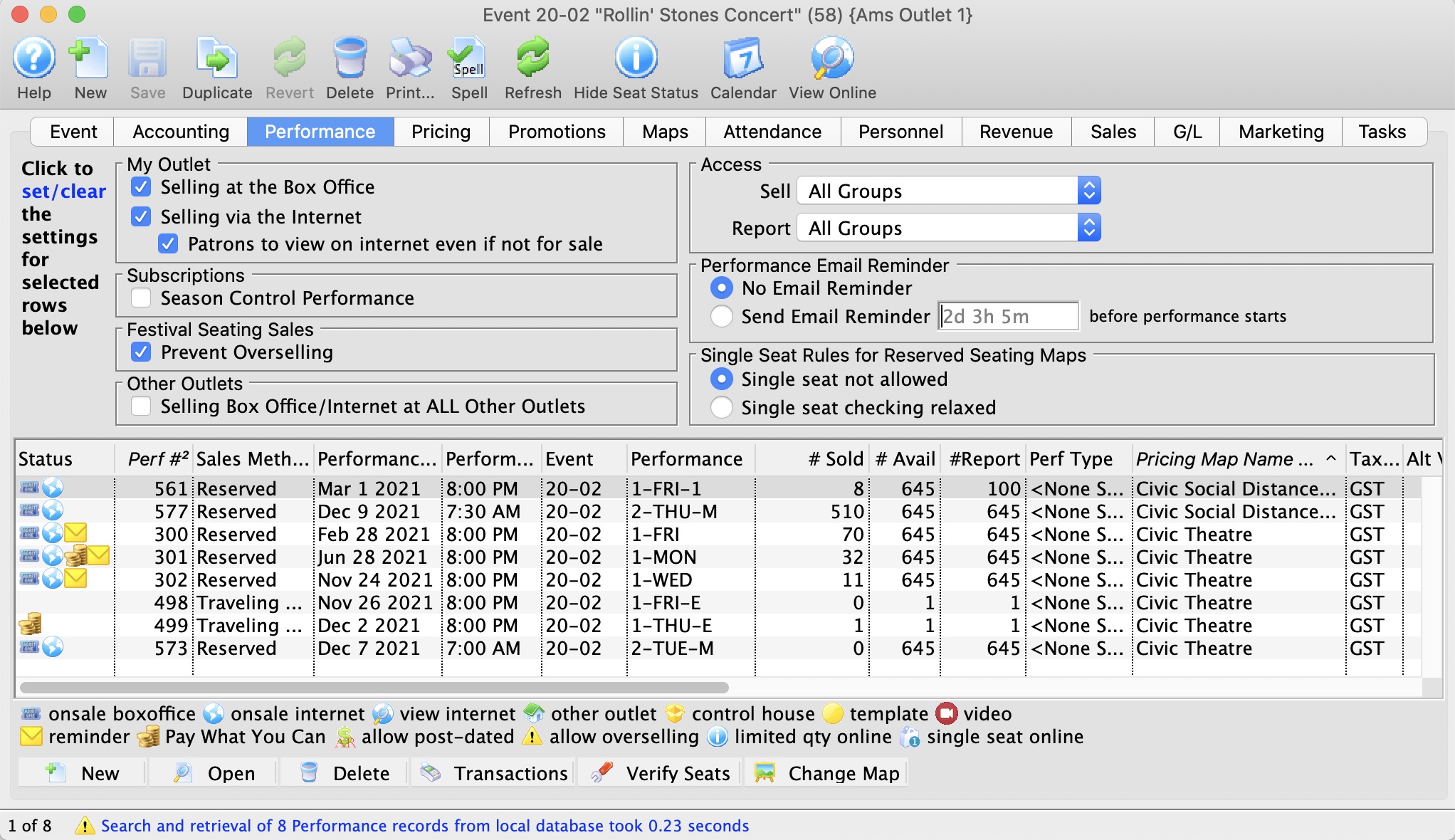
NOTE: the upper part of the window is only active if some performances are selected in the list. When performances are selected, clicking the buttons in the upper half of the window will change the settings in each selected performance. |
For example:
- Select 3 performances
- Select (or de-select) allow to sell internet or another option
- Those 3 performances will (or will not) be able to be sold online. The change is immediate.
My Outlet - Sale Settings |
|
| Selling at the Box Office | Checking this box allows you to sell the performance at the Box Office. |
| Selling via the Internet | Checking this box allows you to sell the performance on the Internet. |
| Patrons Can view if not for sale | If checked, then the event can be set to show online as coming up, even if not yet for sale. It allows pre-announcing events without enabling for sale. |
Subscriptions |
|
| Season Control House | Checking this box allows the performance to be used in a Control House for subscribers. |
Festival Seating Sales |
|
| Prevent Overselling | Checking this box prevents the performance from being oversold. |
Other Outlet - Sale Settings |
|
| Selling at ALL Other Outlets | Checking this box allows you to sell the performance at other outlets. If you allow a performance to be sold at another outlet, you can now specify which outlets have the capability so that each performance can be sold by different people. |
Access |
|
| Sell | Allows you to control what user access groups have the ability to sell this performance at the box office. |
| Report | Allows you to control what user access groups have the ability to run reports containing this performance. |
Performance Email Reminder | |
| Send Reminder | You can indicate if you want an email reminder sent to patrons who purchase to a performance. This email can be customized to each event or performance by duplicating and editing a web page, or you can use a default one. |
| Reminder in Advance Time |
If you do want an email reminder sent for any performance, then you can indicate how far in advance of the performance it should be sent. This value is typed in weeks, days, hours, and minutes format. Example values are:
Any ticket to the event bought closer to the performance than the email reminder time will receive an immediate reminder. |
Single Seat Rules for Reserved Seating Maps | |
| Single Seats not allowed | Means that a patron selecting tickets online will not be able to make a seat selection anywhere in the map that would leave a single ticket. This option is designed to maximize revenue and is the recommended/default option. |
| Single seat checking disabled/relaxed |
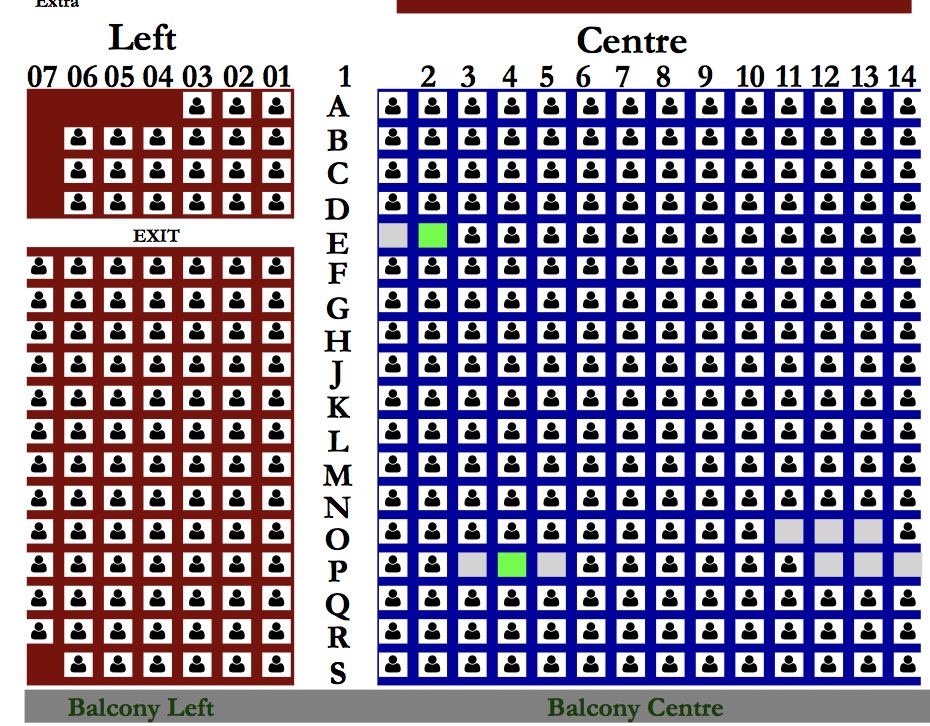 Means that a patron can pick any seat they want and leave single seats on the map. This maximizes patron choice, so the patron could:
|
List of Performances and Corresponding Settings
The lower half of the window shows each performance and the settings that are enabled for it.
Performance Information in the list |
|
| Status | The list of icons indicating the primary status of each Performance (refer to the legend at the bottom of the list) |
| Perf # | Unique performance number generated by Theatre Manager. |
| Sales Method | Type of seating used for the performance, typically either Festival or Reserved. |
| Date | Date of the performance. |
| Time | Time of the performance. |
| Event/Play | A quick reference for the Event/Play Code. |
| # Sold | Number of seats sold for this performance. | # Available | Number of seats currently available for purchase for this performance. |
| # Report | Number of seats currently used for reporting. |
| Perf Type | This is a versitile, customizable code table field you can use to flag specific performances. You can use it for display on the web and it can also be used like the Genre flag for TicketTrove. It can also be used for reports to narrow down searching for specific performances. Click here for more information on Pef Type. |
| Box Office? | Whether the performance is available for sale at the Box Office. |
| Web? | Whether the performance is available for sale on the Internet. |
| Outlet? | Whether the performance is available for sale at an outlet. |
| Subscription? | Whether the performance is available for sale via a subscription. |
| Oversell? | Whether overselling is allowed for this performance. |
| Play # | The Play number that this performance is part of. |
Additional Buttons |
There are additional columns of information that can be displayed in this window. Right click on the column header to check/uncheck desired columns. |
 |
Creates a new performance and opens the Performance Setup Window. Click here for more information. |
 |
Opens one or more Performance Setup Window(s) for the selected performances. |
 |
Deletes the selected performance. Click here for more information. |
 |
Shows all transactions for the selected performance. |
 |
Verifies all seats for the selected performance. It is best to do this when no other users are logged in. |
| Convert Earned to Deferred |
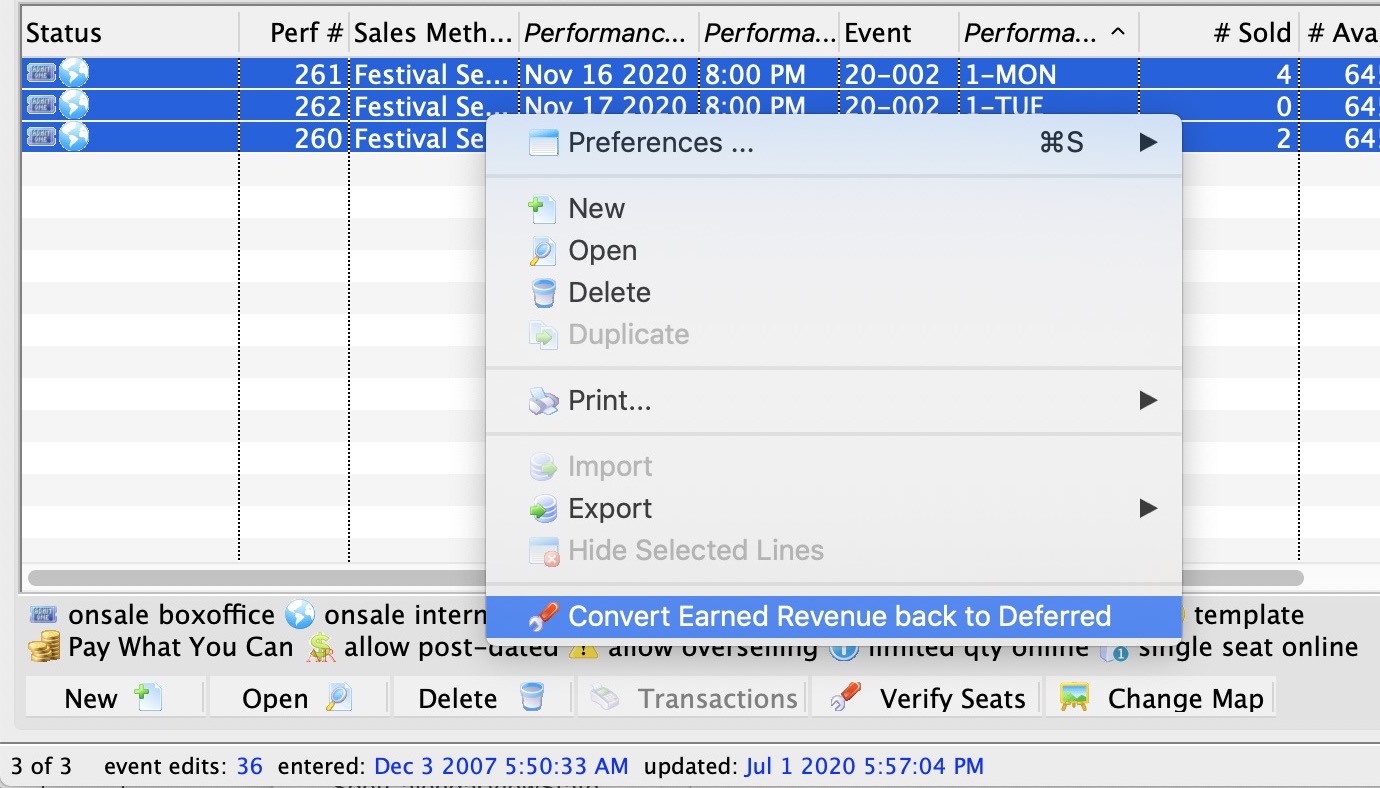 There is a feature on the context menu that allows you to convert earned revenue back to deferred if the performance has been rolled over already. You can select one or more performances and roll them all back.
The feature is described in more detail on the |
Performance Detail Window
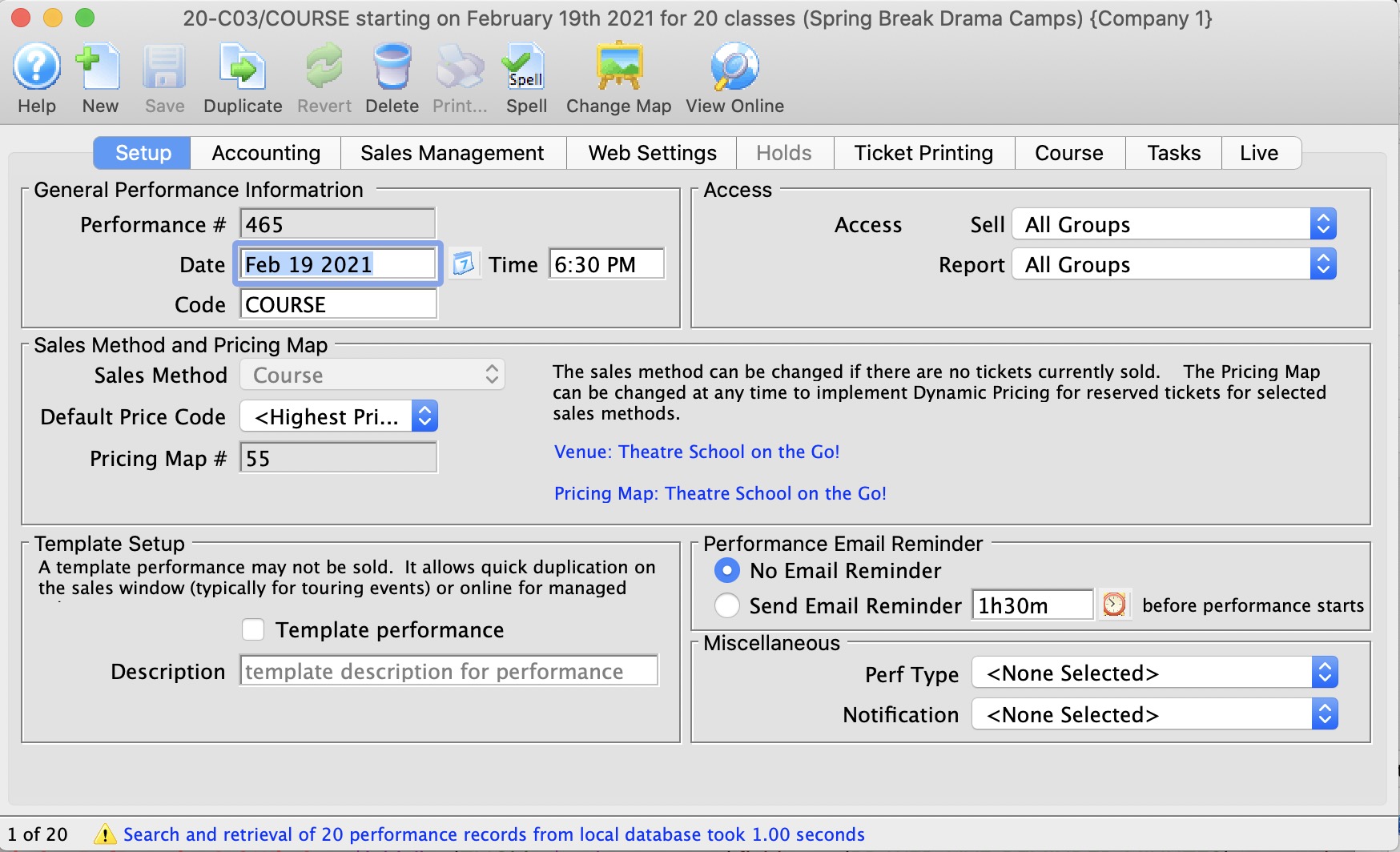
The tabs available within the Performance Detail window include:
Performance Setup Tab
General Performance Information | |||||
| Performance # | This is the performance number assigned by Theatre Manager. | ||||
| Performance Date | The date of the performance. | ||||
| Time | The time of the performance. | ||||
| Performance or Series Code | The unique code which defines the performance. They must be unique within the event. It is really helpful if the performance code has the same pattern across events used in managing subscriptions. | ||||
Sales Method and Pricing Map | |||||
| Sales Method | the method of selling seats used for the performance. This is typically either Festival or Reserved seating. Click here for more information on the selections available.
Note: you can change one sales method to another if there are no tickets sold for the performance.
|
||||
| Default Price Code | The price code that is most common should be set as default to save time at selling time. Click here for more information on price codes. | ||||
| Pricing Map | The Pricing map associated with the Event / Play. | ||||
| Alternate Pricing Map | This is used if after the first run of the play you need to switch to a new venue after sales have begin. This may occur if you require an extra venue to run the play or if you switch the venue to a smaller establishment to better use your seats.
Not valid for Reserved Seating. |
||||
Template Setup | |||||
| Template Performance | Indicate if the performance is to be considered a template. If it is a template, you can use this performance:
|
||||
| Template Description | If the performance is to be a template, then a description needs to be provided when to identify what you are attempting to duplicate. | ||||
Access | |||||
| Access | Allows you to control what security levels have the ability to
|
||||
Email Reminder | |||||
| Send Reminder |
You can indicate if you want an email reminder sent to patrons who purchase to a performance. This email can be customized to each event or performance by duplicating and editing a web page, or you can use a default one.
|
||||
| Reminder in Advance Time |
If you do want an email reminder sent for any performance, then you can indicate how far in advance of the performance it should be sent. This value is typed in weeks, days, hours, and minutes format. Example values are:
Any ticket to the event bought closer to the performance than the email reminder time will receive an immediate reminder. |
||||
Miscellaneous | |||||
| Perf Type | This is a versitile, customizable code table field you can use to flag specific performances. You can use it for display on the web and it can also be used like the Genre flag for TicketTrove. It can also be used for reports to narrow down searching for specific performances. Refer to Performance Type code table for more information. | ||||
| Notification | For selecting a workflow notification to be sent when a sale occurs for this performance. This it not normally selected, but may be useful for a special event or course. | ||||
Accounting Tab
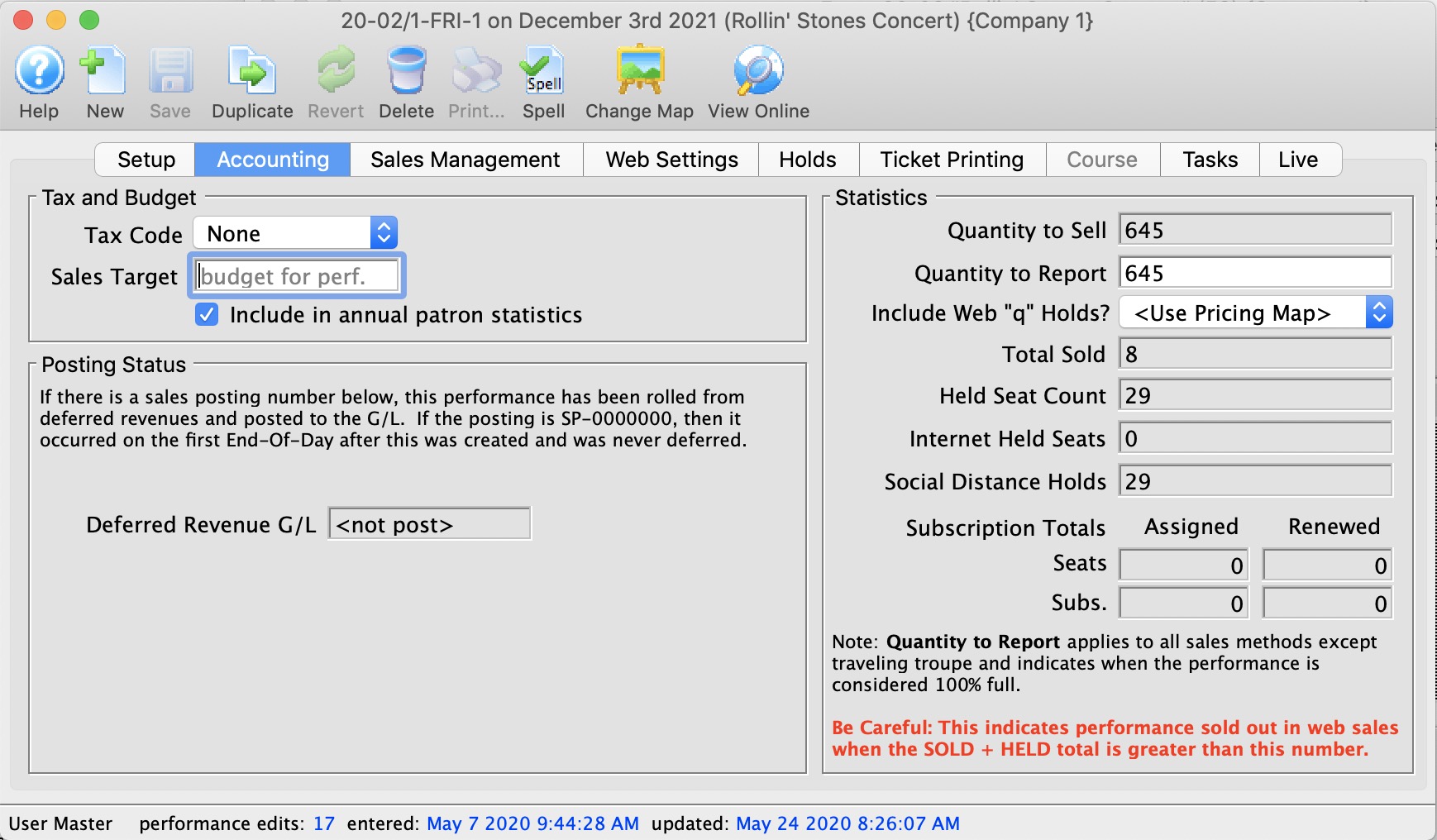
Tax and Budget | |||||
| Tax Code | A unique tax code applicable to this performance only. Click here for more information on the Tax Tables. | ||||
| Sales Target | The budgeted amount this performance is planned to bring in. This is a 'static' field and is not used in reporting. | ||||
| Include in Annual Patron Statistics | Enable the check box to include the performance in the patron statistics tab summary that is calculated for each patron and shown on the patron window.
if you change this setting and:
|
||||
Statistics | |||||
| Quantity To Sell | The number of tickets available for sale. | ||||
| Quantity To Report | The number to be used when the venue is considered 100% sold out. It is normally always the same as the Quantity to Sell.
When might it be different? The feature is intended to be used if you have a scaled house for actor equity purposes and equity lets you sell your venue at a lower size. You would be holding these 'standing room' tickets -- which equity has allowed you to have for overflow crowds only. If you need the extra seats, you then pay actor equity rates for the expanded venue site to use all seats for that performance. Online Availability is affected by this number
If you have a general admission venue where you should only have 300 seats, then you can set the available capacity at 350 and the reporting capacity at 300. This will limit online sales to 300. However, at the box office, you can 'oversell' the event - like airlines - based on your own calculated no-show factor. |
||||
| Include Web 'q' Holds? | Indicates how the social distance holds are to be included in the quantity to report online (refer to quantity to report above). You can:
|
||||
| Total Sold | A running count of the total sales for this performance. | ||||
| Held Seat Count | This is the number of seats currently being held. For Festival seating you can input a new number to raise or lower the number of holds. For Reserved seating you will need to change the holds on the Venue Map. | ||||
| Internet Held Seats | Additional seats that are being withheld from sale on the Internet. | ||||
| Social Distance Holds | The is the current count of the seats held with the social distance hold letter. This special hold code is specified in System Preferences as the associated seat hold code. | ||||
Posting Status | |||||
| Accounting Posting - Deferred Revenue G/L | If the performance has occured, then the posting account for the sales will be listed here. A sales posting of
|
||||
| Convert Earned Revenue Back to Deferred |
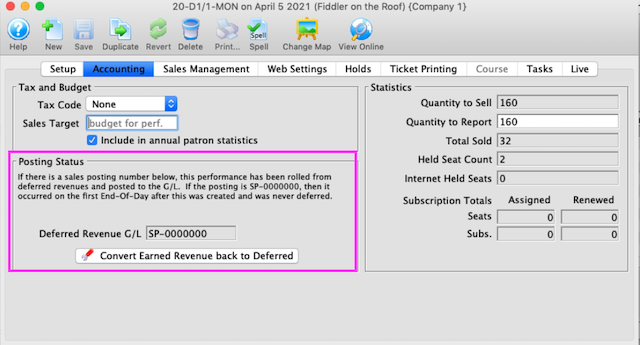 You will only see the Convert Earned Revenue Back to Deferred button if you are:
|
||||
Converting Earned to Deferred Revenue
This can be done from two places
- From the performance detail window as shown below. Use this if you want to do just one performance
- From the performance setup list on the play tab using the context menu. Use this if you want to roll back a number of performances for an event.
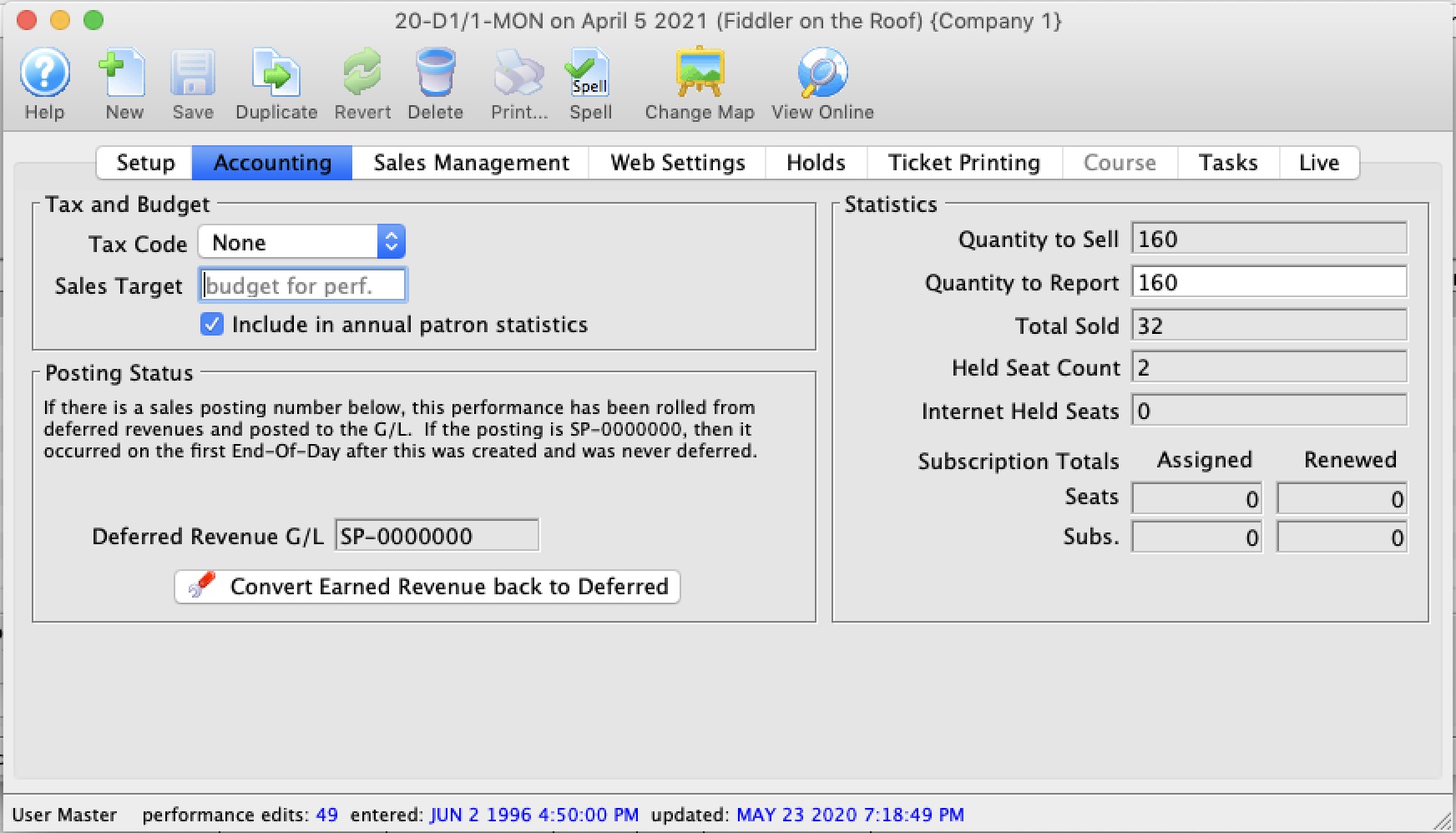
You will see the Convert Earned Revenue Back To Deferred button under the following conditions:
- You are logged in as a Master User or Outlet Administrator
- The performance has a GL number that indicates it is rolled over to earned revenue (or was always using earned revenue). This is indicated by the Sales Posting Number which can look like:
- SP-xxxxxxx. This indicates the performance has has been rolled from deferred revenues and posted to the G/L in sales posting SP-xxxxxxx
- SP-0000000. This indicates that the performance was never posted to deferred revenue and was marked as only using earned revenue when the first End-Of-Day was run after the performance was created.
- The Performance date and time must be in the future. You cannot roll back the earned revenue to deferred if the performance is in the past
 |
Before attempting to do this process for the first time, you may wish to get advice from support and see one in action. |
 |
Create sales entries if you have made any recent sales to the performances.
-and then- Do not run the create sales entry process during end of day while rolling back from earned to deferred. |
|
You can continue selling tickets at the box office or online for the performances you are intending to rollback. |
To create GL entry that will Rollback Earned to Deferred
Be very careful with editing or setting up the accounts. If you do not adhere to the steps, money will get rolled back, but maybe not to the place you expect.
- OPTIONAL STEP
Note: only adjust the accounts if they were never right in the first place. If the accounts are right and the event was rolled over by mistake, skip to step 2.
On the Accounting Tab, you may need to make the following changes:
- Deferred Revenue Allocation: Change this option from 'Revenue earned at time of sale' to Defer until .. after performance. If the option is already marked deferred, no change is required.
- Only change the following settings if you are rolling back ALL FUTURE PERFORMANCES. Otherwise to not change the following:
- Also defer Taxes: changing this setting makes it possible to put taxes into a deferred account.
- Accounting Style: changing this setting allows you to split out regular, season and other ticket types into separate deferred accounts.
- Accounting tabs: you can change the accounts that you want to roll back the deferred income to. You will need to set up the accounts first if they do not exist.
- If you didn't change any of the above on the accounting window, and the sole reason that you are rolling back revenue is because you had to post pone the event and simply moved the date forward, then you can click the Convert Earned Revenue back to Deferred without much worry.
if you have made accounting setup changes, take a Screenshot of your G/L tab before clicking the button so you can compare the values before and after
- Close the performance detail window.
- On the Event window, click the Refresh button on the tool bar and then go to the G/L entry tab. Review that the account totals are where you expect them to be.
If they are not, please contact support for assistance.
Sales Management
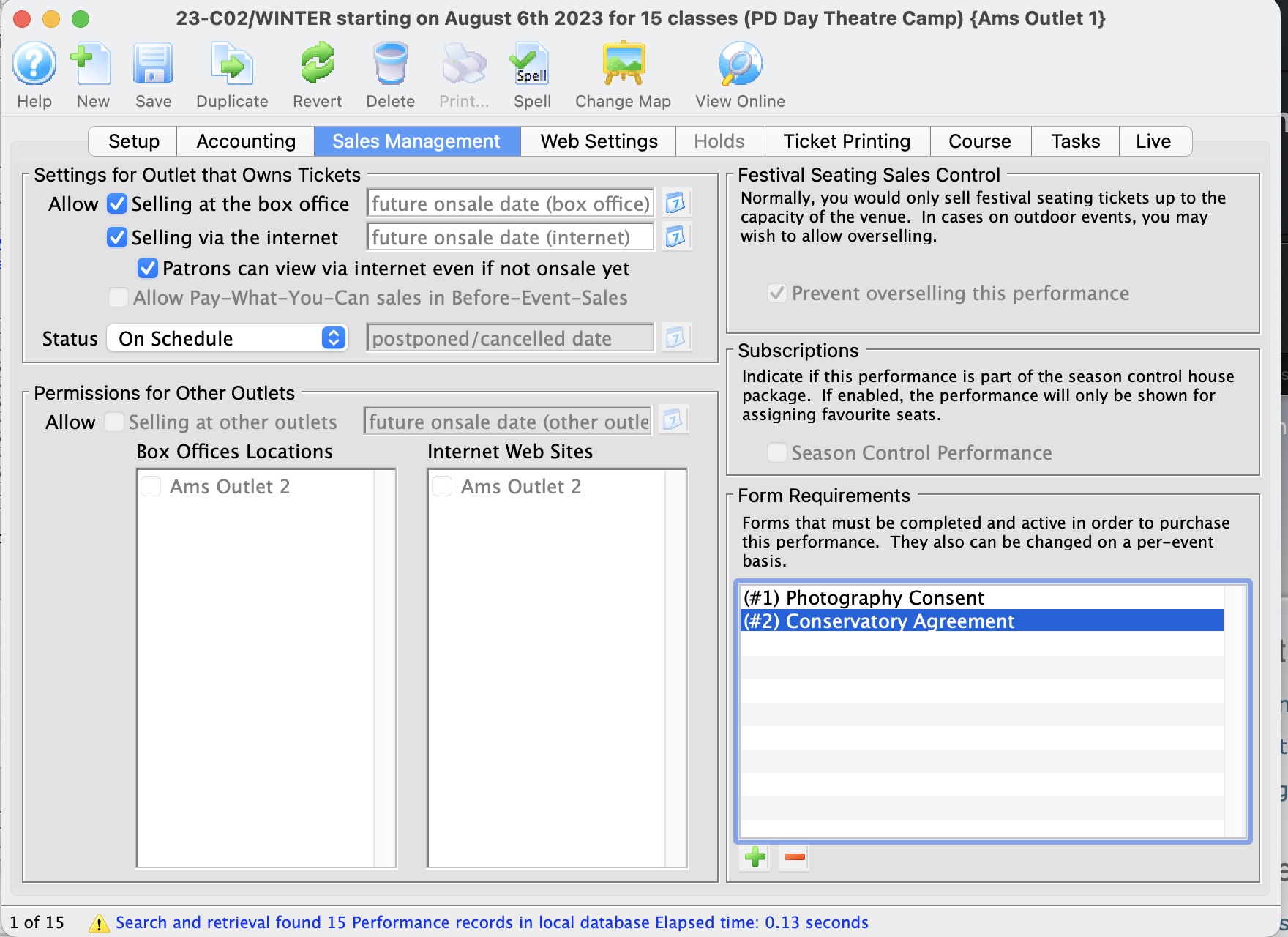
Settings for Outlet that Owns Tickets | |||||
| Allow Selling Tickets - At the Box Office | Allows the selling of tickets at the Box Office. In the input field on the right, you can set the date and time that tickets are to be released for sale. | ||||
| Allow Selling Tickets - Via the Internet | Allows the selling of tickets via the Internet. In the input field on the right, you can set the date and time that tickets are to be released for sale. | ||||
| Patron can view Performance on Internet | If you want the world to know when performance dates are (including your web site and Ticket Trove), but you do not yet want to allow them to be sold online (and there is no definitive onsale date), you can mark the performance so that 'patrons can view performance online'. When this occurs, the event will show up online in the right place , but the buy button will be disabled and the user will be informed to call the box office. | ||||
| Allow Tickets - As Pay-What-You-Can in Before-Event-Sales | When using the Before-Event-Sales function, this allows tickets to be sold as Pay-What-You-Can. | ||||
| Status |
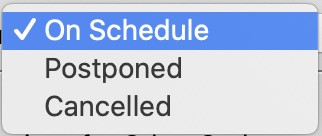 You can postpone or cancel a performance. If you do so:
|
||||
Permissions for Other Outlets | |
| Allow Tickets - At Other Outlets | Allows the selling of tickets at Other Outlets. In the input field on the right, you can set the date and time that tickets are to be released for sale.
You can also specify which outlet will sell for the performance from the list on the right. Click here for more information on enabling for outlet sales. |
Festival Seating Sales Control | |
| Sales Controls - Prevent Overselling | This field can only be accessed if you are selling using the Festival or Inventory methods. |
Subscriptions | |
| Season Control Performance | If this is a Control house performance, the check box will be enabled. It also lists the Assigned Seats, the Subscription Seats which have been assigned, the number of Seats Renewed and the Subscriptions Renewed. |
Form Requrements |
|
| Forms |
Add or remove the forms that may be required when people buy tickets to the event. You can set the forms on the event (which apply to the entire event) or on the performance, if the performances are to have distinct form requirements.
If the FORM itself is marked:
The forms that a patron has filled out are in the 'forms' tab on the patron window. |
Web Settings
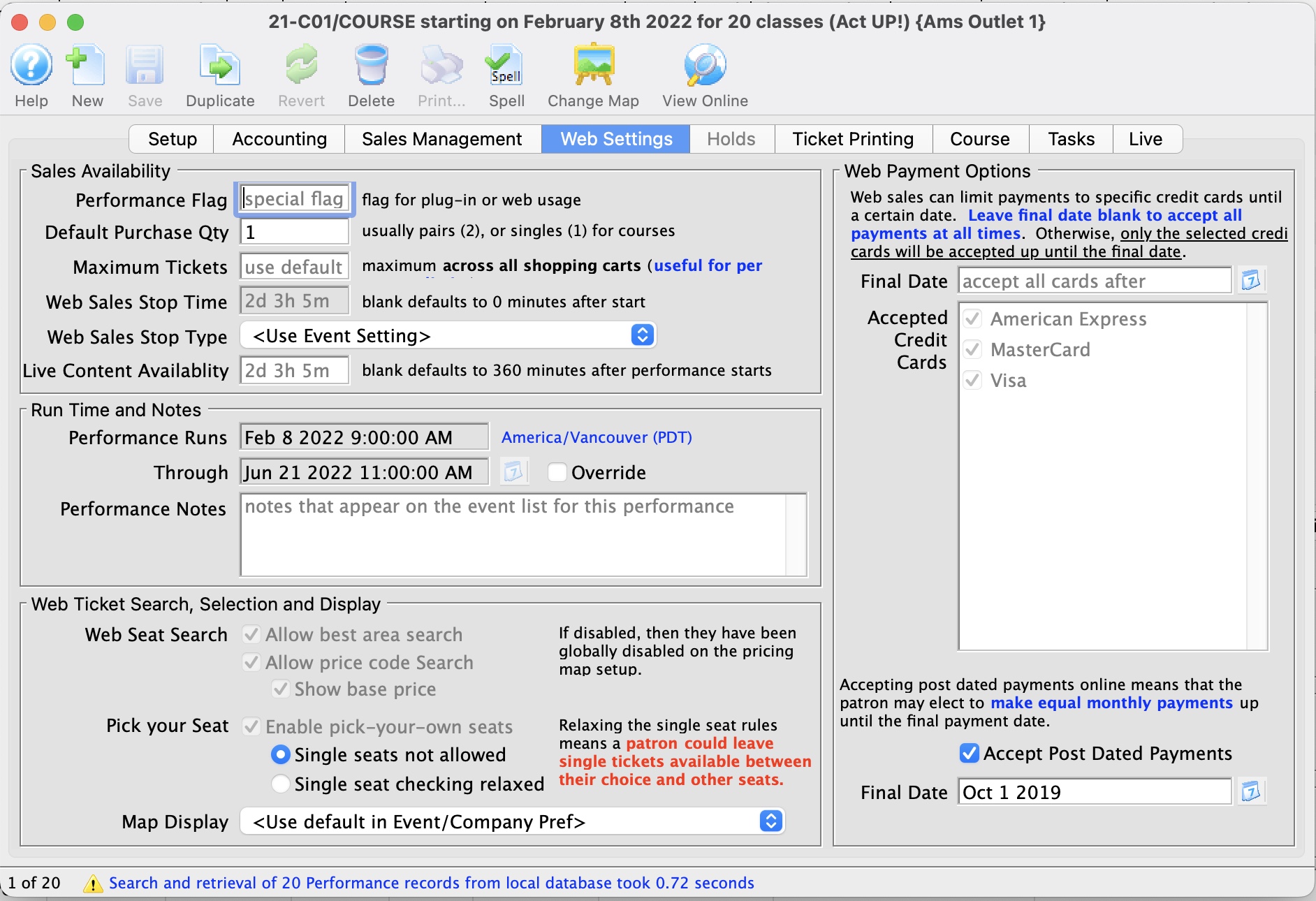
Sales Availability |
|||
| Performance Flag | A special flag used to denote Performance. This is typically used for a plug-in for Web Sales. | ||
| Default Purchase Quantity | The number of tickets the online sale will suggest as a purchase quantity. The user can choose any number, however you may set the default here. | ||
| Maximum Tickets | The number of tickets that a patron can buy from the Internet for this performance.
If specified here, the maximum is applied across all carts. i,e,. the patron cannot buy more than XX tickets to this performance, period, whether in one cart or many carts. If not provided, the default is from the event or system preferences, which ever is provided.
|
||
| Web Sales Stop Time | Number of minutes before/after the performance start time in which to remove the performance from the Internet. If nothing specified, it uses the default from the event or system preferences, which ever is provided.
|
||
| Web Sales Stop Type |
Indicates whether the stop time is before or after the performance begins. Typically, you want the performances to cease being sold online before the actual performance time. However, there are a couple of instances where you might need to stop sales after the performance begins, such as:
|
||
| Live Content Availability | The default time, in minutes, after the start of a performance in which a live streaming video will be available. If nothing specified, it uses the default from the event or system preferences, which ever is provided. | ||
Run Time and Notes |
|
| Performance Runs (from) | The date that the performance starts. it is always determined by the performance date and time of start and cannot be changed.
The runs from .. through .. date is what is displayed in the event list online. |
| Through (end date) | The date range indicating when the performance ends. It is defaulted as follows:
|
| Over-ride checkbox | If the performance runs through date is not reflective of the actual class run time (or any performance of any type), click the 'Override' button and enter your own end date of the run.
This must be after the start of the performance. If you change the start time of the performance to. be ahead of this date,, the runs through date will change, regardless if it is set on over-ride. |
| Performance Notes | Additional performance notes to be placed on the Internet for patrons to read. These appear beside the specific performance in the event listing on the web. |
Web Ticket Search, Selection and Display |
|
| Web Seat Search Options | You can check/uncheck to enable/disable
|
| Pick your Seat search options | pick-your-own seat search for this performance if it is reserved seating. Pick you own can be enabled for an entire pricing map and, by default, for the performance. If you do not want pick your own for this performance, then turn it off.
|
| Web Seat Map Display | If you are not using pick your own seating, this setting indicates how you would like the map to display for web sales. You can show only the seats available to the patron, all others are blank, or you can choose to show all the seats, those that are taken have their codes masked or not, or a generic map of the venue. These settings can be used to override the settings made on the Setup >> Company Preferences >> Web Options tab. Options are:
|
Payment Settings for the web |
|||
| Final Date |
If entered, this represents the final date after which all credit cards will be accepted for this performance. Before that final date, only the credit card types in the 'accepted credit card' list will be shown on the online payment window - and only if tickets for the specific performance are in the cart.
If the patron has multiple performances in the cart, each with their own designated credit cards, then online sales will restrict the visible card types to only those that are available for all performances in the cart (i.e. it takes the most restrictive list). If the date is blank, then you cannot restrict credit card payments - and all cards will be accepted |
||
| Accepted Credit Cards |
Click to select the credit card payment types that can be accepted online - if this performance is in the patrons shopping cart. A final date must be specified. After that time, all credit card types will be accepted.
|
||
| Enable Post Dated Payments | Click to indicate of the patron can elect to pay for this performance using post dated payments online. | ||
| Final Payment Date | If post dated payments are accepted, indicate the date by which all payments must be made. Theatre Manager will generate equal monthly payments for the user and offer them that choice online. | ||
Holds Tab
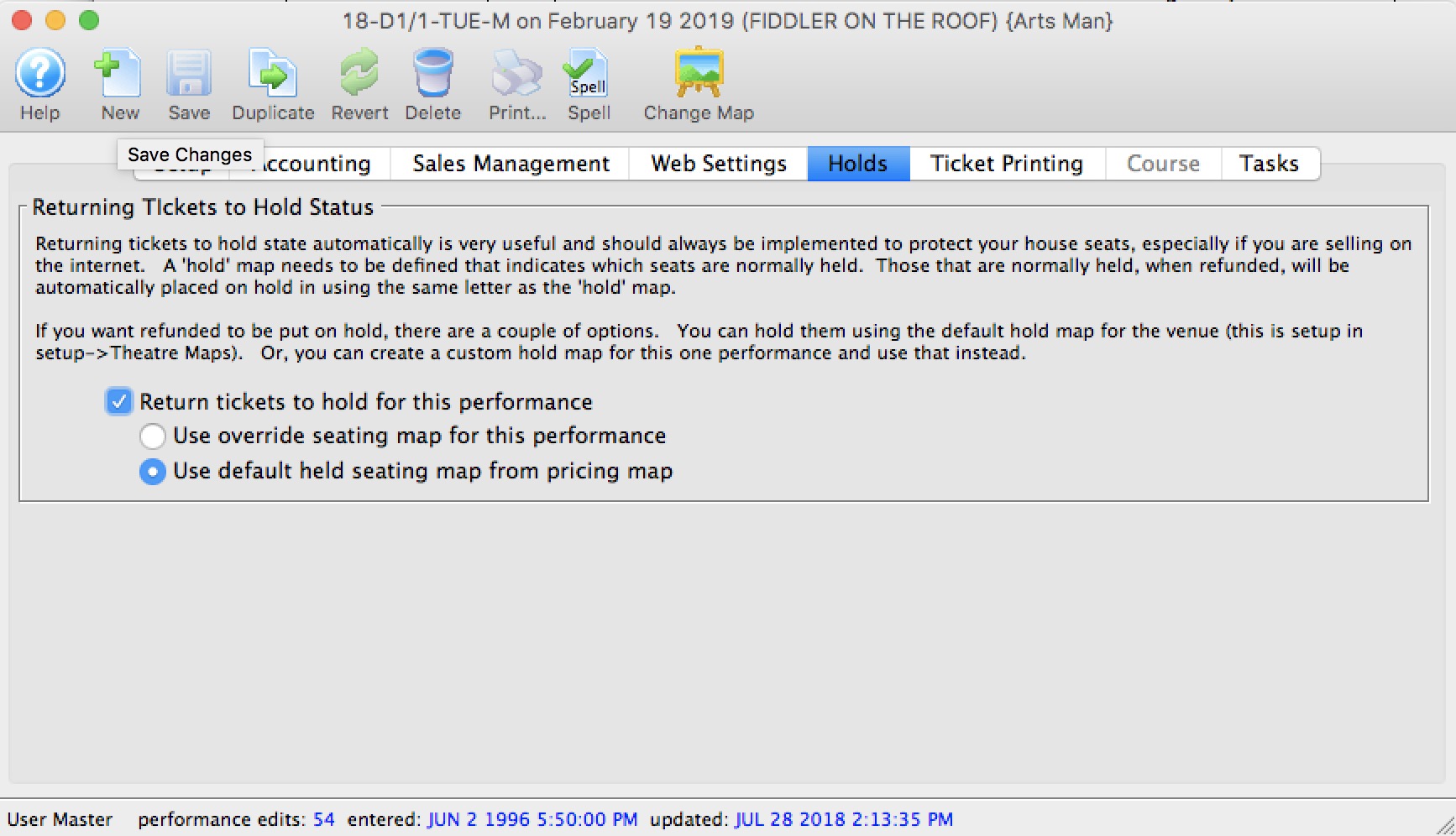
Returning Tickets to Hold Status | |
| Return tickets to hold for this performance | If a ticket is refunded, any seat with a default hold will return to hold status. All other seats remain available for purchase. |
| Use over-ride seating map for this performance | Allows you to specify your own custom return-to-hold map to be used when the ticket is refunded. For example, you may want different holds on an opening night performance thank all other performances. |
| Use default seating map from theatre | Uses the default holds on the pricing map when the ticket is refunded.
if you change the pricing maps 'default return to hold' settings, it only affects tickets being returned from that point on. |
|
Please make sure that the design of your social distance pricing maps take into account which seats are normally held on creation of a new performance and which ones are specified on the return to hold map. |
Ticket Printing Tab
Ticket printing options and e-ticket delivery for print at home are most often enabled and disabled in the Play tab of the Event window. You can over-ride the settings to allow them to be different for every performance.
For the steps on Turning on Print at Home Options at the Individual Event level, Click here.
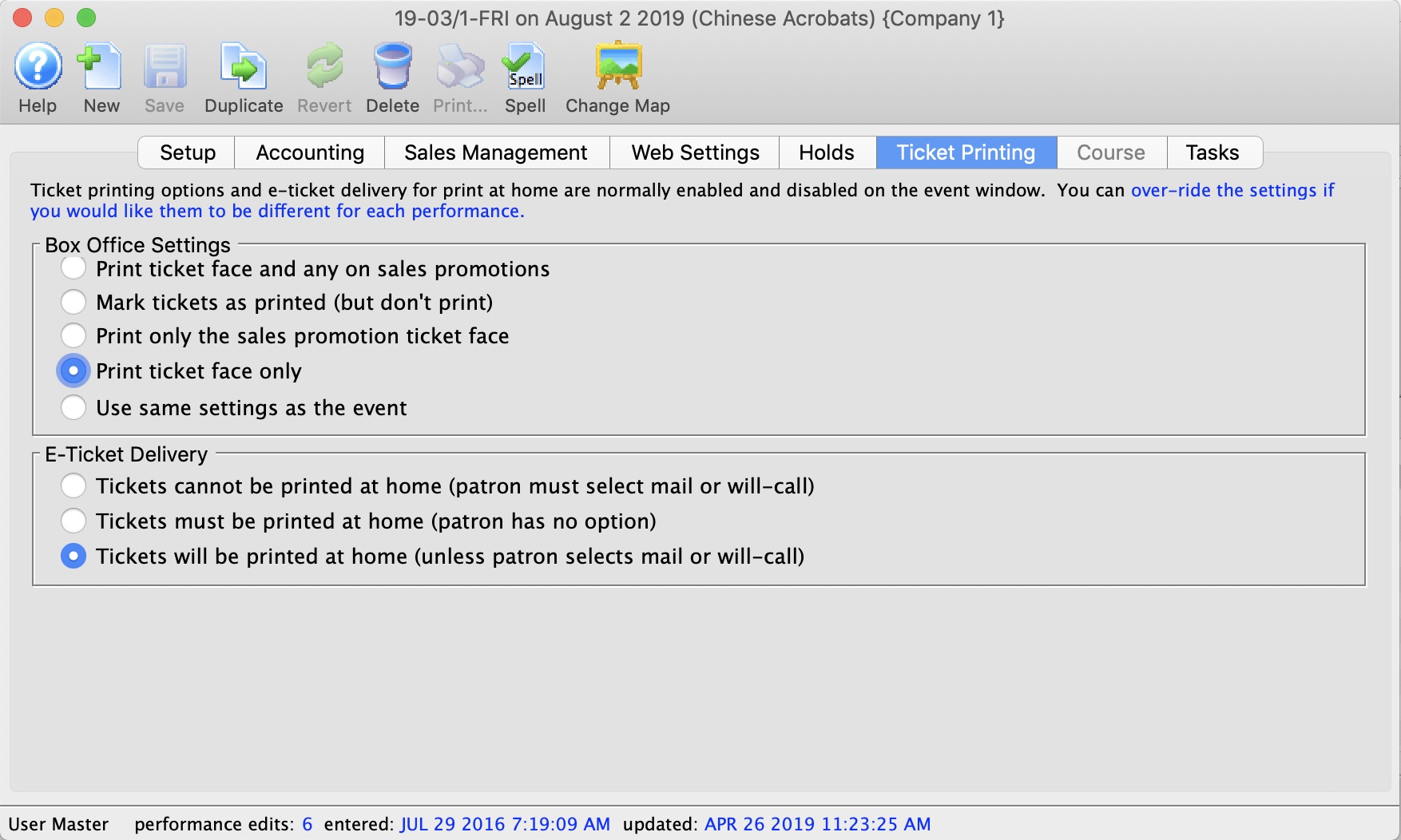
Parts of the Ticket Printing Tab
Box Office Settings | |
Selections are:
|
|
E-Ticket Delivery | |
Selections are:
|
|
Course
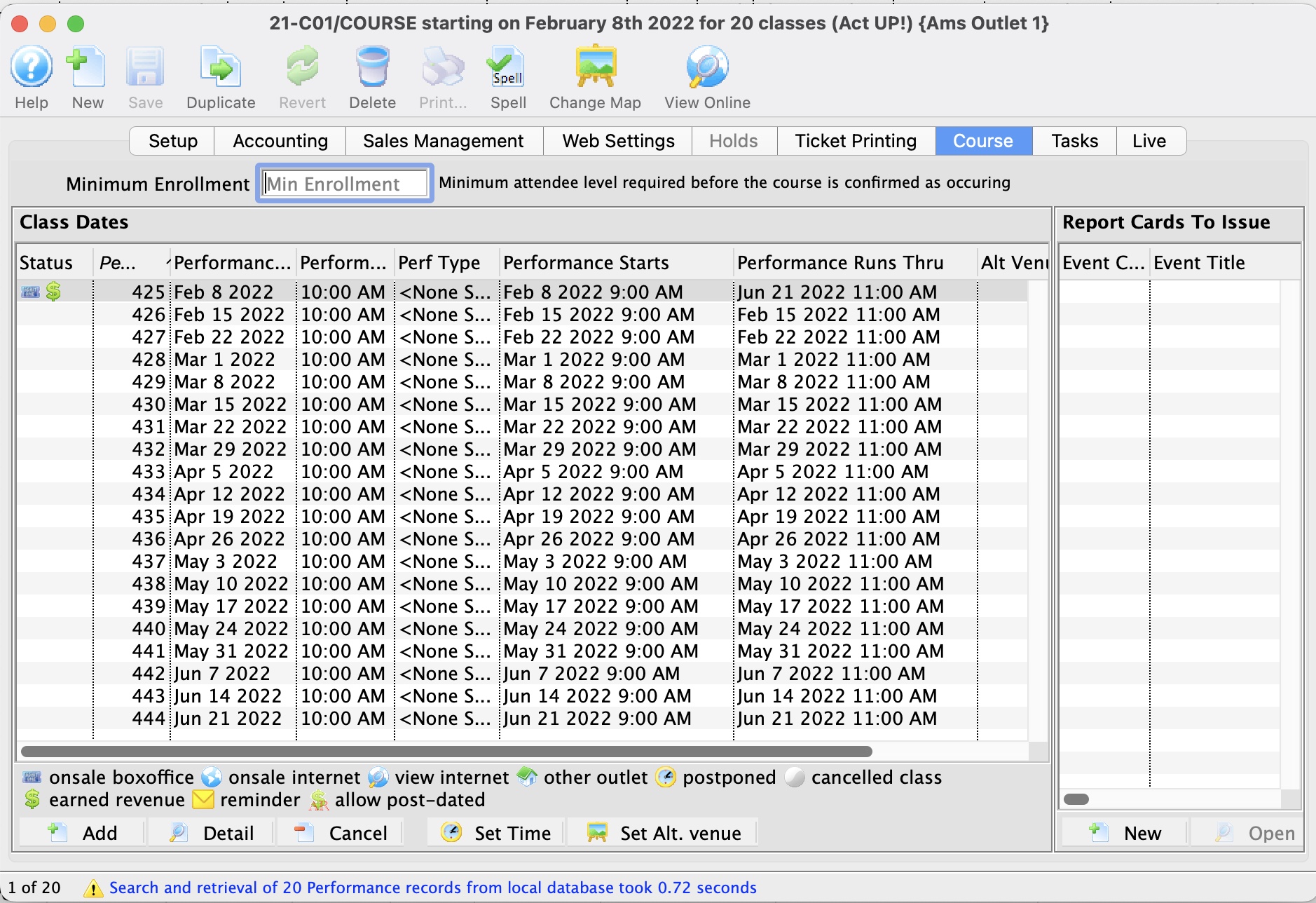
- On the left side of the Courses Tab, Class Dates and information are displayed.
- On the right side of the Courses Tab, Report Cards issued for a Course are displayed. For more information about Report Cards, click here.
|
The performance runs from and through dates are automatically calculated as follows:
|
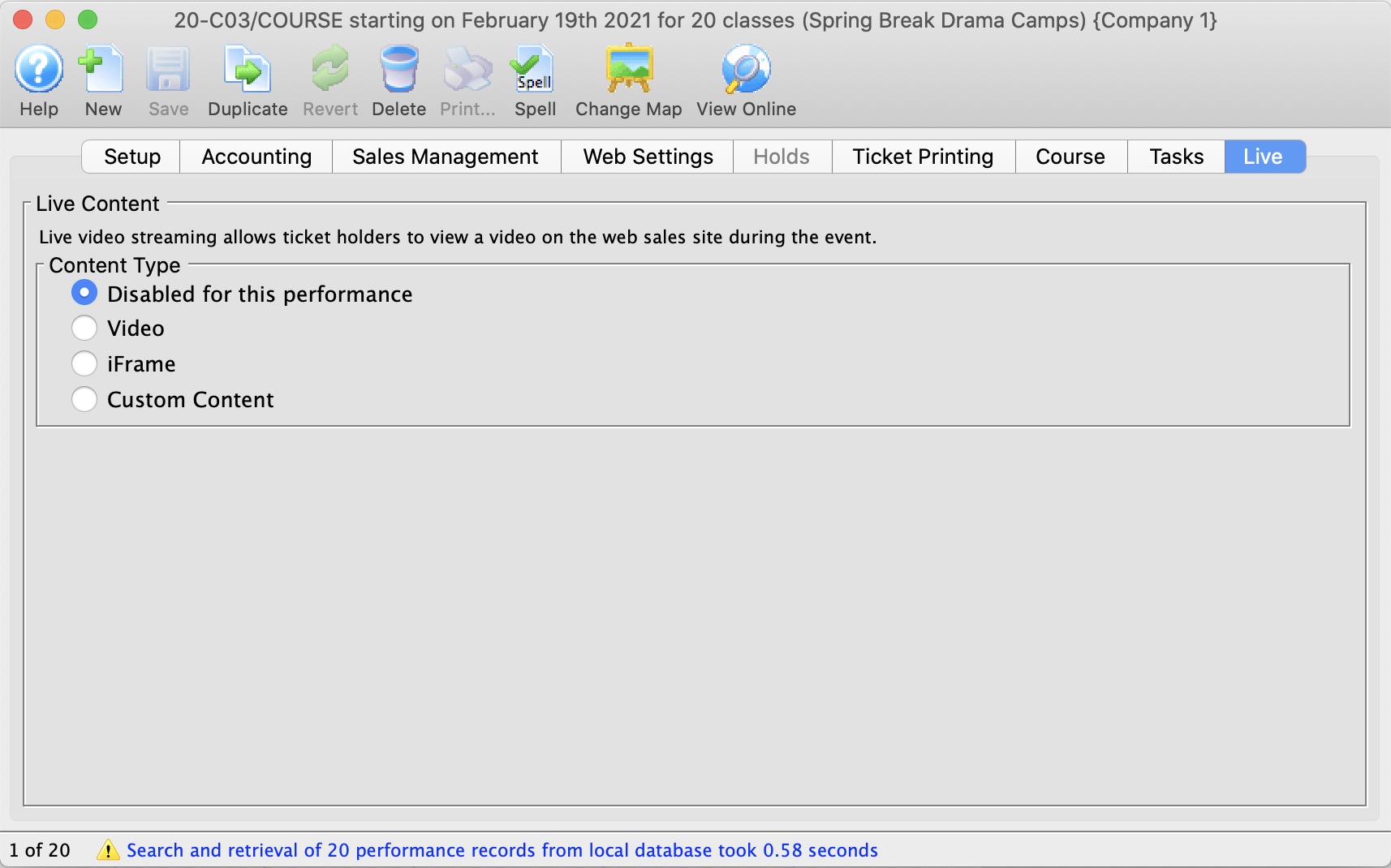
Live Content
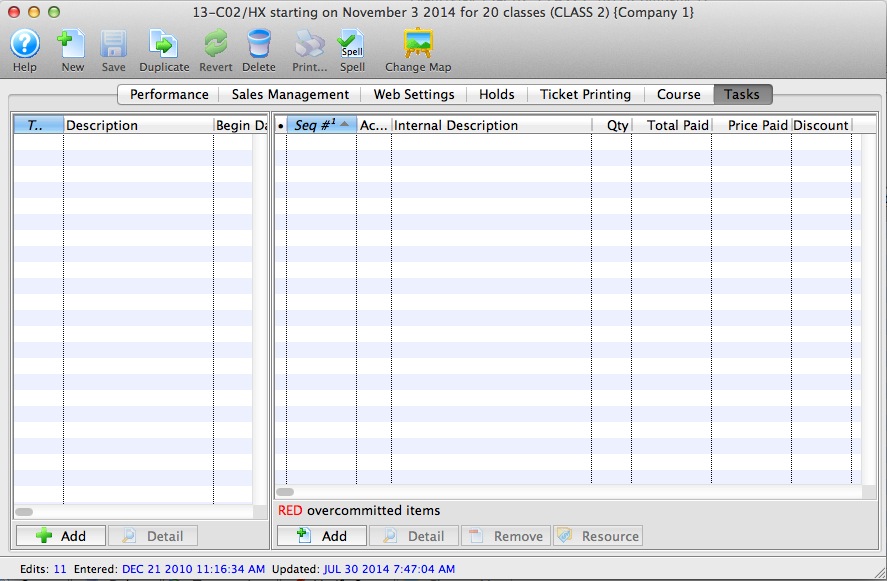
|
Refer to the web page Live Web Content for an explanation of the process. |
|
While there are a number of streaming solutions and we don't recommend a particular one over the other (each has its benefits), the one that venues seem to like most is boxcast due to its variety of streaming formats. |
|
Live content is available for all performance sales methods. This means that live content can be accessed by patrons with mobile devices during a live in-person show. |
Live Content Type | |
| Content Type |
Which type of content will be live for this performance.
Options:
|
Video Service |
The video service provider that will be used for content containing videos. Supported Video Providers:
|
Live Content Availability
The length of time a live stream video can be viewed online after the performance date/time is managed at three levels. These consist of:
- System Preferences
- Event (overrides System Preferences)
- Performance (overrides Event)
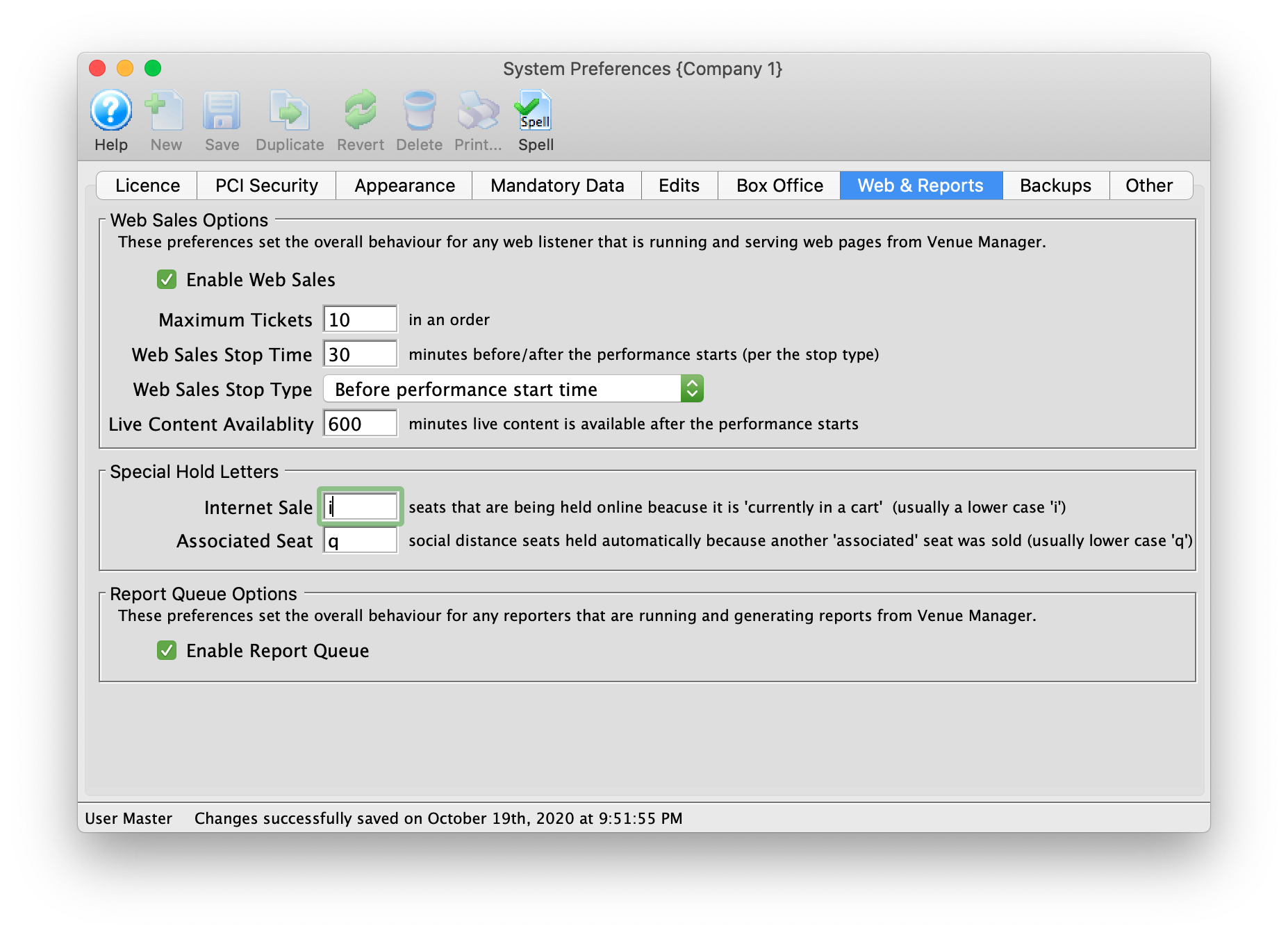
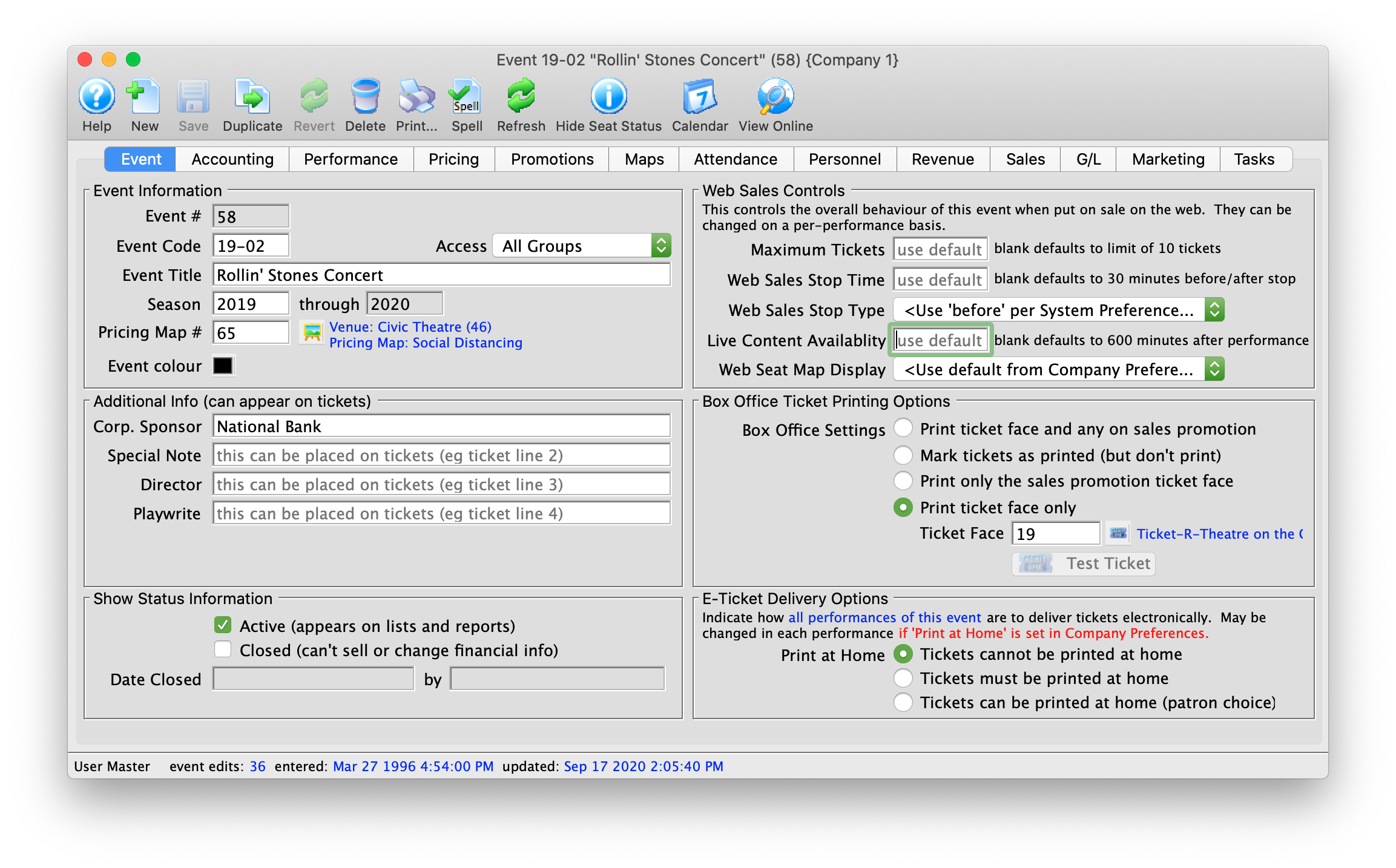
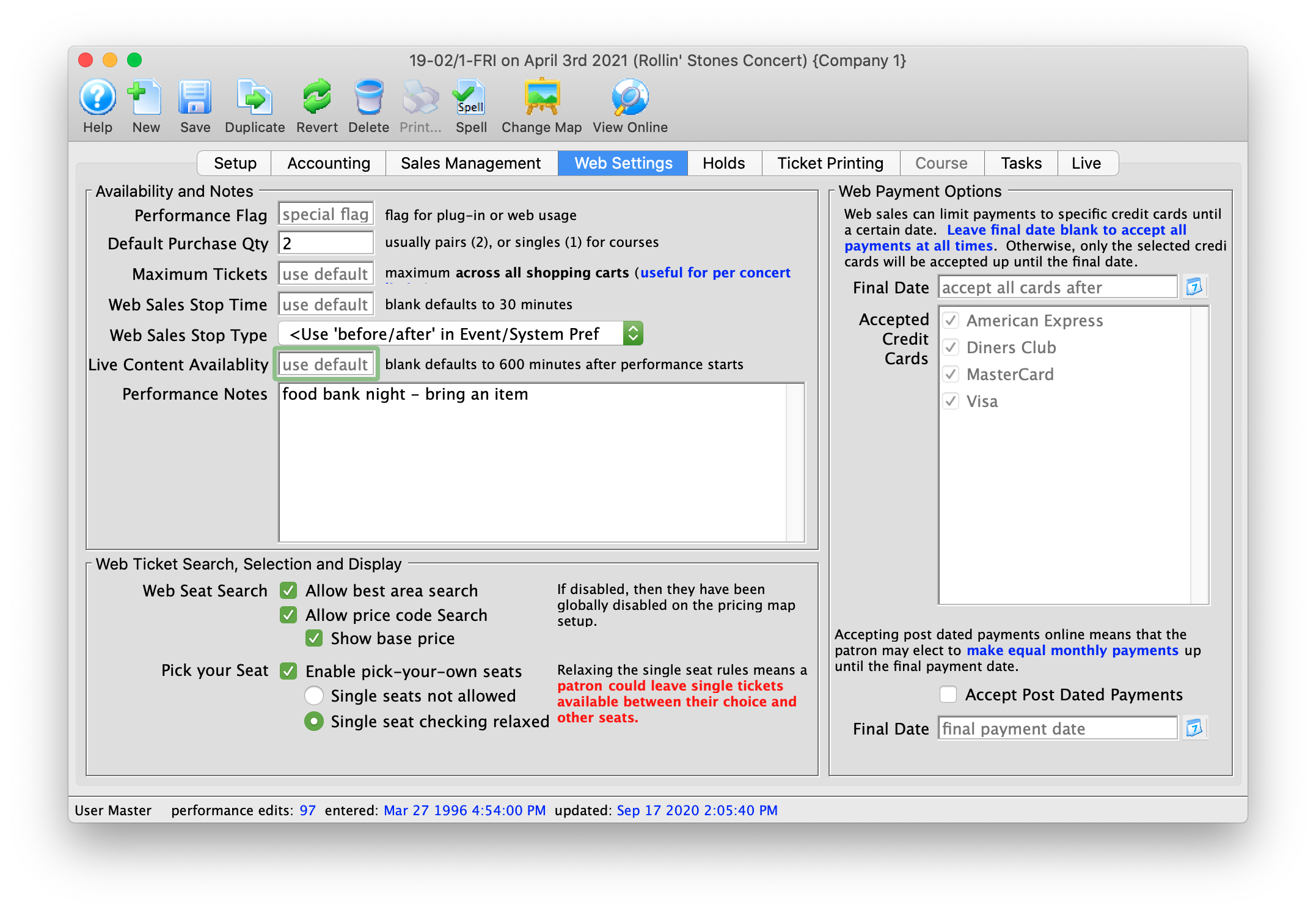
The software default allows for viewing streamed performances up to six hours after the date/time of the performance. Editing the Live Content Availability setting in the Web & Reports tab of System Preferences alters the default for the system. This setting can be overridden in the Event tab on a per event bases as required. In turn the Event setting can be overridden at performance level in the Web Settings tab of the Performance Detail window.
Examples of where the default setting might be altered include:
- A prerecorded video where, when purchased, a patron can continue to view the video at their leisure for days/weeks following the initial performance date/time. In other words, On Demand Streaming.
- A recorded class or course where an attending student may go back to review the lesson.
- A recorded meeting or event where a patron is unable to attend at the time of the meeting can go back and watch a replay.
System Preferences
The Live Content Availability setting is located in the Web & Reports tab of System Preferences. This setting is only accessible while logged into Theatre Manager as the Master User.
Event
The Live Content Availability setting is managed in the Event tab of the event setup under Web Sales Controls.
Performance
The Web Settings tab is located in the Performance Detail window. This is accessed by double clicking on a Performance anywhere in the Event setup.
BoxCast
BoxCast is a for-pay video provider capable of playing pre-recorded and broadcast streaming video
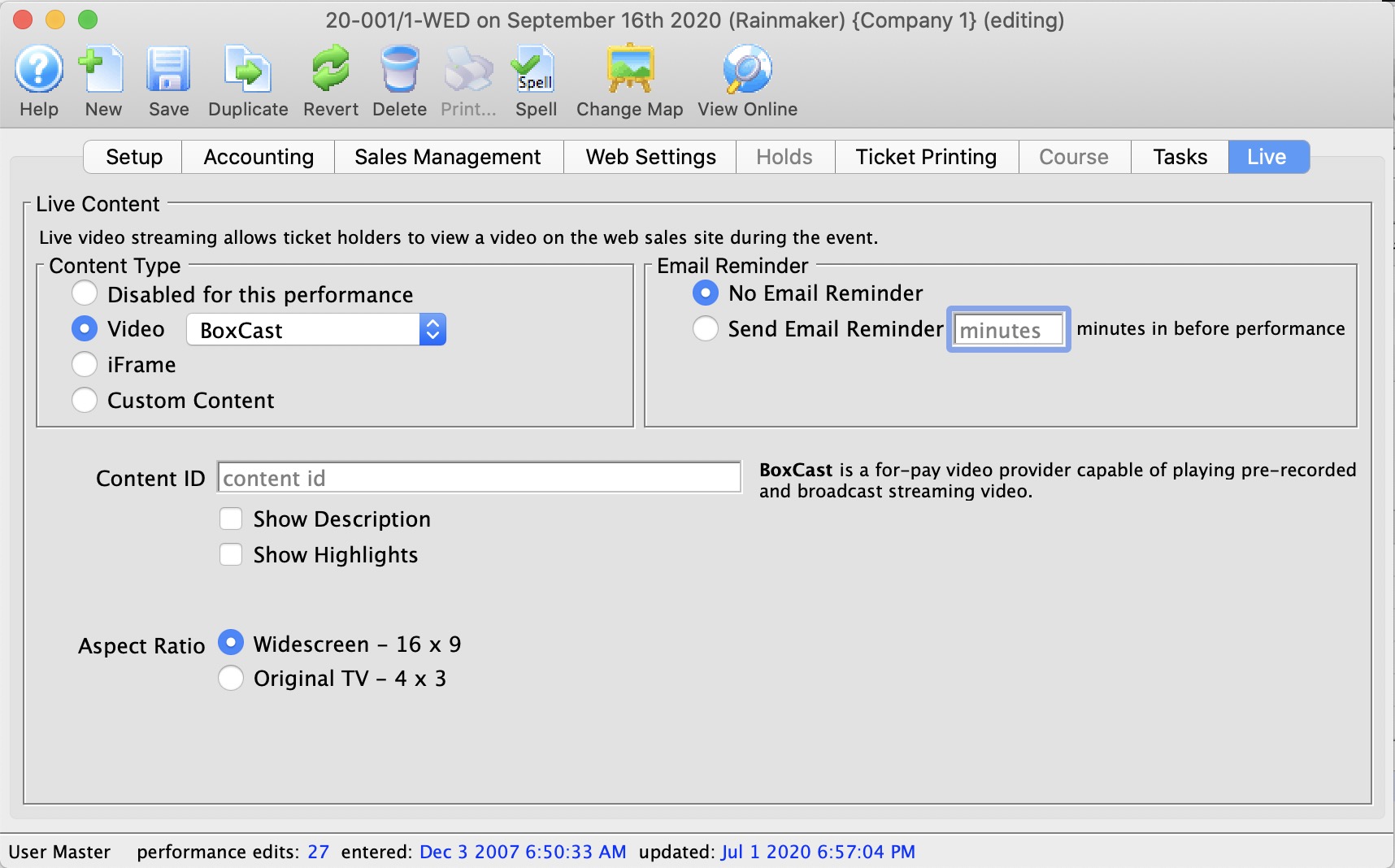
BoxCast (Video Provider) | |
| Content ID | The unique BoxCast content ID. The content ID is inserted into the TM Web Pages. |
| Show Description | Show a description of the video |
| Show Highlights |
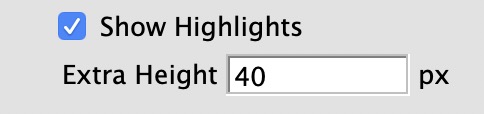 Show the highlights of the video. If you allow highlights, you will be asked fort the amount of 'extra space' to place below the video - in pixels
|
| Aspect Ratio | The aspect ratio of the video that will be played. The aspect ratio is the ratio of height to width of the video. Most modern content is in the Widescreen 16x9 format. You can specify original broadcast TV 4 x 3 |
CineSend
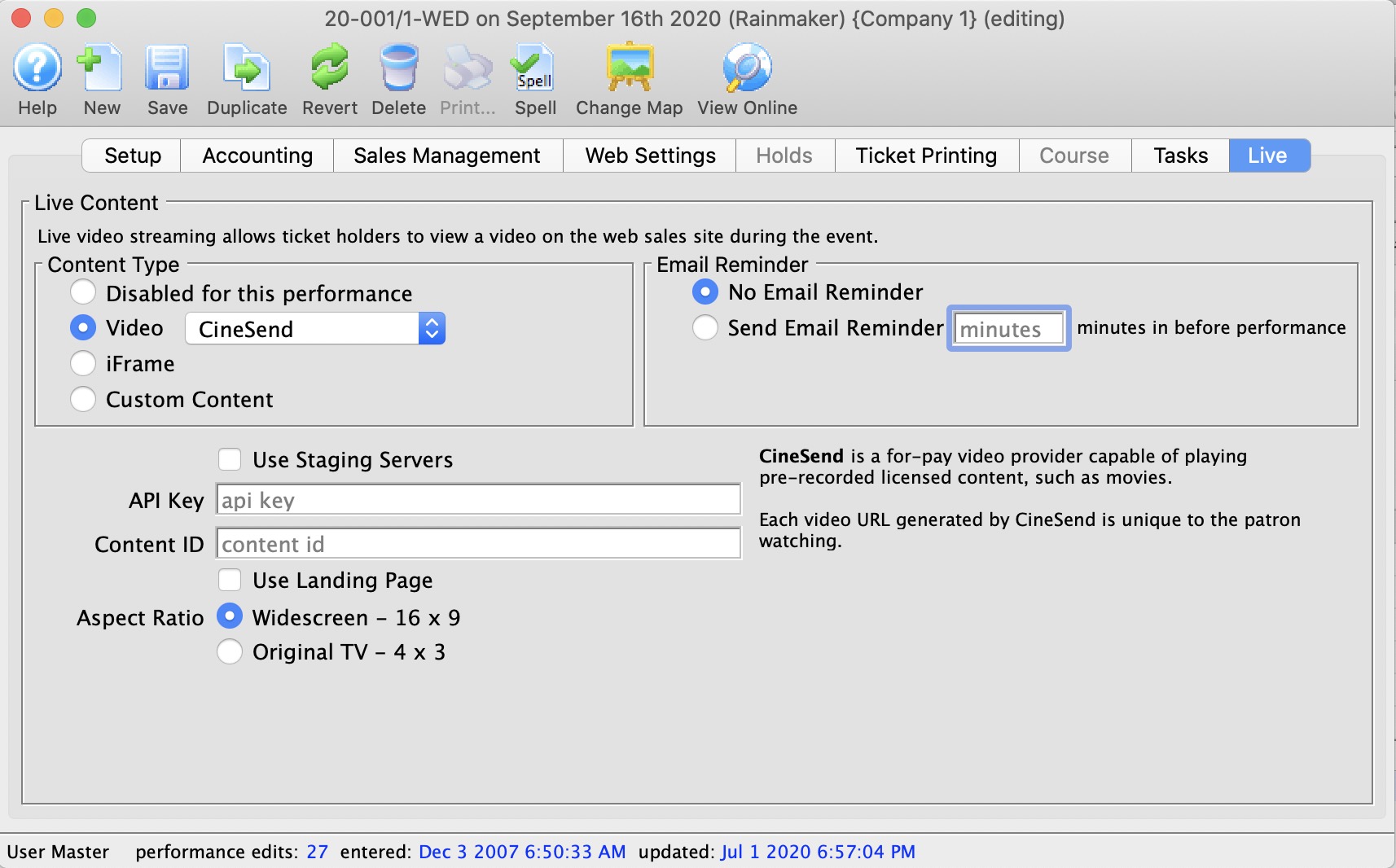
CineSend (paid service) | |
| API Key |
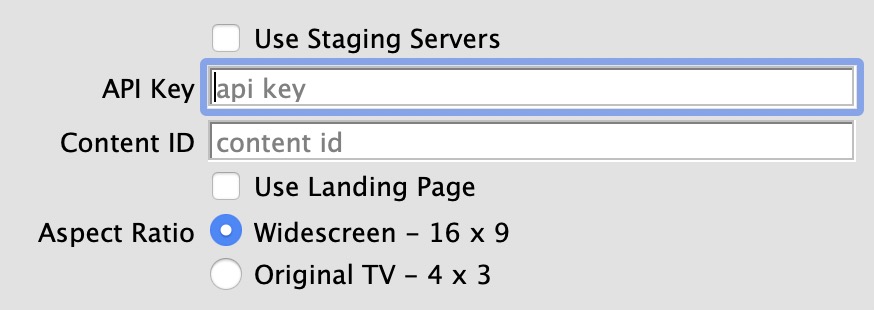 The API key for your account at CineSend
|
| Content ID | A unique ID given to your content by CineSend |
| Use Landing Page | Use the landing page at CineSend that has additional links available |
| Aspect Ratio | The aspect ratio of the video that will be played. The aspect ratio is the ratio of height to width of the video. Most modern content is in the Widescreen 16x9 format. You can specify original broadcast TV 4 x 3 |
DaCast
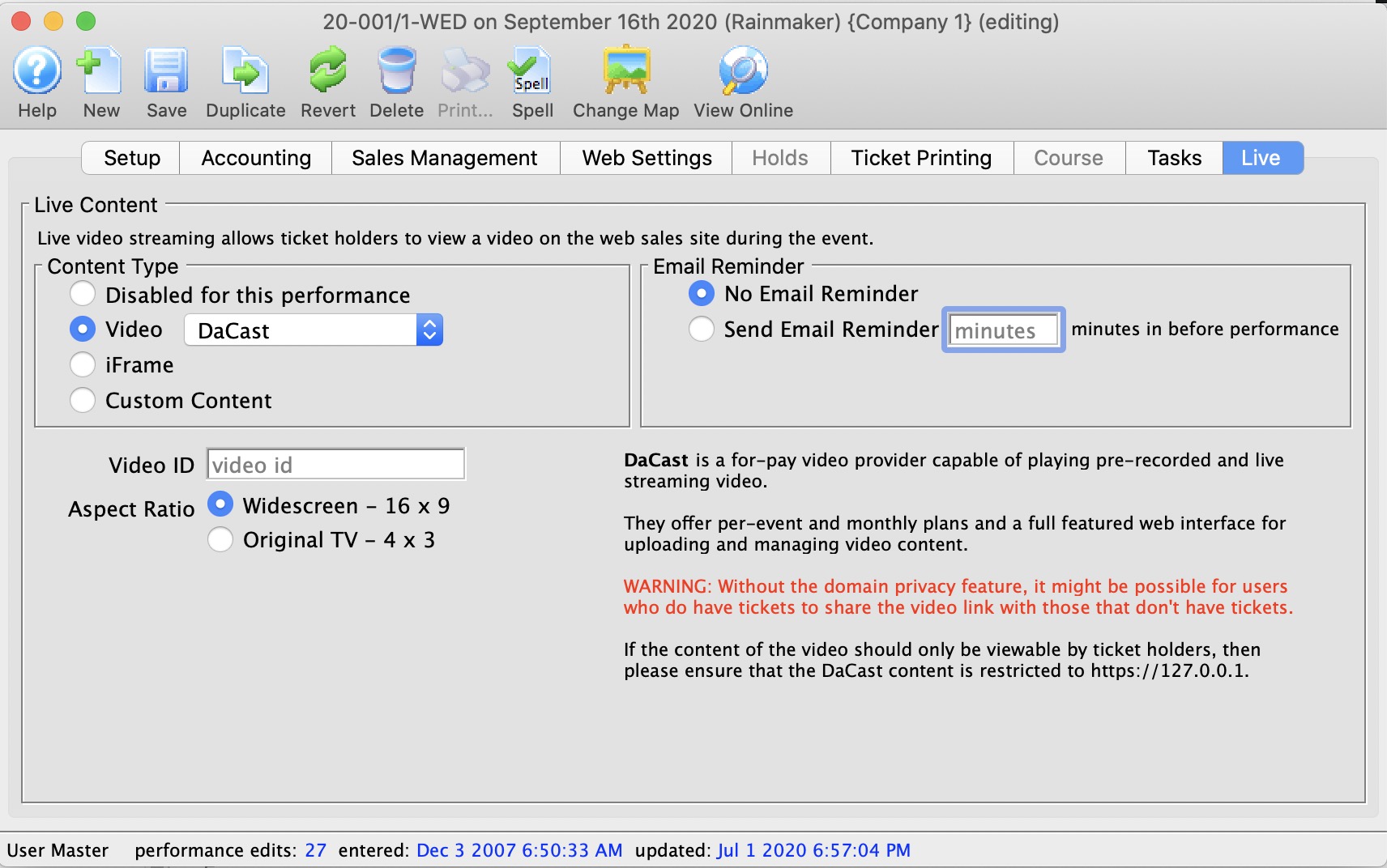
DaCast (Video Provider) | |
| Video ID | The unique DaCast video ID. The video ID is inserted into the DaCast API on the TM Web Pages. |
| Aspect Ratio | The aspect ratio of the video that will be played. The aspect ratio is the ratio of height to width of the video. Most modern content is in the Widescreen 16x9 format. You can specify original broadcast TV 4 x 3 |
Vimeo
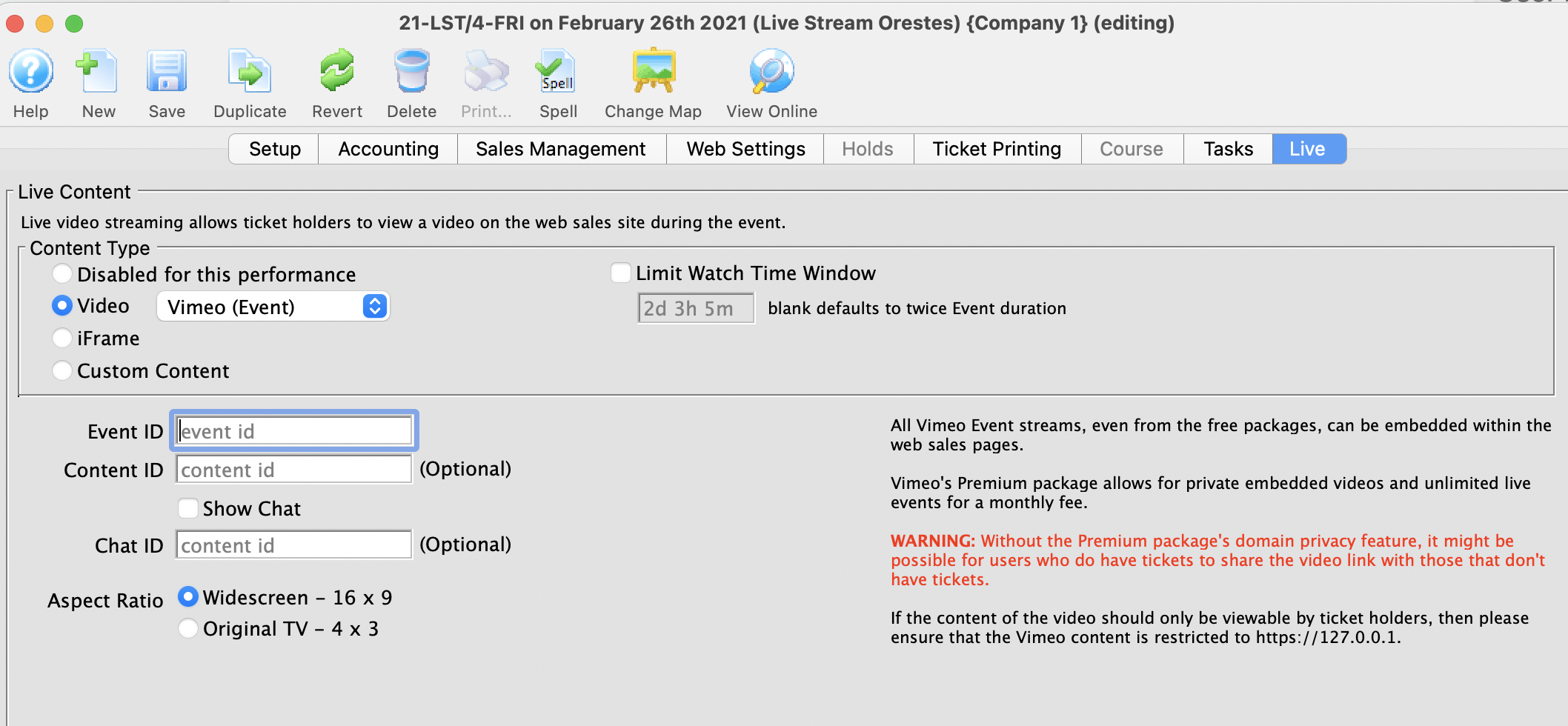
Vimeo (Video Provider) | |
| Event ID |
The unique Vimeo video ID. The ID is a number, like 148751763. If the Vimeo URL looks like https://vimeo.com/148751763 then the Vimeo Video ID is the numbers 148751763
|
| Chat ID | The unique Vimeo Chat ID. The ID is a number and letter combination at the end of the URL, like https://vimeo.com/148751763/1244df87rbj2. |
| Aspect Ratio | The aspect ratio of the video that will be played. The aspect ratio is the ratio of height to width of the video. Most modern content is in the Widescreen 16x9 format. |
Vimeo
Vimeo supports both pre-recorded and live streaming content. In order to do truly private content -- content that is not also available on Vimeo's free, public website -- a subscription to Vimeo Premium is required. The subscription permits access to the "domain level privacy" feature which restricts videos playback so that it can only occur on your Theatre Manager website -- e.g. tickets.yourvenue.org. Important to also set Hide From Vimeo option on your Vimeo account to allow playback on other websites. More details on the various levels of Vimeo privacy, and their implications, can be found on the Vimeo privacy, explained website.
If you're looking for a way to save money, then you can use lower privacy options, but beware that doing so might allow ticket buyers to share the video link with other ticket buyers, and you might miss out on ticket sales.
Setting up Vimeo in Theatre Manager
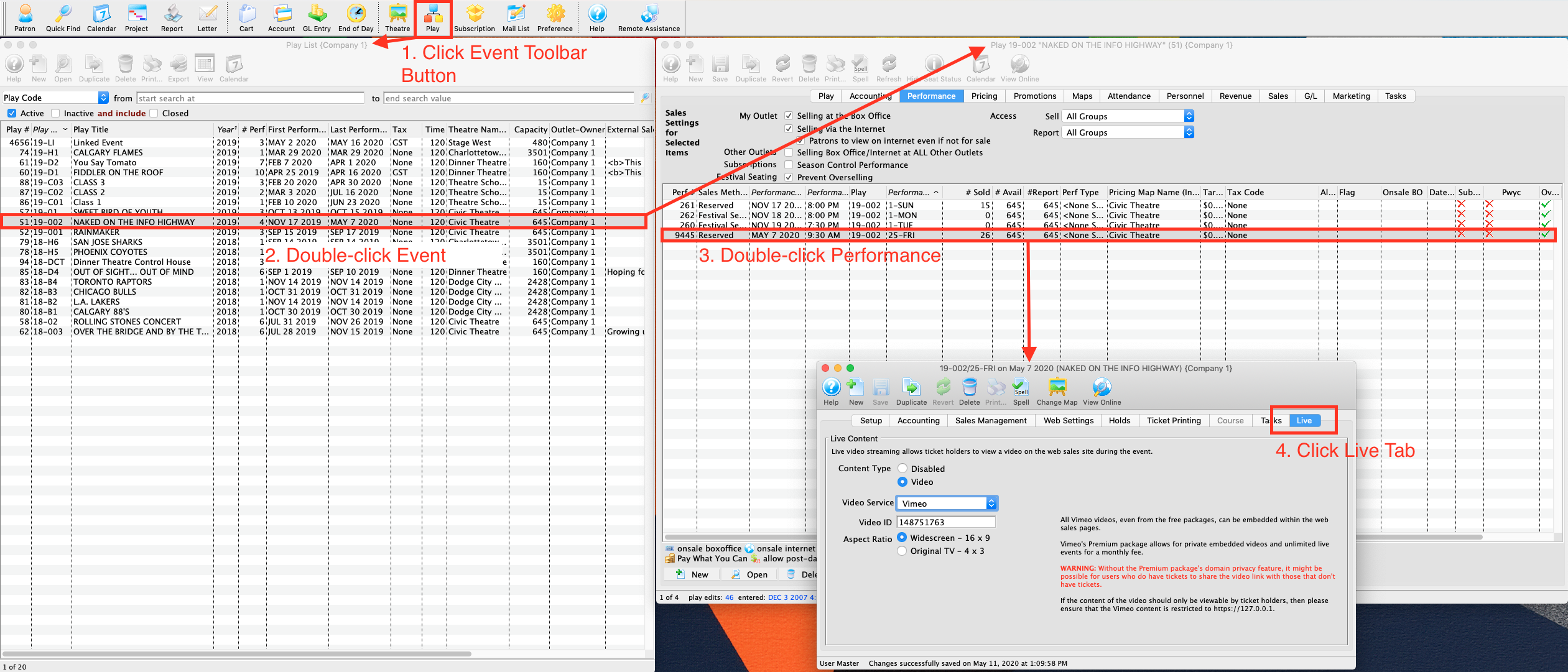
- Determine your video's Vimeo Video ID.
- A number, like
148751763. If the Vimeo URL looks like https://vimeo.com/148751763 then the Vimeo Video ID is the numbers148751763
- A number, like
- Determine the video's Aspect Ratio
- Widescreen (16x9)
- Original TV (4x3)
- Open Theatre Manager
- Locate the Event that contains the Live Performance
- Locate the performance on the Events & Dates window
- Edit the performance
- Click the Live tab
- Select Vimeo from the Video Service drop-down menu
- Enter the Vimeo Video ID
- Select the video's Aspect Ratio
YouTube
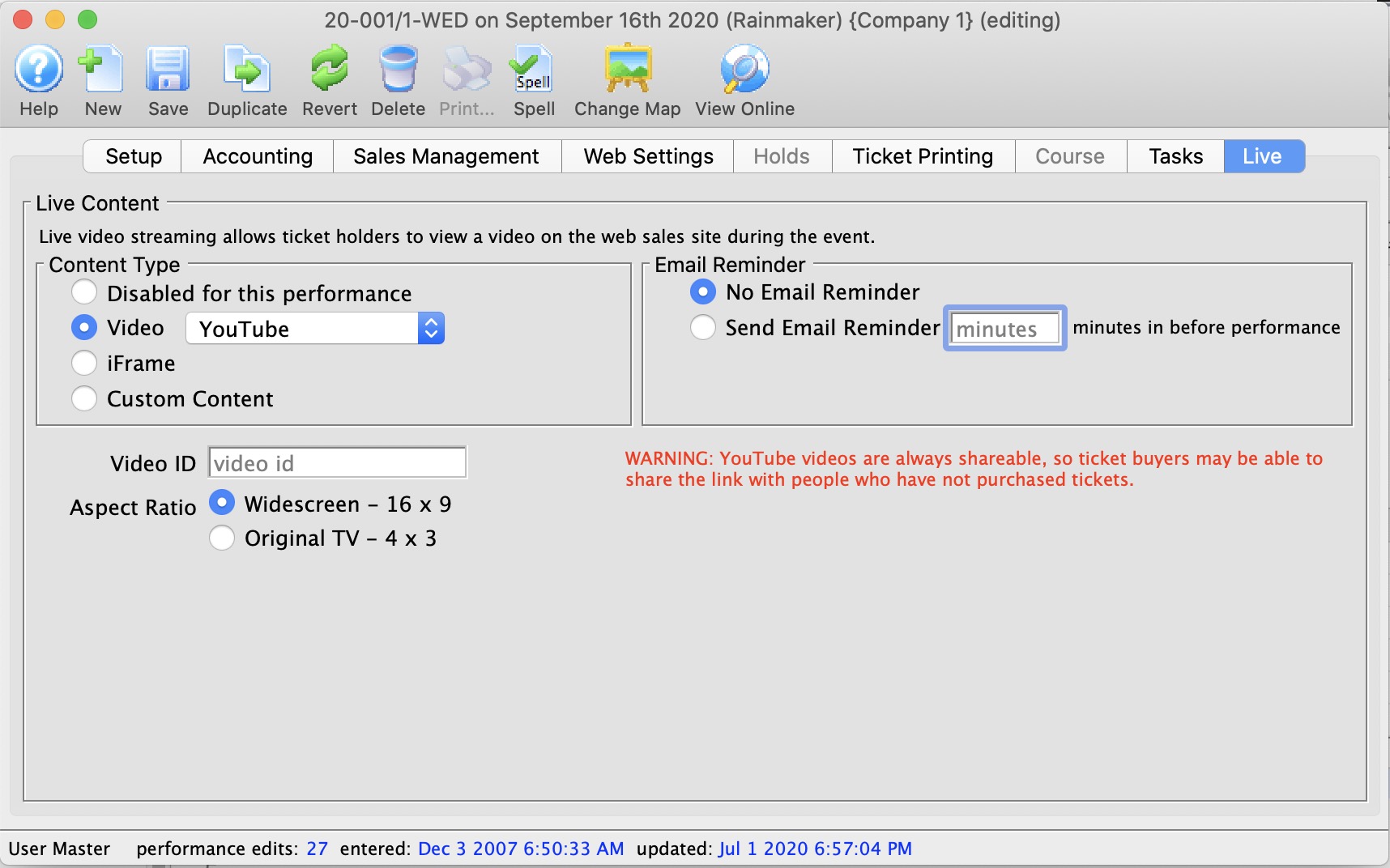
YouTube (Video Provider) | |
| Video ID |
The unique YouTube video ID. The ID is a mix of case-sensitive characters and numbers, like M7lc1UVf-VE. If the YouTube URL looks like https://www.youtube.com/watch?v=M7lc1UVf-VE then the YouTube Video ID is the part after the v=: M7lc1UVf-VE
|
| Aspect Ratio | The aspect ratio of the video that will be played. The aspect ratio is the ratio of height to width of the video. Most modern content is in the Widescreen 16x9 format. |
YouTube
YouTube is a very popular video streaming service. The service itself is free, but videos are always accessible from the YouTube page. It can be a good choice for events that are free to access -- where it's not a problem that the video is accessible from youtube.com. It's not possible to restrict access to only your ticketing website with YouTube.
Setting up YouTube in Theatre Manager
- Determine your video's YouTube Video ID.
- A case sensitive mix of characters and numbers, like
M7lc1UVf-VE. If the YouTube URL looks like https://www.youtube.com/watch?v=M7lc1UVf-VE then the YouTube Video ID is the part after thev=:M7lc1UVf-VE
- A case sensitive mix of characters and numbers, like
- Determine the video's Aspect Ratio
- Widescreen (16x9)
- Original TV (4x3)
- Open Theatre Manager
- Locate the Event that contains the Live Performance
- Locate the performance on the Events & Dates window
- Edit the performance
- Click the Live tab
- Select YouTube from the Video Service drop-down menu
- Enter the YouTube Video ID
- Select the video's Aspect Ratio
video.js
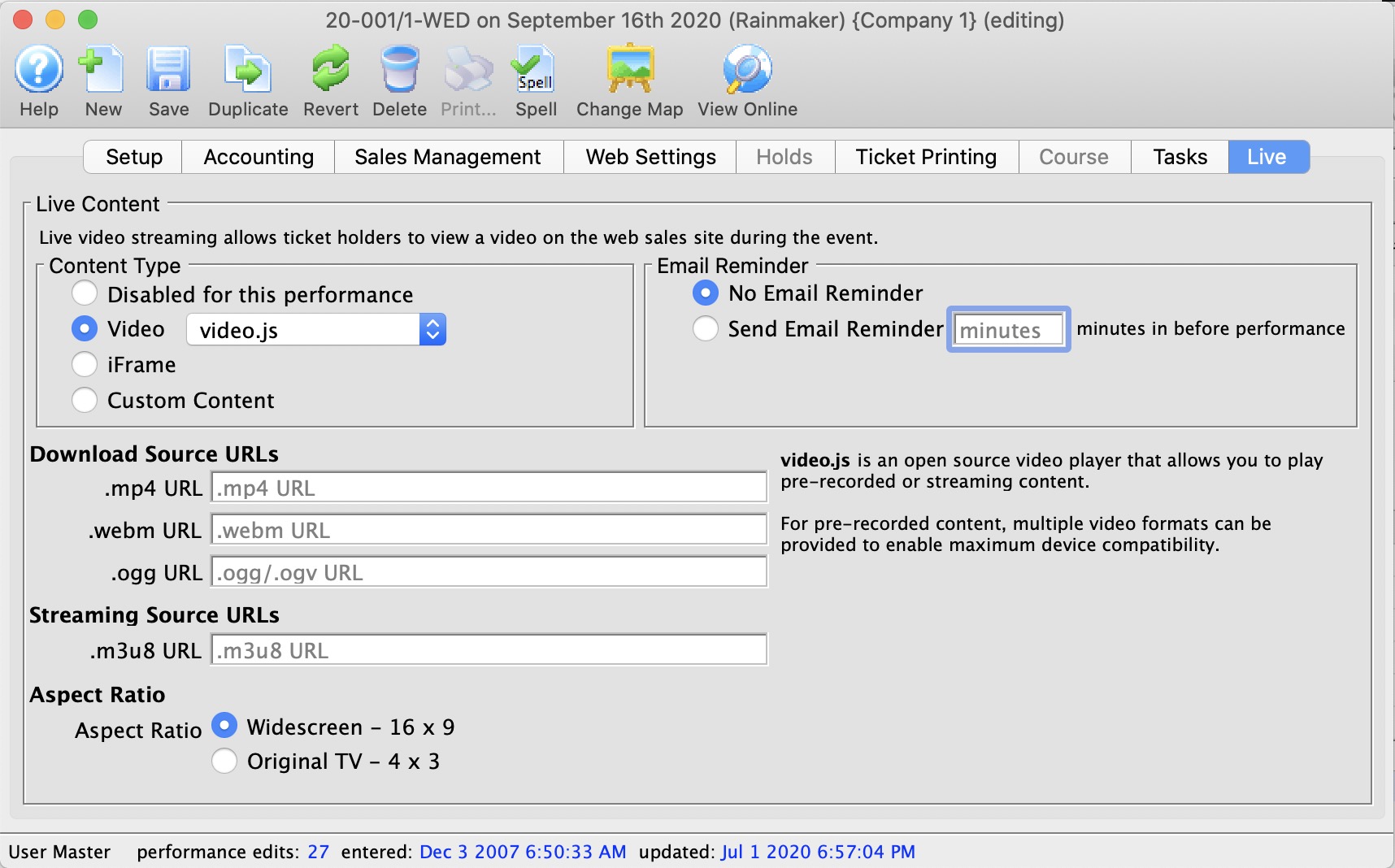
Video.js (open source video player) | |
| Download Source URL's |
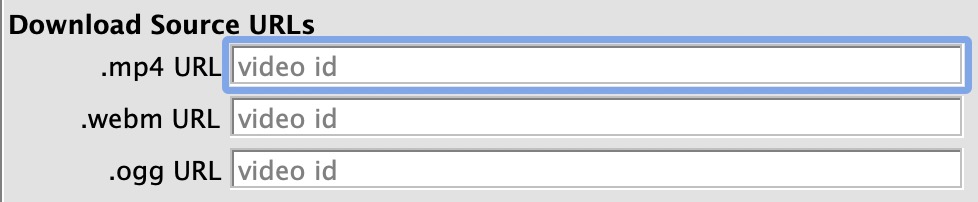 If using a pre-recorded video then these URLs allow you to specify customized formats, optimized for certain devices. Most devices support H.264 .mp4, but additional formats can be added. See the video.js video support matrix for more details.
|
| Streaming Source URL's |
 If using live streaming video then HLS .m3u8 is the only live streaming option. See the video.js video support matrix for more details.
|
| Aspect Ratio | The aspect ratio of the video that will be played. The aspect ratio is the ratio of height to width of the video. Most modern content is in the Widescreen 16x9 format. You can specify original broadcast TV 4 x 3 |
Transaction List
The following represent a list of transaction which have occurred for a selected performance. For more information on Transactions, Click here.
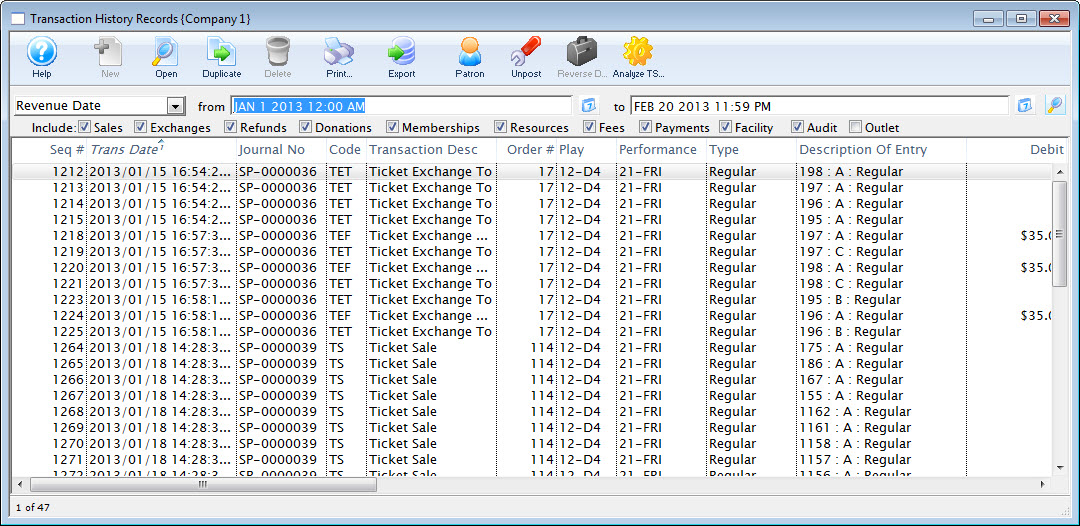
You view these from the going to the Performance Tab and selecting a performance. Then click the Transactions button.
Pricing - Price Codes
This section is:
- a description of the Price List,
- Setting a Default Price Code for a performance (box office only)
- Copying Prices from one performance to all selected. This is useful for making each weekend performance the same price as another.
- Duplicating Prices which copies prices and promotions from another event for all the matching series codes. This is useful once you have set up the first event of a season and want to make all the other the same -and-
- Editing Prices
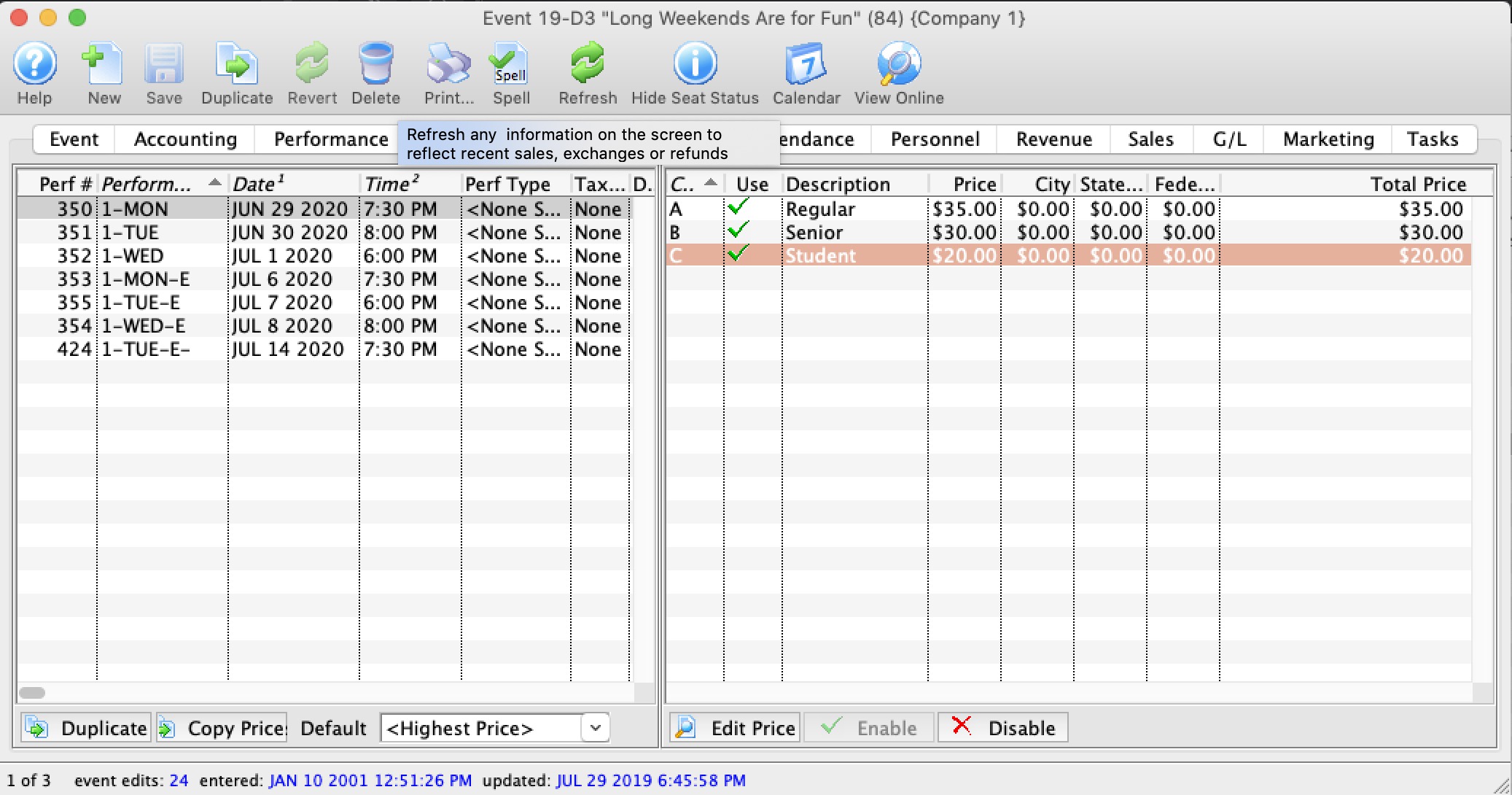
Pricing Information
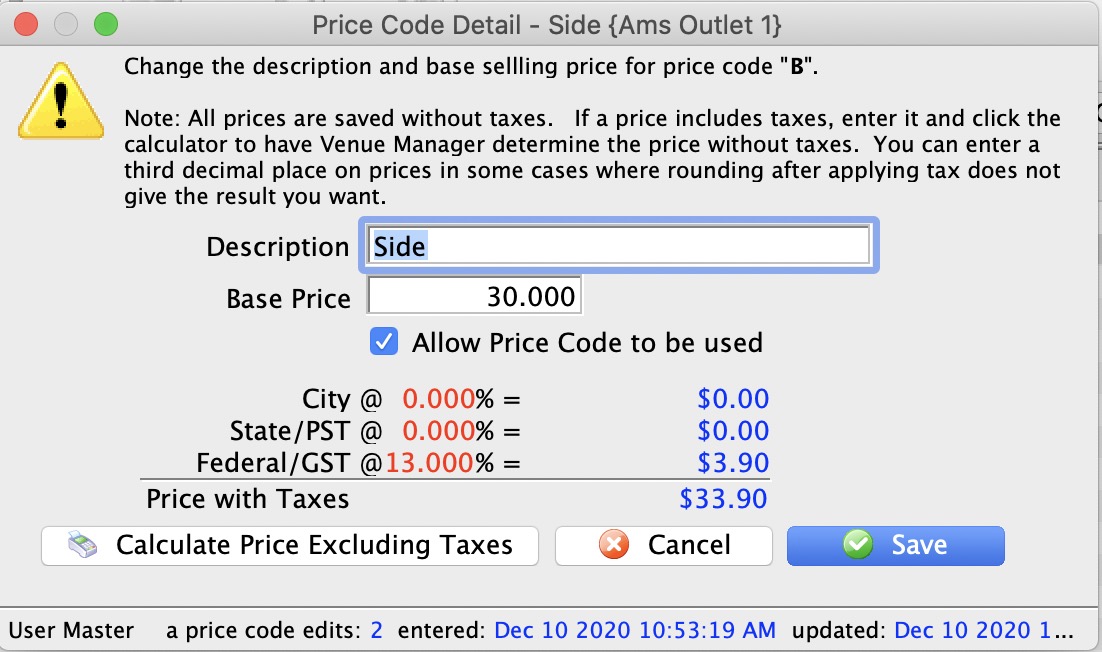 Pricing information for the selected performance on the left side displays the price list on the right side of the window. When you click on different performances on the lest, the price list will change to reflect that performance.
If you want to change one of the prices for the performance, the just double click on it. to see the edit window on the right. Make any changes, including activating/inactivating it and save.
|
If you calculate price excluding taxes and the newly calculated based price does not return the full price you want, try enter a fractional price. eg, instead of a price of $12.65, you might try adding almost half a cent to see if $12.654 works, |
In the list, from left to right the price list displays:
| Code | Displays the single character code that is associated with this price. This character was assigned in the Price Code field in the Venue Map window. |
| Use? | Check box field. If the box is checked then the price code is available for use by the performance that is highlighted in the performance list. |
| Description | The description you give to easily identify the price code. For example, Adult, Child, Senior, Student. Or alternatively: Front, Mezzanine, Loge, Balcony. |
| Price | Displays the dollar value of the price code. For example, $10.00, 15.00... etc. |
| City | Displays the amount of city tax charged on the price code. |
| State/PST | Displays the amount of provincial / state tax that is charged on the price code. |
| Federal/GST | Displays the amount of Federal tax charged on the price code. |
| Price + Tax | Displays the total price of the price code with all taxes included. |
| Enable | Enable the selected price codes all at one time (you can use context menu as well, or edit them one at a time) |
| Disable | Disable the selected price codes all at one time (you can use context menu as well, or edit them one at a time) |
Duplicate Prices
In Theatre Manager , you can duplicate the prices from an entire event already built in Theatre Manager to the new event you are creating.
- Click on the Pricing
 Tab of the Events and Dates Window.
Pricing information should now display on the right side of the Events and Dates window.
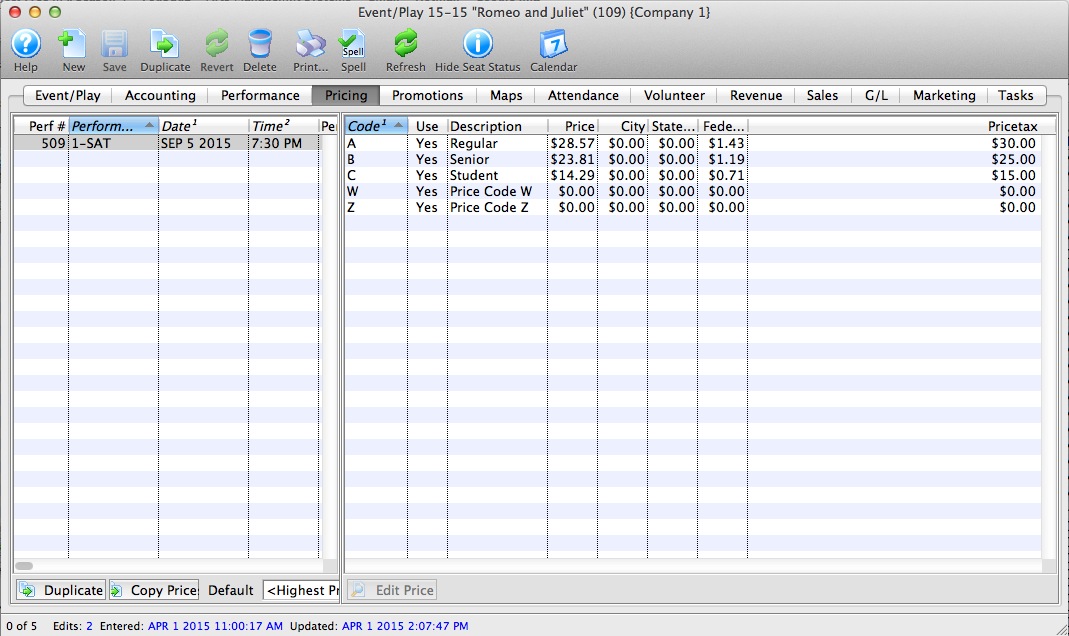
- Click the Duplicate Prices
 button.
The Duplicate Price Wizard window opens.
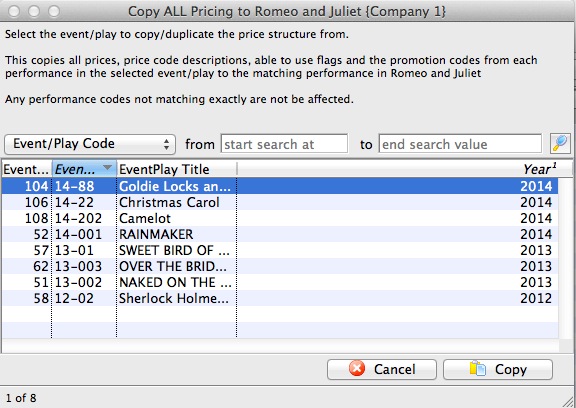
- Select the event you wish to copy all prices from.
Click the
 button.
The rule here is that Theatre Manager will duplicate the pricing for each performance from an existing event. The Event you copy from MUST have the same number of performances with the same naming convention: i.e. 1-SAT, 2-FRI etc. If not the case advance to the more selective process of Copying Prices
Copying Prices
In Theatre Manager , you can copy prices to a single performance or group of performances, from any performance saved in Theatre Manager.
- Click on the Pricing Tab of the Events and Dates Window.
Pricing information should now display on the right side of the Events and Dates window.
- Select the performances that you want to Copy Prices to.
To do this, click on the first performance you want to copy prices to, then drag you cursor over the remaining performances from the performances list on the left side of the window. Alternately, you can click the first performance, and then hold <CTRL> (Windows) or <COMMAND> (Mac) and click each additional performance.
- Click the Copy Prices
 button.
The Copy Price Wizard window opens.
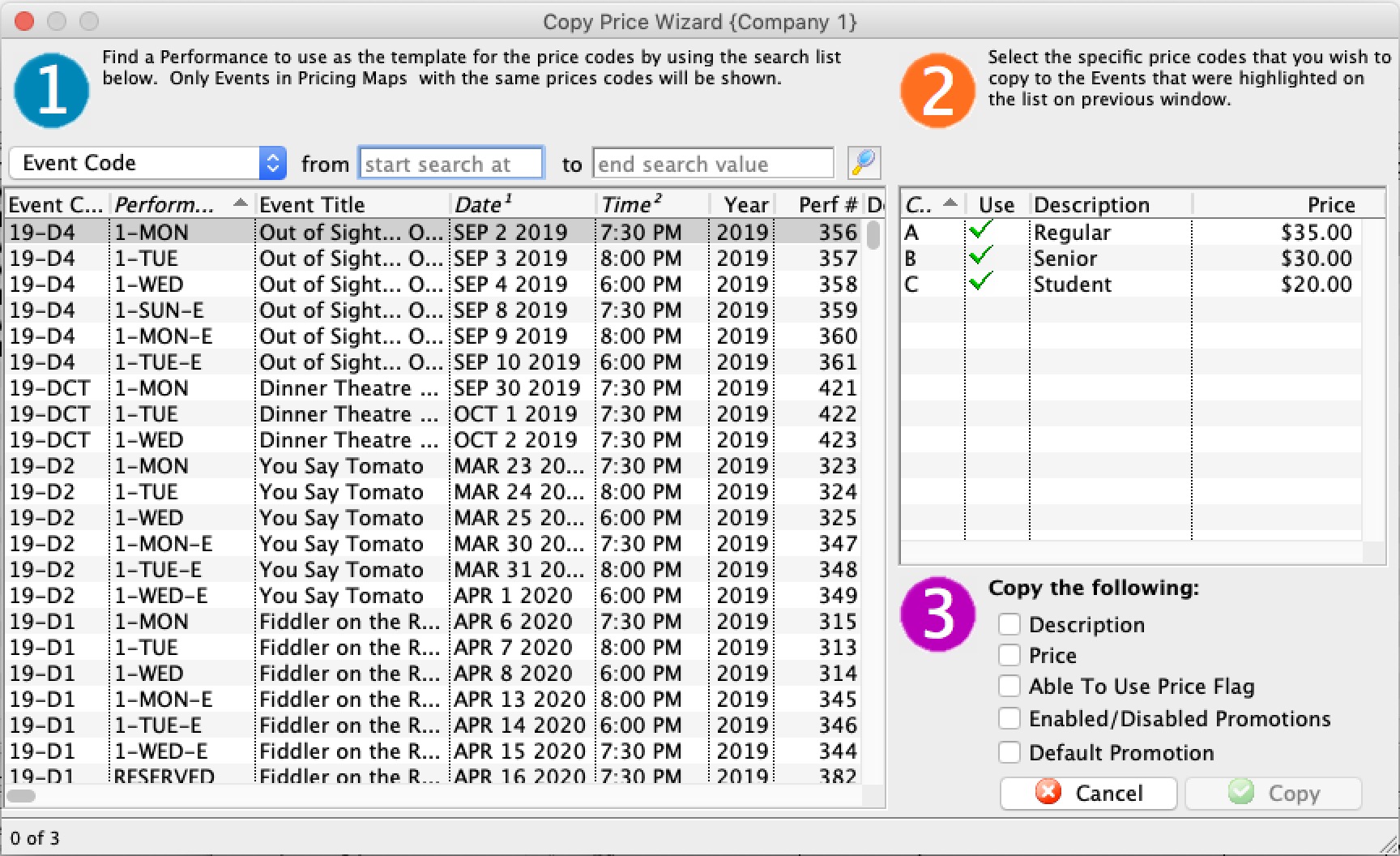
- In Step 1, select the performance to use as a Pricing Template.
To further refine your search, click the drop down list under the 1. You can then choose a different five search fields. They are:
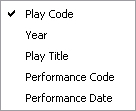
Select a search field, and you can further restrict the search using the "from" and "to" fields to enter criteria. For example, the (picture) below displays a successful search for performance that have Play Codes starting with 07.
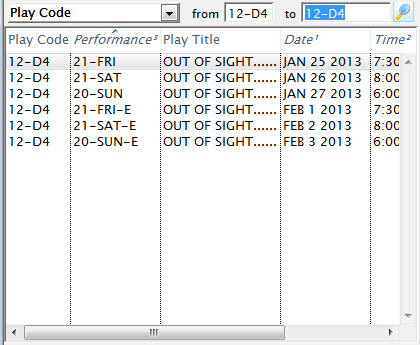
- In Step 2, you select the performance that you want to use as a Pricing Template.
As you select plays, their price codes are displayed on the left and the performance's price codes are displayed on the right.
- Choose the Price Codes you want to copy.
Highlight the Price Codes you want. You can select all, none, or some of the price codes to be copied.
- In Step 3, you choose which Attributes of the Price Code to copy.
There are four parts of the price code that you can copy across. The Description, the Price, Able To Use Flag, and Enabled/Disabled Promotions. To copy an attribute put a check in the box beside the attribute desired.
- Click the Copy
 button.
Selecting a Default Price Code
|
Note: Default price only applies to box office sales.
Web sales always default to selecting the highest price because patrons generally accept any price offered. They never look to pay more, but they may look to pay less if it applies. Psychologically, if a computer offers a lower price, then people assume it must be right and nobody looks. The default price list only shows one line of price, so if you want to show more prices for customers online, you can edit rowTicketReserve.html to show more lines - allowing the patron to see and then pick a price easier. |
Each performance (series) can have its own default price code setting.
- Click on the Pricing Tab of the Event Setup Window.
Pricing information will display on the right side of the Event Setup Window.
- Select the performance to set the Default Price Code for.
Click on the performance from the performance list. The prices for this performance display in the price list on the right side of the window.
- Open the Default Price Code drop down list.
A list of usable price codes is displayed.
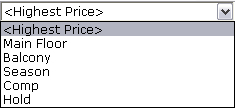
- Select the Price Code to be the Default.
Do this by clicking on a price code from the list.
Adding New Price Codes from Venue
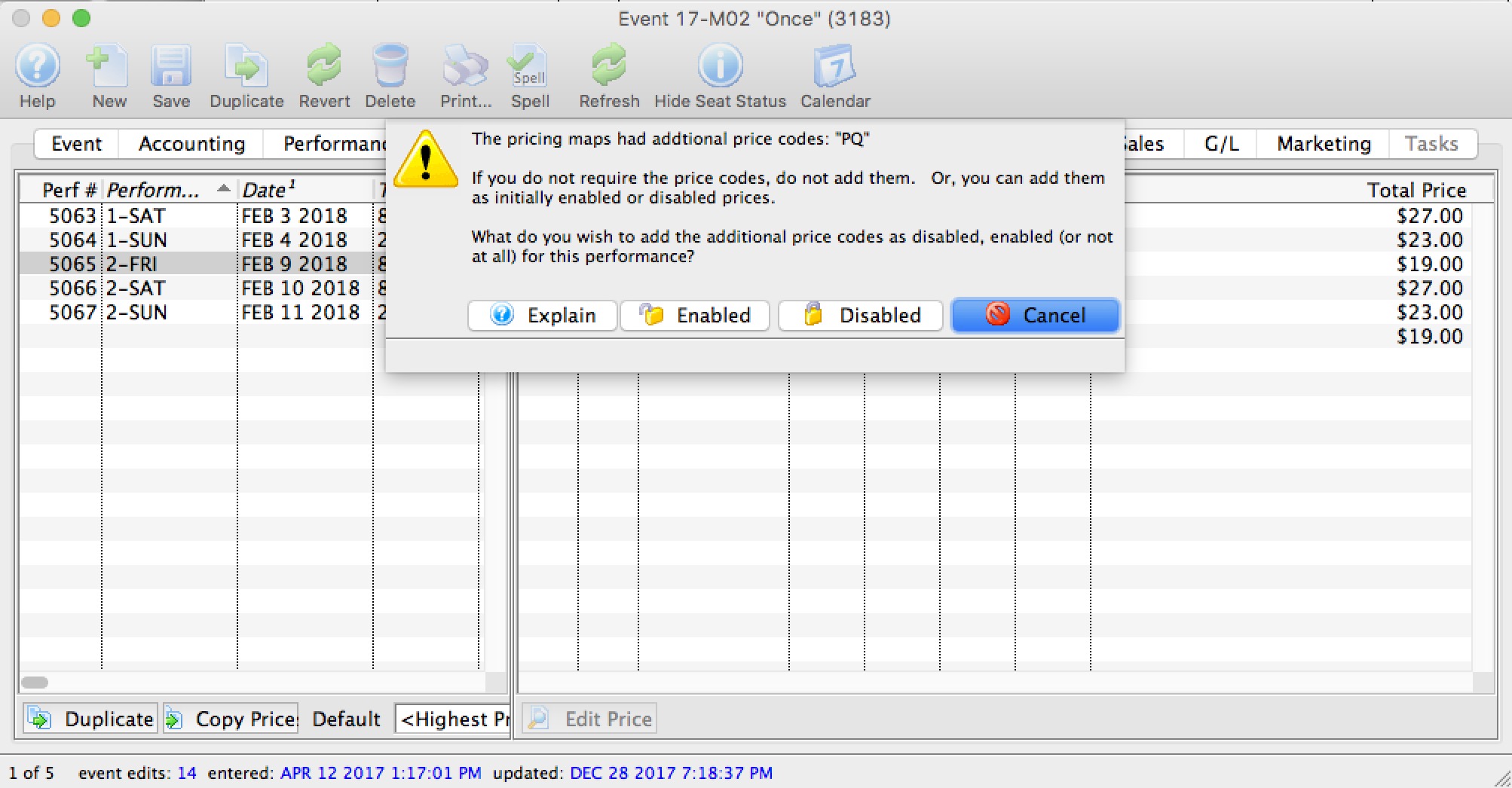
If new price zones are found when looking at pricing for a performance that do not have corresponding prices, you will see an alert dialog that asks what you want to do with those additional pricing zones. You can:
- Cancel adding the new pricing zones - which means that the new prices will not be created. This is the best option as pricing is not changed.
- Add the pricing zones to the performance as initially disabled, which means that the price codes are added as zero price, but not enabled for purchasing. This is a safe option since the price codes are added, but nobody can use them until you set prices.
- Add the price zones as initially enabled, which means that the prices are instantly available as zero price tickets. This is the least safe option, but probably what you would pick if the event is not available for sale online. If a performance is available for sale online, the disabled setting is automatically be used for that performance.
|
You will only receive this message to add prices if:
|
Promotion Tab
|
By default, ALL promotions are available to the performance when it is created. |
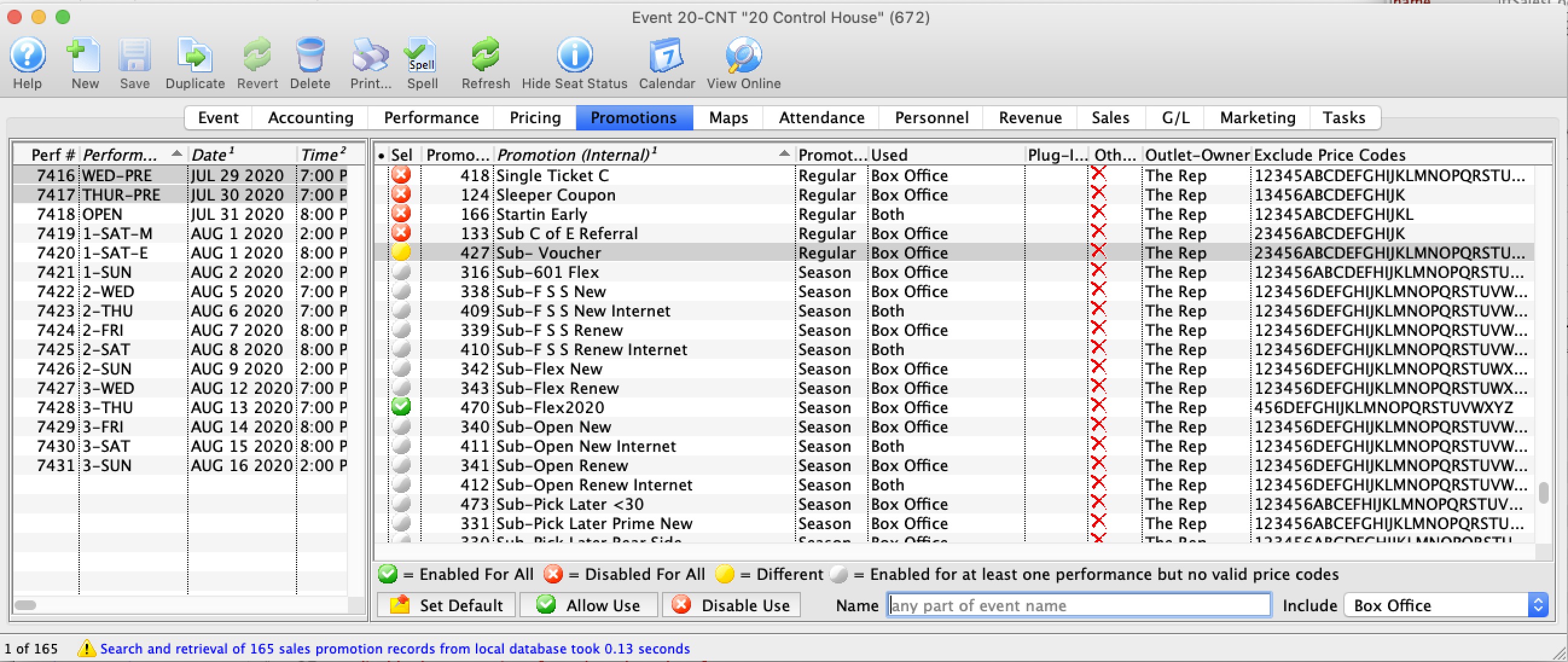
Parts of the Promotions Tab
| Performance # | Number of performance assigned in order of creation. |
| Performance Code | Code assigned based on the week and day of the performance. |
| Performance Date | The date of the performance. |
| Peformance Time | Time of the performance |
| Sel | Displays one of the four icons
|
| Seq# | System defined number for the Promotion |
| Promotion | Name of the Promotion |
| Promotion Type | Ticket Type for G/L Posting |
| Used | Where the Promotion can be used for a sale |
| Other Outlet | Indicates if the Promotion is available at another Outlet |
 |
Sets the Promotion as the default for the selected Performance |
 |
Allows the promotion for use with the selected performance. Click here for information on enabling promotions for a performance. |
 |
Disables the promotion for the selected performance. Click here for information on enabling promotions for a performance. |
| Name | Enter part of the sales promotion name to search for only those that match the filters below. |
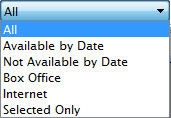 |
Gives you alternate selections to filter the list displayed. Choices are:
|

Maps Tab
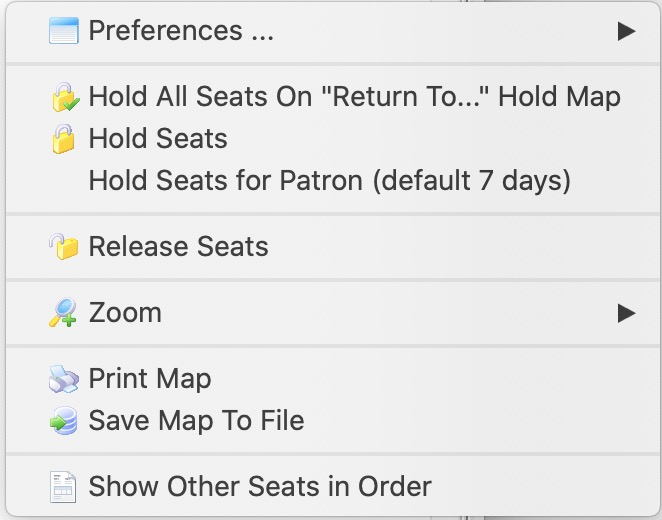 From this tab, you can
- View the current house dressing for a reserved seating event.
- add and release holds for the selected performance.
- create a different return to hold map for each performance if you want tickets returned to hold when they are refunded in a different way that the venue default.
- Print the map with the holds right before the performance - for the front of house staff.
- see the Hold and Sold count and their effect on online sales based on the reporting capacity settings.
- etc
|
To help manage online sales based on reporting capacity, a table below the map window shows current physical capacity, reporting capacity, sold, held (and social distance held) totals.
The remaining seats indicated how many more seats can still be sold online. When it is negative, online sales are prevented because you have reached reporting capacity, even if there are seats left that can be sold to the performance. |
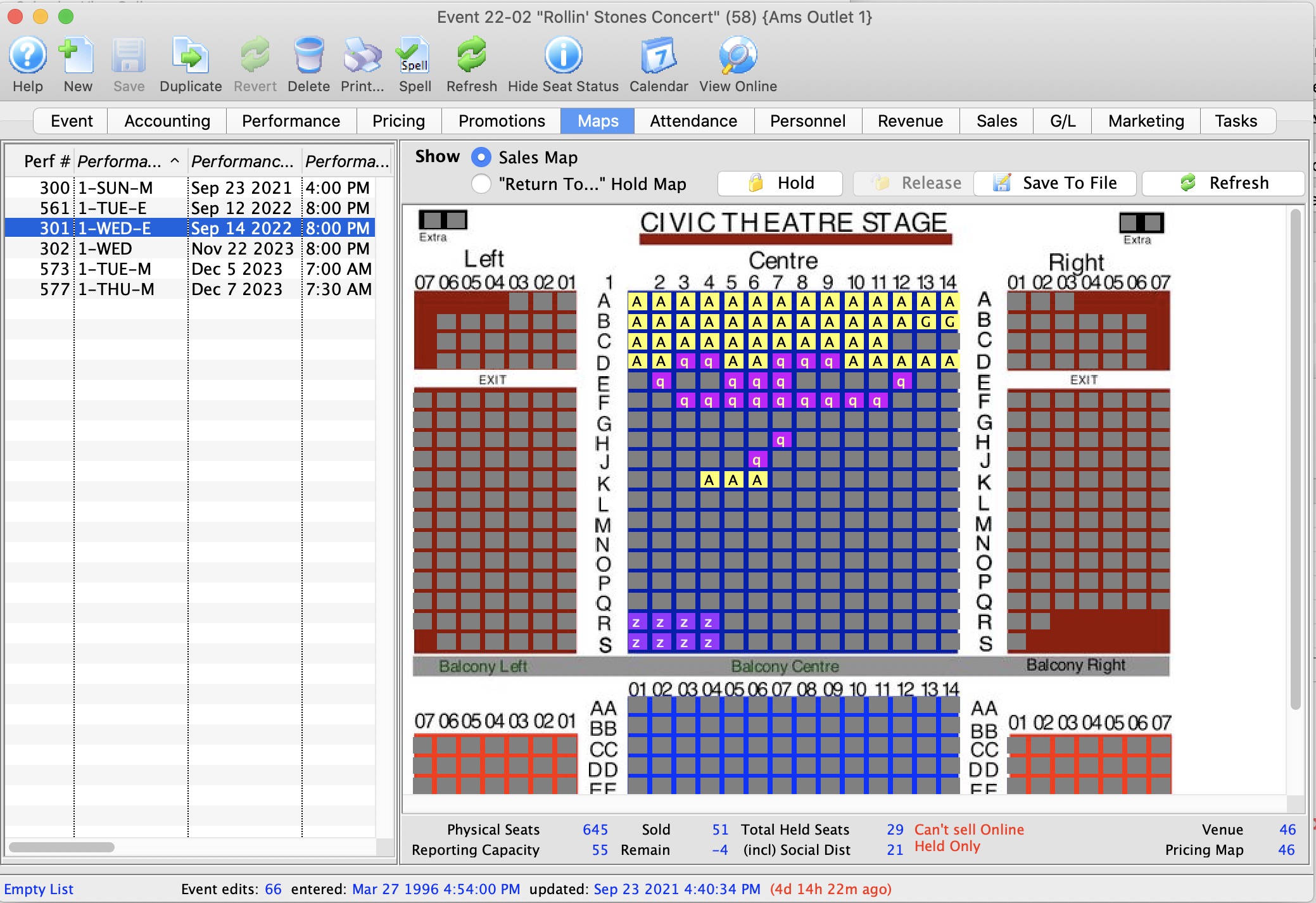
Parts of the Maps Tab
Performance Information |
|
| Performance # | Unique performance number generated by Theatre Manager. |
| Performance Code | A quick reference for the performance. |
| Performance Date | Date of the performance. |
| Performance Time | Time of the performance. |
| # Sold | Number of seats currently sold for the performance. |
| # Held | Number of seats currently held for the performance. |
| Sales Method | Type of seating used for the performance, typically either Festival or Reserved. |
| Play # | Sequence number of the event. |
Additional Buttons |
|
 |
Shows the current map as it appears in the Ticket Selection process.
|
 |
Shows the default holds map for the venue as set in Theatre Maps. |
| Checked in Seats Map | Shows the seats that have been purchased and:
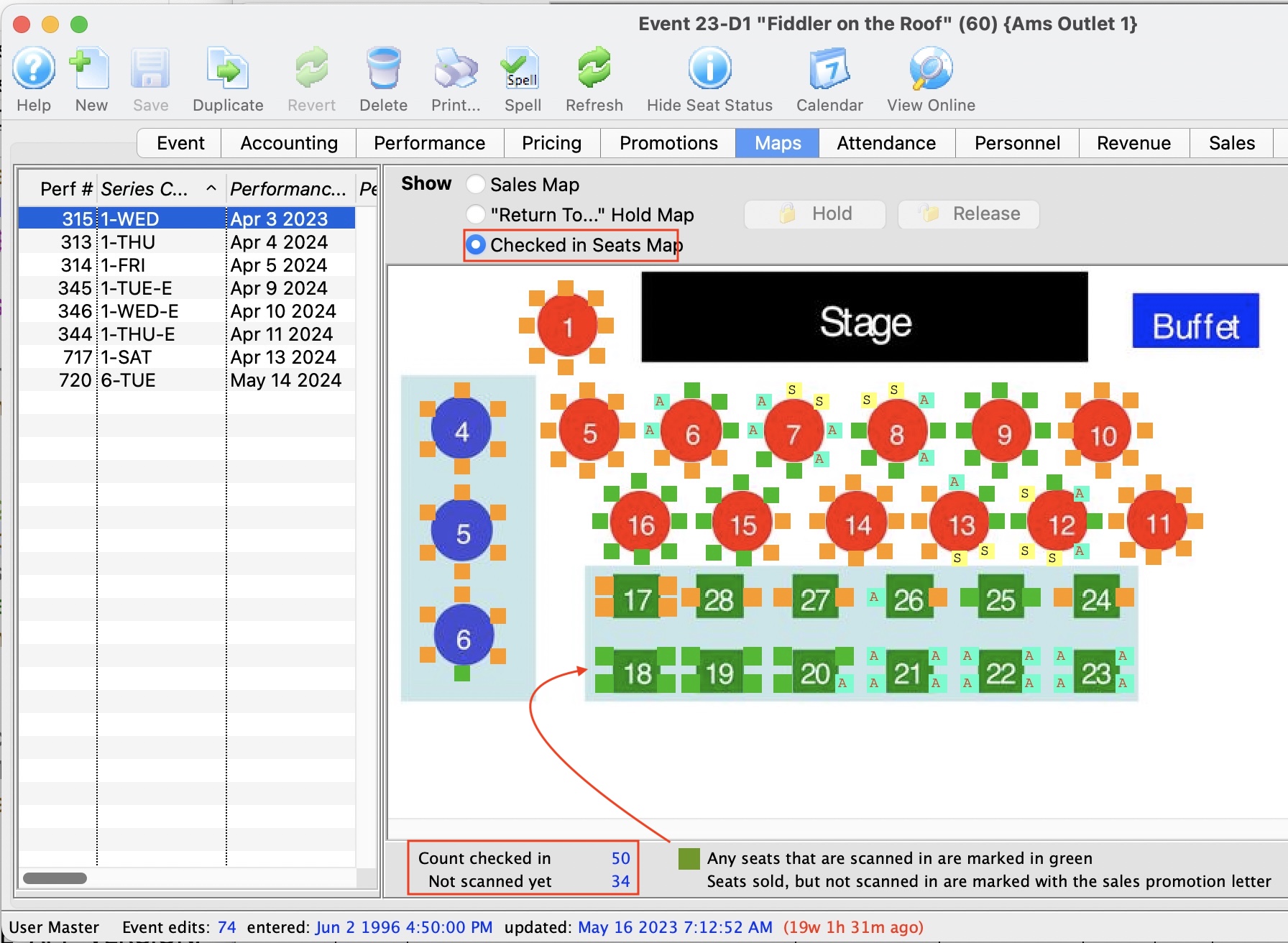 |
 |
Allows a seat to be held by a letter code for the selected performance. |
 |
Allows a seat to be released for sale for the selected performance. |
 |
Prints a graphical version of the "House Dressing" for the selected performance. Click here for more information on printing the Graphic Map by Performance. |
 |
If you add holds in the theatre map for a performance that has already been set up, you will need to go into each performance in the event:
|
Seat Availability Calculations (bottom of Map)
|
|||
| Physical Seats | The number of seats that are physically placed on the pricing map that could be sold, held or available to be sold. | ||
| Reporting Capacity | The number of seats that is considered the maximum that could be sold. Most often, it is the same as the Physical seats in the venue. However, you can alter it to be a lower or higher number at any time.
Making it lower has some ramifications:
|
||
| Sold | The number of seats sold to that performance. This should be the same number as the attendance count for that performance. You should be able to see that number of tickets assigned to patrons. | ||
| Total Held Seats | Indicates the number of 'held' seats for this performance. These are all the lower case letters of ALL types, regardless of purpose (usher, social distance, light board holds, artist holds, subscription holds - they are all counted in this number) | ||
| (incl) Social Distance |
This number represents the count of tickets marked a social distance using the social distance hold letter specified in system preferences.
Note: The total hplds - social distance holds = the number of holds assigned for some other purpose. This number just breaks those out for clarity. |
||
| Remain |
The number of tickets remaining represents the count remaining that can be sold online.
|
||
| Red Message |
If you see a red message, Theatre Manager is interpreting the numbers for you.
| ||

Attendance Tab
- Set the attendance the day of the performance - Setting attendance allows you to track which patrons with tickets actually attended the performance.
- Refund tickets - The refund function is for ease of use if:
- on the day of the performance a patron decides that they would like to refund their ticket you can do so without having to change windows.
- the promoter cancels the show and you want to mass refund of all the tickets back to the system and give patrons their money back, or turn it into a donation or Gift Certificate.
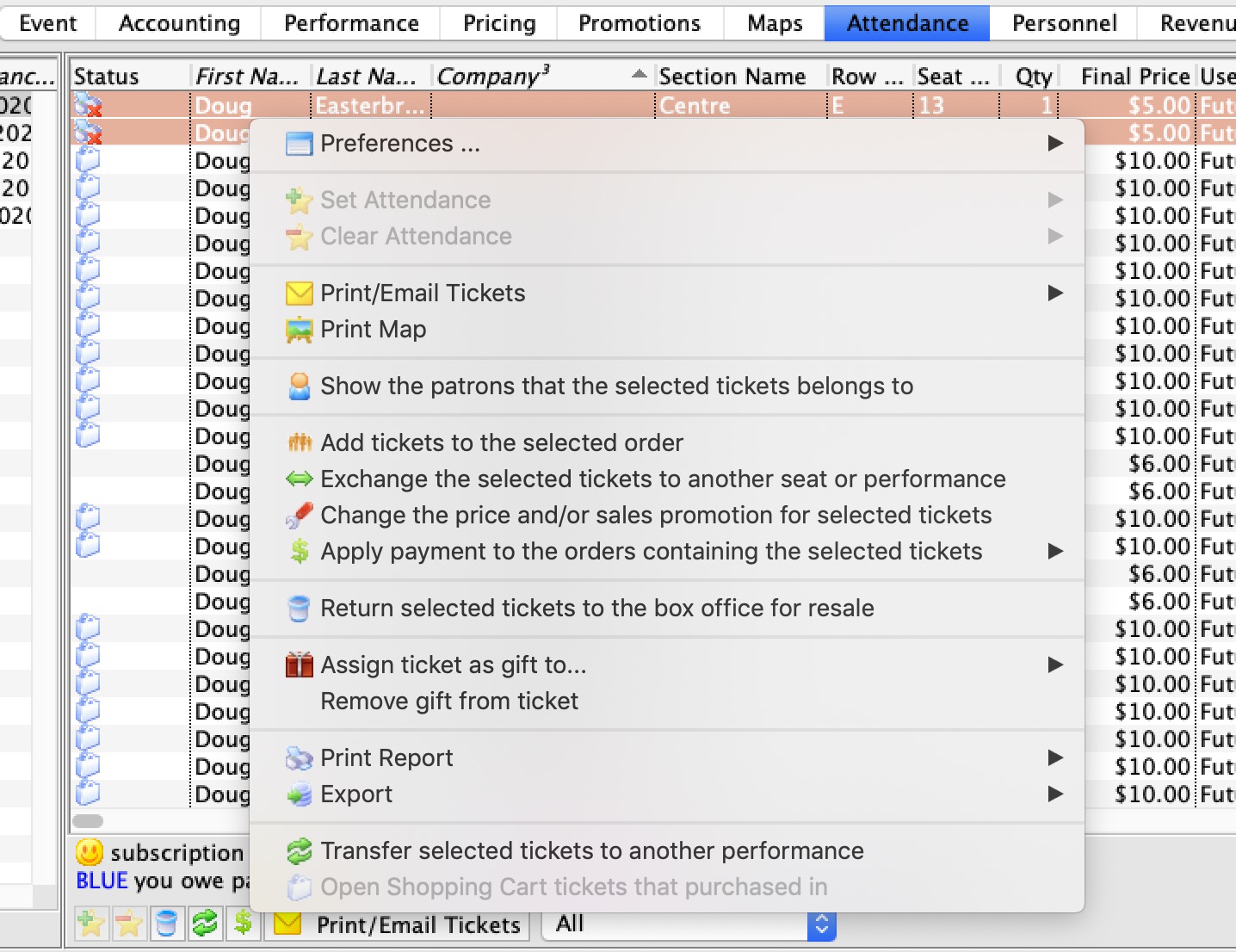
Context Menu Features
Use the context menu to do a lot of things to the orders such as
- Add tickets to an order
- Pay for the order if it has a balance
- Exchange tickets for another event if you are using this for a waitlist event or it is cancelled
- Assign the ticket to another patron if somebody else is picking it up
- Reprice the ticket for a gala so that you can add a donation when the gala ticket is purchased online
- etc.
Parts of the Attendance Tab
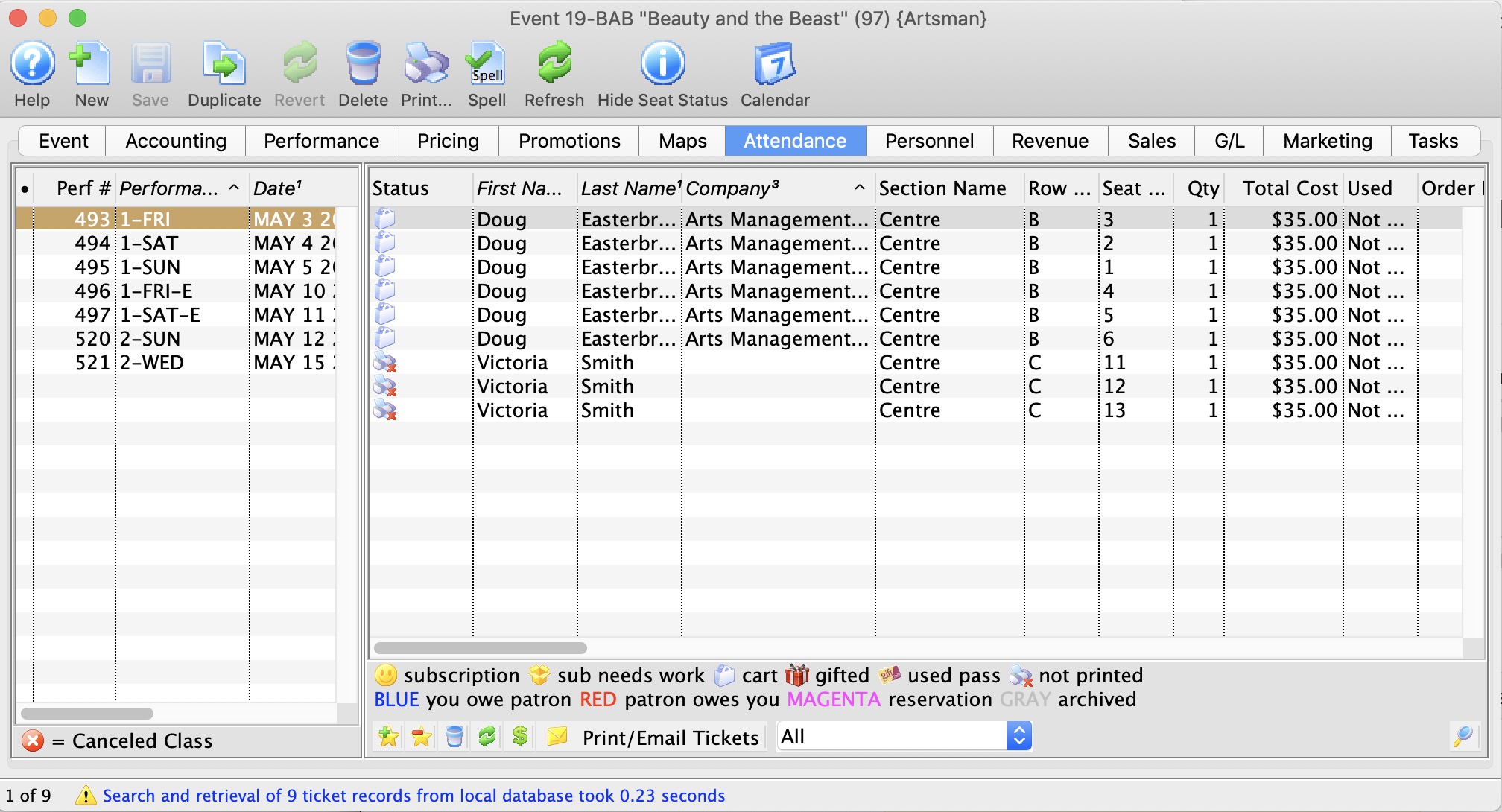
Performance # Number of performance assigned in order of creation. Performance Code Code assigned based on the week and day of the performance. Performance Date The date of the performance. Purchase # Purchase reference number. First Name Patron's first name. Last Name Patron's last name. Company Company the patron works for. Section Section the patron is seated in. Row # Row the patron is seated in. Seat # Seat number the patron is seated in. Quantity Number of admittance per ticket. 
Sets the attendance for the performance. This is only available on the day of the performance or after it has taken place. 
Clears the attendance of the performance. This is only available on the day of the performance or after it has taken place. 
Print the selected tickets for this performance that are not yet printed. 
Does a Mass Refund of the selected tickets back to the patron using the credit card used to pay for the event. 
Transfers the selected ticket(s) to another performance.
Transfer Tickets to Another Performance
Occasionally, you may need to transfer all the tickets from one performance to another. Rather than doing this individually, you can transfer them in a batch by using the wizard on the Attendance tab of the Event setup. This can be helpful when:
- You have cancelled the performance and need to re-seat patrons in another performance
- You want to move a subscription package to another performance
- You need to transfer people into a HOLD or WAIT LIST performance
- Anytime a mass re-seating of patrons is required
- You are considering moving all patrons to a venue with different orientation and capacity instead of simply changing venue.
The transfer function moves all selected tickets by matching seat codes for reserved seating events (festival seating events cannot be transferred in this fashion). Tickets for festival seating events will need to be manually exchanged. Tickets are not re-priced when they are transferred and do not affect order balances.
|
Tickets will not be moved if:
|
To transfer tickets from one performance to another:
- Bring up the Events List in the Setup menu, or by clicking on the icon on the main tool ribbon.
- Click the
 icon to populate the list with your events.
- Double click on the Event containing the performance you wish to transfer the tickets FROM.
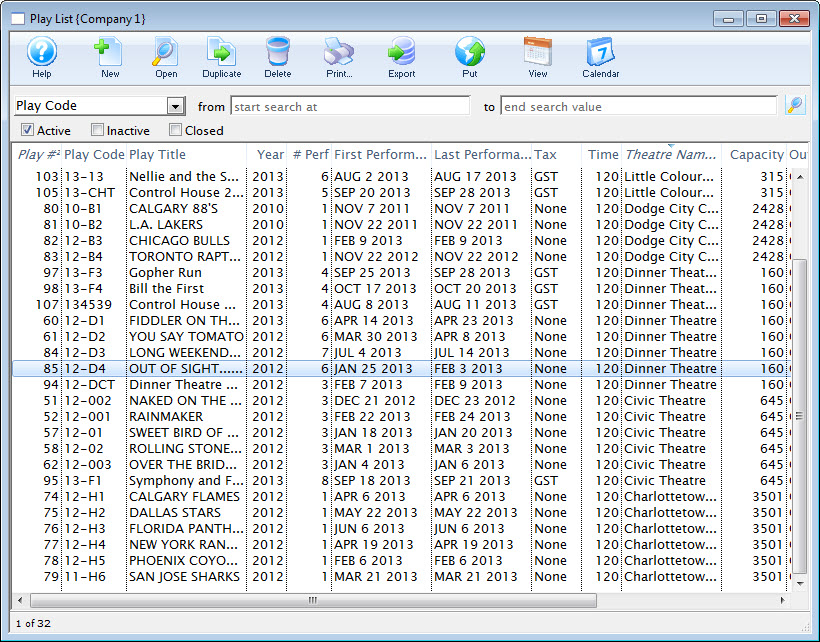
- Click on the
 tab
tab
- Highlight the performance on the left that you are transferring the tickets FROM.
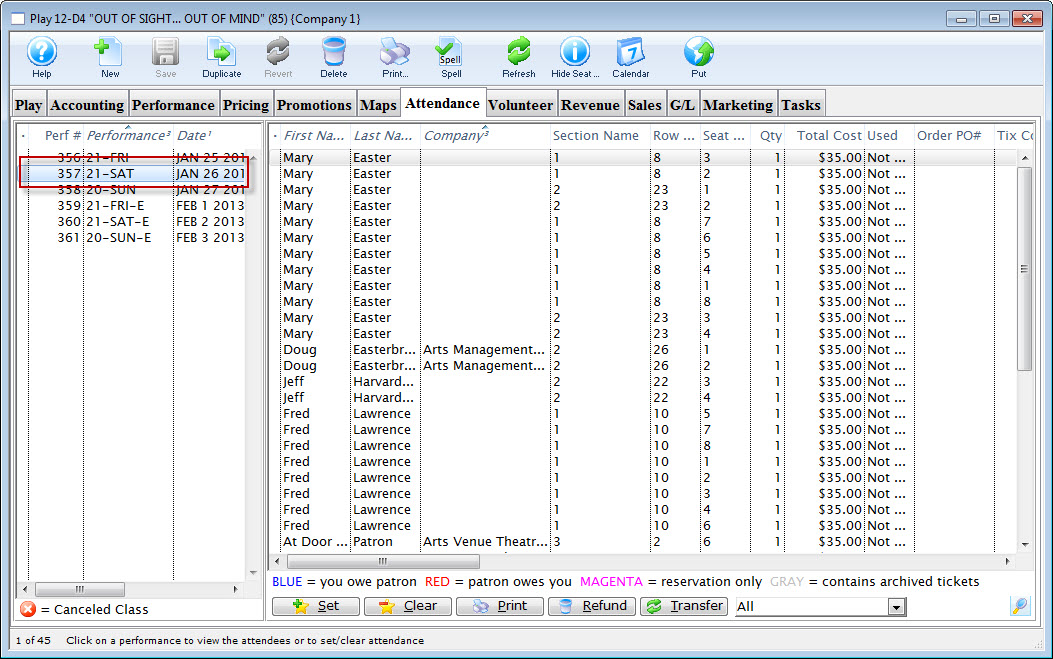
- Highlight the ticket(s) on the right that you wish to transfer.
You can select some or all of the tickets, allowing you to transfer only a sub-group of the total attendance.
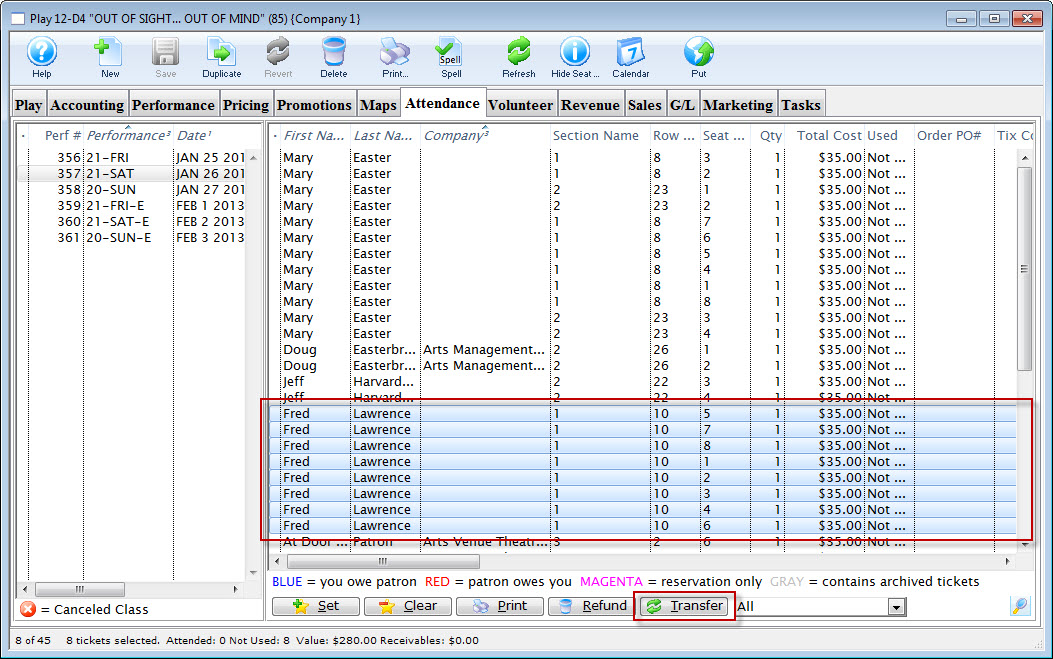
- Click the Transfer
 button at the bottom of the window.
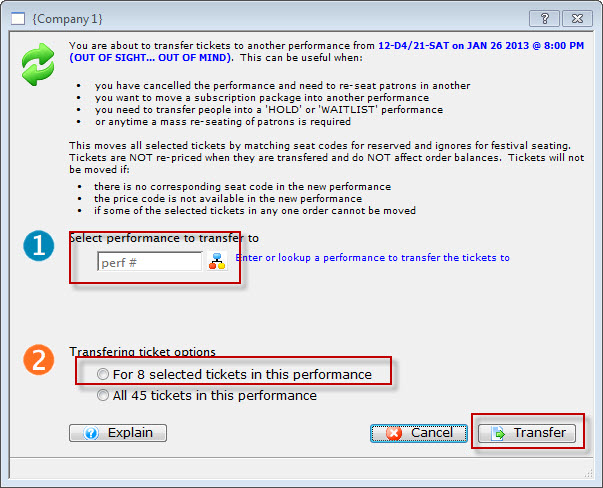
- Enter the performance number you want to transfer the tickets TO.
Alternatively, you can use the
 icon to search for the performance.
 - Select whether you want to transfer:
- Only the selected ticket(s) (in this example, eight tickets), or
- All of the tickets within this performance
- Click the Transfer
 button.
The Transfer Confirmation opens.
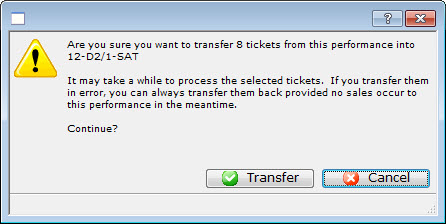
- After you have reviewed the information, click the Transfer
 button.
The valid tickets will be transferred to the new performance.
Volunteer Tab
|
"Volunteer" is a broad term meaning "Personnel," "Volunteers," "Staff," or a variety of other terms. The field refers to any person assigned to an activity - whether they are paid or unpaid. you may have a mixture of paid and unpaid staff within the same event, for example Ushers (who are unpaid) and Run Crew (who are compensated). Since the name of the field is customizable, some organizations may retain the term "Volunteer," while others change it to reflect their own terminology. The nomenclature in your database may be different than "Volunteer." |
This Volunteer tab displays a list of the volunteers (personnel) assigned to each performance of the event, and what their task will be during the performance.
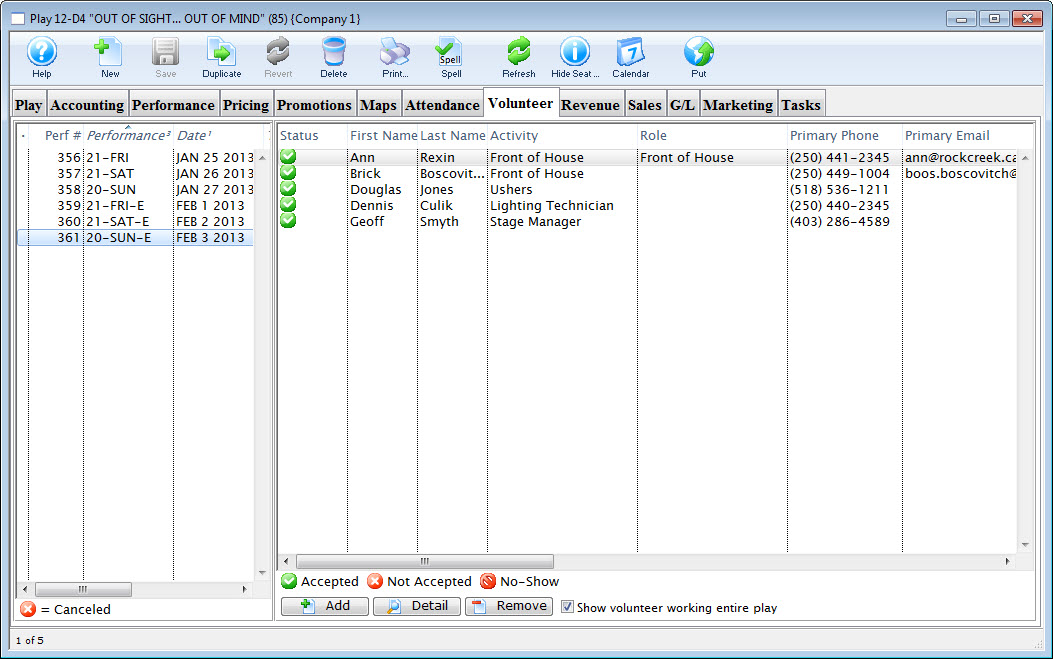
Parts of the Volunteer tab
| Performance Information | On the left side of the window, the listing of performances including the sequence number of the performance, series code, and performance date. |
| Volunteer Information | On the right side of the window, the listing of volunteers assigned to a specific performance. |
 |
Allows you to look up and add a volunteer to the selected performance. |
 |
Brings up the Volunteer Activity Detail window for the selected patron. |
 |
Allows you to remove a volunteer from the selected performance. |
| Show volunteer working entire event | Enabling the check box, displays the volunteers who are working for the entire play. Disabling shows the volunteers who are working the selected performance only. |
Adding Volunteers to an Event
|
"Volunteer" is a broad term meaning "Personnel," "Volunteers," "Staff," or a variety of other terms. The field refers to any person assigned to an activity - whether they are paid or unpaid. you may have a mixture of paid and unpaid staff within the same event, for example Ushers (who are unpaid) and Run Crew (who are compensated). Since the name of the field is customizable, some organizations may retain the term "Volunteer," while others change it to reflect their own terminology. The nomenclature in your database may be different than "Volunteer." |
Adding volunteers to an event is as easy as "drag and drop" from a contact list to the Volunteers window in Event Setup, or using the convenient button at the bottom of the Volunteers tab.
- Open an event through the Setup>>Events & Dates menu, or by clicking the button.
Proceed to the
 tab.
tab.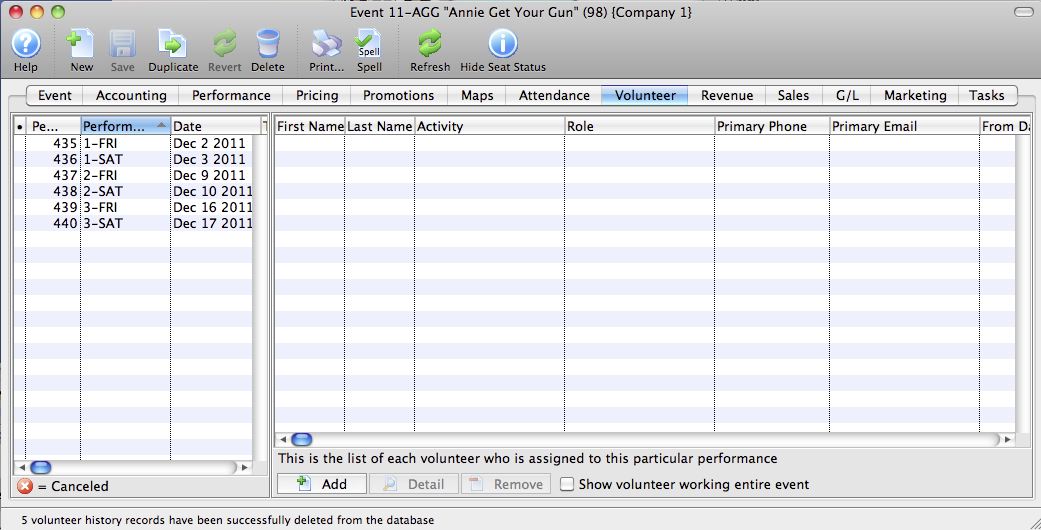
- Highlight the performance on the left-hand side to which you want to add volunteers.
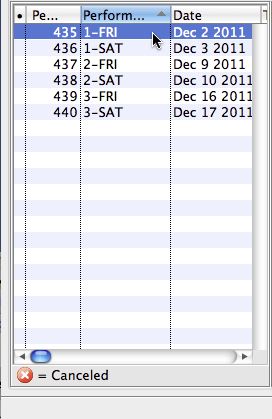
- Click the button at the bottom of the window.
A contact lookup window of Active Volunteers opens.
Patrons must be listed in their patron records as active volunteers with positions they are able to perform. For more information on setting up patrons as volunteers, click here.
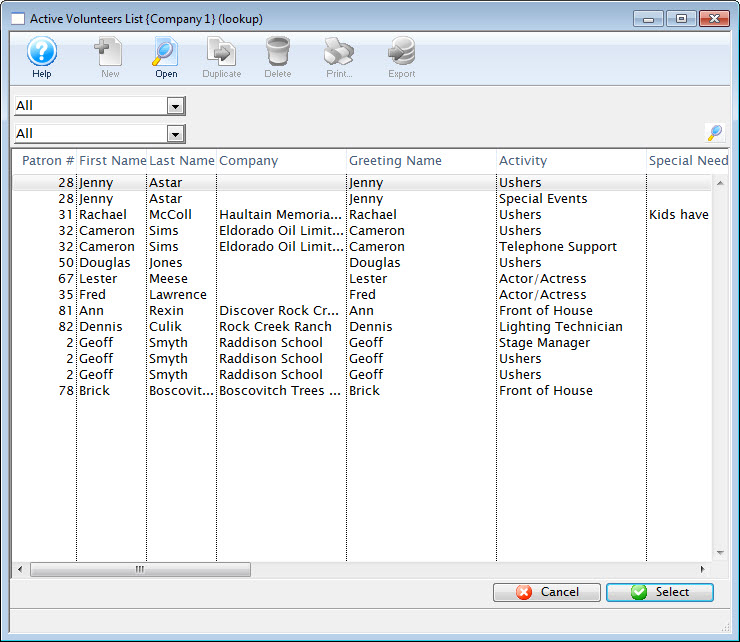
- Highlight the volunteer in the lookup that you wish to add to the performance.
Some patrons will appear more than once in the lookup, indicating they are capable of performing more than one position.
Click the
 button.
Your chosen patron now appears on the Volunteer tab of the event setup.
- Repeat to assign all volunteers
After adding all your volunteers, you may want to edit the details of their assignments to be more specific on the task they are to perform (for example, Ushers may be assigned to "Orchestra" or "Balcony" or "Coat Check," and Run Crew may be assigned to "Fly Loft" or "Spot Operator" or "Grip").
Editing a Volunteer Assignment
After adding all your volunteers, you may want to edit the details of their assignments to be more specific on the task they are to perform (for example, Ushers may be assigned to "Orchestra" or "Balcony" or "Coat Check," and Run Crew may be assigned to "Fly Loft" or "Spot Operator" or "Grip").
- Open an event through the Setup>>Events & Dates menu, or by clicking the button.
Proceed to the
tab.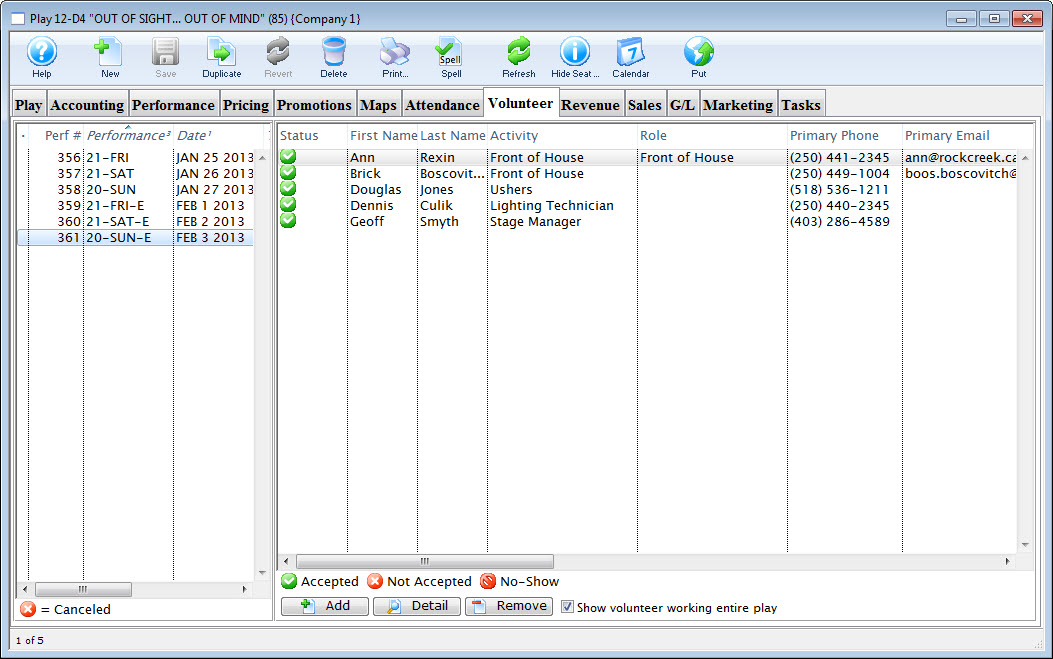
- On the left side of the window, highlight the performance you want to add volunteers to.
The list of volunteers currently assigned to that performance are displayed.
- Click on the volunteer to change their assignment.
- Click the
 button.
The Activity Detail window opens.
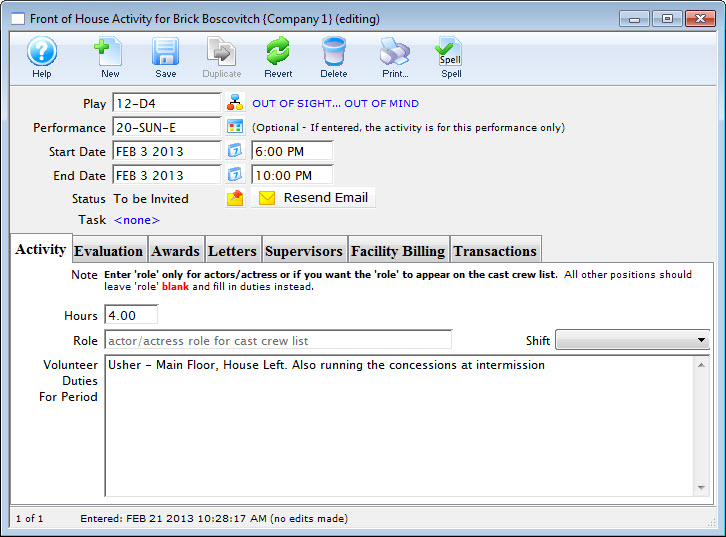
- Edit the Activity Details as necessary.
- Click the Save
 button and close the Activity window to return to the Event >> Volunteer tab.
Removing a Volunteer Assigned to an Event
If a Volunteer is unable to perform the assignment, or you need to remove them from the Volunteers list for any reason, You can do this in the Volunteer tab of the event.
To remove a volunteer from a performance or event, you perform the following steps:
- Open an event through the Setup>>Events & Dates menu, or by clicking the button.
Proceed to the
tab. - On the left side of the window, highlight the performance to remove the volunteer from.
The list of volunteers assigned to that performance opens.
- Click on the volunteer to be removed.
- Click the button.
- Click the
 button.
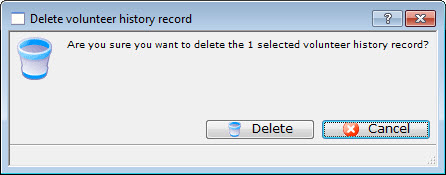
A confirmation dialog opens.
Revenue Tab
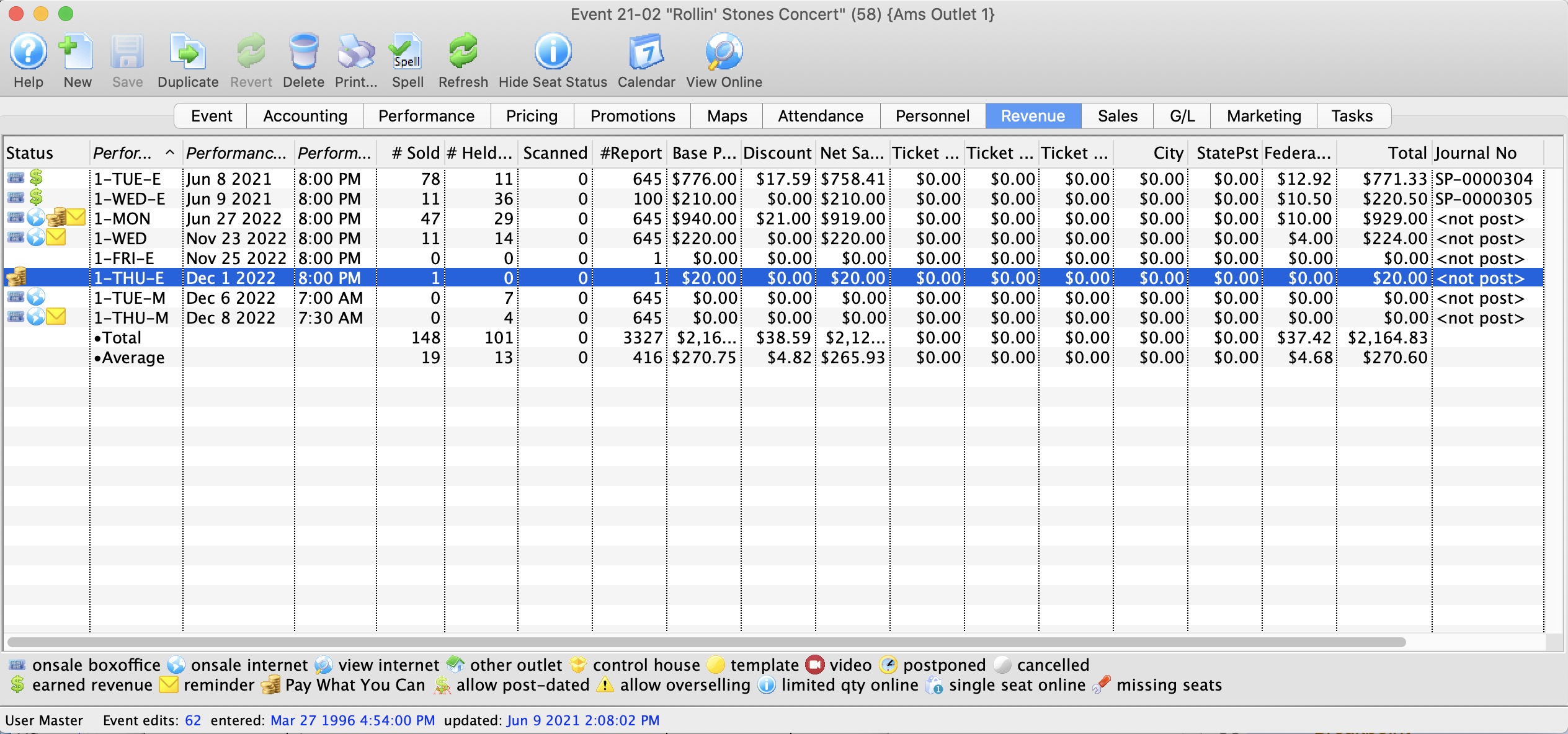
Below is an explanation about each column on this tab.
| Performance Code | This is the code used to track the performance by. |
| Performance Date | The date of the performance. |
| Performance Time | The time of the performance. |
| # Sold | The current number of tickets sold to the performance. |
| # Report | The number of tickets being used for reporting. |
| Scanned | The number of tickets where the patron was marked as attending the event, either from scanning them in using a wireless scanner or by manually setting attendance for the event. |
| Price | The base price pf the ticket. |
| Discount | The total of all discounts. |
| Gross Sales | The total amount of sales minus all discounts, fees, and taxes. |
| Ticket Fee 1 | Total of all fees categorized to this fee. |
| Ticket Fee 2 | Total of all fees categorized to this fee. |
| Ticket Fee 3 | Total of all fees categorized to this fee. |
| City Tax | The total of all City taxes. |
| State / PST Tax | The total of all State or PST taxes. |
| Federal / GST Tax | The total of all Federal or GST taxes. |
| Total | The total of all money collected during payment. This includes fees and taxes. |
| Journal No Code |
If the performance has occurred and you are using deferred revenue accounting, this will be the G/L number that it was posted to.
If the sales posting is SP-000000, then:
If the Journal code is something like SP-xxxxxx, then double click on the line to see the journal entry that shows the quantity of tickets sole and revenues at time or rollover during end of day. Note: the '$' in the status column also indicates that the performance has been rolled over to earned revenue. |
| Performance # | The performance number assigned by Theatre Manager based on order inputted. |
Sales Tab
The Sales tab displays a detailed summary of the sales analysis taken in for the event event. Each line displays the NET number of tickets that were sold, the gross sales in dollars, the amount of markups in dollars, the amount of discounts in dollars, the price before tax, the amount of tax in dollars (each tax level is broken out separately), and the net sales. The price before tax is the gross sales + markups - discounts + 3 levels of ticket fees. The Net Sales is the price before tax + 3 levels of taxes.
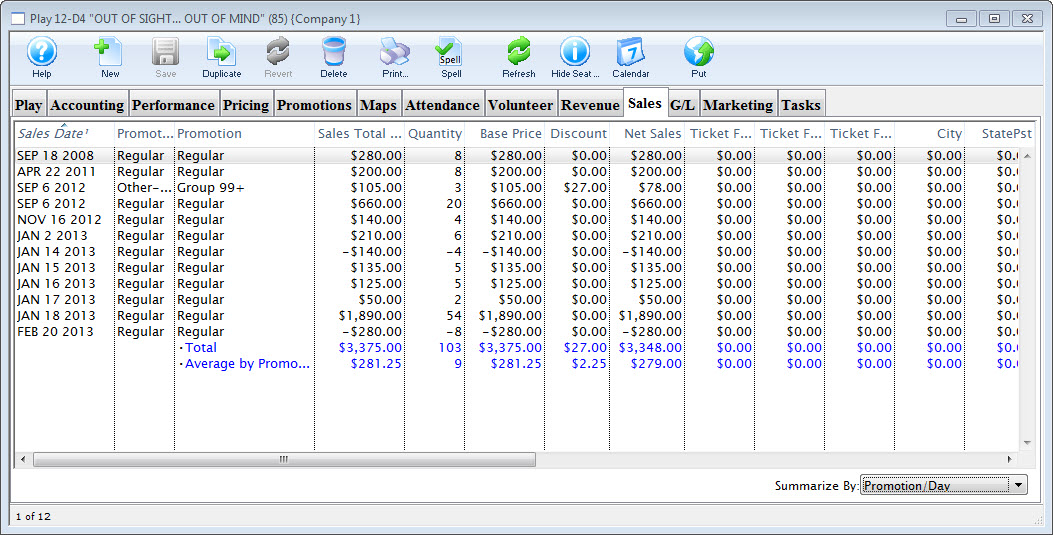
Parts of the Sales Tab
| Sales Date | Date of the sale |
| Promotion Type | Type for G/L Posting |
| Promotion | The name of the promotion |
| Sales Total Price | The total of the sales to the event / play. |
| Quantity | The number of tickets being used for reporting. |
| Base Price | The base price pf the ticket. |
| Discount | The total of all discounts. |
| Net Sales | The total amount of sales minus all discounts, fees, and taxes. |
| Ticket Fee 1 | Total of all fees categorized to this fee. |
| Ticket Fee 2 | Total of all fees categorized to this fee. |
| Ticket Fee 3 | Total of all fees categorized to this fee. |
| City Tax | The total of all City taxes. |
| State / PST Tax | The total of all State or PST taxes. |
| Federal / GST Tax | The total of all Federal or GST taxes. |
| Total | The total of all money collected during payment. This includes fees and taxes. |
| Sales Amount | The total of all money collected |
| Sales Quantity | The numner sold |
| Exchange Amount | Sales that were exchanges |
| Exchange Quantity | Total tickets exchanged |
| Refund Amount | Sales that were refunded |
| Refund Qunatity | Total tickets refunded |
| Commission | Commissions Paid |
| Outlet - Owner | Outlet who owns the event |
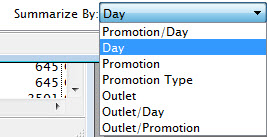 |
Allows you to change the display summary to more closely suit your organizational needs. Choices are:
|
G/L Entries Tab
Refer to how to balance the event after it closes
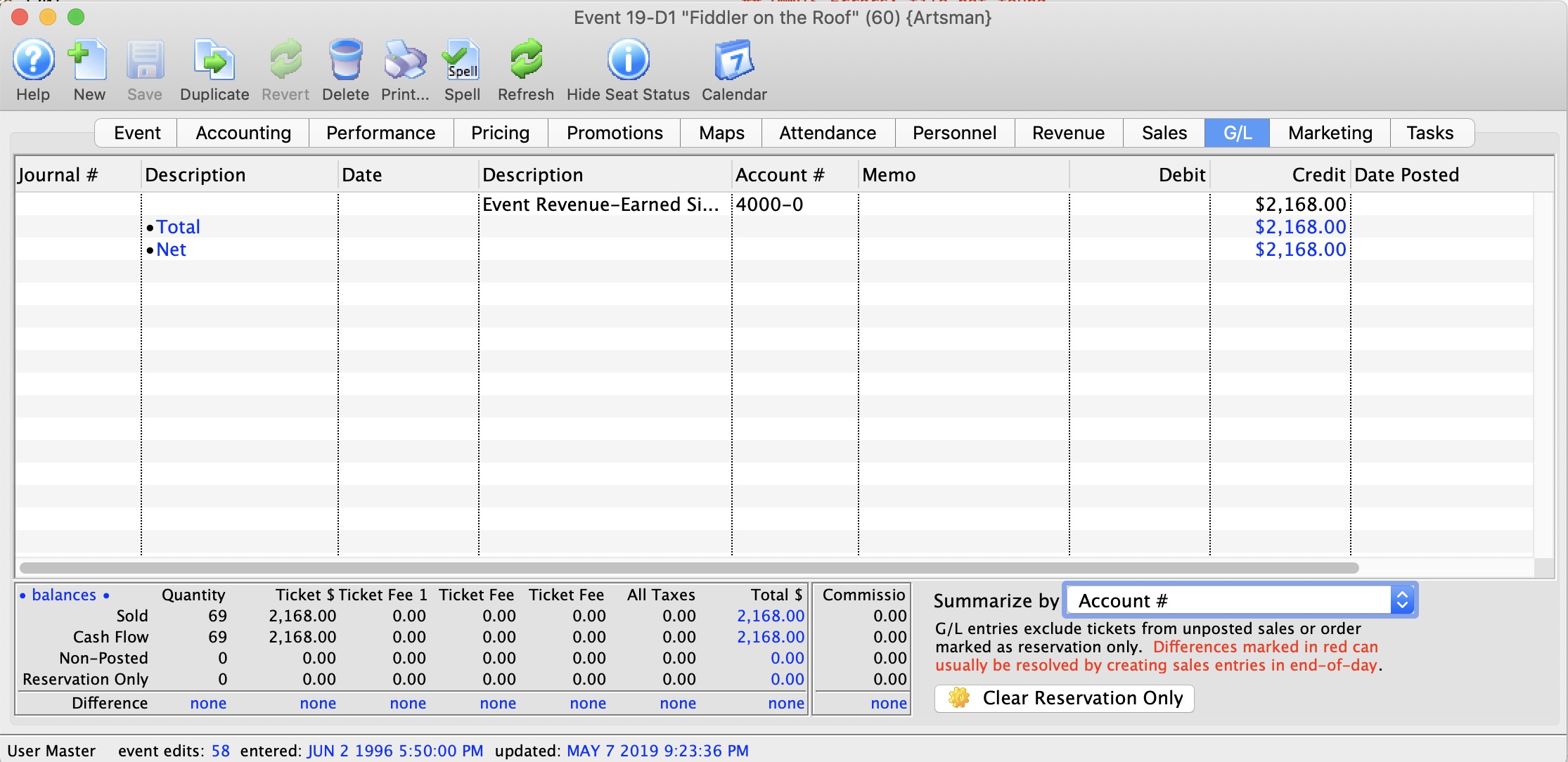
Parts of the G/L Tab
| Journal Number | The specific journal number associated with the G/L entry. |
| Description | Whether the entry is a Sales Posting, Deposit Posting, or manual G/L entry |
| Date | Date the G/L entry took place |
| Account # | The G/L Account number. |
| Memo | A single memo line, generated by Theatre Manager to indicate in the ledger the purpose of the entry. |
| Debit | The debit amount associated with the G/L entry. |
| Credit | The credit amount associated with the G/L entry. |
| Date Posted | The date the entry was posted to the G/L. |
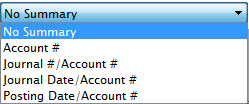 |
You can adjust the summary options by choosing the drop down menu. Selections are:
|
 |
G/L entries do not include tickets from unposted sales or orders marked as reservation only. All difference lines should be zero if the event balances. Click the Clear Reservations only button, to reset the reservation only flag for all tickets sold to this play. |
| Summary Table | At the bottom of the window is a summary listing of the revenue from:
To the right is a commission total. That generally should have totals at the bottom that are zero as well. However, in an outlet version, if one outlet sells the ticket and the owning outlet refunds the ticket, then you will see non-zero totals. That indicates tickets were exchanged or refunded or the user by the owner of the event and the original outlet is still is due their commissions on the work they did. |
Balancing after event completed
- Making sure that all parts of the event balance (tickets, compared to daily sales, compared to the general ledger
- Verifying that all revenue is in the proper earned accounts (and nothing is left in the deferred accounts if you were doing deferred revenue accounting -and-
- If everything balances, then close the event to prevent further ticket sales, exchanges or refunds from occurring to the event. If you subsequently find that you want to refund a ticket, you can reopen the event, then close it again after the refund is done.
|
The best time to balance the event is after the last performance has occurred and after you have done end of day to move all deferred revenue into earned. |
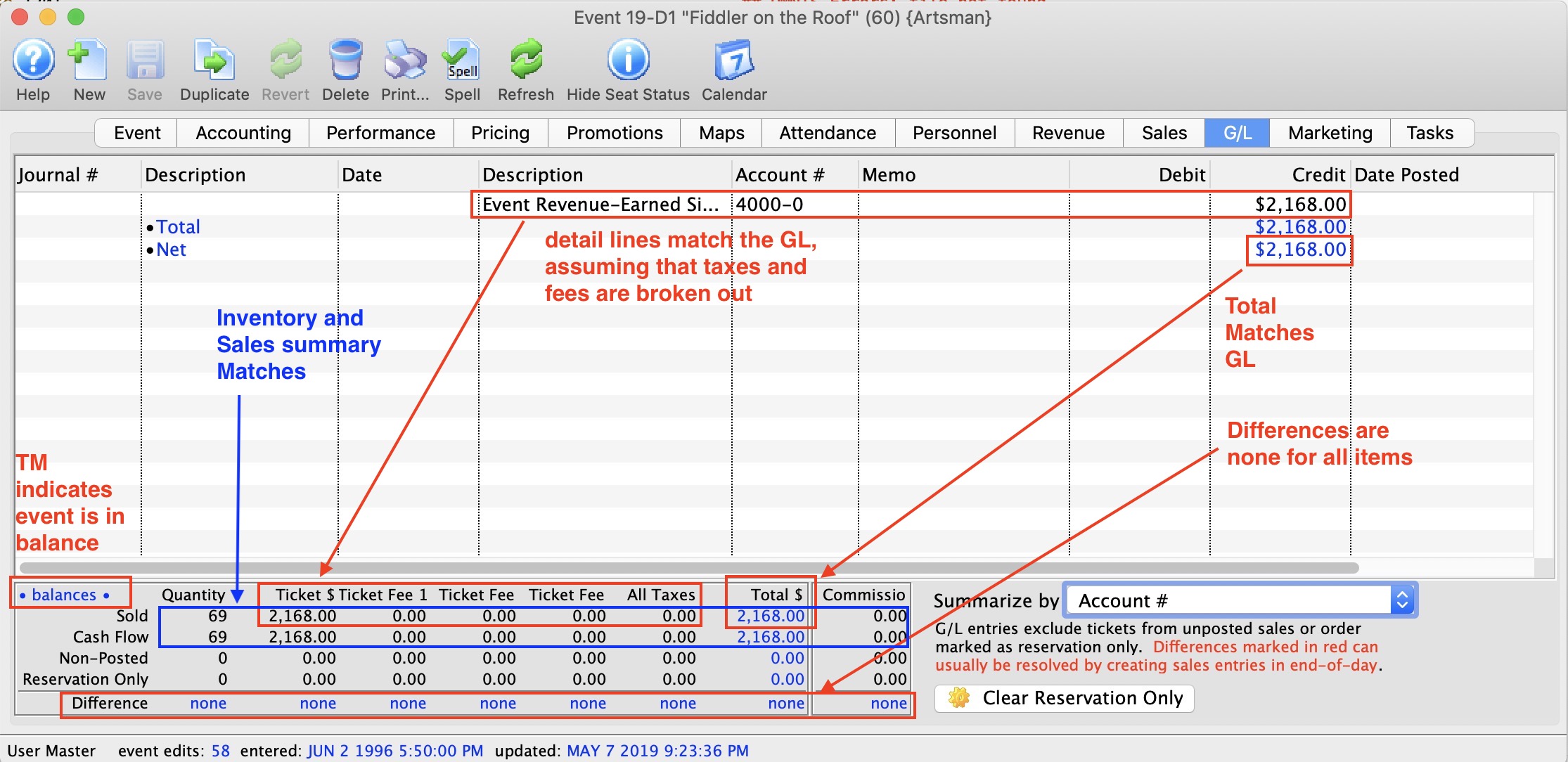
Verifying that Ticket Inventory and Financials Transactions Balance
The quickest check is that the word • balances • appears at the top left of the lower part fo the screen. If it says this, it usually means that all the other aspects below balance.
The meaning of the various lines ay the bottom are:
- Sold Line is the number of sold tickets from inventory. This is the absolute revenue, most correct values for sales to the event:
- Quantity The number of tickets sold from inventory
- Ticket $ This is the values of tickets sold, less discounts - or the net sales
- Ticket Fee 1 The total amount of ticket fee 1 for all the sold tickets. If you have named ticket fee 1 something specific, it's name will appear here.
- Ticket Fee 2 The total amount of ticket fee 2 for all the sold tickets.
- Ticket Fee 3 The total amount of ticket fee 3 for all the sold tickets.
- All Taxes The value of all the taxes attached to the sold tickets (local, provincial/state, Federal
- Total $ The total amount of money taken in for all the tickets. it is the ticket$ + ticket fees + all taxes
- Commission If you set up paying commission for tickets, this will be the total commission associated with the sold tickets. it is NOT part of the Total sales, since it would be an expense payable.
- Cash Flow Line: is the summary of all ticket transactions created from tickets sales.. The values is each column should be exactly the same as the values from the Sold Line form Inventory. If it is not, then some transactions have not been created from end of day, or somebody was playing with transactions and may have duplcaited them. Contact Arts Management support if you find they do not match
- Non-Posted: Transactions may exist, but may not have been posited during end if day. If there are values in this row, it means you should complete end of day. before attenpting to balance.
- Reservation Only: Some tickets may have been marked as reservation only - which is an ancient practice of selling tickets before they were paid for and not telling accounting. if you see any number is this row and you are done with the event, then
- Click the Clear Reservation Only button to unmark the tickets and make then enter the accounting system
- Run your end of day. All data in the 'non-posted' and 'Reservation only' rows should move up into the sold and cash flow lines
- Run a report to find receivables for the event to see if some tickets should be returned because they were school or group sales that did not attend and wouldn't be paying
- Start your comparison again
|
If end of day has been run and the values at the bottom of this area all say the difference is 'none', then ticket inventory and transactions balance.
That reinforces the confidence in the GL entries discussed below. |
|
If some lines are not quite right, there are two things that might find the difference:
|
Verifying that Ticket Inventory and GL are in the right place
Once you haven 'none' in the difference row, we need to see what the make sure that the state of the accounts that post to the GL are correct.
-
If using deferred revenue accounting, you should see some of your deferred accounts in the upper list. However, they should all be zero. If they are not zero, then there are two possible problems:
- You might still have the last performance to roll over. If you roll over each performance on the day after, then you may need to wait till the day after the event and do end of day. That should fix it. if it does not, then its probably the next problem
- or, somebody changed the deferred accounts in the middle of the sales for this event. That's usually obvious one of your deferred accounts is negative and matches the amount in your other deferred accounts. That means you need to make a GL entry to put things in the right place (in theatre manager)
- The earned accounts should match up to the Sold inventory line. If you have separated out ticket revenue, taxes and fees into separate G/Ls, then the numbers will be obvious. if you didn't. you might have to add up a few numbers to see that they are right.
- Finally, the Net Credit should be the same as the 'Total $' in the 'Sold' column
Marketing Tab
In the Marketing tab, you can configure the Marketing notes for the play. You can also add the play to a mail list and include external and internal notes for your Box Office Staff. Information you enter on this page will appear on your page in the Ticket Trove iPhone and iPad app.
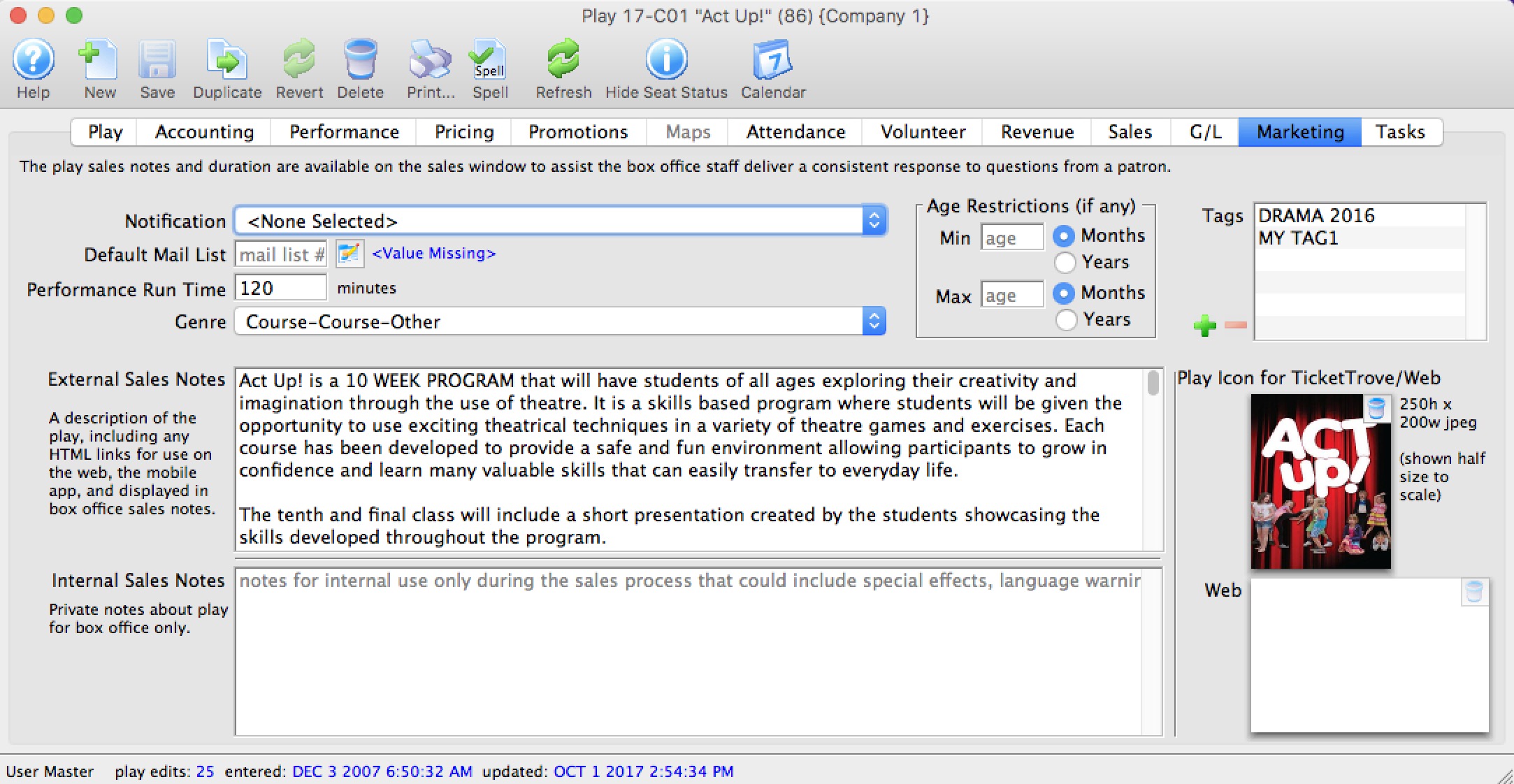
Parts of the Marketing Tab
| Notification | The email notification that will be sent when tickets are purchased to this play. Click here for info on work flow notifications. |
| Default Mail List | Allows you to assign this play to a specific mail list. |
| Running Time | Running time or duration of each performance in minutes. Also displays for Web Sales, facility management calendars and in the calendars exportable in .ics format. |
| Genre | Genre is a setting for events that is common across all Theatre Manager customers. Currently, there are about 30 classifications which will be used in the iPhone/iPad app to help customers find entertainment to their liking. |
| External Sales Notes | Marketing notes for both your Box Office staff and for Web Sales. |
| Internal Sales Notes | Marketing notes that appear to you Box Office staff, but not on the Web. |
| Event Icon for Web/iPhone App | If there is a graphic in the event, entering it here will display the graphic for all performances of the event. |
| Tags | You can add any number of tags to the event. |
Add an Image to the Event / Play Window
You can add two images to your web sales for each event quite easily. One image is the smaller picture to the left of each event listing. The other is a larger picture (poster style) when the event is selected online. The smaller image also serves as the picture used in the TicketTrove app. If the image is added to either of these two locations, then the TMServer (SecondGen Web Listener) will automatically pick up the image and place it on your website.
If no image is added to the smaller box on the MARKETING tab of the event setup, then the default image from Setup>>Company Preferences>>REPORTS/MISC tab is used.
To add an image for Web Sales and Ticket Trove, you perform the following steps:
- Find the Event you want to add the images to.
Click the Marketing tab.
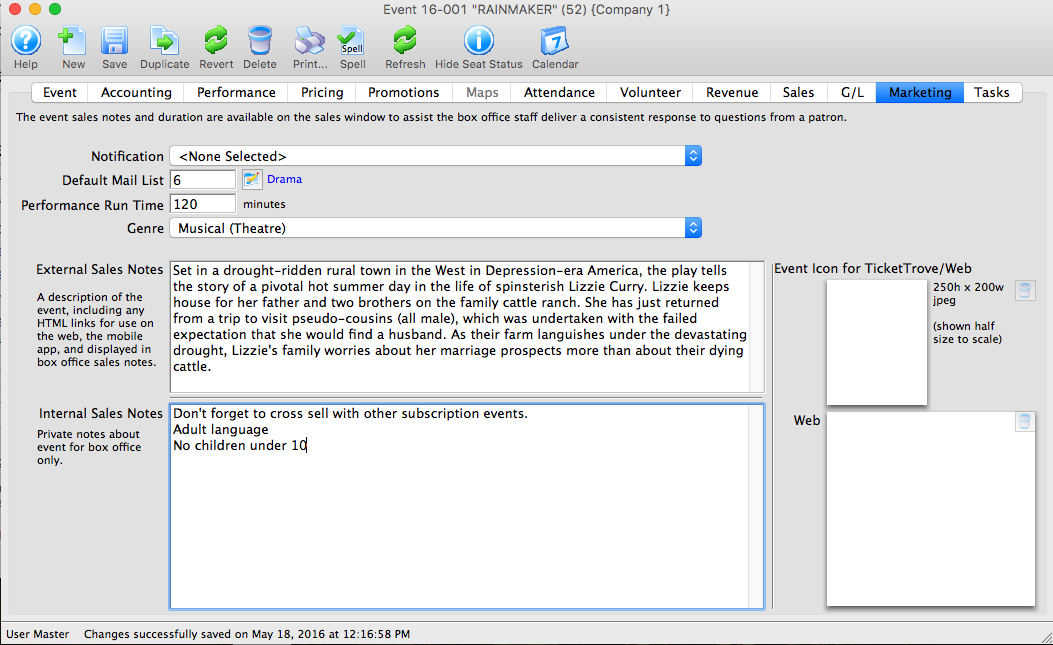
- Open your Operating System File Manager/Finder.
- Drag and drop your images into the Play Icon for Ticket Trove / Web display box.
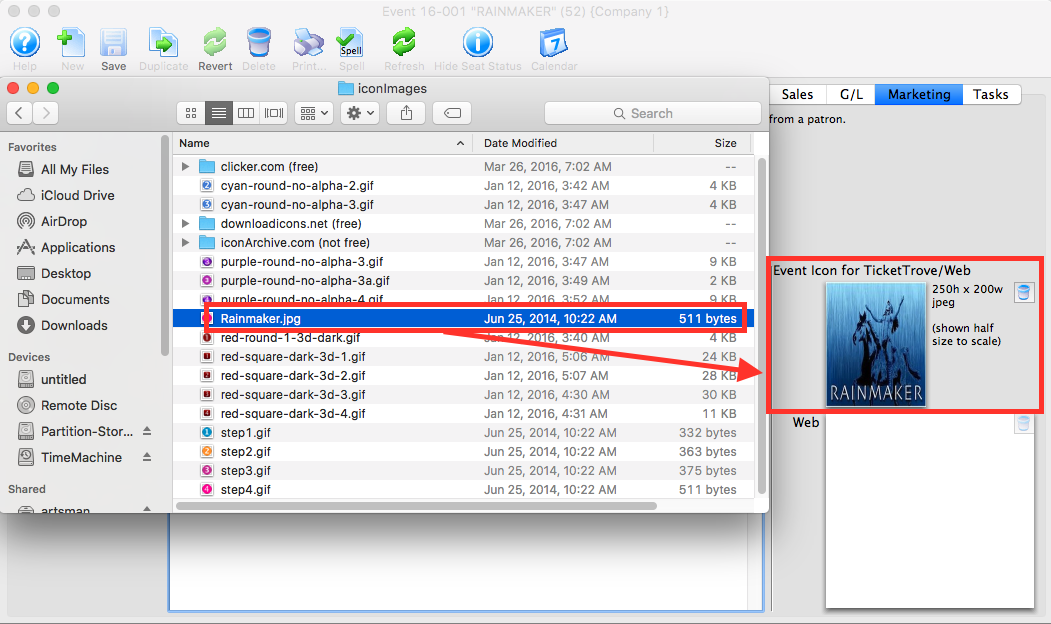
The Ticket Trove image must be 250 pixels high x 200 pixels wide
- Add the web image in the same manner as the TicketTrove icon.
This image has no size restraints, however for speed of loading we recommend small sized (kbs not mbs) images.
- Reload or Refresh your web browser to see the update image.
Removing an Image from the Marketing Tab of an Event / Play
- Open the Marketing Tab of the Event/Play Setup.
For instructions on how to access the Event/Play Setup, click here.
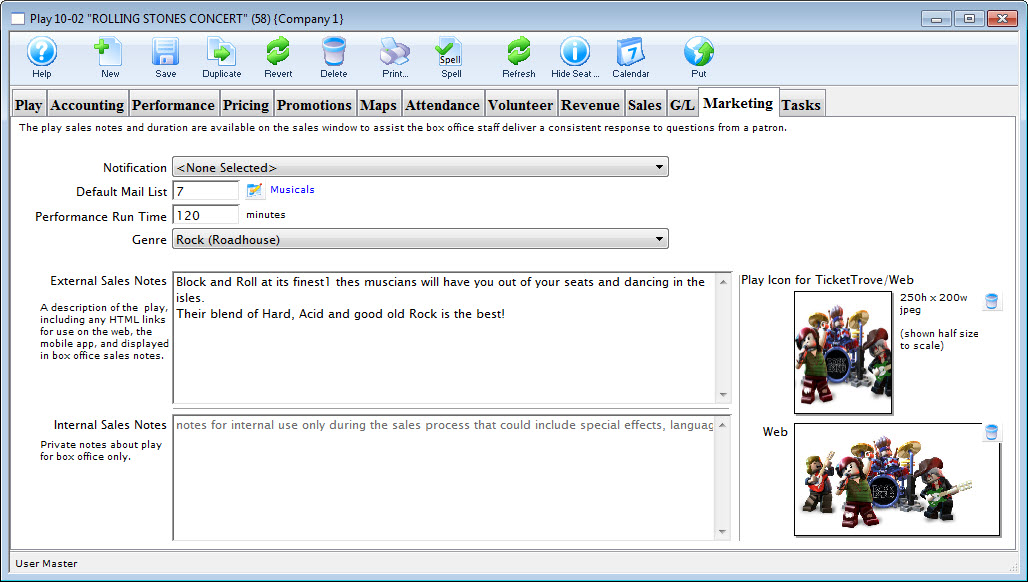
- The images previously placed, display in the icon boxes on the right of the screen, click on the trashcan
 icon.
icon.
This removes the image from the database and it will no longer be displayed on the web site.
Tasks Tab
Any tasks associated with an event / play can also be seen in the Event / Play window. From here you can add tasks and associate them with resources, so you can create all the tasks needed for a particular event / play. These can then be added to a project and billed.
Tasks are added on the left side. Once a task has been added, you can select the task and add the resource on the right side.
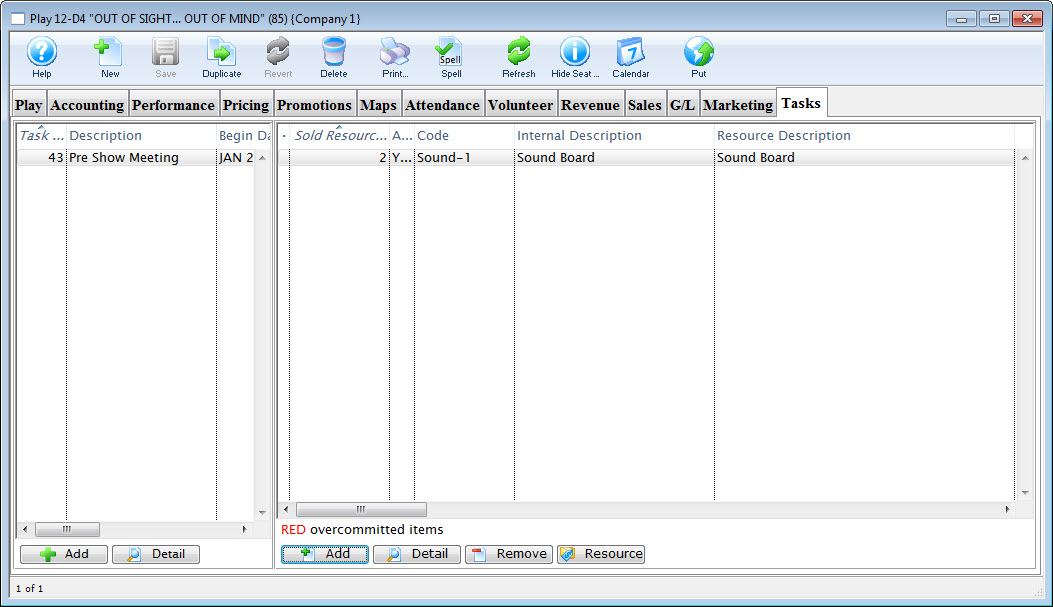
Click on the Calendar button in the window's top toolbar to view all tasks, performances, and/or volunteers associated with the event / play in a new calendar.
For more information on Tasks, click here. For more information on Resources, click here.
Parts of the Tasks Tab
Task Information |
|
| Task # | The task number as displayed in the task # field of the Task window. |
| Description | Name that shows in the resource list and elsewhere in Theatre Manager. |
| Begin / End Date | Dates as entered in the Task Detail window. |
| Task Notes | Any Notes associated with the task. |
 |
Opens the Task Detail window to add a new task. Click to go to the Add Task page. |
|
The Detail button opens the Task window for the selected item. |
Resource Information |
|
| Sold Resource # | Displays the Project number of the Project |
| Code | The unique Resource Code assigned to the particular resource. |
| Internal Description | The internal description for the resource (shows only inside the Theatre Manager application). |
| Resource Description | The name of the resource. |
| Quantity | The quantity of the specific resource listed in the database. |
|
Opens the Resource Detail window to add a new resource. Click to go to the Add Resource page. |
|
Opens the Detail window for the selected resouce for review or edititng |
|
Removes the selected Resource from the list |
 |
Opens the Resource Detail window displaying all the information on the selected resource. |
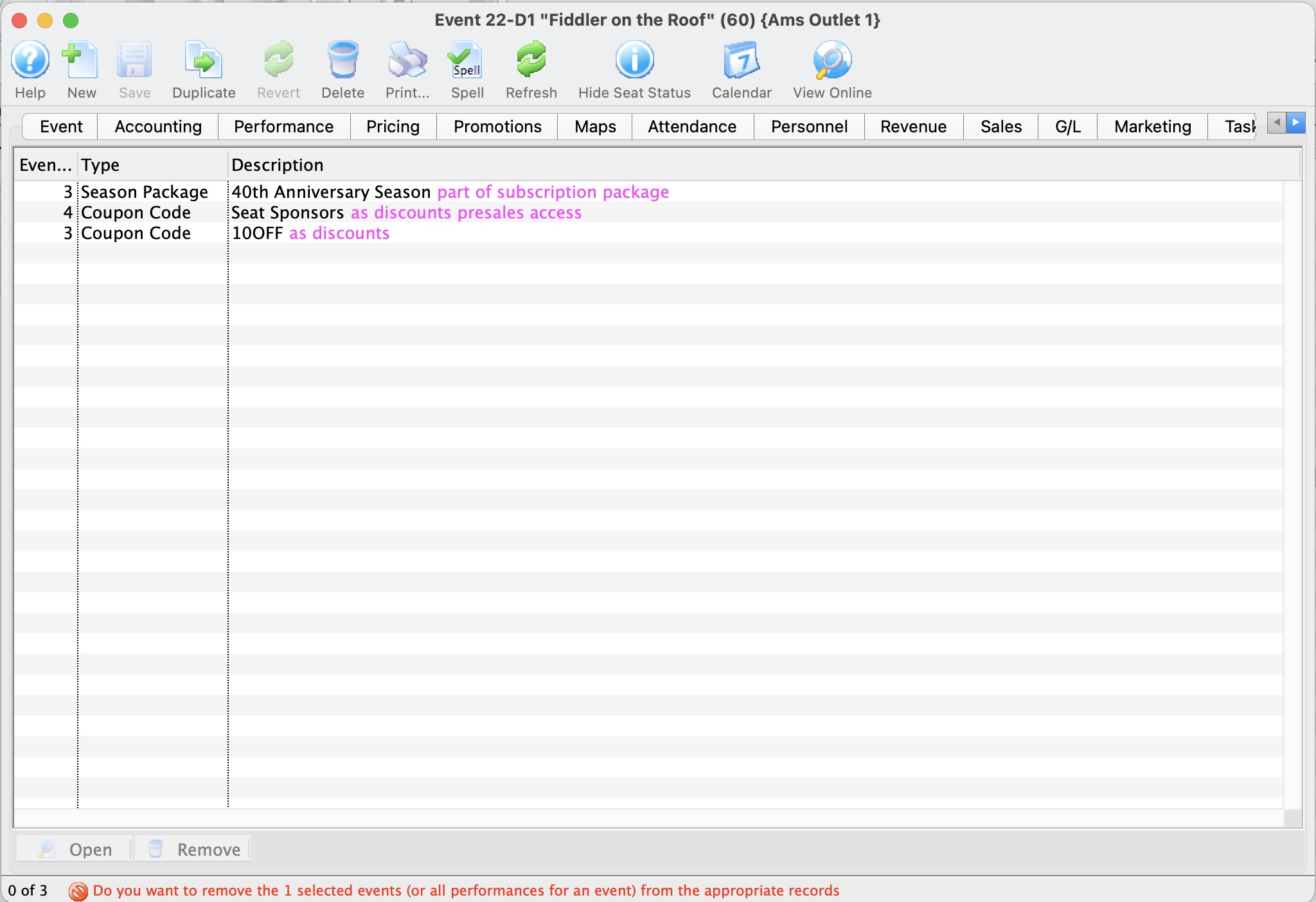
Creating a New Event / Play
Creating New Events / Plays
|
Typical time to program an entire season of 8 or so plays is usually easily done within a morning (including coffee). |
Creating the event (Summary of Steps)
To create an event from scratch, you use the steps that follow. Links are provided to explain each window in detail. The general steps are:
- Name the event
- Set up the Accounting
- Enter the Marketing information and images
- Create the performances (you can do this as many times as you need if your patterns are interesting, or want add performances later)
- Price the tickets for the performances
- Enable any discounting you want on the performances
- and then you are done, ready to sell the tickets
Step by step creating the event
- Open the Event / Play List Window.
Click here to learn how to access this window.
- Click the New button.
The fields are blanked to allow you to add new data.
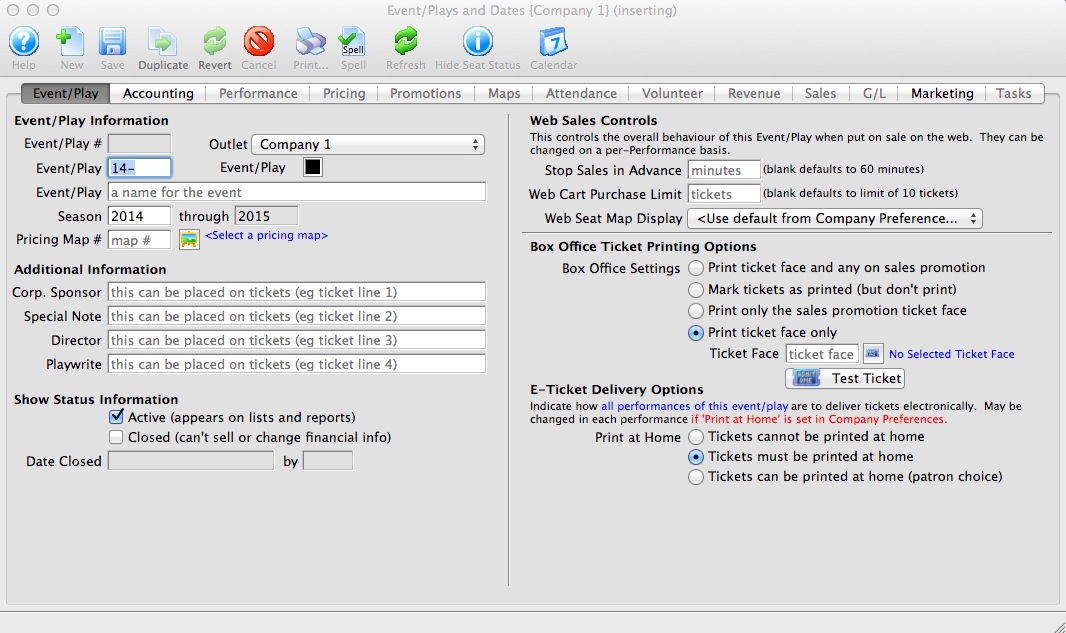
- Enter the Event / Play information.
Click here for more information on Event / Play Information tab.
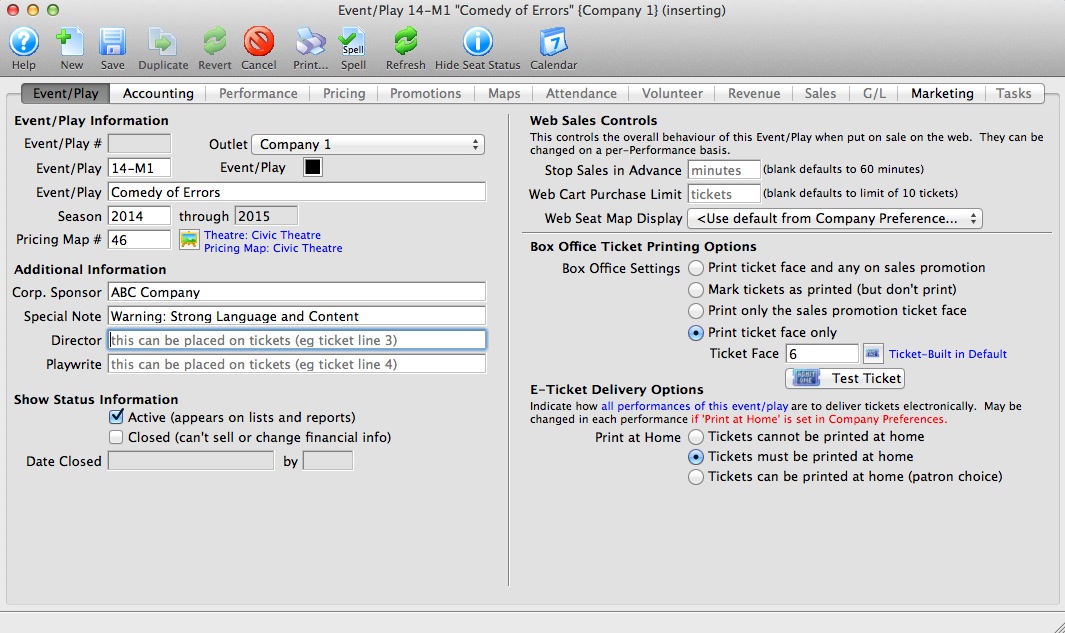
- Click the Accounting tab.
This is more fully described in Accounting setup. If account codes for events do not vary, it can be easier to simply start by duplicating a prior event and then change the name of the duplicated one.
When accounting is set up, click the Save button to activate the rest of the tabs.
You may want to create some general ledger account number for the new event / play pror to setting up the event. If so, refer to General Ledger Accounts for more information. Venues that do profit/loss by event using class codes, category codes, or job cost code (the name depends on your financial system), often use the same accounts for each event they set up and, instead, rely on the job code in end of day accounting separation in the revenues by event report.
- Click the Marketing tab.
Refer to Marketing Tab for more information. This is where you provide any images, text and genre's that will appear in the online sales module.
- Click the Performances tab.
This allows you to set up and number of performances using many different sales methods (eg a mixture of reserved, general admission, touring, classes and more, if all are related.
- Click the Pricing tab.
After performances are entered, you need to set the Base prices for each pricing zone you created in your venue. Once you set up one performance, you can copy those prices to the other performances if they are similar.
- Click the Promotions tab.
Promotions are a way of setting the valid discounts on tickets for each performance. You typically start with your menu of available promotions and disable the ones you don't want to allow for a performance. For example, you may not want group sales or certain comps on opening night.
- You can now start selling the event
The remaining tabs show information about the current state of sales such as:
- Maps - shows which seats are taken on any reserved seating performance at a glance
- Attendance - shows who is coming to the event
- Personnel - indicates who is working each performance if you are tracking these things for volunteers or facility management
- Revenue - shows total sales for each performance
- Sales - allows various summarizations of WHEN people bought tickets to correlate to marketing events or onsales
- G/L - shows the journal entries showing sales posted to the accounting system via the end of day process
- Tasks - shows any tasks assigned to the event for any purpose. The can be renter related tasks (move in/move out), or technical activities like maintenance and cleaning, or admin activities like backstage tours
Adding Performances
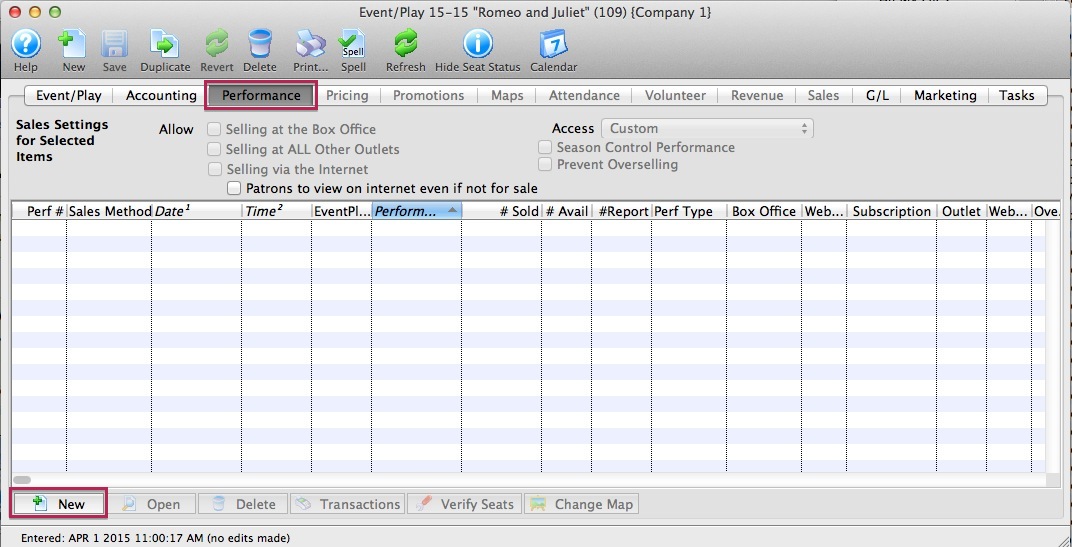 Once you have created an event you can add the performances to sell tickets to.
If you have:
- created your event, refer to the add performance wizard that guides you through the process.
- Click on the New button on the performance tab to start.
- not yet created an event, click to learn how to create an event
There a subtle difference when the actual ticket inventory is created.
Reserved Seating
Tickets are created at the same time as the performance is created. One ticket is created for each seat in the theatre so that tickets always exist for every seat. This ensures that there can never be a double seating issue!
All other sales methods
Tickets are created at time of sale and a ticket can represent an admission of a number of people (e.g. admit 10). If a ticket always represents one admission, the number of tickets created will be similar to reserved seating.
Step 1: Number of Performances
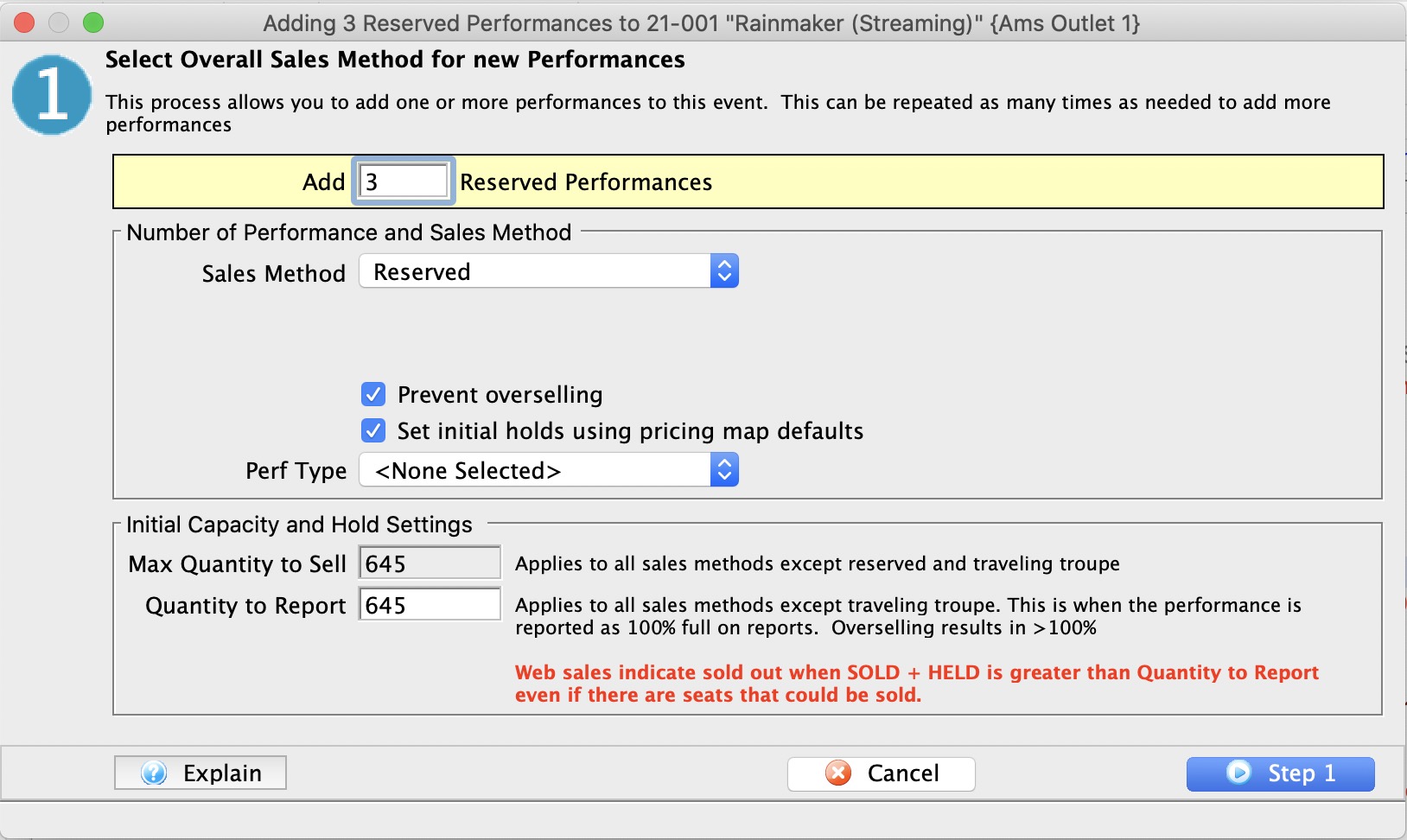
The first step is to identify the primary sales method and the number of tickets that can be sold in each performance. The data required is:
| Number of Performances |
Enter the number of new performances you want to add.
If you have
|
Sales Method and Map Settings | |||||||||||||||||||||||||||||||
| Sales Method |
The sales method indicates to Theatre Manager how you want to manage the sale. The three key methods are General Admission/Festival Seating, Reserved, and Course/Classes.
In the Sales Method drop down list, choose the primary type of seating that will be used in this performance. You can change it later on a per performance basis in the calendar.
|
||||||||||||||||||||||||||||||
| Performance Type | Performance type is a customizable code table field you can use to flag specific performances. You can use it for display on the web. It can also be used for reports to narrow down searching for specific performances in reports. | ||||||||||||||||||||||||||||||
| Prevent Overselling |
This field indicates if you want to prevent sales to occur over the Max Quantity to Sell amount. It might be useful to deselect the option for outdoor events where there is no practical limit to the number of tickets that can be sold.
This only applies to General Admission/Festival Seating. |
||||||||||||||||||||||||||||||
| Set Initial Holds |
On a pricing map, you can set up a standard holds in the venue for house, sound, ushers, artists etc. When you click this optionL
|
||||||||||||||||||||||||||||||
Capacity and Reporting | |
| Max quantity to sell |
For reserved events, this cannot be changed as it is the total seats in the pricing map. For other sales methods, you can restrict the number of sales to this value.
For example, you may normally have 400 seats in your theatre, but the designer has created a set that obstructs 50 seats. You do not want to create another theatre map, or you just don't have access to them. Enter a quantity of 350 seats to sell. That will be your house total for that event. |
| Quantity to report |
Use this setting to indicate when you tell online sales and reports that you are 100% full. It includes all SOLD and HELD seats.
In the prior example, If you have 400 seat house and 50 blocked seats, you can sell 350 seats. If you indicate that the Quantity to Report is 275, then web sales will stop when SOLDS + HOLDS > 275, leaving 75 seats unavailable online. Refer to further description of meaning of Quantity to Report in performance setup This option is not applicable for Traveling Troupe. |
Step 2: Initial Sales Settings for Performances
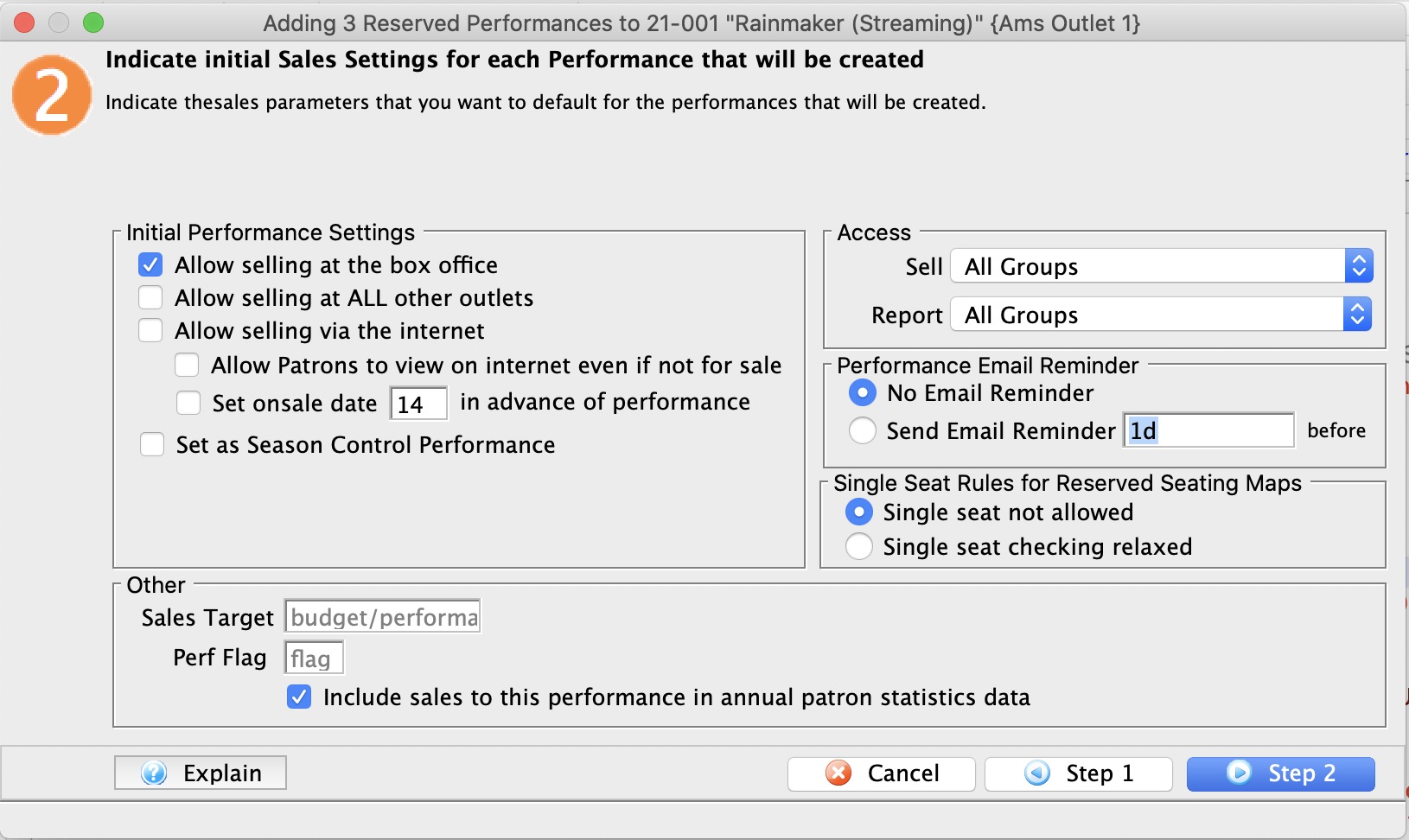
Initial performance settings let you set up how you would like the event to work. These can be changed:
- individually on the performance detail and
- some can be changed en masse on the performance list
Initial Performance Settings |
|
| Selling at the Box Office | Checking this box allows you to sell the performance at the Box Office. |
| Selling at ALL Other Outlets | Checking this box allows you to sell the performance at other outlets. If you allow a performance to be sold at another outlet, you can now specify which outlets have the capability so that each performance can be sold by different people. |
| Selling via the Internet | Checking this box allows you to sell the performance on the Internet. |
| Allow Patrons To view if not for sale | If checked, then the event can be set to show online as coming up, even if not yet for sale. It allows pre-announcing events without enabling for sale. |
| Set onsale date in advance of performance |
When creating a number of new performances, you may want to stagger when they go on sale online.
If you enter a value for the number of days in advance of the performance, then theatre Manager will automatically calculate the onsale date based on the performance date during initial creation of the performance. For example, you may want to set the onsale date 3 months in advance of a long running show. |
| Season Control House | Checking this box allows the performance to be used in a Control House for subscribers. |
Other |
|
| Sales Target | You can enter the sales target for each performance. All performances will get the same value and is placed on some reports.
If the target is to be different on each performance, you will have to correct it after the fact on the performance window for each performance. The Sales Summary-Quick report can be configured to shows this data in the parameters tab. |
| Perf Flag | A special flag used to denote Performance. This is typically used for a plug-in for Web Sales. |
| Include in Patron Statistics | Include any sales totals for this event in each patron's annual patron statistics tab at the bottom of the patron window. Normally you would want this. |
Access |
|
| Sell | Allows you to control what user access groups have the ability to sell this performance at the box office. |
| Report | Allows you to control what user access groups have the ability to run reports containing this performance. |
Performance Email Reminder | |
| Send Reminder | You can indicate if you want an email reminder sent to patrons who purchase to a performance. This email can be customized to each event or performance by duplicating and editing a web page, or you can use a default one. |
| Reminder in Advance Time |
If you do want an email reminder sent for any performance, then you can indicate how far in advance of the performance it should be sent. This value is typed in weeks, days, hours, and minutes format. Example values are:
Any ticket to the event bought closer to the performance than the email reminder time will receive an immediate reminder. |
Single Seat Rules for Reserved Seating Maps | |
| Single Seats not allowed | Means that a patron selecting tickets online will not be able to make a seat selection anywhere in the map that would leave a single ticket. This option is designed to maximize revenue and is the recommended/default option. |
| Single seat checking disabled/relaxed |
Means that a patron can pick any seat they want and leave single seats on the map. This maximizes patron choice, so the patron could:
|
Step 3: Performance Date Pattern
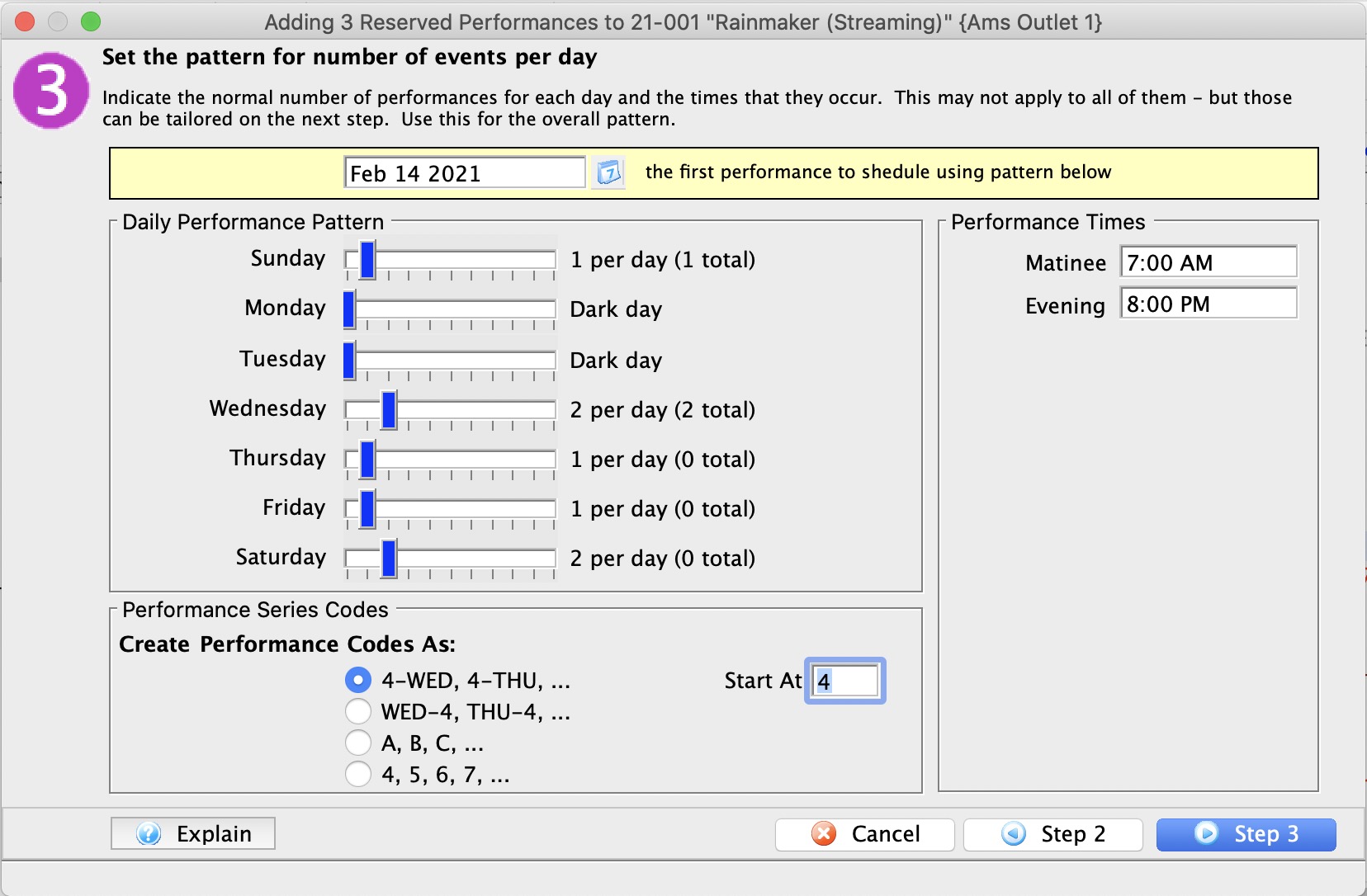
| Date of First Performance |
Enter the date of the First Performance (if no performances already exist,) or the next Performance (if you are just adding another performance).
The date that is entered here is not written in stone. It can be altered in the calendar by dragging a performance and/or it can be edited after the fact if you want to move a performance. It is meant to be used as a guide in creating all performances for the event. |
Daily Performance Pattern |
|
| Weekdays |
Using the slider for each day, select the maximum number of performances (up to 10) that typically occur on each weekday
If you have multiple performances on a specific day of the week, select that number and additional performance times will appear on the right hand side. The number of performances is to be used as a general pattern when setting up the performances date and times. |
Performance Times |
|
| Time slots | If there is a day of the week that has more then one performance then you may set a matinee time as well as an evening time. These times are to be used as a general guide line when setting up an event. They can be changed at anytime after the performance has been created. |
Performance Series Codes |
|
| Create Codes as | Refer to Performance Codes for more information |
Performance or Series Codes
|
It is important to know that each performance within the event code MUST be unique. |
|
Comparable performances in multiple events can have the same series code so that you can manage or sell a subscription. Selling a subscription will sell all events (in the season package) with the same performance/series code. |

If it is important to find a particular performance (1st Friday) for several events at the same time, each series should have the same code. This becomes very usefully when a patron is booking a season subscription and would like to attend the same time every month. Establishing a consistent nomenclature for the Event and Performance codes saves time during the sales process.
The following examples are recommended as an easy way for the sales person to verify that they have the correct performance. Codes should be in a week - day - performance format.
Week Long Performances
The following example would allow for easy comparison of week-long runs of shows.
| 1-SAT | For the performance on the first Saturday. |
| 2-SUN-M | For the matinee performance on the second Sunday . |
| 3-SAT-E | For the evening performance on the third Saturday. |
| 3-SAT-M | For matinee performance on the third Saturday. |
| 3-SAT-A | For morning performance on the third Saturday. |
Single Day Performances
If you do not have multiple performances per day the next example would allow for an easy comparison of the days of the week.
| SAT-1 | For the performance on the first Saturday. |
| SUN-1 | For the performance on the first Sunday . |
| SAT-2 | For the performance on the second Saturday. |
| SUN-2 | For the performance on the second Sunday. |
Multiple Performance Event/Play
If you have multiple performances per day the next example would allow for an easy comparison of the performances per day.
| 1-SAT-1 | For the first performance on the first Saturday. |
| 1-SAT-2 | For the second performance on the first Saturday. |
| 1-SAT-3 | For the third performance on the first Saturday. |
| 1-SAT-4 | For the fourth performance on the first Saturday. |
Single Performance for an Event/Play
If you have an event/play with only one performance, create the performance code as follows.
| SHOW | For the performance of a play where there will be only one performance. |
| CONCERT | For the performance of a Symphony, Band or music. |
| GAME | For the performance of a sporting type event/play. |
| DRAW | For the performance of a curling event/play. |
Step 4: Review Performances on Calendar
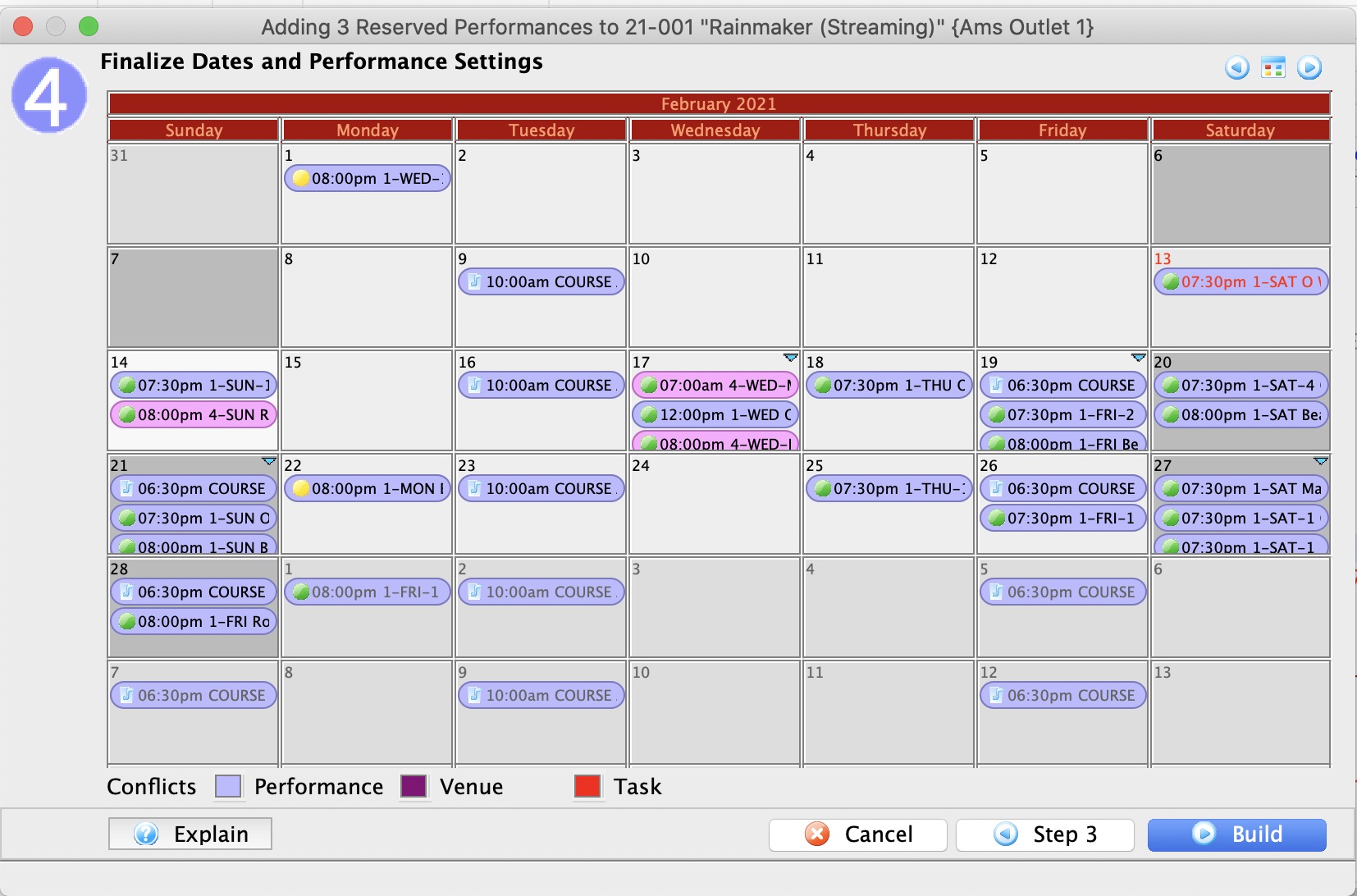
After you click the Step 3 button, the Step 3 window - Adding a Performance, opens.
- Review the calendar.
As performances can span months, use the forward - back
 buttons to move through the calendar.
You can use the middle button to switch the view to 2 week, week or daily view. In those views you can drag events to move them to another time slot or day.
You can also change the time of a performance by right clicking on a performance and changing the time. On the popup list, you can only select from a list of times that have already been used for performances.
Possible 'conflicts' will be colour coded and highlighted on the calendar and are broken into 3 parts:
- Performance - which means there is another performance at any time on that day and possibly in another venue
- Venue - which means that there is something else in that venue
- Task - which means that there is some tasks in the venue that may represent conflicts on those days.
- To finish, click the Build
 button.
To go back, push the Step 2
 , or Cancel
  if you do not want to finish setting up the performance.
When you push the Build
 button, the Build Performance list dialog opens.
- Click the Build
 button.
The Adding performance verification window opens.
- Close the window and you are returned to the Performance tab of the Play window and the performance you entered is displayed.
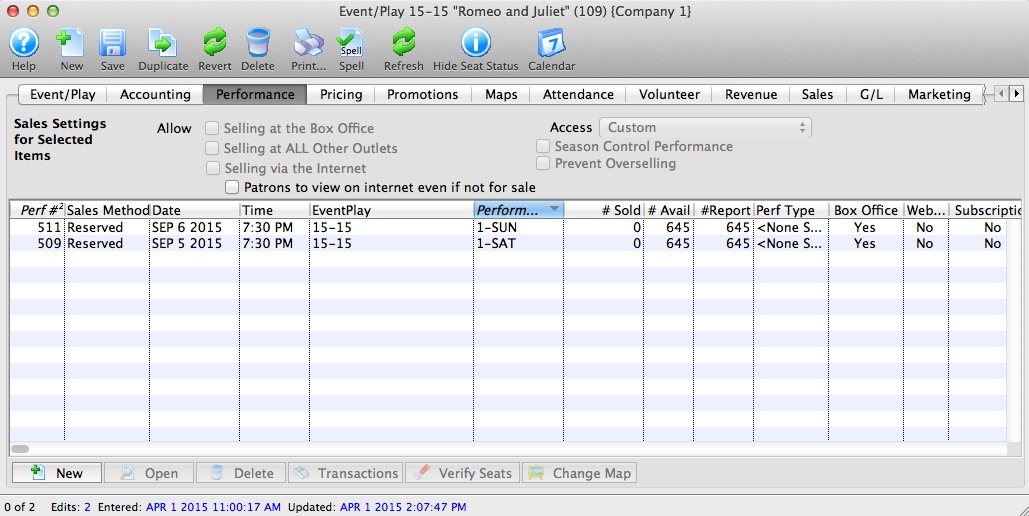
Assign Promotions to a Performance
|
By default, ALL promotions are available to the performance when it is created. |
To add a promotion to a performance, you carry out the following steps:
- Open the Event Setup window.
- Click on the Promotions Tab.
A list of all the performances for the event is displayed on the left side of the window.
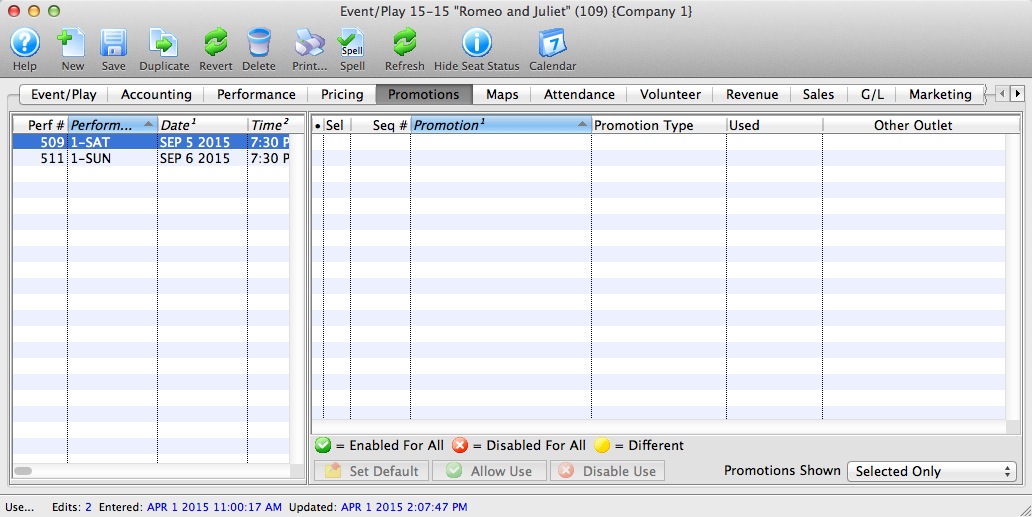
- Select the performance you want to add promotions to.
Click a performance to select it. Only one performance may be selected since each may contain different promotion data.
- Select the promotions you want to use.
Click a promotion to select / deselect it.
- Click the Allow Use button.
 A green check mark in the Sel column shows the promotion is available for the performance. The checked promotions will appear in the buy window when selling tickets to that performance.
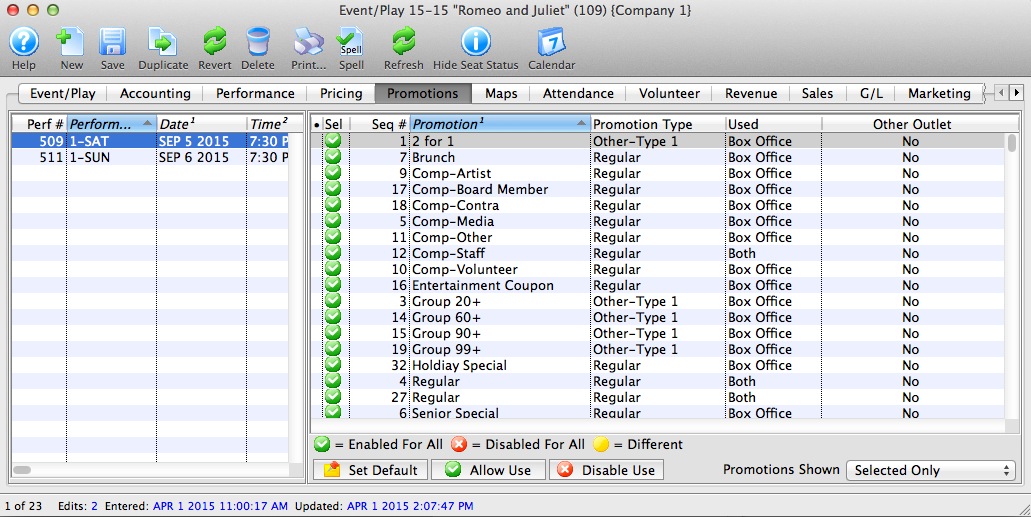
Disabling Promotions for a Performance
- Open the Event Setup window.
-
Click on the Promotions Tab.
- Select the performance.
Click a performance to select it. Only one performance may be selected since each may contain different promotion data.
- Select the promotions you want to remove.
Do this by highlighting the promotions you want to clear.
- Click the Disable Use button.
 A red X appears in the Sel column shows the promotion. The X'd promotions will now not appear in the buy window when selling tickets to that performance.
Editing an Event / Play
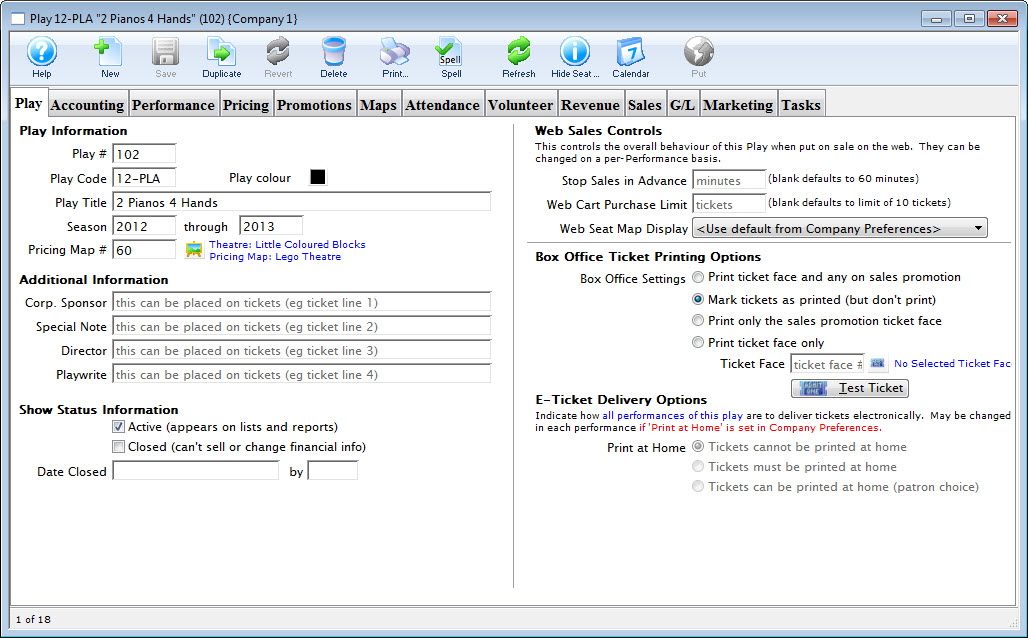
Editing Performances
Each series of performances can be edited after being created. You may be required to change the time or date of the performance or some other attribute. There are different editing options for each of the different sales methods, however they are similar. Before details are explained about editing each performance type. It is useful to know how to access the series detail window so you can start editing.
- Find the Event with the performance you wish to edit.
Click here to learn how to find events.
- Open the Event / Play Setup window.
Double click on the event/paly or press the Open
button.The Event/Play opens.
- Click on the Performances tab.
The Performance Tab opens.
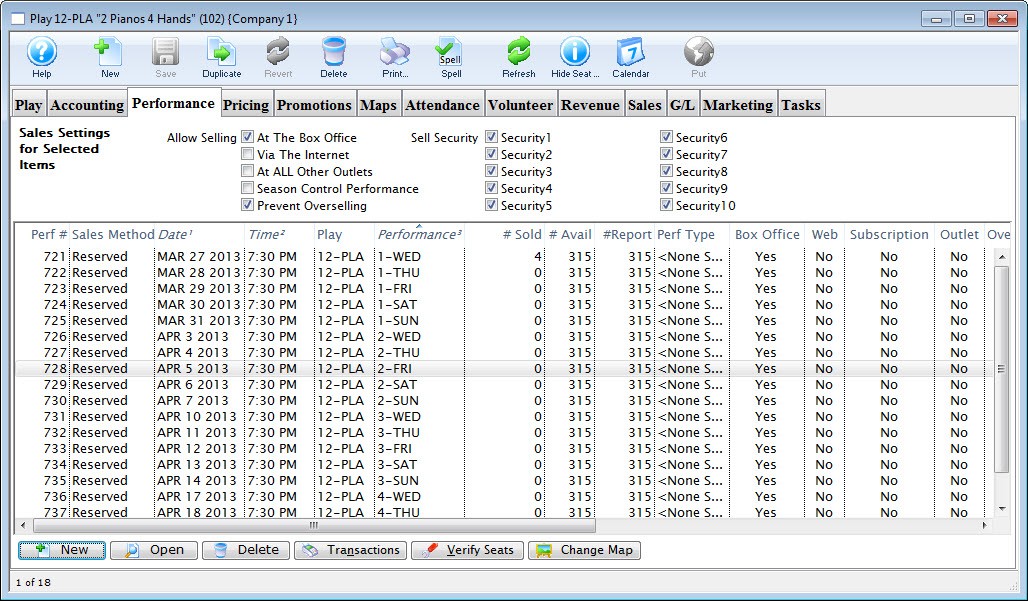
- Double click on a performance to open the Performance Detail Window.
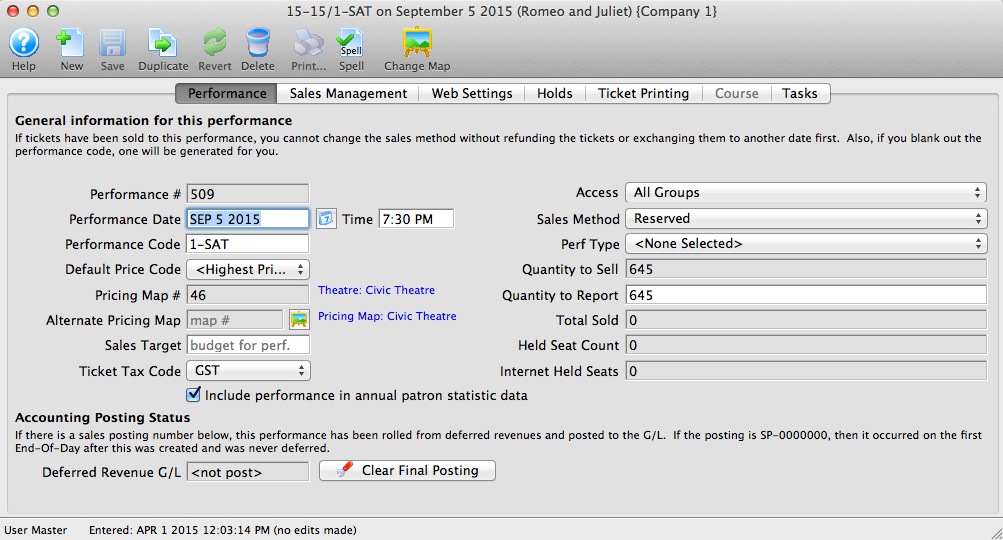
The detail window is the same for each sales method. Depending on the sales method you may not have access to some fields. Click here for a detailed description of this window.
Allow a Performance to be Sold at Another Outlet
If you allow a performance to be sold at another outlet, you can now specify which outlets have the capability so that each performance can be sold by different people.
|
You will need to enable the promotions for another outlet. Click here for more information on enabling promotions for another outlet. |
To allow a performance to be sold at a different outlet, you perform the following steps:
- Open the required event.
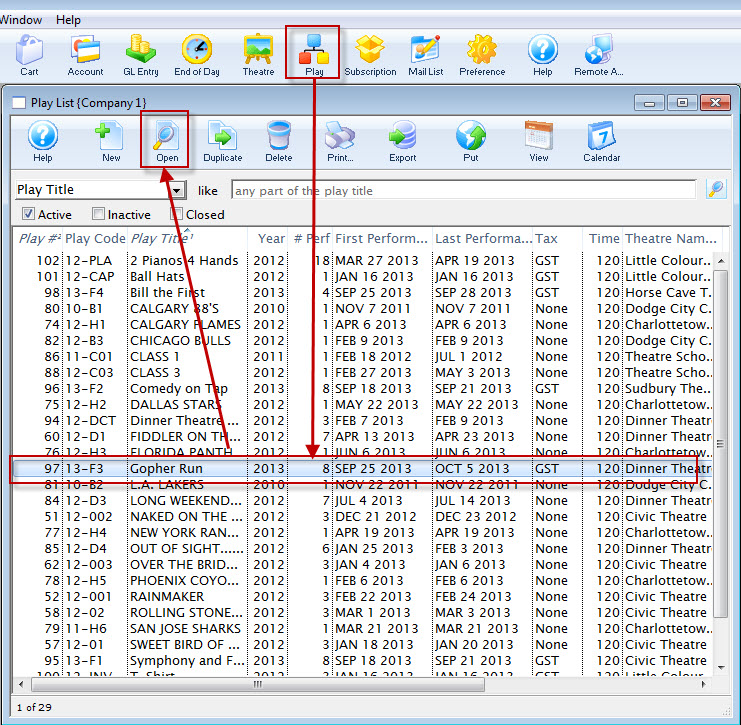
- Click the Performance Tab.
If you have enabled the Performance Codes, you can enable Allow Selling at ALL other outlets.
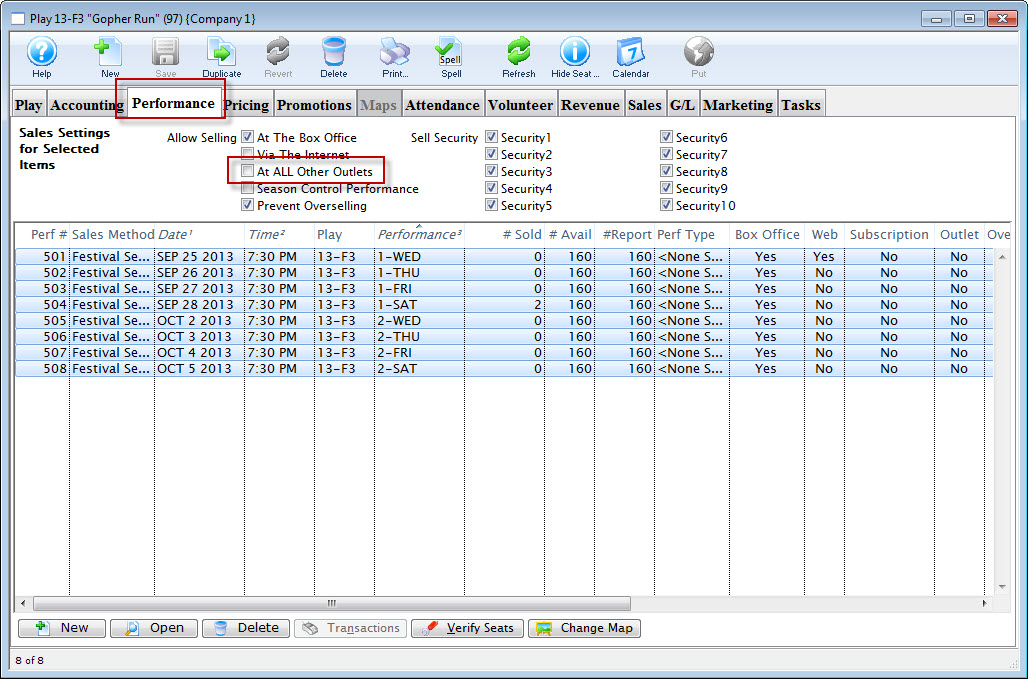
To enable selling at other outlets for specific performances:
- Open the selected performance.
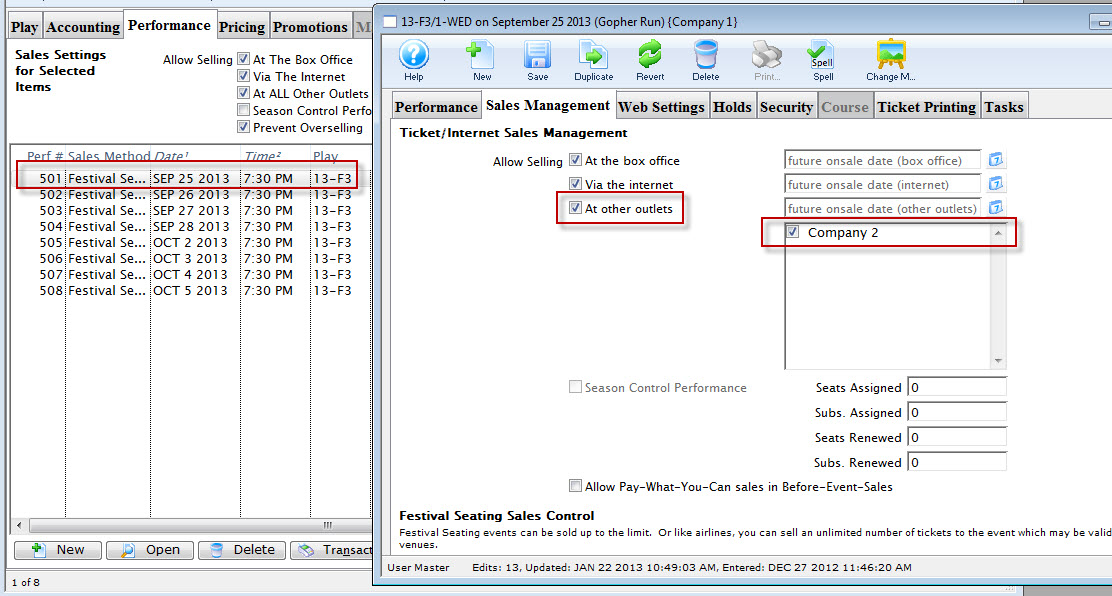
- Open the Sales Management tab.
Click here for more information on the Sales Management tab.
- Enable At other outlets.
Outlets that can sell the tickets, for the performance can be selected from the list on the right.
Changing a Performance From Reserved to General
Changing a Performance From Reserved to General Admission / Festival Seating
There are times when a performance sales method may need to be changed from Reserved seating to General Admission seating. The director/promoter may have changed their mind about the seating configuration, the performance may have been build incorrectly, or social impact may mandate the change.
A performance can always be updated from Reserved to General Admission even if seats have already been sold. Tickets previously allocated to a reserved seat are simply changed to no longer reflect a seat allocation in the database. However, a performance cannot be moved from General Admission to Reserved seating after seats have been sold as Theatre Manager has no way of knowing where to seat patrons who have previously purchased. The steps below outline how to change a performance after it has been built.
- Find the event / play you want to hold seats for.
Click here to learn how to find an event / play.
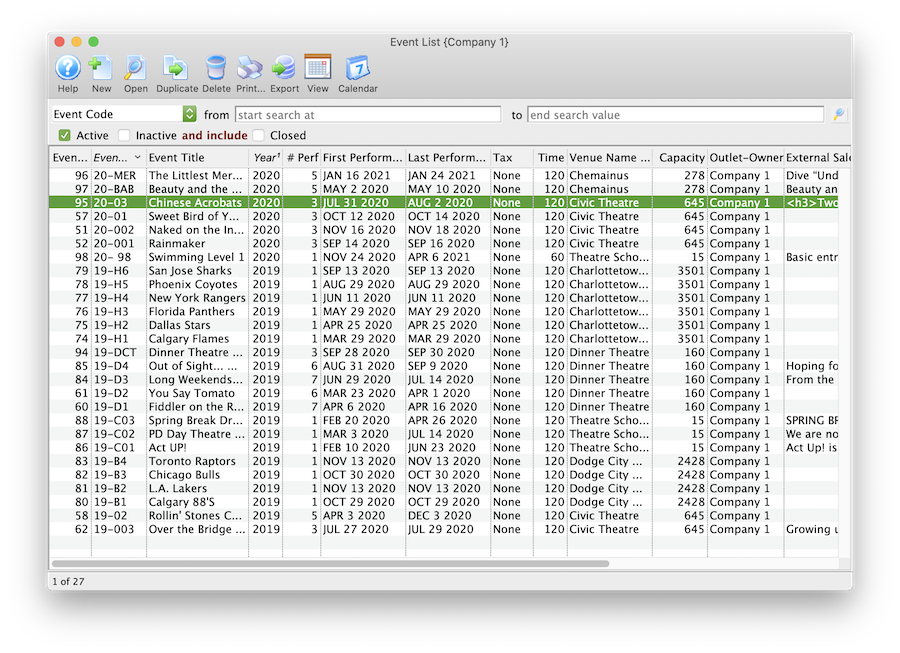
- Open the event / play by selecting it in the list and clicking Open or by double clicking it.
- Select the Performance tab
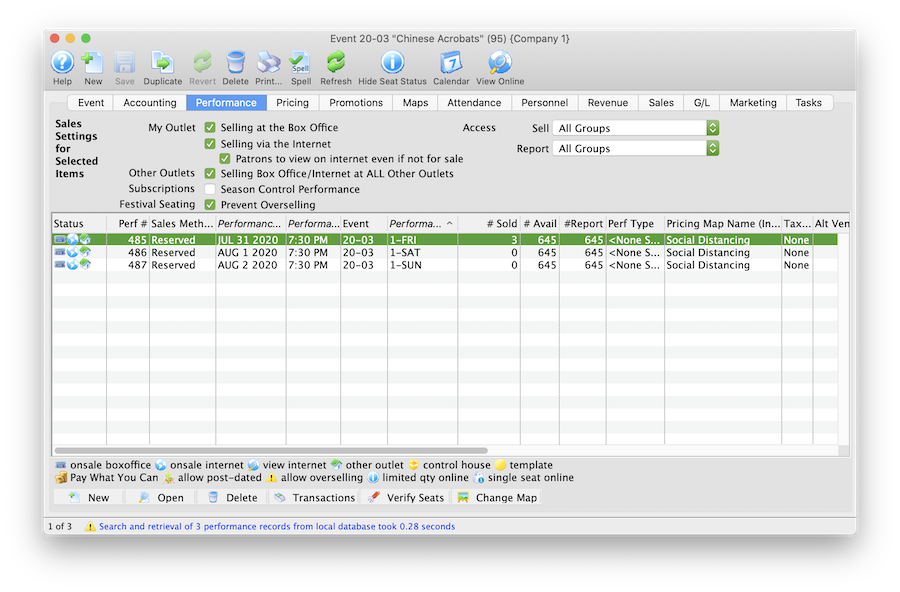
- Open the Performance Detail window
Each performance will need to be updated one at a time.
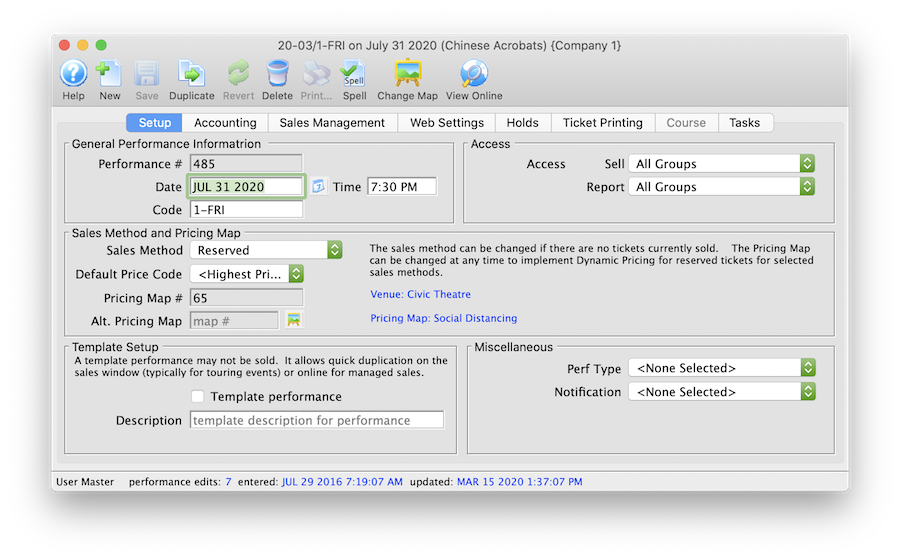
- Click the Sales Method drop down.
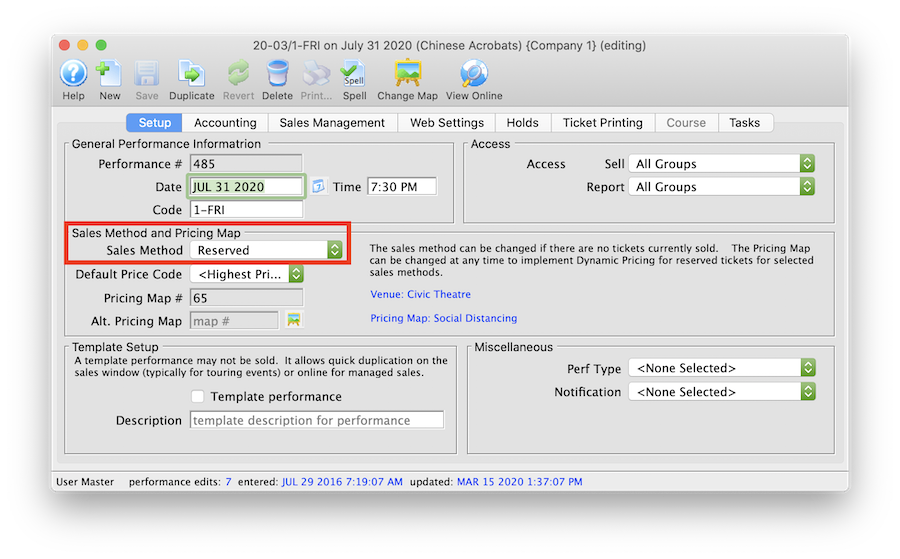
- Select General Admission or Festival Seating depending on your database configuration.

- Click Yes to the continue message.
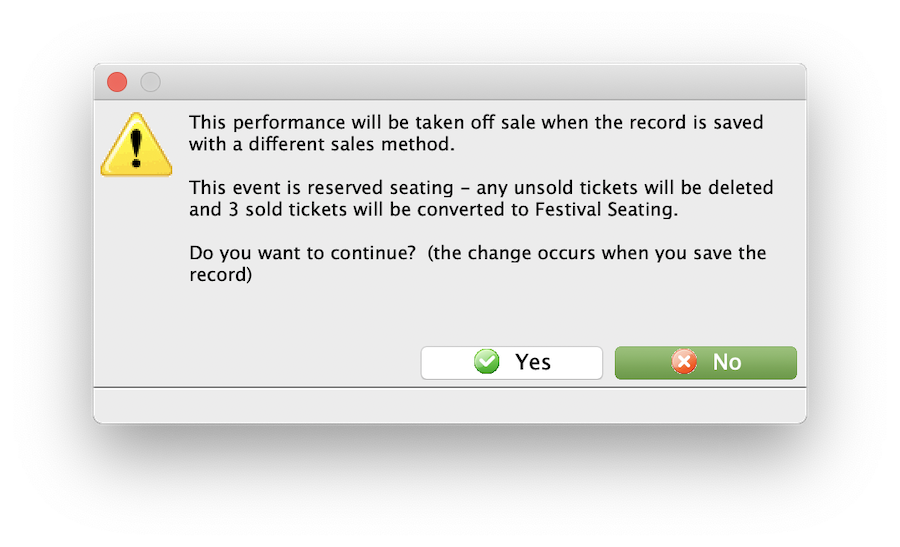
- Select the Accounting tab in the Performance Detail window.
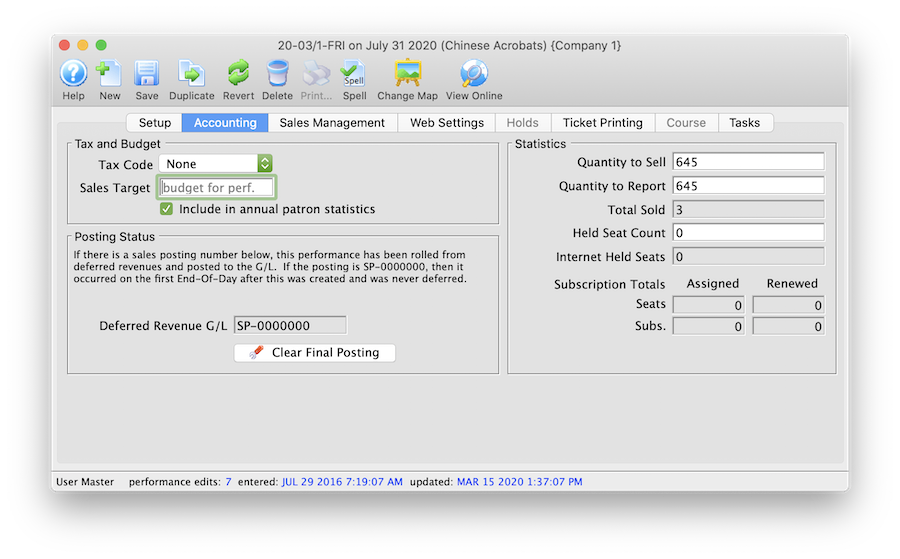
- Update the Quantity to Sell field to accurately reflect the total number of seats to be sold for the Performance.
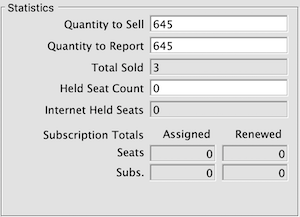
The steps above can be repeated for each performance within an event as needed. Once a performance has been updated it can be marked available for sale at the Box Office and Online.
Live Web Content
|
Live streaming content is set up in the Live tab in the performance's detail window and is described below. |
|
If you set a time limit in a watch window, and somebody exceeds it, so that that cannot see their event. Clear their attendance flag and then they can re-watch the item. |
Live Content Styles:
- Video streaming for an online-only event
- Embedded iFrame
- Mobile-friendly "Custom Content" for the performance
Live Video Performance (Virtual Events)
Online-only video performances allow you to show streaming video at a specific time to ticket buyers. The video can either be pre-recorded or live streaming, depending on your selected video provider.
Supported Video Providers:
- Vimeo Setup - web site for Vimeo
- YouTube setup - web site for YouTube
- DaCast Setup - web site for DaCast
- Video.js Setup - web site for Video.js
- CineSend Setup - web site for CineSend
- BoxCast Setup - web site for BoxCast
Aside: Producing Video Content
If you're looking for tools to start recording and streaming live video, then a good place to start is OpenBroadcaster Software (OBS). The OBS Beginner Tutorial gives a good introductory video walkthrough. OpenBroadcaster Software supports a wide range of video providers. The primary way to use OBS is to send an RTMP Stream to the video provider. In turn the video provider will "duplicate" the stream and send it out to all live users. In other words, the video provider handles all the bandwidth required to broadcast your stream to hundreds, or even thousands, of users.
Live Experience
Theatre Manager comes with a default set of web pages for a full live video experience. The experience has three parts
Discovery
Users can enter the live show by clicking the Watch button under Tickets for Upcoming Performances in their home
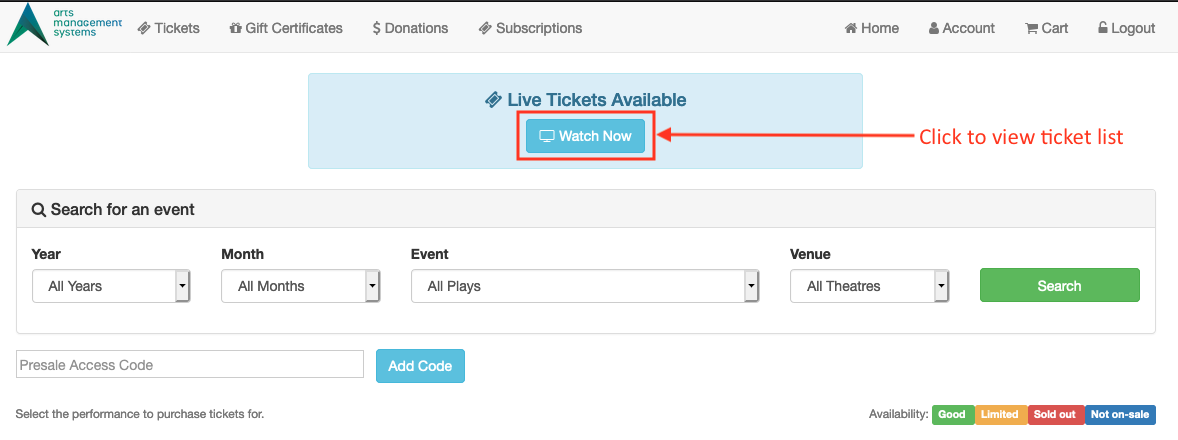
Users will also be made aware of any Live tickets they have if they are logged in and have a ticket to a live performance occurring in the next 6 hours.
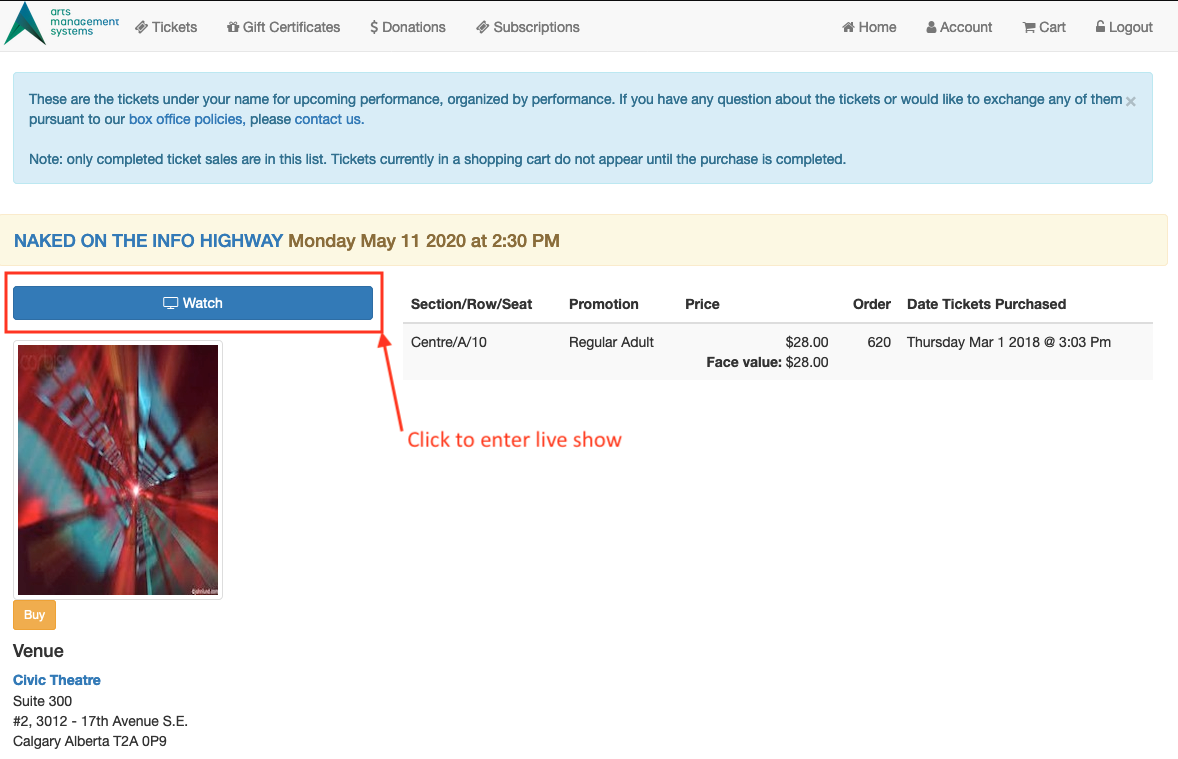
Pre-Show
The pre-show helps build excitement for the upcoming event. It has a countdown timer that let's users know when the event will begin
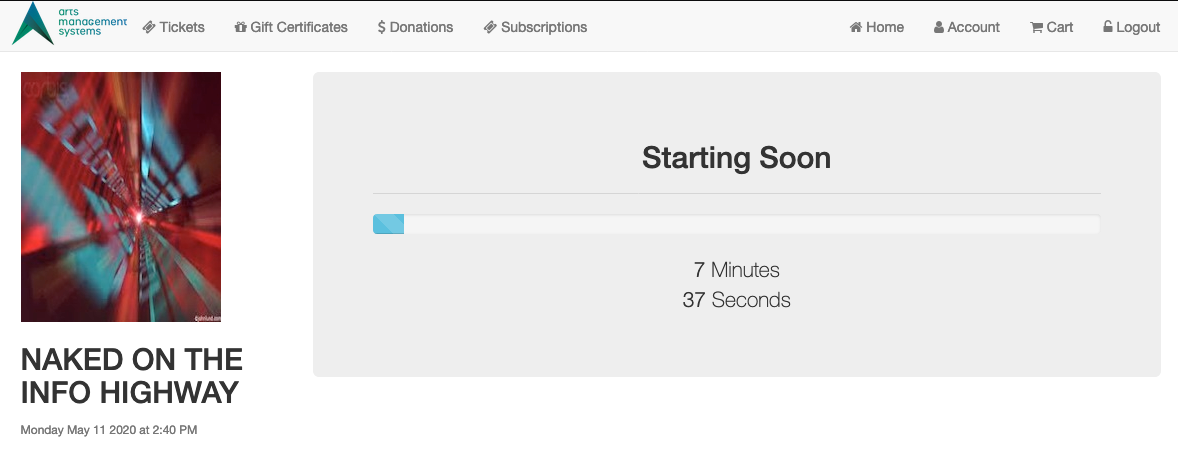
Show
The in-show displays a minimal frame for the video, so that the video content is front and center
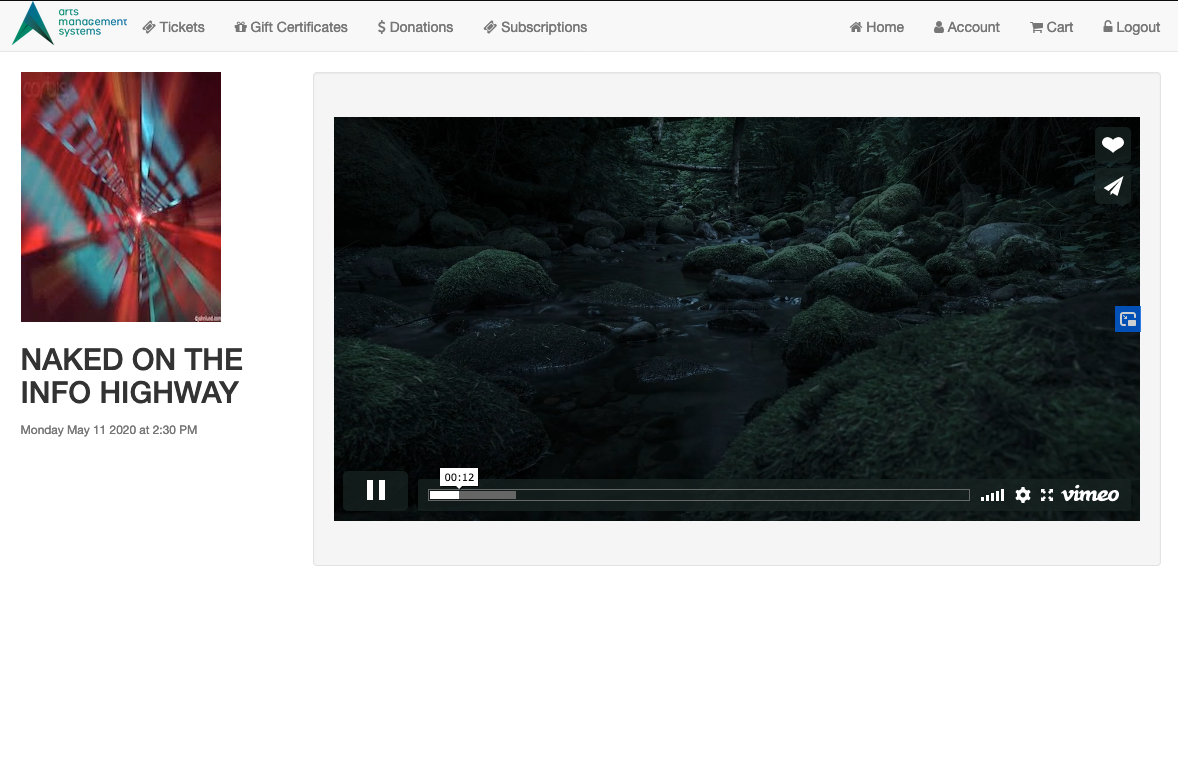
Supplementary content (Coming Soon)
Supplementary content is information that you'd like to be available on an attendee's smartphone, for the duration of the event. This type of content is most suited to events that are interactive and require audience participation. For example, an outdoor festival that might have maps to various activities. Or a "Theatre in the Wild" event where audiences can self-direct to one of several small performances in different locations.
Common Questions
Question: Zoom is designed for video conferencing. Can it be integrated as a video streaming option?
Answer: We've looked into Zoom however it might not be the choice that you're looking for. At least not directly embedded streaming links into the Theatre Manager web pages. Zoom makes the assumption that what you're doing is more of a webinar -- that everyone in the meeting is an active participant. For live streaming events, that's often not the case. Usually, one person is doing the filming while the others are watching.
If you're attempting to use Zoom purely for it's easy-setup, you may want to consider one of two things:
- Connect Zoom to Vimeo Live
- Switch setups to OpenBroadcaster Software for streaming to Vimeo. It's quite easy.
If you're using Zoom because you want audience participation, then that's something else entirely. Zoom does have integration points with web pages which would require engineering effort within your webpages to treat the interaction that it allows the audience interaction in the correct way.
You could very easily do this kind of event outside of the live streaming portion of Theatre Manager by sending Zoom invites to the patron's email address via a Form Letter email. The attendance reports could be used to know who to let into the class or not, and you could mark attendance using a Course Attendance Report or in Theatre Manager directly.
You may also be interested in the Managed Courses feature in Theatre Manager, which can allow user web access to setting a class attendance. That would allow the Meeting Moderator or Class instructor that isn't a Theatre Manager employee to mark attendance, and also see who is in their meeting/class.
Question: Using the free version of Vimeo, the webpage the video is embedded in appears not to be secure as I can see the video ID link in the HTML coding of the page. A patron can right click and find the static link by both via the "save as..." function or the inspect element function. The "save as..." function is the most concerning for us as it is the most simple and easily exploitable. Can the web page security be updated to prevent this?
Answer: The Theatre Manager web sales and the Vimeo and YouTube links that are embedded in the page are secured by HTTPS, which ensures that the content streamed to your user's computers is private and can not be seen by other users. Theatre Manager requires that level of security in order to pass PCI compliance, and we take that notion of security very seriously. Theatre Manager is very secure for your users.
When it comes to Live Streaming video though, what you're referring to is the Gate Control required for a live streaming event, such that only ticket buyers are allowed access to the stream. As of today, that is only possible with Vimeo when using the paid Premium Live Streaming Plan.
The Vimeo feature you'd need is called "Domain Privacy", and it allows you to restrict playback of a video to only people that are viewing the video from your website, which requires a Theatre Manager login and a Theatre Manager ticket to watch. In other words, while people could copy and paste the Vimeo link, it wouldn't help them, because the video would only play through your site's tickets.yourcompanyname.com URL.
The reason that this is the only way for true Gate Control is that it's not possible to fully obfuscate or hide the link that's embedded in the page. There are some ways to attempt to disable that right-click context menu, but many browsers won't respect those options because the same options can be used to make abusive websites. Further, there are actually many other ways that you can see the Vimeo or YouTube link beside right-click, and your patrons could copy and paste it from those as well. YouTube, for example, has no controls for Domain Privacy and so it's not possible for us to restrict the video to only your website.
You're left with a couple choices:
- Trust. Hope that people just don't share the link, or if they do, hopefully it doesn't impact sales enough to matter. This option is part of the "free" package options, but your sales could be lower than they might otherwise be with good Gate Control. You could even potentially acknowledge that it's possible, and have a "plea" on the website that mentions the importance of buying a ticket -- the idea seems far fetched, but many news sites have had success with similar pleas for adblockers.
- Use Vimeo Professional with Domain Privacy: This will allow you full Gate Control, and it won't matter if users copy and paste links, because they won't work outside your website.
In this instance we're at the mercy of the video CDNs -- YouTube and Vimeo -- and what their options allow us to do. Of the two choices, Vimeo is the more flexible, and the one we currently recommend. We'll continue to look for other CDNs that can guarantee tight Gate Control on the web site for live streaming.
Editing Price Codes
There are two different reasons for editing price codes:
One - to initially set up the prices for the price codes.
Two - to alter an all ready set up price.
- Select the Play you want to adjust and click the Open button.
- Open the Pricing tab.
For more detailed information about the Pricing Tab, click here.
- Select the Performance that you want to Edit Price Codes for.
Do this by clicking on the specific performance from the performance list on the left side of the Play Setup window. The prices for this performance will display in the price list on the right side of the Play Setup Window.
- Select the the Price Code you want to edit and click the Edit Price
 button.
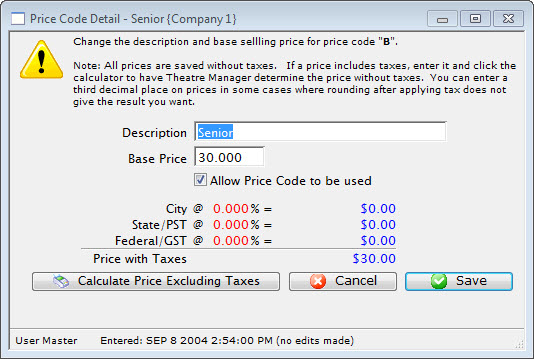
- Enter a description for the Price Code.
Common price code descriptions are Adult, Student, Senior, etc.
- Enter a Base Price.
The price that is entered here is the ticket price before taxes have been added on. If your company likes to have nice round ticket prices after taxes then you can use the Calculate Price Excluding Tax Feature. It is explained further down the page.
- Click Save
 button.
Doing this accepts the changes to the price code. Clicking Cancel
would canceled the changes.
Calculating Prices Excluding Taxes
- Enter the Selling Price you want to end up with after taxes.
In this example we will use $10.00 and a 7% tax rate.
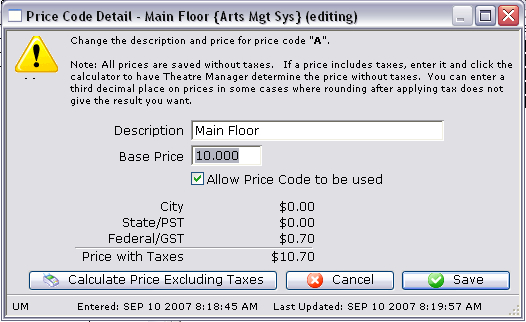
- Click the Calculate Price Excluding Taxes
 Button.
The selling price will now display as the price before taxes. In this example the $40.00 Price Code turned into a $38.099 Price Code. Look to the calculation to see how the tax was broken out to create $10.00 final price ticket.
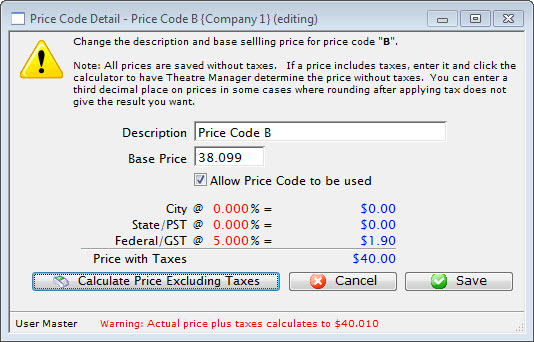
- Click Save button.
This accepts the changes to the price code.
Verifying Seats
|
If you change a venue map, when there are events already on sale, you MUST verify the seats on each performance to re-index the new name to the seat in the event. |
This is an internal database verification that ensures all tickets have been created and are properly setup. The verification routine has one key function - to determine if there are any missing reserved seats. This should never happen - verification will detect and correct the issue.
- Click the Event
 button in the Theatre Manager ribbon bar.
- Locate the Event with the Performances to be Verified.
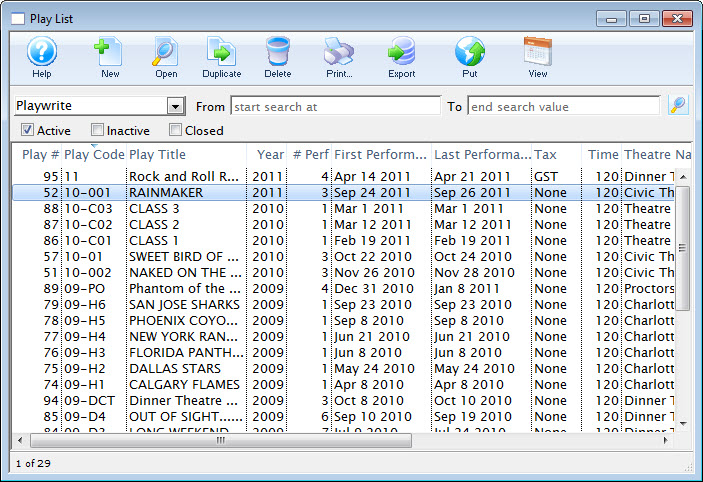
- Open the Event by double clicking on it.
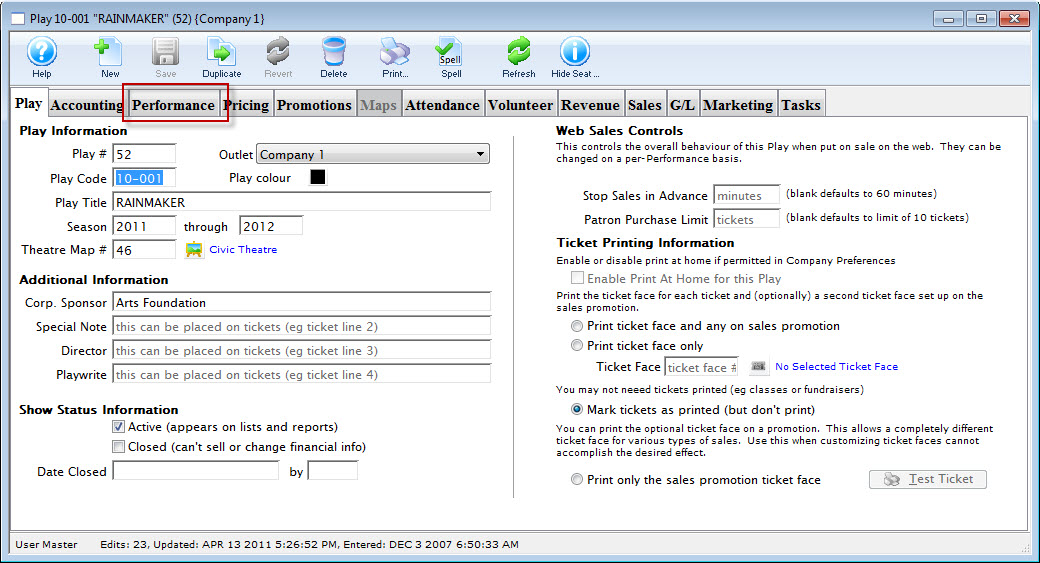
- Select the Performance tab.
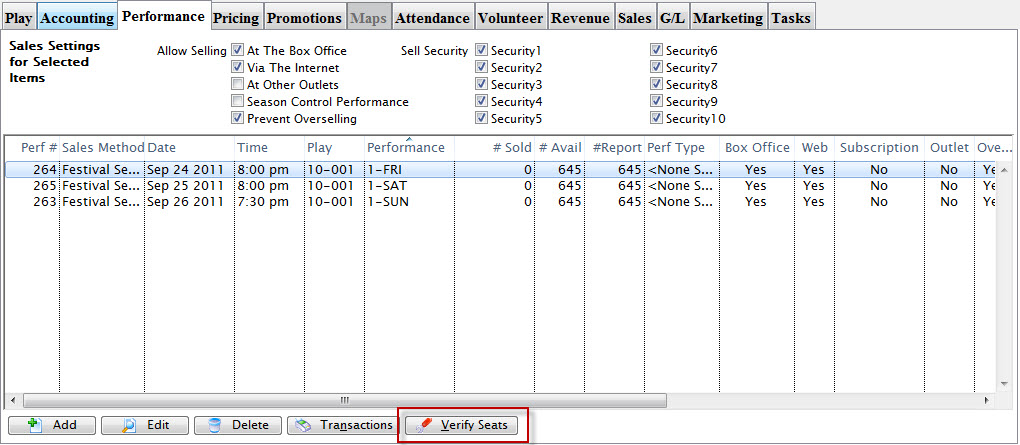
Single click on the performance to be verified. You can select multiple performances at a time if needed.
- Click the Verify Seats button.
The Verify Seats warning dialog opens.
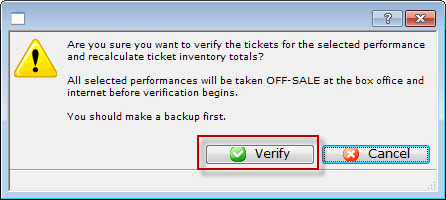
- To continue, click the Verify
 button.
The progress bar at the bottom of the window will state the function and the progress.
When the Verify process has completed, the Performances will no longer be available for sale at the Box Office. They will need to be marked as available before tickets can be sold.
Setting Attendance
You use setting attendance to keep track of how many patrons attended a performance versus the number of tickets sold. This feature is beneficial for deciding how much can be oversold to a festival house. You may have discovered there is a consistent 'no show' rate of 15% to 20% and can then adjust sales to match the trend. Another use for this feature is calculating royalties based on the number of patrons that actually attended the performance, not based on the number of tickets sold.
|
It is important to remember that this feature only works if you have the ticket and the patron number printed on the ticket, or a bar code that contains one or both of those numbers. |
To set attendance, you perform the following steps:
- Click the button in the Theatre Manager Ribbon bar.
- Double click on the Play / Event to set attendance for.
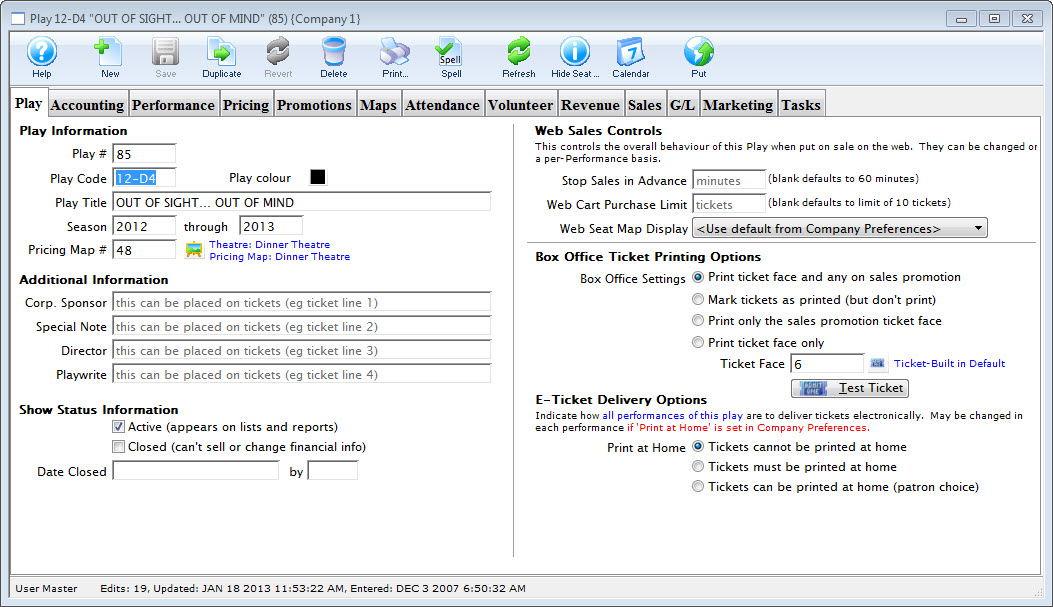
- Click the Attendance tab.
- Select the performance to set attendance for.
Choose the performance by clicking on the corect date in the column on the left side of the Attendance Tab.
- Click the button.
The Set Attendance button is only accessible if the performance you have selected has already taken place or will be performed that day.
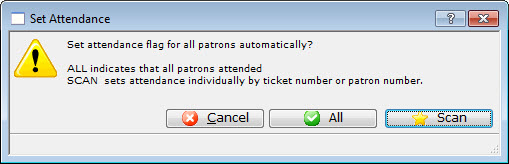
- Click the All
 button to set the attendance flag to "Attended" for all patrons and tickets.
Use this option if you are sure that all the tickets were redeemed for the performance.
- Click the Scan
 button to manually enter attendance.
The 'Attendance: Patrons who came' window opens.
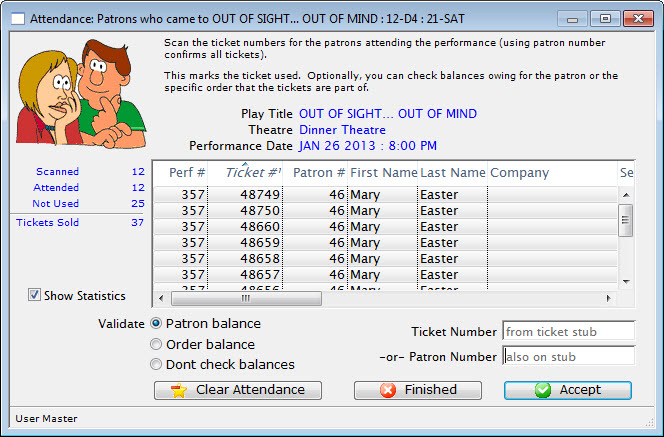
- Enter the patron number, ticket number or click in the ticket number field and scan the ticket.
If you enter the patron number, all of the tickets the patron purchased will appear in the window. If you enter the ticket number or scanning the ticket, only that ticket will appear.
- Click the Accept
 button.
To speed up the process, press the <RETURN> key to accept the ticket # / Patron #. If you are using a bar code scanner, set the default to include an automatic <RETURN> after each scan. If the tickets have a bar code on them, then either the patron number or the ticket number can be scanned in. It depends on what information has been encoded in the bar code.
If too many tickets have been selected, and not all should be marked as attended, highlight those to remove and click the Clear Attend
 button. The tickets are removed from the list.
 - Click the Finished
 button when all data has been entered .
This marks all tickets entered in the list as Attended.
Clear Tickets Incorrectly Marked as Attended From a Play
To clear tickets incorrectly marked as 'Attended' from a play, you perform the following steps:
If a mistake is made in setting attendance, attendance for the entire performance (or optionally, specific tickets) can be cleared.
|
If you set a time limit in a watch window, and somebody exceeds it, so that that cannot see their event. Clear their attendance flag and then they can re-watch the item. |
- Click the button in the Theatre Manager Ribbon bar.
- Double click on the Play / Event to clear attendance for.
- Click the tab.
- Select the performance you want to Clear Attendance from.
The tickets for that performance are displayed in the attendance list.
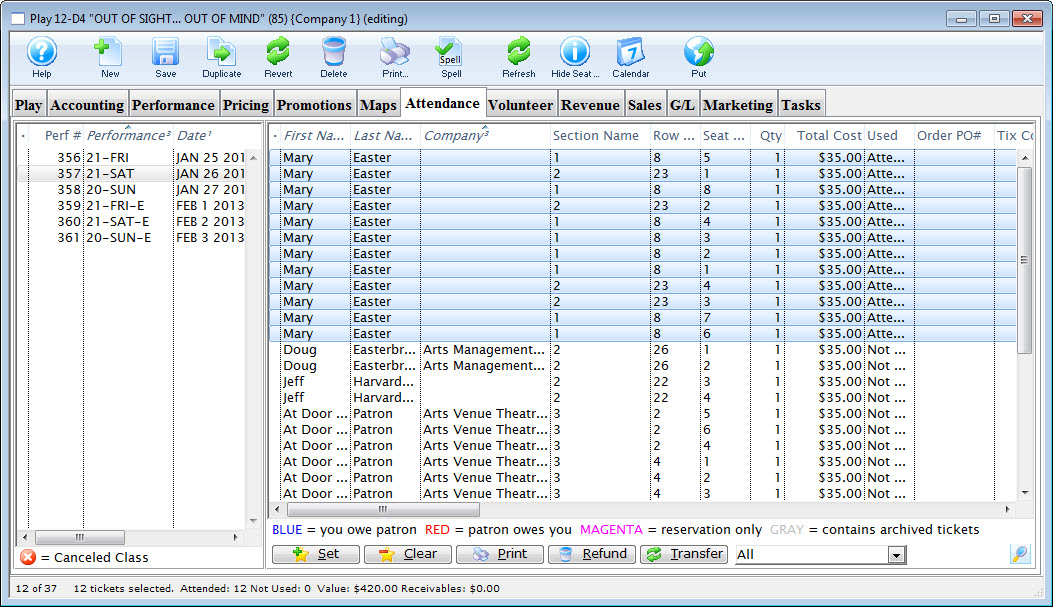
- If clearing attendance for a select group of tickets, highlight them in the right hand window.
- Click the button.
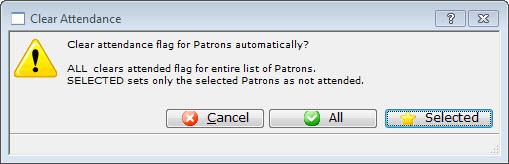
- Click the All button to clear the attendance flag for all patrons and tickets.
- Click the
 button to only clear attendance for the tickets selected.
Selecting a Performance for Attendance
You can select a performance you want to set attendance for from the Patron Attendance window.
To Start selecting a performance, you perform the following steps:
- From the main menu bar, choose Accounting >> Confirm Attendance.
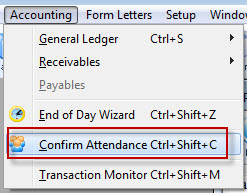
The Patron Attendance list window opens.
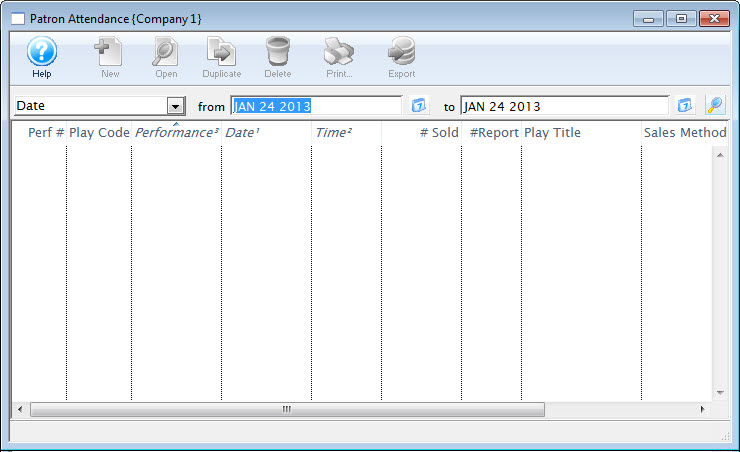
- Enter Search Criteria.
The search criteria is entered in the From and To fields and is based on the field listed in the drop down list.
- Click the Search button.
A list of performances opens.
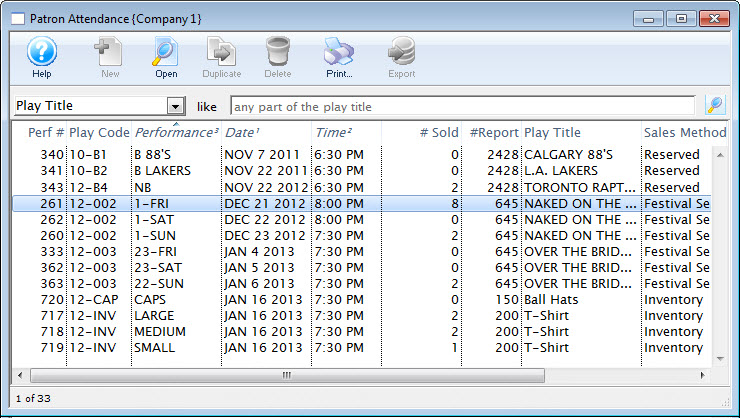
- Double click on a performance to select it. Once selected, the performance will open.
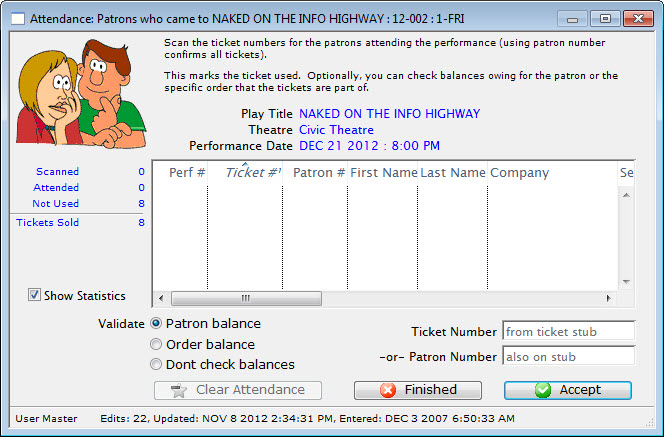
- Continue at Step 8 of the Set Attended section of Setting Attendance.
Adding a Fee to a Ticket Price
There are times you will want to add a fee to a ticket price. For example, adding a fee when selling tickets for another group.
The steps below outline how to add a fee to a ticket price.
- Add a Fee to a Sales Promotion.
- For information on creating a sales promotion click here.
- On the promotion Calculation tab, enter the fee you wish to charge into Ticket Fee box 1. - Alter the event Account tab.
- Select the event the fee is to be applied to. For more information on events click here.
- Under the event Accounting tab, specify what G/L account the ticket fee should be posted to in the Ticket Fee 1 Account box under the Earned Revenue Accounts (Fees) section.
- For more information on the accounting tab click here. - Alter the event Pricing tab.
- Under the event Pricing tab, alter the prices for performances if the fee is to be built into the price.
- For more information on the Pricing tab click here - Enable the promotion for the event performances.
- Enable the promotion from Step 1 under the Promotions tab.
- For more information on the Promotions tab click here.
You have now successfully set-up the ticket fee. When the Sales Promotion you created is selected during the ticket sales process, it will add the fee on top of the base ticket price.
Change the Map For an Event
You can change the Pricing Map an event uses, even if it is reserved seating. it works best if the venues are the same and you are just changing price zones for dynamic pricing. however, you can change to any other venues (larger or smaller) with some ramificatiosn
|
You can be change a venue to another while sales are occurring. The process takes moments.
You may want to refer to how to Create a new pricing map. |
|
If you change to a venue that is a completely different orientation with more or fewer seats and no tickets have been sold, you may just have to verify seats for the affected performances.
HOWEVER, if it is a reserved seating performance:
|
There are rules for switching Pricing Maps. The new Pricing Map must:
- Be active.
- Have the same valid price codes in the new Pricing Map.
- Have the same seating capacity and seats must be named (reserved seating only).
- When changing the reserved seating map for an event, you can select some other Pricing Map.
- When changing the reserved seating map for one performance, you can only select other pricing maps within the venue.
- When changing the map for a general admission performance, you set the alternate venue as before.
- If using the Outlet Edition, the map MUST be owned by the same outlet. People from outside your outlet cannot change pricesmaps or price codes for you.
To change the Pricing Map, you perform the following steps:
|
If the new map has a price code that is not in the map you copied from, it will NOT be available to add. Also, If you are replacing the pricing map for one or more performances, you must ensure all maps being used have the same price codes. Your pricing map can have unused price codes in its description. |
- Click the Play/Event button.
The Play list opens.
- Find the specified event and click the Open button.
The Play / Event window opens.
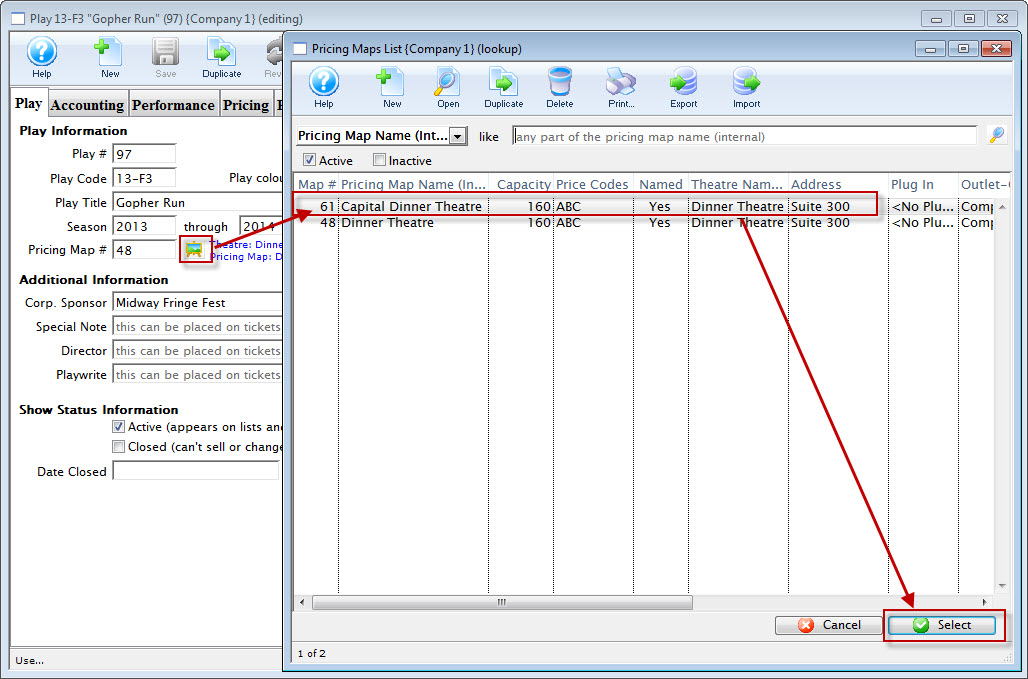
- Click the Venue
 button.
The pricing map list window opens, displaying the alternate maps that match the Pricing Map rules.
- Choose the appropriate map and click the Select button.
The Change Map Confirmation opens.
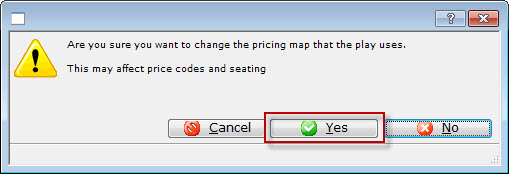
- Click the Yes
 button.
- Verify Seats if capacities are different
Refer to Verifying seats which might be needed after changing venues for a performance.
Ramifications of different Venue Orientation
- Case 1: all general admission performances
- Case 2: reserved seating performance with nothing sold to it yet
- Case 3: changing maps to a venue with the same orientation, seating and capacity - probably duplicated from another map and created for price zone changes
- Case 4: changing map for another venue with completely different seating, orientation, size and with tickets sold
CASE 1: General Admission Performances
You can change the venues at any time.
CASE 2: Reserved Seating Performances with no seats sold
If there are no seats sold yet to the reserved seating performance, then there is little impact.
- Change to the new venue (whether it has more os less seating capacity
- Verify the seats in the performances
- you can now sell tickets
CASE 3: Venue with same orientation and reserved seating, seats can be sold
If a venue is really the same, with same seats, similar size, with perhaps a few seats removed for orchestra pit, or if the price zones are different for the purpose of dynamic pricing.... then change the venue that the performance is in.
However, if seats are already sold, be aware of the following ramification. Seats in the new venue have the same seat numbers as the original venue. This may cause patrons to be split into different areas.
Refer to the image and the description below:
If you simply used the new venue and made more seats, then people may not have seats where you think.
This happens because Theatre Manager:
CASE 4: Reserved seating events with seats sold and completely different venue orientations
Another approach that may help avoid the issue below is using the Transfer seats from one performance to another.
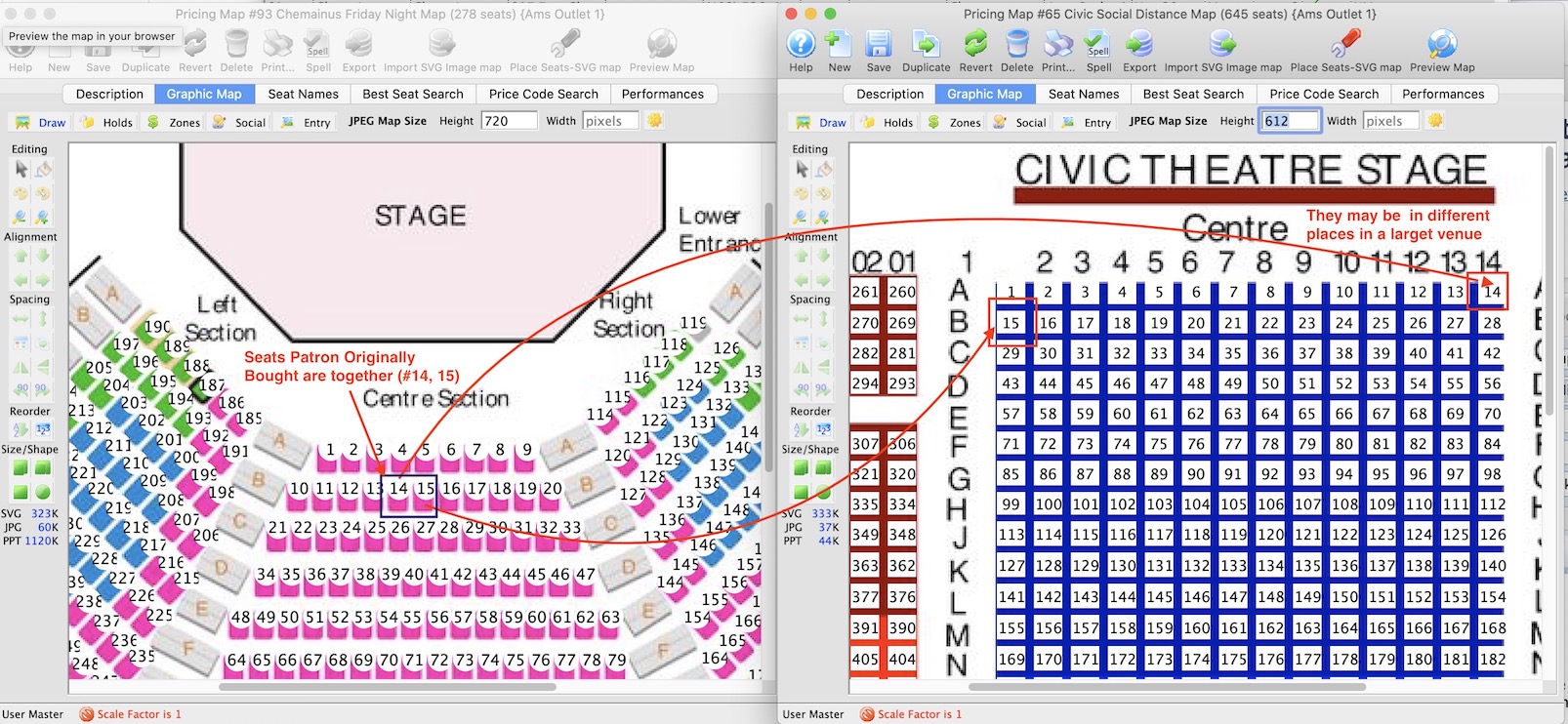
The left venue represents 'smaller' venue.
The right venue represents a larger venue
so, changing a venue in this manner, while it works, is really intended for moving to spaces that are equivalently set up -- as in dynamic pricing.
Updating Holds on a Map
Updating Holds on a Map
There are times when the map in a performance may need to be updated to reflect the default holds on the venue map for the event. The performance may have been built without using default map holds or the map for the event/performance may have been updated and include new holds. The steps below provide an outline on how to update the performance to reflect the holds using in the venue map:
- Find the event / play you want to hold seats for.
Click here to learn how to find an event / play.
- Open the event / play by selecting it in the list and clicking Open or by double clicking it.
- Select the Maps tab
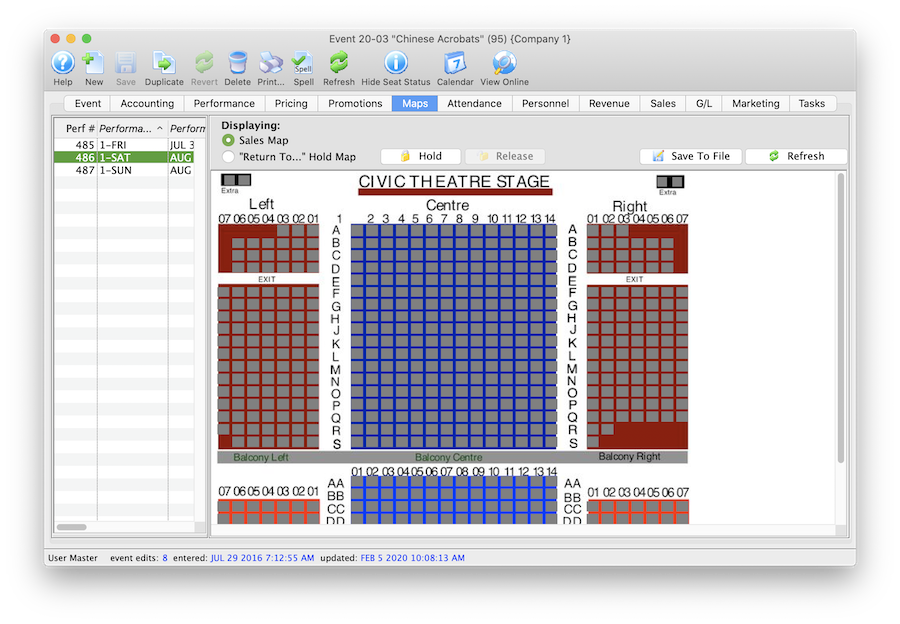
- Highlight the Performance(s) on the left side of the window.
Should you need to hold seats for multiple performances at a time simply select multiple date/times from the list on the left side of the window.
- Right click on the Map to view the options menu.
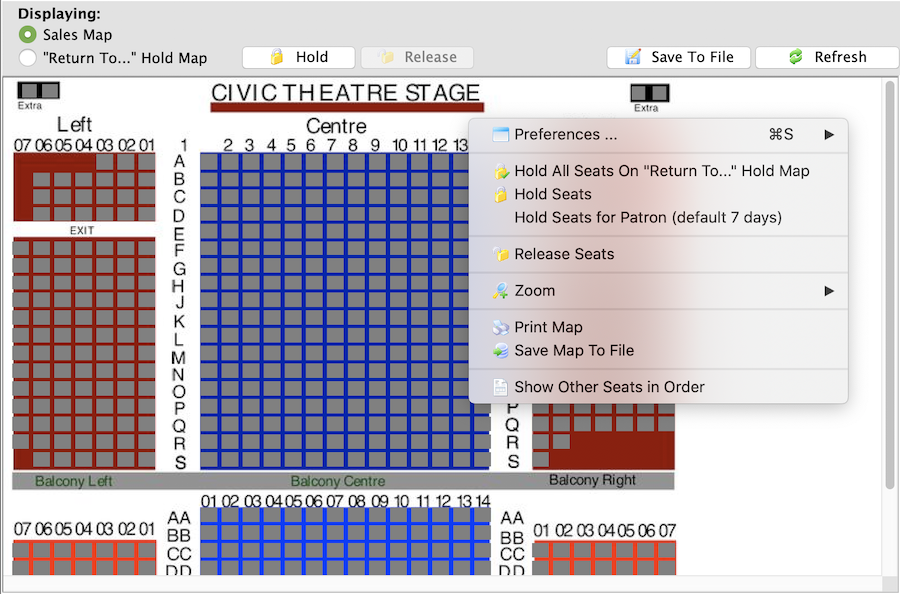
- Select Hold All Seats On "Return To..." Hold Map
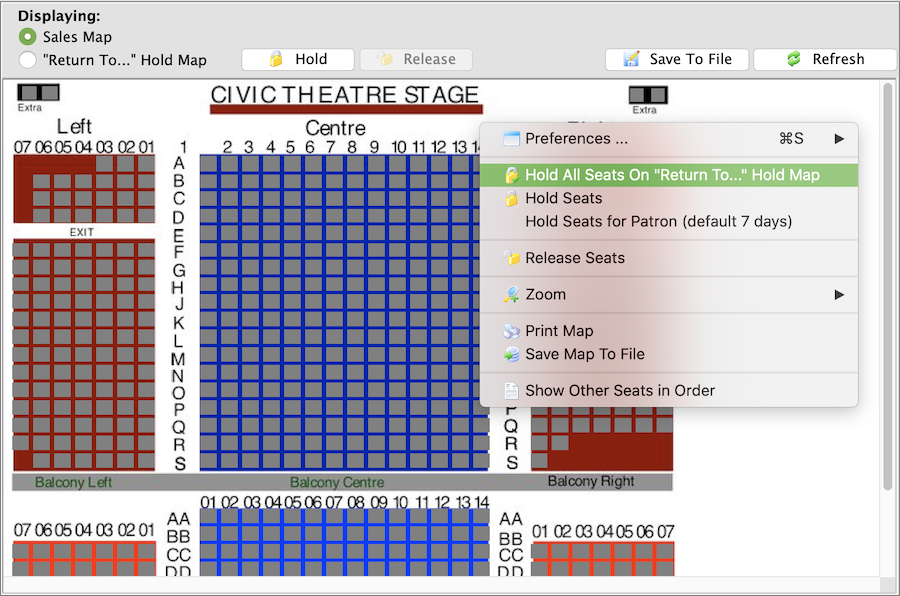
Once the holds have been updated seats will be held with the default letters from the venue map for those performances selected on the left. All holds appear as lower case letters on the map. Changing the hold colour can be done in the Box Office tab of Systems Preferences by a Master User.
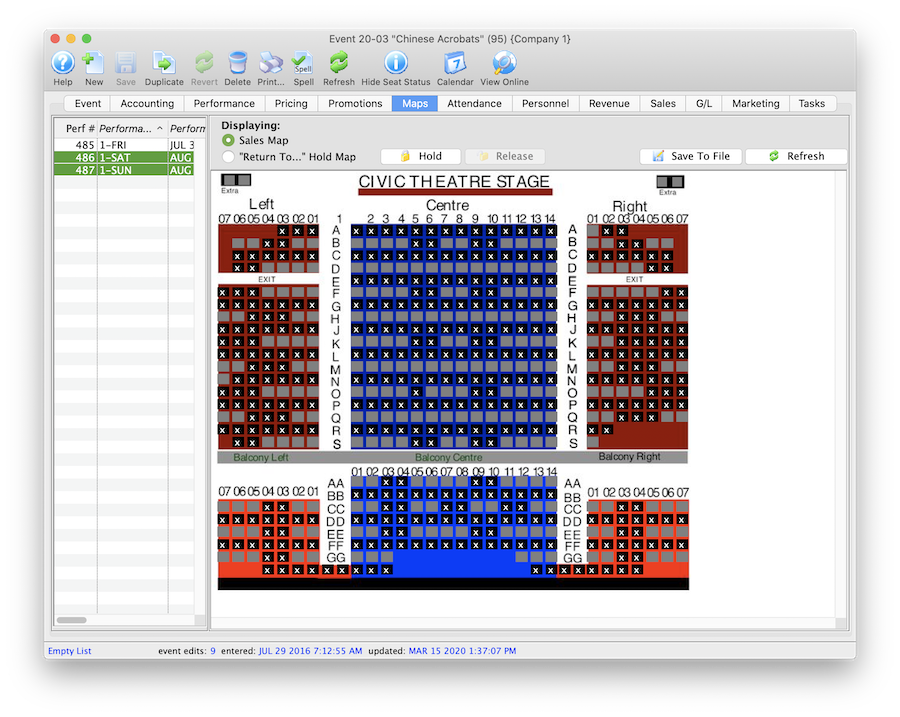
Deleting a Performance
Hiding a Performance
Normally you want to delete a performance completely (see next section), but if you cant, then:
- Find the performance as per below and try delete it, as per the instructions below
- if it won't delete, then target="_blank">double click the performance to edit it. Change:
- The performance date to be the first day of the run
- The performance code to be something like 'DONTUSE'
- Set it so that it can't be on sale at the box office or online
- for added safety, put an on-sale date in that is AFTER the date of the performance for both online and box office - that way if anybody ever changes the onsale flags, it will prevent the performance from showing up
Rules for Deleting a Performance:
You can only truly delete a performance if:
- You have "Delete" user privileges the Play information under the data tab of Employee Setup.
- The play must not be archived.
- No tickets have been sold to the performance.
- No transactions created for this performance.
To start, you perform the following steps:
- Open the Play List Window.
Click here for more information on opening the Play list window.
- Open the Play you want to remove the performance from.
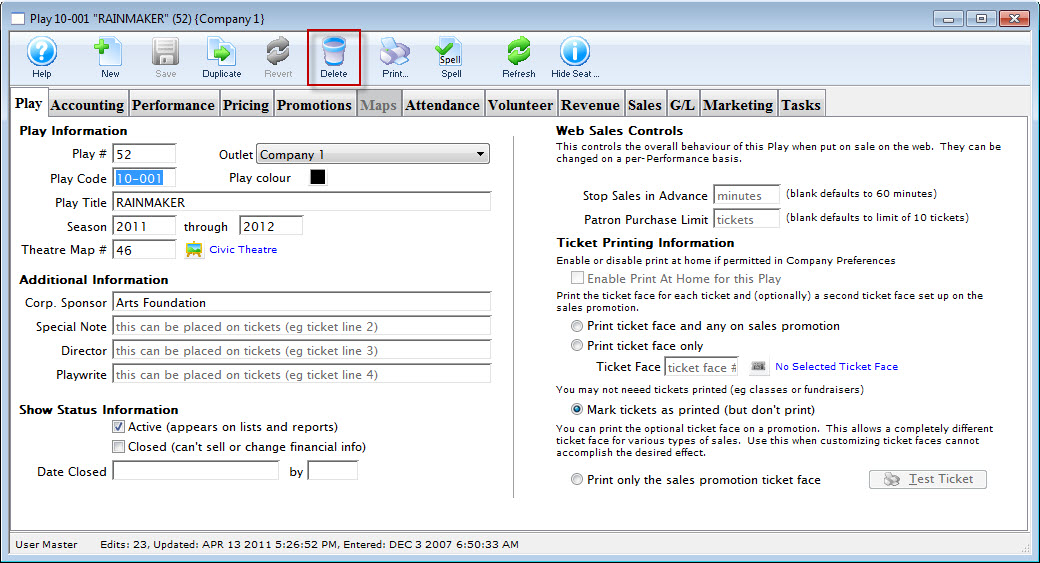
- Review the Performance Tab to ensure that no ticket have been sold to the performance.
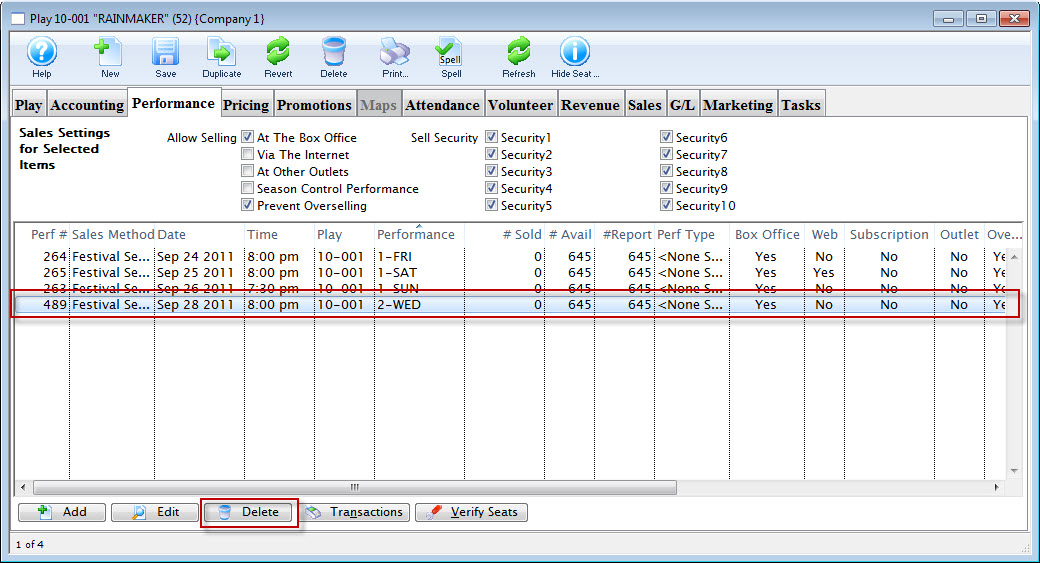
- Click the Delete button.
The Delete Performance dialog opens.
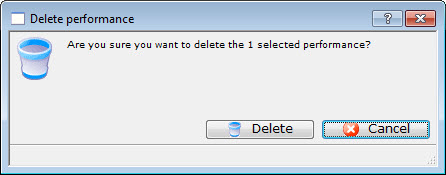
- Click the Delete Button to delete the performance.
|
Note the # SOLD column in the performance list. Quantity must be zero for each performance in the list. |
Change The Map For Specific Performances
Your venue is running a special event. Perhaps, one evening performance is to only have two Price Codes. All the seats on the main floor of the theatre are to be sold at the Adult Price only (your price code A) and all the raised seats are to be sold at a different Price Code, Price Code B. Or you want to implement Demand Pricing for the event where you can change the price codes for a range of seats.
You have created a new map for your venue. Click here for more information on creating the new map. Once the map is created, you can now go on and change the map for the specified performance.
|
To move from one map to another the maps must be within the same venue. They should contain the same number of seats and have identical seat codes. The maps will should probably contain the same Price Codes, however the new map may have more or less Price Codes than the original.
If there are new price codes in the new venue, you must view event and click on price tab to receive a message to add price codes. Only then can new base price codes be added to a performance. |
- Click the Play/Event button.
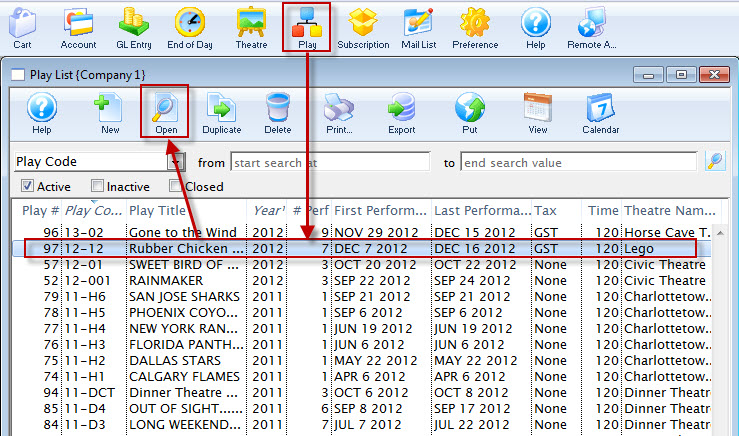
The Play list opens.
- Find the specified event and click the Open button.
The Play / Event window opens.
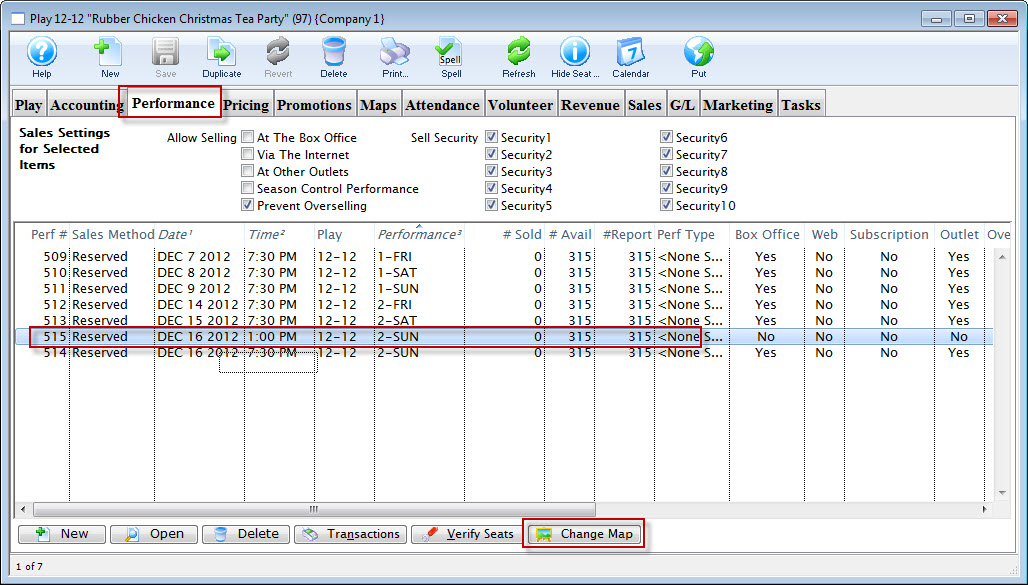
- Click the Performance tab. Highlight the specific performance and click the Change Map
 button.
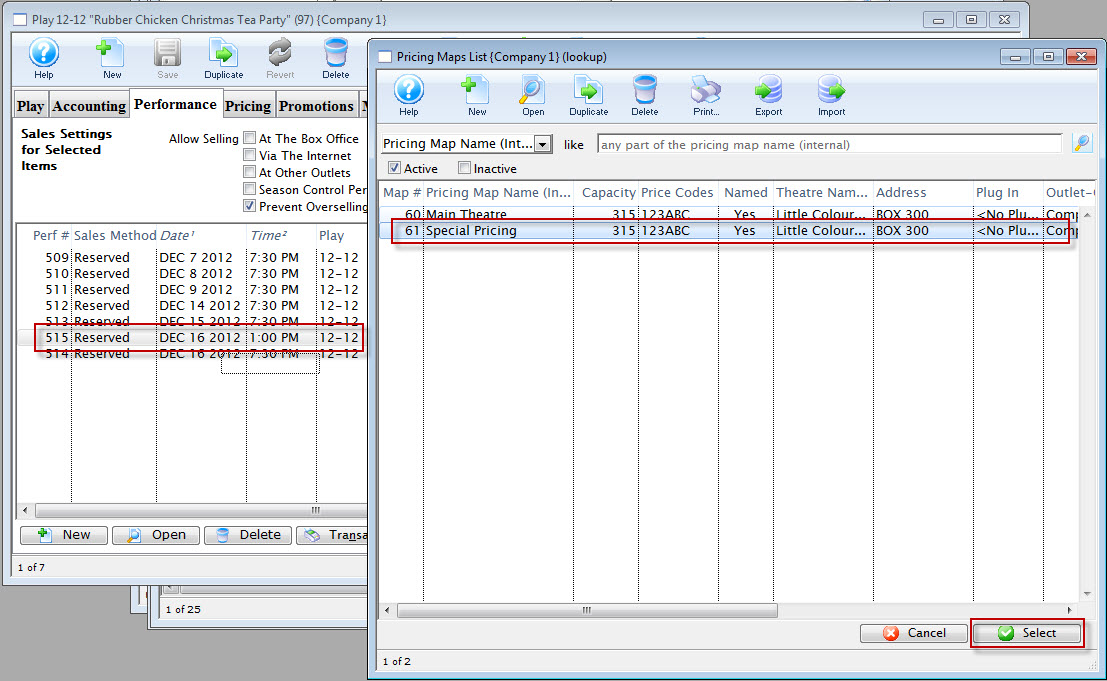
The Pricing Map list for the selected venue opens.
- Choose the map you require.
- Click the Select button.
A confirmation dialog opens.
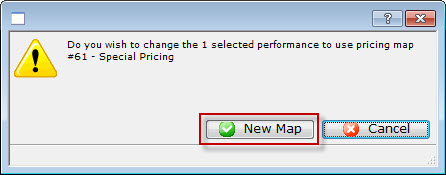
- To complete the change of the map for the selected event / play, click the New Map
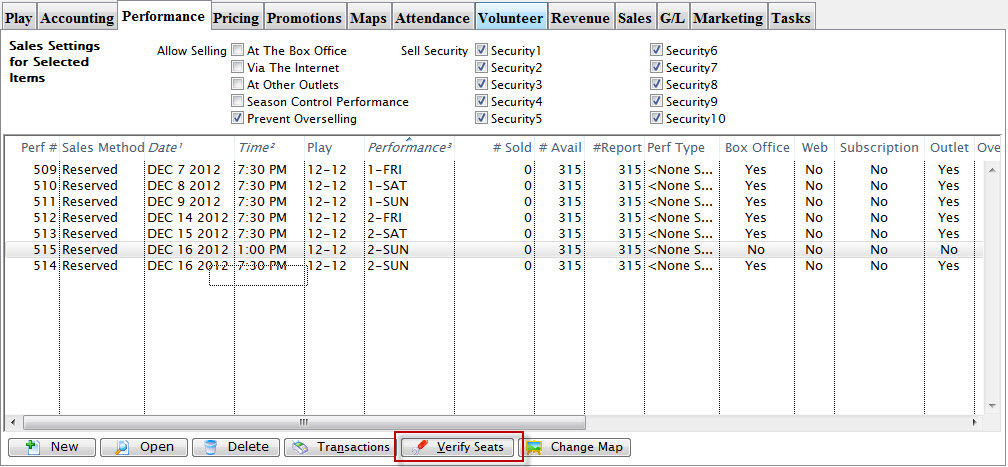
You are returned to the Performance tab.
- Click the Verify Seats
 button.
The Verify Seats confirmation dialog opens.
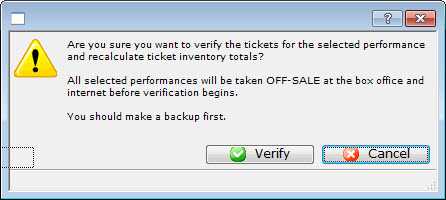
- Click the Verify
 button.
You are returned to the Performance tab.
- Open the performance and review all tabs to ensure all the information is correct.
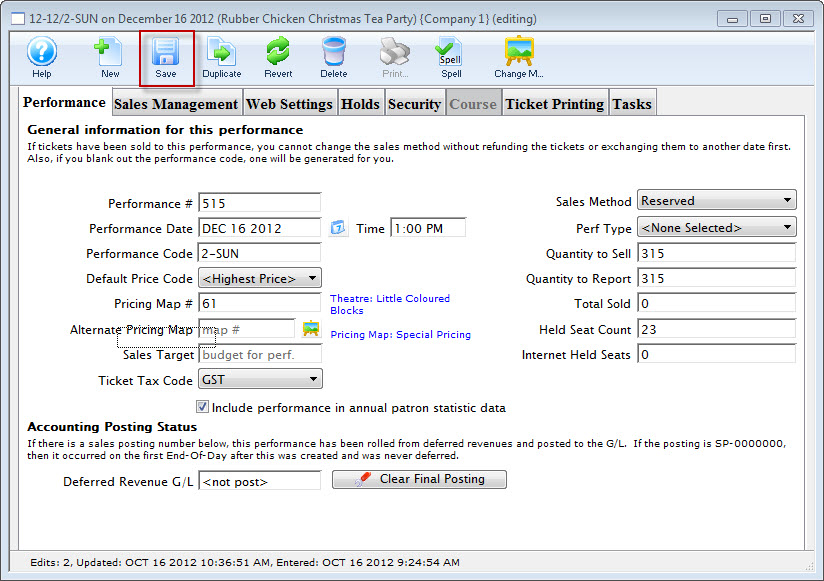
If you have made any changes, make sure you click the Save
button.
You can now select seats for the special event from the special map.
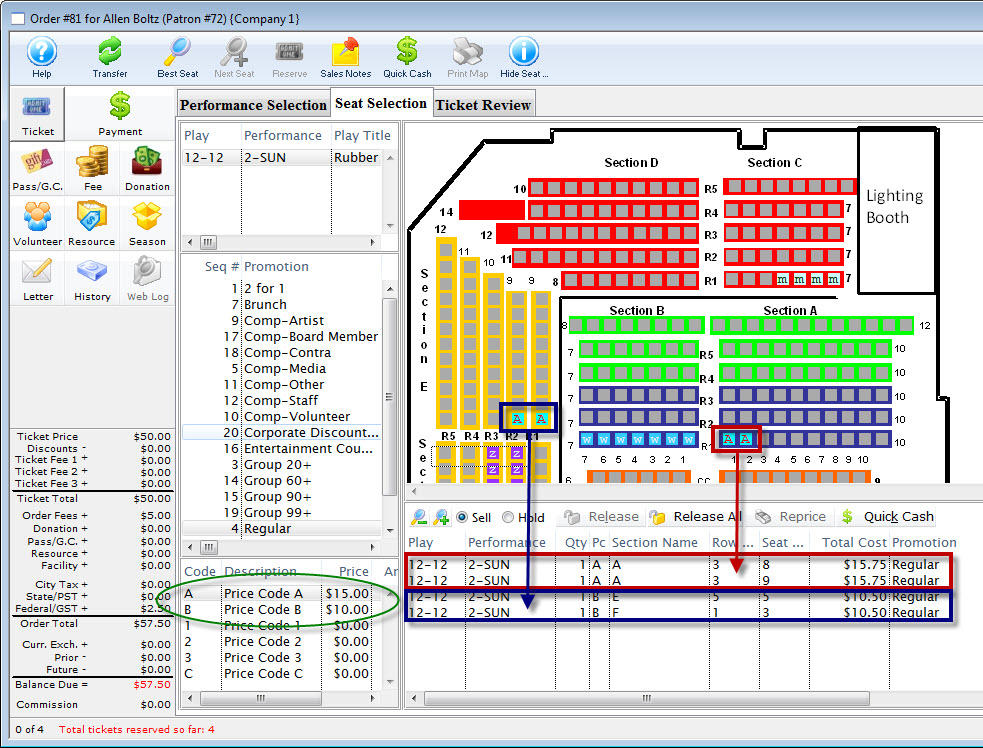
Deleting a Play / Event
Deleting a play may only be necessary if the play was entered into the database incorrectly, inadvertently, or has been canceled. You can delete a play if all tickets sold have been refunded or exchanged out of the performance and the End of Day Wizard has been completed.
Rules for Deleting a Play:
You can delete only if:
- You have Delete user privileges the Play information under the data tab of Employee Setup.
- All general ledger detail records have been archived that are associated with this play.
- There are no Daily Sales Summary information associated with this play.
- The play is not a Control House for any Season Subscription Package.
- There are no Volunteer History records assigned to this play.
- All necessary ticket based analysis reports have been been printed for this play.
- Open the Play List Window.
Click here for more information on opening the Play list window.
- Open the Play to delete.
- Click the Delete
 Button in the Plays window.
After you click the delete button the Delete Play dialog opens.
- Click Delete
 to delete the performance.
Clicking the Cancel
button cancels the deletion.If the Sales Method is Reserved Seating, then all tickets that were previously created for this series will also be deleted.
To delete a Play / Event, you perform the following steps:
Closing Events / Plays
An event marked "Closed" that is not marked "Active" will not appear in the Play List, report or mail list selections, and cannot have further sales or changes in financial information. Key events / plays (such as your main stage series) should always remain "Active."
In general, you should close an event / play:
- After verifying that the event tickets and revenue balance
- When you are finished paying royalties and run your royalty reports
- When you want to prevent exchanges from old events / plays (such as for subscribers)
- When you no longer want to see them in mail list criteria and reports - perhaps after a number of years
- If they are past rentals that are not pertinent to your general business operations.
Options to close An Event / Play
You can do this one of three ways:
- Perform the steps that follow to close an individual event
- Close all events for past years using an option during year end rollover
- Select a number of events in the event list, right click and close them
Closing a Single Event Manually
- Find the event / play you want to close.
Click here to learn how to find an event / play.
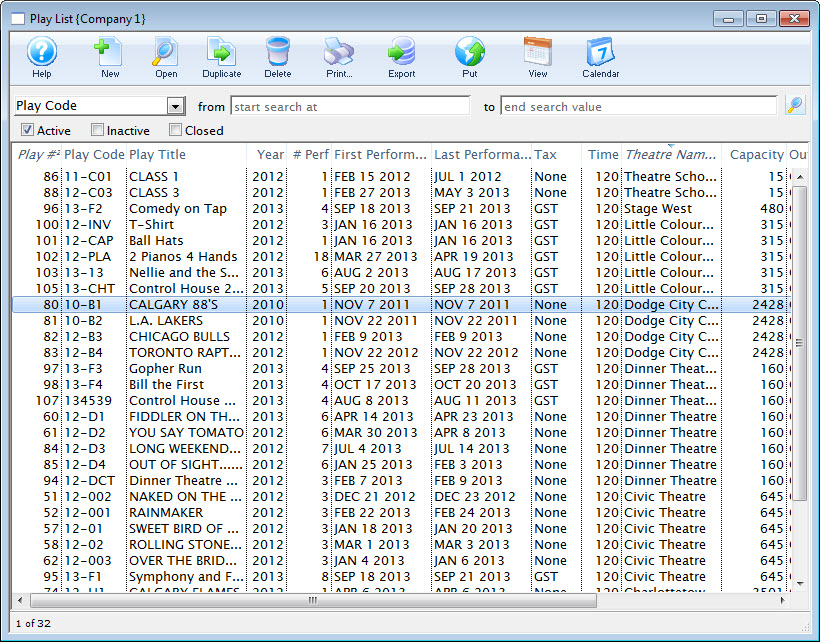
- Open the event / play and locate the status selections in the Event / Play tab of the Events & Dates window.
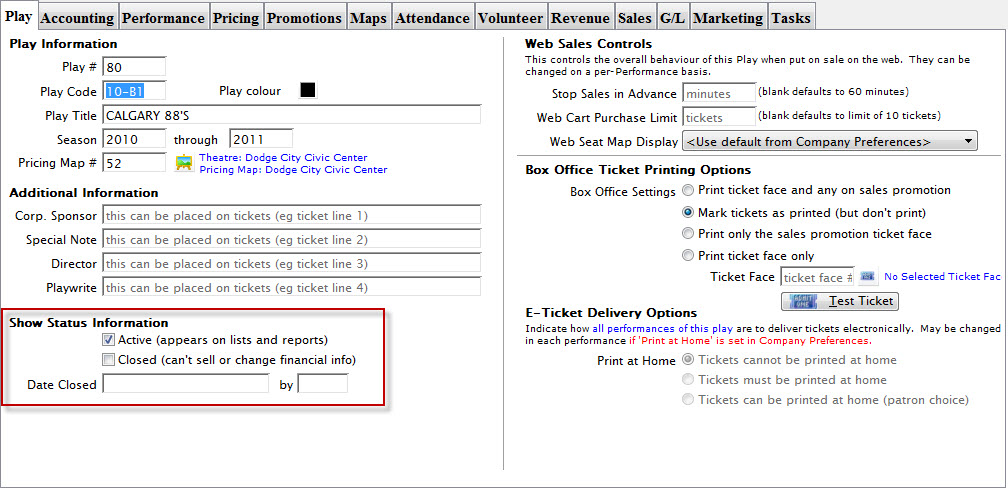
- Check the box next to Closed. A Close the Play dialog opens, asking you to verify closing the event / play.
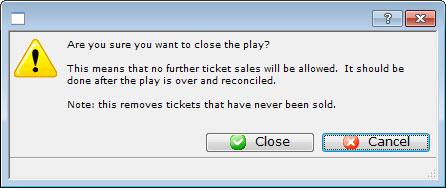
- Click the Closed
 button to mark the event / play closed.
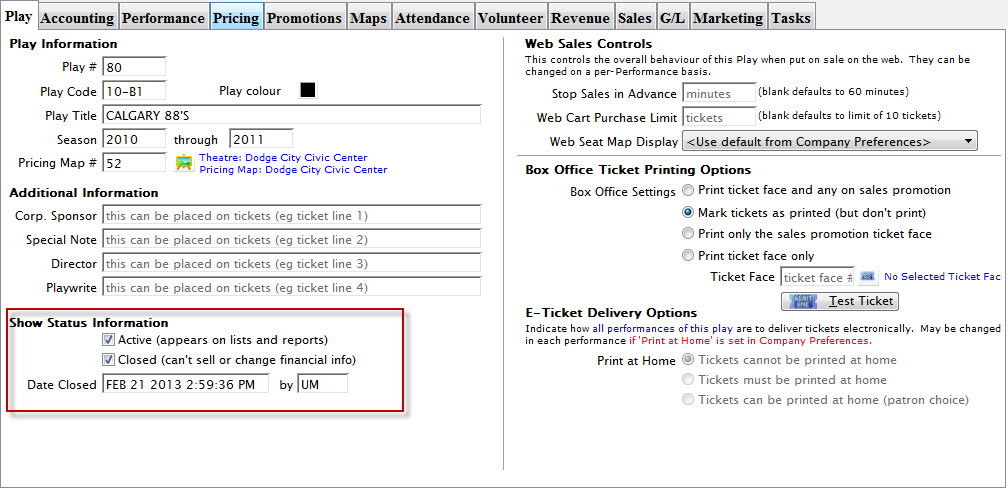
|
You can search for Closed events / plays in the Event / Play List by clicking the Closed box in the Event / Play List Window before entering search parameters. Then you can open a closed event and remove the check from the Closed Status box to re-open that event / play. |
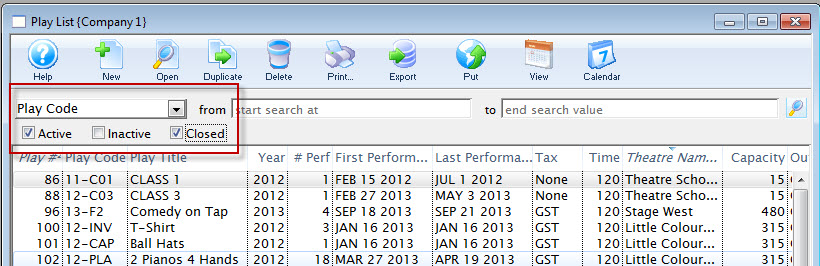
Creating a General Admission Event & Performance(s)
Before you add an event / play into Theatre Manager, a general ledger account number must be created for the new event / play. Refer to General Ledger Accounts for more information.
In the Event / Play window, there are eight different account number fields in five different ticket types. The eight accounts are:
- Sales
- Exchange
- Refund
- Discount
- Markup
- Ticket Fee account 1
- Ticket Fee account 2
- Ticket Fee account 3
The five ticket types are:
- Regular
- Season
- Other Type 1
- Other Type 2
- Internet
Depending on how your accounting system is setup:
- You may need to create only one G/L account for the entire event / play, or
- You may need a separate account for each of the account number fields in each of the five ticket type categories.
- Open the Event / Play List Window.
Click here to learn how to access this window.
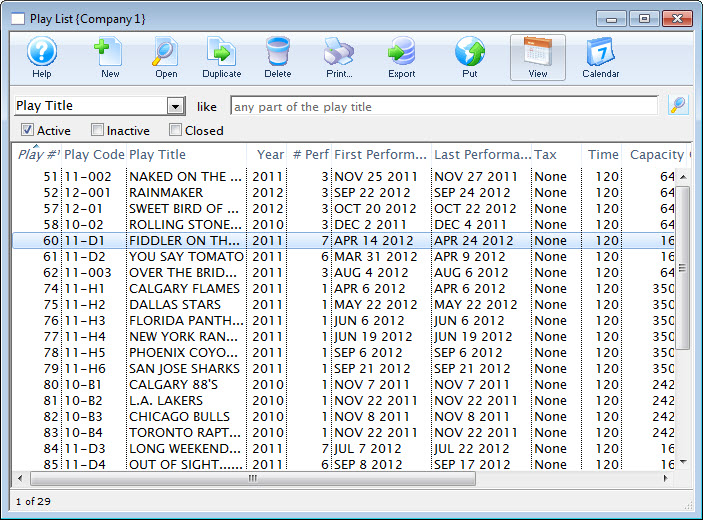
- Click the New button.
The fields are blanked to allow you to add new data.
- Enter the Event / Play information.
Click here for more information on Event / Play Information tab.
- Enter the Accounting information.
For more information on the Accounting Tab, Click here.
- Enter the required information on the Marketing Tab.
For more information on the Marketing Tab, Click here.
- Click the Save button.
- Click the Event's Performance tab. Then the New
 button.
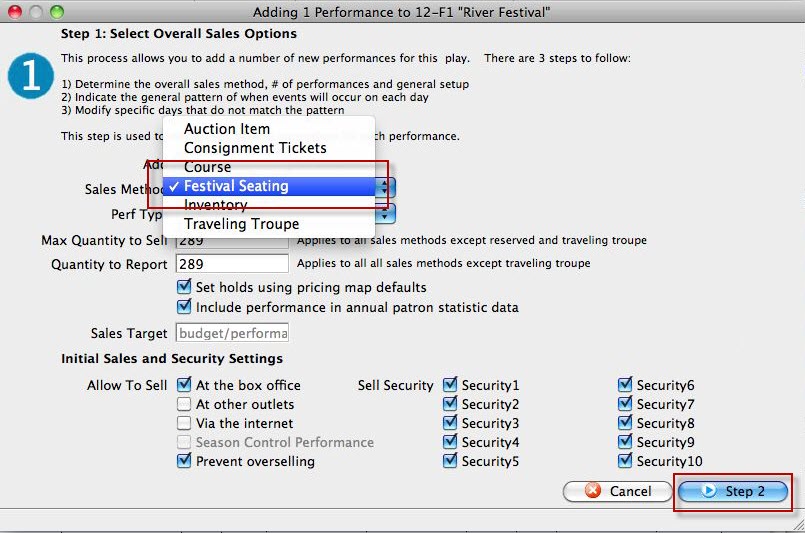
The Adding Perfromance window opens.
- In the Sales Method list, choose festival. For more information on this window Click here.
Review the other fields and when complete, click the Step 2 button.
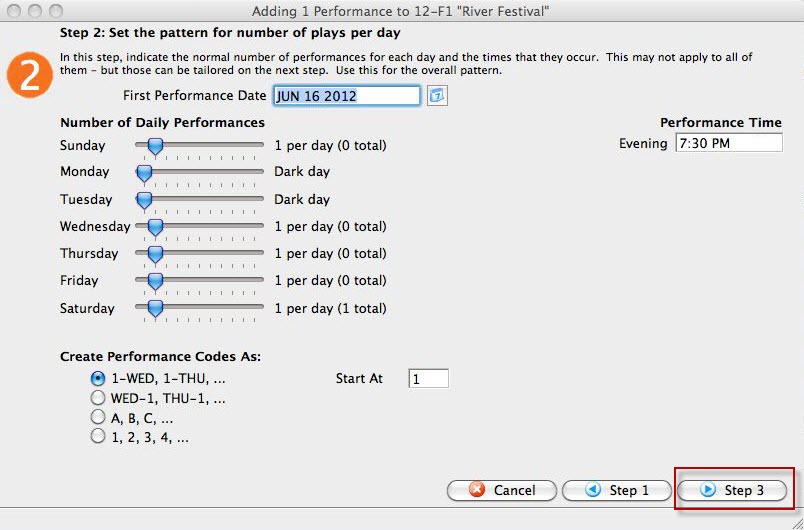
- In step 2, you set the pattern for the number of plays per day.
For more information on how to enter data in this window, click here.
- Click the Step 3 button.
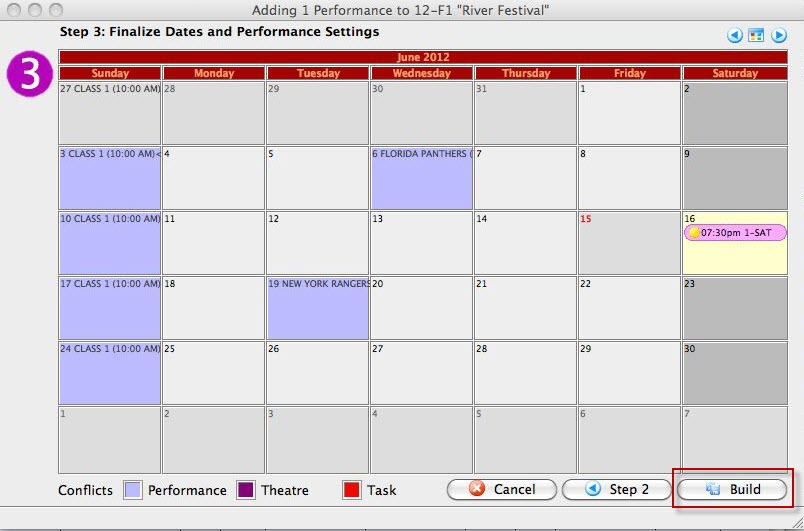
- In step 3, you finalize the performance.
For more information on Step 3, click here.
- Now you have finished setting up the perfrormances, click the Build button.
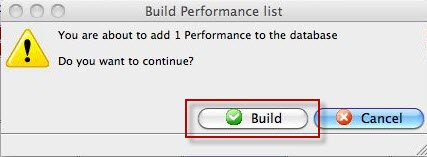
The Build confirmation dialog opens.
- Click Build again.
To start, you perform the following steps:
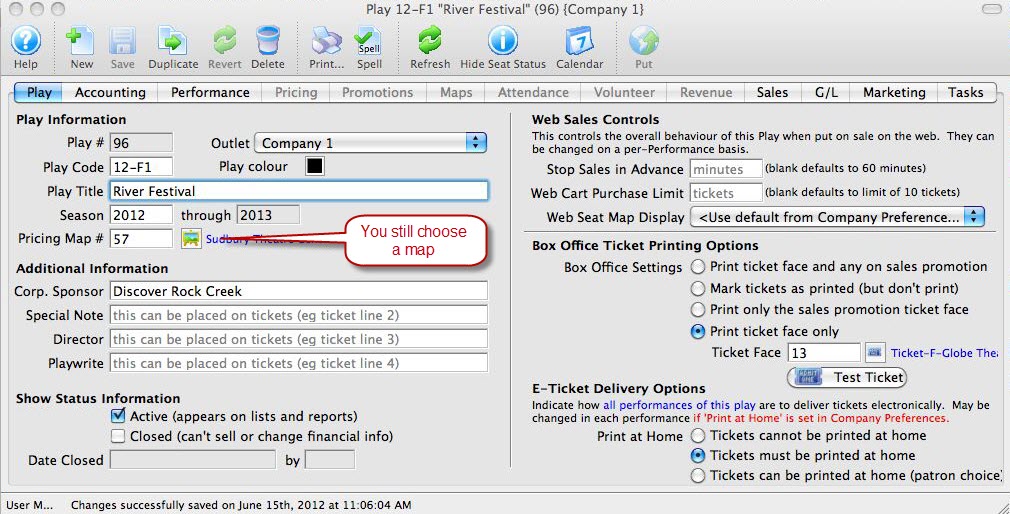
You have now created your Event. Next we add the Peformances.
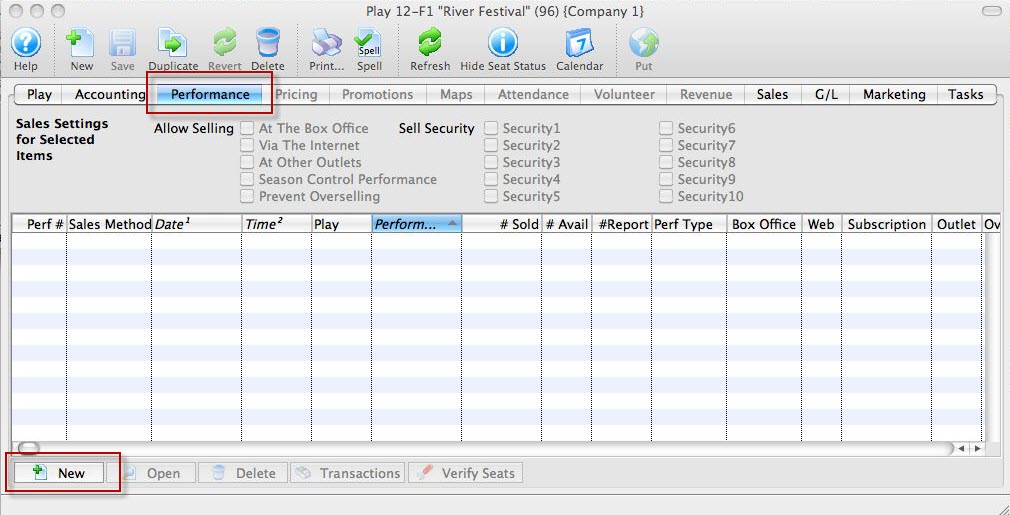
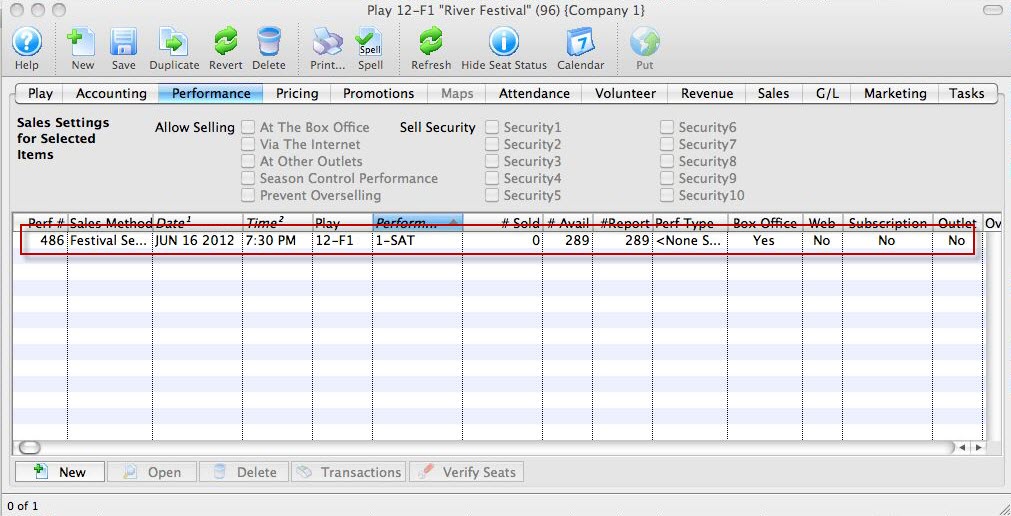
Your performance is now added to the event.
Click here for information on selling Festival tickets.
Creating an Event for Traveling Troupe Performances
Theatre Manager has a Performance Type/Sales Mode for Traveling Troupe performances. It is a method to record each run-out performance traveling group does, including the income from the run-out, activities of the group while they're traveling, and attendance/demographic data about the audience.
There are a few steps to setting up a Traveling Troupe performance.
- Create an Event under which to add the performances.
Typically, all traveling troupe performances are recorded under one Event. For step-by-step instructions on setting up events in Theatre Manager, click here.
- Assign a map to the event.
The traveling troupe method only sells 1 "ticket" to the venue contact for the show, so it does not matter which map is assigned here. Location details are filled out on a per-performance basis, so the map location/seats/etc are truly immaterial to this particular Event.
- Fill out the Accounting Tab with the appropriate accounts for the income from the various run-outs.
- Select a Genre from the dropdown list on the Marketing tab.
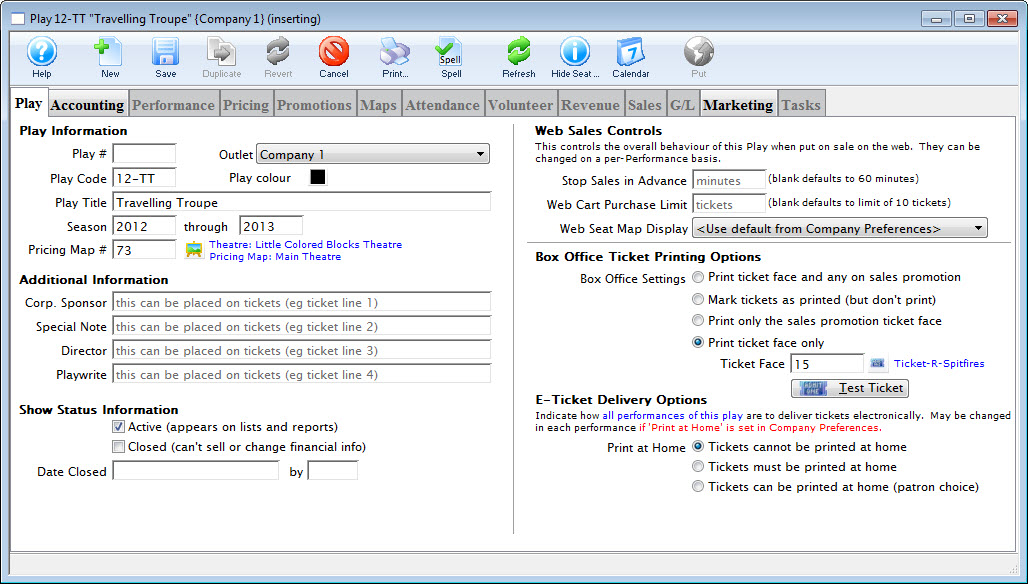
- Click the Save button.
- On the Performance tab, click the New to add a new performance.
You can start with just one or as many as you'd like. The traveling troupe sales method allows for quick adding of performances directly from the sales window, so not all shows need be set up at once.
- Select "Traveling Troupe" for the performance type.
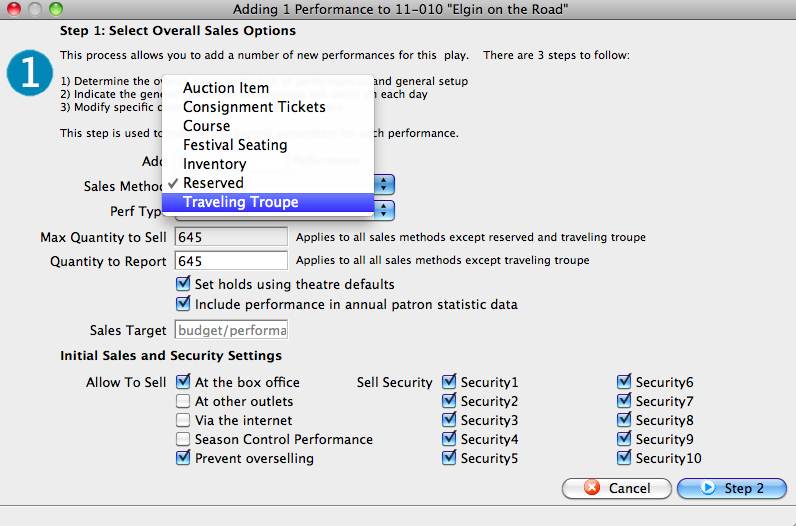
This "triggers" Theatre Manager to display the traveling troupe sales window when you sell the performance. For more information about creating Performances, click here.
- Set up a promotion to use for traveling troupe performances.
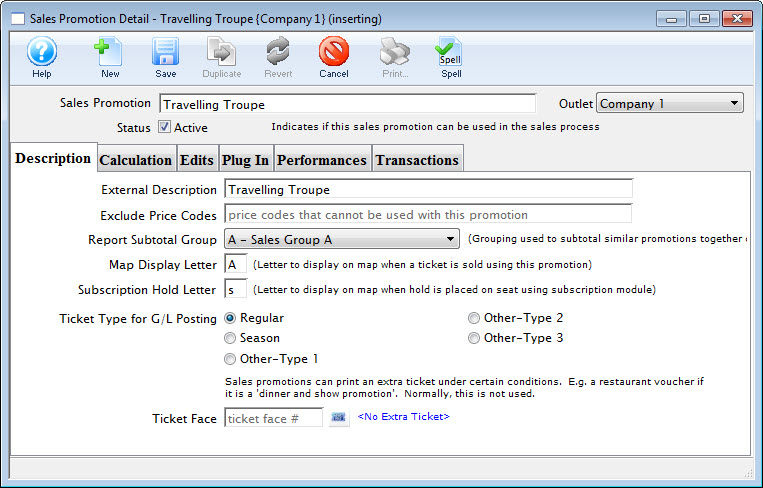
Tickets and revenue for all the performances will need to be recorded under a promotion, so it is best to set one up for the specific use.
The calculation could be for $0 (a comp) because the sales process allows for an override of the cost of the performance to match the contracted amount for the show. For instructions for creating promotions, click here.
There is an option in Setup >> System Tables >> Code Tables used in the Traveling Troupe sales process to record important activities/times for the chamber group (call times, rehearsals, etc).
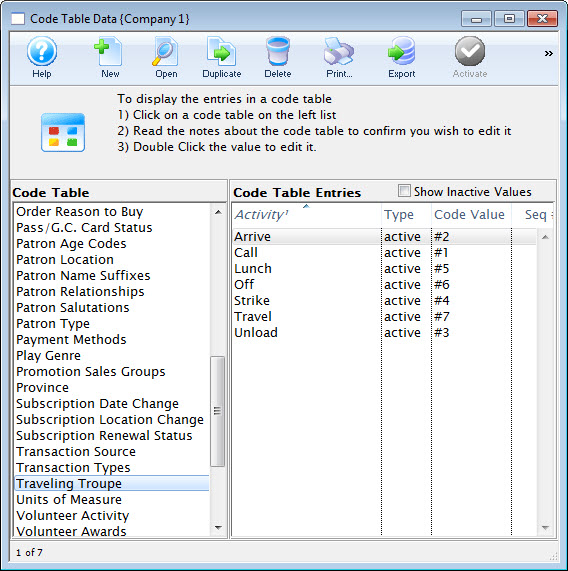
For information this option in code tables, click here. To learn how to add values to code tables, click here.
- Set the access for the employees who will be selling the traveling troupe performances.
Go to Setup >> Users and Access >> Employee List. Revise the employee access settings revised to include the ability to adjust the price of the performance.
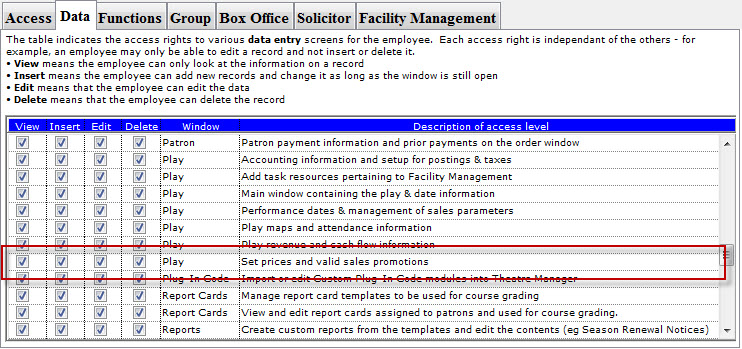
Select the employees one by one.
- On the Functions Tab of the access settings, ensure the employee(s) have a check next to Ticket Sales - Set the price of a traveling troupe performance during the sales process.
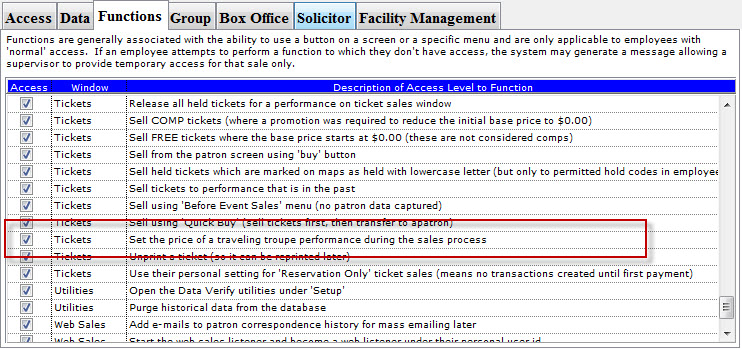
- Then you sell the performance to the road venue, using the primary contact at the venue as the patron to whom the performance is sold.
For instructions on how to do so, click here.
- Creating a Travelling Troupe Performance (just for the purpose of the template)
- Next, go to the performance setup tab >> On the Template Performance Section, check the template performance checkbox and enter a description.
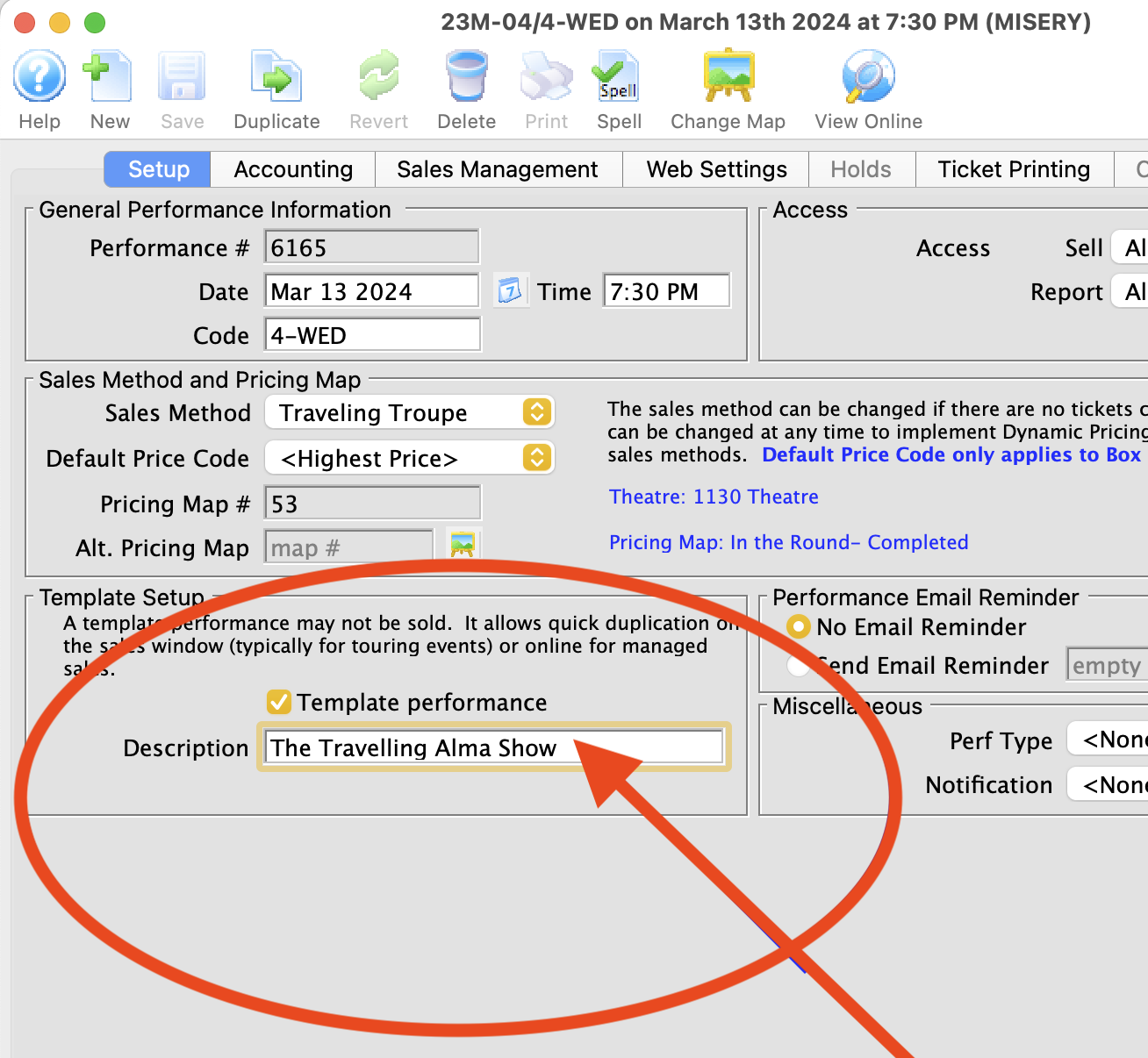
You can also add performances on the fly from the Order window. Highlight the Travelling Troupe performance, from the right-click menu, choose New performance.
or
Click the Add Play button in the Order window toolbar / ribbon bar.
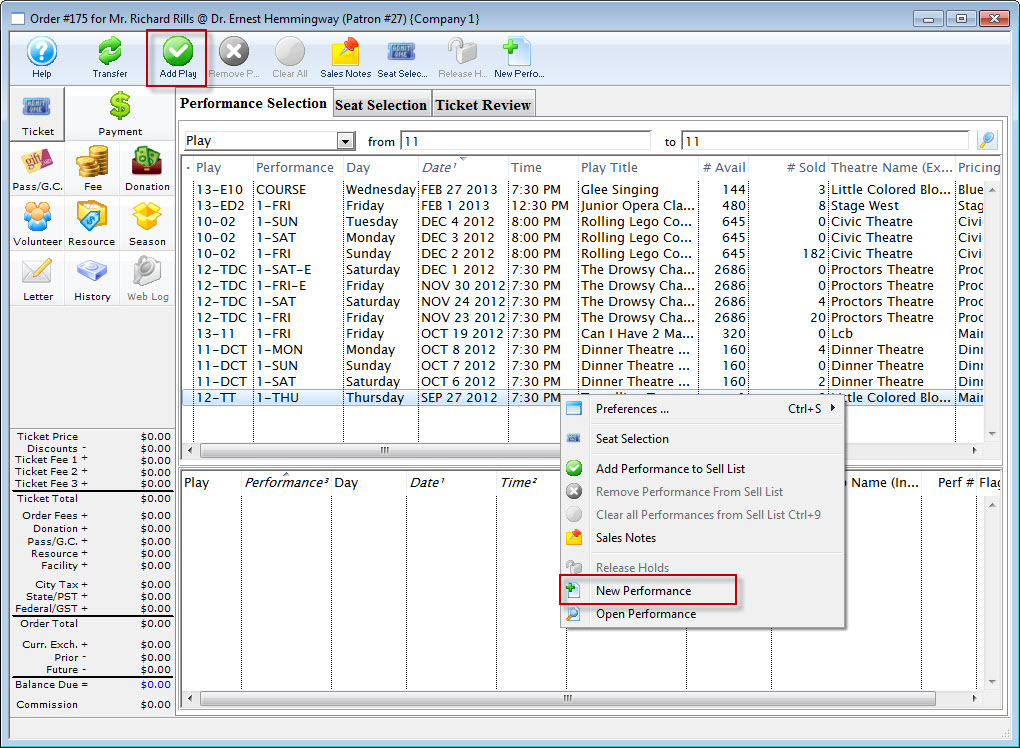
Note: Adding performances on the fly from the Order window requires the creation of a Performance Template with a future date that can be duplicated.
A Performance Template can be setup by;
Duplicating an Event / Play
- Select Setup >> Plays from Theatre Manager's main menu. Alternatively, click the Play button in the main Theatre Manager toolbar / ribbon bar.
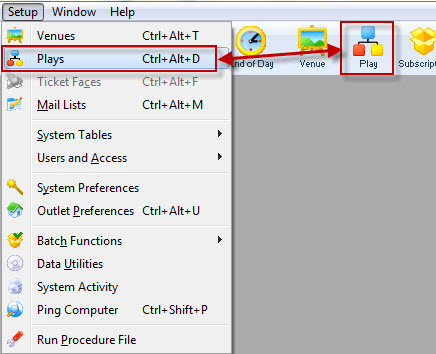
The Play List window opens.
- Highlight the Event / Play you want to duplicate.
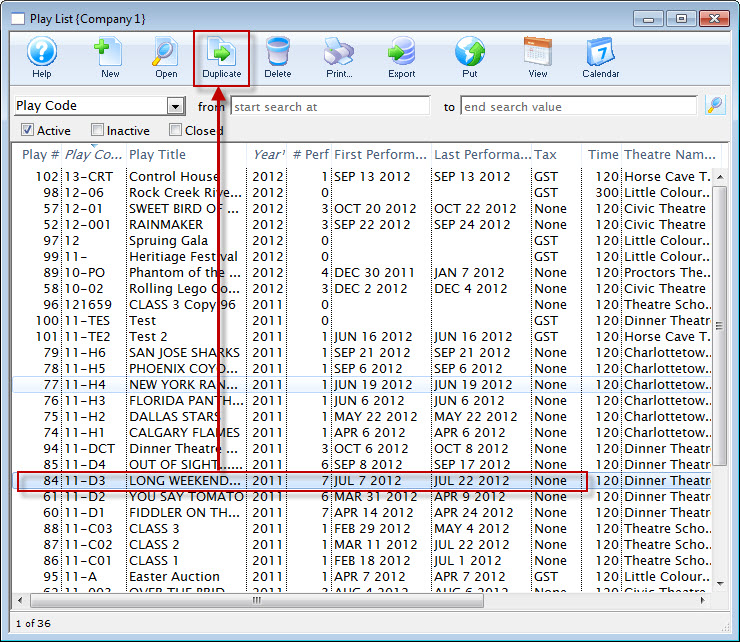
- Click the Duplicate button.
- Open the Duplicate Event/Play for editing.
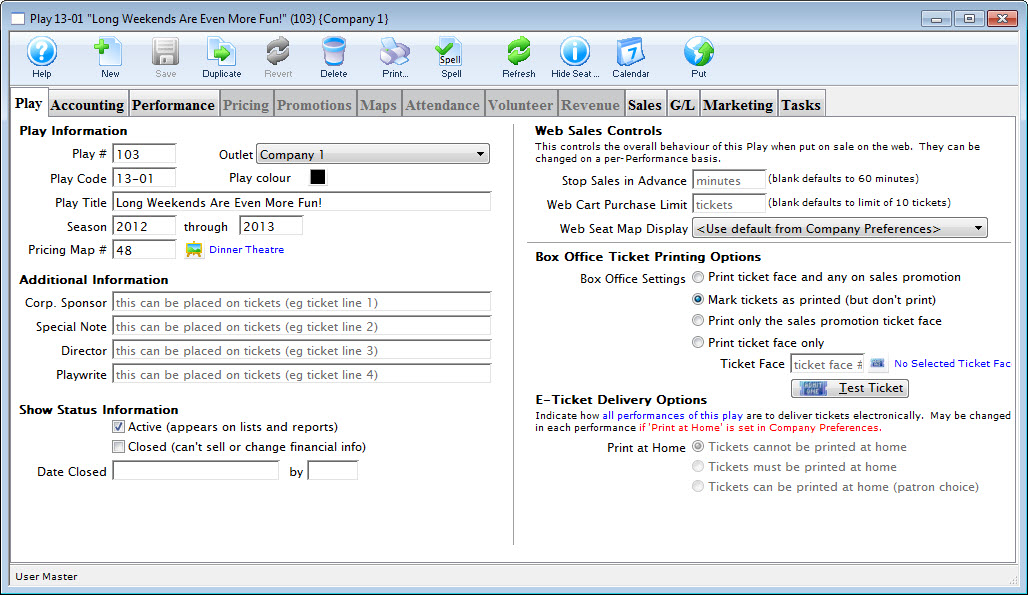
For more information on finding events, click here.
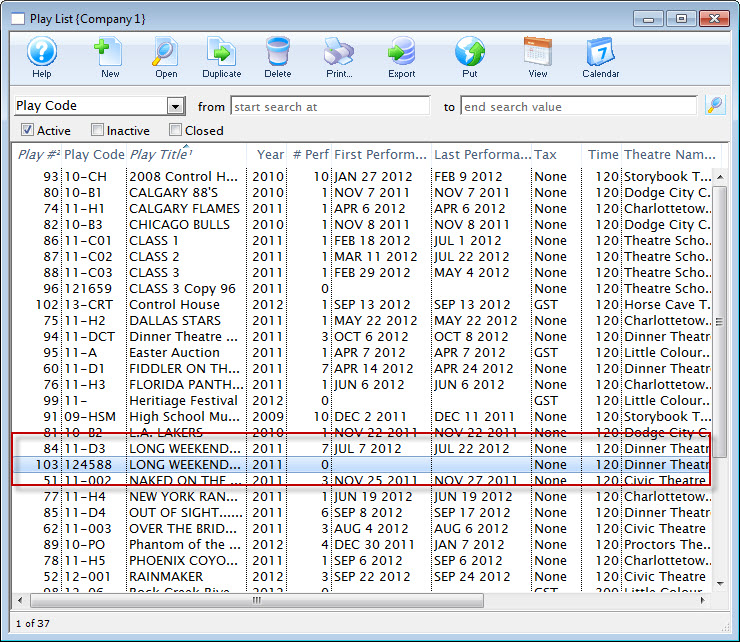
A duplicate event /play is now available for you to edit.
You can now change:
- Information on the Event/Play Information tab
- Accounting Tab (the information from the play/event should have been duplicated
- On the Marketing tab, set the genre and make any notes you want to include online.
- When you have completed your editing, click the Save button.
You can now add your performances on the Performances tab. Click here for more information on adding performances.
Merchandise Setup (deprecated/Old Way)
|
This approach is Deprecated:
Please do not use this method any more. We suggest using resources and inventory instead. You can also have direct links to inventory (like t-shirts) from any web page. |
You can use Theatre Manager to sell merchandise at the Box Office and via the Web by setting up an Event for merchandise sales. To do this, you would perform the following steps:
- Create a new map just for merchandise sales. This will be a general admission map so only the information under the description tab will be required.
- Build your merchandise event using the merchandise map from above.
- Create a performance for each piece of merchandise.
Take note of the performance numbers as you build. These will be used in steps below.
- Duplicate and edit the tmVenueDefault.html page found in the tmVenue folder.
Change the name of the duplicated page to tmVenue**.html where ** represents the map number from Step 1.
Edit the content of the page to advertise your merchandise.
- Duplicate TMticketsPrice_MapDefault.html and the TMticketsSection_MapDefaultf.html pages.
Note the f at the end of the second page.
Change the work Default to the Map number from Step 1.
Alter the line for the map image within the page to reference the image for the merchandise item. By change the line as outlined before Theatre Manager will reference the image sharing the same item number as the performance number.
Locate the following:
F_HTML_SEATMAP&selected_only=no&img_quality=75" border="0">
The TMticketsPrice_Map page may look like this:
F_HTML_SEATMAP&selected_only=yes&selected_border=144&selected_color=007700&img_quality=75" border="0">
Replace both with:
PB_SEQ.gif" target="window_blank">
PB_SEQ.gif" width="392" height="200" border="0">
Click on image for larger view
- Save pictures of the merchandise in the order of the events. Alter the names of the pictures to say item**.gif where ** represents the performance the item will be sold as. Place these pictures in the tmGIFS folder within the web pages.
Working with Auction Items
A number of organizations are now using auctions as a standard fundraiser during the season. Theatre Manager supports the selling of auction items.
Setup a Donation Campaign - Optional
Most often items used in the auction are donated by other organizations. By setting up a donation campaign, these items can be tracked and receipts can be issued for the donation.
- Setup a donation campaign for the items received.
Click here for more information on setting up a donation campaign.
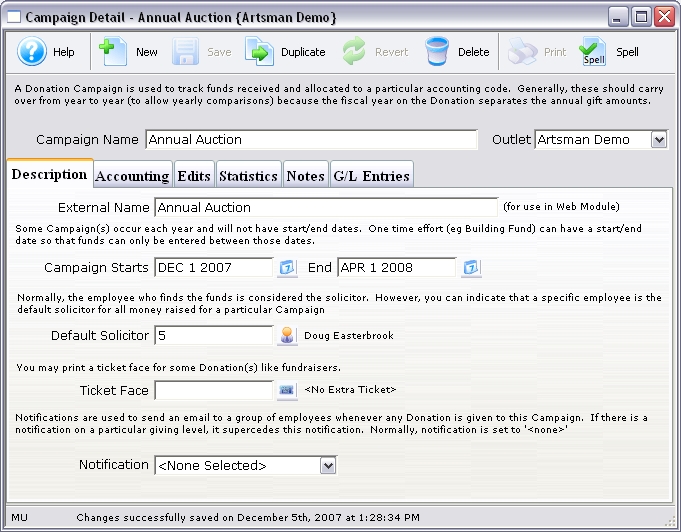
- Enter the donations to the Patron record.
Use the description field to describe the auction item. Using one of the donor fields, classify the gifts received. Examples of classifications are travel, gourmet, electronics, theatre, etc.
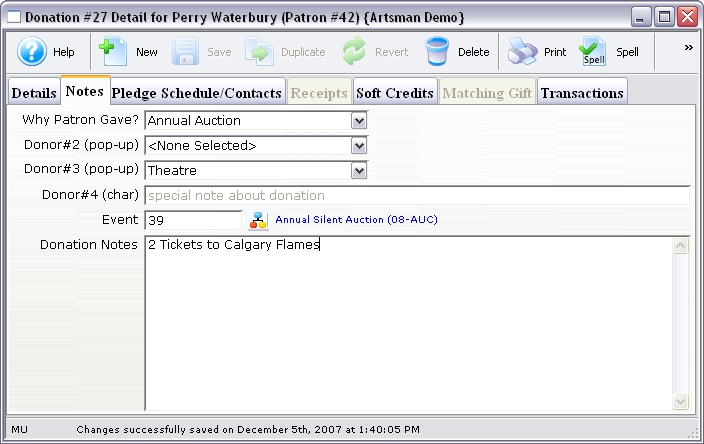
- Use 'Gift In-Kind' as the payment method.
- Print a report on the donation campaign to have a list of all auction items.
Setting up the Event with Auction Items
- Create a new event called Auction with the season.
Click here for more information on creating an event.
An example would be Auction 2007.
- Create a new performance as 'Sales Method' Auction Item.
Click here for more information on adding a performance.
Set the 'Quantity to Sell' as the total number of Auction Items available.
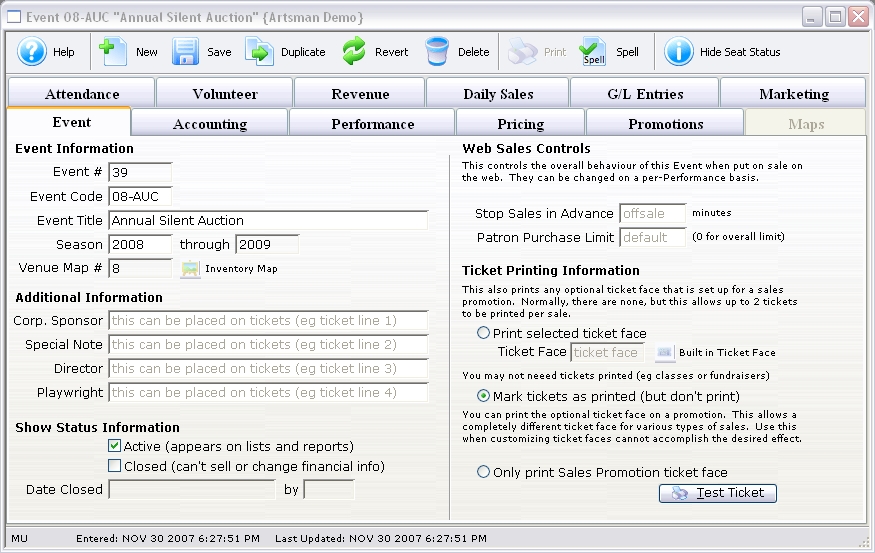
- Create a new performance as 'Sales Method' General Admission. - Optional
An additional performance can be used to track admission to the auction.
The Night of the Auction
- All running bids for auctions will be tracked separately at the tables.
- At the end of the auction, pull all the auction tracking forms.
- Find the winning patron in the database and sell a ticket to the auction item performance.
The ticket order window will have additional information for handling auction items.
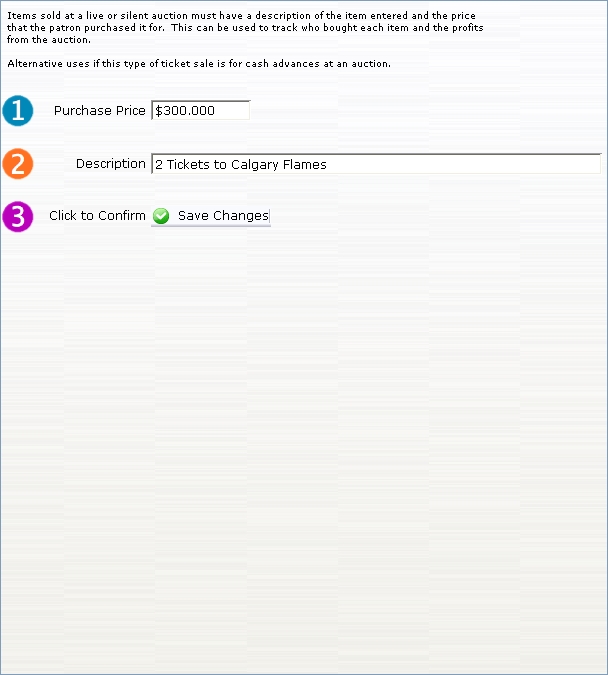
- Enter the price and description of the item.
- Go to the Payment window and place the order 'On Account.'
- Repeat Steps 3-5 for each additional auction item.
If a patron has won more than one auction item, make sure to add the items to one order.
- When the patron comes to the Box Office to pay, go to the order in their Patron record.
Orders are stored on the Order tab of the Patron record.
- Select the order and then click on the Payment button.
A receipt can be printed so the patron has payment verification when they pick up their item from the table.
Ticket Faces
With Theatre Manager you can customize ticket faces when printing on BOCA or Practical Automation compatible printers. You can:
- Select the information to be printed on a ticket
- Define where the information is printed on the ticket.
- Determine the size of the fonts printed on the ticket.
- Assign different ticket faces to different plays.
The process of creating a customized ticket face does involve some trial and error to align information and font sizes. To access the Ticket faces window you:
- Choose Setup >> Ticket Faces from the Main Menu.
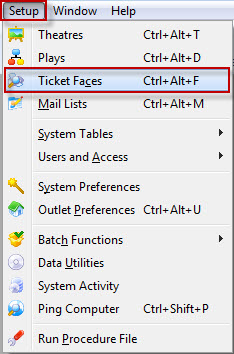
The Ticket Face List window opens.
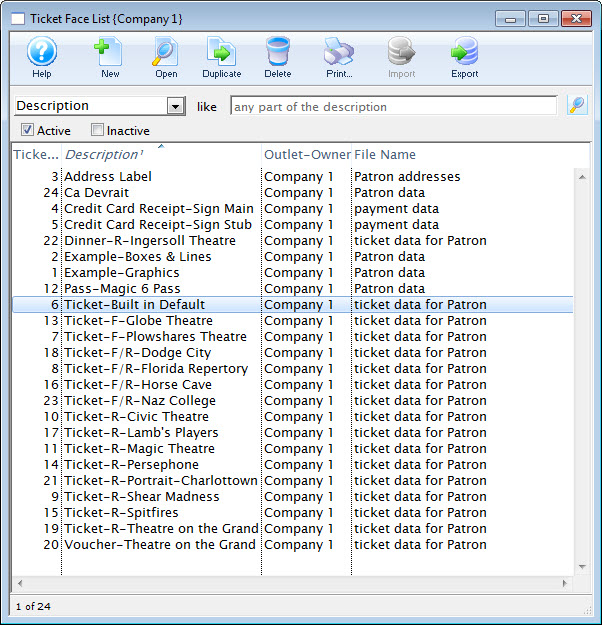
Click here for more information on the Ticket Face List window.
Ticket Face List Window
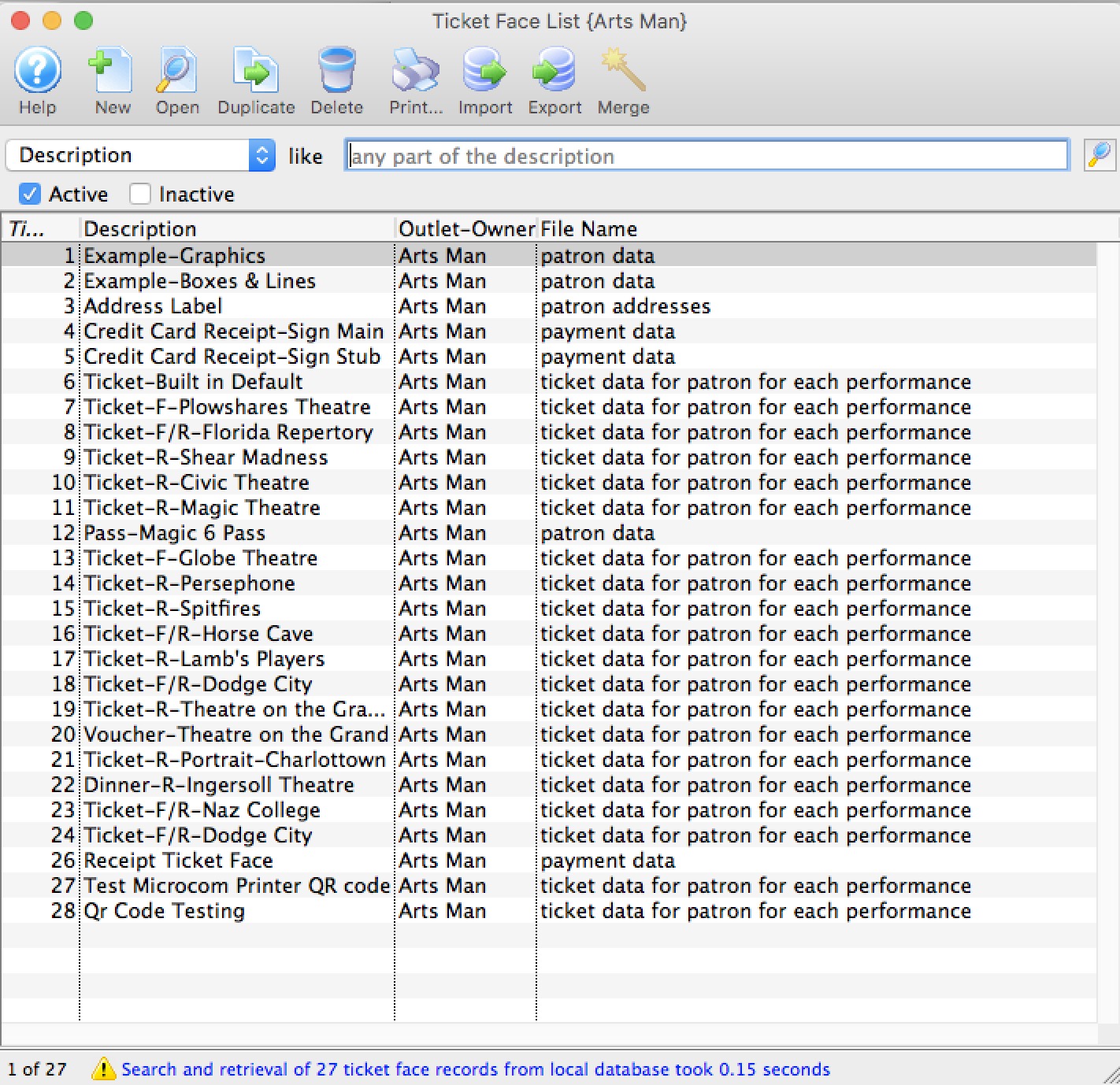
Parts of the Ticket Face List Window
|
Inserts a new ticket face. For more information on creating new ticket faces click here. |
|
Opens the selected ticket face for editing. For more information on editing ticket faces click here. |
|
Creates a duplicate copy of the current ticket face. |
|
Deletes the selected ticket face. For more information on deleting ticket faces click here. |
|
Generates a report of all listed ticket faces to the screen or default print location. |
 |
Imports a tmf format ticket face into Theatre Manager. |
|
Exports a ticket face out of Theatre Manager in a tmf format. |
| Merge | Merges the selected ticket faces together. All ticket faces that are being merged must be based on the same file for the merge to be allowed. |
| Description | Search option for the ticket face. Select a search parameter that best suits the ticket face to be located. |
| From | Starting range of the ticket face search. |
| To | Ending range of the ticket face search. |
|
Search button to execute the search. |
| Ticket# | Unique number assigned by Theatre Manager to track the ticket face. |
| Description | Name of the ticket face. |
| Outlet-Owner | Outlet responsible for the ticket face. |
| File Name | Data the ticket face is composed of. |
Ticket Face Detail Window
The Ticket Face Detail window displays all of the information about a ticket.
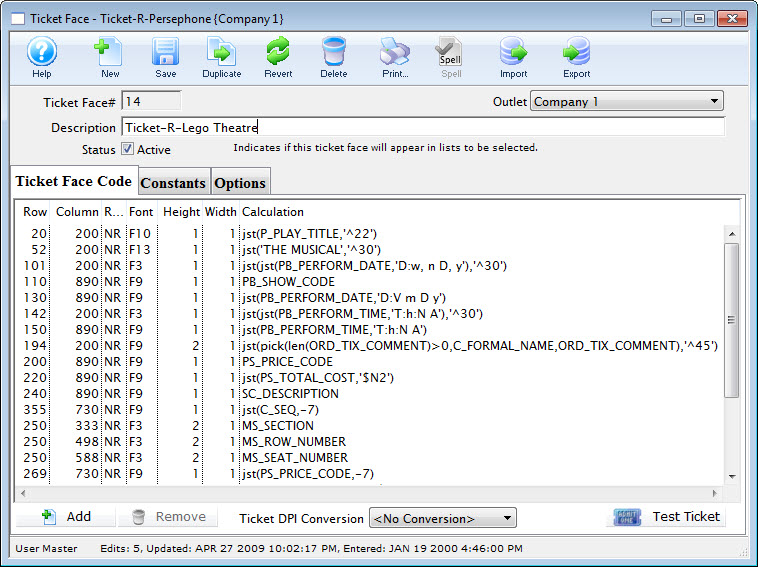
Parts of the Ticket Face Detail Window
|
Inserts a new ticket face. For more information on creating new ticket faces click here. |
|
Saves changes made to the current ticket face. |
|
Creates a duplicate copy of the current ticket face. |
 |
Reverts changes made to the ticket face back to the last saved point. |
|
Deletes the selected ticket face. For more information on deleting ticket faces click here. |
|
Generates a report of the ticket faces to the screen or default print location. |
| Ticket Face# | Unique number given to the ticket face by Theatre Manager |
| Outlet | Outlet responsible for the ticket face. |
| Description | Name of the ticket face, if it is for a ticket, receipt, renewal notice etc. |
 |
Code used to create the ticket face. For more information on the ticket face code tab click here. |
 |
Equations calculated prior to printing the ticket. For more information on the constants tab click here. |
 |
Additional options for ticket printing. For more information on the options tab click here. |
|
Adds a line to the bottom of the ticket parameters and opens the Ticket Face Detail window. For more information on the Ticket Face Detail window click here. |
 |
Removes the currently selected lines from the ticket face. |
| Ticket DPI Conversion | Allows the conversion of the row and column information to a different DPI. |
 |
Enables printing of a sample ticket to the printer. Ensure the printer is correctly set up in the options tab. This is designed to print a sample ticket with sample information. To see an actual ticket with correct information the ticket face number must be entered into the Plays and Dates information for a particular play. Sell tickets to a test patron account and print them as a final test of the ticket design. |
Ticket Face Code Tab
Parts of the Ticket Face Code Tab
| Row | Row the calculation is applied to |
| Column | The column the calculation is applied to |
| Rotation | The rotation of the data |
| Font | The font used to display the data |
| Height | The height of the characters |
| Width | The width of the characters |
| Calculation | Exports the ticket calculations |
|
Add a line to the ticket face calculations.
|
|
Remove a line from the ticket face calculations. |
| Ticket DPI Conversion | Allows the conversion of the row and column information to a different DPI. |
|
Enables printing of a sample ticket to the printer. Ensure the printer is correctly set up in the options tab. This is designed to print a sample ticket with sample information. To see an actual ticket with correct information the ticket face number must be entered into the Plays and Dates information for a particular play. Sell tickets to a test patron account and print them as a final test of the ticket design. |
Constants Tab
You use constants to add to ticket face equations. Constants replace long lines of equation that need to be repeated or in conjunction with pick statements. A pick statement may read if the constant is not met to print one thing on the ticket but if the constant is met to print something completely different. Constants allow for more editing options and can be used as many times as is needed in the ticket face.
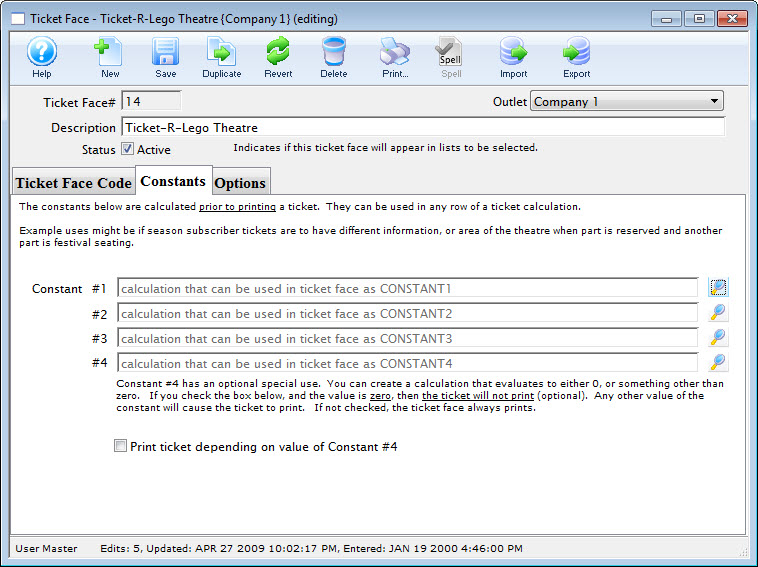
Parts of the Constants Tab
| Constant #1 | First constant equation. |
| Constant #2 | Second constant equation. |
| Constant #3 | Third constant equation. |
| Constant #4 | Fourth constant equation. |
|
Opens the constant equation window. For more information on creating constants click here. |
| Print Ticket Depending on Value of Constant #4 | If the value of constant #4 equals zero the ticket face will not print. |
Ticket Face Constants
You use constants to add to ticket face equations. Constants replace long lines of equation that need to be repeated or in conjunction with pick statements. A pick statement may read if the constant is not met to print one thing on the ticket but if the constant is met to print something completely different. Constants allow for more editing options and can be used as many times as is needed in the ticket face.
An example of a constant value is:
- CON(PATRON_FIRST_NAME,' ',PATRON_LAST_NAME).
- Print the patron's first name, a space and the patron's last name.
This statement says:
Rather then having to type this information several times, CONSTANT1 can be typed to generate the patron's name. A more complicated constant may be used within the ticket face when something other then the regular ticket information is to be printer.
In addition to acting as a constant, line #4 can be set to require a value equaling something other then zero. If the value of the equation is zero, a ticket will not print. This feature can be used when a ticket is not required if a patron meets specified conditions.
Adding a Constant
- Open the Ticket Face List window.
Click here to learn how to access this window.
- Select the ticket face you are adding a constant to.
Single click on a ticket face to select it.
- Click the Open button.
- Click the Constants tab.
- Click the Lookup button.
The Constants Detail window opens.
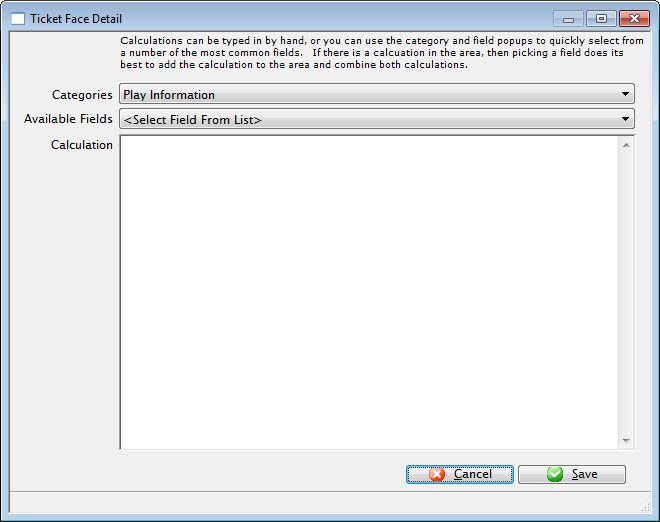
- Enter the Constant equation.
To enter information under 'Calculation', click on 'Category' drop-down list.
Once you have selected an option, click the 'Available Fields' drop-down list.
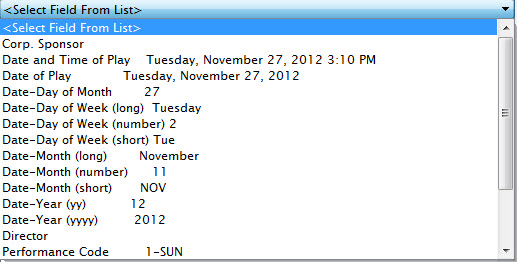
This pop-up menu has two columns.
The left column is the fields to be entered and the right column is the sample information. Select a field (for example - company name). The information that appears in the field calculation (D_COMPANY) instructs the printer to put the company name (found in Company Preferences) in this location on the ticket.
You can type this information into the field calculation, however, if all event data is typed onto the ticket face, this prevents the tickets from being able to be used for other events. Click here for more information on Calculations.
- Click the Save button.
The Constant has now been added to the ticket face and can be used in conjunction with other equations.
Options Tab
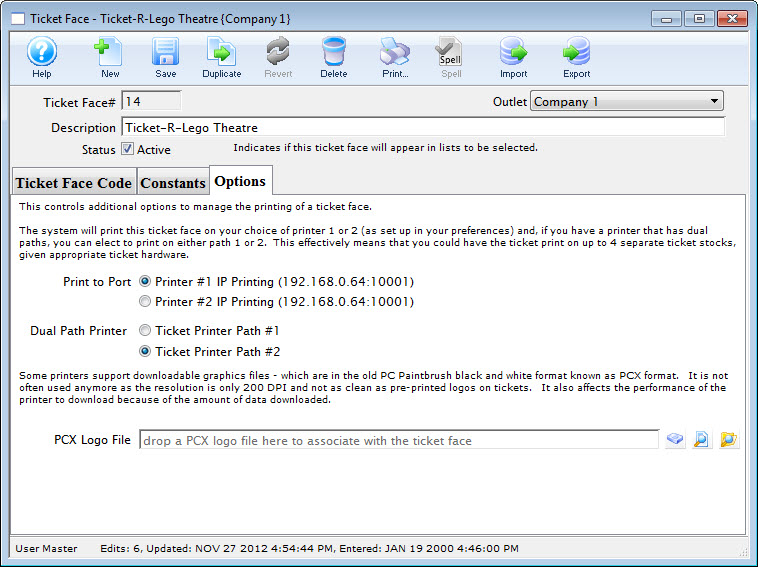
Parts of the Options Tab
Print to Port |
|||
| Printer #1 | Option 1 for ticket printing. Any ticket printed using this ticket face will be sent to the printer specified in the hardware setup as printer #1
This allows you to print a batch of tickets to two printers with different stock in them, depending on the event purchased. Printers do not have to be identical types or models or ports. |
||
| Printer #2 | Option 2 for ticket printing. Any ticket printed using this ticket face will be sent to the printer specified in hardware preferences identified as printer #2.
This allows you to print a batch of tickets to two printers with different stock in them, depending on the event purchased. Printers do not have to be identical types or models or ports - they have to be the same manufacturer. |
||
Dual Path Printer |
|||
| Ticket Printer Path #1 | Port 1 on the ticket printer. Select this option if the ticket should print to this port. | ||
| Ticket Printer Path #2 | Port 2 on the ticket printer. Select this option if the ticket should print to this port. | ||
Logo |
|
||
| PCX Logo File | File name of the logo to be printed on the ticket | ||
 |
Search button to locate the logo file. | ||
 |
Opens the logo in it's designated program for viewing. | ||
 |
Opens the folder the logo resides in. | ||
Creating a Ticket Face
- Open the Ticket Face List window.
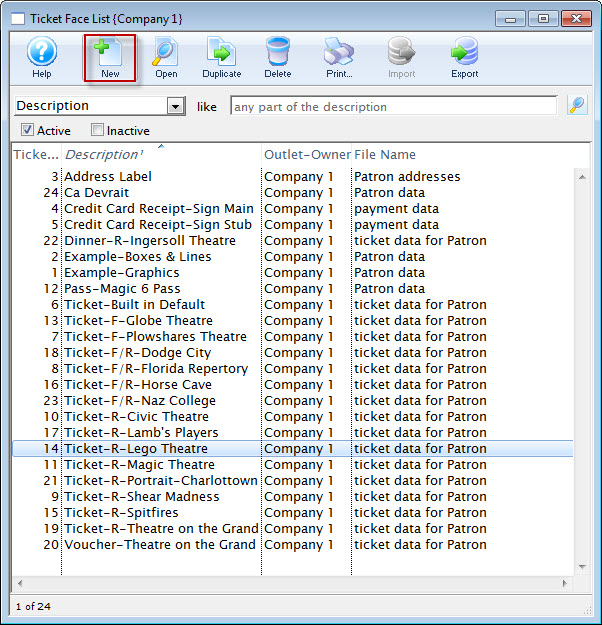
Click here to learn how to access the Ticket Face List window.
- Click the New button.
An empty Ticket Face Detail window will open.
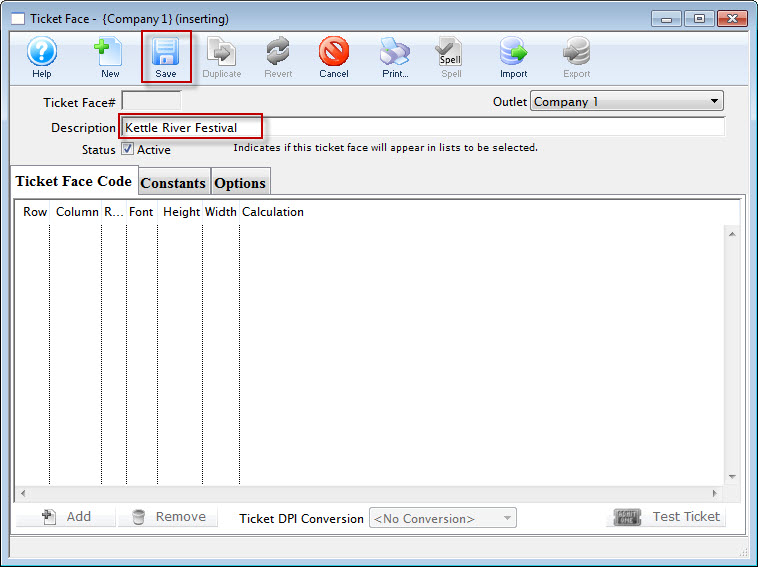
- Enter the name for the ticket face in the description field.
- Click the Save button.
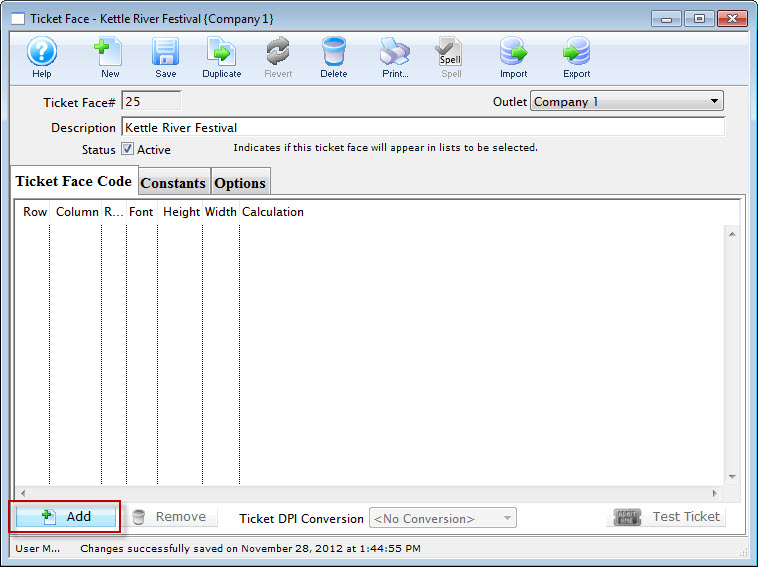
- Click the Add button.
The Ticket Face Detail window opens.
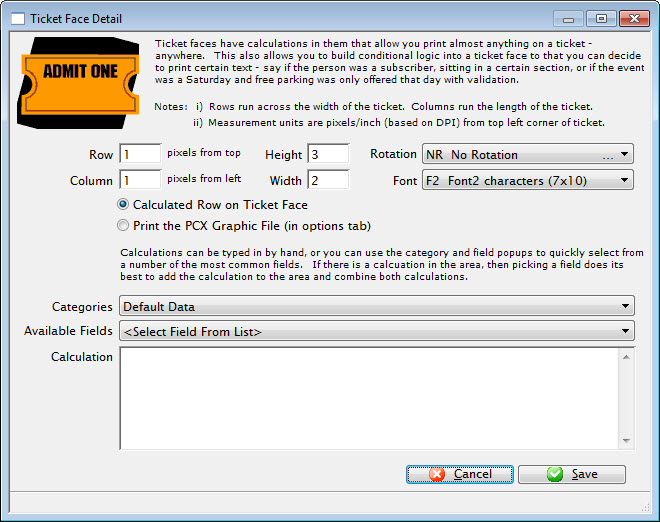
For more information on the Ticket Face Detail window click here.
- Enter a Calculation.
To enter information under 'Calculation', click on 'Category' drop-down list. Select an option and click the 'Available Fields' drop-down. The left column of this pop-up contains the fields to be entered and the right column shows sample information. Select a field (for example, company name). The information that appears in the field calculation (D_COMPANY) instructs the printer to put the company name (found in Company Preferences) in this location on the ticket.
You can type information directly into the field calculation, however, if all event data is typed onto the ticket face, it can not be used for other events. Click here for more information on Calculations.
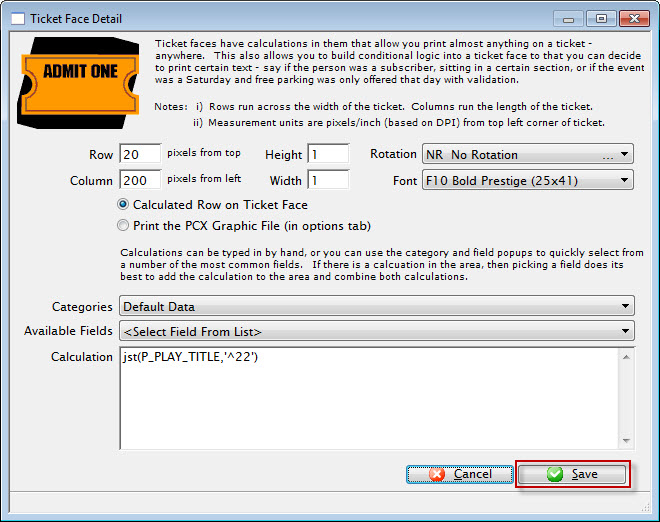
- Click the Save button.
The equation is added to the ticket face.
- Click the Constanats tab.
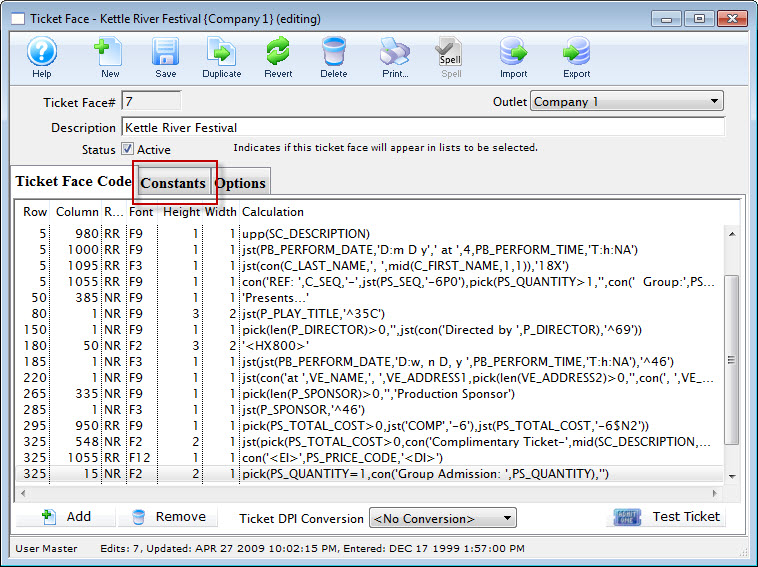
- Enter constants as needed.
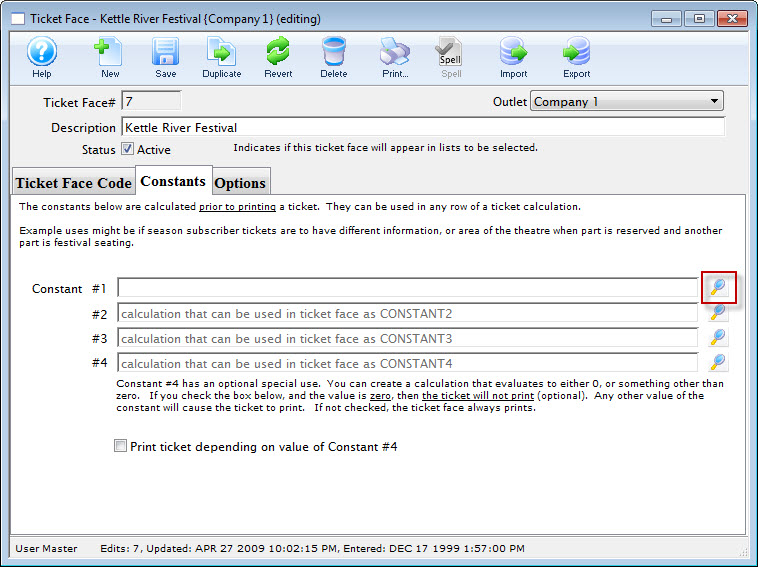
- After you have entered your constant, click the Save button.
- Click the Options tab.
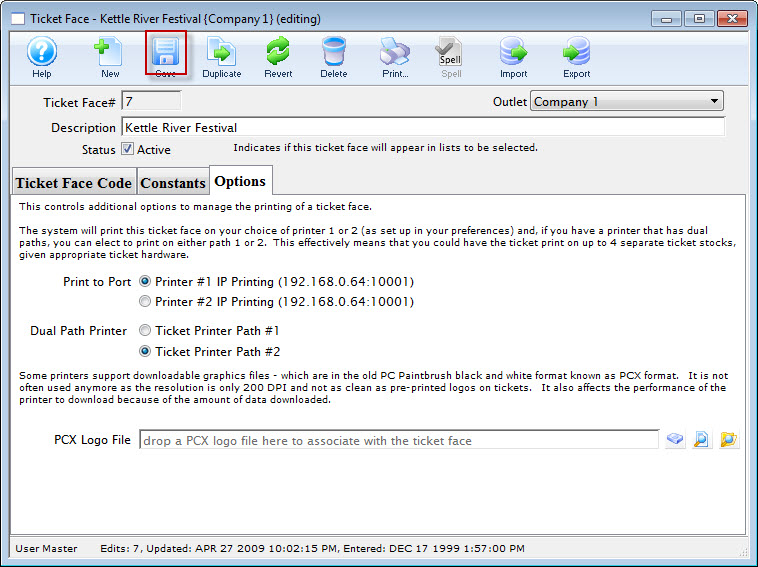
- Select the default printer settings for this ticket face.
For more information on the Options tab click here.
- Click the Ticket Face Code tab.
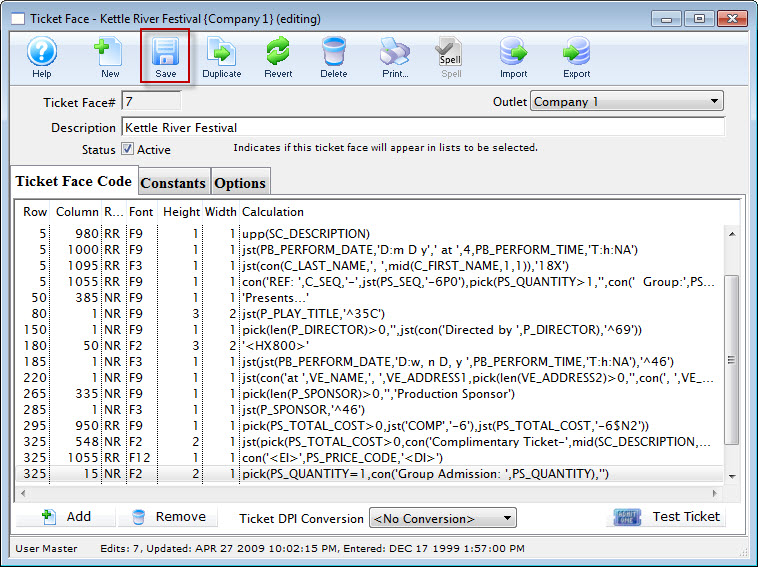
- Click the Save button.
The changes to the ticket face have now been saved. Click the Test Ticket
button to preview the ticket.
For example, you need to have your ticket face for a single performance ( the second Saturday) not print the price for that night and the pricing is applicable to 3 promotions.
You would enter the Constant PB_SERIES_CODE='2-Sat'+SC_DESCRIPTION='MTP Single Tickets'|SC_DESCRIPTION='Manager Discretion Comp'|SC_DESCRIPTION='Media Comp'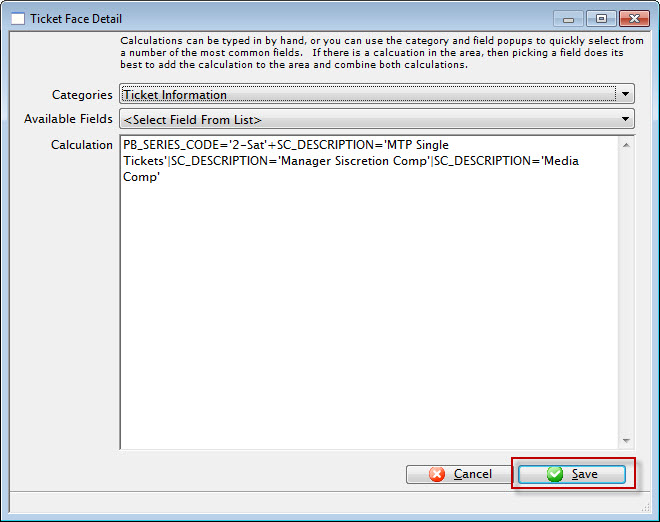
For more information on adding constants click here.
Editing Ticket Faces
- Open the Ticket Face List window.
Click here to learn how to access the Ticket Face List window
- Select the search option.
Choose from the drop down the most effective search option.
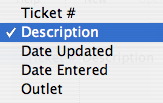
- Enter the From and To range.

- Click the Search button.
A list of ticket faces meeting the search criteria opens.
- Select the ticket face you want to change.
Single click on a ticket face to select it.
- Click the Open button.
The Ticket Face Detail window opens.
- Make changes to the ticket face as needed.
For more information on editing lines in a ticket face click here.
Use the Revert
to undo changes to the last saved point. - Click the Save button.
The changes to the ticket face have now been saved.
Formatting Ticket Faces
- Double click on a line to open up the Ticket Face Detail window.
- Change the row parameter.
- Click the Save button.
The changes have now been accepted for this line.
- Click the Test Ticket button.
A sample ticket will print for review.
Row Placement
When you are formatting ticket faces, you need to think in Rows and Columns.
Row
The number of rows on a ticket face is dependent on the resolution of the ticket printer in dots per inch (DPI). The total number of rows is equal to the total number of dots that could be printed in the height of the ticket. To calculate the total number of rows available, multiply the DPI of the ticket printer, times the height of the ticket. For example:
- If a printer has 200 DPI resolution, it prints 200 dots
per inch. A two inch high ticket will have 400 dots or rows.
By entering 300 into the row perimeter, you instruct the printer to start printing the information at the 300th dot, or 1.5 inches from the top of the ticket.
- If the printer is 100 DPI there are 200 dots
in the height.
By entering 150 in the row parameter, you instruct the printer to start printing the information at the 150th dot or 1.5 inches from the top of the ticket.
Column Placement
- If the printer has 200 DPI resolution, it prints 200
dots per inch. A 5 inch wide ticket will have 1000 dots or columns.
By entering 300 into the column parameter, you instruct the printer to start printing the information 1.5 inches from the left edge of the ticket.
- If the printer is 100 DPI there are 500 dots in the
width.
By entering 150 in the column parameter you instruct the printer to start printing the information 1.5 inches from the left edge of the ticket.
Font Name
Beside the name of the font, there is a number bracketed number. This refers to the number of dots (or pixels) in each character.
A (5 x 7) font means that the font is designed to print each character 5 dots wide and 7 dots high on the ticket face.
You can alter the size of the font by changing the height or width parameter in the ticket face to make it bigger in one or both directions.
Font Height
For example:
- if the font selected is (5 x 7) pixels -and-
- the height set at 4
Font Width
For example:
- if the font selected is (5 x 7) pixels -and-
- the width set at 2
Font Rotation
The options are:
- NR (No Rotation) means no rotation and information is printed horizontally along the ticket face.
- RL (Rotate 90+) means rotate the text clockwise (to the left) and print from the top to bottom.
- RR (Rotate 90-) means rotate the text counter clockwise (to the right) and print from the bottom of the ticket to the top.
- RU (Rotate 180) means print the text upside down on the ticket face.
Note: the row and column settings indicate where the text starts to print. If you are printing using the rotation RR from bottom to top, then you may wish to have a row that is near the bottom of the ticket (and vice versa for RL)
Calculation on Ticket
Both methods can be used to build a ticket. Available fields are divided into several groups.
| Default Data | Enables the placement of information about the company contained in the Company Preferences setup. For example, the company name, address, and telephone numbers. | ||
| Theatre Information |
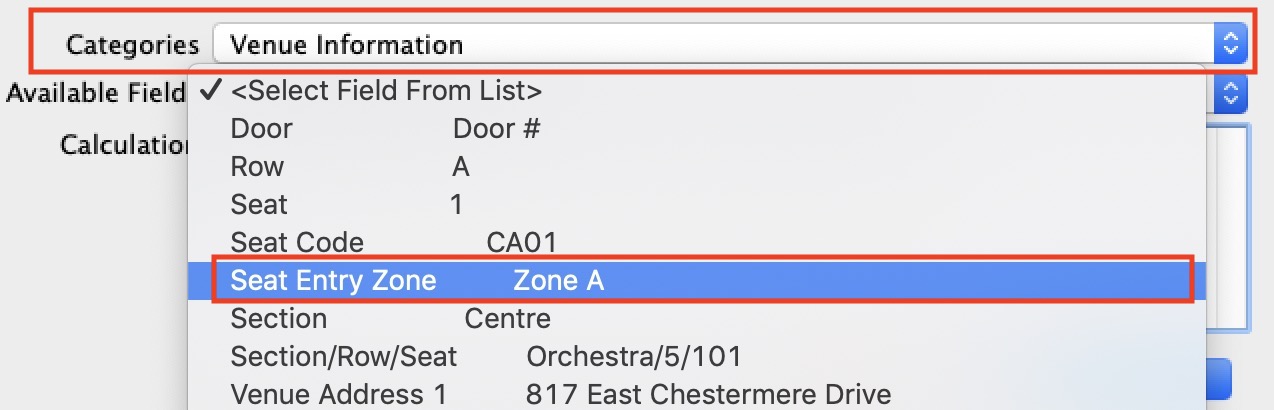 Enables the placement of information about the Theatre pricing Map associated with the play. For example:
|
||
| Play Information | Enables the placement of information about the Plays and Dates associated with the ticket. For example, the play title, play date and time, and play sponsor. | ||
| Ticket Information |
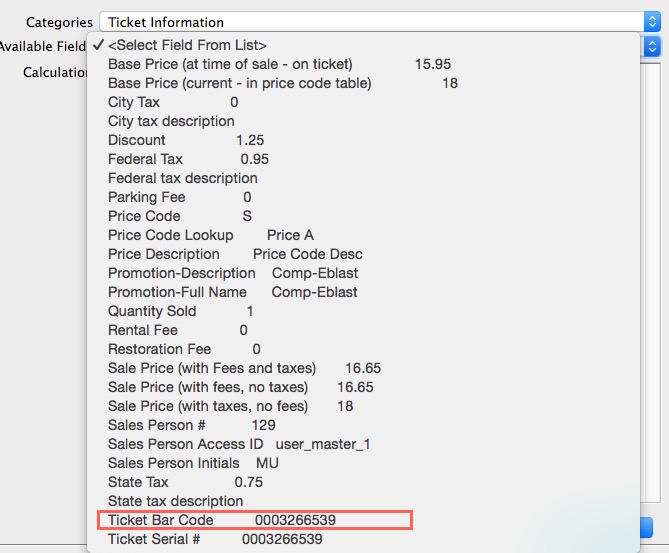 Enables the placement of information about the ticket sold to the patron. For example, the price paid, price discounts, and the ticket serial number. The ticket serial number is a unique number generated by Theatre Manager for each ticket.
The unique number can be printed on any ticket along with the ticket bar code field in ladder format as shown in the picture or as a QR code if using Microcom printers. All you have to do is select the bar code and make sure it prints clearly and entirely on the ticket (but not on a perforation). Some interesting ticket calculations:
|
||
| Pass/GC/Member Data |
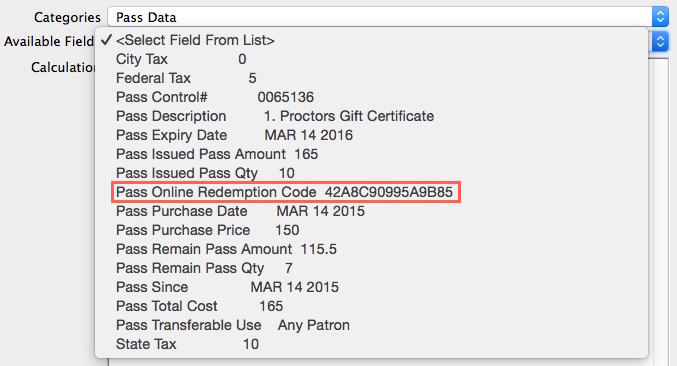 Enables the placement of information about the pass, gift certificate, or membership
sold to the patron. For example, purchase date, expiry date, member type, control number, and online redemption password.
Enables the placement of information about the pass, gift certificate, or membership
sold to the patron. For example, purchase date, expiry date, member type, control number, and online redemption password.
|
||
| Order Information | Enables the placement of information about the order created when the ticket was sold to the patron. For example, the order date and total order dollar amount outstanding. | ||
| Payment Information | Enables the placement of information about the payment made by the patron. For example, payment type, total payment value, and the credit card number. | ||
| Patron Information | Enables the placement of information about the patron. For example, the patron name, address, and telephone numbers. | ||
| Donation Information | Enables the placement of information about the donation made by the patron. For example, the campaign, donation date, and the total donation amount outstanding. | ||
| Donation Receipt Data | Enables the placement of information about the donation receipt as it pertains to donation of a patron. For example, the receipt number, date the receipt was issued and the value of the receipt. | ||
| Miscellaneous Information | Enables the placement of printer created information. For example, drawing boxes, drawing lines, and printing the internal ticket printing counter. The internal ticket printer number is a number generated by the printer every time a ticket is printed. If the same ticket is printed 4 times, each ticket will have an unique number. |
Calculation Commands
|
Quick reference information for Calculation Commands |
|
Calculation commands are great if you know the name of the field and you want to manipulate it.
However, sometimes you may need to add a new field from a pick list in order find the name of what you want. |
The third line of the sample screen C_HOME_PHONE has no formatting in the field calculation.
This instructs the printer to left justify the home phone of the patron starting in row 15 and column 1040. To justify the phone number place the field in brackets and prefix it with the letters 'jst'. Follow the field (inside the bracket) with a comma and a single quote to start the formatting instructions, enter the formatting instructions, and close with a single quote.
For example, jst(C_HOME_PHONE,'-8') formats the field calculation to allocate 8 spaces for the home phone number and to right justify when printing.
String Justification
| String | Description | Example |
| jst () |
jst(string1,number1,string2,number2,string3,number3,...) Returns a string containing the specified string left or tight justified with sufficient spaces added to make a total length specified by number. The jst() function also includes concatenation. If number is negative the resulting string is right justified, if the number is positive the string is left justified; number must be in the range of 1 to 999. |
|
| ^n | (caret) Causes the data to be centered in the field n characters wide. |
|
| -n | (minus) Causes the data to be right justified in a field n characters wide. |
|
| $ | Places a $ sign in front of the data. |
|
| Pc | Causes the part of the field not filled by the data to be filled by character c. |
|
| X | Causes the data to be truncated if its length exceeds the field length. The default is not to truncate. |
|
| U | Causes the data to be converted to upper case. |
|
| L | Causes the data to be converted to lower case. |
|
| C | Causes the data to be capitalized. |
|
| Nnn | Causes the data to be treated as a fixed decimal number with nn decimal places. |
|
| E | Applies to numbers only and displays a blank when the number is zero. |
|
| , | Applies to numbers only and adds commas as number separators. |
|
String Functions
| String | Description | Example |
| cap() |
Returns the capitalized representation of a string, that is, the first letter of each and every word in the string is capitalized. |
|
| con(string1, string2, [,string3] ...) |
Returns a string concatenating or combining two or more string values.
Theatre Manager will build concatenations. Simply select more than one field from the available fields list when editing the field calculation. To format the concatenation simply treat the concatenation as one field calculation. |
First name, address, and postal code information together on the same line and places a slash between each item. Formatting is limited to the group of fields linked together.
Centers section, row, and seat number in a space 38 characters wide. A comma and row precede the row number and separate it from the actual number. A comma and seat precede the seat number and separate it from the actual number.
Prints 'Saturday, December 21 1998 Time: 8:00 PM'. The printing would be centered in a 50 character space. |
| len() | Returns the length of the string, that is, number of characters. |
|
| low() | Returns the lower case representation of a string. Any non-alphabetic characters in the strings are unaffected by low(). |
|
| mid( string, position, length) | Returns a substring of a specified length, starting at a specified position, from a larger string. If position is less than 1 it is taken as 1, that is the first character; if it is greater than the length of the string, an empty string is returned. If length is greater than the maximum length of any substring of string starting at position, then the returned substring will be the remainder of string starting at position.. |
|
| pos(substring, string) | Returns the position of a substring within a larger string. The substring must be contained within string in its entirety for the returned value to be non-zero. |
|
| upp() | Returns the upper case representation of a string. Any non-alphabetic characters in the strings are unaffected by low(). |
|
| tStringFields.$splitString( String1, width, segment) |
Returns the Nth segment from the string string where the string is broken into even word boundaries that are no no longer than width.
CR's LF's, Tabs are converted to spaces and double spaces are then removed from within the string. |
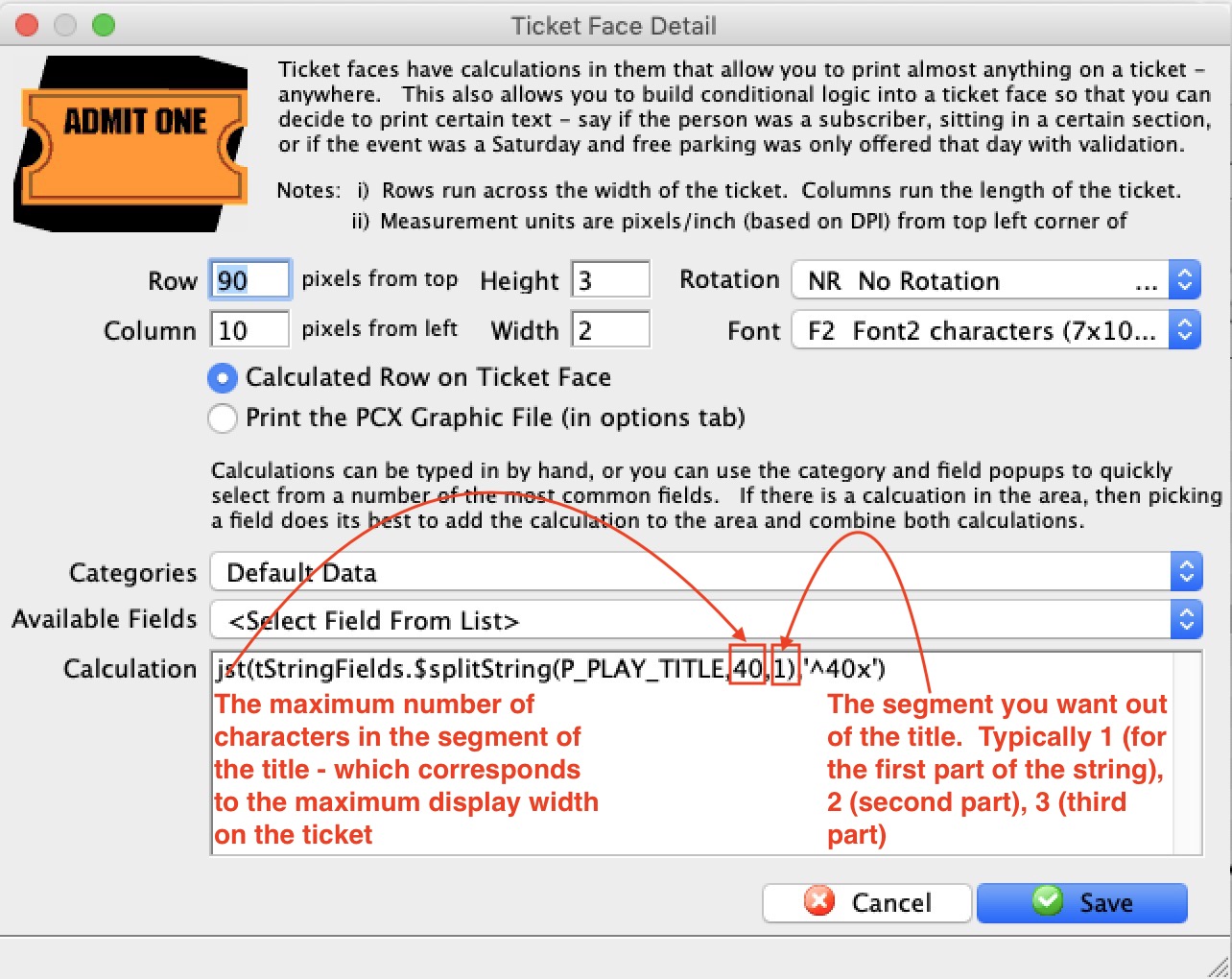 example: tStringFields.$splitString(P_PLAY_TITLE,1)
will take a long string like P_PLAY_TITLE and find entire words within the width of 40 characters and return only those. eg, for a title like:
|
| tTicket.$getReceipt( Pixels) | Prints a Moneris EMV receipt on the ticket printer using the font and rotation indicates. The receipt starts printing at the row and column specified. Each successive line will be separated by the number of DPI in the parameter. |
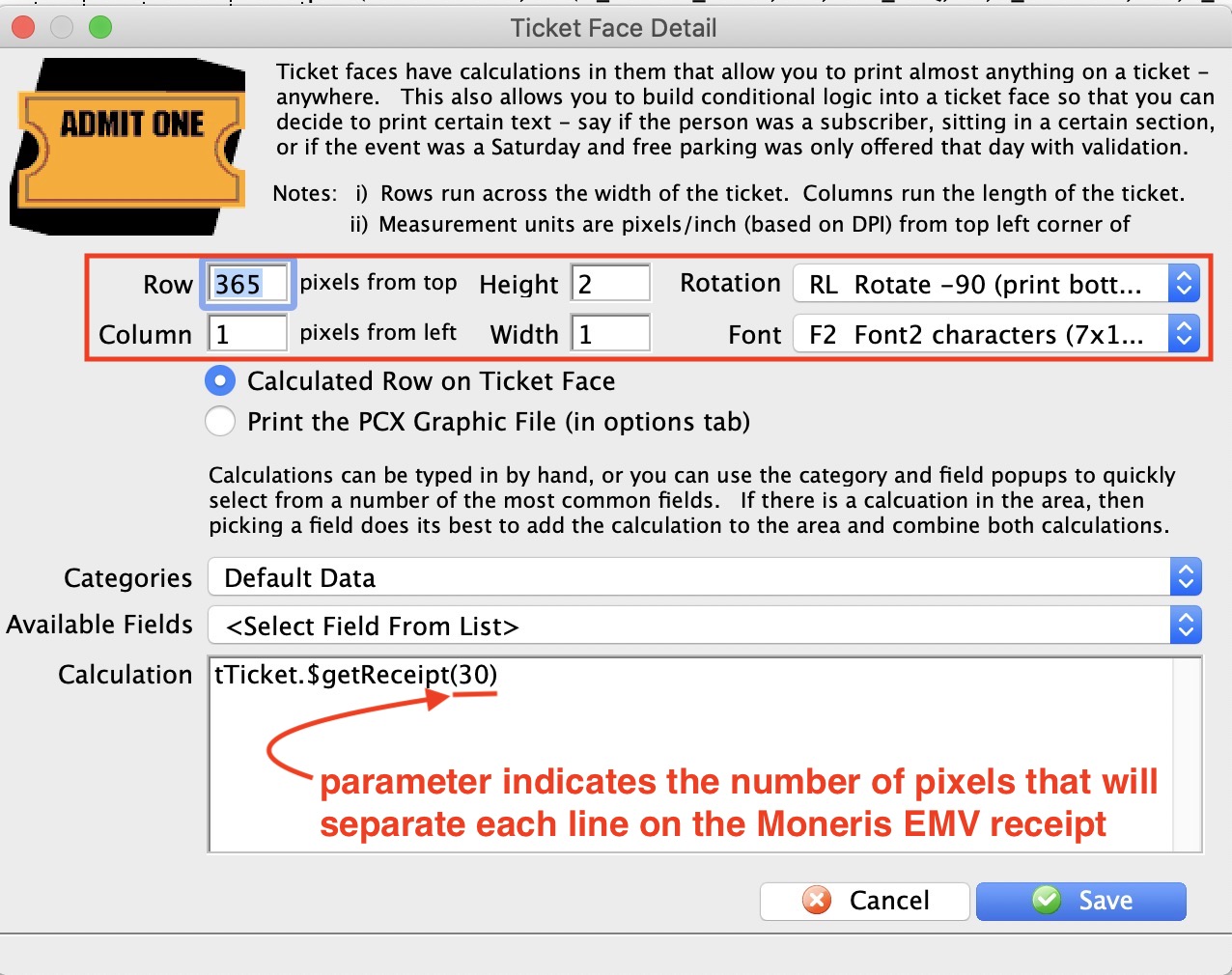 This function is best if it is the only thing in the calculation. If the payment was not taken through a Moneris EMV machine, you will want to print regular payment information instead. A sample payment receipt has been created for you that you can import which handles both EMV and internet credit card receipts in one ticket face.
|
Date/Time Functions
The date/time functions operate on a datestring to return date values or strings representing some part of a date/time. A datestring is a string recognizable as a date using a date format.
| String | Description | Example |
| dat(datestring| number [,dateformat]) |
Converts a datestring or number to a date value using a second optional argument, a dateformat string. The date formatting string can be composed of the following symbols:
|
|
| dim(datestring,number) |
Increments a datestring by a number of months. Months containing different numbers of days are accounted for. Jan 31 96 increased by one month gives Feb 29 96, but beware, Feb 29 96 decreased by one month (using a negative number) returns Jan 29 96, not Jan 31 96. |
|
| dtcy(datestring) |
Returns the year and century of a datestring as a string. |
|
| dtd(datestring) | Returns the day part of a datestring unless it is part of a calculation when it is returns as a number. |
|
| dtm(datestring) | Returns the month part of a datestring. |
|
| dtw(datestring) | Returns the week part of a datestring. |
|
| dty(datestring) | Returns the year part of a datestring. |
|
| tim(timestring[,timeformat]) |
Converts a timestring to a time value using a second optional argument, a timeformat string. The time formattinG string can be composed of the following symbols:
|
|
Lookup Functions
The lookup functions provide a method for selecting items from a list of values.
| String | Description | Example |
| max(value1[,value2]...) |
Returns the maximum value from the list of values. The values should all be numbers when numeric comparison is used or all strings when string comparison is used. |
|
| min(value1[,value2]...) | Returns the minimum value from the list of values. The values should all be numbers when numeric comparison is used or all strings when string comparison is used. |
|
| pick(number,value0,value1,[value2]...) |
Selects an item from a list of string or numeric values. The number argument is rounded to an integer and used to select the item. value0 is returned if the result is 0, value1 if the result is 1, value2 if the result is 2, and so on. If the number is less than zero or greater than the number of values in the list, then an empty value is returned. The list of values can be a mixture of string and numeric values. |
|
Number Functions
| String | Description | Example |
| abs(number) |
Returns the magnitude of a real number ignoring its positive or negative sign. |
|
| int(number) |
Returns the integer part of a number; it does not round to the nearest integer. |
|
| mod(number1,number2) | Returns the remainder of a number division, that is, when number1 is divided by number1 to produce a remainder; it is a true modulus function. |
|
| rnd(number,dp) |
Rounds a number to a specified number of decimal places by dp . |
|
Labels
Entering a label, or string of characters that will be the same on every ticket, is accomplished by placing the label in single quotes.
Ontario Face Value Requirements for Ticket Price
- The content of the 'Fave Value' of a ticket is set up in Company Preferences->Ticket Options
- For e-tickets, the display of the face value is enabled in the Web Options Tab. if set, then print at home tickets and web carts will automatically show the face value along with final price.
- There is a ticket face calculation (illustrated below) that calculates the Face Value for the ticket face prior to printing it. All you need to do is include it on your ticket faces. where desired
Adding Face Value field to a ticket face
- add a new calculation to the ticket face
- Select Ticket Information as the category
- Select Sale Price (using Face Value calculation) to insert the field into the ticket face
- Place the face value field where you want it on the ticket and save
- Make sure to test your ticket
- Repeat for all affected tickets.
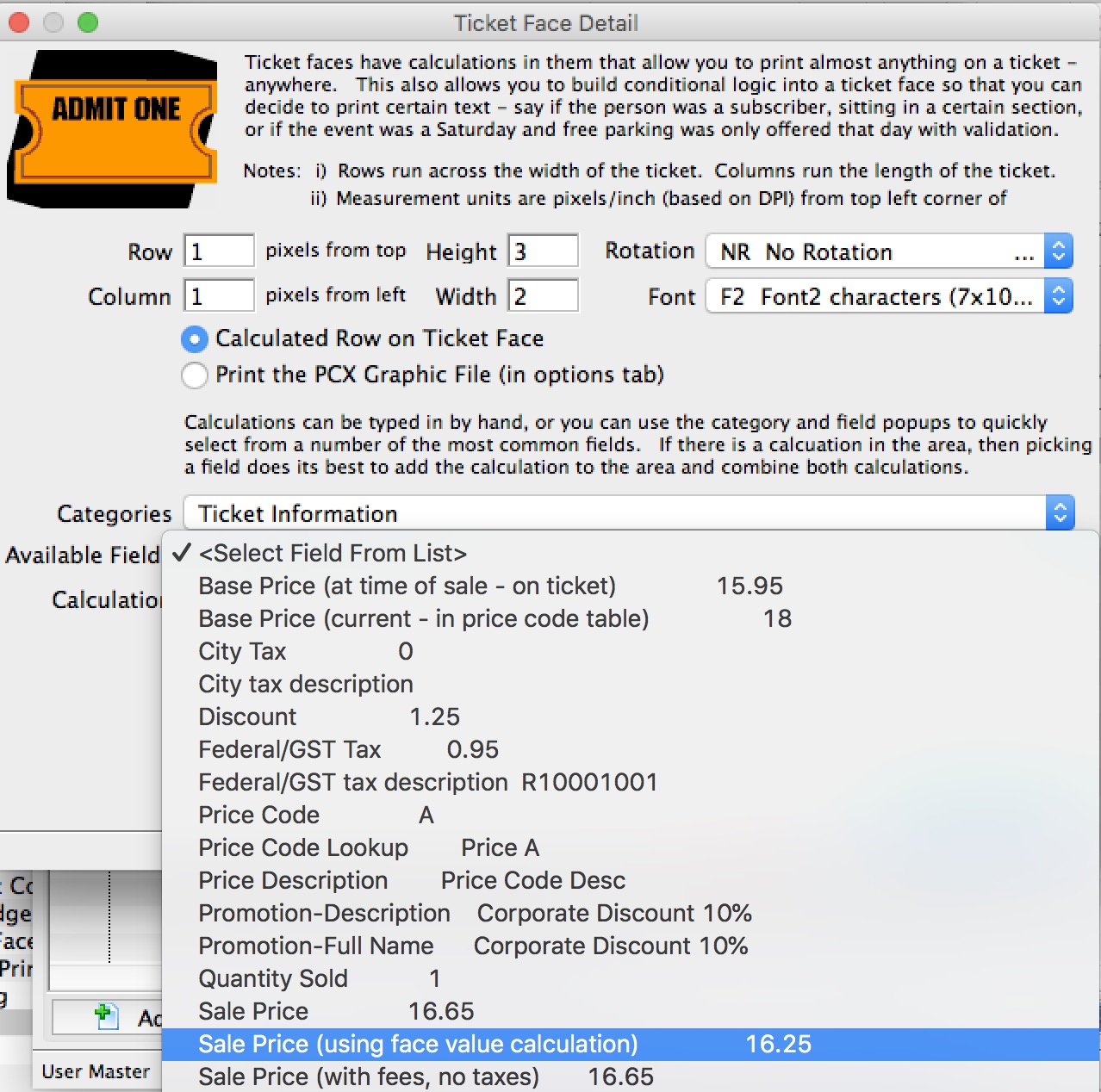
QR Codes and Printer Compatibility
|
As of September 2021, we are aware of two ticket printers that can print QR codes on the ticket face:
|
|
Practical Automation does not support QR codes at time of writing and older printers are not field upgradeable. |
Sample Ticket with QR code
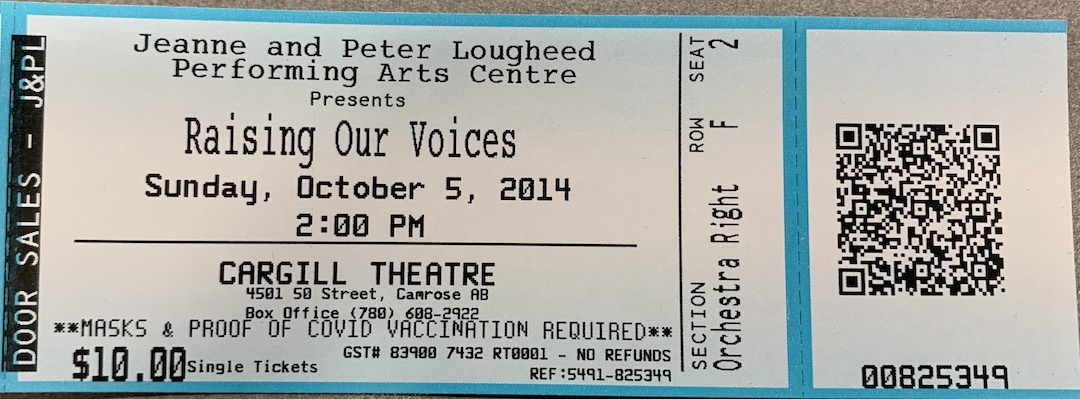
Inserting QR code into a Ticket Face
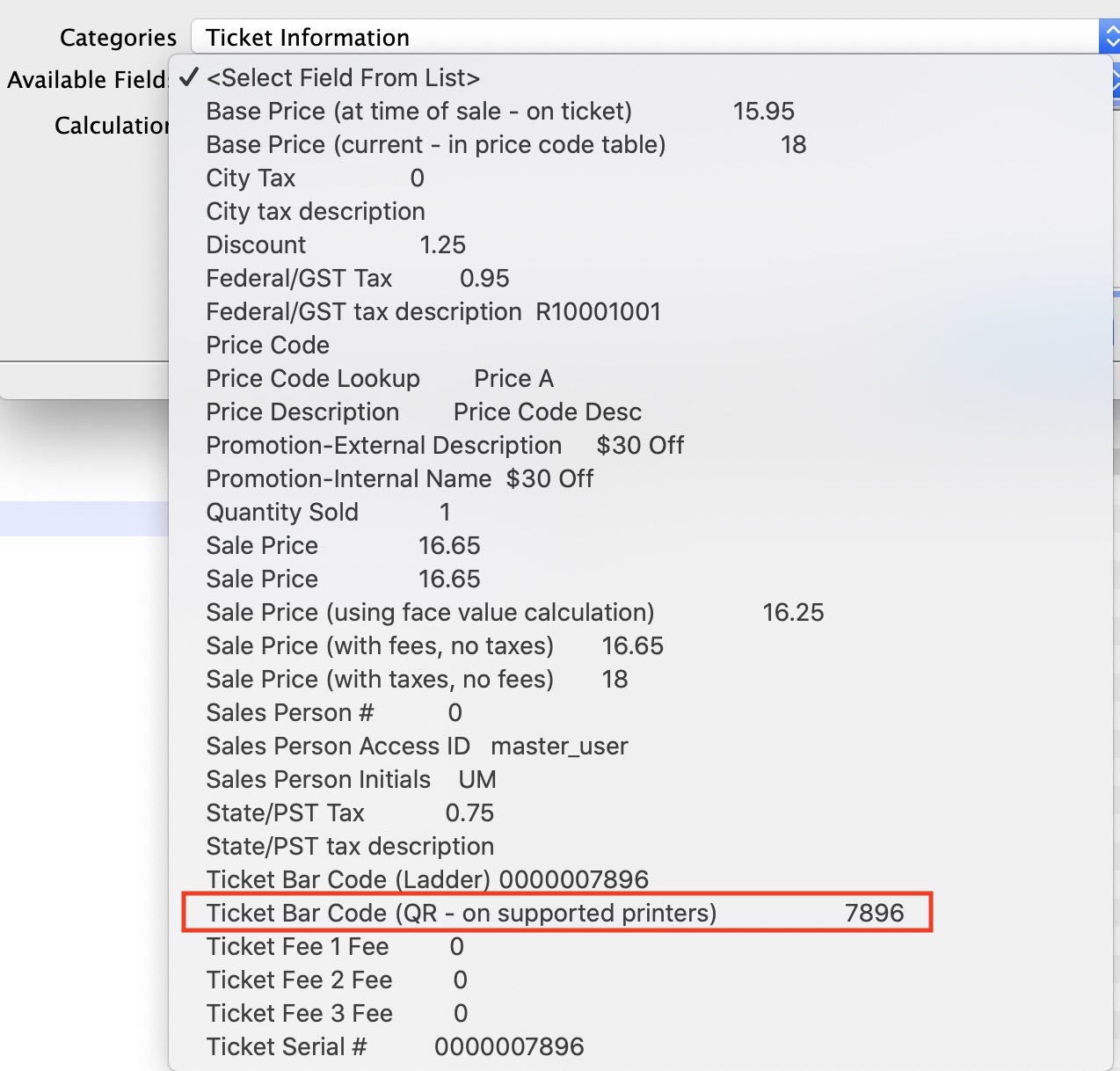 To add a QR code to a ticket face, you need to make sure that the area yo want to print it on is big enough and is high contrast.. Usually that means an ALL-WHITE stub area. If the area you chose to print the QR code on has darker coloured background you may find scanning times increased.
The steps are:
- Insert a new calculation line in your ticket face.
- Select Ticket Information from the Categories field
- Select QR code from the Available Fields in the image to the right.
- That will add the correct calculation to your ticket face as per the image below

If you are using a Boca printer you will need to update the default QR code with additional characters. Where the default code looks like: con('<QR6,1,1,2>ticket=',PS_SEQ,'~010patron=',PS_C_SEQ,'~010')
backets will need to be added to the con statement following the QR references to make the code look like this:
con('<QR6,1,1,2>{ticket=',PS_SEQ,'~010patron=',PS_C_SEQ,'~010}')
- Change the Column to about 890 or so - so that it prints on the stub. The ticket example above uses 890 in the ticket face code shown in the next diagram.
- The Row might need to be adjusted a little to move the QR code away from the edge of the ticket and center it across the narrow part of the ticket. The ticket example above uses 100 in the ticket face code shown in the next diagram.
- You may need to remove some of the other fields that are on the stub area of the ticket face
- Test the ticket face with QR code
- Do a test print to see that it works
- Do a test scan of the ticket using your scanners to see that it works. Working only means that the scan is successful and that the ticket will likely be rejected as not being sold, or not for this day, etc
- Adjust the ticket face as necessary and reprint and retest
Sample QR Code from the above ticket exmaple
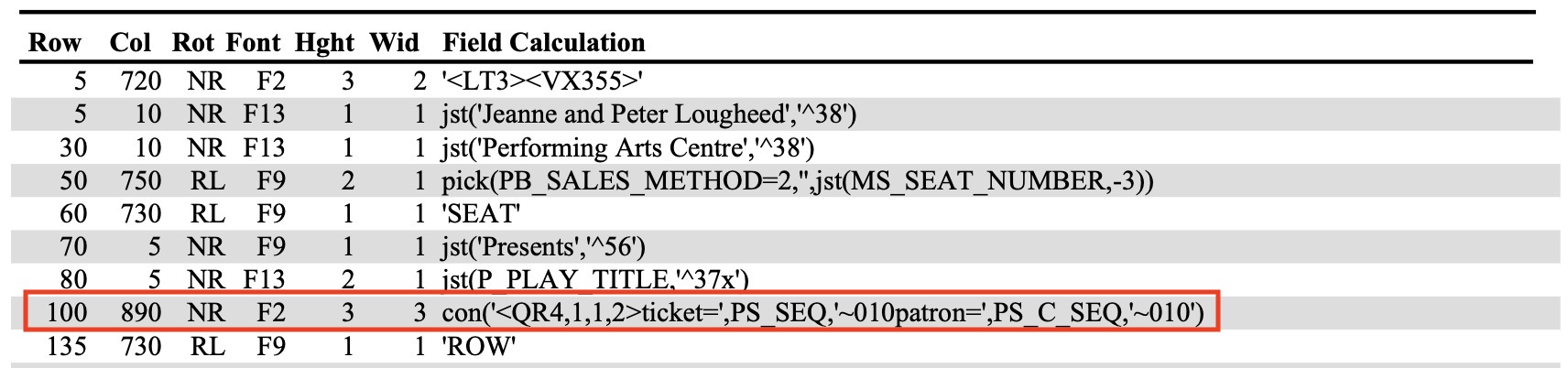
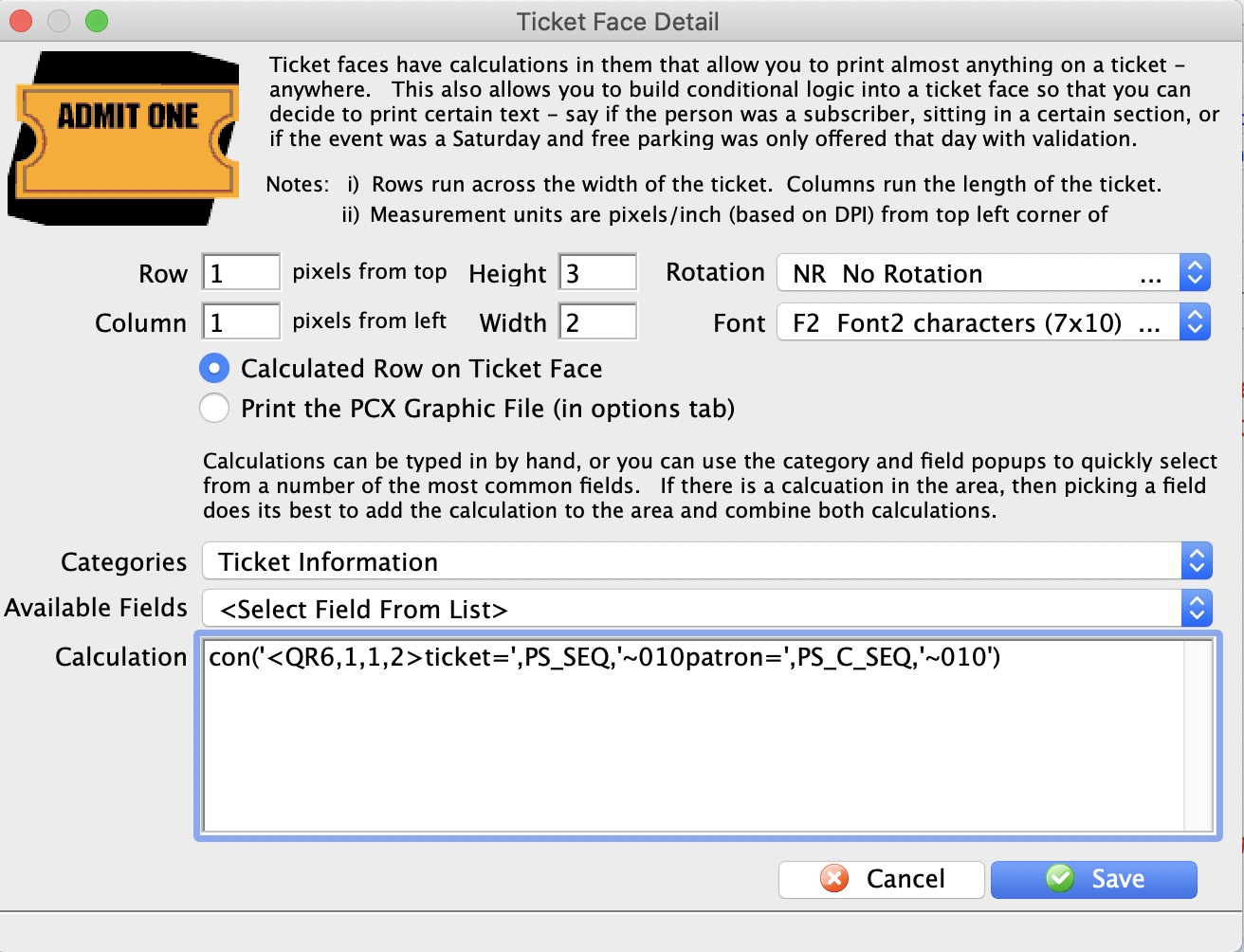
Explaining the QR code format
<QR#,#,#,#>{barcode text}
NOTE: You should not change the parameters in the QR code without talking to AMS support. Only adjust the position of the QR code on the ticket face using the Row and Column settings.
All of the Quick Response (QR) bar code command parameters are optional. If omitted default values will be used. The QR command and the barcode text is all that is required. For example the command
The Parameters, explained in order, are:
1 is the default for Theatre Manager and is required
Point size
we have found that '4' to '6' are suitable sizes for a bar code on a ticket stub
Apply Tilde
When Apply Tilde is equal to 1, the tilde (~) may be used to recognize some special characters in the input data.
Encode Mode
The data represented in the symbol may be compressed by changing the encoding mode, if certain text is being encoded. Valid values are:
Error Correction
The level of Reed Solomon error correction level placed in the symbol. More error correction creates a larger symbol that can withstand more damage. Valid values are:
{barcode text}
Do not change any values in this - otherwise ticket scanning will not work.
QR Code for Scanning Gifted Tickets
Scanning tickets that have been gifted to another patron in the database require the gifted patron number be included in the QR code inserted on the Ticket Face. The existing ticket face with a QR code can be updated to include the gifted patron number:
- Open the existing Ticket Face that has a QR code
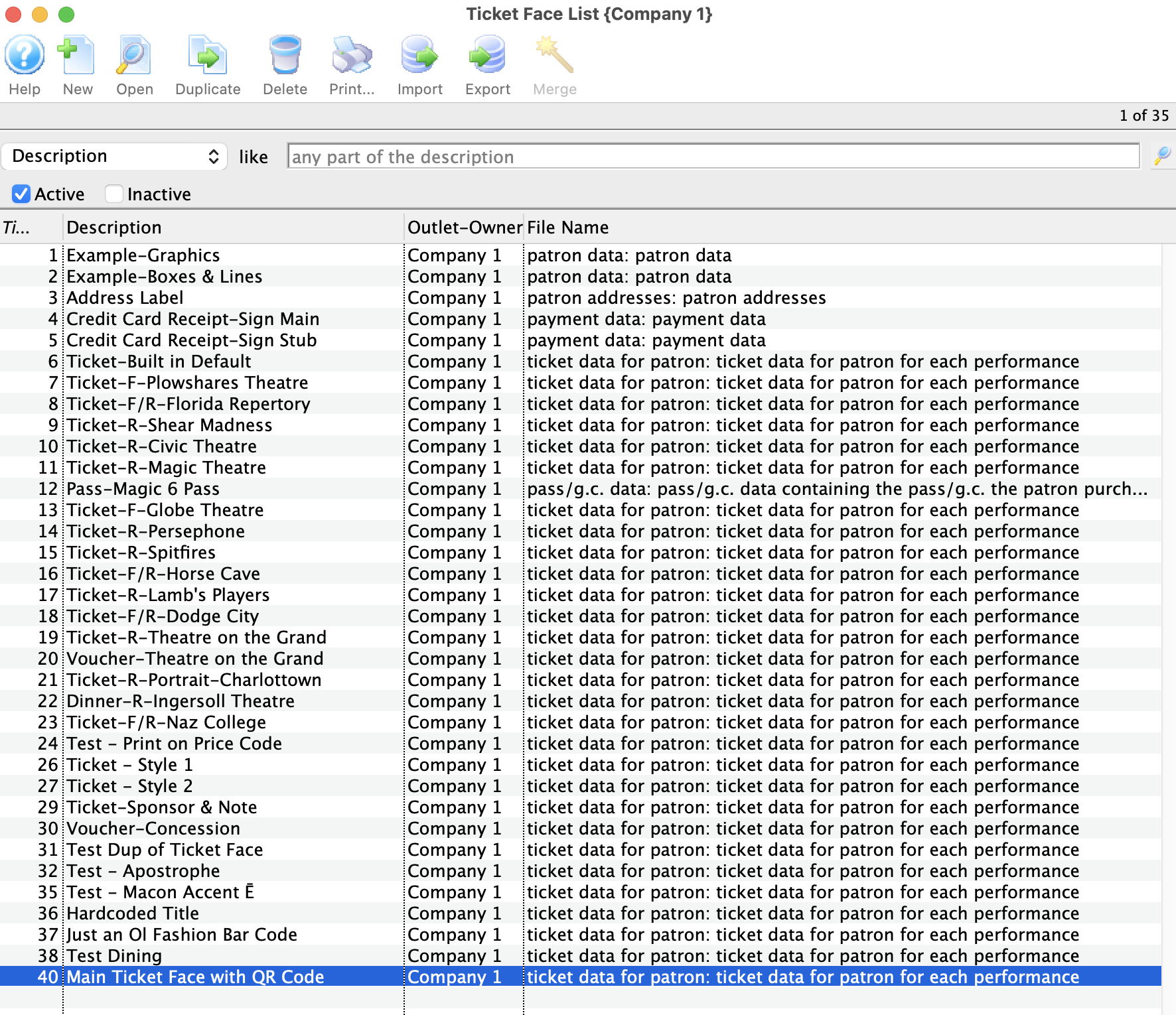
- Locate the line of code in the Ticket Face that looks like this:
con('<QR6,1,1,2>{ticket=',PS_SEQ,'~010patron=',PS_C_SEQ,'~010}')
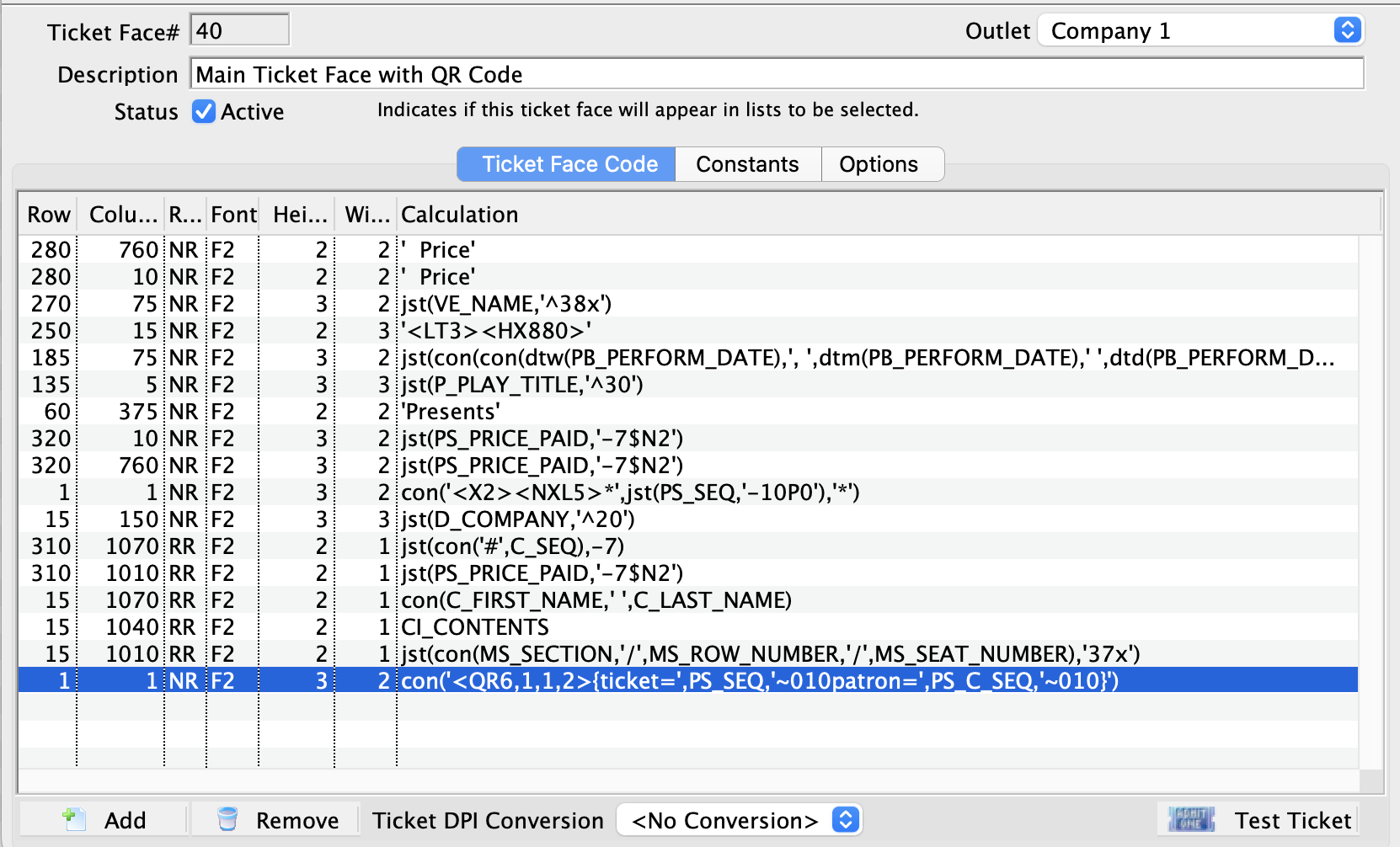
- Double-click to open this line of code.
-
Replace the entire code with this updated version:
con('<QR6,1,1,2>{ticket=',PS_SEQ,'~010patron=',pick(PS_INTENDED_FOR_C_SEQ>0,PS_C_SEQ,PS_INTENDED_FOR_C_SEQ),'~010}')
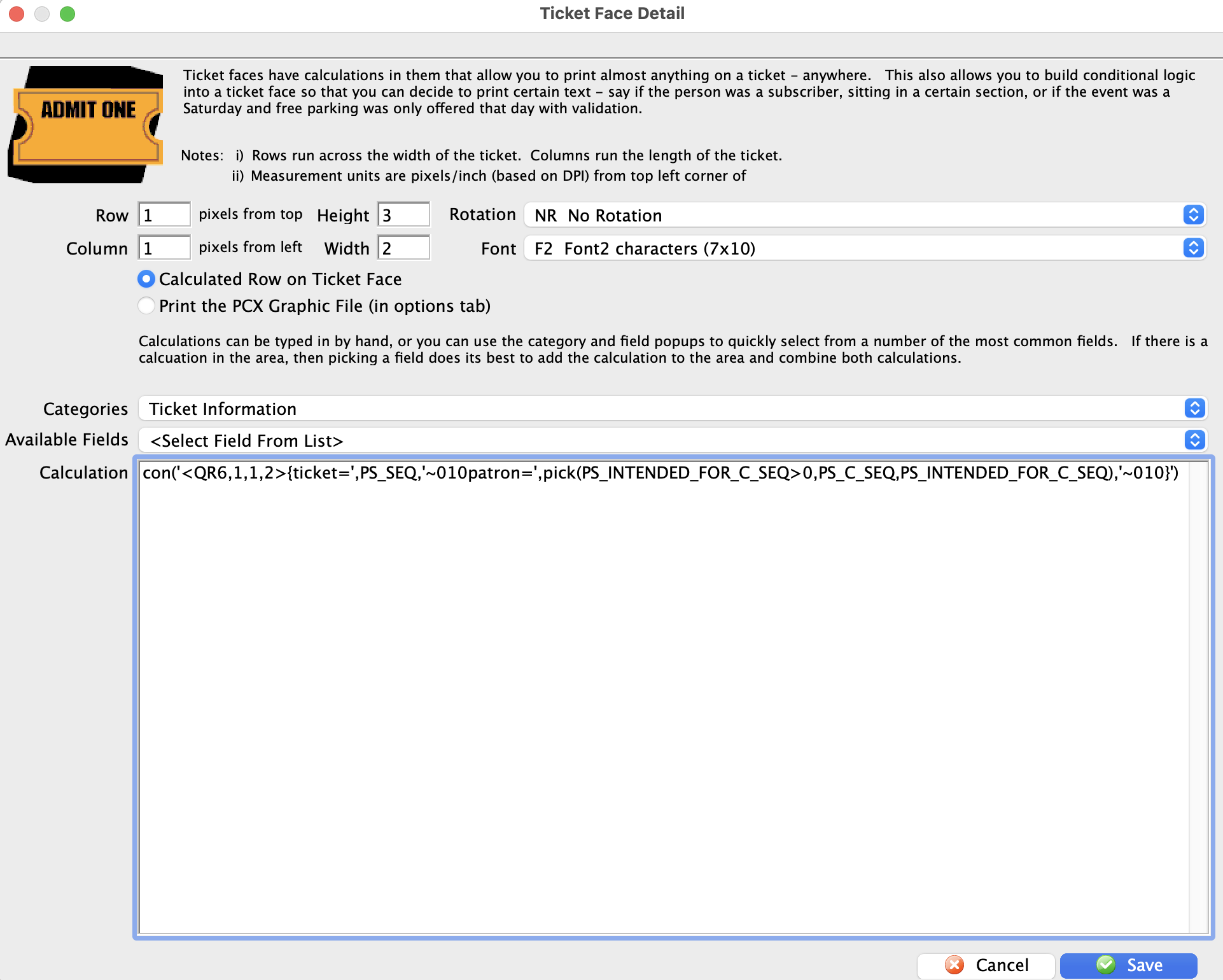
Any tickets that have previously been Gifted and printed prior to updating the ticket face code can be unprinted and reprinted. This will ensure they can be scanned at the time of entry.
Exporting Ticket Faces
- Open the Ticket Faces List window.
Click here to learn how to access this window.
Click here for a detailed description of this window and it's functions.
- Select the ticket face to be exported.
Single click on a ticket face to select it.
- Click the Export button.
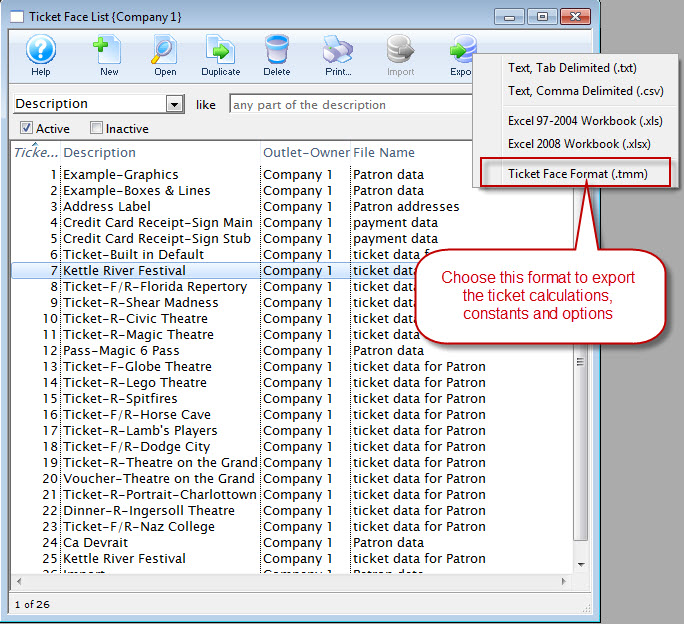
The Export Ticket Face dialog opens for your operating system.
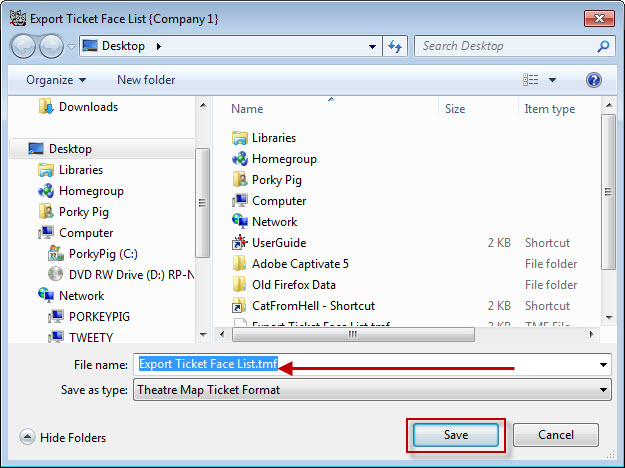
- Browse to the location to save the file.
- Give the file a unique name the file.
- Click the Save button.
The ticket face will be exported as a .tmf file to the specified location.
Adding Accented Letters to a Ticket Face
|
Printing accented letters on tickets limits you to using Font F13.
This means for any field that has an accented letter within it, the line must use font F13 (other lines of coding can be any other font you wish). This is the only available font within the default language for the ticket printer that uses the extended ASCII character set. Click here to download a table of Font 13 codes or refer to the table at the bottom of this help page. |
Why don't thermal printers support accents in all fonts?
Automatic printing of French or other European characters is not easily done using ticket printers. To understand why, is a bit of a trip through computer history. ASCII (American Standard Code for Information Interchange) is a character encoding system based on the English Alphabet. ASCII codes represent text in computers, communications equipment, printers and any other device that uses text. ASCII first came from telegraphic codes. Its first commercial application was a code for teleprinters. It began in the 1960s and the last update to the character set was in 1986. It was the standard world wide until 2008 when it was surpassed by UTF-8.
As computer technology spread, the ASCII character set spread with it and the Europeans decided to get creative and put some accented characters in some of the empty slots in the character set -- where these characters was not standardized into the exteneded ASCII set until the 1970's. Because of this the characters are non-standard and their placement in the listing in irregular.
Because this was a large problem, they invented UTF-8 (about 1992 http://en.wikipedia.org/wiki/UTF-8) , the universal character set. UTF 8 is designed to hold 2 billion plus character combinations, including the entire Chinese character set. All new computers, realizing that foreign language is a benefit, support this. Theatre Manager is fully UTF8 -- you can put accented characters into the database. You can print them on reports. You can add them to emails. all those products also understand UTF8 so characters are no issue.
Unfortunately, it is not the same for the ticket printers. Ticket printers do not understand UTF 8. They are limited to ASCII and a few variations. The only font supplied with the printers is the extended ASCII set in Font 13. Click here to access the Practical Automation Printer manual.
How to use FONT 13 to get accented characters
In some instances, a Play or Event title or other piece of information you need to print on a ticket face, includes an accented letter. The following instructions will allow you to make that edit.
- Chose Setup --> Ticket Faces to open the Ticket Face List Window.
For more information on the click here.
- Create a new ticket face, or a duplicate of an exiting ticket face.
This will allow you to continue using the original ticket face for your events that do not require any accented characters. For more information on designing ticket faces, please click here.
- Double-click the line of ticket face code to edit to include the accented text.
This opens the Ticket Face Detail window for that line of code.
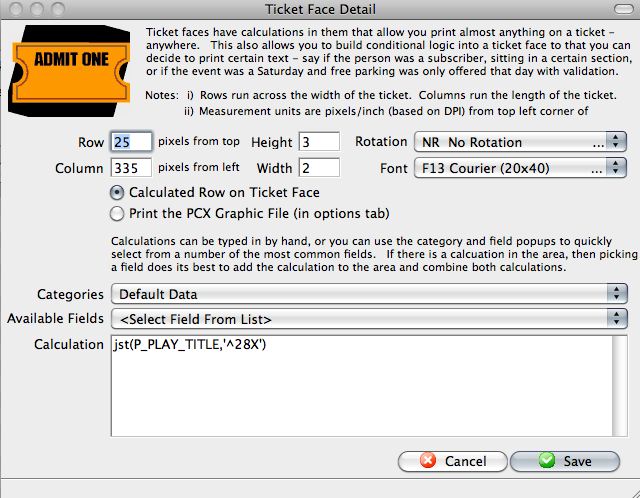
For information about formatting ticket faces, click here.
- Select Font F13 from the Font Drop Down Menu.
 .
.
Selection of any font, other than F13, will print "?" for the character. Any other fonts available do not reference the extended ASCII character set.
- Enter the Code con(chr(128),'a devrait 'chr(136)'tre moi')
To add the title:Ça devrait être moi
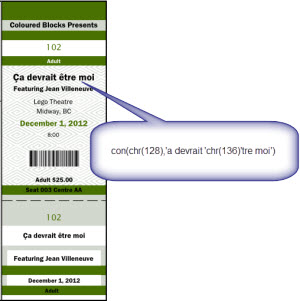
In order to have accented characters appear on a ticket face, you will need to HARD CODE the accent onto the ticket face. For Example, to have Théatre appear on a ticket face,
Click here to download a table of Font 13 codes.
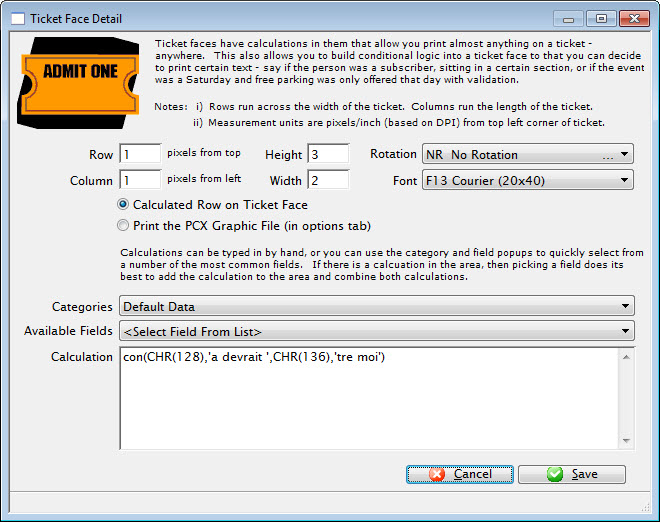
Font 13 Characters and Numbers
Click here to download a table of Font 13 codes.
| Dec | Char | Description | Dec | Char | Description |
| 128 |
Ç | Latin upper case C with cedilla | 192 | Graphic Character | |
| 129 |
ü | Latin lower case u with diaeresis | 193 | " | |
| 130 |
é | Latin lower case e with acute | 194 | " | |
| 131 |
â | Latin lower case a with circumflex | 195 | " | |
| 132 |
ä | Latin upper case A with circumflex | 196 | " | |
| 133 |
à | Latin lower case a with grave | 197 | " | |
| 134 |
å | Pilcrow sign | 198 |
ã | Latin lower case a with tilde |
| 135 |
ç | Latin lower case c with cedilla | 199 |
à | Latin upper case A with tilde |
| 136 |
ê | Latin lower case e with circumflex | 200 | Graphic Character | |
| 137 |
ë | Latin lower case e with umlaut | 201 | " | |
| 138 |
è | Latin lower case e with grave | 202 | " | |
| 139 |
ï | Latin lower case i with umlaut | 203 | " | |
| 140 |
î | Latin lower case i with circumflex | 204 | " | |
| 141 |
ì | Double low line | 205 | " | |
| 142 |
Ä | Latin upper case A with grave | 206 | " | |
| 143 |
Å | Section sign | 207 | " | |
| 144 |
É | Latin upper case E with acute | 208 |
ð | Latin lowercase eth |
| 145 |
æ | ligature | 209 |
Ð | Latin uppercase Eth |
| 146 |
Æ | Latin upper ligature | 210 |
Ê | Latin upper case E with circumflex |
| 147 |
ô | Latin lower case o with circumflex | 211 |
Ë | Latin upper case E with umlat |
| 148 |
ö | Latin lower case o with umlaut | 212 |
È | Latin upper case E with accent |
| 149 |
ò | Latin lower case o with grave | 213 | Latin lower case dotless i | |
| 150 |
û | Latin lower case u with circumflex | 214 |
Í | Latin upper case I with accent |
| 151 |
ù | Latin lower case u with grave | 215 |
Î | Latin upper case I with circumflex |
| 152 |
ÿ | Latin lower case y with umlaut | 216 |
Ï | Latin upper case I with umlaut |
| 153 |
Ö | Latin upper case O with umlaut | 217 | Graphic Caracter | |
| 154 |
Ü | Latin upper case U with umlaut | 218 | " | |
| 155 |
ø | Small slashed zero | 219 | " | |
| 156 |
£ | Pound Sign | 220 | " | |
| 157 | Ø | Large slashed zero | 221 | " | |
| 158 |
x | Times | 222 |
Ì | Latin upper case I with grave |
| 159 |
ƒ | Latin lower case f with hook | 223 | Graphic Character | |
| 160 |
á | Latin lower case a with acute | 224 |
Ó | Latin upper case O with accent |
| 161 |
í | Latin lower case i with acute | 225 |
ß | Eszett or Sharp S |
| 162 |
ó | Latin lower case o with acute | 226 |
Ô | Latin upper case O with circumflex |
| 163 |
ú | Latin lower case u with acute | 227 |
Ò | Latin upper case O with grave |
| 164 |
ñ | Latin lower case n with tilde | 228 |
õ | Latin lower case O with tilde |
| 165 |
Ñ | Latin upper case N with tilde | 229 |
Õ | Latin upper case O with tilde |
| 166 | ª | feminine ordinal indicator | 230 |
µ | Micro sign |
| 167 |
º | Degree Symbol | 231 |
þ | Lower case letter Thorn |
| 168 |
¿ | Inverted Question Mark | 232 |
Þ | Upper case letter Thorn |
| 169 | ® | Registered Trade Mark - note it is not the 'tm' symbol | 233 |
Ú | Latin upper case U with acute |
| 170 |
¬ | Not sign | 234 |
Û | Latin upper case U with circumflex |
| 171 |
½ | Fraction one half | 235 |
Ù | Latin upper case U with grave |
| 172 |
¼ | Fraction one quarter | 236 |
ý | Latin lower case y with acute |
| 173 |
¡ | Reversed Exclamation Mark | 237 |
Ý | Latin upper case Y with acute |
| 174 |
« | Left-pointing double angle quotation mark | 238 | Graphic character | |
| 175 |
» | Right-pointing double angle quotation mark | 239 | " | |
| 176 |
| Graphic character | 240 | " | |
| 177 | " | 241 | " | ||
| 178 |
| " | 242 | " | |
| 179 | " | 243 | " | ||
| 180 | " | 244 | " | ||
| 181 |
Á | Latin upper case A with acute | 245 | " | |
| 182 |
Â
| Latin upper case A with circumflex | 246 | " | |
| 183 |
À | Latin upper case A with grave | 247 | " | |
| 184 | © | Copyright | 248 | " | |
| 185 |
| Graphic Character | 249 | " | |
| 186 | " | 250 | " | ||
| 187 |
| " | 251 | " | |
| 188 | " | 252 | |||
| 189 |
¢ | Cent Sign | 253 | " | |
| 190 |
¥ | Yen | 254 | " | |
| 191 | Graphic Character | 255 | " |
Adding Quotes to Text on a Ticket Face
There are times when the text on a Ticket Face may be required to appear in quotes. This can be done with the use of single quotes around a set of double quotes. An example would be:
' "I have quotes" '
The text opens and closes with single quotes. Within the single quote are double quotes that will appear on the ticket as a part of the text. You can have as many double quotes as are required within the single quotes.
Deleting a Ticket Face
|
Once a ticket face has been deleted, it is gone. If a particular ticket face is not useful at present, you can mark it inactive by removing the check from the Active box on the Ticket Face Detail Window for that ticket face. |
To delete a ticket face, you perform the following steps:
- Open the Ticket Faces List window.
Click here to learn how to access this window.
Click here for a detailed description of this window and it's functions.
- Select the ticket face to delete.
Single click on a ticket to select it.
- Click the Delete button.
The delete confirmation dialog opens.
- Click the Delete
 button.
The ticket face is removed from Theatre Manager.
Accented Characters and Ticket Faces
FGL will print some accented characters, however, it will only print in Font F13. Since Font F13 is generally impractical for text usage on an entire ticket face, and to allow clients to use the entire range of fonts provided by Practical Automation/BOCA printers, Theatre Manager strips accents before it sends the ticket data to the ticket printer.
In order to have accented characters appear on a ticket face, you will need to HARD CODE the accent onto the ticket face. For Example, to have Théatre appear on a ticket face,
- Start by creating a new ticket face, or a duplicate of an exiting ticket face. This will allow you to continue using the original ticket face for your events that do not require any accented characters. For more information on designing ticket faces, please click here.
- Make a line that says "Theatre" on the ticket face.
- And a second line that says "`" (that's an accent).
- Place the accent appropriately on the face so it appears over the e.
This will work for hard coded words, but not for database generated fields such as names.
So while Theatre Manager can print the accented é to a regular printer (for reports and such), it will not print to a ticket printer because of the print language used by the printer.
For Macintosh alternate keys (for non-ticket printing usage) click here.
For PC alternate keys (for non-ticket printing usage) click here.
Mail Lists Setup
System Tables
Code Tables
Code Tables are used to control the values selected in user defined fields. The values entered for each Code Table category appear in a Drop Down, Pop Up field, or Calculated fields. You can add new values to the Code Tables, when nessesary, and you create as many values for the Code Tables your company requires.
You access the Code Tables through the Setup >> System Tables >> Code Tables Menu.
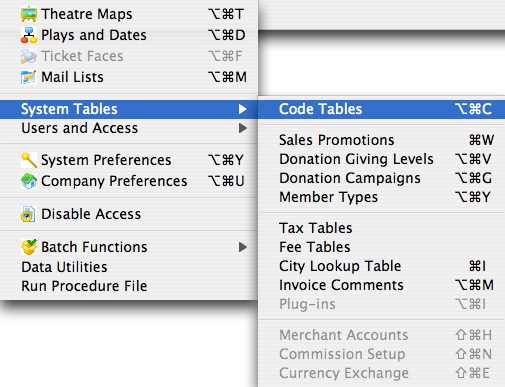
The Code Table Data Window opens.
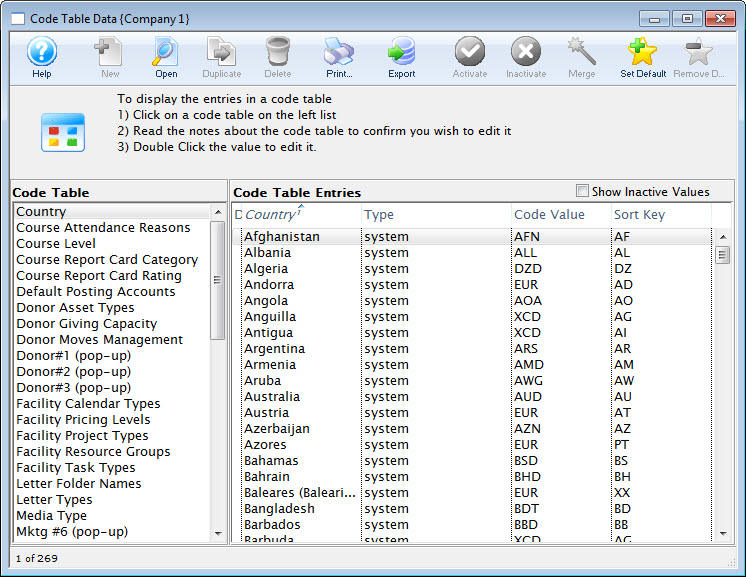
Inserting Values
To insert a value into an existing code table, you perform the following steps:
- In the left column of the Code Tables Data window, highlight the table you want to insert a new value.
- Click the New button in the Code Tables Data window ribbon bar.
The Code entry dialog opens.
- Enter the new code.
- Set the status of the new code.

When inserting, the default is always "Active".
- Click the Save button.
The new code is now saved and added to the code table.
Editing Values in a Code Table
|
You can edit the value of a entry in a code table but by changing it you will be changing all records which used the previous value. |
- Double Click the value you would like to edit.
- Change the value as needed and click the Save button.
The value will be changed in the code table and on all records which contained that value.
Changing Value Status
|
Changing the status of a code table value is a good way to remove a value from use temporarily. |
- Select the Code Table and Table Etrey value you would like to change the status of.
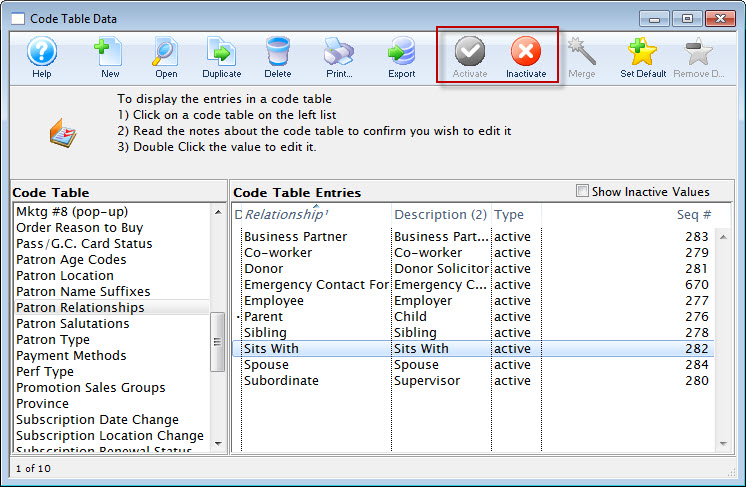
- Click either the Activate
 or Inactivate
  Buttons
depending on which status you would like to change the value of.
Buttons
depending on which status you would like to change the value of.
Setting or Removing a Default Value
Some code tables allow setting up a default value to be used when inserting a new record into Theatre Manager. For example, if the salutation code table had a default value of "Mr. and Mrs." This feature reduces the amount of time it takes to input information into Theatre Manager. Values that do not change each time a new record is inserted can be predefined.
Setting a Default
- Select the value from the appropriate code table.
Single click the value to highlight it.
- Click the Set Default
 button.
A bullet should now appear beside the value, signifing the default code table value.
Removing a Default
- Select the default value from the appropriate code table
Single clicking the value to highlight it. This will be the value that is marked by the bullet.
- Click the Remove Default Button

The default should now be removed. If the bullet has disappeared the process was successful. There is no longer a default value.
Merging Code Table Values
Merging Code Table Values can take some time as it depends on how many values you are merging and the number of times they have been merged. Make a backup of your database before you perform a merge on code table data. Click Here to learn how.
- Select the values that you would like to merge.
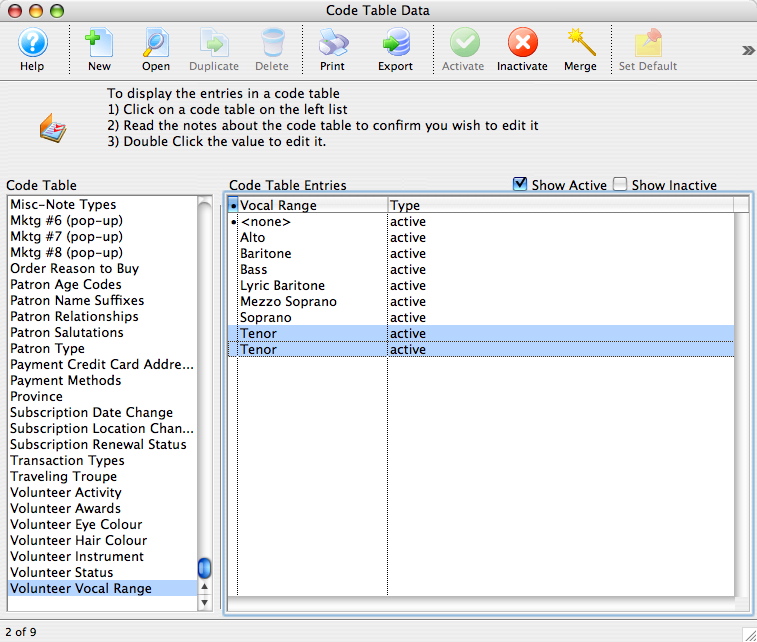
- Click the Merge
 button.
The Duplicate Search Options Window will open.
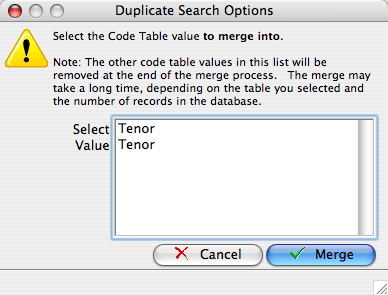
- Select the value you would like to merge all data into then click Merge

A Warning Window will open asking you to confirm the merge.
- Click Yes
 to continue with the merge.
Deleting Values
To determine if you can delete data from a code table, check the Delete Button. If the button is inaccessable  (greyed out) no data can be removed from the table. Once a code has been assigned to a record it cannot be deleted.
If you want to prevent further use of an value, and you can not delete it, disable it. Click here for more information in changing the status of a vaule.
(greyed out) no data can be removed from the table. Once a code has been assigned to a record it cannot be deleted.
If you want to prevent further use of an value, and you can not delete it, disable it. Click here for more information in changing the status of a vaule.
To delete a value, you perform the following steps:
- Choose the code value to be deleted
Do this by single clicking the value.
- Click the Delete button.
The Delete a Record confirmation dialog opens.
- Click the Delete button to complete the deletion
The Value is now be deleted and has been removed from the table.
Reloading Table Values
When you launch Theatre Manager, the current values from the Code Tables are loaded into memory. Adding new values or editing existing values does not reload the values stored in memory for other employees currently logged onto Theatre Manager. To see any changes made, all users need to re-launch Theatre Manager to see all changes made by other users updated in memory.
To reload all the changes made to the code tables, you need to perform the following steps:
- Close Theatre Manager.
- Start Theatre Manager.
Any changes made to the code tables will be visible and available.
Code Table Options
Access groups
- As broad as a department
- As specific as a person or two
To use this feature, you need to do three things:
- Create a list of departments of access groups to suit your needs in this code table
- Assign an employee to one or more access groups
- Assign a specific record to one or more groups using the access field on each record. If the employee matches any one of the groups, they will be able to see the data. This applies to:
- Donation records
- Ticket Sales
- Ticket Reporting
- Tasks
- Mail Lists
- Donation Campaigns
- Play Access
- Performance Access
- Volunteer Activities
- and more
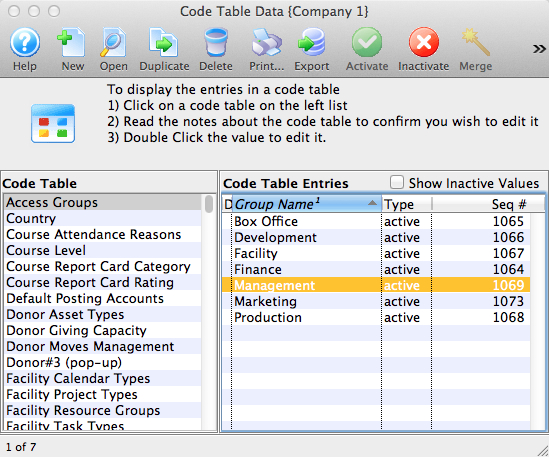
Using Access Groups
When you click on the popup, there are 3 options to choose from and which are explained below. These security access groupings are defined in code tables and need to be assigned to an employee.
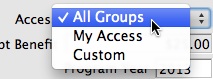
| All Groups | If you have access to all groups (form employee prefernces) or if the current record allows access by all employees, you will be able to set that 'all groups' have access.
This setting means that anybody may view or edit this particular record. |
| My Access | The setting allows you to change the access of the current record to provide at least the same access that you have.
You cannot remove groups that you do not have access to, so that means if you only are assigned the box office and finance groups, and the existing record has box office and marketing, marketing will still have access. |
| Custom | If you select this option, you will see a floating window like the image below. You will only see groups to which you are assigned and you can indicate which ones other employees will need to access the record.
If there are groups to which you do not belong and that are part of the security for this record, you will neither see them, nor be able to change them and they will always be put back onto the security string. This means you can
|
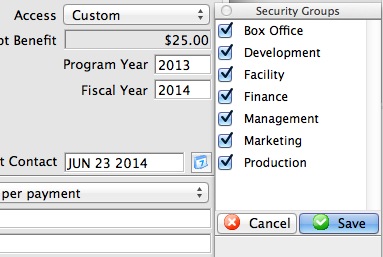
Country
The Countries in the code table list appear in the Country drop down list in the Patron window, Default Data, Maps, Web Sales, and other places using the Country drop down list in Theatre Manager.
You can shorten the list by setting countries to inactivate, or if a country is not a 'System' country, it can be deleted from the code table. If a country is not in the Code Table, it can be added.
For 'System' countries, Theatre Manager has built in controls for phone numbers, postal codes, and more. Currently these are:
- Canada
- USA
- Australia
- New Zealand Depending on the region, defaults can be set. For more information on setting a country as a default in the Company Defaults, click here.
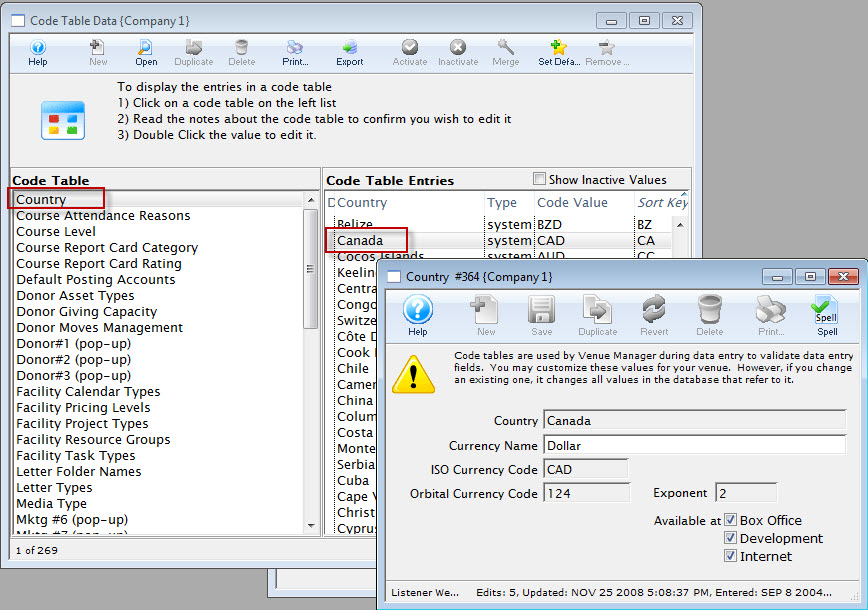
For more information on how to access the Country table click here.
For information about editing values in Code Tables, click here.
Course Attendance Reasons
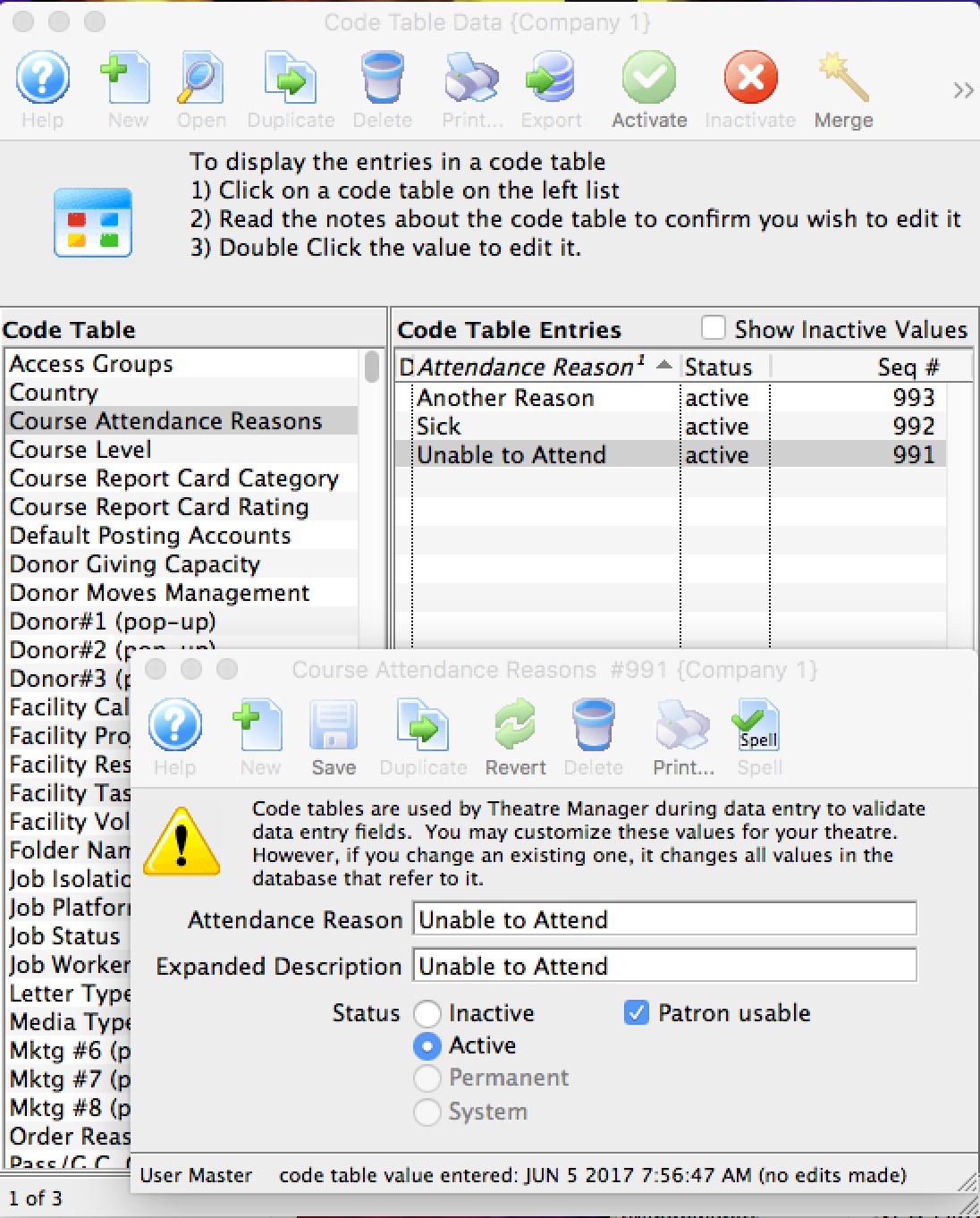
The field settings are:
- Attendance Reason - this is a short description to appear online in the patrons' attendance record. Examples: 'away' or 'sick'
- Expanded Description - is a longer description for lists for the attendance reason. Examples:
- 'cannot attend - personal reason' or
- 'caught the current flu going around'
- set the status to be active or in active
- indicate that the attendance reason as being patron usable. If this flag is set, then a patron can use this excuse to set their own attendance to a class within a course using the online module. For example, if a student could not attend one day in a drama class, ballet class, swim class or pilates session they can indicate why they cannot come so that the instructor knows who will be present that day.
|
Staff can use all reasons that are active, including those that are marked not patron usable |
For information about editing values in Code Tables, click here.
To see where and how Course Attendance Reason is used in Courses, click here.
Course Level
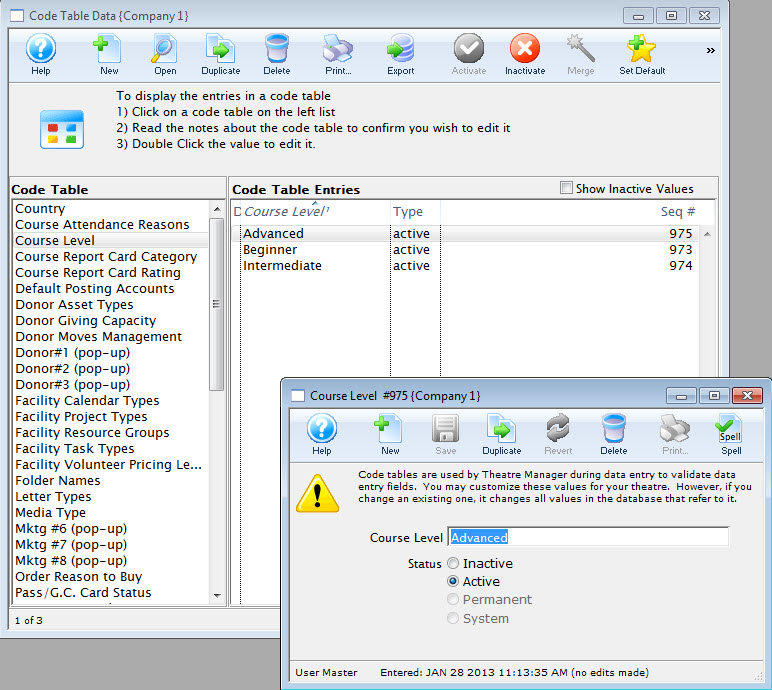
For information about editing values in Code Tables, click here.
Course Report Card Categories
Report Card Categories also have to be setup before Report Cards can be used. Go to Setup>>System Tables>>Code Tables to find Report Card Categories and assign values to it.
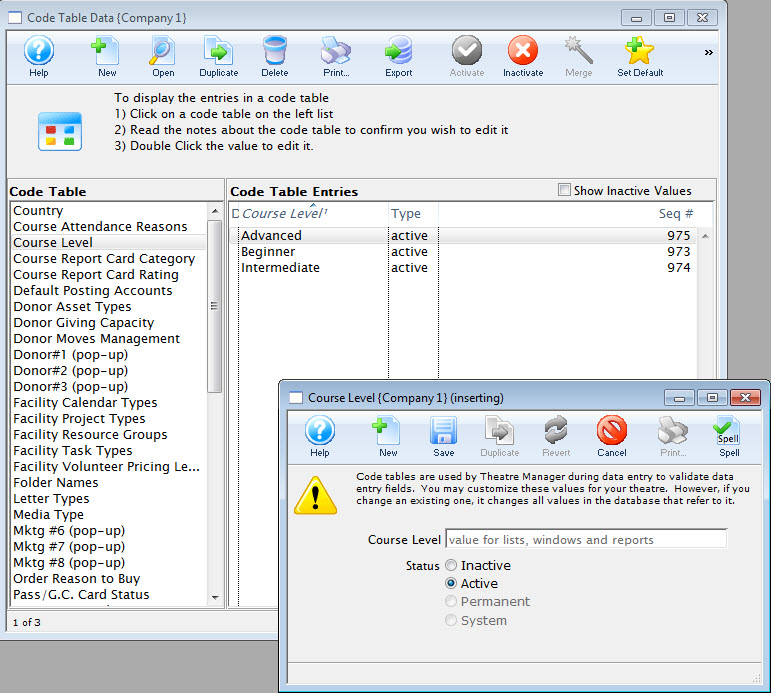
For information about editing values in Code Tables, click here.
Course Report Card Ratings
Just like Categories, Report Card Ratings have to be defined in Code Tables before they can be used. Go to Setup>>System Tables>>Code Tables to find Report Card Ratings and assign values to it.
Default Posting Accounts
Specific general ledger asset and income accounts are required to be defined prior to Creating Sales Entries and performing Deposits.
- Refer to the section General Ledger Accounts to create the account
information. Click here for more information.
For information about editing values in Code Tables, click here.
- For example: Once you have an accounts receivable account, that account will only be used as an accounts receivable account.
Because these code table values are defaulted, you may not insert a new default account or delete an existing account, however, you can edit an existing account. The result values are the types of default accounts that must be set up in Theatre Manager.
You must assign a General Ledger Account number to each of the defaulted values. The general ledger accounts you use must be created to carry out the sole purpose of the default value.
|
Note: The donation main bank account and the transfer bank account have special meaning cannot be the same.
Refer to the help on setting up Restricted Donation Accounts for more information. |

Editing a Default Account
The default accounts should not need to be edited or changed very often. There may be times which you need to.
For example: When upgrading Theatre Manager, sometimes new default accounts are added, or you may desire to change the account numbers on a yearly basis. Before editing a default account ensure that there is a general ledger account number that is set up.
Refer to Creating General Ledger Accounts for more information.
- Double click on the account to be edited.
The Entry of Account Description Window opens.
- Enter the G/L account number.
If you do not already have a general ledger account number setup in G/L accounts do so now. Entering a G/L Account number here, will assign a general ledger account to the default account in code tables.
- For example: The default account "Exchange Fees" is assigned the G/L Account # 4 - 2000 - 200. Therefore all revenue generated from exchange fees will be posted to that account number.
- Enter an account purpose (or description).
This field should be already filled in. You may change the name if you like, but it is not recommended.
- Click Save
The changes have now been saved.
Special accounts for Outlet Setup
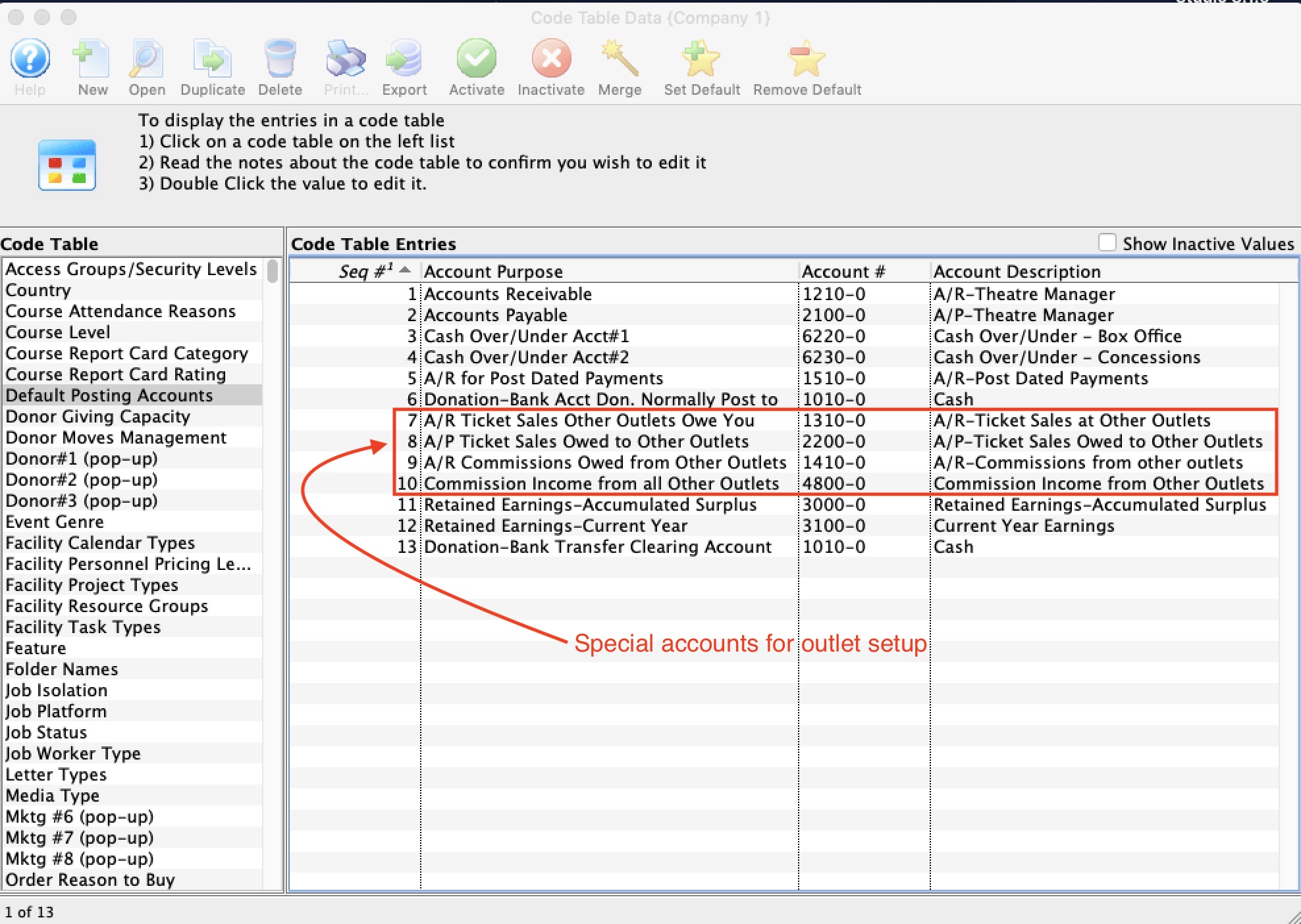
|
Please take care setting up the accounts below. They are design to act like 'revolving accounts' for sales an receivables. If set up properly, the periodic outlet balancing process should be relatively straight forward. |
| Account Purpose | Account Type | Description and what happens in your outlet | What happens in the other outlet |
| A/R Ticket Sales Other Outlets Owe You | Asset |
If you allow another outlet to sell your tickets, an entry will be made to this account for the amount that they owe you. This is why it is normally an Asset account (receivables)
The offset account for the tickets will be the accounts in the accounting tab of the event setup window |
The other outlet will have taken the payment for the tickets and they will owe you money.
|
| A/R Commissions owed from other outlets | Asset |
When you sell tickets for another outlet, you can receive a commission for the sale (if they set one up in Commission Setup
The amount that the other outlet owes you
|
Commission setup has an accounting tab.
When a commission is owed to an outlet, the accounts in the commission tab are used for the outlet:
|
| A/P Ticket Sales owed to other outlets | Liability |
This is the account used to track money you owe to the other outlet after selling one of their tickets. It is the reverse of the description of the 'A/R Tickets sales other outlets owe you' under the last column - what happens in the other outlet. Essentially, your outlet:
|
This is also the reverse of the description of the 'A/R Tickets sales other outlets owe you' under the third column - what happens in your outlet other outlet. |
| Commission Income from all other outlets | Income | When you sell a ticket for another outlet, any commission due to you is offset into this account. (see 'A/R Commissions owed from other outlets - fourth column') | When another outlet sells your ticket, the commission payable is placed into the account in the commission setup. (see 'A/R Commissions owed from other outlets - third column') |
Donation Campaign Category
items appear online in the sort order (alphabetical) and the external name is used to categorize and provide headers for each group. You can access various categories online using direct links in emails or web pages
Suggested values to enter into this code table for external name are:
- Gifts to Capital Campaign
- Donations to Individual Campaigns
- Support our Educational outreach
There are 3 fields:
- External Name - see above
- Internal Name - which can be the same as external name, or if you prefer a different set of names, for internal use, enter them instead
- Sort order - which is the order in which the categories will be displayed online. You may want this to be different than the alphabetical sort order of the names for marketing purposes. Eg, Individual Donations are in the middle of the alphabet, but you may want them to be first in the online web page, so make the sort order for this a a '1' and for Gift Certificates, make that a 2 or a 3, etc.
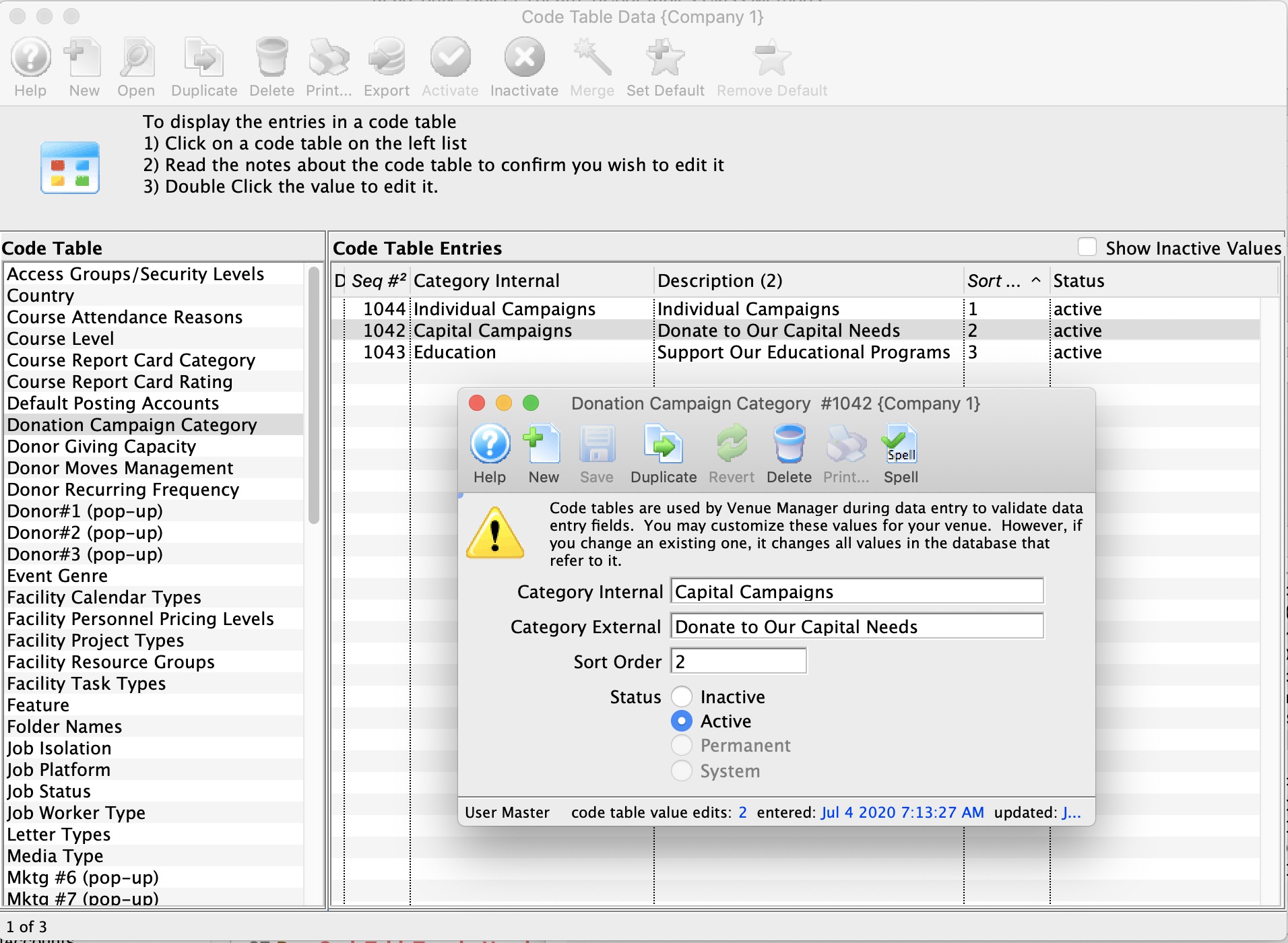
For information about editing values in Code Tables, click here.
Donor Asset Types
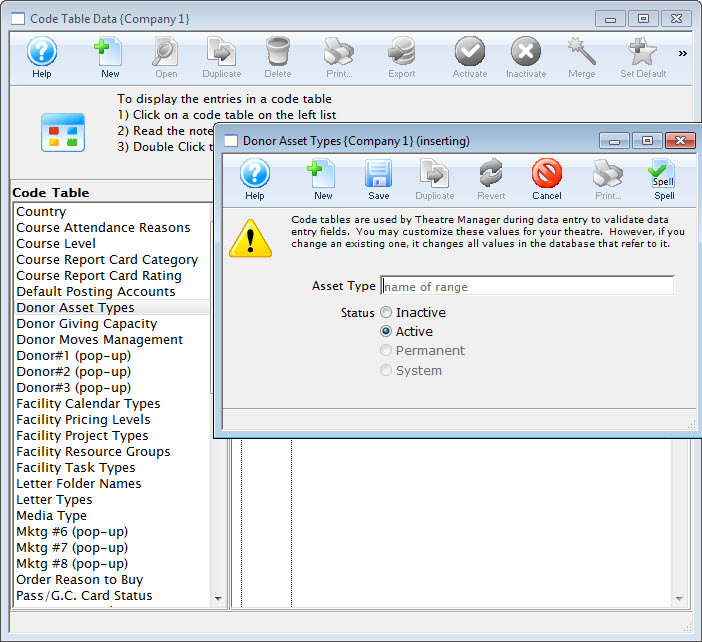
For information about editing values in Code Tables, click here.
Donor Giving Capacity
The Donor Giving Capacity values are displayed on the Donor Tab on the Patron Window. Click here for more information on the Donor Tab.
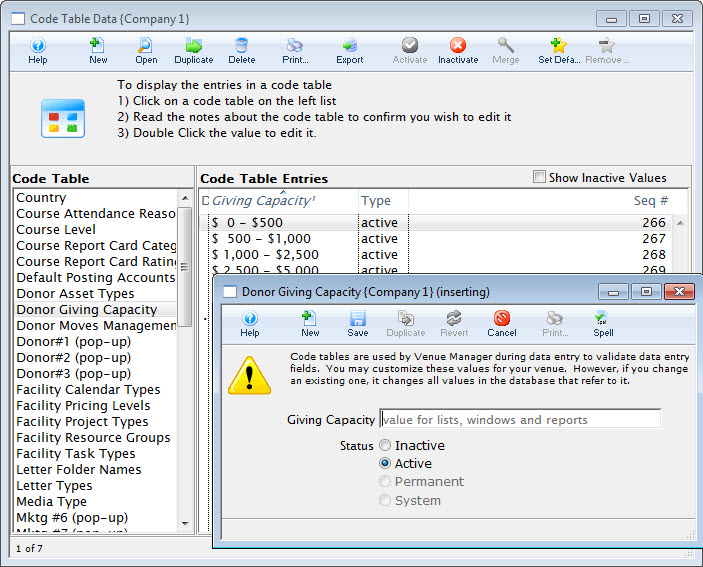
For information about editing values in Code Tables, click here.
Donor Moves Management
The Code Table Moves Management is used to track interactions with Donors and Potential Donors. Moves Management can be used to track Patrons as relationships are built, donations given and contributions increase.
Click here for more information on the Donor Tab.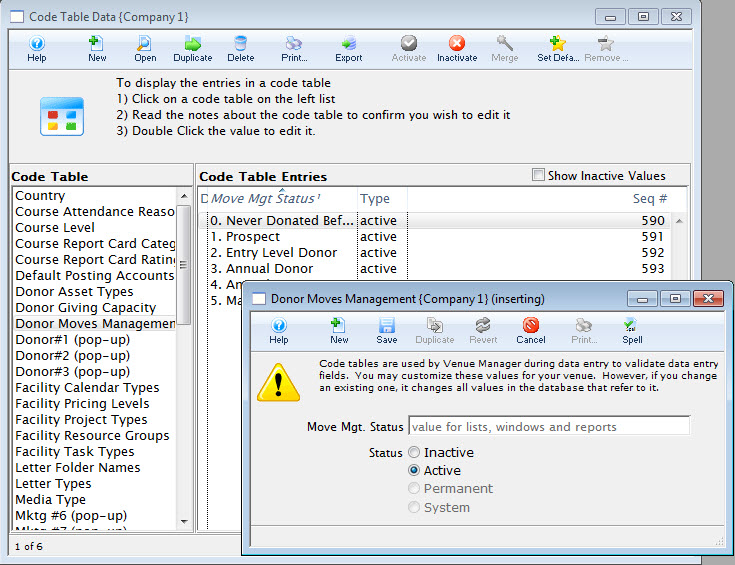
For information about editing values in Code Tables, click here.
Donor#1 Popup Field
The Donor 1,2,3 pop-up code tables represent the values under the Notes Tab of Donation Details.
These fields can be made manditory fields through the Mandatory Data Tab in Company Preferences. You can also change their names in the Appearance Tab of Company Preferences. This way you to customize Theatre Manager to your venue's requirements.
For information about editing values in Code Tables, click here.
Donor#2 Popup Field
The Donor 1,2,3 pop-up code tables represent the values under the Notes Tab of Donation Details.
These fields can be made manditory fields through the Mandatory Data Tab in Company Preferences. You can also change their names in the Appearance Tab of Company Preferences. This way you to customize Theatre Manager to your venue's requirements.
For information about editing values in Code Tables, click here.
Donor#3 Popup Field
The Donor 1,2,3 pop-up code tables represent the values under the Notes Tab of Donation Details. They can also be made manditory fields through the Mandatory Data Tab in Company Preferences and their names can be changed in the Appearance Tab of Company Preferences. This allows you to customize Theatre Manager to your venue's requirements.
 click here.
Facility Calendar Types
Calendar Types are set in new Tasks as they are inserted into the Calendar in Facility Managment. There are "permanent" system Calendar Types built into Theatre Manager.
Facility Calendar Types are built-in codes you do not have to set up. While you cannot change the meaning of each of these, you can change the description to something more meaningful to your organization.
These are used as the general types for the Facility Task Types you will use to define the type of each task.
Click here, to learn more about Calendars.
Facility Project Types
For information about editing values in Code Tables, click here.
Facility Resource Groups
Click for more information about Resources, Resources, Inventory and Merchandise.
The default setting in Theatre Manager is the Generic group. Other groups can be added as needed.
Groups might be for internal resources and those sold on line. Examples might be:
- Typical internal resource groups
- Light devices
- Sound equipment
- Rooms
- Resource groups that might also be sold online could be
- Merchandise
- CD's and Music
For information about editing values in Code Tables, click here.
Facility Resource Sub Groups
Click for more information about Resources, Resources, Inventory and Merchandise. The default setting in Theatre Manager is the Generic group. Other groups can be added as needed.
Resource Sub Groups are intended to be sub-classification within a resource group when items are sold online. For example, a resource group of Merchandise might have subgroups like
- Men's t-shirts
- Womens t-shirts
- Hat's
i.e. there is one Men's t-shirts with a bunch of sizes/colours on the web pages.
For information about editing values in Code Tables, click here.
Facility Task Types
The Facility Task Types are those that appear in the Task Information Window, Task Type drop down.
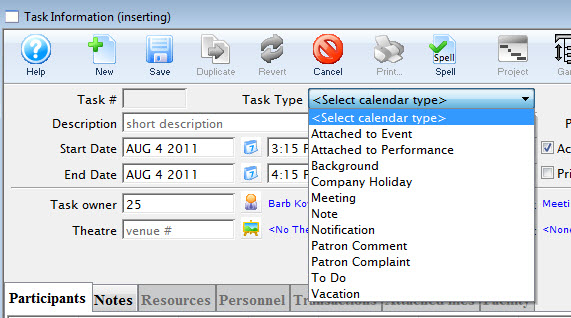
- To enter a new task type, click the new button.
The Task Type Add window opens.
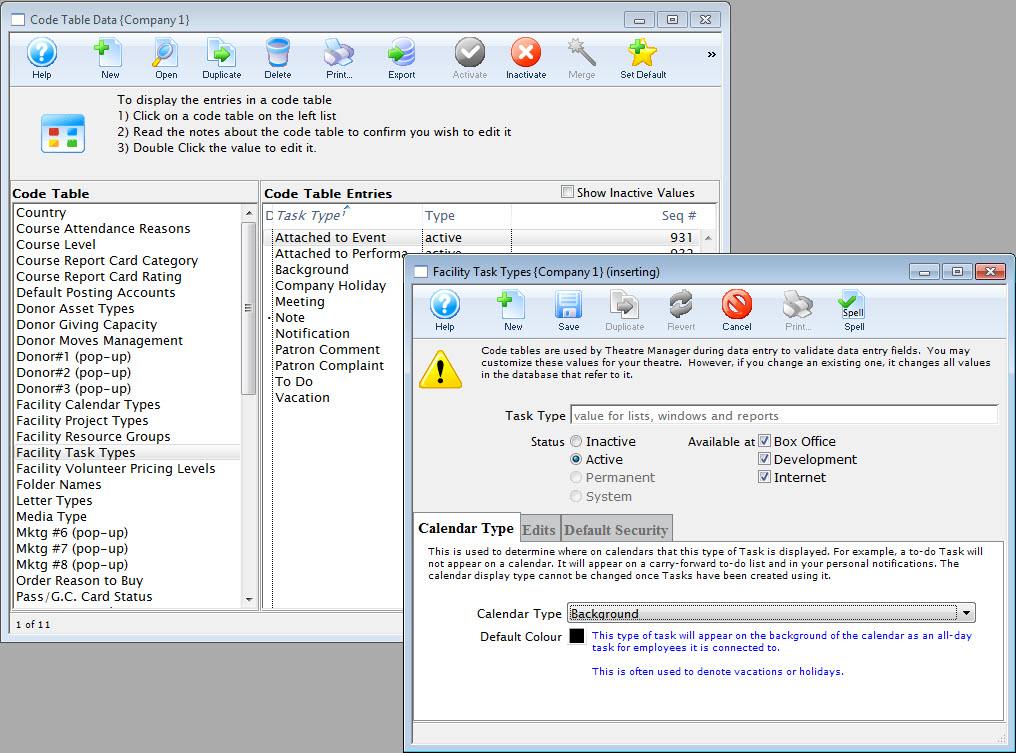
- In the Calendar Type tab, select the Calendar Type the task is to be associated with, from the drop down list.
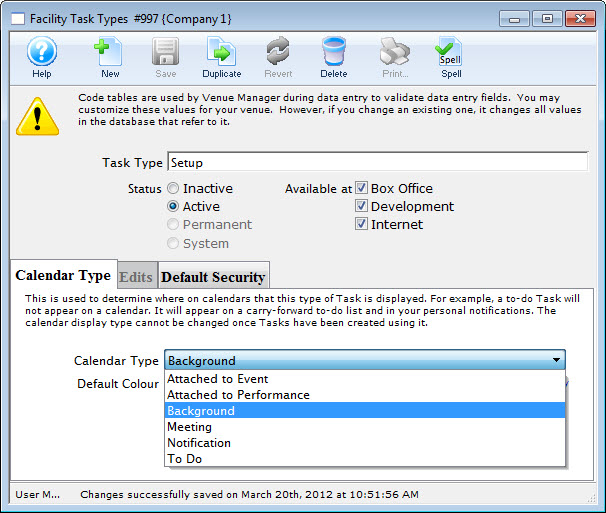
You can also choose a color for the task on a calendar.
- Click the Save button.
The Default Security tab is now available.
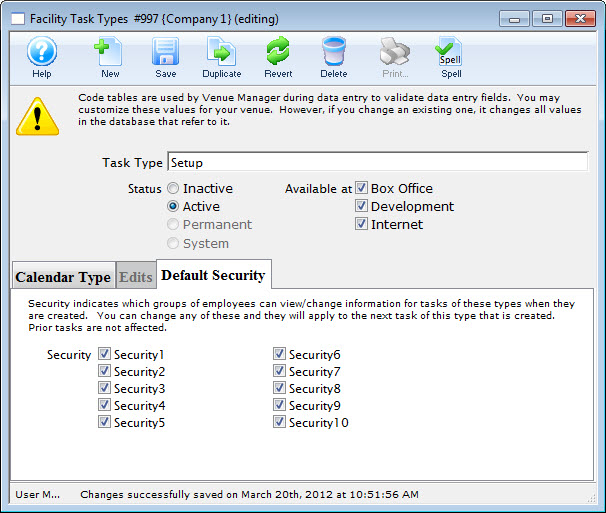
You can now choose a security level. Security indicates which groups of employees can view/change information for tasks of these types when they are created. You can change any of these and they will apply to the next task of this type created. Prior tasks are not affected.
Facility Volunteer/Personnel Pricing Levels
The types of activities your organization's volunteers engage can not only be set up, assigned and tracked inside Theatre Manager but if you have the Facility Module, Pricing Levels can be established and changed to reflect things like Overtime and Stat Holidays. You define pricing levels for the volunteer on the Facility Billing tab of a Volunteer's Activity window.
- Click here for more information on the Facility Billing tab.
- For more information on volunteer management inside Theatre Manager click here.
- For information about editing values in Code Tables, click here.
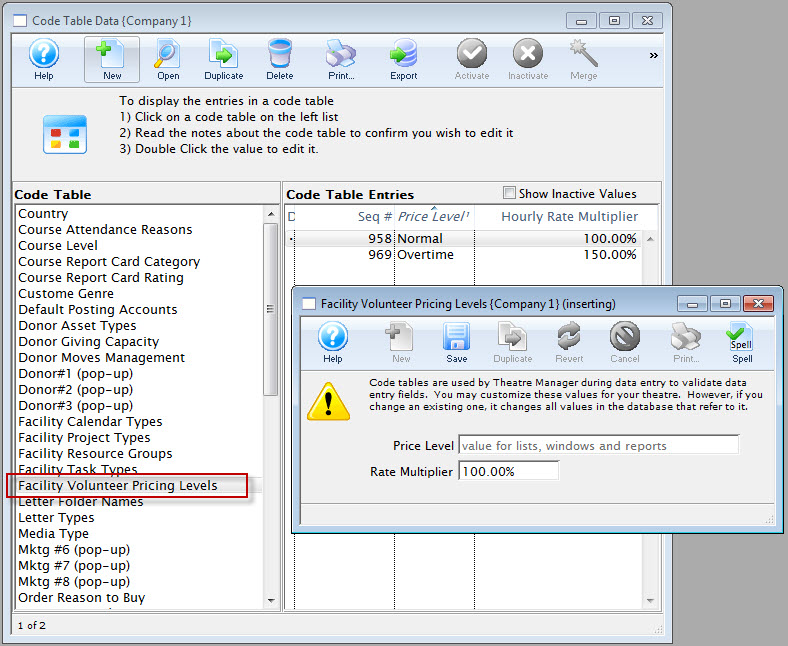
Folder Names
The Code Table Folder Name is used to categorize and organize Folders within Theatre Manager. At the current time, these Folders can be found when saving Form Letters or Mail Lists
You can create folders where you can store Form Letters and Mail Lists. It makes it handy to separate them by department, for example. You could have a Development folder and a Box Office folder. The Box Office would store all their Mail Lists in the Box Office folder - then when the Development staff go looking for a Mail List, they don't have to wade through all the Box Office Mail Lists to find their own. Folders can be used as search options in the Form Letter List and Mail List windows to ease the search time for the desired Form Letter or mail List.
The folders can be divided by department or person, or any other division you want.
For information about editing values in Code Tables, click here.
Gender
The Gender code table is also linked to the salutation table. If people pick a salutation, you can indicate the gender that is to be associated with the salutation. For example, Mr. generally translates to 'Male'. If a patron picks that as a salutation, Tm will help by setting their gender to Male, if it is set to the default of 'Unknown'
For information about editing values in Code Tables, click here.
Letter Types
Letter types are displayed in the Form Letters Window accessable through the Letters Tab.
|
Types allow you classify the types of letters that can be created and sent to patrons |
For information about editing values in Code Tables, click here.
Media Types
The Media Types are used to maintain the type of press for members of the media.
Click Here to view the help on Media Management.
For information about editing values in Code Tables, click here.
Member, Pass and Gift Certificate Categories
items appear online in the following sort order:
- Alphabetical by the 'sort order' of the category (multiple categories can have the same sort order), then by
- External name used to categorize and provide headers for each group, then by
- The actual pass/gift certificate name within the category
Suggested values to enter into this code table for external name are:
- Gift Certificates
- Memberships
- Subscriptions
- Passes
There are 3 fields:
- External Name - see above
- Internal Name - which can be the same as external name, or if you prefer a different set of names, for internal use, enter them instead
- Sort order - which is the order in which the categories will be displayed online. You may want this to be different than the alphabetical sort order of the names for marketing purposes. Eg, Subscription Passes fall towards the end of the alphabet, but you may want them to be first in the online web page, so make the sort order for this a a '1' and for Gift Certificates, make that a 2 or a 3, etc.
For information about editing values in Code Tables, click here.
Mktg Field #6
The Marketing Code Table values are displayed in the Marketing Tab on the Patron Window. They can also be made manditory fields through the Mandatory Data Tab and their names can be changed in the Appearance Tab of Company Preferences. This allows you to customize Theatre Manager to your own venue's requirements.
For information about editing values in Code Tables, click here.
Mktg Field #7
The Marketing Code Table values are displayed in the Marketing Tab on the Patron Window. They can also be made manditory fields through the Mandatory Data Tab and their names can be changed in the Appearance Tab of Company Preferences. This allows you to customize Theatre Manager to your own venue's requirements.
For information about editing values in Code Tables, click here.
Mktg Field #8
For information about editing values in Code Tables, click here.
Order Reasons to Buy
It is recommended that this code table be somewhat specific and contain between 10 and 25 key possible reasons for why patrons buy from your organization. Examples might be:
- some newspaper sources
- some social media sources
- some sources based on annual activities like subscriptions, fundraiser, or donation
- some sources based on referrals like friends
The Revenues by Why Did Patron Buy report is a great way to summarize this data for relevant events and periods of time.
|
You can make collection of this data mandatory for all orders by enabling the reason to buy option in System Preferences. |
|
For all values in this table, you will want to take care in where you make them available.
|
|
For online donations, you will want a code table entry that:
|
For information about editing values in Code Tables, click here.
Pass/G.C. Card Status
The member card status codes are displayed on the Member Card Window. They are used as a reference as to the status of the card. Each card status may be set as 'active' or 'inactive'. Inactive card types do not count towards the maximum access card limit for a pass/Gift certificate setup-> edits tab.
Click here for more information on the Member Card window.
For information about editing values in Code Tables, click here.
Patron Age Codes
The Code Table Age Codes is used to categorize personnel and/or volunteers into particular age ranges. If the age is unknown, then an age code Unknown may be useful. Age codes could also be specific birth years if required.
For information about editing values in Code Tables, click here.
Patron Location
- phone numbers
- addresses
- e-mail addresses
- web site addresses
|
Note: for addresses, you can indicate if 'Company/Title' should be printed on the address label or form letter address. This field would be checked for 'work' addresses, and not for 'home'. If the company name is not marked to be printed on an address (in codetables), it never will for labels or form letters |
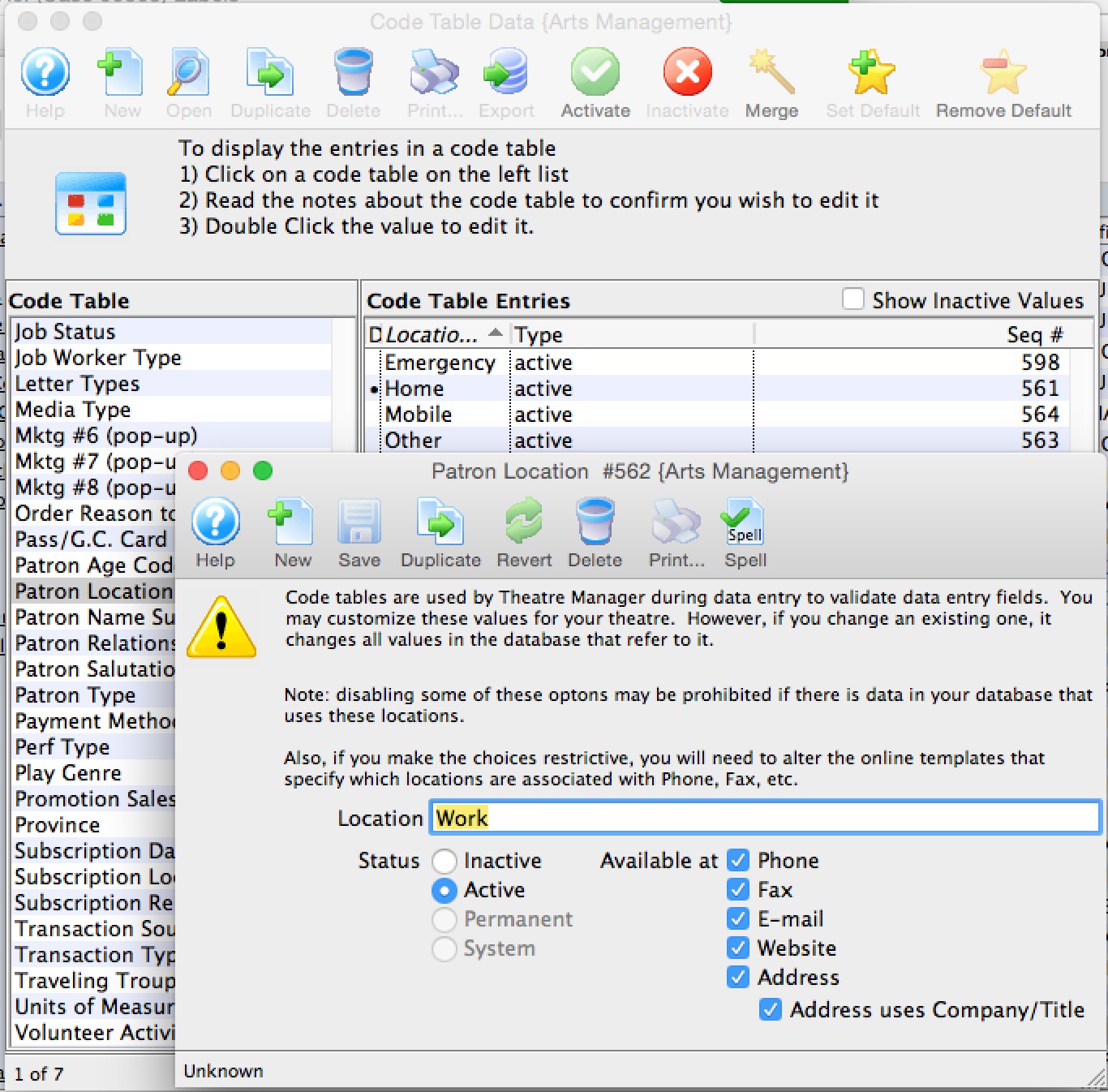
For information about editing values in Code Tables, click here.
Default Locations used at the Box Office
Every code table can have a default value indicated by the '•' at the left of the code table entry. This is important to set for the Location table as it affects which location is used by default. In the example below:
- Home is the default location, so it will appear in the new patron entry screen.
- Home is allowed to be used for:
- Phone numbers so the default for all phone numbers entered at the box office is 'home'. If you don't want that for a specific phone number, you much change it on the patron window
- E-mail - which is shown as the default for email entry
- Web site - which is shown as the default for web sites
- Address - which is shown as the default for addresses
- Home is not allowed for fax in this example. The default for fax will be one of other locations that allows fax numbers
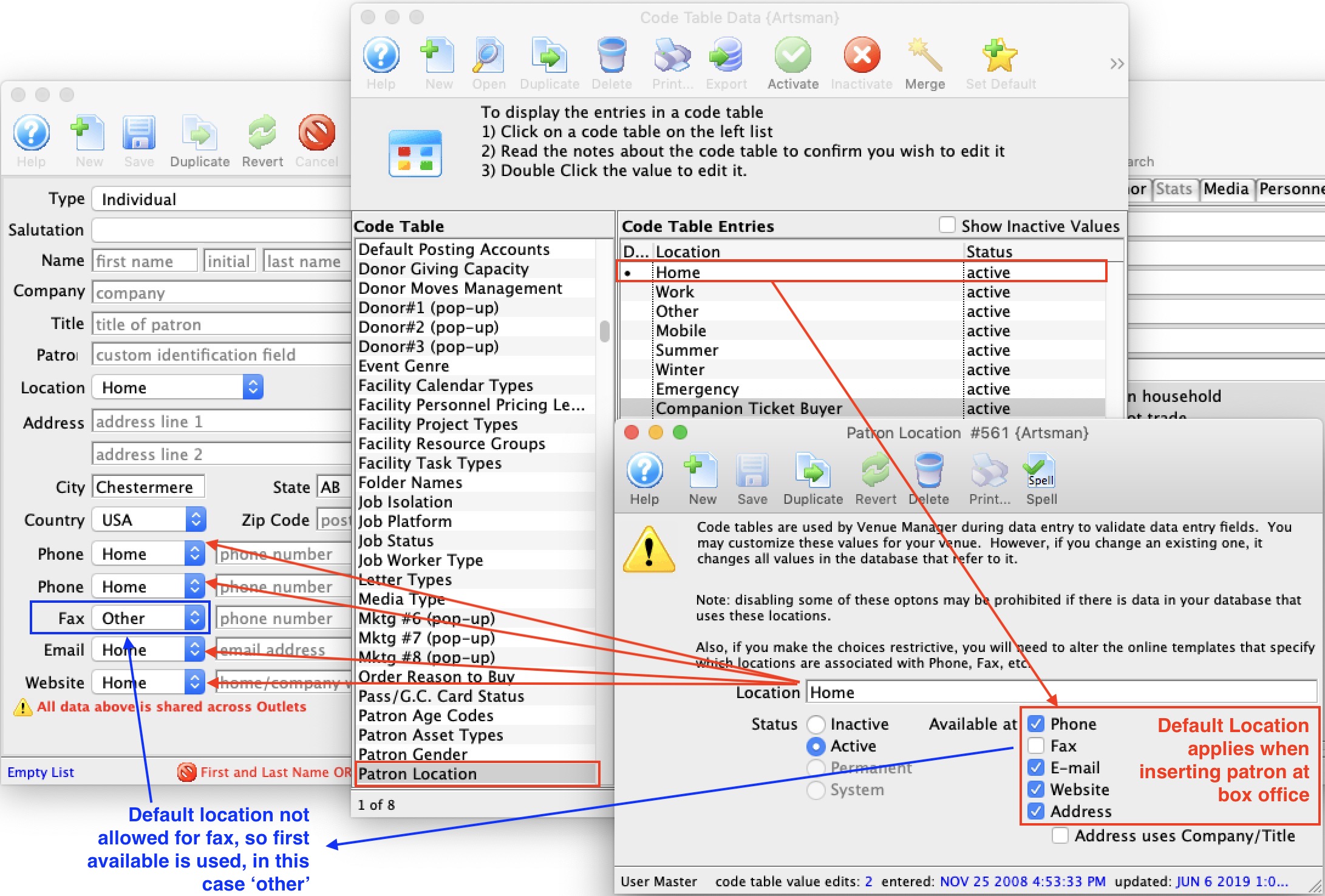
Default Locations used on the web Site (for new patrons)
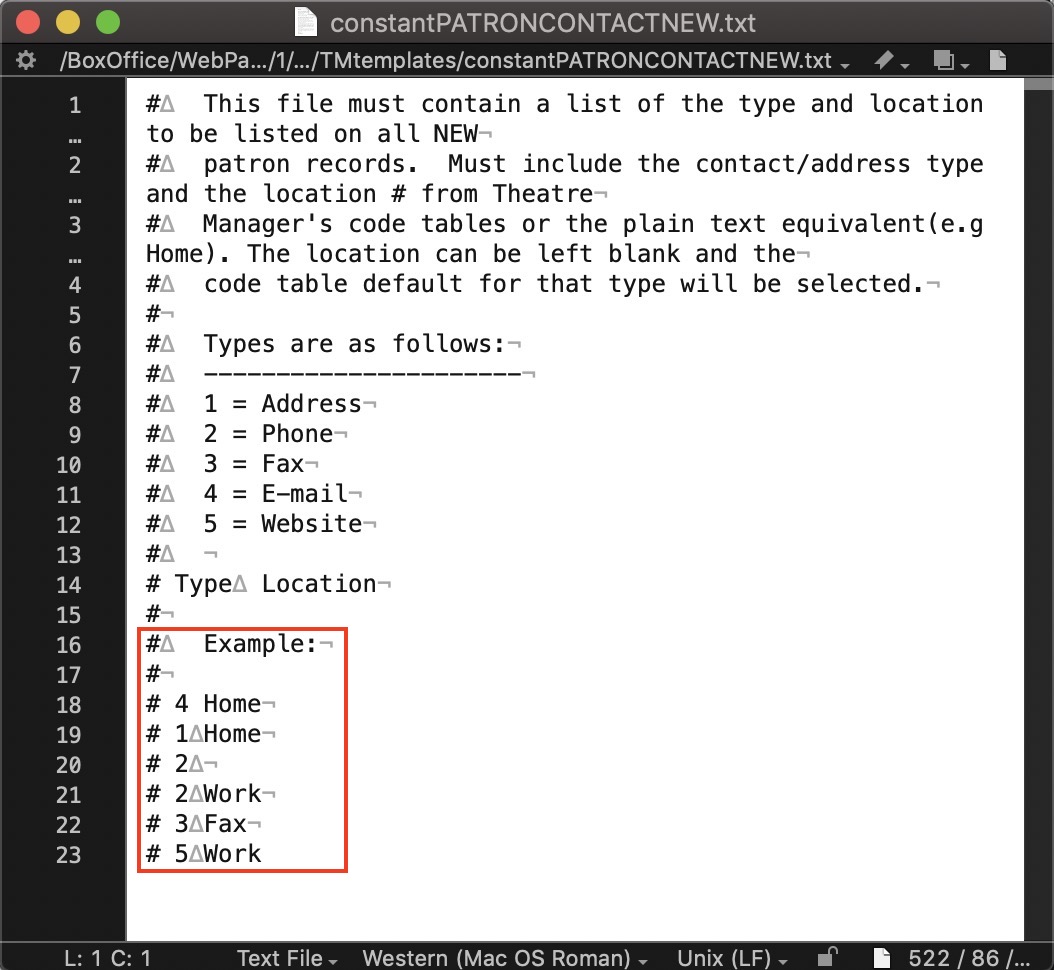 Locations on the web are a bit more granular and refer to the code tables for values, but do not use the code tables for position of usage.
For example, on the web you may want to:
- Only allow certain items to be entered
- duplicate some of them (like allow entry of multiple phone number)
- Change the order in which they are presented
to do this, you edit the file called constantPATRONCONTACTNEW.txt that is in the tmTemplates folder. In that file, you would have a number followed by a tab, followed by the name of the location from the code table. The number reflects the meaning of the contact data. Always put Email first. The following is an example:
4 tab Home where
- 4 means email per the legend -and-
- Home is the value to use which must exist in code tables and be valid for that entry
so a reasonable list of entries are:
| Number | Value | Description |
| 4 | Home | the default email address is 'home' it does at the top opf the new patron web page |
| 1 | Home | the default mailing address is also 'home' which goes in the address section of the web page. If you put a second address in this table, you could allow patrons to enter a work address or leave it blank. |
| 2 | blank | A blank entry means take the default location for a phone from the code tables. In the example of the code table above, it would also be 'home' |
| 2 | Work | means add a second entry field for another phone number and label it 'Work' |
| 2 | Cottage | means add a third entry field for another number and label it 'Cottage'
The above table do not have any entry for 3 (faxes) or 5 (web sites), so those options will not be presented to the user. |
Default Locations used on the web Site (for existing patrons)
There is a similar file called constantPATRONCONTACTEXISTING.txt with the same rules for existing patrons. Theatre Manager will always show all the data in the patron record and no more. If you want to have some empty fields for additional data, you can add more to the template.
For example, if you want to allow up to 3 phone numbers, then you might have a table of
- 2 tab Home
- 2 tab Work
- 2 tab Mobile
Default Locations used on the web Site (for existing patrons)
There is a similar file called constantPATRONCONTACTLIMITED.txt with the same rules if you are using limited profile patrons to specify what those phone or emails will be called when a patron fills them in.
Patron Name Suffixes
Name Suffixes are chosen from the Patron window. These can be included when sending letters to patrons.
For information about editing values in Code Tables, click here.
Patron Relationships
The example below provides some ideas for the relationship code table that you can enhance to suit your business and CRM requirements.
Making a relationship entry under one patron automatically makes an entry under the other patron. The code table allows you to create terminology that clearly defines both sides of the relationship. For example:
- in a family relationship you could use Parent/Child to show who is the parent in the relationship and who is the child.
- a work relationship could be supervisor/employee.
- some relationships might use the same words like coworker/coworker.
- some political relationships could be Knows the Mayor/Is known by the Mayor
Use any pair of words that helps you define the relationship.
For information about editing values in Code Tables, click here.
Patron Salutations
The Patron Salutations code table is used to maintain the salutations on the patron and employee windows.
| Default Gender | Setting the gender allows the gender to be automatically tagged in the patron's record when a salutation is applied to a patron's record. Then there is no guessing as to who you are talking with. Gender can be used in search criteria for reports, exporting and mail lists and are created in the gender table. |
| Status | Allows the salutation be changed between Inactive or Active. Some salutations are not changeable and are marked as Permanent or System. This field is searchable. |
| Available At | Select areas where the salutation can be used in the Box Office, Development, or Internet. More than one choice can be used. This field is searchable. |
For information about editing values in Code Tables, click here.
Setting Patron Salutation As Mandatory On Patron Insert
- Go to Setup >> System Tables >> Code Tables.
- Scroll to Patron Salutation.
A blank salutation is set as a default by Theatre Manager. The default value in a code table is marked with a dot to the left of the entry.
- Highlight that blank salutation and click the Remove Default button.
This removes the blank default salutation.
- Remove the blank salutation using the Delete
 button.
If it has been used in a patron record, you will not be able to remove it. Mark it inactive.
- To mark a value inactive, follow instructions found here.
Patron Type
The Code Table Patron Type is used to sort patrons records into categories. This information is used for Patron Records.
For information about editing values in Code Tables, click here.
Payment Methods
- The payment Code is the abbreviated form that is found throughout Theatre Manager.
- The Payment Method is the full description of the payment type that appears online and at the box office.
- Security Group Access provides
- Ability to set which groups of people can use the payment method. It means you can set access to some of the custom payments to certain people. Eg. There may be some different ones for education, development, group sales or inter departmental transfer payment types.
- Security cannot be use for the 7 built in payment methods below (eg ~CASH, ~CHECK ,etc)
- The G/L account column displays the GL asset account that a particular payment is posted to.
- The Sort Order allows you to organize the payment method display order where paymetns are listed online and at the box office. this way you can put your commonly used items at the top of the list. Sort order is 10 characters, alphabetic
- Payment types are one of:
- Credit Card - can be used with merchant providers or EMV devices to authorize cards. You must have contracted with your merchant provider to use each card type you want to accept.
There are some specific values for the payment code if the payment type is 'Credit Card'. These are:
- VISA - for Visa
- MCARD - for Mastercard
- DISC - for Discover
- DCCB - for Diners Club
- INTRAC - for Interac (debit) in Canada
- currently only supported for Moneris EMV cards.
- You cannot accept INTRAC without using an EMV device.
- This method is removed from the payment list when doing refunds -- but it can be used for EMV refunds since the choice of refund method is then based on the card the patron actually uses.
- JCB - for JCB cards
- UPAY - for Union Pay (Chinese branded)
This will ensure that Theatre Manager validates for the required number of digits for each card type, and have the correct numeric algorithm. An error message is displayed if the numbers are not entered correctly, to assist card entry.
Before changing the merchant provider for a credit card payment method, please read about the ramifications - EFT - (Electronic Funds Transfer) can be used, amongst other things, for post dated payments and produce an export file during end of day. The export file is formatted to your bank and will cause funds to be transferred from patrons to your account.
-
System - are 7 special built in system payments that cannot be deleted (only inactivated) like cash, check, voucher, pass/gift certificate redemption and gift in kind. They cause Theatre Manager to behave in a distinct way and ask for special data to be entered for that payment method.
 These built in payment methods are:
- ~CASH which is typically called 'cash' and is used for all cash payments..
In Canada, make sure to set it for rounding to nearest $0.05
- ~CHECK which is typically called 'check' or 'cheque' and is used for all check payments
- ~GIFT which is for gift in kind payments to supply data as required by CRA for tax receipts.
- ~COUPN which is used to add coupons to an order that might cause a discount to happen
- ~ACCT which is used to indicate no payment on an order - and leave a balance on account
- ~PASS which is used to add a gift certificate or pass payment to an order. A pass might alter the cost of the tickets to create a discount.
- ~PNOTE which is used to add a voucher payment number to an order - suitable for printing on invoices to customers.
- ~CASH which is typically called 'cash' and is used for all cash payments..
- Other - can be used for any other payment methods such as intra-campus PO's or payment entered in another system and recorded in TM - those which cannot be accommodated in the standard payment methods
- Credit Card - can be used with merchant providers or EMV devices to authorize cards. You must have contracted with your merchant provider to use each card type you want to accept.
There are some specific values for the payment code if the payment type is 'Credit Card'. These are:
|
Please refer to Rounding of Cash Payments if you are in Canada or another country that requires rounding of certain payment methods.
While this features is typically used for cash, you can use on any payment method |
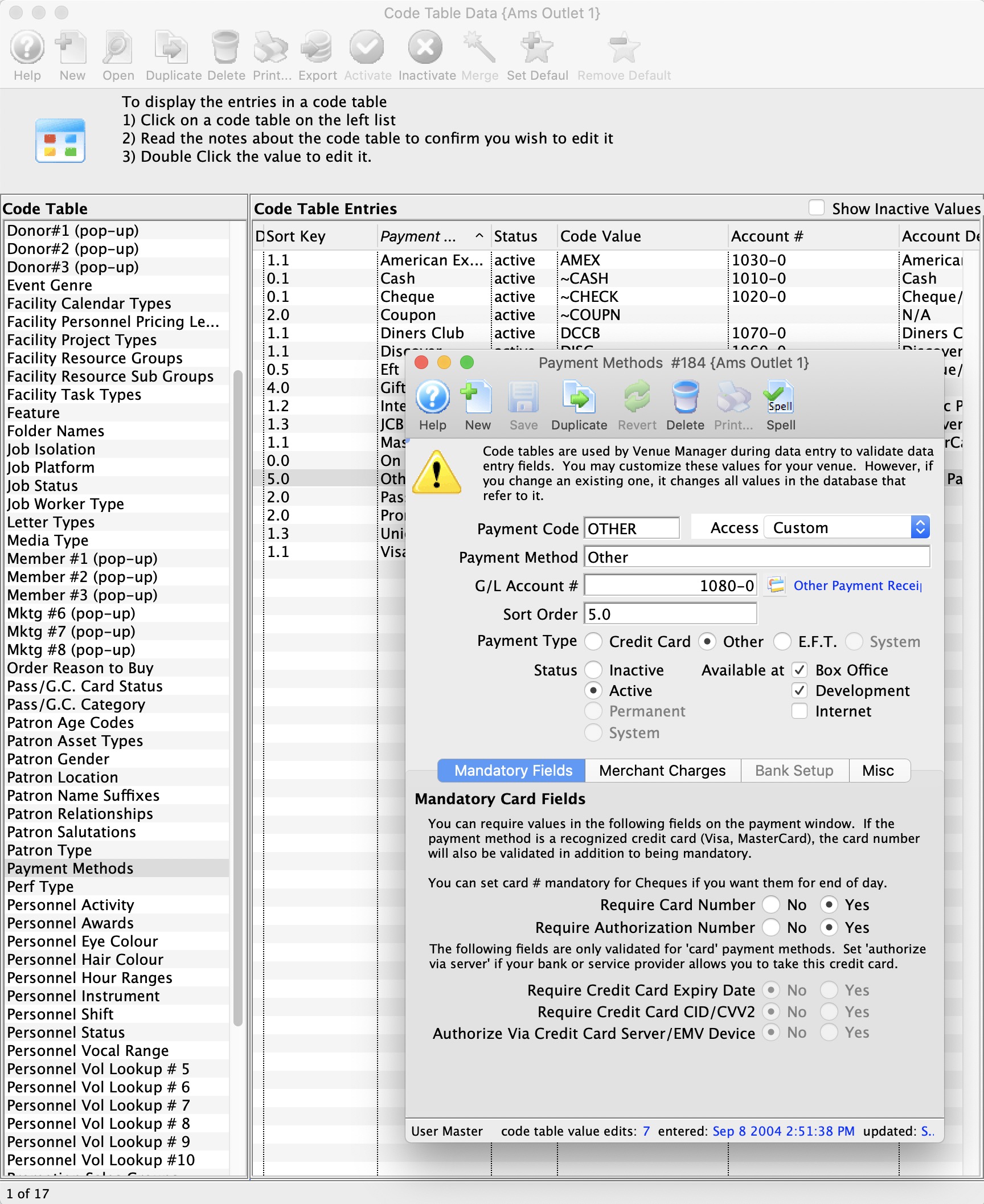
For information on how to access the payment method table click here.
For information about editing values in Code Tables, click here.
Inserting a New Payment Type
Inserting a New Payment Type is used to add options to the Payment Methods category.
- Create a general ledger account number.
Entering a new payment type in Code Tables requires entering a General Ledger Account number for the card type in the Chart of Accounts.
- Open Code Tables.
Click Here to learn how to access the Code Tables Window.
- Click on Payment Method.
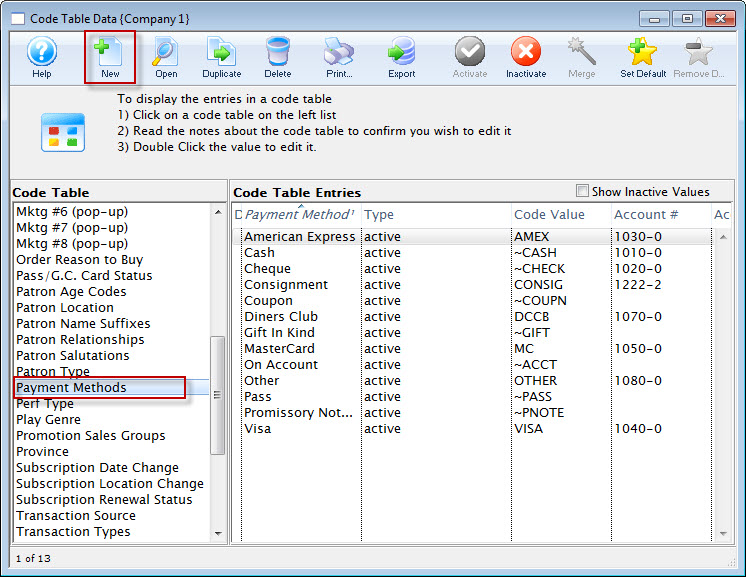
- Click the New button.
The Payment Methods Insert Window opens.
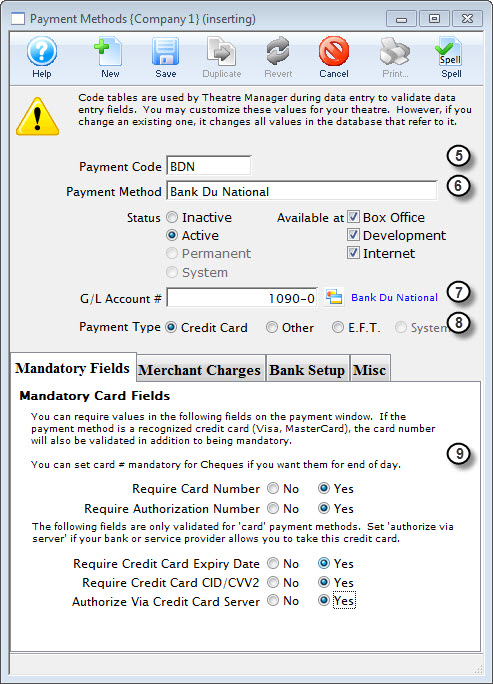
- Enter the payment code.
This is the short form of the payment description. This text appears as the code table lookup value.
- Enter the payment description.
This is the full description of the type of payment that you are creating. This text appears as the code table result value.
- Enter the GL account number.
This is the GL number that you created in step one. Type in the full 8 digit account number or use the drop down list on the right side of this field to manually select the account number.
- Select the payment type.
Click on the radio button that best describes the type of payment method you are inserting.
- Select mandatory fields.
If a customer is paying via credit card, you must decide which credit card fields must be entered before payment can be accepted. The fields you may make mandatory are credit card number, credit card expiry date, credit card authorization number, and process card via credit card server. The last selection is available using Theatre Manager's Credit Card Authorization.
Selecting yes for any of these fields makes them mandatory fields.
- Select the Merchant Charges tab.
For Credit Card processing a Merchant #, Service Charge G/L Account Number and Percent of Dollar Value or Dollar Charge Per Transaction are required.
- Click the Save button.
The new payment type has now been created and is ready for use.
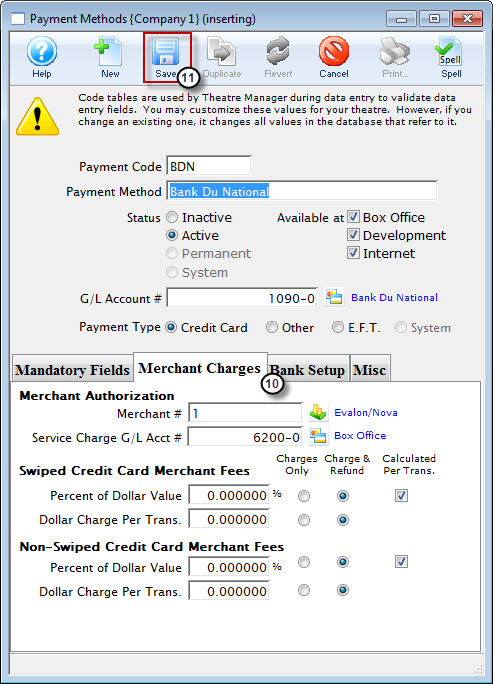
Changing Credit Card Provider
|
Before changing the merchant provider for a credit card payment method, please about
|
Generally there are two aproaches:
- Create new credit card payment methods for the new merchant provider and migrate all post dated and recurring donation payments to the new provider. This is the best choice because
- It preserves history of which merchant did which payment
- Allows you to reactivate old merchant account if you need to do linked refunds for past payments (such as occurred during Covid and mass cancellations, but could just as easily occur for a cancelled concert at any time
- It sets up future post dated credit card payments to use the new merchant
- Move all existing and historical credit card payment methods to the new provider so that they no longer exist under the old provider. This is rarely used:
- It sets up future post dated credit card payments to use the new merchant
- All historical data is also migrated, so future linked credit card refunds will not work, since they are for the incorrect merchant provider.
Impact on Merchant Profiles
In both cases, moving to a new merchant provider means any Merchant Profiles established for patrons will become useless.
The patron merchant profiles will be recreated under the new merchant account as each patron purchases in the future. They cannot be transferred from one merchant provider to another.
Rounding Cash Payments
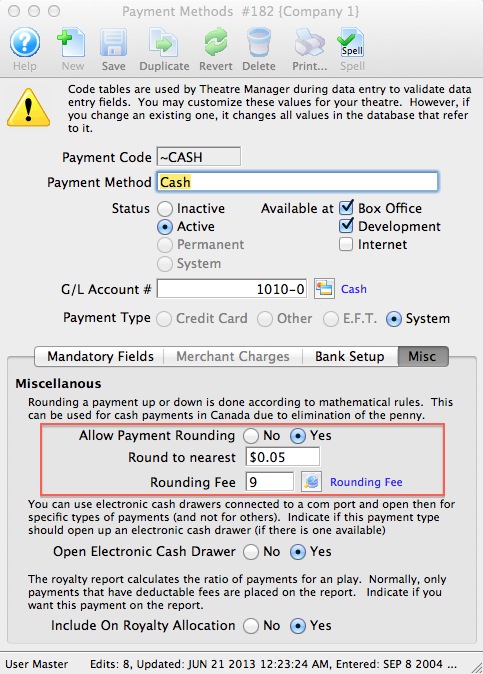
- Go to Setup>>System Tables>>Code Tables
- Select Payment Methods
- Double click on the payment method you wish to setup for rounding on the right. If you are rounding the Cash payment method, then find the system ~CASH payment explicitly per the image below.
- click on the 'Misc' Tab for the payment method and set 'Allow Payment Rounding' on
- indicate the amount of rounding you want.
- Normally, this rounding amount would be $0.05 to round to the nearest nickel.
- You can have TM round to the nearest dime, quarter or any value you place into this field.
- Provide a fee type that will be used to track any rounded amounts -or-create one if you do not have a rounding fee account
- you will need a G/L code in your chart of accounts to post the fee to.
- the fee should not have any tax associated with it as you are just tracking the amount of cash that you gain or lose to rounding the payment. If your payments are evenly distributed (i.e. half are rounded up, half are rounded down), the total amount in this account will approximate zero.
Example: How does the process work?
Lets say the value of the ticket you sell is $29.46. Any tax is calculated by Theatre Manager is purely on on the price of the ticket (not the payment) and this is what is posted to the sales accounts and all reports.
- if the person pays by any method other than cash, you receive $29.46 in the asset account
- if the patrons pays by cash, the order total is still $29.46 and the cash payment that is requested is rounded down to $29.45. The payment windows does this for you automatically.
-
When the person gives you cash for $29.45
- the ticket is still allocated the full price of $29.46 (which includes per ticket fees and taxes)
- the bank account for cash payments is only allocated $29.45 because that is what you received.
- the fee account is allocated -$0.01 as a write off
Deleting a Payment Type
|
If a payment type has been used, it cannot be deleted. |
If you wish to discontinue a payment type, disable it. Click here to learn how.
To delete an unused payment type:
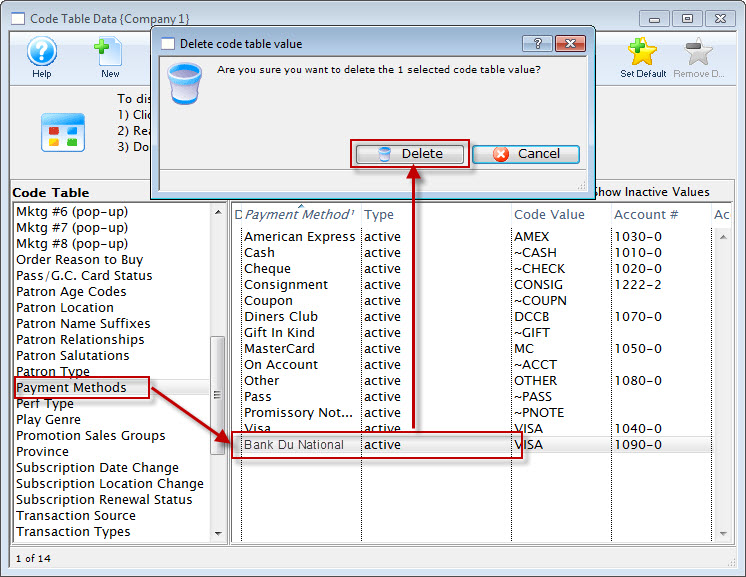
- Select the payment type that will be deleted.
- Click the Delete button.
The Delete codtable confirmation opens.
- Click the Delete button.
The payment type is now deleted. Clicking the Cancel
 button will abort the deletion.
Performance Type
This is a versitile, customizable code table field you can use to flag specific performances. You can use it for display on the web and it can also be used like the Genre flag for TicketTrove. It can also be used for reports to narrow down searching for specific performances.
Using this field, you can also search for specific performances during the Ticket Sales.
If you are using this field for courses, Click here for more information.
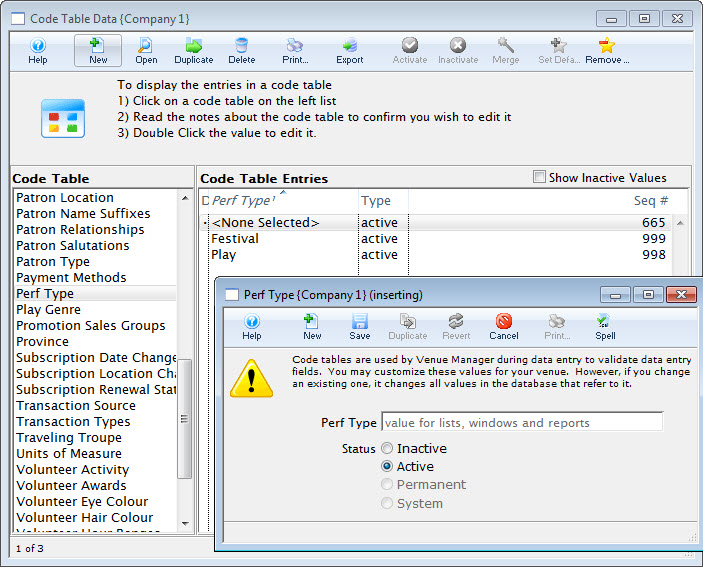
For information about editing values in code tables, click here.
Play / Event Genre
|
Genre is a general classification for events that is common to all Theatre Manager customers.
You cannot edit the Genre Table |
Currently, there are about 70 classifications which are used in the TicketTrove iPhone/iPad app to help customers find entertainment to their liking as well as on the event search window on the web.
- For Example: Customers can look for drama, hockey games, musicals, symphonies, ballet, etc.
Specifying a genre for an event is required.
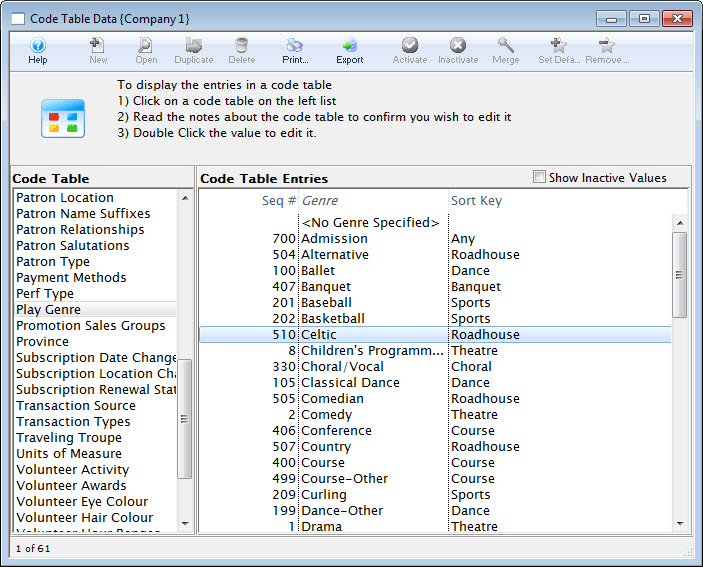
You will need to update the genre setting for each future event on the Events and Dates Marketing tab to help users search for specific types of events in their interest area.
Click here for more information on the Events and Dates Marketing tab.
For information about editing values in Code Tables, click here.
Promotion Sales Groups
Sales Promotions are able to be grouped into letter codes to help make them easier to read on a report. By assigning a letter to a group of Sales Promotions, you can categorize them in a report by their similarities. For example, you can use the letter 'S' to indicate all the Season Sales Promotions (Early Bird, Season, Flex Season) into one category. Then when running reports, you can run them based on Report Subtotal Group 'S', rather than selecting the promotions one by one. In addition, when running full reports on an event, you can subtotal all your
- A - Single Ticket Sales (regular, 2 for 1, General Admission).
- D - Special Benefit Promotions (Dinner, Opening Gala, Development Events).
- G - Group Tickets (Senior homes, Brownies).
- M - Media Tickets (Critics, Editors).
- S - Season Tickets (Earlybird, Season).
- Z - Comp Tickets (Listed with a 'Z' so they appear last in reports)
Or any categorization you choose.
You can set names for these categories so they are more meaningful to your organization in the Code Table setup for Promotion Sales Group.
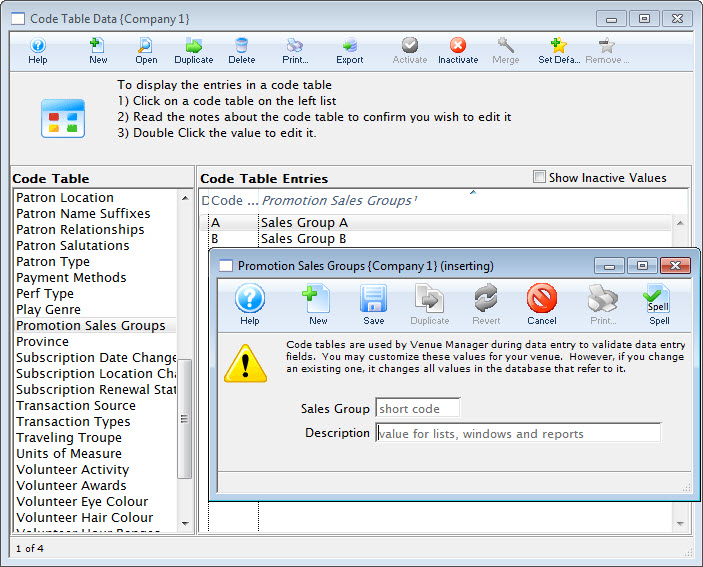
For information about editing values in code tables, click here.
Province/State Code
The Province/State Code Table is a list of Provinces and States in North America and recognized American states throughout the world. This list is primarily used for Web Sales.
The name Province can be changed to State (and vice versa) in the Appearance tab of Company Preferences. For more information on changing the title click here. Altering the Sort Value allows you to determine whether Provinces or States appear at the top of the list. They are assigned to Groups which sorted alphabetically. Each Province/State is then sorted numerically within the group.
For example, Provinces might be in Group 'A', and States in group 'B'. Within the Group, you would assign the Provinces A01, A02, A03, etc. The States would be given Sort Values of B01, B02, B03, etc. Since A comes before B, the Provinces would come above the States in the list. American users would do the opposite.
Depending on the region a default can be set. For more information on setting a Province or State as default click here.

For information about editing values in Code Tables, click here.
Subscription Date Change
The values from this table are displayed on the Season Subscription Detail Window. They reflect if a patron changed the date which they were attending plays for their subscription. They also allow for better marketing records to be kept and provide another value which can be used in reports and form letters.
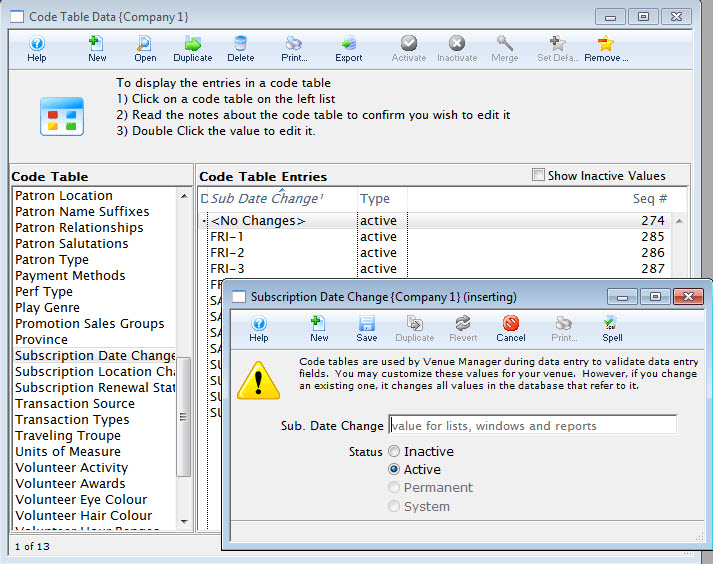
For information about editing values in Code Tables, click here.
Subscription Location Change
The values from this table are displayed on the Season Subscription Detail Window. When the patron is renewing, you can record if they changed their season seats and where in the theatre they moved to.
This means better marketing records can be kept and provide another value which can be used in reports and form letters.
For information about editing values in Code Tables, click here.
Subscription Renewal Status
The values from this table are displayed on the Season Subscription Detail Window. They allow for better marketing records to be kept and provide another value which can be used in reports and form letters.
For information about editing values in Code Tables, click here.
Tag Groups
Tag groups are ways to conveniently group a number of different tags that you want to associate with records.
|
Tag Types allow you group or classify the tags in the tag setup tables |
For information about editing values in Code Tables, click here.
Transaction Source
For information about editing values in Code Tables, click here.
Transaction Types
The Transaction Types Code Table is a system table and cannot be changed. The values found here are a list of all the possible types of transactions that can be created and found in Theatre Manager. The result value is the actual transaction name, while the lookup value is a short form that is usually found on transaction reports, or inside the patron transaction tab. If you come across a transaction lookup value that you don't recognize, visit this code table to find its definition.
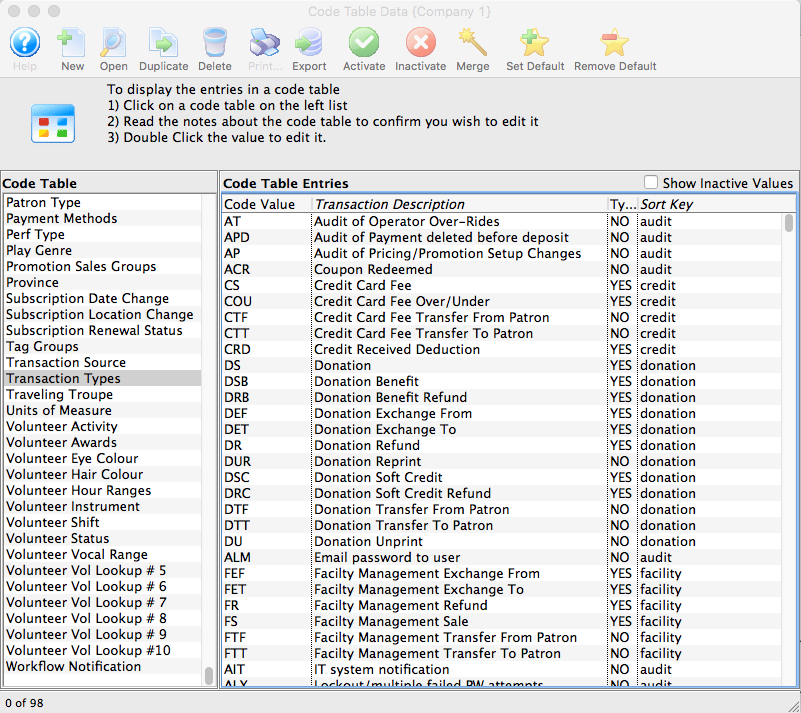
The Transaction type Values are:
| Code Value | Transaction Description | Type | Sort Key |
PATRON or AUDIT |
|||
| AC | Patron Card Viewed by Authorized User | N | audit | ACR | Coupon Redeemed | N | audit |
| AEI | Patron Change-Internet | N | patron |
| AIT | IT system notification | N | audit |
| ALI | User logged in | N | audit |
| ALM | Email password to user | N | audit |
| ALO | User logged out | N | audit |
| ALX | Lockout/multiple failed PW attempts | N | audit |
| AM | Patron Merged | N | patron |
| AP | Audit of Pricing/Promotion Setup Changes | N | audit |
| APD | Audit of non deposited payment deleted | N | audit |
| AS | Patron Added | N | patron |
| ASI | Patron Added-Internet | N | patron |
| AT | Audit of Operator Over-Rides | N | audit |
CREDIT CARD (No longer supported after Version 6) |
|||
| COU | Credit Card Fee Over/Under | Y | credit |
| CRD | Credit Received Deduction | Y | credit |
| CS | Credit Card Fee | Y | credit |
| CTF | Credit Card Fee Transfer From Patron | N | credit |
| CTT | Credit Card Fee Transfer To Patron | N | credit |
DONATION |
|||
| DEF | Donation Exchange From | Y | donation |
| DET | Donation Exchange To | Y | donation |
| DR | Donation Refund | Y | donation |
| DRB | Donation Benefit Refund | Y | donation |
| DRC | Donation Soft Credit Refund | Y | donation |
| DS | Donation | Y | donation |
| DSB | Donation Benefit | Y | donation |
| DSC | Donation Soft Credit | Y | donation |
| DTF | Donation Transfer From Patron | N | donation |
| DTT | Donation Transfer To Patron | N | donation |
| DU | Donation Unprint | N | donation |
| DUR | Donation Reprint | N | donation |
FACILITIY |
|||
| FEF | Facility Management Exchange From | Y | facility |
| FET | Facility Management Exchange To | Y | facility |
| FR | Facility Management Refund | Y | facility |
| FS | Facility Management Sale | Y | facility |
| FTF | Facility Management Transfer From Patron | N | facility |
| FTT | Facility Management Transfer To Patron | N | facility |
MEMBERSHIP |
|||
| MEF | Pass/G.C. Exchange From | Y | membership |
| MET | Pass/G.C. Exchange To | Y | membership |
| MR | Pass/G.C. Refund | Y | membership |
| MRB | Pass/G.C. Benefit | Y | membership |
| MRR | Pass/G.C. Manual Redemption | Y | membership |
| MS | Pass/G.C | Y | membership |
| MSR | Pass/G.C. Redeemed For | Y | membership |
| MTF | Pass/G.C. Transfer From Patron | N | membership |
| MTT | Pass/G.C. Transfer To Patron | N | membership |
FEES |
|||
| OEF | Order Fee Exchange From | Y | fees |
| OET | Order Fee Exchange To | Y | fees |
| OR | Order Fee Refund | Y | fees |
| OS | Order Fee Sale | Y | fees |
| OTF | Order Fee Transfer From Patron | N | fees |
| OTT | Order Fee Transfer To Patron | N | fees |
PAYMENTS |
|||
| PD | Payment Post Dated | Y | payments |
| PDD | Payment Post Dated Deposited | Y | payments |
| PDR | Payment Post Dated Refund | Y | payments |
| POF | Payment Move From Order | Y | payments |
| POT | Payment Move To Order | Y | payments |
| POU | Payment Over/Under | Y | payments |
| PT | Payment | Y | payments |
| PTF | Payment Transfer From Patron | N | payments |
| PTT | Payment Transfer To Patron | N | payments |
INVENTORY |
|||
| RIAD | Resource Inventory Adjustment | N | inventory |
| RICI | Resource Inventory Check In | N | inventory |
| RICO | Resource Inventory Check Out | N | inventory |
| RIEN | Resource Inventory Tracking Ended | N | inventory |
| RIH | Resource Inventory Held | N | inventory |
| RIPR | Resource Received by patron | N | inventory |
| RIR | Resource Inventory Released | N | inventory |
| RIST | Resource Inventory Tracking Started | N | inventory |
RESOURCES |
|||
| REF | Resource Exchange From | Y | resources |
| RET | Resource Exchange To | Y | resources |
| RR | Resource Refund | Y | resources |
| RS | Resource Sale | Y | resources |
| RTF | Resource Transfer From Patron | N | resources |
| RTT | Resource Transfer To Patron | N | resources |
EXCHANGES |
|||
| TEF | Ticket Exchange From | Y | exchanges |
| TET | Ticket Exchange To | Y | exchanges |
REFUNDS |
|||
| TR | Ticket Refund | Y | refunds |
SALES |
|||
| TS | Ticket Sale | Y | sales |
MISC |
|||
| ACR | Coupon Redeemed | N | misc |
| TTF | Ticket Transfer From Patron | N | misc |
| TTT | Ticket Transfer To Patron | N | misc |
| TU | Ticket Unprint | N | misc |
OUTLET |
|||
| XR | Outlet-Donation refunded for another Outlet | Y | outlet |
| XS | Outlet-Donation sold for another Outlet | Y | outlet |
| YR | Outlet-Pass/G.C. refunded for another Outlet | Y | outlet |
| YS | Outlet-Pass/G.C. sold for another Outlet | Y | outlet |
| ZEF | Outlet-Ticket exchange from for ticket own | Y | outlet |
| ZET | Outlet-Ticket exchange to for ticket own | Y | outlet |
| ZR | Outlet-Ticket refund for ticket owned by | Y | outlet |
| ZRC | Outlet-Commission Payables to Other Outlet | Y | outlet |
| ZRS | Outlet-Sales Payable to Other Outlet | Y | outlet |
| ZS | Outlet-Ticket sale on behalf of another | Y | outlet |
| ZSC | Outlet-Commission A/R from Other Outlet | Y | outlet |
| ZSS | Outlet-Sales A/R from Another Outlet | Y | outlet |
 Click here to download a PDF of the Transaction Types Codes List
Traveling Troupe
The Traveling Troupe code table affects the Traveling Troupe buy window. The result values are listed on the troupe buy window in the order you would like them to be displayed (Lookup Value). The Result values are important "times" for the traveling troupe. A call time is assigned to each value in the buy window. This is so a troupe manager can print a daily report of the troupes activities for the members of its troupe.
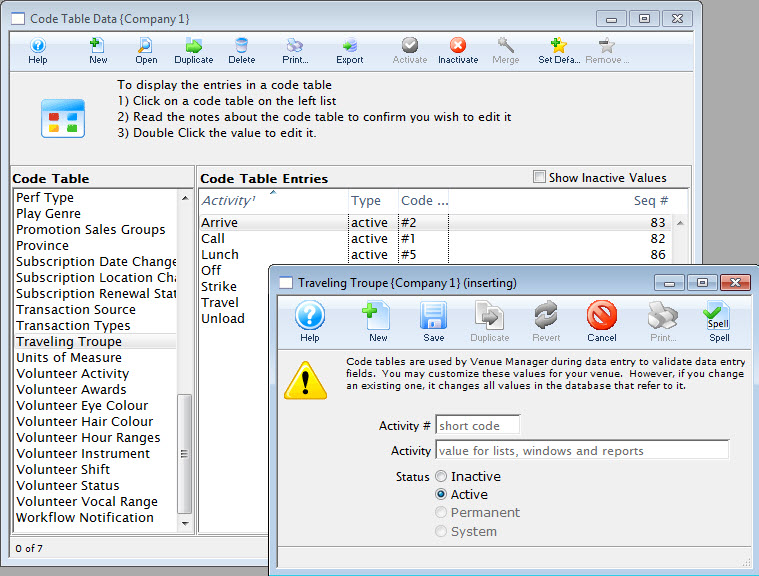
For information about editing values in Code Tables, click here.
Units of Measure
This is a listing of the various units of measure recognized by the program. They are "permanent" system values built into Theatre Manager and cannot be edited or amended.
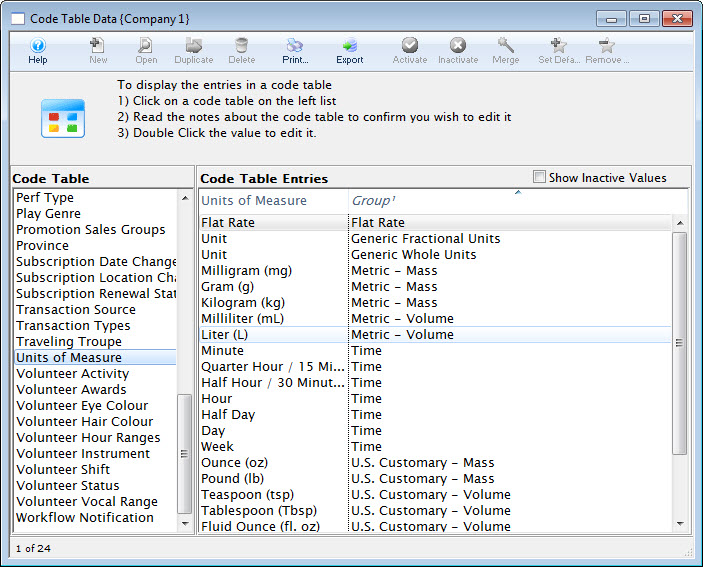
Volunteer Activity
The types of activities your organization's volunteers engage in can be set up, assigned and tracked by Theatre Manager. This page shows you how to set up those activity types.
|
Refer to the video help on volunteer management for more information. |
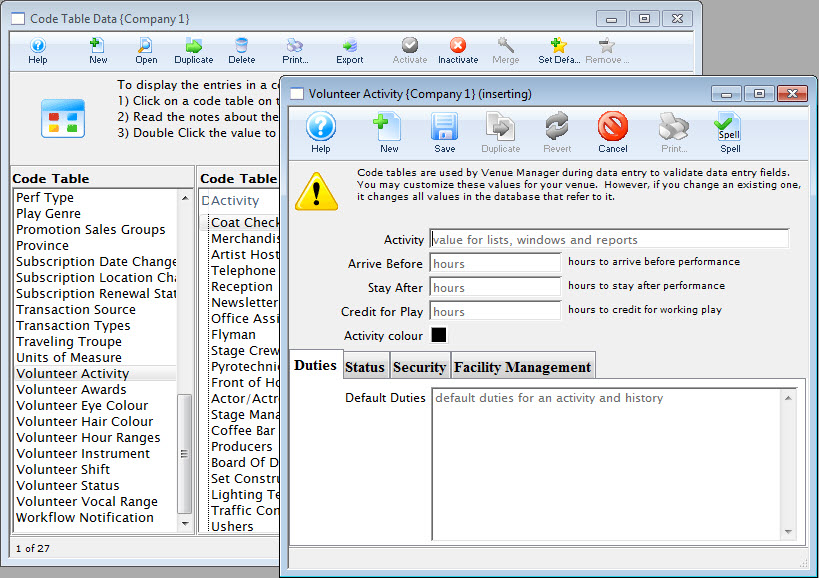
Click here, for more information on setting up Volunteer Activities.
Adding Volunteer Duties
- Go to Setup >> System Tables >> Code Tables and scroll down to select Volunteer Activity.
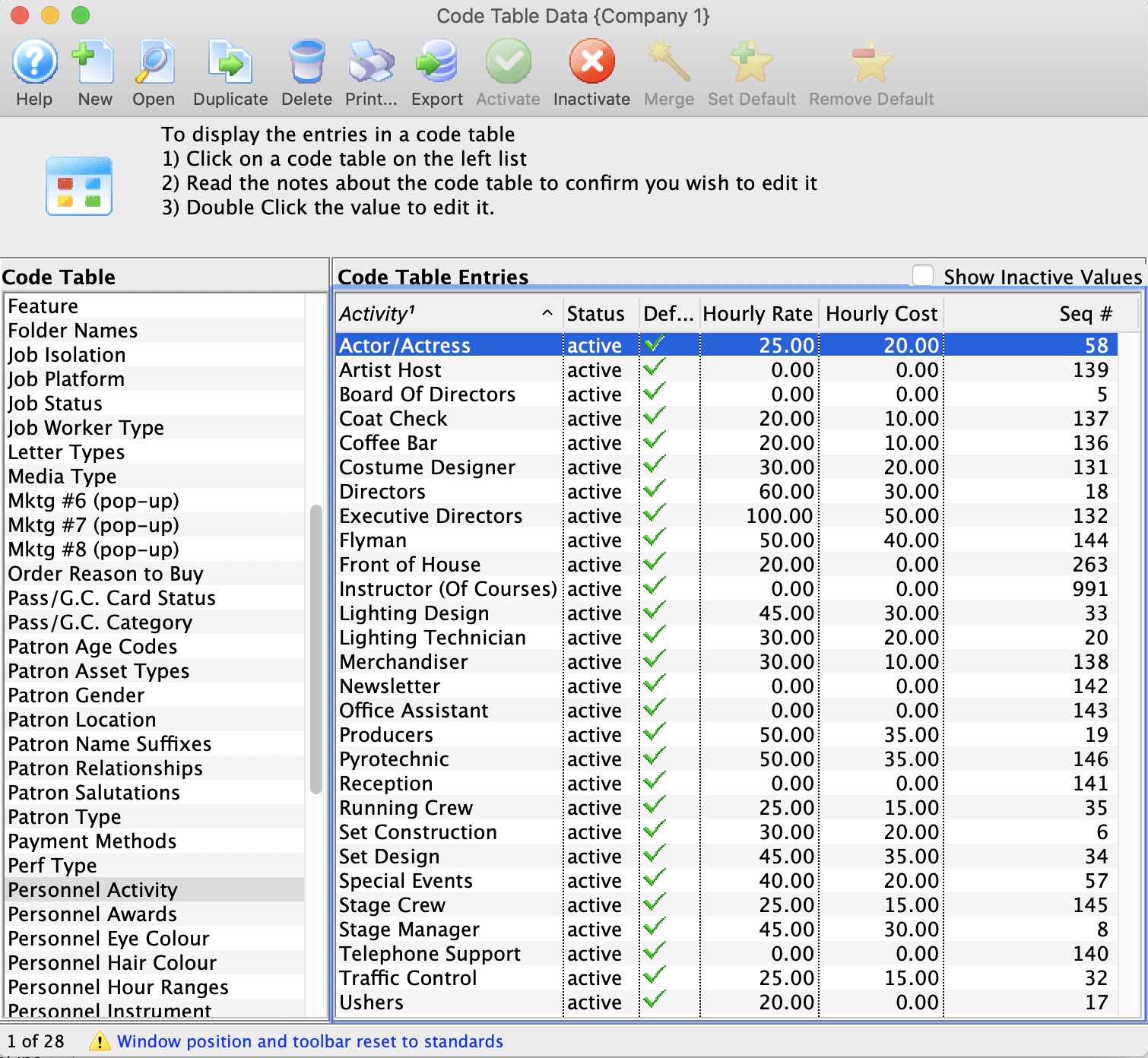
- Click the New button to open the Volunteer Activity Insert window.
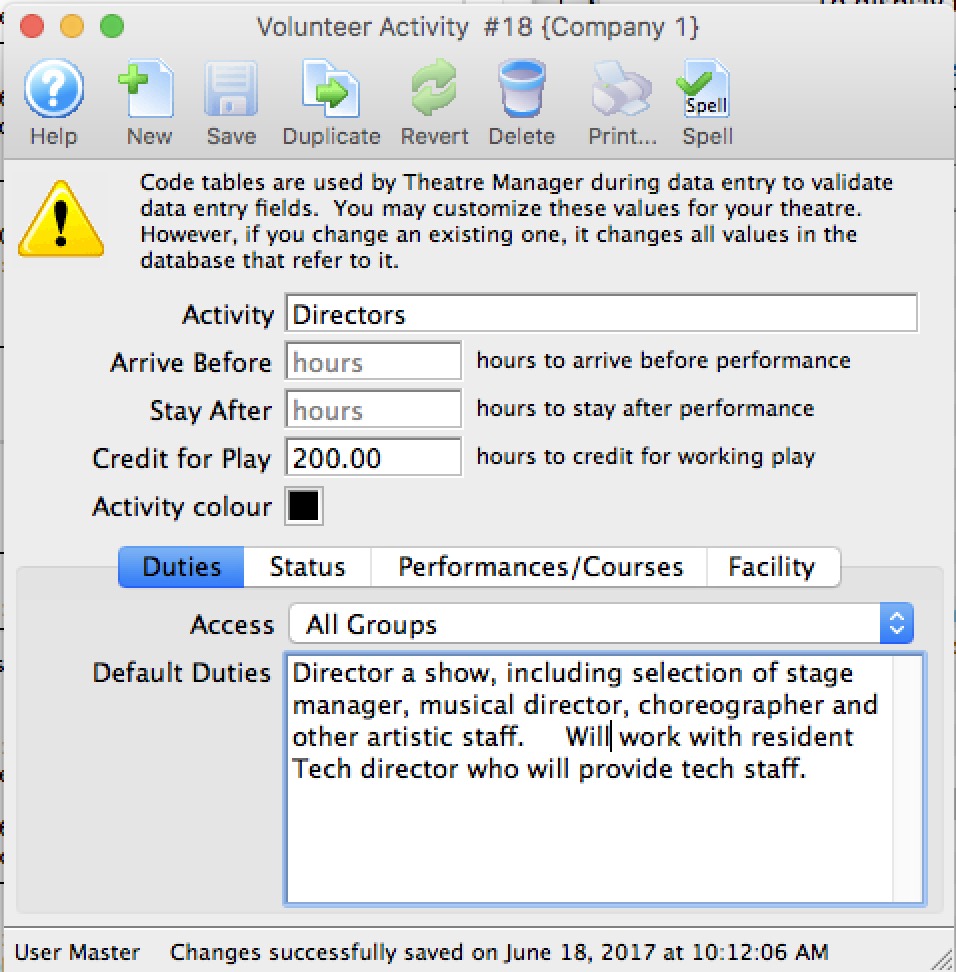
- Give the new activity a specific name so anyone will be able to decipher its purpose. It will also appear on reports and search criteria.
- Optionally, if tracking hours or if hours do not match the task or performance it is associated with
- Enter the number of hours before and after the performance that the volunteer is expected to be there. For example, if the performance starts at 7:30 pm, you might expect an usher to arrive 1 hour before and stay a half hour afterwards. If these two fields are set, they add extra time to the volunteer record before event start and duration of performance. Thus a 2 hour performance might result in a time credit of 2 + 1 before and 0.5 after, or 3.5 hours. This will show on the calendar in Facility Management.
- Alternatively, you can specify a fixed number of hours to credit to the staff/volunteer for doing this activity. This approach is more suitable for things like directors, actors or volunteer office staff who might be given a time allotment, regardless of the duration of the event.
- If either of the above are provided, they become defaults during data entry. If not provided, the setup can specify the total time if you want the time to be fixed, rather than based on calendar input.
- If you want this activity to have special colouring on the calendar, select a color other than black.
- On the Duties tab, enter any default duties for this position.
Volunteer Activity Status
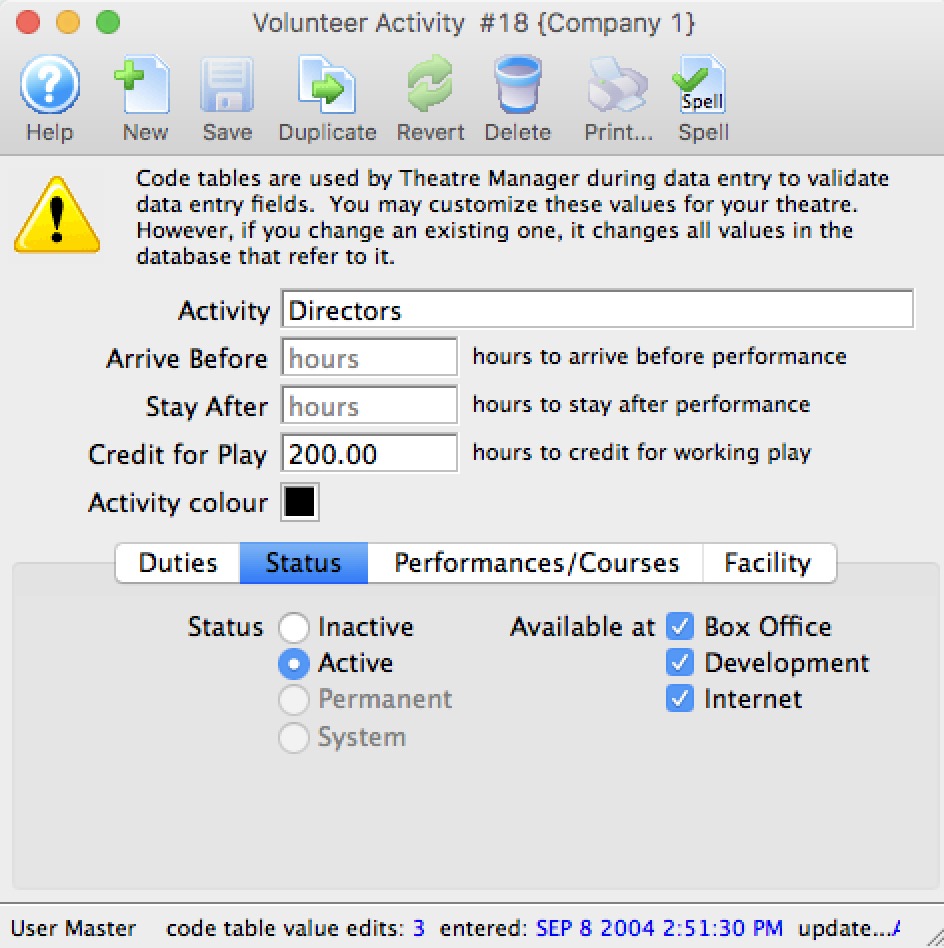
The Status tab is used to indicate if the volunteer/personnel activity code is active or inactive as well as where it might be used.
Web Permissions for Personnel Activity
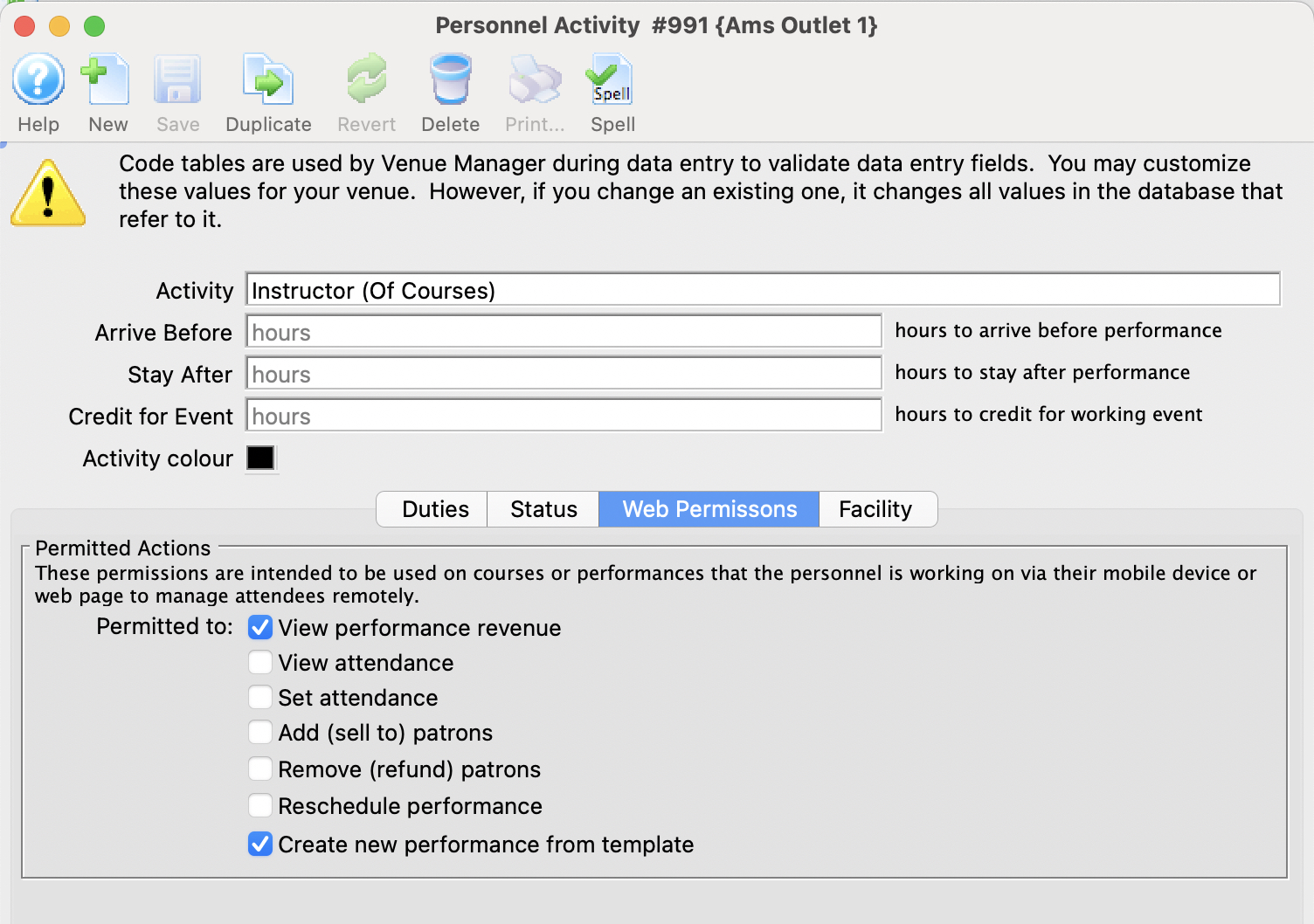 This feature is designed to work in conjunction with the Web Services to give a permission Staff member/volunteer to accomplish various tasks within the web module -AND/OR- Producers (regular Patrons) the ability to see and export sales and attendance information.
The permissions will allow:
- An employee managing a course/class to set attendance, add participants on the fly, refund a class, reschedule a class or add a new class. See example permission for a course instructor
- A Producer to see the sales and attendance for specific events or performances that they have been assigned to in the Event setup. See example permission for Producer/Promoter
If this activity code is associated with the person for a particular event, the following indicates what they can do online. The employee/volunteer will need to pull up the event/performance online in a web browser.
| Permission | Meaning |
| View performance Revenue | Allows the Producer or Promoter of an event to view performance revenue for the event that they are assigned to |
| View attendance | This means that the Volunteer/Employee/Promoter can view the patron information for people who have purchased to the event o the course. |
| Set attendance | This means that the employee/volunteer can set or clear attendance reasons for the patron for each class or event using a tablet or computer. This is not meant for high volume attendance tracking - more for courses and really small events. |
| Add (sell to) patrons | If enabled, the employee/volunteer can add NEW patrons to the course. It is designed for those kinds of classes where people can just show up - and then be enrolled by the instructor. |
| Remove (refund) patrons | If enabled, the employee/volunteer can remove people from the course/class and issue a refund to the patron in form of a credit (eg pass/gift certificate). |
| Reschedule performance | Allows the employee/volunteer to change the date and time of a class within the course |
| Duplicate performance | Allows the employee/volunteer to add extra classes to the course. |
Course Management - web access
 The typical setup for web access for instructors of courses is illustrated to the right. Typically, they will be one or more of:
- Set Attendance
- Add (sell to ) patrons
- Remove (refund) patrons
- Reschedule Performance - which is important of its a course which means they can change the date of the performance
- Create New Performance - which lets them add a new date for a course
The web permissions are described more fully in the Web Permission Page.
If you create this type of activity and add it to a patron, you can:
- assign it to a course (or any event and/or performance for that matter) -AND-
- they will be able to manage it online to do the activities you have assigned above
Event Producer/Promoter - Web Access
 The typical setup for web access for the producer or promoter is illustrated to the right. Typically, they will be one or more of:
- View Performance Revenue
- View Attendance
The web permissions are described more fully in the Web Permission Page.
If you create this type of activity and assign it to a patron, you can:
- assign them to an event (or performance) -AND-
- they will be able to, at any time, view or download:
- the revenues for the event (or performance) -AND/OR-
- retrieve limited information about the patrons who are attending the event
You can even track which events they have viewed and how often by looking at web logs.
Volunteer Activity Facility Setup
- Default billing rate - which is what we wish to bill the person out at to the renters.
- Default hourly cost - which is the default hourly cost of using the person in this volunteer activity. It can be overridden by setting pay rates on the employee facility set up window
- Sales Tax Code - which is used to add taxes to the expenses and income
- Use deferred accounts if set, then any facility project marked as using deferred accounts will use the deferred account entered below. If neither the project, nor the activity uses deferred accounts, then only the earned accounts need to be specified.
- Accounts
- Deferred Expense Account - the deferred account into which future expenses will be placed if using deferred accounting for the project. This is typically a liability account
- Earned Expense/Cost of Goods Account - the earned account for expenses This is typically either an expense of cost of goods account. When the project ends, this is where the expenses will be rolled over into.
- Deferred Income Account - the deferred account into which future income will be placed if using deferred accounting for the project. This is typically an asset account
- Earned Income Account - the earned account for income. When the project ends, this is where the invomce will be rolled over into.
Review Rates
To see current billing rates for anyone already associated with this activity, click the Review Rates button. The same window will pop up if you change the default billing rate, giving you an opportunity to change or leave alone the billing rate for anyone associated with the activity.
Volunteer Awards
Personalizing your volunteer recognition component of your program is the best form of showing appreciation for the contribution of volunteers. In this code table, you add the details for your awards.
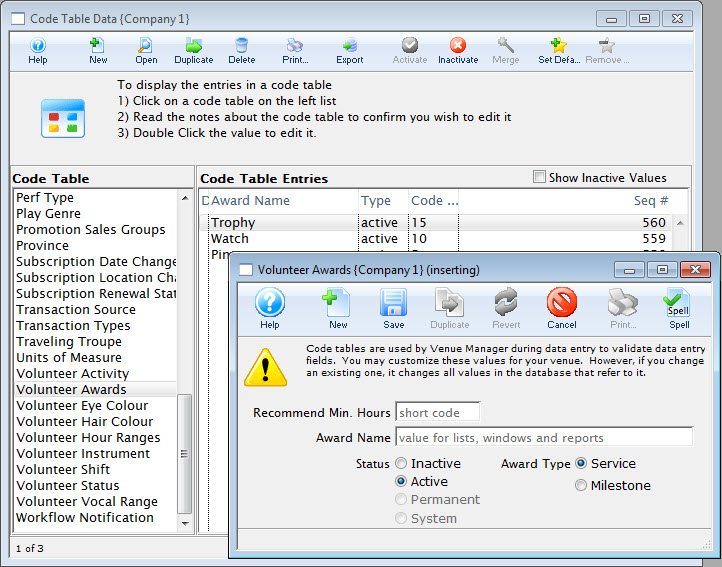
For information about editing values in Code Tables, click here.
Volunteer Custom Field 1
The Custom Volunteer Field 1 (Volunteer Eye Color) field can be customized to suit client needs. The field can be renamed and drop down options edited to reflect client needs. This drop down field is found in Patron Records and Personnel Management.
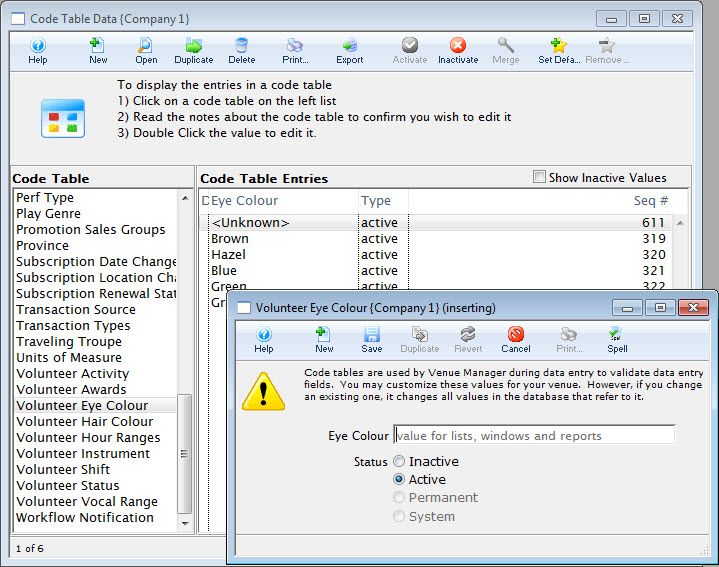
For information about editing values in Code Tables, click here.
Volunteer Custom Field 2
The Custom Volunteer Field 2 (Volunteer Hair Colour) field can be customized to suit client needs. The field can be renamed and drop down options edited to reflect client needs. This drop down field is found in Patron Records and Personnel Management.
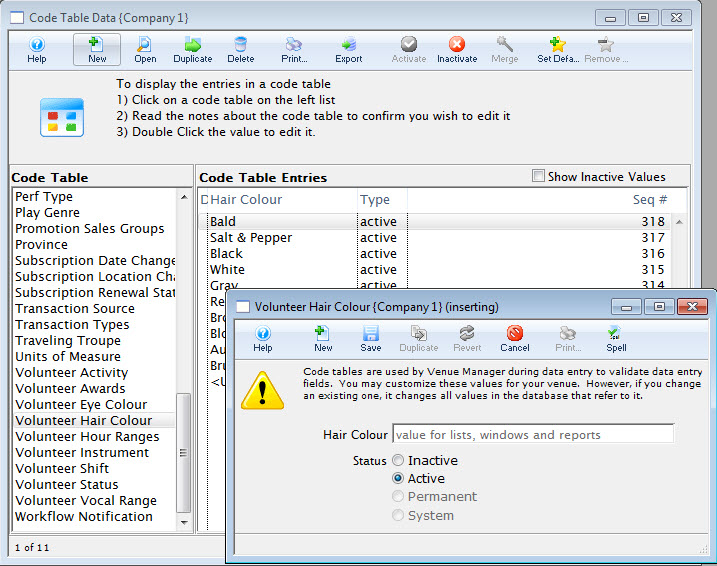
For information about editing values in Code Tables, click here.
Volunteer Custom Field 3
The Custom Volunteer Field 3 (Volunteer Instrument) can be customized to suit client needs. The field can be renamed and drop down options edited to reflect client needs. This drop down field is found in Patron Records and Personnel Management.
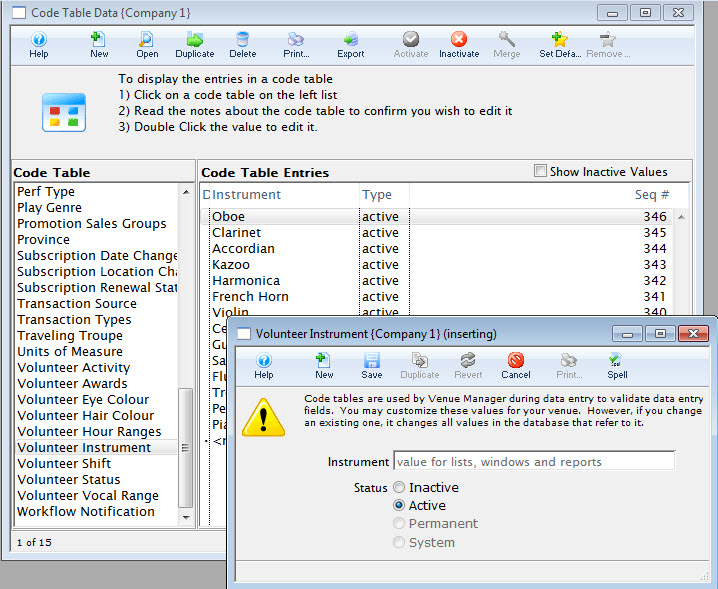
For information about editing values in Code Tables, click here.
Volunteer Custom Field 4
The Custom Field #4 (Volunteer Vocal range) code table can be customized to suit client needs. The field can be renamed and drop down options edited to reflect client needs. This drop down field is found in Patron Records and Personnel Management.
For information about editing values in Code Tables, click here.
Volunteer Hour Ranges
The Volunteer Hour Ranges code table Used to summarize volunteer hours in the Volunteer Hour Summary Report.
For information about editing values in Code Tables, click here.
Volunteer Shift
The Volunteer Shift code table can be customized to suit client needs. The field can be renamed and drop down options edited to reflect client needs. This drop down field is found in Patron Records and Personnel Management.
For information about editing values in Code Tables, click here.
Volunteer Status
The Volunteer Status can be customized to suit client needs. The field can be renamed and drop down options edited to reflect client needs. This drop down field is found in Patron Records and Personnel Management.
For information about editing values in Code Tables, click here.
Workflow Notifications
The Workflow tab allows you to create and manage different notification types for Internet and Box Office Sales.
Click here for more information on WorkFlow Notifications.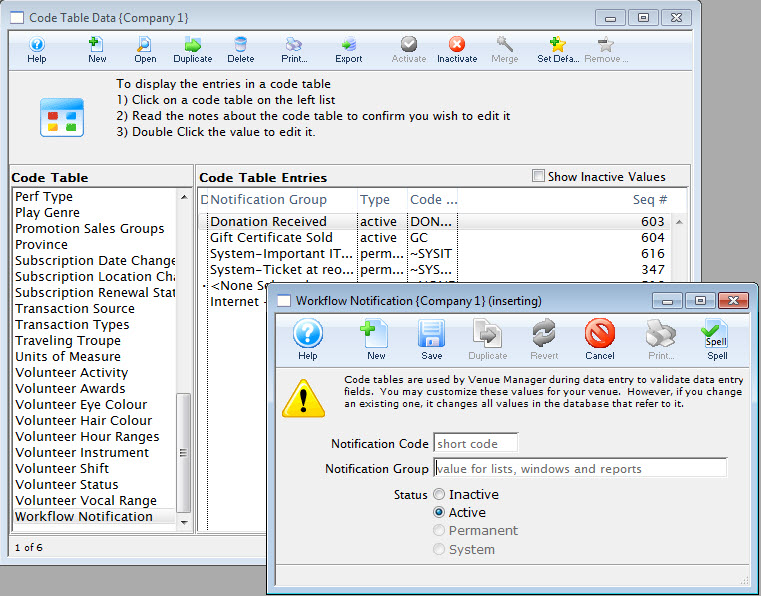
For information about editing values in Code Tables, click here.
Sales Promotions
Markups and discounts can be percentages or fixed amounts. For Example:
- A half price sales promotion has a 50% discount.
- A group discount could be $4.00 off the regular price.
- A special promotion that includes a reception, may have a markup of $4.00 added to the regular price.
A sales promotion can combine a discount and a markup. For Example:
- You could have a special seniors price which is always $7.00 that combines a 100% discount with a $7.00 markup.
Ticket prices before tax are calculated as:
- Ticket Price = Ticket Base price - Sales Promotion Discount + Sales Promotion Markup.
Sales Promotions Codes are accessed through the Setup >> System Tables >> Sales Promotions Menu.
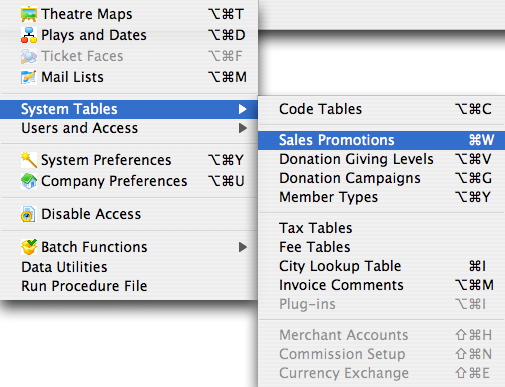
The Sales Promotions window opens.
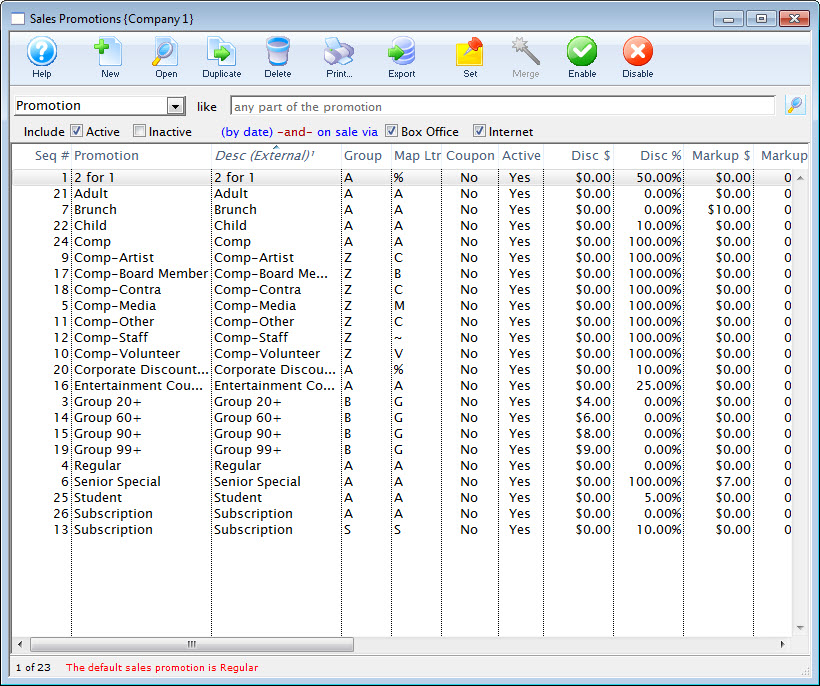
Click here for a detailed description of this window and it's functions.
Sales Promotions List Window
Sales promotions are used during the ticket purchase process to indicate how the base ticket price is to be altered to arrive at the final ticket price. A sales promotion is a discount, a markup, or a combination of both that is added to a ticket at the time of purchase. A ticket sold at "full" price has a sales promotion that has a no markup and no discount.
Markups and discounts can be percentages or fixed amounts.
- For Example:
- A half price sales promotion has a 50% discount.
- A group discount could be $4.00 off the regular price.
- A special promotion that includes a reception, may have a markup of $4.00 added to the regular price.
- A half price sales promotion has a 50% discount.
A sales promotion can combine a discount and a markup.
- For Example:
- You could have a special seniors price which is always $7.00 that combines a 100% discount with a $7.00 markup.
Ticket prices before tax are calculated as:
- Ticket Price = Ticket Base price - Sales Promotion Discount + Sales Promotion Markup.
Promotions must be available at other outlets before a performance can be sold at the other outlets.
Sales Promotions Codes are accessed through the Setup >> System Tables >> Sales Promotions Menu.
Parts of the Sales Promotions Window
|
Inserts a New promotion. For more information on inserting new sales promotions click here. |
|
Opens the edit window for the selected promotion. For more information on editing sales promotions click here. |
|
Creates a copy of the sales promotion. |
|
Deletes the selected promotion. For more information on deleting sales promotions click here. |
|
Generates a report of the listed sales promotions to the screen or default print location. |
|
Exports out the listed sales promotions in a tab-delimited format. |
 |
Sets the selected promotion as the default. |
 |
Enables the selected promotion. |
 |
Disables the selected promotion. | Promotion | Search option for sales promotions |
| From | Starting point for search |
| To | Ending point for search |
 |
The type of promotions you wish to view: All, Active, Inactive |
| Promotion | The descriptive name of the promotion. |
| Desc (External) | The external description of the sales promotion to be printed on a ticket or displayed on the internet. |
| Group | Group letter the promotion belongs to. |
| Map Letter | Letter that will appear on the map for this promotion. |
| Coupon | A coupon is required for this promotion. |
| Discount $ | The dollar discount for the promotion. |
| Discount % | The discount percentage for the promotion. |
| Markup $ | The dollar markup for the promotion. |
| Markup % | The markup percentage for the promotion. |
| Ticket Fee 1 | Ticket Fee 1 value. |
Sales Promotion Code Window and Detail Tab
The Sales Promotion Detail window is where you enter new, or edit sales promotions.
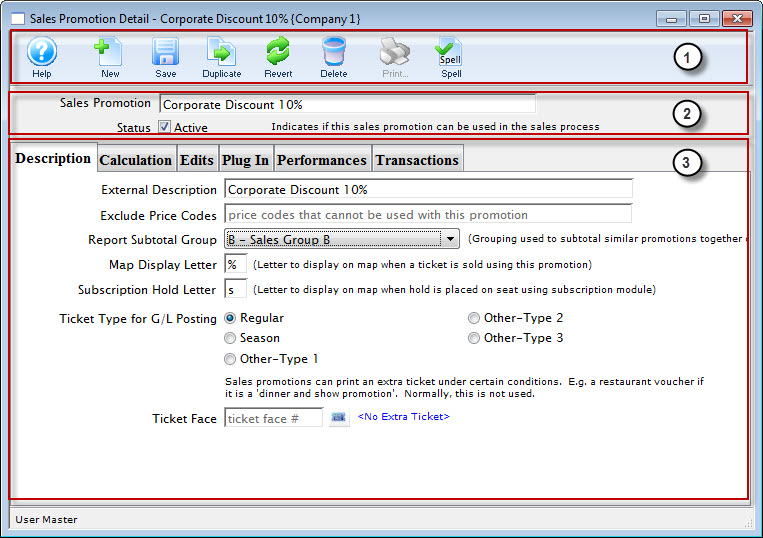
The Sales Promotion Code window can be broken into 3 parts:
- The toolbar / ribbon bar. Click here, for more information on the buttons and what they do.
- The Name and Status of the current promotion.
- The Tabs. These are:
- Description - As Described on this page.
- Calculation - Click here for a description of this tab.
- Edits - Click here for a description of this tab.
- Plug In - Click here for a description of this tab.
- Performances - Click here for a description of this tab.
- Transactions - Click here for a description of this tab.
Parts of the Detail Tab
| External Description | The descriptive name of the promotion. |
| Exclude Price Codes | The price codes which the promotion cannot be used with. |
| Report Subtotal Group | Select from the drop down list, the appropriate grouping to use to subtotal similar promotions together on reports. You can add more groups in the Promotions Sales Groups. Click here for more information. |
| Map Display Letter | The letter to display on a graphical map when a ticket is sold using this promotion. |
| Subscription Hold Letter | The hold letter to display on a reserved seating map in a control house, when a ticket is held for a subscriber using this promotion as part of the subscription process. |
| Ticket Type for G/L Posting | The ticket type to which the promotion applies. Availble are:
|
| Ticket Face # | Sales promotions can print an extra ticket under certain conditions, for example a restaurant voucher if it is a Dinner and Show promotions. |
Calculation Tab
This is a very powerful tool to help you figure out ticket pricing if you are applying fees, discounts and commissions.
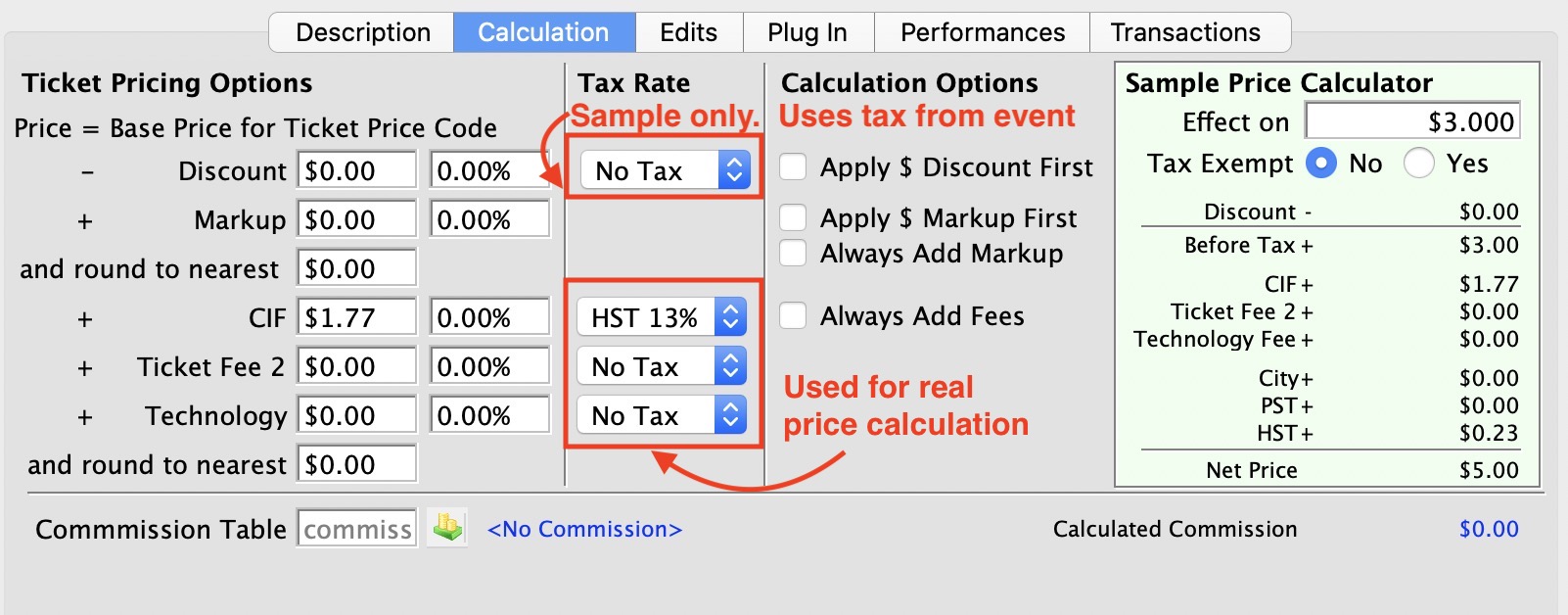
This window is broken into four columns:
- Ticket Pricing Options
- Tax Rate
- Calculation Options
- Sample Price Calculator
|
Notes about tax rates set in this window:
|
Parts of the Calculation Tab
| Ticket Pricing Options | Tax Rate |
Calculation Options
Enable or disable |
Sample Price Calculator | ||
|
Price
=Base Price for Ticket Price Code |
-Discount | Used to decrease the base ticket price by a fixed dolar amount OR by a percentage | This tax rate setting is only for sample calculator to provide an idea.
The Actual Tax Rate comes from tax rate on the performance. |
Apply the Dollar Discount First. This means that any percentage discount is applied after the dollar discount is applied. For example: 1$ off and then 10% off that calculation is different than $1 off the original price plus 10% off the original price. | Displays what the values you have entered do to change the price. |
| +Markup | Used to increase the base ticket price by a fixed dolar amount OR by a percentage |
Apply the Dollar Markup First. This means that the dollar amount is added to the price and then any percentage amount is added on top. Eg. $10 added to the price, followed by 10% on the total is different than $10 added to the original amount plus 10% of the original price.
Always add the Markup - means add the markup amount even if the price of the ticket starts at zero (comp) or gets discounted to zero. it is away of making a ticket a fixed price and can be used for things like a youth ticket anywhere in the venue or a fixed amount of a tip added at dinner theatre, even to comp tickets. |
|||
| and round to the nearest | Indicates if the base price is to be rounded BEFORE adding fees and taxes. |
|
|||
| +Ticket Fee 1 | A ticket fee added to the base ticket price by a fixed dolar amount OR by a percentage | Choose the tax to apply from the Drop Down List | Always Add Fees | ||
| +Ticket Fee 2 | A ticket fee added to the base ticket price by a fixed dolar amount OR by a percentage | Choose the tax to apply from the Drop Down List | |||
| +Ticket Fee 3 | A ticket fee added to the base ticket price by a fixed dolar amount OR by a percentage | Choose the tax to apply from the Drop Down List | |||
| and round to the nearest | Indicates if the base price is to be rounded AFTER adding fees and taxes. |
|
Commission Table | Opens the Commisions Setup Lookup to apply a commission | |
|
If a performance is to be sold at another outlet, the promotion slected will require a Commission. |
Edits Tab
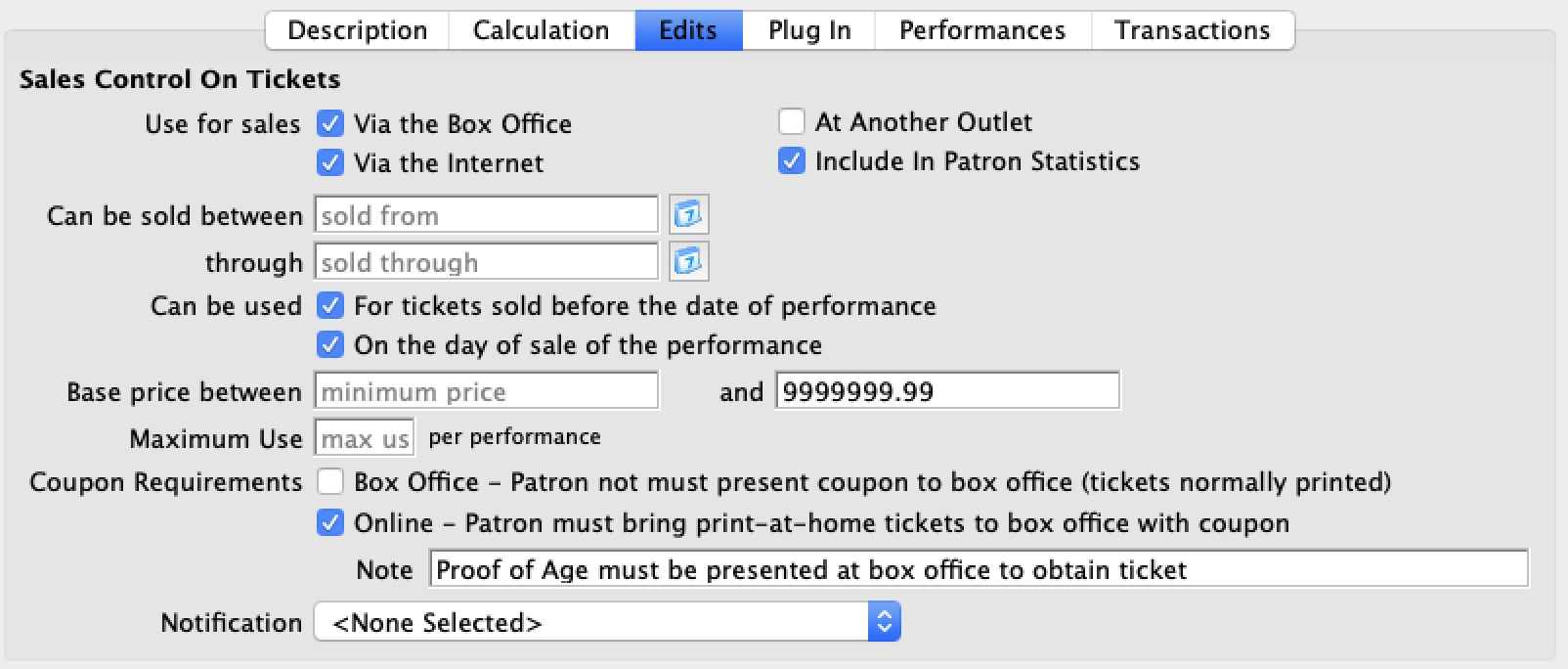
Parts of the Edits Tab
| Use For Sales |
Enable the appropriate check boxes for this promotion:
| ||
| Can be sold between | Enter the dates for when the tickets can be sold From and Through | ||
| Can be used |
Enable the appropriate check boxes for this promotion
| ||
| Base Price | The Lowest and the Highest price of the ticket the promotion can be appied to | ||
| Maximun Use |
The maximum number of time a promotion can be used
For Example: the first 50 tickets get a discounted rate | ||
| Coupon Requirements |
BOX OFFICE has a special meaning. It tells the system that in order to get this promotion/discount, the patron must present a coupon to you at the box office that verifies eligibility for the discount. An example might be:
In such cases, the order ticket print status is automatically set to HOLD @ WILLCALL FOR COUPON regardless if the patron asks to have their tickets mailed.
ONLINE has a slightly different meaning. If you mark that a coupon is required for an online sales (for the same reasons as above) and the ticket is printed-at-home, Theatre Manager will:
|
||
| Coupon Requirements Note |
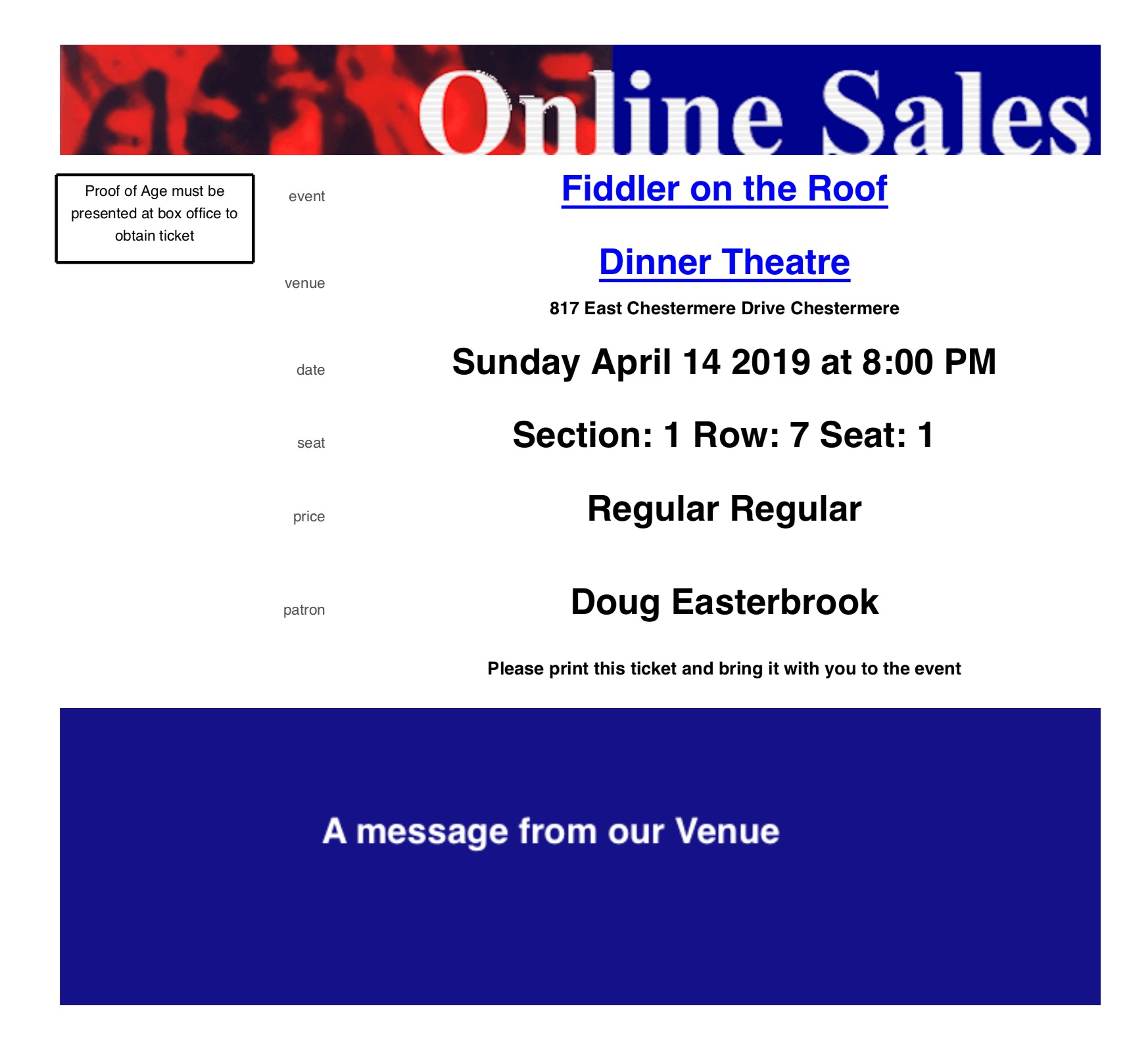 When a patron buys online and the print at home setting requires a coupon, you must also enter a note in this field. This provides the box office staff (and the patron) some instructions what they have to do to validate the ticket. This is printed on the upper left corner of the print at home ticket, per the sample.
|
||
| Notifications | If necessary, select the appropriate notification from the drop down list |
Plug In Tab
Plug-Ins are special code segments designed specifically for your Theatre that affect how the sales process works. For example, a sales promotion plug in might look at the number of tickets and change regular sales to group sales of tickets automatically.
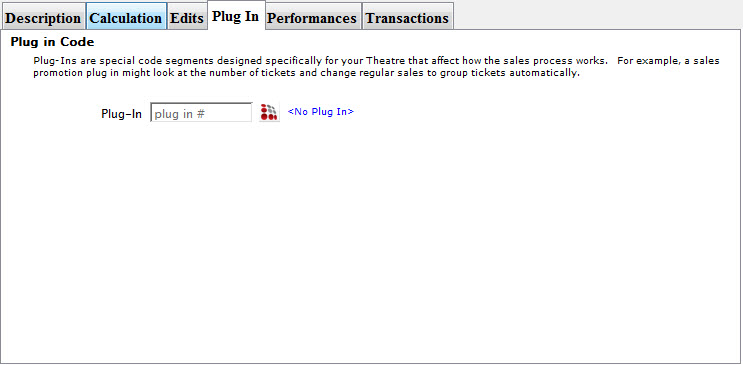
Click the Plug In  button to open the the Plug In List Window.
Performances Tab
The Performances tab, allows you to veiw indepth information about the Plays / Events / Performances you want to apply the promotions to.
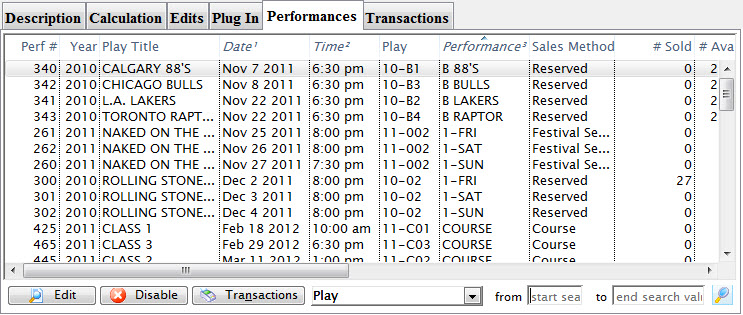
Parts of the tab
 |
Opens the highlighted Performance in the Performance Detail window for editting. Click here for more information on editing a performance. |
 |
Disables the current sales promotion from the selected performance(s). To enable the sales performance again, you will need to edit each performance or mass enable from the sales promotion list. |
 |
Clicking the Transactions button, opens the transactions list window to show the transactions related to the selectd performance. |
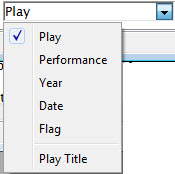 |
Allows you to find specific performances to select from by selecting an option. |
| From / To | You can further refine the displayed list by entering from or to information related to your selection in the drop down list. |
 |
Click the Search button to find the performances that match your search critera. |
Transactions Tab
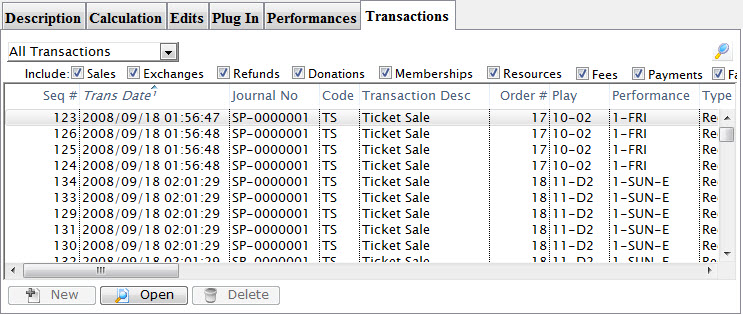
 |
Allows you to insert a new transaction record. |
 |
Opens the Transaction Detail window for the selected transaction record. |
 |
Deletes the selected transaction record. |
Sales Promotion Toolbar / Ribbon Bar

The functions available are:
 |
Help - opens the appropriate page in the online help. |
|
New Adds a new record. |
|
Save - Saves the current entry. |
|
Duplicate - Duplicates the current entry as a new record. |
|
Revert - reverts the current entry back to the last time it was saved. |
|
Delete - removes the current entry from the listing. |
|
Print - prints the current record to the default printer. |
 |
Spell - Checks the spelling in the appropriate fields. |
Merging Sales Promotions
For example: If an 'Early Bird Subscriber- 20xx' promotion was created for each and there is no possibility of re-using them, you could merge all the old ones into the current one. The discount calculations will be lost - but the meaning - on each ticket from the past - will still be clear as it will say 'early bird subscription'.
It is suggested that you only merge promotions where the meaning is similar and they are not likely to be used again.
The steps are:
- Select a number of sales promotions that have similar meaning and/or can be considered the same thing
- Click the merge button at the top of the sales promotion list window
- Click on the sales promotion that you would like remain. All others in the list will be merged into this one promotion. You may want to pick the one that you know you used the most or the one that you like the name of best.
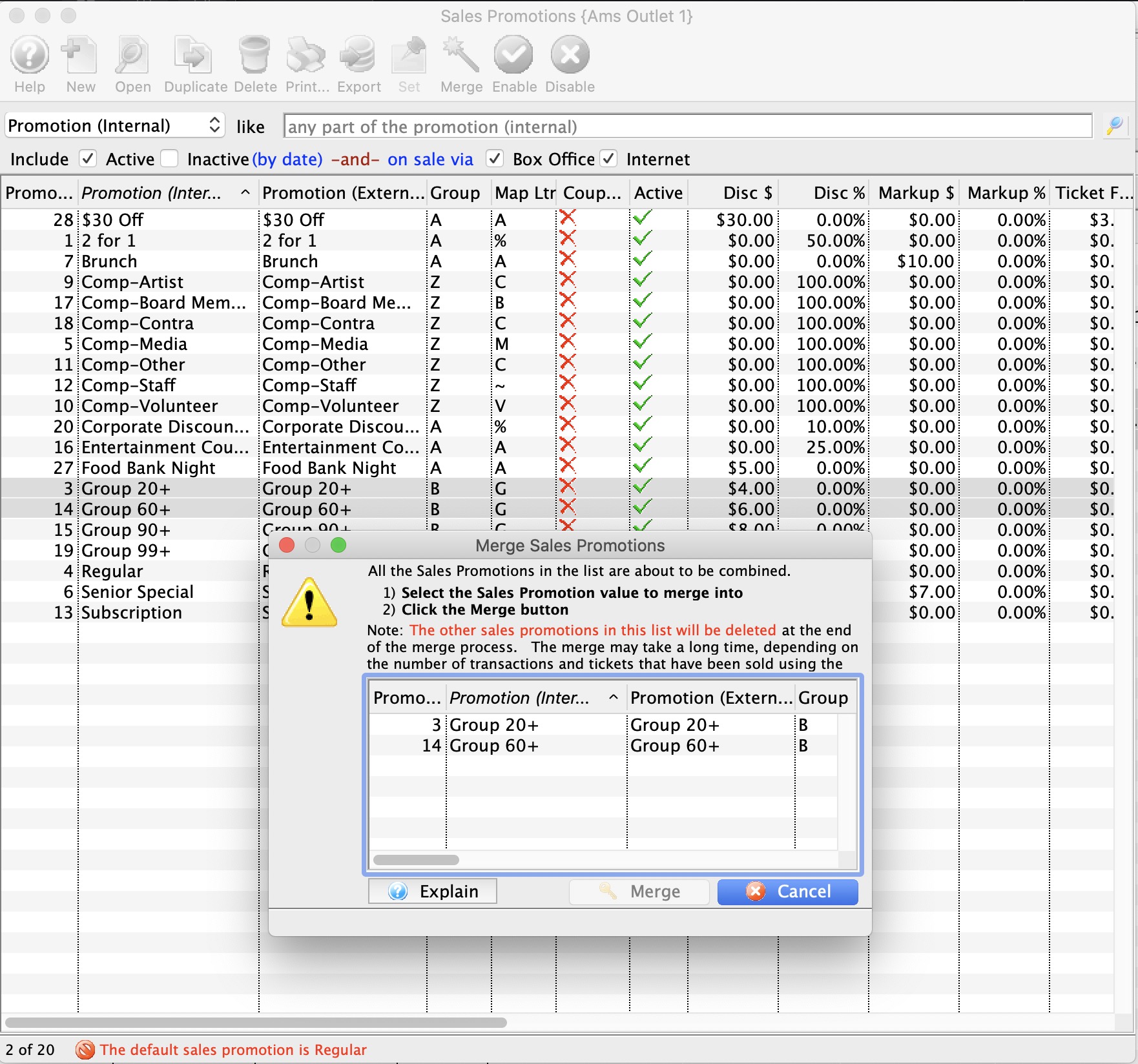
Default Promotion
One promotion is set as the default promotion. This is the promotion that is initially displayed in the promotion portion of the sales window when selling tickets. The name of the default promotion is listed beside the set default button on the lower left portion of the promotion window.
If no default exists, then the words "No Default" will appear beside the button.
To mark a promotion as the default, you perform the following steps:
- Choose Setup>>System Tables>>Sales Promotions.
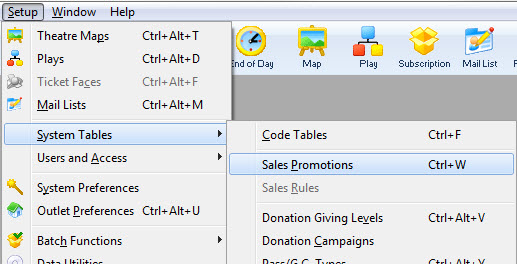
The Sales Promotion List window opens.
- Select the promotion to become the default.
Single click on a promotion to select it.
- Click the Set
 button.
The status bar displays the name of the default sales Promotion.
Removing the Default Setting
Just as a default promotion can be set, it can also be removed. To remove the default setting from a promotion follow the steps outlined below. If you just want to change the default promotion, you do not have to remove the current default. You can just set the new default the same way that was described in the section "Setting a Default Promotion".
- Select the promotion currently set to default.
Single click on a sales promotion to select it.
- Click the Clear
 button.
The bar at the bottom of the window now states No Default Sales Promotion had been selected.
Adding a Promotion
To Add a new promotion, you perform the following steps:
- Open the Sales Promotions window by clickinging Setup>>System Tables>>Sales Promotions.
The Sales Promotions list window opens.
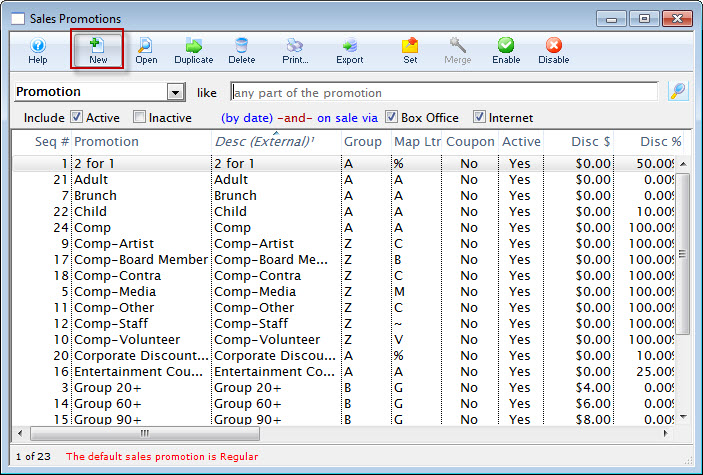
- Click the New button.
The Promotion Detail Window opens.
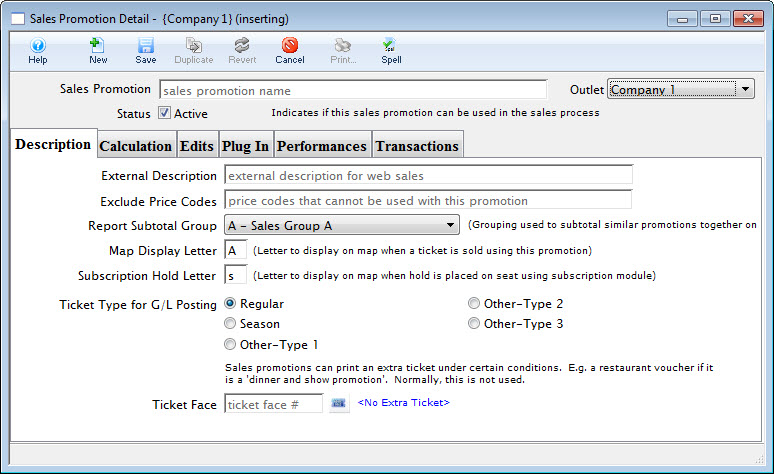
- Enter Sales promotion Name.
Try to give the promotion a name that is relatively self explanatory.
For example: If the promotion is a buy one get one free type of admission, name the promotion 2 for 1. Refer to Promotion Ideas Page for more promotion description examples.
- Enter the dates that the Promotion will be active.
The effective date is the date that the promotion takes effect, the thru date is the date that the promotion is good until. If the promotion does not have time constraints leave the date boxes empty.
- Enter Price Codes to be Excluded.
Excluded Price Codes are Price Codes that should not be effected by this Sales Promotion
- Assign the Promotion to a Report Subtotal Group.
Report Groups are a single letter or number that are used to group similar promotions together on reports. A subtotal will be printed for each group on reports. Classification of promotion codes make revenue reports more meaningful. Eg. The following groups could be used to classify your promotions:
A - Single Ticket Sales (regular, 2 for 1, General Admission).
D - Special Benefit Promotions (Dinner, Opening Gala, Development Events).
G - Group Tickets (Senior homes, Brownies).
M - Media Tickets (Critics, Editors).
S - Season Tickets (Earlybird, Season).
Z - Comp Tickets (Listed with a 'Z' so they appear last in reports)
These letters can be further defined in Code Table data.
- Select a Map Display Letter.
This is the letter that will appear on the seat in the Map
- Select the Per Ticket Fees.
This is where you can setup three levels of ticket fees. You can also decide which taxes will be applicable to those order fees. Once again clicking on the check box for that tax desired. Refer to Promotion Example Page for examples of Per Ticket Fees.
- Set Promotion Type.
Similar to the report groups, these classify similar sales promotions together. There are four possible selections to choose from. Regular Admission, Season Ticket, and three user defined fields. These promotion types are used in the same manner as the report groups.
- Click on the Calculation tab.
- Enter the Base Price Calculation.
Here is where you enter a markup and/or a discount for the promotion. You can create a discount or markup based on dollars or percentage.
For example: You can create a discount of $10.00 or 25 % off of a given ticket price. You can also create a markup of $5.00 or 15 % on a given ticket price.
You can also use the markups and discounts in conjunction with each other, such as, create a promotion that has a discount of 100 % with a markup of $7.00. This promotion used on any ticket will yield a ticket with price of $7.00.
You can also decide which taxes are applicable to the promotion. Click on the check box for the taxes that should be included.
- When complete, click Save .
This finishes the process and saves the promotion. Refer to the section on Selling Tickets for details on how to apply the promotion during a ticket sale.
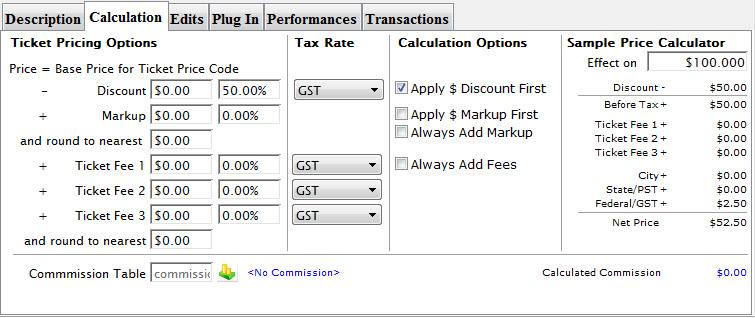
Editing Promotions
Over time, promotions can change and will need to be updated.
To update a Promotion, you perform the following steps:
- Open the Sales Promotions window by clickinging Setup>>System Tables>>Sales Promotions.
The Sales Promotions list window opens. Enter any search parameters and click the Search button to display a list of promotions that match your criteria.
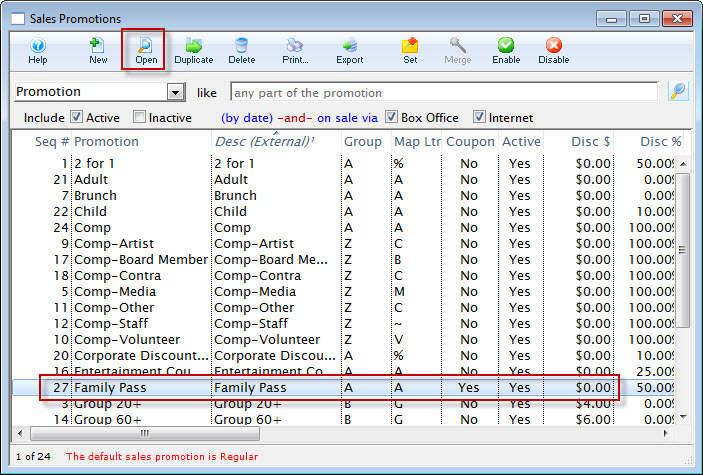
- Click on the promotion to edit.
- Click the Open Button.
The Promotion Code Detail Window opens with the data for the selected promotion.
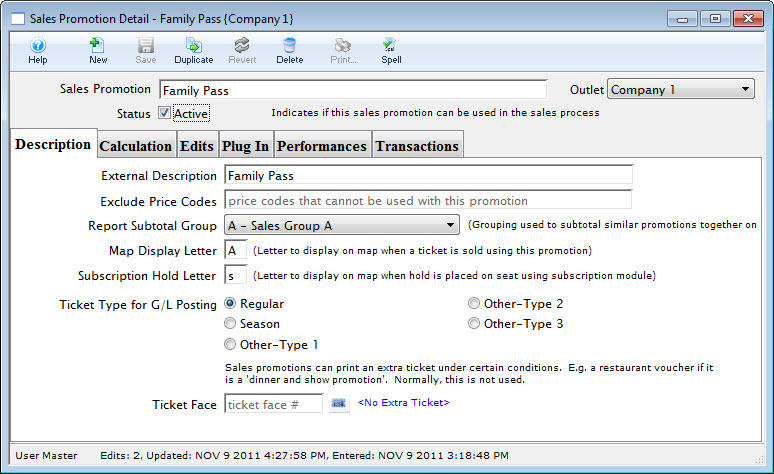
- Change data as needed.
- Click the Save Button.
This saves all the data you have changed. The new data will be displayed in the Sales Promotions Window.
Enable a Promotion
To Enable a batch of promotions, you perform the following steps:
- Select the promotion you want to enable.
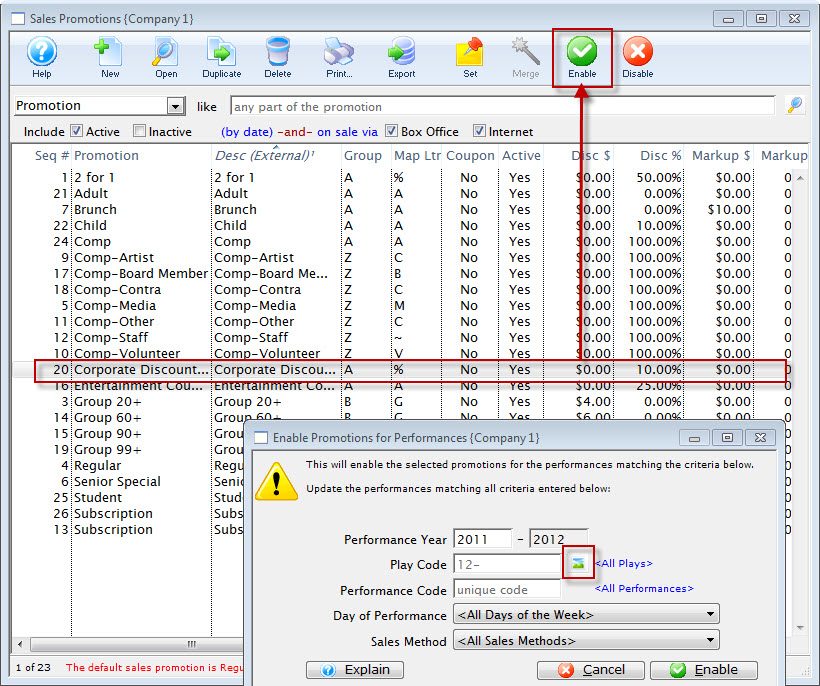
- Click the Enable button.
The Enable Promotions for Performance dialog opens.
- To enable for a series of performance, click the Play Code
 button.
The Play List window opens.
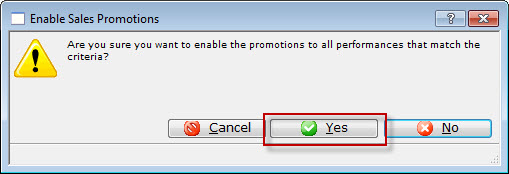
- Highlight the Event / Play you want to add the promotion to and click the Select button.
- Cloose the Day of Performance from the drop down list (if the promotion is only for a specific day of the week).
- Cloose the Sales Method from the drop down list (if the promotion is only for a specific Sales Method).
- When complete, click the Enable
 button.
 - Click the Yes button.
|
You can not add multiple Plays / Events at the same time. They need to be added individually. |
The Enable Sales Promotion confirmation dialog opens.
Enabling a Promotion for Another Outlet
If you want to allow a performance to be sold at another outlet, a promotion code must be enabled for that outlet. To enable a promotion for another outlet, you perform the following steps:
- Open the Sales Promotion List window.
- In the search, choose the other outlet to be selling the tickets.
The list of available promotions for that outlet is displayed.
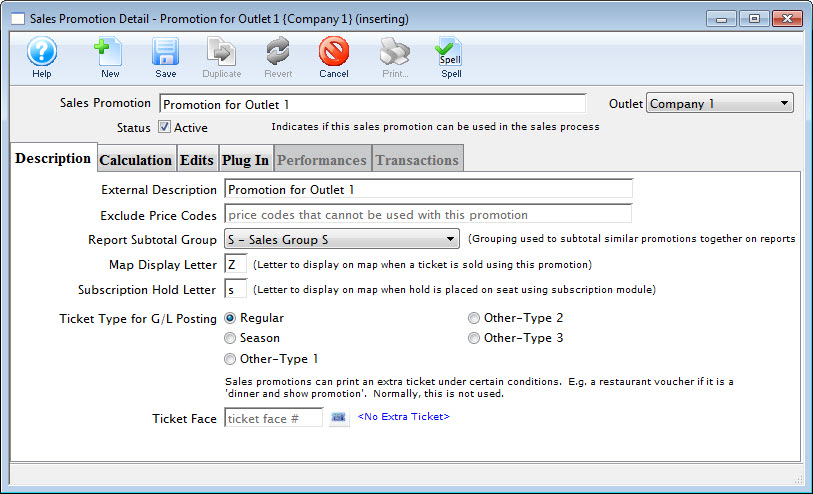
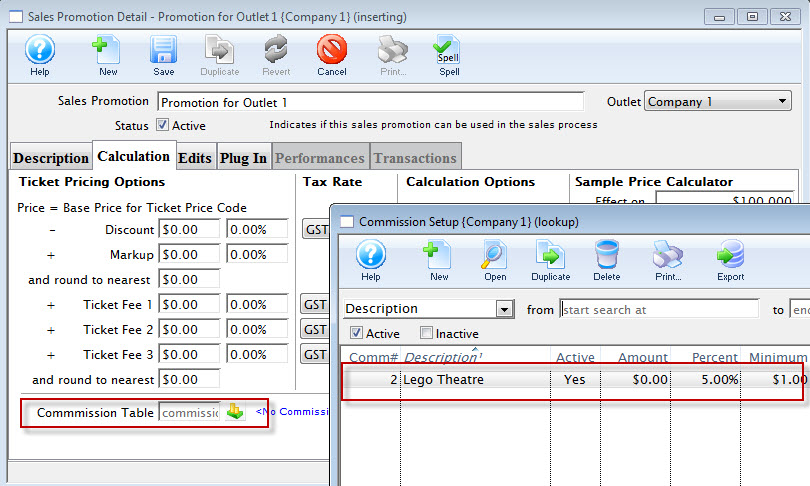
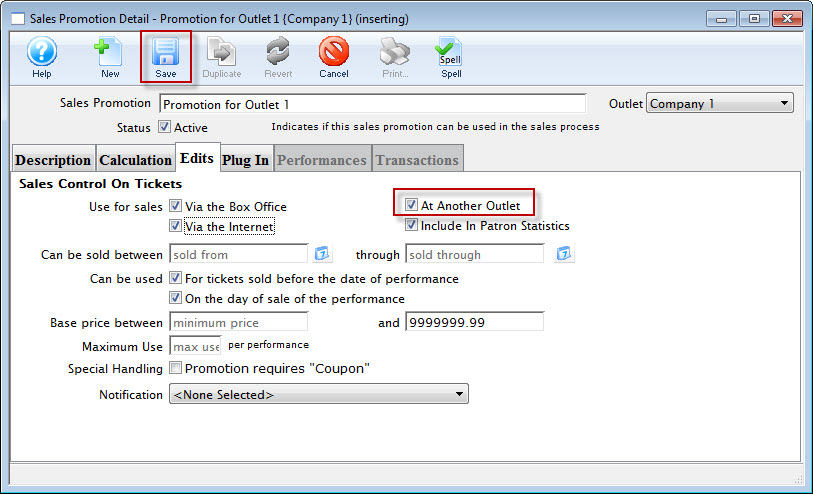
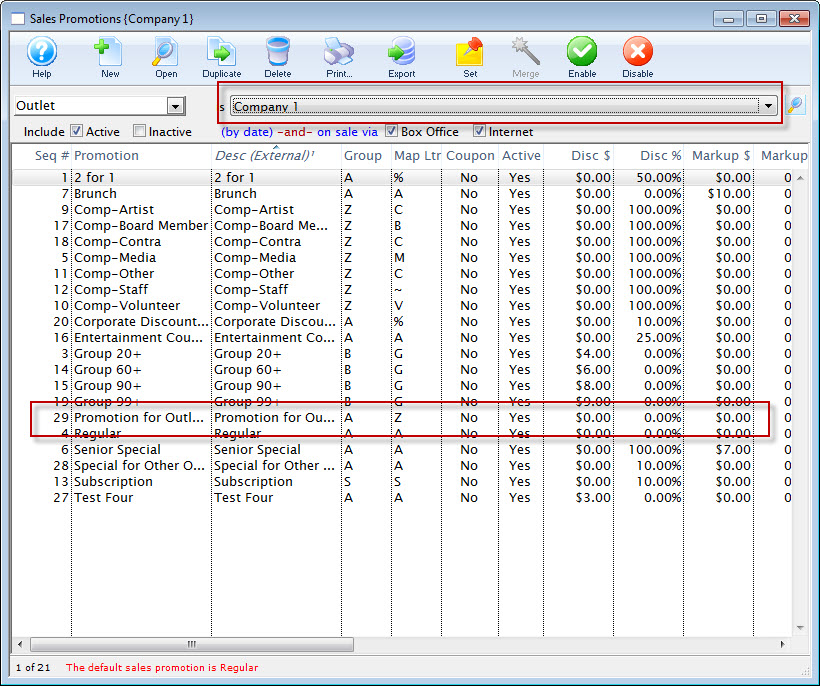
Click here for more information on opening the list window.
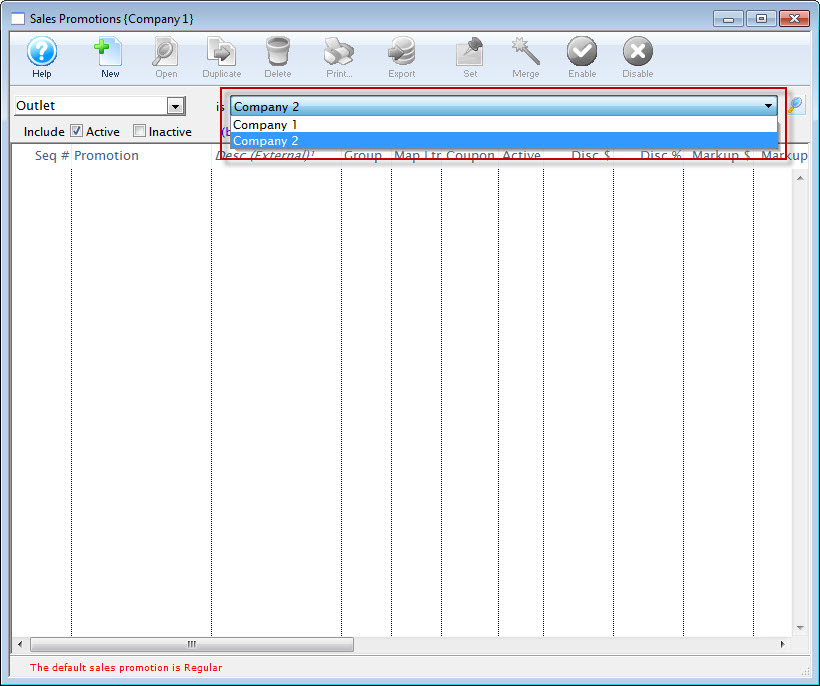
Exclude Price Codes
The Exclude Price Codes field can be used to prevent a Sales Promotion from having access to the specified prices. It's designed increase the efficiency of a Sales Promotion and prevent a ticket from being sold at the wrong price point.
- Open the Sales Promotions window by clickinging Setup>>System Tables>>Sales Promotions.
The Sales Promotions list window opens. Enter any search parameters and click the Search button to display a list of promotions that match your criteria.
- Click on the promotion you want to edit.
- Click the Open Button.
The Promotion Code Detail Window will open with the data for the selected promotion.
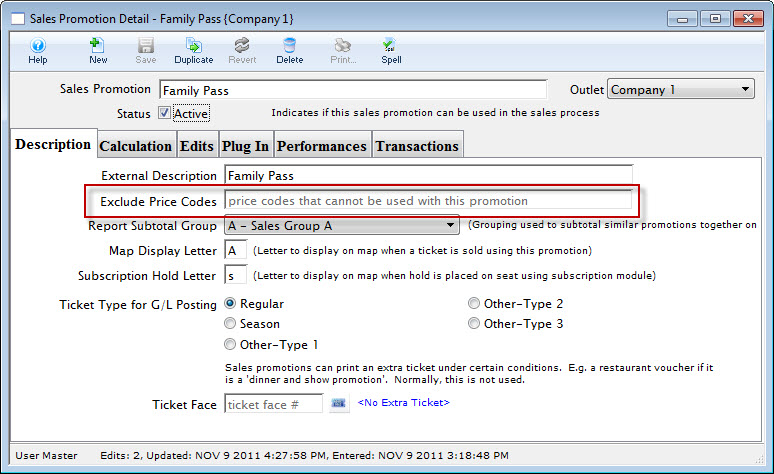
- Locate the Exclude Price Codes fields under the External Discription field.

- Enter the Price Codes to be excluded for this Promotion.
- Click the Save button.
Close the Promotion Detail window.
Disable Sales Promotions
Sales promotions can be enabled or disabled in a batch mode using the 'Enable' and 'Disable' menu items on the sales promotion list window.
To Disable a batch, you perform the following steps:
- Select the promotions you want to disable.
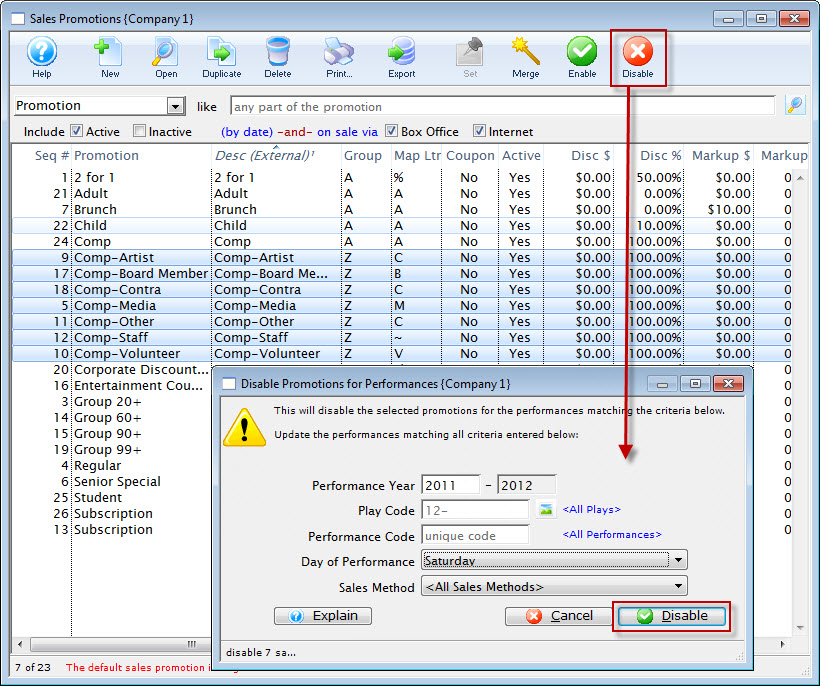
- Click the Disable button.
The Disable Promomotions for Performance dialog opens.
- Enter the information for the disabling of the promotions, when complete, click the Disable
 button.
The Disable Promotions Confirmation dialog opens.
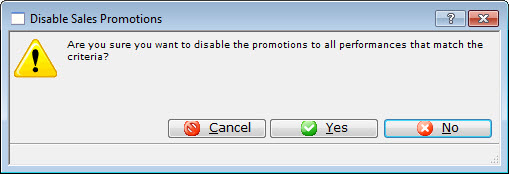
- Click the Yes button to disable the selected Promotions.
Deleting Promotions
If a promotion has been setup incorrectly or expired you can delete it. You cannot delete a promotion which is being used on current tickets or transactions.
To delete a promotion, you perfrom the following steps:
- Open the Sales Promotions window by clickinging Setup>>System Tables>>Sales Promotions.
The Sales Promotions list window opens. Enter any search parameters and click the Search button to display a list of promotions that match your criteria.
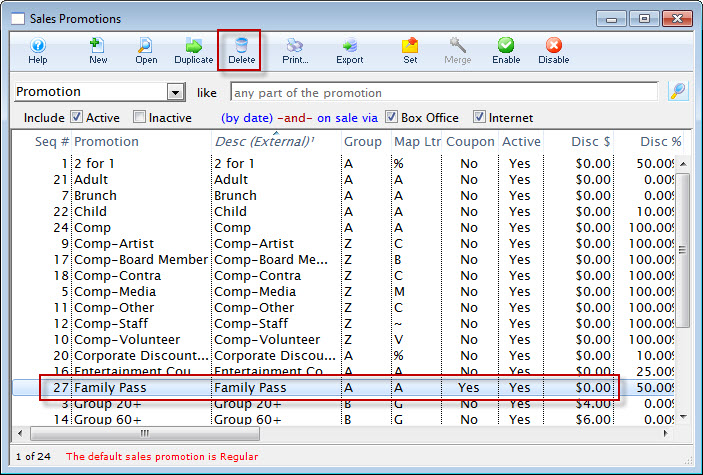
- Click on the promotion you want to delete.
- Click the Delete button.
Clicking the delete button opens one of the two following dialogue boxes:
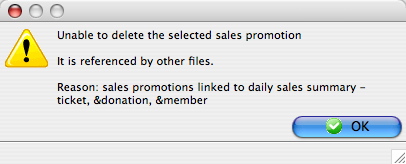
- This dialogue box opens when you try to delete a promotion code that has been used to sell tickets for an event that has not been archived, or patron transactions have not been archived.
- To delete a promotion, all events that have tickets sold with that promotion must be archived. For further information about Archiving an Event click here.
- Click OK to close the dialogue box. The promotion will remain in the database.
- This Dialogue box opens when you are deleting a promotion that has never been used or no longer has tickets or transactions referenced to it.
- Click the delete button.
The promotion will then be deleted and removed from the Sales Promotions Window.
To cancel the deletion of the selected promotion, click the Cancel
button.
Promotional Ideas
The following examples are some ideas and suggestions, they do not have to be implemented.
Sample Sales Promotions Setup
Single Ticket Promotions (Promotion Report Group R)
- 2 for 1
- Regular
- General Admission
- Senior Special
- Member Discount
- Sponsor Discount
- Rush seating
Complimentary Ticket Promotions (Promotion Report Group C)
- Staff
- Promotional
- Media
- Volunteer
- Artist
- President
- Other
Season Ticket Promotions (Promotion Report Group S)
- 5 play
- 3 play
- Season Early
- Season Regular
- Flex Pass
Group Ticket Promotions (Promotion Report Group G)
- Group 10 +
- Group 20 +
Possible Ticket Fees
- Asset Replacement Fund
- Ticket Handling Charge
Order Fees
- Order Handling Charge
- Phone Order Fee
- Credit Card Order Fee
- Mailing Ticket Fee
Sales Rules
- Coupon Codes to give discounts to selected patrons.
- Passes and Gift Certificates to convert applicable tickets to another price.
- Custom Plug-ins to specify conversions if the plugin is programmed to use them.
Coupon codes which offer a price reduction by way of a sales promotion will require a sales rule. Memberships/Passes which convert the ticket to an average dollar per admission will require a sales rule.
Sales Rules are designed to alter the sales promotion from one that is typically used on a regular basis to another which may be restricted for use by applying a promotion conversion. Although they are not exclusive for use for online sales this is particularly useful for the self-serve online patron to offer price reductions or special rates.
Sales Rules which convert promotions are also useful in tracking the type of ticket(s) that have been purchase for any given event. By applying a Promotion Conversion you can then track how many tickets were sold using a specific coupon code or pass type within your ticket based report.
Sales Rules are accessed from the Setup Menu >> System Tables >> Sales Rules
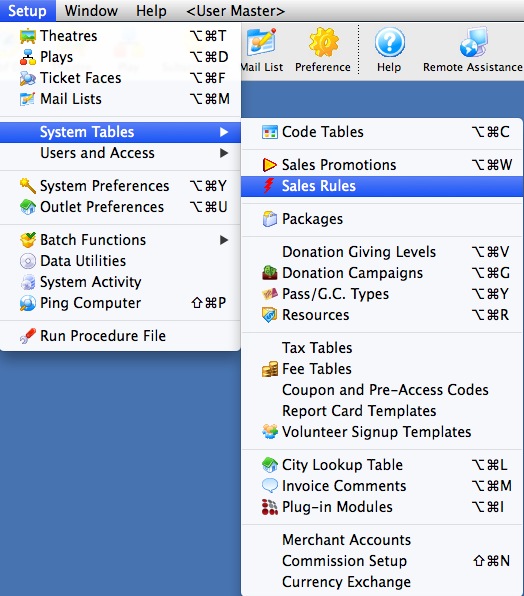
The following window will appear.
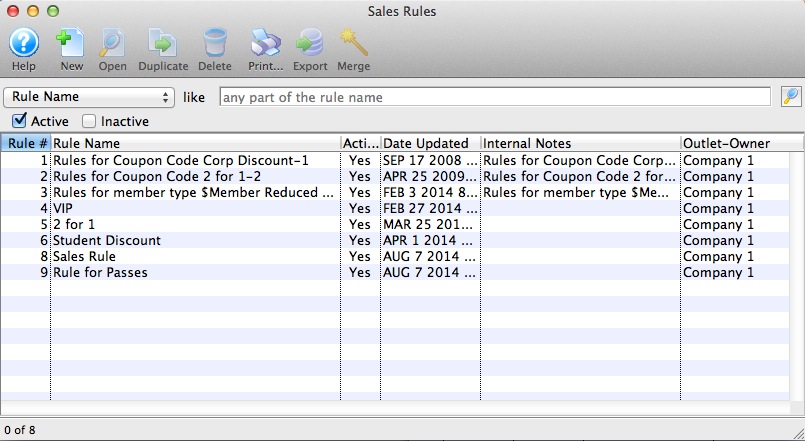
From this window you will click to create a Sales Rule - Promotion Conversion
Sales Rules Notes
Open the sales rule list by clicking the Setup Menu >> System Tables >> Sales Rules
From the Sales Rule List window you will click to create a sales rule with a promotion conversion.
The following window will appear.
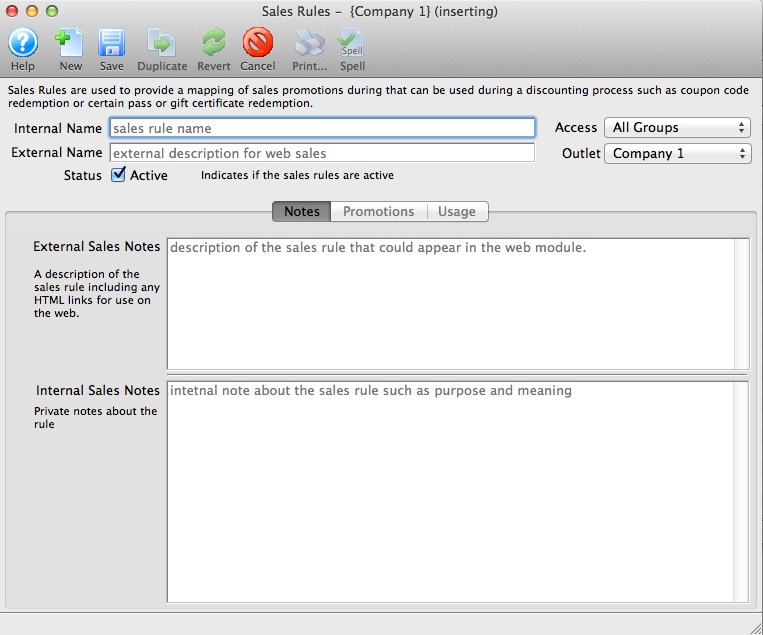
-
Enter the following data under the Notes Tab setup
- Enter the Internal name of the rule
- Enter the External name of the rule
- Enter the Enternal note of the rule
- Enter the Internal note of the rule
Sales Rule - Promotion Mappings
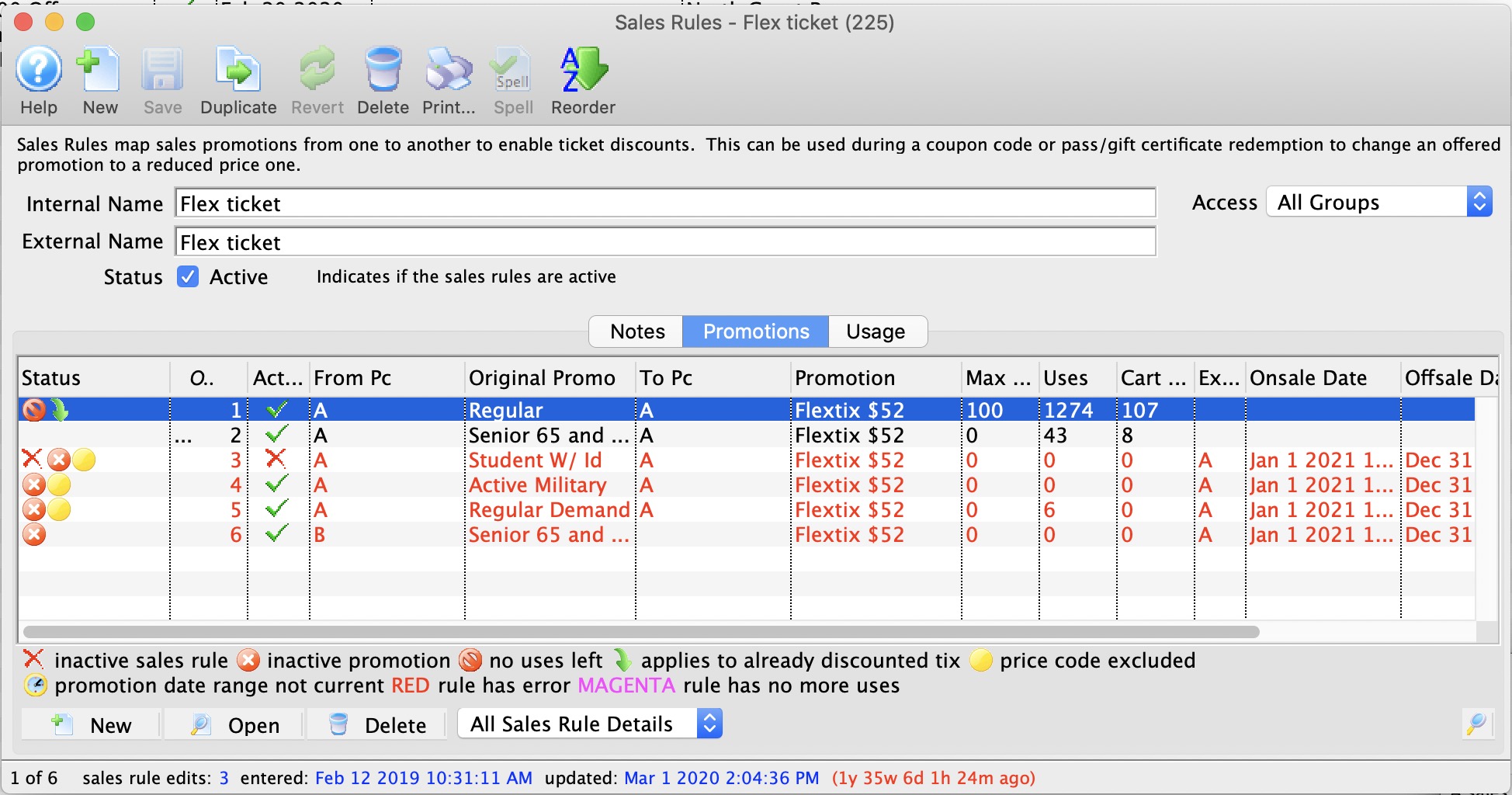
The meaning of the icons on the bottom of the window are:
| Inactive Sales Rule | This means that the sales rule detail line has been marked inactive. It will never be used during a sale (unless made active in the future) |
| Inactive Promotion | The 'TO' promotion is currently inactive. so, even if the 'From' promotion is selected during the sales process, and in active 'TO' promotion will render this particular sales rule unusable at the current time. |
| No Uses Left | The Sales Rule Detail has a limit on the number of uses and it appears to have been reached. If so, then this sales rule detail cannot be applied. |
| Applies to already discounted tix | Normally, a sales rule only apply to full price tickets. This indicates that the sales rule, when applied, is allowed to discount a ticket that has already been discounted (in a plug in) |
| Price Code Excluded | This can reflect one of two conditions that might cause the sales rule not to be used
|
| Promotion Date Range Not Current | This is not an error, per se. However, if the available date range on the 'TO' sales promotion is specified, and the current date is not within it, then this sales rule detail cannot be applied. |
Inserting a sales rule
Click  from the bottom left to open and add a new Sales Rule Promotion Conversion.
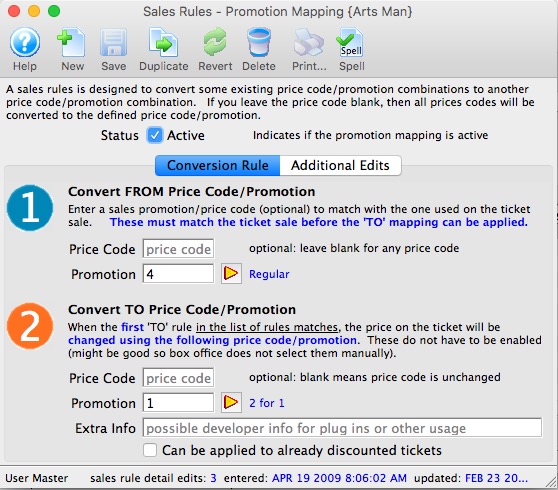
|
Specify the price code sale promotion combination in the FROM section that, if used to sell a ticket, will be converted to the price code and promotion in the TO section.
NOTE: The FIRST price code/combo that is found in the TO section will be matched with the ticket sale. Any subsequent rules with the same price code/promtion will be ignored. NOTE: The price will change to the TO promotion regardless whether the it is enabled for the performance or not. This way, you can leave it disabled so that it can't be picked accidentally. |
Use the  to access your sales promotion list and select the promotion.
- You must have a different promotion on both the FROM and TO. Eg you can have a mapping from:
- Online Promotion 1 to subscription promotion 2 (which means translate anything online to a subscription - useful if the pass is a subscription pass
- but not from Promotion 1 to Promotion 1 (This ensures that you have good traceability in the revenues by promotion type of reports.)
- Price codes can be left blank if all prices codes are to be converted. However, you can limit which price codes are acceptable if you want. Example:
- If you specify from Price Code A to Price Code B, then only tickets with price code A will be accepted, and the price code will become 'B'
- If you specify from Price code A and leave Price code B as blank, it will not change the price code
- If you leave the from price code blank, and the to price code blank, then no attempt is made to change the price code
- Maximum Uses can be left blank if the rule is not restricted. However, you can limit the number of uses. Example:
- Enter 2 for the Maximum uses for a 2 for 1 conversion for a buy one get one promotion.
to save the sale rule - promotion conversion.
You can now apply the sales rule to a Coupon Code or Membership/Pass
Sales Rule Conversion - Promotions Tab
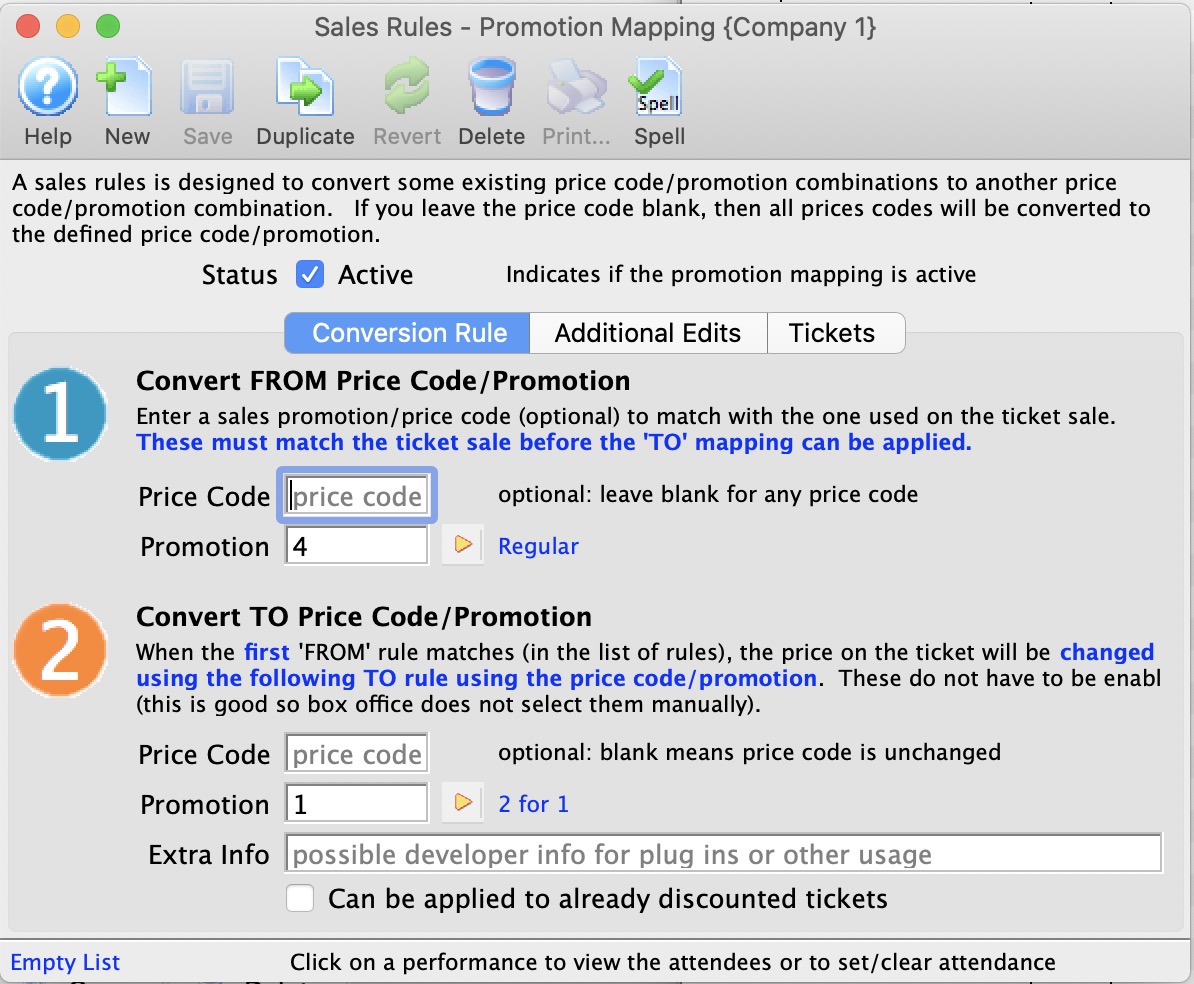
Parts of the Promotions Conversion Window
|
Inserts a new promotion conversion for the sales rule. For more information on inserting sales rules click here. |
|
Saves changes made to the sales rule promotion conversion. |
|
Creates a copy of the current promotion conversion for this sales rule. |
|
Undoes changes to the last saved point. |
|
Deletes the current promotion conversion. For more information on deleting sales rules click here. |
|
Checks the spelling of fields that can be typed in. |
Convert From Price Code/Promotion |
|
| Price Code | Price code that will be changed when this sales rule is used. Leave blank to allow for all price codes. |
| Promotion | Promotion that will be changed when this sales rule is used. |
|
Opens the promotions list window in order to search for a promotion. |
Convert To Price Code/Promotion |
|
| Price Code | Price code that will be effective when this sales rule is used. Leave blank to not change the price code. |
| Promotion | Promotion that will be effective when this sales rule is used. |
|
Opens the promotion list window in order to search for a promotion. |
| Maximum Uses | The maximum number of uses this conversion can be used for. |
| Current Uses | The current number of total tickets that this sales rule has been used for. |
| Pending Rules | The count of tickets in shopping carts where the sales rule conversion is pending usage. It will be used when the user checks out. If the user abandons the cart, this will be decremented appropriately. |
Sales Rule Conversion - Additional Edits Tab
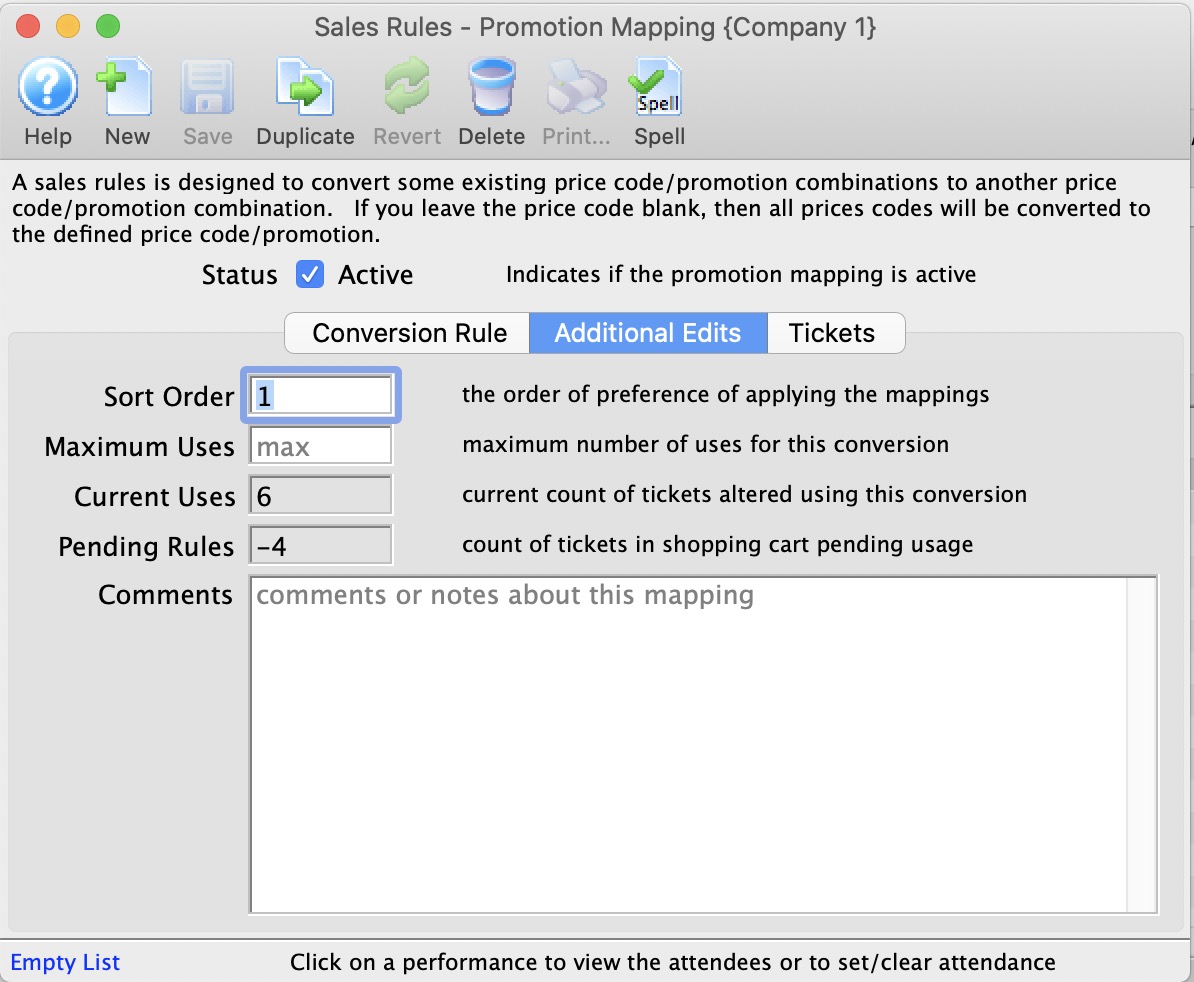
There are two key fields on this window:
- Sort order - which describes the order in which a sales rule mapping is to be applied. When attempting to apply a mapping, Theatre Manager:
- looks at the first rule. If the promotion/price code match and the rule can be applied, it applies it
- If the first mapping cannot be applied, it goes down the list attempting each mapping in turn until one applies, or it runs out of rules
- Maximum Uses - allows you to set a maximum number of uses for this promotion mapping. You cannot exceed this number of conversions and if you hit the limit, this promotion conversion is ignored going forward. Use zero for unlimited conversions.
- Current Uses - are the number of conversions that have occurred. You can use the tickets tab to see them. Note, this number can be greater than the number of tickets if some of the tickets have been refunded.
- Pending Rules - are those that are sitting in an active shopping cart pending use on a checkout.
Sales Rules Conversion - Tickets Tab
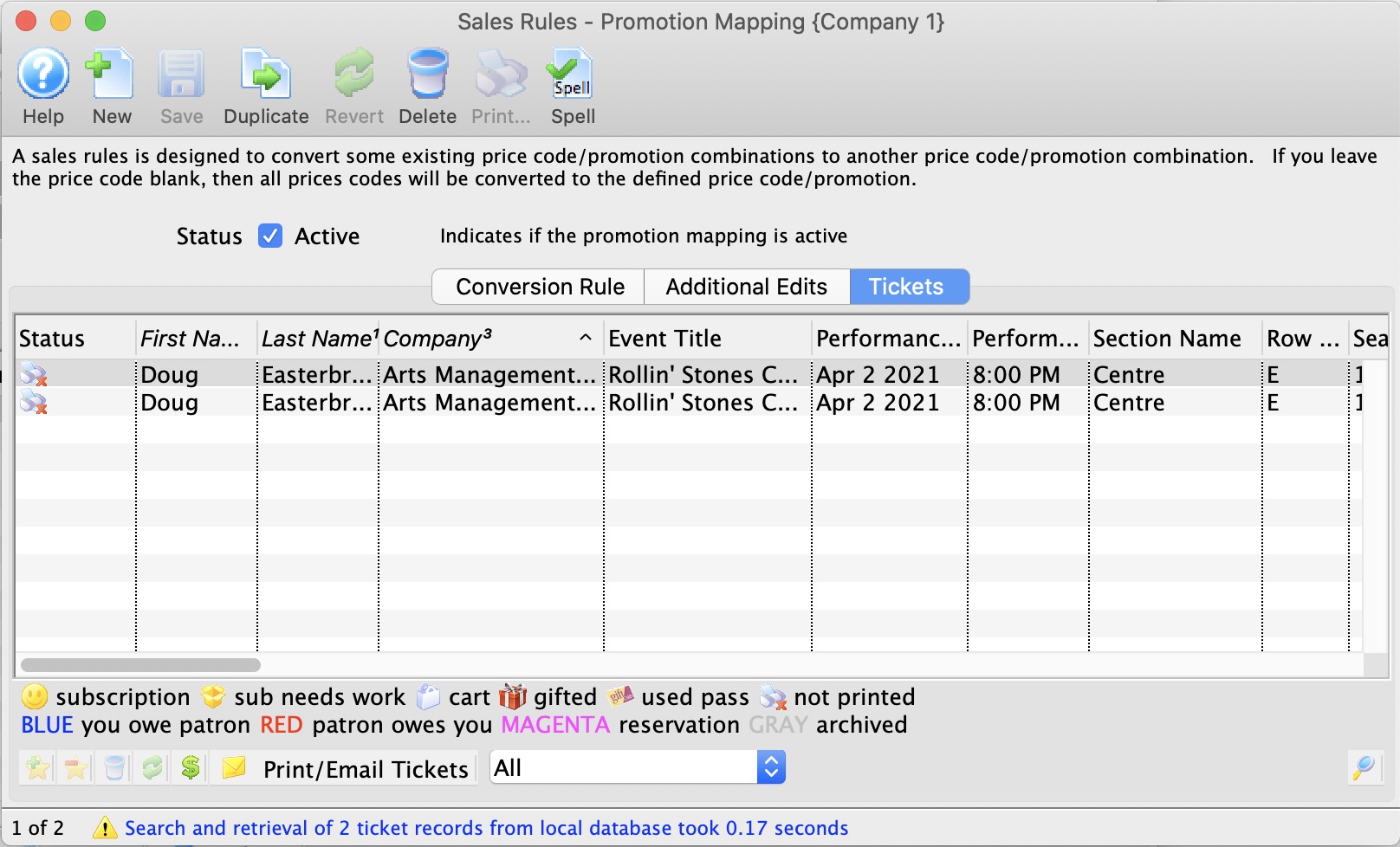
The Tickets tab shows a list of tickets that the current sales rule conversion/promotion mapping has been applied to.
It only shows tickets that are currently sold (any that were returned will no longer appear in this list.)
- Double click on a ticket to see its detail. From there you can get to the patron, order, etc
- Use the search at the bottom to search for tickets by patron, order, and other choices
- Use the retrieved search data to print reports or export directly from from this tab.
Sales Rules Conversion - Reporting & Exporting
Ticket data from patrons who have successfully redeemed a coupon using a Sales Rule conversion can be sent directly to one of the Attendance and Front of House reports or exported out of Theatre Manager from the Tickets Tab.
To print, highlight the data from the Tickets list window and right-click to display the drop-down menu. Select Print Report option from the drop-down menu. Choose a House Report. The data highlighted will be sent as dynamic criteria for this House Report. The report will display on the screen for review.
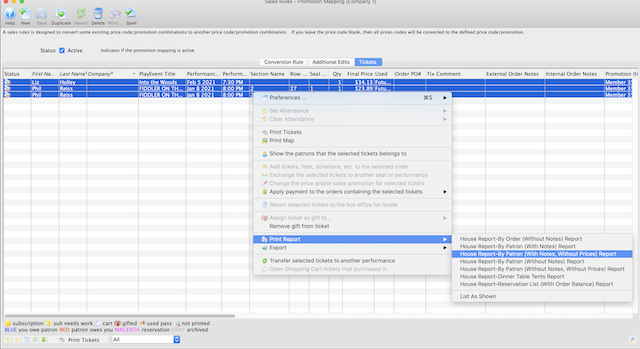
To export, highlight the data from the Tickets list window and right-click to display the drop-down menu. Select the Export option from the drop-down menu. Choose a file format and save the file to computer for review.
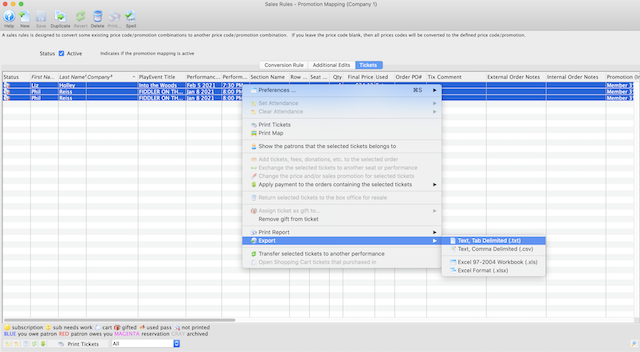
 |
If there are more than one Sales Promotion conversion mapping in a Sales Rule, reporting or exporting will need to be done for EACH conversion mapping to produce a full picture of the number of patrons who have redeemed tickets using the Sales Rule. |
Copy Sale Rules Mapping to another Sale Rule window
The process is:
- Open the sales rule mapping tab that has the mappings you want to copy into another sales rule
- Open the sales rule mapping tab that you want to receive the copy of the sales rules
- Select the sales rules to be copied as per the diagram and drag them to the second window you have open
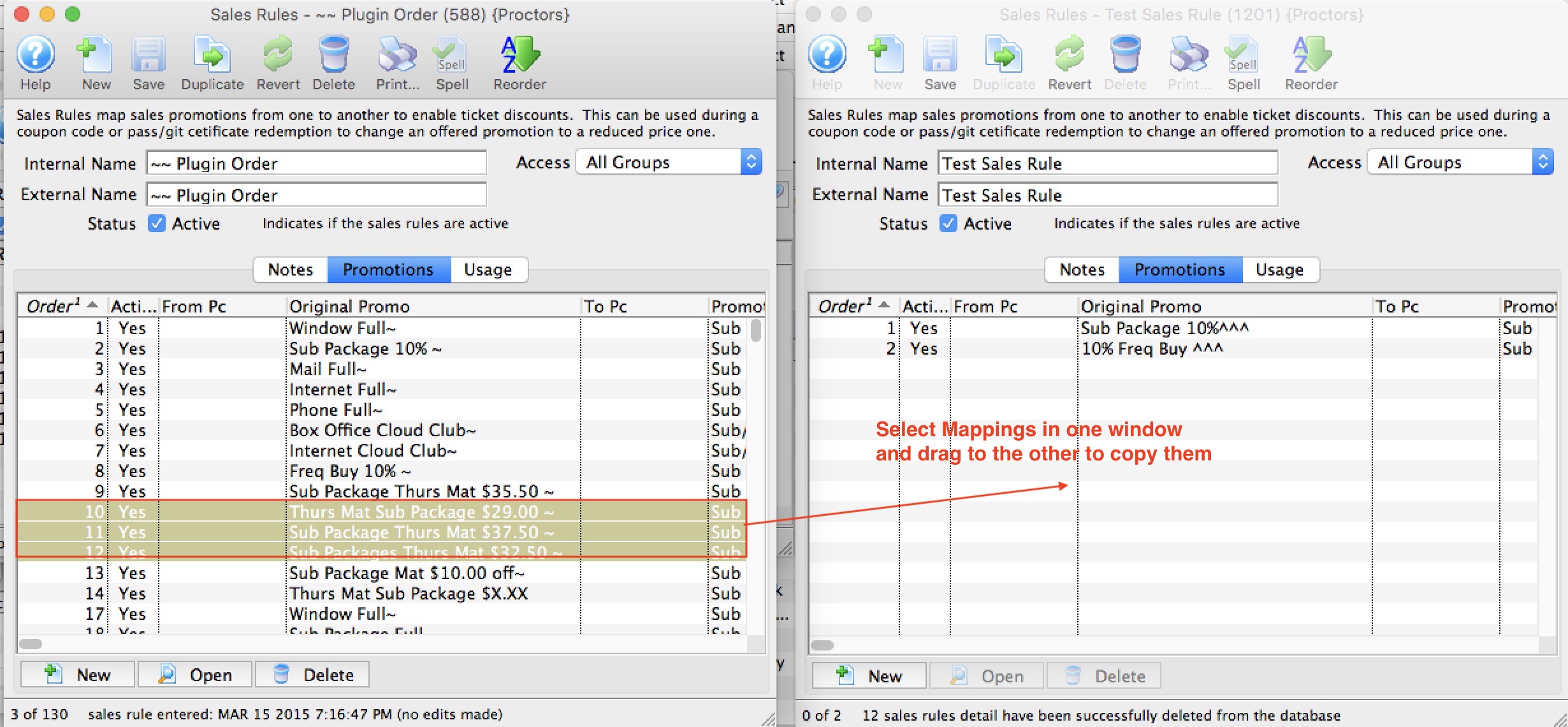
- When you release the mouse, sales promotions mappings will now be in the second sales rule as well.
Note: Sales rules must be unique. Any rules that already exist in the window you are copying to will be ignored during the copy process.
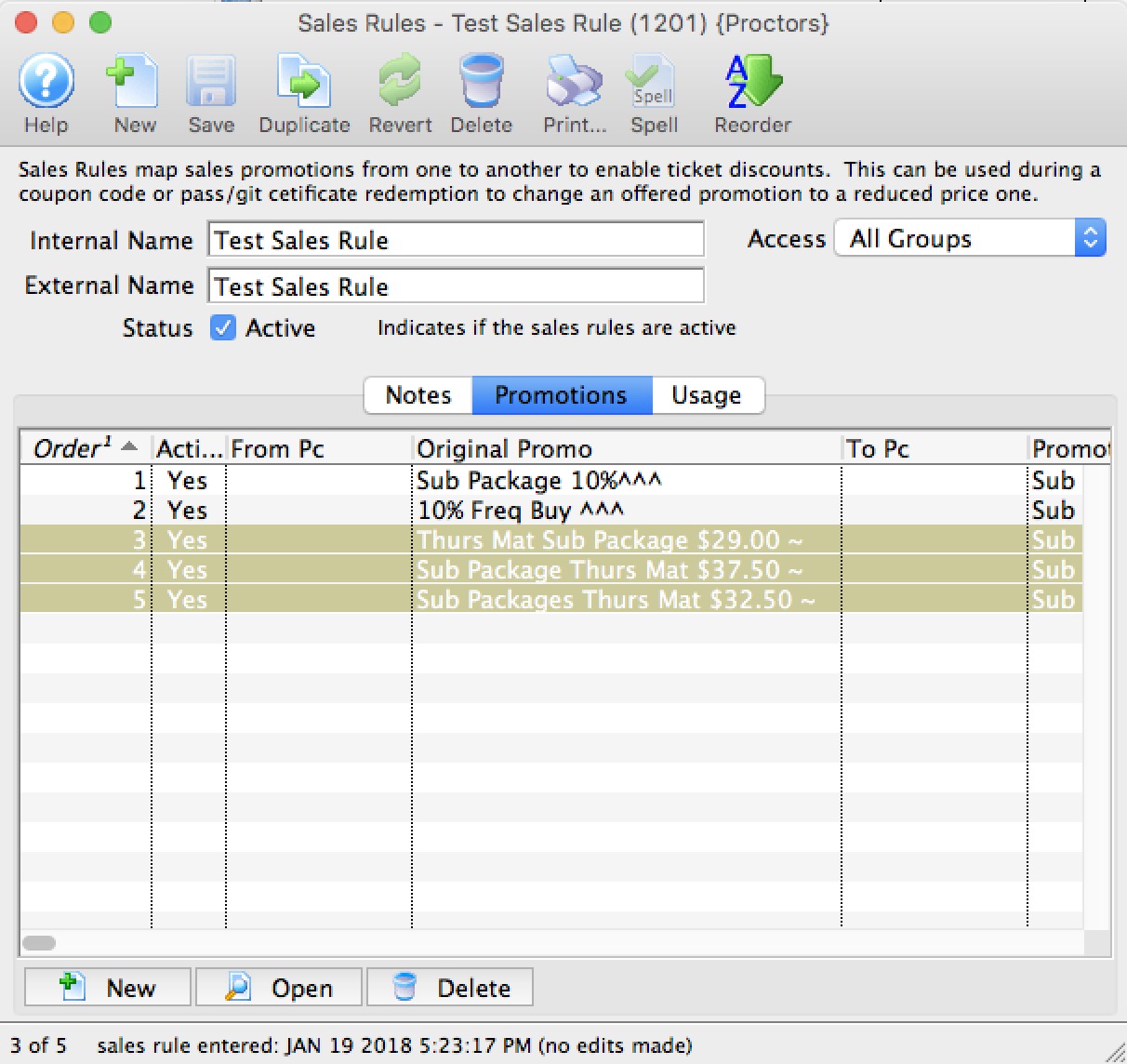
- The copied sales rules will automatically be placed last in the list and ordered to be applied last.
If you want the sales rules applied in a different order, refer to changing the sales rule mapping sort order/
Reordering Sales rules en masse
For example, you may have a rule:
- that limits conversion from regular price in section 'A' to a very special discount, limited to the first x people.
- After that, you may want a rule that converts the rest of the ticket from regular price in section 'A' to a different price
In this case, the order of the promotion mapping is clearly required to be in the same order as above. if they are not in that order, then use the mechanism below to reorder them.
Reordering the Sales Rules Mappings
- Select the sales rules you want renumbered and use the context menu to select Renumber selected sales rules
- You will be asked to provider a number to start the reordering process at. Change this number to get the sales rules numbered in the approximate area you want them.
Theatre Manager will change the Sort Order of the sales rules that are selected.
- After you have renumbered a group, you can select other sales rules mappings and renumber them with a different starting number
- Repeat this process (iteratively) as often as needed to get the sales rules into the order you want them applied.
Sales Rule Usage
The sales rule usage tab shows you which coupons and gift certificates currently use this sales rule. If you double click on one of the line sin the list, it will take you to the coupon or gift certificate using the sales rule.
Click the link to see where Sales Rules are set:
- Passes and Gift Certificates on the redemption rules tab.
- Coupons on the Sales Rules tab
Sales Rule - Deleting a Sales Rule
Once a sales rule has been created and assigned to either a Coupon Code or a Pass/GC it cannot be deleted from Theatre Manager.
Sales Rule - Merging Sales Rules
You can Merge together common sales rules to become one
Sales Rules are accessed from the Setup Menu >> System Tables >> Sales Rules
The following window will appear.
From the list select the rules you wish to merge.
Click  and the following window will appear.
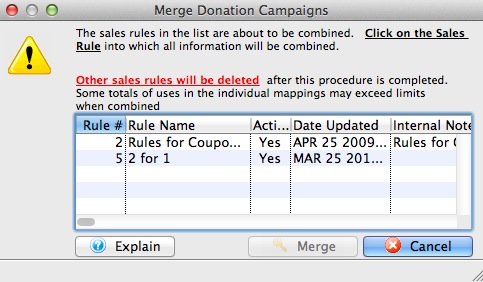
Select the Sales Rule into which all information will be combined and click 
Note that this cannot be undone.
Region Rules
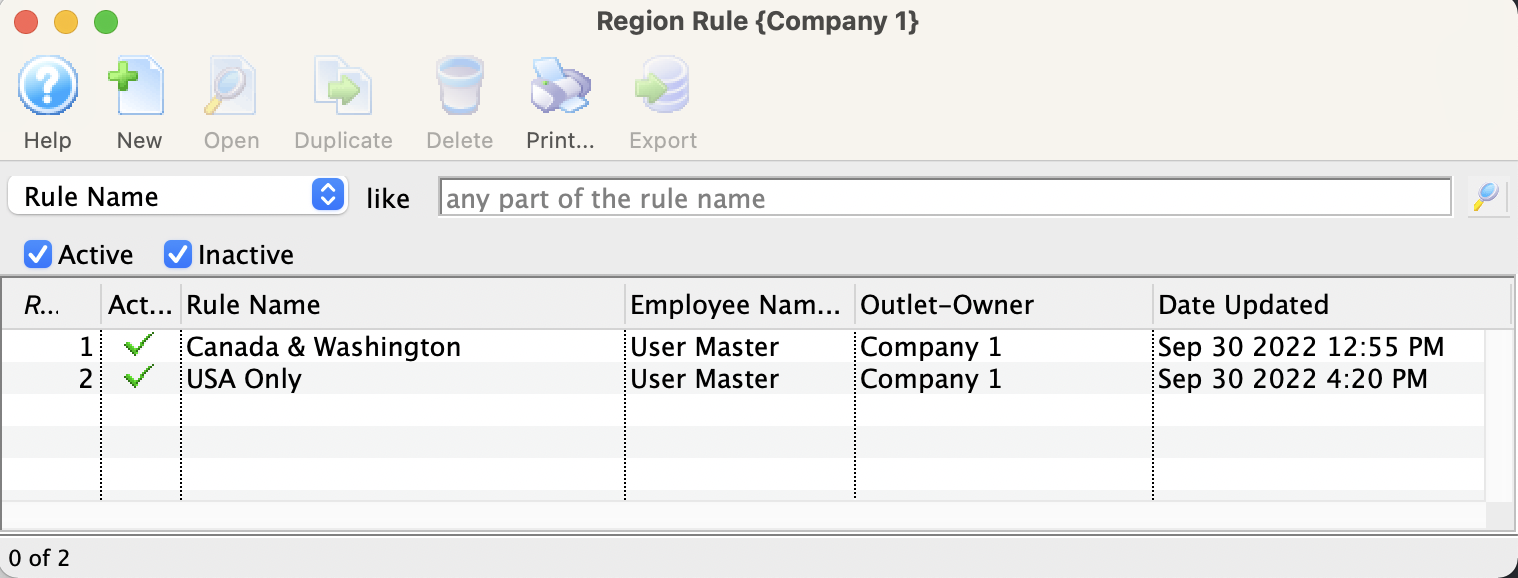
Region Rule Detail Window
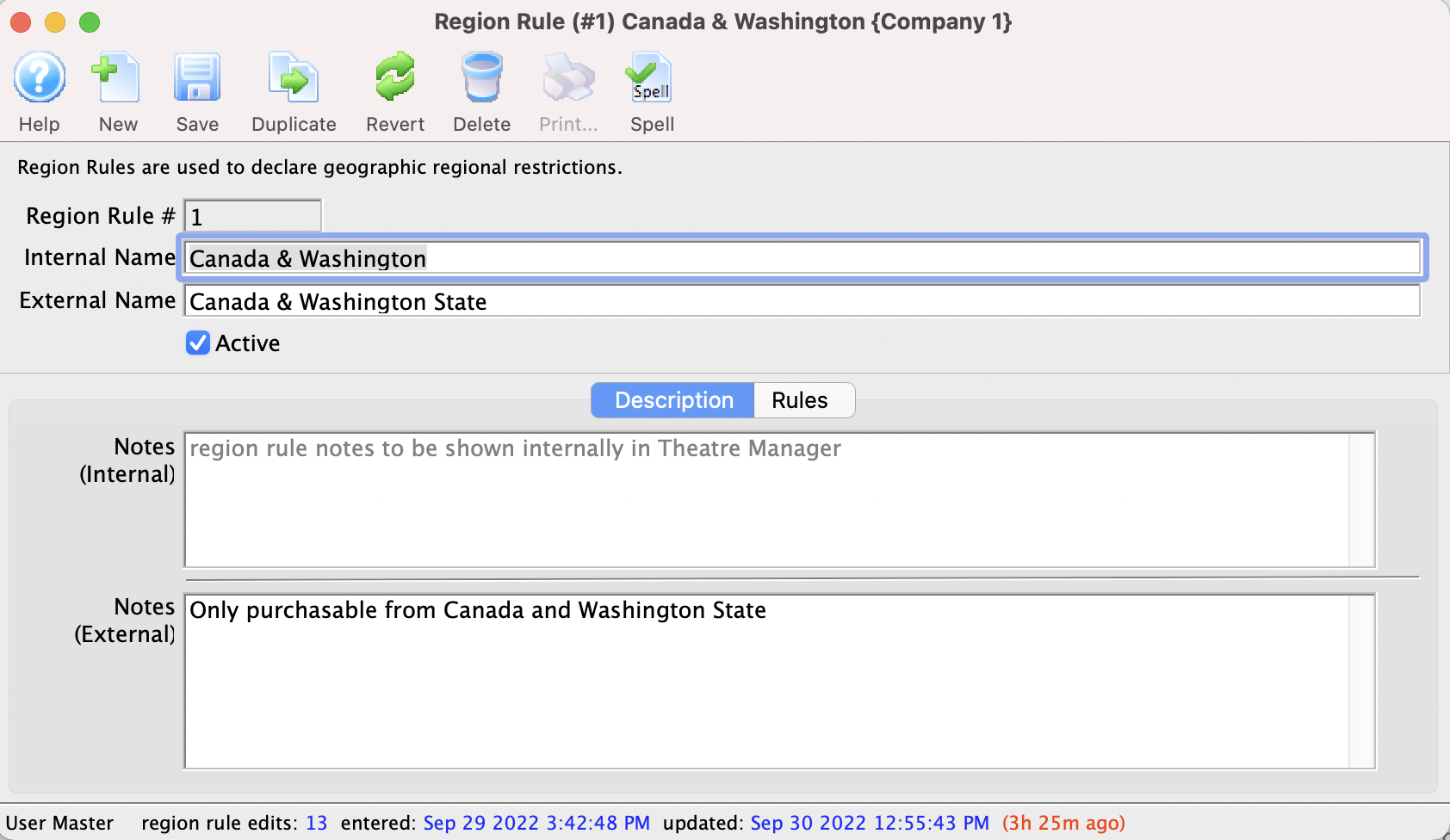
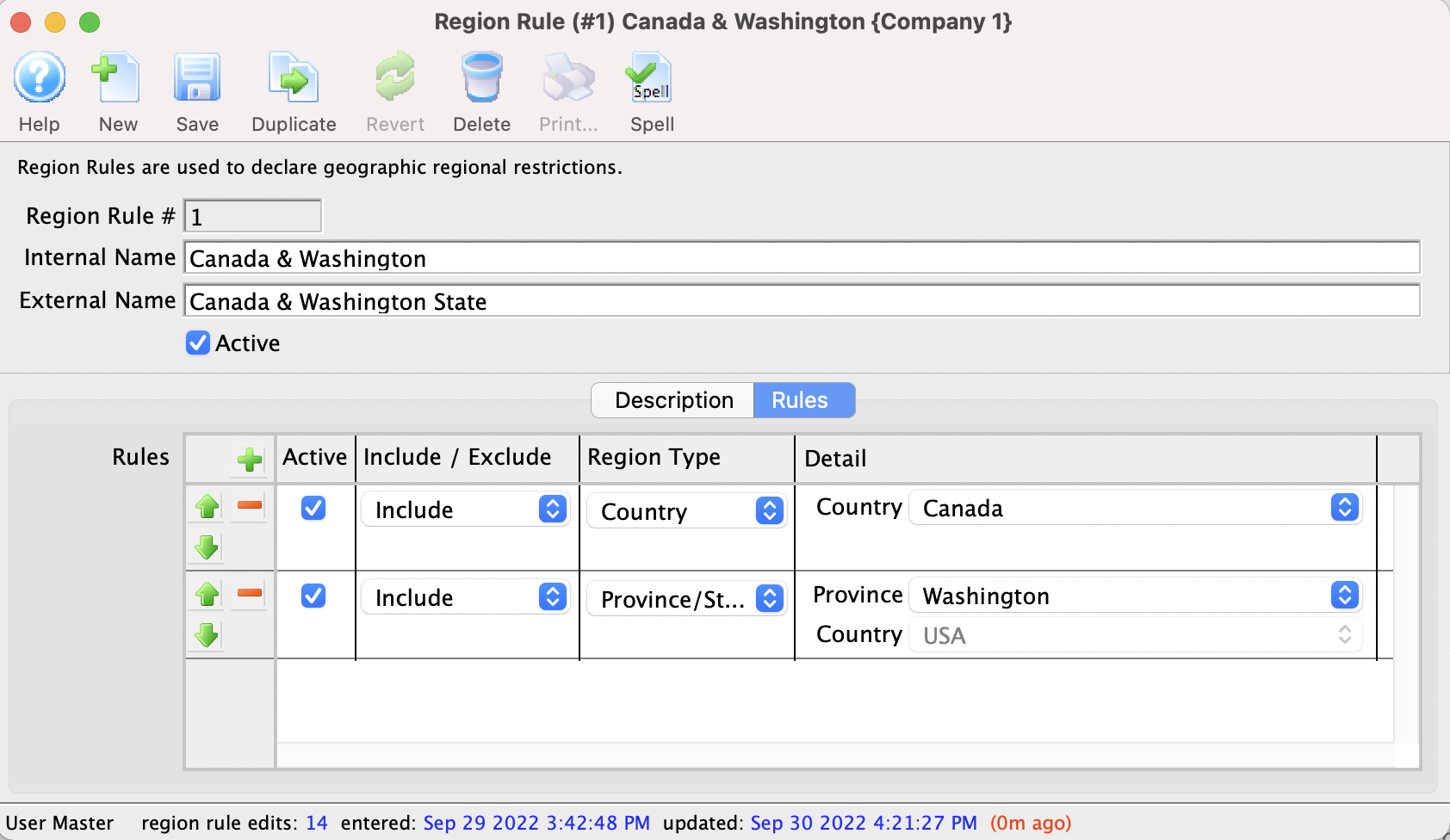
Donation Giving Levels
Donation Giving Levels are setup to allow for donations from patrons to be tracked using a giving level matrix.
The matrixes are setup through the Donation Giving Levels Window which can be accessed through the Setup >> System Tables >> Donation Giving Levels.
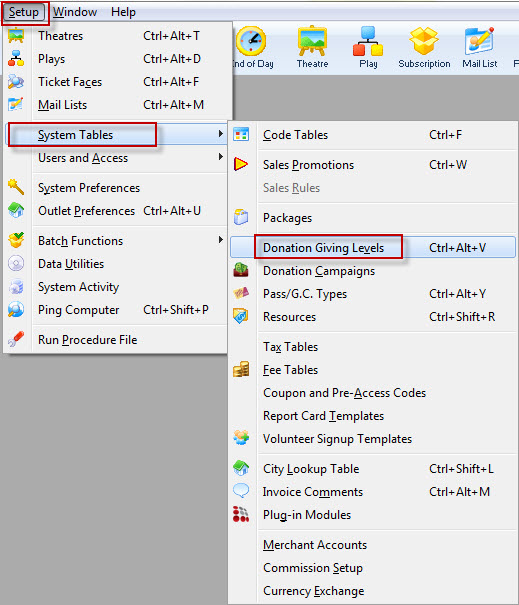
The Donation Giving Levels Window will open displaying all current Giving Level Matrixes.
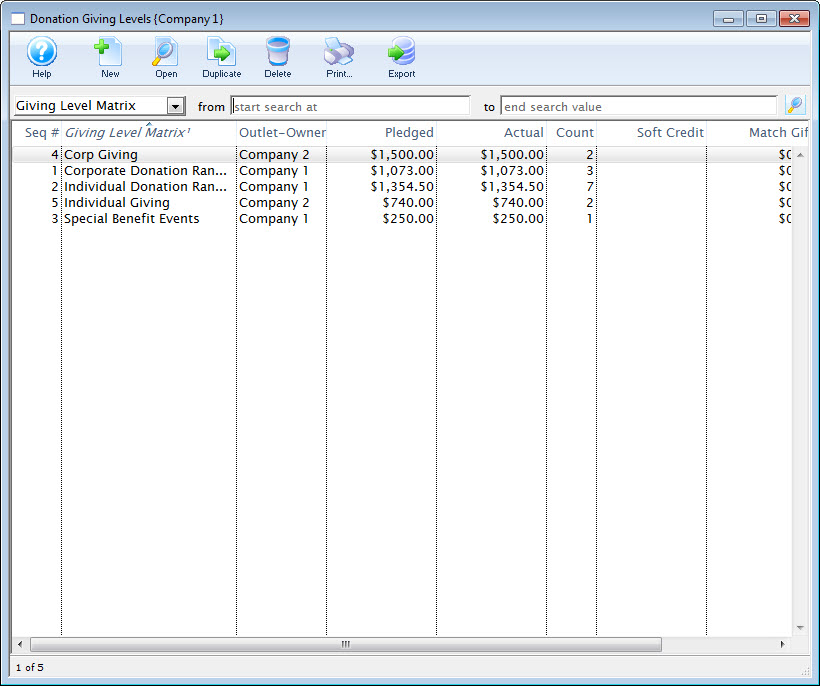
Donation Giving Levels List Window
Parts of the Donation Giving Level Window
|
Inserts a new giving level through the Giving Level Detail Window.For more information on inserting giving levels click here. |
|
Opens a window to edit a giving level through the Giving Level Detail Window.For more information on editing giving levels click here. |
|
Creates a copy of the selected giving level. |
|
Deletes a giving level.For more information on deleting giving levels click here. |
|
Generates a report of the giving levels to the screen or default print location. |
|
Exports the giving level list in a tab-delimited format. |
| Giving Level | The name of the level. |
| Outlet-Owner | The Outlet associated with the campaign. |
| Pledged | The pledged goal. |
| Actual | The total dollars raised to date. |
| Count | The number of pledges associated with the giving level. |
| Soft Credit | Soft Credits associated with this campaign. |
| Matching Gift | The total dollars raised as Matching Gifts. |
| Match Count | The total number of Matching Gifts. |
| Balance | The total dollars needed to meet the pledged goal. |
Creating Giving Levels
- Open the Donation Giving Levels window.
Click here to learn how to access this window.
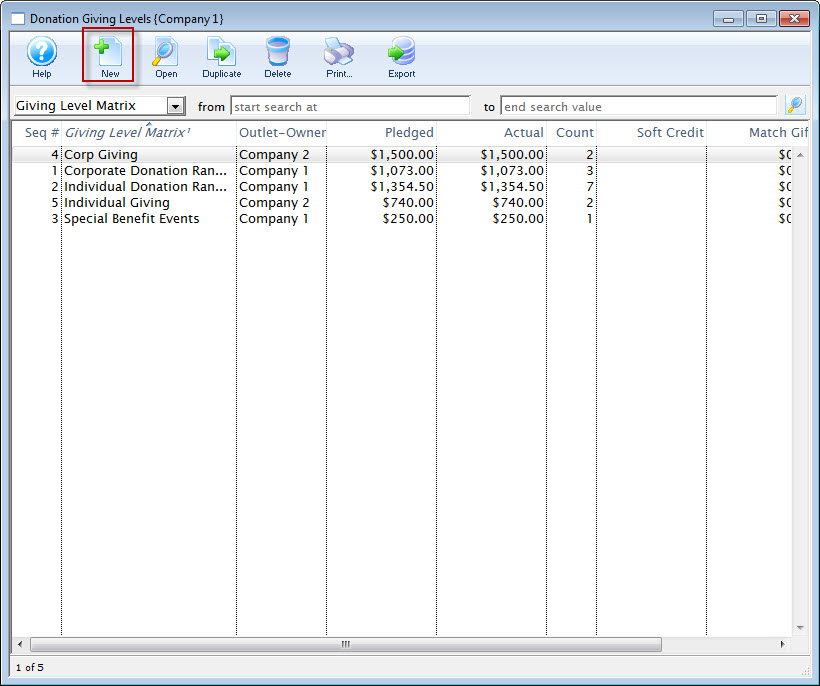
- Click the New button.
The Giving Level Detail window opens.
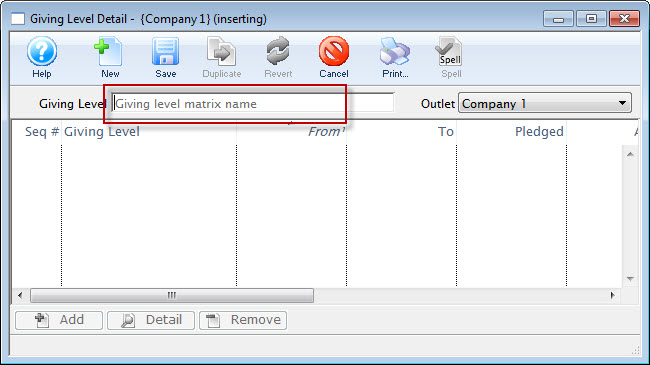
- Enter a name for the Giving Level.
- Click the Save button.
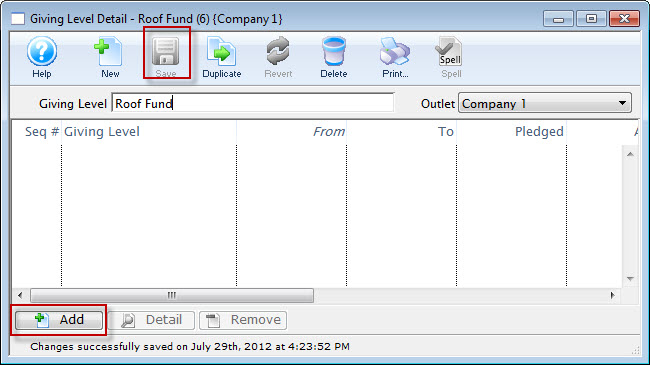
- Click the the Add button.
The button will become accessible once you have entered a matrix name.
The Giving Level window opens.
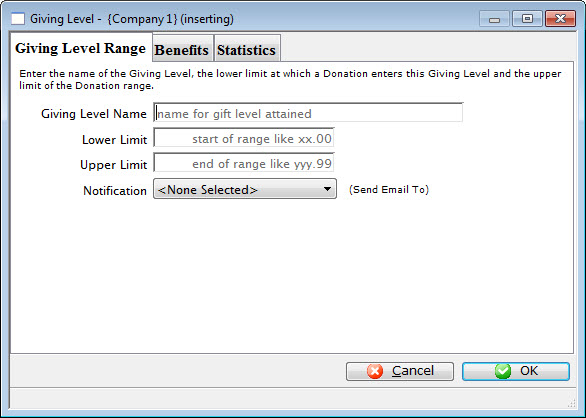
- Enter the name of the giving level.
i.e. Bronze
- Enter the lower limit of the giving level.
i.e. 1
- Enter the upper level of the giving level.
i.e. 99
- You can also select a Notification to be sent, by clicking the Drop Down List.
- On the 'BENEFITS' tab, you can:
- enter a description of the benefits associated with the giving level
- specify the non-tax-receiptable portion of the donation.
- For example, a give at the $100 level may include a dinner valued at $25, so the $25 would be entered as the non-receiptable portion
- In this way, you can assign different non-receiptable amounts and benefits at each giving level
- Click the Save to save the giving level.
- Repeat this procedure to add the different giving levels
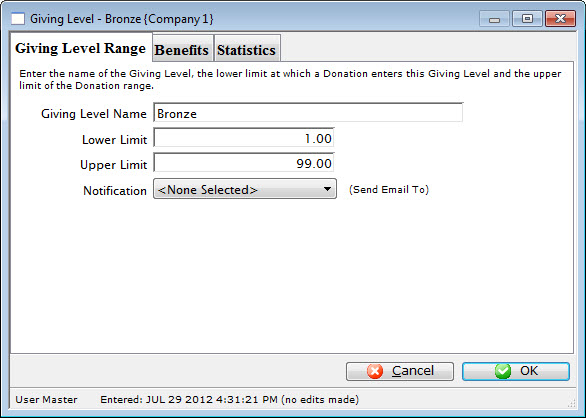
Example Matrix:
- Bronze $ 0.01 - $99.99
- Silver $ 100.00 - $499.99
- Gold $ 500.00 - $999.99
- Platinum $ 1000 - $1000000.99
Editing a Donation Giving Level Matrix
|
The rules for creating a giving level are
|
|
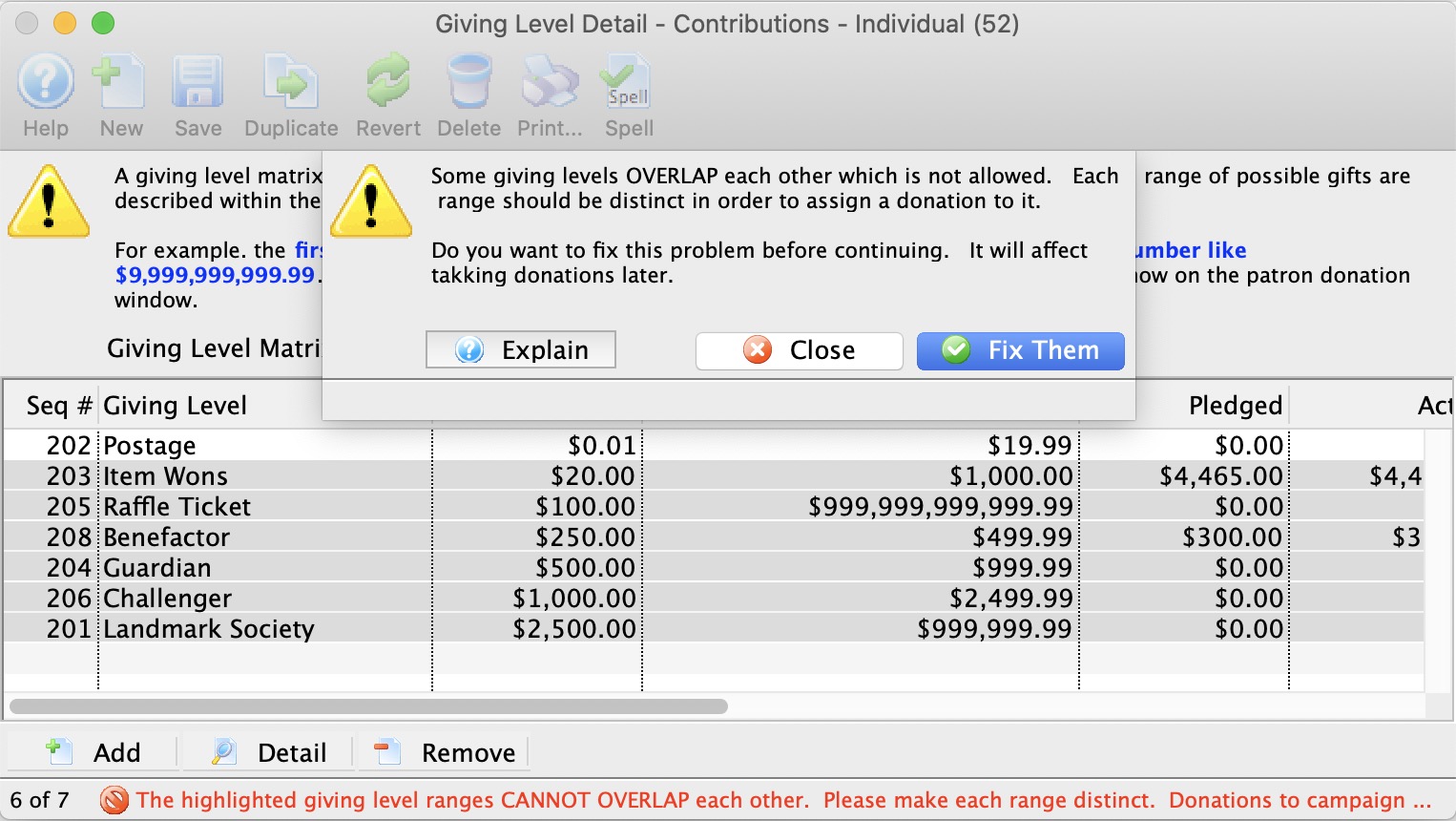 If a range overlaps, you will see a message like the one to the right imploring that they be fixed.
In this case, all but one of the amount ranges overlap at least one other. Overlapping means that the end of one range is the same or after the beginning of any other range (or vice versa). Often, fixing one range to not overlap, may fix others. |
To edit a Donation Giving Level matrix, you perform the following steps.
- Open the Donation Giving Level window.
Click here to learn how to access this window.
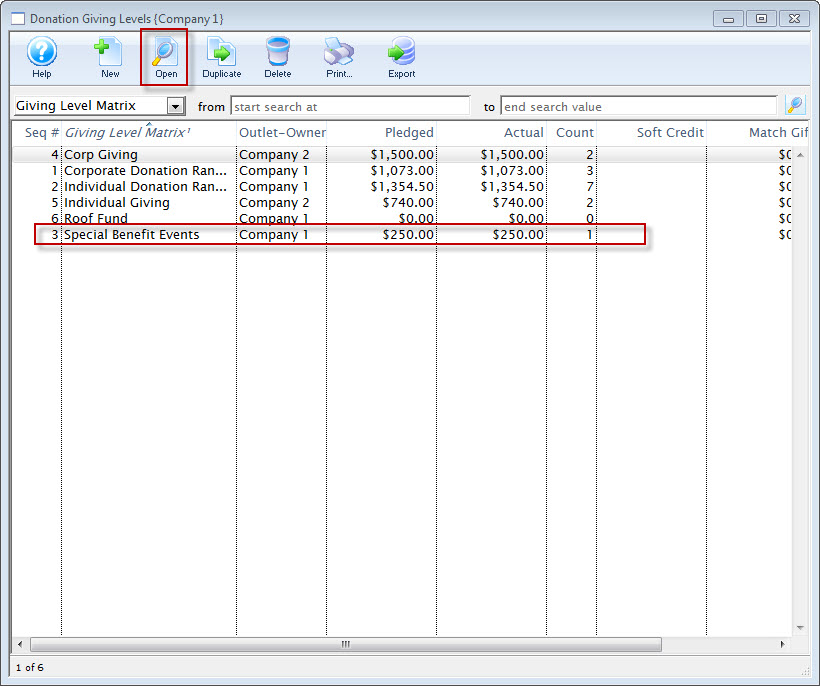
- Click on the Giving Level Matrix you wish to edit.
- Click the Open button.
The Giving Level Detail window opens.
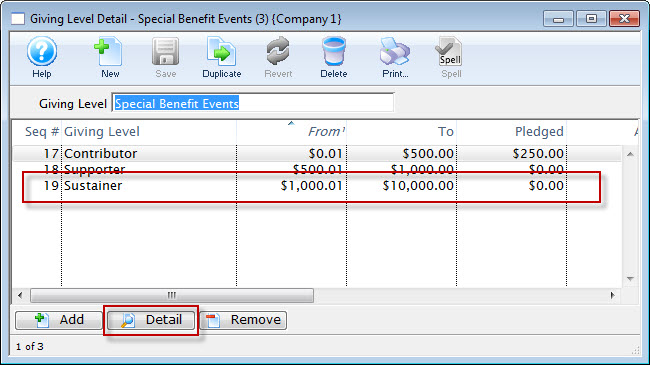
- Select the level to be edited and click the Detail button.
The Giving Level window for the selected level opens.
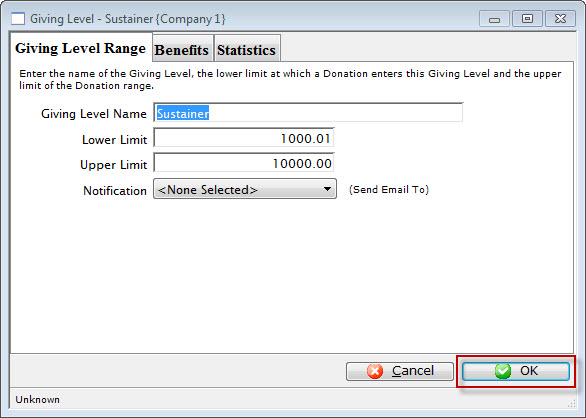
- Change the required data.
- Click the OK
 button.
The changes are saved and the new data is displayed in the Giving Level Detail Window.
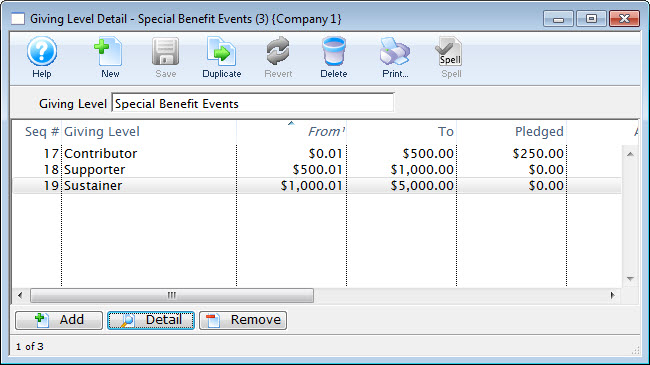
Deleting Giving Levels
Giving levels are contained in matrix. Giving levels cab be deleted as the entire matrix or a single level in a matrix. A giving level or matrix used by a donation campaign can not be deleted.
To delete a Giving Level Matrix, you perform the following steps:
- Open the Donation Giving Levels window.
Click here to learn how to access this window.
- Select the giving level matrix.
Single click on a matrix to select it.
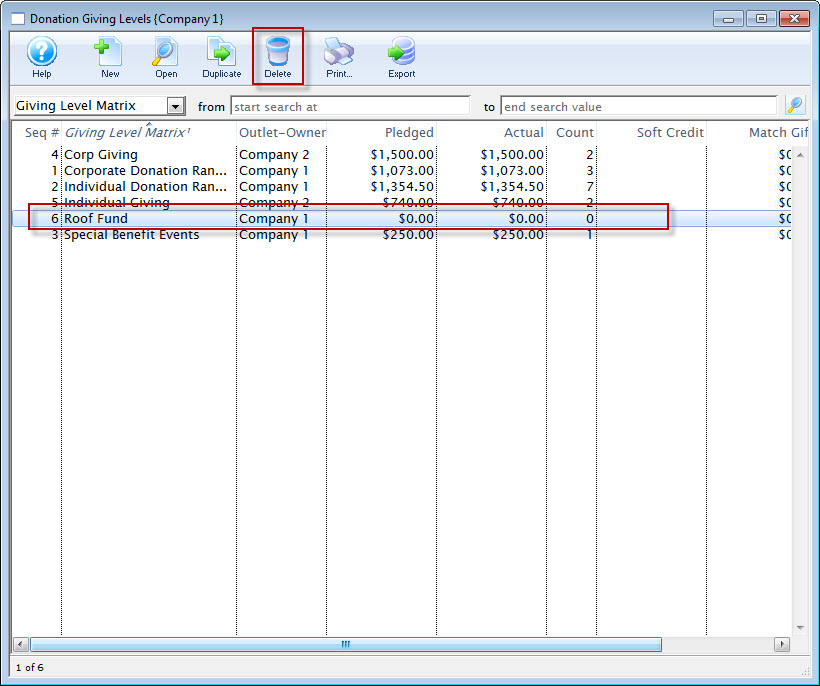
- Click the Delete button.
The Delete Level confirmation dialog opens.
- Click the Delete button to delete the selected giving level matrix
Deleting a Giving Level from a Matrix
To delete a level from within a matrix, you perform the following steps:
- Open the Donation Giving Levels window.
Click here to learn how to access this window.
- Select the giving level matrix.
Do this by single clicking the value.
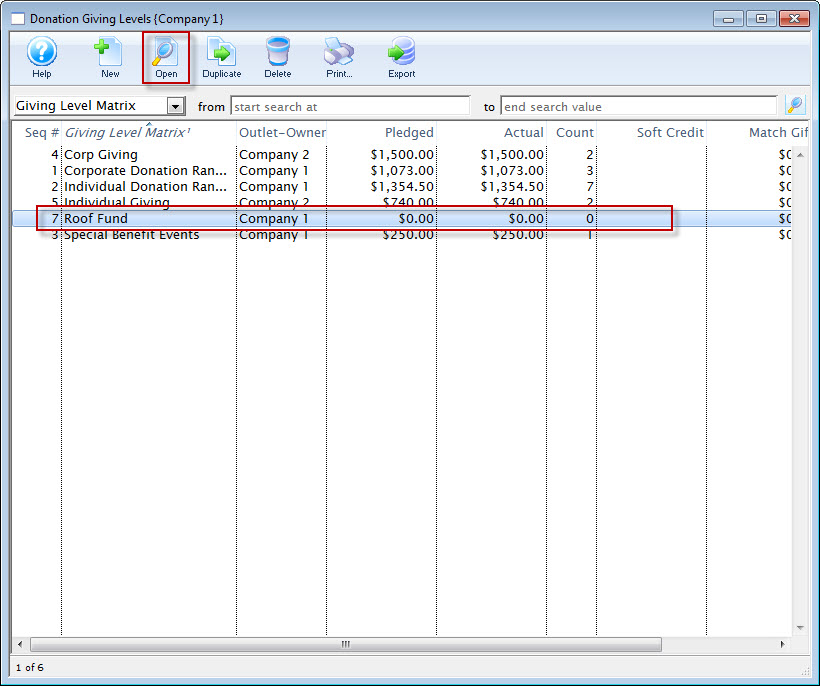
- Click the Open button.
The giving level detail window opens.
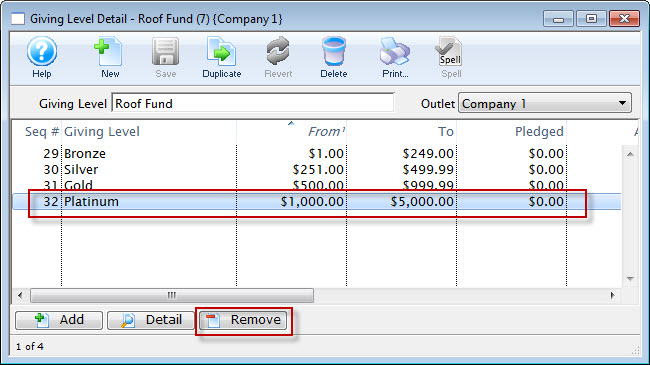
- Select the level to be deleted.
Single click on a level to select it.
- Click the Delete button.
The delete confrimation dialog opens.
- Click the Delete button to delete the giving level.
Packages
A package, within Theatre Manager, is designed to group together several items. These items are listed together and require fewer clicks to purchase.
Do not confuse Packages with Subscriptions. Subscriptions sell the same seats, on the same night, using the same pricing for a patron. Packages do not define seating location or price. They simply allow for all items within the package to be sold together as a grouping.
The Packages window is opened through Setup >> System Tables >> Packages. From this window you can add, remove and edit existing packages.
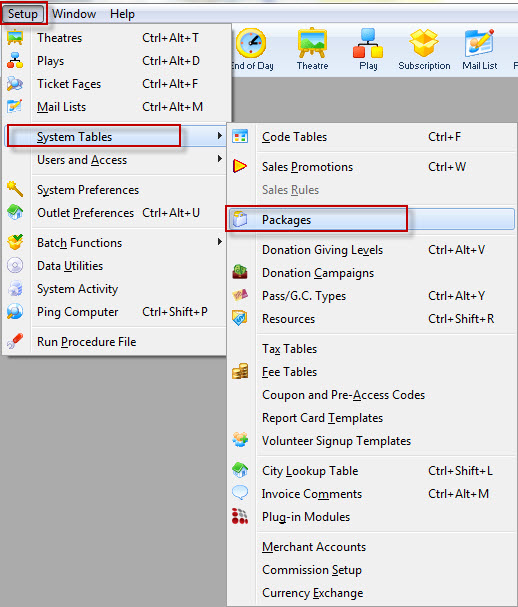
The Package List window opens. Click here for a description of the Package List window.
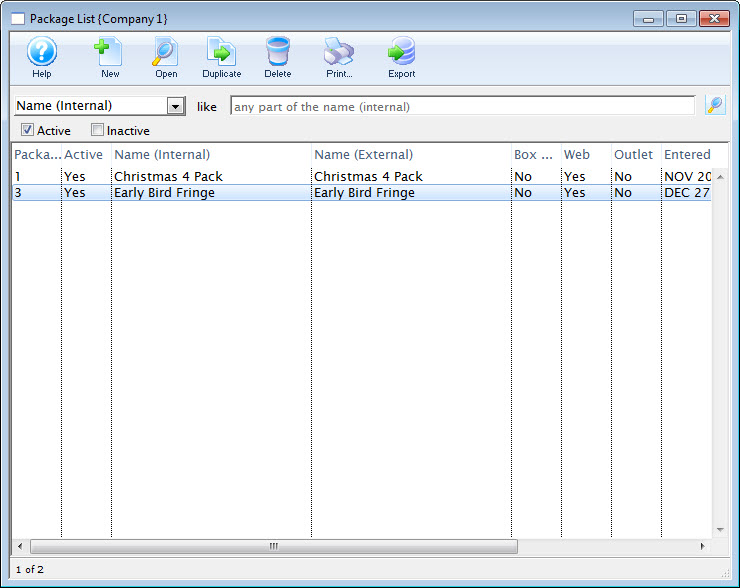
Package Setup
Creating a Package
- Open the Package List window.
Click here for more information on the Package List window.
- Click the New button.
The Package Detail window opens.
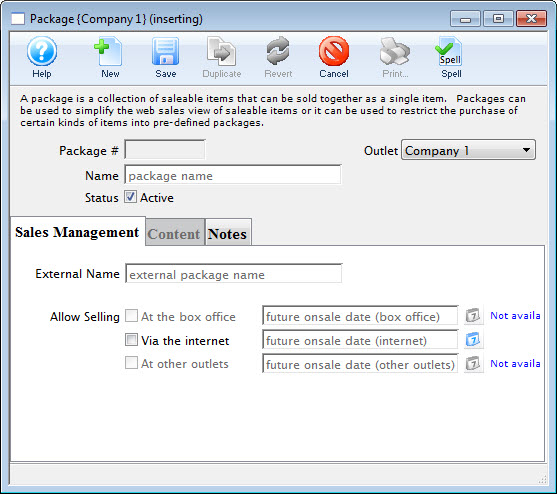
- Enter the name for the package.
- Edit the External Name.
The External Name populates automatically with the information entered in the Name field. Altering this information may not always be necessary.
- Click the Save button.
- Select the
 tab.
tab.
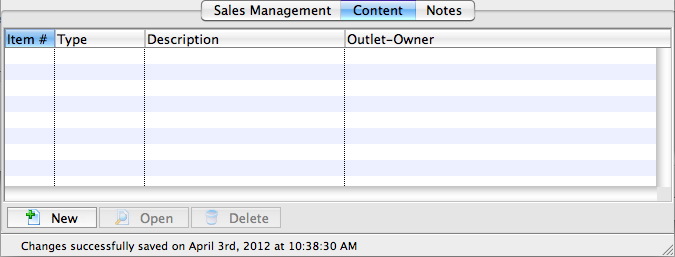
- Add items to the package as need.
For details on adding items to a package, click here. Add as many items are are required for the package.
- Select the
 tab.
tab. - Add any external or internal sales notes, as required.
- Select the
 tab.
tab. - Check the box next to Via the Internet.
- Click the
 button.
The package is now saved to the database and can be used in online sales.
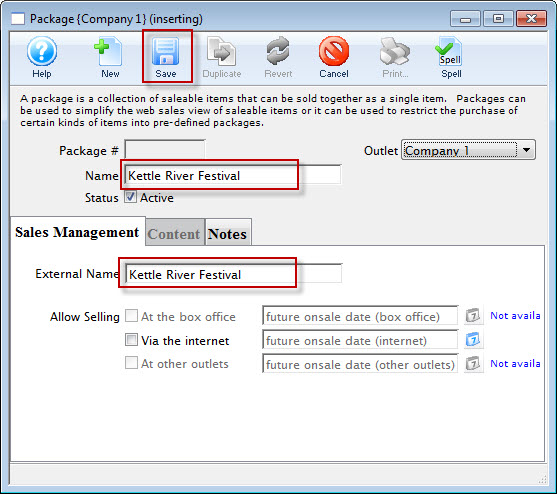
The Content tab is now available for selection.
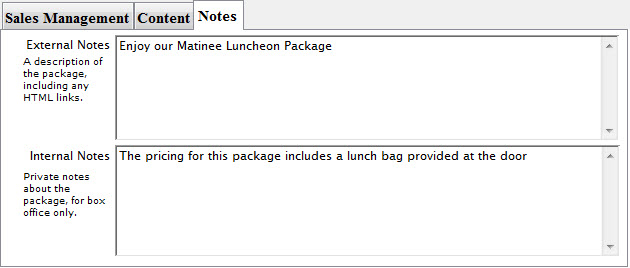
This makes the package available online.
|
Only do this for testing the package, or when you are ready to have the package available for purchase. |
Adding Items to a Package
- Open the Package List window.
Click here to learn how to access the Package List.
- Double click on the desired package.
- Select the tab.
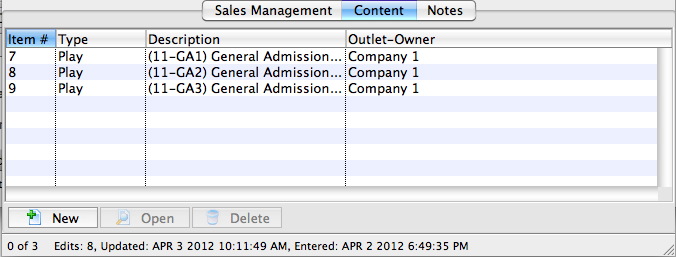
- Click the New button.
The Package Item Detail window opens.
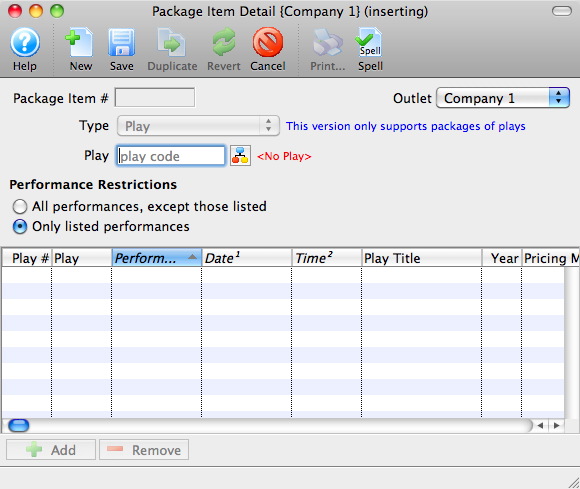
- Click the Event/Play Add button.
The Event List window opens.
Click here for more information on searching for Events.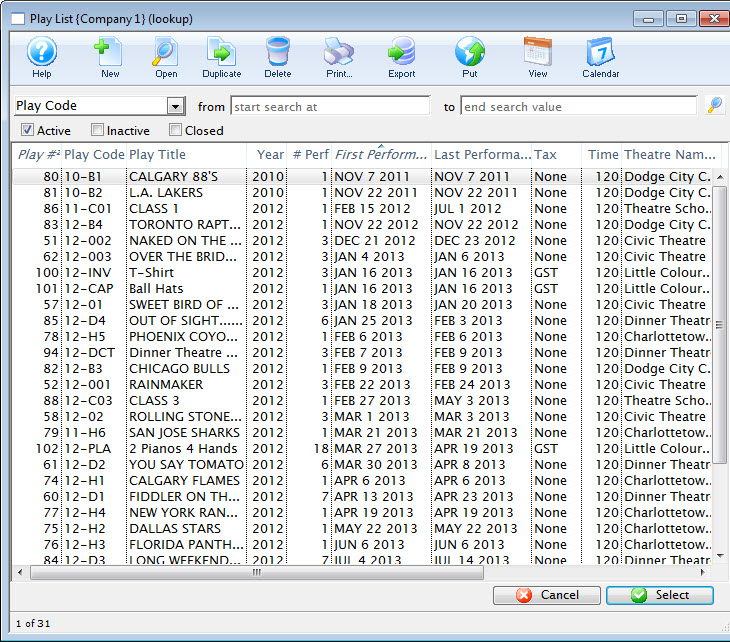
- Select the desired Event.
Single click on the event to select it. If multiple events are required for the package you must add them individually.
- Click the Select button.
- Choose the desired Performance Restrictions option.
- Click the Add button.
The Performance List window opens.
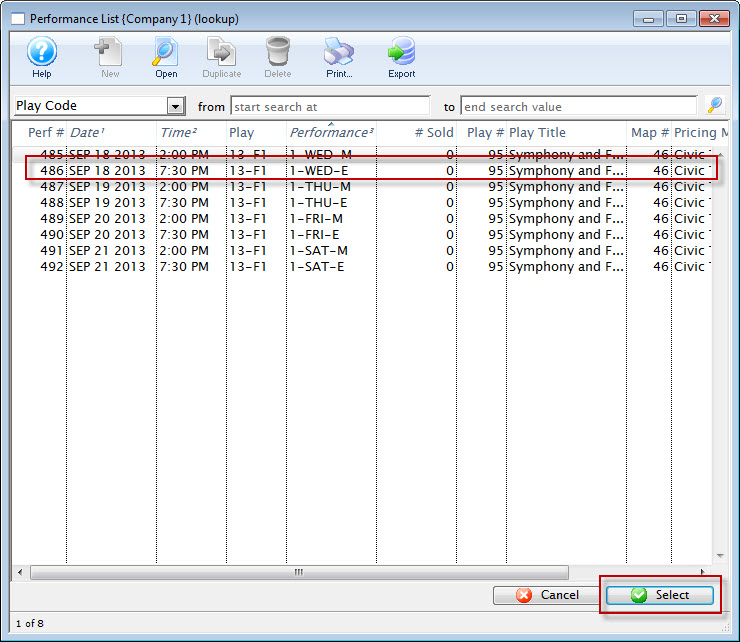
- Select the desired Performances.
Single click on a performance to select it. To select multiple performances, use the CTRL key (Windows) or the OPTION key (Mac).
- Click the Select button.
- Close the Package Item Detail window.
To continue to add more performances to the package, repeat the select and Add steps.
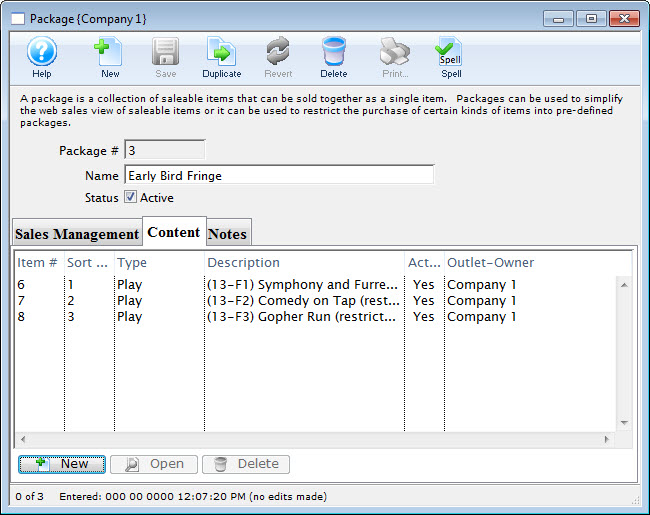
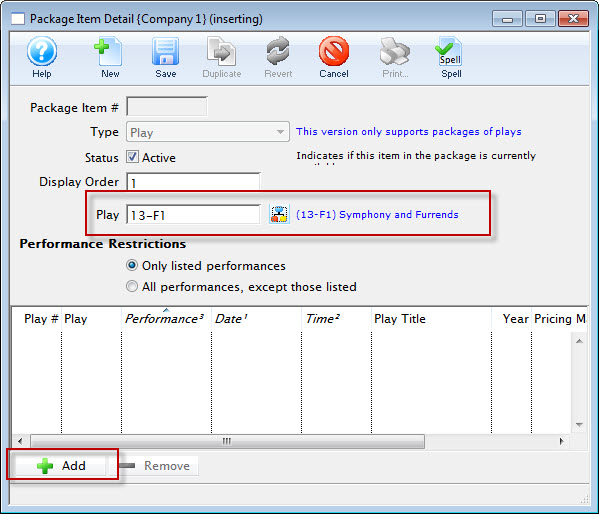
Editing a Package
- Open the Package List window.
Click here to learn how to access the Package List.
- Select the Package to be edited.
Single click on a package to select it.
- Click the Open button.
The Package Detail window opens.
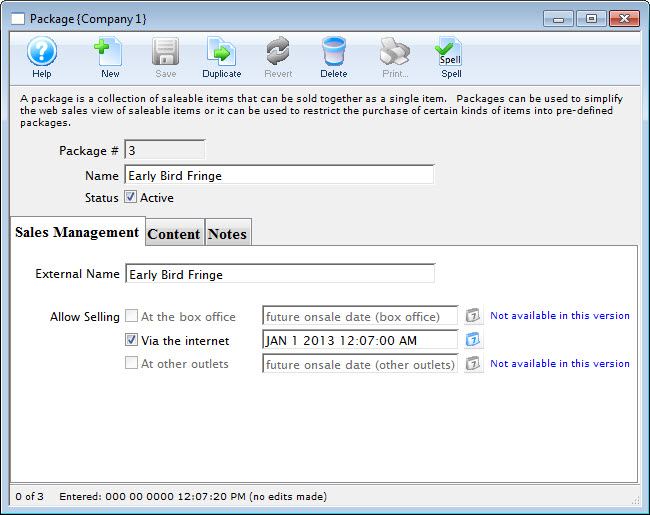
- Make changes as needed.
- Click the Save button.
The changes are now saved and the window can be closed.
Purchasing a Package
Packages can be sold using a direct link from an organizations main web site to the package.
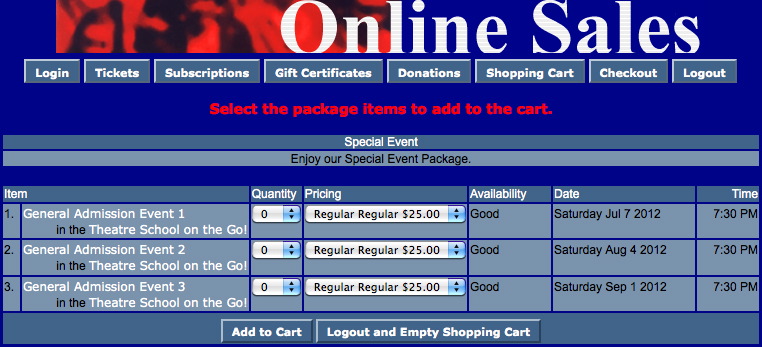
The individual performances within a package do not need to be made available for online sales. This allows you to define the performances within the package, to be available as a package only, and not as individual performances in the online sale.
Performances can be made available for single ticket sales within the online sales and still be a part of a season package.
Deleting a Package
- Open the Package List window.
Click here to learn how to access the Package List.
- Select the Package to be deleted.
Single click on a package to select it.
- Click the Open button.
The Package Detail window opens.
- Select the Content tab.
- Select the items listed in the Content tab.
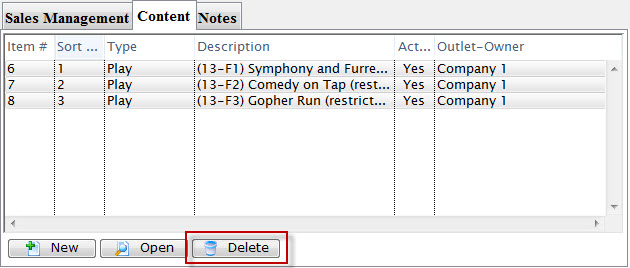
- Click the Delete button.
The Delete Package Detail Lines confirmation window opens.
- Click the Delete button.
- Close the Package Detail window.
- Click the button.
The Delete Package confirmation window opens.
- Click the button.
The package is now removed from the database.
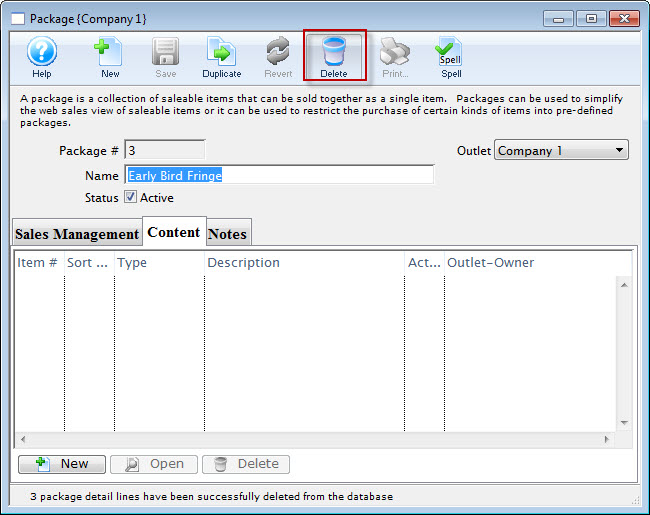
Package List Window
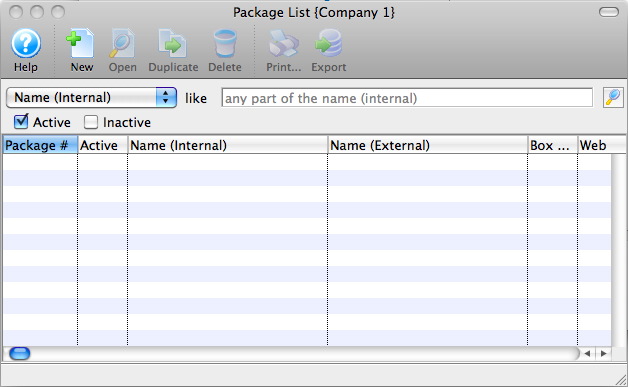
Parts of the Package List Window
|
Creates a new package. For more information on inserting packages click here. |
|
Opens the selected package for editing. For more information on editing packages click here. |
|
Creates a copy of the selected package. |
|
Deletes the selected package. For more information on deleting packages click here. |
|
Generates a report of the selected packages to the screen or default print location. |
|
Exports out a list of the selected packages in a tab-delimited format. |
 |
Options to search for packages by. |
| Like | The text used to search for a select package. |
| Package # | The unique sequence number for the package. |
| Active | Indicates the status of the package. An Active package can be made available for purchase. |
| Name (Internal) | Lists the internal name of the package. This is the name used to refer to the package with the organization. |
| Name (External) | Displays the external name of the package. This is the name seen online. |
| Box Office | Indicates is the package is available for sale at the box office. |
| Web | Indicates if the package is available for sale online. |
Package Detail Window
Parts of the Package Detail Window
|
Creates a new package. For details on setting up a new package click here. |
|
Saves changes made to the package detail window. |
|
Creates a copy of the current package. |
|
Undoes changes to the last saved point. |
|
Deletes the current package. For more information on deleting packages click here. |
|
This feature is not available in this window. |
|
Checks the spelling of text within the fields displayed in the current tab. |
| Package # | The unique sequence number for the package. This is used when creating links to the package within the online sales. |
| Name | The name of the package within Theatre Manager. This name is used for internal purposes. |
| Status | Indicates the status of the package. An active package can be made available for purchase. |
|
Opens the Sales Management tab. |
|
Opens the Content tab. |
|
Opens the Notes tab. |
Package Sales Management Tab
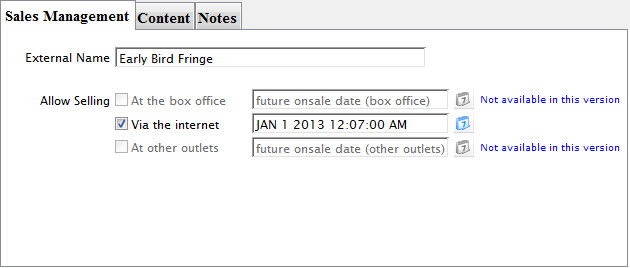
Parts of the Package Detail Sales Management Tab
| External Name | The external name of the package. This is the name displayed in the online sales. |
| At the Box Office | When checked, the package is made available for sale at the box office. The Future Onsale Date indicates the date and time the package will be available for sale at the box office. |
| Via the Internet | Checking the box indicates the package can be purchased online. When a date and time are entered into the Future Onsale Date field the package will not appear online until this indicated date. |
| At Other Outlets | Check this box to allow other Outlets to sell the package. A date and time can be entered to indicate the onsale date of the package for other outlets. |
Package Content Tab
Parts of the Package Detail Content Tab
| Item # | The unique sequence number for the item within the package. |
| Type | The type of item in the package. At this time only Events can be added to packages. |
| Description | The name of the Item added to the package. If the item is an event the event code and title are displayed. |
| Outlet-Owner | The company the item belongs to. |
 |
Adds a New Item to the package. |
 |
Opens the Package Item Detail window for the selected item. |
 |
Removes the selected Item from the package. |
Package Item Detail Window
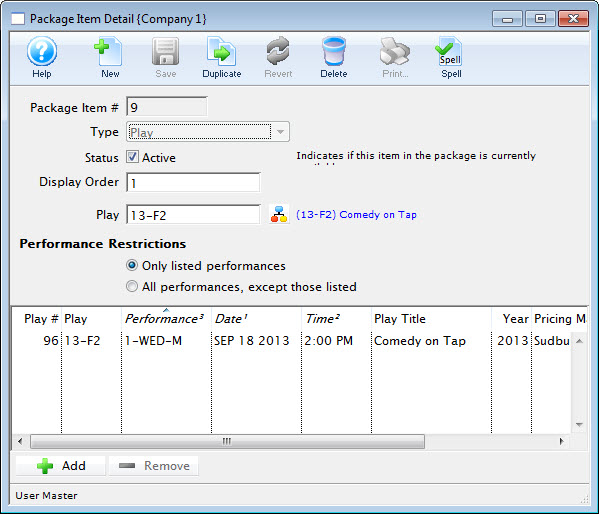
Parts of the Package Item Detail Window
|
Creates a item to add to the package. For details on creating new items click here. |
|
Saves changes made to the item detail window. |
|
Creates a copy of the current item. |
|
Undoes changes to the last saved point. |
|
Deletes the current item detail and returns to the package detail window. |
|
This feature is not available in this window. |
|
Checks the spelling of text within the fields displayed. |
| Package Item # | The unique sequence number for the item within the package. This is generated by Theatre Manager. |
| Type | The item type to be added to the package. |
| Status | Checkbox indicates if the current package is active or not |
| Event | The Event to be added to the package. |
|
Opens the Event List window. This can be used to locate the event to be added to the package. |
| Performance Restrictions | Only one option can be selected. All performances, except those listed will add all the performance for the event excluding those in the list below. Only listed performances will add only those performances for the selected event to the package. |
|
Opens the Performance List window. This window can be used to select the desired performances for the package. The Performance Restrictions will be applied to the selected performances. |
 |
Removes the selected performance from the package. |
Package Notes Tab
Parts of the Package Detail Notes Tab
| External Sales Notes | These notes appear online and are visible to patrons during the online sales process. Often additional details regarding the package are entered here for patron reference. |
| Internal Sales Notes | Internal Sales Notes are visible within Theatre Manager only and cannot be seen by the general public. |
Donation Campaigns
Donation Campaigns are setup to track to what campaign received donations from patrons.
The campaigns are setup through the Donation Campaign Window accessed through the Setup >> System Tables >> Donation Campaigns Menu.
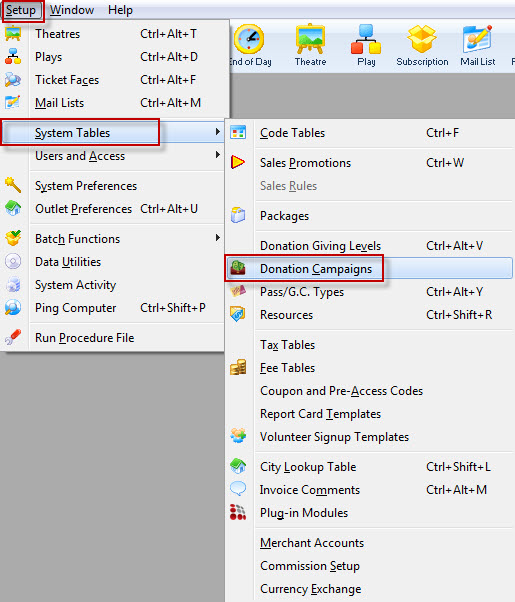
The Donation Campaign List window opens.
To see all the Donation Campaigns, click the Search button.
For more information on the Donation Campaign List window click here

To further refine your search, you can select from the drop down list, choose an item to search for, enter text and click the Search button.
Donation Campaign List Window
Parts of the Donation Campaign Window
|
Accesses the Help section for this window. | |
|
Inserts a New campaign through the Campaign Detail Window. For more information on inserting campaigns click here. | |
|
Opens a window to edit a campaign through the Campaign Detail window. For more information on editing campaigns click here. | |
|
Deletes a campaign. For more information on deleting campaigns click here. | |
|
|
Generates a report of donation campaigns to the screen or default print location. | |
|
|
Exports out a donation campaign list in a tab-delimited format. | |
 |
Opens the Donation Giving Levels Window. For more information on giving levels click here. | |
|
Merges two campaigns.For more information on merging campaigns click here. | |
 |
Opens the DonorSearch Analytic List Window. | |
| Category | The code table category assigned to the donation campaign for online ordering and categorization | |
| Campaign | The name of the donation campaign. | |
| Actual | Dollar value the donation campaign has collected to date. | |
| Solicitor | The main solicitor for this campaign. | |
| Notification | Message sent to inform user of activity to this campaign. | |
| Pledged | The total pledges to date. | |
| Soft | Soft Credits associated with this campaign. | |
| Outlet-Owner | The Outlet associated with the campaign. | |
| Count | The number of pledges to date. | |
| Giving Level | The giving level matrix that is being used by the donation campaign. Click here to learn how to set up a giving level matrix. | |
| Campaign Flag | Include the campaign in patron statistics tab |
Creating a New Donation Campaign
| To review Quick Reference information on Creating a Donation Campaign, You can choose |
|
Screencast |

Creating a Donation Campaign
To Create a new donation campaign, you perform the following steps:
- Open the Donation Campaign List window.
Click here to learn how to access this window.
- Click the New button.
The Campaign Detail window opens.
Click here for a detailed description of this window.
- Enter the name of the campaign.
- Enter the time period of the campaign.
- Enter the solicitor for this campaign.
This field is defaulted to the current user. The Employee Lookup
 button
can be used to display a list of all current Employees.
button
can be used to display a list of all current Employees. - Select a ticket face.
This prints an extra ticket for a donation and can only be used by thermal printers.
A ticket face is usually not necessary. Only add one if: - You want to print a specific looking receipt on a ticket printer for box office donations that emulates CRA needs (the tax receipt report should be used instead)
- You like to have a sort of paper audit of donations at the box office to hand to development or finance (there are great reports for that too, meaning this isn't usually required)
- Select the Notification type.
This will send an email to whomever has been setup to receive emails based on this type of Notifications. This does not have to be entered.
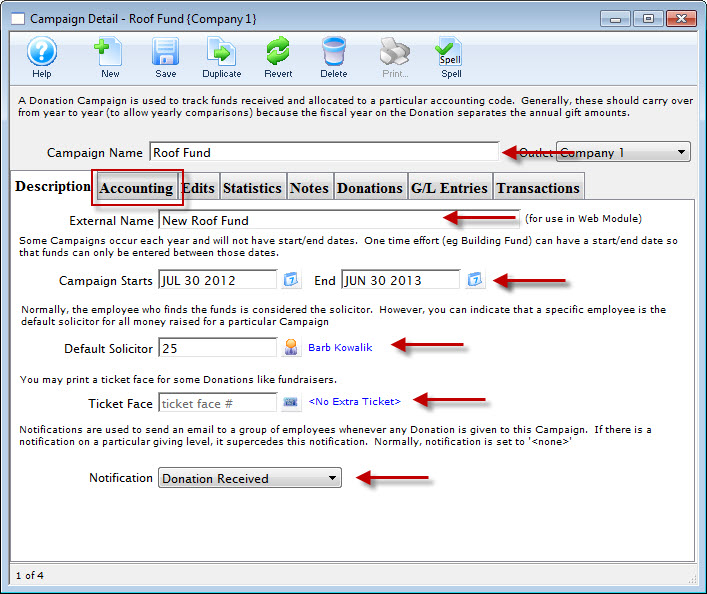
- Click the Accounting
 tab.
tab.
- Enter in the Accounting information for this campaign.
If this is a Restricted Campaign (one which deposits to a bank account OTHER THAN the Operating Account, check the Restricted Campaign box and fill in the appropriate Bank account.
Different G/L Accounts can be selected for prior fiscal years, current fiscal year, and future fiscal years. For more information on creating G/L accounts click here.
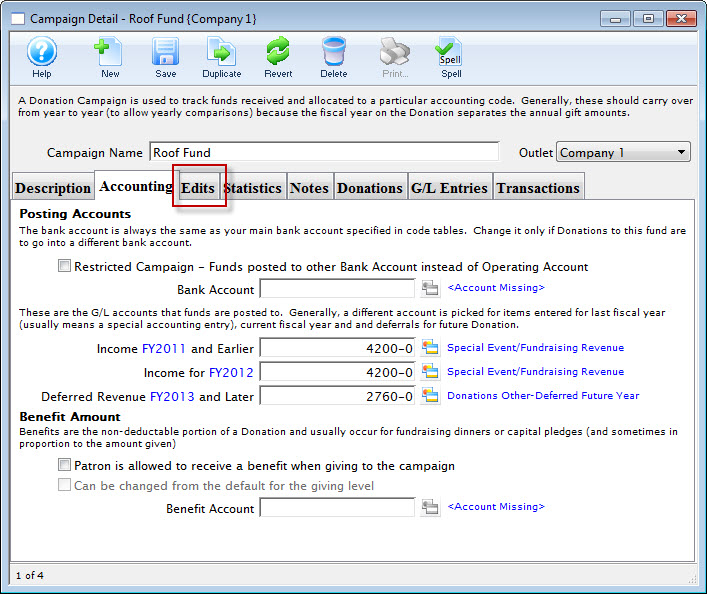
Click here for more information on this window.
- Select the Edits
 tab.
tab.
- Select the giving level matrix to use for the campaign.
Click here to learn how to setup giving levels.
- Select the access to be given to the campaign.
- Determine if a receipts should be printed for this campaign.
- Select the edit controls on the benefit amount.
- Click the Statistics
 tab.
tab.
- Enter the target amount for the campaign.
- Click the Save
 button.
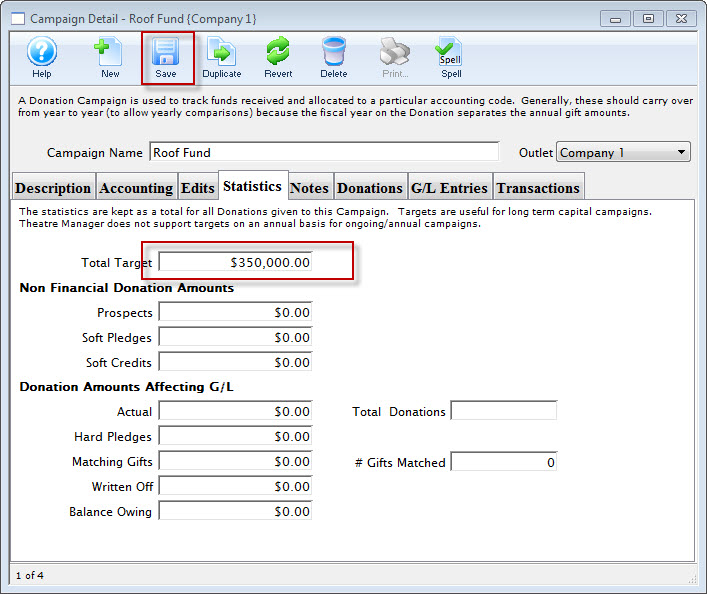
Click here for more information on this window.
- Close the Campaign Detail window.
The campaign will be saved and displayed on the Donation Campaign window.
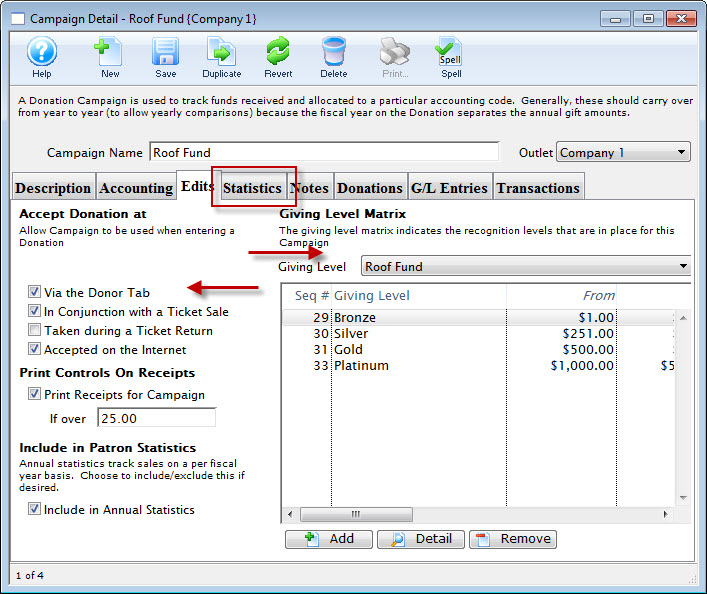
Click here for more information on this window.
Campaign Detail Window
Parts of The Campaign Detail Window
|
Opens a new Campaign Detail window to enter a new campaign. |
|
Saves the currently open campaign. |
|
Creates a duplicate of the currently open campaign. |
|
Can be clicked while editing to revert back to the last time the open campaign was saved. |
|
Deletes the Campaign currently open. |
|
Checks the spelling in the appropriate fields. |
| Campaign Name | Enter the internal name for the campaign. |
| Outlet | Allows you to chose between any outlets avaialbe for your organization. |
| Access Groups | Specify which groups of people can access the data |
 |
The Description tab is where you enter the descriptive information about the Campaign. It is described on this page. |
 |
The Accounting tab is where you enter the Account information for the Campaign. Click here for more information about the Accounting tab. |
 |
The Edits tab is where you define where donations to the campaign can be accepted and the Giving Level Matrix. Click here for more information about the Edits tab. |
 |
The Statistics tab shows all the total donations for the selected campaign. Click here for more information about the Statistics tab. |
 |
The Notes tab lets you enter text notes for the campaign. Click here for more information about the Notes tab. |
 |
The Donations tab shows you the list of donations to the campaign. From here, you can open, delete, make payments and print the selected donation. Click here for more information about the Donations tab. |
 |
The G/L Entries tab shows you the list of G/L Entries to the campaign. From here, you can add, open and delete, G/L entries. Click here for more information about the G/L Entries tab. |
 |
The Transactions tab shows you the list of Transactions related to the campaign. From here, you can add, open and delete, Transactions. Click here for more information about the Transactions tab. |
Description Tab
| Campaign Name | The name of the donation campaign. | ||
| External Name | Name to be displayed on the internet. | ||
| Category | Assign the donation to a category that can be used to group and sort the campaigns in online web pages. These are set up in Donation Campaign Category code tables. | ||
| Campaign Starts Ends | The time period that the campaign is running. | ||
| Ticket Face | (Optionally), you can select a ticket face to be used for donations. Click the Ticket  button to open the Ticket Face List window. Select a ticket face to be printed for a donation receipt. This function can only be utilized by thermal ticket printers. button to open the Ticket Face List window. Select a ticket face to be printed for a donation receipt. This function can only be utilized by thermal ticket printers.
|
||
| Notification | The workflow notification type that you would like to be sent out for this campaign. Click here for more information on setting up Workflow Notifications. | ||
| Tags | You can add any number of tags to the donation campaign. |
Accounting Tab
Parts of the Accounting Tab
Posting Accounts |
|||
| Restricted Campaign | Generally funds are deposited to the Operating Account as setup in your Default Posting Accounts.
If you want the funds deposited to another account for this campaign, check the Restricted Campaign box and enter the correct Bank Account and transfer information below. This will cause Theatre Manager to create a general ledger clearing entry for your finance department to indicate the movement of funds via their bank interface. Refer to the example on restricted donations
|
||
| Restricted Bank Account | Restricted Bank Account for this campaign. it is normally a physically different bank account if you are tracking funds for special purposes like capital campaigns or casino/gaming accounts - as may be required by law.
Click the |
||
| Income "Prior Year in blue" and earlier. |
Prior fiscal year account for this campaign. We recommend that this be an unrecognizable account in your accounting system to prompt you to look at any posting to a prior year donation account.
The reason for a non-sensical account number is simple: posting to prior year donation accounts usually causes auditors to be concerned because the year end has been closed and audited as far as donations for prior years which have been compared to receipts issued. An account number with an account name like 'Donation posted to prior year, please investigate' is a good idea.
Click the
|
||
| Income for "Current Year in blue" | Current fiscal year account for this campaign.
Click the |
||
| Deferred Revenue for "Next Year in blue" and Later | If you wish to defer donations for a future fiscal year for this campaign, you can select a different account than the current year account. It would normally be a liability. During year end rollover, any donations entered in future fiscal years will be rolled into the earned accounts. Click the  button to open the Chart of Accounts lookup. button to open the Chart of Accounts lookup. |
||
| Patron is allowed to receive a benefit when giving to the campaign | Applies the benefit matrix from the giving level matrix to this campaign. Click here for more information on setting up benefits for donations. | ||
| Can be changed from the default for the giving level | Allows the value of the benefit to be edited during a donation. | ||
Benefit Amount |
|||
| Checkbox | Patron is allowed to receive a benefit when giving to the campaign. | ||
| Checkbox | Can be changed from the default for the giving level. | ||
| Benefit Account | Benefit general ledger account for this campaign.
Click the |
||
Changing Prior Year Donations
If you need to do it, make sure you have a discussion with your accounting staff and/or auditors first.
|
You will be reminded of the accounting ramifications if you happen to change any one of the following items for a donation (per the image below) that was entered for any fiscal year PRIOR to this year:
|
|
This process mentions fiscal prior year account setup in the campaign - refer to that if you need to see hour your accounts are set up and where things will post |
Changes to Campaign, Amount or Fiscal Year
If you change Campaign, Amount or Fiscal Year, you will see a messages similar to below below asking to confirm the change.
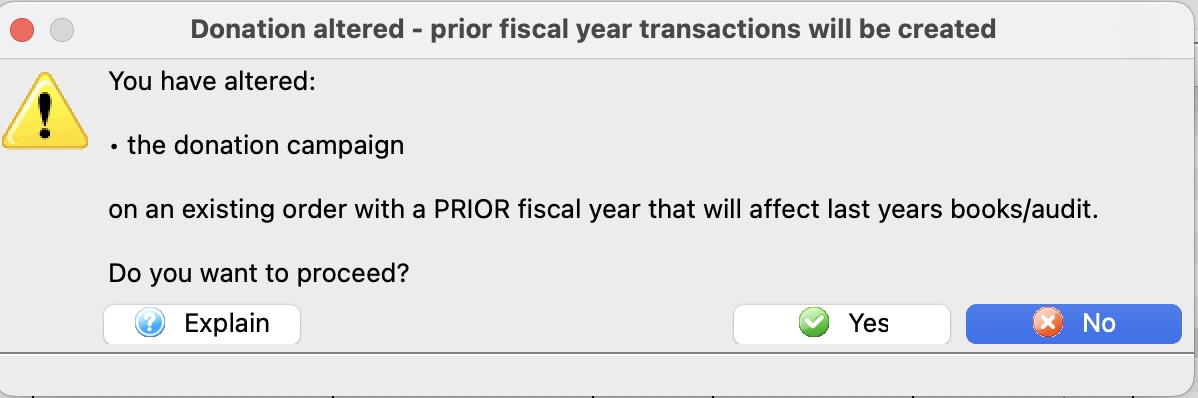
If you really want to change the prior year financial data, you will see a second message to confirm the change, as below.
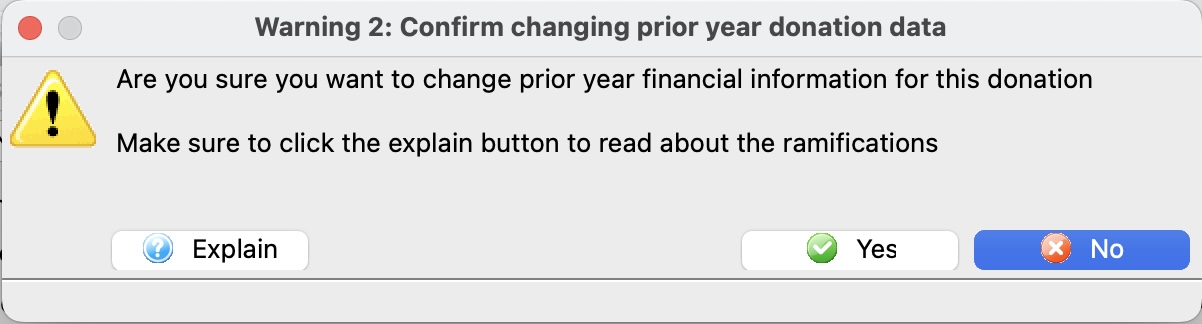
If you agree to both dialogs, the donation data will be changed.
Theatre Manager will create transactions that
- Reverses the original amount, campaign and fiscal year using the account number below that relates to the donation fiscal year
- Create a new transaction for the new amount, campaign and fiscal year
Since the Government has been told about the prior year, your finance people and auditor will need to know, so that they can amend prior year. This is especially important if it is a multi year pledge that is not full paid because of the discounting for present value that need to be done on Government forms.
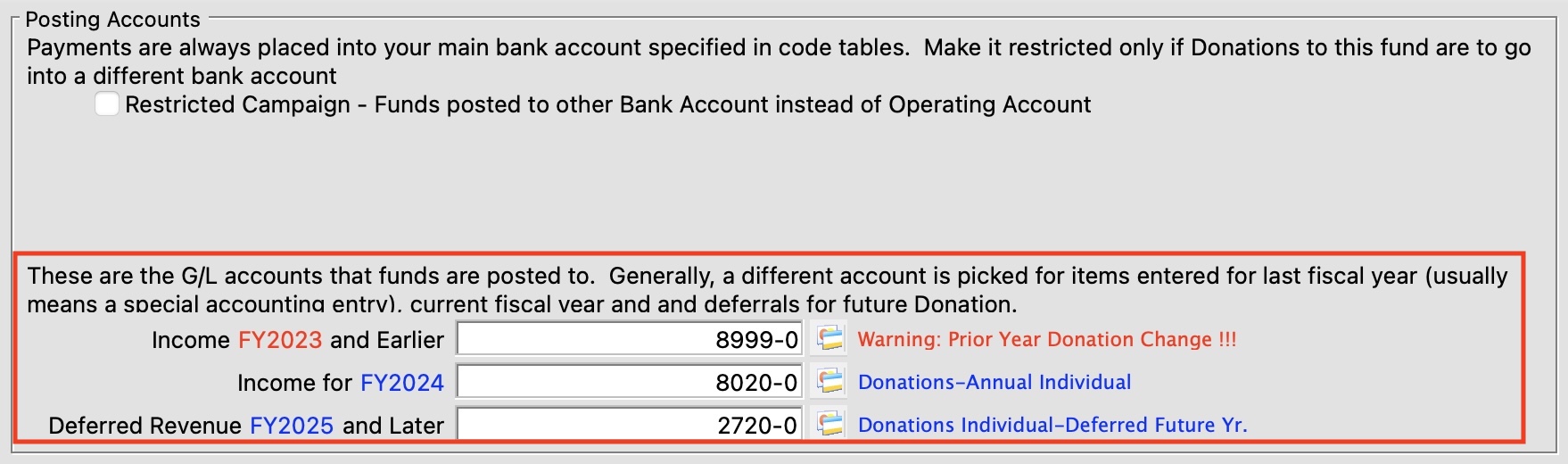
|
In other words, if you need to do this, make sure your finance people know. IT may not be an issue at all.. but then again, it might be very important to know. |
Sales Tab
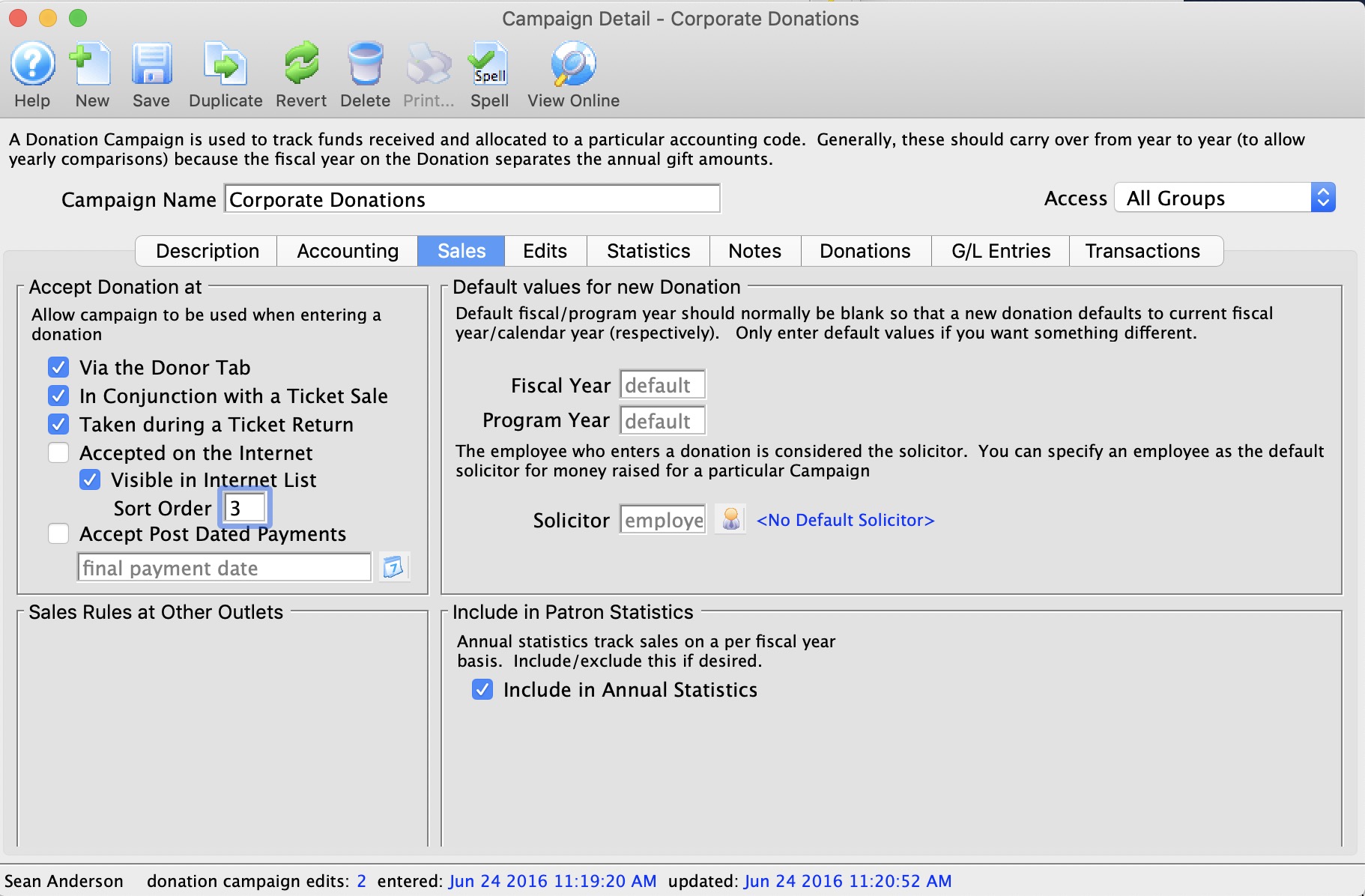
Accept Donation at |
|||
| Via the Donor Tab | Allow the campaign to be displayed as a choice when a donation is being entered through the donor tab on the patron window. | ||
| In conjunction with a Ticket Sale | Allow the campaign to be displayed as a chouce when a donation is being given through an order created on the ticket tab in the patron window. | ||
| Taken during a Ticket Return | Allow the campaign to be displayed when a ticket is being refunded / returned for any reason. | ||
| Accepted on the Internet | Allow the campaign to be accessed via the Internet and donations made Online. Additional option, Visible in Internet List. This allows for the selected campaign to appear in the list of available donation campaigns for patrons to give to.
|
||
| Visible in Internet List | Normally, donations campaigns available online should be visible online. There may some special purpose donations that you may create a quick-add button for that do do not want to see in list. If so, uncheck this option.
Examples might be: round up donations or quick donate on checkout window for a particular purpose. |
||
| Sort Order | Allows you to specify an online sort order for campaigns (instead of purely alphabetical). The default is a three level sort:
|
||
| Accept Post Dated Payments | If post dated payments are accepted online, indicate the final payment date. Monthly payments will be set up through to the end of the payment date. You could set the date to be end of the year to get recurring yearly payments. | ||
| At other Outlets | Allows the campaign to be accessed and donations made at other outlets. | ||
Include in Patron Statistics |
|||
| Include in Annual Statistics | Donation values will appear in patron statistics tab. | ||
Default values for a new Donation |
|||
| Fiscal year | Normally, the fiscal year on a donation defaults to your fiscal year in which the donation falls. If you enter a donation for a future year, it will take on a future fiscal year.
If you want to change the default behaviour for this donation campaign and force the fiscal year to be in the future, you can enter a future non-zero year into this field. It must be a future year (since the default of zero means the current year now and forever). And if it is always to be the next fiscal year, you will need to edit this field at year end every year. Accrual accounting (GAAP, FASB, IRS an CRA) says you should not set for future years. But sometimes auditors will allow deferral of subscription donations to the next year.
|
||
| Program Year | The default program year for a donation is the calendar year on the donation date. If you wish it to be different then set a default value into this field. It must be a future year. | ||
| Default Solicitor | The primary solicitor for the campaign. You can select or change the solicitor, by clicking on the Solicitor  button to open the Employee Listwindow to select or change a solicitor for the Campaign. button to open the Employee Listwindow to select or change a solicitor for the Campaign. |
||
Edits Tab
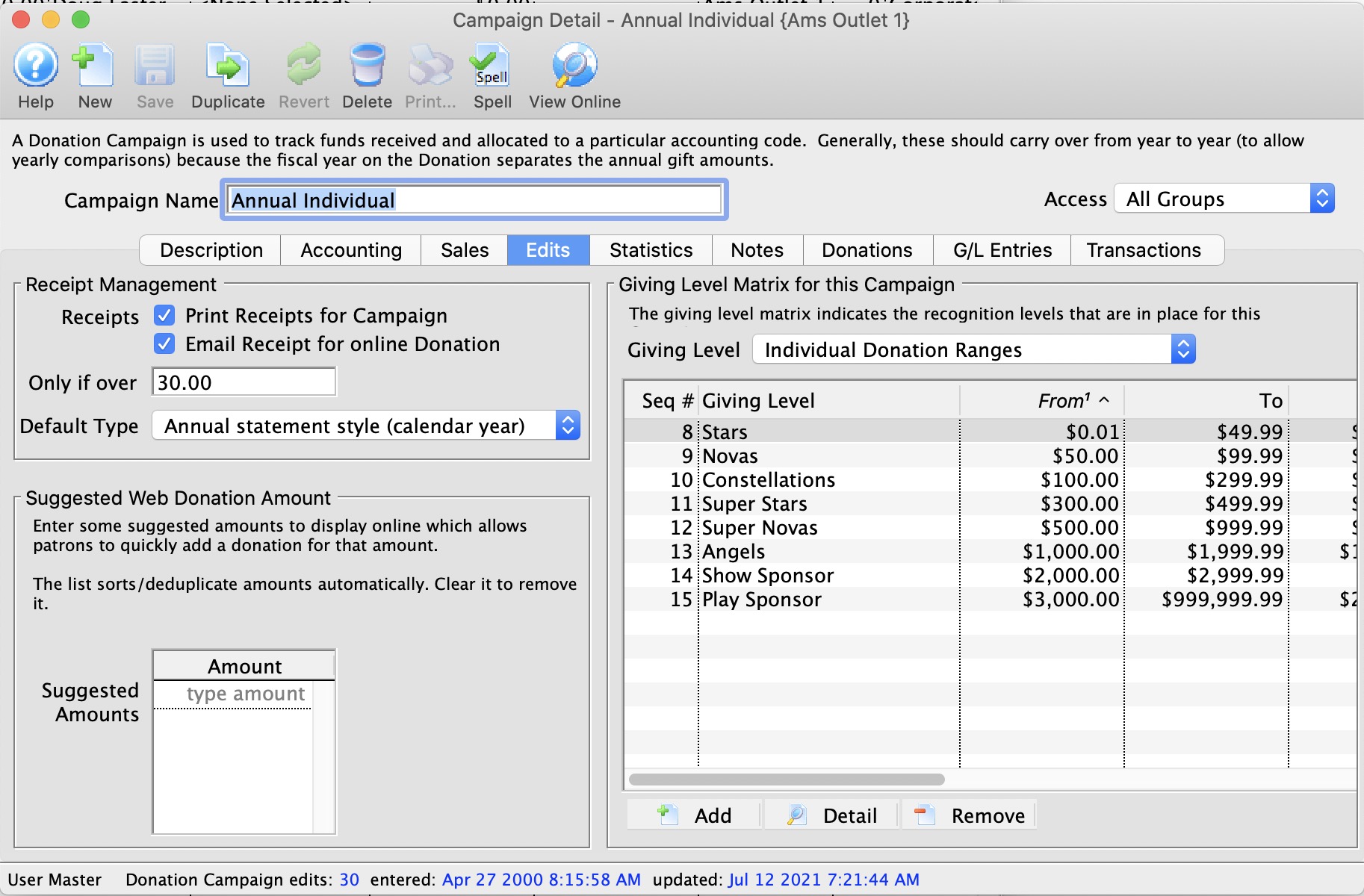
Parts of the Edits Tab
Print Controls On Receipts |
|||
| Print receipts for this Campaign | Allows receipts to be printed for this campaign and you may (optionally) set a minimum donation mount if desired for receipt printing.
You can choose the conditions under which you want to print tax receipts in Canada. |
||
| Email Receipt for Online Donor |
If checked and the patron donates online, a single one receipt per payment style donation receipt will be created and attached to the patron's web confirmation.
You will be warned if your company preference setup contains no: The above images should be in place to so that the tax receipt looks complete (and in Canada, contains all the required information for tax receipts).This option is not available:
|
||
| If Over A certain Amount | If an amount is entered, then any single donation that is under the specified amount will never get a tax receipt printed in the batch printing or automatic emailing of receipts.
Note: Receipts are generated for each payment towards a donation. As long as the donation is over the threshold for receipting, each payment gets a receipt. If you are expecting multiple payments, you may want to consider selecting Annual Statement Style receipts when entering the donation - to minimize any administrative burden. For example: A donation might be $100 (and entitled to a receipt). if the patron pays with post dated payments for $10.00 each, monthly, each payment will get a receipt (i.e. 10 receipts, regardless if the receipt is under the threshold). Printing the Annual Statement Receipt might be one way to reduce receipting effort if the payments are small and donations are large. |
||
| Default Tax Receipt Options |
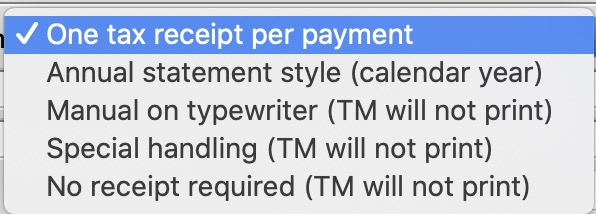 Theatre Manager has a number of tax receipt options that you can set for each donation.
You can set the default for the campaign, which will be copied to each new donation when the donation is created. |
||
Suggested Donations Online |
|
| Suggested Amounts | You can enter a list of suggested donation amounts - and if you do, then the online donation module will have buttons that let the patron quickly pick that amount as a donation - without having to enter information. The patron will always have the ability to enter a custom amount.
If you have no suggested amounts, then the patron will be required to type in a value for the donation. If you drag some of the giving levels to this list, Theatre Manager will take the minimum value in the range for that giving level and add it to the list. You might want to take most popular ranges and drag onto this field for quick entry. |
Giving Level Matrix |
|
| Giving Level | The giving level matrix that will be used for the campaign. For information on setting up a Giving Level Matrix for use here, click here. |
|
|
Opens the Giving Level (inserting) window, allowing you to add more levels to the campaign. Click here for more information on adding levels. |
|
|
Opens the Giving Level window, allowing you to edit the selected Giving Level. Click here for more information on editing levels. |
|
|
Allows you to delete the selected Giving Level. Click here for more information on deleting a level. |
Statistics Tab
The statistics are kept as a total for all Donations to this Campaign. Targets are useful for long term capital campaigns. Theatre Manager does not support targets on an annual basis for ongoing/annual campaigns.
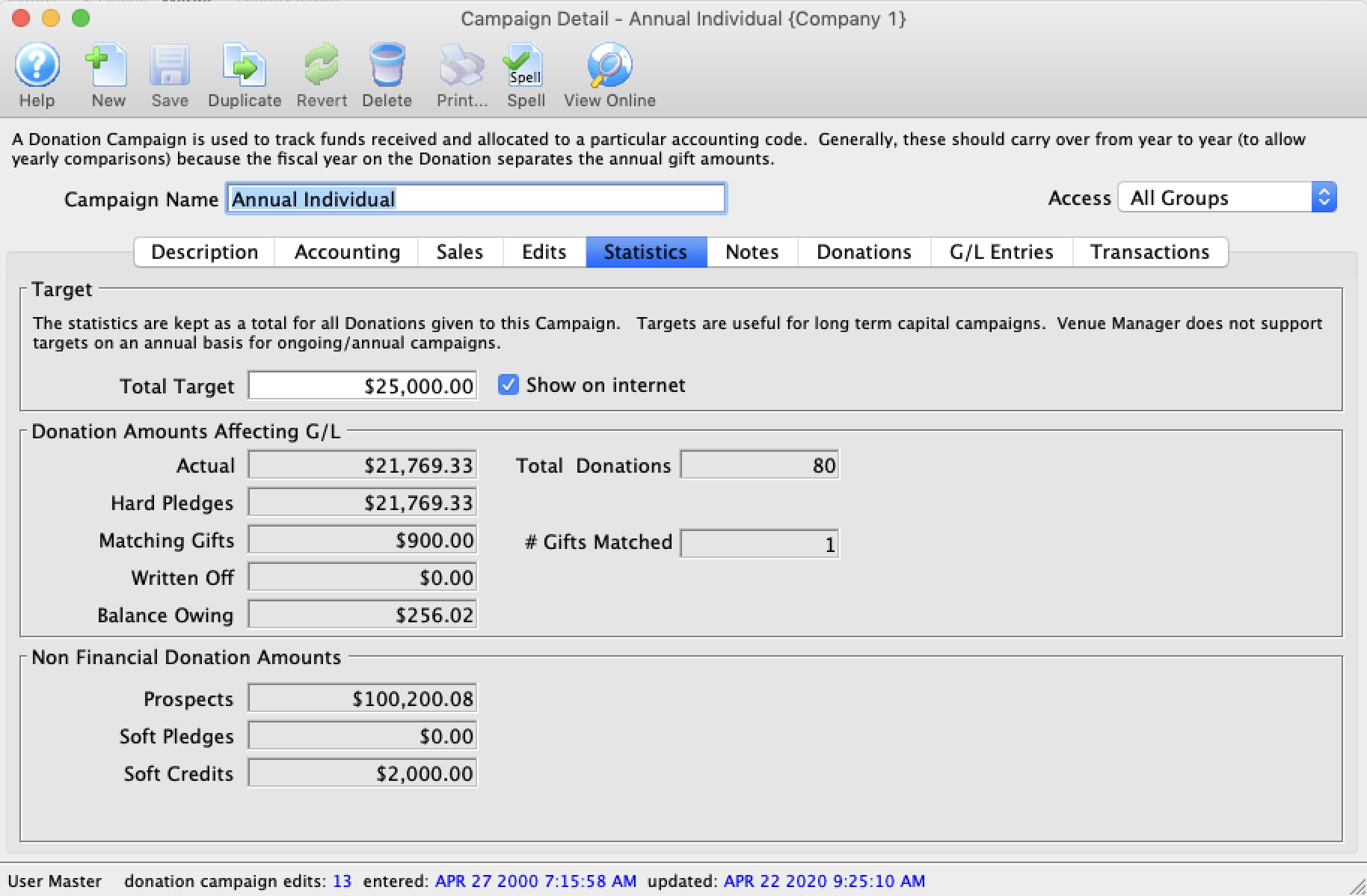
Parts of the Statistics Tab
| Total Target | Goal for the campaign. |
| Show on Internet | Shows the progress to date on the web pages in the internet.
|
Non-Financial Donation Amounts |
|
| Prospects | The total value of prospect donations for the campaign. |
| Soft Pledges | The total value of soft pledge donations for the campaign. |
| Soft Credits | Total value of soft credits allocated for the campaign. |
Donation Amounts Affecting G/L |
|
| Actual | Total amount received. |
| Total Donations | Total number of donations for the campaign. |
| Hard Pledges | The total pledged amount for the campaign. |
| Matching Gifts | The amount of matching gifts for the campaign. |
| # Gifts Matched | The number of matching gift donations for the campaign. |
| Written Off | The total value of donations written off against this campaign. |
| Balance Owing | Total balance owing on donations for this campaign. |
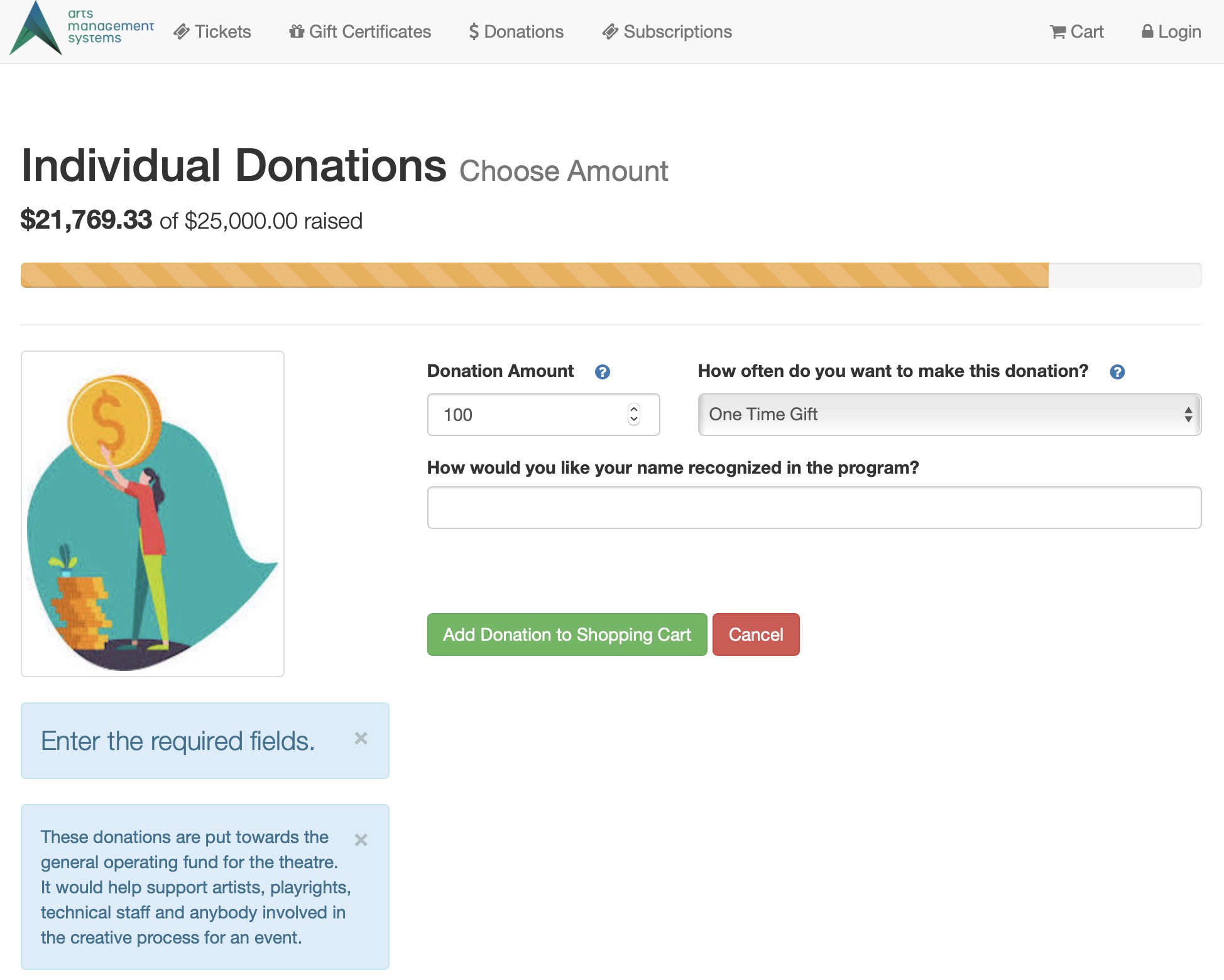 It will show the progress on the:
Notes Tab
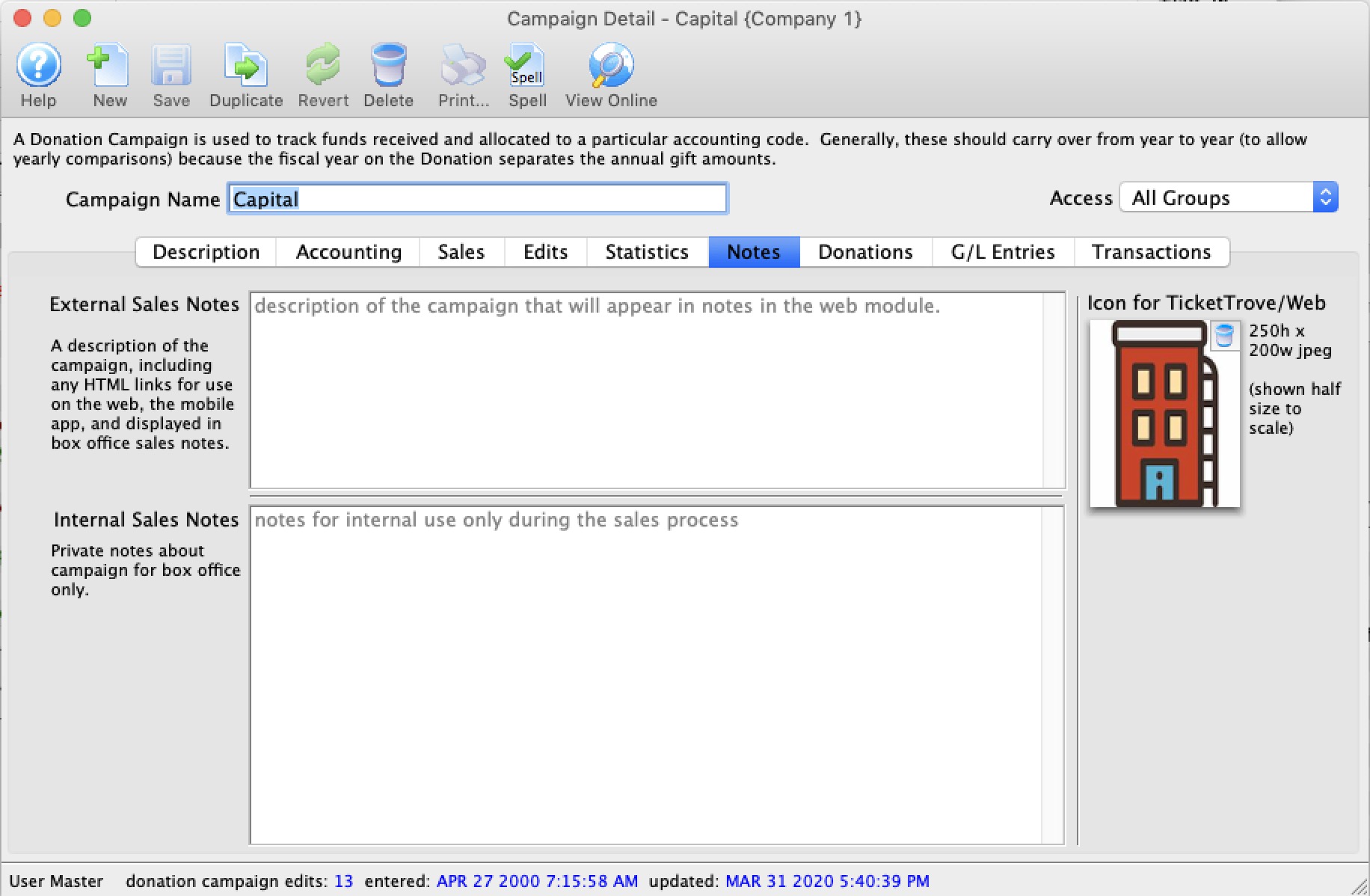
Parts of the Notes Tab
| External Sales Notes | Enter any notes about the campaign that you would like patrons to see online - that might help them decide to give to this campaign. |
| Internal Sales Notes | Enter any notes about the campaign that are for staff only |
| Icon | You can drag a 200 pixel wide by 250 high image to this area - which will be shown during online sales in the list of donations |
Donations Tab
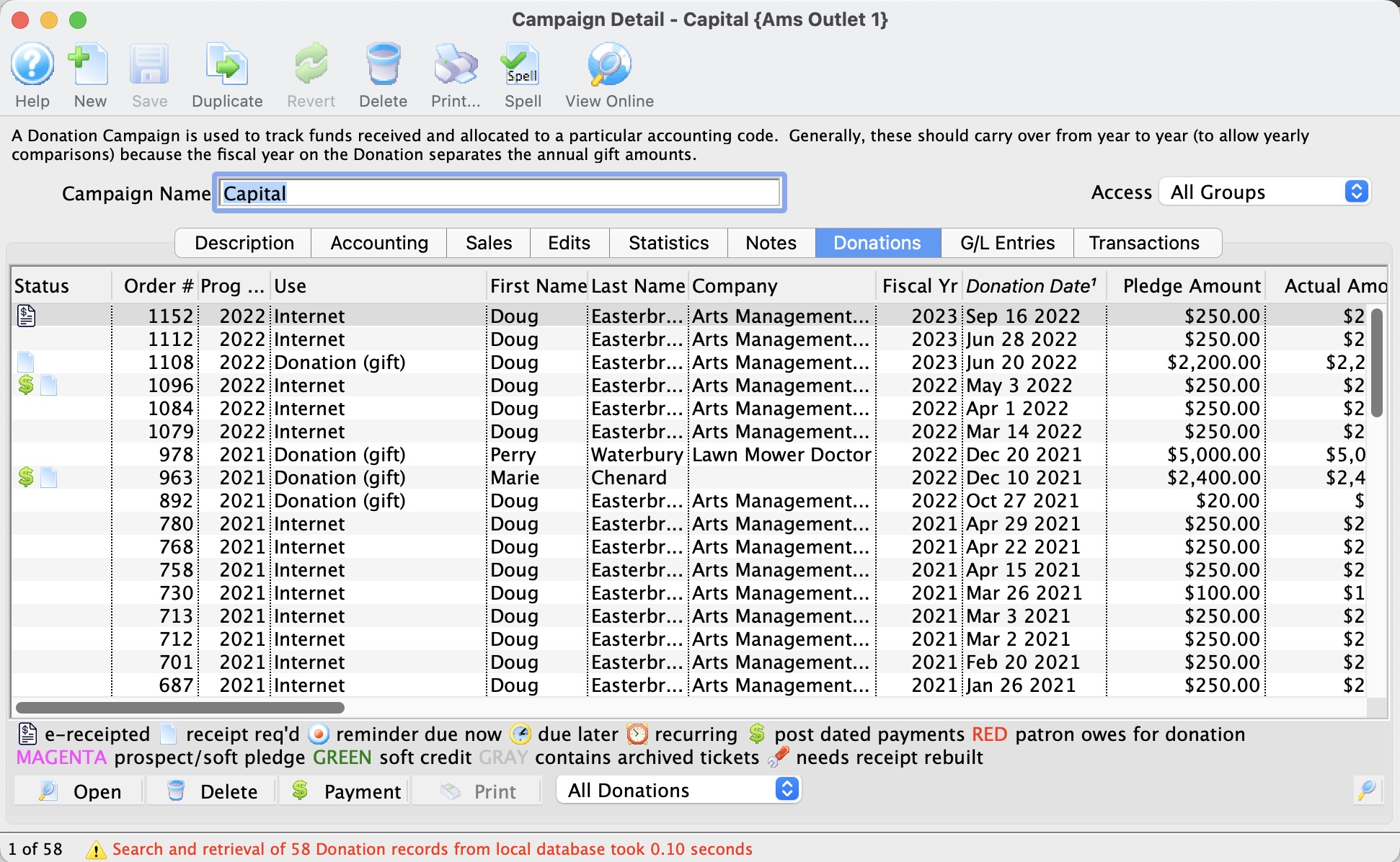
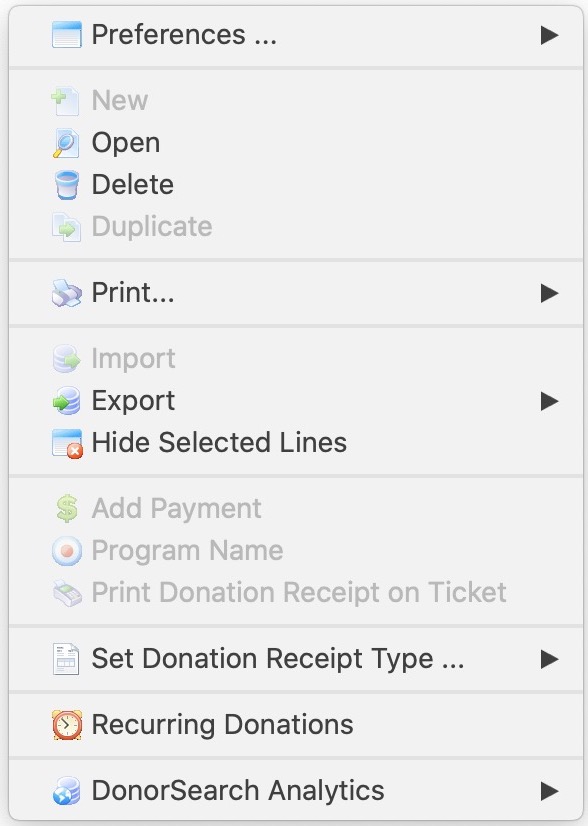
Parts of the Donations Tab
There are some actions you can do to one or more donations from the context menu that are not available on the toolbar:
- Add a payment to the donation, if it is not fully paid
- Set the program name on multiple donations if they all belong to the same patron
- Set the donation receipt type
- Make it a recurring donation
- Use the Donor search analytics features
- View the Patron record
| Status | Icon based indicators on the various aspects of the donation. |
| Order # | The order number is a reference number for the order. |
| Prog Yr | Program Year. |
| Use | Indicates the source detailing hose the donation was received. |
| First / Last & Company Name | Name of the patron making the donation. |
| Campaign Name | Name of the campaign the donation was applied to. |
| Fiscal Year | The accounting Fiscal Year the donation was made. |
| Donation Date | Date the donation was made. |
| Pledge Amount | The amount the patron pledged to this donation. |
| Actual Amount | The actual amount the patron has confirmed they will donate towards their original pledged amount. |
| Giving Level | What level of giving the donation is at. |
| Balance | Outstanding balance of the pledged amount remaining to the paid. |
| Total Receipted | The amount of the donation that has been issued paayment/receipts. |
| Soft Credit | The total amount of Soft Credits that have been applied to the donation. |
| Program Name | How the patron would like to be recognized on the program. |
G/L Entries Tab
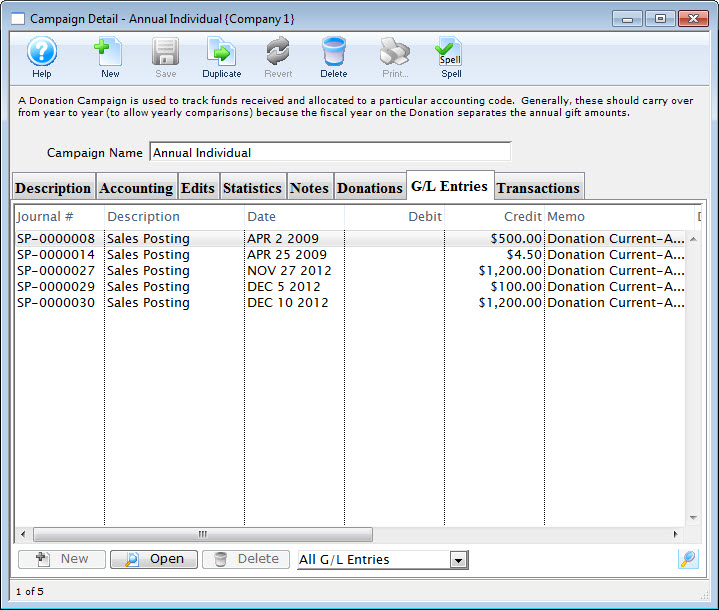
Parts of the G/L Entries Tab
| View Selection Drop-down (set to All G/L Entries in the example) | Choose which entries you want to see in the list and then click the  lookup button to view the list. The default is All G/L Entries. lookup button to view the list. The default is All G/L Entries. |
| Journal # | The unique Journal # for the entry |
| Description | The type of journal entry it is (ie. Sales Posting) |
| Date | The posting date for the entry. |
| Debit | The Debit amount of the entry (if applicable) |
| Credit | The Credit amount for the entry. |
|
Not available. |
 |
Opens the selected entry for viewing/editing. |
|
Not available. |
Transactions Tab
The Transactions tab allows you to view the specific details surrounding the audit transactions of the selected campaign.
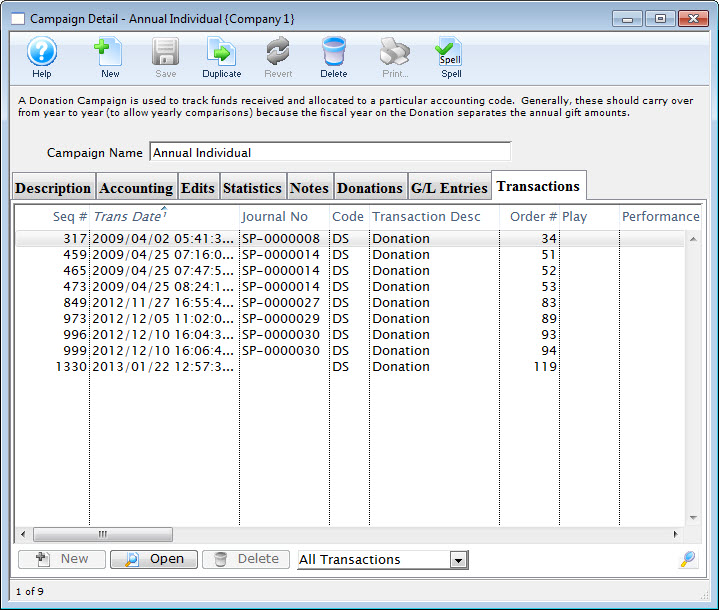
| Seq # | The transaction reference number. |
| Trans Date | Date the transaction took place |
| Journal No | Journal Entry reference number. |
| Code | Theatre Manager reference code used to determine the type of transaction. |
| Transaction Desc | Brief description of what the transaction was. |
| Order # | Reference number used to tract the components of the order. |
Delete a Campaign
- Open the Donation Campaign window.
Click here to learn how to access this window.
- Click on the campaign you want to delete.
The campaign must not be tied to any transactions in order to be deleted.
- Click the Delete button.
A Delete confirmation dialog opens.
- Click the Delete button.
The donation campaign has now been deleted.
Editing a Donation Campaign
- Open the Donation Campaign window.
Click here to learn how to access this window.
- Select the campaign you wish to edit.
Single click on a campaign to select it.
- Click the Open button.
The Campaign Detail window opens.
- Change the required data.
- Click the Save button.
The changes are saved and the new data is displayed in the Donation Campaign window.
Merging Donation Campaigns
- Open the Donation Campaigns window.
Click here to learn how to access this window.
- Select the campaigns to merge.
Do this by holding <CTRL> (Windows) or <OPTION> (Mac) as you click the campaigns.
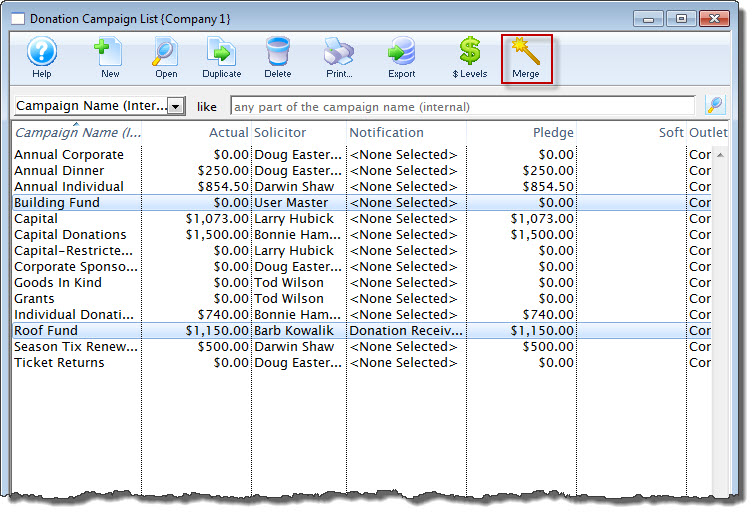
- Click the Merge button.
The Merge Donations window opens.
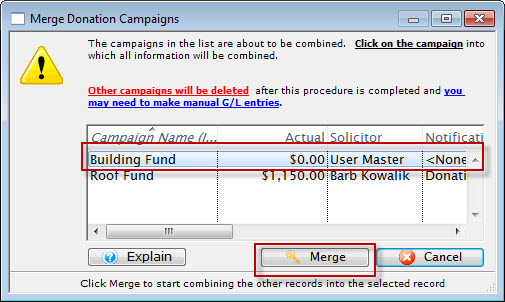
- Choose the Campaign the others are to be combined into.
- Click the Merge
 button.
A merge confirmation dialog opens.
- Click the Merge
 button.
The campaigns are merged and displayed in the Donation Campaigns Window as the campaign you chose to merge the files into.
Other Campaigns are deleted after the procedure is complete If the campaigns were going to different GL entries in your accounting system, you may want to make a manual GL entry in your accounting system to reflect the merged numbers.
Membership, Pass, G/C Types
Passess, Gift Certificates and Memberships are bought by a patron and may (depending on your company) entitle them to a monthly newsletter, advanced ticket purchases, or discounts on ticket sales. Memberships can also be setup to allow a set number of free admissions with purchase. Gift Certificates are purchased for a dollar denomination and then given to another patron who can use the gift certificate as cash to purchase tickets for a performance. Passes can be setup to provide free admissions to a predefined number of performances; as well passes can be setup as "Average cost per Admission" the pass is purchased for a set price and allows x number of admissions. when the pass is redeemed Theatre Manager will override the price code and change the price to the denomination of the pass.
Setting up Pass G/Cs and Memberships is performed throughout the Pass G/C Member Types Window. The window is accessed through the Setup >> System Tables >> Pass G/C Types Menu
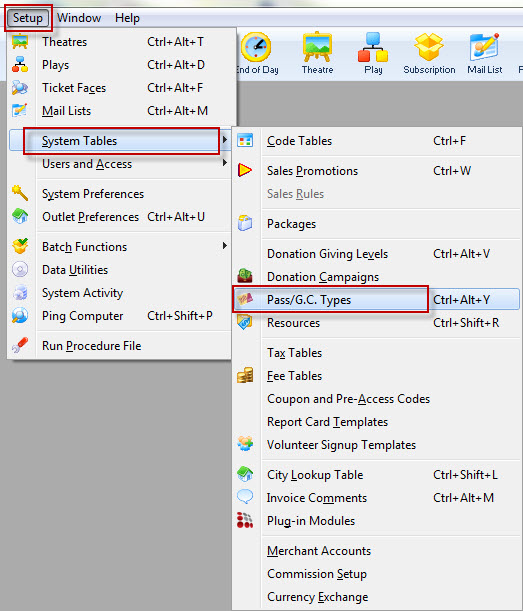
The Member Types Window opens.
Click here for a detailed description of this window.
Finding a Pass G/C Type
To Find Types, you perform the following steps:
- Select Setup >> System Tables >> Pass G/C Types Menu.
The Member Types Window opens.
- To refine your search, you can choose from the drop down list, turn off or on the Active/Inactive flags, enter text in the description box and click the Search button.
Or leave blank and click the Search
button for a complete list of Memberships.

The results which fit your parameters will be displayed.
To access a membership double-click it.
Pass G/C Types List Window
Through this window you can add, edit, delete, view the details and verify Pass G/C types.
Parts of the Pass G/C Types List Window
|
Accesses the Help section for this window. |
| |
Inserts new Pass G/C type. For more information on inserting Pass G /C/ types click here. |
|
|
Edits the selected Pass G/C type. For more information on editing Pass G/C types click here. |
| |
Copies the selected Pass G/C type. |
| |
Deletes the selected Pass G/C type Click Here to learn how to delete member types. |
| |
Generates a report of the Pass G/C types to the screen or default print location. |
| |
Exports a list of Pass G/C types. |
 |
Verifies the selected Pass G/C type. For more information on verifying member types click here. |
| Description | Description of the Pass G/C type which will be displayed in all Pass G/C pull down menus. |
| Purchase $ | Dollar value of the Pass G/C type at time of purchase. |
| Redeem $ | Dollar value representing how much of the Pass G/C has been redeemed/used (or the value of items for which it has been used) |
| Issue Qty | Number of this Pass G/C type to be sold. |
| Redemption Method | Method of redemption for the selected Pass G/C type. For more on the redemption methods, click here. |
| Notification | Lists any workflow notifications that have been setup for this Pass/G.C. |
| Rule Name | Lists any Sales Rules that may be associated with this Pass/G.C. |
Creating a Membership, Pass, Gift Certificate
|
|
"Membership" is a broad term meaning "Gift Certificates," "Flex Passes," "Vouchers," "Other Income" or a variety of other forms. Since the name of the field is customizable, some organizations may retain the term "Membership," while others change it to reflect their own terminology such as "GC/Pass," "Gift Certs." or even "Other Income." The nomenclature in your database may be different than "memberships." |
Memberships are often seen as a payment method, as in a Gift Certificate or Flex Pass. They are used to exchange value from the membership to a ticket purchase. For example, a Gift Certificate can be purchased, and exchanged at a later date (used as a payment method) for tickets or other items for sale. Similarly, a Flex Pass is purchased, and exchanged for tickets at a later date.
Memberships can also denote affiliation with a group, such as a Symphony League, Actors Club.
And finally, Memberships can also be a methodology for getting payments for non-ticket/non-donation items into Theatre Manager such as rental income, playbill advertising, and concession income.
For more information on determining the membership type that best suits your needs click here.
To Create a new Pass, Gift Certificate or Membership, you perform the following steps:
- Go to the Setup Menu >> System Tables >> Pass G/C Types (remember, yours may be called "Pass," "GC/Pass," "Gift Certificates" or some other name).
The Pass G/C Types window opens.
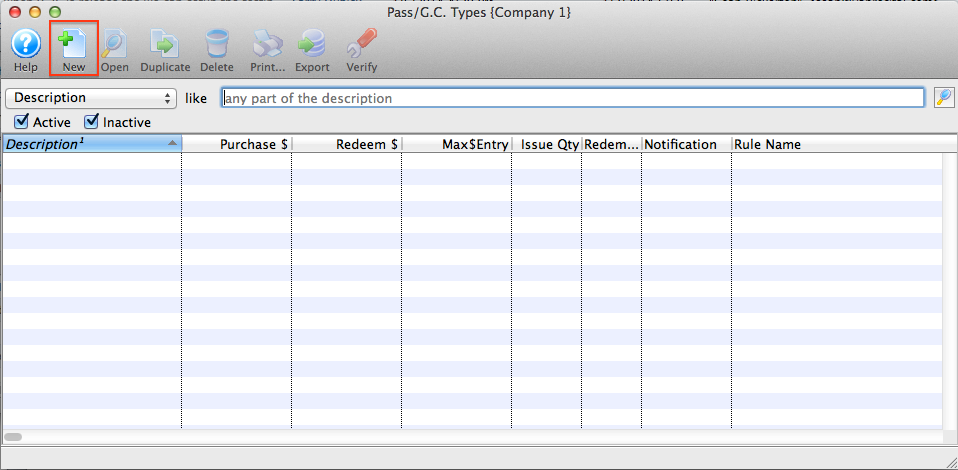
- Click the New button.
The Pass G/C Detail window opens for entry.
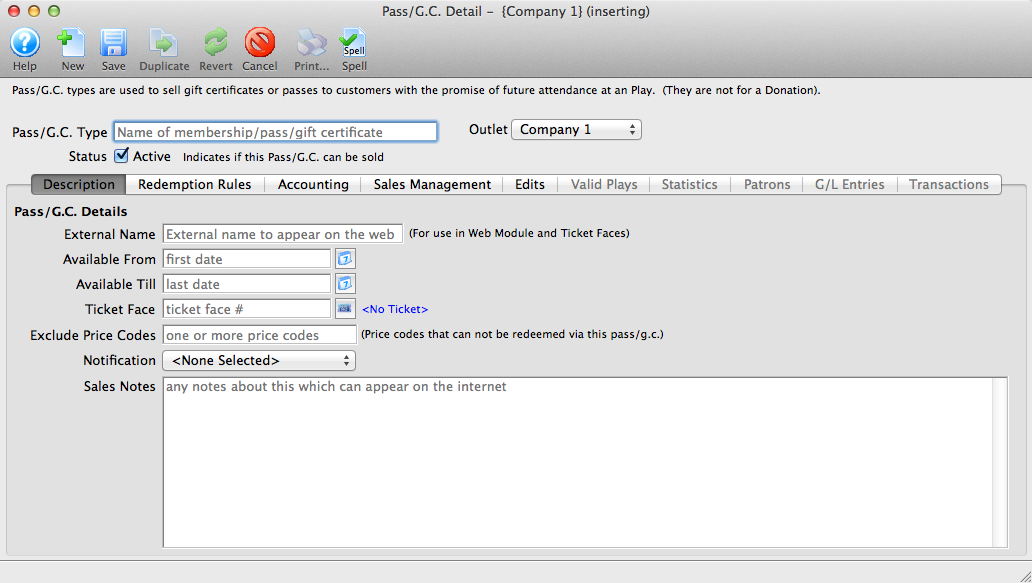
- Give the Membership an INTERNAL name that you will know the membership by within your organization.
You will have an opportunity to change the EXTERNAL name (the name by which your patrons will know this membership) on the Description tab.
- Proceed to each tab in the Membership Setup.
Description Tab
Parts of the Description Tab
| Pass GC Type | Internal Name used during the sales process at the box office - which may be different than the external name. |
| Category | Select a category for the pass or gift certificates. These are created in the Member Category code table. The categories are used to group similar pass types for display on the pass/gift certificate sales web page. |
| Access Groups | Specify which groups of people can access the data |
| Active | A pass or gift certificate must be marked active in order for it to be sold or redeemed. Refer to the compete list of redemption rules.
If you no longer wish to sell passes/GC's, but still allow redemptions, enter a final date that they can be sold that is prior to today. |
| External Name | Name by which the patrons will know this membership (this name appears on the web). |
| * Available From | Date and time the membership will be available for sale. |
| * Available Till | Date and time the membership will no longer be available for sale. This does not mean "redeemable" until. |
| * Ticket Face | The ticket face that will be used for this membership. If a ticket is to be printed for this membership, then the ticket coding must be based on Member Data. |
| * Exclude Price Codes | If, during the redemption of this membership, any specific Price Codes in the Event Setup are to be unable to be used by this Membership, then those Price Codes need to be listed here. |
| * Notification | If an internal email notification is to be sent when this particular membership is sold, it must be indicated here. |
| * External Sales Notes | Enter notes regarding what this Membership/Pass/GC is for and it will appear in the online notes beside each pass/gc. This as a marketing opportunity to communicate with your online patrons. |
| * Internal Sales Notes | Notes regarding what this Membership/Pass/GC for internal use only. |
| * Tags | You can add any number of tags to the membership type. |
* indicates an optional field
Redemption Rules Tab
The Redemption Rules tab controls how the pass works and how it can be redeemed. There are 5 different types of Memberships that can be created in Theatre Manager. Each one serves a specific purpose, yet remains flexible in the parameters you determine. The 5 types are:
- Free Admission
- Dollar Value
- Average Dollar Per Admission
- Can't Buy A Thing
- Use Promotion
|
While a pass seems like something you are selling, it really is, first and foremost, a payment method.
People buy passes or gift certificates with the expectation that they can redeem them. After all, it is their money. Some passes can be limited to the amount of money that can be redeemed, after which Theatre Manager will require and up-charge. |
|
Most passes and gift certificates should be tax exempt (but may include the total intended redemption value that includes taxes)
At time of sale, the value of the entire value of the pass is generally deferred in a liability account. When a portion of it is used to pay for tickets, the ticket will have the actual taxes payable calculated that the time of the sale of the ticket -- and the passes redemption value covers the entire cost of the ticket. Tax is never allowed on a 'Dollar Value' or an 'Average Dollar Admission' type of pass to enforce those rules |
Method of Redemption |
|||
| Free Admission |
Free Admission is simply that - a "free admission." If you are giving away a ticket to an event in a radio giveaway or an auction, you can create a Free Admission pass. This allows the recipient to exchange the free admission pass for an admission ticket to any event. You can limit the events applicable to the pass in the "Valid Plays" tab of the Membership setup.
Special Considerations:
|
||
| Dollar Value | A Dollar Value pass is essentially a Gift Certificate. If the patron gives you $50 to use at a later date, then redeems the pass to purchase tickets, it should be set up as a Dollar Value.
Special Considerations:
|
||
| Average Dollar Per Admission | This is more commonly known as a "Flex Pass" where a patron purchases a pack of "x" admissions for "y" price. The Flex Pass is then redeemed for tickets on whatever schedule the patron wishes. The parameters can be set such that the patron can use one, some or all admissions on the same performance. Average $ per Admission passes (or better known as "Flex Passes") are rapidly becoming more popular than the traditional "all-in" subscriptions. Special Considerations:
|
||
| Can't Buy A Thing | This is used as a true membership such as a Symphony League, Community Players, or other membership group. This can also be used to track sales that are merchandise, concessions, advertising sales, rental fees or other miscellaneous forms of income.
Special Considerations:
|
||
| Use Promotion | This pass type is designed to allow pass holders reduced admission prices for a specific time period. When this pass is used, the price of the tickets changes from their original promotion to something else using the sales rules mapping. Examples of this membership type are:
|
||
Redeemable ByThere are four options for who can redeem the pass or gift certificate. |
|||
| Purchaser only | Only the patron who purchased the pass will be able to redeem it. This is good when you wish to limit the pass to the owner alone.
Online Redemption Rules:
|
||
| Any Household Member | Any member of the same household can redeem the pass. This is good for a flex pass where you may want it redeemable by the patron, their spouse or any other members of the household.
Online Redemption Rules:
|
||
| Any Patron (Visible to Purchaser) | This pass can be redeemed by any patron in the database. This type of redemption is good for Gift Certificates or Raffle/Give-Away vouchers where you do not know the final user at the time of the sale.
Online Redemption Rules:
|
||
| Any Patron (Not Visible to Purchaser) | This pass can be redeemed by any patron in the database. This type of redemption is good for Gift Certificates or Raffle/Give-Away vouchers where you do not know the final user at the time of the sale.
Online Redemption Rules:
|
||
Redemption Options for PassesDepending on the type of Membership, you may be able to specify certain parameters about how it operates. The available fields will grey out or become available as appropriate. |
|
| # of Passes Issued | For Free Admission or Avg $/Admission, you can indicate how many passes will be issued with this membership. The number can be zero, as long as on the EDITS tab, you indicate that the value can be changed during purchase. |
| Purchase Amount |
The cost of this membership. The value can be set to zero as long as one of two conditions
are met on the EDITS tab. Either:
|
| Redeemable Amount | The value of the pass during the redemption process. This is usually the same as the Purchase Amount, however can be different. For example, you may have a "Holiday Gift Certificate" where the Redeemable Amount is higher than the Purchase Amount. To achieve this, set the Purchase Amount at $1, and the Redeemable Amount at $1.10. This will increase your Gift Certificate value to 10% more than the Purchase Amount. |
| Sales Rules | Sales Rules are mappings for converting one Sales Promotion to another Sales Promotion. They can be really useful when redeeming gift certificates online to show how the origina price was changed. |
Internet Options for Pass or Gift Certificate RedemptionAt your discretion, you may choose to make some Memberships redeemable online. For example, a Flex Pass holder or Gift Certificate owner may be able to redeem their Membership for tickets online. |
|||
| Redeem via the Internet |
This checkbox indicates whether the selected Membership can be redeemed online. If enabled:
|
||
| Renew via Internet | If the Membership is renewable (applies to "Can't Buy a Thing" and "Use Promotion" only), this checkbox indicates if the pass is renewable online. | ||
Redeemable via Internet Options
- Must be fully prepaid for. This is the default option and means that the pass or gift certificate must be paid for by the patron before it can be used online. This includes making postdated payments towards the value of the pass.
- Might be unpaid. If this option is selected, it means that a patron can redeem the pass or gift certificate online before it is even paid for. Enabling this option requires that the employee has the function security enabled for Payments - use pass that has not been fully paid for'
This option exposes you to Risk and is not recommended. If a pass or gift certificate is not paid for and the patron uses it to see a show, you risk being left with a receivable that the patron might never pay for after seeing the show. In effect, it means you gave away a comp ticket unwillingly.

Accounting Tab
The Accounting tab determines where the funds go to during a sale, and are drawn from during the redemption.
|
If the method of redemption is Average $/Admission or Dollar Value Gift Certificate. taxes will be ignored as GAAP treatment is to defer taxes on financial instruments until the time of redemption via a ticket purchase. At that time, taxes on the ticket are taken from the value of the redemption. You may want to include taxes in the total cost. |
Parts of the Accounting Tab
Tax Rate to Apply |
|
| Tax Rate | A drop down to select the tax rate applied to this membership. If there is no tax rate for this membership, then select "None." |
Default Fiscal Year |
|
| Fiscal Year | Normally, passes and gift certificates are sold for the fiscal year that you are currently in. If this is the case, leave this field blank.
However, sometimes there is a time where you are selling passes now for a future fiscal year. If that is true, enter the future fiscal year that the pass is for (normally the next year). When selling the pass, TM will use the default fiscal year for the pass, or the current fiscal year of the venue, whichever is greater. This prevents defaulting to a prior fiscal year. |
General Ledger Accounts |
|
| Income for FY20xx and Earlier | For many membership types (Free Admission, Dollar Value, Average Dollar Per Admission), the income account is normally a liability account. As the membership is sold, the liability goes up. As the membership is redeemed, the liability goes down. |
| Deferred Revenue FY20xx and Later | If the usable redemption period of a membership or gift certificate falls within the upcoming year, rather than the current fiscal period, you may want to consider deferring the revenue in a liability account. During data entry of the pas/G.C., you will need to specify the future fiscal year. If you do this, then revenue will be rolled over into the current year during year end rollover. |
| Benefit Expense Account | If there is a difference between:
For example, if you have a holiday Gift Certificate promotion where if you buy a Gift Certificate for $100, but receive a redeemable value of $110, you will want to attribute the $10 expense to the marketing GL line. Use of this membership benefit amount ties back to the Redeemable Amount on the Type tab. |
| Unearned Income Write-Off Account | If the membership expires (as set in the Edits tab), then any unearned income will be moved to the GL account indicated here when the pass is manually written off. |
Sales Management Tab
Parts of the Sales Management Tab
Allow pass/g.c. to be Purchased |
|
| Via Member tab on the patron screen | This option allows the membership to be sold using the BUY button on the patron record on the MEMBER tab. |
| In conjunction with a ticket sale | This option allows sales staff to sell the membership using the Member tab on the left-hand side of the Order Window during the ticket sale process. |
| As a ticket refund ("store credit") | This would be selected if the membership is a voucher that is issued to a patron to rectify customer service situations. Instead of issuing a cash refund, a voucher/pass/gift certificate may be issued for a future ticket purchase. |
| Via the internet | This option allows the membership to be sold online. |
| Visible in Internet List | Normally, pass/GC types available online should be visible online. There may some special purpose ones that you may create a quick-add button for that do do not want to see in list. If so, uncheck this option. |
| Sort Order | Allows you to specify an online sort order for pass/GC types (instead of purely alphabetical). The default is a three level sort:
|
| Accept Post Dated Payments | If you wish to offer a payment plan for this Membership online, indicate the final payment date in this field. |
Include in Patron Statistics |
|
| Include in Annual Statistics | Checking this option will include sales of this membership when generating annual patron statistics reports. |
Icon for TicketTrove/Web |
|
| Icon | Place any 200x250 pixel image there which will appear online in the pass/gift certificate web sales page that you can create a direct link to via eblasts or from other web sites or web pages. |
Pass/G.C. Management for Other Outlets |
|
| Sales Rules at Other Outlets | If you have the Outlet Edition of Theatre Manager, you may choose to allow sales of a particular pass/g.c at other outlets. If so, you will be able to select which outlets may or may not be able to sell a specific pass/g.c. |
| Redemption Rules at Other Outlets | If you have the Outlet Edition of Theatre Manager, you may choose to allow redemption of a particular pass/g.c at other outlets. If so, you will be able to select which outlets may or may not be able to redeem a specific pass/g.c. |
Edits Tab
Parts of the Edits Tab
Edit Controls on Pass G/C |
|
| Value can be changed during purchase | Allows the employee selling this membership to change some values (such as those set in the Redemption Rules tab or the pass expiry date) during the sale. This is important if you have set your Gift Certificates to sell for an unspecified dollar amount. You will need to change the $0 amount to the amount the patron wished to purchase the gift certificate for. |
| Sell in even multiples of original value | If the membership has a specified value, checking this option allows the membership to be sold only in even multiples (1, 2, 3...) of the original value. When an employee purchases multiples of the member type it will increase the quantity of memberships by the number of multiples purchased. The number of admissions will also be increased by the same number of multiples purchased. A Flex Pass, for example, may cost $30 for 2 admissions. By selecting this option, you can sell 4 admissions for $60, or 6 for $90, but not 3 for $30 or 2 for $25. |
| Can be sold for a zero value | If the membership is to be given away or "comped" (for example a "free admission" or a Radio Giveaway Voucher), then this option must be selected. |
| Can be renewed after expiry date | Only available for "Can't Buy a Thing" and "Use Sales Promotion" as they are the only true membership types (as opposed to admission based memberships). This option allows the membership to be renewed after the expiration date defined when the membership was sold. |
| Future memberships can be redeemed now | If a membership is Season Year specific (i.e. a patron purchases a Flex Pass for the 20xx season), this option allows the redemption of this pass prior to the start of the season. |
| Entry scan creates festival (General Admission) seating tix | If your site employs ticket scanners for audience entry control, scanning this membership card will create a festival (General Admission) ticket. There is no need for the bearer of this kind of membership to stop by the box office. They only have their membership scanned during their entry to a festival or General Admission event, and Theatre Manager will register a sale to that membership. |
Default Mail List
You can add a patron to a mail list based on purchase of a type of pass. The patron will:
|
|
| Mail List | Enter or lookup an option mail list that should be associated with the patron account when the pass or gift certificate is purchased. |
Defaulting the Control NumberA Control Number is a number associated with a membership that Theatre Manager uses to identify and track the specific membership within the system. ONE of the following options must be selected for the membership. |
|
| Defined at time of purchase | This option allows the seller to manually define the Control Number used for the membership. This is typically employed when there are pre-printed membership cards or magnetically encoded gift cards that already have a Control Number on them. |
| Theatre Manager Defined | Theatre Manager will assign the next number in sequence to the membership. This option must be used if the membership is to be sold online. | Next available # starting at | This option allows your organization to serialize the Control Number. For example, you can indicate that all Gift Certificates start at 100,000, while 2011 Flex Passes start at 11,000. This allows for easy recognition by sales staff as to the original purpose of the membership |
Defaulting the Expiration DateAn expiration date indicates when the membership will no longer be redeemable. ONE of the following options must be selected for the membership. |
|
| Never Expires | Indicates that the membership will never expire. In most U.S. states and all of Canada, Gift Certificates must be set to "Never Expire." Please contact your local revenue agency for laws governing your Province/state. |
| Expires in xx Months | This allows the membership to be used on a "rolling" basis. It will expire xx months from the purchase date. | Expires on Date | This option allows the membership to expire on a specific date, such as the end of the season year. Popular for Flex Passes, it prevents the previous year's unused admission from being carried over to the current year. |
Other fields on the Type tab |
|
| Number of Access Cards assigned to membership | Like a hotel asking how many room keys you want, Access Cards can be assigned to a specific membership allowing more than one patron to use the membership. For more information on Access cards click here. Leaving the values at 0 allows one card to be issues for a membership. |
| Grace period before approval needed to renew expired membership | If the membership is renewable ("Can't Buy a Thing" or "Use Sales Promotion" only) then you may indicate the number of months after expiry where the membership can be renewed without a Master User override. If engaged, this is typically set to 1 or 2 months. For example, if you plan to increase the membership price from one year to the next, you may wish to offer a grace period for the old price to those who have recently expired memberships. | Maximum # of tickets redeemable per performance and/or event | Indicates the maximum number of times this membership can be used within a single performance or event. For example, if the membership is a flex pass for 5 admissions, how many admissions can be used in a single performance? In order to encourage diversity of attendance, some organizations choose 1 performance, while others are happy for patrons to attend a single event, using all 5 admissions at once. By default, the setup allows the maximum number of admissions to be used within a single performance. |
Valid Plays Tab
In addition, there is an option to allow over-riding the event settings when each individual pass/GC is sold. If checked, then the events in the pass/gc Valid Events list takes precedence.
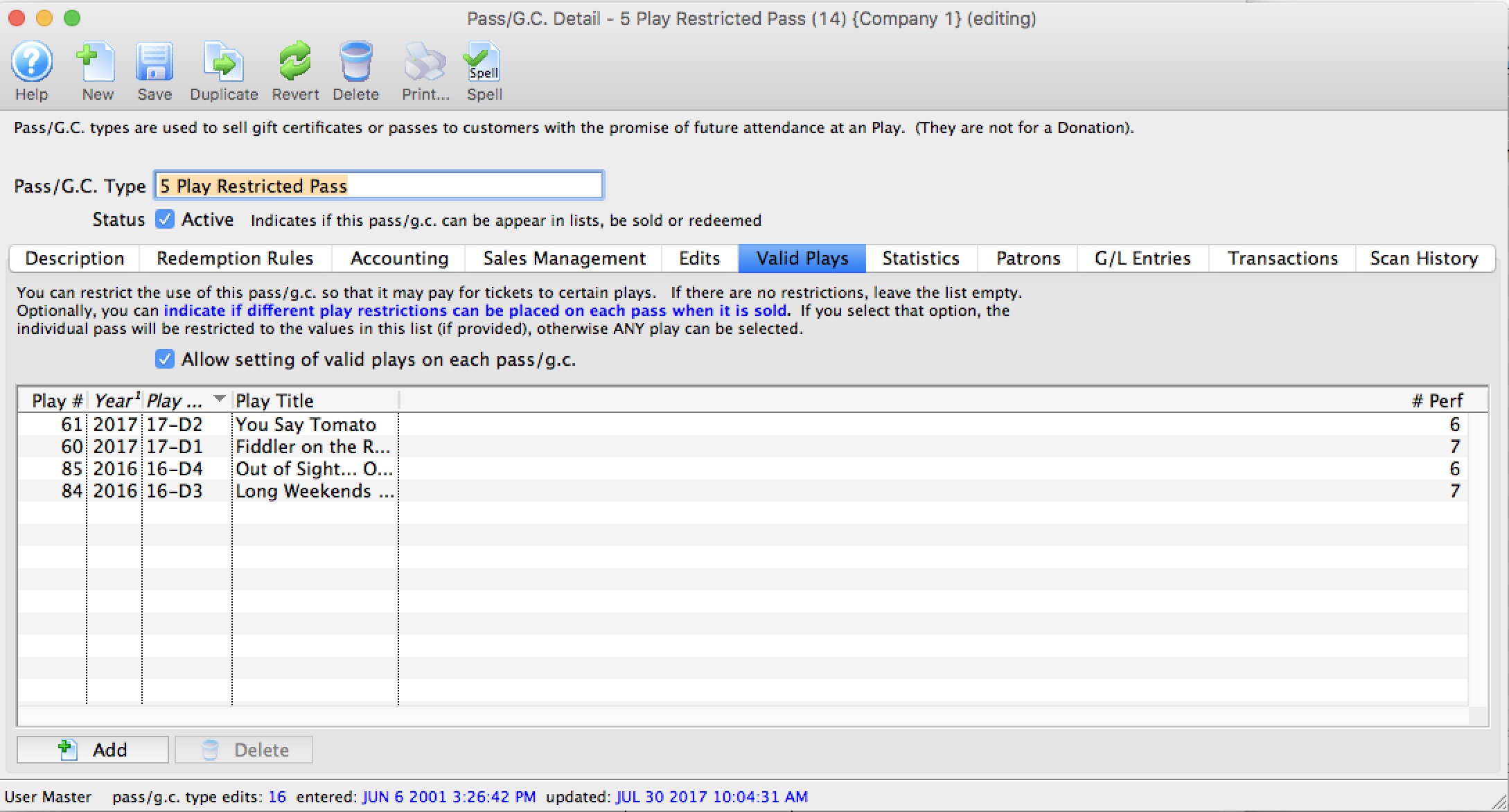
Parts of the Valid Plays tab
| Allow Setting Valid Plays | Normally, this list indicates which events that any patron holding a valid instance of this pass is able to use it for -or- the list is bank so that the pass can be used for any events.
However, if you Allow Setting Valid Plays on each Pass/GC, it means that at the time when a pass/gc is sold to a patron, you can over-ride the events in the list and specify a subset of the above (or completely different set) as per the rules below When the flag is enabled:
|
| Play # | Sequence number of the event within Theatre Manager. |
| Year | Season year of the event. |
| Play Code | The Event Code as defined in the Event Setup. |
| Play Title | The title of the event as defined in the Event Setup. |
| # Perf. | Total number of performances for this event. |
|
Allows you to add an event / play to the list. |
|
Deleted the selected play/event from the list. |
To Add an Event / Play to the list, you perform the following steps:
- Click the button.
The Event List (lookup) opens.
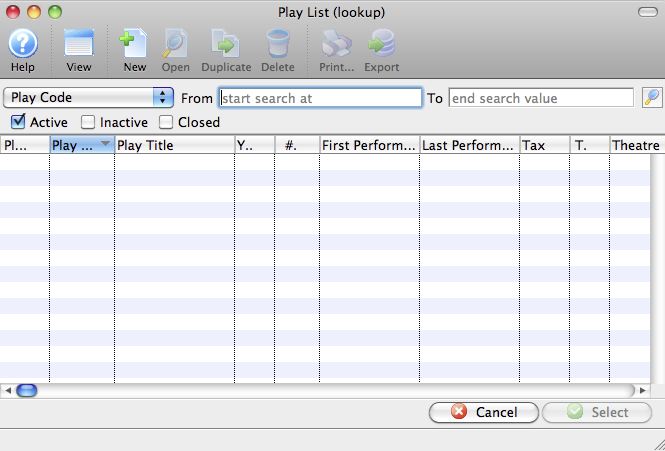
- Click the icon to generate a list of events.
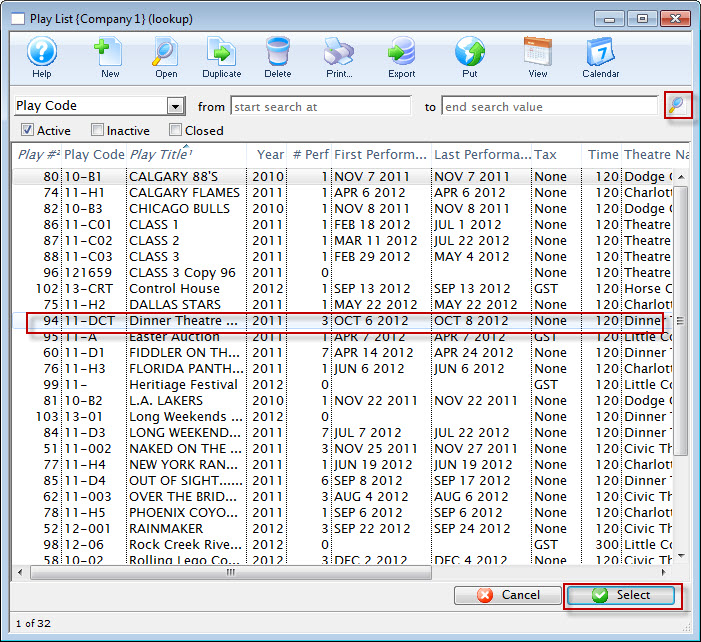
- Highlight the events you want to allow for this membership.
- Click the
 button.
 - Continue adding events as appropriate.
Statistics tab
The Statistics tab displays a listing, year by year of the number of passes issues and redeemed and their value. This is a helpful "at-a-glance way of seeing what your organization has in terms of membership liability.
Patrons Tab
The Patrons tab shows you the Patrons associated with the selected Pass G/C and Membership.
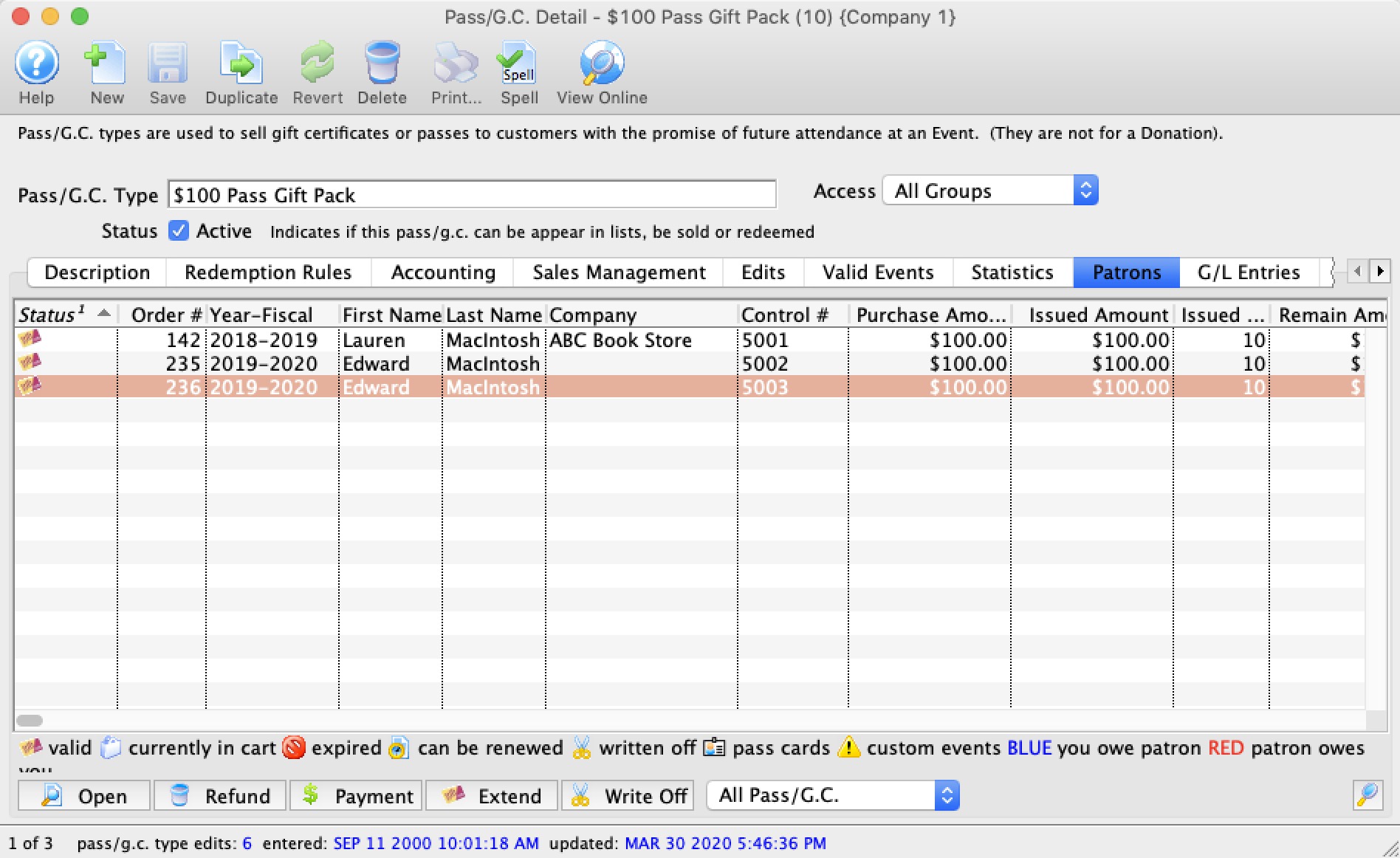
Parts of the Patrons tab
| Status | The status of their Pass G/C. | ||
| Order # | The Order number of the Pass G/C. | ||
| Year - Fiscal | The fiscal year the pass g/c was purchased. | ||
| First Last and Company Name | The patron who purchased the pass g/c. | ||
| Control # | A Control Number is a number associated with a membership that Theatre Manager uses to identify and track the specific membership within the system. A control number must be assigned with each membership, and is defined in the EDITS tab of the Membership Setup. | ||
| Purchase $ | The amount (in dollars) of the pass g/c purchased in the order. | ||
| Issued Pass Amount | The amount (in dollars) of the value of the pass g/c. | ||
| Issued Qty. | The number of admissions in the purchased pass. | ||
| Remain $ | The amount (in dollars) remaining on the pass g/c. | ||
| Remain Qty. | The remaining number of admissions left on the pass/g.c. | ||
| Date Renewed | The date the pass was renewed or purchased. | ||
| Expiry Date | The date the pass/g.c. is no longer valid. | ||
|
Opens the Detail window for the selected Pass G/C for editing. Click here for more information on editing Memberships, Passes and Gift Certificates | ||
|
Deleted the selected pass g/c, membership from the list and places a refund on the order. | ||
 |
Opens the payment window for the order the pass g/c, membership is attched to.. | ||
| Write Off | If you select a number of the passes in the list and use the write off function against the passes, then any with a remaining balance or quantity will be written off and GL entries created to move the unused portion to unearned income. | ||
| Extend |
If you need to extend the expiry date for a number of passes at one time due to some unforeseen reason, you can:
|
||
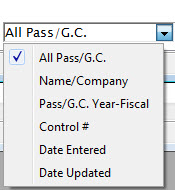 |
To refine your search for the correct pass g/c, membership, you can choose from the top down list, enter text and click the Search button. |
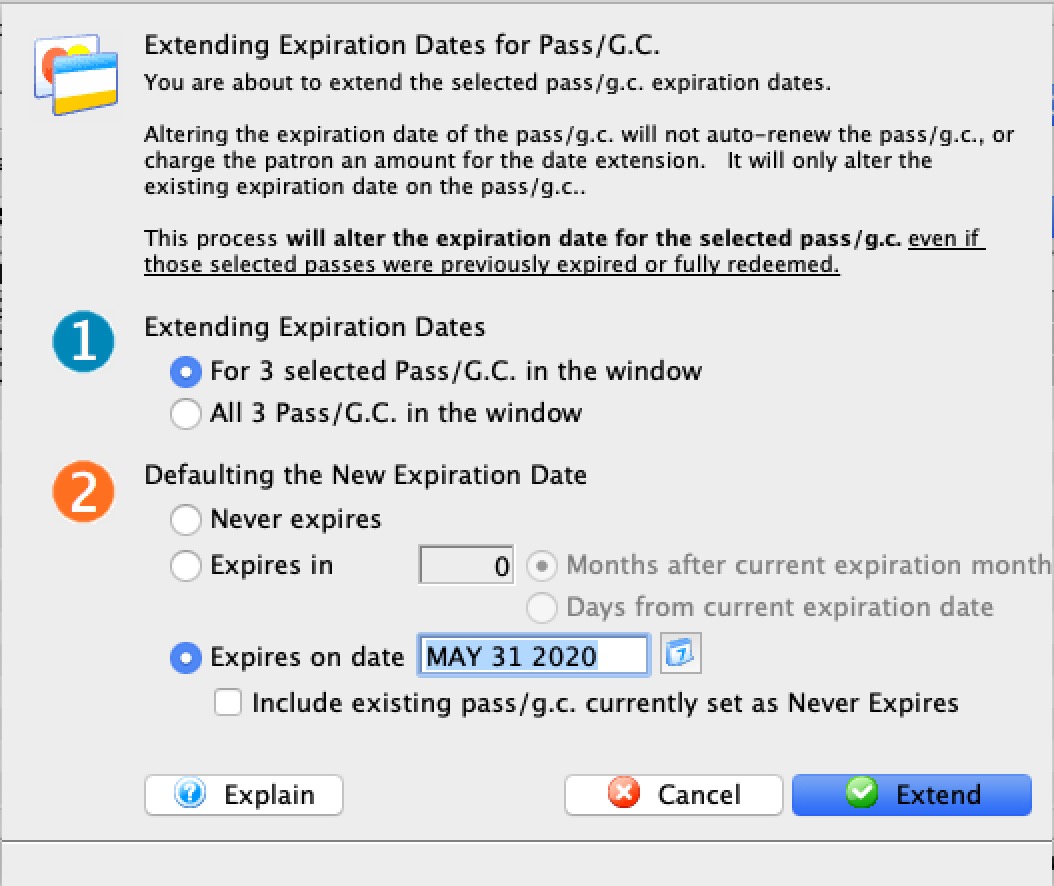

G/L Entries tab
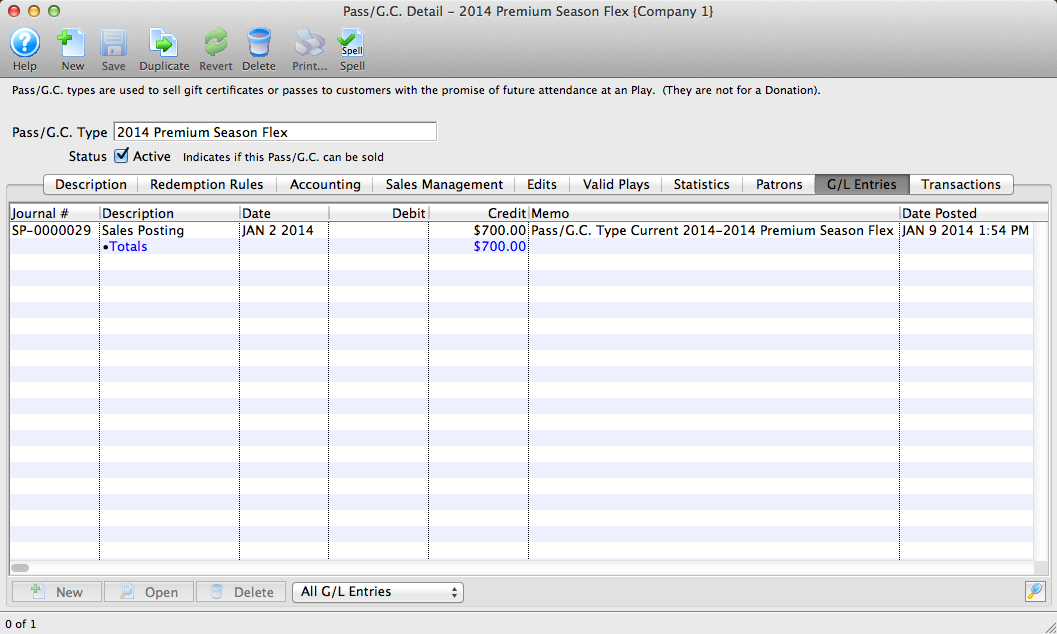
Parts of the G/L Entries tab
| Journal # | The specific journal number associated with the G/L entry. |
| Description | Whether the entry is a Sales Posting, Deposit Posting, or manual G/L entry |
| Date | Date the G/L entry took place |
| Debit | The debit amount associated with the G/L entry. |
| Credit | The credit amount associated with the G/L entry. |
| Memo | A single memo line, generated by Theatre Manager to indicate in the ledger the purpose of the entry. |
| Date Posted | The date the entry was posted to the G/L. |
Transactions Tab
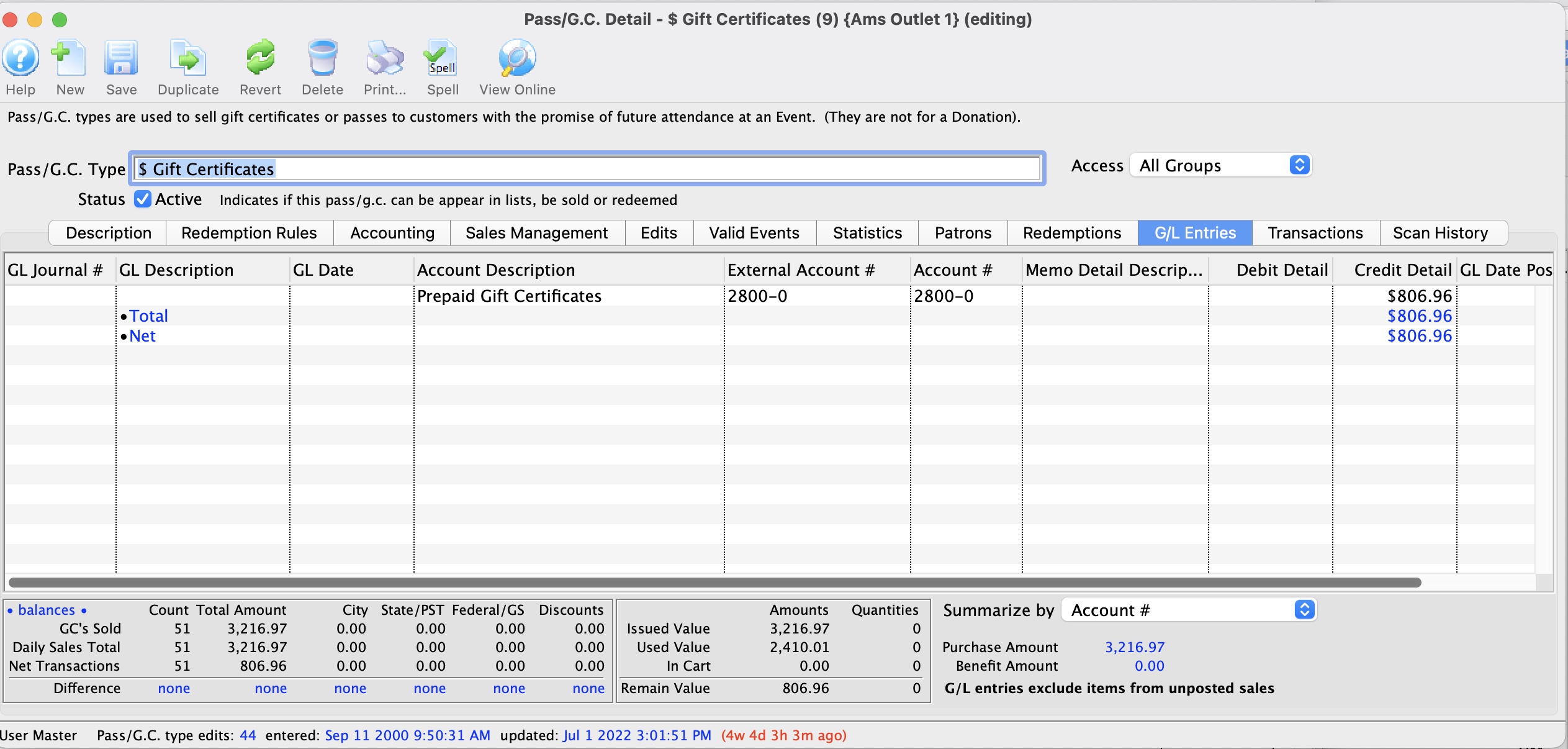
Parts of the Transactions Tab
| Seq # | The transaction reference number. |
| Trans Date | Date the transaction took place. |
| Journal No | Journal Entry reference number. |
| Code | Theatre Manager reference code used to determine the type of transaction. |
| Transaction Desc | Brief description of what the transaction was. |
| Order # | Reference number used to track the components of the order. |
| Type | Type of pass/g.c or transaction that is referenced. |
| Description of Entry | Details of the transaction. |
| Debit | The debit amount of this transaction. |
| Credit | The credit amount of this transaction. |
| Total | The net effect of the transaction. |
|
Opens the selected transaction displaying the transaction details window. |
Edit Pass G/C and Memberships
To edit an existing Pass/g.c., you perform the following steps:
- Open the Member Types window.
Click here to learn how to access this window.
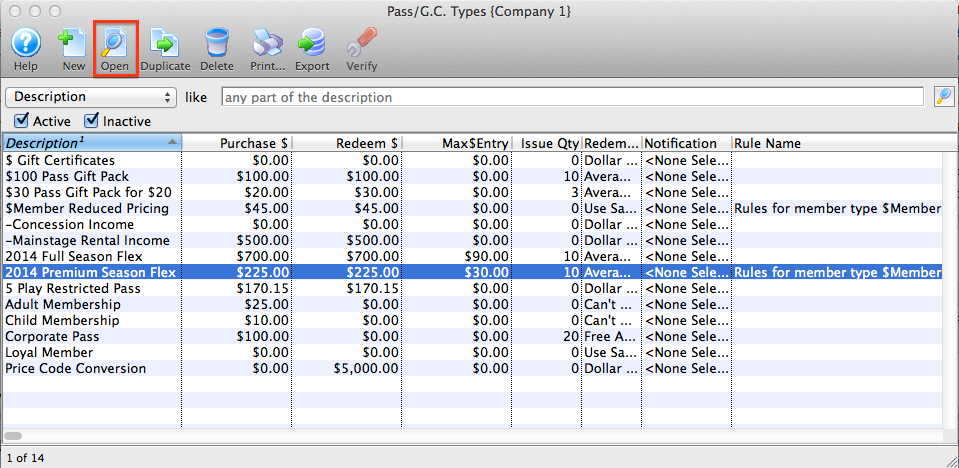
- Select the Pass/g.c. you want to edit.
The Pass detail window will open.
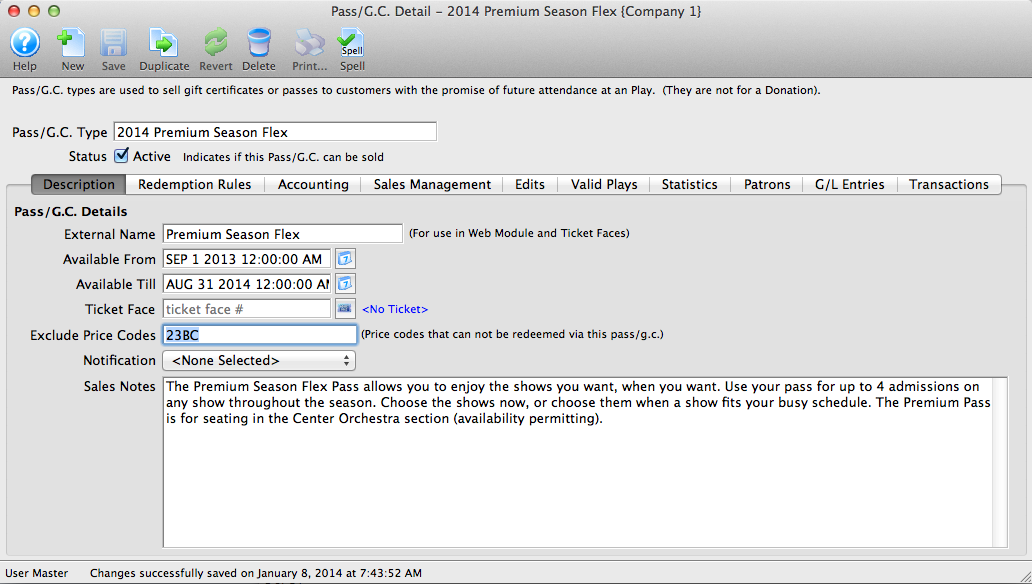
Click here for a detailed description of this window.
- Edit the data as needed.
- When you have completed your changes, click the Save button.
The changes will be saved. Clicking the Revert
button will abort any changes you made to the member type.
Verifying Passes, G/Cs and Memberships
This function is for future development. It is currently not an available option in Theatre Manager.
You use Verify to change the setting on sold passes, G/Cs and Memberships to the new settings of that Type. This function should be used only on the recommendation of a support technician in proper authority.
- Open the Membership Types window.
Click here to learn how to access this window.
- Select the member type to verify.
Single click a member type to select it.
- Click the Verify button.
The following confirmation window will open.

- Click the Yes button to continue.
The Member type has now been verified.
Deleting Pass G/C and Membership Types
Pass, G/C and Membership types can only be deleted if they have not been purchased by a patron.
To delete a Type, you perform the following steps:
-
Open the Member Types Window.
Click here to learn how to access this window.
- Select the Member Type to be deleted.
Single click on a Member Type to select it.
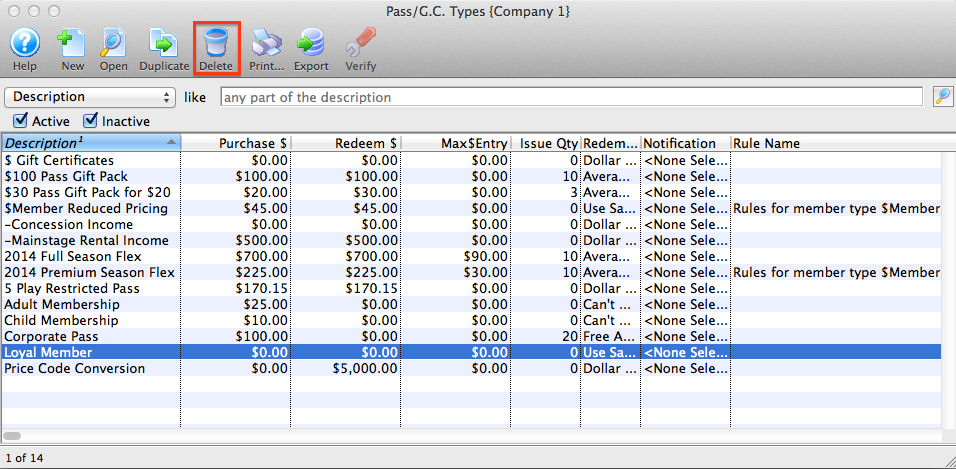
-
Click the Delete
button.If the record can NOT be deleted the following dialog opens.
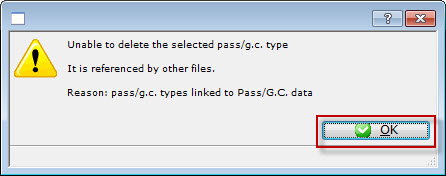
If a record CAN be deleted, the following delete confirmation dialog opens.
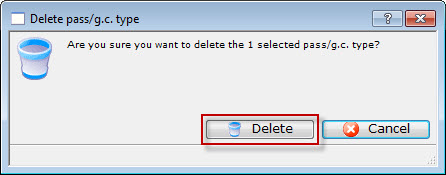
-
Click the Delete
to confirm the deletion.The type is removed from the Member Types Window.
Online Discount Suggestions
|
The example below shows how to set up a gift certificate where the patron receives a 10% discount on the purchase cost. You can make it valid or any amount the patron purchases, or limit to a single purchase value. |
- Create a new Pass in Theatre Manager.
- Under the Redemption Rules Tab sent the Redeemable Amount to be the value of purchase. In the example:
- the Redeemable Amount is $10.
- In the Purchase Amount field set the value to be 10% less than the Redeemable Amount. In the example the Purchase Amount is $9, 10% less than the $10 Redeemable Amount.
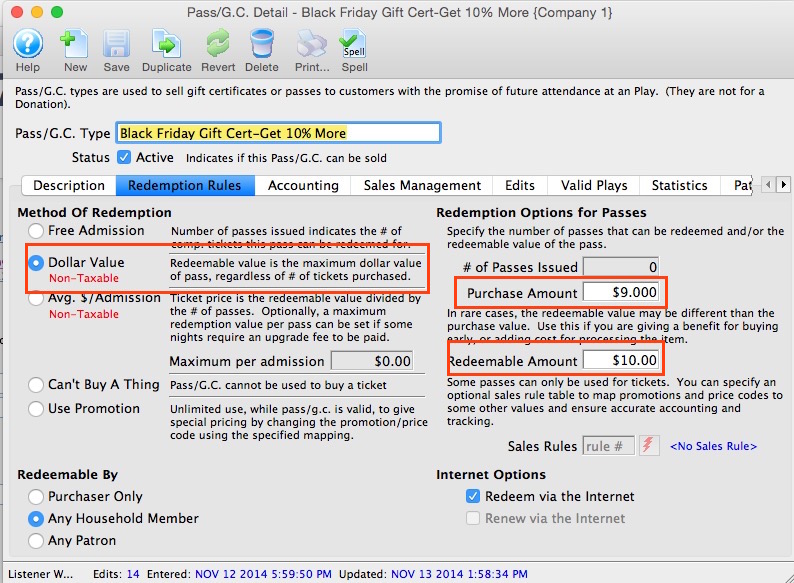
- Under the Accounting Tab set the Redemption/Expense Account to be the GL Account where the difference between the Purchase Amount and Redemption Amount should be posted.
- In the Edits Tab check the box for Value can be changed during purchase.
By allowing the value to be changed Theatre Manager will calculate a 10% discount on the Pass based on the Purchase and Redemption amounts in the Redemption Rules tab. The difference between these two amounts will be posted to the GL Account outlined in the Redemption/Expense Account field in the Accounting tab.
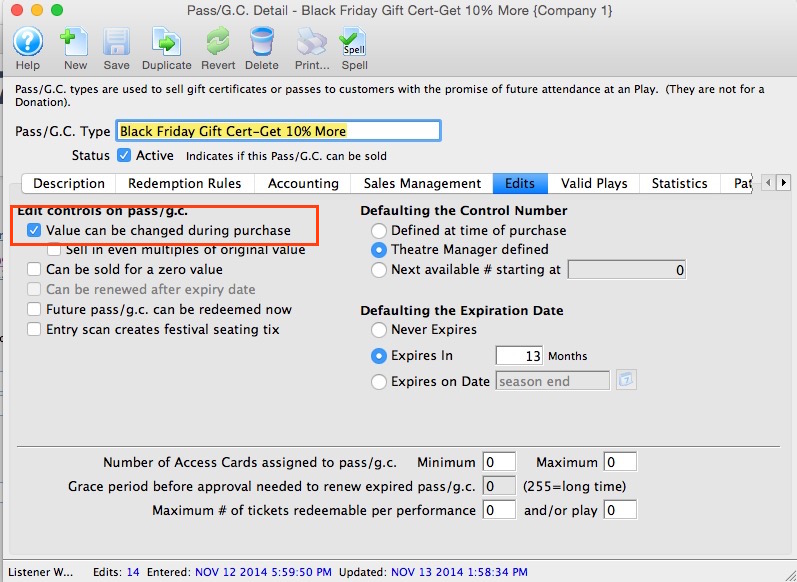
Resources
Tasks are a major feature of Theatre Manager's newest versions and the Facility Management module. For more information about the Facility Management module click here. To read more specifically about tasks and their place within Facility Management, click here.
This section shows how to set up an organization's resources for use within tasks. A resource can be anything from a consumable item (like paper cups or candy bars for concession), to reusable items like tables and chairs, to rooms for rent, or even employees or volunteers whose time can be considered a resource for a task (and billed to clients using the Facility Management billing/invoicing feature). Resources can be as broadly or narrowly defined as you decide you need them to be.
To open the Tast Resource setup, you perform the following steps:
- Choose Setup >> System Tables >> Resources.
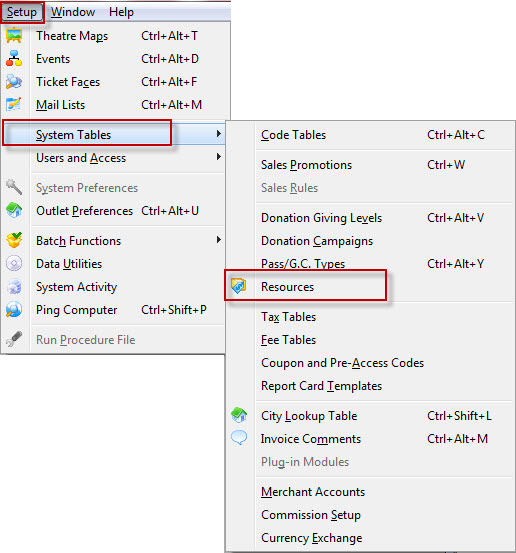
The Resource List window opens to the All resources tab.
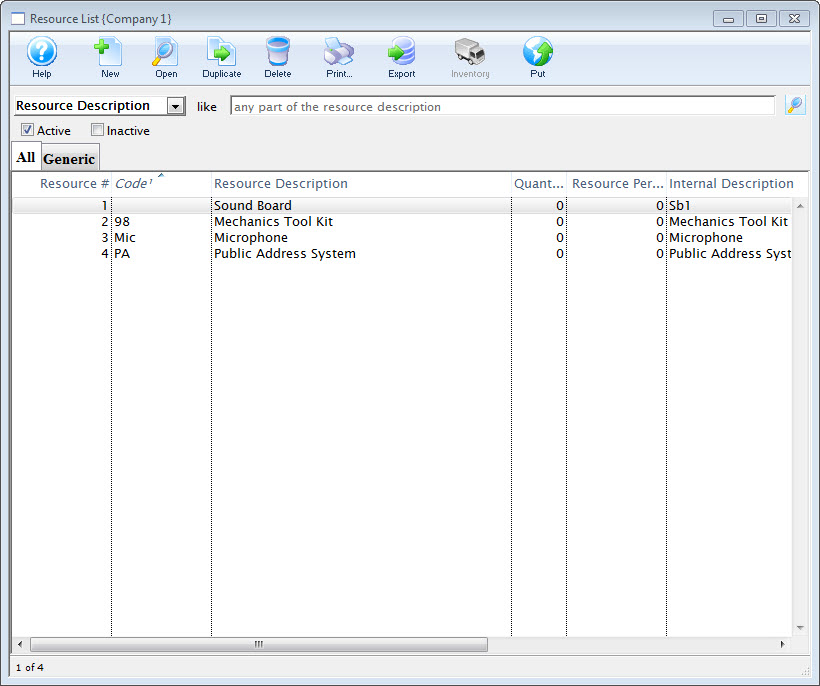
For more information about the List window for Resources, click here.
Resources List Window
Parts of the Resource List Window
Click on a link to learn more about the features.
| |
Accesses the Help section for this window. |
|
Inserts new Resource. For more information on inserting resources click here. |
|
Edits the selected Resource. For more information on editing resources click here. |
|
Copies the selected Resource. |
|
Deletes the selected Resource. Click here to learn how to delete resources. |
|
Generates a report of the resources to the screen or default print location. |
|
Exports a list of resources. |
 |
Click to add inventory for the selected Resource. Opens the Pricing and Inventory Tab. |
| Description | The name of the Resource as setup in the Description Tab. |
| Active/Inactive Checkboxes | When checked, will pull a list of either Active or Inactive Resources (or both). |
 |
Shows a list of All Resources. |
 |
Shows a list of Resources that have been designated Generic Resources. |
 |
Custom tabs are added in the System table Facility Resource Groups, Click here to go to the Resource Groups help page. Resource Groups are categories for different types of Resources. The default setting in Theatre Manager is the Generic group. Other groups can be added as needed. |
| Table Columns | |
| Resource # | The unique number in the database assigned to that particular resource. |
| Code | The unique Resource Code assigned to the particular resource. |
| Description | The name of the resource. |
| Quantity | The quantity of the specific resource listed in the database. |
| Internal Description | The internal description for the resource (shows only inside the Theatre Manager application). |
Generic Tab
Resources can be grouped under different headings. The default heading in Theatre Manager is the Generic Resource.
Additional groups can be added in Setup >> System Tables >> Code Tables >> Facility Resource Groups. Click here for more information about adding a group in the Facility Resource code table.
Custom Tabs
Additional groups can be added in Setup >> System Tables >> Code Tables >> Facility Resource Groups. Click here for more information about adding a group in the Facility Resource code table.
Resource Detail Window
The Resource Detail Window is where all of the specific information about a resource and it's usage is put into the Theatre Manager database.
The following pages describe in detail the different tabs of the Resource Detail Window.
Description Tab
Parts of the Description Tab
|
Accesses the Help section for this window. |
|
Inserts a new Resource. For more information on inserting resources click here. |
|
Saves changes made to the selected Resource |
|
Copies the selected Resource. |
| |
Undoes any changes made to the last saved point. |
| |
Deletes the selected Resource. Click here to learn how to delete resources. |
| |
Generates a report of the resources to the screen or default print location. |
| |
Does a spell check of the record. |
|
Click to add inventory for the selected Resource. Opens the Pricing and Inventory Tab. |
| Resource Code | A unique code assigned to the specific Resource (similar to an Event Code, for example). |
| Outlet | The outlet to which a Resource belongs (for organizations using Outlet Edition of Theatre Manager). |
| Resource Description | The internal name of the Resource that will show in the Resource List Window and elsewhere in Theatre Manager. |
| Status Box | When checked, the Resource will be marked as an Active resource in lists. |
| Resource Group | The Resource Group to which a resource belongs. Theatre Manager's default Resource Group is "Generic." Click here, for information on how to add another group or groups. |
| External Description | the name of the resource that is viewable by the general public. |
| Picture of Resource | You can drag and drop an image from your computer into the Picture box. You are limited to a graphic less than 500k. Click here, for more information on adding an image. |
| Unit | The unit of measure for the resource for use in inventory management. |
| Owner | If the resource is owned (or managed), you can include that person by using the patron lookup button  and searching for the owner/manager in the database. and searching for the owner/manager in the database. |
| Vendor | The preferred Vendor from whom to obtain the resource (if applicable) |
| Special Instructions | Include any special or important information about the resource in the Special Instructions field. |
| Notifications | Notifications can be set to alert employees about usage of resources if desired. |
| Item Colour, Size and Picture | Item colour and size description may also be included. You may also drag a picture into the picture field if you'd like. |
| Tags | You can add any number of tags to the resource. |
Accounting Tab
Parts of the Accounting Tab
| Deferred Accotning | For each resource, you can indicate if expenses and income should be deferred.
Even if you select deferred revenue accounting for the resource, it only comes into effect if the resources is attached to a project that is marked to defer revenue on the project's accounting tab. |
Expense Accounts |
|
| Expense Tax Code | The tax rate that applies to the purchase of the resource. |
| Deferred Liability | A liability account as set up in the Chart of Accounts to be used with this resource when it it purchased for later sale. |
| Earned Expense Account | An expense (or cost of goods) account as set up in the Chart of Accounts to be used with this resource when it it purchased for later sale. |
Income Accounts |
|
| Sales Tax Code | The sales tax rate used when selling/renting the resource. |
| Deferred Asset | The deferred income account - usually an asset to track future work (from the Chart of Accounts) to be used when this resource is sold or rented. |
| Income Account | The income account (from the Chart of Accounts) to be used when this resource is sold or rented. |
Resource Sales Options
Pricing and Inventory Tab
Parts of the Pricing and Inventory Tab
| Sales Method |
The three options are:
|
| Resource Cost | The replacement cost per unit of the resource (unit is set up on the Description Tab). |
| Resource Pricing | The suggested amount is how much should be charged per use of the resource. Usage is defined by the lookup button to the right of the entry field (in the example, it's set to Per Day). |
| Customizable checkbox | When checked, the Suggested Price can be changed when the resource is used. |
| Inventory Management | |
| Enable Inventory Tracking checkbox | Sets up the inventory management for this rental resource. If inventory tracking is enabled, then Theatre Manager will ensure that no more than the available quantity is rented at any given time. Click here to see how to Add Inventory Tracking. |
Enabling Inventory Tracking
Tracking inventory allows you to specify the number of units available. If tracking is not on, Theatre Manager assumes the number of units available are unlimited. To start tracking inventory for the selected resource, perform the following steps:
- In the Pricing and Inventory window, click to enable Inventory Tracking.
If required, enter Notes about the inventory modification.
Optionally - You can enter the number of units to track.
- To start inventory tracking, click the Start
 button.
The inventory number appears on the Pricing and Inventory tab and in the Resource List.
Adjusting Inventory Tracking
Removing Inventory Tracking
You can disable the tracing of a particular resource. To remove tracking for the selected resource, perform the following steps:

- In the Pricing and Inventory window, click the check box
 to disable Inventory Tracking.
If required, enter Notes, such as a reason the tracking was disabled (for example, the particular unit has been replaced).
- Click the Stop
 button.
Components Tab
The Components Tab can be used for those resources which may require the use of various components (a PA System in the example). It is not a required tab for resource setup.
Parts of the Pricing and Inventory Tab
| Components List | Add or remove components to/from a resource here using the Add or Remove buttons at left under the list. |
| Component Detail | This section on the right side applies to the currently selected component resource on the component list on the left. In the example, the selected component is Speaker Cables, so the items under Component Detail apply to Speaker Cables as they are being used as a component of the PA System (the current selected Resourse) |
| Component | The currently selected component resource. |
| Component Type | Component resources are either a Standard part of the current Resource, or an Optional part of the Resource as designated here. |
| Amount Used | Set here how many units of the selected component resource are to be used in the instance of the current Resource. |
Notes Tab
In the notes tab, you can enter any internal notes about this particular resource. The Notes tab is not a mandatory field to fill out when setting up a Resource.
Usage Tab
Parts of the Usage Tab
| Task # | The unique number in the database assigned to the particular task. |
| Rental Start Date | The start date for the rental of the respurce. |
| Rental Expected End Date | The ending date for the rental of the resource. |
| Description | The name or description as it appears on the calendar. |
| Quantity | How many of the current resource are set for use. |
 |
The New Button is grayed out on this tab as it is not possible to add usage to a Resource. |
 |
Opens the selected Task Resource Detail window in order to edit the resource details as they pertain to that task. |
|
Deletes the resource from the Task. |
 |
Opens the selected Task for editing. |
 |
Drop-down that allows searching the Task list for All Resources, by Task Description, or by Task Begin Date. |
G/L Entries
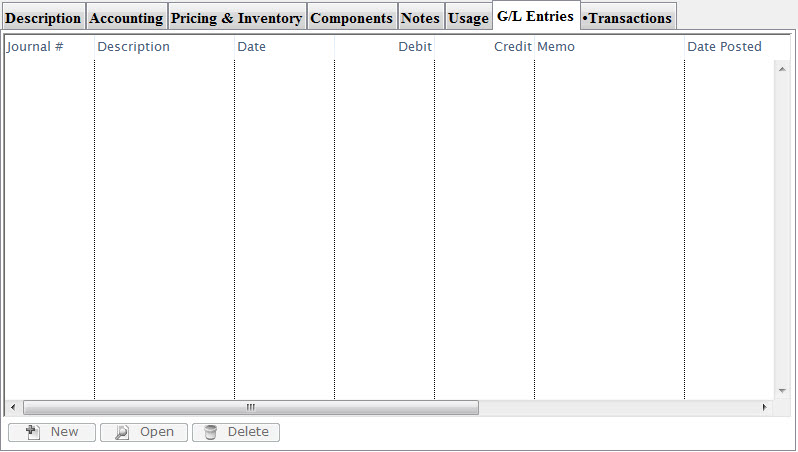
G/L Entries
Transactions Tab
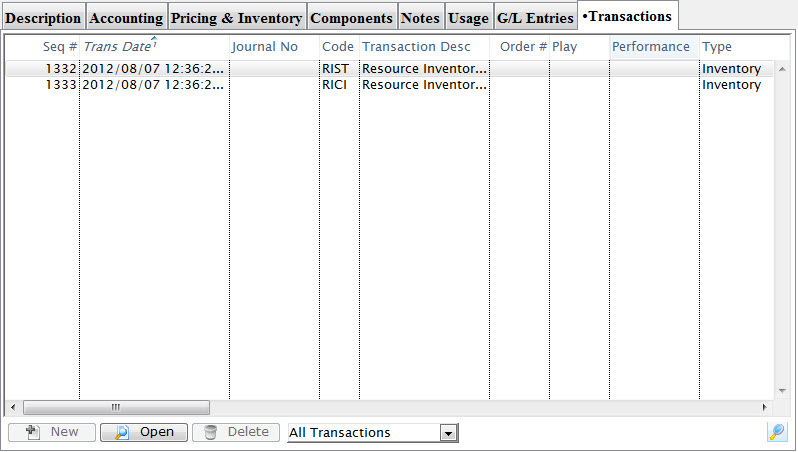
Transactions
- The Transactions tab shows each transaction associated with the resource. This tab and the G/L Entries tab will be populated as you use the resource and has no set up requirements.
Adding Resources
A Resource can be any tangible item you wish to sell through Theatre Manager. They may be a space/room rental, a concession item like food and drink or merchandise like CD's, DVD, clothing and more. The break down of resources can be as broad as a concession snack or as granular as a specific t-shirt size. The scope depends on the level of inventory tracking you engage Theatre Manager to do.
|
You can have direct links to inventory (like t-shirts) from any web page. |
Adding a Resource
- Click Setup >> System Tables >> Resources.
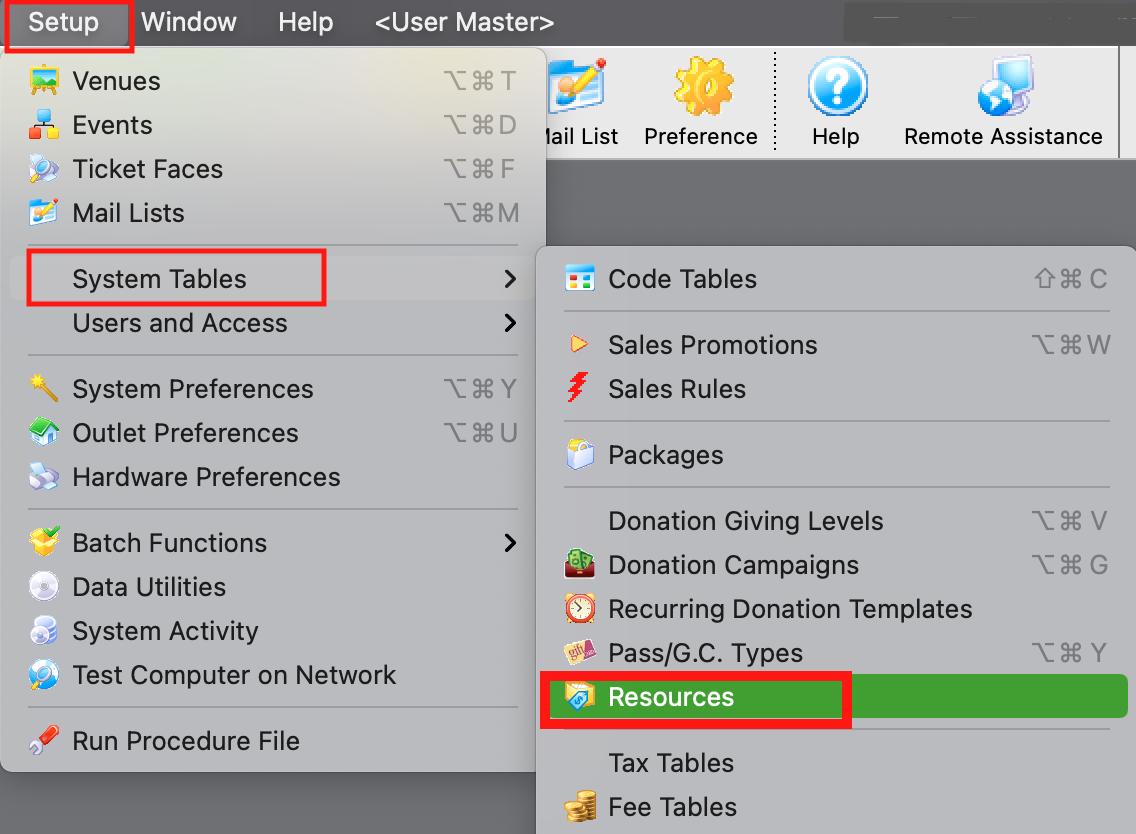
The Resource List window opens.
For more information on Resource List, click here.
- Click the New button at the top of the window.
The Resource Detail Window opens to the Description tab.
For more information on Description tab, click here
- Enter a Resource Code.
Resource Codes are abbreviated shorthand that help quickly identify and sort items. For example, a Coffee Mug Gift Basket might be represented as MUGGIFTBSK.
- Enter a Resource Description.
The Resource Description is the internal name of the resource and will show in lists and on reports in Theatre Manager.
- In the Description tab enter the External Description for the resource.
This will be the name that appear on Invoices and is displayed online to the general public.
- Select a Resource Group from the drop down.
A Resource Group can be used to indicate a collection of like items. Examples might be a concession group for all concession items, a specific t-shirt design to group together individual size resources or a physical location to group spaces for rent in a venue. For more information on setting up Resource Groups, click here.
- Add a picture to the Resource Icon for Web field by dragging and dropping the image.
- Select the Accounting tab
For more information on the Accounting tab, click here.
- Enter the Expense Tax Code, Deferred Liability and Cost of Goods GL Accounts.
Expense Accounts will not effect your End of Day or GL Reports. They are added for future implementation to help with the expense side of reporting and inventory.
- Enter the Sales Tax Code, Deferred Asset and Income Account GL Accounts.
- Select the Sales tab.
For more information on the Sales tab, click here.
- In the Accept Resource at area indicate where the Resource is to be sold.
- In Conjunction with a Ticket Sales - Allows item to be sold at the Box Office
- Accept on the Internet - Allows item to be sold online
- Visible in Internet List/Grid - Allows item to be sold and displayed online
- Select the Pricing & Inventory tab.
For more information on the Pricing & Inventory tab, click here.
- Select For Sale bullet in the Resource Sale Method section of the page.
- Enter the retail value of the resource in the Suggested Price field.
If tax is to be charged on the item the Suggested Price should be the retail value less tax. Tax will be added on top of this price based on the Sales Tax Code selected in the Accounting tab.
- Select the Notes tab.
For more information on the Notes tab, click here.
- Insert text into the External Sales Notes field.
This is where marketing language is inserted and is made visible online to patrons. This text appears online in a highlighted box next to the Resource Icon for Web image from the Description tab.
|
To access Merchandise items online a "Merchandise" or "Shop" button may need to be added to the Navigation Bar if not previously added. For instructions on how to edit the Navigation Bar click here. |
|
|
|

Editing a Resource
- Click Setup >> System Tables >> Resources.
The Resource list Window opens.
Click here for more information on the Resource List window.Highlight a Resource from the list by single-clicking on it.
- Click the Open button.
The Resource Detail window opens.
Click here for more information on the Resource Detail window.
- Edit the information for the Resource as required.
- Click the Save button.
Delete a Resource
- Click Setup >> System Tables >> Resources.
The Resource List Window opens.
Click here for more information on the Resource List window. - Click the Delete button.
The Delete Confirmation dialog opens.
- Click the Delete button.
The Resource Record is deleted.
Highlight a Resource from the list by single-clicking on it.
Tax Tables
The Tax Rates Window can be accessed through the Setup >> System Tables >> Tax Tables menu. The tax table displays all current taxes which have been setup for use with Theatre Manager. From the window you can also insert, edit and delete taxes.
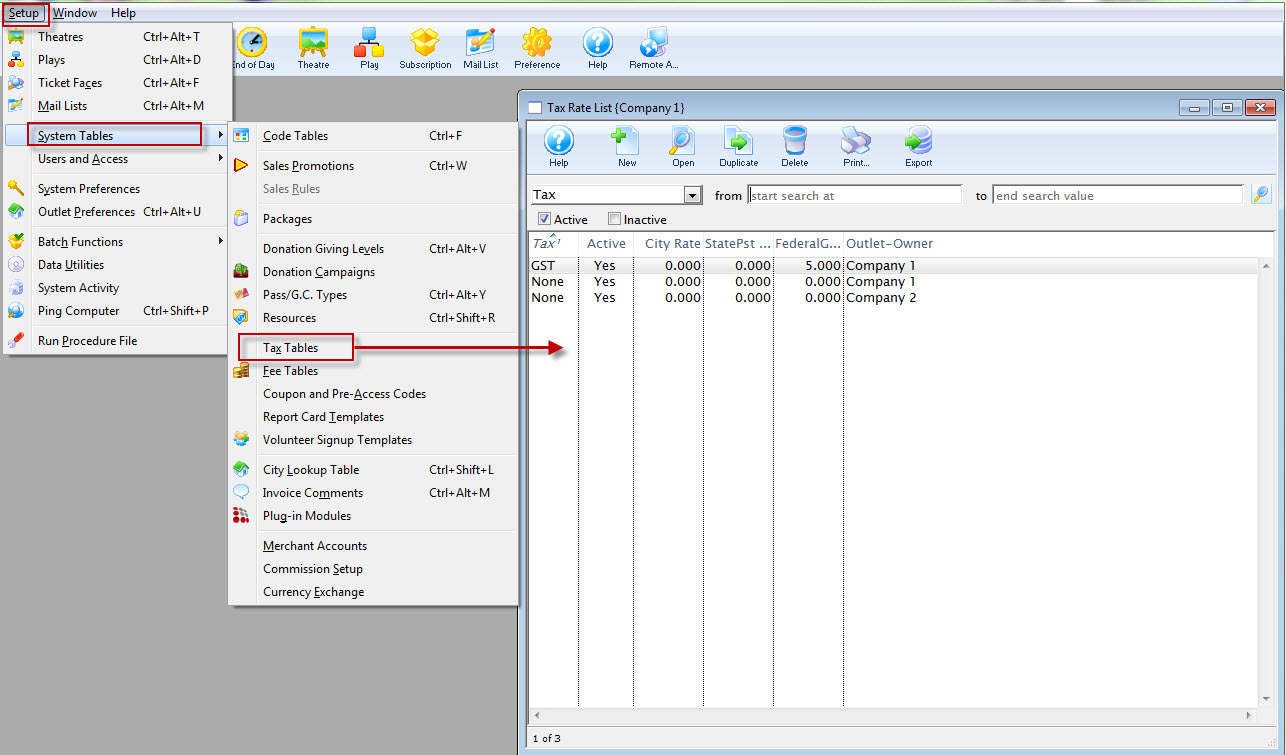
The Tax Rates List window opens.
Click here for more information on the Tax Rates List.
Tax Rate List
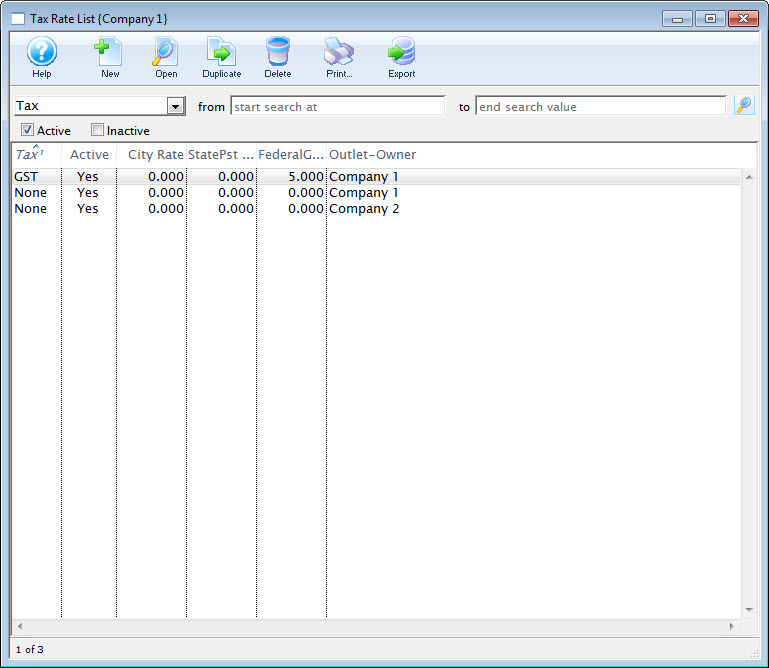
Parts of the Tax Rate List Window
Accesses the Help section for this window. |
|
Inserts a new Tax Rate. For more information on inserting tax rates click here. |
|
Edits the selected Tax Rate. For more information on editing tax rates click here. |
|
Copies the selected tax rate. |
|
Deletes the selected Tax Rate. Click here for more information on deleting tax rates. |
|
Generates a report of the tax rates to the screen or default print location. |
|
Exports a list of tax rates in a tab-delimited format. |
|
Tax |
The name of the tax. |
Active |
Will show either Yes the tax rate is active for use or No it is not Active for use. |
City Rate |
The portion of the tax rate that applies to City or municipality tax. |
State/PST Rate |
The percentage rate of the tax that applies to State or Provincial taxes. |
GST/Federal Rate |
The portion of the tax rate that applies to Federal or GST taxes. |
Tax Rate Detail Window
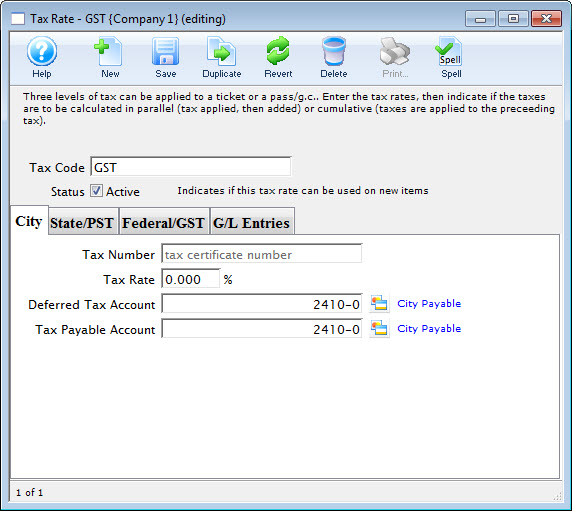
Parts of the Tax Rate Detail Window
Inserts new Tax Rate. For more information on inserting tax rates click here. |
|
Saves changes made to the selected Tax Rate. |
|
Duplicates the selected Tax Rate. |
|
Undoes changes to the last saved point. |
|
Deletes the selected Tax Rate. For more information on deleting tax rates click here. |
|
Tax Code |
Name of the tax rate. |
Setup for the City or Municipal portion of the tax code. For more information on this tab, click here. |
|
Setup for the State or Provincial portion of the tax code. For more information on this tab, click here. |
|
Setup for the Federal or GST portion of the tax code. For more information on this tab, click here. |
|
List of the G/L journal entries for each instance of the tax code's usage. For more information on this tab, click here. |




|
The names for the City, State/PST, and Federal/GST tabs can be set in Setup > System Preferences > Appearance Tab to reflect whichever is the suitable option. Our examples here show both names - but depending on your location, you may set them appropriately. More information can be found here. |
City Tax Tab
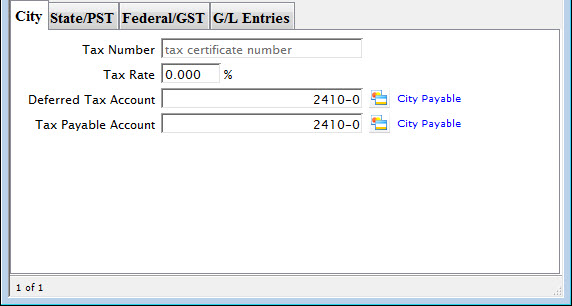
Parts of the City Tax Tab
Tax Number |
Your organization's tax ID number for City taxes. |
Tax Rate |
The percentage of the tax rate that applies to City taxes. |
Deferred Tax Account |
Deferral account number from your Chart of Accounts for the City tax. For more information about the Chart of Accounts in Theatre Manager, click here. |
Tax Payable Account |
Liability account from your Chart of Accounts for the City tax. |
State/PST Tax Tab
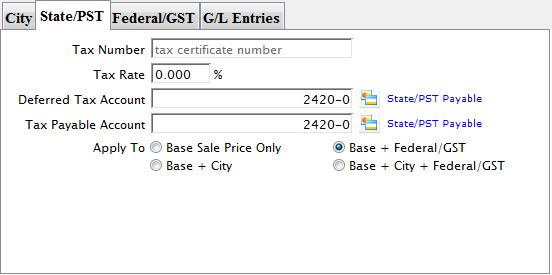
Parts of the State/PST Tax Tab
Tax Number |
Your organization's tax ID number. |
Tax Rate |
The percentage of the tax rate that applies to State or PST taxes. |
Deferred Tax Account |
Deferral account number from your Chart of Accounts for the State/PST tax. For more information about the Chart of Accounts in Theatre Manager, click here. |
Tax Payable Account |
Liability account from your Chart of Accounts for the State/PST tax. |
Apply To Base Sale Price Only |
When selected, this option will apply the percentage set above to only the base price of the ticket or pass (parallel method). |
Apply To Base + City |
When selected, this option will apply the percentage set above to the base price plus the City price set in the City Tab(cumulative method). |
Apply To Base + Federal/GST |
When selected, this option will apply the percentage set above to the base price plus the Federal/GST tax set in the Federal/GST Tab(cumulative method). |
Apply To Base + City + Federal/GST |
When selected, this option will apply the percentage set above to the base price plus the City tax and plus the Federal/GST tax (cumulative method). |
Federal/GST Tax Tab
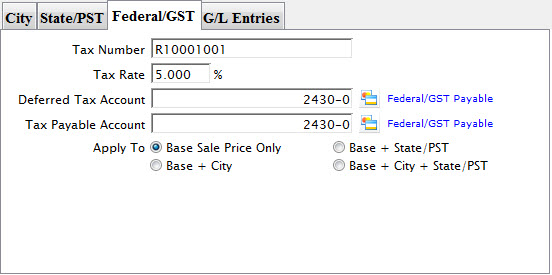
Parts of the Federal/GST Tax Tab
Tax Number |
Your organization's tax ID number. |
Tax Rate |
The percentage of the tax rate that applies to Federal or GST taxes. |
Deferred Tax Account |
Deferral account number from your Chart of Accounts for the Federal/GST tax. For more information about the Chart of Accounts in Theatre Manager, click here. |
Tax Payable Account |
Liability account from your Chart of Accounts for the Federal/GST tax. |
Apply To Base Sale Price Only |
When selected, this option will apply the percentage set above to only the base price of the ticket or pass (parallel method). |
Apply To Base + City |
When selected, this option will apply the percentage set above to the base price plus the City price set in the City Tab(cumulative method). |
Apply To Base + State/PST |
When selected, this option will apply the percentage set above to the base price plus the State/PST tax set in the State/PST Tab(cumulative method). |
Apply To Base + City + State/PST |
When selected, this option will apply the percentage set above to the base price plus the City tax and plus the State/PST tax (cumulative method). |
G/L Entries Tab
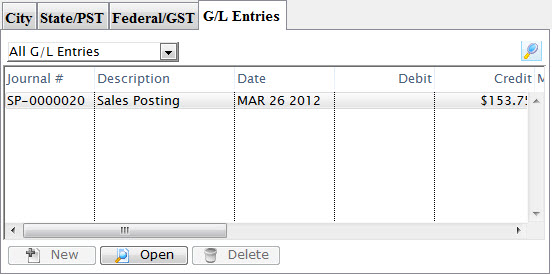
Parts of the G/L Entries Tab
View Selection Drop-down (set to All G/L Entries in the example) |
Choose which entries you want to see in the list and then click the |
Journal # |
The unique Journal # for the entry |
Description |
The type of journal entry it is (ie. Sales Posting) |
Date |
The posting date for the entry. |
Debit |
The Debit amount of the entry (if applicable) |
Credit |
The Credit amount for the entry. |
Not available. |
|
Opens the selected entry for viewing/editing. |
|
Not available. |
Inserting a Tax Code
To add a Tax Code, you perform the following steps:;
- Click Setup >> System Tables >> Tax Tables.
The Tax Rate List window opens.
Click here for a description of this window.
- Click the New button.
The Tax Rate Detail Window opens.
Click Here for a detailed description of this window.
- Enter the Tax Code name.
This is the name that will be displayed anywhere the Tax Code can be selected.
- Enter the tax number in the City tab.
- Enter the Tax Rate percentage that applies to City taxes for the overall rate.
- Click the Lookup
 button next to the Deferred Tax Account field.
The Chart of Accounts Lookup window opens.
- Select the G/L account the city tax should be applied to.
- Click the Lookup button next to the Tax Payable Account field.
The Chart of Accounts Lookup window opens.
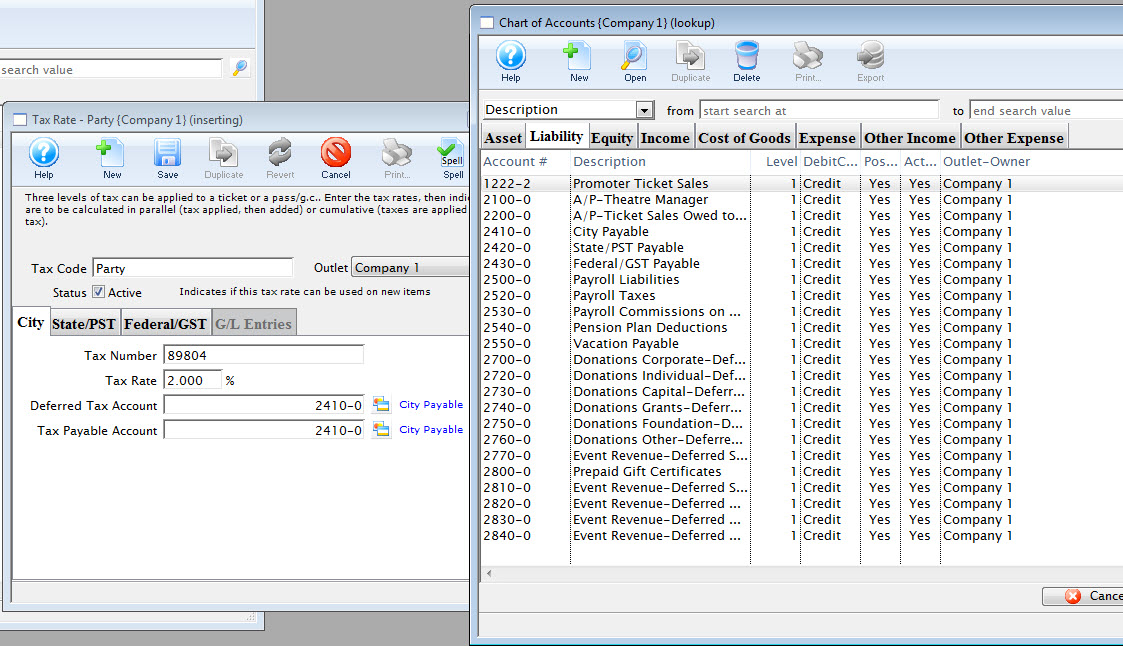
- Select the G/L account the city tax should be applied to.
- Select the State/PST
 tab.
tab.
Click here for more information on the State/PST Tax Tab.
- Enter the tax number in the State/PST tab.
- Enter the Tax Rate percentage.
- Click the Lookup button next to the Deferred Tax Account field.
The Chart of Accounts Lookup window opens.
- Select the G/L account the State tax should be applied to.
- Click the Lookup button next to the Tax Payable Account field.
The Chart of Accounts Lookup window opens.
- Select the G/L account the State tax should be applied to.
- Select the Federal/GST
 tab.
tab.
Click here for more information on the Federal Tax Tab.
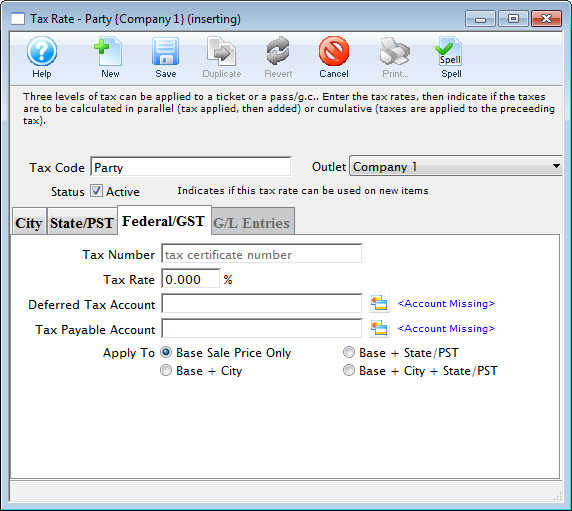
- Enter the tax number in the Federal/GST tab.
- Enter the Tax Rate percentage.
- Click the Lookup button next to the Deferred Tax Account field.
The Chart of Accounts Lookup window opens.
- Select the G/L account the Federal tax should be applied to.
- Click the Lookup button next to the Tax Payable Account field.
The Chart of Accounts Lookup window opens.
- Select the G/L account the Federal tax should be applied to.
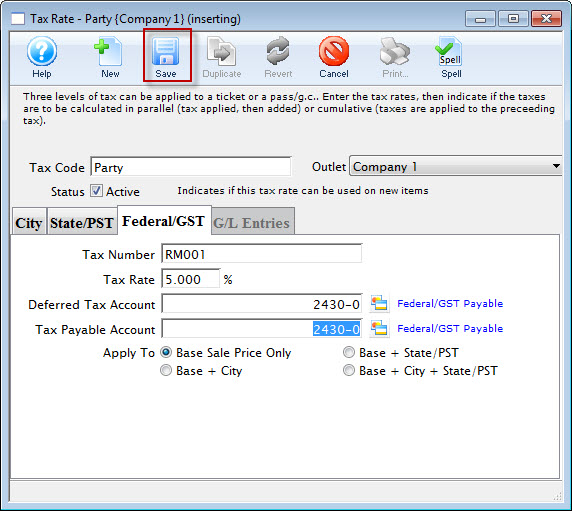
- Click the Save button to save the tax.
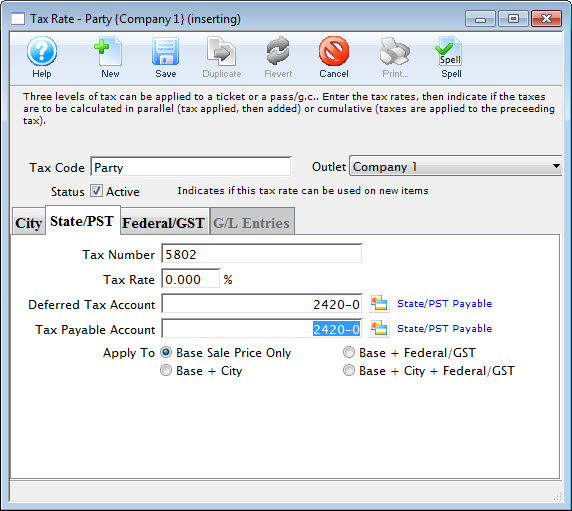
Editing Tax Codes
- Click Setup >> System Tables >> Tax Tables.
The Tax Rate List window opens.
Click here for a description of this window.
- Select the tax code you wish to edit.
Do this by single clicking on the value.
- Click the Open button.
The tax rate detail window will open with the data for the selected tax code.
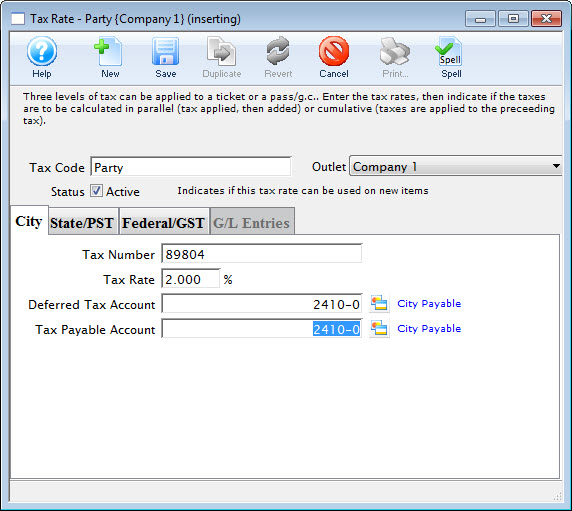
- Change data as required.
- Click the Save button.
Deleting a Tax Code
Tax Codes can only be deleted if they have not been used for any transactions in Theatre Manager.
- Click Setup >> System Tables >> Tax Tables.
The Tax Rate List window opens.
Click here for a description of this window.
- Select the tax code to delete.
Do this by single clicking on the value.
- Click the Delete button.
- Click the Delete button.
The Delete confirmation opens.
Fee Tables
The Fee Type window is opened through the Setup >> System Tables >> Fee Tables.
The Fee Table window opens.
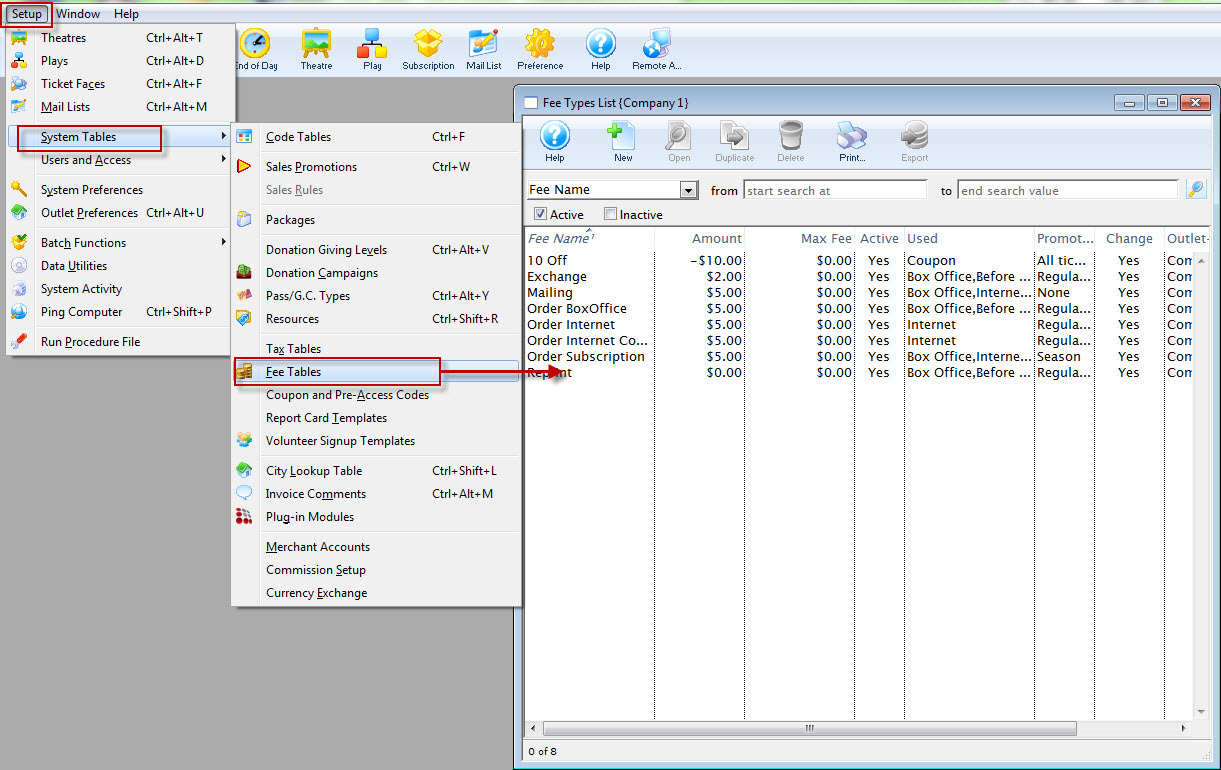
From this window you add, remove and edit Fee Tables.
Fee Type Detail Window
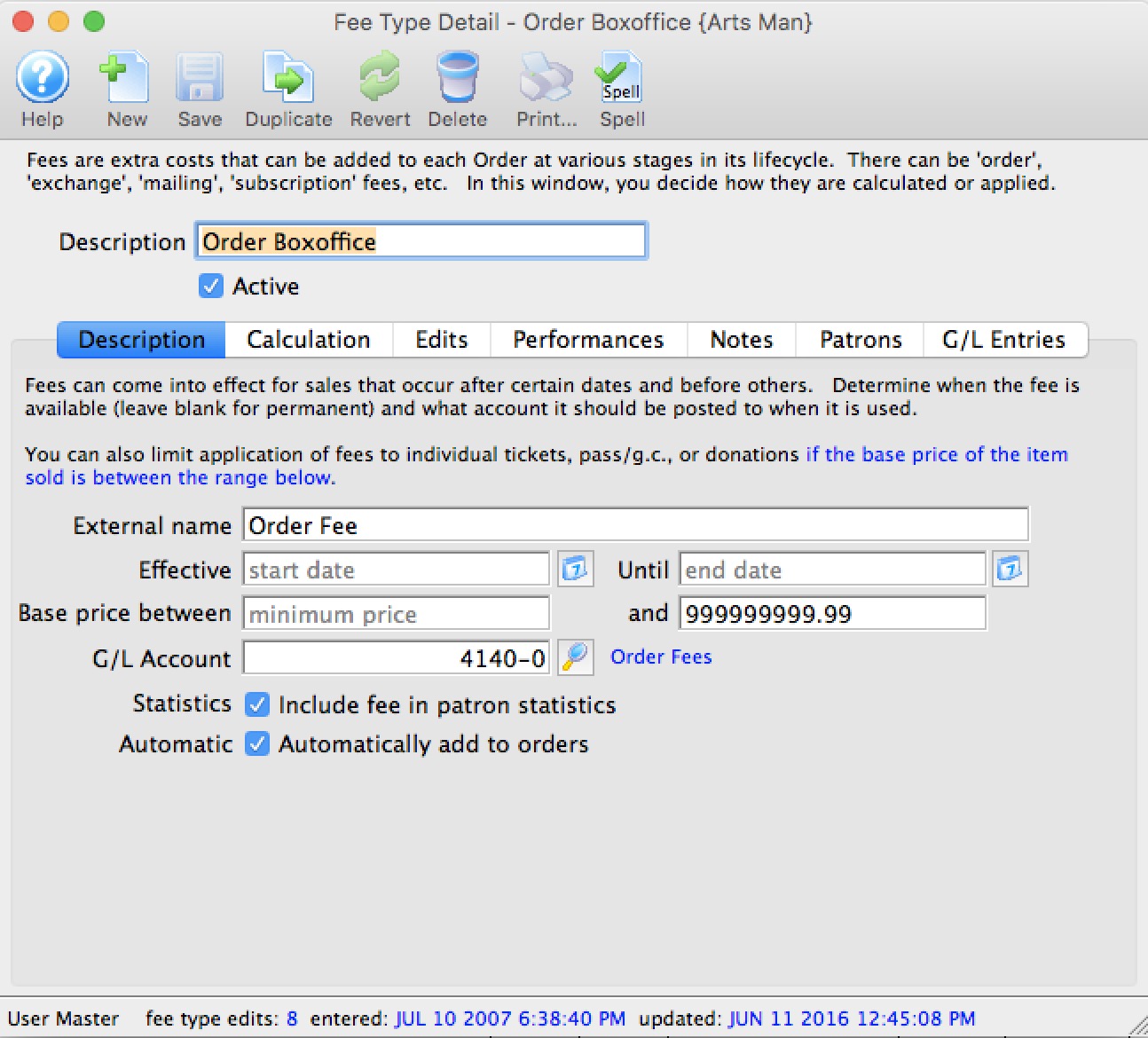
Parts of the Fee Type Window
|
Accesses the Help section for this window. |
|
Inserts a new fee. For more information on inserting fees click here. |
|
Saves changes made to the fee. |
|
Creates a copy of the current fee. |
|
Undoes changes to the last saved point. |
|
Deletes the current fee. For more information about deleting fees, click here. |
|
Not yet available in this window. |
|
Checks the spelling of fields that can be typed in. |
| Description | Name given to the fee. |
| Outlet | Outlet responsible for the fee. |
| Status | When checked the fee is active and can be used. |
 |
Details about the fee. For more information on the description tab click here. |
 |
Calculations for the fee. For more information on the calculation tab click here. |
|
Rules of the fee. For more information on the edits tab click here. |
 |
An optional list of performances to which the fee can be applied. For more information on the performances tab click here. |
 |
An optional list of member types to which the fee can be applied. For more information on the member types tab click here. |
 |
Sales notes about the fee. For more information about the notes tab click here. |
 |
G/L entries for the fee. For more information on the G/L entries tab click here. |
Description Tab
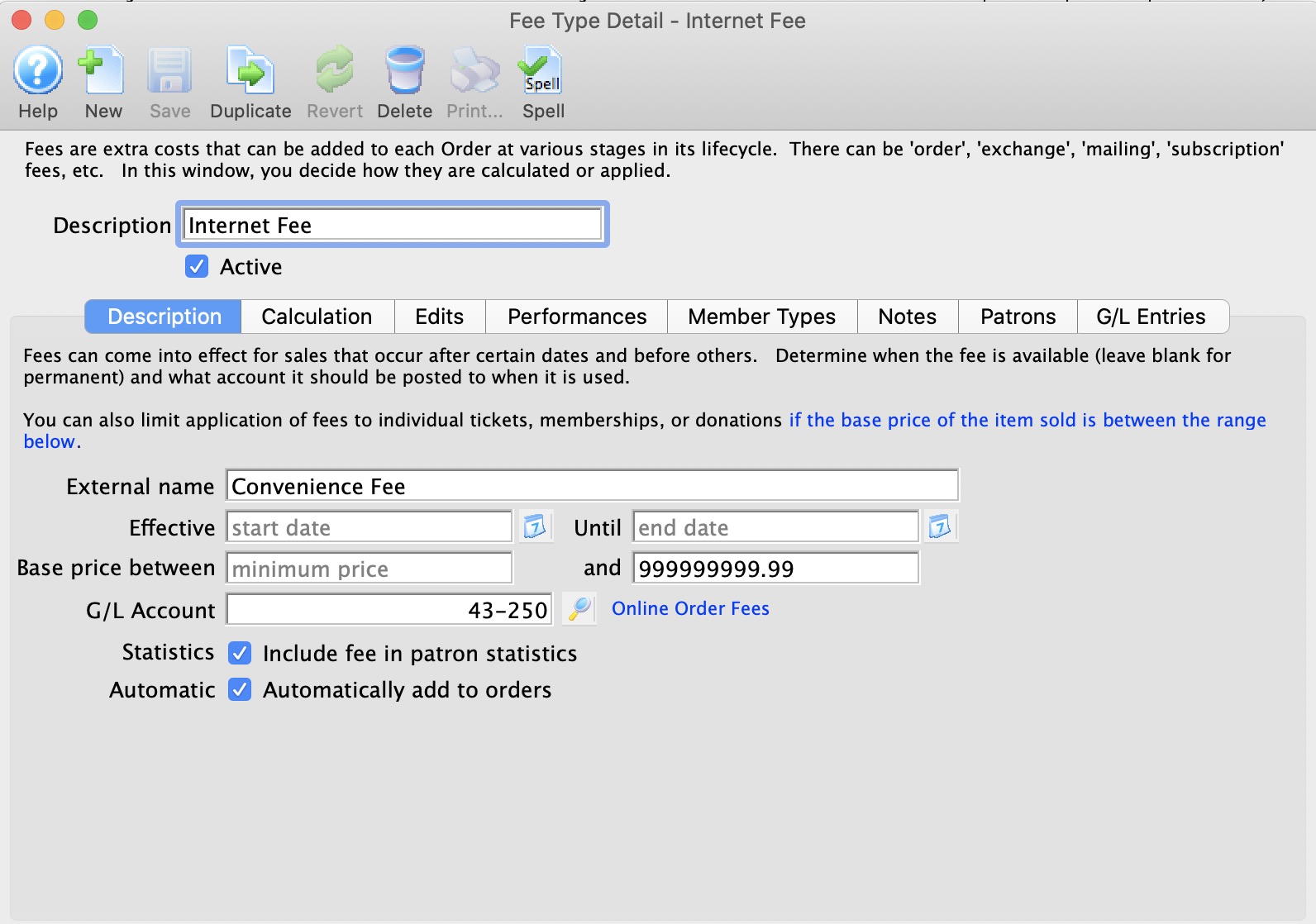
Parts of the Description Tab
| External Name | Name of the fee as it will appear on the internet or a ticket face. |
| Effective Unitl | If there is a range of dates during which you want the fee to be applied, enter a start and ending date.
|
| Base Price Between | Ordinarily, the fee will apply to any item in the shopping cart, regardless of price. however, if you want the fee to only apply to tickets (or donations or passes) that have a base price valued between $x.xx and $y.yy, then enter the range of prices. This allows you to structure non-refundable box office fees to vary, based on the price of the item.
Note: the price that is checked is the base price and all taxes, fees and discounts are ignored when evaluating if the fee is valid or not. This might be beneficial use of fees for Road House style venues. |
| G/L Account | General ledger account to apply this fee to - which is normally an income account |
|
Search button to access a list of G/L accounts. |
| Statistics | Fee will be included in the patron statistics. |
| Automatic | Fee will be added to the order automatically based on the edit controls in the edits tab. Some fees cannot be marked as 'auto-add':
|
Calculation Tab
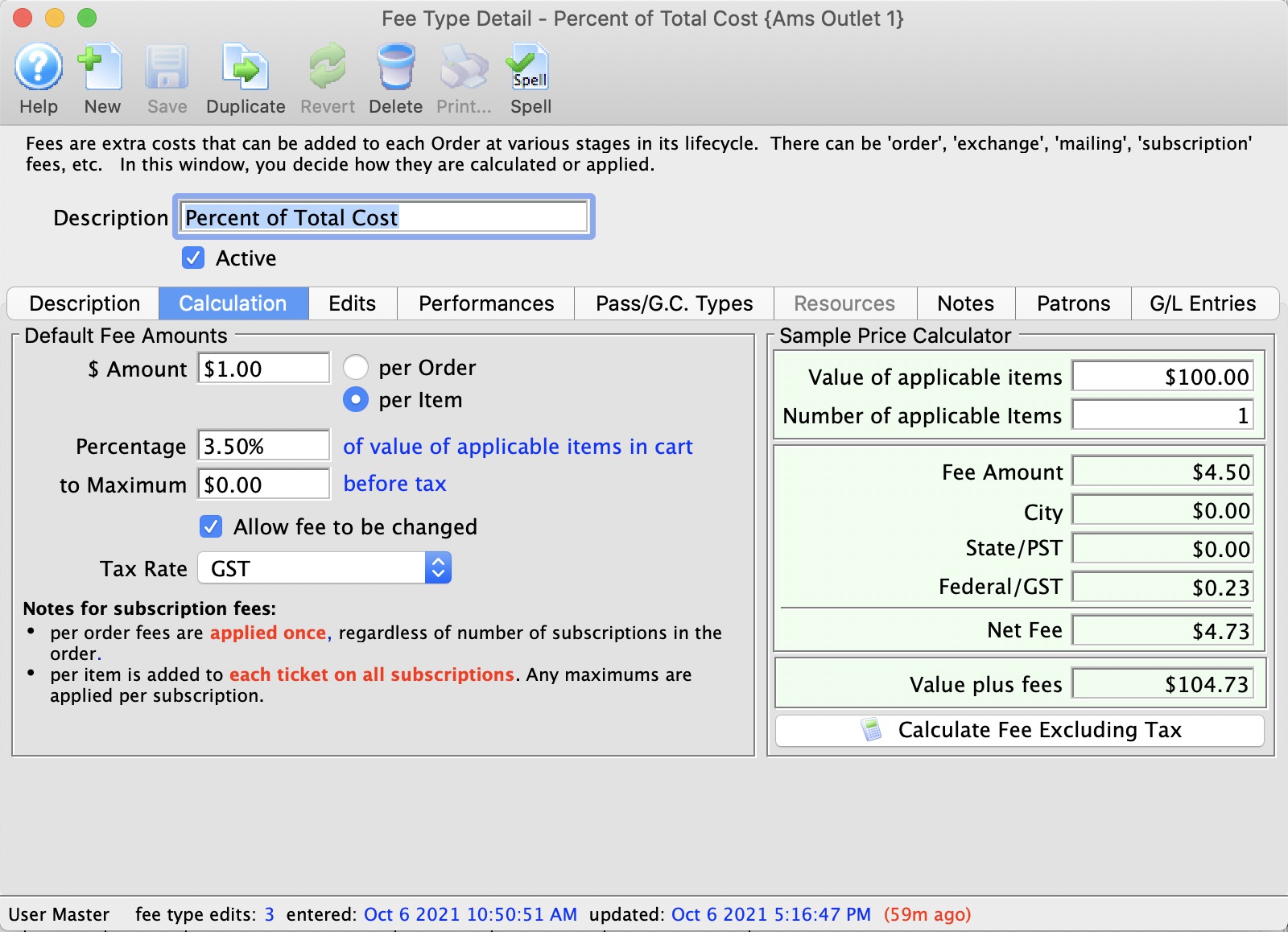
Parts of the Calculation Tab
Default Fee Amounts |
|
| $ Amount | Value of the fee prior to tax calculations |
| Per Order | Fee is applied once to the order. |
| Per Item | Charge the fee in a multiple of the number of items purchased. |
| Percentage | Set a percentage for the fee of either the total order or the items in the order, based on the radio button choice above, rather than a flat dollar amount. |
| To Maximum | Maximum amount to be charged for this |
| Allow fee to be changed | Fee can be edited at the time of purchase |
Tax Setting |
|
| Tax Rate | Tax rate to be applied to this fee |
Sample Price Calculator |
|
| Value of Applicable items | Enter a test value for the items in an order or cart to see how the Fee calculator would work. |
| Number of Applicable items | Enter a test number of items in the order or cart that the fee would be applied for a number of items in the cart or order. |
| Fee Amount | The value of the fee based on the number and value of applicable sample items. |
| City | Value of the city tax based on the tax rate and Effect on fee of |
| State/PST | Value of the State/PST tax based on the tax rate and Effect on fee of |
| Federal/GST | Value of the Federal/GST tax based on the tax rate and Effect on fee of |
| Net Fee | Shows what the net fee would be based on the calculations |
| Value plus fee | The value of the applicable items plus the fee for the total cost |
 |
Subtracts the tax from the fee amount to help you decide how to adjust fees if you want them without tax. |
Edits Tab
- Depending on which you pick on the right side of this screen, some options will disappear.
- On the left side, you can only make the fee apply to one of the three groups. For example, if the fee applies to a payment source, it cannot apply to a ticket purchase and vice versa.
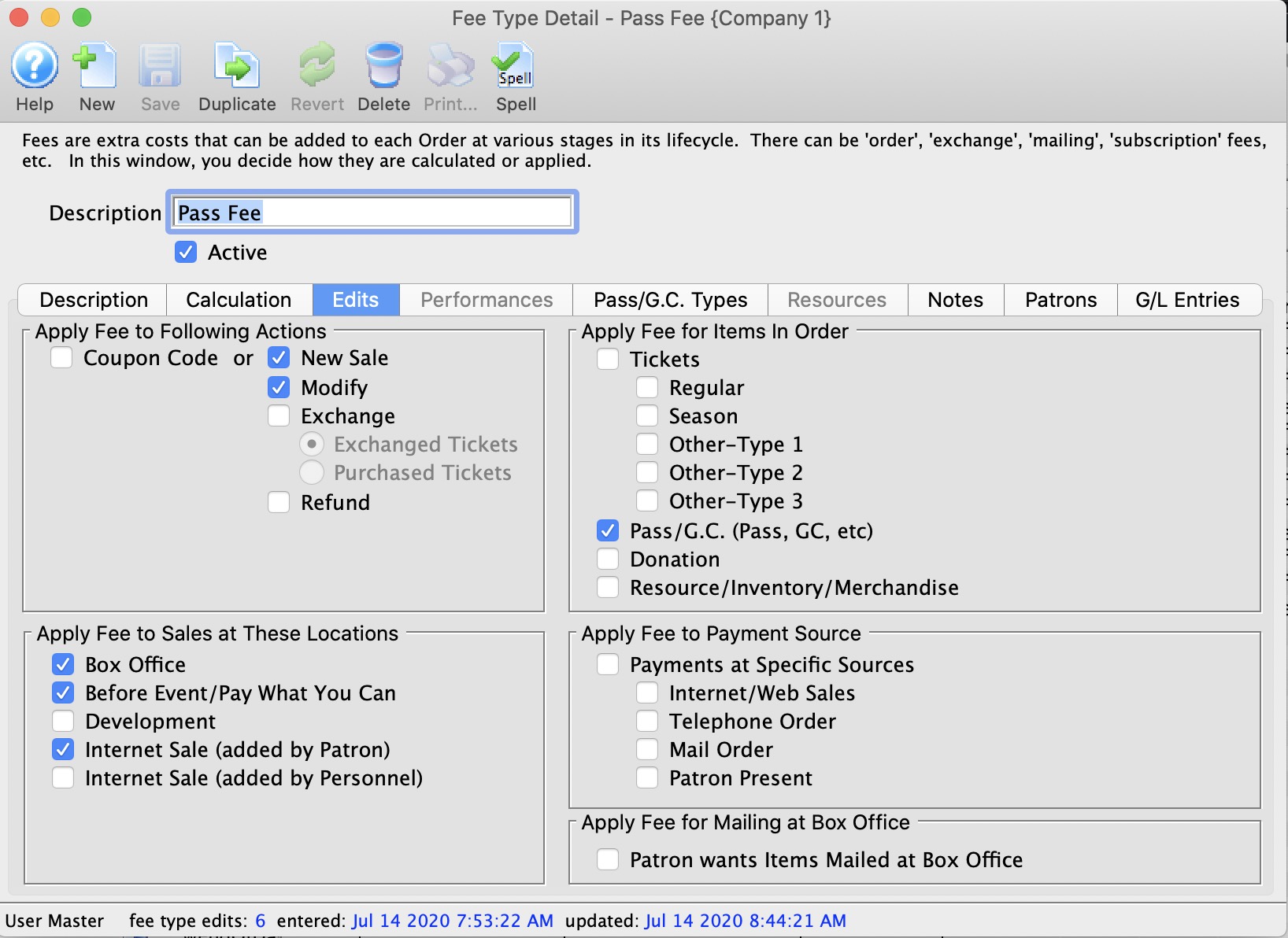
Parts of the Edits Tab
Allow fee to be used during |
|
| Coupon Code | Fee is tied to the use of a coupon code at checkout. |
| New Sale | Fee is applied to a New Sale. |
| Modify | Fee is applied when an order is modified. |
| Exchange | Fee is tied to either:
|
| Refund | Fee is tied to a refund. | Allow fee to be used when entering by: |
| Box Office | Applies fee when ever a ticket is sold by the Box Office. |
| Before Event / Pay What You Can | Applies fee when ever a ticket is sold before event/pay what you can. |
| Development | Applies fee when ever a ticket is sold by Development. |
| Internet Sale (added by Patron) | Applies fee when ever an item is purchased by the Patron through your web sales module |
| Internet Sale (added by Staff/Volunteer) | Applies fee when ever an item is sold by the Staff (volunteer) to the Patron as part of the manage sales process for courses and such |
Only apply fee to the following items: |
|
| Tickets | Applies fee when ever a ticket is sold. |
| Regular Admission | Fee is applied to any tickets sold using regular admission accounting. |
| Season Ticket | Fee is applied to any tickets sold using season ticket accounting. |
| Other-Type 1 | Fee is applied to any tickets sold using other-type 1 accounting. |
| Other-Type 2 | Fee is applied to any tickets sold using other-type 2 accounting. |
| Other-Type 3 | Fee is applied to any tickets sold using other-type 3 accounting. |
| Pass / G.C. | Applies fee when ever a Pass or G.C. is purchased. |
| Donation | Applies fee when ever a Donation is purchased. |
| Resource/Inventory/Merchandise | Applies fee when ever a resource (inventory item or merchandise) is purchased. Currently only applicable for online sales |
| Payments at Specific Sources | Applies fee when purchaced at Any Source. |
| Internet / Web Sales | Applies fee when purchased online. |
| Telephone Order | Applies fee when purchased through a Phone Order. |
| Mail Order | Applies fee when purchased via Mail Order. |
| Patron Present | Applies fee when the Patron is at the Box Office. |
| Patron wants items mailed at Box Office | Applies fee only when the Order Ticket Handling Option is set to Mail To Patron. |
Performances Tab
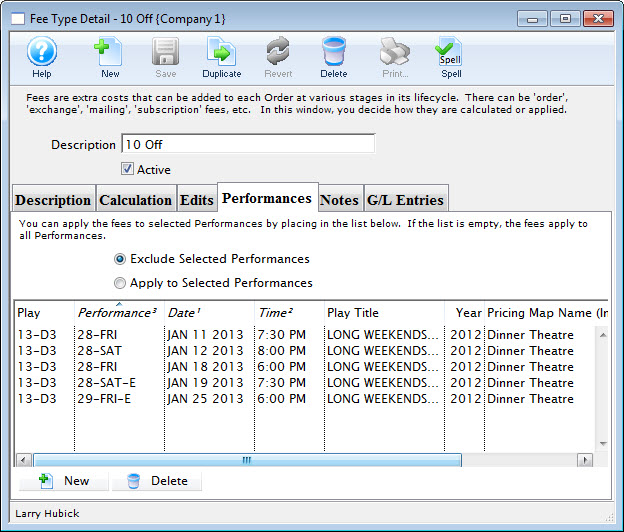
Parts of the Performances Tab
|
Leaving this list blank will default to the fee being applicable to all performances. |
|
You are limited to about 750 performances which is more than you should need in a year. If you need more than that, either:
|
| Exclude Selected Performances | When selected, the fee will be excluded from the performances listed. |
| Apply to Selected Performances | When selected, the fee will apply to only the performances listed. |
| Play | The Seq # of the event(s) in the list. |
| Performance | The performance(s) code for the events in the list |
| Date | The date of the performance(s). |
| Time | The time of the performance(s). |
| Play Title | The full title of the event(s) |
| Year | The fiscal year of the play(s) |
| Theatre Name | The name of the theatre that the coupon can be used for. |
|
Opens the performance lookup list window to allow the selection of performances. |
|
Delete the current selected performance from the list. |
Member Types Tab
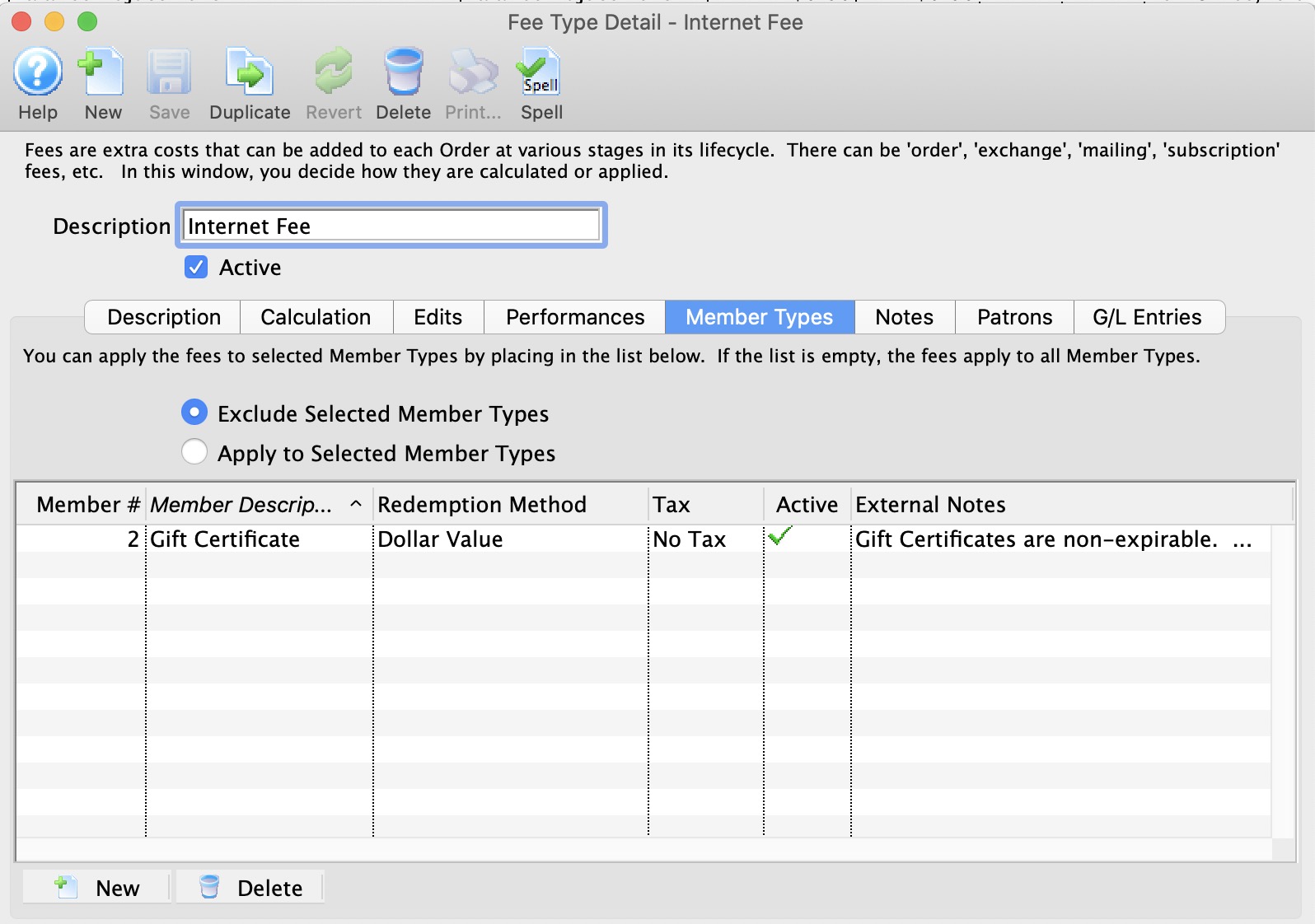
Parts of the Member Types Tab
|
Leaving this list blank will default to the fee being applicable to all memberships. |
| Exclude Selected Member Types | When selected, the fee will be excluded from the member types listed. |
| Apply to Selected Member Types | When selected, the fee will apply to only the member types listed. |
| Member # | The Seq # of the member types(s) in the list. |
| Member Description | Internal Name used during the sales process at the box office - which may be different than the external name. |
| Redemption Method | The method of redemption for the membership. |
| Tax | The tax rate applied to this membership. |
| Active | The status of the membership. |
| External Notes | Notes regarding what this membership is for and may will appear online for the patron to read. |
|
Opens the member type lookup list window to allow the selection of member types. |
|
Delete the current selected member type from the list. |
Resources Tab
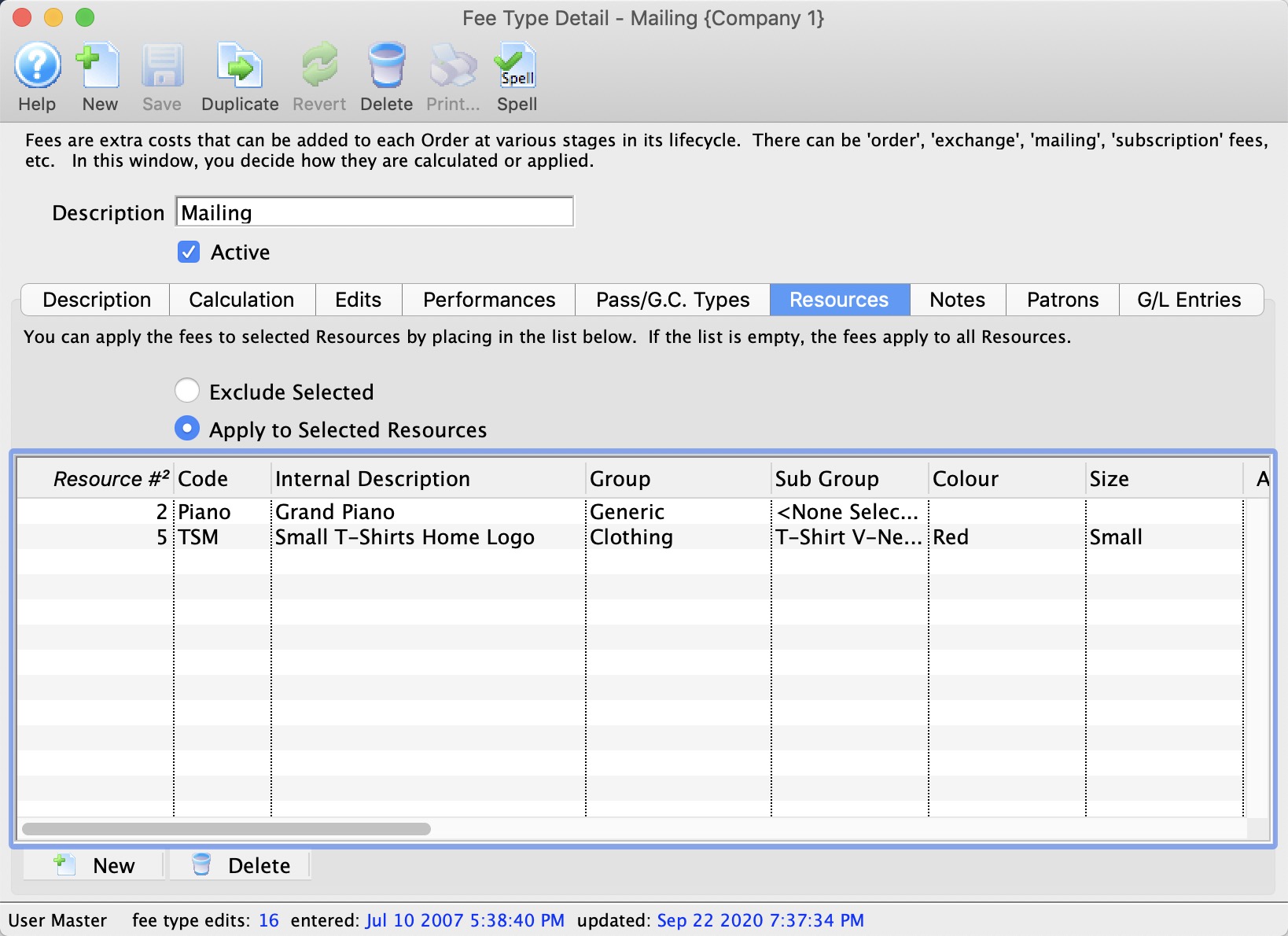
Notes Tab
Enter notes in this tab that pertain to the usage of this particular fee. Notes are for internal use only.
Patrons Tab
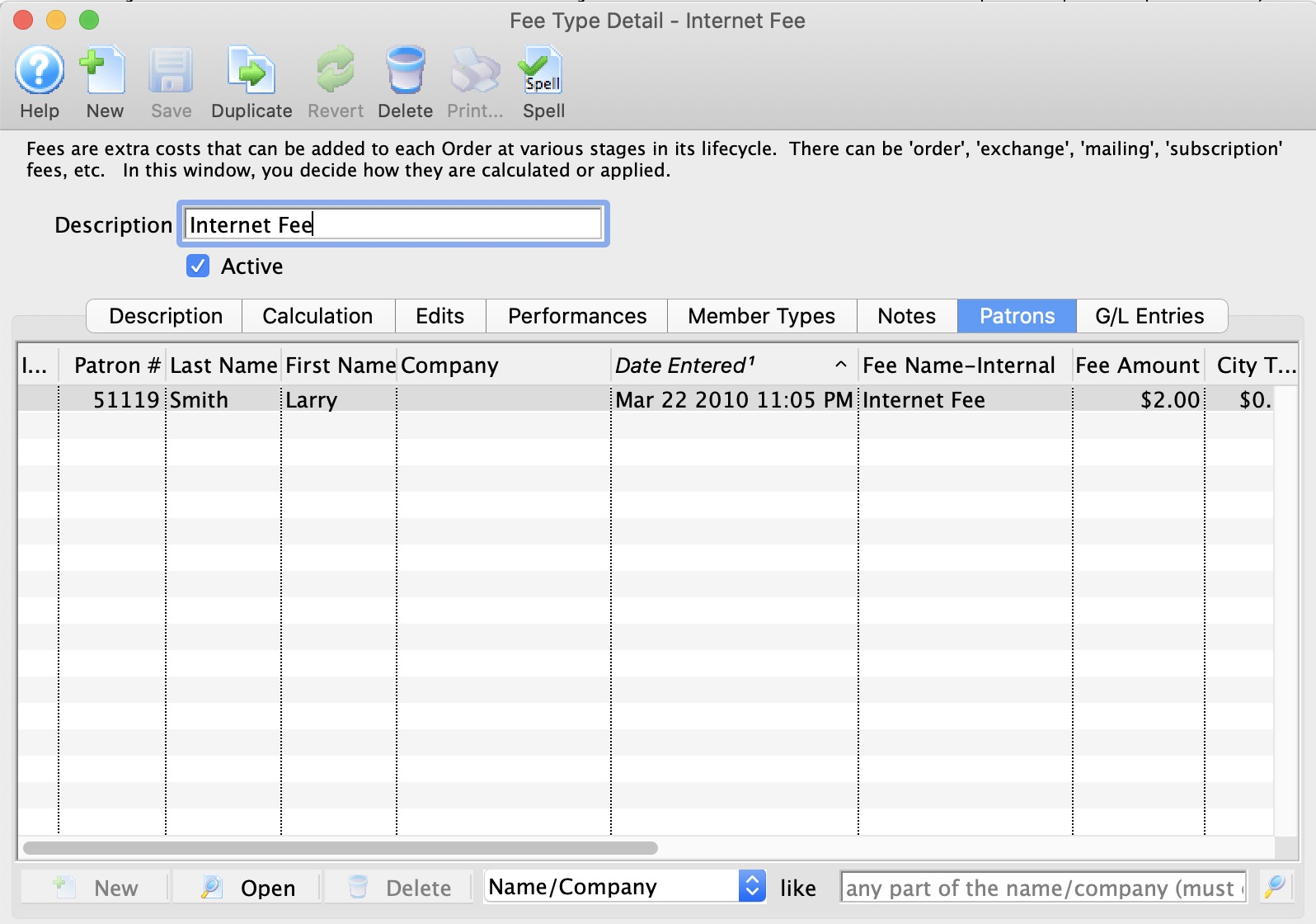
As patrons incur this fee, each instance of the fee's usage will be recorded in the Patrons Tab for your reference.
G/L Entries Tab
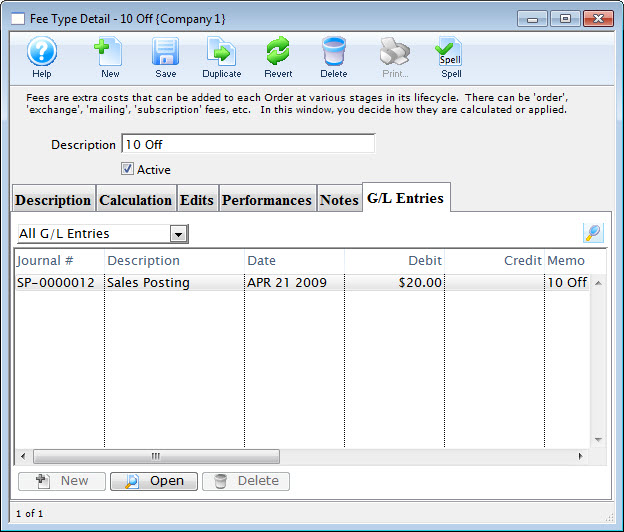
As journal entries are created and posted, each instance of the fee's usage will be recorded in the G/L Entries Tab for your reference.
Fee Table Usage
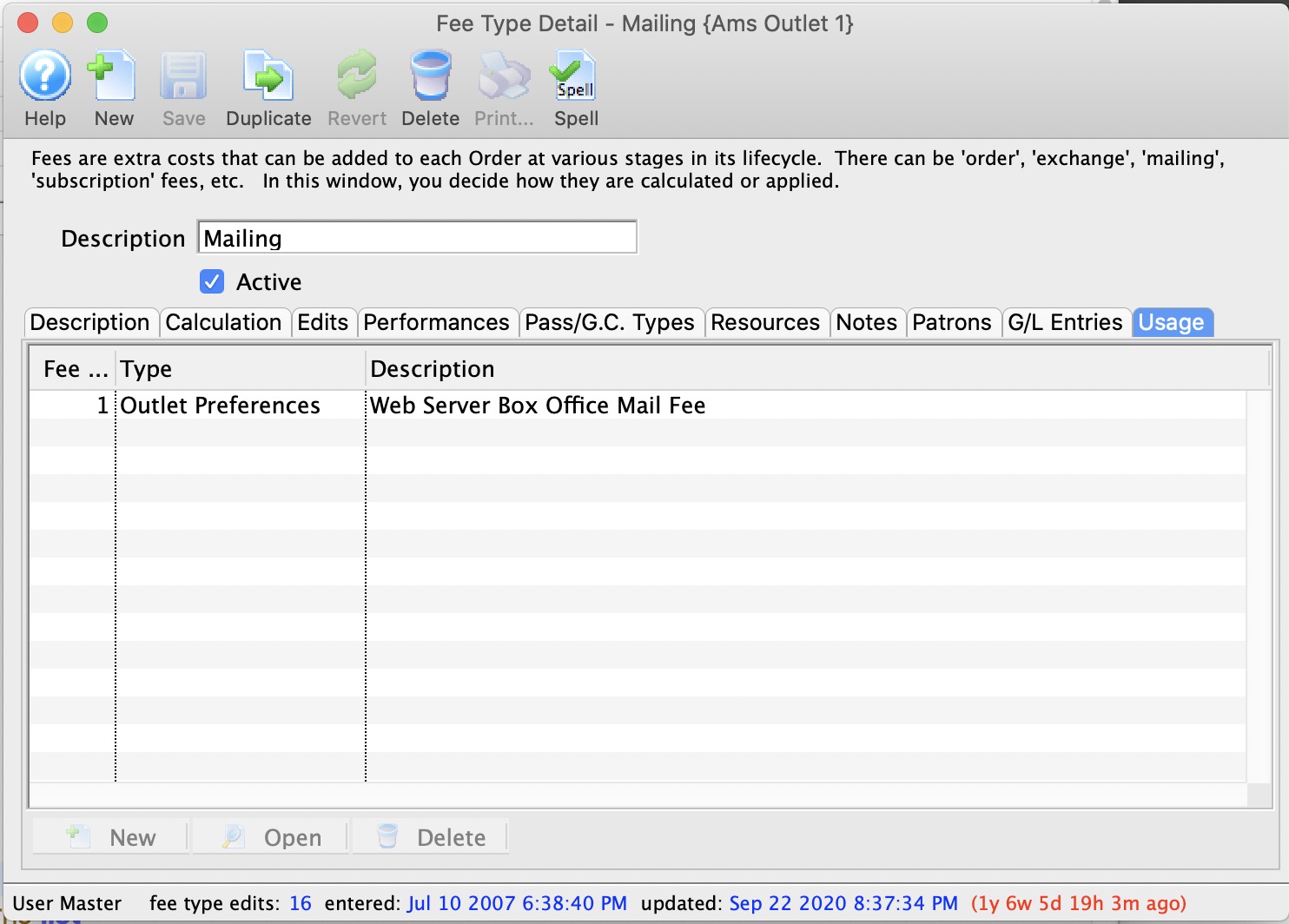
This tab indicates where the fee has been associated with a process such as:
- Mailing fee, print at home fee, or will call fee (all in company preferences)
- Payment rounding fee (in code tables)
- Coupon or pre-access code fee
Creating a New Fee
To create a new fee Type. you perform the following steps:
- Open the Fee Types List.
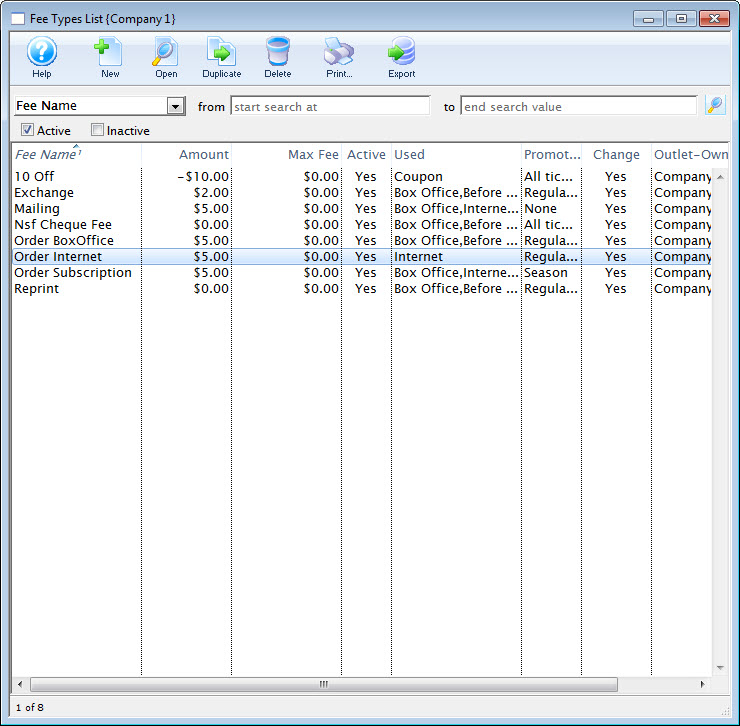
Click here to learn how to access the Fee Types List. - Click the New button.
The Fee Type Detail window opens.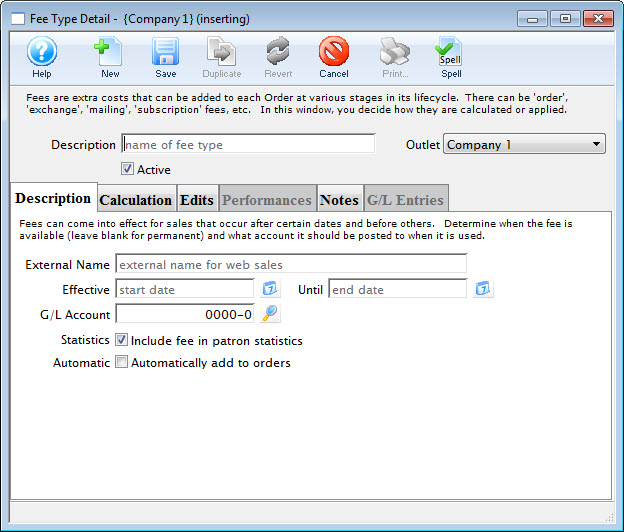
- Enter the Fee Type Description.
- Enter the description details as needed.
For more information on the description tab click here. - Click the Calculation tab.
- Enter the calculation information as needed.
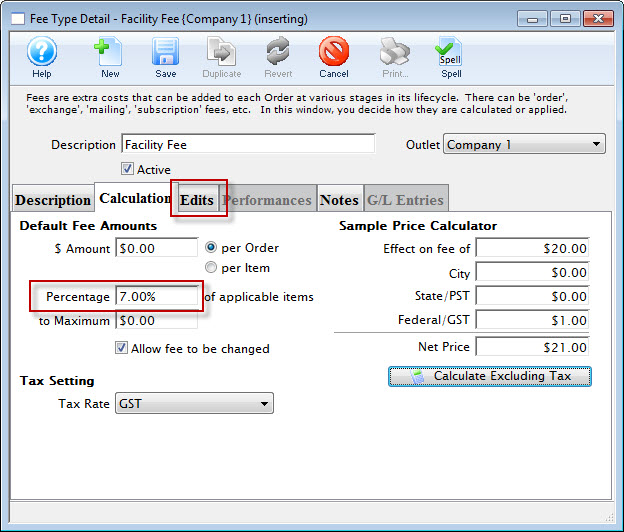
For more information on the calculation tab click here. - Click the Edits
 tab.
tab.
- Enter the edit preferences as needed.
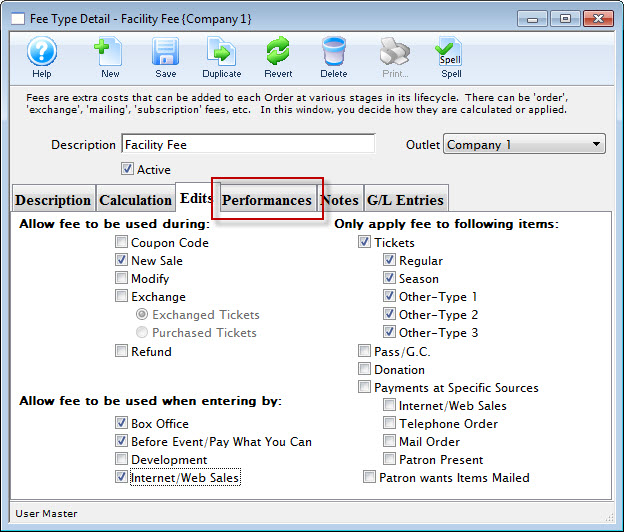
For more information on the edits tab click here. - Click the Performances tab.
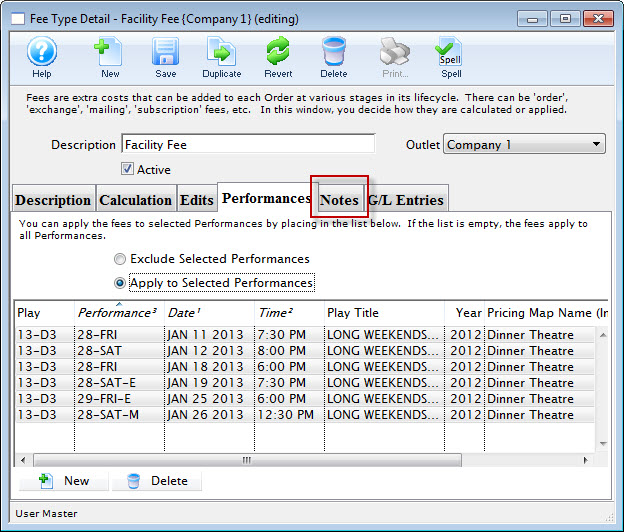
- Enter the Performances as required.
- Choose The Exclude Selected Performances to ensure the fee in NOT applied to the performances you select.
- Choose Include Selected Performance to ensure the fee is applied to ONLY the selected perdomances between the dates entered on the Description tab.
For more information on the performances tab click here.
- Click the Notes tab.
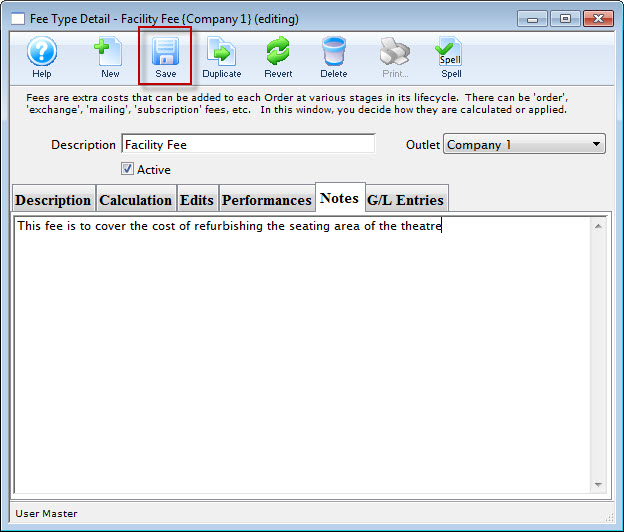
- Enter notes as needed.
For more information on the notes tab click here. - Click the Save button.
The fee is now saved and to be applied to future orders.
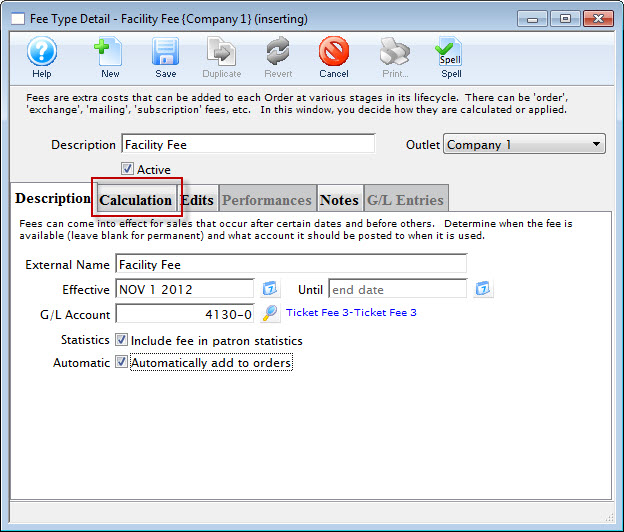
Editing a Fee Type
- Open the Fee Types List window.
Click here to learn how to access the Fee Types List.
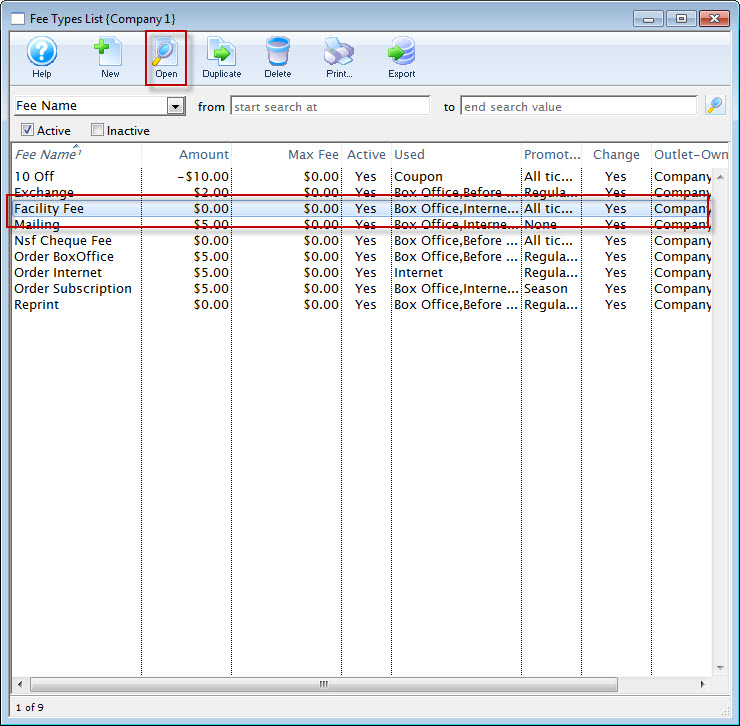
- Select the Fee to be edited.
Single click on a fee to select it.
- Click the Open button.
The Fee Type Detail window opens.
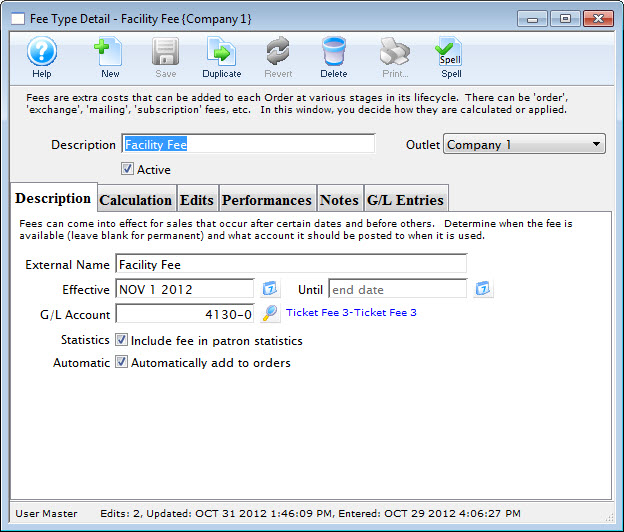
- Make changes as needed.
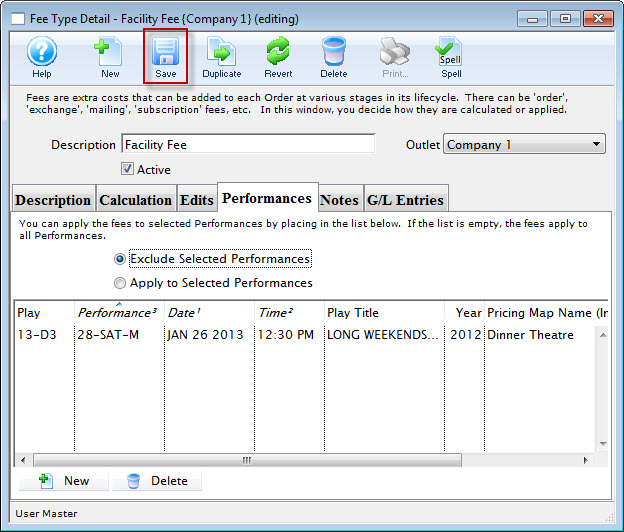
- Click the Save button.
Deleting a Fee Type
- Open the Fee Types List window.
Click here to learn how to access the Fee Types List.
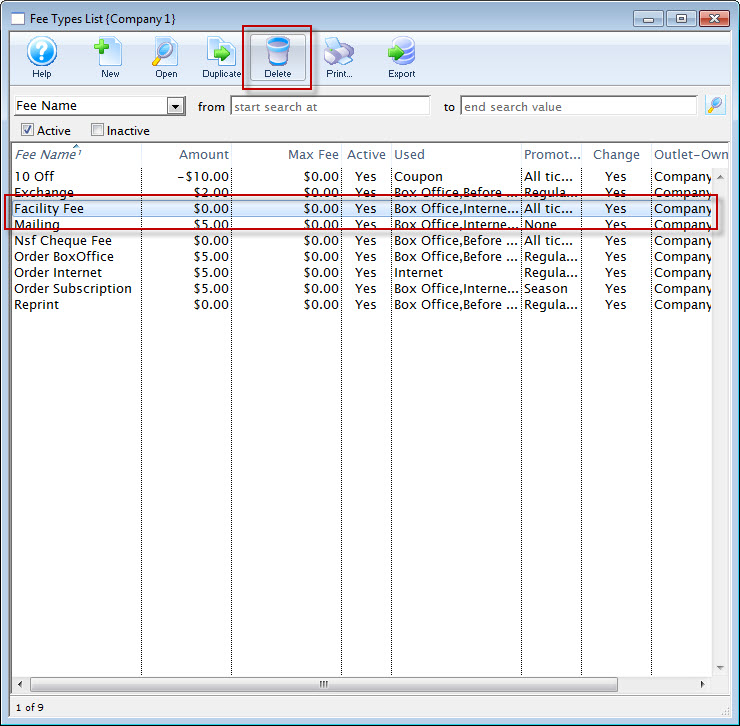
- Select the Fee to be deleted.
Single click on a fee to select it.
- Click the Delete button.
A Delete Record confirmation window opens.
- Click the Delete button.
The fee is now removed.
Order discounts (negative fees)
|
The use of negative fees and the ability to change it from the default discount requires a special permission set for the employee in the function tab of employee setup, per the image to the right.
This in the column 'window' and look for Fees - to allow the user to Enter a negative value for a fee (i.e. discount). |
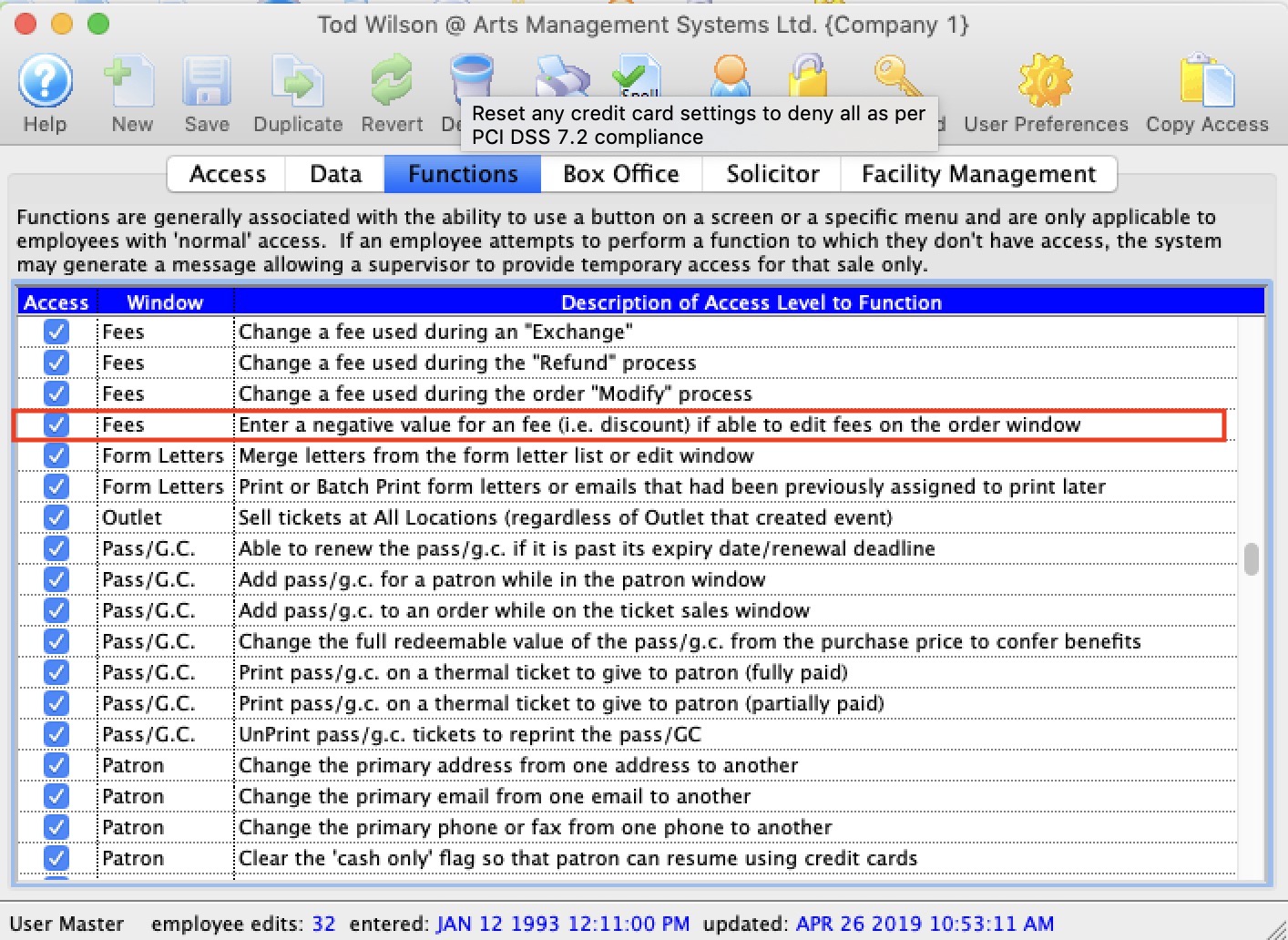 It is possible to create fees that discount an entire order - essentially negative fees. This can be useful for a one time subscription discount or for refunding portions of ticket fees.
The example below highlights some of the things you might need for setting up a negative order fee. There are variations such as if subscribers get an automatic discount vs tuition discounts that would not be automatic.
Example for Tuition Fee Discount
Key settings for a negative fee like tuition refund would be:
Description Tab (highlighted below)
- Give it a name like Tuition Refund for tracking purposes
- Use an account that appropriately identifies the refund in your accounting system.
Since it is a refund, it is probably an expense account or cost of goods. Please discuss with your accountant for the proper account number for tracking purposes. - Be sure that Do not automatically add to orders is unchecked if you want to add the fee manually such as Tuition Refunds. Click it for automatic order discount such as for Subscription Sales.
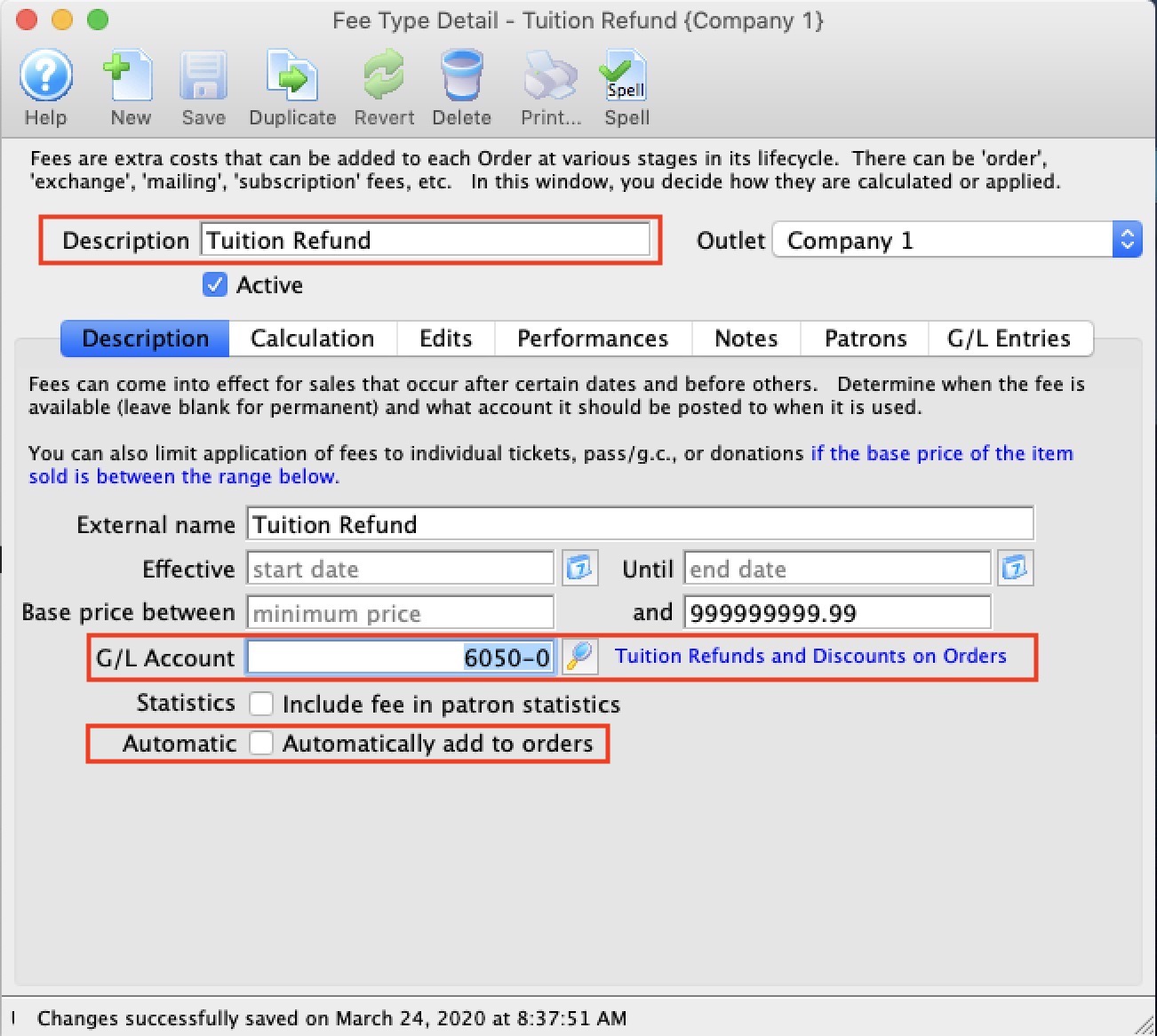
Calculation Tab (highlighted below)
- Make it a per order fee
- Allow the fee to be changed if you are going to be prorating the tuition refund based on number of classes attended.
- if your tuition is taxable, then the fee should also be taxable at the same rate. Most often tuition is not taxable.
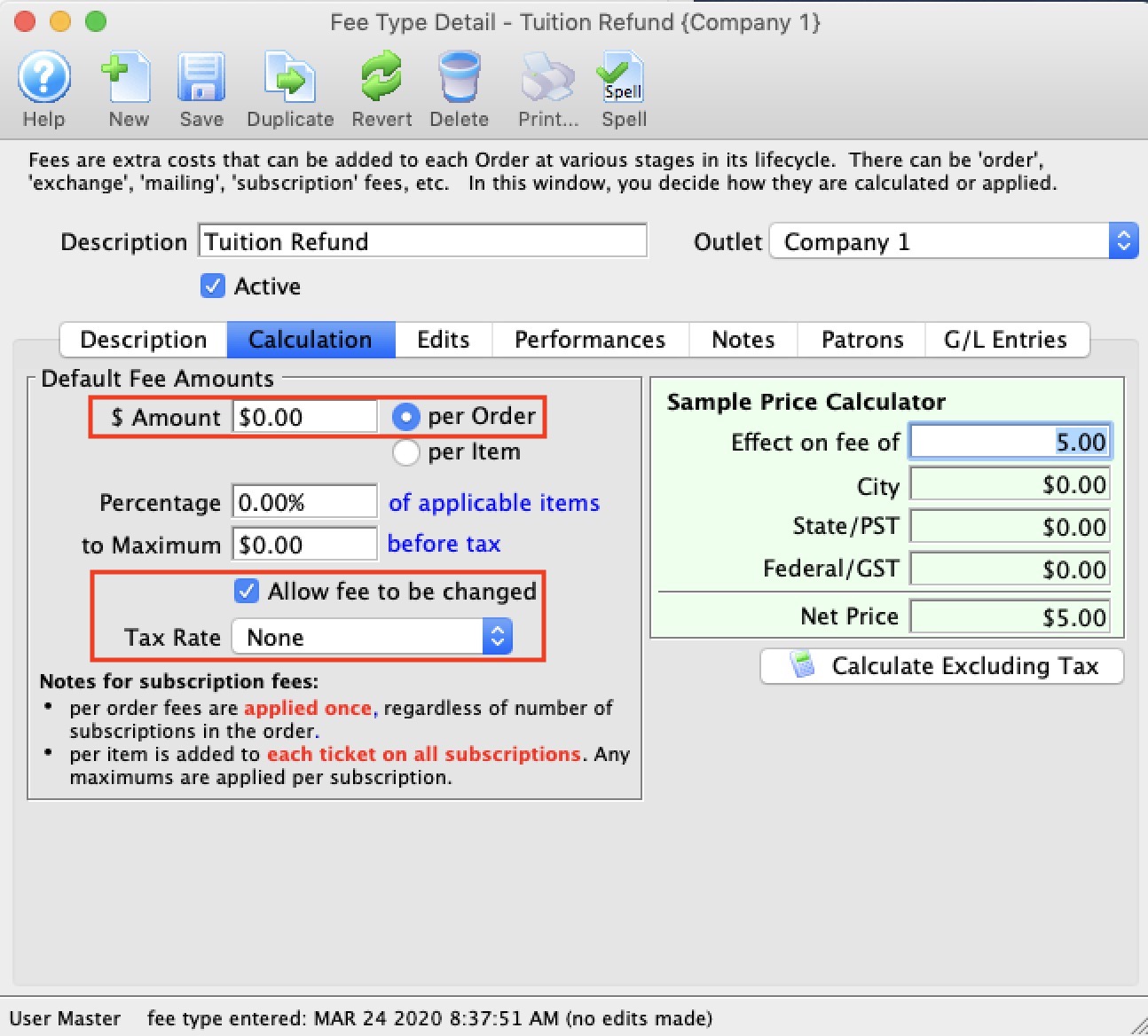
Edits Tab (highlighted below)
- Apply fee to actions: Modify (optionally Exchange and Refund)
- Apply fee at Box office only
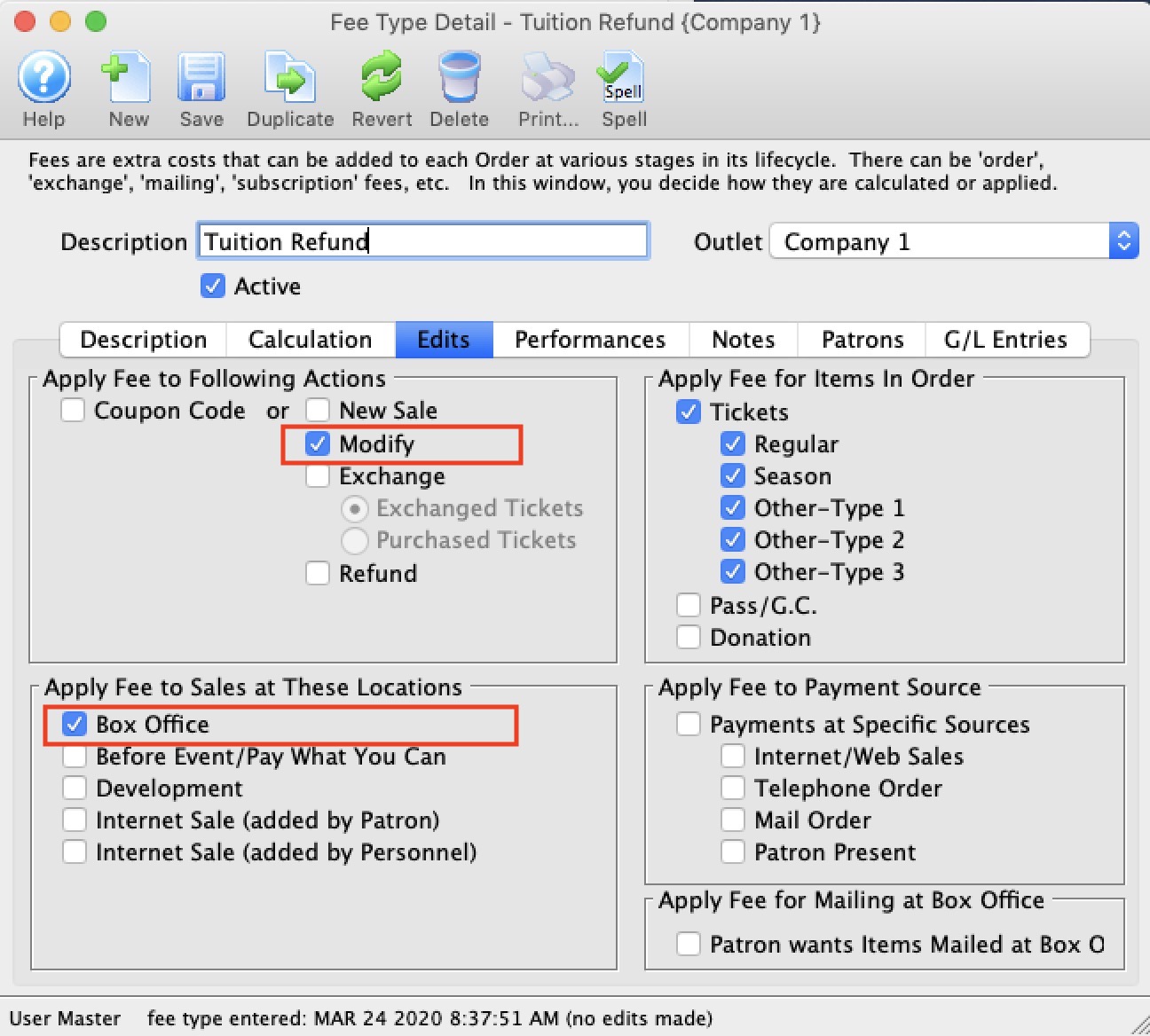
Coupon and Pre-Access Codes
- A discount on a certain show to a target market segment
- Access to that event before it goes on sales to the public - or that is never on sale to the general public
Examples of marketing activities that are supported
- Amex front of the line. The performance must be tagged as only accepting AMEX for a period of time.)
- A one time mailing discount for subscriber purchases online - for their tickets
- Automatic access to events based on a patron classification (mail list) once the patron logs in so you know that the access code cannot be passed around the internet - the recipients can be identified up front
- A wide ranging discount (eg 2 for 1) if a special coupon code is entered - including limiting the number of uses of that sale promotion within a section of the venue
- Scaled discounts based on the first x people get '10%' in an area, the next Y people get '5%' based on sales rules
- Limited access to subscribers to an add on show after the fact. The general capability can be extended (using plugins) to any people that satisfy a dynamic set of criteria such as donors in the past 6 months to certain campaigns that also have bought other specific events.
- and much more - refer to the explanation of each window.
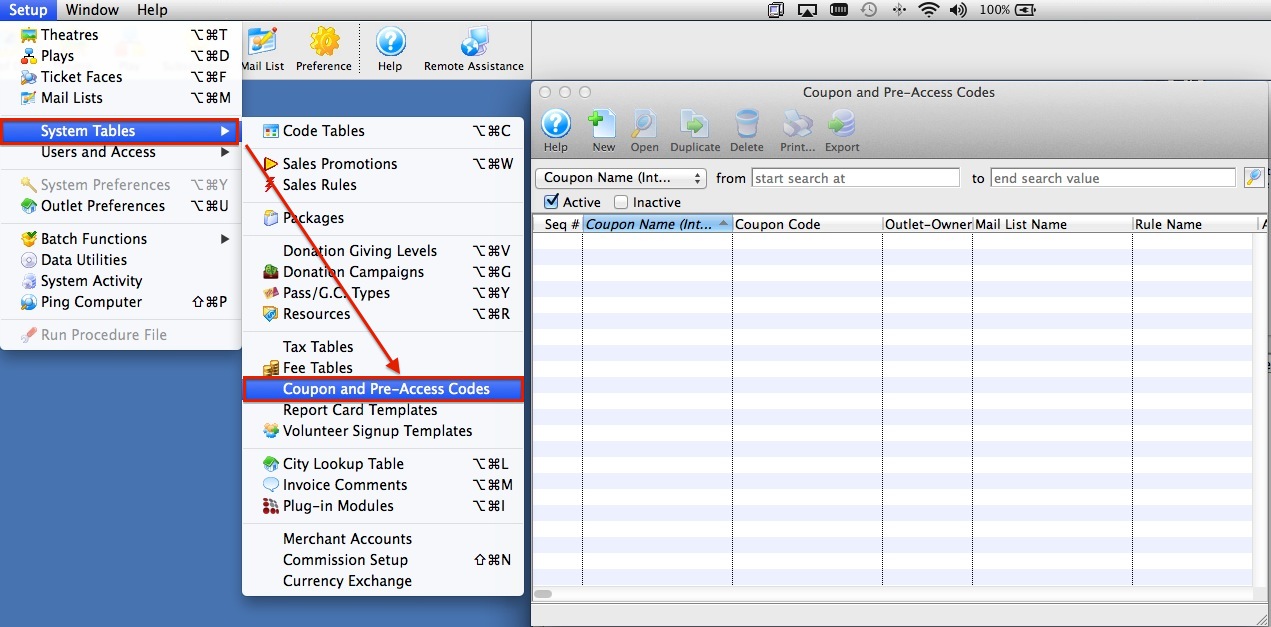
From this window you can add, remove and edit Coupon Codes.
Coupon Codes List Window
Parts of the Coupon Code List Window
|
Inserts a new coupon code. For more information on inserting coupon codes click here. |
|
Opens the selected coupon code for editing. For more information on editing coupon codes click here. |
|
Creates a copy of the current coupon code. |
|
Deletes the current coupon code. For more information on deleting coupon codes click here. |
|
Generates a report of the coupon codes to the screen or default print location. |
|
Exports out a list of the coupon codes in tab-delimited, comma delimited and two Excel formats. |
 |
Options to search for coupon codes by, including the Coupon Name (Internal), Coupon Code, whether the coupon is Active, and which Outlet it is available for. |
| From | Starting point for the search. |
| To | Ending point for the search. |
| Coupon Name | Name of the coupon code. |
| Coupon Code | Name of the verbal code used to enact coupon as payment. |
| Outlet-Owner | Outlet responsible for the fee. |
| Mail List Name | Displays the name of the mail list the coupon is restricted to. |
| Start Date | Date that the coupon is available for use. |
| End Date | Date that the coupon is unavailable for use. |
| Max. Uses | Maximum number of times that the coupon may be used before becoming inactive. |
| Current Uses | Current number of times that the coupon has been used. |
Coupon Codes Discount Detail Window
Coupons are used to enable pre-access to tickets and/or cause a discount on tickets during the checkout process. The intention is a code may be mailed or given to a group of patrons who may, at checkout on the web or at the time of payment at the box office, specify the coupon code and get tickets or receives a discount if there are any uses left on them.
Parts of the Coupon Code Discount Detail Window
|
Inserts a new coupon code.
|
|
Saves changes made to the coupon code. |
|
Creates a copy of the current coupon code. |
|
Undoes changes to the last saved point. |
|
Deletes the current coupon code. For more information on deleting coupon codes click here. |
|
Checks the spelling of fields that can be typed in. |
| Internal Description | Internal name given to the coupon code. |
| External Description | External name given to the coupon code to be displayed on web. |
| Coupon Code | Verbal code used by patrons to enact coupon code as a form of payment. |
| Status | When checked the coupon is active and can be used. |
| Folder | You can assign a folder name to the coupon code so that you can search by that if you wish. |
 |
Details about the coupon code. For more infomation on the Availability Tab click here. |
 |
Promotions for the coupon type. For more information on the Promotions Tab click here. |
 |
Applicable performances for the coupon. For more information on the Performances Tab click here. |
 |
List window of patrons and orders that have used the coupon code. For more information on the Redemptions Tab click here. |
Availability Tab
Redemption Details |
|
| Redeemable From | Date that the coupon is available for use. |
| Redeemable Until | Date that the coupon is no longer available for use. |
 |
Accesses a calendar to select dates. |
| Restricted to Mail List | Coupon is only available to members of selected mail list. Any other patron who tries to use the coupon will be told that it is invalid. |
 |
Accesses the Mail List Lookup window to select Mail List. | Auto Add on Web | If a mail list is specified for the coupon, you can decide how the coupon gets into the patrons cart. Choices are:
|
Coupon Usage Type |
|
| Applies discount when used | Check this box if this coupon code could apply a discount to tickets via sales rules tab or orders (using a one time discount) |
| Presale access via internet |
 Check this box if this coupon code will allow patrons to purchase tickets to certain performances before they are available to the general public.
If you provide a list of performances in the performance tab, then:
|
Overall Coupon Usage Limits |
|
| Max Coupons available | The number of times that this coupon can be used before it becomes inactive. Leave blank to disable this feature. |
| Used Coupons | The current number of times that this coupon has been used. |
| Coupons in web carts | The number of coupons currently in shopping carts. |
Redeemable At Sales Sources |
|
| Box Office | Check this box if this coupon can be used in conjunction with a sale at the Box Office. |
| Internet Sales | Check this box if this coupon can be used in conjunction with a Web Sale. |
Sales Rule Tab
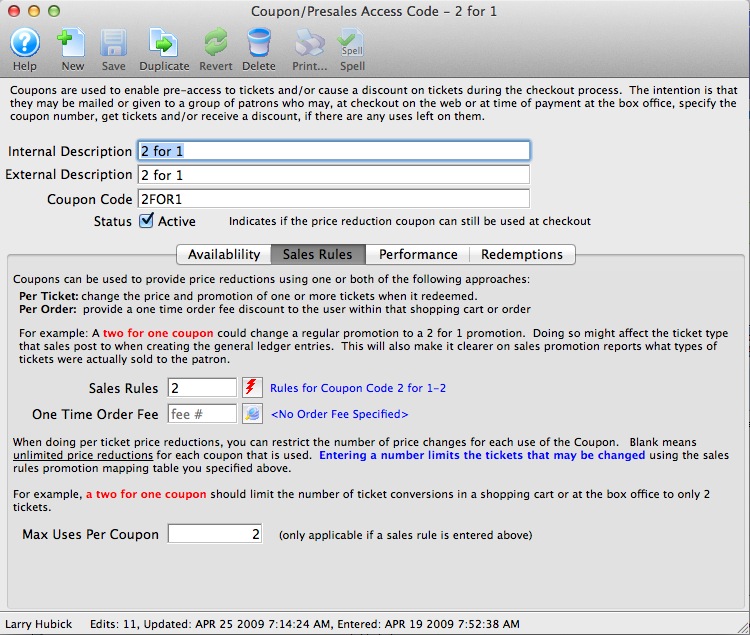
Parts of the Sales Rules Tab
| Sales Rules | The rule which will be applied to convert the tickets from one promotion and/or price code to another. For information on sales rules promotion conversion, click here |
 |
Opens the Sales Rule list in order to select a sales rule. |
| One Time Order Fee | Order fee applied to the coupon. | Max Use per coupon | Maximum number of tickets per order that this coupon can be used to receive a discount. |
Performance Tab
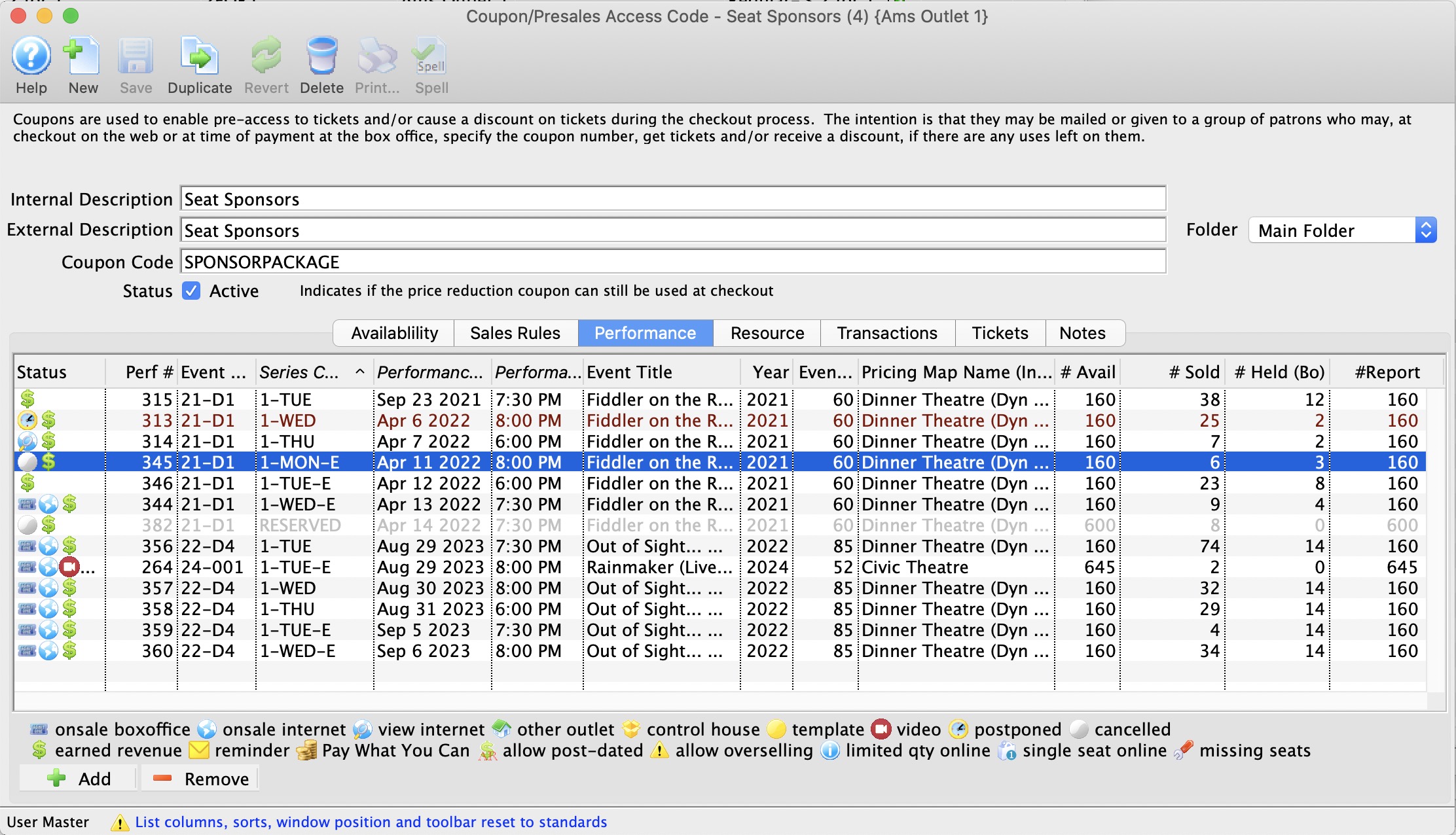
Parts of the Performance Tab
| Event/Play # | The # of the event/play(s) the coupon can be used for. |
| Event/Play | The name of the event/play(s) that the coupon can be used for. |
| Performance | The performance(s) that the coupon can be used for.
When the patron enters the pre-access coupon online, then any event in the list of performances will be displayed in the performance list to make it easier to select the events. Immediately after the pre-access coupon is entered, the other events will disappear for this one time only -- effectively making the pre-access coupon a quick filter to the events. In addition, the coupon shows in the shopping cart with a button to let the patron show the events again. For performances that are in the permitted list:
|
| Date | The date of the performance(s). |
| Time | The time of the performance(s). |
| Event/Play Title | The full title of the event/play(s) that the coupon can be used for. |
| Year | The fiscal year of the event/play(s) that the coupon can be used for. |
| Theatre Name | The name of the theatre that the coupon can be used for. |
| Perf # | The performance number. |
|
Opens the performance lookup list window to allow the selection of performances that the coupon is valid for. |
|
Delete the current selected performance from the list of valid performances for the coupon. |
Redemptions Tab
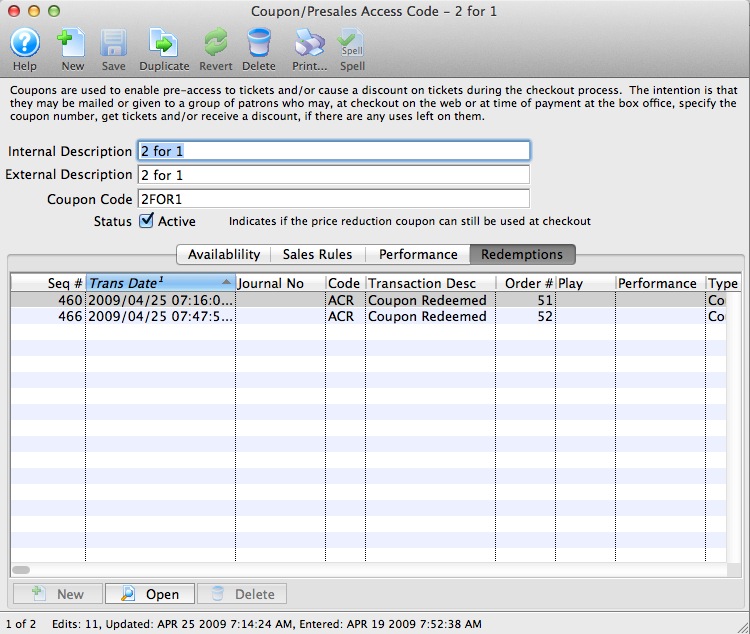
The redemptions tab displays a list of every instance when the coupon was redeemed.
|
The Redemptions tab will show Coupon redemptions only. Pre-Sale access only allows access to an event and is not tracked within the code. Pre-Sales access is best tracked by Sales Rule, Promotion Conversion
For more information and sales rules - promotion redemptions click here. Pre-sale access can be limited to members of a Mail List by selecting the Mail List on the Availability tab. |
Notes Tab
The Notes Tab of a Coupon or PreAccess Code is where content regarding the code can be placed. The field accepts plain text or HTML code. Text from this field appears on the ticketing site beside the Coupon or PreAccess Code in the web cart. This is a great marketing opportunity to communicate with your online patrons.
Resources Tab
Implementing Coupon Codes
For further information on creating a coupon for discounts, click here.
With Restricted Access Codes, please be aware of the following:
If...
- on the availability tab if you set your Max Coupons to 10
- on the promotion tab set you set the max use per coupon to 2
- and in the promotion conversion detail you set the Maximum Uses to be 20 ( 20 tix max ).
The following occurs
- If everyone only buys 2 tickets per order, the coupon will remain available for all 10 coupons available.
- If someone buys 4, only two ticket will be affected by the coupon.
- If you reach either the 10 coupon threshold or the max uses of 20 no more discounts will be offered.
The following topics indicate how to implement coupon codes for redemption and/or presales access within Theatre Manager
Creating a Coupon Code for Ticket Discounts
Using Theatre Manager, you can create Ticket Discount coupon codes.
|
You can create coupon codes for both ticket discounts and presale access. For more information on creating coupons for presale access, click here. |
With Restricted Access Codes, here is an example of restricting the coupon to 10 coupons of 2 redemptions for a maximum of 20 tickets:
- on the availability tab if you set your Max Coupons to 10
- on the promotion tab set you set the max use per coupon to 2
- in the promotion conversion detail you set the maximum Uses to be 20 ( 20 tix max ).
The following occurs
- If everyone only buys 2 tickets per order, the coupon will remain available for all 10 coupons available.
- If someone buys 4, only two ticket will be affected by the coupon.
- If you reach either the 10 coupon threshold or the max uses of 20 no more discounts will be offered.
To create a Coupon Code for Ticket Discounts, you perform the following steps:
Click here to learn how to access the Coupon Codes List window.
- Click the New
button.
The Coupon Code Discount Detail window opens.
- Enter the Coupon Code Description.
The internal description will only be displayed in Theatre Manager and the external description will be displayed for web sales.
- Enter the code that the Patron will use to receive the coupon discount in the Coupon Code box.
Example: 2FOUR1
- Enter the availability dates detail as needed. ( blank for unlimited )
For more information on the availability tab click here.
- Add a Mail list if restricting the coupon to only patron on a particular Mail List.
Leave blank if coupon is unrestricted and can be used by any patron
- Select option for Auto Add
- Check Coupon Usage Type
Note that the default on insert is Applies discount when used
- Click the Save
button.
The promotion, performance and redemption tabs are now available.
- Click the Promotions
tab.
For more information on the promotions tab click here.
- Click the New
button and create a promotion conversion.For more information on promotion conversions click here.
- Click the Performance
tab.
- Click the New
button.
For more information on the performance tab click here.
The Performance List Lookup window opens.
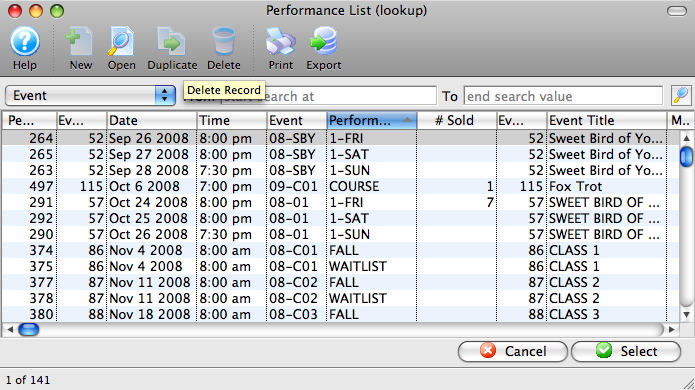
- Select the performance(s) that the coupon will be used for.
To select multiple performances, use the CTRL key (Windows) or the OPTION key (Mac).
- Press the Select
button.
- Click the Save
button.
The Coupon Code has now been created. Click here for more information on editing a Coupon Code or click here for more information on deleting a Coupon Code.
- Click the New
Creating a Coupon to Add/Remove an Order Fee (Online)
|
You can create coupon codes for both order fees and presale access. For more information on creating coupons for presale access, click here. |
- Create the order fee.
Click here for more information on creating fees.
- Ensure the fee you create has the option checked to be allowed to be used during coupon code.
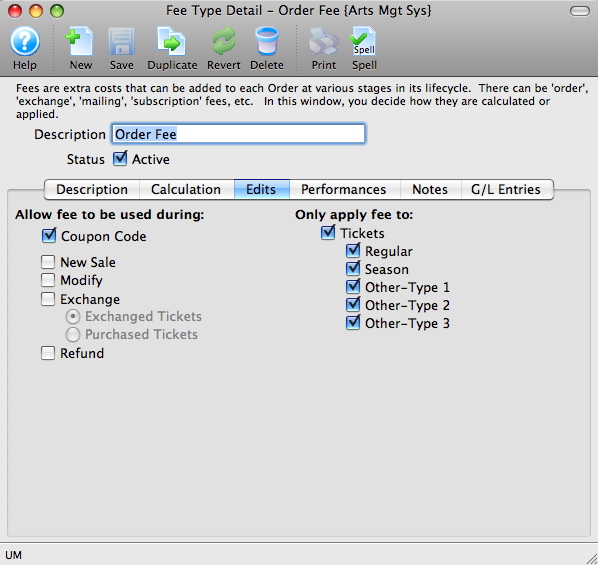
- Open the Coupon Codes List window.
Click here to learn how to access the Coupon Codes List window.
- Click the New button.
The Coupon Code Discount Detail window opens.
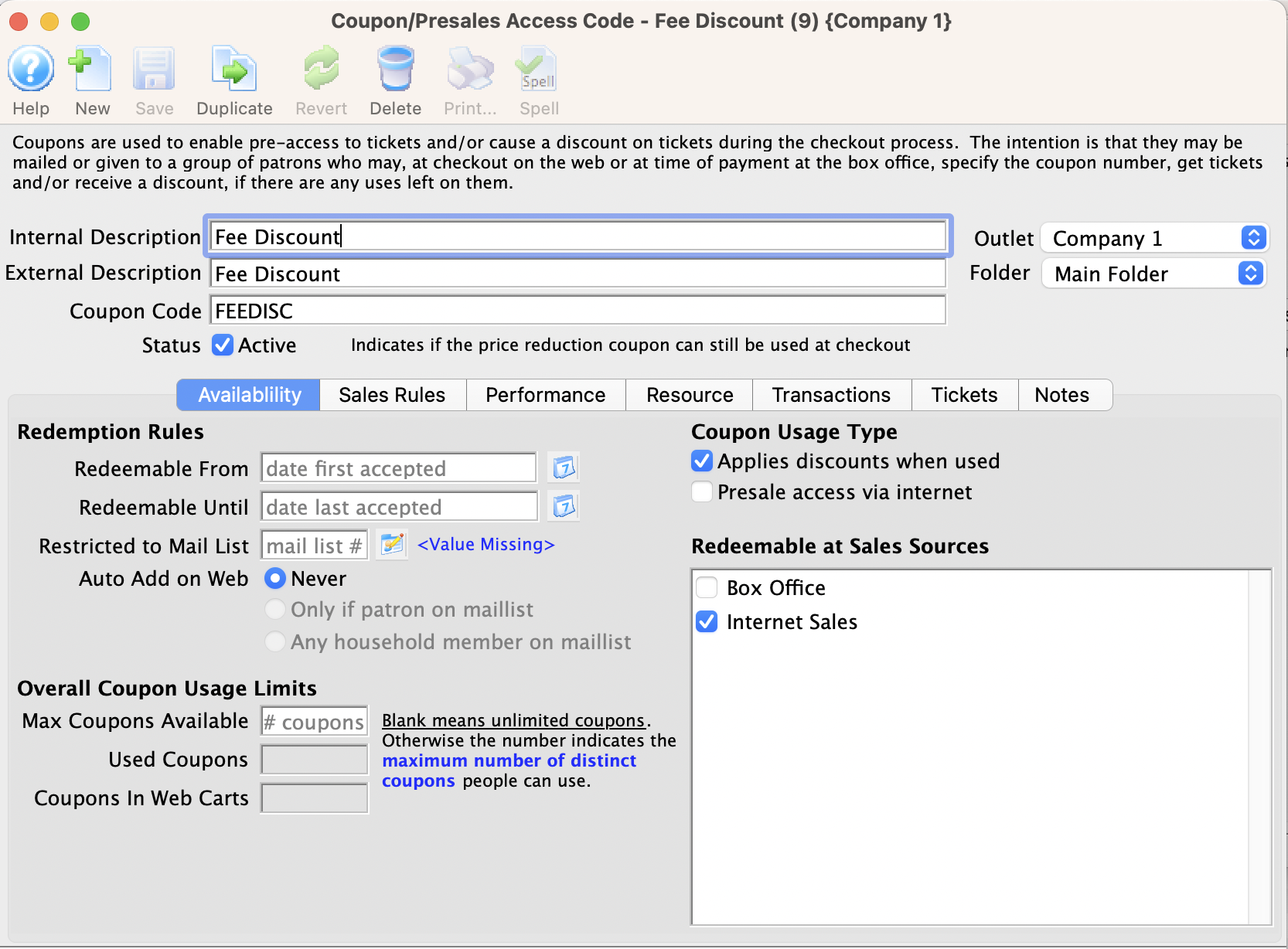
- Enter the Coupon Code Description.
The internal description is displayed in Theatre Manager and the external description is displayed for web sales.
- Enter the code the Patron will use to receive the coupon discount in the Coupon Code box.
- Enter the order fee number in the One-Time Order Fee Field/Box.
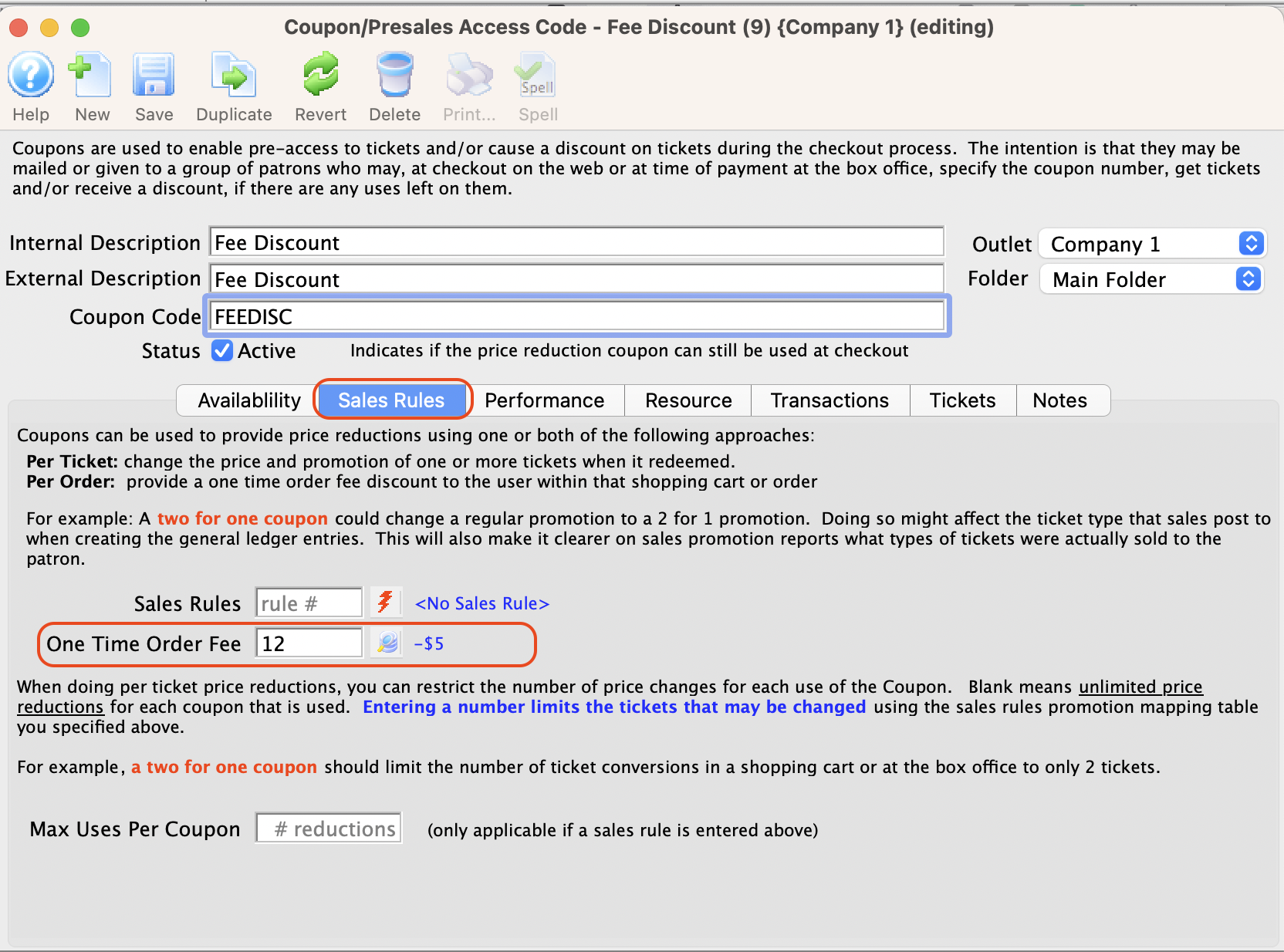
You can search for the order fee by pressing the Search
 button.
The fields described above, are the only fields required to be filled out on the Availability tab for the order fee coupon to work. The other fields do not apply or are optional. For more information on the Availability tab click here.
- Click the Save button.
The promotion, performance, and redemption tabs are now available.
- Click the Performance tab.
- Click the New button at the bottom of the window.
For more information on the Performance tab click here.
The Performance List Lookup window opens.
- Select the performance(s) the coupon will be used for.
To select multiple performances, use the CTRL key (Windows) or the OPTION key (Mac).
- Press the Select button.
- Click the Save button.
The Coupon Code has now been created. Click here for more information on editing a Coupon Code or click here for more information on deleting a Coupon Code.
Creating a Coupon for Presale Access
|
You can set-up coupons to be used both presale access, as well as ticket discounts or order fees. For more information on:
|
- Ensure the performance has a future onsale date.
- Go to Events/Plays
- Select the Event/Play
- Click on the Performances tab
- Double-click on the performance
- Click on the Sales Management tab
- Input future on sale dates for the internet and/or box office. (if you want people to buy online, you need to enter a date for at least online sales -- box office could always be on sale)
- Save
Make sure that there is a sales promotion on each performance that allows it to be bought online Click here for more information on Events/Plays and Performances.
- Open the Coupon Codes List window.
Click here to learn how to access the Coupon Codes List window.
- Click the New button.
The Coupon Code Discount Detail window opens.
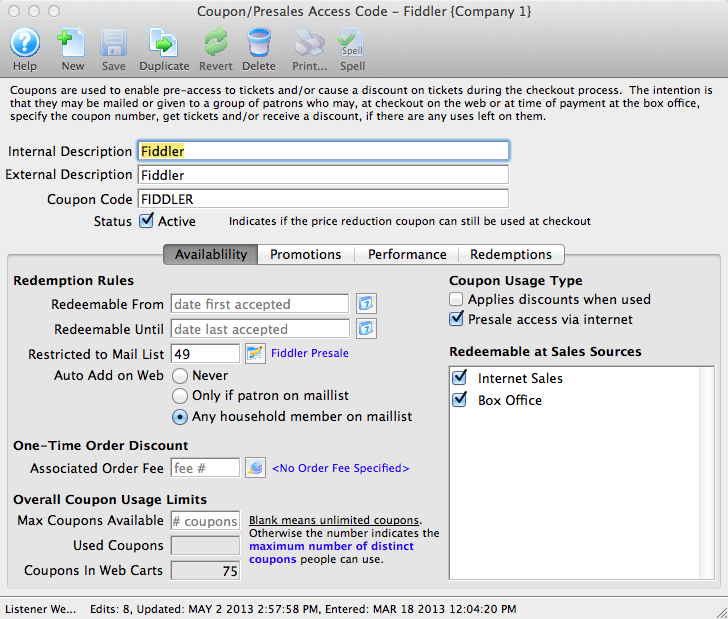
- Enter the Coupon Code Description.
The internal description will only be displayed in Theatre Manager and the external description will be displayed for web sales.
- Enter the code that the Patron will use to receive the coupon discount in the Coupon Code box.
This code can be manually entered by patrons on the web, or manually at the box office. If the coupon is 'auto-add' on web, then a mail list must be supplied to limit the distribution and the coupon will only be added to the cart if the user logs in.
- Enter the availability Redeemable date (optional)
The dates and times you enter will be before the future onsale date you entered in Step 1. You only need this if you want to limit the dates that the coupon will be available to use. If you want the coupon to work right away, leave the dates blank.
- Indicate if the coupon should auto-add on the web (optional)
This is handy for pre-sales access where if the patron logs in, the coupon code will automatically add to the cart for only the patron or anybody in the household. If that occurs, they can see performances that others cannot see without doing much more than logging in.
- Set the Coupon Usage Type
A coupon can be used to apply discounts to tickets that are purchased -or- to only provide access to specific performances in advance of general sale on the web -or- a coupon can perform both those features simultaneously.
- Click the Save button.
The Presale access via internet field, promotion, performance and redemption tabs are now available.
- (optional) If you want to limit the coupon to specific patrons, enter a mail list number in the Restricted to Mail List field.
- Place a check in the Presale access via internet box.
- Place a check in the Redeemable at Sales Source - Internet Sales box.
The fields described above are the fields required to be filled out on the Availability tab in order for the presale coupon to work. The others do not apply or are optional. For more information on the availability tab click here. - Click the Performance tab.
- Click on the New button at the bottom of the window.
For more information on the performance tab click here.
The Performance List Lookup window opens.
- Select the performance(s) that the coupon will be used for.
To select multiple performances, use the CTRL key (Windows) or the OPTION key (Mac). The selected performances will need to have the future onsale date set as in Step 1.
If a performance does not have a check in "Allow Selling - Via The Internet" under Event >> Performance Tab, if it is added to the Coupon Code Performance Tab, online ticket selling will still be available. Online selling will only be available until the future onsale date, when tickets go on sale to the public. - Press the Select button.
- Click the Save button.
The Coupon Code for Presale Access has now been created and can be used online.
Enabling Coupon as a Payment Method
If you do not see Coupon listed as a payment method type on the payment method drop down, it will need to be activated.
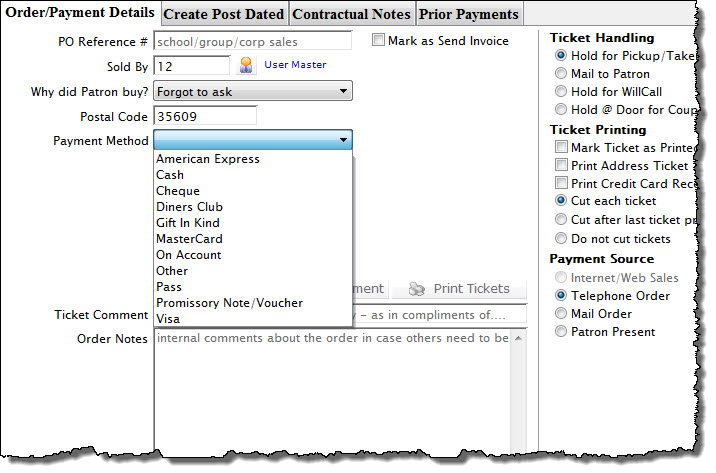
To set Coupons up as a payment method, you perform the following steps:
- Choose Setup >> System Tables >> Code Tables to access the code table window.
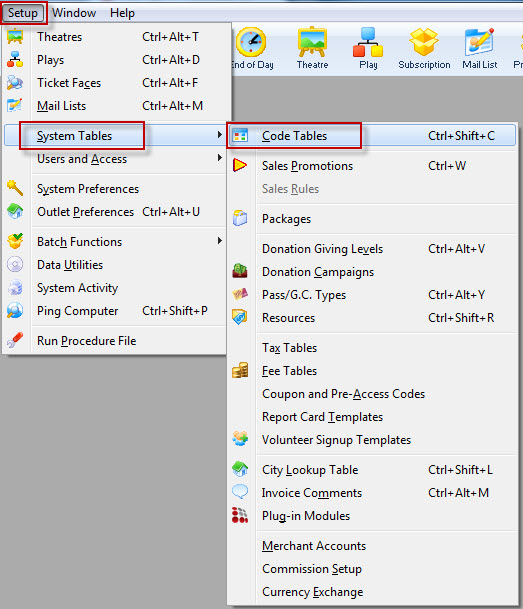
The Code Table window opens.
- Select Payment Methods in the Code Table list.
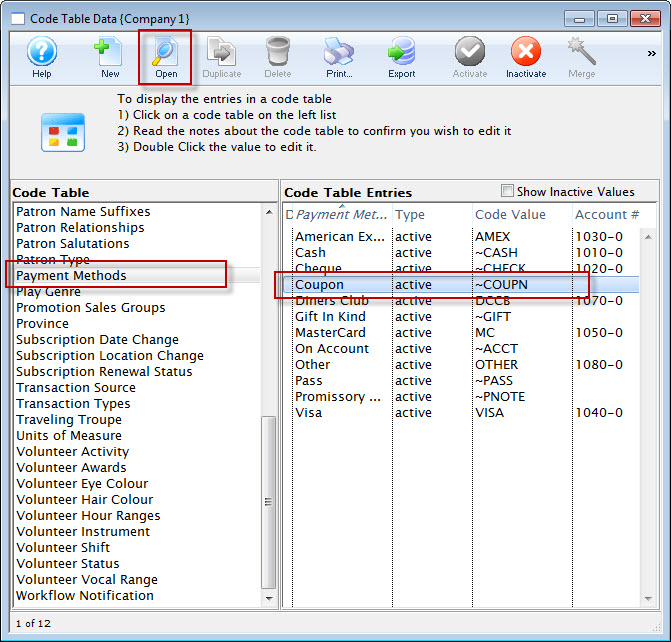
For more information on Code Table Payment Methods, click here.
- Double-click on Coupon in the Code Table Entries list.
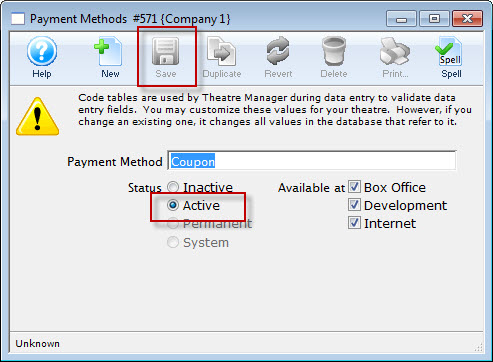
- Set the coupon to be Active.
- Select the coupon availability.
Select whether the coupon payment method will be available as a payment method at the Box Office, Internet Sales, Development or a combination of the three.
- Click the Save button.
- Close the detail and code table list window.
Coupon is now be available as a payment method.
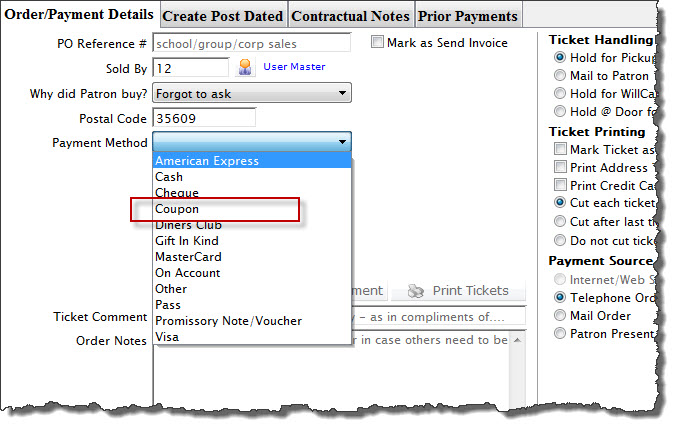
Using Coupons at the Box Office
Coupon codes can be redeemed at the box office provided box office is selected under the coupon code's availability tab. For more information on the Availability Tab, click here.
- Access the Payments
 window during the order before the payment is to be made.
For more information on accessing the payment window, click here.
- Select Coupon as the Payment Method.
Coupon # and Coupon Quantity Boxes will now be displayed.
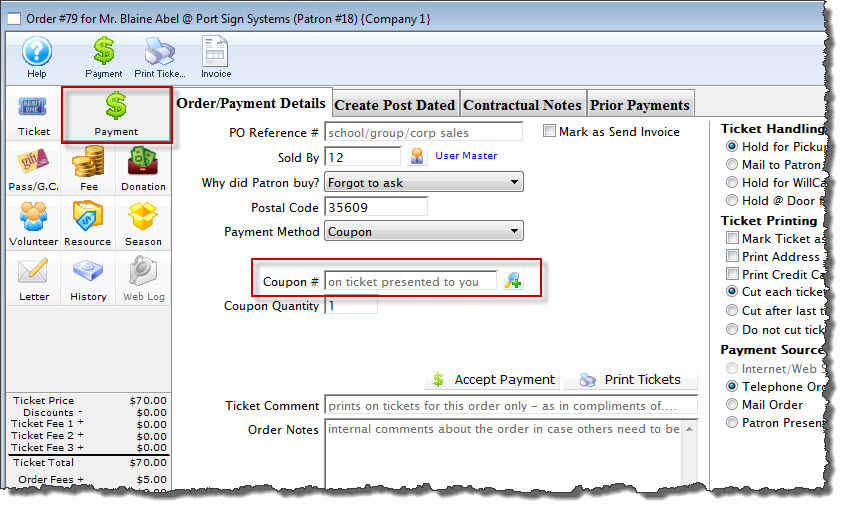
If coupon is not an entry in the drop down list of payment methods, you will need to enable it. For more information on enabling coupon as a payment method, click here.
- Type the coupon code in the Coupon # box.
Alternatively you can look-up the coupon code by using the Search
 button. This button opens the Coupon Code List window. For more information on the Coupon Code list, click here.
 - Enter the quantity of coupons to be applied to the order in the Coupon Quantity box.
- Click the Accept Payment
 button.
A confirmation dialog opens. The coupon will have been applied to the order and the order total will change.
If the coupon is not accepted, ensure the coupon code is set-up to allow the selected performance, price code and promotion.
- Choose another payment method to finish processing the order.
For more information on creating payments, click here.
Editing a Coupon Code
- Open the Coupon Codes List window.
Click here to learn how to access the Coupon Codes List. - Choose the Coupon Code you want to edit.
Single click on a package to select it. - Click the button.
The Coupon Code Discount Detail window opens. - Make changes as needed.
- Click the button.
The changes are now saved and the window can be closed.
Deleting a Coupon Code
- Open the Coupon Codes List window.
Click here for more information on accessing the Coupon Codes List. - Select the Coupon Code to be deleted.
Single click on a Coupon Code to select it. - Click the button.
The Delete Record confirmation window will open if the selected Coupon Code has not been used in any transactions.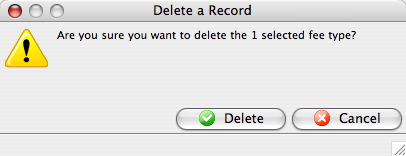
- Click the button.
The Coupon Code is now deleted.
How the Web Sales Pages Work With Coupon Codes
|
By default the coupon button in the TMcart page takes you back to the TMtickets page so you can buy more tickets. If your customers tell you they are "stuck" when entering a code, this may be the reason. |
You have set up a pre-sale coupon, but how does the website manage it?
The idea of when a coupon/Pre-Sales Code is entered on the Event Listing page is to STAY on that page because the Event Listing will be updated with any NEW events that you coupon / Pre-Sales Code gives you.
For example, I have set up a presale coupon for our event Classic Vaudville. This has been sent out to selected patrons.
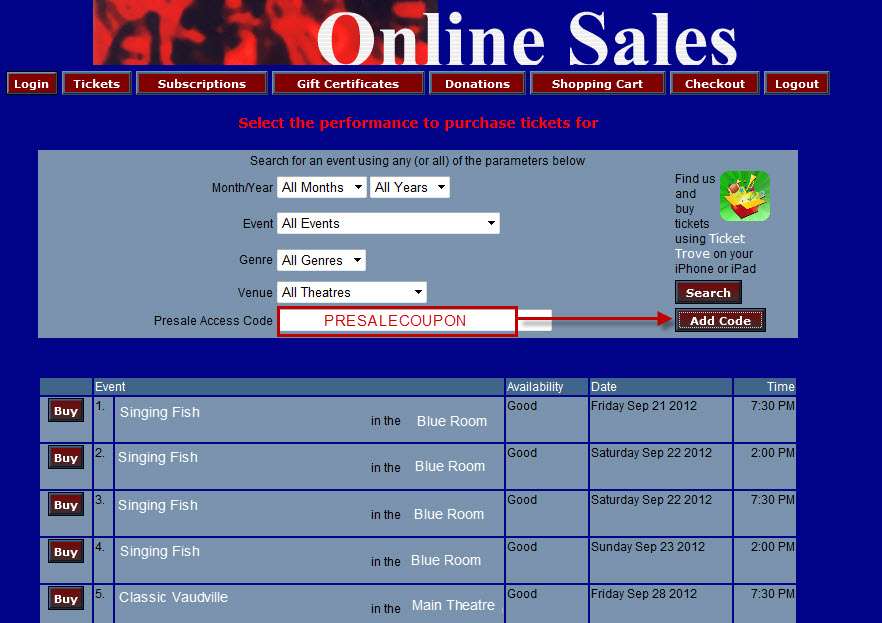
When they click the Add Code button, the event list displays the event that coupon is good for.
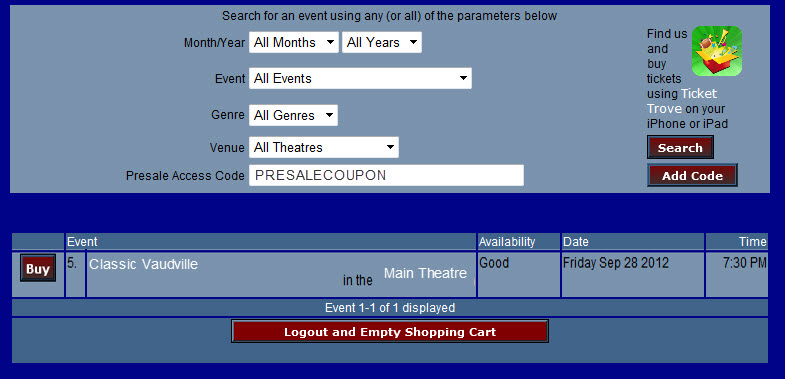
The patron now clicks the buy button and the Seat Selection window is displayed.
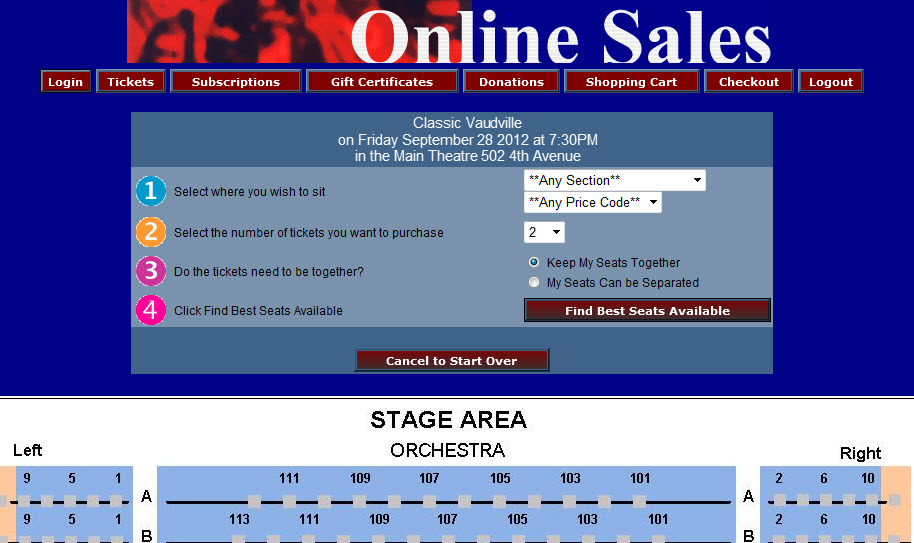
Our patron clicks the Find Best Seats Available button.
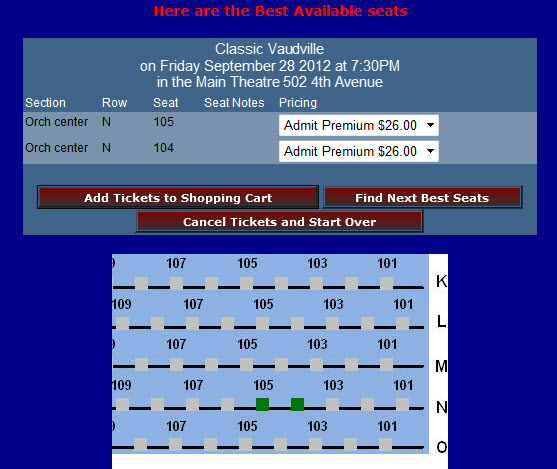
The seats are the ones they want, so they click the Add Tickets to Shopping Cart button.
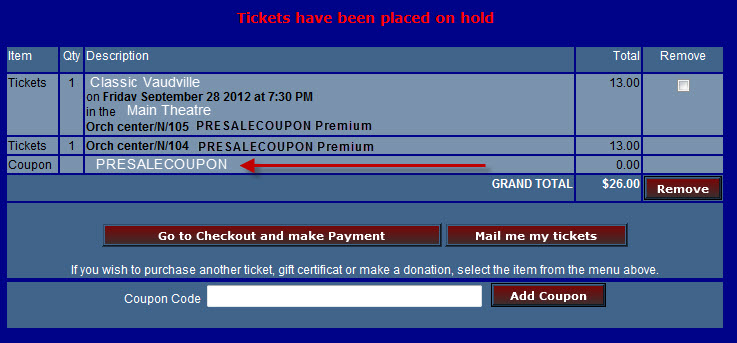
The Cart is displayed. The tickets are in the cart and the coupon discount has been applied. The next step is to choose go to checkout and make payment.
However, if the patron has NOT noticed the Coupon, they may then enter the Coupon Code again and click the Add Coupon button.
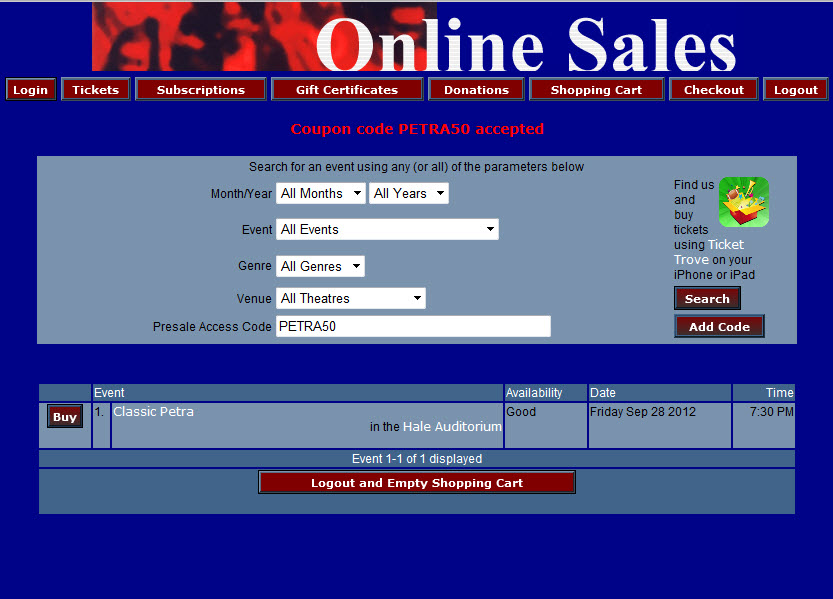
|
By default the coupon button in the TMcart page takes you back to the TMtickets page so you can buy more tickets. If your customers tell you they are "stuck" when entering a code, this may be the reason. |
If your intention is to give only discounts with your coupons, then it would make more sense for the patron to be directed to the Shopping Cart page after entering in their coupon so they can SEE that the coupon was entered, and if they ALREADY purchased tickets that the coupon is applicable for, they will see the discounted ticket price there too.
Report Card Templates
A report card template can be assigned to a specific course to evaluate Patrons/students enrolled in that course. The report card allows a standardized grading system to be used for all students, and the template can be used across multiple classes as a "base" form.
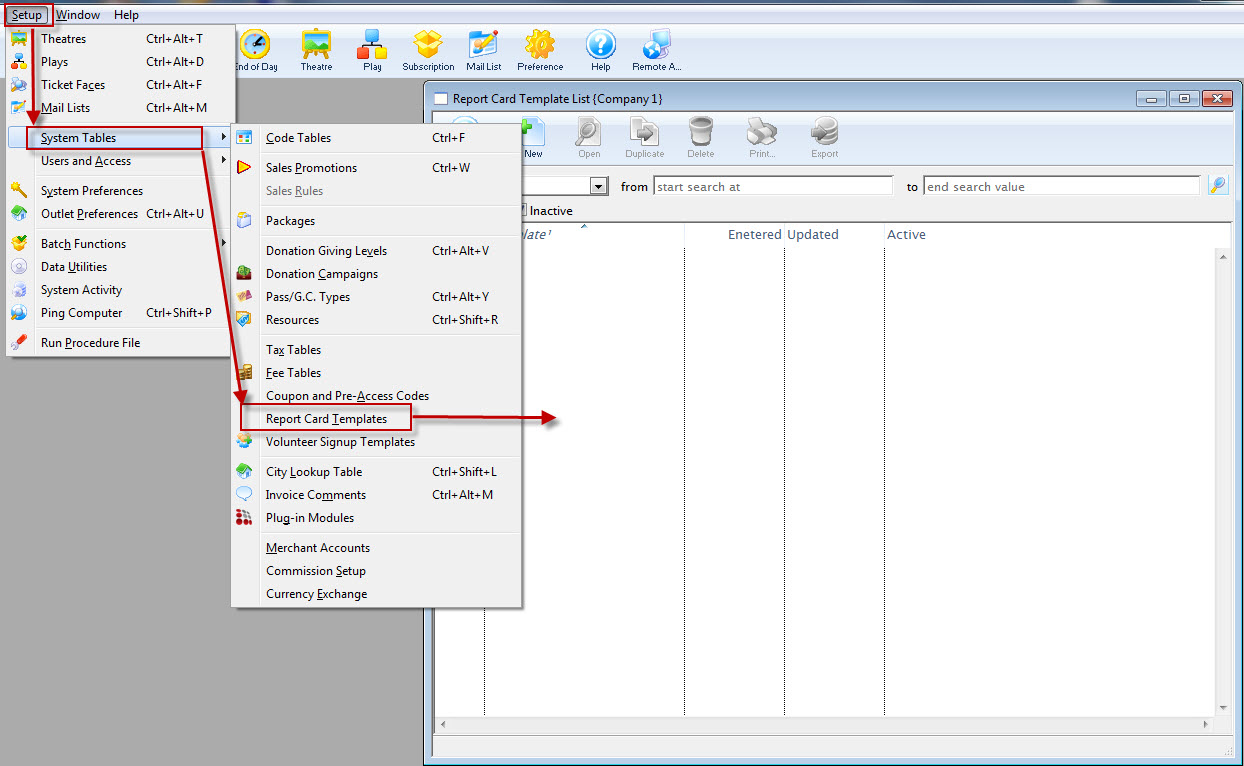
For more information about report cards, click here. For more about how to set up and utilize courses within Theatre Manager, click here.
The Report Card Template List Window
To access templates for Report Cards, go to Setup > System Tables > Report Card Templates:
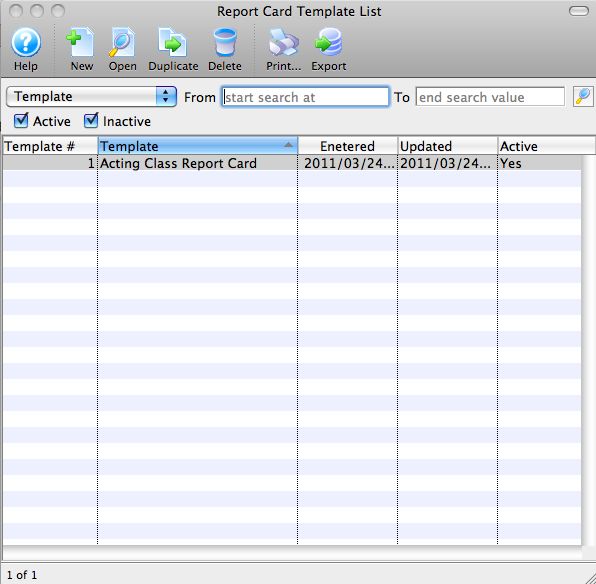
Parts of the Report Card List Window
| |
Inserts a new report card template For more information on inserting report card templates click here. |
Opens the selected report card template for editing. For more information on editing report card templates click here. |
|
Creates a copy of the current template. |
|
Deletes the current report card template. For more information on deleting report card templates click here. |
|
Generates a report of the list of report card templates to the screen or default print location. |
|
Exports out a list of the report card templates in a tab-delimited format. |
|
Template drop-down |
Options to search the report card template list. |
From |
Starting point for the search. |
To |
Ending range for your search. |
Template # |
The unique number for that report card template in the database. |
Template |
The name assigned to the report card template. |
Entered |
The date that report card template was entered into the database. |
Updated |
The date the report card template was updated. |
Active |
Indicates if report card template is marked Active. |
Adding a Report Card Template
|
Categories must be set up before adding Report Cards. Click here for more information on setting up Report Card Categories. |
To create a template for Report Cards, you perform the following steps:
- Select Setup >> System Tables >> Report Card Templates.
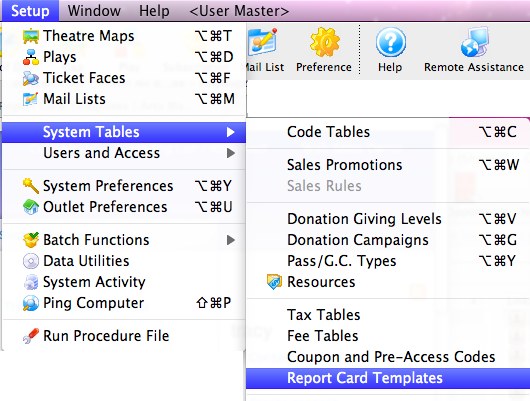
The Report Card Template List window opens.
- Click the New button.
The Report Card Template Insert Window opens.
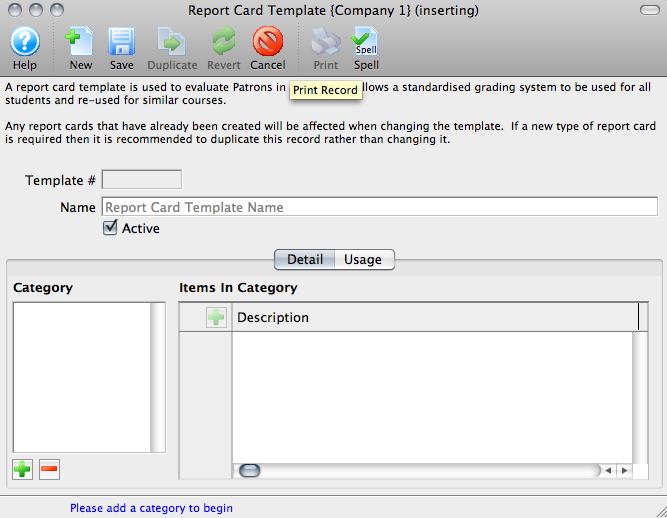
- Enter a descriptive name for the new template.
- Click the Add Categories
 button.
The Categories list populate from the Report Card Category code tables. Click here for more information on setting up Report Card Categories.
- Click on each Category in turn, and enter specific items for Ratings in the fields on the right.
For example, under Contribution, one item might be Class Participation and another might be Peer Feedback.
These are the items for which students will be given Ratings. For information about setting up Report Card Ratings, click here.
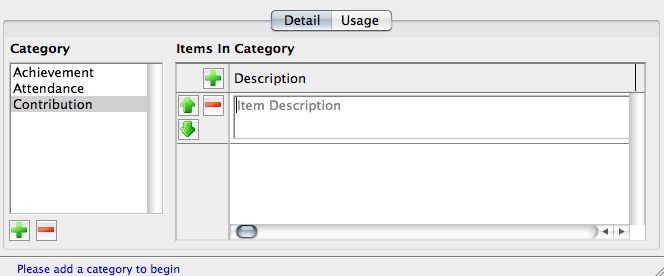
Continue entering Descriptions.
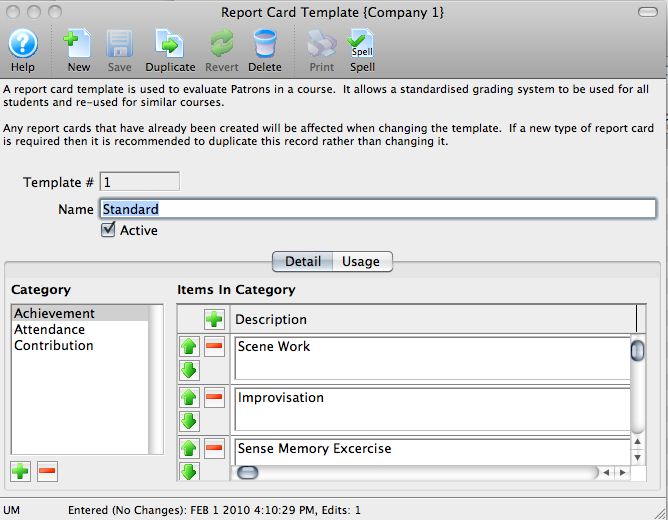
- When you have completed entered Categories and Items in each Category for Ratings, click the Save button.
The Usage Tab in the Report Card Template displays the instances of the Template's use in Courses. You can also add report cards to or delete report cards from a Course from the Usage Tab.
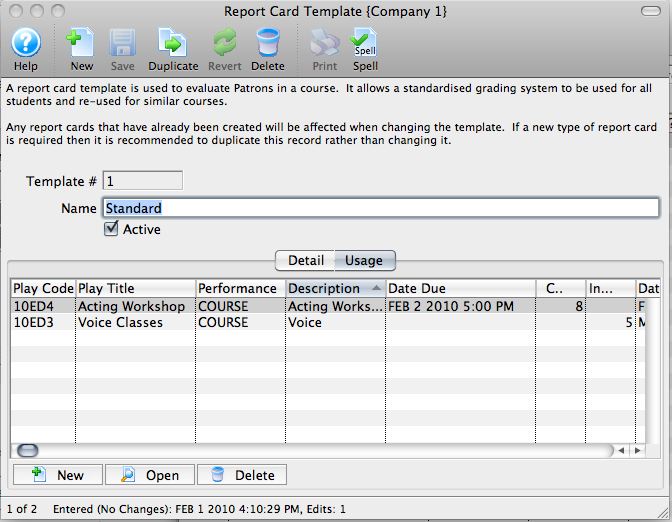
For more information about assigning Report Cards, click here.
Editing a Report Card Template
To edit an existing Report Card Template, you perform the following steps:
- Open the Report Card Template List window.
Click here to learn how to access this window.
- Choose the template edit.
Single click on a template to select it.
- Click the Open button.
The Report Card Template Insert window will open.
- Change any data as necessary..
- When you have completed makeing your changes, click the Save button.
Deleting a Report Card Template
- Open the Report Card Template List window.
Click here to learn how to access the Report Card Template List.
- Select the report card template you are deleting.
Single click on a template to select it.
- Click the Delete button.
The Delete Record confirmation window opens.
- Click the Delete
 button.
The template is now deleted.
City Lookup Table
The City Lookup Table allows for automated insertion of the City, Province / State, Country when a specified Postal / Zip Code is entered.
The City Lookup Table Window is accessed through the Setup >> System Tables >> City Lookup Table menu. If you already have a large database of patrons, Theatre Manager can automatically create a lookup list. Depending on the size of your database this process may take upwards of one hour.
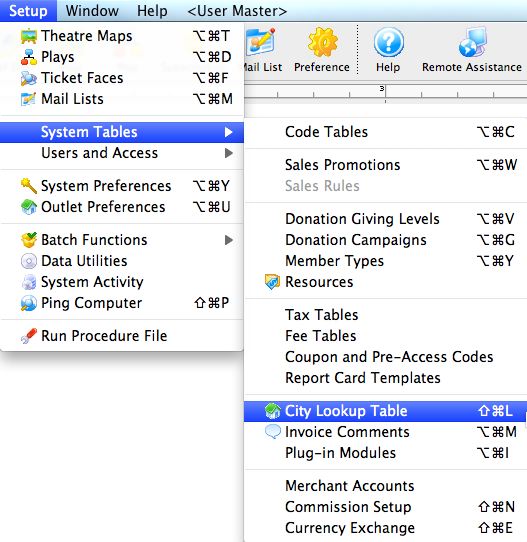
The City / Postal Code Window will open.
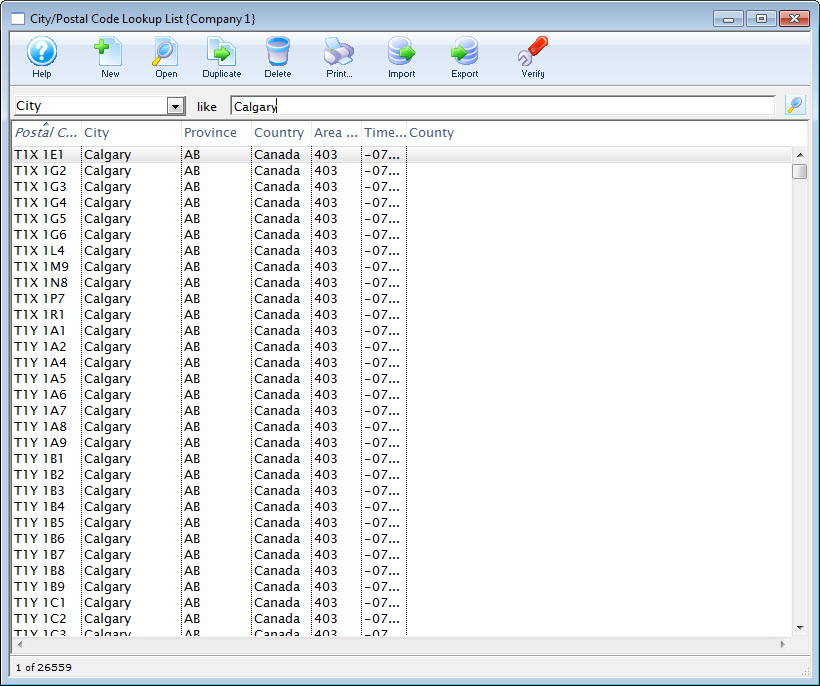
Click here for a detailed description of this window and it's functions.
List Window
Parts of the City / Postal Code Lookup Window
Postal Code / Zip Code |
The range of the postal / zip codes that apply to the location. |
City |
The city with which the range is associated. |
County |
The range of the Counties (US) which apply to the location. |
Province / State |
The province / state with which the range is associated. |
Country |
Country of the entry as it appears in the Country table of Theatre Manager. |
Area Code |
Telephone area code for the entry. |
Time Zone |
Time zone the entry falls in. |
Inserts a new lookup value. Click here for more information on adding new values to the table. |
|
Opens an existing code value for editing. Click here for more information on editting the selected value. |
|
Duplicates the selected value. |
|
Deleted the selected value. Click here for more information on deleting the selected value |
Imports a list of pre-defined codes. Click here for more information on how to import a list of predefined codes. |
Exports the lookup list. Click here for more information on exporting the lookup list. |
|
The Verify button, checks that the latitude and longitude for full addresses in Canada and the US is set correctly. |
Lookup Detail Window
The Lookup Detail Window allows you to enter additional values, or edit and existing value on a one-by-one basis. This can be useful if there are specific towns that are included in a particular postal/zip code that do not already exist on the list.
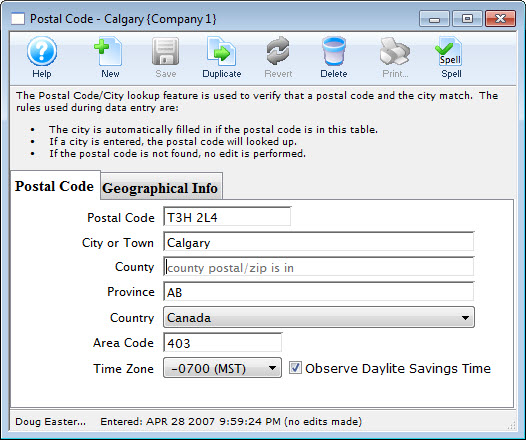
For more information about the  tab, click here.
For more information about the  tab, click here.
Postal Code Tab
Parts of the City / Postal Code Lookup Detail Window
Postal Code Tab
Postal Code |
Postal or zip code for the entry. |
City or Town |
City the range is associated with. |
County |
County the range is associated with. |
Province |
Province or state the range is associated with. |
Country |
Country of the entry as it appears in the Country table of Theatre Manager. |
Area Code |
Telephone area code for the entry. |
Time Zone |
Time zone the entry falls in. |
Observe Daylite Savings Time |
Indicate if the entry observes daylite savings by checking this option. |
Creates a new item in the lookup list. |
|
Saves changes made to a code. |
|
Copies an existing Code. |
|
Removes changes made to the Code up to the last save point. |
|
Deletes the selected value. |


Geographical Info Tab
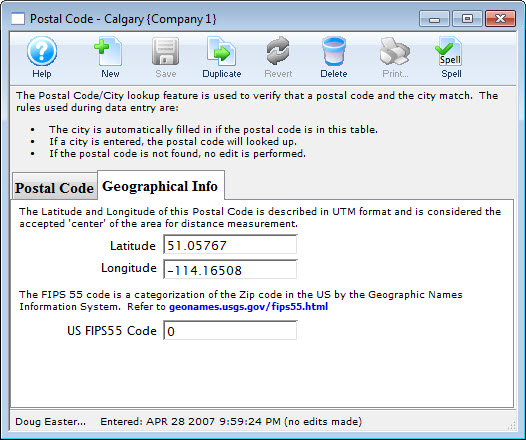
Parts of the City / Postal Code Lookup Detail Window Geographical Info Tab
Latitude |
The accepted "center" (North/South) of the postal / zip code area. |
Longitude |
The accepted "center" (East/West) of the postal / zip code area. |
US FIPS55 Code |
Used for US zip codes, this is a specific categorization by the Geographic Names Information System. For more information, click here. |
Inserting a Lookup Value
To insert a lookup value, you perform the following steps:
- Open the City/Postal Code Lookup List Window.
Click here to learn how to access this window.
- Click the New button.
The Postal Code Lookup window opens.
- Enter the range of the postal / zip code
- Enter the city or town to which the entered range applies
- Enter the county to which the entered range applies.
- Enter the province/state to which the entered range applies.
- Use the drop down to select the Country to which the range applies.
- Enter the Area Code to which the range applies.
- Use the drop down to select the Time Zone to which the range applies.
- Check the box if this postal code participates in the Daylight Savings Time program.
- On the Geographical Info tab, enter the Latitude, Longitude, and (optionally) the USGS FIPS 55 Code.
- Click the Save button to save the changes.
To cancel the insert, click the Revert
button.
Editing a Lookup Value
To edit a lookup value, you perform the following steps:
- Open the City/Postal Code Lookup List window.
Click here to learn how to access this window.
- Select the lookup value you wish to edit.
- Click the Open button.
The Postal Code lookup window for the selected value opens.
- Modify the details as needed.
- Click the Save button to save the changes.
To cancel the edit click the Revert
button.
Deleting Existing Lookup
- Open the City/Postal Code Lookup List window.
Click here to learn how to access this window.
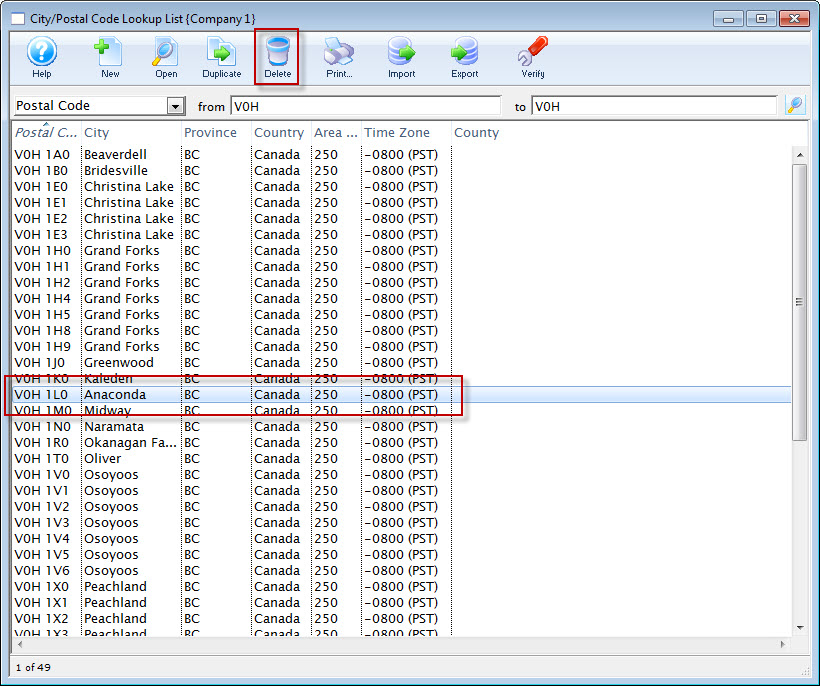
- Select the lookup value to delete.
Single click on a value to select it.
- Click the Delete button.
The Delete City Lookup warning dialog opens.
- Click the Delete button to continue with the deletion.
Clicking the Cancel
button aborts the deletion.
The deletion will be confirmed with the following confirmation message.

Importing Values
You can import your own list of values from a tab or comma delimited file into your database using the steps below.
- Open the City/Postal Code Lookup List window.
Click here to learn how to access this window.
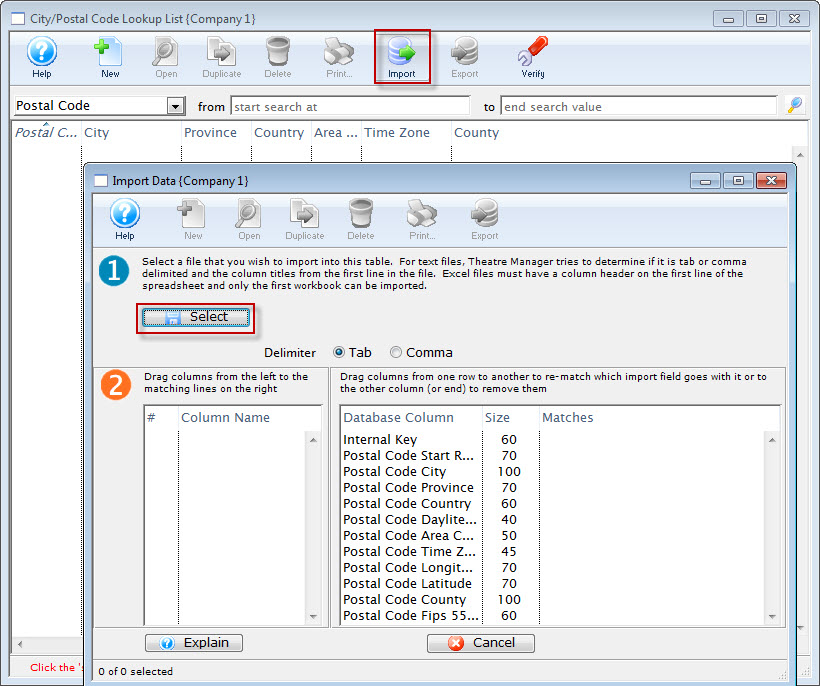
- Click the Import button
The Import Data window opens.
- Click the Select
 button.
- Select the file you wish to import.
Do this by single clicking the value.
- Click the Open button.
Exporting a City Lookup Table
- Open the City/Postal Code Lookup List Window
Click here to learn how to access this window.
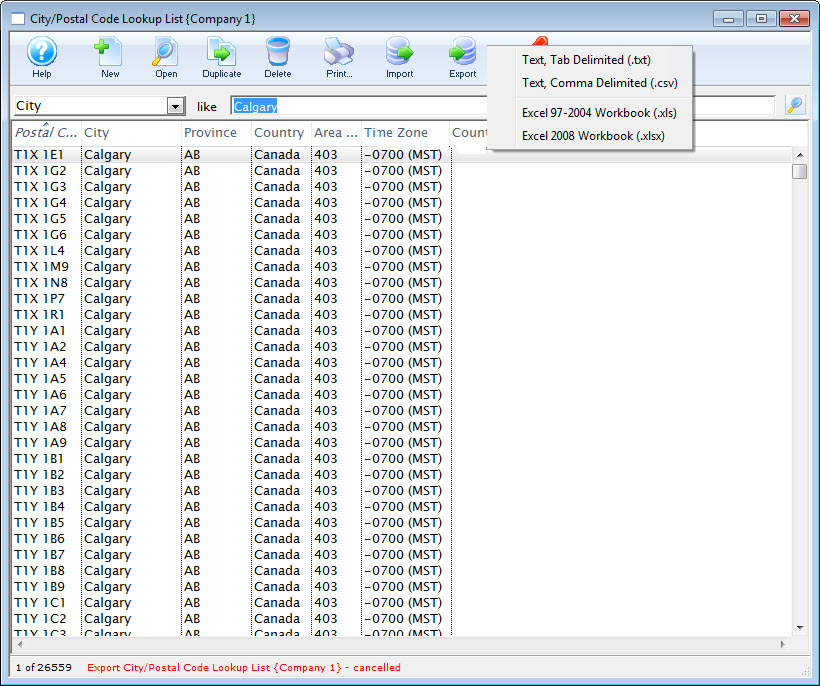
- Click the Export button.
- Choose the export format.
The Select Postal Code Export File opens for your Operating System..
- Browse to where the file will be saved and name the file.
- Click the Save button.
The table will be exported to the location using the file name assigned.
Volunteer Signup Templates
This function allows the Volunteer Manager to create a small survey for specific shows to ask patrons/volunteers to pick which shows or performances that they'd like to participate in. The idea is the patron would access the ticketing web site, sign in and then indicate their preferences.
You access Volunteer Signup templates through the Setup >> System Tables >> Volunteer Signup Templates.
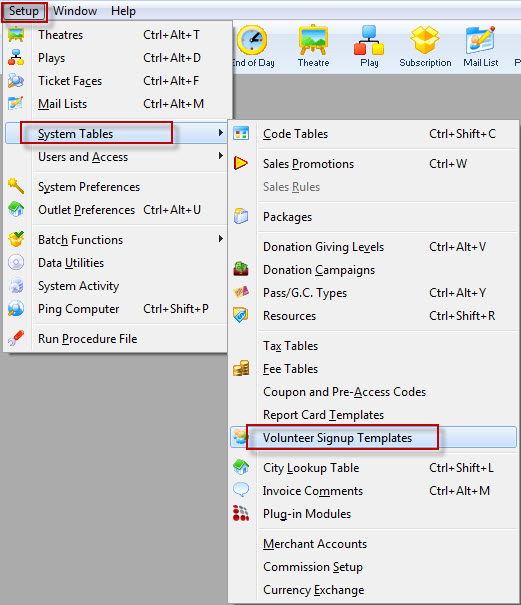
The List Window opens.
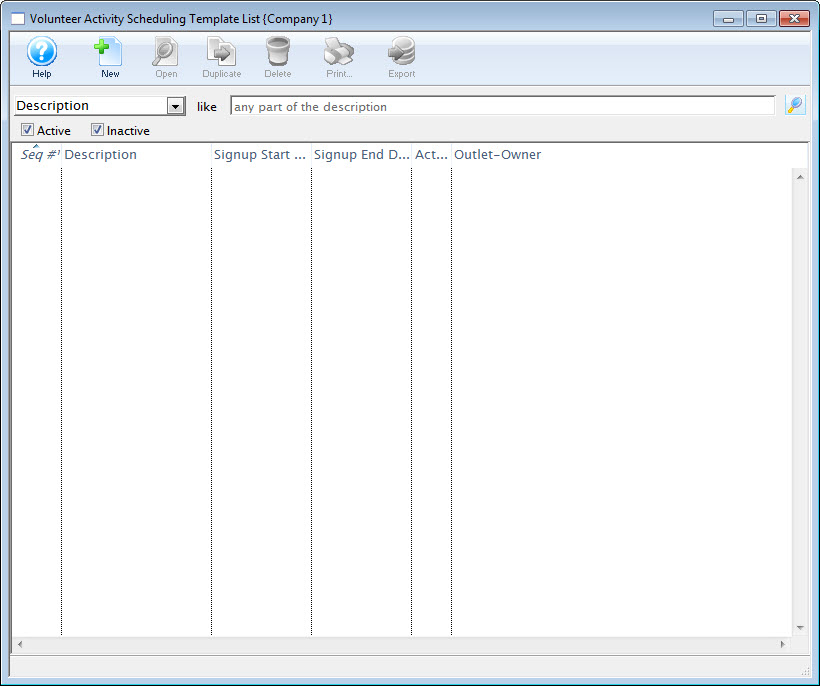
Add a Volunteer Signup Template
To add a Volunteer Signup Template, perform the following steps:
- Access Volunteer Signup templates through the Setup >> System Tables >> Volunteer Signup Templates.
The List Window opens.
- Click the New button.
The Schedule Template window opens.
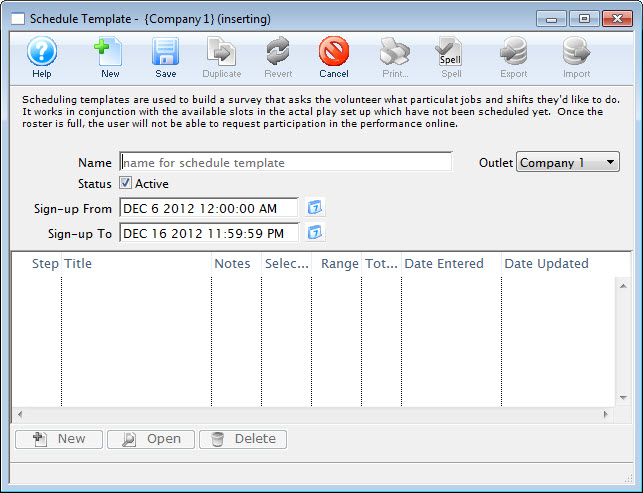
- Enter a Name for the template and the Start and End dates a Volunteer can signup.
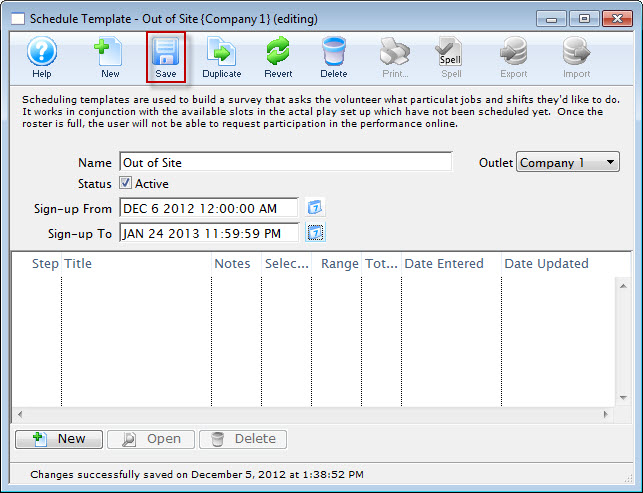
- Click the Save button.
- To add template details, click the New button.
The Schedule Template Detail is where you enter the information to query the volunteer for their responses to signing up for activities and any preferences they may have for doing these activities for some selected performances.
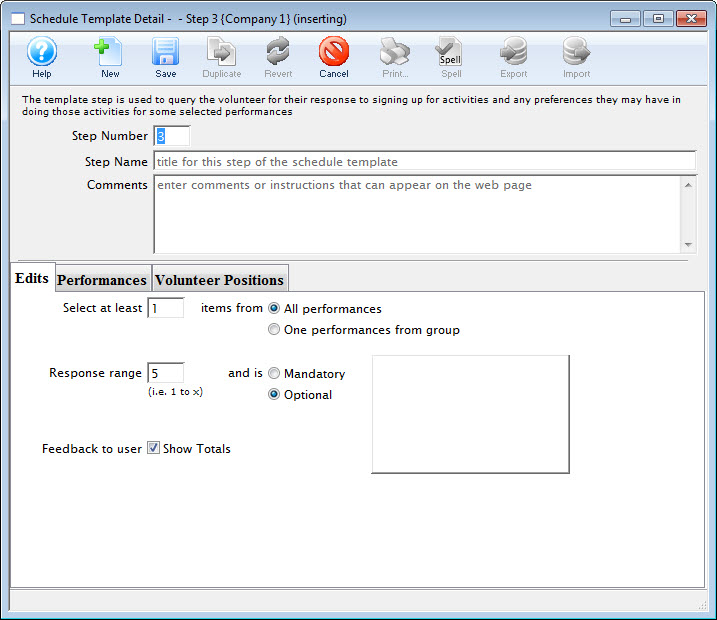
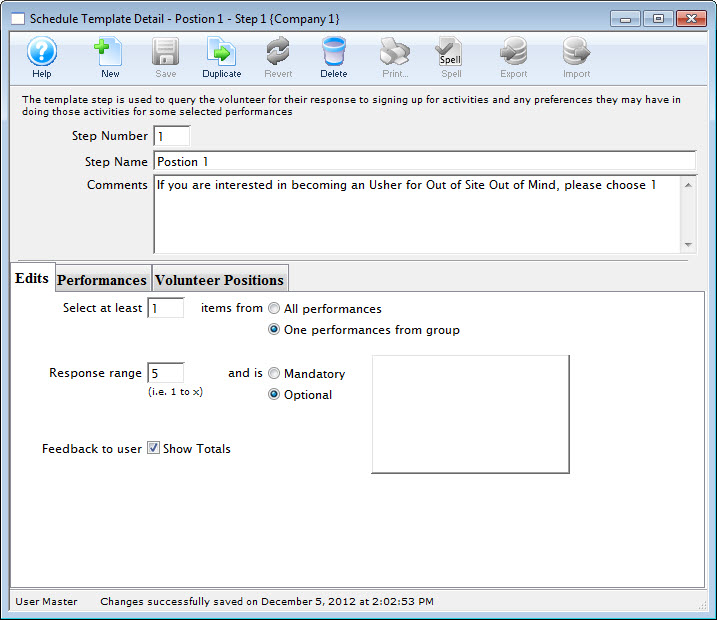
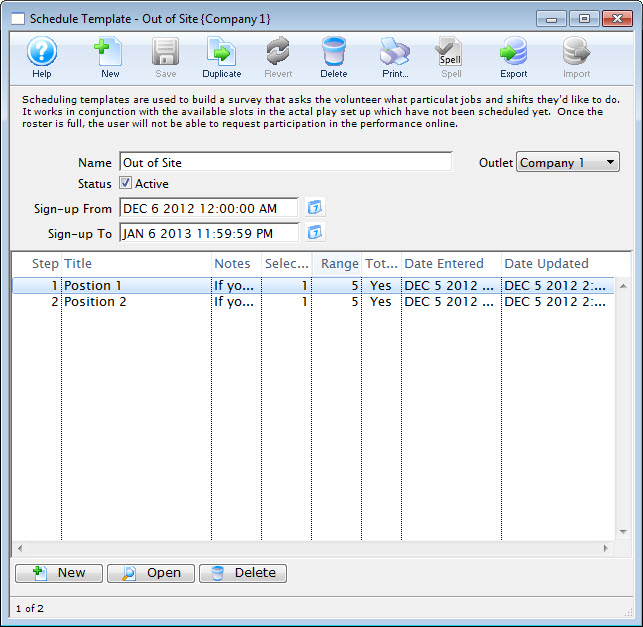
Invoice Comments
Invoice Comments are printed at the bottom of invoices for statements, payment reminders, and confirmation notices.
You access the Invoice Comments Window through Setup>>System Tables>>Invoice Comments Menu.
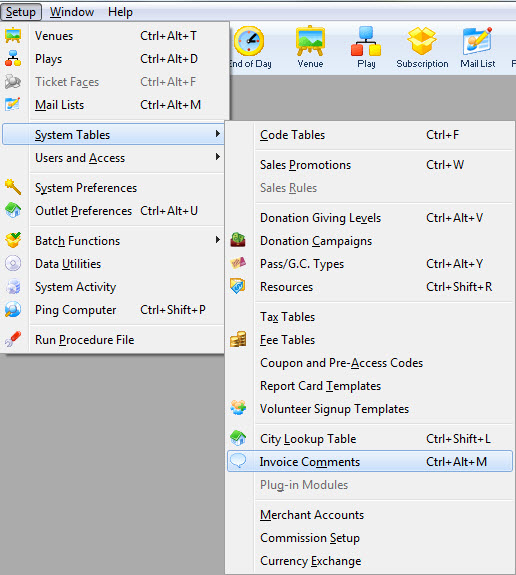
The Invoice Comments window opens.
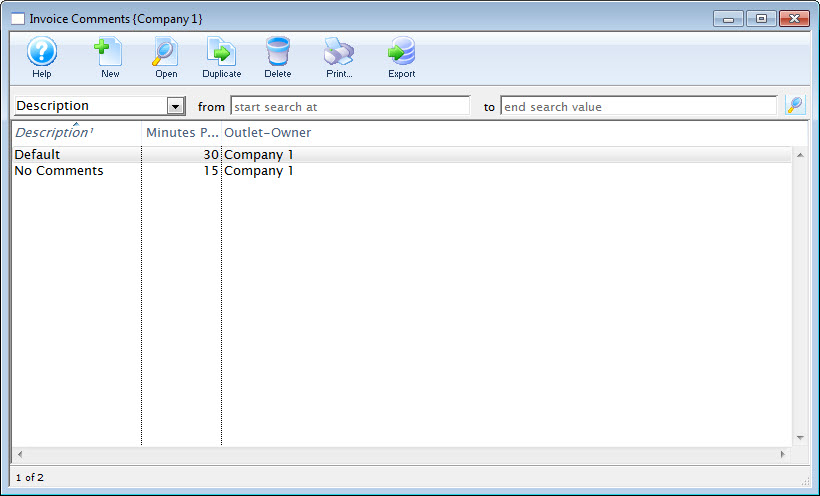
Invoice Comments List Window
The parts of the window are as follows:
|
|
Inserts a New comment through the Comment Detail Window. For more information on inserting comments click here. |
|
Opens a window to edit a comment through the Comment Detail Window. For more information on editing comments click here. |
|
Deletes a comment. For more information on deleting comments click here. |
|
Generates a report displaying the list of comments to the screen or default print location. |
|
Exports the selected invoice comments in text tab-delimited format. |
| Description | Search options for locating comments. |
| From | Starting range to search by. |
| To | Ending range to search by. |
| Description | Description of the comment. |
| Minutes Prior | Time prior to the event to arrive. |
| Outlet Owner | Outlet responsible for the comment. |
| Changed By | User initials of the last employee to edit the comment. |
Invoice Comments Detail Window
Standard comments can be maintained for the various types of invoices, statements, payment reminders and confirmation notices that are sent to patrons.
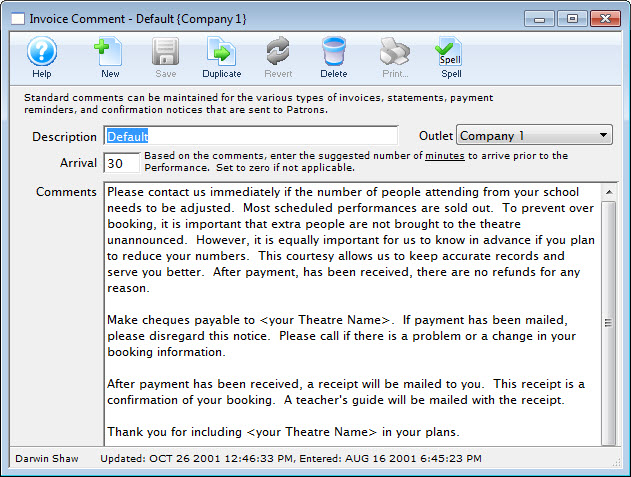
Parts of the Invoice Comment Window
|
Insert a New comment through the Comment Detail Window. For more information on inserting comments click here . |
|
Saves comments when edited in the Comment Detail Window. For more information on editing comments click here. |
|
Creates a copy of the current comment. |
|
Undoes changes to the last saved point. |
|
Deletes a comment. For more information on deleting comments click here. |
|
Checks the comment for spelling errors. |
| Description | Brief description of the nature of the comment. |
| Arrival | Special field. If it is >0 then a default arrival time will show on invoices that are printed. if is = 0 then no message will arrive. The Message cannot be chaged based on arrival time. |
| Comment | The comments. |
Adding Invoice Comments
- Open the Invoice Comments window.
Click here to learn how to access this window.
- Click the New button.
The Invoice Comment Detail window opens.
- Enter a name for your comment in the description field.
- Enter the details of the comment.
- If applicable, enter the number of minutes to arrive before the performance.
- Click the Save button to save the comment.
The comment is saved and added to the Invoice Comment window.
Editing Invoice Comments
- Open the Invoice Comments window.
Click here to learn how to access this window.
- Select the comment you wish to edit.
Single click on a comment to select it.
- Click the Open button.
The Invoice Comment Detail window opens.
- Change data as needed.
- Click the Save button to save the changes.
Printing an Invoice and Adding the Comments
To print an invoice, you perform the following steps:
- In the Patron Window, click the Order
 tab.
tab.
For more information on opening Patron records, click here.
For more information on the Order tab, click here.
- Highlight the Order you want to print the invoice for, and click the Invoice
 button.
The Print Invoice Criteria window opens.
You have the option to page through the criteria using the tabs, or the Next
 button.
 - To add the Invoice Comments, Click the Next button to navigate to the Footer
 tab.
tab.
- To have the comments print, enable the Print tear off section check box.
- Enter a Performance Start warning time, if applicable.
- From the Additional Comments drop down list, choose the comment you want to have printed on the invoice.
- When you have determined all the criteria for your invoice is correct, click the Done
 button.
Your invoice prints.
|
The Invoice comments print on the bottom of the invoice. |
Deleting Invoice Comments
- Open the Invoice Comments window.
Click here to learn how to access this window.
- Select the comment to delete.
Single click on a comment to select it.
- Click the Delete button.
A Delete confirmation dialog opens.
- Click the Delete button.
Plug-in Modules
Plugins are customized special code segments written by Arts Management specifically tailored to perform business rule logic to automatically alter prices on tickets, memberships, gift certificates, fees, donations, and/or mail lists for patrons who purchase either online, or via the box office. Their purpose is to enforce site specific rules during the sales process.
The organization describes a business rule / reason why to alter a patrons shopping cart purchases, then Arts Management writes customized code to perform that action. Plugin code may be required to change/adapt over time, depending if the business rules or requirements change within the organization from year to year.
The "how does a plugin work" is not as important from your viewpoint, as having a clearly defined business rule/requirement to Arts Management for each situation. Whats important is that a business rule offers an A or B solution. If conditions X, Y, and Z are met, then perform action A. If conditions P & Q are met, perform action B. etc. It can also be as simple as if condition R is met, perform action C.
Plugins cycle through the defined business rules each time an item is added or removed from the shopping cart. If any of the business rule conditions "match" items within the cart, then the those items are processes through the special code segment to alter their default state (i.e. alter their price, price code, and/or sales promotion —> the most common alterations).
Plugins allow patrons to utilize web sales for their purchases by receiving their justified discounts without having to contact the box office directly. Plugins are also utilized in the box office to automatically provide patrons their justified discounts; without having the box office staff to remember each business rule to determine discounts patron may be applicable for.
For example, plug-ins could achieve the following kinds of special rules:
- if more than 10 tickets are purchased, automatically change them to a group sale
- provide preferred seating areas to donors of a certain level
- limit ticket sales to certain events at certain times of the year to people who buy subscriptions
- automatically convert ticket sales from single tickets to subscriptions if the customers buys a certain number of tickets.
- automatically give subscribers (or frequent buyers) discounts on subsequent tickets.
- prevent a sale for next season unless a donation is received.
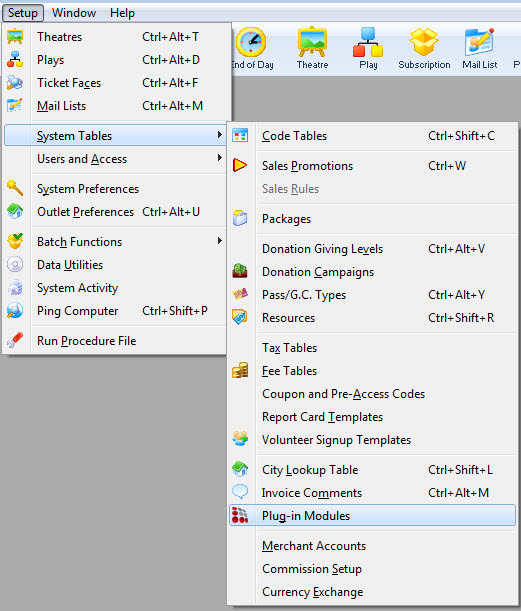
Plug-ins may be associated with specific sales promotions and also when checking out an order.
If you want a plug-in, you must contact Arts Management and speak with someone in Software Development department. Sales Plug-Ins are customized code, our standard custom programming rate per hour will apply.
Purchasing a Plug-In
If you want a plug-in, you must contact Arts Management and speak with someone in Software Development department. As Sales Plug-Ins are customized code, our standard custom programming rate per hour will apply.
Plug-in List Window
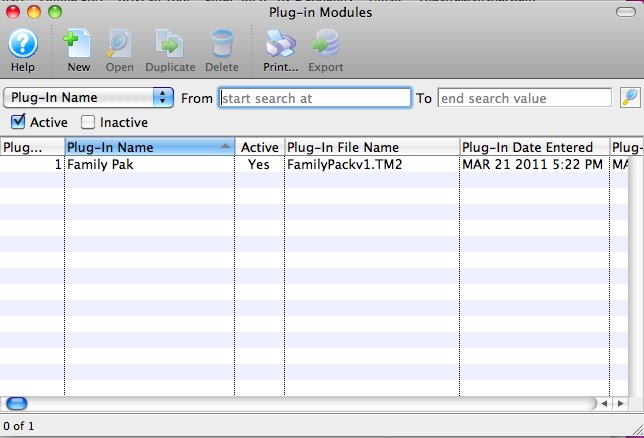
|
Inserts a New Plug-in through the Plug-in Detail Window. For more information on inserting plug-ins click here. |
|
Opens the selected Plug-in Detail Window for editing. For more information on editing Plug-ins click here. |
|
Duplicates the selected Plug-in. |
|
Deletes a Plug-in. For more information on deleting Plug-ins click here. |
|
Generates a report displaying the list of Plug-ins to the screen or default print location. |
|
Exports the selected invoice comments in text tab-delimited format. |
Plug-in Detail Window
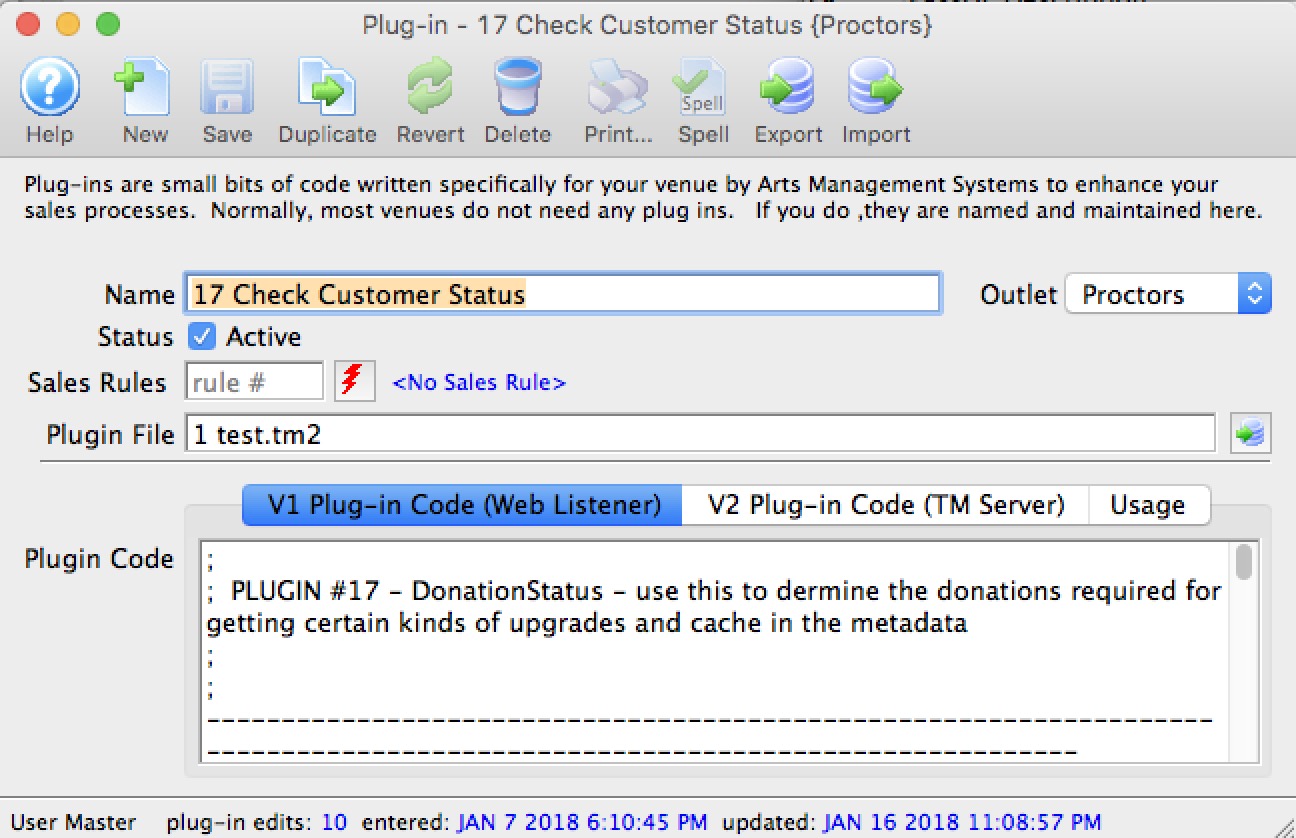
Access the Plug-in Detail window by going to Setup > System Tables>Plug-in Modules and selecting the plug-in from the list of plug-ins. For more information on how to access the Plug-in List Window, click here.
|
Insert a New Plug-in through the Plug-in Detail Window. For more information on inserting Plug-ins click here . |
|
Saves Plug-ins when added or edited in the Plug-in Detail Window. For more information on editing Plug-ins click here. |
|
Creates a copy of the current Plug-in. |
|
Undoes changes to the last saved point. |
|
Deletes a Plug-in. For more information on deleting Plug-ins click here. |
|
Checks the Plug-in for spelling errors. |
|
Exports the selected Plug-in. |
|
Imports a new Plug-in. |
Inserting a Plug-in Purchased from AMS
- Open the Plug-in List Window.
For information on how to access the Plug-in List Window, click here.
- Click the New button.
The Plug-in Detail window opens.
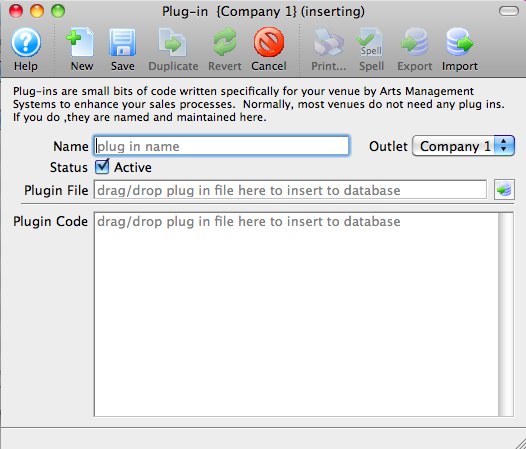
- Enter a Name for the Plug-in in the Name Field.
- Drag-and-drop the .TM2 file containing the Plug-in Code provided by AMS into the PlugIn Code field.
- If you have been informed that your plugin is designed to work with a specific sales rule, enter it into the window. Otherwise entering anything here will do nothing.
- Click the Save button.
Your new plug-in is ready to use.
Editing a Plug-in
- Open the Plug-in List window.
Click here to learn how to access this window.
- Select the Plug-in to edit.
Single click on a Plug-in to select it.
- Click the Open button.
The Plug-in Detail window opens.
- Click the Export button.
- Save the export file.
Save the export .TM2 text file in a known location where you will have easy access to it.
Do NOT use change or remove the 3 character (.TM2) filename extension. Theatre Manager requires this unique filename extension when importing plugins.
- Edit the plug-in's .TM2 text file in Notepad++, BBEdit, or any other true text based file editor.
Do NOT use Windows WordPad, Windows NotePad, Microsoft Word, TextEdit, SimpleText, or other non-text based file editors. Using these types of editors will alter the plugin file data structure and rendering the file unreadable by Theatre Manager.
- Using the text editor, change the plugin export .TM2 file as required.
If your unsure on how to make changes to your customized plugin, or do not feel confident in making minor changes, please contact Arts Management Systems. We are here to help you.
Hint: Make a note of the update date and changes made within the plugin .TM2 text file. The top section of the source code is an area of comments that record changes made to the file. This will help assist debugging the plugin in situations where a change to the plugin has an undesired effect.
Hint: To easily locate where you are in the text file, the display of line numbers offers an easy indicator.
If your using BBEdit, goto Edit Menu >> Text Options >> enable Display Line Numbers.
If your using Notepad++, goto Settings Menu >> Preferences >> Editing >> enable Display Line Number.
- Click 'Save' in the text editor to save your changes.
Hint: Save the changes to a new plugin .TM2 file rather then overwriting the existing .TM2 file. This will allow quick ability to revert back to the prior version of the plugin in situations where a change to the plugin has an undesired effect.
- On Theatre Manager's Plugin Detail Window, either:
Drag & Drop the external plugin .TM2 file into the "Plugin Code" area.
- or -
Click the Import button to select the external plugin .TM2 file.After the plugin code has been updated, at the bottom of the window it will indicate "Successfully read and updated the Plug-In code".
- Click the Save button to save the changes.
The changes to the plugin code will take effect immediately.
Theatre Manager will not save changes made to the plug-in code, where those changes resulted in a coding syntax error. As well, attempts to import an updated plugin .TM2 file edited with a non-text based editor may result in Theatre Manager unable to save the changes.
Deleting a Plug-in
- Open the Plug-in List window.
Click here to learn how to access the Plug-in List.
- Select the Plug-in to be deleted.
Single click on a Plug-in to select it.
- Click the Delete button.
The Delete Record confirmation opens.
- Click the Delete button.
The Plug-in is now deleted.
Merchant Accounts
- Provide the required details to communicate with the credit card processing provider
- Set up an Electronic Funds Transfer (EFT) Merchant so that you can take customer information and process repeated payments as selected back institutions. The banks supported by EFT are currently limited - if the setup does not show your bank, please contact us.
Merchant Accounts are accessed by selecting Setup >> System Tables >> Merchant Accounts.
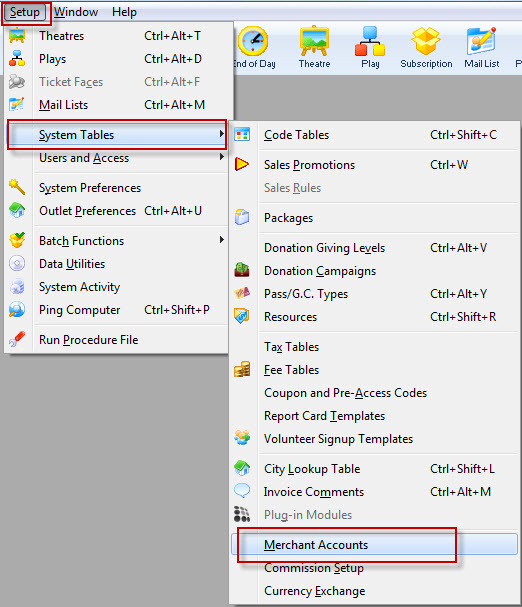
The Merchant Account List window opens.
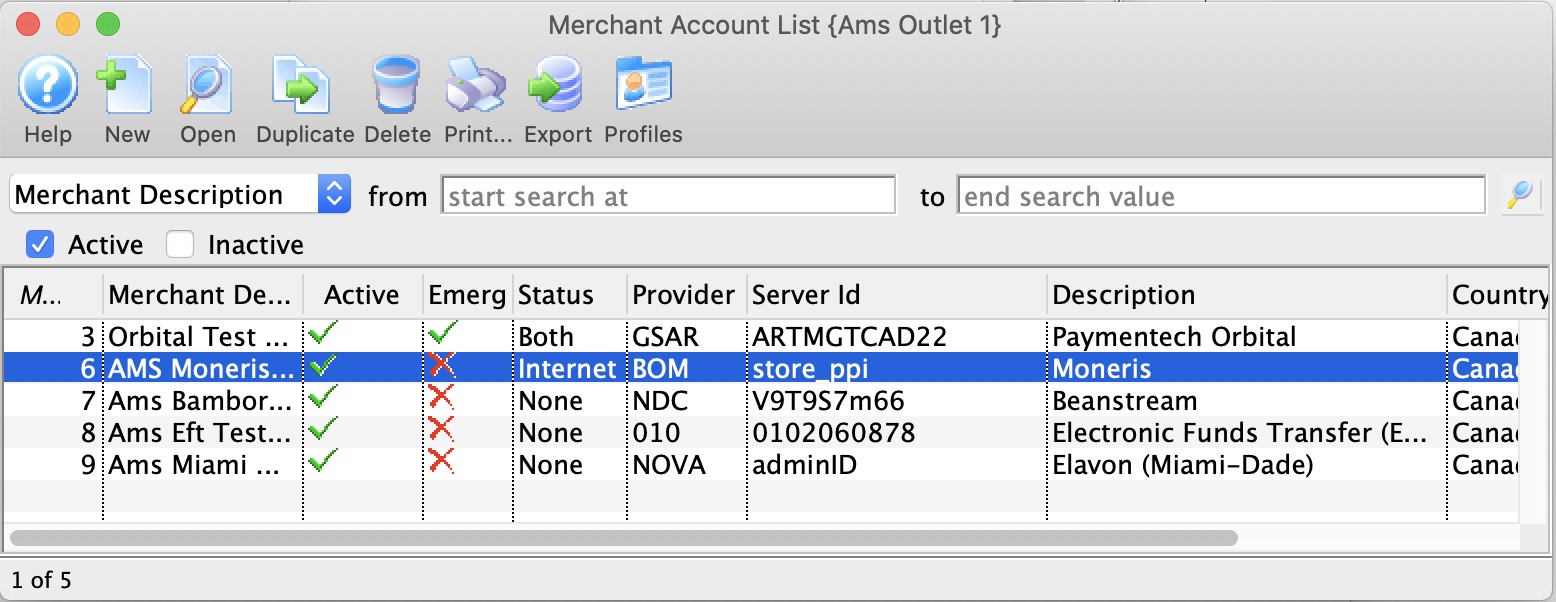
For more information on the Merchant Account List window click here.
Merchant Account List Window
Parts of the Merchant Account List Window
|
Inserts a new merchant account. For more information on inserting merchant accounts click here. |
|
Opens the selected merchant account for editing. For more information on editing merchant accounts click here. |
|
Creates a copy of the current merchant account. |
|
Deletes the current merchant account. For more information on deleting merchant accounts click here. |
|
Generates a report of the merchant accounts to the screen or default print location. |
|
Exports out a list of merchant accounts in a tab-delimited format. |
 |
Opens the Merchant Profiles window displaying credit card profiles for this merchant account. |
| Merchant # | Unique number used to define the merchant account. |
| Merchant Description | Name of the merchant account. |
| Active | Active status of the merchant account. |
| Emerg | Emergency Mode enabled for merchant account. |
| Status | Indicates if credit cards belonging to this merchant can be used in the box office an/or via web sales. |
| Provider | Name of the Merchant Provider contracted to authorize cards. |
| Server Id | The merchant Server Id for credit card authorizations. |
| Description | The merchant provider you contracted with to authorize credit cards. |
| Country | The currency/country that the merchant provider authorizes in at time of checkout. |
| Outlet-Owner | Outlet responsible for the merchant account. |
Merchant Account Detail Window
|
There are two types of merchant accounts as follows:
|
The purpose of the merchant type is dependant on the software type selected half way down the screen.
| Credit Card Merchant Account |
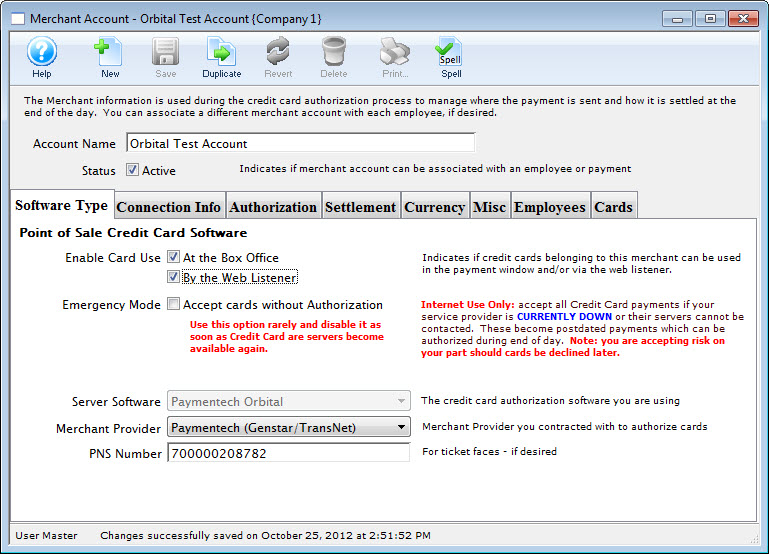 |
| EFT Account |
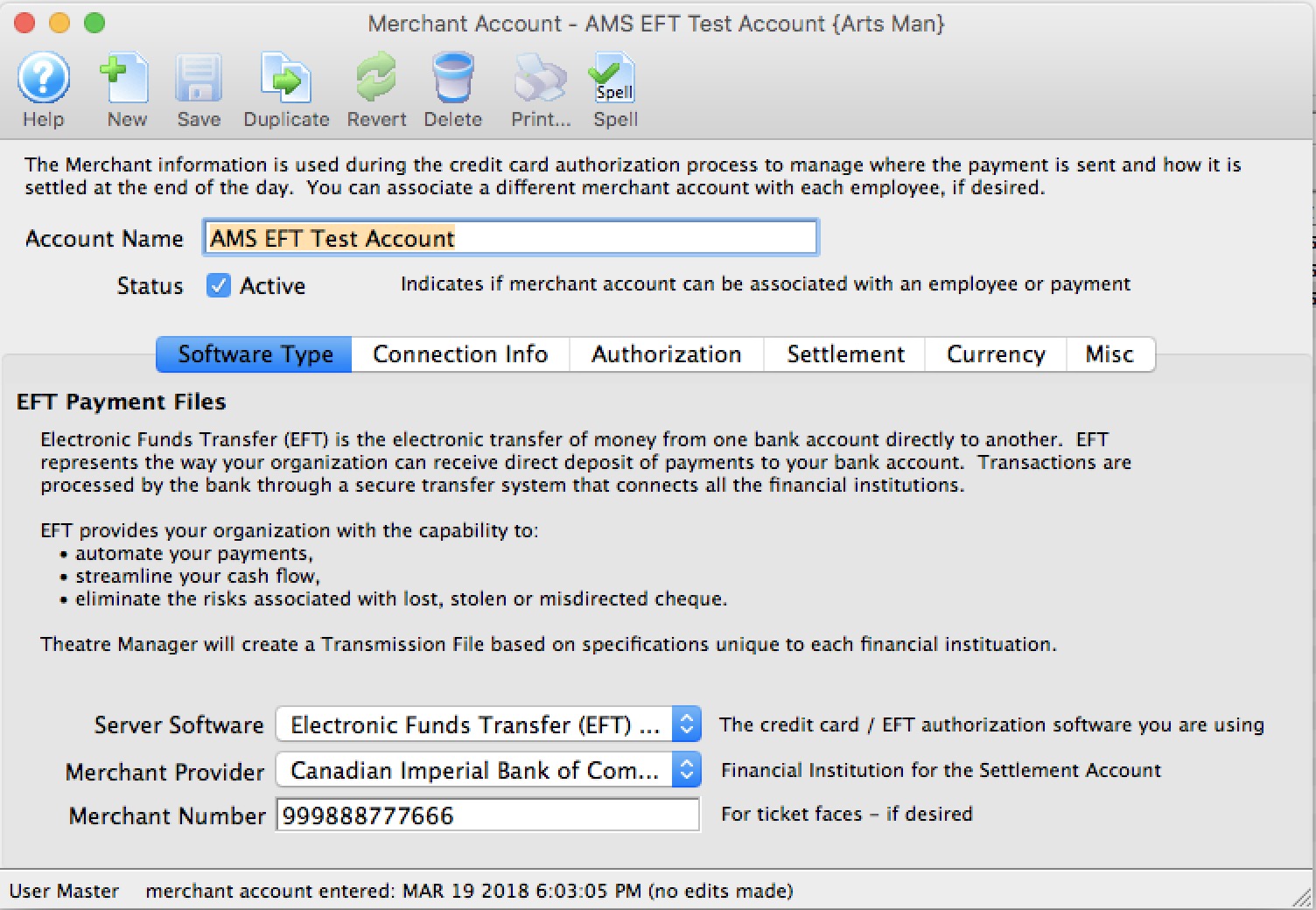 |
Parts of the Merchant Account Detail Window
|
|
Inserts a new merchant account. For more information on inserting merchant accounts click here. |
|
Saves changes made to the currency merchant account. |
| |
Creates a copy of the current merchant account. |
|
Undoes changes to the last saved point. |
|
Deletes the current Merchant Account. For more information on deleting merchant accounts click here. |
|
Checks the spelling of text fields within the merchant account detail window. |
| Account Name | Title for the merchant account. |
| Status | When checked the merchant account is available for use. |
 |
Configuration settings for the server software of the merchant account. For more information on the software type tab click here. |
 |
Access information for the credit card server and/or software. For more information on the connection info tab click here. |
 |
Authorization settings for credit card authorization. For more information on the authorization tab click here. |
 |
End of Day wizard settings for the merchant account. For more information on the settlement tab click here. |
 |
Currency conversion settings (if applicable) for the merchant account. For more information on the currency tab click here. |
 |
Merchant profile setup information for the service provider associated with the merchant account. For more information on the profiles tab click here. |
 |
Merchant contact information for the service provider associated with the merchant account. For more information on the miscellaneous tab click here. |
 |
The staff members in Theatre Manager who are permitted to use this merchant account. For more information on the Employees tab click here. |
 |
The payment methods enabled for use with the merchant account. For more information on the Employees tab click here. |
Software Type Tab
Parts of the Software Type Tab
Point of Sale Credit Card Software | Enable Card Use |
|
|
| Emergency Mode | When enabled, you can accept credit cards without Authorization.
|
||
| Server Software | Credit card processing software Theatre Manager will be communicating with. | ||
| Merchant Provider | Merchant provider responsible for credit card authorization. | ||
| Merchant Number | Merchant or client ID number issued by the merchant provider and is placed on the credit card receipt. In this example, PNS is the number for Paymentech. | ||
Connection Info Tab

Parts of the Connection Info Tab
| User Id | Merchant Number or Client User ID on the Credit Card Server | ||
| Password | Password for the Merchant Number or Client User ID used on the Credit Card Server | ||
| Capture Mode | You can choose Host (Bank) Draft Capture or Terminal (Credit Card Server) setting must match the settings provided by the Merchant Provider. | ||
| Primary URL
Port # |
IP address / name of the credit card server and Port # | ||
| Secondary URL | IP address / name of the secondary credit card server | ||
| Terminal ID | Terminal ID | ||
| Bin Number | Bin Number | ||
| Debugging | Click the Display raw response headers for troubleshooting if you are having problems isolating issues with a specific credit card processor. Normally, this is never enabled.
If you do enable it, all credit card authorization requests at the box office will show:
|
Authorization Tab
|
 If following the setup steps for EMV PinPads for Moneris, you must enter the StoreID and API Key you receive from Moners into this tab otherwise pin pads will not work.
Otherwise you may see a message like the one to the right if you try pair the devices. |
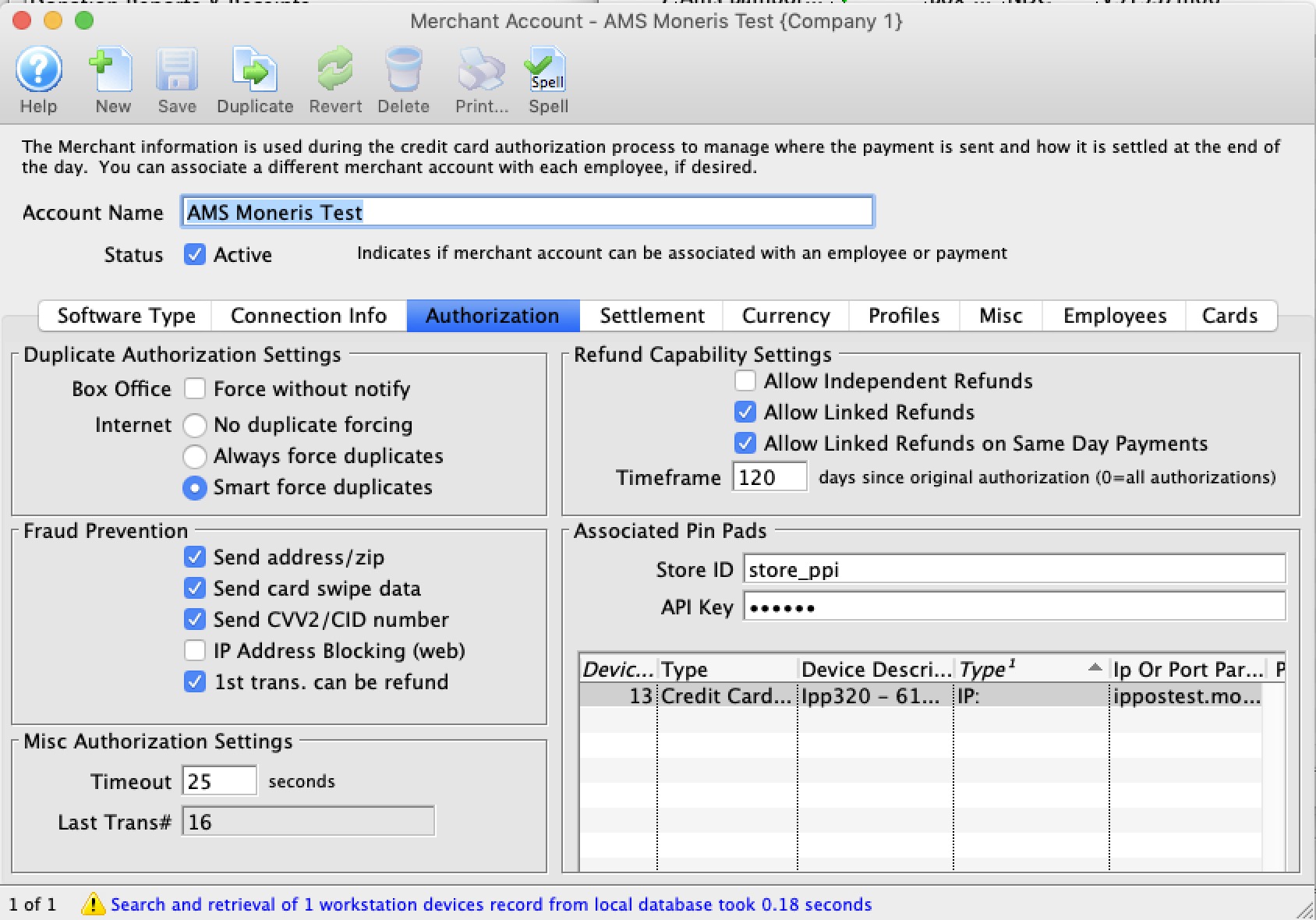
Parts of the Authorization Tab
Duplicate Authorization Settings |
|
| Box Office Duplicates | Force without Notify checkbox - Transactions to the same card for the same value will not receive a warning indicating a possible duplicate charge to the credit card when checked. It is recommended you leave this unchecked |
| Force Without Notify | Transactions to the same card for the same value will not receive a warning indicating a possible duplicate charge to the credit card when checked. |
| Internet Duplicates | Choice of three Options:
Smart Checking is recommended |
Fraud Prevention |
|||||||
| Fraud Prevention | Send Address/Zip - Zip code and address is sent with the credit card information during processing for verification. This information can decrease processing fees in the USA where applicable.
Send Card Swipe Data - Card swipe data is sent during processing for verification. This can decrease processing fees where applicable.
Send CVV2/CID number - Send the CVV2 number from the back of the card.
IP Address Blocking - Allows the merchant provider to block web sales to specific IP Addresses. 1st Transaction can be refund - Some merchant providers (notably Global Payments acting on behalf of some Banks) may not authorize the first couple of transactions if they are refunds, as a fraud prevention tool. The rules are actually set by the Bank and each service provider follows them. The best approach is to avoid a refund as the first transaction..
|
||||||
Misc Authorization Settings |
|||
| Timeout | Maximum time, in seconds, Theatre Manager will try to process a card:
|
||
| Last Transaction | Displays the last tranaction number at the server | ||
Refund Capability Settings (Varies by Merchant Provider and Agreement)The Credit Card refund capabilities vary by merchant provider and your agreement with them. Merchant providers instituted strong rules for fraud prevention and you may find that you need to ask them for capabilities if you cannot refund credit cards. These options indicate what your contractual agreement is with them and tells Theatre Manager how to attempt to refund money. |
|
| Allow Independent Refunds | Independent refunds are when you enter the patron's credit card and refund any amount to that card. This is how credit cards worked for decades until merchant providers decided to limit this capability.
Refer to the rules for Independent refunds and possible errors before turning this on. Note: you must have encrypted card data for the patron, a prior merchant profile set up for them, or contact the patron for a full credit card number in order to do independent refunds. |
| Allow Linked Refunds | Linked Refunds were created by visa/mastercard to force merchants to only return money to the original card for up to the amount charged on the card to avoid fraud.
Enabling this means your merchant provider allows it. Also set the time frame so that TM knows how far back in time the payment may be before the linked refund might be denied. You can contact your merchant provider and they may increase the amount of time allowed. |
| Allow Linked Refunds on Same Day Payments | Some merchant providers seem to disallow linked refunds on the same day. That might mean you have to void the transaction before doing end of day in order to create the refund. |
| Timeframe | The number of days since the payment was made in which a linked refund is likely to be authorized. For any payment older than that number of days, the refund is likely to be denied. |
Associated EMV Pin Pads (currently Moneris Only) |
|
| StoreId | The store ID for pinpads for Moneris |
| API Key | The API key for pinpads for Moneris |
Settlement Tab
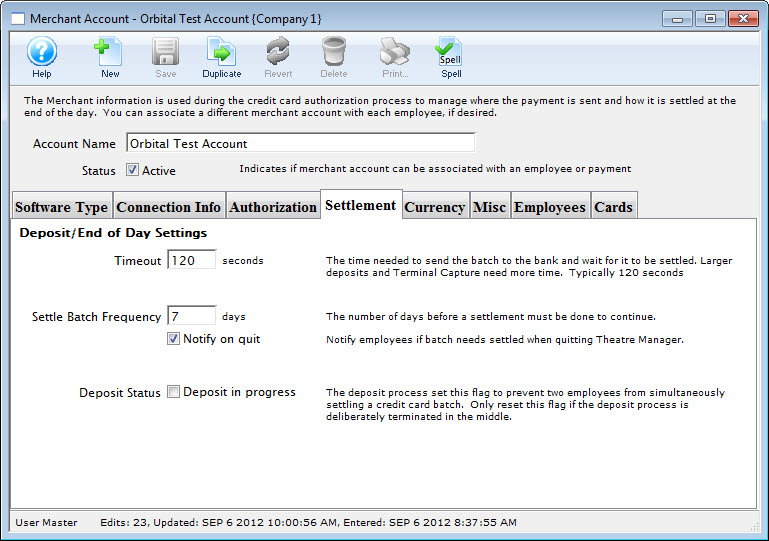
Parts of the Settlement Tab
Timeout |
This is the maximum time, in seconds, that Theatre Manager expects to take to send the completed deposit batch to the bank. Normally, 120 seconds is enough for most processors but if you have larger batches or are using some terminal based authorization, you may need to alter this value. |
||
Settle Batch Frequency |
Indicates the number of days that Theatre Manager will allow process credit cards without settling the batch. After this threshold is exceeded without doing an End of Day, Theatre Manager will display a warning message telling you to close the batch and will not accept any credit cards at the box office. |
||
Notify on Quit |
If checked, an employee will be notified that a batch needs settled when they quit Theatre Manager if it finds any credit cards older than one day that are not yet deposited. In other words, you will only be told if there are cards from a previous day that have not been deposited. |
||
Deposit Status |
This field is checked when an end of day is in process AND a credit card deposit is currently being done for this merchant account through Theatre Manager. You cannot check this box, you can only uncheck it if you are 100% sure there is no settlement occurring for this merchant account (i.e. nobody has end of day open). Unchecking it will reset the end of day and allow a settlement to occur. |
Currency Tab
Normally, credit card accounts are in the same currency for the country you reside in. If you are able to process credit cards in another currency, then you need to know what that is. And it needs to be in your currency exchange table. When a credit card is processed Theatre manager will:
Setup on this tab is particularly important if you are accepting foreign currencies on your website. Click here for more information.
For more information about setting up Currency Exchange details and rates, click here.
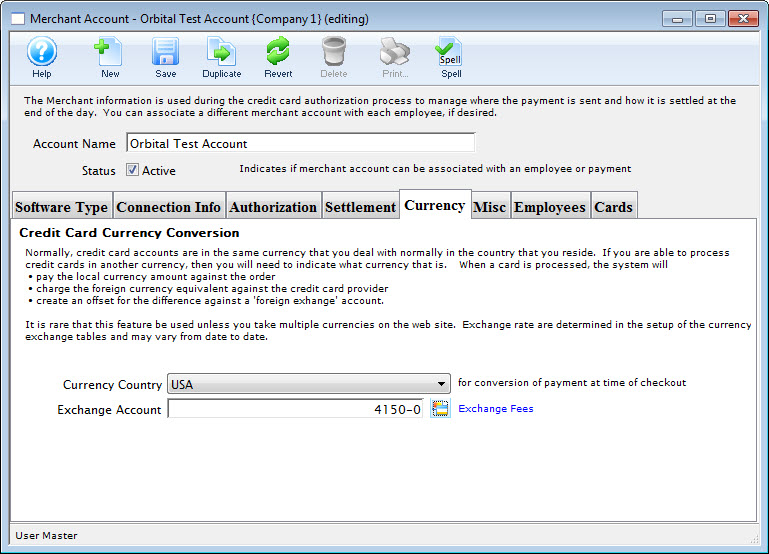
Parts of the Currency Tab
Currency Country |
Select the desired country from the Currency Country drop down. |
Exchange Account |
Enter a G/L Account to allocate the difference from the exchange rate. |
Merchant Profiles
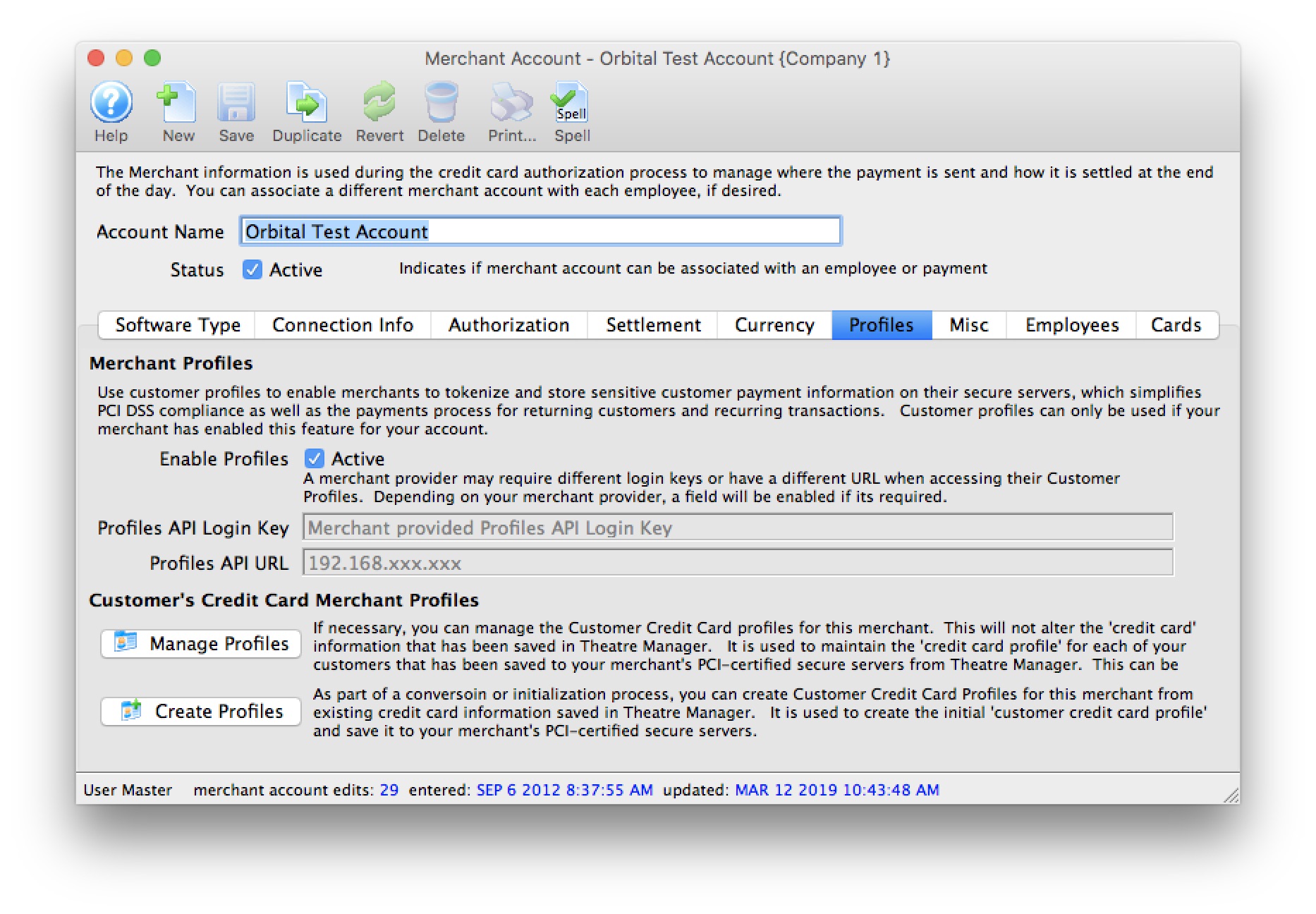
|
A merchant provider may charge service fees or fixed costs for using this service to offset associated costs with maintaining customer and credit card information on their servers. Moneris charges money; and is not recommended for this feature. |
|
If you only need to save credit cards for post dated or recurring payments, PCI Schedule D - post dated may suffice for your needs.
Contact your merchant provider customer support representative to determine if there will be any additional fees to your organization. |
Merchant Profiles are for organizations who are concerned with PCI compliance and wish (or are required to) maintain a PCI Schedule-C compliance within Theatre Manager.
Using Merchant Profiles reduces the exposure risk by maintaining full credit card information directly on the merchant provider's secure PCI-certified servers without having the requirement to store and maintain credit card numbers within Theatre Manager's database. Using Merchant Profiles in a PCI Schedule-C setup, allow full access to Theatre Manager's features such as Post-Dated Payments, Recurring Donations, and the Auto-Renew Season Subscriptions which would typically require a credit card number to be kept on file for each subsequent payment.
Parts of the Profiles Tab
| Enable Profiles | 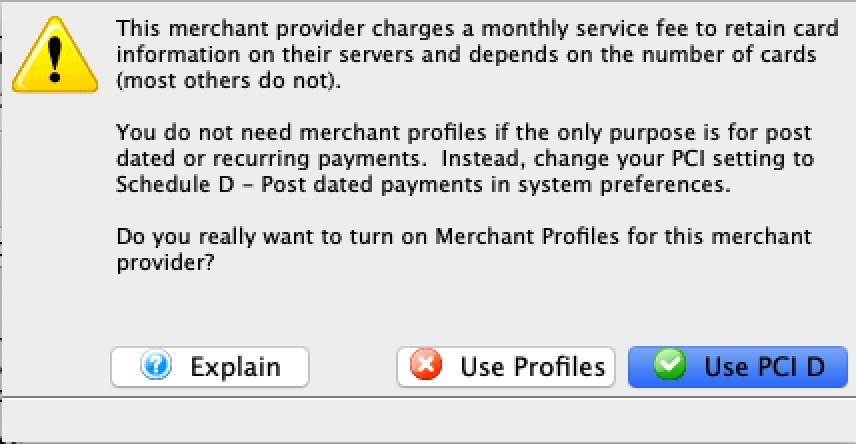 Indicates if this merchant provider account has been enabled to store credit card payment profiles on the merchant account's server.
|
||||
| Profiles API Login Key | The secure API Key used to access credit card profiles on the merchant provider's server.
|
||||
| Profiles API URL | The IP Address to use to access the Credit Card Profiles on the merchant provider's server.
|
||||
 |
If necessary, you can manage the Customer Credit Card profiles for this merchant. This will not alter the 'credit card' information that has been saved in Theatre Manager It is used to maintain the 'credit card profile' for each of your customers that has been saved to your merchant's PCI-certified secure servers from Theatre Manager. This can be used to cross reference and match the information between the two systems. | ||||
 |
As part of a conversoin or initialization process, you can Create Customer Credit Card Profiles for this merchant from existing credit card information saved in Theatre Manager. It is used to create the initial 'customer credit card profile' and save it to your merchant's PCI-certified secure servers. |
How Does This Work?
Merchant Profiles allows you to store credit card numbers directly with your merchant provider, on their servers, and then access those saved credit card numbers at any time for subsequent processing without the cardholder being present.
- During the first interaction using the customer's credit card, the credit card number and limited customer information is transmitted and saved on your merchant provider's server.
- A unique token/key is returned from your merchant provider and stored encrypted within Theatre Manager in replacement of the customer's full credit card number profile.
- Future interactions with the customer such as Post-Dated Payments, Recurring Donations, and the Auto-Renew Season Subscriptions, would then transmit the saved token/key rather than the full credit card number during the authorization process.
- Your merchant provider would then cross-reference this token/key to the actual credit card number during the authorization process within their own systems. At no time is the full credit card number displayed or directly visible during the authorization process.
What are the Benefits and Why Should I Use Profiles?
- Merchant Profiles are for organizations who are concerned with PCI compliance and wish (or are required to) maintain a PCI Schedule-C compliance within Theatre Manager.
- Mitigate the cost and risk of storing customer account data by keeping cardholder profiles in a secure, external database maintained by your merchant provider. This can help you reduce the risk of keeping cardholder data in-house and support your Payment Card Industry (PCI) compliance initiatives by protecting data at-rest.
- Saves time by eliminating the need to rekey a card account number and expiration date for each transaction.
- Allows your organization to make the changeover from Schedule-D to Schedule-C PCI Settings while retaining virturally all Theatre Manager's benefits as if still functioning in a Schedule-D environment.
- For clients currently operating in a Schedule-C environment, enabling merchant profiles would allow future interactions with our customers for Post-Dated Payments, Recurring Donations, and Auto-Renew Season Subscriptions.
- For clients who wish to remain in a Schedule-D environment, previously used credit card numbers are masked to the box office staff members during the payment process. Providing further protection from anyone accessing a patron's full digit card number.
A masked card means that it will be displayed in the payment window as '#### **** **** ####'. This renders the PAN useless for all purposes. However, given the first 4 and last 4 digits of any card, you can still validate you're using the correct merchant profile for authorizing the card.
- For clients who wish to remain in a Schedule-D environment, the function of storing previously used encrypted credit card information will remain the same - even with merchant profiles enabled. Using merchant profiles would add another layer of security protection to the full digit card number from being displayed or accessed.
What Will I See Differently in Theatre Manager?
If your PCI Settings are set to Schedule C to shred cards immediately after use:
- You will not notice much difference at all from what you see now. What the box office will benefit from is the ability to create and maintain future interactions with the customer such as Post-Dated Payments, Recurring Donations, and the Auto-Renew Season Subscriptions, would then transmit the saved token/key rather than the full credit card number during the authorization process.
- If your settings are to default the last used credit card for a patron, you will now see a masked the credit card number default for patrons who have previously purchased. The masked number is ok to accept as is for payments without changing it. The payment will use the merchant profile that was created for that credit card number.
If your PCI Settings are set to Schedule D to retain encrypted credit card data in Theatre Manager:
- The main change you will realize is that Theatre Manager will protect any known credit cards for patrons by only displaying merchant profile for a patron. Initially, it will appear as if all credit cards are missing from Theatre Manager, however, they still exist. They are in the background if access to them is required. After using the function to build merchant profiles for known credit cards, the transition to using merchant profiles will more seamless.
- If your settings are to default the last used credit card for a patron, rather then displaying the full set of credit card digits, it will mask the credit card number for patrons who have previously purchased. The masked number is ok to accept as is for payments without changing it. The payment will use the merchant profile that was created for that credit card number.
- During the payment process, if you're searching for known credit cards for a patron, it will only display credit cards that have a merchant profile created for it. Although Theatre Manager may have the credit card on file, if there is no merchant profile created for it, it will not display. If this is a concern, use the function to build merchant profiles for known credit cards, the transition to using merchant profiles will more seamless.
Steps to Start Using Merchant Profiles
- Contact your merchant provider representative and have them enable the module "Customer Payment Profiles" (*read the stop sign below*) on your merchant account.
Each merchant provider has its own unique name for the setup and maintaining of "Customer Payment Profiles." When talking with your merchant provider, use the following name to describe the feature you'll be activating:
- Authorize.Net - use the feature name Customer Profiles
- Bambora - use the feature name Payment Profiles (Theatre Manager's interface with Bambora to maintain Merchant Profiles is currently under development).
- Elavon - use the feature name Card Manager Transactions
- Moneris - use the feature name Hosted Vault
- Paymentech Oribital - use the feature name Customer Profile Management
- After contacting your merchant provider representative and they have confirmed "Customer Payment Profiles" has been enabled on your merchant account:
- set Enable Profiles to "active" to activate the feature within Theatre Manager.
- For Authorize.Net - set the Profiles API URL.
- For Bambora - set the Profiles API Logon Key anbd the Profiles API URL.
- Save the change to the merchant information.
- Log out of Theatre Manager.
- Log into Theatre Manager to start processing credit cards as normal. Customer Payment Profiles will start to be created automatically for each credit card processed.
Steps to Verify if Merchant Profiles are Being Created
- Follow the steps for Accessing the Merchant Profiles Customer List to view a patron's payment profile.
- If a profile exists, Theatre Manager and your merchant provider are functioning correctly.
- If there are no profiles, contact Arts Management Support to review your Merchant Profile Setup.
Can I Stop Using Merchant Profiles?
Yes, at any time. All pre-existing merchant profiles will remain within Theatre Manager's database for future use if merchant profiles is re-enabled for this merchant account. |
If your PCI Settings are set to Schedule D to retain encrypted credit card data in Theatre Manager, and if you process any new credit cards while the Enable Profiles is inactive, a merchant profile will not be created. If you choose to Enable Profiles later on, it is suggested using the function to build merchant profiles for known credit cards, to make the transition back to using merchant profiles more seamless. |
|
If your PCI Settings are set to Schedule C to shred cards immediately after use, and if you process any new credit cards while the Enable Profiles is inactive, a merchant profile will not be created. If you choose to Enable Profiles later on, you will require the full credit card number again before processing another new payment for that patron's credit card. |
- Set the Enable Profiles flag to "inactive" to stop the feature within Theatre Manager. This will only inactivate it within Theatre Manager.
- Save the change to the merchant information.
- Log out of Theatre Manager.
- Log into Theatre Manager to start processing credit cards as normal. Customer Payment Profiles will no longer be displayed or created automatically for each credit card processed.
If I change Merchant Providers, will the Existing Merchant Profiles continue to work with the New Provider?
No. The Customer Payment Profile's created by the merchant provider are uniquely linked to that merchant provider and your merchant account number. Customer Payment Profiles cannot be shared between different providers or accounts.
Building Merchant Profiles for Existing Cards
Merchant Profiles can be created and saved on your merchant provider's secure PCI-certified servers using the existing credit card information in Theatre Manager.
This window is used as an analysis tool to determine the critical and primary credit card profiles that should have a Merchant Profile created.
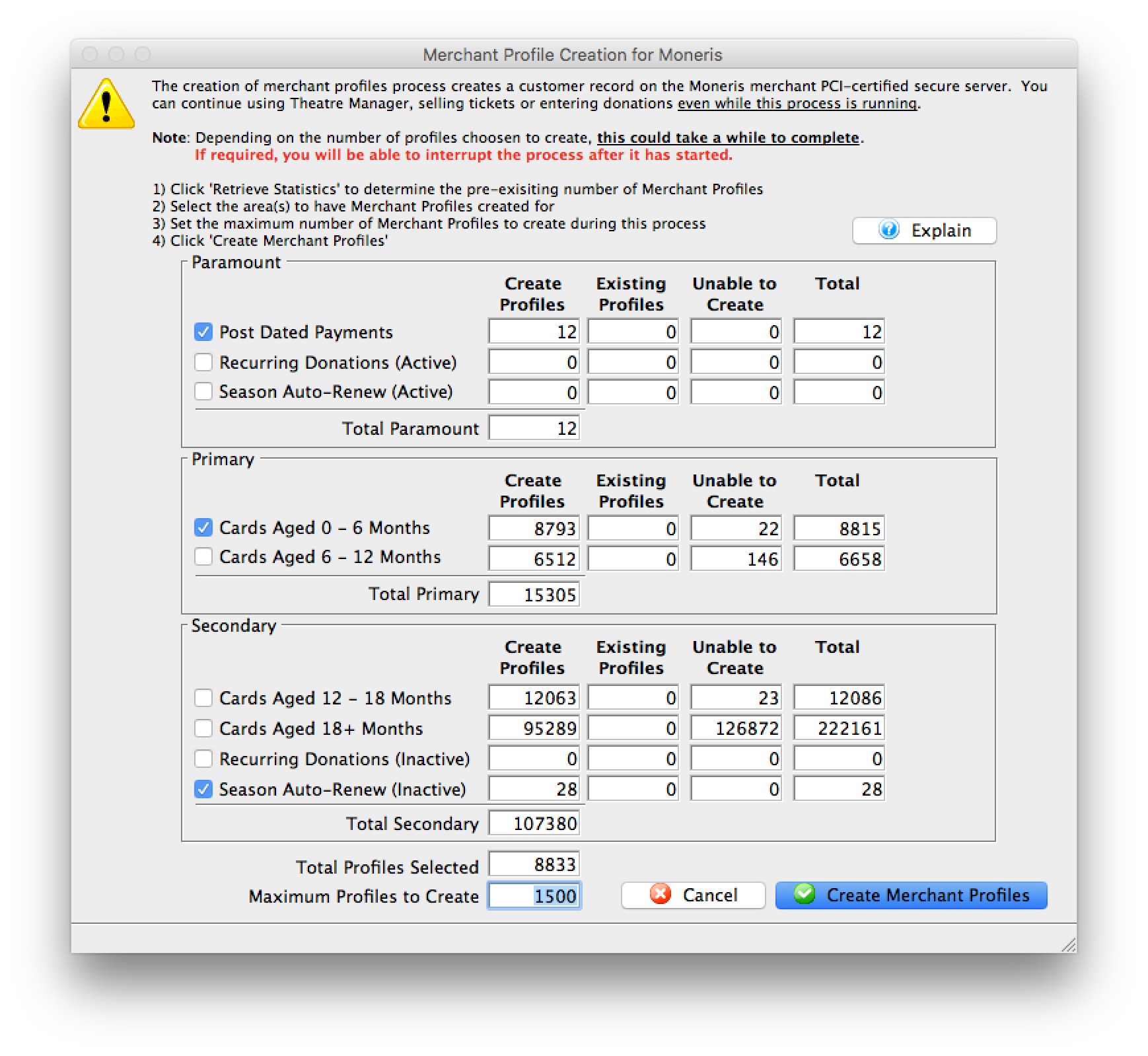
Parts of the Merchant Profiles Creation Window
| Post Dated Payments | Select to include credit cards from non-deposited (future dated) post dated payments. | ||
| Recurring Donations (Active) | Select to include credit cards from active and ongoing recurring donations. | ||
| Season Auto-Renewal (Active) | Select to include credit cards from active Season Subscriptions that are setup with Auto-Renewals. An active season is defined as the current and previous seasons. | ||
| Cards Aged 0 - 6 Months | Select to include credit cards that have been used or updated within the previous 6 months. | ||
| Cards Aged 6 - 12 Months | Select to include credit cards that have been used or updated within the previous 6 to 12 months. | ||
| Cards Aged 12 - 18 Months | Select to include credit cards that have been used or updated within the previous 12 to 18 months. | ||
| Cards Aged 18+ Months | Select to include credit cards that have been used or updated over 18 months ago. | ||
| Recurring Donations (inactive) | Select to include credit cards from inactive or completed recurring donations | ||
| Season Auto-Renew (Inactive) | Select to include credit cards from inactive Season Subscriptions that are setup with Auto-Renewals. An inactive season has the season pages flagged as inactive or is 2+ seasons ago. | ||
| Total Profiles Selected | The total number of credit cards selected to create merchant profiles. | ||
| Maximum Profiles to Create | The maximum number of merchant profiles to create during this process. | ||
 |
Query Theatre Manager's database to determine the possible number of merchant profiles that can be created; the number of existing merchant profiles; and the number of known credit cards that are unable to be used for creating a merchant profile.
|
||
 |
Start the process for creating merchant profiles for the selected credit card numbers.
|
 |
Before proceeding, verify that this merchant account has credit card payment types(i.e. VISA, MC, DISC, AMEX, etc.) created and assigned in code tables. If a payment method does not exist as a credit card type for this merchant, a merchant profile will not be created. |
- Open the Merchant Profile Creation window.
Click here to learn how to access this window.
- Click Retrieve Statistics.
A confirmation window will open prior to proceeding.
Depending on the number of existing credit cards in Theatre Manager, the credit card analysis tool determining the number merchant profiles to create may take a while to complete. - Click Continue.
A progress checklist window will open.
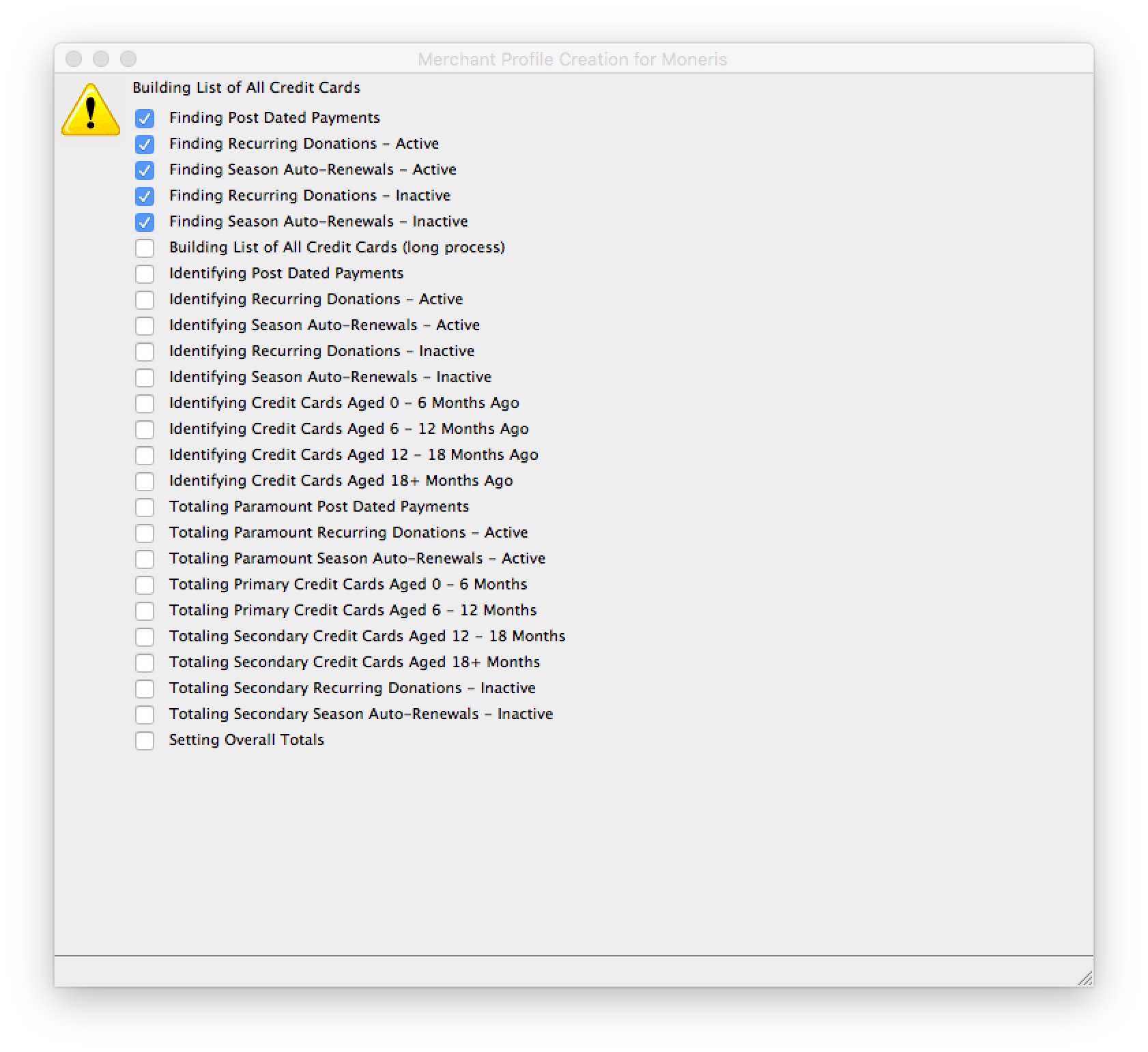
- Select the area(s) to have merchant Profiles created for.
- Set the maximum number of Merchant Profiles to create during this process.
If the Maximum Number of Profiles to Create is less than the Total Profiles Selected, the credit card list will be sorted in the following sequential order in attempts to create the most important credit card profiles first: - Post Dated Payments
- Recurring Donations (Active)
- Season Auto-Renew (Active)
- Cards Aged 0 - 6 Months
- Cards Aged 6 - 12 Months
- Cards Aged 12 - 16 Months
- Cards Aged 18+ Months
- Recurring Donations(InActive)
- Season Auto-Renew (InActive)
- Credit card last used/updated date
- Click Create Merchant Profiles.
A confirmation window will open prior to proceeding.
Depending on the number of merchant profiles requested to create, the process may take a while to complete. - Click Proceed.
A progress window will open.
Clicking cancel on the progress window will stop the process. All merchant profiles that have been created up to the time the cancel button was clicked, will remain. - Upon Completion of the Routine.
A status window will open.
If a message that 0 merchant profiles were created after running the Building Merchant Profiles for Existing Cards function: 
- Verify that this merchant account has credit card payment types(i.e. VISA, MC, DISC, AMEX, etc.) created and assigned in code tables.
- Verify the Profiles API Login Key and/or Profiles API URL are valid if your merchant account requires either of these 2 fields.
- Contact your merchant provider representative to confirm they have enabled the "Customer Payment Profiles" feature on your merchant account.
- Authorize.Net - use the feature name Customer Profiles
- Bambora - use the feature name Payment Profiles
- Elavon - use the feature name Card Manager Transactions
- Moneris - use the feature name Hosted Vault
- Paymentech Oribital - use the feature name Customer Profile Management
Each merchant provider has its own unique name for the setup and maintaining of customer's payment profile information. When talking with your merchant provider, use the following name to describe the feature you'll be activating:
Creating a Merchant Profile
Merchant Profiles are created automatically when the Merchant Profile option is enabled for a merchant provider. When a credit card number is provided as a form of payment and a merchant profile does not already exist for this specific patron/payment combination, Theatre Manager will communicate with the merchant provider directly to get a Client Token and Payment Token assigned for the patron's payment information.
Patrons will have a separate Client Token/Payment Token combination for each credit card number used for payment.
|
Merchant Profiles are not shared between merchant providers, even if the merchant account is with the same merchant provider. If you have multiple merchant accounts setup for different operational unit within your organization (i.e. box office sales, internet/web sales and/or development) and each merchant account is enabled to maintain profiles, then a patron could have multiple Client Token/Payment Tokens for the same credit card if the patron provides payment with those different operational units. In most cases the organization only has a single merchant account, thus there would only be a single Client Token/Payment Token for each patron credit card. |
|
For patron credit card security reasons, functionality to manually enter the Client Tokens/Payment Tokens generated by a merchant provider into Theatre Manager is not allowed. |
Deleting a Merchant Profile
- Open the Merchant Profiles List window.
Click here to learn how to access the Merchant Profiles List window.
- Select the Merchant Profile to be deleted.
Single click on a Merchant Profile to select it.
- Click the Delete button.
The Delete Record confirmation opens.
- Click the Delete button.
A second Delete Record confirmation opens.
- Click the Delete button.
The Merchant Profile from Theatre Manager is now deleted.
Theatre Manager does a best attempt to delete the customer profile from the merchant provider's servers. There could be a circumstance where the customer profile cannot be deleted using the API calls from Theatre Manager. If this occurs, login into your merchant provider's web portal and delete the customer profile manually.
If the Merchant Profile is referenced by other files in the system, you will be unable to delete it and Theatre Manager will not delete the customer profile from the merchant provider's servers.
Merchant Profiles Customer List
The Merchant Profiles List can be used to review the customer profiles created and located on your merchant provider's secure PCI servers. This list can also be narrowed to only patrons on a specific grouping by using select criteria. This window is only visible to an employee if they have been granted access under Employee Setup.
Merchant Profiles List Buttons
|
Opens the Merchant Profile Detail window for the selected profile. Click here for more information about the profile detail window. |
|
Deletes the merchant profile. Click here for more information on deleting profiles. |
|
Prints a report the of the profiles in the merchant profile list to screen or default print location. |
|
Exports the data from the merchant profiles list into a tab delimited format and saves it to a selected location. |
 |
Opens the Patron record for the selected patron. |
Parts of the Merchant Profiles List Window
| Patron # | The unique identifier for this patron account. |
| Type | Type of Patron account. |
| First Name | The first name of the patron. |
| Last Name | The last name of the patron. |
| Company | The company that the patron works for. |
| Profile # | The company that the patron works for. |
| Credit Card | The credit card number. |
| Expiry Date | Date the card will expire. |
| Name on Card | Name printed on the credit card used for added security when processing the card. |
| Active | The state of the card and if it can be selected to process credit card transactions. Expired, lost or stolen cards can be set to an inactive state. |
| Blacklisted | Indicates if this credit card is blacklisted for this patron. If blacklisted, the patron cannot use the card again unless this card is reset. |
| Merchant # | The unique identifier for this merchant account. |
| Merchant Description | The internal description to identify the merchant account. |
Accessing the Merchant Profiles Customer List
There are a few ways to access the customer payment profiles, depending on the end result.To view all merchant profiles created for a specific merchant:
- Open the Merchant List window.
- Edit the merchant account.
- Click the Profiles tab.
- Click the Manage Profiles button.
To view all merchant profiles for a specific patron:
- Open the Patron Window.
- Click on the Credit Card Tab.
- Right-mouse-click on the patron's credit card list within the patron window.
- Select "Merchant Profiles" from the context pop-up menu.
To view merchant profiles for a specific patron while making a payment:
- Open the Payment Window for an order.
- Choose a credit card payment method from the list of payment options.
- Click on the Credit Card Lookup button.
Merchant Profiles Customer Detail
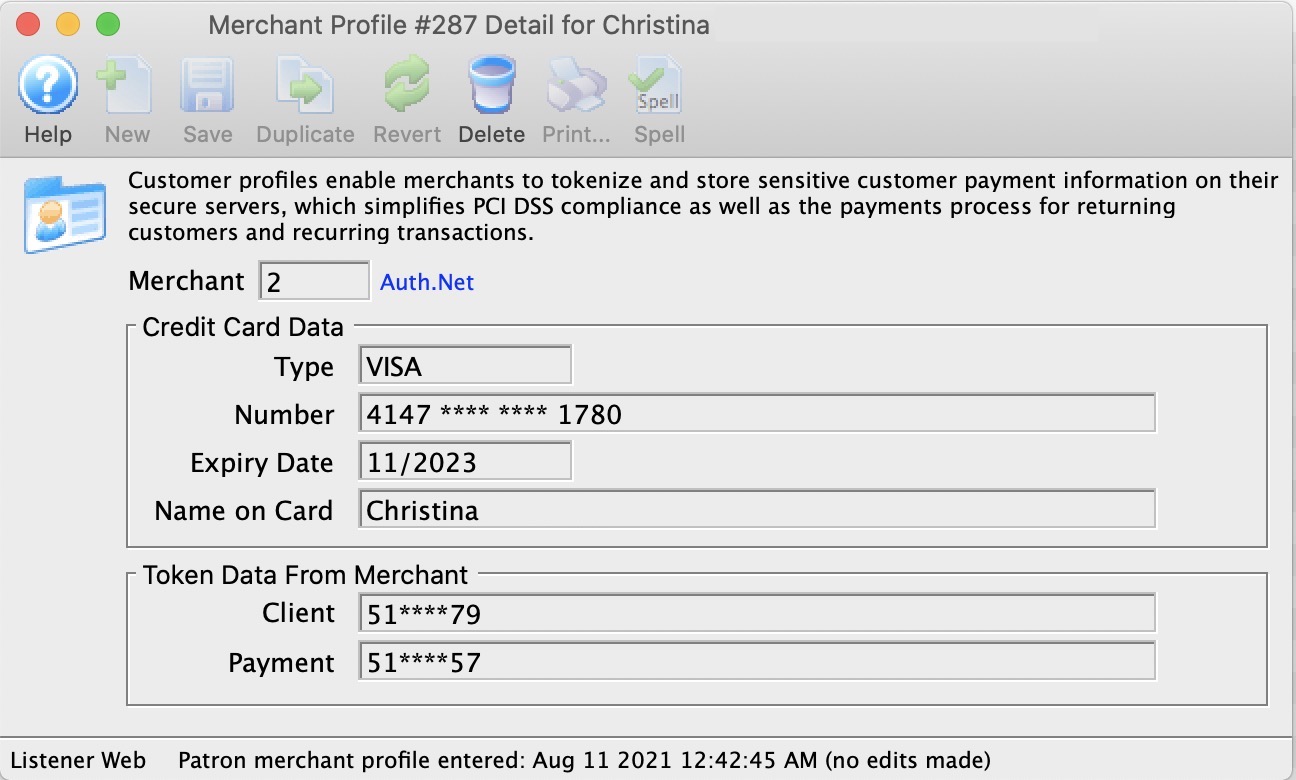
Parts of the Merchant Profiles Detail Buttons
|
Deletes the merchant profile. Click here for more information on deleting profiles. |
Parts of the Merchant Profiles Detail Window
| Merchant | The unique identifier and internal description for this merchant account. | ||
| Card Number | The credit card number. | ||
| Expiry Date | Date the card will expire. | ||
| Name on Card | Name printed on the credit card used for added security when processing the card. | ||
| Client Token | The unique identifier assigned by the merchant provider for this patron's customer information. | ||
| Payment Token | The unique identifier assigned by the merchant provider for this patron's payment information.
|
Miscellaneous Tab
The miscellaneous tab is used to provide contact information for your merchant provider. Please put information into these fields so that your staff will know who to contact in case of messages from the merchant provider like 'Hold Card' or 'Decline'. Clients using Orbital can use the information pictured for the name and phone number fields, then the email address of the organization's finance director or accountant. Those using other service providers will need to fill in contact details for their Merchant Provider or bank here.
Parts of the Miscellaneous Tab
Contact Person |
Enter the name of the Merchant Contact person when a card comes back as 'declined', 'call center' or 'hold card' |
Phone Number |
Enter the phone number of the contact person |
Enter the e-mail address of the Contact person |
|
Opens an email to be sent to the address listed |

Employees Tab
This is the list of employees that currently use this merchant account. If changing merchant accounts, you might need to change these employees to another merchant record.
If you have multiple merchant accounts (or are retiring an old merchant provider), you can drag employees from the 'employee' tab in one merchant detail window to another to transfer them to another merchant provider.
Parts of the Employees Tab
Employee List |
Displays the Employee List of those employees who can use this merchant account. |
Opens the Employee Access window for the selected employee.click here for more information on the Employee Access window. |
Cards Tab
This tab displays the credit cards accepted for authorization by this merchant account.
If you have multiple merchant accounts (or are retiring an old merchant provider), you can open up the card window on both merchant providers and drag the payment types from one merchant account to another. Any post dated payments associated with the old merchant account will be transferred to the new merchant account so they can be authorized in the future properly.
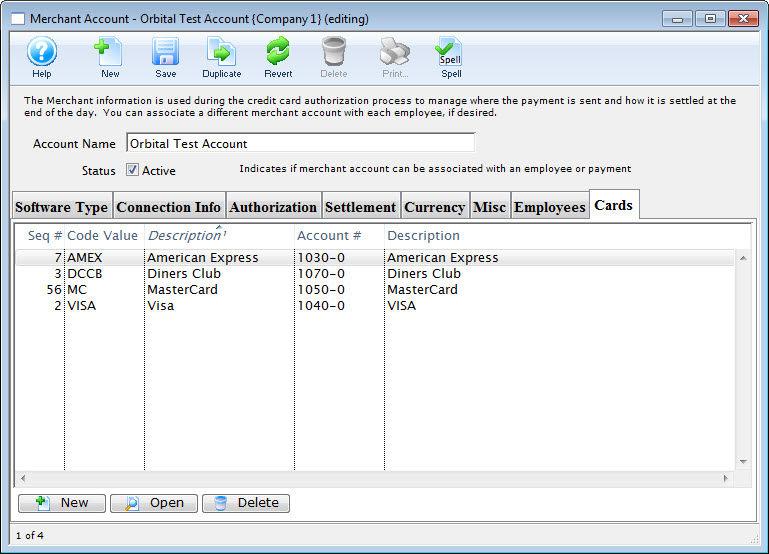
Parts of the Cards Tab
You can add cards from the Payment Methods defined in Code Tables. Click here for more information. |
|
You can open and edit the selected card. |
|
You can remove card that are no longer accepted |
Creating a Merchant Account
- Open the Merchant Account Setup window.
Click here to learn how to access the Merchant Account List window.
- Click the New button.
The Merchant Account Detail window opens.
- Enter the Account Name of the Merchant Account.
- Make appropriate Server Software and Merchant Provider selections in their respective drop-down menus.
- Enter the PNS , Account # or Merchant Number provided by the merchant provider.
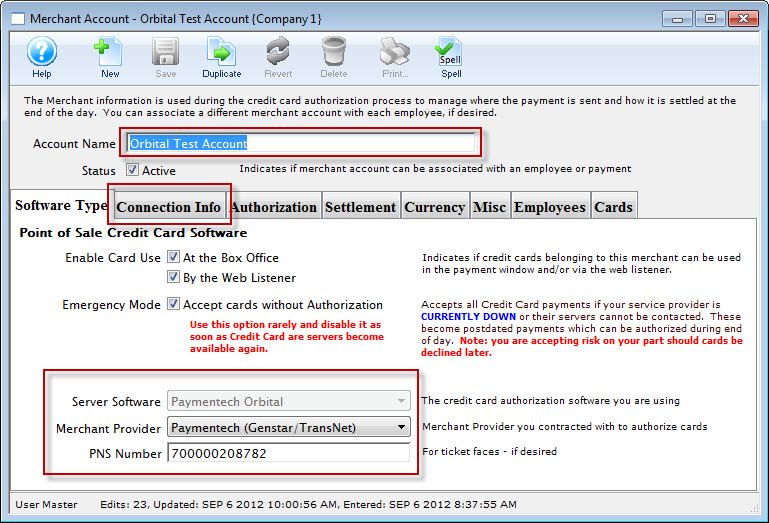
- Click the Connection Info tab.
The Connection Info window opens.
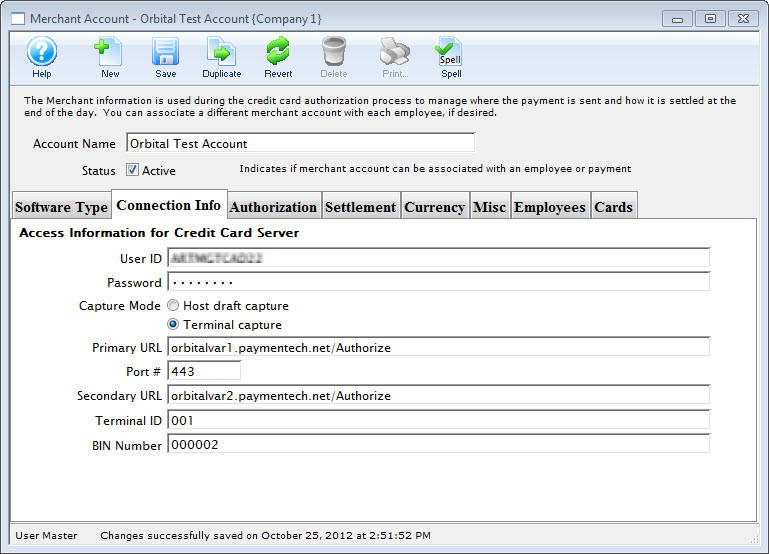
- Enter data in the Merchant Account Connection Info tab, based on the information given by the merchant provider.
For more information on the Merchant Account Connection Info tab click here.
- Click the Authorization tab.
The Authorization window opens.
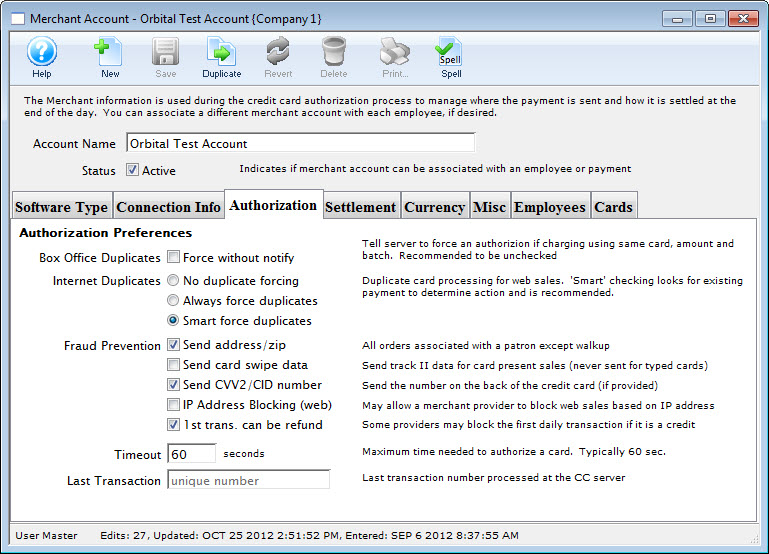
- Choose the correct authorization settings in the Authorization tab.
For more information on the edits and accounting tab click here.
- Click the Settlement tab.
The Settlement window opens.
- Enter data in the Settlement tab.
For more information on the Settlement tab click here.
- Click the Currency tab.
The Currency tab window opens.
- Enter the currency details for this merchant account.
For more information on the edits and accounting tab click here.
Click the Misc
tab.
The Miscellaneous tab window opens.
Enter the merchant providers contact name, telephone and email address.
For more information on the edits and accounting tab click here.
Click the Employees
tab.
The Employees tab window opens.
- Use the Add button in the lower left of the tab to add employees who should use this merchant account.
An employee can belong to only one merchant account at a time. For more information on the edits and accounting tab click here.
- Click the Cards tab.
The Employee tab window opens.
- Use the New button (in the lower left of the tab) to add credit card payment methods that should use this merchant account.
For more information on the edits and accounting tab click here.
- Click the Save button.
The new Merchant Account is now created.
Editing a Merchant Account
To edit a Merchant Account, you perform the following steps:
- Open the Merchant Account List window.
Click here to learn how to access Merchant Account List.
- Select the Merchant Account to be edited.
Single click on a account to select it.
- Click the Open button.
The Merchant Account Detail window opens.
- Make changes as needed.
- Click the Save button.
The merchant account is now updated and saved.
Deleting a Merchant Account
- Open the Merchant Account List window.
Click here to learn how to access the Merchant Account List window.
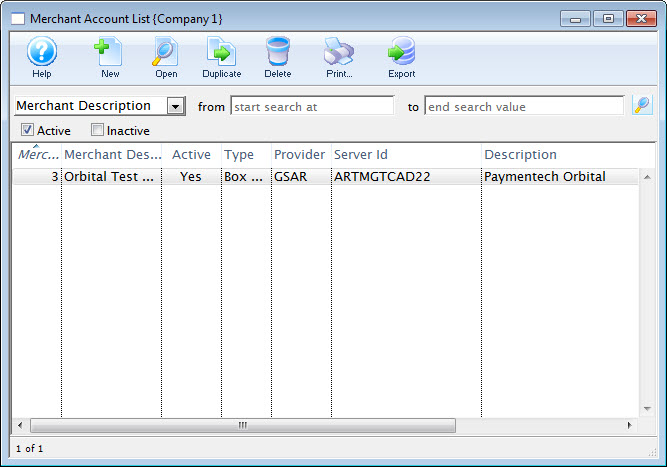
- Select the Merchant Account to be deleted.
Single click on a Merchant Account to select it.
- Click the Delete button.
The Delete Record confirmation opens.
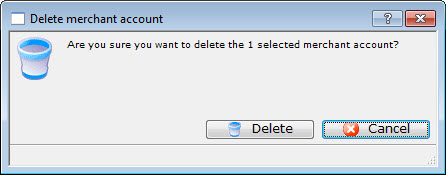
- Click the Delete button.
The Merchant Account is now deleted.
If the Merchant Account is referenced by other files in the system, you will be unable to delete it.
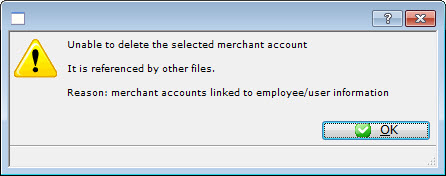
How to Change a Merchant Provider
|
If considering changing merchant providers, be sure to read about the impact and business ramifications for purchases done with the old provider that might need refunded un the future. |
|
Before beginning this process, we suggest picking a time that will naturally limit any transactions that could be processed until the new Merchant account is in place. (i.e. earlier in the morning). A switchover can usually be done in 5 minutes or less.
If you wish, you can turn off web sales (only necessary for comfort). |
The general steps covered below are:
- Preparing for the switchover to a new Merchant Account
- Switching Merchant Information in Theatre Manager
- Testing the merchant account
- Migrating Post Dated payments to your new merchant account
- Updating payment Ticket Face to print your New Merchant Account Information
Impact of Changing a Merchant Provider
|
Changing your Bank is not the same as changing your merchant provider. You can change either/or at any time. Refer to the basic definitions used the credit card industry for more information on roles and responsibilities of either. |
Advantages of Changing Merchant Provider and/or Processor
You may get various benefits such as:
- more amenable rates
- better service when you call them for help
- more supported features such as hosted payments online or pin pads
Disadvantages of Changing Processors
There are disadvantages of changing service providers - most notably:
- Linked Refunds which apply to a specific patron, merchant and order -and-
- merchant profiles which will need to be recreated as patrons by.
If you suspect you might have a significant number of refunds to do for upcoming shows that are or could be cancelled, you might want to:
- hold off on changing your merchant provider until such a time you've got a low exposure on the need to do refunds -or-
- Migrate to the new merchant account, while keeping the old one available/active for future box office returns for a period of time - say a few months, if that option is possible.
Why are refunds problematic during Merchant Changeover?
In recent years, merchant providers have instituted fraud policies that apply one or more of the following rules (Linked Refunds) that mean refunds
- must within a certain number of days of authorization (normally 120, but can sometimes be extended)
- to the same card that was used to purchase
- with a token provided by the merchant provider (changing merchants nullifies the token)
- up to the same amount on the original purchase
- using the same order number
- to the same merchant provider
The rules above are imposed by the credit card companies and they can change at any time. If you change a merchant provider, then at least 3 of the rules above are viiolated:
- #3 (the token),
- #5 (the same order number),
- #6 different provider
The new merchant provider will not allow refunds for any charges done by the old merchant provider.
|
You may need to ask the new merchant provider to approve you for independent refunds - which they may charge more for, or may not give you that permission.
Note, that Independent refunds of a card used with a new merchant processor means you must ask the patron for their card number again. (linked refunds do not need you to get the card). |
|
Alternatively, you many need to keep your old merchant provider setup available for a few months for refunds only - until your risk of needing to do a refund to the old provider is past. |
Step 1: Preparing for the switchover to a new Merchant Account
- Set up the information for your new merchant account.
- Do not activate it yet -and-
- Set the new merchant to emergency mode
- Set up NEW credit card payment methods for your NEW merchant accounts
- You will need to go to the payment code table
- Create card payment types for VISA, MCARD, AMEX etc that your new merchant provider accepts
- Associate them with your new merchant provider created in step 1
- You might also want to rename your old VISA, etc payment methods to 'VISA - old merchant provider' so that you know which is which at a glance
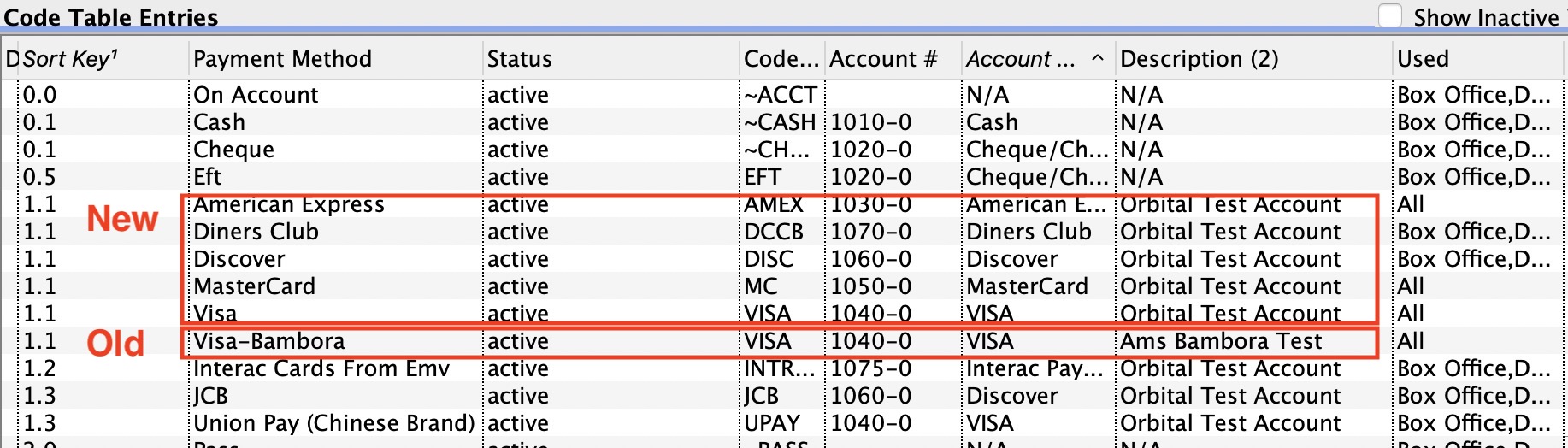
- Complete the End of Day Process for your current Merchant Provider.
- Immediately turn your existing merchant provider into emergency mode. This will allow:
- Sales to continue while you complete the switchover
- Cards entered while in emergency mode are not authorized, but will be moved to the new merchant provider as post dated payments (due today).
- Those cards can then be authorized in next end of day against the new merchant account.
- This allows you to maximize sales uptime and minimize web sales outage to minutes.
Step 2: Switching Merchant Information in Theatre Manager
- Goto Setup >> System Tables > Merchant Accounts to see the merchant account list. You should see both your current and your future merchant records.
- Open both your old merchant account and your new one.
- Select the Employee tab on both windows
- Select and drag all employees from the old merchant account to the Employee tab of the new merchant account.
- You will see that all employee names now appear on the new merchant. From this point in, those employees will use the new merchant account.
- On the NEW merchant account window:
- Check the 'Active' flag in the new merchant account
- Uncheck the emergency mode setting in the new merchant account
- Close the new merchant account window
- On the OLD merchant account window:
- Uncheck the Active box in the old merchant account window.
- Close the old merchant account window
Step 3: Testing the merchant account
- processing a test transaction to ensure the new merchant account processes cards correctly.
- Run an End of Day in Theatre Manager to ensure the transaction batches properly.
- Open your online merchant profile and see that the batch is there and closed, with the right amount
Once you are sure the transactions are processing correctly you can then start up the web sales again and employees can log back into the database.
|
When you make the changeover to the new merchant account, you must
RESTART your web listeners to ensure all web checkouts use the new merchant provider |
Step 4: Migrating Post Dated payments to your new merchant account
These credit card payments are linked to the payment method for the old merchant processor and need to be switched over to the new processor. To do so, repeat the following steps for each credit card type you now accept for your new merchant provider.
|
The transfer process only does one Credit Card type at a time in case you want to split merchant accounts. User it iteratively to transfer
|
- Go to Setup->System tables and find all your payment methods. You should see a list of your payments like below:
- Open one of the OLD credit card payment methods associated with the OLD merchant provider. It should look like the window below.
- The Migrate Postdated button will be active.
- Click on it and a list of merchant providers will appear.
- Your new one should be visible
- select it
-
You will be asked to confirm that all post dated payments are to be moved to the new merchant provider. Confirm if you wish to continue. If you make a mistake, you can always reverse the process and move from the new merchant provider back to the old one.
- Make the payment method you just transferred the post dated payments from INACTIVE so that it can't be used again.
- Repeat the above steps for each of the other credit cards you are transferring to the new merchant account
|
NOTE: to help prevent possible mistakes transferring from the old merchant to the new, the NEW merhant account will only appear in the popup list if:
|
Step 5: Updating Payment Ticket Face to print your New Merchant Account Information
These days, most people do not print a credit card receipt, or they email tickets
- Goto Setup >> Ticket Faces
This will open the Ticket Faces List window. - Locate your Credit Card ticket Face
- Edit the ticket face
- Locate the line of code that displays your current merchant account number(s) (if they are hard coded on the ticket face). If the field is MM_MERCHANT_NUMBER, then no change is require to your ticket faces
- Edit the line of code to have your new merchant account information
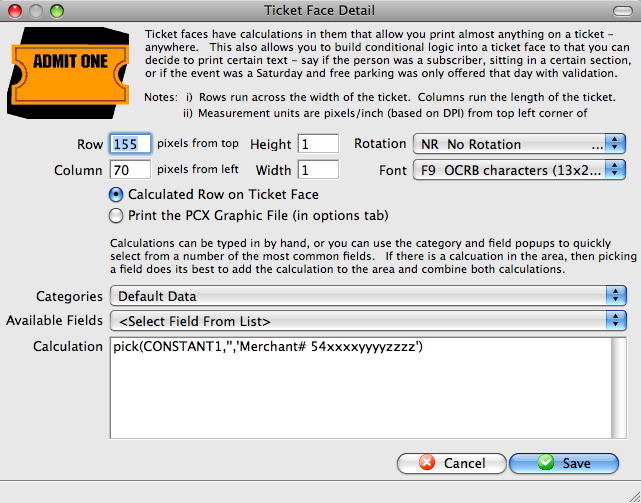
- Click the Save
 button
 - Click Save the toolbar
Commissions
With Commission Setup, you can define the rates Outlets may charge each other for cross outlet ticket sales in Theatre Manager.
While charging commissions is not required from Outlet to Outlet, some of the setup is required, such as the Default Posting Accounts for Commissions.
If you have multiple Outlets, you may have multiple commission structures to accommodate your sales contracts between different Outlets. For example, you may not charge the community theatre Outlet any fees as you provide a "pro bono" service to them. For another Outlet, you may charge a "dollar fee" based on tickets sold, and another may charge you a percentage based on the value of the ticket.
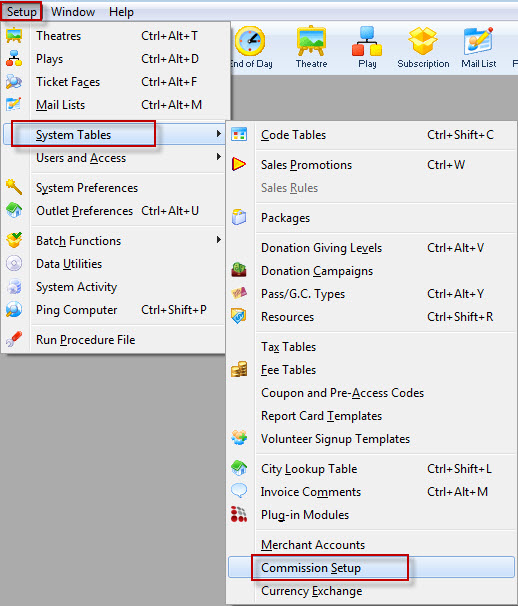
The Commission Setup window opens.
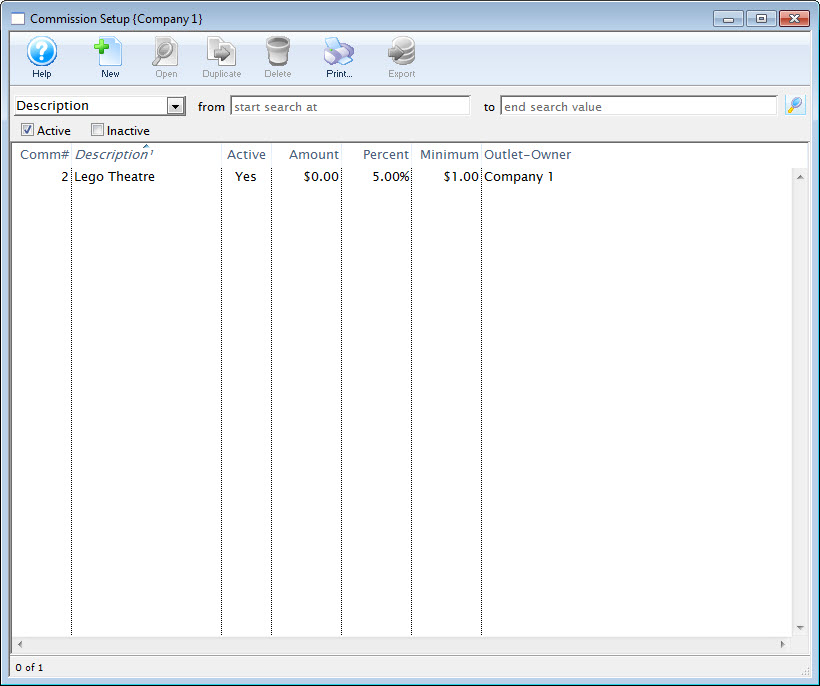
Commission Detail Window
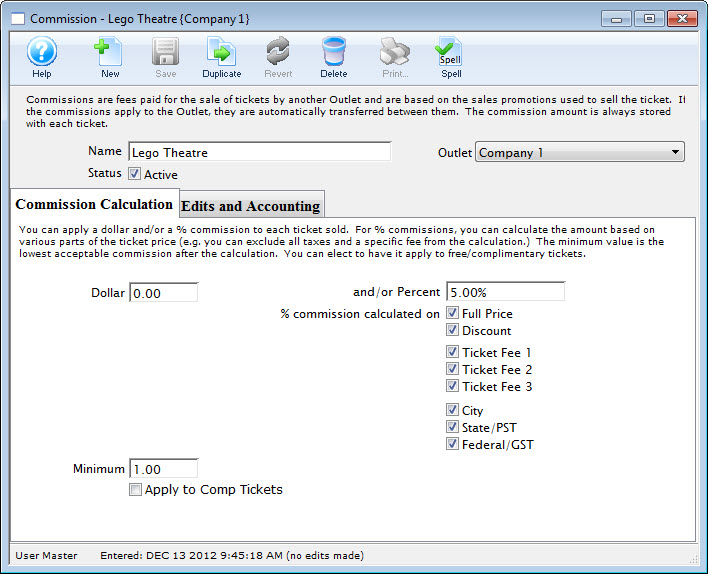
Parts of the Commission Detail Window
|
|
Inserts a new Commission. Click here to learn how to insert a new commission. |
|
Saves changes made to the currency commission. |
|
Creates a copy of the current commission. |
|
Undoes changes to the last saved point. |
|
Deletes the selected commission. Click here for more information on deleting commissions. |
| Name | Title of the commission. |
| Status | When checked the commission is active. |
 |
You can apply a dollar and/or a 5 commission to each ticket. This tab allows you to define the parameters for the commission. Click here for more information on how to define the commission calculation. |
 |
Commissions can be applied to various avenues of sales. This tab allows you to define where commissions are applied and which accounts the generated monies are applied to.Click here for the rules and accounting for the commission. |
Creating a Commission
You will need at least one commission table to allow for cross Outlet sales. The value of the commission table may be $0, if you are not charging a commission between Outlets, however you will still need the setup for Theatre Manager to function correctly.
To Create a new Commission Table, you perform the following steps:
- Open the Commission Setup window.
Click here for more information on opening the Commission List.
- Click the New button.
The Commission Detail window Opens.
- Enter the Name of the commission.
- Enter data in the Commission Calculation tab.
Click here, for more information on the Coommission Calculation tab.
- Click the tab.
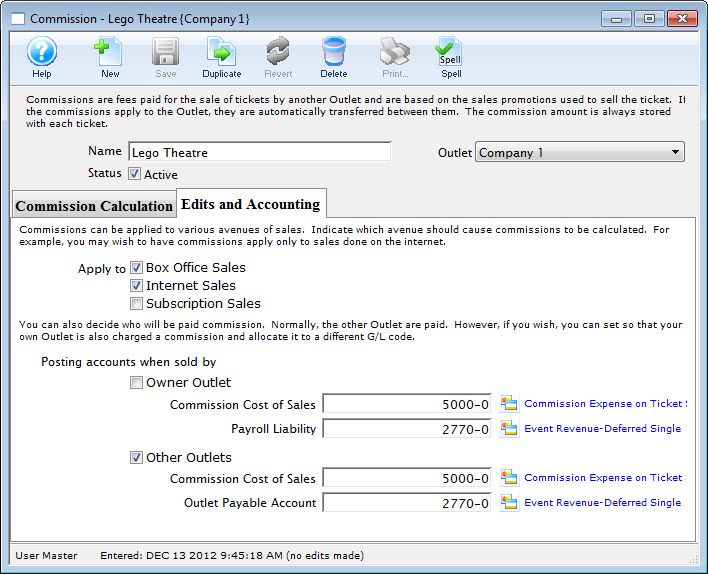
- Enter data in the Edits and Accounting tab.
Click here, for more information on the Edits and Accounting tab.
- Click the Save button.
The new Commission is now created.
Commission Calculation Tab
The Commission Calculation tab is where you set the parameters of how the commission is charged, including dollar amounts and/or percentages of the ticket value, and if the commission is applied before or after discounts and markups (Sales Promotions) and fees.
Parts of the Commission Calculation Tab
| Dollar | Dollar value of the commission earned. Can be combined with a percentage. | ||
| Minimum | Minimum value of commission to be applied to any ticket sale. | ||
| Apply to Comp Tickets | Commission applies to issued comp tickets.
|
||
| And/or Percent | Percentage of the commission earned. Can be combined with the dollar value. | ||
% commission calculation on: | |||
| Full Price | Commission is charged on the base ticket price before discounts, markups or fees. | ||
| Discount | Commission is charged once the discount or markup has effected the base ticket price. | ||
| Ticket Fee 1 | Commission is charged on the ticket price including the value of ticket fee 1. | ||
| Ticket Fee 2 | Commission is charged on the ticket price including the value of ticket fee 2. | ||
| Ticket Fee 3 | Commission is charged on the ticket price including the value of ticket fee 3. | ||
| City | Commission is charged once the city tax is applied. | ||
| State/PST | Commission is charged once the state/PST is applied. | ||
| Federal/GST | Commission is charged once the Federal/GST is applied. | ||
Edits and Accounting Tab
The Edits and Accounting tab allows you to set parameters regarding the avenue of sale (Box Office, Internet, Season Subscriptions), and the General Ledger (GL) accounts where commission funds will be placed for each Outlet. These GL accounts must be set up in Default Posting Accounts to be used here. Click here, for more information on Default Posting Accounts.
Parts of the Edits and Accounting Tab
Apply to: |
|||
| Box Office Sales | Commission is received when the Outlet sells tickets via the box office. | ||
| Internet Sales | Commission is received when tickets are sold through the Outlet's internet sales. | ||
| Subscription Sales | Commission is received when season tickets are purchased through the Outlet.
|
||
Posting accounts when sold by: |
|||
| Owner Outlet | When checked commission fees will be allocated to the designated general ledger accounts when sold by the Outlet responsible for the event. This allows you to assign commissions payable for internal telemarketing staff. | ||
| Commission Cost of Sales | General ledger account the value of commissions will be posted to when sold by the Outlet responsible for the event. | ||
| Payroll Liability | General ledger account the payroll fees are to be posted to when tickets are sold by the Outlet responsible for the event. | ||
| Other Outlets | When checked commission fees will be allocated to the general ledger accounts when sold by an Outlet other then the owner of the event. | ||
| Commission Cost of Sales | General ledger account the value of commissions will be posted to when sold by an Outlet other then the owner of the event. | ||
| Outlet Payable Account | General ledger account the payroll fees are to be posted to when tickets are sold by an Outlet other then the owner of the the event. | ||
Editing a Commission
In most cases, it is better to create a new commission table rather than editing an existing one, as making changes to any commissions parameters currently in use could have adverse affects on your accounting generation. However, occasionally, you may need to edit an existing commission setup.
To edit an existing commission table, you perform the following steps:
- Open the Commission Setup window.
Click here, for more information on the Commission Setup window.
- Double-click the Commission to be edited.
The Commission Detail window opens.
- Make changes as required.
- Click the Save button.
The changes are now saved.
Deleting a Commission
Commission Tables can only be deleted if they have not been used for sales. If you need to delete a commission table that was created in error, you may do so.
To delete an existing commission table, you perform the following steps:
- Open the Commission Setup window.
Click here for more information on the Commission Setup window.
- Select the Commission to be deleted.
Single click on a Commission to select it.
- Click the Delete button.
The Delete Record confirmation window opens.
- Click the Delete button.
The Commission is now deleted.
Device Setup
This can include:
- You can access the list of devices ato edit them or set up some more from the Setup->System Tables->Devices menu item
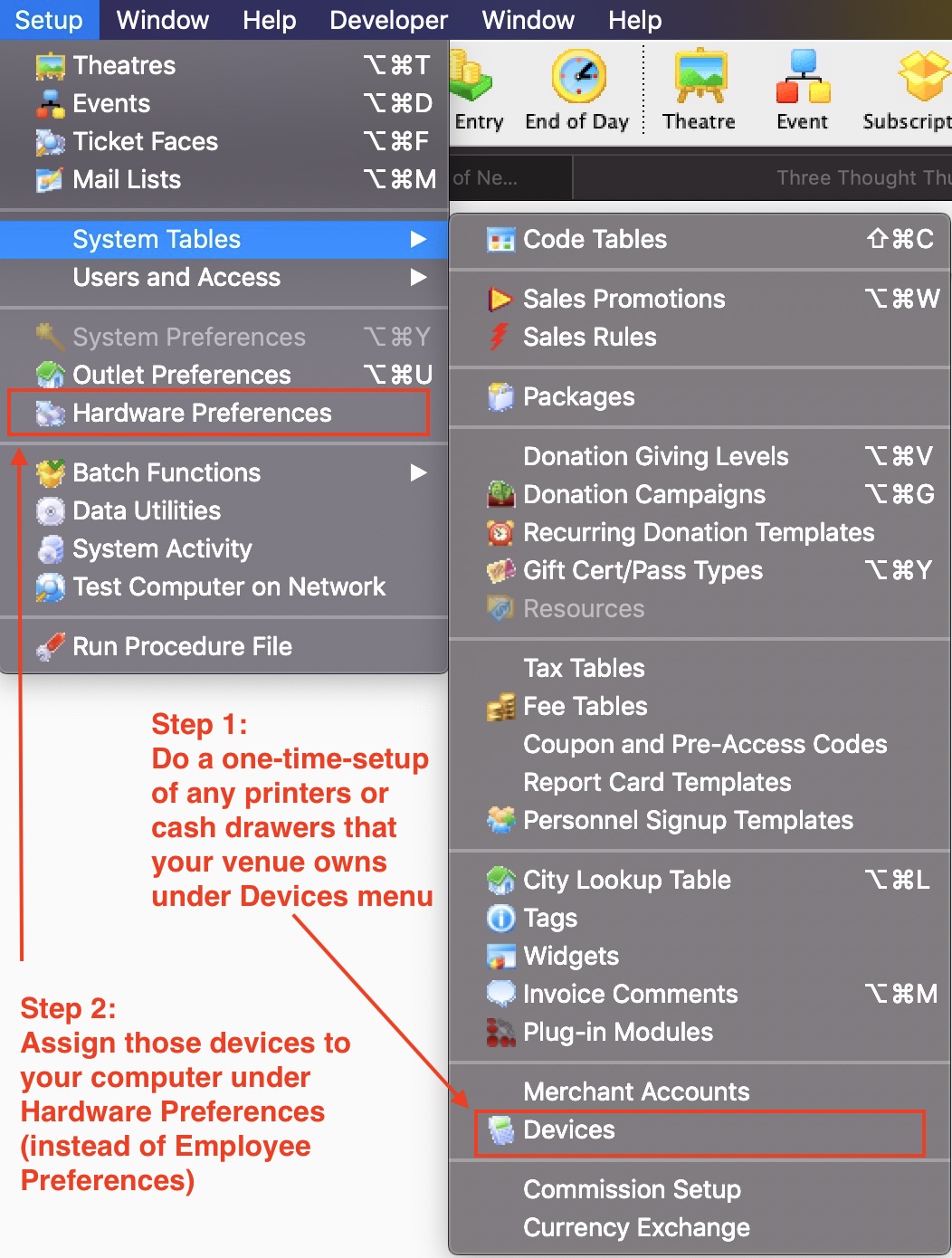
- Use search to find and select an item to edit and then double click to change it. Use New to create a new device.
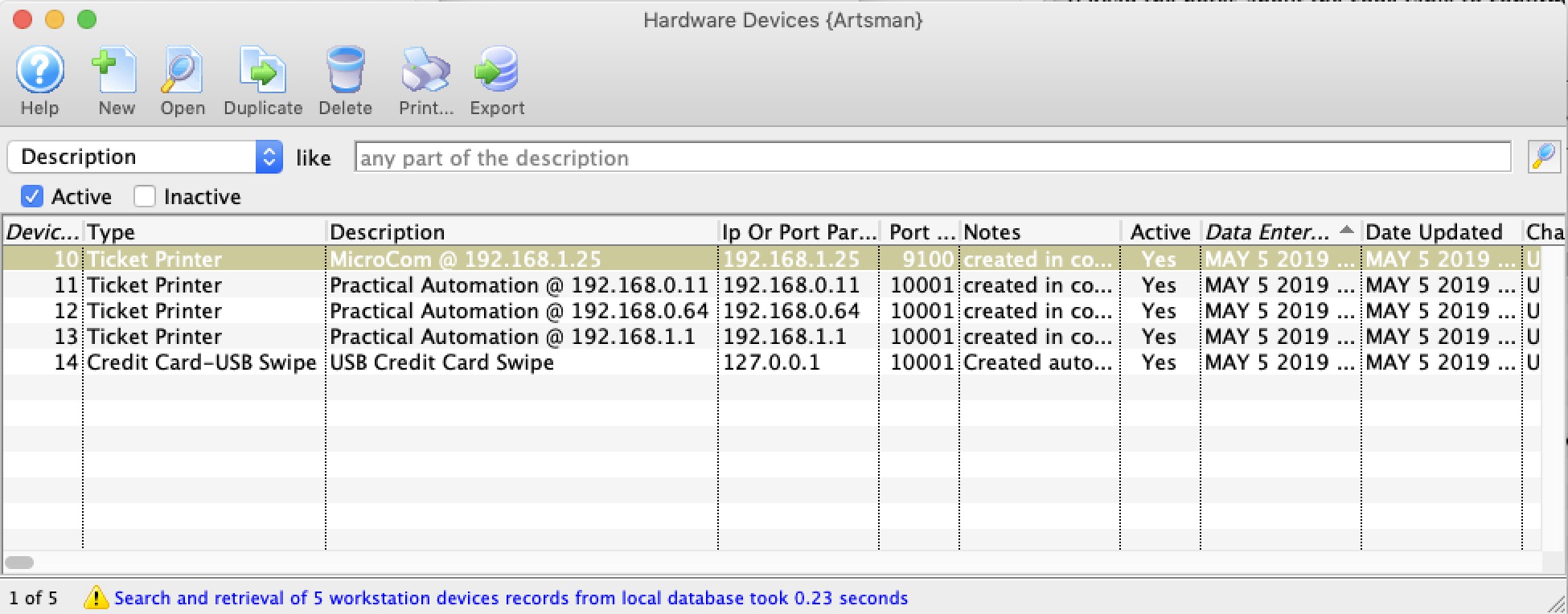
Device List Window
|
Before they can be used, these devices must be
|
Parts of the Device List Window
|
Inserts a new device that can be associated with a users workstation. |
|
Opens the selected device to edit or configure it. |
|
Creates a copy of the current device. |
|
Deletes the device |
|
Generates a report of the devices to the screen. |
|
Exports out a list of the devices. |
| Device # | Unique number assigned to the device, which can then be assigned to a specific workstation |
| Device Type | The type of the device which can include: |
| Description | Description of the device to make it easier to select for a workstattion |
| IP or Port Parameters | The IP address for the device if IP based, or the port parameters if it is a com prt based device (increasingly rare these days) |
| Port | The Port number that the device listens on |
| Notes | Notes about the device, perhasp including serial number, or any history on the device. |
| Active | Indicates if the device can be used. |
| Outlet-Owner | Outlet who owns the Device |
Device Detail
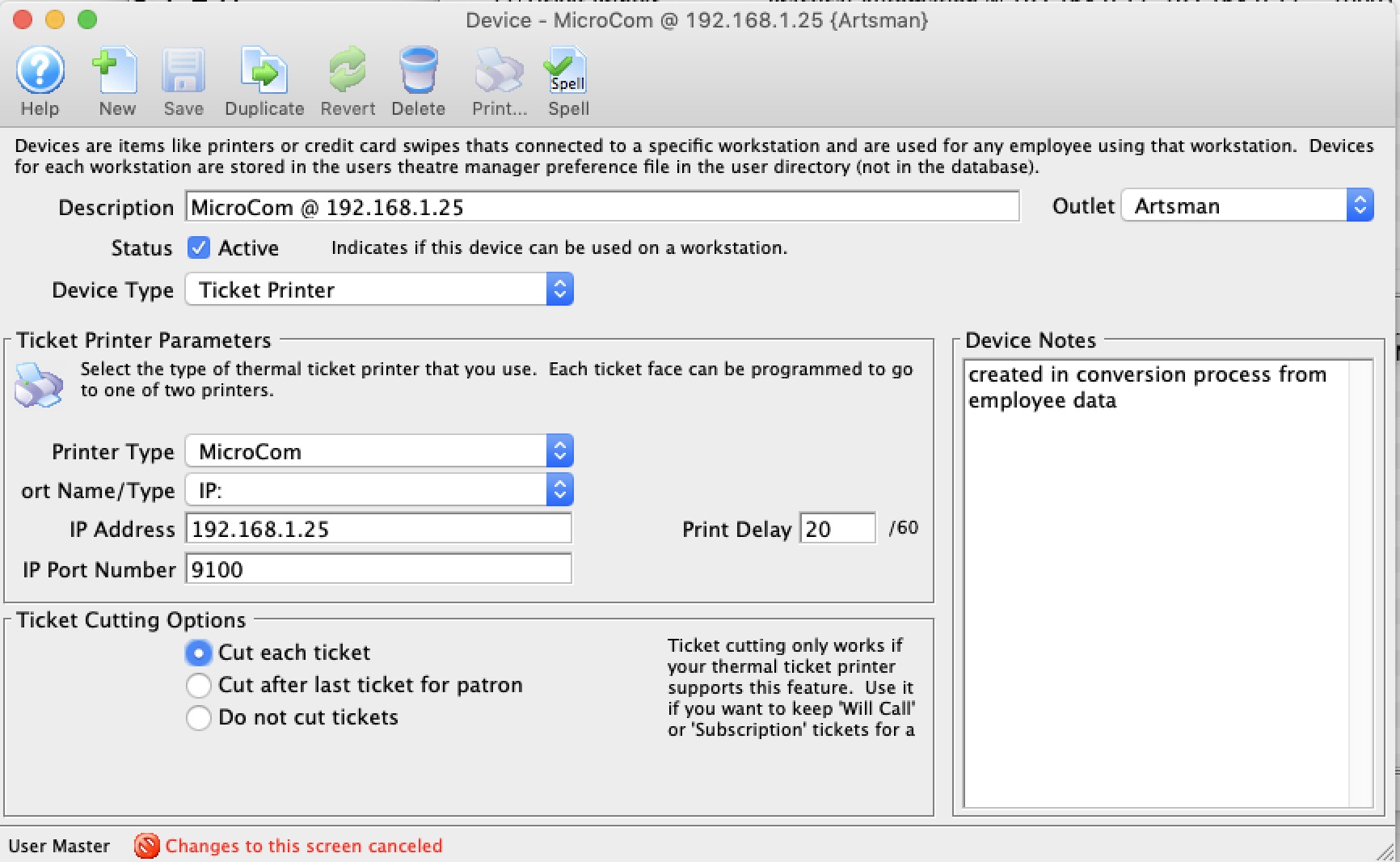
Parts of the Device Detail Window
|
Inserts a new device that can be associated with a users workstation. |
|
Opens the selected device to edit or configure it. |
|
Creates a copy of the current device. |
|
Deletes the device |
|
Generates a report of the devices to the screen. |
|
Exports out a list of the devices. |
| Device # | Unique number assigned to the device, which can then be assigned to a specific workstation |
| Description | Description of the device to make it easier to select for a workstattion |
| Active | Indicates if the device can be used. |
| Notes | Notes about the device, perhasp including serial number, or any history on the device. |
| Outlet-Owner | Outlet who owns the Device |
| Device Type | The type of the device. This affects the display in the lower half of the screen which is described on separate help pages. Options include: |
Device-Cash Drawer
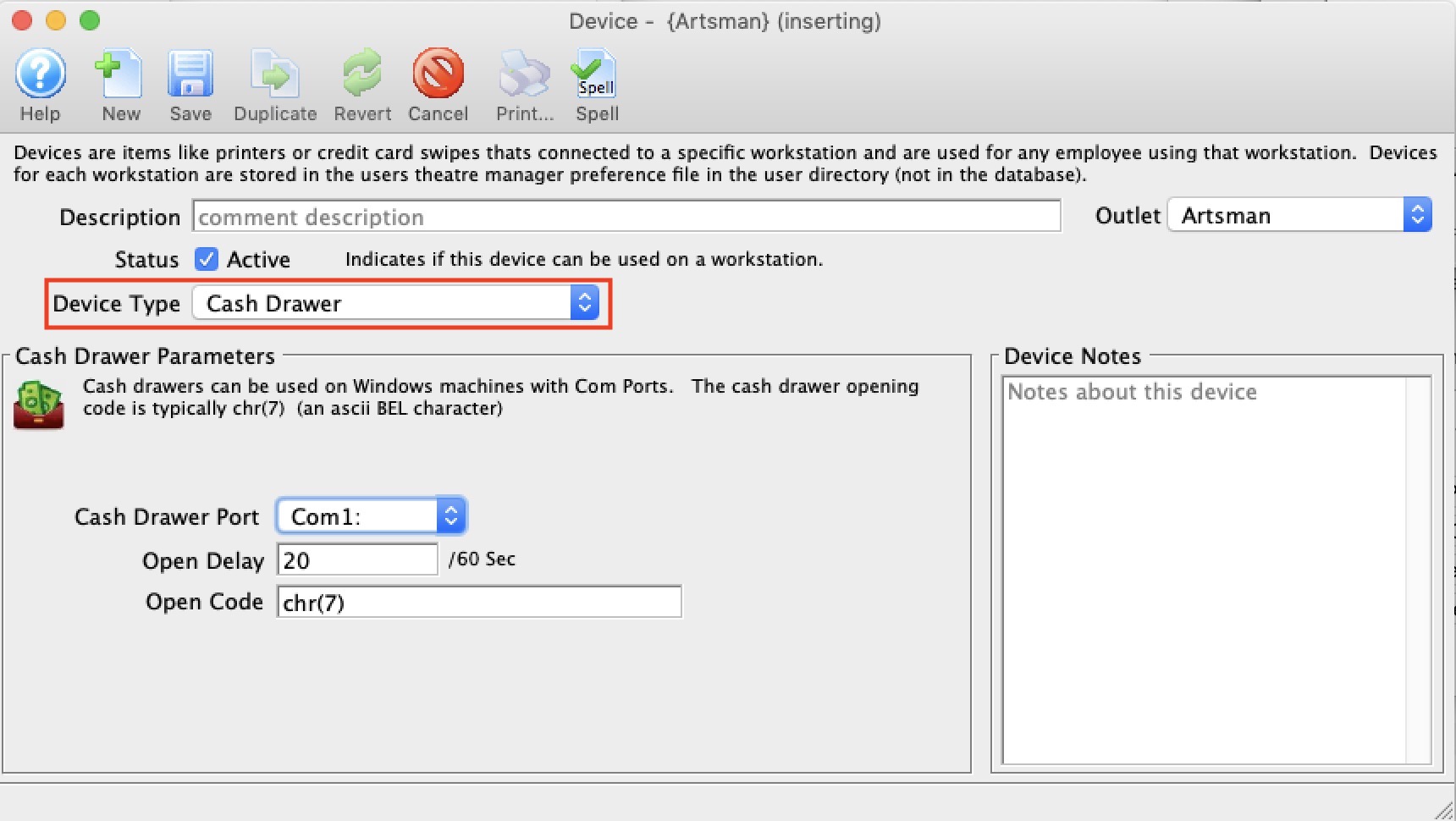
Com Ports For Cash Drawer
- Device Manager -or-
- devmgmt.msc
- Once you see the drivers as below, right click on the device you want to set the port for and select Properties
-
In the ports setting, make sure to set the all fields. Generally, for printers or cash drawers, they are similar to below.
Then click the Advanced button to set the actual port
- On the advanced tab, set the com port name so that it matches what you set in Theatre Manager
Device-EMV Credit Card Swipe
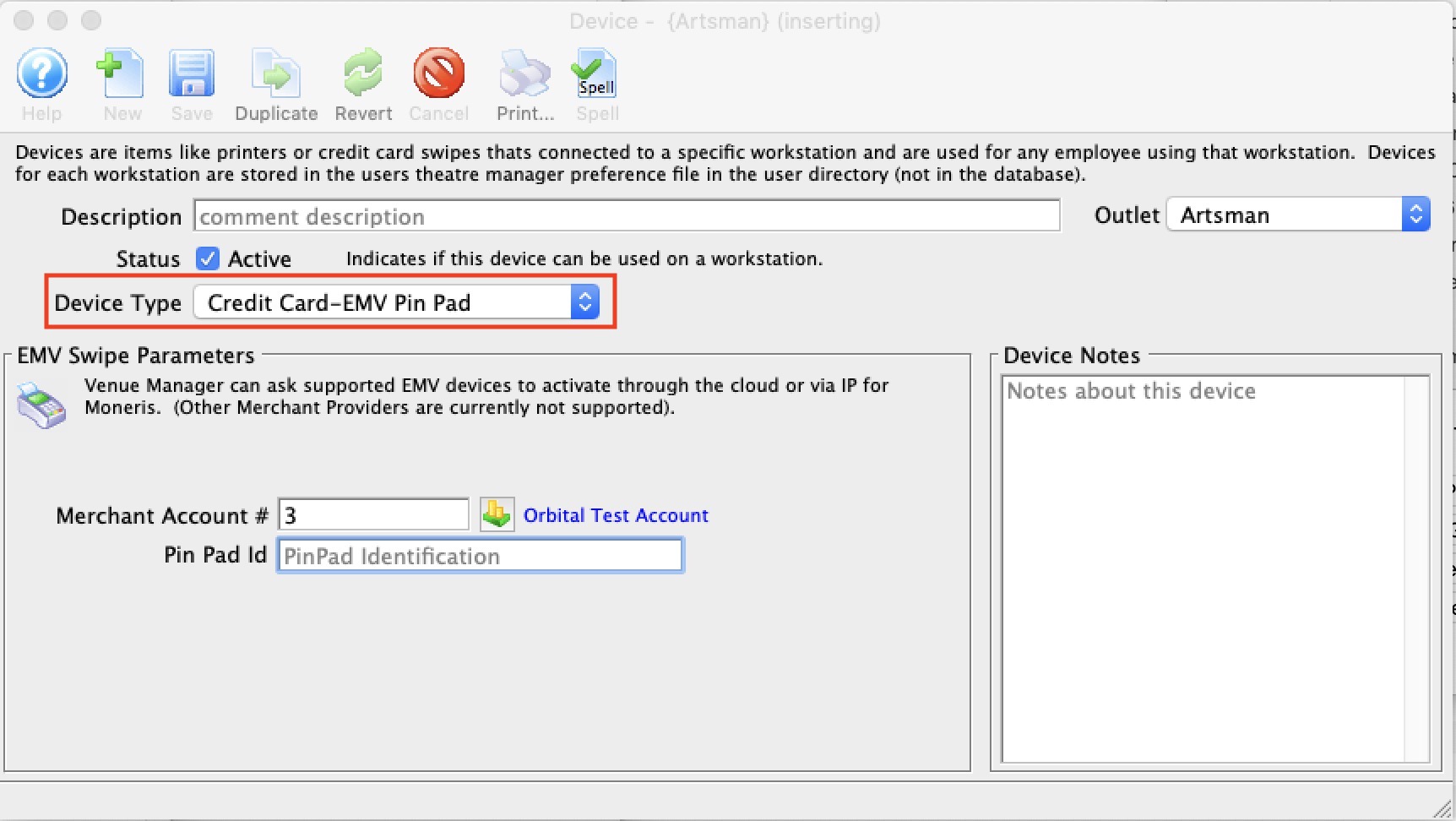
Moneris Pinpad Setup
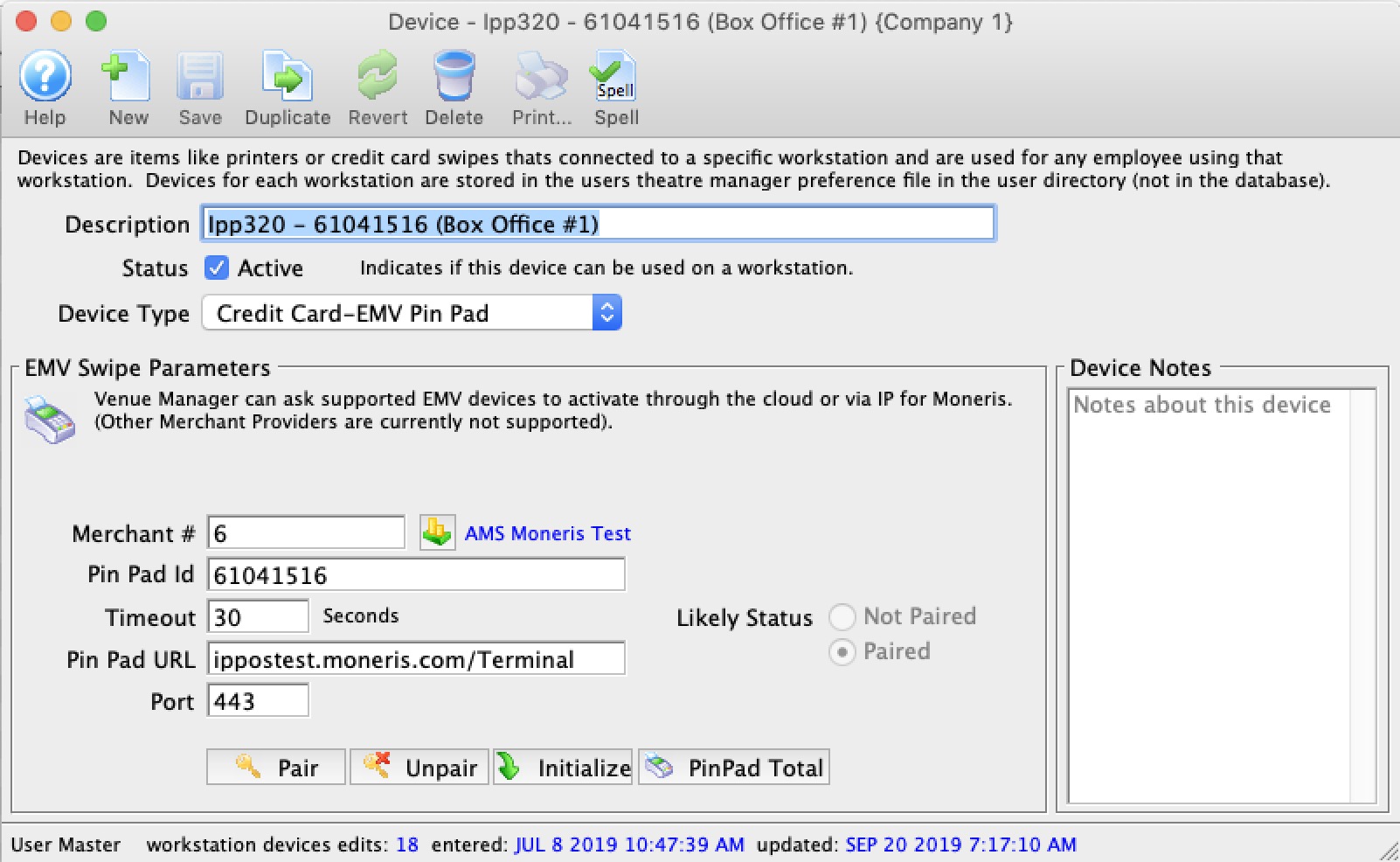
Enter:
- A description. We suggest the pin pad type, ID and location
- The merchant account to associate with this pin pad
- The pin pad number provided by your merchant provider
- Timeout - 30 seconds should be enough
- Pinpad URL is ippos.moneris.com/Terminal
- Port should be 443
Once you save the EMV device record, you can try Pairing with actual the device. You will be asked to enter the pair code that you see on the device to associate it with this record. After pairing, the device should go to a ready mode.
If you cannot pair with the device, contact Moneris to make sure the device is on cloud setting.
|
After the device is set up, you must associate the EMV device to a computers hardware setup |
|
You will also need to provide some Merchant Settings from Moneris that activate your pinpad machines
If you do not, you may see a message like the one to the right if you try pair the devices. |
|
Only Moneris cloud setup is supported (direct connection is not). This currently means only the P400 pin pad devices on cloud setting can be used. Please contact moneris to see if yours is compatible or needs replaced with a P400. |
|
Pin Pads are settled during end of day. if you receive any message about an imbalance on a pin pad, please refer to the Moneris Pin Pad End Of Day troubleshooting tips. |
PinPad Open Total
- Finding the EMV device record in the list of devices
- Clicking the PinPad 'Batch Totals' button on the window as indicated below
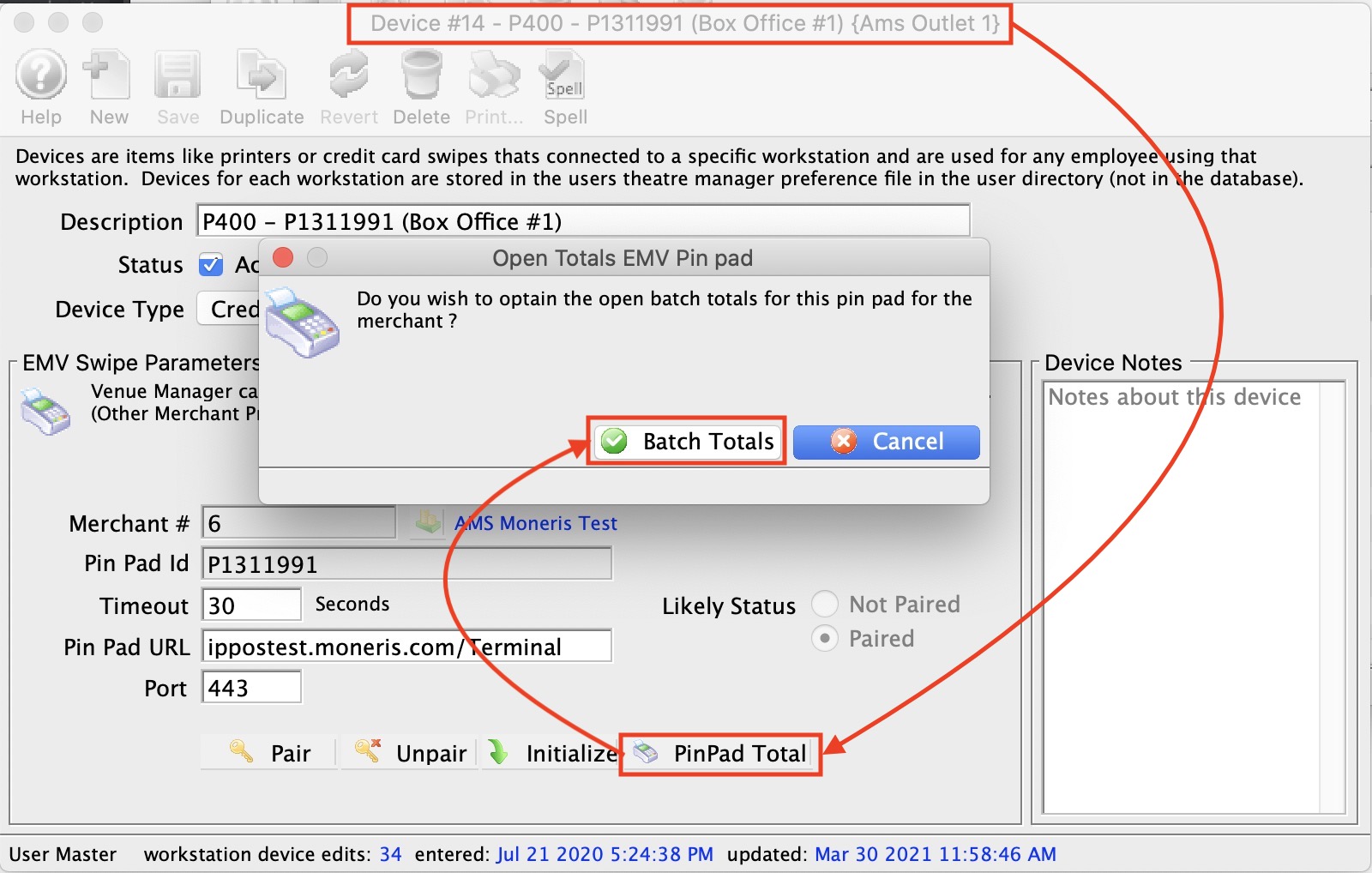
This submits the 'OpenTotal' transaction to Moneris and should come back with a window showing device totals at the top for various transactions, per the image below.
These values can be explained to you by your Moneris representative. In general, they will show things like:
- Transaction counts
- Transaction Totals
|
If you do not see the image below:
|
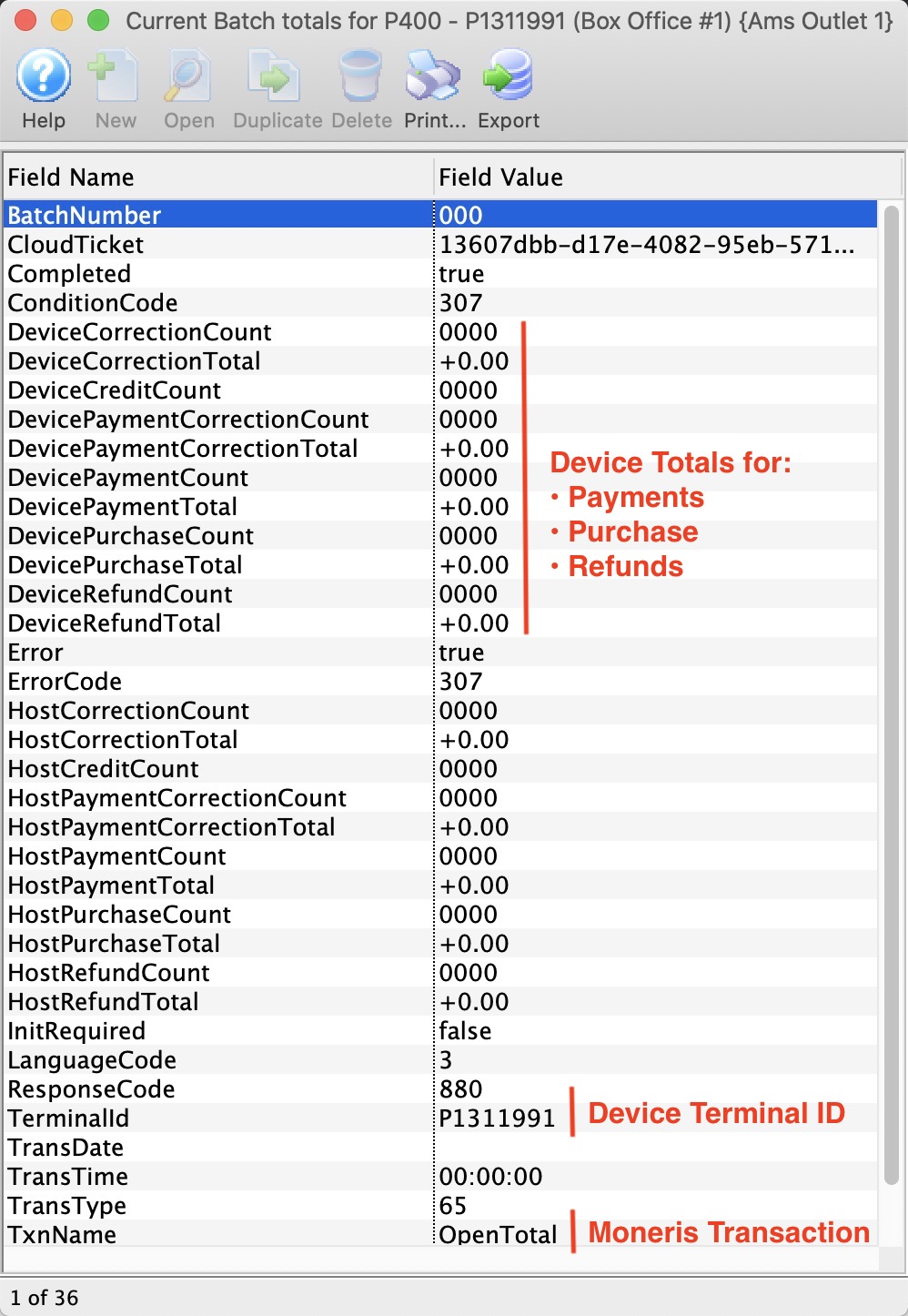
Device-Ticket Printer
|
NOTE: NEVER install any software printer drivers for any ticket printer.
Theatre Manager does not use them and installing the printer drivers may affect the ability to print tickets and other reports. |
|
Theatre Manager supports several commercial ticket printers. They must have the FGL language installed in them and one of ethernet, serial, or parallel ports. (USB is currently not supported).
|
This preference is used to setup a ticket printer that can be associated with a workstation - meaning you can set difference preferences for each machine you use.
Refer to ticket face setup if you want to print different events to different printers or ticket stock.
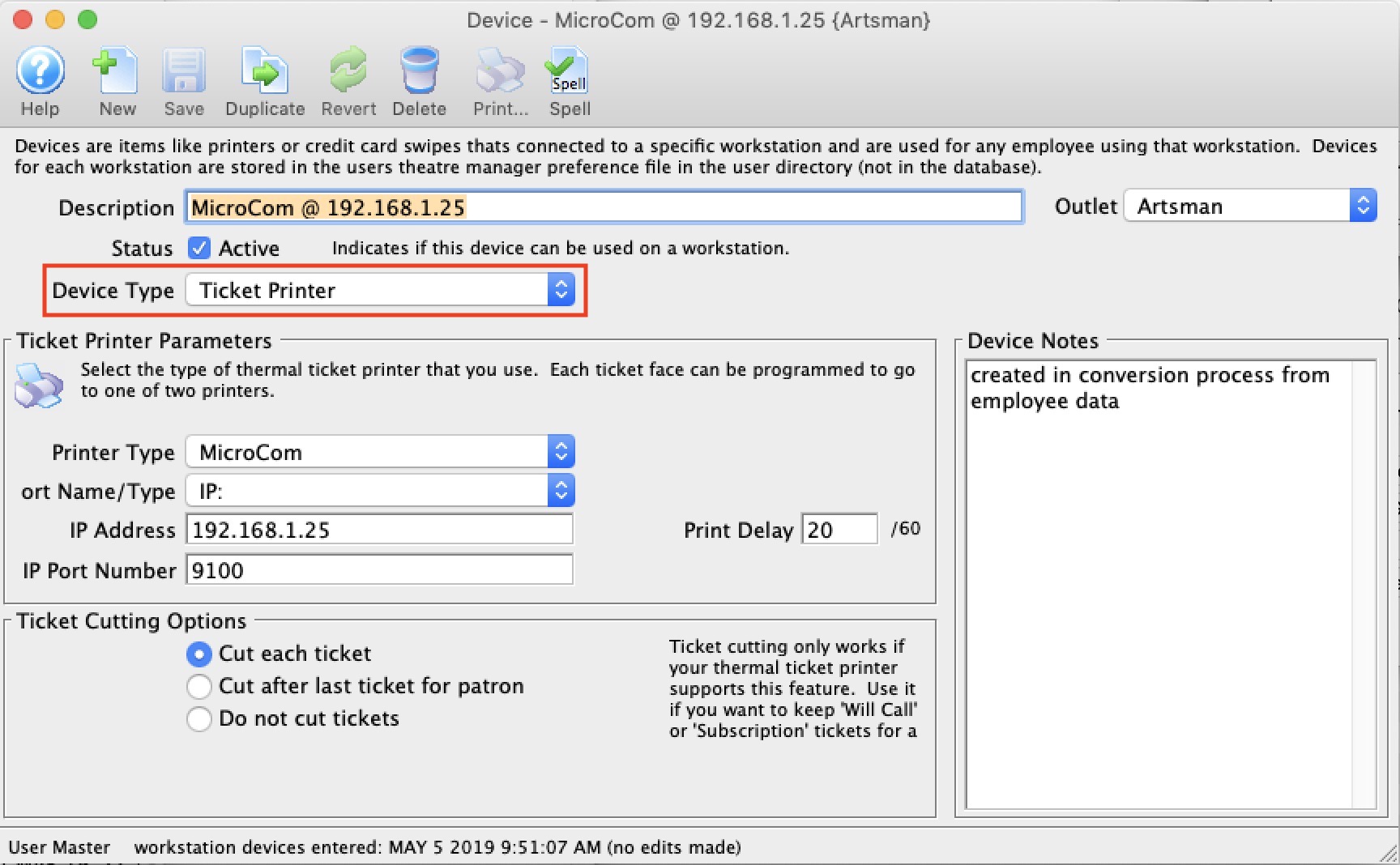
Parts of the Ticket Printers Tab
Ticket Printer Configuration |
|||
| Printer Type | Tickets can be printed to any one of the following printers (as long as it has FGL language support in it):
Note that there are some differences in the ports, handshakes and FGL capabilities in each printer so it is important to select the right one. |
||
| Port Name | The port the primary ticket printer is attached to. Note that there are choices here that affect other fields on the screen. You can select:
|
||
| IP Address | IP address of printer if using ethernet printer. The field is not displayed for Serial or LPT printers.
|
||
| Port Parameters | This field will appear for serial printers. Enter the baud rate and handshake information. Typically it is 9600,n,8,1,X, meaning:
|
||
| IP Port Number | IP port of printer if using ethernet printer . The field is not displayed for LPT or serial printers.
|
||
| Print Delay | Allows for a printer buffer to clear before printing the next ticket. This delay is hardware specific. If tickets are being printed on top of one another, tickets are not printed correctly, or if tickets are skipped during the printing process the print delay should be increased. | ||
| Ticket Cutting Options | If printer supports ticket cutting, there are three options to choose from: Cut each ticket, Cut after last tickets for patron, or Do not cut tickets | ||
Device-Ticket Scanner
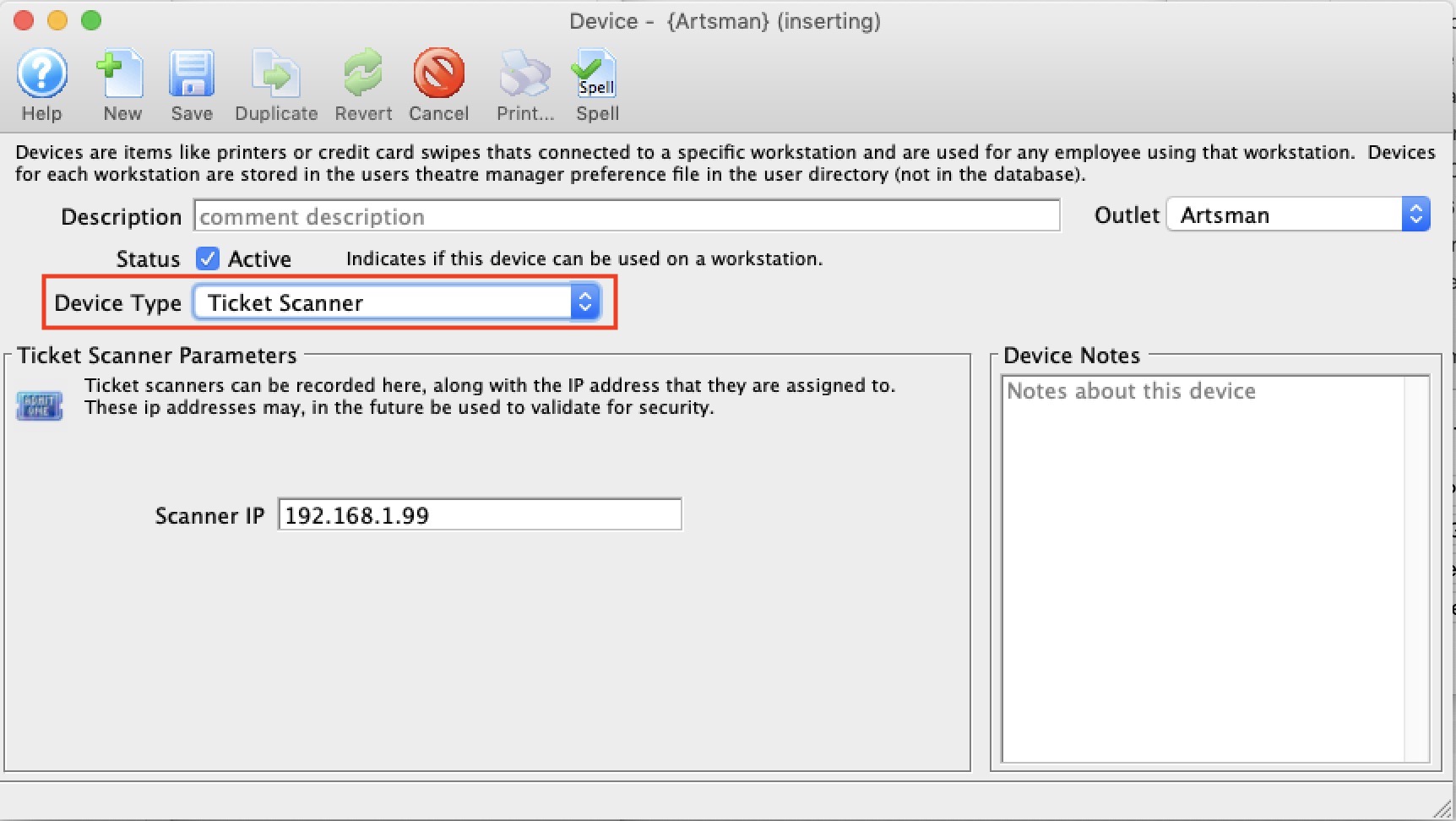
Device-USB Credit Card Swipe
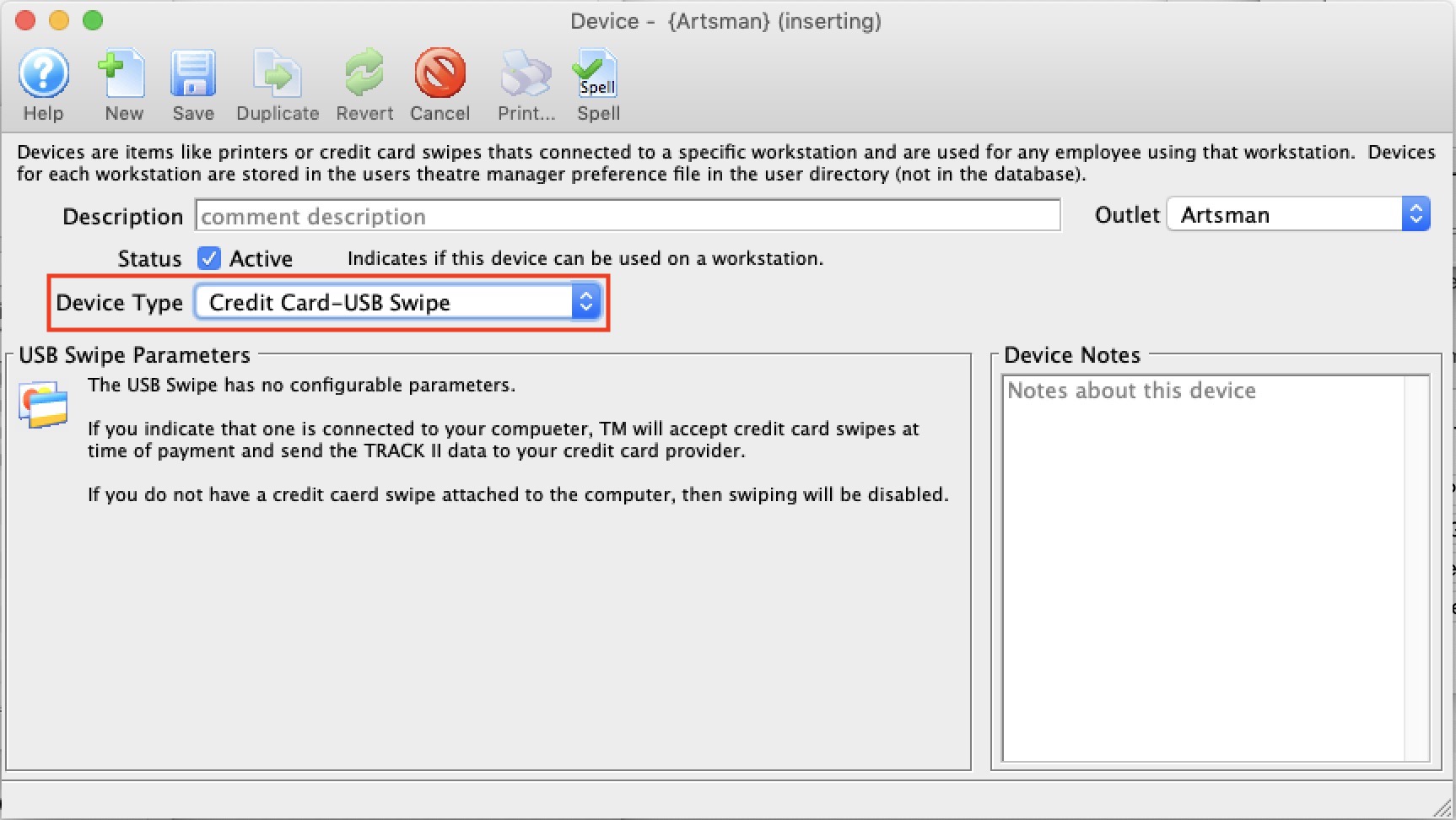
Online Forms
 Online forms allow you to create fillable forms that are required for purchase of some events. For example, you could have
- A consent form for photography for courses and fundraisers
- An Medical questionnaire for child related activities
- A form for pickup and dropoff of underage people at he. venue
Purpose of Online Forms
- can be mandatory or optional. If mandatory, then a patron cannot finish checkout without a form being filled out
- can cross events, meaning that if you fill one out for one course, it can carry across to the other.
- can expire - as in they might last for a year, or for ever, or expire a specific date
- can be signed by a family on behalf of another, such as a parent for a child, if so indicated on the form
General usage of Online Forms
There really are only a few steps to using online forms
- Make the online consent form or questionnaire
- Find the event (or performance) that you want the from to be applicable to, and put it there
- When people buy online, they will be required to fill out the form for the person attending the event. If a course if gifted to a child, they will fill it out on behalf of the other person.
- and you can see all forms filled out for a patron within their record
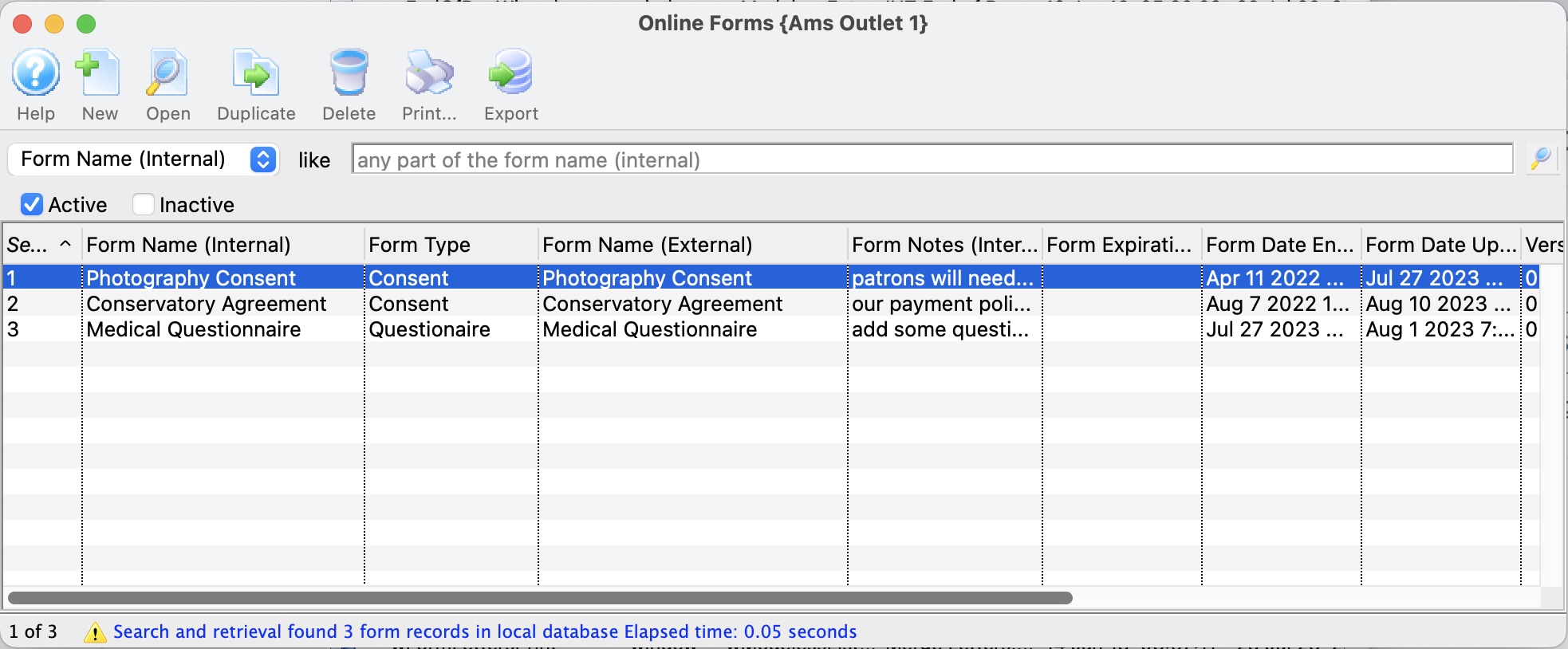
Form Detail Window
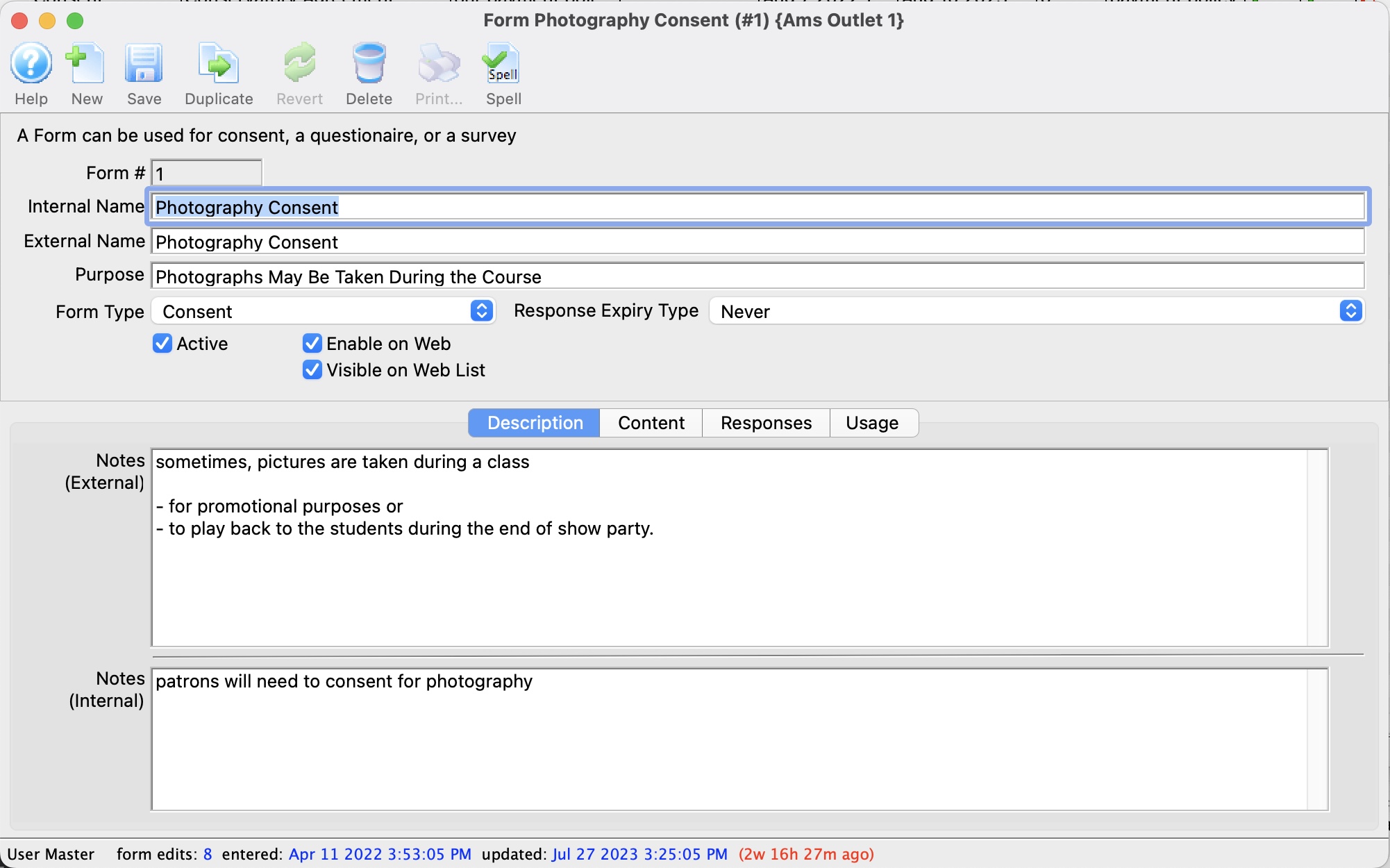
Online Form Description Tab
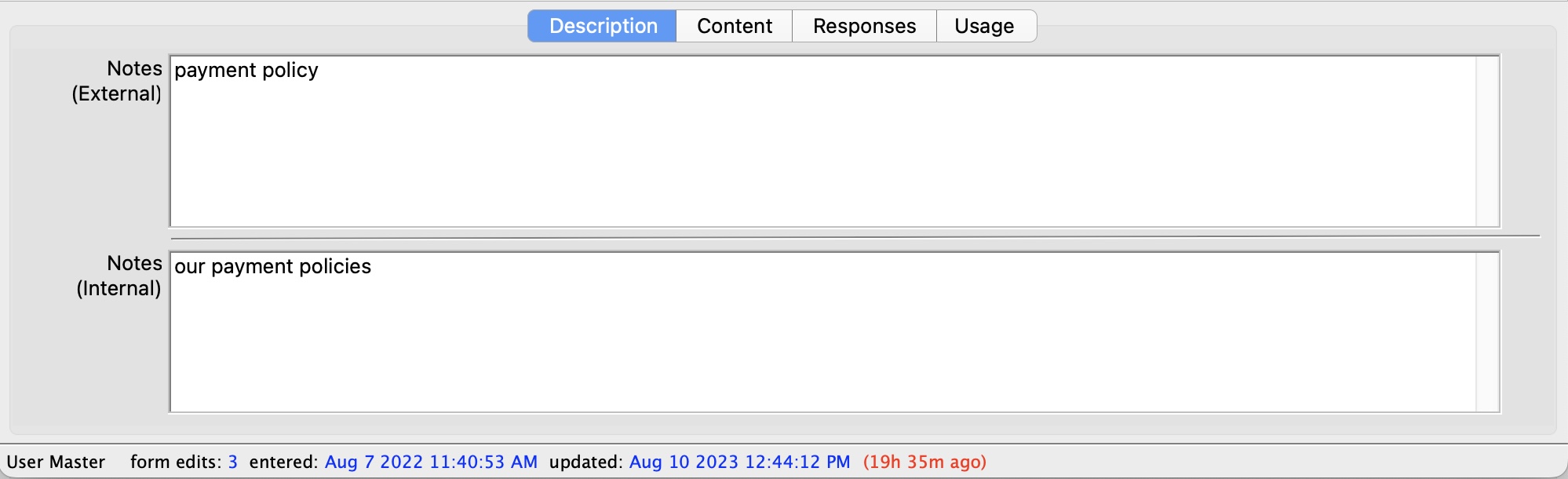
Online Form Content Tab
Online Content Consent Form
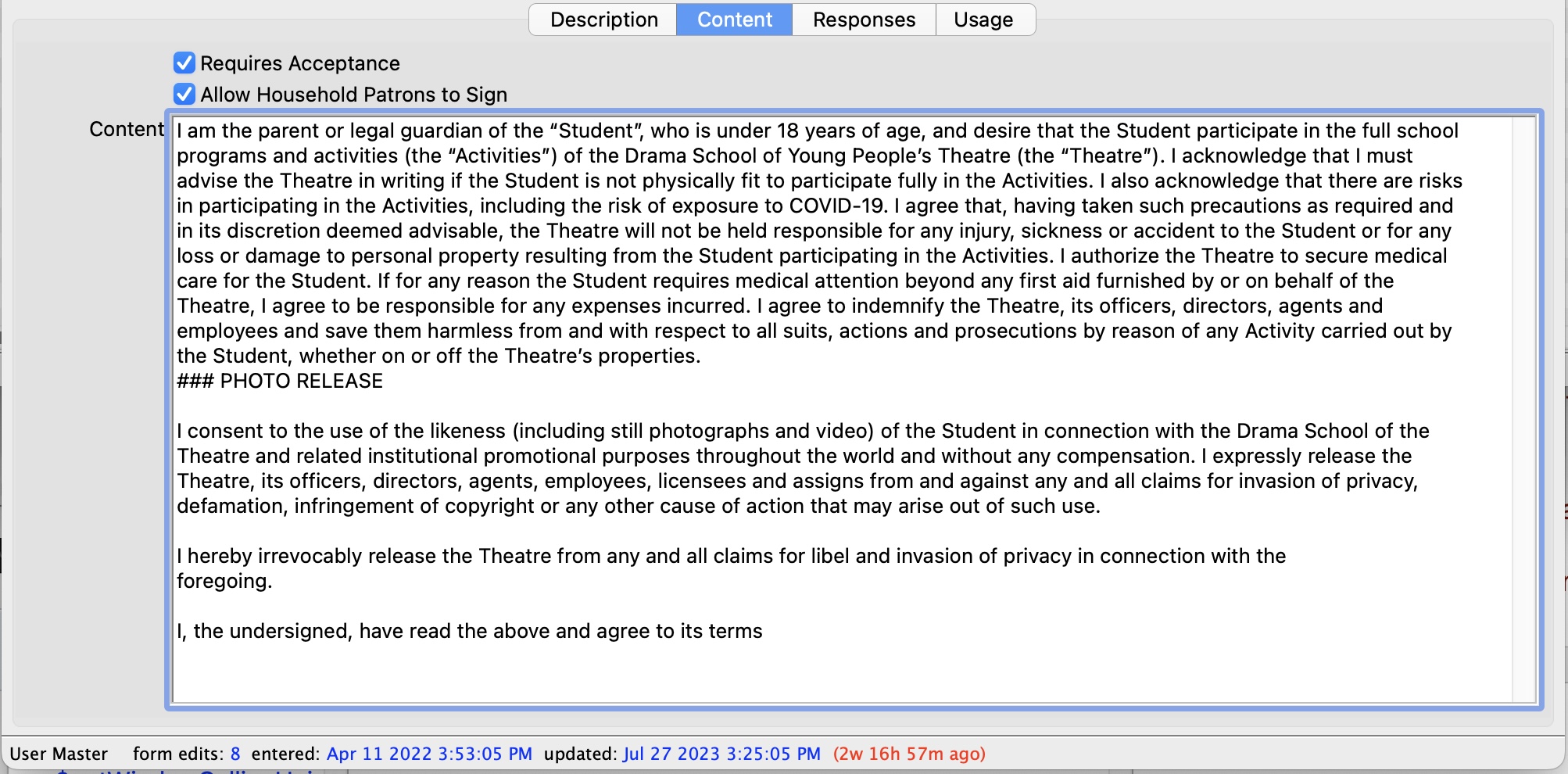
Online Form Questionnaire Form
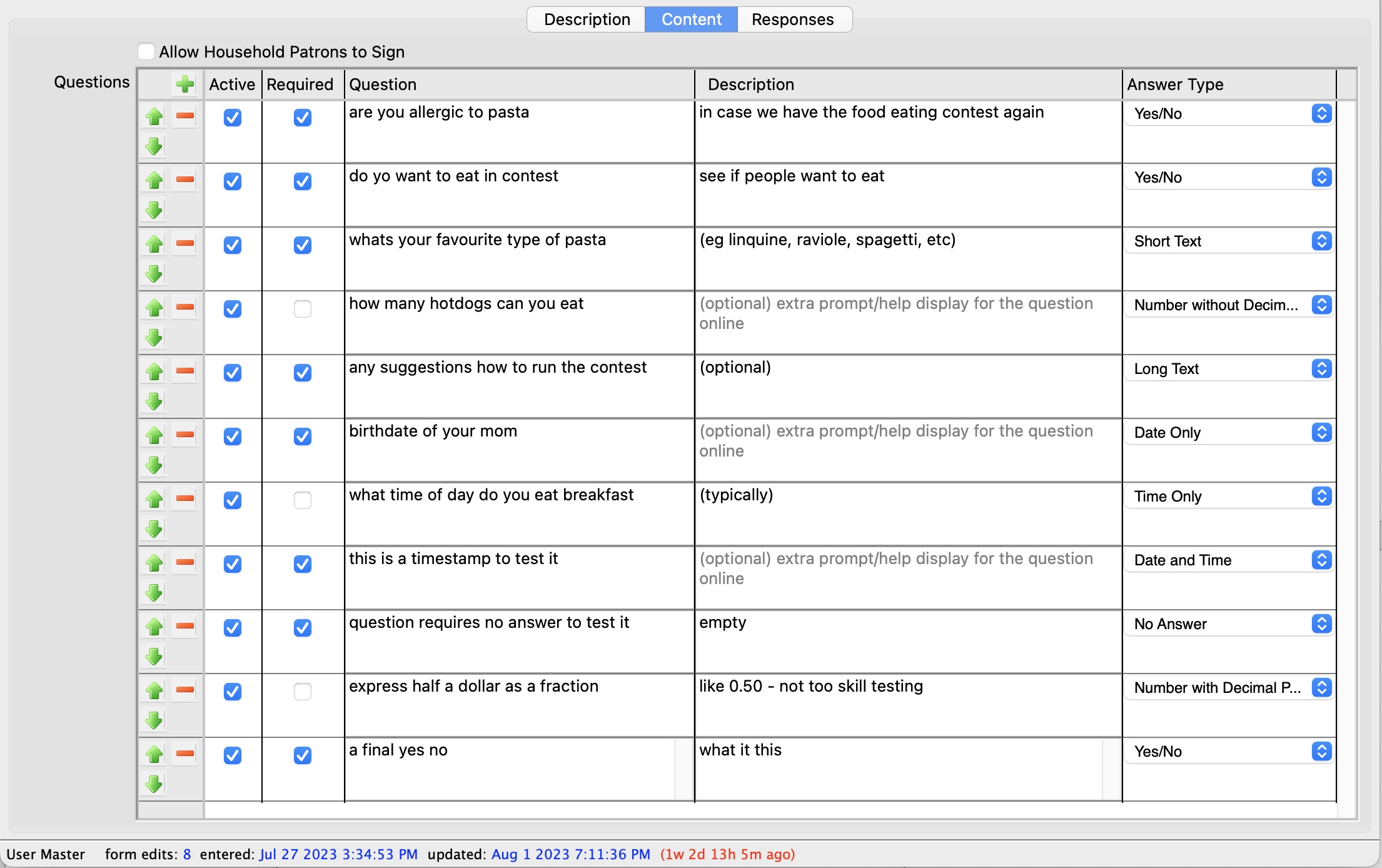
Online Form Responses Tab
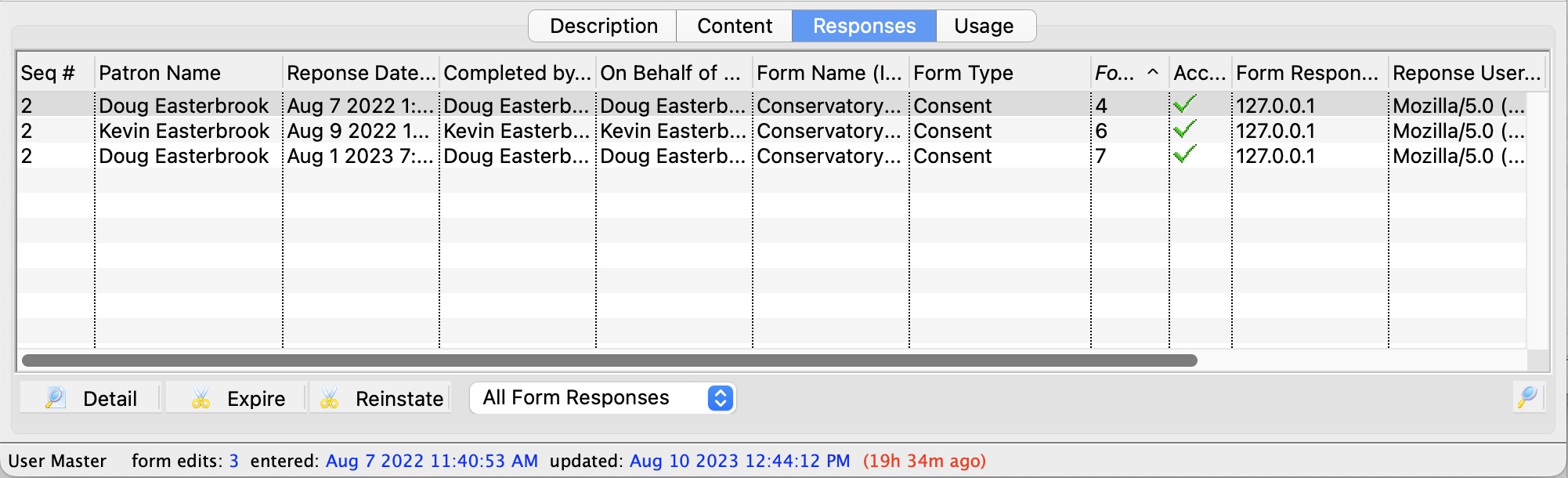
Online Form Usage Tab
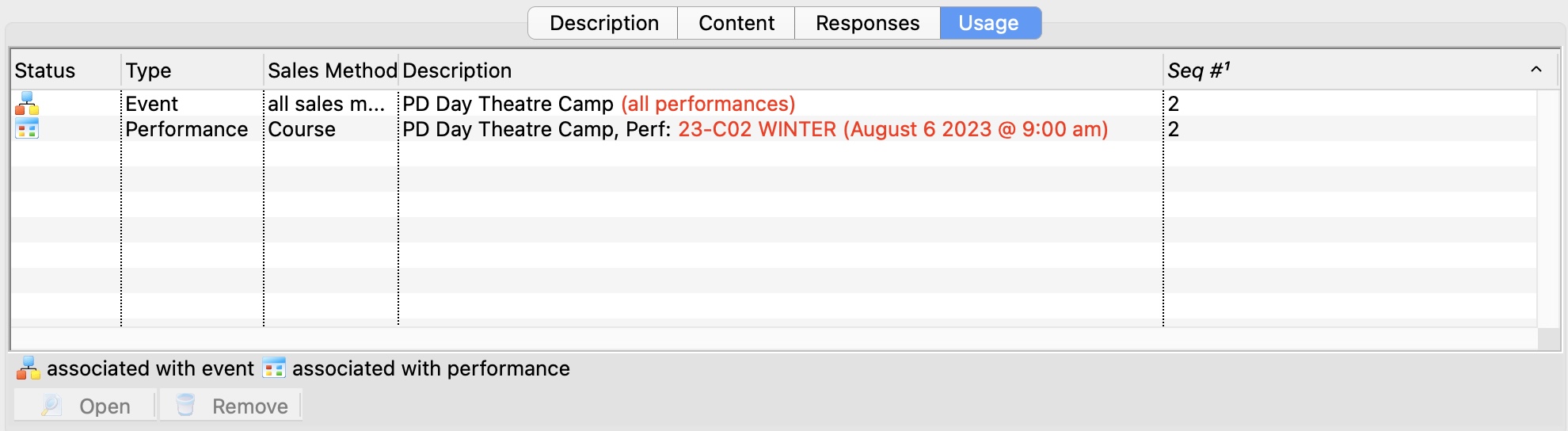
Expiring/Reinstating Form Responses
Short Links
Tags
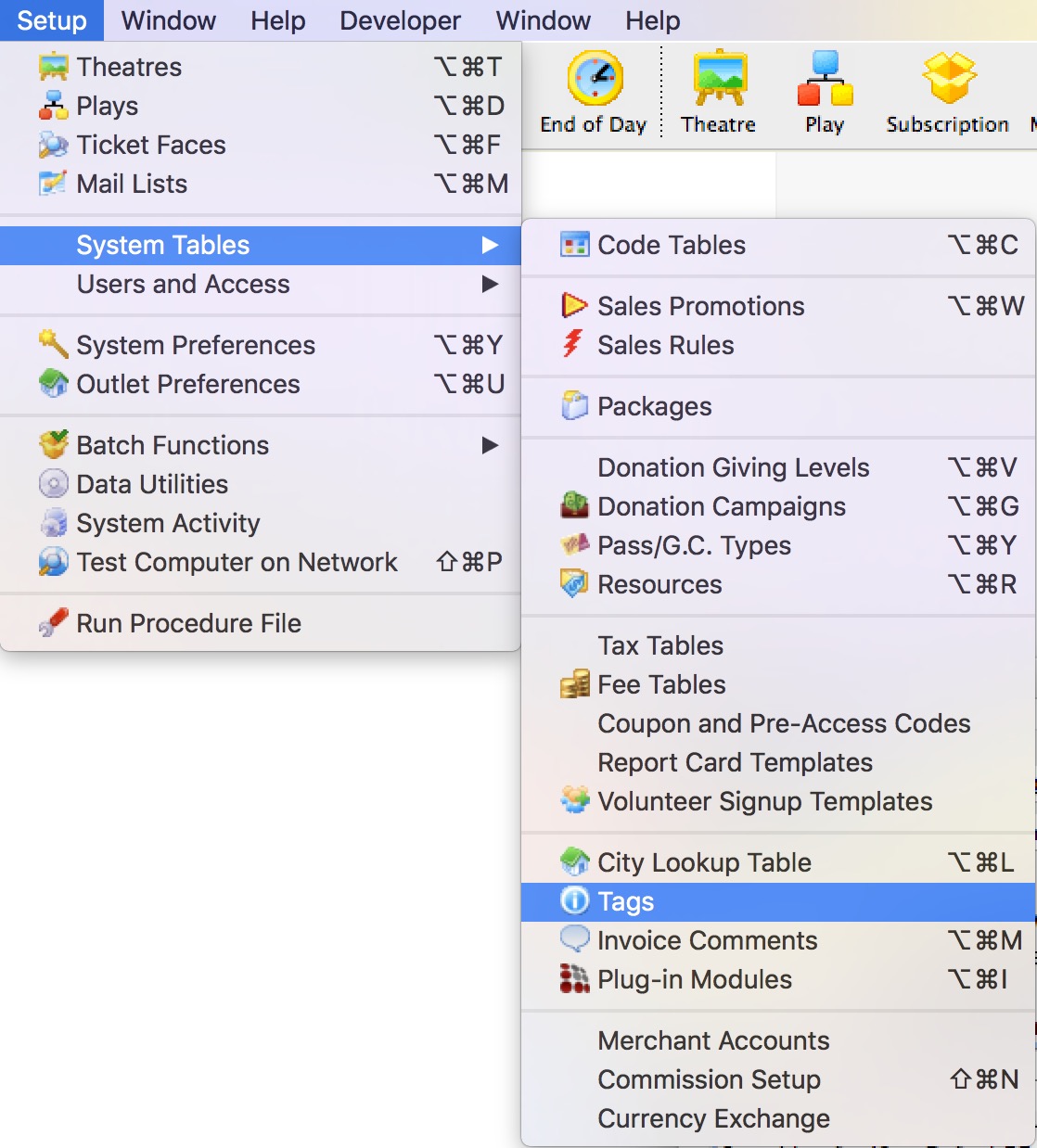 Tags are notations that can be applied to some records within Theatre Manager (like hashtags) that can be used for searching for some data in arbitrary groupings, such as for reports, building mail lists, exporting data or using in charts.
Start creating tags using the Tag List Window
Once a tag is created, you can associate one or more of them with the following data records:
Tags must exist before you can use them. Tags are created using the Setup->System Tables->Tags as shown in the image to the right.
Tag List Window
The parts of the window are as follows:
|
|
Inserts a New tag through the Tag Detail Window. For more information on inserting tags click here. |
|
Opens a window to edit a tag through the Tag Detail Window. For more information on editing tags click here. |
|
Deletes a Tag if it is not associated with any data record. For more information on deleting tags click here. |
|
Generates a report displaying the list of tags to the screen or default print location. |
|
Exports the selected tags in various export formats. |
| Tag Name | Search options for locating tags. You can search by various fields |
| Like | Enter a word or part of a word t search by. |
| Tag Name | Name of the Tag. |
| Description | Description of the Tag. |
| Tag Group | A way to group tags for convenient purposes. The Tag Groups are set up in code tables. |
| Outlet Owner | Outlet that owns for the tag. |
| Changed By | Last employee to edit the tag. |
Tag Detail Window
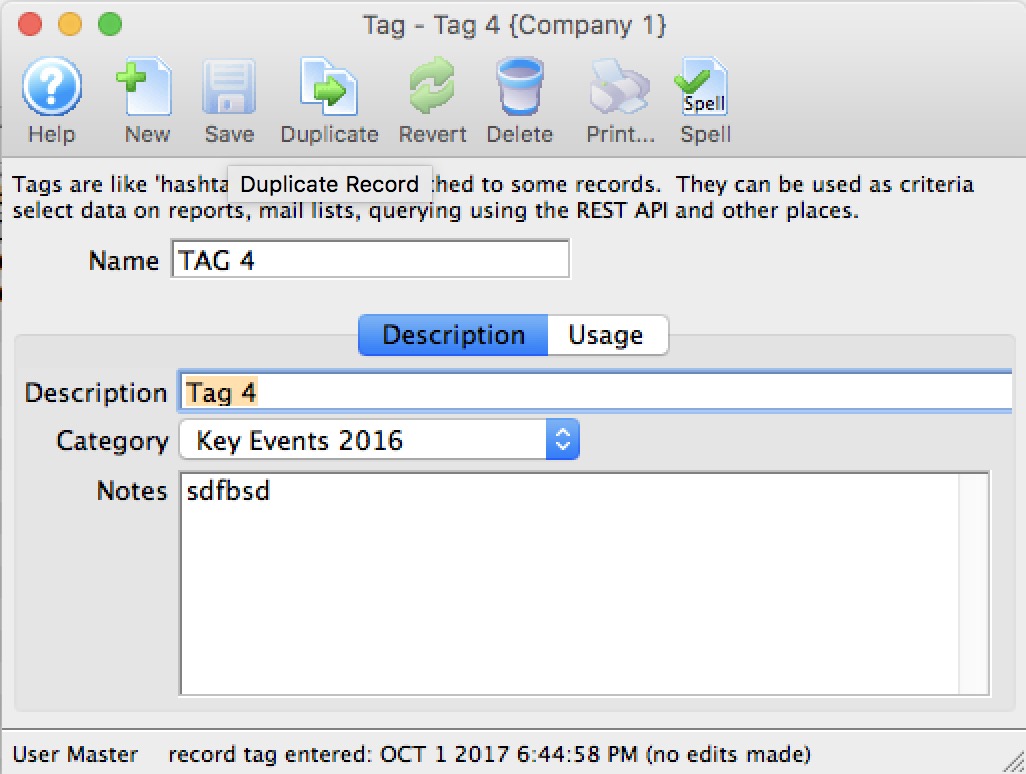
Parts of the Tag Window
|
Insert a New tag through the Tag Detail Window. For more information on inserting comments click here . |
|
Saves tags when edited in the Tag Detail Window. For more information on editing tags click here. |
|
Creates a copy of the current tag. |
|
Undoes changes to the last saved point. |
|
Deletes a tag. For more information on deleting tags click here. |
|
Checks the tag for spelling errors. |
| Name | A short name of the tag that will display on records that use the tag |
| Description | Brief description of the tag. |
| Category | Each tag can be placed in a tag category for convenience purposes. The tag categories are set up in code tables. |
| Notes | A longer description of the user of the tag. Currently only for informational purposes, but may be used at a future time if allowed online. |
Add Tags
- Open the Tag List window
Click here to learn how to access this window.
- Click the New button.
The Tag Detail window opens.
- Enter the name of the tag.
- Enter a description of the tag.
- Select the tag group that you want this tag to belong to (tag groups are set up in code tables)
- Enter notes that describer the purpose of the tag
- Click the Save button to save the tag.
The tag is saved and added to the Tag List window.
Edit Tags
- Open the Tag List window.
Click here to learn how to access this window.
- Select the tag you wish to edit.
Single click on a tag name in the list to select it.
- Click the Open button.
The Tag Detail window opens.
- Change data as needed
- Click the Save button to save the changes.
Delete Tag
- Open the Tag List window.
Click here to learn how to access this window.
- Select the tag you want to delete.
Single click on a tag to select it.
- Click the Delete button.
A Delete confirmation dialog opens.
- Click the Delete button.
Tag Usage
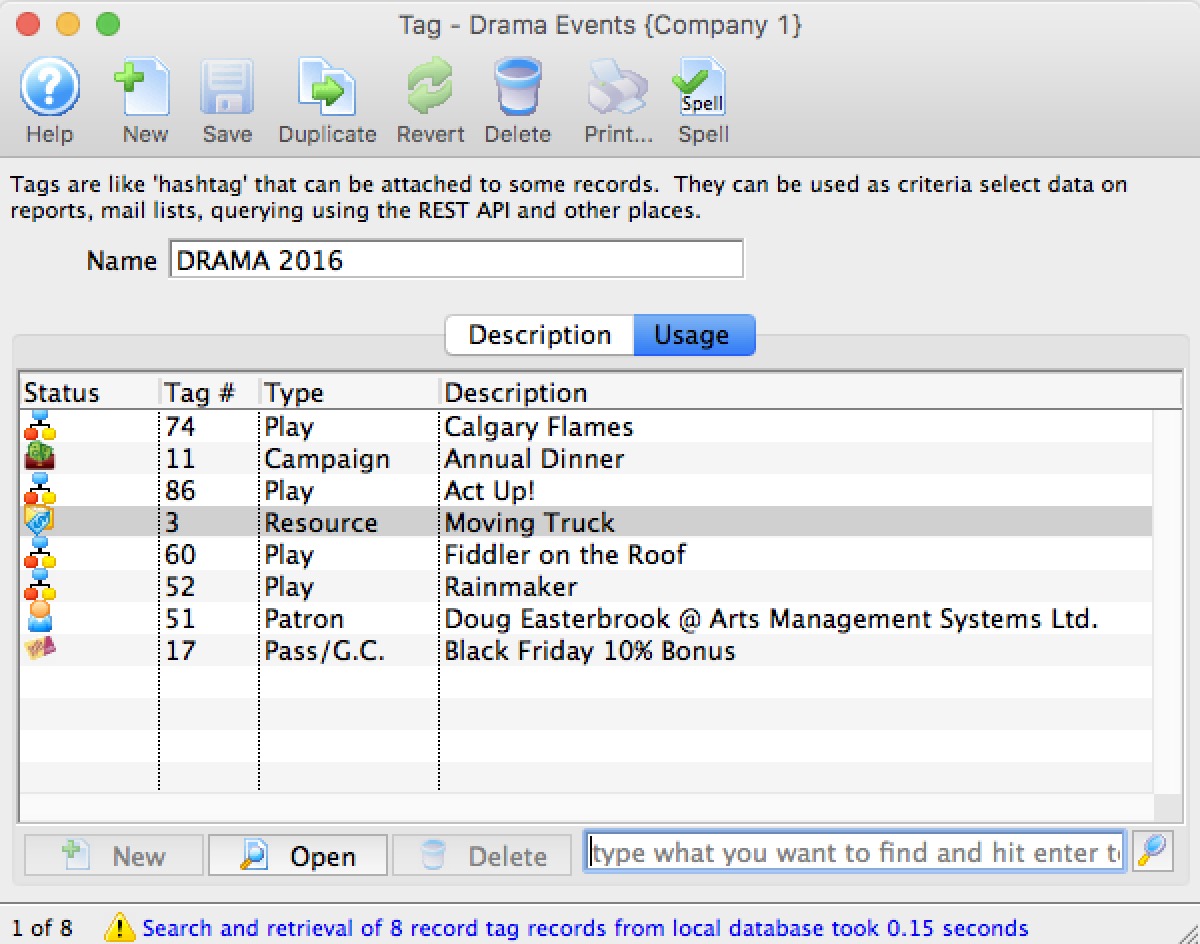 The tag usage tab allows you to find out where certain tags are referenced within the system.
Merging Tags
- Open the Tag List window.
Click here to learn how to access this window.
- Select the tags to merge.
Do this by holding <CTRL> (Windows) or <OPTION> (Mac) as you click the tags in the list to be merged.
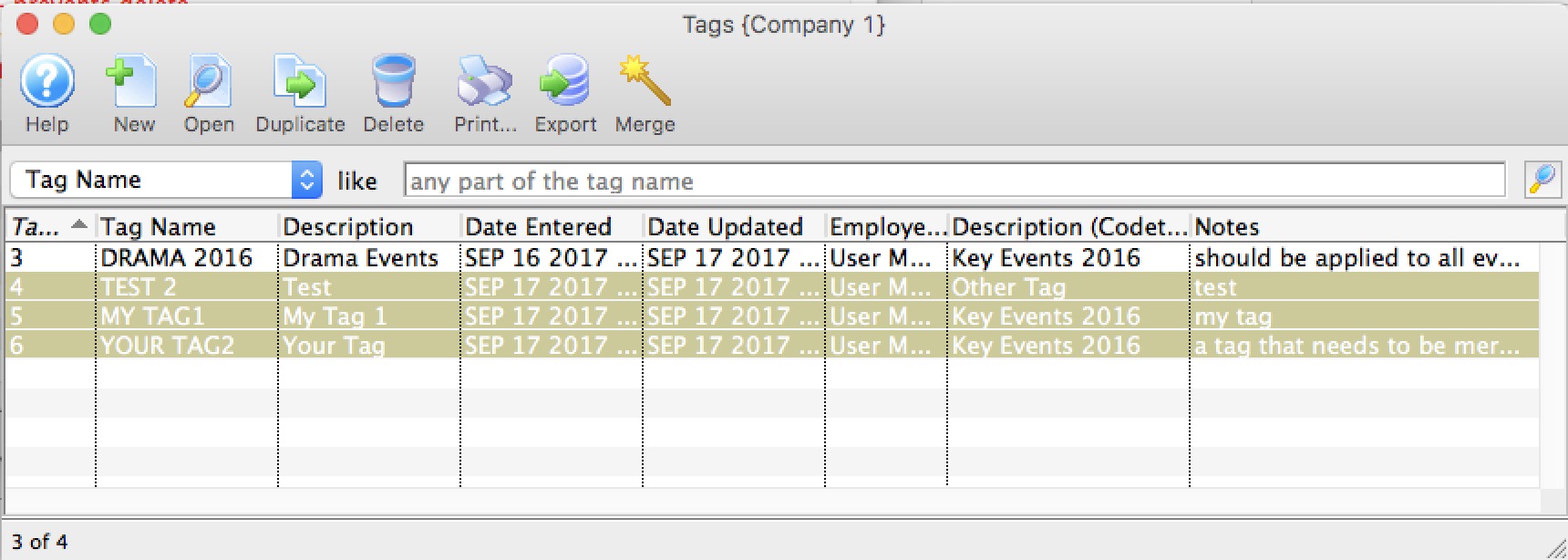
- Click the Merge button.
The Merge Tags window opens.
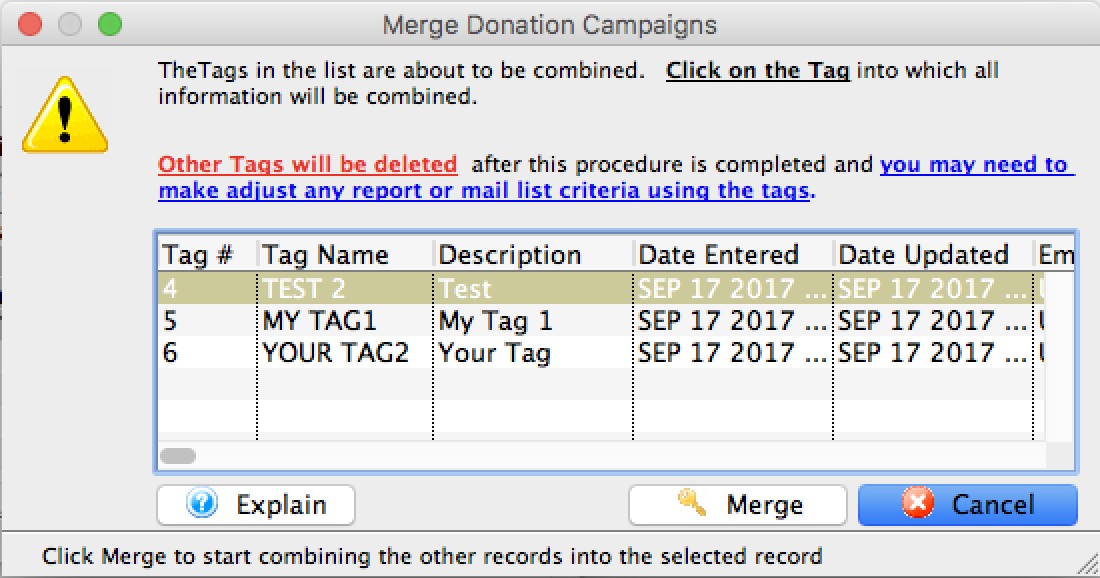
- Choose the tag that the all the others will be combined into.
- Click the Merge button.
A merge confirmation dialog opens.
- Click the Merge button.
The tags are merged and displayed in the tag List as the tag you chose to merge into.
What could tags be Used for?
Possible use of Tags for Web Sites
Populating a marketing web site via the REST API -- with the goals of:
- multiple genres for events (eg dance, comedy, musical)
- ability to set where the event might go on the web site (e.g is it at the top, or is it elsewhere)
- Set up tag groups in code tables. These might be used for things like 'these tags used for web positioning' 'these tags used for genre' 'these tags used for other stuff'
- create your actual Tag Names. You can call them things like broadway, drama, top-of-marketing-web-site or bobs-your-uncle -- anything you want. Each tag is associated with a tag group.
- Assign the tags to the records you want. eg stick tags on an event per the picture below
- Use the REST API to pull out record per tag or to actually pull out all tags for a record. There are 3 examples at the bottom of the REST query example web page.
- run a report for all plays with the tag 'broadway'
- export all donations for donation campaigns with the tag 'capital' and 'restricted'
- add all patrons to a mail list with the tag 'cool dudes and dudettes'
- run the api to extract all events and picture that go to the top of your marketing site.
- and in the future, we might use this as one way to categorize things on reveal
How to do it:
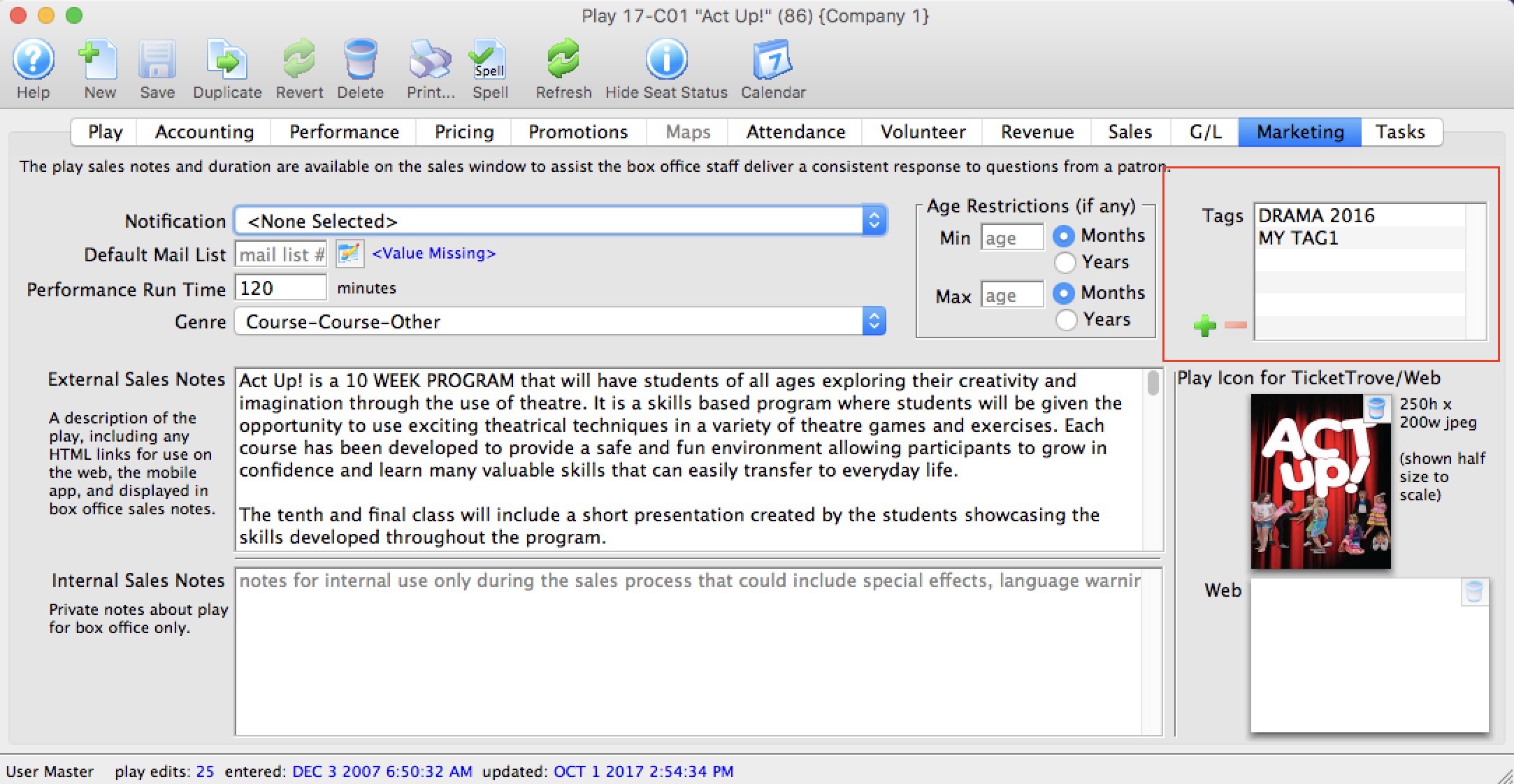
What else?
You can search for records associated with tags in mail lists, reports and exporting. That means you could:
Currency Exchange
Currency Exchange allows for the setup of exchange rates in Theatre Manager.
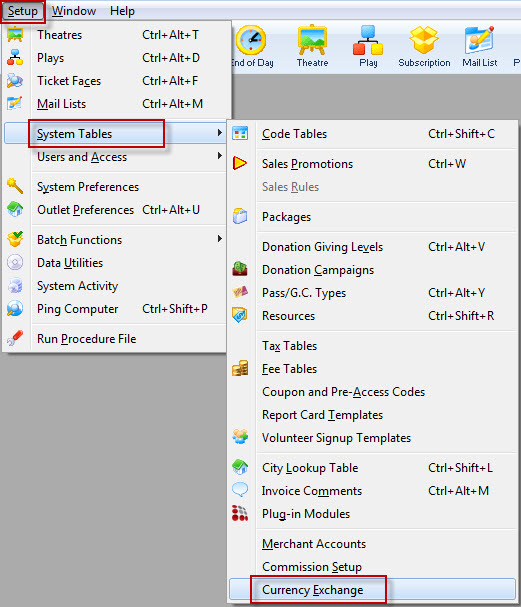
The Currency Exchange List window opens.
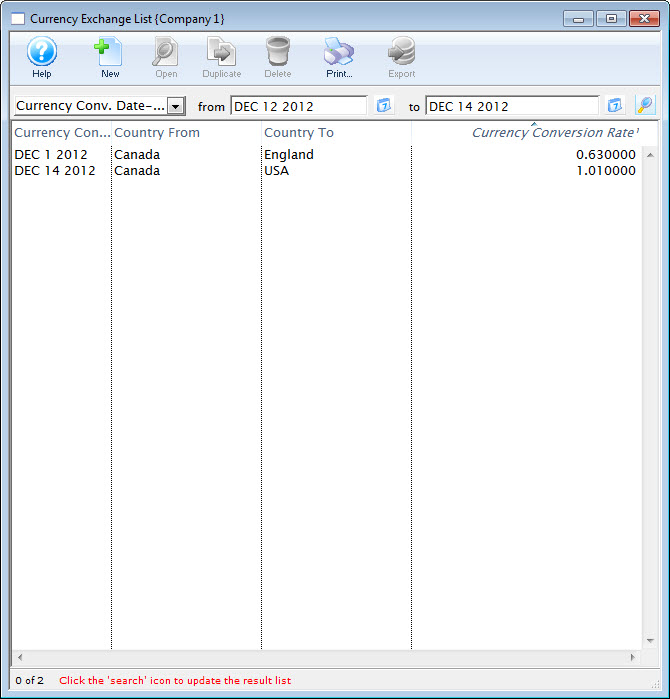
For more information on the Currency Exchange List window click here.
Currency Exchange List
Parts of the Currency Exchange List Window
|
Inserts a new currency exchange rate. For more information on inserting currency exchange rates click here. |
|
Opens the selected currency exchange rate for editing. For more information on editing currency exchange rates click here. |
|
Creates a copy of the current exchange rate. |
|
Deletes the current currency exchange rate. For more information on deleting currency exchange rates click here. |
|
Generates a report of the currency exchange rates to the screen or default print location. |
|
Exports out a list of the currency exchange rates in a tab-delimited format. |
| Currency Conv. Date | Options to search currency exchange rate by. |
| From | Starting point for the search. |
| Currency Conv. Date-Effective | Date the currency exchange will take effect. |
| Country From | Country the money is received from. |
| Country To | Country the money is being used in. |
| Currency Conversion Rate | Percentage of the conversion rate. |
Currency Detail Window
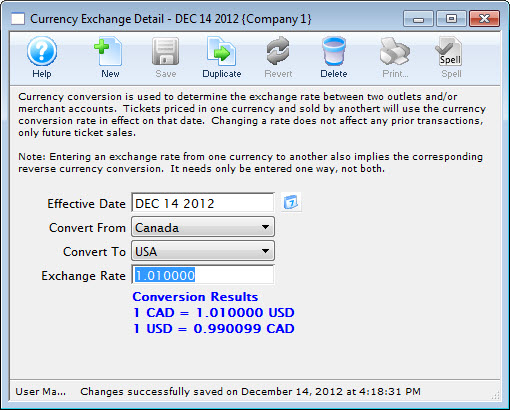
Parts of the Currency Detail Window
 |
Inserts a new currency exchange rate. For more information on inserting currency exchange rates click here. |
|
Saves changes made to the currency exchange rate. |
|
Creates a copy of the current currency exchange rate. |
|
Undoes changes to the last saved point. |
|
Deletes the current currency exchange rate. For more information on deleting currency exchange rates click here. |
| Effective Date | Date the exchange rate will be activated. |
| Convert From | Country the money is received from. |
| Convert To | Country the money is applied to. |
| Exchange Rate | Rate of exchange. |
| Conversion Results | Result of the conversion rate. |
Creating a Currency Exchange Rate
|
Currency exchange defines the rate in effect as of a certain date and time. If the rates do not change for a period of time, Theatre Manager will use the last rate that is in effect. You can also change rates many times daily, if that is required in wildly fluctuating markets. We suggest using a rate with a little premium to cover the effort and hedge against risk. Oanda gives reasonable exchange (as well as history) that we've used for years ourselves. However, please confirm with your bank before entering a new rate. Once a patron uses the rate on a transaction, you cannot change it after the fact. |
- Open the Currency Exchange window.
Click here to learn how to access the Fee Types List.
- Click the New button.
The Currency Detail window will appear.
- Enter the Effective Date.
The calendar
 button to locate a date.
 - Select the Convert From country using the drop down.
- Select the Convert To country using the drop down.
- Enter the Exchange Rate.
- Click the Save button.
The new Currency Exchange is now saved.
Editing a Currency Exchange Rate
- Open the Currency Exchange List window.
Click here to learn how to access the Currency Exchange List.
- Select the Currency to be edited.
Single click on a fee to select it.
- Click the Edit
 button.
The Currency Detail window will appear.
- Make changes as needed.
- Click the Save button.
The changes are now saved.
Deleting a Currency Exchange Rate
- Open the Currency Exchange List window.
Click here to learn how to access the Currency Exchange List.
- Select the Currency to be deleted.
Single click on a fee to select it.
- Click the Delete button.
The Delete Record confirmation window will appear.
- Click the Delete button.
The Currency is now deleted.
Employees, Users and Access
Employee Setup
Employees can have various levels of access to control their ability to use the different modules of Theatre Manager. Access to Employee Setup is through Setup >> Users and Access >> Employee List.
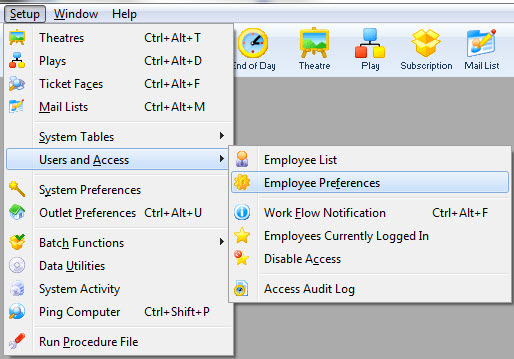
The Employee List window opens. Here you can enter first and/or last name information to search for a specific employee, or simply hit enter while the search fields are blank to pull up a list of all employees.
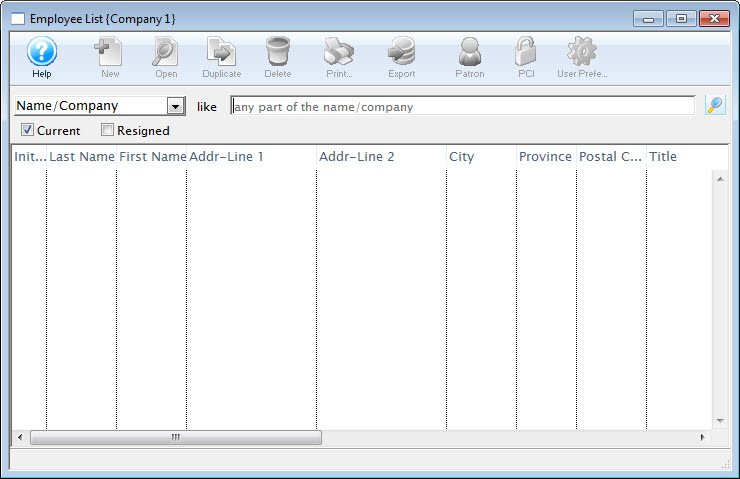
For more information on the Employee List click here.
Employee List
The Employee List window can be accessed through Setup >> Users and Access >> Employee List and is used to quickly locate an employee record or to generate a quick list of employees that can be printed.
Parts of the Employee List Window
|
Opens the Theatre Manager online help. |
|
This button is not accessible because new employees must be added through the Patron Window. It is on the window for consistency. For more information on adding employees click here. |
|
Opens the selected employee record for editing. For more information on editing employee access click here. |
|
This button is not accessible because new employees must be added through the Patron Window. It is on the window for consistency. For more information on adding employees click here. |
|
Deletes the selected employee. This button is only accessible if the employee can be deleted (if they have no history tied to their login). |
|
Generates a report of the employee list to the screen or default print location. |
|
Exports out the employee list in a tab-delimited format. |
|
Opens the Patron Window. For more information on the Patron Window, click here. |
 |
Open the selected Employee Preferences for the selected employee. For more information on Employee Preferences, click here. |
|
Merges the selected employee records into one. If you are trying to merge two patrons together that are employees, you must do a two step process:
|
| Initials | Unique employee initials. |
| Last Name | Last name of the employee. |
| First Name | First name of the employee. |
| Address Line 1 | Employee address. |
| Address Line 2 | Employee address. |
| City | City the employee resides in. |
| Province | Province or State the employee resides in. |
| Postal Code | Postal or Zip Code for the employee. |
| Title | Job title of the employee. |
| Tran Source | Department within Theatre Manager the employee is assigned to. |
| Outlet-Owner | If using outlet edition, the outlet the user is assigned to. |
| Primary Phone | Primary telephone number for the employee. |
| Primary E-Mail | Employee's primary email address. |
| Primary Fax | Employee's primary fax number. |
| Web | Employee's web site. |
| Patron # | Employee's patron #. |
Finding Employees in the Employee List Window
To find an employee, you would perform the following steps:
- Click Setup >> Users and Access >> Employee Setup
- Make a selection from the drop down list and enter a value.
To access all employees leave the From and To fields empty.
- Click the Search button.
The results of the search are displayed in the Employee List window.
For more information on the Employee List window click here.
Merging Employee Records
 Merging two patrons who are both employees requires two steps:
- You must merge the employee record first. This has the effect of changing all the records where the changed by, entered by, printed by, etc in the first employee to be the employee that you merge into.
- Then you can merge the patron records, since one of the patrons will no longer have an employee record.
Why must two patrons who are employees have their employee records merged first
The rule is that you cannot merge an employee into a patron. The reason is that every record in the system it tagged with one employee's name or another for the various entered by, changed by, sold by, printed by (etc) fields -- and deleting the employee would leave a referential integrity problem -- records would have missing data.
What if I want to eliminate somebody as an employee
As mentioned above, you can't simply delete the employee record to make them a non-employee.
Normally you would edit their employee record and set a resigned date. This means they can no longer log in while preserving a history of what they changed in transactions - as required for PCI compliance.
However, should you really need to remove an employee record created in error (or who resigned decades ago), there is a simple trick you can use:
- Select all the people you don't want to have an employee record on the employee list.
- ALSO SELECT YOURSELF (or some other template user)
- Merge the selected people together INTO YOURSELF
Effectively you are just assigning all the changed by information from these employees to be yourself. Then it removes person as an employee.
Once they are no longer employees, you can merge the patron records.
Employee Access Window
The Employee window can be accessed in two different areas of Theatre Manager. It can be accessed through
- the Employee List at Setup >> Users & Access >> Employee List by selecting an employee and clicking the Open button. For more information on the Employee List click here.
- Alternatively, the Employee window can be accessed through the Patron List or Window. It can be accessed through
- the Patron List by searching for and highlighting the employee and then clicking the Employee
 button -or-
 - through opening the employee's Patron record and clicking the Employee button.
- the Patron List by searching for and highlighting the employee and then clicking the Employee
Parts of the Employee Window
| |
Opens the Theatre Manager online help. |
|
This button is not accessible because new employees must be added through the Patron Window. It is on the window for consistency. For more information on adding employees click here. |
|
Saves any edits made to the Employee Window. For more information on editing employee access click here. |
|
This button is not accessible because new employees must be added through the Patron Window. It is on the window for consistency. For more information on adding employees click here. |
|
Reverts changes made to the employee preference back to the last saved point. |
|
This button is not accessible because employees cannot be deleted. For more information on removing employees click here. |
|
Generates a report of the employee detail and access to the screen or default print location. |
|
Spell checks any fields that can by typed in. |
|
Opens the Patron Window. For more information on the Patron window, click here. |
 |
Opens the Password Window. For more information on the setting employee's passwords, click here. |
|
Open the selected Employee Preferences for the selected employee. For more information on Employee Preferences, click here. |
 |
Allows access to be copied form one employee to another. For more information on copying employee access click here. |
 |
For more information on the Access tab click here. |
 |
For more information on the Data tab click here. |
 |
For more information on the Functions tab click here. |
 |
For more information on the Box Office tab click here. |
 |
For more information on the Solicitor tab click here. |
 |
For more information on the Facility Management tab click here. |
Access Tab
There are five primary user level:
| User Level | Can Do | Cannot Do |
| Master User |
|
|
| Outlet Administrator |
|
|
| Normal User |
|
|
| No Access |
|
|
| API Access Only |
|
|
|
Venues who have purchased the Outlet Edition of Theatre Manager must have their Outlet Administrator perform employee setup functions. The Master User for the Outlet should only be used to create the Outlet Administrator Employees. |
Parts of the Access Tab
| Access Id | The logon name for the employee when the default logon window is set to Access ID/Password. Refer to the PCI Security Tab of System Preferences for more information. It is also used to identify users logged in to the postgres database for logging, etc. |
| Hired |  Date the employee was hired. The calendar lookup button can be used to select the date.
A future date in this field means that the employee will gain access in the future, but not now. This could be used for setting start dates for interns. |
| Resigned |
Date the employee retired, resigned or left the organization. The calendar lookup button can be used to select the date.
Generally, this date is blank. It can be in the future if you are creating an employee with temporary access and the resigned date is when they are leaving. If an employee makes too many mistakes entering their password and gets locked out, this field will automatically be set by Theatre manager to prevent access. To reinstate an employee's access, a Master User or Outlet Administrator needs to:
|
| Logon Level | Indicates the general user level of the employee
|
| REST API | Click to enable access to the REST API. This is a feature which allows access to the raw data in the database using a URL - and is typically used for web developers or for data analysis tools. |
| Groups | Select the functional groups that this employee belongs to. These are used to determine which records the employee can have access to. For exmaple, if somebody has both Marketing and Box Office checked, then they can access any record that is marked accessible by either Marketing or by Box Office.
If somebody has access to 'all' areas then make sure they are all selected. These functional security access groups are set up in code tables. |
| Attempts | The number of times the employee has tried to login with the incorrect password since the last logon. |
Data Tab
|
Master users and Outlet Admins cannot access this tab for their own user id because changing any permissions would cause them to lose Master user or outlet admin status.
They can, however, affect settings in these tabs for other users. |
|
Use the filter function to highlight words of interest within the list |
| View | The employee can only look at the information in a record |
| Insert | The employee can add new information and change it as long as the window is open. |
| Edit | The employee can edit information in the specified window. |
| Delete | The Employee can delete the record. |
List of Data/Windows that can be Accessed
| Accounting | A/P-Enter payables and expenses | |
| A/P Write cheques | ||
| G/L Budget information | Provides access to the setup of general ledger budgets for each general ledger account. Details on how each account is compared to the budgeted amount can be viewed | |
| Chart of account set up | ||
| G/L Entries, whether manually created or generated by the system | Provides access to the general ledger entries. For an employee who may need to 'close' or 'cash out' at the end of the day, it is recommended that 'view' access be granted. With 'view' access, the employee will be only able to view the sales and deposit entry created by the End-of-Day wizard, and if required print the desired reports. | |
| G/L tax table setup - so they can be used for sales | Provides access to setup tax tables, to define the table and enter/edit the percentage of tax levied and the g/l account tax will be allocated to | |
| Attendance | View and set patron attendance status to a performance | |
| Coupons | Set up discount coupon codes that can be redeemed at the box office or via the web | |
| Credit Cards | Patron Credit Card Tab | |
| Default Data | Company Policy information (manage rules about how the system works) | Provides access to Default Data settings such as Company name, mandatory data fields, data appearances (custom labels on fields), default fees on ticketing etc. |
| Donor |
Attach or remove pledge reminder letters to a Donation to be sent at a future date |
|
| Donation information for any donor record (on patron or order window-see function access) | ||
| Manage Donor asset tracking | Provides a list on the patron window where you can enter/track patron assets for the purposes of wealth management. | |
| Manage Donation receipts | ||
| Manage Donation soft credits | ||
| Manage DonorSearch Analytic Analysis Results | Provides access to the DonorSearch Analytic List Window, the DonorSearch Analytic Results Detail Window, and to the DonorSearch Importing Analytic Results process. At minimum View access is required to access the DonorSearch context menu, the DonorSearch menu button in Donation Campaigns, and to query the data in mail lists and data exporting. | |
| Employee | Change personal preferences in the employee preference window | |
| Manage employee data and access rights | ||
| Facility Management | Edit the contents of a task such as date, time, and participants | |
| Enter the resource component of a sale | ||
| Manage filters that are used to decide what is displayed on a particular calendar view | ||
| Manage projects and associated tasks | ||
| "Hot Seat" analyzer to determine which seats have been used the most | ||
| Manage task dependencies in a project using the Gantt chart | ||
| Manager tasks that will appear on the background of a calendar such as corporate holidays or special locations | ||
| Open/manipulate the calendar of events and to-do list items on the main calendar window | ||
| Set or edit an alarm on a task for themselves | ||
| Setup task resources that can be associated with a theatre or other tasks | ||
| Fees | The fee component of a sale (eq mail fee, order fee, subscription fee) | |
| Form Letters | Create and change the form letters (anybody can use them) | Provides access to the form letters module. Creating form letters and performing letter merges with information from Theatre Manager's database |
| Manage form letters and letter security from the pass/g.c. window | ||
| Manage form letters and letter security from the patron window | ||
| Mail Lists | Saved results of a query against the database used in reports or finding patrons | Provides access to the setup of mail lists and the patrons who are on each of the mail lists |
| Order | Order information such as ticket printing status and comments | |
| View and edit items in the order window | ||
| Outlet |
Creation of outlets (or departments) as a functional business entity | Provides access the setup of the outlet locations and which employee is assigned to which outlet |
| Set up the Currency Exchange records for multi currency web usage | ||
| Setting up of the commission structure for sales at an outlet | ||
| Packages | Manage Packages of salable items. | |
| Pass GC | Pass/G.C. cards to assign any number of pass/g.c. | |
| Patron | Basic Patron information such as name and address | |
| Favorite seats and season subscription packages, including on the order window | ||
| Manage and Relationships between one or more patrons | Provides access to Relationship tab on the patron window, to establish relationships between two or more patrons | |
| Media information in the tab on the patron window |
Provides access to the setup of media information on individual patron's accounts | |
|
Pass/G.C. detail component of a sale (on the patron or order window-see function access) |
||
|
Pass/G.C. detail component of a sale (on the patron or order window-see function access) |
||
| Patron payment information and prior payments on the order window | Provides access to the patron payments after they have been created | |
| Play | Accounting information and setup for postings & taxes | Provides access to the Accounting area in the play setup |
| Add task resources pertaining to Facility Management | ||
| Main window containing the play & date information | Provides access to the Attendance area in the play setup | |
| Performance dates & management of sales parameters | Provides access to the Performance area in the play setup | |
| Play maps and attendance information | ||
| Play revenue and cash flow information | ||
| Set prices and valid sales promotions | Provides access to the Prices and Promotion area in play setup | |
| Plug-in Code | Import or edit Custom Plug-in Code modules into Theatre Manager | Provides access to Plug-ins, custom coded prices strategies. A Plug in is a system table setting and custom coding by Arts Management Systems to manage unique pricing structures |
| Report Cards | Manage report card templates to be used for course grading | |
| View and edit reportcards assigned to patrons and used for course grading. | ||
| Reports | Create custom reports from the templates and edit the contents (e.g. Season Renewal Notices) | |
| Create search criteria and ability to export generated reports | ||
| Items added to the report queue for later printing and customized report category detail windows | Provides access to the setup of reports to be created and printed during non prime time hours | |
| View and edit saved report criteria | ||
| Season Reservations | 'Manage Favorite Seats' for all patrons via the subscription menu | |
| Alter the contents of the season package for an individual patron | ||
| Setup the contents of the season packages that can be sold | Provides access to the Season Subscription Renewal Notice
process | |
| System Setup | ||
| City Lookup | Manage values in the zip/postal code lookup table | |
| Codetables | Code Table data used to manage valid entry values in various tables | Provides access to the setup of code table settings in the System Table area of Theatre Manager. This area is best restricted to Master Users of Theatre Manager |
| Donation | Creation of donation campaign/funds to be used in the system | Provides access to the set-up of Donation Campaigns and Giving Levels matrixes |
| Fees | Creation of fee types that can be applied to orders | |
| Merchant Account |
Creation of merchant accounts | |
| Pass/G.C. | Creation of Pass G.C. types that can be sold | Provides access to setup Membership types, to enter/edit membership styles and g/l accounts associated with each membership |
| Sales Promotions | Sales promotion codes used to managing discounting if tickets | Provides access to the setup of ticket sales promotions and discount offers |
| Sales Rules | Create and manage sales rules for the discounting of tickets | |
| Standard Comments | Standard comments that can be put on invoices, etc. | Provides access to the setup of standardized comments for ticket invoicing |
| Workflow | Workflow Notifications - who receives an email when certain actions occur in the system | Provides access to the setup e-mail notifications |
| Theatre | Manage theatre capacity, layout and seating names | |
| Ticket Faces | The layout information for a thermal ticket printer | Provides access to the setup of customized ticket face coding for the thermal ticket printers |
| Transaction | Access transaction information on reports and windows | |
| Volunteer | Manage volunteer recognition awards | |
| Manage volunteer time availability | ||
| Volunteer activity history - record of each instance of working in the position (from volunteer or play window) | Provides access to the historical information for each personnel position. Such as each individual time the personnel was an actor, producer, or usher and the unique responsibilities for each position | |
| Volunteer overview information and data entry window | Provides access to the general personnel information on the patron window and on the personnel window | |
| Volunteer positions - the activities that they will do when asked | Provides access to the personnel positions each of the personnel may have held | |
| Volunteer template setup that will be used to let people sign up for positions on the web | ||
| Web Sales | Manage shopping carts for internet sales | Provides access to Web Cart tab on the patron record |
| View and reset web performance statistics gathered from the apache server by the web listener | ||
Functions Tab
|
Master users and Outlet Admins cannot access this tab for their own user id because changing any permissions would cause them to lose Master user or outlet admin status.
They can, however, affect settings in these tabs for other users. |
|
When creating a new user, the default for credit card access, functions is the minimal, per PCI requirement 7.1.2 |
|
Use the filter function to highlight words of interest within the list |
List of Functions to be Accessed
The following fields are the various functions available in Theatre Manager:
| Accounting | 'Force balance' the G/L entries in End-of-Day Wizard if the EOD balance is non-zero (not recommended). |
| 'Force' a credit card deposit through TM only (not recommended-should balance to CC software). | |
| Access or complete a till balance for another user. | |
| Clear the 'order-in-use' flag when a ticket sale is aborted by mistake (eg force quit) | |
| Create EFT bank transmission files (which sets the EFT entry as being exported) | |
| Create bank deposits for current payments received-Cash/Checks/Other | |
| Create bank deposits for current payments received-authorized credit cards only (ie. allow settlement) | |
| Create sales entries for tickets, donations and memberships | |
| Export G/L entries to a tab delimited file (which sets the G/L entry exported flag) | |
| Import G/L entries through the End-Of-Day Wizard | |
| Post sales and deposit to the G/L (that have already been created) | |
| Run reports permitted for user in End-of-Day Wizard | |
| Run the year end roll over to prepare for a new year | |
| Unpost sales/deposit G/L entries and reverse them from G/L | |
| Batch Functions | Batch print any tickets that have not yet been printed |
| Mass update of patron marketing fields via direct SQL | |
| Recalculate all patron balances based on existing order balances | |
| Verify if marketing record exist for patrons - normally not required | |
| Credit Cards | Allow a refund to a credit card |
| Allow clearing the black listing setting for a credit card so it can/cannot be used by a patron | |
| Allow empty CID or CVV2 number even if required for credit card payments | |
| Allow manual entry of an authorization codeif it is provided by the bank after calling merchant services | |
| Allow use of a black listed credit card on the payment window. | |
| Change to a different merchant account in the payment window (if there are multiple merchant accounts) | |
| Delete authorized credit card payments in TM instead of voiding on Server as well (recommended unchecked) | |
| Delete credit card payments for auto-renewed subscriptions during End of Day deposit process | |
| Deposit current/post dated credit cards (that have not yet been authorized) with authorizing the card | |
| Display all digits of last used charge card on payment window (otherwise remove last 4 digits to force card completion) | |
| Edit the credit card number on any existing payment that has not been deposited | |
| Last used charge card # - display all digits on payment window (otherwise remove all digits - overrides other CC display options) | |
| Over-ride the cash only setting for the patron and accept a credit card | |
| Search for a patron using a credit card number | |
| Shred cards older than 99999 days on the patron window | |
| Use 'force-duplicate' and cause a second charge for same amount for same card #/patron/batch | |
| Use the lookup button on the payment window to see other credit cards for the patron | |
| View entire card number (otherwise show **** and last 4 digits on most reports and screens) | |
| View past EMV PINpad requests to verify completed authorizations have a payment record | Allow employee to enter a credit card number manually EVEN IF USING an EMV PIN PAD (affects PCI audit requirements)
This feature should normally never be enabled. If it is, and the employee has an EMV hardware device associated with their computer, then they will be given an additional choice to manually enter a credit card into Theatre Manager for processing, rather than only being able to use the EMV device to manually enter cards. Enabling affects you CPI audit requirements. |
| Donor | Add donations for a patron while in the patron window |
| Add donations to an order while on the ticket sales window | |
| Permit entering or updating prior fiscal year donations | |
| Clear date that commission paid for the donation | |
| Print donation acknowledgments to the ticket printer | |
| Print donation charitable receipts | |
| Unprint donation charitable receipts for later reprinting | |
| View donors summary information (all non private) at the top of the patron window | |
| View donors summary information (marked PRIVATE) at the top of the patron window | |
| DonorSearch | Allow to request a DonorSearch online analysis |
| Allow to retrieve and download a DonorSearch online analysis | |
| Allow to view a DonorSearch online analysis | |
| Fees | Change a fee used during a 'New Sale' |
| Change a fee used during an 'Exchange' | |
| Change a fee used during the 'Refund' process | |
| Change a fee used during the order 'Modify' process | |
| Enter a negative value for a fee (ie. discount) if able to edit fees on the order window | |
| Form Letters | Merge letters from the form letter list or edit window |
| Print or Batch Print form letters or emails that had been previously assigned to print later | |
| Outlet | Sell tickets at All Locations (regardless of Outlet that created event) |
| Pass/G.C. | Able to renew the pass/g.c. if it is past its expiry date/renewal deadline |
| Add pass/g.c. for a patron while in the patron window | |
| Add pass/g.c. to an order while on the ticket sales window | |
| Change the full redeemable value of the pass/g.c. from the purchase price to confer benefits | |
| Print pass/g.c. tickets | |
| UnPrint pass/g.c. tickets | |
| Allow Extending Expiration Dates on passes. This is available on the pass/GC setup window | |
| Patron | Change the primary address from one address to another |
| Change the primary email from one email to another | |
| Change the primary phone or fax from one phone to another | |
| Clear the cash only flag so that patron can resume using credit cards | |
| Clear the 'do not mail, telemarket, etc.' flags | |
| Merge two or more patron records into the same person and delete the others | |
| Merge/transfer two or more patrons into a common household | |
| Send a patron their email address and web password in an email | |
| Set the cash only flag so that patron cannot use credit cards | |
| Set the 'do not mail, telemarket, etc.' flags | |
| View annual marketing purchase statistics on the patron window at the lower right | |
| Payments | Access and change 'Contractual Notes' on the payment screen |
| Allow entry of payments that cross multiple orders | |
| Delete post dated payments previously entered against the order | |
| Use 'Gift In Kind' as payment method (means G/L account code needed) | |
| Use 'On Account' as payment method on any order (closes without a payment & creates A/R) | |
| Use 'Post Dated Payments' as a payment method which will appear in End of Day on appropriate future date | |
| Use 'pass/g.c.' (current) as payment method | |
| Use pass/g.c. (expired) as payment method | Use pass/g.c. that has not yet been paid for as payment method |
| Plug-In Code | Associate existing custom Plug-in code to any data record |
| Pricing Map | Merge two or more pricing map records into the same theatre and delete the others |
| Project | Change Project from 'Eestimate' to 'Invoice' or visa versa |
| Reports | Print invoices for a patron from the order window or batch functions |
| Run donation reports | |
| Run general reports (the majority of reports) | |
| Run sales summary analysis reports | |
| Run ticket revenue reports | |
| Sales | View 'Transaction Monitoring' window |
| Season Reservations | Print season renewal notices |
| Process a season ticket reservation using the book button | |
| Process season subscription auto renewals (people who get same seats each year) | |
| Unprint season renewal notices so they can be printed again | |
| Tickets | Change default ticket sale/reservation setting to allow tickets to be sold as reservation only (no A/R created) |
| Change the promotion/price code during a quick exchange for a performance that DOES NOT have the employee's security access privileges | |
| Change the promotion/price code during a quick exchange for a performance that the employee has security access to | |
| Confirm attendance at a performance using ticket scanner or entering ticket number | |
| Exchanges | Exchange tickets by transferring them "en masse" from one performance to another on the attendance tab in the play window |
| Exchange tickets to a performance that DOES NOT have the employee's security access privileges | |
| Exchange tickets to a performance that has the employee's security access privileges | |
| Hold tickets to prevent selling them | |
| Able to manually release PERMANENT social distance holds created during an online sale | |
| Print tickets for fully paid order | |
| Print tickets for partially paid order | |
| Recalculate a specific order balance based on its contents | |
| Refund tickets to a performance that DOES NOT have the employee's security access privileges | |
| Refund tickets to a performance that has the employee's security access privileges | |
| Refund tickets when the performance is no longer on sale | |
| Refund tickets when the performance is over | |
| Release all held tickets for a performance on ticket sales window | |
| Sell COMP tickets (where a promotion was required to reduce the initial base price to $0.00) | |
| Sell FREE tickets where the base price starts at $0.00 (these are not considered comps) | |
| Sell from the patron screen using 'buy' button | |
| Sell held tickets which are marked on maps as held with lowercase letter (but only to permitted hold codes in employee record) | |
| Sell tickets to performance that is in the past | |
| Sell using 'Before Event Sales' menu (no patron data captured) | |
| Sell using 'Quick Buy' (sell tickets first, then transfer to a patron) | |
| Set the price of a traveling troupe performance during the sales process | |
| Unprint a ticket (so it can be reprinted later) | |
| Use their personal setting for 'Reservation Only' ticket sales (means no transactions created until first payment) | |
|
Reprice tickets after a pass/gift certificate has been used to pay for the ticket.
After a pass is used, changing the price of a ticket that used the pass means that a the record of where the pass was used will be lost on the ticket (its still in the transactions). It may appear that there are less redemptions from the ticket perspective than on the pass itself. Turning this setting off prevents indiscriminate pass refunding. |
|
|
Exchange a ticket that has a promotion that the employee is not currently entitled to sell.
If ticket has a promotion that is not on the employees 'restricted promotion' list, then they would not be able to exchange the ticket without permission on case by case basis. |
|
|
Refund a ticket that has a promotion that the employee is not currently entitled to sell.
If ticket has a promotion that is not on the employees 'restricted promotion' list, then they would not be able to exchange the ticket without permission on case by case basis. |
|
| Utilities | Open the Data Verify utilities under 'Setup' |
| Purge historical data from the database | |
| Web Sales | Add e-mails to patron correspondence history for mass emailing later |
| Start the web sales listener and become a web listener under their personal user id | |
| View and manage emails pending on the web to resend or cancel them | |
| View ticket scan statistics window |
Box Office Tab
Parts of the Box Office Tab
Box Office and Sales Management |
|||||
| Initial Window |
 Window that Theatre Manager will automatically
open first when an employee logs on. The initial window may be different
for each employee.
Window that Theatre Manager will automatically
open first when an employee logs on. The initial window may be different
for each employee. |
||||
| Festival Seating Sales | Default for selling festival tickets as a one ticket per admission or one ticket per purchase. | ||||
| Transaction Source | This is the department that the employee works in.
Click here for the Transaction Source code table |
||||
| Hold Letters | These are the Hold letters that the employee can use. They can either set, or release these hold letters for any seat in any performance.
There is a special case for PERMANENT social distance seats booked online. These cannot normally be released by anybody unless they have specific permission as shown below in the employee's permissions in the Function Tab
|
||||
| Merchant # | Merchant account the employee processes credit cards to. | ||||
| Merchant # | Merchant account the employee uses to process credit cards. | ||||
| User Initials |  Employee Initials that are entered into preferences for scanner login. These can be copied from the patron record when modifying the employee's access permissions. Employee Initials that are entered into preferences for scanner login. These can be copied from the patron record when modifying the employee's access permissions.
|
||||
| Restricted Sales Promotions | If you enter a list of sales promotions into this field, the employee will only be able to use those promotions when selling a tickets. If at least one of these sales promotions is not enabled for the performance the employee is trying to sell to, they will see no sales promotions and therefore, not be able to sell a ticket at all.
Eg: if the employee can only sell a 'Group' or 'Regular' promotion and neither of those are enabled for a specific performance, then none will appear.
Recommendation for best effectif you wish to use sales promotion restrictions for employees, it might be good practice to:
|
||||
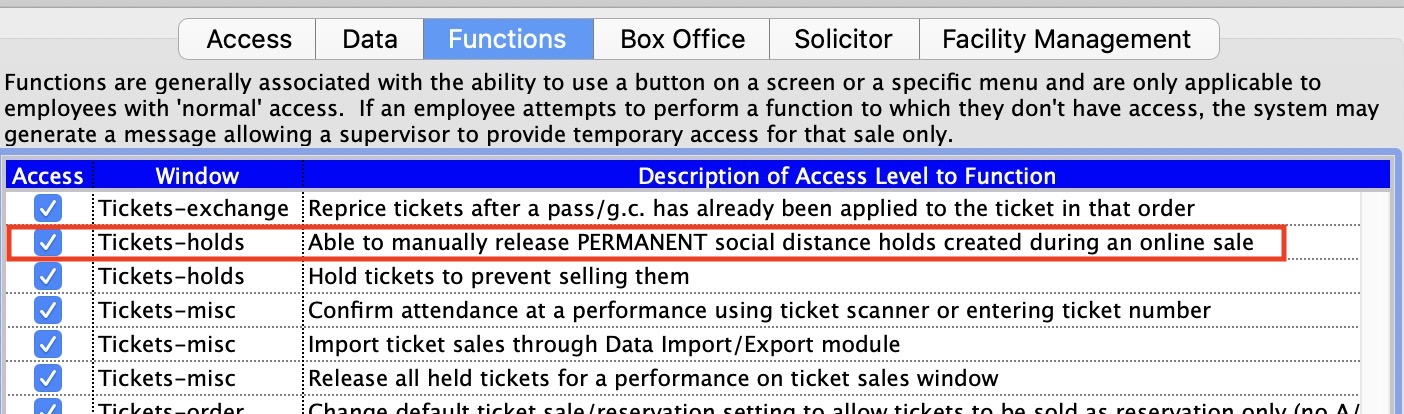
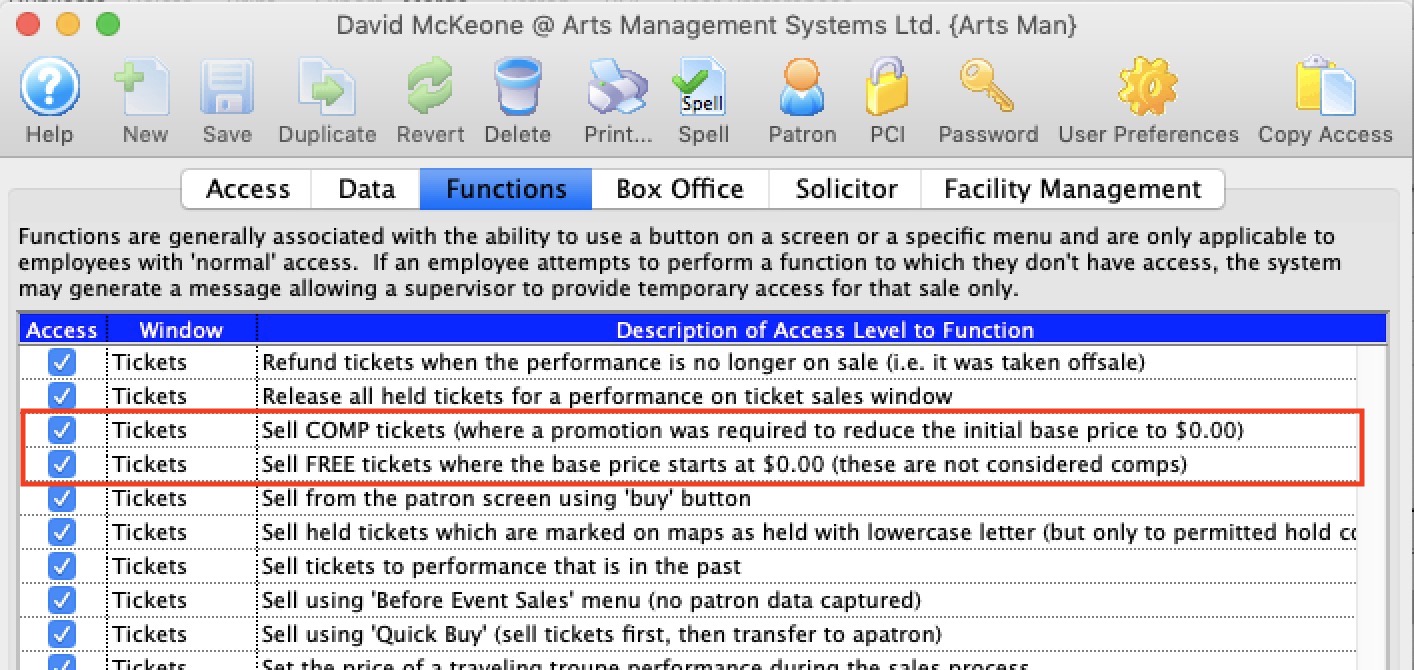 Do not use this feature to limit access to comp tickets.
Solicitor Tab
If you wish somebody to tracked as a solicitor (like a Board member), you will need to make them an employee and give them no access to login to theatre manager.
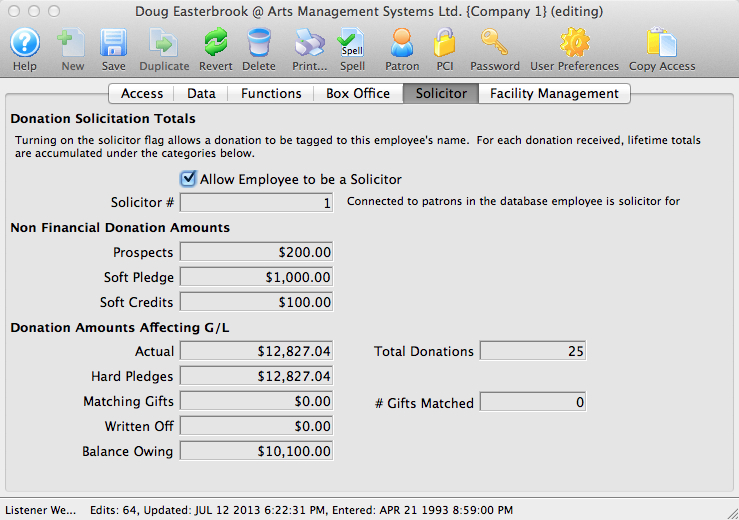
Parts of the Solicitor Tab
| Allow Employee to be a Solicitor | When checked an employee can accept donations under their name. |
| Prospects | Total amount of prospective donations generated by the employee. |
| Soft Pledge | Total amount of soft pledges solicited by the employee |
| Soft Credits | Total amount of soft credits solicited by the employee |
| Actual | Total amount of actual donation $ solicited by the employee |
| Total Donations | Total number of donations that have been solicited by the employee |
| Hard Pledges | Amount of hard pledges solicited by the employee. |
| Matching Gifts | Total matching gift donations solicited by the employee. |
| # Gifts Matched | Number of matching gifts solicited by the employee. |
| Written Off | Amount of written off donations solicited by the employee. |
| Balance Owing | Balance of outstanding donations solicited by the employee. |
Facility Management Tab
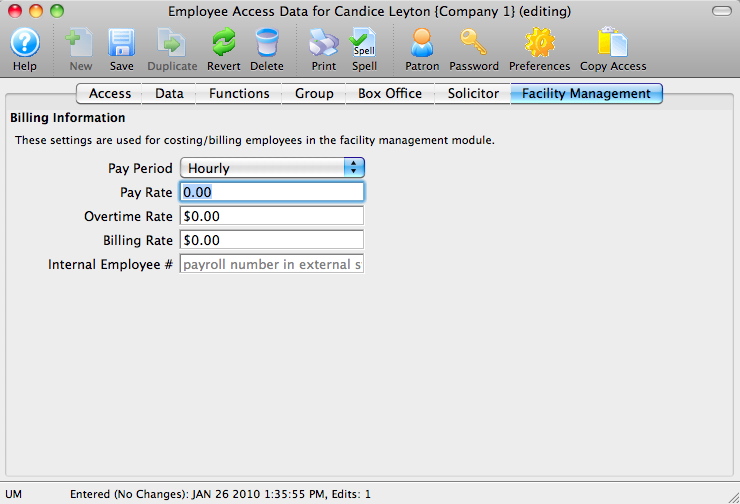
Parts of the Facility Management Tab
| Billing Information | These settings are used for costing/billing employees in the Facility Management module. More more information about Facility Management, click here. |
| Pay Period | The pay period for the employee. Can be Contract Rate, Day Rate, Hourly, Monthly or Weekly. |
| Overtime Rate | An employee's overtime pay rate. |
| Internal Employee # | A payroll number or internal indentifier for an employee (could match external accounting software, etc) |
Notifications Tab
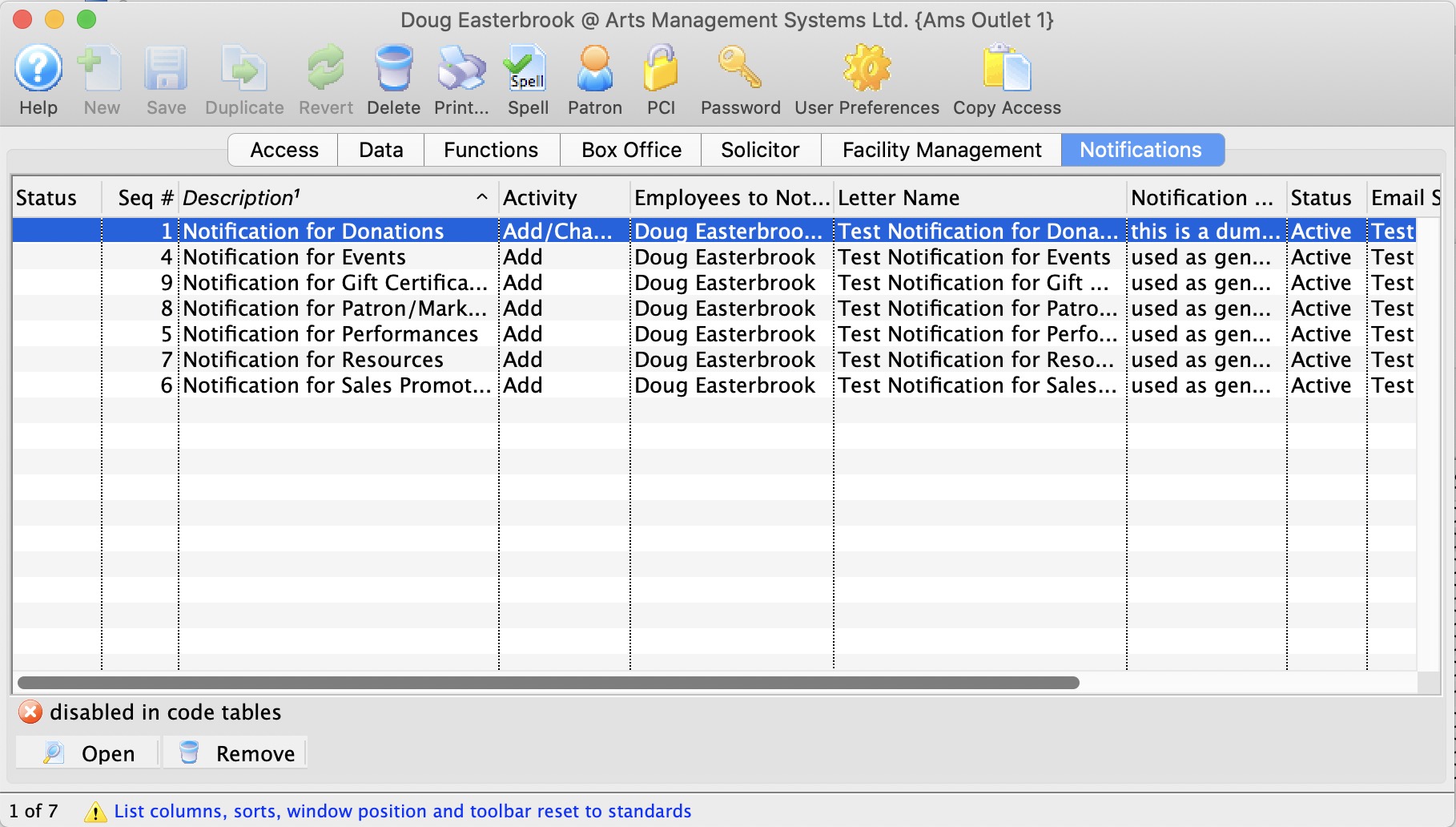
This is a list of workflow notifications that an employee is part of and the current status of the notificaiton. You can
- Open the particular work flow notification to alter it
- Remove the person from the selected work flow notifications
Adding Employees and setting up access rights
Adding Employees
- Login to Theatre Manager as a Master User, or Outlet Administrator where applicable.
- Create a patron record for the employee.
Click here to learn how to create patron records.
- Highlight the employee's patron record from the patron window
- Click the Employee button.
A confirmation dialog opens.
- Click the Yes button.
The employee data window opens.
- Click the Password button to set a password for the employee.
For more information on setting an employee password, click here.
- Click the Preferences button to set the employee preferences.
For more information on setting employee preferences, click here.
- Make any required changes to the Access tab.
For more information about the Access tab, click here.
- Make any required changes to the Data tab.
For more information about the Data tab, click here.
- Make any required changes to the Functions tab.
For more information about the Functions tab, click here.
- Make any required changes to the Group
 tab.
tab.
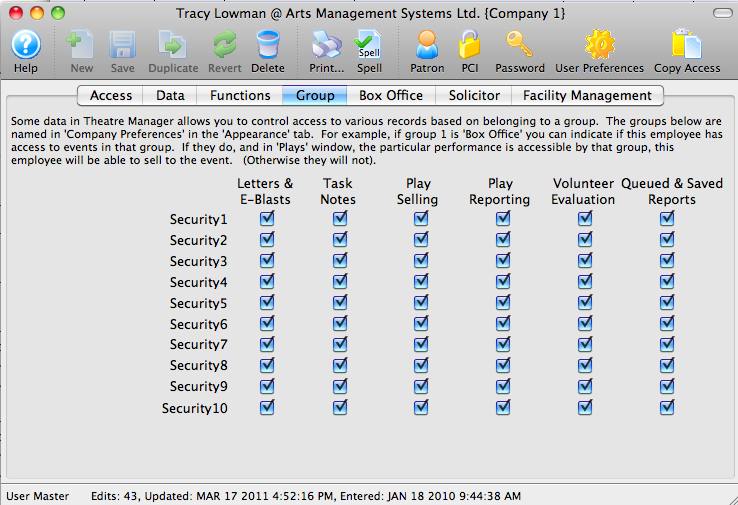
For more information about the Group tab, click here.
- Make any required changes to the Box Office tab.
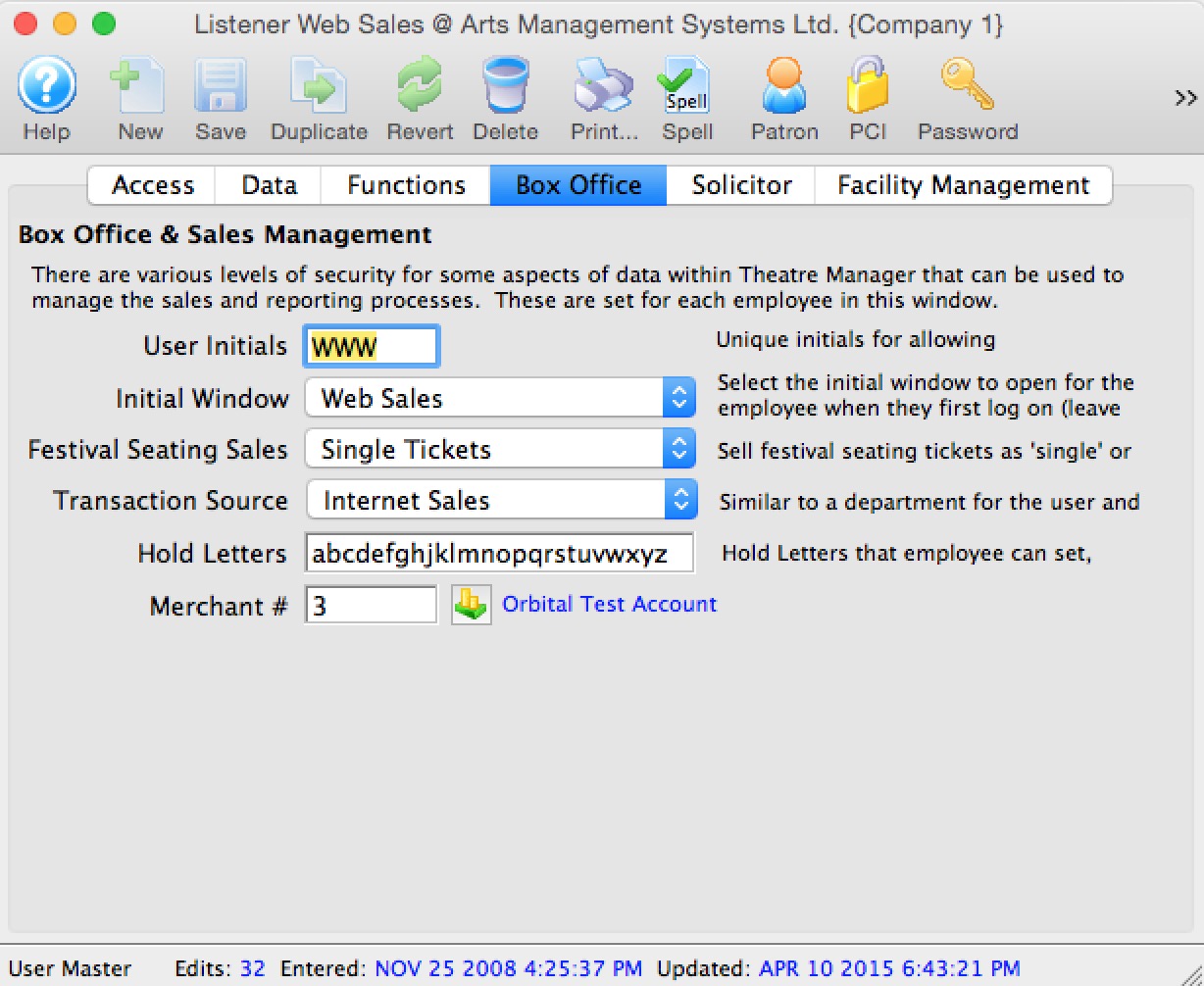
For more information about the Box Office tab, click here.
- Enter the information on the Solicitor tab.
For more information about the Solicitor tab, click here.
- Enter the information on the Facility Management tab.
For more information about the Facility Management tab, click here.
|
Sites set up with the Outlet Edition of Theatre Manager must have their Outlet Administrator perform employee setup functions. The Master User in the Outlet Edition is only intended for use in setting up the Outlet Administrator Employees. |
Copy Access from one Employee to another
When inserting a new employee record it may be decided the new employee should receive the exact same access levels to Theatre Manager as a pre-existing employee. If so, copy the access from the existing employee to the new employee. This is a time saving feature so access to data and function levels do not have to be hand-picked for each employee. This function is only used for employees who have Normal Access, as Master Users already have access to everything.
- Open the Employee List window.
Click here to learn how to access the Employee Data window.
- Select the Employee to copy the access to.
Single click on the employee line to select it.
- Click the Open button.
The Employee Data window opens.
- Click the Copy Access button.
The Employee List opens.
- Click the Search button.
These are the employees access can be copied from.
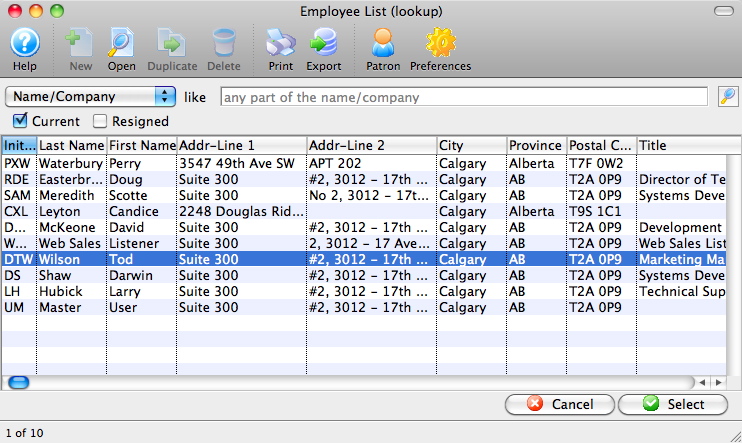
- Select the Employee to Copy Access from.
Single click on an employee to select them.
- Click the Select button.
This completes the process. The employee access has been copied.
Adding and Removing Access to Data
- Open the Employee Data window for the Employee.
For information on how to access the Employee Data window click here.
- Click the Data
 tab.
tab.
When a box is checked an employee has the selected access rights to that data. If the box is unchecked an employee does not have the unchecked level of access rights to the data.
For more information on the data tab click here.
- Click on the desired box next to the access level to change the status.
- Click the Save button.
Changes to the Data tab have now been saved.
Adding and Removing Access to Functions
- Open the Employee Data window for the Employee.
For information on how to access the Employee Data window click here.
- Click the Functions
 tab.
tab.
When a box is checked an employee has access to the function. If the box is unchecked an employee can not access the function.
- Click on the box next to the function to change the status.
- Click the Save button.
Changes to the Functions tab have now been saved.
Editing Employee Data
- Open the Employee List window.
Click here to learn how to access the Employee List window.
- Select the Employee to edit.
Single click on an employee to select them.
- Click the Open button.
The Employee window opens.
For more information on the Employee Data window click here.
- Change the employee data as needed.
- Click the Save button to save the changes.
Changing Access Levels
The access level on an employee effects the ability to log into Theatre Manager as well as the areas of Theatre Manager an employee will have access to. It is recommended the Master User employee have Master User access and the remaining employees have variations of Normal access.
- Open the Employee Data window for the Employee.
For information on how to access the Employee Data window click here.
- Click the Access
 tab.
tab.
The current level of access is seen under the Logon Level and is marked by a bullet.
For more information on the access tab click here.
- Click on the circle next to the logon level to change the status.
The options to choose from are No Access, Master User, Outlet Administrator and Normal. Descriptions of the logon levels can be found to the right of the logon levels. - Click the Save button.
Changes to the Access Level have now been saved.
Reinstating Employee Access
You will also need to do this when an Employee enters an incorrect password too many times, as Theatre Manager will lock the Employee out of the program. This is designed to prevent people from accessing the database who should not have access. Fortunately, restoring a user or an employee is quite simple. It also will restore their previous access rights.
Theatre Manager applies a resignation date to the Employee record and removes them from the login window.
|
This process will also work in cases where the Master User has been resigned/locked out. In that case, another Employee with Master User privileges can log in and complete the following process for the Master User account. We also highly recommend setting a primary email for the Master User on its patron account so that users can choose to have an email with the password sent to that email address, in cases where the password is lost or forgotten. |
- Login to Theatre Manager as a Master User or Outlet Administrator.
- Open the Employee List window.
Click here to learn how to access the Employee List window.
- Check the Resigned box in the upper left of the window.
- Search for the Employee.
- Click the Open button.
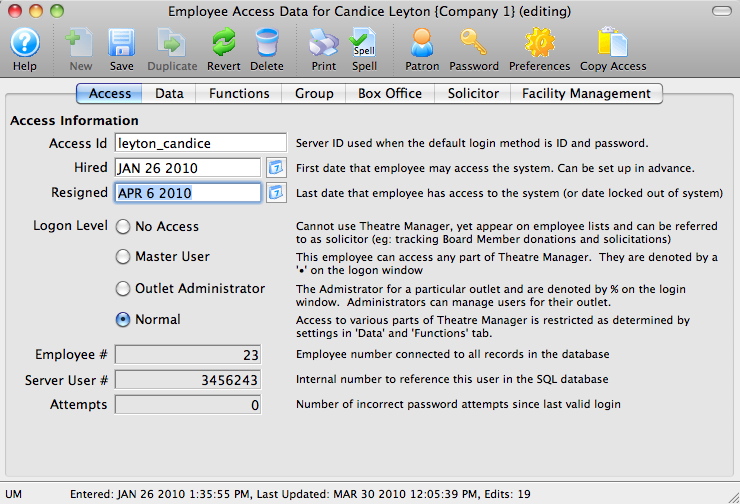
- Clear the Resigned date field.
- Click the Password button to set a password for the Employee.
- Close the Employee Access Data window.
The Employee now appears in the login window again. They will be able to access Theatre Manager using the password defined above.
- Have the Employee Login
Note: the employee will immediately need to change their password from the temporary one above. This is ti ensure PCI compliance so that only the employee knows their password.
Single click on the resigned Employee to select them.
Click here, for more informtion on setting passwords. You can use a temporary password of your choice because the employee will be required to change their password on first login.
|
In some very rare cases, there will be no other Employees with Master User access to complete the above steps. In those instances, please enable Remote Assistance on the database server machine and contact support@artsman.com with the login id/pw combination so we can reinstate access. |
Removing Employee Access
Because employees have important information tied to their accounts, such as transaction data, you cannot permanently delete them from the system. You can, however, remove their access. This removes them from the active employee list and prevents them from logging into Theatre Manager.
- Open the Employee List window.
Click here to learn how to access the Employee List window.
- Select the Employee.
- Click the Open button.
- Enter the resignation date.
Enter the last day the employee worked.
- Click the Save button.
The employee is removed from the active employee list and will no longer be able to login to Theatre Manager.
Setting Employee Passwords
An employee password can be set, changed or reset if forgotten.
- Log into Theatre Manager as a Master User or Outlet Administrator.
- Open the Employee List window.
Click here to learn how to access the Employee Data window.
- Search for the desired Employee.
Single click on the Employee to select them.
- Click the Open button at the top of the window.
The Employee Data window opens.
- Click the Password button.
The New Password window opens.
- Enter the password in the New Password field.
- Confirm the new password in the Retype Password field.
- Click the Accept button.
The new password is now set for the employee.
Employee Preferences Window
Parts of the Employee Preferences Window
| |
Opens the Theatre Manager online help. |
|
|
This button is not accessible because new employees must be added through the Patron Window. It is on the window for consistency. For more information on adding employees click here. |
|
|
Saves changes made to the employee preferences. |
 |
This button is not accessible because new employees must be added through the Patron Window. It is on the window for consistency. For more information on adding employees click here. |
| |
Reverts changes made to the employee preference back to the last saved point. |
| |
This button is not accessible because employees cannot be deleted. For more information on removing employees click here. |
|
Generates a report of the employee detail and access to the screen or default print location. |
|
Spell checks any fields that can by typed in. |
|
Opens the Password Window. For more information on the setting employee's passwords, click here. |
|
Ticketing and membership default search criteria. For more information on the patron tab click here. |
 |
Sales defaults for the employee. For more information on the box office tab click here. |
 |
Reporting preferences for the employee. For more information on the reports tab click here. |
 |
Spell check default settings. For more information on the spell checker tab click here. |
 |
Status bar location. For more information on the windows tab click here. |
 |
Email setup for the employee. For more information on the Email tab click here. |
 |
Facilities setup for the employee. For more information on the Facilities tab click here. |
Employee Prefs: Patron Tab
Parts of the Patron Tab
Patron Window Setting |
|
| Default Tab | You can choose which tab on the lower half of the patron window you want to land on when opening a patron window to suit your work flow best |
Default Ticket Search Criteria |
|
| Ticket Status | Choose the types of tickets to be displayed in the ticket tab. There are three choices: All Tickets, Printed Tickets, and Unprinted Tickets. If Printed Tickets was selected then all tickets displayed would be tickets that have already been printed, or marked as printed. |
| Year of Play | Choose the year of the tickets to be displayed in the ticket tab. There are 6 choices: The future year, the current year, previous year, two years prior, Current Year and All Years. If the current year was selected then all tickets displayed would be for events that take place in the current year. |
| Maximum Tickets | The maximum number of ticket to be displayed in the patron window when the patron record is loading. If a patron has more tickets than the number specified in this field, in this case 300, then a message will appear when you open that patron record informing you that 300 tickets have been found would you like to add 300 more. Clicking yes will display another 300 tickets, if there are that many more. If there are less then 300 it will just display the remainder of the tickets. By clicking no, then only the first 300 tickets will be displayed. |
Default Pass /G.C. Search Criteria |
|
| Status | Choose the types of membership to be displayed in the membership tab. There are three choices: All Memberships, Invalid, and Valid. If Valid was selected then all memberships displayed would be active and not yet expired. |
| Year | Choose the year of the memberships to be displayed in the membership tab. There are 6 choices: The future year, the current year, previous year, two years prior, Current Year and All Years. If the current year was selected then all memberships for the current year would be displayed. | Default Task Settings |
| Task Type | Select which task you would like as your default when creating a new one |
| Completion Status | Indicate if you would like new tasks set to 'Not Done', 'In Progress', or 'Done' |
| Access | The default access to be set on a task when creating new tasks |
| Duration | how long should your default task be? Durations are set in text format so that you can express many things. eg:
|
Default Quick Find Sort Order |
|
| Find a Maximum of | Determines the maximum number of values displayed in each of the categories you wish Theatre Manager to search for the quick find. |
| Search in |
Allows the employee to choose what values are shown when using Quick Find, and in what order they are displayed (drag and drop the listings to change their sort order).
 |
Employee Prefs: Box Office
Parts of the Box Office Tab
| Quick Buy Patron | This field requires a valid patron number. The patron number entered should be for a patron who was specifically set up to act as a quick buy / before event sales patron. A quick buy / before event sales patron is a dummy patron account (not a real person), and because the patron is set in user preferences each user can have their own Quick Buy / Before Event Sales Patron. | ||
Show Ticket Prices (when selling) |
|||
| Base Price + Tax + Fee | Ticket price is displayed as the base price plus tax any any fees associated with the sales promotion. | ||
| Base Price + Tax | Ticket price is displayed as the base price plus tax. | ||
| Base Price + Fees | Ticket price is displayed as the base price plus fees associated with the sales promotion. | ||
| Base Price Only | Ticket price is displayed as the base price only. | ||
Display Following Data In List |
|||
| Closed orders | Fully paid orders will be displayed. | ||
| Closed and deposited payments | Payments for fully paid orders will be displayed. | ||
Default Sales Mode |
|||
| Sale | Purchases are recognized as an accounts receivable at the time of purchase. If payment is made the accounts receivable is cleared. If no payment is made the tickets remain on account until payment is received. | ||
| Reservation | Purchase is not recognized as an accounts receivable until the first payment or donation is received. This will only take effect if permitted in accounting setup in company preferences and is not a recommended practice. | ||
Managing the Sale |
|||
| Single Tickets | Festival seating tickets are issued as one ticket per admission. | ||
| Group Tickets | Festival seating tickets are issues as one ticket per event (i.e. one ticket may be good for 10 admissions). This is intended for group sales like bus tours, school performances etc. where the size of the group will vary as the tour operator/teacher firms up their numbers.
|
||
| Default number of days to hold Seats | Default number of days a patron seat request will be held for an event. | ||
| Number of hours to check carts for incomplete sales | Number of hours that must pass before notification of any checked out - but incomplete - carts that might present an issue and need some action. These carts can be seen in the Shopping Cart list. | ||
| Display credit card authorization number | Credit card authorization number is displayed in the payment window before completing a sale. | ||
| Email PDF confirmation of sale to patron | Indicates that the Employee PREFERS to email a PDF copy of the sale confirmation to the patron for a box office or phone order. If this is:
|
Cash Drawer Port | If using an electronic cash drawer, the port on which it communicates. There are some prerequisites for using the cash drawer as it is older style technology:
|
| Delay /60 Sec | The amount of seconds of delay before the cash drawer opens. | ||
Employee Prefs: Reports Tab
Parts of the Reports Tab
Reporting Options |
|
| Show Page Setup for each report | When checked the user will always be given the opportunity to change the page orientation and paper size before printing a report even if the default destination is to the screen.
|
| Show Report Window As Steps | Changes the criteria window to a series of Next/Previous windows rather then tabs. This assists infrequent users in entering relevant information. |
| Show Saved Criteria Options | When unchecked, will remove the Save Criteria buttons to reduce the number of buttons in the criteria window for simplicity. |
| Show Report in 'Page Preview' Mode | When checked, reports on screen are displayed is actual view with the paper outline.
Note: this is the now the default for 64 bit Theatre Manager and cannot be disabled. The reports also show thunmbnails and you can zoom in using the context menu. |
| Enable Background Report Generation | When checked, reports can be sent to a background queue where they will run on a TM server instead of your workstation. It means you can have multiple reports running simultaneously and view them using the Queue button on the report window. |
| Default Criteria Filter Level | Can change the default criteria filter level to make choosing fields for search criteria more simple. Options are: All, Frequently Used and Essential. |
| Default Destination | A drop down list allowing users to specify the default print location. There are five options: Clipboard, File, Page Preview, Printer, Screen. |
 |
Removes, clears, resets any of the saved report criteria and report export settings. |
Employee Prefs: Spell Checker
Parts of the Spell Checker Tab
Ignore Options | |
| Ignore capitalized words | Ignores capitalized words found in mid sentence. An example may be a day of the week or a country. |
| Ignore all-caps words | Ignores words completely capitalized. An example may be a radio station or acronym. |
|
Ignore words with numbers |
Ignores words that contain both letters and numbers. An example may be an event code. |
| Ignore words with mixed case | Ignores mixed case words. An example may be ArtsMan. |
| Ignore domain names | Ignores domain names for email or web sites. Often domain names are a combination of words that run together. An example would be artsman.com |
Suggest / Report Options |
|
| Report doubled words | Detects same words typed side by side. An example would be the the. |
| Case sensitive | Locates words that should be capitalized but are not. An example would be canada. |
| Phonetic suggestions | Displays word suggestions that sound like the miss spelt word. Either phonetic suggestions or typographical suggestions must be selected in order for spell check to provide suggestions. |
| Typographical suggestions | Displays word suggestions that appear similar to the miss spelt word. Either phonetic suggestions or typographical suggestions must be selected in order for spell check to provide suggestions. |
| Suggest split words | Displays suggestions for words that appear to run together. |
| Auto correct | Detects words within the selected dictionary marked as Auto Change and correct them without prompting. An example may be teh changing to the. |
Language |
Select a language to spell check in. Choices are American English, British English, Dutch, French, German, Italian, and Spanish. |
Accuracy |
|
| Fast but less accurate | A fast scan of the source document which may provide less accurate spell check results. |
| Moderately fast and accurate | A quick scan of the source document which moderate accuracy. |
| Slow but very accurate | A slow, accurate scan of the source document. |
Dictionaries and Glossary |
|
 |
When ignore all is selected during spell check the words are stored for future reference. Clear ignores removes these words from the stored reference. |
 |
Edit the spell check dictionary. Exclude, Ignore, Conditionally Changes and Auto Changes can be adjusted in the dictionary. |
| Abbreviations |
 enter any short forms and what you would like them expanded to. These short forms work in most fields and can be used to quickly replace the text you type with a more prosaic version.
There are some standard (built in) short forms like:
so you could type a short form like xNow NSF and it would expand to 2019-08-20 6:28 am Not So Fast using both the standard abbreviation and one you created for yourself. |
Employee Prefs: Windows Tab
Parts of the Windows Tab
Main Toolbar Settings |
Settings for main Theatre Manager toolbar. |
| Icon Size | Choice between Small and Large icons. |
| Text Position | Can either have no text or text showing below icons. |
| Menu Position | Where you would like the menu positioned on the screen: None, Top, Bottom, Left, Right, Floating |
Window Tooltips |
|
| Display tooltips on windows and buttons | Displays tips on windows and buttons when the mouse is hovered over top of the window or button |
| Display tooltips on a theatre map | Displays seat information when mouse is hovered over top of seat on a theatre map |
| Reset Window Positions |
 This will reset all window positions and other column and sort settings back to the default when clicked. Optionally, if you are a master user, you can reset for all user. Otherwise, only your settings are cleared.
The steps are:
|
Notifications and Badges |
|
| Display some messages in notification centre | Displays some alerts in the notification centre on your Macintosh (no Windows equivalent as of yet) |
| # Days to show update messages |
You can set the number of days that update notices will show in the daily notification window on startup of TM. This can be useful if you've been away and want to see auto-updates or manually installed updates. Clicking on a row in the notification window will let you click 'explain' to see the release notes.
Set this number to zero if you do not want any notifications than an update occurred. |
Preferred Toolbar Icon Settings |
|
| Icon Size | Choice between Small and Large icons. |
| Text Position | Can either have no text or text showing below icons. |
Windows Status Bar Position |
|
| Position | Where you would like Theatre Manager status bar positioned. This status bar displays information and any errors you may receive. Options are: Bottom, Top, or Operating System Default |
Windows Theme |
|
| Theme |  You can set the general colour theme of Theatre Manager which affects every window, instantly. Choose the theme from the drop down. Using default sets it back to the Theatre Manager default for the platform.
Note: a new walk-around install of Theatre Manager on your machine may automatically reset the theme to default. This is an example of the window using the green theme.
|
Language/Locale Settings |
|
| Language Preference | Sets default Language, Date and Time. Click on the drop down bar to select a language - Deutsch, English, Espanol, Francais or Italiano. |
| Date Display | Click on the calendar icon to set the default date. A popup window will provide a listing date formats from which to chose. |
| Time Display | Click on the clock icon to set the default time. A popup window will provide a listing time formats from which to chose. |
Employee Prefs: Email Tab
Parts of the Email Tab
Email Setup | |
| Primary E-Mail | Automatically generated from the primary email as set up on the employee's patron record. |
| SMTP Server | The company's SMTP server to send emails to/from this employee. |
| SMTP Port | Usually 25 - the port used to talk to the SMTP server for email sending to/from the web listener for this employee. |
| User Id | In cases where authentication is necessary, the employee's email user id login for the SMTP server. |
| Password | In cases where authentication is necessary, the employee's password for their user id for the SMTP server. |
| Rate Limited Until | If the field is visible, you will see a rate-limit timestamp. This indicates the next time that TM will attempt to send an email using this account since it believes you have reached your maximum allowable email limit as determined by your ISP. |
| Needs Authentication box | Check this box if authentication is required to access the SMTP server. Encryption methods of NONE, LOGIN, PLAIN, CLEARTEXT, and CRAM-MD5 are supported. |
| Use SMTPS box | Check this box if the SMTP server requires SMTPS for connection. TLS/StartTLS are supported automatically. |
 |
Click the Test Email button to send a test email using the SMTP settings as entered. |
Employee Prefs: Facility Tab
In the Facilities tab of Employee Preferences you can effect users abilities to edit calendar items and tasks.
Parts of the Facility Tab
| Unassigned Activity Patron | Enter a default unassigned activity patron here as a placeholder for personnel assigned to specific project tasks to be used while those personnel are still being set up. The purpose of this patron is so that you can assign placeholders for tasks in the Facility Management module. When Theatre Manager assigns a placeholder patron, it needs to know who that patron is - so by adding it to the Employee Preferences file, Theatre Manager connects the generic patron to the placeholder.
This way, you can have a task that requires 5 people, but not yet know who those 5 people are. You can add 5 generic patrons to the task, then replace them with real patrons when you are ready. It is also used in the volunteer/personnel tab in events and dates to bulk set up the people needed to work a performance. If you are receiving the message: "Personnel placeholding will be disabled until valid Unassigned Activity Patron # entered." then you will need to add a generic patron to this cell. |
| Others who can edit my tasks | Here you can assign delegates who can edit your calendar task information. This prevents others from changing your tasks by supplying a list. Use the green plus and red minus buttons at the bottom left of the table to add or remove patrons from this list. |
Work Flow Notification - Introduction
|
You must have purchased the Web Sales Module in order to use Work Flow Notifications. |
Work Flow Notifications enable you to take common situations and have messages emailed to you.
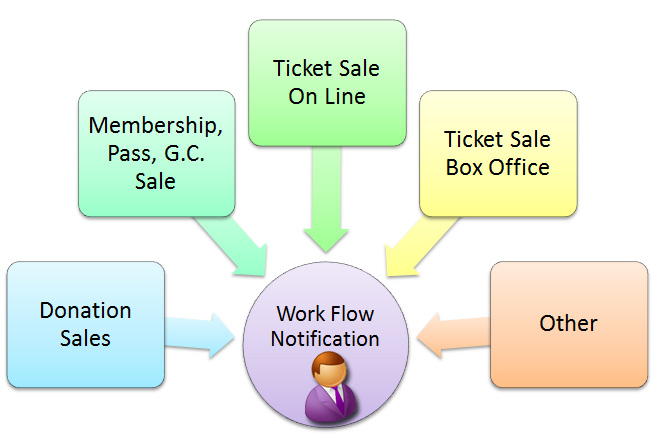
Common notifications, such as, donation sales or membership sales, can be assigned on a per campaign or membership basis. They are assigned in the setup of each:
|
Notifications are only created/sent when the actual transaction record is created.
Note: Notifications from web sales are deferred. They will actually be sent:
|
There are four steps to creating a workflow notification:
- Step 1 - Write the form letter.
For example - New Donation Notification using the Donation Data for a Patron Data.
- Click here to follow the steps on creating a form letter.
- Step 2 - Set up the Code table for that workflow notification.
For example - Donation Received.
- Check your Workflow Notifications code table to ensure the type of notification you are creating is there.
The code table entry should reflect the same types of categories available for selection as you choose for Data when you create your form letter.
- Check your Workflow Notifications code table to ensure the type of notification you are creating is there.
- Step 3 - Create the Workflow Notification & Assign Recipients.
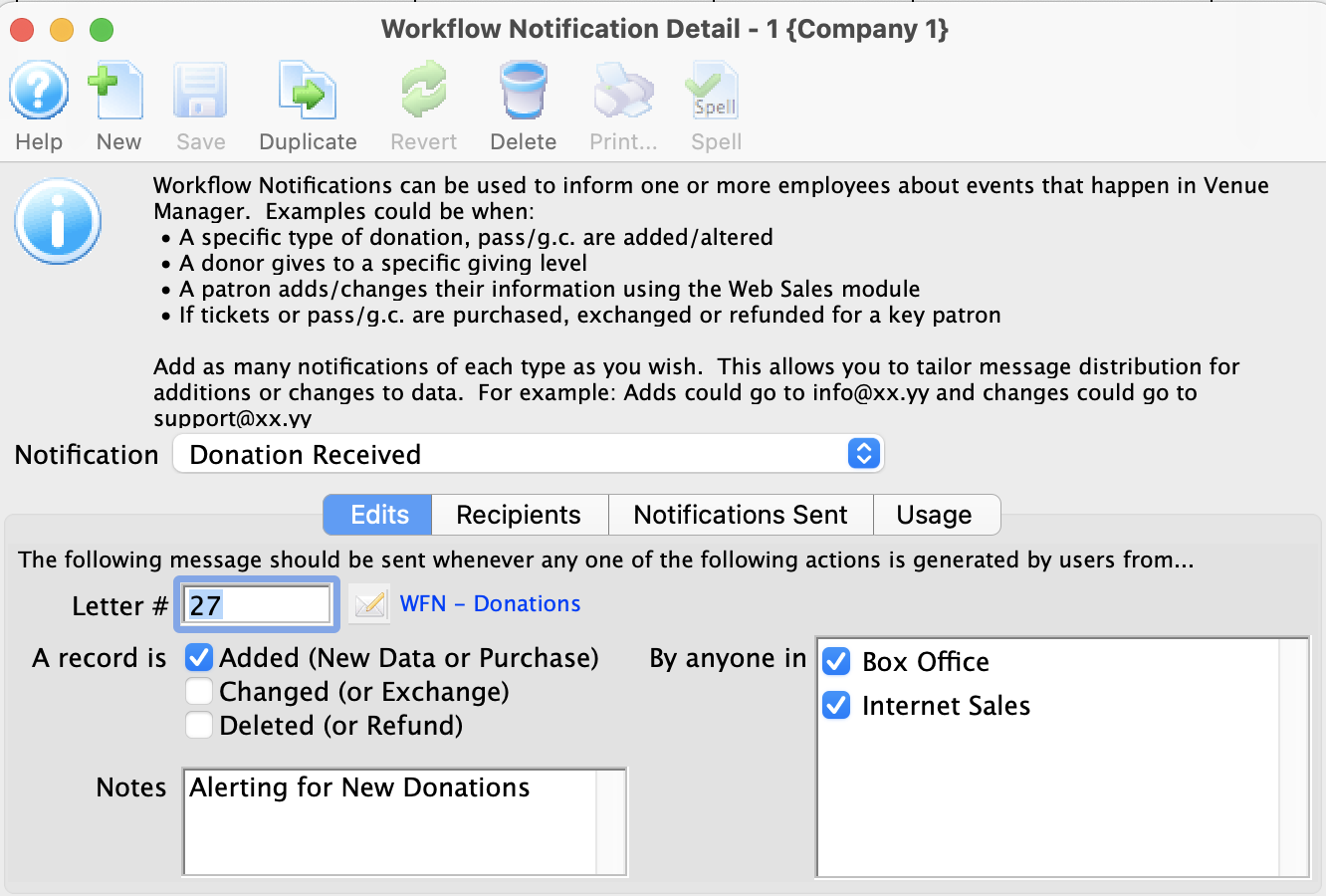
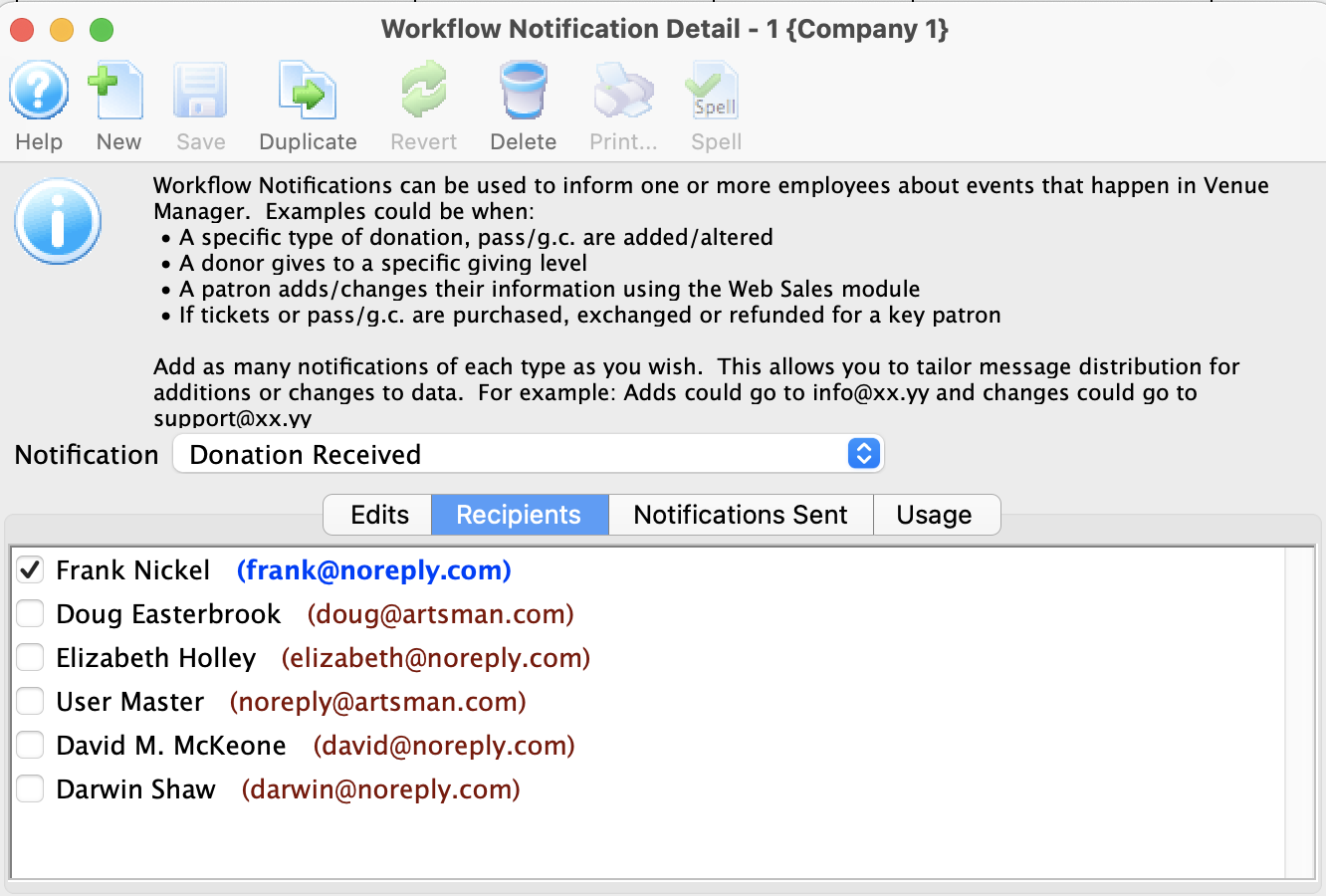
- Click here for the steps on creating a workflow notification.
- Step 4 - The transaction that triggers the notification.
For example - a patron makes a donation. The workflow notification will be sent to the email addresses selected in Step 3.
Work Flow notifications are accessed by clicking Setup >> Users and Access >> Work Flow Notification.
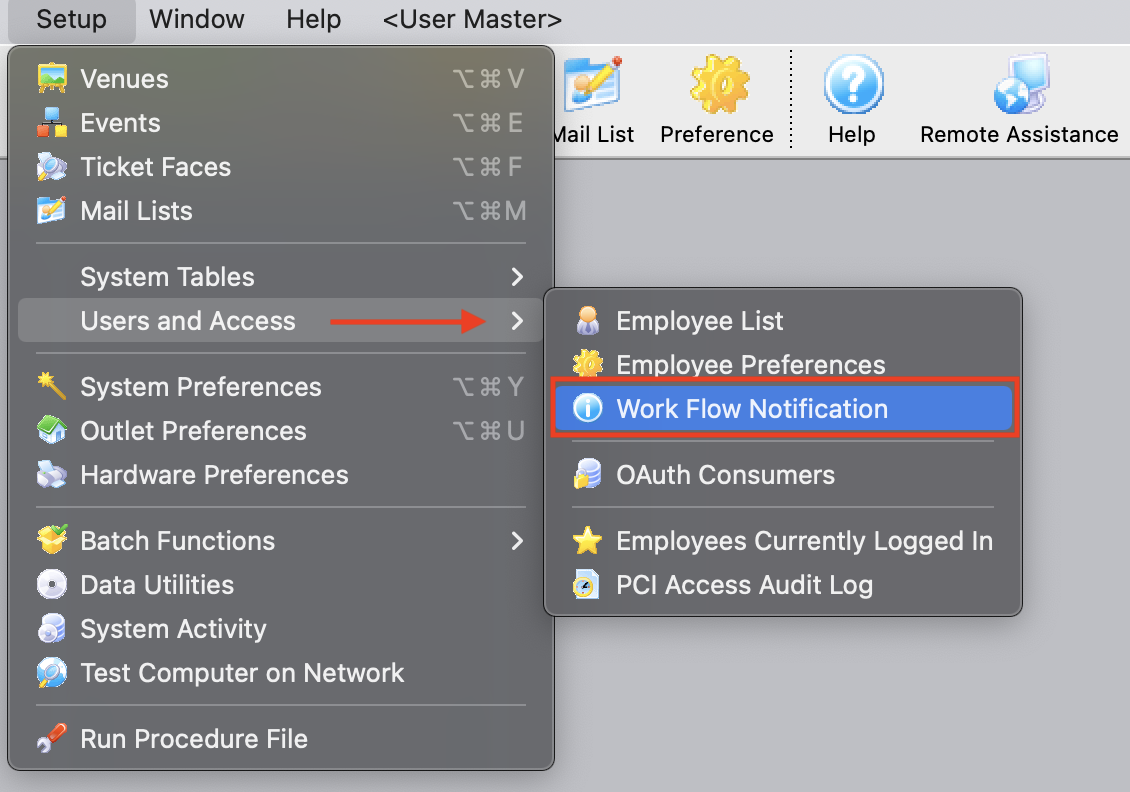
The Work Flow Notification list window opens.
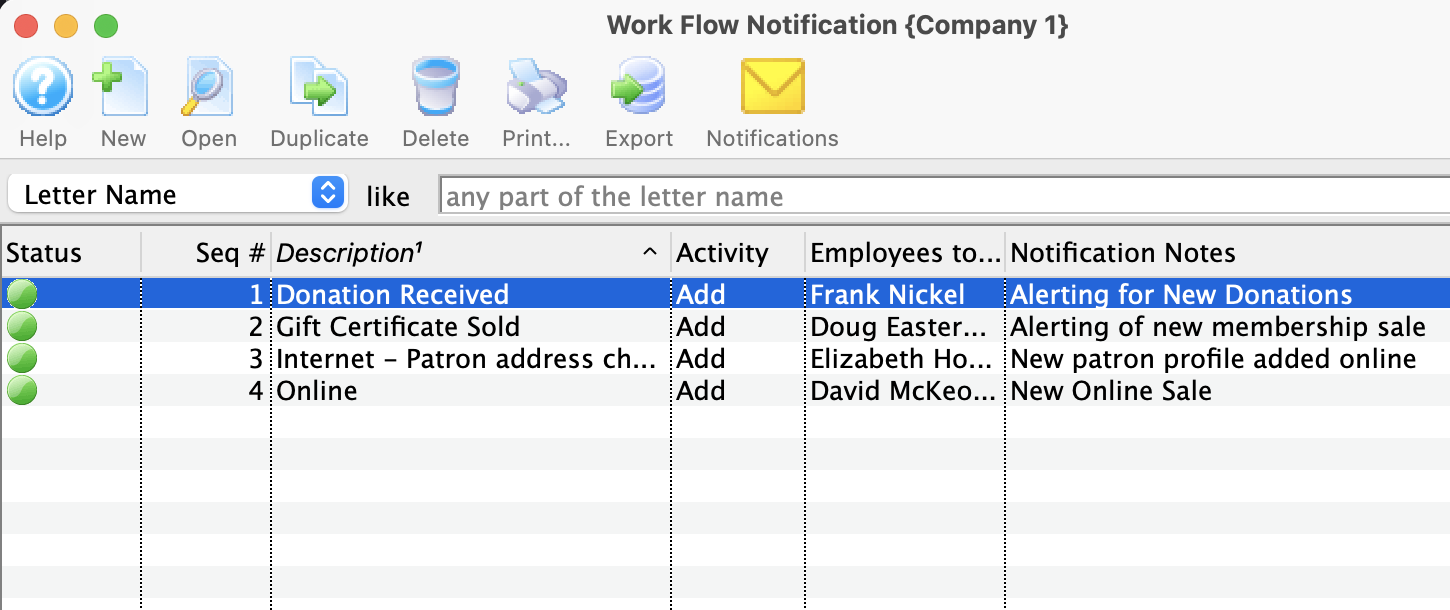
Creating a Notification
|
You must have purchased the Web Sales Module to use Work Flow Notifications. |
Using Work Flow Notifications, you cab take common situations, such as donations being sold or changed, or patrons creating records via the internet, and send notification emails to certain employees who will be responsible for tracking changes to the database.
To create a new workflow notification, you perform the following steps:- Open the Work Flow Notification by choosing Setup >> Users and Access >> Work Flow Notification.
The Workflow notification list window opens.
- Click the New
- Select the Notification Type from the drop down list.
These Notifications are defined in the system table Workflow Notifications. Click here for more information on adding new notification types in code tables. They must exist first before you can use it here.
- Select an Form Letter to use for this notification by clicking the Letter Search button
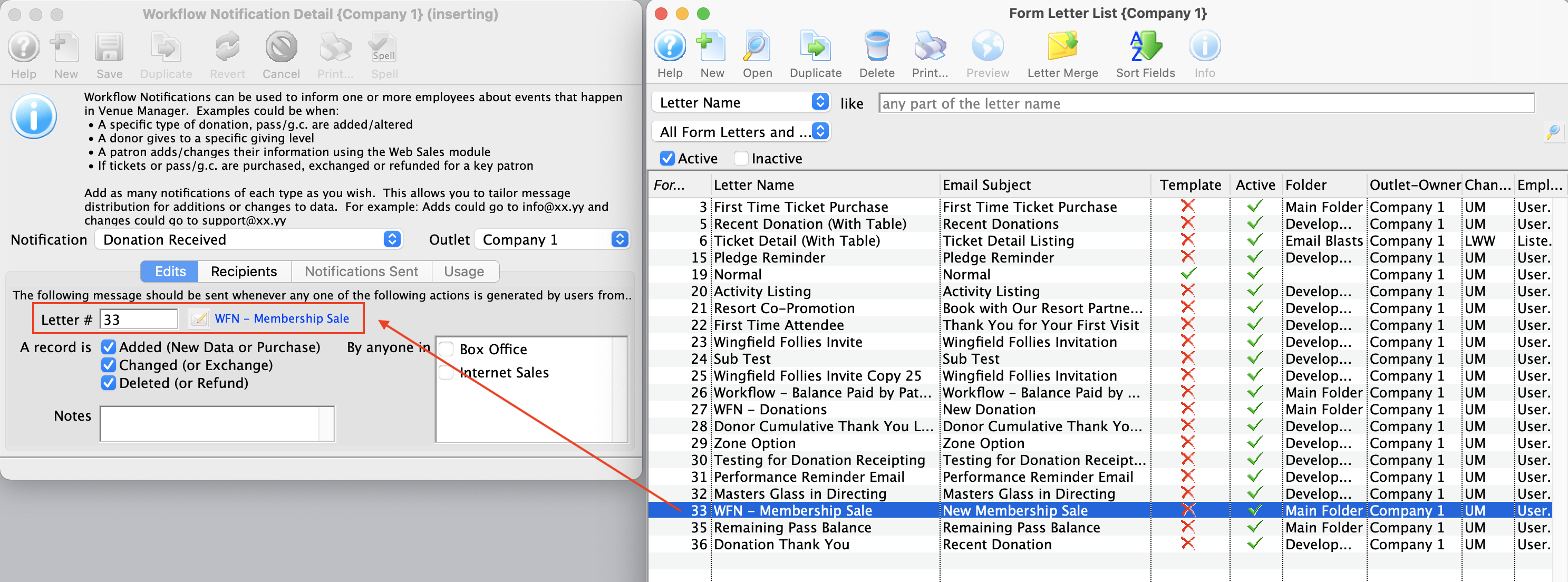
For more information about Form Letters, click here.
- Select the Form Letter that corresponds to the notification that you are setting up.
- Click the Select button.
The Letter/email is now attached to the Notification.
- Enable the appropriate check boxes so the notification is sent when the event is added, changed or deleted.
These options allow you to set up and send emails to different employees for different situations. For example, not all employees will need to be notified if a donation is changed, but more will be on the list for donations being added.
- Enter notes to describe what this notification is used for.
- Choose if the notification will be sent for Box Office, Internet Sales, or both.
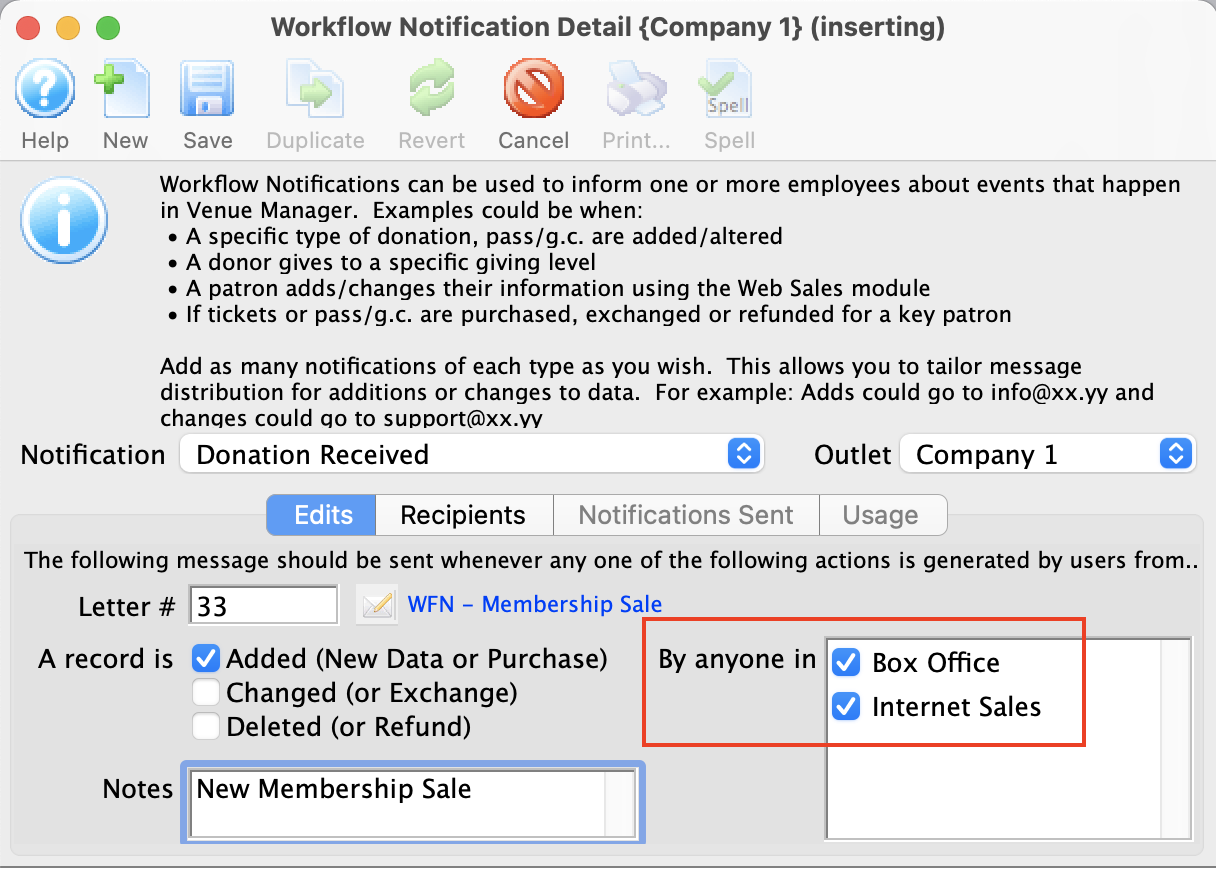
- Click the Recipients tab
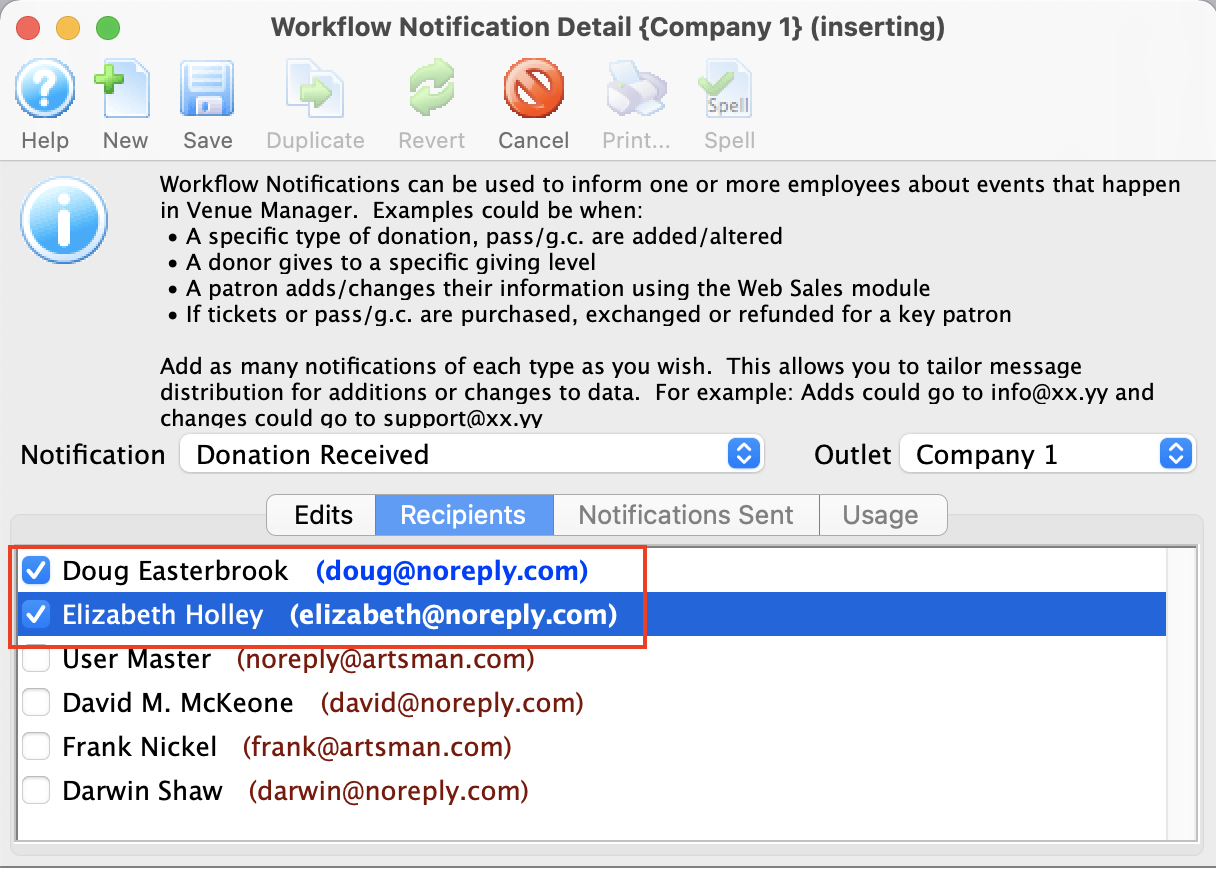
- Choose the employees to receive this notification.
If an employee does not have an email address, you will need to enter one for them to be added to a notification. Click here for Employee Setup.
- Click the Save button.
You should now check your notifications are being sent.
To test the notification, set a ticket sale notification to be triggered only at the Box Office. Then sell the ticket/membership in the Box Office, and lastly check your inbox. The notification should be sent by the system within 30 seconds.
If the notification is for online sales only, you have one more step to check. Web transactions will trigger the notification as soon as the online sale or donation has finished the checkout.
|
If the notification is not in the INBOX -- check your junk mail box. |
Editing a Notification
- To Access Work Flow Notification Setup, go into the Setup Menu - Users and Access - Work Flow Notification
This will open the list of all notifications that are setup in your system.
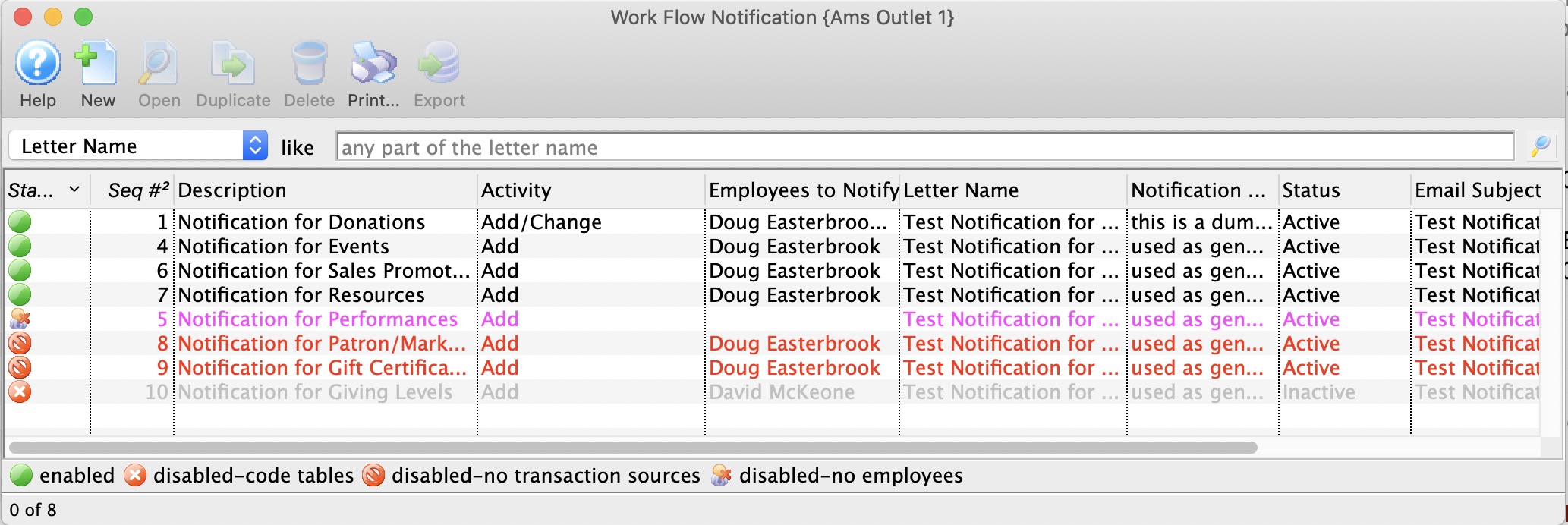
- Double click on the notification you wish to edit.
- Edit any of the fields as required.
- Click the Save button.
Deleting a Notification
- To Access Work Flow Notification Setup in order to delete a notification that is no longer necessary, go into the Setup Menu - Users and Access - Work Flow Notification
This will open the list of all notifications that are setup in your system.
- Highlight the notification you wish to delete.
- Click the Delete button.
The Delete Record confirmation window will appear.
- Click the Delete button.
The notification is now deleted.
Employees Currently Logged In
Occasionally someone may get a message that they are already logged in at another computer and this list will identify the IP address of that computer if you need to know it.
The Employees Currently Logged In monitor is accessed via the Setup >> Users and Access >> Employees Currently Logged In menu.
|
If you really want to kill a session:
|
Parts of the Employees Logged In window
 |
Prints the current record. |
 |
Exports the log file in a tab or comma delimited file. |
| Remove Inactive Sessions | This will look for any sessions for any users that have been inactive for 15 minutes or more and send a terminate command to the database to kill their sessions. This should only be used if people seem to be logged in more than once and they are not. |
| Pid | Process ID.This is the process ID assigned to the employee connection to the PostgreSQL database. If a user account becomes stuck in Theatre Manager, AMS Support personnel can remote in to the server and free the User based on the PID. This can also be used if a User is running an unusually large database query and uses up too much of the CPU resources. The PID can be used to stop the query and free the CPU resources back up again. |
| User Name | The Access ID of the User who is logged on. This value is defined in the Employee record. |
| Application | The application the User is logged into. Since this is provided by pg_Admin, the application will always be Theatre Manager. |
| IP Address | The IP address of the machine where the User is logged on from. This is useful to monitor not only what users are logged in, but to which specific workstation. |
| Port | The internal port that the User is currently using to access the database. |
| Query Start | When pg_Admin was last checked for activity status from this User. |
| Waiting | Indicates if the User is waiting for access to the database. |
| Current Query | The code line in pg_Admin used to monitor the log in status of the User. |
TLS connection status (if using Postgres 9.5 or later) |
|
| TLS | Yes, if client is using encrypted connection to the database |
| Version | The version of TLS (encryption being used. |
| Cipher Suite | The encryption/cipher suite being used for the connection |
| bits | the strength of the encryption |
Disable Access to Theatre Manager
The Disable Access function allows you to set a time to force users to log off Theatre Manager in order to perform scheduled maintenance and other functions that require exclusive use of the database. Theatre Manager will deny users access to the database until the pre-determined time in this window.
A Master User can always log on to the database to reset the values in this window, regardless of whether Theatre Manager is currently unavailable to other users.
The Disable Access function is accessed via the Setup >> Users and Access >> Disable Access menu.
Parts of the Disable Access window
| Timed Logoff | Sets an immediate logoff in a specified number of minutes. For example, if you want to force all users off in 10 minutes, then enter the value "10" and click the Deny Login button. Theatre Manager will log all users off in 10 minutes. |
| Date Time Logoff | Sets a future date time during which all users will be logged off, and no users will be allowed access. This is useful if the IT department is planning a machine or systems upgrade during a specified time. |
| Message | Allows setting of a message to display to all users of an impending planned outage. This message uses Theatre Manager's Growl notification system. |
 |
Displays a list of users who are currently logged in. |
 |
Activates the outage as defined in the top portion of this window. |
 |
Cancels the planned outage, and allows users to log in normally. |
Canceling a Disable Use of Theatre Manager session
If you need to cancel a Disable Use of Theatre Manager session because the planned maintenance took less time than was originally scheduled, you can easily do so by "Allowing Login" once again.
- Log on to Theatre Manager as a Master User
- Open the Disable Access function, located via the Setup >> Users and Access >> Disable Access menu.
- Click the button.
For more about the Disable Access function click here.
PCI Access Audit Log
 |
PCI DSS compliance section 10.5 requires centralization of Logs in a common log management process. The intent from the PCI council is that you could view access to login/out and card data in TM along with firewall access changes, admin access to a machine or server in a consolidated view.
You can export the logs from TM in Excel or tab delimited format and move them to your centralized logging mechanism. |
The Access Audit Log is a critical part of PCI Compliance. It provides a method of electronically tracking when users
- Log in to the database
- Log out of the database
- Made too many attempts to log into the database and were subsequently locked out
- Access credit card data
- Use Manager overrides for payment acceptance
- Ran specific payment reports containing secure data
- TM creates audit transactions with the codes AT, ALI, ALO, ALX, ALM, and AC. When you run a report, look for these codes to identify audit transactions.
- And access other sensitive areas of the database
Specifically, the Access Audit Log establishes a process for linking all access to system components to each individual user – especially access done with administrative privileges. It allows you to track and monitor all access to network resources and cardholder data as per PCI requirments.
For more on PCI Compliance click here.
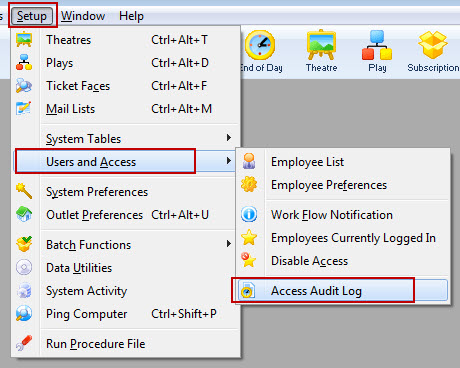
The Access Audit log is located under the Setup >> Users & Access >>Access Audit Log menu.
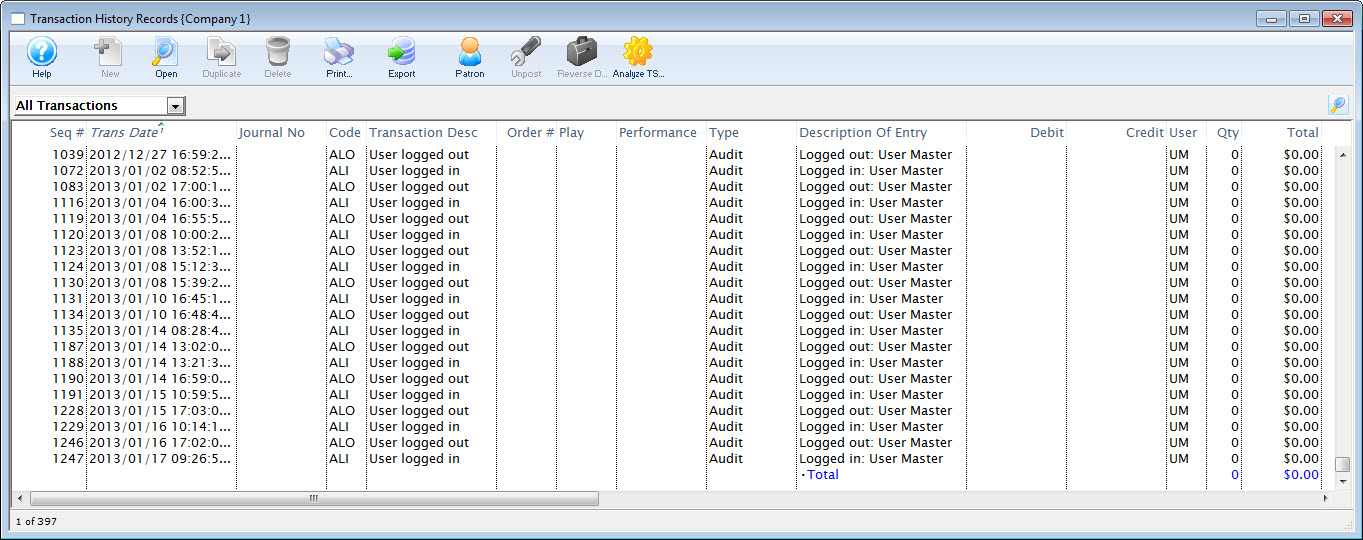
Access Audit Window
Parts of the Access Audit Window
|
Opens the selected transaction to view details. You may also simply double click on the transaction in the list. |
|
Prints the list as shown. |
|
Exports the list. |
|
Displays the patron record to whom the transaction is attached. |
| Seq # | The Sequence number of the transaction. |
| Trans Date | The date and time of the transaction. |
| Journal # | If the transaction affected the General Journal, the Journal number that was affected. |
| Code | The transaction code used to identify the specific transaction. TM creates audit transactions with the codes AT, ALI, ALO, ALX, ALM, and AC. When you run a report, look for these codes to identify audit transactions. |
| Transaction Description | A translated description of the transaction code. |
| Order # | If the transaction affected a specific Order, the order number willbe listed here. |
| Play | If the transaction affected a specific play, the play code will be listed here. |
| Performance | If the transaction affected a specific performance, the performance code will be listed here. |
| Type | Whether the transaction is auditable. |
| Description of Entry | A more detailed listing of the transaction, including the User name who affected the transaction. |
Transaction Detail Window

Parts of the Transaction Detail Window
|
Displays the patron record to whom the transaction is attached. |
| General Information | Displays the
|
| Transaction Detail | Displays
|
Audit Search Options
There are many options for you to search for specific transactions. Using the drop-down list in the upper left corner, simply choose the criteria you wish to search by.
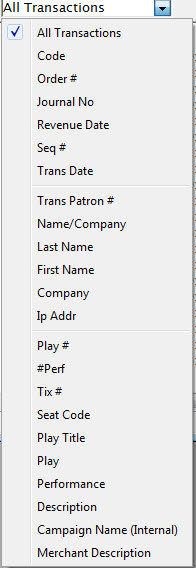
Options for searching the Transaction List
| All Transactions | Displays all transactions. Click on any column header to sort by that column. |
| Code | The specific Transaction Code |
| Order # | A specific order number. This may be helpful when diagnosing ledger transactions. |
| Journal # | A specific General Journal number. This may be helpful when diagnosing ledger transactions. |
| Revenue Date | A specific date of revenue. This may be helpful when diagnosing ledger transactions. |
| Seq # | A specific Sequence number. This may be helpful when diagnosing ledger transactions. |
| Trans Date | A specific transaction date. This may be helpful when examining a specific day or range of days. |
| Play #, #Perf, Tix #, Seat Code | Use these to examine transactions based around a specific event. |
| Trans Patron #, Name/Company, Last Name, First Name, Company | Use these to search for transactions generated by a specific patron record. |
| Play Title, Play, Performance | Use these to search for transactions generated by a specific event. |
| Description, Campaign Name | These will search for transactions generated by a specific donation campaign. |
| Merchant #, GL# | These may be helpful when diagnosing ledger transactions. |
System Preferences
System Preferences are used to manage how Theatre Manager behaves for all outlets in the database. (This also applies if there is only one outlet). The items that can be changed generally have to do with system maintenance, overall appearance and general behaviour that all users will experience.
Click on a link to the left to view the details of each tab in this window.
The System Preferences Window is accessed through the Setup >> System Preferences Menu.
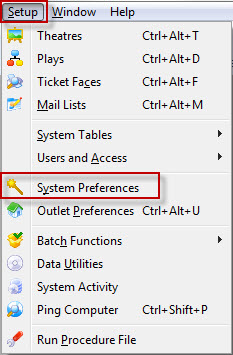
The System Preferences Window opens.
Licence Tab
Software License Profile |
|
 |
Allows for the entry of a license upgrade. For more information on entering license upgrades click here. |
| Software Features | This is a list of all the possible features that Theatre Manager offers. The features that have check marks beside them are the features that the company currently has access to. In order to receive additional features that the Theatre Manager has to offer the organization must purchase a license upgrade. |
Training Database Settings |
|
| This is a Training Database |
 A venue can set up a database in training mode for use in staff development. This feature should only be used on a copy of a database to flag to Theatre Manager that it will be used in training mode. When a database is set to Training:
|
| Send Emails in Training Mode | If Web Services (a TM server with a housekeeper) is set up for the training database, you can indicate if the web listeners should send out emails as part of the test process. |
| DB User Suffix |
If you have multiple databases on your server, you should enter a unique database marker for each one. This is appended to the employee ID's in the background so that they are unique per database. We recommend:
|
Licence Upgrades
Once a company has purchased a license upgrade the new Customer and License numbers need to be entered to activate the additional features of Theatre Manager.
- Open Setup >> System Preferences
- Click the Purchase License Upgrade
 button.
The Customer and License Number Window will open.
- Enter new customer number.
- Enter new license number.
- Click the Accept
 button.
Theatre Manager will now automatically restart to activate the new features.
PCI Security Tab
Employee Access Management
| Logon Window Setting | Offers the option to have Employees login:
|
| Minimum Length | Sets the minimum length of logon passwords. For PCI compliance, the minimum length is 7 characters. |
| Unique Passwords | The number of unique passwords required by the system. If set to zero, then passwords are not required to be unique. If set to 2, then the same password may be shared by two employees. If set to 3, then the same password may be shared by three employees. |
| Days til Change Allowed | The minimum number of days that a password must be used before it is allowed to be changed. |
| Days until Expiry | The maximum number of days that a password may be used. For PCI compliance, this must not exceed 90 days. |
| Attempts til Lockout | This determines how many incorrect attempts an employee may make before Theatre Manager will lock them out of the system and must be manually re-instated. |
| IP addresses that can accept cards | PCI documentation indicates that any machine that touches credit card information becomes within scope of PCI compliance requirements. If you identify which machines process credit cards (such as box office), then other machines on the network that are used for reporting, management, etc, can be taken out of scope for PCI compliance.
To do so, you can indicate a white-list specific machines or subnet of machines that will process cards by:
|
 |
Clicking this button changes options to the current PCI Standards for employee passwords and logon attempts. |
Patron Access Management
| Patron Password Complexity |
You can set the required complexity of patron passwords in Theatre Manager to two levels:
|
Credit Card Management
Theatre Manager can implement either Schedule "A-EP", "C" or "D" for the Self-Assessment Questionnaire (SAQ) - the choice is yours and is dependant on the merchant processor you've selected.
You can define a retention period for credit card information before it is 'shredded' per PCI DSS standard 3.1
|
Note: Users find ways to type credit card into note fields, more so when using Schedule 'C' compliance because the credit card storage capability has been disabled.
You can use a feature in the Patron List window to search and identify data that could be construed as clear text credit cards attached to patrons. That kind of data would be in violation of PCI guidelines. |
|
A shredded card means that it will be stored in the database as '#### **** **** ####'. This renders the PAN useless for all purposes. However, given the first 4 and last 4 digits of any card, you can still search for the patron. |
|
Converting from schedule D to Schedule C compliance will shred all cards currently in the database EXCEPT those set up for future post dated payments. Since that business already exists, those few cards will remain until the final post date payment is take for the patron. At that time, the card will be shredded immediately. This prevents disruption of existing commitments to patrons.
Generally, if you want to take post dated payments and retain the minimum card data in the database, use Schedule D with one day retention. |
| Schedule C: Shred cards immediately after use | Using an online payment gateway and the Schedule "C" setting means that cards will not be stored in the database. The PAN is sent to the processor to get the authorization code and token from the merchant provider. Those are stored in TM (not the card itself) and the merchant token is what is used for voiding cards. It puts the workstation in scope of a PCI device, but not the database. |
| Schedule D: Encrypted credit card data | Schedule "D" compliance with about 120 days of retention is sufficient for most venues, especially if you are using post dated payments or may have to deal with refunds for cancelled events. |
| Retention Period | The number of days credit card information will be retained before it is shredded in a Schedule D environment. Normally 90 days will handle most business cases, and the recommended maximum is 365 days. If you set it to one day, then all cards are shredded right away, except those that are saved for post dated payments. |
| Schedule D: Post Dated Payments | This option allows storage of encrypted cards for post dated or recurring payments only. Once the last payment is authorized, the card is shredded. It effectively, is the same as the above option with 1 day retention, except that it is far more restrictive in when Theatre Manager will try to make a stored card. This should result is a venue having vastly reduced exposure risk for stored cards under PCI. |
 |
Generates a completely random 60 character key to use as part of the encryption key process that will be unique to the venue and re-encrypt all cards in the database. |
 |
Immediately shreds credit cards longer than the Retention Period as noted above. |
Search Patron Data for Credit Card Information
|
Mask PAN when displayed; the first six and last four digits are the maximum number of digits you may display. Not applicable for authorized people with a legitimate business need to see the full PAN. Does not supersede stricter requirements in place for displays of cardholder data such as on a point-of-sale receipt. PCI DSS standard 3.3. |
Use this feature to identify where there may be data attached to patrons that could be construed as a possible clear text credit card in violation of PCI DSS standard 3.3.
When using this search option, patrons will be listed that have a series of 3 or 4 numbers repeated 4 times. This means that anything with at least 12 contiguous digits in the various search fields might result in a match (note: it may not be a credit card).
Searching for at least 13 contiguous digits might find things like 4500 000 000 000 or 5200 0000 0000 0000. It doesn't matter if there are one or more spaces between the numbers or not. Data that will not be found are phone numbers like 518-444-5555. However, it may find conditions where numbers are separated by something other than spaces.
|
When searching for card information, the prospective full credit card number is subjected to the same LUHN test the bank uses to identify if it is a card. If the string of numbers do not pass the LUHN text, it will not be identified as a credit card |
|
A full PCI scan on the raw files in machine with a TM database on it COULD provide FALSE POSITIVES, if you are using SVG maps and pick your own seats. The vector information for points in a map contain a lot of numbers which consistently fool disk level PCI scan's into thinking they are credit cards. |
Fields searched for possible card data are:
- Patron
- general notes, volunteer notes, donor notes, household notes, and the three customizable note fields on the notes tab
- marketing field #5
- donor publication name
- Special Needs Notes
- GST/HST numbers
- Client asset notes entered on the client asset setup in the 'donor' tab on the patron window.
- These could be entered on the various tabs in the patron window.
- Donation
- Donation notes, custom fields, donation publication name, tax receipt name and other donation text fields.
- These would be seen on the donation window.
- Order
- Internal and external order notes and ticket comments
- The order PO number
- These would be seen on an order payment window and can also be seen in a list of orders
- Subscriptions
- The subscription seat change requests
- Credit card
- comments or name on card
- These would be seen on the credit card tab on the patron window.
- Task/Project notes
- on the task comments window or the project description
- Staff/Volunteer History
- Notes on the Activity setup window
- Notes on the history evaluation and duties fields
Fields not searched for any card data
- Transaction card number field (T_CARD_NO) is not validated as it contains reference numbers for other payments (e.g. check #'s). If somebody used any payment method that is not of type credit card -- but they typed a valid card number in the field -- there is not much Theatre Manager can do. Since there is no way to manually place an edit check on check number field to verify that it is an actual check number (that look like credit cards) after the fact in Theatre Manager because that leads to audit issues; such as changing past information which Theatre Manager doesn't allow. If there are credit card numbers in the check # field, then it's a manual task for Arts Management Support to find them and clear them. Please contact Arts Management Support directly if this applies to your specific situation.
- Theatre Pricing map SVG data - which can be false positive
To search the database for credit card information, you perform the following steps:
- Select Setup->Batch Functions->Check Patron Fields For PCI Data
Refer to the menu selection to the right
A window opens that allows the search to begin. Follow the instructions:
- Click the search button on the upper right side of the window to begin
- Wait a while as the system is checking many fields and many database records. It might take up to a minute on larger databases
- After clicking the Search button.
Any patrons who have a 13 digit or longer string stored in any of the fields indicated will be displayed.
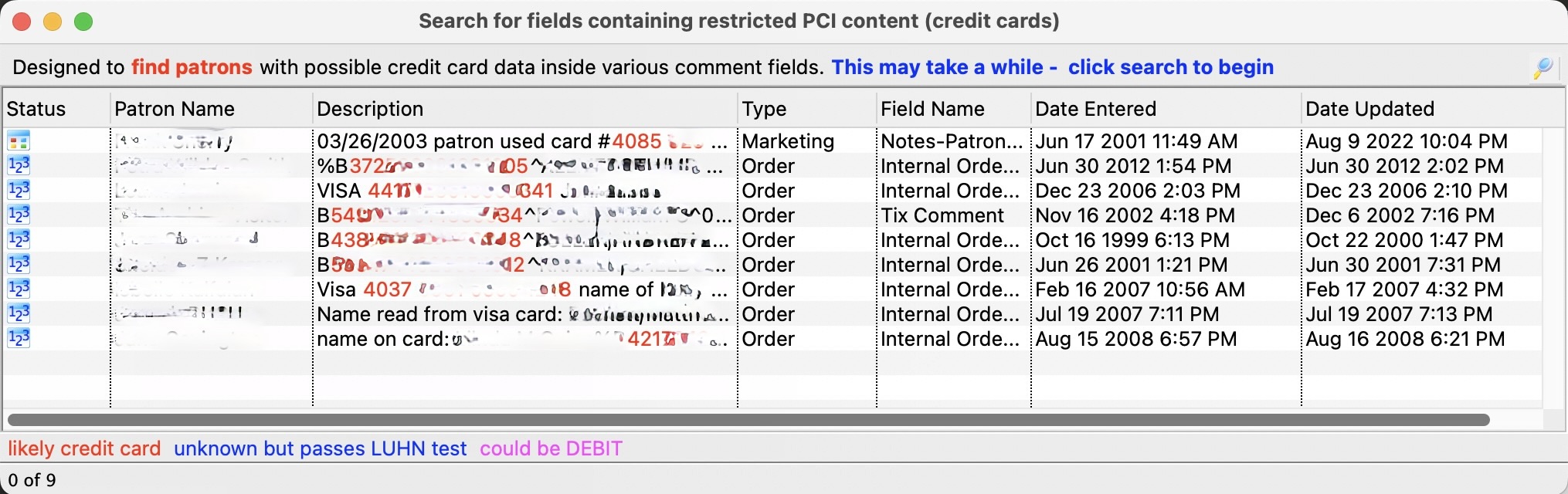
- You can now go through and manually remove the data.
Double click on each line and it will take you to the window where Theatre Manager suspects the issue to be
|
Click the icon to download the checklist. |
Shredding Credit Cards
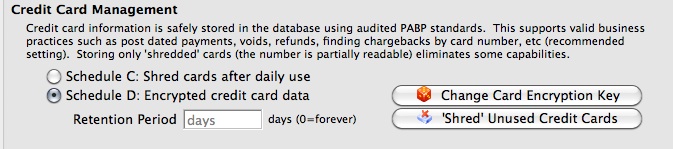
In Theatre Manager, 'shredding' credit cards means removing the middle 8 digits of a credit card number so that what is stored in the database is only the first four and last four digits of the number: 1234-xxxx-xxxx-1234. Cards stored in this manner cannot be accessed for use (because those 8 digits aren't masked - they really no longer exist). Users can still search the database for a credit card using the first four and last four digits for reporting and transaction history.
There are two choices for 'Shredding' Credit Cards. The first method, Shredding Unused Credit Cards, allows a venue to set the number of days a credit card is stored in the usual encrypted format in the database (and is therefore available for use as a payment method for post-dated payments or in the patron's credit card tab), and then after that period, a card is considered "unused" and is shredded of its middle 8 digits.
The second method, setting the database to Schedule C: Shred Immediately, will shred cards and never store them in the database. This is rarely used, as it may prevent some common or desirable business functions (and maintaining Schedule D: Encrypted Credit Card data, the default PABP/PCI Compliant method will not prevent those functions).
Shredding Unused Credit Cards
|
this action cannot be undone! |
The simplest solution for venues to have a higher degree of security in their database, than that allowed by the PABP/PCI compliant data encryption of the credit card numbers, is to "shred" unused or old credit cards in patron records.
"Shredding" removes the middle 8 digits of the number and renders the card information unusable (as it is stored - you can still swipe or enter the card again in the future with no problem).To do "shred" a credit card, you perform the following steps:
- Open the PCI Security Tab in Setup > System Preferences.
- Under Credit Card Management, click the Shred Unused Credit Cards button.
A dialogue opens, asking for a retention period during which cards are considered active (and therefore, not "unused"). We recommend at least 90 days, 365 as the longest.
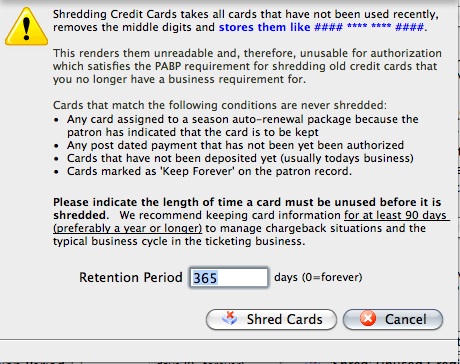
- Click Shred Cards
 to immediately shred cards that have not been used in a number of days greater than that set as the retention period.
Schedule C Shred When Used
|
All the credit card data in theatre Manager is stored using AES256 encryption with rotating keys. An independant company has auditied the safety of the information and practices in theatre Manager to ensure it meets PCI PA/DSS 2.0 storage requirements. Visa has approved Theatre Manager as an application that can accept credit card payments using best practices. |
A venue may choose to shred cards immediately after use for added security. This means that full card data is never stored in the database. Voids can only be done using the merchant providers internal token if you have not yet done end of day. After end of day is completed, refunds require you to input the card number again.
Shredding Credit Cards stores only the first and last 4 digits of a credit card number for informational purposes. For example:
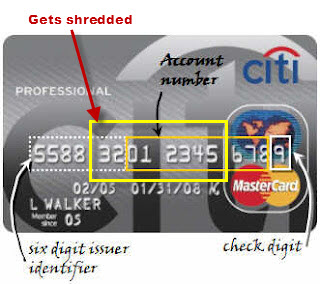
When you shred yoiur credit card date the following business capabilities and functions are impacted:
- You cannot process post dated payments
- You will not be able to refund using the original payment/credit card number. You will have to ask the patron to give you the number again.
- You may not be able to refund an entire event using the card used for purchase
- You will be unable to process automatic season renewal.
- All existing payment / credit card information within the system is now unavailable.
The above are only a few functions that will be impacted.
If your venue wants to shred credit cards after use, you perform the following steps:
- Make a complete backup of your Theatre Manager Database just in case you want to change your mind later. Click here for more information on Backing up.
- Chose main menu item Setup >> System Preferences.
The System Preferences window opens.
- Click the PCI Security tab.
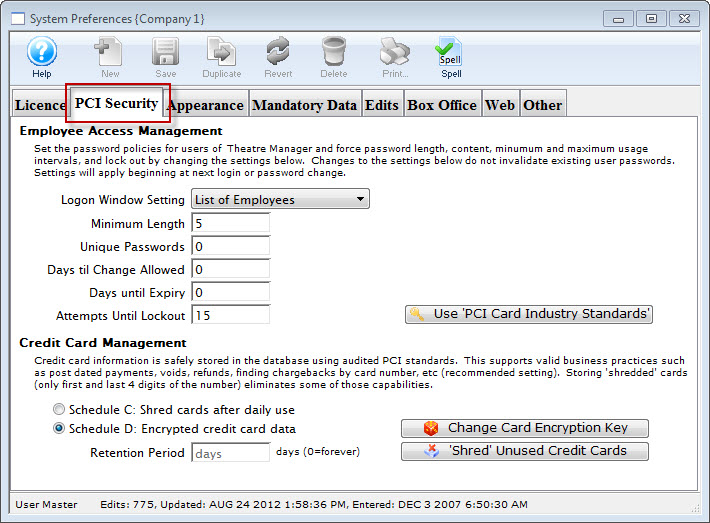
- In the Credit Card Management section, change the radio button to Schedule C: Shred cards immediately after use.
The first Warning dialog opens.
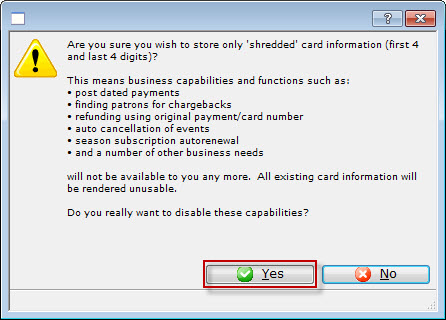
- Click the Yes button.
The second Warning dialog opens.
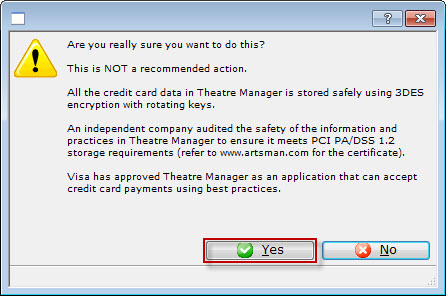
- Click the Yes button.
The third Warning dialog opens.
- Click the Yes button.
The fourth Warning dialog opens.
- Click the Yes button.
The Confirmation the data has been shredded data dialog opens.
- Click the Yes button.
Changing the Cryptography for Credit Cards
|
Credit cards stored in a database must be encrypted using a key that is distinct to the venue per PCI DSS standard 3.6. This must occur:
|
To change the cryptography of credit card information at any time:
- Log in as Master User
- Go to the System Preferences->Security Tab
- Click 'Change Card Encryption key' button at the bottom left
You will see a dialog similar to the one below that asks you to confirm the step and the reasons why the step is required. Click 'Yes' to continue.
Some notes about this process:
- Theatre Manager will generate a completely random a 40 character key to use as half of the encryption key process that will be unique to the venue and re-encrypt all cards in the database.
- This encryption key will not be known to the user and will not be known to Arts Management
- You can still use theatre manager while this process occurs to sell tickets and take credit cards.
- This process should be performed at least annually.
- A venue will be reminded to do it after 350 days
- If it is not done, within the required time frame, then it will automatically occur during any upgrade that occurs 350 days since the last time the venue's encryption key was changed
- It should be performed at any time you suspect a security breach to any part of your network (make sure you also address whatever the security breach might have been).
Appearance Tab
The right column contains examples or where the field is used.
Mandatory Data Tab
Defining Mandatory Data for Marketing Purposes
On the Mandatory Data tab, you can define which information is required when adding new patrons, households and companies. Normally, you would want:
- Patron name or company so that you can identify the patron when they call back or have tickets printed for them
- Full Address Information (street, city, state/province, zip/postal) so that you can mail items, obtain better credit card rates with AVS (address verification) and better identify patrons with similar names during your next interaction with them
- A Phone Number in case you need to contact them in cases of a show being cancelled, time altered, moved venues, or any other emergency requirement
- Email cannot be made mandatory at the box office since there is no guarantee that a patron has one and email addresses must be unique to a patron or household
Full Profile vs Limited Profile (AKA Guest Checkout)
The behaviour of patrons can be different for phone/walk up sales and to online/web sales. You can indicate what kind of data is mandatory in either case:
- BoxOffice/Phone Orders the left side of the mandatory screen indicates which data is mandatory for patrons who contact you at the box office or via phone. This is considered the complete set of data for a full patron. Typically is is the name, address, and phone information described above
- There are good reasons to have Online Sales follow the same data requirements as box office. Implications include consolidation of all interactions with the same patron under one account.
It is possible to relax those rules and gather less data for online sales by indicating what the minimum data is for Partial Profile Patrons on the right side of the screen. If you gather less data than a full profile, the patron record created is called a Partial Profile patron.
|
Full profile patron information applies to BOTH box office and web sales, unless you choose to allow Guest Checkout for online sales, which has some operational and data merging implications |
|
Guest Checkout causes a NEW Limited Profile Patron to be created each time the patron purchases, unless the patron chooses to supply all the mandatory information of their own volition along with password when buying online.
The reason a new patron is created is to allow theatre manager to provide absolute privacy between online purchases, since the patron has not provided enough identification to allow accounts to be merged automatically. If two people just happen to use the same email address, allowing each to access the others information and tickets is a privacy violation - so Theatre Manager keeps them separate If you use Guest Checkout, the box office will then need to MERGE all patrons in the same household with the same name and email on a periodic basis after determining that they are, in fat, the same patron. |
Full Profile Patron Data Requirements |
|||
| Name Info | Select what names must be given before a patron record can be saved.
Full profile patron information is for BOTH the box office and web patron sale data, unless you are allowing Limited Patron Profiles for online sales. |
||
| Patron Address | Checking this box means that the patron's address must be entered before a patron record can be saved. Only one out of the two address lines need to contain information. | ||
| Patron City | Checking this box means that the patron's city must be entered before a patron record can be saved. | ||
| Patron Province | Checking this box means that the patron's province must be entered before a patron record can be saved. | ||
| Patron Postal Code | Checking this box means that the patron's postal/zip code must be entered before a patron record can be saved. | ||
| At least on telephone number | Checking this box will require a minimum of one phone number be given before a patron record can be saved. | ||
| Area codes on all phone numbers | Checking this box will require all phone numbers given be accompanied by an area code before a patron record can be saved. These days, this option should always be enabled du to the prevalence of 10 digit dialing and cell phones | ||
Payment Data |
|||
| Why Did Patron Buy | Checking this box means that the reason that the patron has made a purchase must be provided before a sale can be completed.
The why did patron buy data is entered via:
|
||
 |
Pressing this button will set the above options to the default settings that Theatre Manager recommends. | ||
Limited Profile Patron |
|||
| Mandatory Data Options | Please refer to a more complete description of the Limited Patron feature and the ramifications. | ||
Limited Profile Patron Implications (Guest Checkout)
|
Using the Limited Profile feature is a venue choice. While it allows the patron to specify less information during checkout, it also:
|
|
Guest Checkout causes a NEW Limited Profile Patron to be created each time the patron purchases, unless the patron chooses to supply all the mandatory information of their own volition along with password when buying online.
The reason a new patron is created is to allow theatre manager to provide absolute privacy between online purchases, since the patron has not provided enough identification to allow accounts to be merged automatically. If two people just happen to use the same email address, allowing each to access the others information and tickets is a privacy violation - so Theatre Manager keeps them separate If you use Guest Checkout, the box office will then need to MERGE all patrons in the same household with the same name and email on a periodic basis after determining that they are, in fat, the same patron. |
Limited Profile Patrons are enabled in System Preferences->Mandatory Data tab. If enabled, it allows for Web sales checkout on the web site as an option. The limited patron profile creation and checkout web pages note which fields (e.g. name, address, etc) a venue expects the user to enter.
There are some general pro and cons to using the feature that we've heard from Theatre Manager users that we've listed below. Most venues that try it realize that the burden of data management shifts to the venue and eventually disable it. Most web sites that deal with any sort of shopping cart require full identification these days for fudiciary responsibility to the credit card issuers.
| Pro's | Con's | |
| Full Profile |
|
|
| Limited Profile |
|
|
To enable limited profile patrons/guest checkout:
- Choose Setup >> System Preferences and choose the Mandatory Data tab.
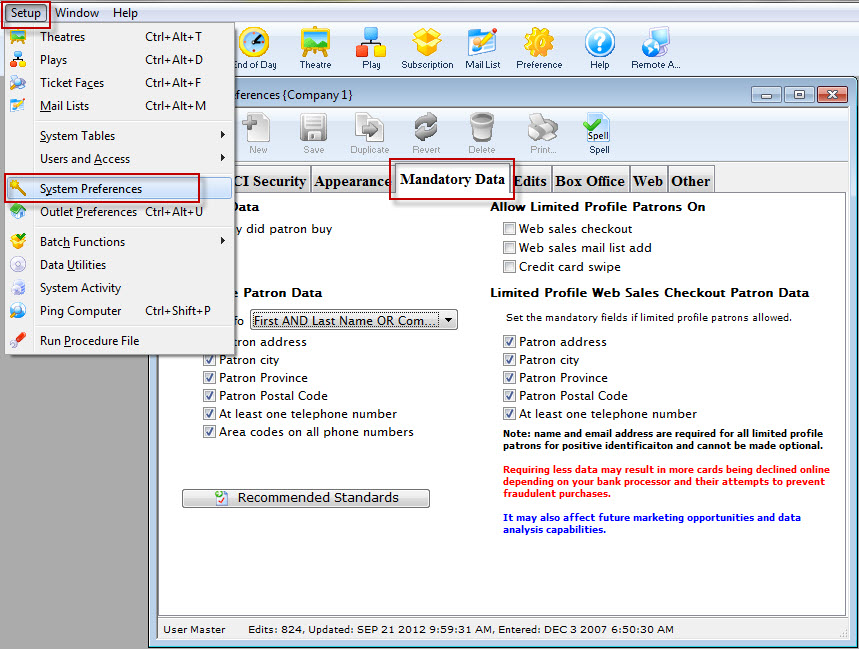
- Under Allow Limited Profile Patrons On there are the following selections:
- Web sales checkout - checking this box enables patrons with limited patron data to buy tickets.
- Web sales mail list add - checking this box enables patrons to sign up for mail lists giving only essential information (email address, name). Click here for more information about this feature.
- Credit card swipe - checking this box will enable patrons to purchase using the information on their credit card (name on the card). This is most useful for auctions and is described further here.
- Make the appropriate selections for your organization's needs.
- Next, you define the mandatory fields you want limited profiles to contain in the Limited Profile Web Sales Checkout Patron Data section.
This is where you set the minimum data patrons must provide to access the web sales checkout.
If you mail tickets, please make patron address, city, state and zip code mandatory.
If all tickets are held for will call or print at home, then set as many of these options as you'd like (even none).
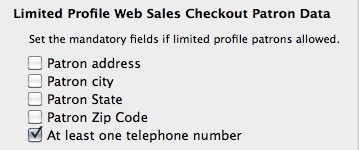
Limited Profile Rules
Guest Checkout for Web Sales
Enabling Guest Checkout for online sales means that the patron:
- Can buy online and add items (tickets, gift certificates/passes, donations) to their cart
- Begin the checkout process
- The web sales process will ask them if they want to:
- Log in to a previously created account using their email/password. This attaches the cart to an existing full profile patron.
- Create a new Account which will ask the user to supply all information - and create a new full profile patron
- do a Guest Checkout which will use the data requirements on the right side of the mandatory data window. If the patron enters:
- Only this minimum data and no Password, a Limited Profile Patron is created during guest checkout and an employee may need to subsequently find and merge them (if its a duplicate), or capture more data later. A guest checkout cannot log back in online and see their prior purchases
- All the information and a Password, then a full profile patron will be created. By providing the password, the patron will be able to log in online and review prior purchases.
Guest Checkout Options are Based on Cart Contents
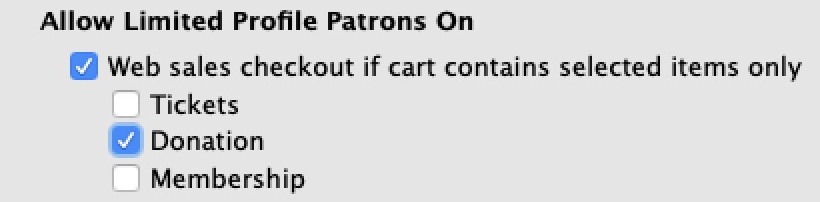 If the Web Checkout limited profile is set, you can restrict when the Limited Profile option is available based on the contents of the cart. The choices are any one or more of:
- Tickets - if only tickets are in the cart, the patron can do limited profile checkout
Do not set this option if you are selling live streaming events (see note below)
- Donations - if only donations are in the cart, the patron can do limited profile checkout
- Pass/Gift Certificate - if only Passes/Gift Certificaes are in the cart, the patron can do limited profile checkout
- If Multiple items are checked, then the patron can check out using limited profile if only those checked items are in the cart. Eg if Donations and tickets are checked, then the patron can use limited profile if a donation and/or ticket are in the cart, but not if a pass is in the cart
What the Patron Sees Online at checkout
If the Limited Profile Patron feature is enabled in System Preferences -> Mandatory Data, the following will apply during checkout:
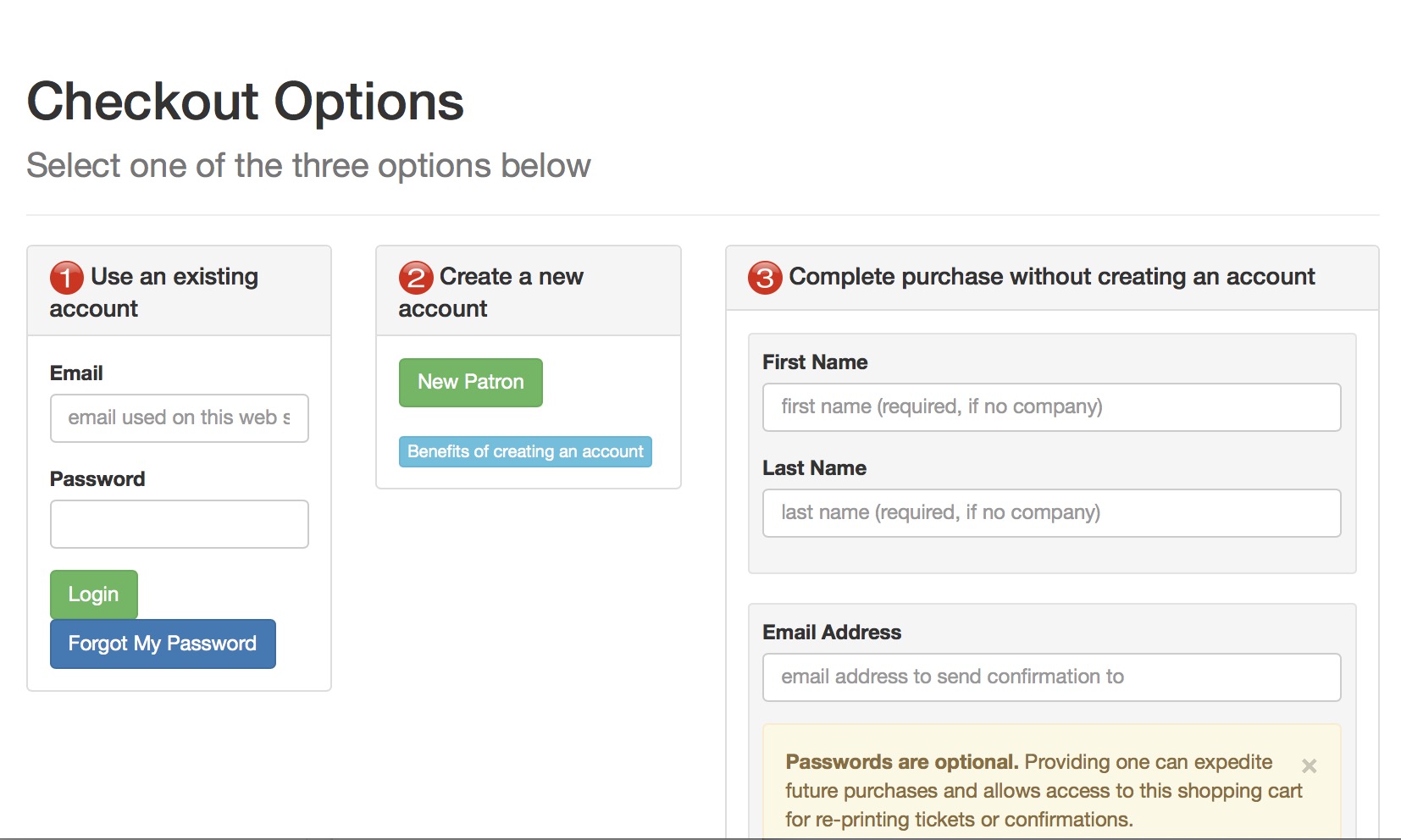
- Patron still has the option of logging in to an existing account to see prior purchases
- Otherwise, a new patron will always be created if they choose the quick checkout process and provide their name & email (at minimum), and other data you deem mandatory
- Theatre Manager always verifies the email address.
- If the email address already exists in the database, this 'new' patron will be added to the existing household.
- If the email does not exist, a brand new household will be created.
A patron who checks a shopping cart out online as a Limited Profile Patron has no login credentials. - Ordinarily, this means they cannot log in and see past purchase history.
- However, if they visit the web site and ask for their password to be emailed, they can log in with their email and password and purchase again. If they do that, they will be required to complete the patron information that they did not complete the first time (thereby becoming a full profile patron),
- If they never log in and simply buy again (they don't ask for their password), they will have to provide their name each time they checkout.
If limited profile is used, it is HIGHLY RECOMMENDED that all events be set to require print at home - so that the customer is emailed their tickets. DO NOT USE limited profile for tickets if the event delivery is live streaming (a this time). If the patron has a full account and buys the streamed event using limited profile and the same email address, this will cause the streamed event to be inaccessible. This is because the patron who logs in using the email, always logs into the main account, but they cannot see events in the limited profile patron.
- At the box office, 'Limited Profile Patrons' are indicated on the patron list using a new icon. If you edit the patron contact card for one of those patrons at the box office, you will then have to complete the missing information before the data can be saved.
- You should implement a data management policy to find and merge 'Limited Profile Patrons' on an ongoing basis if you allow the feature. This is because several records are created for the same patron if they never log in, but use the same email.
"Quick Add" to a Mail List online
 The limited profile patron feature can be used to allow patrons to do a "quick add" to a Mail List online using a quick submit form. This will allow them to be added to a Mail List without providing all the standard patron data normally required for a full log in. Instead, all that will be required is name, address and email.
|
The form is a standard part of the Theatre Manager web pages. Refer to mail list quick add feature.
However: If you wish to place it on your main marketing site, please contact your web designer to implement this advanced web feature in an iframe or equivalent. |
To use this feature:
- the mail list be visible on the internet.
- You must allow limited profile patrons to be added using mail lists
- If the patron's email address already exists within the database and the first and last name match, the existing patron will be added to the mail list.
- However, if the first and last name do not match, a limited patron will be created under the patron owning the emails address.
- Your Box Office staff will need to be vigilant about finding duplicate patrons by email address and merging then created this way.
- At minimum the form will need to collect three fields in order to subscribe the patron to the Mail List:
- First Name
- Last Name
- Email Address
Credit Card Swipe
There is a convenient quick-add feature that creates a patron by swiping their credit card. This might be best used during the admittance process for Auctions. The process works as follows:
- You start by setting the Patron List window to search by credit card. For more info on the Patron List window, click here.
- Then, when you swipe a credit card, it will find the patron if that card number is in the database.
- If the card number does not exist in the database, TM gives you the option to quick add the patron attending the auction.
- Patrons added in this way will be 'limited profile patrons'. That is, the name on the card along with their credit card on file stored in the database.
- In an auction setting, if there are bid packets, you can give the patron the patron number created during the swipe.
- You can now sell auction items to this patron using the auction process.
|
As with any limited profile patron, if you edit their actual address data, you will be required to provide the minimum information normally required of the box office. |
Edits Tab
The Edits tab contains patron data management information for Theatre Manager.
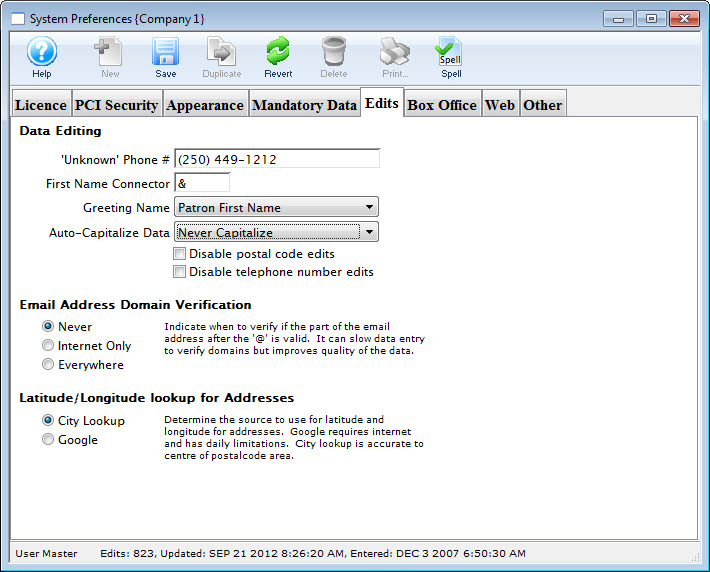
Data Editing |
|
"Unknown" Phone Number |
The phone number which can be used if there is no patron phone number. This number will be ignored when checking for multiple patrons. |
First Name Connector |
The connector which will be used to join first and last names in reports and letters. |
Greeting Name Preference |
The greeting preference used when sending material to patrons. |
Auto Capitalize |
Controls Theatre Manager's ability to set mixed case letters during entry and reduces the necessity to use the shift key. Several methods can be chosen to control this process. |
Disable Postal Code Edits |
If selected, the program will not validate a Countries Postal/Zip code requirements. |
Disable Telephone Number Edit |
If selected, the program will not validate a countries telephone number requirements. |
Email Address Domain Verification |
|
Never |
E-mail addresses will not be verified when entered into Theatre Manager. |
Internet Only |
E-mail addresses will be verified when entered through web sales. |
Everywhere |
E-mail addresses will always be verified when entered into Theatre Manager. This can slow down data entry but is the most accurate. |
Box Office Tab
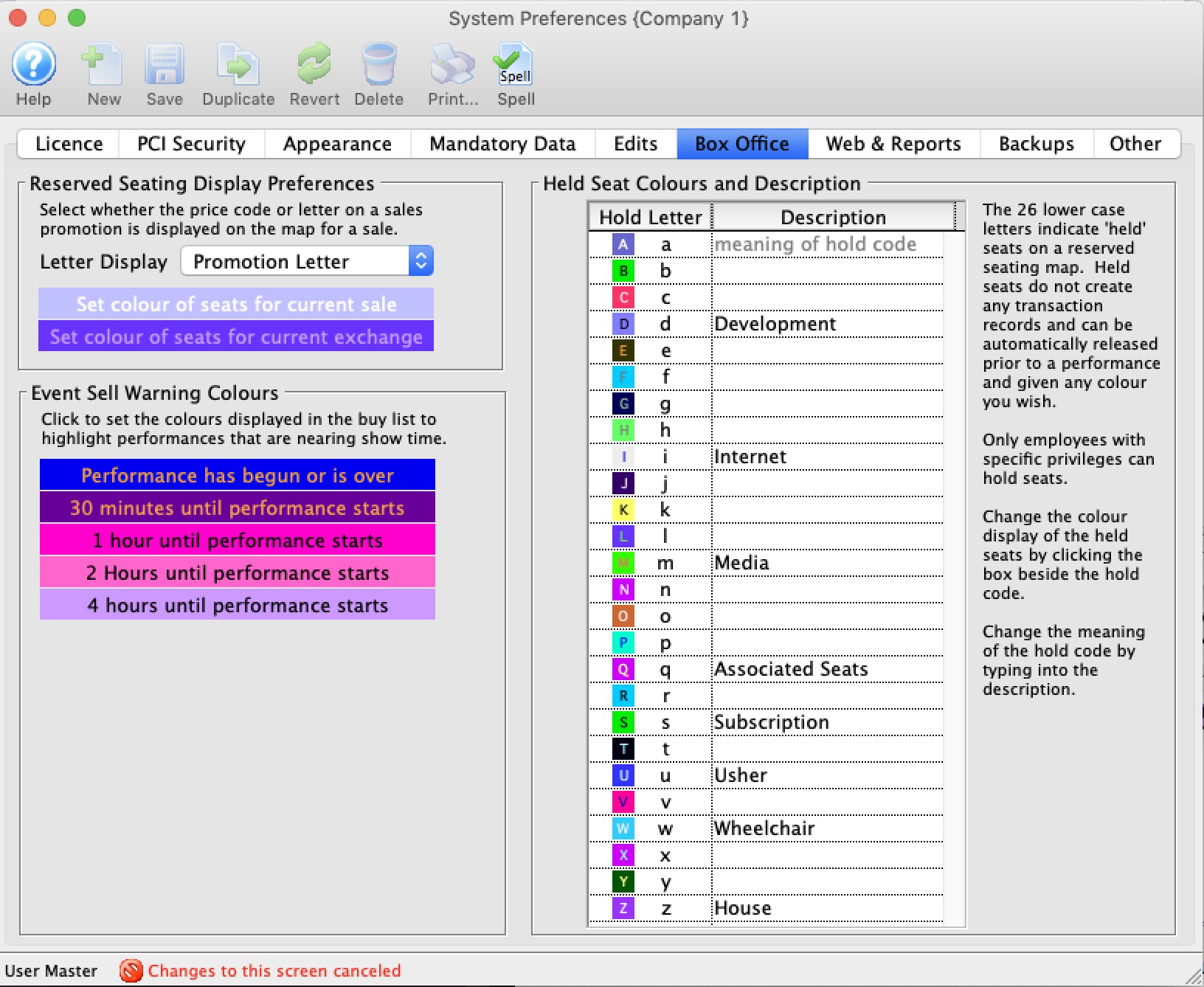
Ticket Reservation Display Letters |
|
| Letter Display | Determine if the price code or the seat code from the Buy Window shows on the seat in the map display.
If you change the setting to or from 'Price Code' and 'Promotion Letter', you will need to verify future performances to change the actual letter display on the map. |
| Set Colour of seats for current sale | Click on this box to bring up the colour palette window. You can select both the foreground and background colours. |
| Set Colour of seats for current exchange | Click on this box to bring up the colour palette window. You can select both the foreground and background colours. |
Play Sell Warning Colours |
|
| Performance has begun or is over | Click on this box to bring up the colour palette window. You can select both the foreground and background colours. |
| 30 minutes until Performance starts | Click on this box to bring up the colour palette window. You can select both the foreground and background colours. |
| 1 hour until Performance starts | Click on this box to bring up the colour palette window. You can select both the foreground and background colours. |
| 2 Hours until Performance starts | Click on this box to bring up the colour palette window. You can select both the foreground and background colours. |
| 4 hours until Performance starts | Click on this box to bring up the colour palette window. You can select both the foreground and background colours. |
Held Seat Setup |
|
| Hold Letter | Clicking on each letter brings up the colour palette window allowing you to select both the foreground and background colours. Seat hold letters are always represented with lowercase letters. |
| Hold Description | You can define the meaning of the seat hold code by entering a description beside each of the 26 lower case letter codes. |
Web and Reports Tab
- are any of them allowed to be active? (i.e. this is a global shutdown switch)
- the hold letter tp be used for internet sales - it is common across all outlets
- the hold letter to be used for social distance or associated seats. The letter selected is also common across all outlets
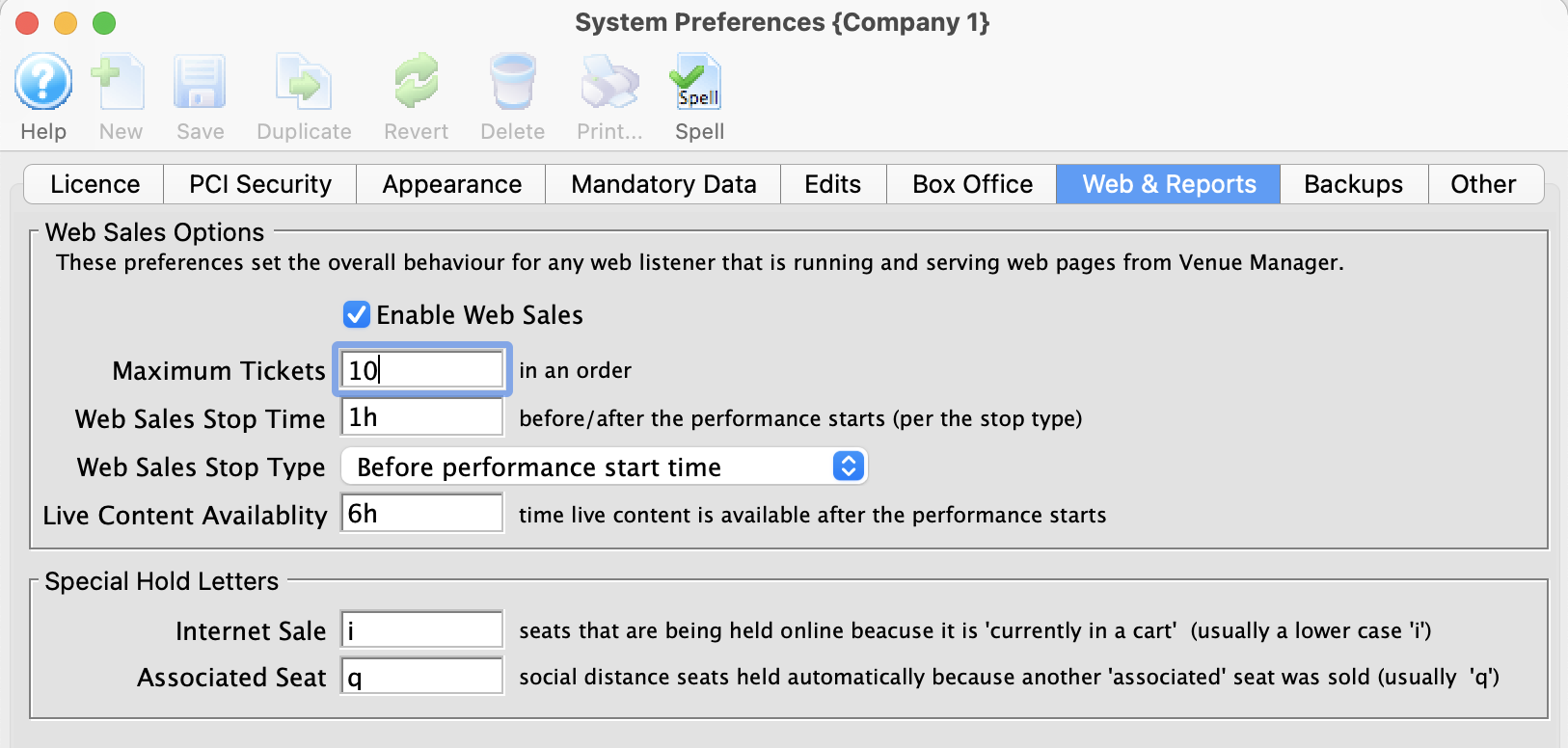
Web Sales Options |
|||
| Enable Web Sales | Checking this box enables the use of the web sales module. | ||
| Maximum Tickets |
The maximum number of tickets that can be purchased in a single web order. This is a global total for all tickets in a cart and can be overridden on the:
|
||
| Web Sales Stop Time | Number of minutes before/after the performance start time in which to remove a performance from the Internet. This is the default time for all Events. This can be overridden in individual events. Click here for the steps on changing the default time on the event.
|
||
| Web Sales Stop Type |
Indicates whether the stop time is before or after the performance begins. Typically, you want the performances to cease being sold online before the actual performance time. However, there are instances where you might to stop sales after the performance starts, such as:
|
||
| Live Content Availability | The default time, in minutes, after the start of a performance in which live streaming sales will be available. | ||
Special Hold Letters |
|
| Internet Sale | Specify the hold letter that will be displayed on the map when a web sale is in progress. We recommend altering the colour of this hold code to make it stand out on the map during the sales process. |
| Social Distance or Associated Seat | Specify the hold letter assigned to associated seats.
The lower case letter q is suggested as the default. These are seats that are held automatically for a patron when they buy a specific set of seats an might be used fort dinner theatre or ADA companion seats. We recommend altering the colour of this hold code to make it stand out on the map during the sales process and afterwards as permanent holds. You can create unique social distance seating on each pricing map to suit your needs. |
Backup Tab
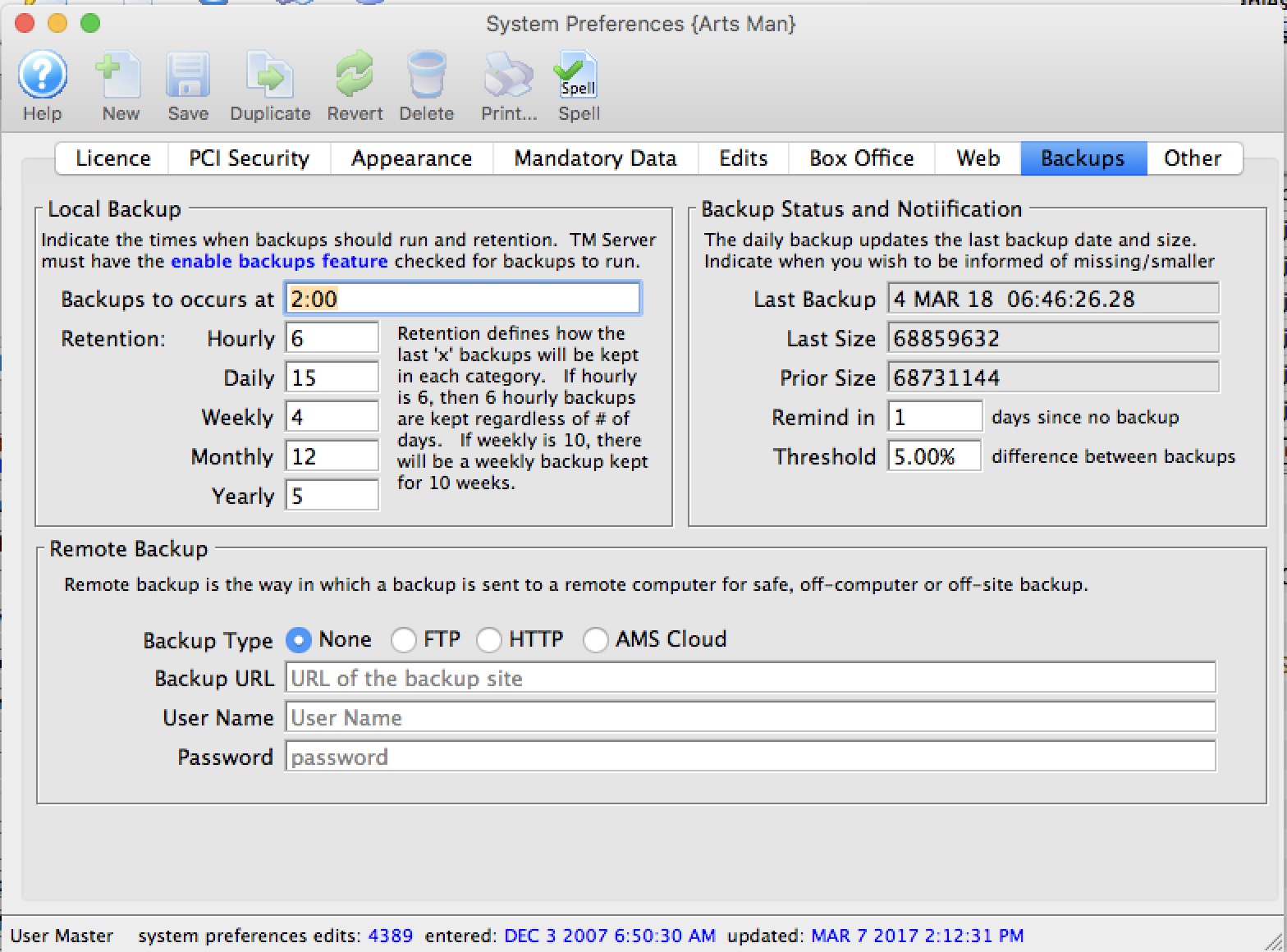 There are 3 basic settings for backups in this window, and one setting in TM server to make it all work.
Settings in System Preferences
- Backups are always created on the local machine running a TM Server.
You will need to indicate the frequency and how many of these you want to retain
- After a backup is completed, it can be migrated to a remote machine by the TM server.
You can indicate whee you want these backups to go. If you do not pick a remote backup option, then you will have no offsite backups (unless you are using other backup tools that watch for a new file in the backup directory.
- You can change the Error Notification settings to indicate when you want to receive a message at login if backups do not run.
TM Server Settings
Once the setting have been made in system preferences, you will need to designate a TM Server to do the actual backups. This includes the location on that machine where the backups are stored.
Please make sure there is adequate disk space to store all the historical backups you configured above.
Local Backup Settings
The schedule of backups can be set along with retention. A TM server on a designated machine will coordinate the backups.
See the setup below for the TM server
| Backups Occur at | Enter one or more times of the day that you want backups to run. Generally:
|
| Hourly | The number of hourly backups that you want the system to retain. This number can be greater that the number you want to run in any one day. i\If so, then more are kept across multiple days.
4 to 6 hourly backups are recommended. Example: if you want to keep 9 hourly backups and do 3 backups daily, then you will have 3 backups per day (the hourlies) for each of the past 3 days. |
| Daily | The number of days of daily backups that will be kept.
15 days (half a month) or more is recommended. note: if backups are not run for 5 out of the past 15 days, then 15 days of daily backups means that 15 distinct days are kept, which will be across 20 days in total. |
| Weekly | The number of weeks of weekly backups that will be kept.
Between 4 and 8 weekly backups are recommended Like the above, this is the number of distinct weeks of backups that are kept. If you keep 4 weeks of backups, but one week got missed for some reason, then TM will keep the 5th week as well. |
| Monthly | The number of months of monthly backups that will be kept.
12 or more Monthly backups are recommended |
| Yearly | The number of years that an annual backups should kept.
About 5 yearly backups are recommended You may want to set this to coincide with any government (IRS/CCRA) requirements for electronic storage. |
Remote Backup Settings
This allows you to send the backups off to another machine in the office or offsite if you want to push backups to a second safe place. Its something that we recommend.
| Backup Type | You can indicate what kind of offsite backup you want - the options are:
|
| Backup URL | The URL that the backup will be sent to. Only applicable to the FTP and HTTP methods. For AMS cloud, this will be specified for you |
| User Name | The user name to log into the remote backup location. |
| Password | The password used to log into the remote backup location |
Backup Status and Error Notification
The daily backup script will update the date of last backup in the database.
If the backup does not run, you can decide how long you want to wait without a backup before the message is displayed in Theatre Manager's startup notification window.
| Last Backup | The date and time that the backup script was last known to have run. If this field does not change, then backups are not running. |
| Last Size | The file size of the last backup. This number should generally increase in size. |
| Prior Size | The file size of the second to last backup. This should also increase in size. |
| Remind in | The number of days to wait until a reminder is created at a startup that the backup did not run.
|
| Threshold | Enter a threshold for the differences between the current and the prior backup sizes. If the difference is over the this threshold, you will receive a warning. We recommend it is small - like 0.5% |
Enabling a TM server to do backups
 At least one of your TM servers should be enabled for backups. You can access your TM server from the machine it is running on by typing http://127.0.0.1:3012
- This is preferably a listener that is NOT running on the database server so that you easily have local off-machine backups.
- You can enable backups on multiple TM servers if you wish. However it is better to enable push of the database instead to a remote offsite location for better risk management.
Normally, a backup path (shown to the right) is local to the machine. You can make it a network share if you know how to do that.
For example:
| Platform | Local Path | Network Path |
| Windows | C:\BoxOffice\Backups |
 Log TM Server in as user that has access to network file share (i.e. set the service to login as a person with access to the share as per he sample to the right)
|
| MacOS | \BoxOffice\Backups |
You'll have to mount a remote volume that will appear in the volumes directory that you allow read/write access to
|
Manually Initiating a Backup
|
Venues whose database and web services are hosted on the AMS cloud will need to contact support to make a point-in-time backup (eg for year end). |
 Venues who are self hosted can make a manual backup at any time. The steps are:
- Find the TM Server machine that was configured to run backups.
- On that machine, type http://127.0.0.1:3012 to start the Director and make a backup run. Or, if you are viewing this help page on the same machine that can do backups, just click the link.
- add /backup to the URL on the browser, or type/click http://127.0.0.1:3012/backup.
- This will start the actual backup process and the URL will change to backup.log to indicate it is running. A sample of a backup log file is shown to the right.
- Hit the browser's refresh button to see more of the log file as the backup progresses
- When the backup is completed, you'll see a line at the end of the http://127.0.0.1:3012/backup.log that has the full pathname of the backup file.
- When done, if you want to save this backup for a special purpose (eg year end, or before a large import)
- Use the path name to go to the backup folder -and-
- save the backup copy of the database named at the bottom of the long into a place for safekeeping
- Optionally, rename the file after the purpose of the backup, if it convenient
Other Tab
Data Management |
|
| Keep Transactions after posting to the G/L | Checking this box causes some non-financial transactions to be kept after posting to the GL. Unchecking it allows those transactions to be purged after a period of time |
| Otherwise Purge After | Determine the number of days to keep the non-posting transaction records before purging them. |
Update Management |
|
| Check for Updates Daily | When this box is checked, your theatre Manager system will check on a daily basis to see if there is a newer version available. This should be done for PCI compliance by enabling the update checking port for this. No download will happen, it is a notification only. |
| Automatically TM Minor Updates | When enabled
|
Replication Monitoring |
|
| Enable database replication monitoring | Some sites have specifically set up live streaming database replication - in order to have a failover database with the most current information, should the machine hosting it fail.
Replication is done automatically for cloud venues. Self service venues who wish this feature must set it up and maintain it themselves. Enabling this flag will cause Theatre Manager server to monitor the replication process and update the 'last verify' date. This can be used through the API to find out if monitoring is working. if this option is
|
| Last Verify | The date and time that the last replication verification occurred successfully. |
Cache Settings |
|
| Enable cache for Theatre Manager Desktop | Theatre Manager tries to optimize how it reads data from the database and will avoid reaching out to get some data in a number of cases. If you are having trouble with messages saying record not found, when it is really there, you can disable most of the cache.
Uncheck Enable cache for Theatre Manager Desktop to stop the cache being used for the desktop. It will apply to all workstations. You can specify mac platform and windows platforms independently. |
| Enable cache for web sales (Classic Listener) |
Uncheck Enable cache for web sales (Classic Listener) to stop the cache being used in the classic listeners. They have very little need for caching, so you may want to uncheck this if you have problems with some carts checking out a ticket.
You can specify mac platform and windows platforms independently. |
Company Preferences
Company Preferences allows customization of Theatre Manager to work optimally with a venue. From this window many of the features and behaviors of Theatre Manager specific to the company can be modified.
In the outlet version of Theatre Manager, a master user will need to create a Company Preferences record for each participating company. The companies can then set their own default preferences to have different box office policies, names for entities, development defaults, etc.
Opening the Company Preferences Window
The Company Preferences Window is access through the Setup >> Company Preferences Menu.
The Company Preferences window opens.
Company Tab
The Company tab contains all the information about the company. To access the Company Preferences click Setup >> Company Preferences.
Default Company Information |
|
| Short Name | A shortened version of the company's name. The shortened company name is printed on all reports. |
| Company | The full legal name of the company. |
| Address | The location of the company offices. |
| City | The city in which the company is located. |
| Province/State | The province or state the company is in. The default title of this field can be changed under the appearance tab of the Company Preferences window. Click here for more information. However, if addresses are indicated to be in Canada or the USA, this field will change automatically to reflect the location. |
| Postal Code/Zip Code | The postal / zip code of the company. The default title of this field can be changed under the appearance tab of the Company Preferences window. Click here for more information. However, if addresses are indicated to be in Canada or the USA, this field will change automatically to reflect the location. |
| Country | The country in which the company is located. |
| Telephone | The company telephone number. |
| Fax | The company fax number. |
| Web Site | The Internet web site for the company. |
| Web Server button | Display a window showing web server SMTP settings. |
| Meeting Server button | Displays a window showing meeting server settings. |
Web Server SMTP settings
|
Please be aware: there gotcha's to using Gmail or Office 365 and we recommend against them.
If emails are not sending, please refer to the pending email troubleshooting section. |
Web Email and E-blast Setup |
|||||
| Email Address | The Internet Email address for the company. | ||||
| SMTP server | The email server for sending batch emails. | ||||
| EHLO host name |
Some SMTP servers require you to provide the EHLO host name as part of the protocol to talk to them as an anti-spam measure. Most SMTP servers do not require this to be entered and the field should be left blank. Check with your email provider to verify - as it helps your spam score.
Google and office 365 may require it. |
||||
| User ID | ID name required for email authentication. | ||||
| Password | Password required for email authentication. | ||||
| Rate Limited Until | If the field is visible, you will see a rate-limit timestamp. This indicates the next time that TM will attempt to send an email using this account since it believes you have reached your maximum allowable email limit as determined by your ISP. | ||||
| SMTP Port | Port to use for SMTP. This is usually
|
||||
| Timeout | Timeout period. | ||||
| Needs Authentication | SMTP server requires password authentication. Encryption methods supported are:
|
||||
| Use SMTPS | Indicate if emails are to be sent using SMTPS. This usually goes with port 465 - see explanation of difference (the exact settings are dependant on your ISP)
Regardless, all emails are sent using the TM server. If this checkbox is:
|
||||
 |
This sends a test e-mail to verify that all settings have been entered correctly. If you get errors with emails, please refer to the SMTP Errors web page to help diagnose issues. |
Gmail as a mail provider
WE RECOMMEND using a proper mail provider that will let you do what you want to - Mailgun is an option.
|
Gmail rate limits outgoing emails so make sure that you don't exceed it. If you do, emails from web services will be delayed and you need to manage your pending/unsent emails on an ongoing basis. |
|
If you are using gmail as your provider, you may need to be aware of Google Apps SMTP settings to send mail from a printer, scanner, or app or use Application Passwords if using multi-factor authentication. |
|
Also read about Google Bulk Sender Guildelines |
|
There is also a setting that might need to be made to tell gmail to allow apps sending emails with less secure settings. (This is just Googles way of scaring you -- it isn't less secure -just google being google) |
Gmail wont send due to Bad Password with Gmail SMTP Settings
Gmail has instituted new security measures for sending emails via Printer, Fax or third party Applications. This setting can prevent emails from being sent through Theatre Manager even when the SMTP server settings are added correctly. Any clients using Gmail for sending outgoing email should be aware of these settings.
It seems any application that is not a Google product is deemed a less secure app when using Gmail SMTP servers. This does not mean the application, in this case Theatre Manager, poses a security risk. It simple means Google is attempting to protect itself should the SMTP details be used in an incorrect manner. For more information on how Google perceives other applications please see the details in the article.
How to Recognize the Error
When using Gmail as an outgoing SMTP provider suddenly emails stop sending. The Pending/Unsent emails list indicates the Password is wrong. When checking the Web Server settings in Company Preferences the password has been typed correctly but the emails still fail with a "Bad Password" error.
How to Fix the Error
- Login to the email account used for authenticating the outgoing email.
- Locate the email from Gmail regarding security and this email address. The email content will look like the image below:
- Click the link for allowing access to less secure apps. The following page should appear:
- Move the slider from it's default of Off to On.
By altering the setting you should now be able to send outgoing email using Gmail again.
Changing Setting In Advance
- Login to the email account used for authenticating the outgoing email.
- Click My Account >> Sign-In & Security >> Apps With Account Access.
- Move the slider from it's default of Off to On.
Gmail will send an email indicating the setting has been changed. This email suggests changing the setting may lead to security issues. This is the only way to ensure outgoing email will not be blocked when using Gmail SMTP settings.
- On the My Account page click the Secure Account link.
- Review the Security Checkup list and locate the option for Third-Party access. Click the drop down arrow to expand the option and view the details.
- Click Yes, it was me to approve the change and allow third party app access.
Office 365 as Mail Provider
WE RECOMMEND using a proper mail provider that will let you do what you want to - mailgun is an option.
|
Office 365 rate limits outgoing emails so make sure that you don't exceed it.
If you do, emails from web services can be delayed and you will need to manage your pending/unsent emails on an ongoing basis. |
|
If you are using Office 365 server for your emails, please be aware of
|
The following is a typical example of current Office 365 settings.
Meeting Server SMTP/POP/IMAP settings
|
Please be aware: there are gotcha's to using Gmail or Office 365 and we recommend against them.
If emails are not sending, please refer to the pending email troubleshooting section. |
Meeting Reminder Email Setup |
|
| Email Address | The Internet Email address for the company. |
Meeting Reminder Outgoing Email |
|
| SMTP server | The email server for sending batch emails. |
| User ID | ID name required for email authentication. |
| Password | Password required for email authentication. |
| Rate Limited Until | If the field is visible, you will see a rate-limit timestamp. This indicates the next time that TM will attempt to send an email using this account since it believes you have reached your maximum allowable email limit as determined by your ISP. |
| SMTP Port | Port to use for SMTP. |
| Timeout | Timeout period. |
| Needs Authentication | SMTP server requires password authentication. Encryption methods supported are:
|
| Use SMTPS | Indicate if the SMTP server requires SMTPS. If set, emails that are sent by the
|
|
This sends a test e-mail to verify that all settings have been entered correctly. |
| Default Acceptance Status For Invitations | Select Needs Invitation or Don't Ever Invite to indicate whether Email invitations need to be sent out or not. |
Meeting Reminder Incoming Email |
|
| Server Type | There are three choices that can be used to tell TM Server how to handle incoming emails:
|
| POP/IMAP server | The email server for receiving incoming emails. |
| User ID | ID name required for email authentication. |
| Password | Password required for email authentication. |
| POP Port | Port to use for POP. |
| Timeout | Timeout period. |
| Needs Authentication | SMTP server requires password authentication. Encryption methods supported are:
|
| Use SMTPS | SMTP server requires SMTPS. StartTLS (Transport Layer Security) is supported automatically. |
| INBOX NAME | Create a customized name for the Inbox, leave blank for the system default |
| Completion Mailbox | Create a customized mailbox name for completing a meeting request, leave blank for the system default |
 |
This checks the POP Email server to verify that all settings have been entered correctly. |
Accounting Tab
General Accounting Information |
|||
| Fiscal Year | This is the fiscal year that the company is currently in. This can be altered by clicking in the field and retyping the year if it is wrong.
If you are ending one fiscal year and beginning another, you must use Year End Rollover (instead of changing the fiscal year. |
||
| Month Start | This is the month that the company's new fiscal year starts in. This can be altered by clicking in the field and retyping the month. If the fiscal start month is changed after sales information has been posted to the General Ledger accounts, it may be necessary to Recalculate General Ledger Totals.
|
||
| Store Years As - Start |
If selected: the year stored in the GL will be the year at
the beginning of the fiscal year. i.e. 2015/2016 fiscal year dates
will be stored as 2015. This also applies to the data in the supporting records.
For example a donation with fiscal year of 2016 means that the donation will be for the 2016-2017 season. You would search for donations in 2016 to find them. |
||
| Store Years As - End | If selected: the year stored in the GL will be the year at the end of the fiscal year. i.e. 2015/2016 fiscal year dates will be stored as 2016.
For example, a gift certificate in the 2013-2014 year will be marked as 2014 (the end of the fiscal year). You would search for gift certificates for year 2014 to find them) |
||
Internal Account Number Format |
|
| Account # Format | Allows the account number to be up to 15 digits, excluding dashes, in any combination of numbers and dashes. |
| Export Format |
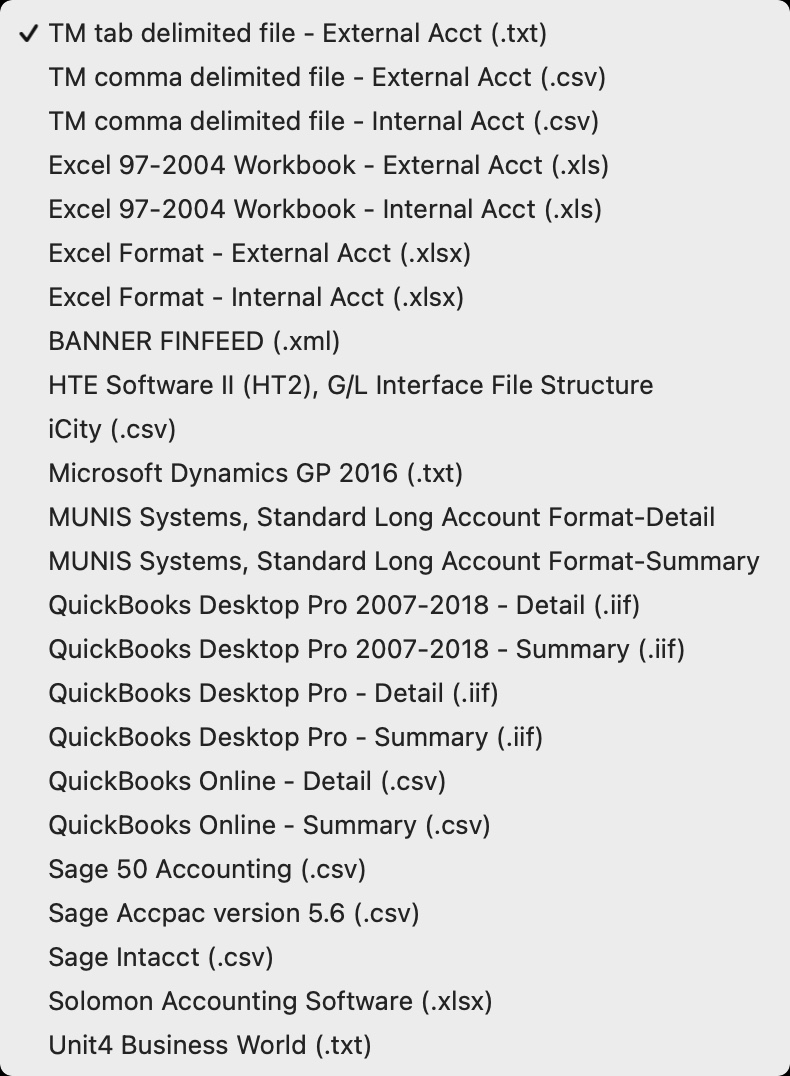 Select the Export Format to use for exporting GL entries that is most compatible with your accounting software. Options include:
|
 |
This button will create a set of sample accounts if no accounts have been setup under Accounting >> G/L Accounts. |
 |
This button will edit the Data Encryption Key used for Data Encryption Proocesses. |
Ticket Sales Deferred Revenue Rollover Options |
|
| Day of Performance | Moves money for the performance from Deferred to Sales on the day of the performance. |
| Day after Performance | Moves money for the performance from Deferred to Sales on the day after the performance. |
| Day of First Performance | Moves money for the play from Deferred to Sales on the day of the first performance. |
| Day after Last Performance | Moves money for the play from Deferred to Sales on the day after the last performance date. |
| During year end rollover for next season | Moves money for the play from Deferred to Sales on the during the year end rollover. |
Default Sales Mode |
|||
| Sale | Adds transactions to the Accounts Receivable ledger immediately. | ||
| Reservation Only |
Financial transactions are not created in the general ledger until the order has one or more of the following events happen to it:
If you allow this feature, you may wish to set a preference for each employee for their default during order creation.
|
||
| Do not allow 'Reservation Only' | Will prevent the 'Reservation Only' option from appearing at checkout. This is the PREFERRED option | ||
Foreign Currency |
|
| Other Country | This is where an optional country can be selected for accepted foreign currency when selling tickets. If the organization does not accept foreign currency, set the country to the "home" country. |
| Exchange Rate | This is where the exchange rate for converting from the local currency to the currency of the foreign country is entered. If the organization does not accept foreign currency, set the exchange rate to 1.000000. |
Export Format Options
|
If you are exporting your data to an external accounting package, ensure you have set up the External Account information in GL Account Setup . The software uses the External Account information as the default format for your accounting system. |
|
Select the export format you want to use in the company preferences accounting tab
Export formats supported are to the right. They are explained in detail in the help pages that follow. |
|
The GL Reports can only be exported once a day. The GL Entry is flagged as being exported when it is done via the EOD Wizard so it's not exported twice by mistake. |
Tab Delimited
Tab Delimited Export Format
TM Tab Delimited File format works with most accounting packages and with Microsoft Excel.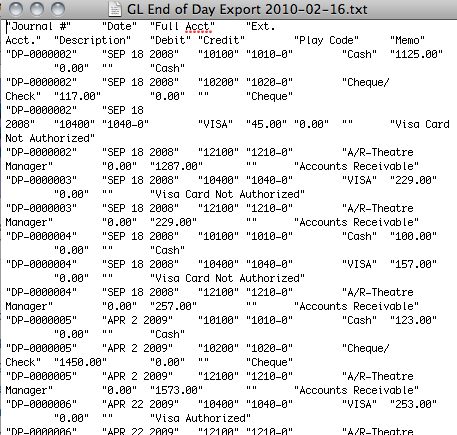
Comma Delimited
Comma Delimited Export Format
TM Comma Delimited File format works with most accounting packages and with Microsoft Excel. Each field is separated by a comma.
Excel
Microsoft Excel
Excel Workbook 97-2004 creates a .xls export file that can be opened directly in Microsoft Excel versions 97 through 2004 with no need for conversion.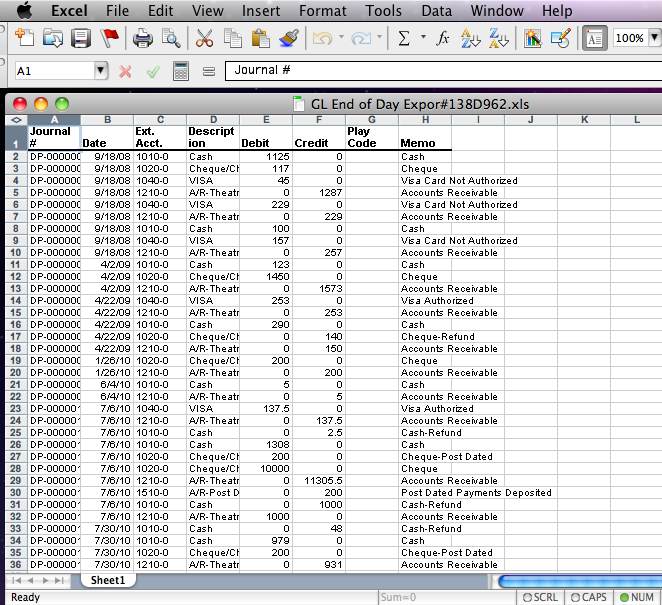
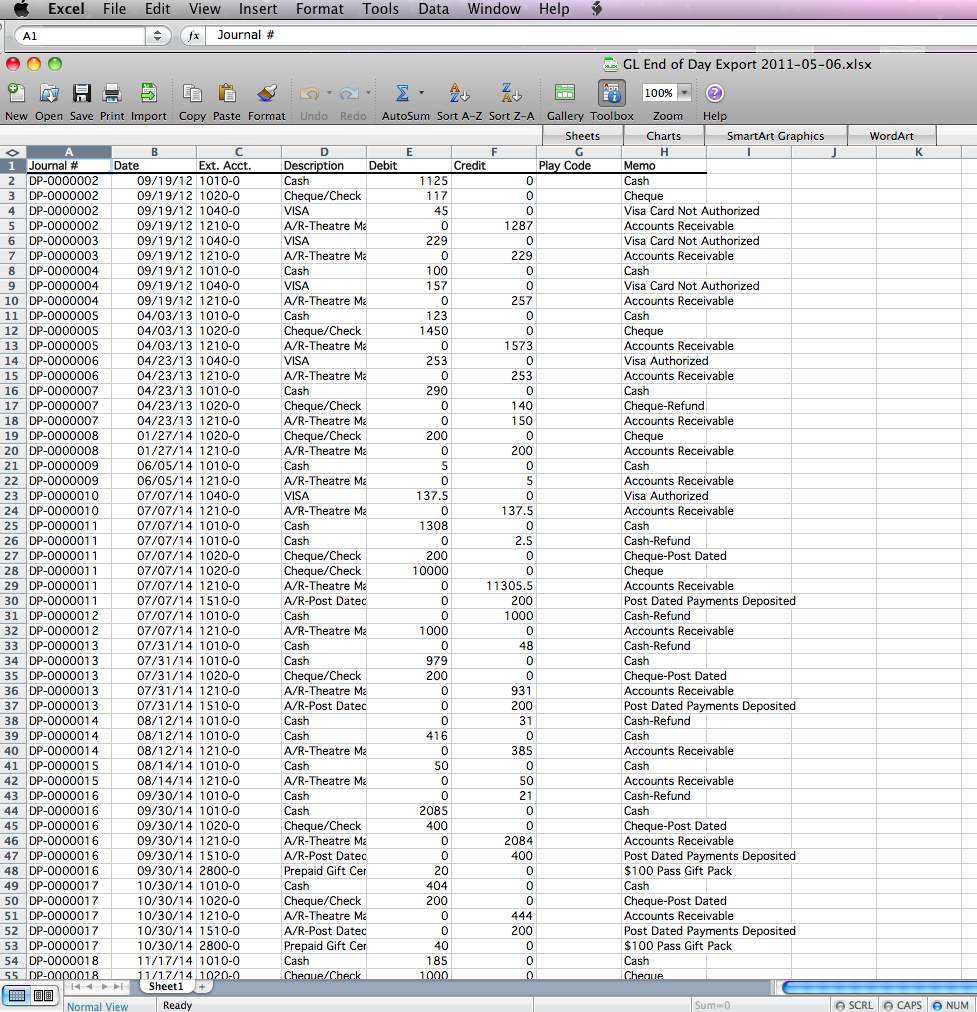
Banner
Banner FINFEED
Banner FINFEED creates an XML export file for use with the Banner financial package. If your organization uses Banner, then select this option.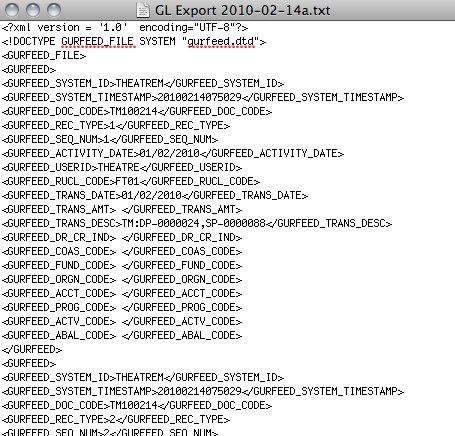
HTE Software II
HTE Software II (HT2), G/L Interface File Structure
HTE Software II (HT2), G/L Interface File Structure creates a fixed position file format.Microsoft Dynamics GP 2016
Microsoft Dynamics GP 2016
The Microsoft Dynamics GP 2016 exports a tab-delimited text file containing an export line for each detail line within the G/L Entry. The deposit and sales posting are combined and exported within the same export file. This allows an exact match of each G/L Entry to crossover into Microsoft Dynamics GP 2016 accounting software (line for line).
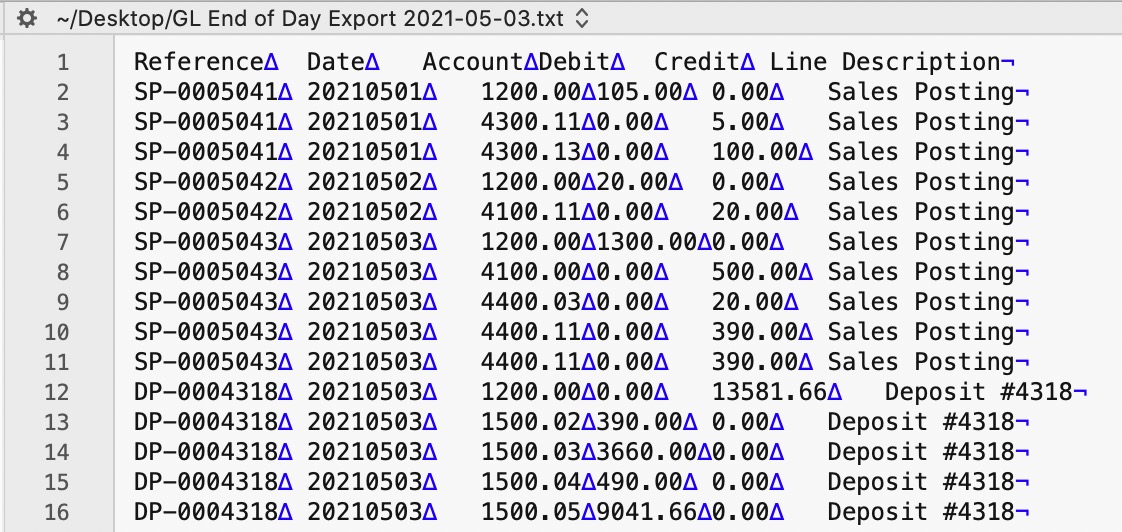
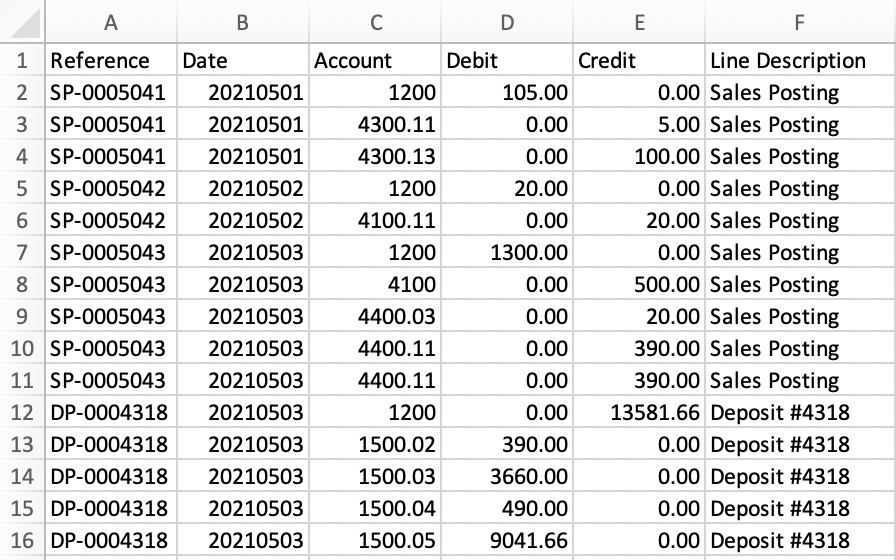
Parts of the Microsoft Dynamics GP 2016 Export File
| Reference | Journal Entry Reference Number. The Journal Number for this G/L Entry (SP-0005041, DP-0004318, GL-2021122) |
| Date | The Journal Entry Date. The date is always in YYYYMMDD format. |
| Account | Theatere Manager's External Account value (name or number) will be used to create the export file. |
| Debit | The Debit amount for this G/L Detail Line. |
| Credit | The Credit amount for this G/L Detail Line. |
| Line Description | The Journal Entry Description for this G/L Entry (Sales Posting, Deposit Posting). |
iCity
|
Theatre Manager will create a comma-delimited text file (.csv) that can be used to import into iCity accounting software. iCity's ability to create unique funds, classes, departments, and objects for each GL account requires the setup of Theatre Manager's External Account field to be set in a specific format to accomodate the various aspects of the iCity export file, prior to performing the first export. |
iCity Accounting Software - Detail
The iCity - Detail format will export each detail line within the G/L Entry. Each deposit and sales posting are exported as their own separate entry within the export file. This allows an exact match of each G/L Entry to crossover into iCity (line for line).
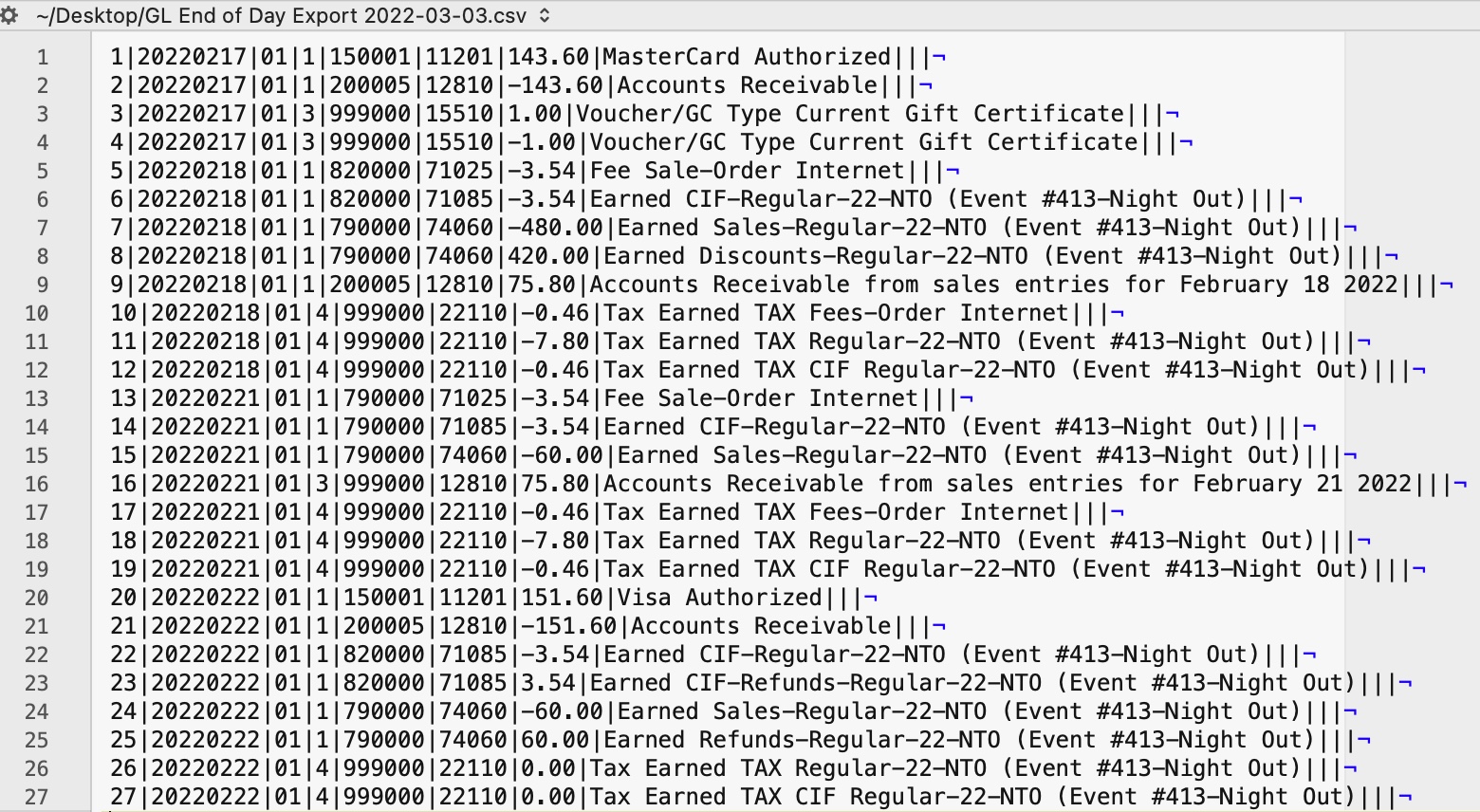
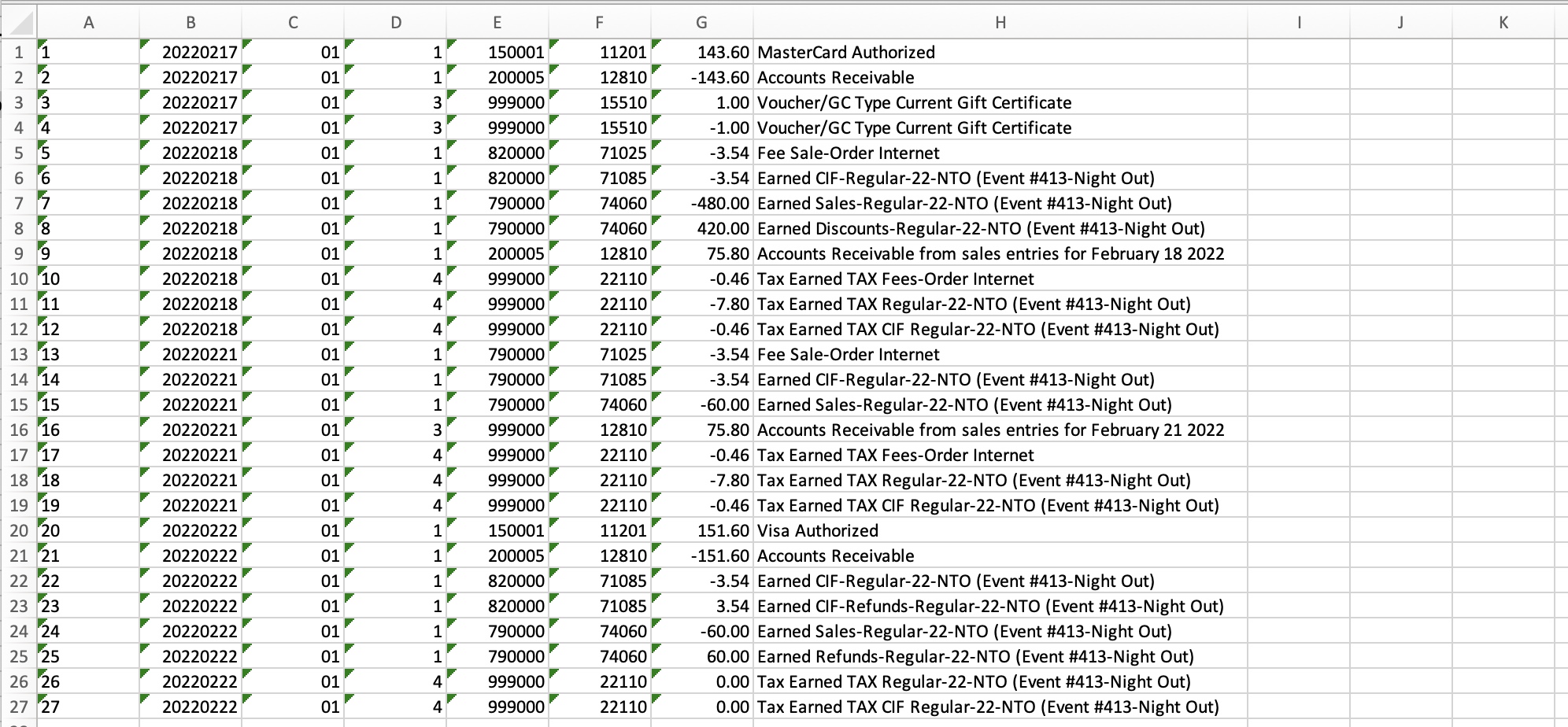
iCity Accounting Software - Summary
The iCity - Summary export creates a summarized version of the deposit and sales postings for each posting date. The deposit and sales postings lines are summarized into a single entry for each posting date within the export file.
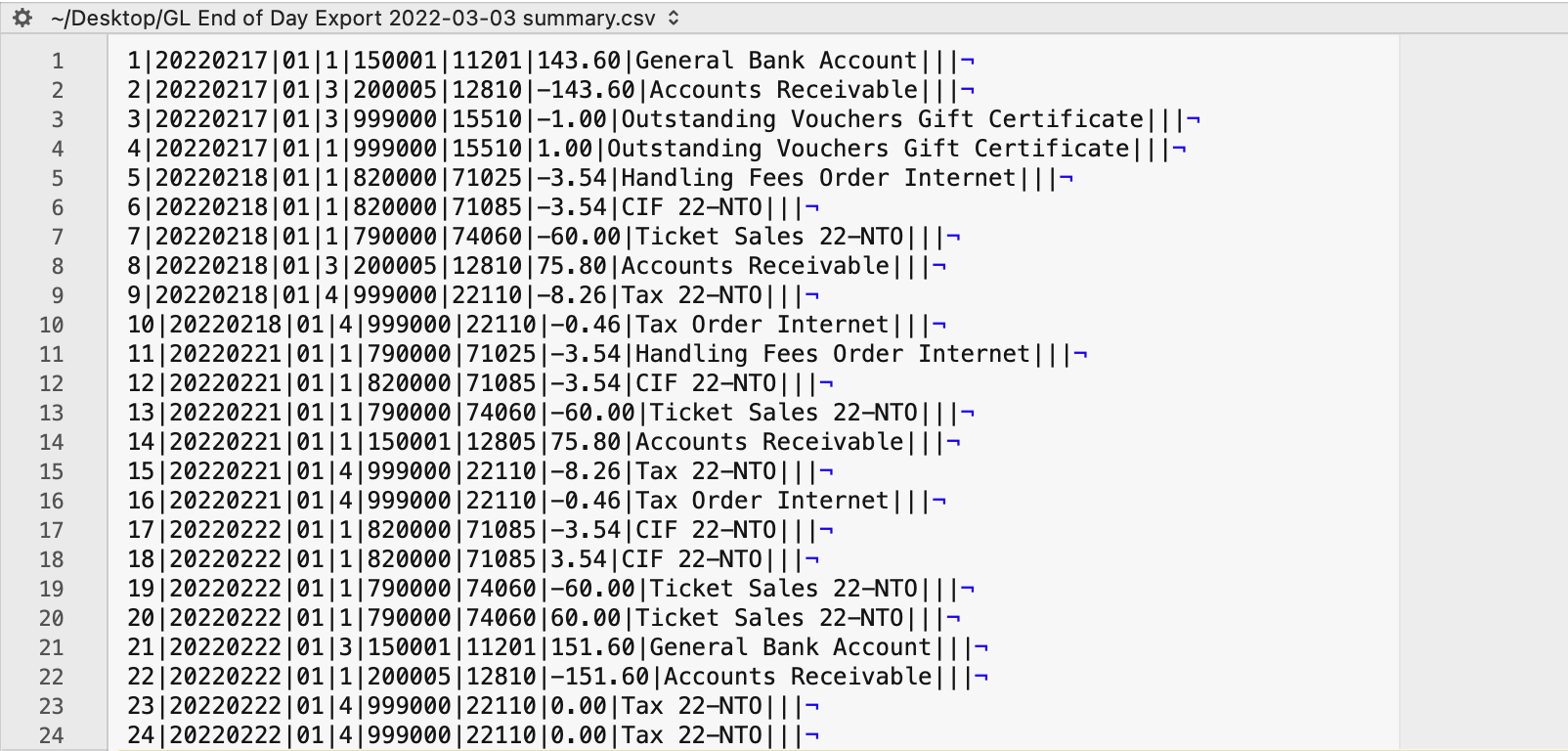
Parts of the iCity Export File
| Voucher ID | A sequential Line Counter for each exported entry line. Line numbers begin at 1 and increment by 1 for each associated entry line. |
| Date | The Journal Entry Date for this G/L Entry. The date will be in a YYYYMMDD format. |
| Fund | An associated Fund Code to the Account Number. Theatre Manager's External Account value (name or number) will be used to create the export file. |
| Class | An associated Class Code to the Account Number. Theatre Manager's External Account value (name or number) will be used to create the export file. |
| GL Department / Category | An associated Department/Category Code to the Account Number. Theatre Manager's External Account value (name or number) will be used to create the export file. |
| Object | The iCity account number. Theatere Manager's External Account value (name or number) will be used to create the export file. |
| Amount | The debit amount (represented as a positive value) or the credit amount (represented as a negative value) of the transaction. |
| Description | The memo text for this G/L Detail Line.
|
| Cost Centre 1 | An associated Cost Center ID to the Account Number.
Theatre Manager does not populate this field during the export process. |
| Cost Centre 2 | An associated Cost Center ID to the Account Number.
Theatre Manager does not populate this field during the export process. |
| Cost Centre 3 | An associated Cost Center ID to the Account Number.
Theatre Manager does not populate this field during the export process. |
Formatting the External Account Number
Theatre Manager's External Account number are required to be set up in a specific format to accomodate the various aspects of the iCity export file.
|
The format of the External Account varies based on the purpose of the GL Account. The format of this field is required to have a backslash (\) used as separator between fields. A leading or trailing backslash (\) for the External Account field should not be added.
|
| Fund | F01 - A predefined Fund ID within iCity. |
| Class | C2 - A predefined Class ID within iCity. |
| GL Department / Category | D710000 - A predefined Department / Category ID within iCity. |
| Object | A64220 - The account number that transactions get posted to. |
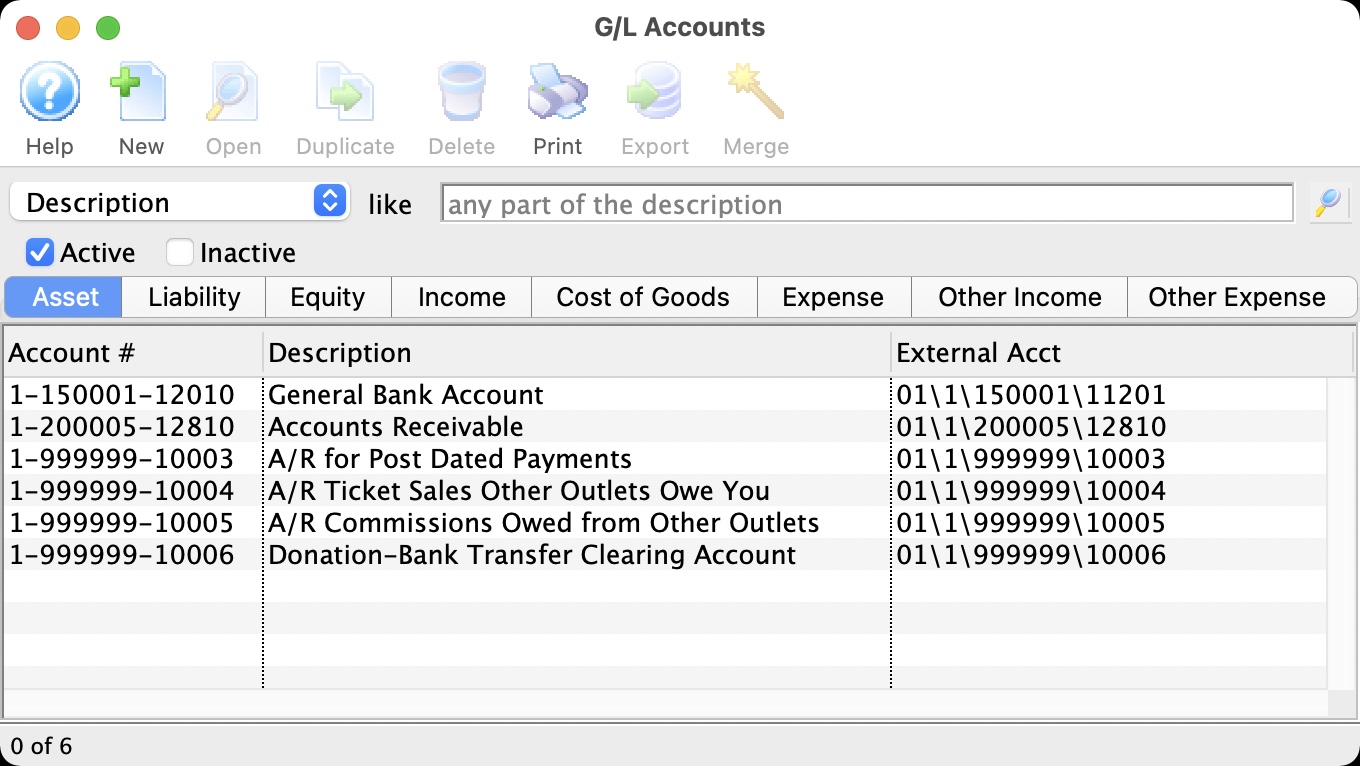
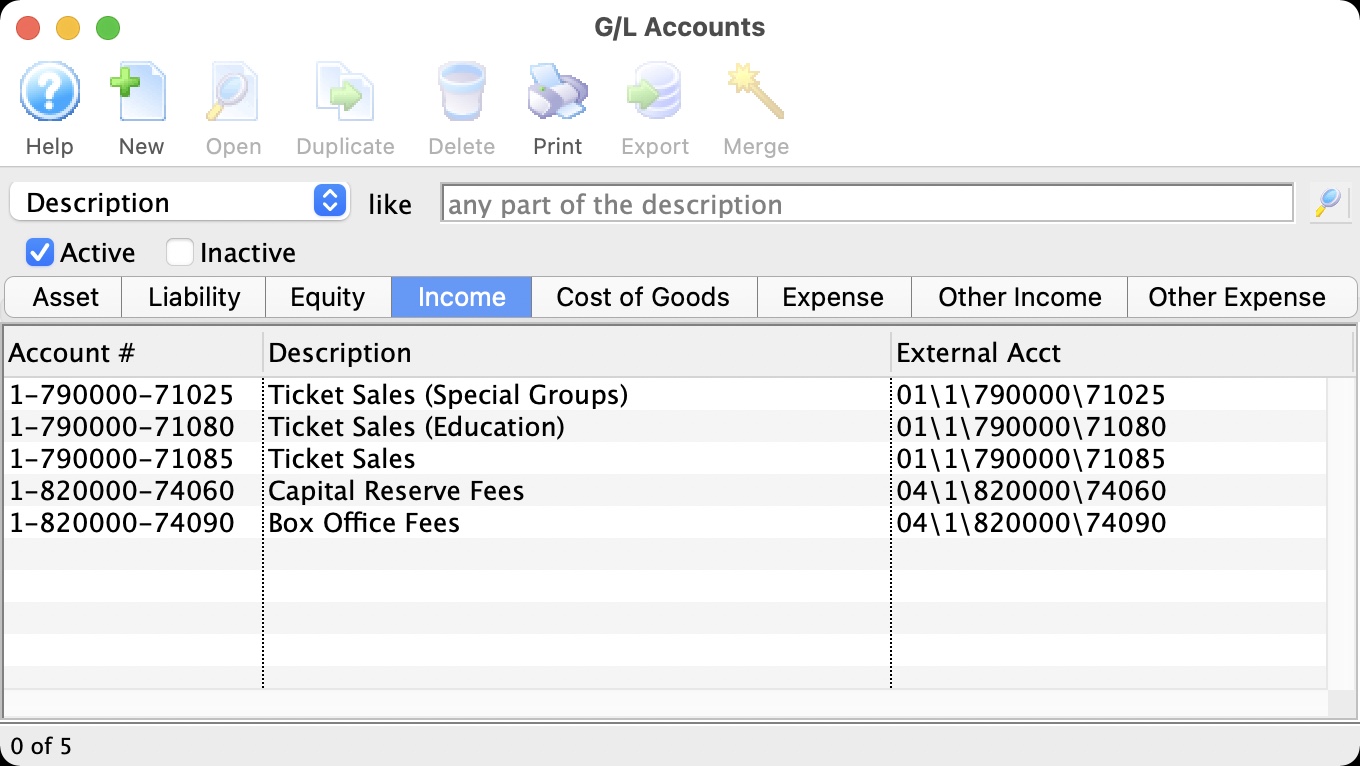
MUNIS Systems
MUNIS Systems, Standard Long Account Format
MUNIS Systems, standard Long Account Format creates a .csv (text file, comma delimited) file that can be directly opened in MUNIS with no need for conversion.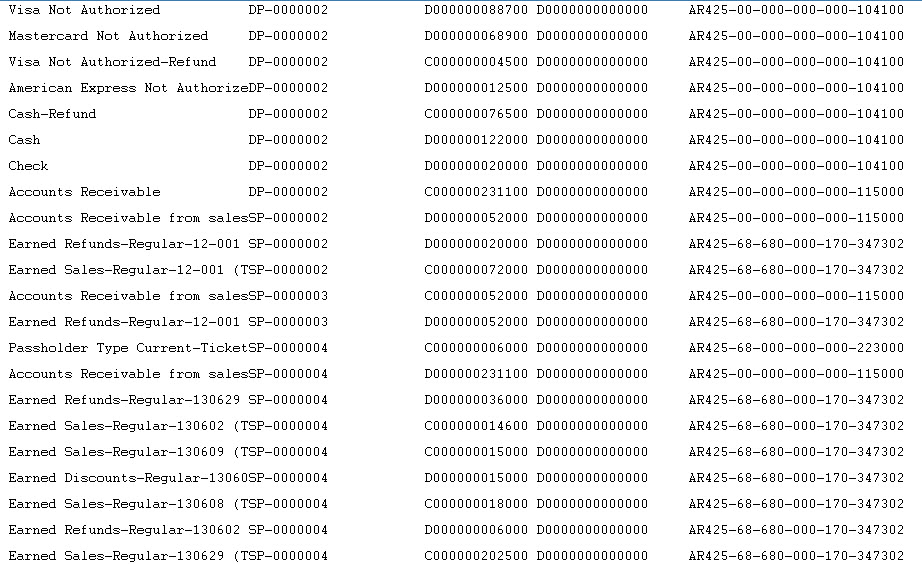
QuickBooks Desktop
|
Quickbooks Online has a different IIF format than Quickbooks Desktop. Please refer the help page for the version of Quickbooks that you are using.
Neither version accepts the format of the other. |
|
For step by step instructions on importing IIF files into QuickBooks, visit the QuickBooks Community at Learning how to import Intuit Interchange Format (.IIF) files into QuickBooks. |
QuickBooks Desktop Pro - Detail
The QuickBooks - Detail export exports each detail line within the G/L Entry. Each deposit and sales posting are exported as their own separate entries within the export file. This allows an exact match of each GL entry to crossover into QuickBooks (line for line).
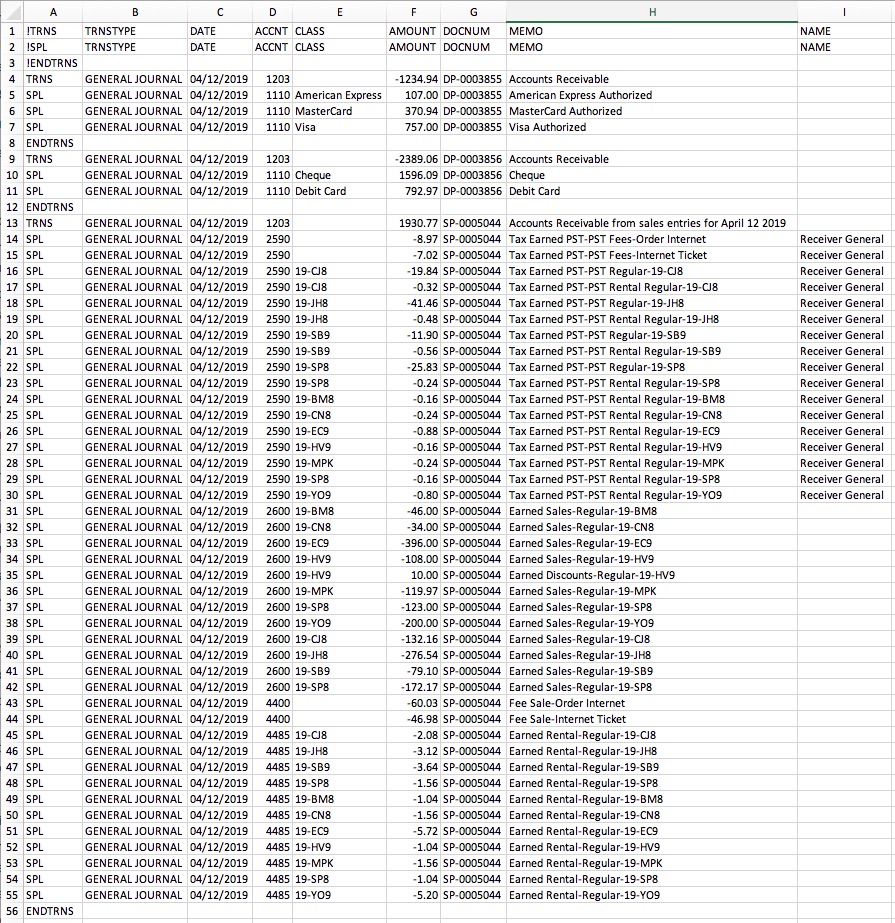
QuickBooks Desktop Pro - Summary
The QuickBooks - Summary export creates a summarized version of the deposit and sales postings for each posting date. The deposit and sales postings lines are summarized into a single entry for each posting date within the export file.
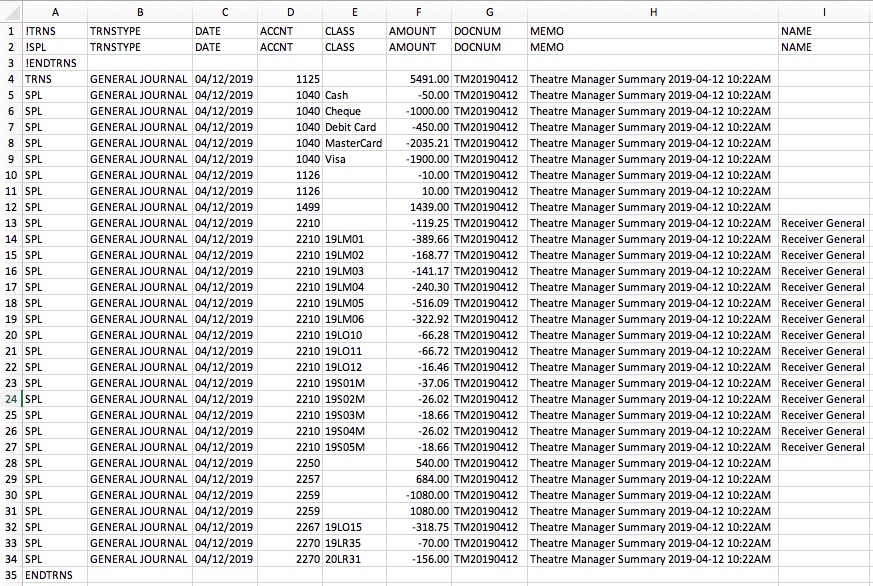
Parts of the QuickBooks Export File
| TRNS | The keyword for a transaction.
|
||||
| TRNSTYPE | A keyword that identifies the type of transaction.
|
||||
| DATE |
|
||||
| ACCNT | The name or account number of the QuickBook's account. Theatre Manager's External Account value (name or number) will be used to create the export file.
|
||||
| CLASS | The name of the class that applies to the transaction.
|
||||
| AMOUNT | The amount of the transaction. Debit amounts are always positive, credit amounts are always negative. | ||||
| DOCNUM | Journal Entry Reference Number.
|
||||
| MEMO | The memo text associated with the transaction.
|
||||
| NAME | The name of the Agency Vendor.
|
Vendor is a Sales Tax Agency
In QuickBooks, you may have set a Vendor as a Sales Tax Agency for your tax account(s).
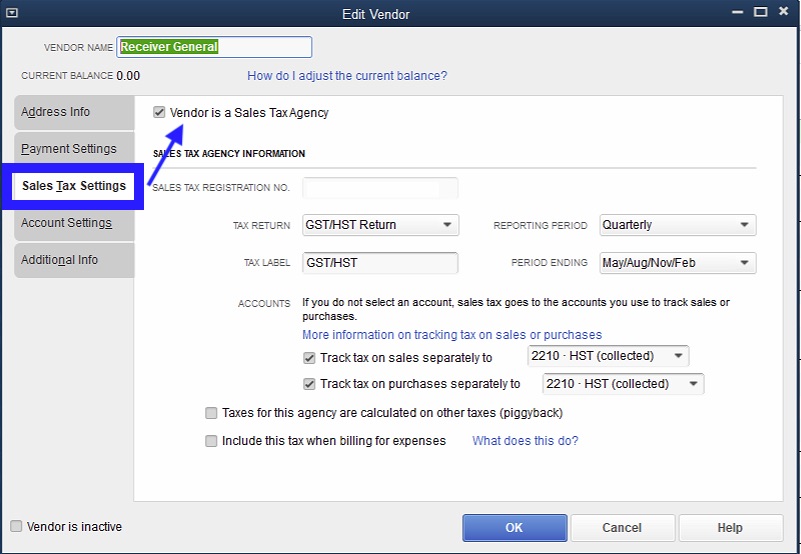
If QuickBooks is set up in this manner, the following example illustrates how to set up the External Account description. It must be set as [AccountNameOrNumber]\[VendorName] where a backslash (\) separates the 2 fields.
|
During the export process, the External Account field will be automatically parsed into the 2 separate values for ACCNT and NAME when a backslash (\) is within the External Account field. |
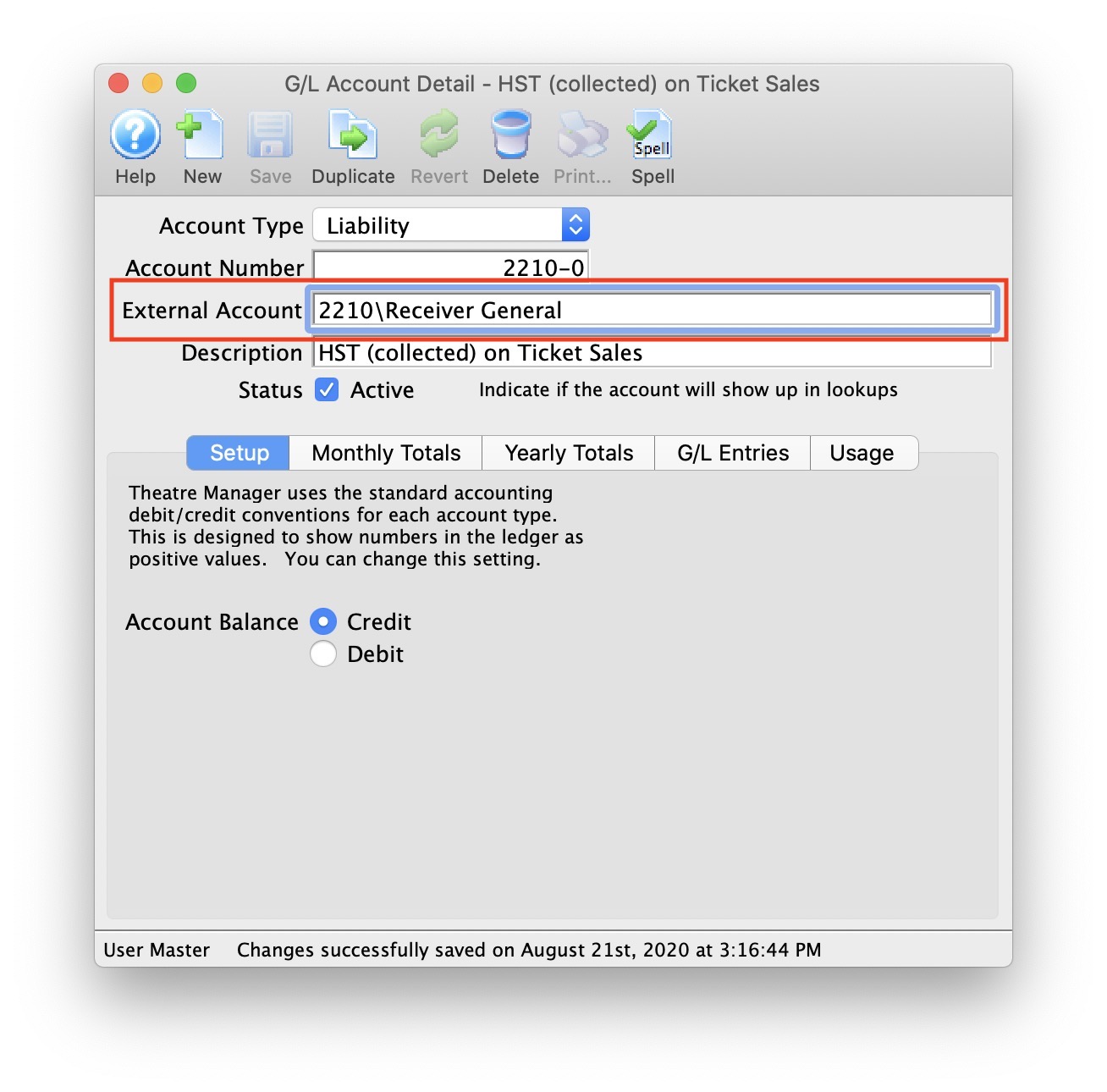
Common Questions
|
QB IIF: TRNSTYPE error - if you receive this error during the QuickBook's import process, it means you have set Theatre Manager to use the incorrect QuickBook's version that you are using. The TRNSTYPE, is a keyword that identifies the type of transaction.
|
|
QuickBooks has a requirement that a valid Customer/Vendor is included when posting to the built-in Accounts Receivable or Accounts Payment accounts. QuickBooks can not assign a receivable or a payable to 'nobody', it requires a Customer/Vender that is previously set up within QuickBooks.
The solution is as simple as avoiding any postings directly to the QuickBooks account types of Accounts Receivable and Accounts Payable. Rather, create a separate standard (non A/R) asset account and call it (for example) "A/R for Theatre Manager" and separate liability account and call it (for example) "A/P for Theatre Manager" and reference those account numbers in Theatre Manager's External Account value (name or number) used to create the export file. This way, there is no need to maintain Customers/Payees/Vendors in the export file as these accounts are just standard Asset / Liability and not linked to a special account type. This way when you import the amount into QuickBooks, it will go against the standard asset account and not against the built-in accounts receivable account in QuickBooks. When you want to see the details that make up the "A/R for Theatre Manager" or the "A/P for Theatre Manager" account, go directly to Theatre Manager for the details, rather than QuickBooks. To recap, create a standard Asset & and a standard Liability account to use to post to in QuickBooks. |
QuickBooks Online
|
Quickbooks Desktop has a different IIF format than Quickbooks Online. Please refer the help page for the version of Quickbooks that you are using.
Neither version accepts the format of the other. |
|
For step by step instructions on importing CSV or Excel files into QuickBooks, visit QuickBooks Support at Import Journal Entries in QuickBooks Online. |
|
QuickBooks help may say to turn off account numbers in Quickbooks. DO NOT TURN THEM OFF.
While Quickbooks indicates is able to match on either Account Name or Account Number, it is simply too much effort to keep account name matching character for character. Theatre Manager places the contents of the External Account field in the export file. This is the best to match TM accounts to Quickbooks using a field that generally should never change. |
QuickBooks Online - Detail
The QuickBooks - Detail export exports each detail line within the G/L Entry. Each deposit and sales posting are exported as their own separate entries within the export file. This allows an exact match of each GL entry to crossover into QuickBooks (line for line).
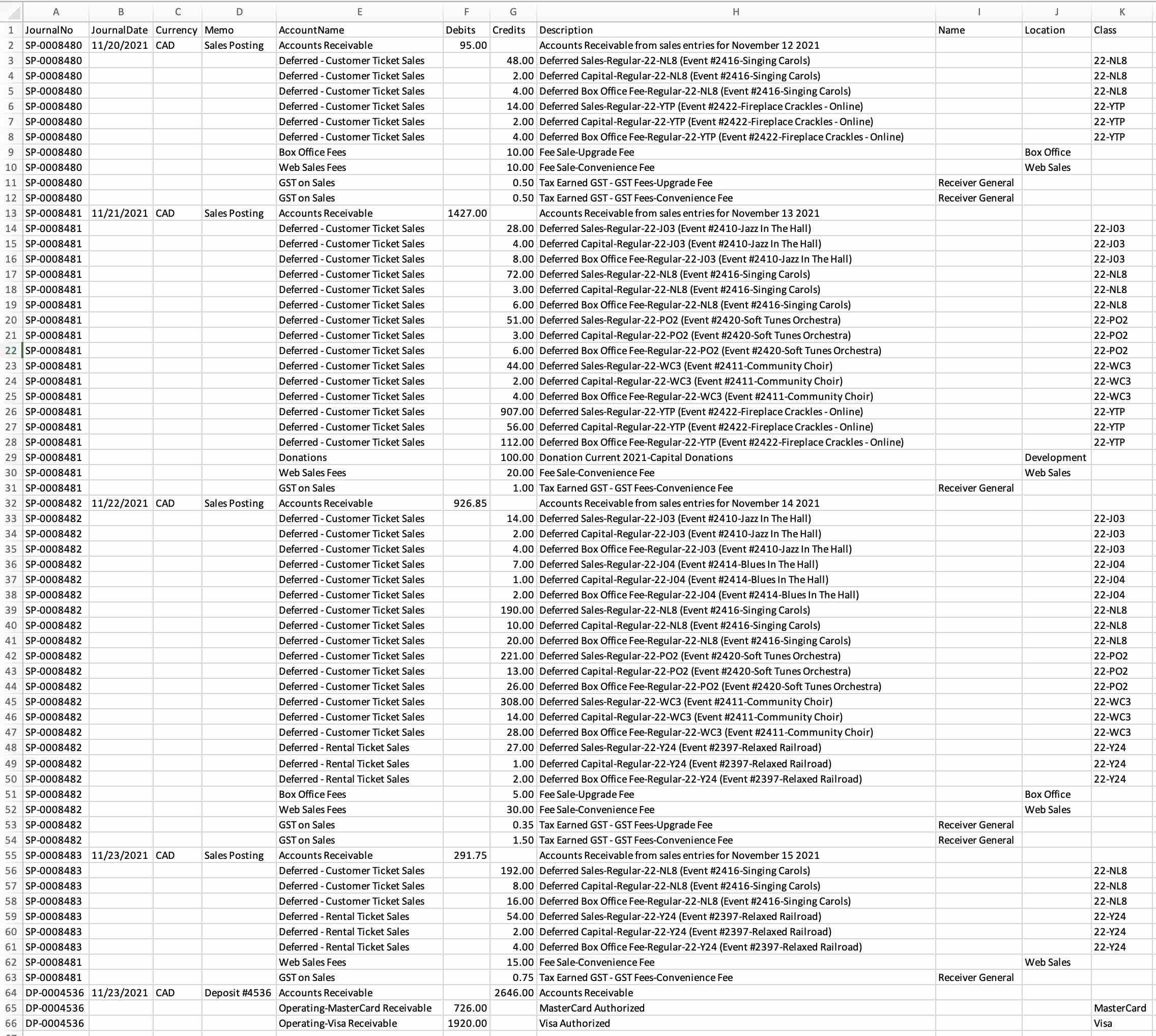
QuickBooks Online - Summary
The QuickBooks - Summary export creates a summarized version of the deposit and sales postings for each posting date. The deposit and sales postings lines are summarized into a single entry for each posting date within the export file.
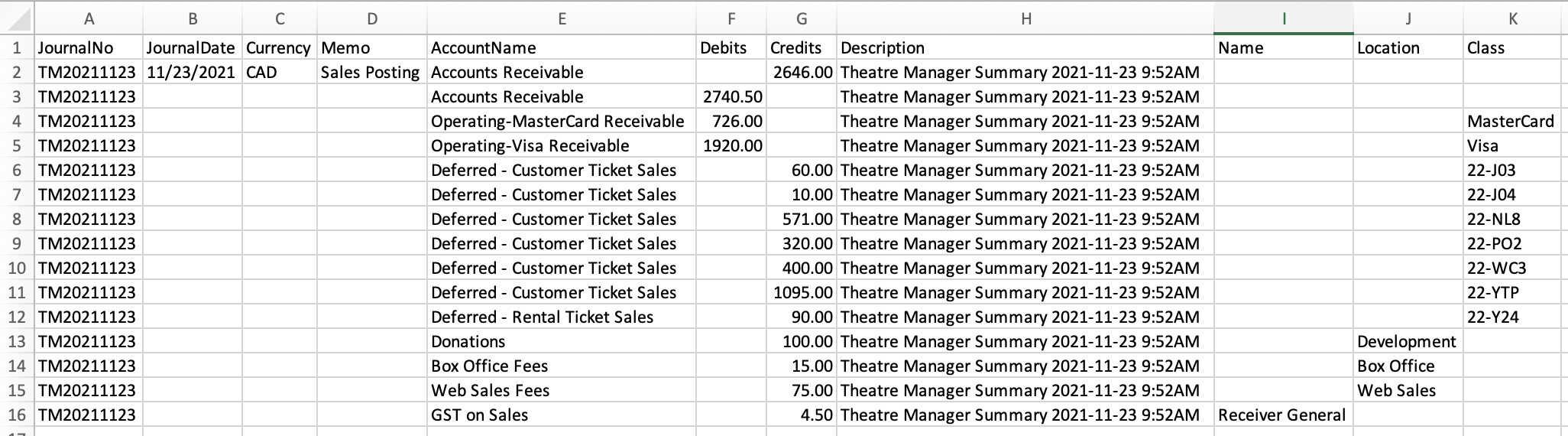
Parts of the QuickBooks Export File
| JournalNo | Journal Entry Reference Number.
|
||||
| JournalDate |
|
||||
| Currency | A valid Currency Code. Required for multi-currency databases.
| ||||
| Memo | The Journal Entry Description for this G/L Entry (Sales Posting, Deposit Posting). | ||||
| AccountName | The name or account number of the QuickBook's account. Theatre Manager's External Account value (name or number) will be used to create the export file.
|
||||
| Debits | The Debit Amount of the transaction. | ||||
| Credits | The Credit Amount of the transaction. | ||||
| Description | The memo text associated with the transaction.
|
||||
| Name | The name of the Agency Vendor.
|
||||
| Location | The location of the transaction.
|
||||
| Class | The name of the class that applies to the transaction.
|
Vendor is a Sales Tax Agency
In QuickBooks, you may have set a Vendor as a Sales Tax Agency for your tax account(s).
If QuickBooks is set up in this manner, the following example illustrates how to set up the External Account description. It must be set as [AccountNameOrNumber]\[VendorName]\[Location] where a backslash (\) separates the 3 fields.
|
During the export process, the External Account field will be automatically parsed into the 3 separate values for AccountName, Name, and Location when a backslash (\) is within the External Account field. |
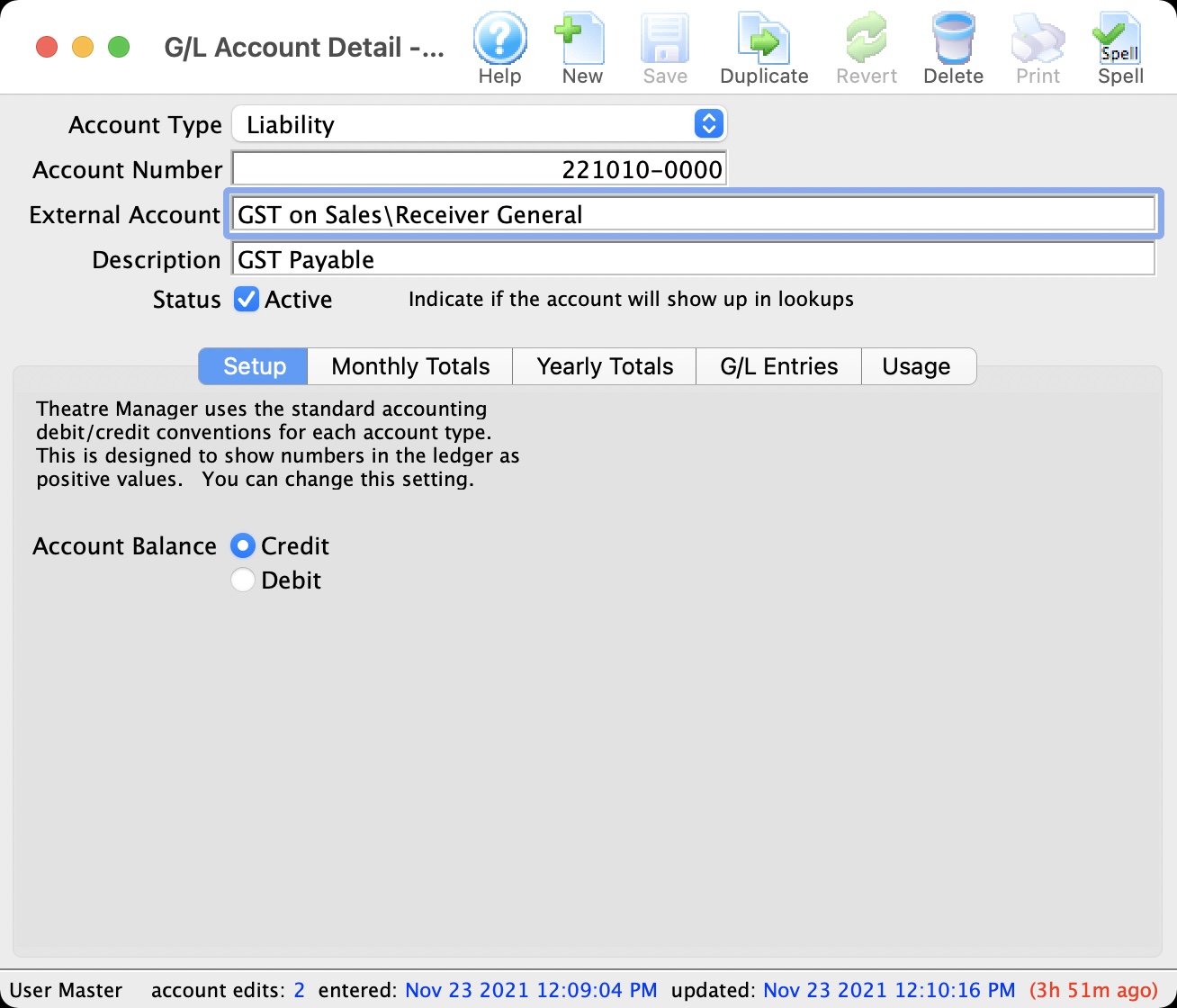
Location Tracking
In QuickBooks, you may have enabled Location tracking.
If QuickBooks is set up in this manner, the following example illustrates how to set up the External Account description. It must be set as [AccountNameOrNumber]\[VendorName]\[Location] where a backslash (\) separates the 3 fields.
|
During the export process, the External Account field will be automatically parsed into the 3 separate values for AccountName, Name, and Location when a backslash (\) is within the External Account field. |
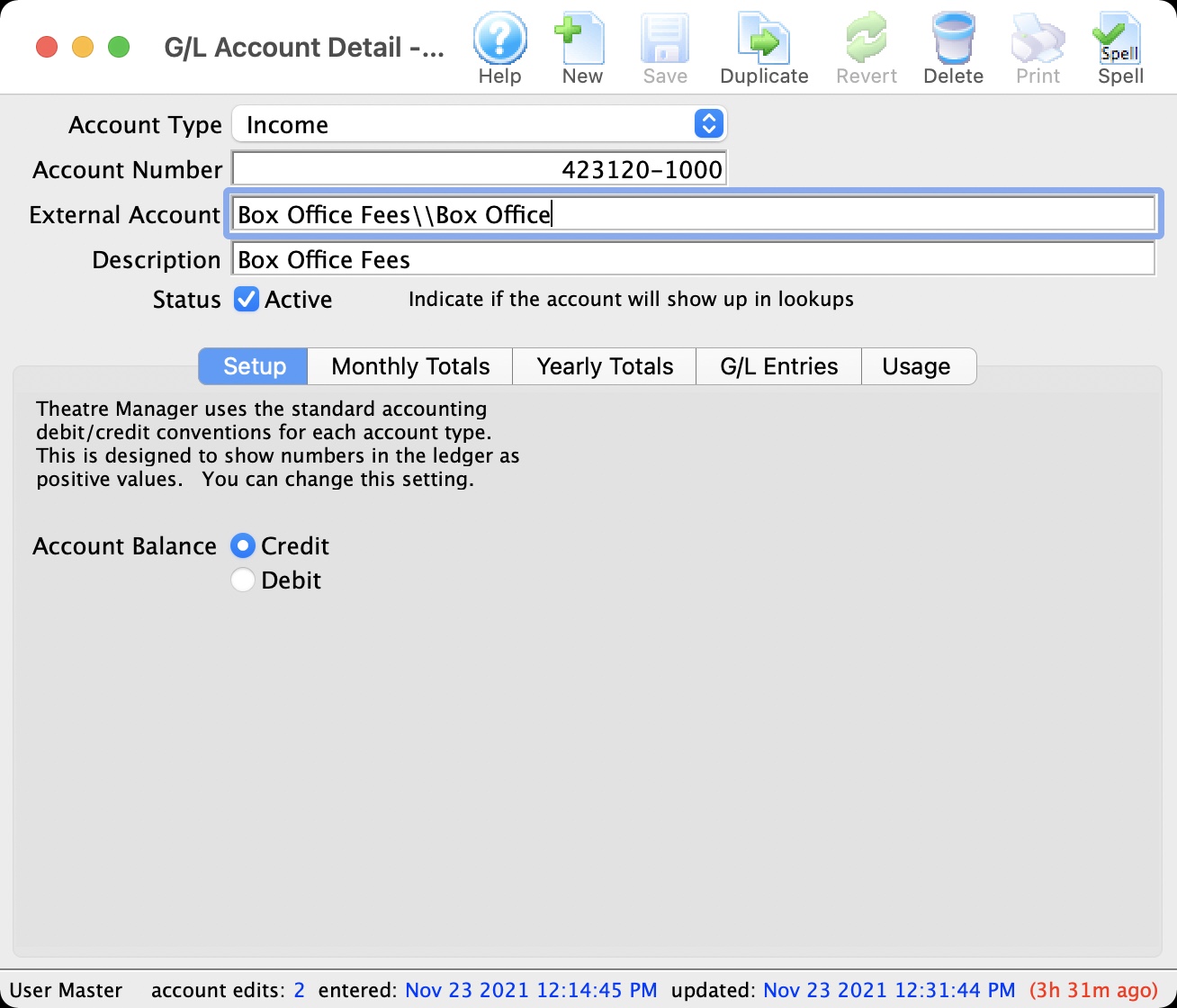
Common Questions
|
QuickBooks has a requirement that a valid Customer/Vendor is included when posting to the built-in Accounts Receivable or Accounts Payment accounts. QuickBooks can not assign a receivable or a payable to 'nobody', it requires a Customer/Vender that is previously set up within QuickBooks.
The solution is as simple as avoiding any postings directly to the QuickBooks account types of Accounts Receivable and Accounts Payable. Rather, create a separate standard (non A/R) asset account and call it (for example) "A/R for Theatre Manager" and separate liability account and call it (for example) "A/P for Theatre Manager" and reference those account numbers in Theatre Manager's External Account value (name or number) used to create the export file. This way, there is no need to maintain Customers/Payees/Vendors in the export file as these accounts are just standard Asset / Liability and not linked to a special account type. This way when you import the amount into QuickBooks, it will go against the standard asset account and not against the built-in accounts receivable account in QuickBooks. When you want to see the details that make up the "A/R for Theatre Manager" or the "A/P for Theatre Manager" account, go directly to Theatre Manager for the details, rather than QuickBooks. To recap, create a standard Asset & and a standard Liability account to use to post to in QuickBooks. |
Sage 50 Accounting
Sage 50 Accounting Software
The Sage 50 Accounting Software exports each detail line within the G/L Entry. Each deposit and sales posting are exported as their own separate entry within the export file. This allows an exact match of each G/L Entry to crossover into Sage 50 Accounting (line for line).
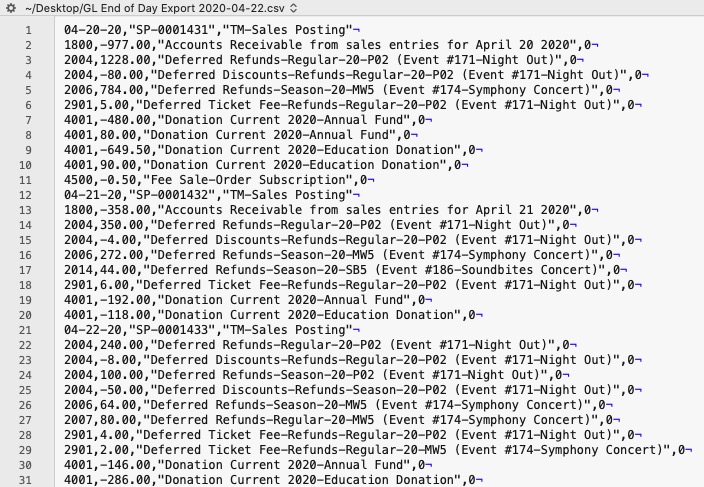
Parts of the Sage 50 Export File - Header Record
| Date | The Journal Entry Date. The date is always in MM-DD-YY format. |
| Source | Journal Entry Reference Number. The Journal Number from the sales posting or deposit posting will be exported. The field is limited to 13 characters. |
| Comment | Journal Entry Description.
|
Parts of the Sage 50 Export File - Detail Record
| Account Number | Theatere Manager's External Account value (name or number) will be used to create the export file. |
| Amount | The debit amount (represented as a positive value) or the credit amount (represented as a negative value) of the transaction. |
| Comment | The memo text associated to this particular G/L transaction from Theatre Manager's journal entry. The field is limited to 160 characters. |
| Project Allocation | The number of project allocation lines that follow this GL Account transation. The value will default to "0" as Theatre Manager will not be allocating the Amount for each Account Number. |
Common Questions
|
Sage 50 has a requirement its data import routines are unable to import transactions that affect the linked Accounts Receivable, Accounts Payable, Payroll Advances, Vacation Payable, or Inventory accounts if you have finished entering history.
The solution is as simple as avoiding any postings directly to the Sage 50 account types of Accounts Receivable and Accounts Payable. Rather, create a separate standard (non A/R) asset account and call it (for example) "A/R for Theatre Manager" and separate liability account and call it (for example) "A/P for Theatre Manager" and reference those account numbers in Theatre Manager's External Account value (name or number) used to create the export file. This way when you import the amount into Sage 50, it will go against the standard Asset / Liability account and not against the built-in accounts receivable account in Sage 50. When you want to see the details that make up the "A/R for Theatre Manager" or the "A/P for Theatre Manager" account, go directly to Theatre Manager for the details, rather than Sage 50. To recap, create a standard Asset and standard Liability account to use to post to in Sage 50. |
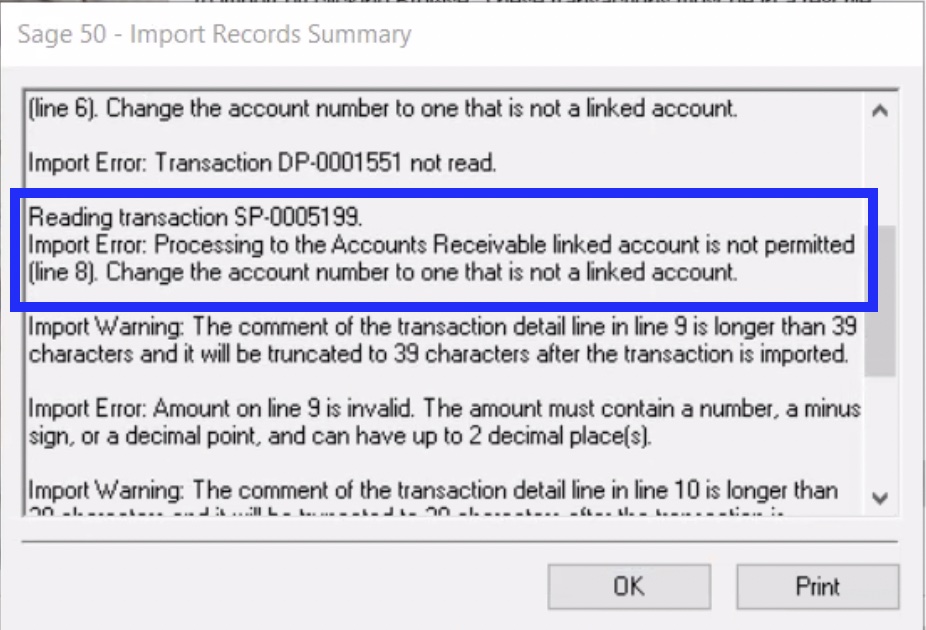
Sage Accpac
Sage Accpac Version 5.6
Sage ACCPAC Version 5.6 creates a .csv (text file comma delimited) file that can be opened directly in ACCPAC 5.6 and higher with no need for conversion.Sage Intacct
|
Theatre Manager will create a comma-delimited text file (.csv) that can be used to import into Sage Intacct accounting software. Sage Intacct's ability to create unique accounts, locations, departments, and classes for each GL account requires the setup of Theatre Manager's External Account field to be set in a specific format to accomodate the various aspects of the Intacct export file, prior to performing the first export. |
Sage Intacct
The Sage Intacct exports each detail line within the G/L Entry. Each deposit and sales posting are exported as their own separate entry within the export file. This allows an exact match of each G/L Entry to crossover into Intacct (line for line).
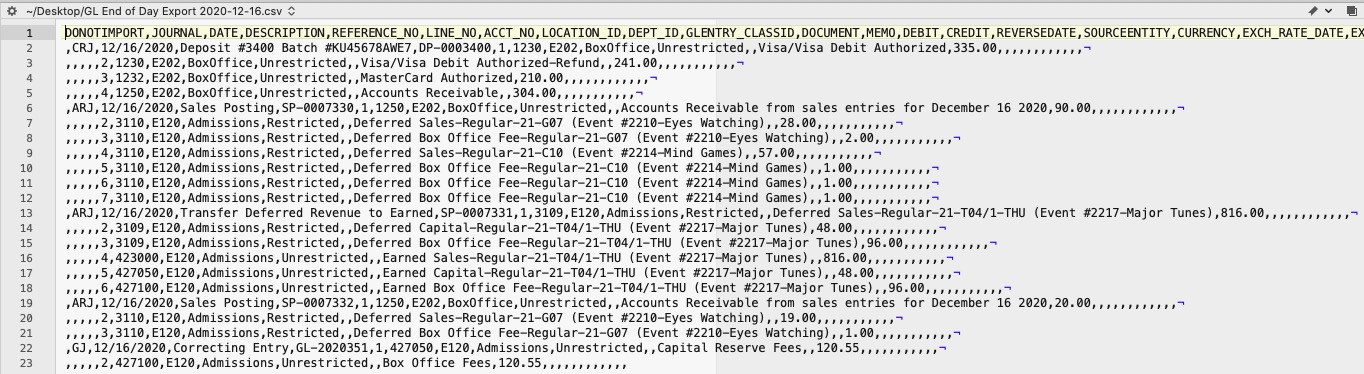
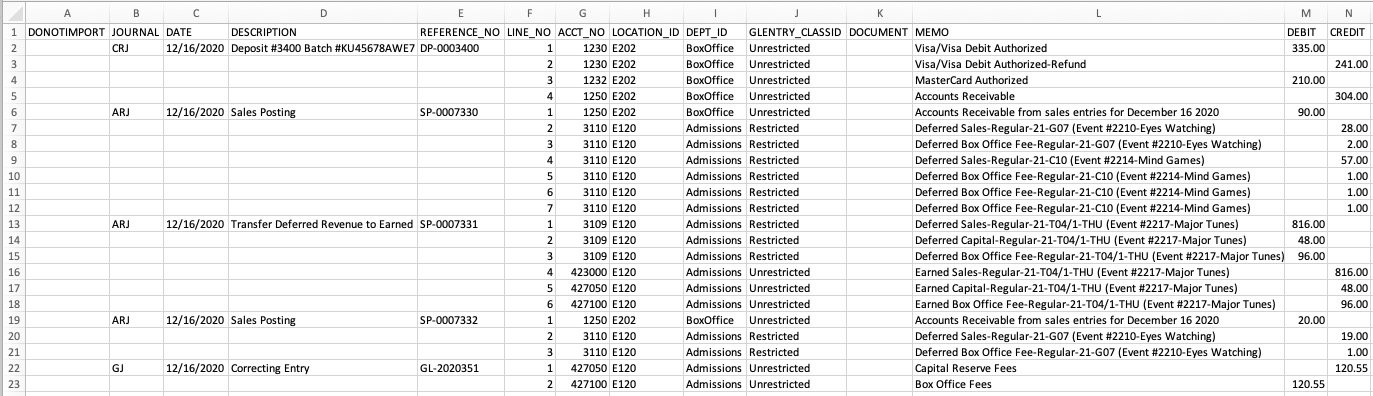
Parts of the Sage Intacct Export File
| DONOTIMPORT | Do Not Import flag - Any row which starts with a # will be ignored during the Intacct import.
Theatre Manager does not populate this field during the export process. |
||||
| JOURNAL | A valid Journal Type within Intacct representing the type of journal entry. The field is limited to 4 characters.
|
||||
| DATE | The Journal Entry Date for this G/L Entry. The date will be in a MM/DD/YYYY format. | ||||
| DESCRIPTION | The Journal Entry Description for this G/L Entry (Sales Posting, Deposit Posting). The field is limited to 80 characters. | ||||
| REFERENCE_NO | Journal Entry Reference Number. The Journal Number for this G/L Entry (SP-0001318, DP-0001255, GL-2020351). | ||||
| LINE_NO | A sequential Line Counter for each exported entry line. Line numbers begin at 1 and increment by 1 for each associated entry line. The Line Counter ID will reset back to 1 again for each new Sales Posting, Deposit Posting, or G/L Entry exported. | ||||
| ACCT_NO | The Intacct account number. Theatere Manager's External Account value (name or number) will be used to create the export file. | ||||
| LOCATION_ID | An associated Location ID to the Account Number. Theatre Manager's External Account value (name or number) will be used to create the export file. | ||||
| DEPT_ID | An associated Department ID to the Account Number. Theatre Manager's External Account value (name or number) will be used to create the export file. | ||||
| GLENTRY_CLASSID | An associated Class ID to the Account Number. Theatre Manager's External Account value (name or number) will be used to create the export file. | ||||
| DOCUMENT | The Document Reference for this G/L Detail Line. The field is limited to 30 characters.
Theatre Manager does not populate this field during the export process. |
||||
| MEMO | The memo text for this G/L Detail Line. The field is limited to 1000 characters. | ||||
| DEBIT | The debit amount for this G/L Detail Line. A blank value is used for $0.00 amounts. | ||||
| CREDIT | The credit amount for this G/L Detail Line. A blank value is used for $0.00 amounts. | ||||
| REVERSEDATE | The Reverse Date for this G/L Entry. The date will be in a MM/DD/YYYY format.
Theatre Manager does not populate this field during the export process. |
||||
| SOURCEENTITY | Refers to a valid Location within Intacct. The field is limited to 20 characters.
Theatre Manager does not populate this field during the export process. |
||||
| CURRENCY | A valid Currency ID within Intacct. The field is limited to 40 characters.
Theatre Manager does not populate this field during the export process. |
||||
| EXCH_RATE_DATE | The Exchange Rate Date indicator for this G/L Entry. The date will be in a MM/DD/YYYY format.
Theatre Manager does not populate this field during the export process. |
||||
| EXCH_RATE_TYPE_ID | A valid Exchange Rate Type ID within Intacct. The field is limited to 40 characters.
Theatre Manager does not populate this field during the export process. |
||||
| EXCHANGE_RATE | The Exchange Rate for this G/L Entry. The field is limited to 17 characters, not including decimal point.
Theatre Manager does not populate this field during the export process. |
||||
| STATE | The current State indicator for the G/L Entry.
Theatre Manager does not populate this field during the export process. |
||||
| ALLOCATION_ID | A valid Allocation ID within Intacct. The field is limited to 50 characters.
Theatre Manager does not populate this field during the export process. |
||||
| BILLABLE | The Billable for this G/L Entry.
Theatre Manager does not populate this field during the export process. |
||||
| GLENTRY_CUSTOMERID | A valid Customer ID within Intacct. The field is limited to 20 characters.
Theatre Manager does not populate this field during the export process. |
||||
| GLENTRY_VENDORID | A valid Vendor ID within Intacct. The field is limited to 20 characters.
Theatre Manager does not populate this field during the export process. |
Formatting the External Account Number
Theatre Manager's External Account number are required to be set up in a specific format to accomodate the various aspects of the Sage Intacct export file.
|
The format of the External Account varies based on the purpose of the GL Account. The format of this field is required to have a backslash (\) used as separator between fields. A leading or trailing backslash (\) for the External Account field should not be added.
|
| ACCT_NO | A23456789 - The account number that transactions get posted to.
|
||
| LOCATION_ID | L2345 - A predefined Location ID within Intacct. This ID is only required if Intacct requires it when using this account number. | ||
| DEPT_ID | D23456 - A predefined Department ID within Intacct. This ID is only required if Intacct requires it when using this account number. | ||
| GLENTRY_CLASSID | C23456 - A predefined Class ID within Intacct. This ID is only required if Intacct requires it when using this account number. |
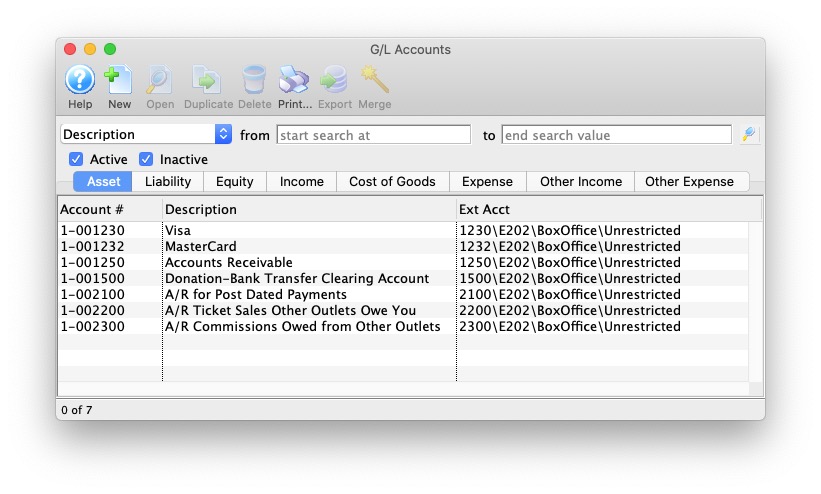
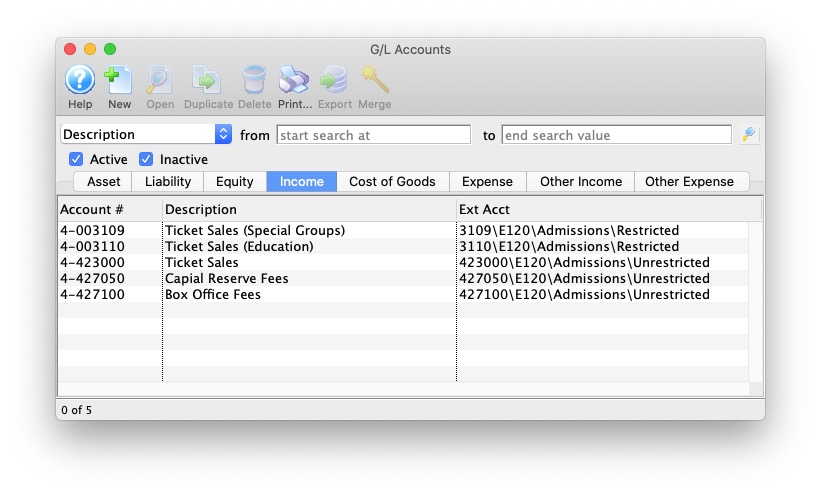
Solomon
|
Theatre Manager will create a Microsoft Excel file that can be used to import into Solomon Accounting Software. Solomon's ability to create unique company names, accounts, projects, tasks, and sub accounts for each GL account requires the setup of Theatre Manager's External Account field to be set in a specific format to accomodate the various aspects of the Solomon export file, prior to performing the first export. |
Solomon Accounting Software
The Soloman Accounting Software exports each detail line within the G/L Entry. Each deposit and sales posting are exported as their own separate entry within the export file. This allows an exact match of each G/L Entry to crossover into Solomon (line for line).
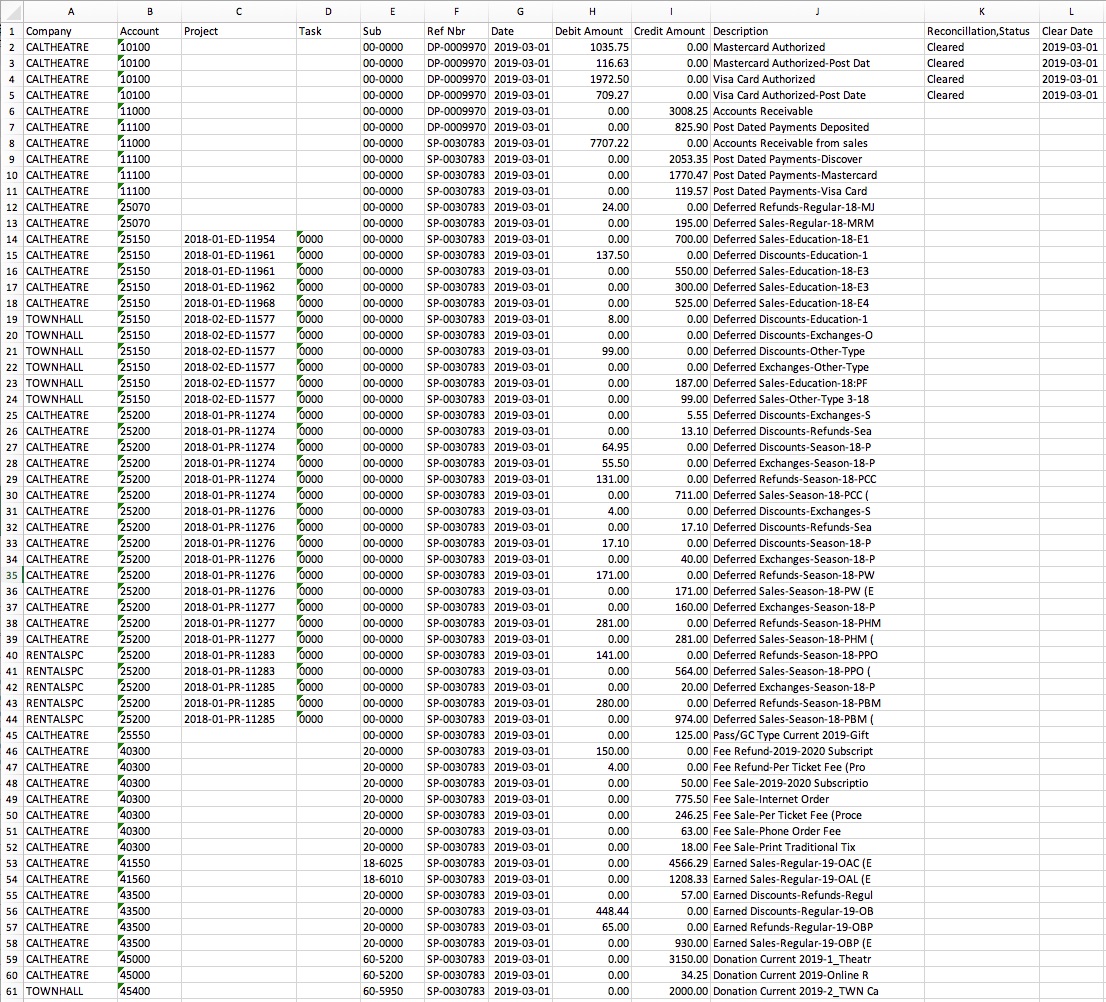
Parts of the Solomon Export File
| Company | The 'company database' that transactions get posted to. This description is defined within Solomon and may not match anything within Theatre Manager.
|
||||
| Account | A 5 digit account number. Theatere Manager's External Account value (name or number) will be used to create the export file. | ||||
| Project | Project codes are setup within Solomon. Using Theatere Manager's External Account, the export process will create the Project code for each event's sales. Refer to the section The Project Field Format on this page for more information.
|
||||
| Task | A 4 digit number. Task numbers are setup in Solomon.
|
||||
| Sub | A 6 digit sub account number. Sub account numbers are setup in Solomon. | ||||
| Ref Nbr | Journal Entry Reference Number. The Journal Number from the sales posting or deposit posting will be exported. | ||||
| Date | The Journal Entry Date. The date is always in YYYY-MM-DD format. | ||||
| Debit Amount | The debit amount of the transaction. | ||||
| Credit Amount | The credit amount of the transaction. | ||||
| Description | The memo text associated to this particular G/L transaction from Theatre Manager's journal entry. The field is limited to 30 characters. | ||||
| Reconcillation,Status | A reference to the reconcillation status for the bank deposit. This field is defaulted to aide in validating and importing data into Solomon.
|
||||
| Clear Date | The date the transaction is cleared in Solomon. The date is always in YYYY-MM-DD format.
|
Formatting the External Account Number
Theatre Manager's External Account number requires to be set up in a specific format to accomodate the various aspects of the Solomon export file.
|
The format of the External Account varies based on the purpose of the GL Account. The format of this field is required to have a period (.) used as separator between fields. A leading or trailing period (.) for the External Account field should not be added. |
- (Events with Projects) The field formation will be A23456789.B2345.C23456.L2.T2
- (Events with No Projects) The field formation will be A23456789.B2345.C23456
- (Cash Type Transactions) The field formation will be A23456789.B2345.C23456.CASH
| Company | A23456789 - The 'company database' that transactions get posted to. | ||
| Account | B2345 - A 5 digit account number. | ||
| Sub | C23456 - A 6 digit sub account number.
|
||
| Location | L2 - A 2 digit code representing the Location where the event is taking place. | ||
| Event Type | T2 - A 2 character code representing the Type of Event. | ||
| Cash Type Transaction | CASH - Include CASH to represent this is a Cash Type account number. |
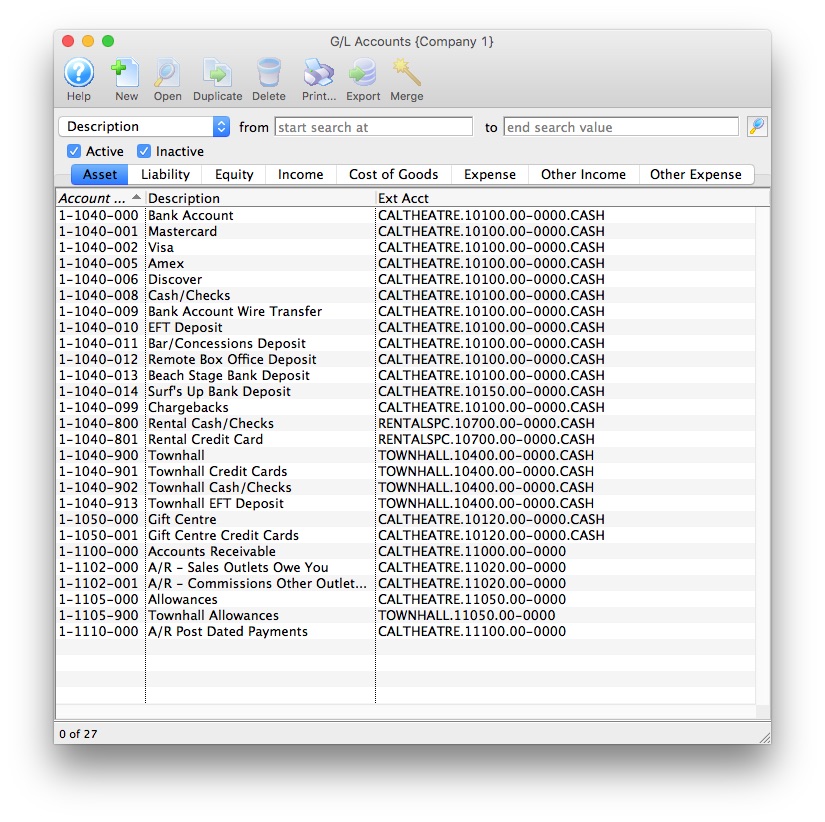
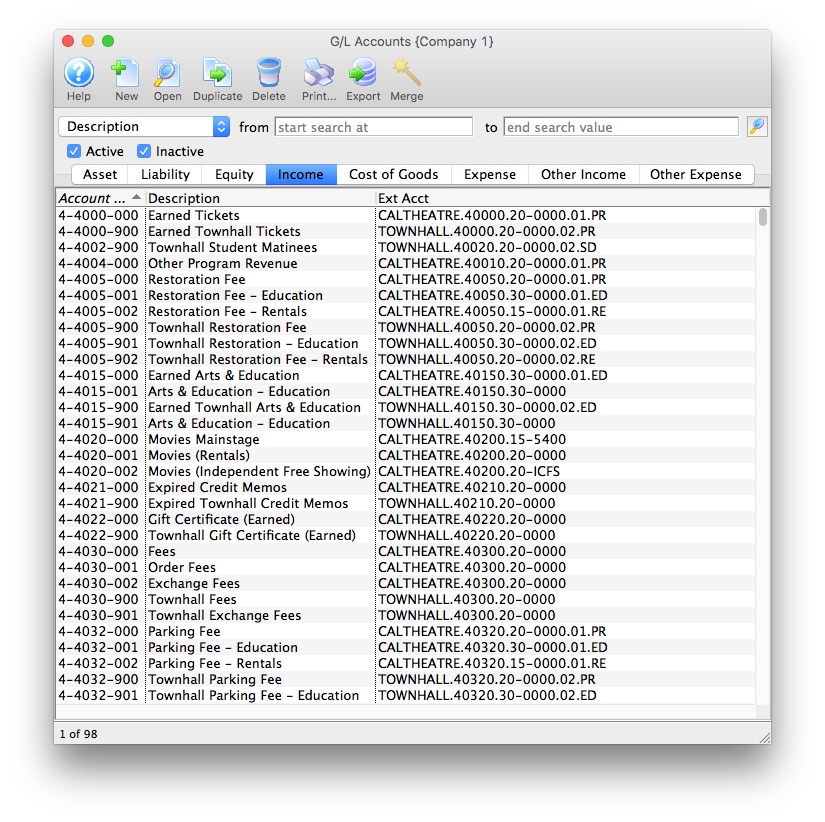
The Project Field Format
Theatre Manager will create a Project code using the following contents:
|
The format of the Project field will always be Y234-L2-T2-E2345 using a dash (-) as a field separator. |
| Program Year | Y234 - The Event Season starting year assigned to the Event in Theatre Manager. |
| Location | L2 - The 2 digit code representing the Location where the event is taking place, as defined in the External Account for the Event. |
| Event Type | T2 - The 2 character code representing the Type of Event, as defined in the External Account for the Event. |
| Event # | E2345 - A 5 digit number representing the Event Sequence Number assigned to the event by Theatre Manager. |
Unit4 Business World
|
Theatre Manager will create a fixed position text file (.txt) that can be used to import into Unit4 Business World accounting software. Unit4 Business World's ability to create unique accounts, locations, departments, and classes for each GL account requires the setup of Theatre Manager's External Account field to be set in a specific format to accomodate the various aspects of the Unit4 Business World export file, prior to performing the first export. |
Unit4 Business World
The Unit4 Business World (formerly Agresso Financials) exports each detail line within the G/L Entry. This allows an exact match of each G/L Entry to crossover into Unit4 Business World (line for line).

Parts of the Unit4 Business World Export File
| Batch Name | A pre-defined Batch Name identifier within Unit4 Business World representing the source of the journal entry. The field is limited to 7 characters.
| ||||
| Transaction Series | A pre-defined Transaction Series code within Unit4 Business World representing the type of journal entry.
| ||||
| GL Account Code | The Unit4 Business World account number. Theatere Manager's External Account value (name or number) will be used to create the export file. | ||||
| Cost Centre | Mandatory - A valid Cost Centre within Unit4 Business World. The field is limited to 4 characters. Theatre Manager's External Account value (name or number) will be used to create the export file. | ||||
| Project | Optional - A valid Project within Unit4 Business World. The field is limited to 16 characters. Theatre Manager's External Account value (name or number) will be used to create the export file. | ||||
| Location | Optional - A valid Location within Unit4 Business World. The field is limited to 8 characters. Theatre Manager's External Account value (name or number) will be used to create the export file. | ||||
| Payment Type | Optional - A valid Payment Type within Unit4 Business World. The field is limited to 11 characters. Theatre Manager's External Account value (name or number) will be used to create the export file.
|
||||
| Fund | Mandatory - A valid Fund within Unit4 Business World. The field is limited to 4 characters. Theatre Manager's External Account value (name or number) will be used to create the export file. | ||||
| Revenue Type | Optional - A valid Revenue Type within Unit4 Business World. The field is limited to 8 characters. Theatre Manager's External Account value (name or number) will be used to create the export file. | ||||
| Currency | A valid Currency Type ID within Unit4 Business World. The field is limited to 4 characters.
| ||||
| Data Type | Sets a preference value used during the import process to allow the import routines to know the Data Types that will be included within the import tables.
|
||||
| Amount in Local Currency | The amount of the transaction. Debit amounts are always positive, credit amounts are always negative. | ||||
| Amount in Local Currency if converted to Foreign Currency | The amount of the transaction. Debit amounts are always positive, credit amounts are always negative.
Theatre Manager sets this value to be the same as the Amount in Local Currency. |
||||
| Account Description | The G/L Account Description for this G/L Account. The field is limited to 50 characters. | ||||
| Period Start | The Journal Entry Date for this G/L Entry. The date will be in a YYYYMMDD format. | ||||
| Period End | The Journal Entry Date for this G/L Entry. The date will be in a YYYYMMDD format. |
Formatting the External Account Number
Theatre Manager's External Account number are required to be set up in a specific format to accomodate the various aspects of the Unit4 Business World export file.
|
The format of the External Account varies based on the purpose of the GL Account. The format of this field is required to have a backslash (\) used as separator between fields. A leading backslash (\) for the External Account field should not be added.
|
| GL Account Code | 4190 - The account number that transactions get posted to. The account number is mandatory. |
| Cost Centre | 3205 - A predefined Cost Centre within Unit4 Business World. This ID is mandatory. |
| Project | 112204 - A predefined Project within Unit4 Business World. This ID is optional. |
| Location | 999 - A predefined Location within Unit4 Business World. This ID is optional. |
| Revenue Type | 888 - A predefined Revenue Type within Unit4 Business World. This ID is optional. |
| Payment Type | 777 - A predefined Payment Type within Unit4 Business World. This ID is optional. |
| Fund | 100 - A predefined Fund within Unit4 Business World. This ID is mandatory. |
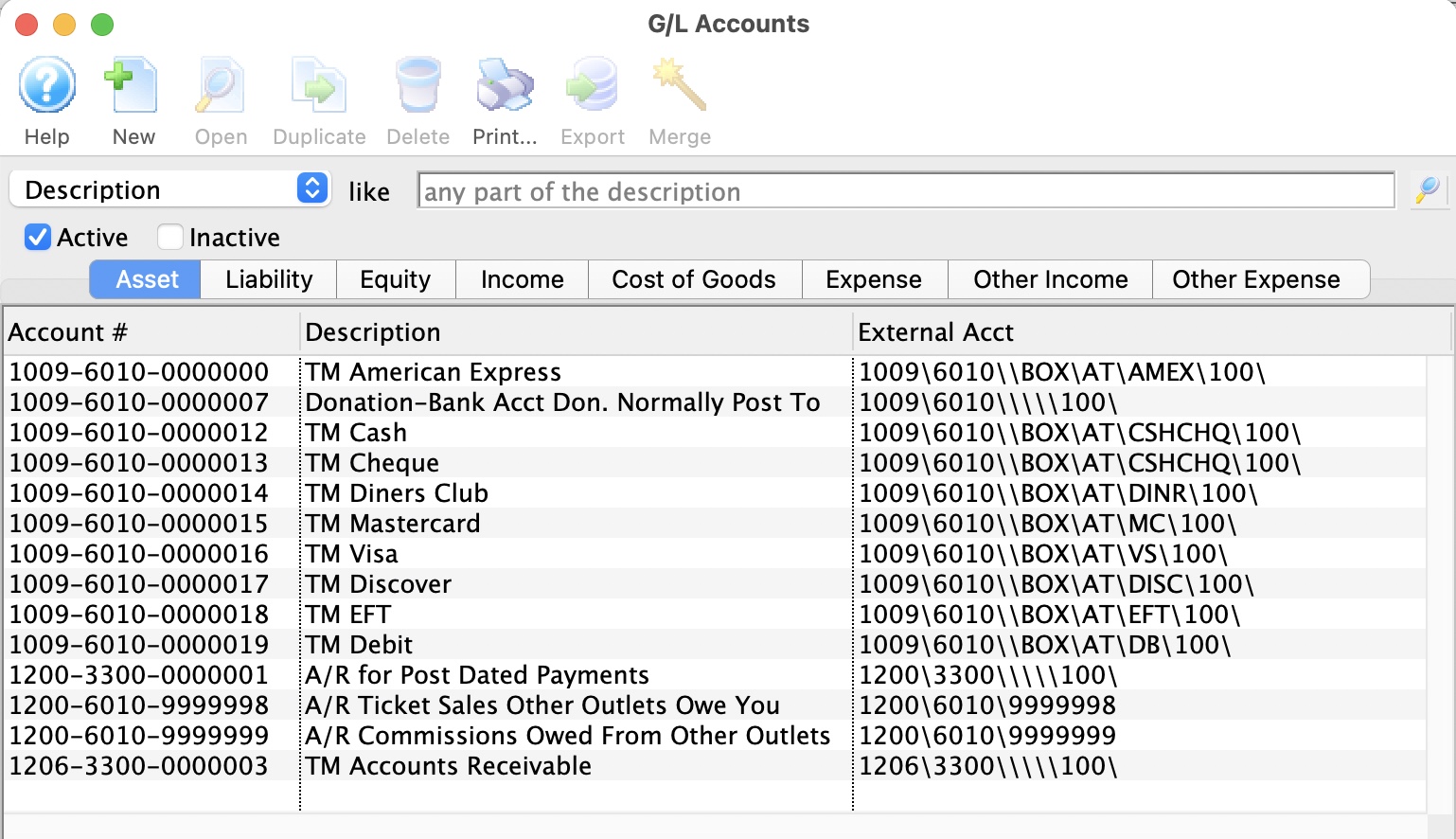
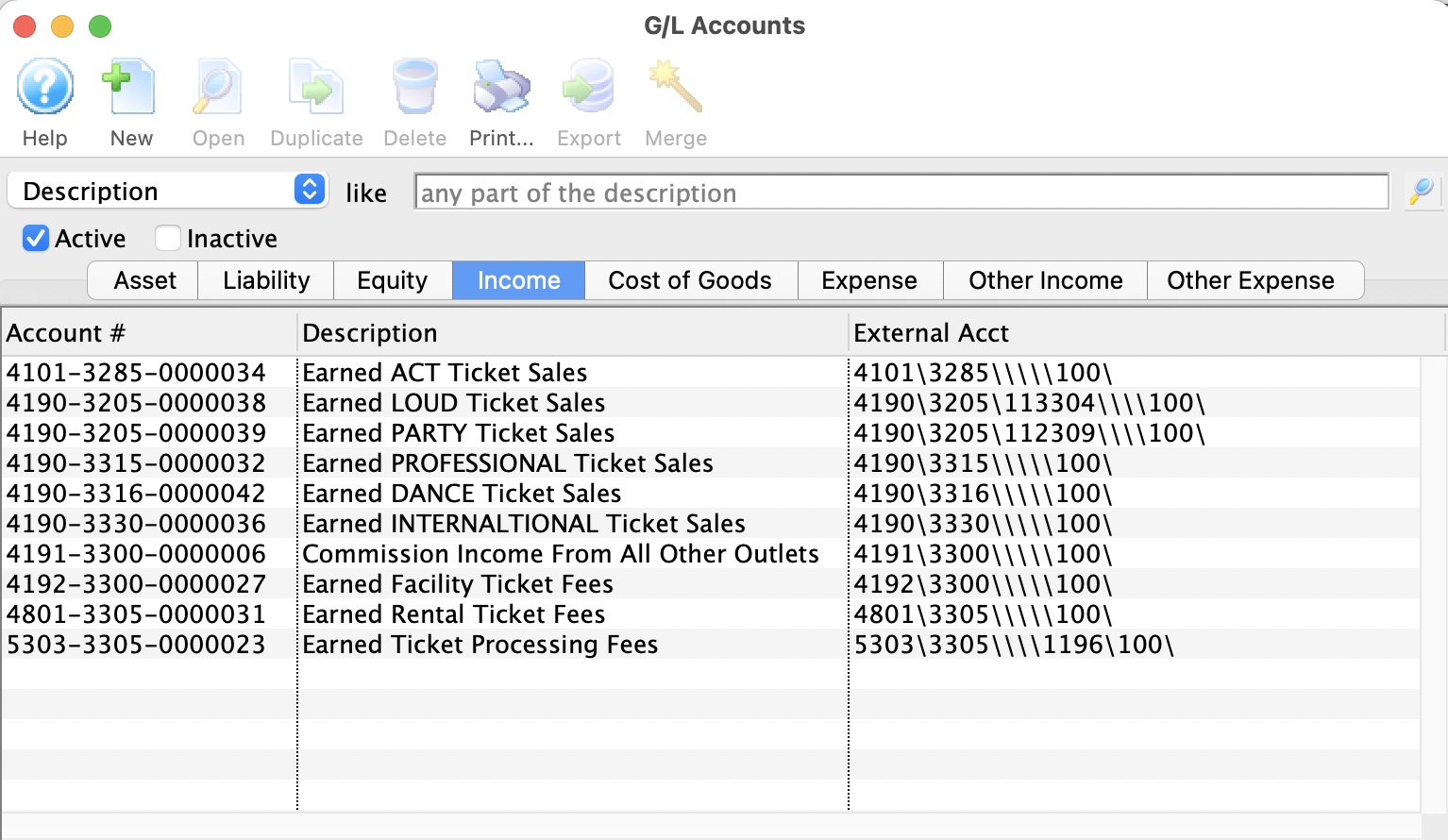
End Of Day Tab
|
This screen has an important button on it to reset the end of day process ID and is described below. You may have to do this if you receive the message about a deposit in progress during end of day wizard. |
End of Day Wizard and Posting Options |
|
| Allow sales while End of Day Wizard is Open | Click to allow employees to continue with the day's sales while the End of Day is being run. |
| EOD Process ID | This tracks the employee's process ID that tracks who is currently doing an End of Day deposit..
This allows you to resume accepting payments everywhere and also do the end of day process. It also clears the merchant in use settings if you receive a deposit in progress message that prevents accepting payments. |
Deposit Reports Required |
|
| Bank deposit summary by payment type | When checked, a summary of all payments, sorted by type, will print automatically during End of Day. This report can also be found in Reports > Order and Payments > Bank Deposit - Totals |
| Deposit detail of all payments | When checked, a detail report of all payments in the deposit, sorted by patron, will print automatically during End of Day. This report can also be found in Reports > Order and Payments > Deposit Detail |
| Cheque listing for bank deposit | When checked, a list of cheque detail in the deposit (suitable for taking to the bank) will print automatically during End of Day. This report can also be found in Reports > Order and Payments > Bank Deposit - Cheque Listing |
Next Transaction Numbers |
|
| Deposit Number | The next bank deposit number. This value should not be set less than the current number. |
| Till Bal(ance) Number | The next till balance number. This value should not be set less than the current number. |
| Sales Posting Number | The next sales posting reference number. This value should not be set less than the current number. |
| Member Control Number | The next member control number. This value should not be set less than the current number. |
| Date Last Deposit | The date of the most recent successful (completed) End of Day Deposit in Theatre Manager. |
| Date Last Posted | The date of the most recent balance of the End of Day (Post to G/L) in Theatre Manager. |
| Order Last Posted | The last order number posted to the G/L during End of Day. |
 NOTE: If nobody is in the deposit window, yet the end of day process ID is non zero, then click the Reset button to clear the process ID
Box Office Tab
Managing the Sale |
|||||
| Tix Sales Warning | A warning notification is displayed on the screen if the number of tickets being sold is greater than this number. | ||||
| Warn if Performance | Displays a warning on screen once a performance start time has gone past the denoted amount of time. | ||||
| Remove Performance | Removes the performance from the sell list once this much time has elapsed past the start time. Users with past performance access can still sell to this performance. | ||||
| Display past play | Number of days to still list past performances. | ||||
| Play Selection: Display Sold Out Performances | Checking the box will show Sold Out performances from the Buy Window. | ||||
| Before Event Sales: New order for each transaction | Checking the box will create a new order for each ticket transaction (generally each walk up patron).
|
||||
| Warn if Receivables Over | Checking the box will issue a warning to the screen when a patron's receivables exceed the value denoted. | ||||
| Next Season Starts | Denotes when the next season starts. | ||||
| Why did Patron buy? | The option selected from the drop-down will show on the Payment Window of an order as the default option for the patron's reason for buying the order. Options for the drop-down are set in Order reason to buy in Code Tables. | ||||
System Plug Ins |
|||||
| Checkout Plug In | Allows the selection of a plug in to be used for after the
order has been placed. Press the Plug In Search  button
to see all available plug ins. button
to see all available plug ins. |
||||
| Payment Plug In | Allows the selection of a plug in to be used for after the
payment has been taken. Press the Plug In Search button
to see all available plug ins. |
||||
Orders and Payments |
|||||
| Hold for Pickup / Taken | If selected, this option will be the default on the Payment Window and indicates that tickets are generally held to be taken by the patron or are immediately taken by the patron (walk-up). | ||||
| Mail to Patron | If selected, this option will be the default on the Payment Window and indicates that tickets are to be mailed to the patron. | ||||
| Hold for Will Call | If selected, this option will be the default on the Payment Window and indicates that tickets are to be held for Will Call for the door sale of the performance. | ||||
Ticket Delivery |
|||||
| Print tickets on ticket printer | Indicates that people generally print tickets on ticket printers for box office sales. | ||||
| E-Mail PDF tickets | If selected, the print tickets button within theatre manager will change to print/email tickets on all places where tickets can be printed. When the print/email button is clicked on those windows, it will show a list of email addresses for the household, as well as an option to add another email for the patron. Emailing tickets sends out a PDF of the ticket that is exactly the same as if the patron had purchased the ticket online.
When you print tickets form an order or patron window, the options for PDF printing will look like this. |
||||
| E-Mail an Invoice | If selected, the user will have the option to email invoices from the print an invoice screen on the order windows. | ||||
Exchange Policies |
|||||
| Collect $ for higher price | If selected the difference between the exchanged tickets and the new higher priced tickets will need to be collected. | ||||
| Collect $ for lower price | If selected the difference between the exchanged tickets and the new lower priced tickets will need to be refunded. | ||||
| Exchanged tickets retain original price | If selected when tickets are exchanged for lower priced tickets the lower priced tickets adopt the price of the original tickets. | ||||
Ticket Faces Tab
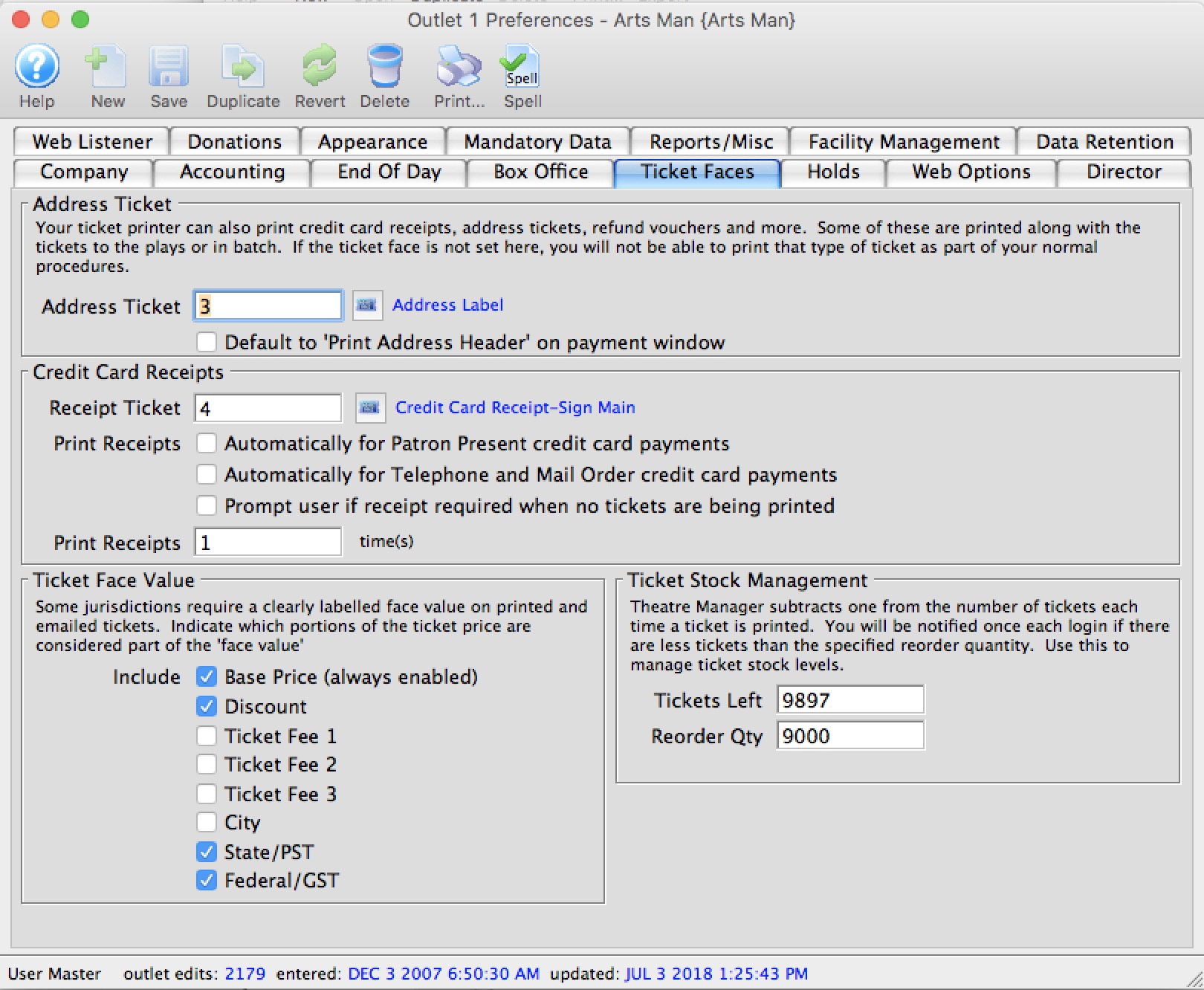
Default Ticket Faces |
|||
| Address Ticket | The address ticket face number. | ||
| Default to 'Print Address Header' on payment window. | When checked, this will set the Address Ticket to always be selected for printing by default on the Payment Window. | ||
Credit Card Receipts |
|||
| Receipt Ticket | The receipt ticket face number. | ||
| Print Automatically for Patron Present credit card payments. | Prints a credit card receipt automatically if a card is swiped in the box office - ie. the payment source is marked "patron present". | ||
| Print Automatically for Telephone and Mail Order credit card payments. | Prints a credit card receipt automatically if a card is keyed in manually in the box office - ie. the payment source is marked "telephone" or "mail" order in the payment window. | ||
| Prompt user if receipt required when no tickets are being printed. | When selected, a window will open during payment that prompts the user to select a credit card/address ticket receipt option when tickets are not being printed in the order - ie. when "Accept Payment" is clicked instead of "Print Tickets". | ||
| Print Receipts | The number of times the credit card receipt should be printed. | ||
Ticket Stock Management |
|||
| Approx. Tickets Left | The count of the number of blank tickets that you currently have in stock. | ||
Ticket Face Value |
|||
| Include |
The full price of a ticket is determined by the base price after applying a sales promotion. The components can include a discount, up to 3 fees and up to 3 taxes.
Some jurisdictions (like Ontario, Canada), require that a Face Value be determined for all tickets. You can specify which components are to be included in the face value by selecting the appropriate checkboxes. If this applies to your venue, change your ticket faces to show the face value by adding or using the Face Value field
|
||
| Reorder Level | The point at which Theatre Manager will show a reminder to you to order more ticket stock. You will get a warning if the approximate count of tickets dips below this number. We recommend setting this number to be the number of tickets you will print in an average month.
Since theatre manager counts each ticket that is printed, the purpose of tracking ticket inventory is so that you do not run out of tickets at a critical time. Click here for more information.
|
||
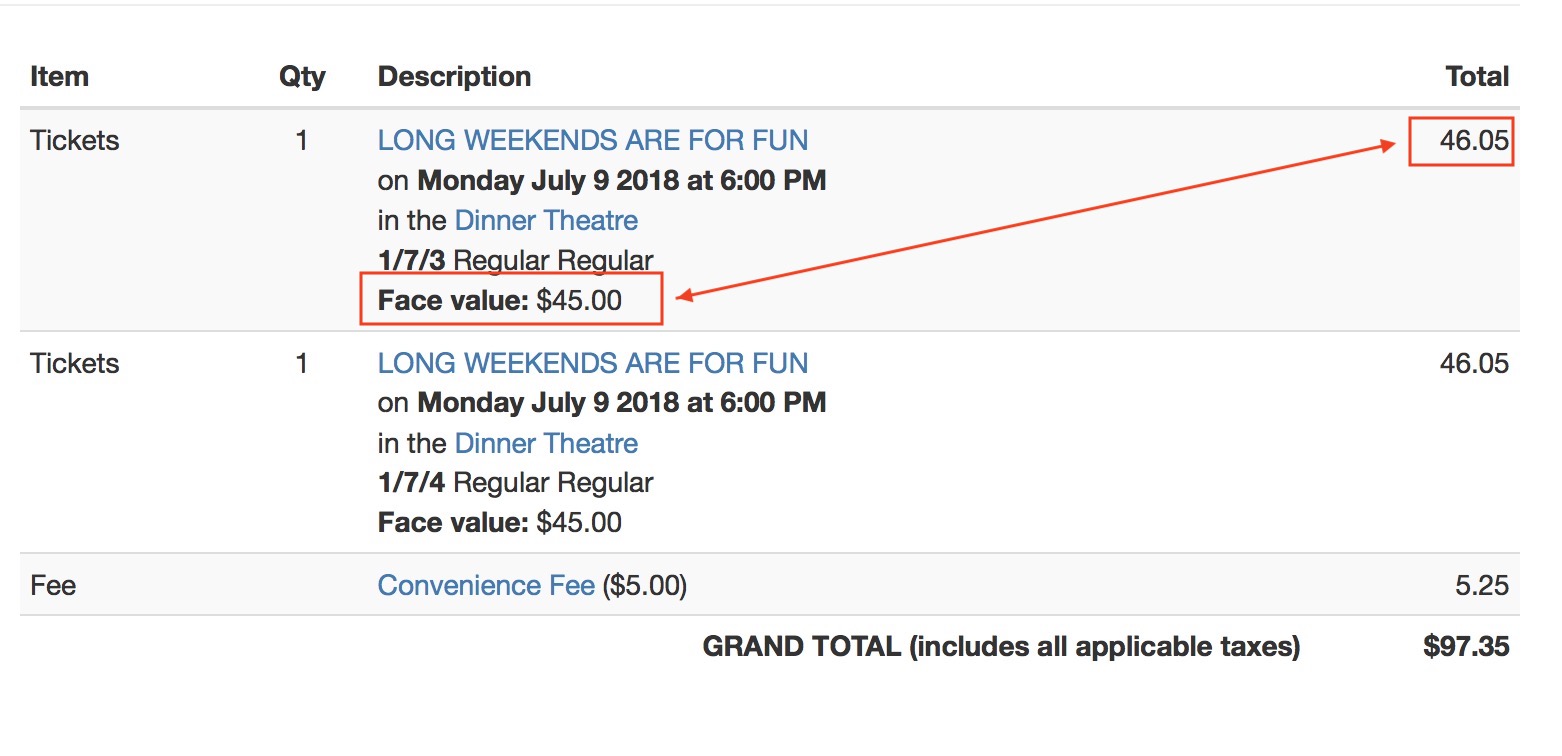 For e-tickets, you may need to set the
 Holds Tab
This section defines the appearance and release time for held seats. Held seats can be set to automatically release prior to the performance. Enter the time before the performance that the seats are to be released.
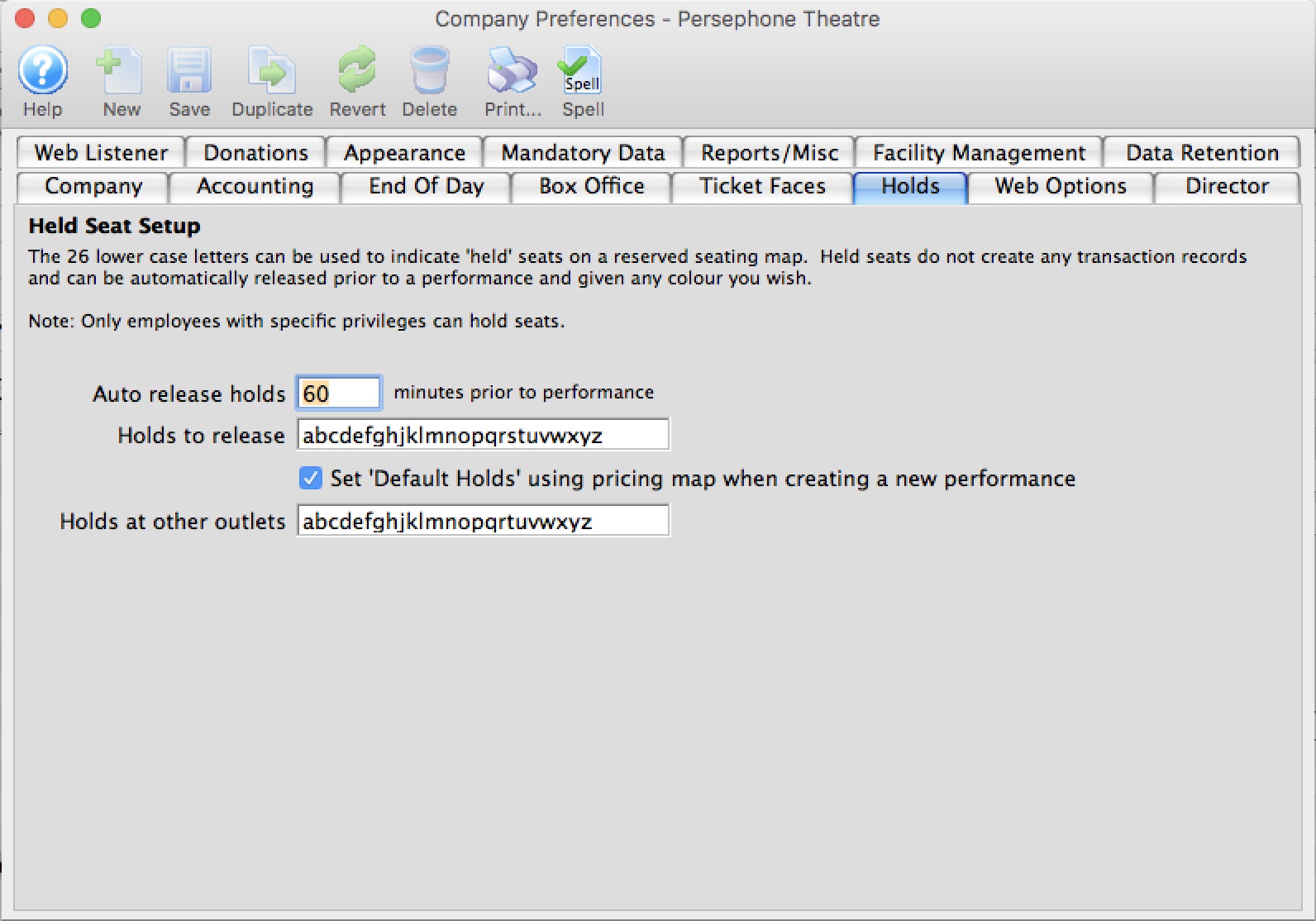
Held Seat Setup |
|
| Auto Release Holds | The number of minutes prior to a performance that held seats will be released. |
| Holds to Release | The letters, representing a held seat, to be released. |
| Set default holds using venue map when creating a new performance | Use the map holds as the default setting when creating a new performance. |
| Holds at other Outlets. | These holds codes may be released by sales people working at other outlets if they have access to those hold codes in their own outlet. |
Web Options Tab
- General settings such as enabling login, how login works and any lockouts.
- The Purchasing process that help decide flow of purchasing tickets, how passes can be used and suggested donations processes
- Carts and Checkout settings for display options, and checkout settings.
- Ticket Delivery Options settings for charging fees on various ticket delivery options
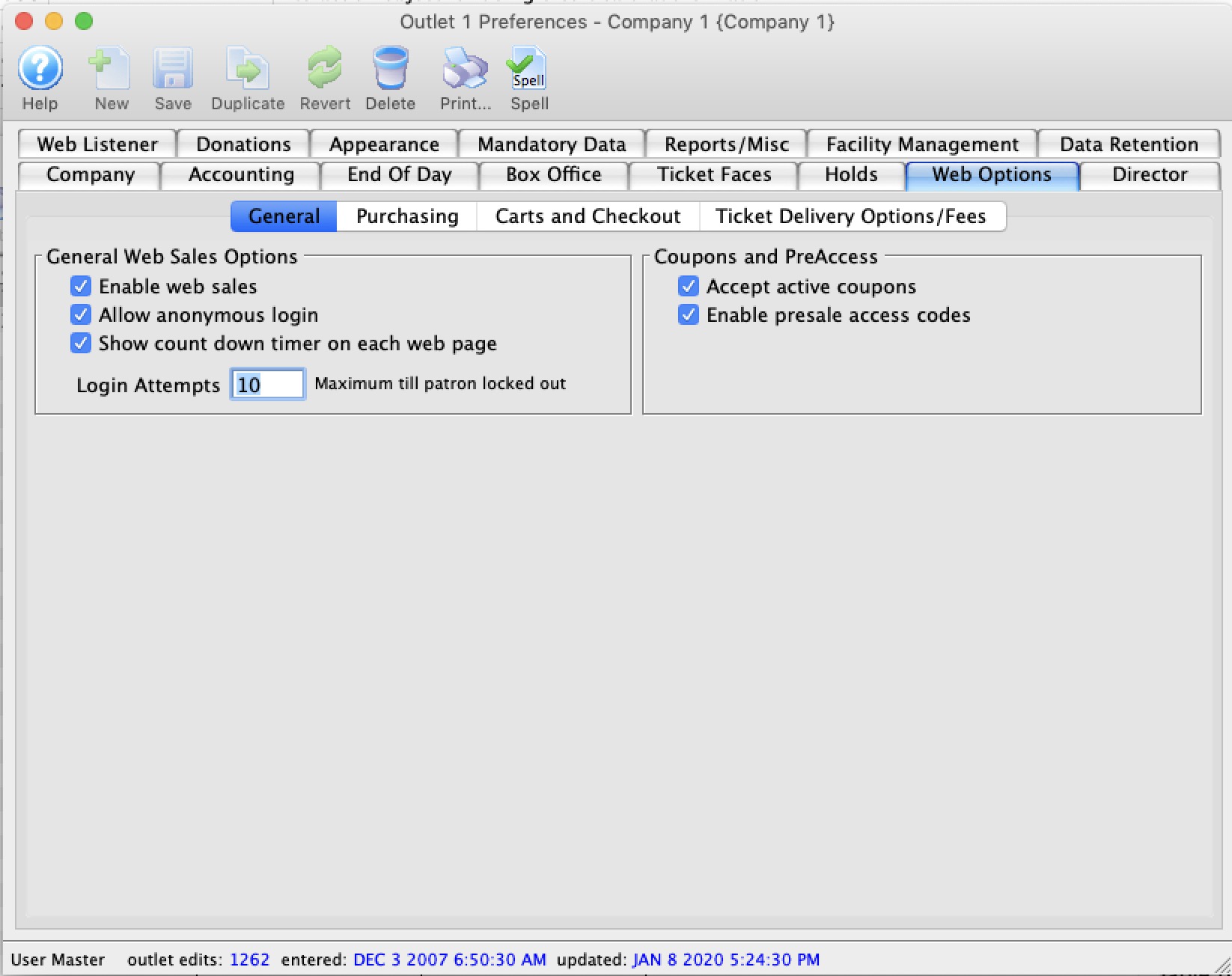
Web Options - General
General Web Sales Options |
|
| Enable Web Sales | Enables sales to occur on the web.
|
| Allow Anonymous Login | Enabling this feature allows patrons to shop and add items to a web sopping cart without identifying themselves first. When the patron is ready to check out and pay, they will need to either:
Optionally, if you also wish to give patrons the option to checkout without creating an account you can enable the limited profile patron option. When the option is enabled and the patron checks out, they will be given 3 options:
|
| Show Count down Timer | When enabled, a timer will appear on the web pages menu bar beside the cart - showing how much time is left before the web listener releases all items in the cart. The timer will appear once there is something in the cart and is reset every time the patron looks at a new web page |
| Login Attempts | The maximum number of login attempts before the patron's account is locked out and they must request their password to continue. |
Coupons and Preacess codes |
|
| Accept active coupons | When selected, patrons will be able to enter a coupon code at checkout. For more about coupons, click here. |
| Enable presale access codes | When selected, patrons will be able to enter a presale access code on the Events list online in order to see shows which are not online for sale to the general public. For more about presale access codes, click here. |
Web Options - Purchasing
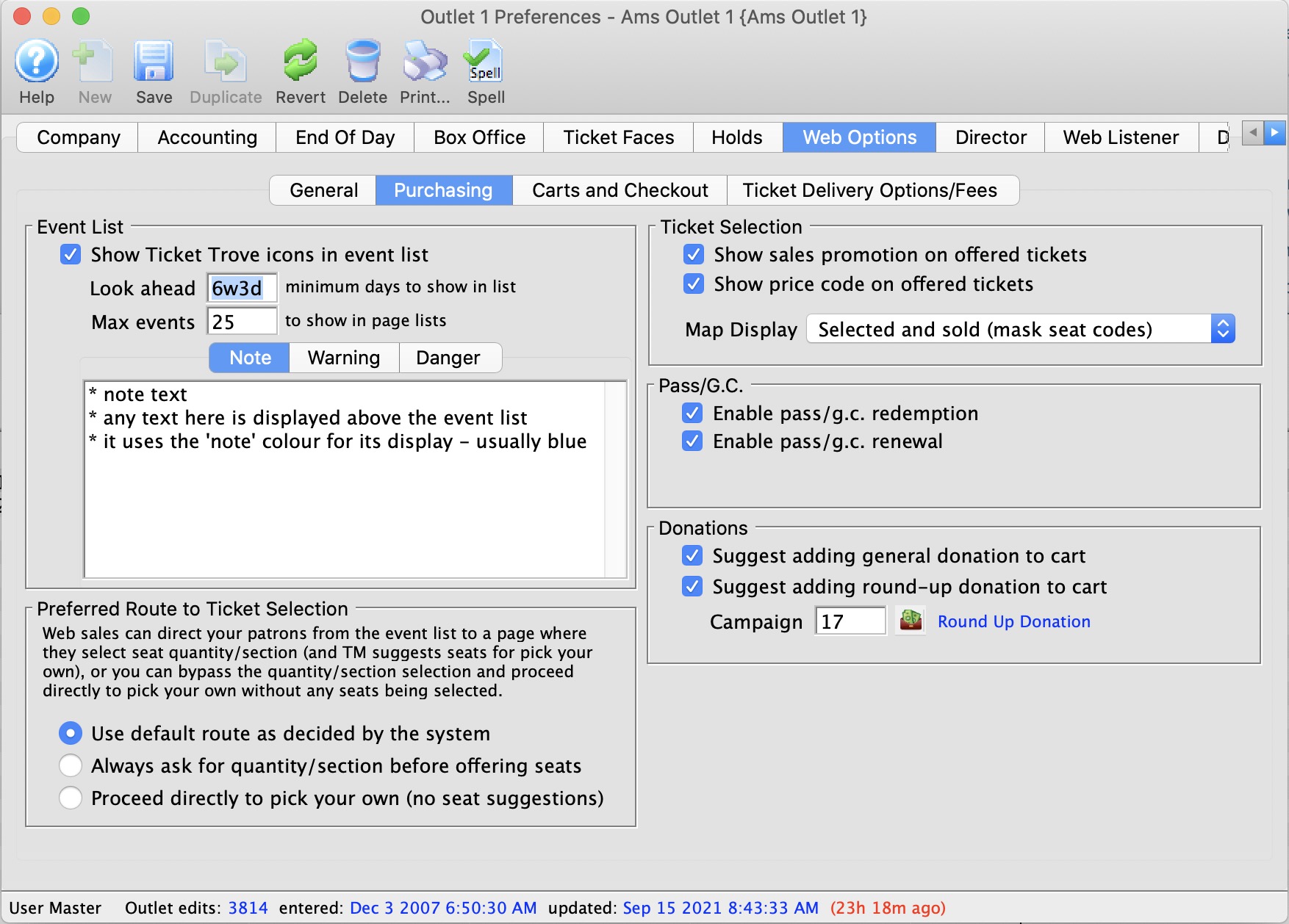
Event List |
|
| Show Ticket Trove icons on play list | Displays the Ticket Trove icon from the Marketing tab in the List of Events for the online sales. |
| Look Ahead | Number of days in advance events should be displayed for. If this is:
|
| Max Events (pagination) | The maximum number of events to be displayed on any one page in the event list. If the patron requests more events than the maximum, the event page becomes paginated and the patron can go forward or backward in pages to see the rest of the events. Using 25 events for pagination is a good balance between performance and amount of data to display.
NOTE: the last page always shows a full list (by design). So, if you have 27 performances found by the current search, then:
|
| Note, Warning, Danger Alerts | You can add a Note and/or Warning and/or Danger alert to your event list that will appear at the top of each page. This can be plain text, HTML or Markup. The diagram below shows some examples of using Markup to have all three of the messages appear on the event list.
Possible uses
Example using markup
|
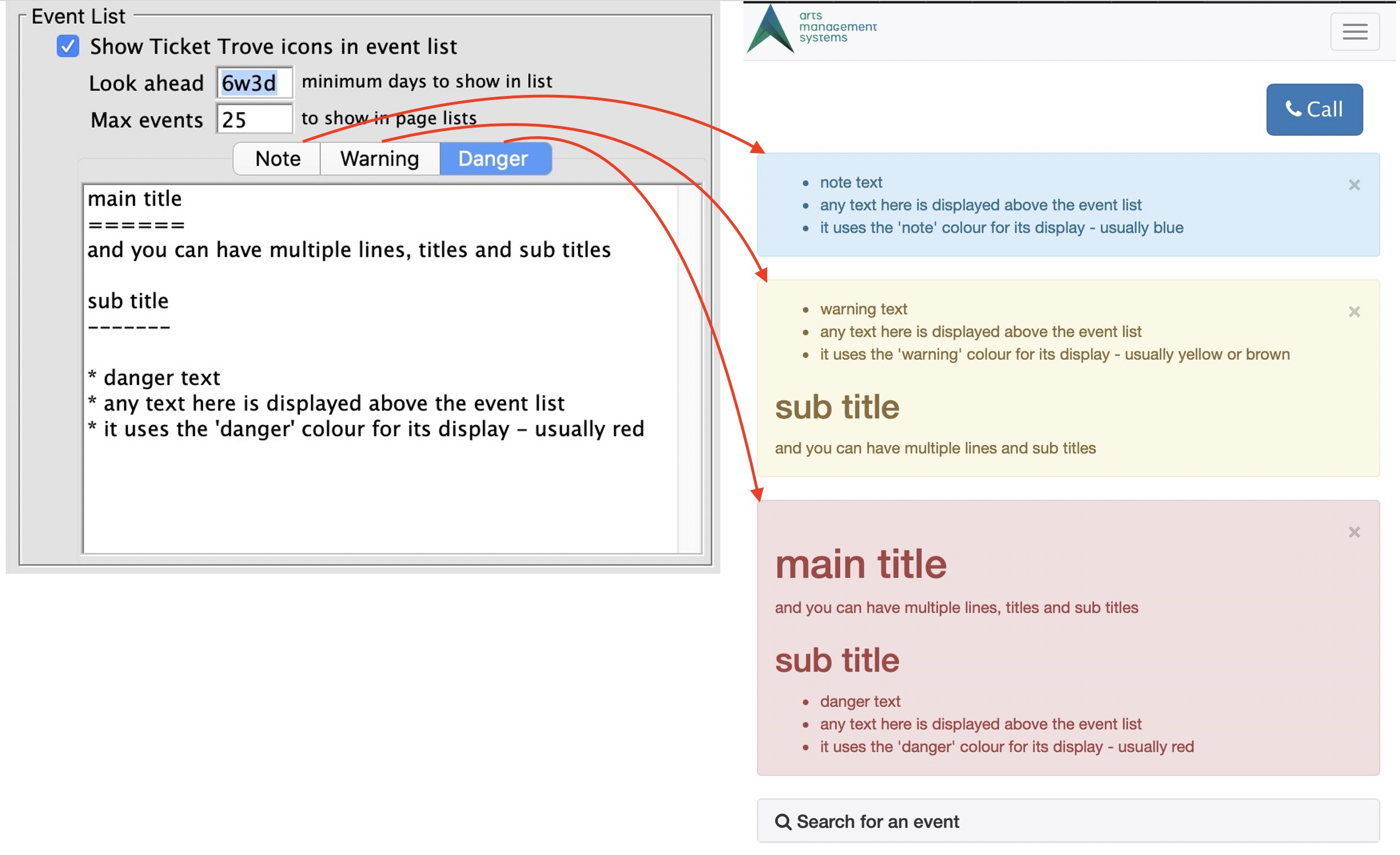
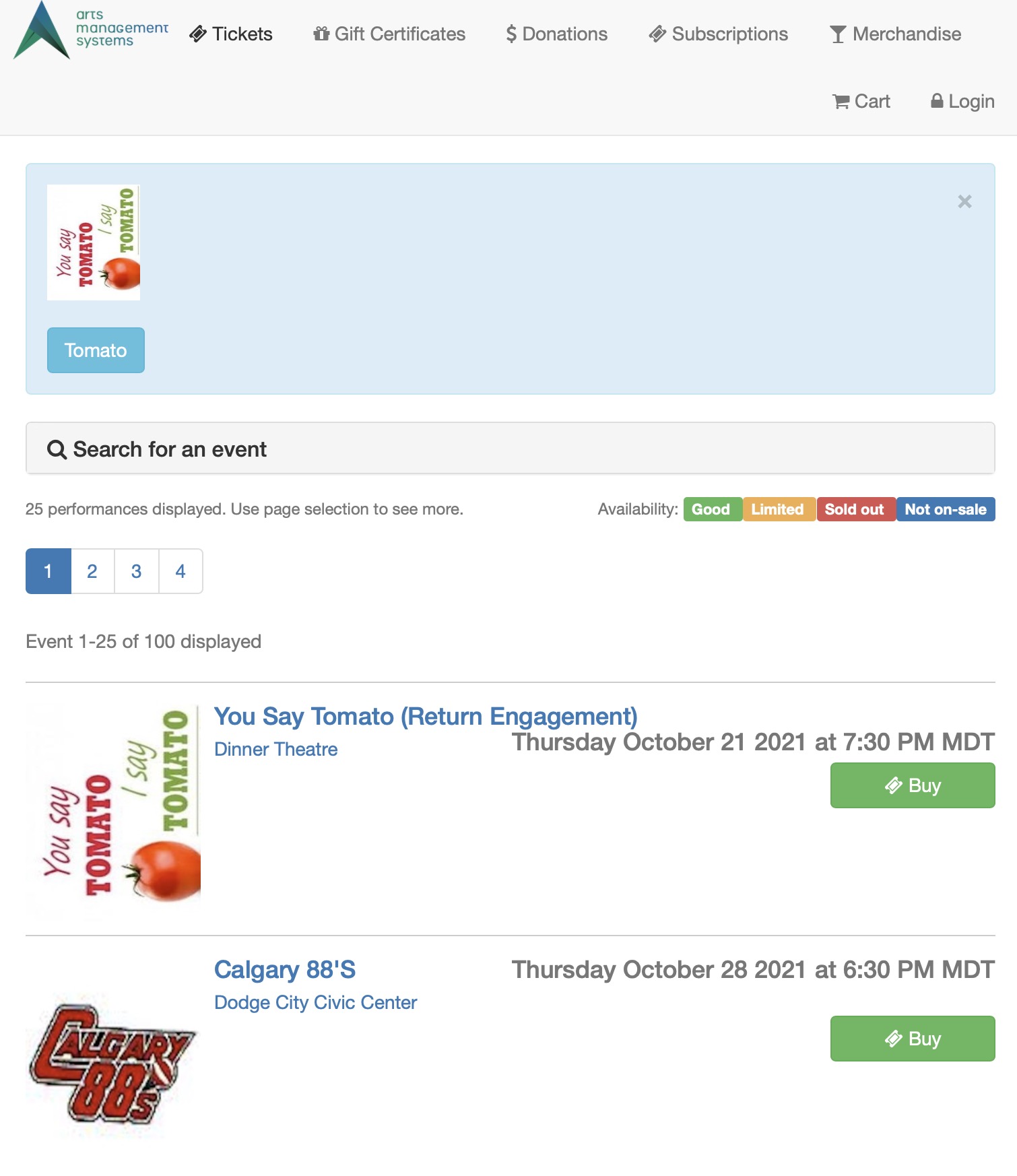
Preferred Route to Ticket Selection |
|||
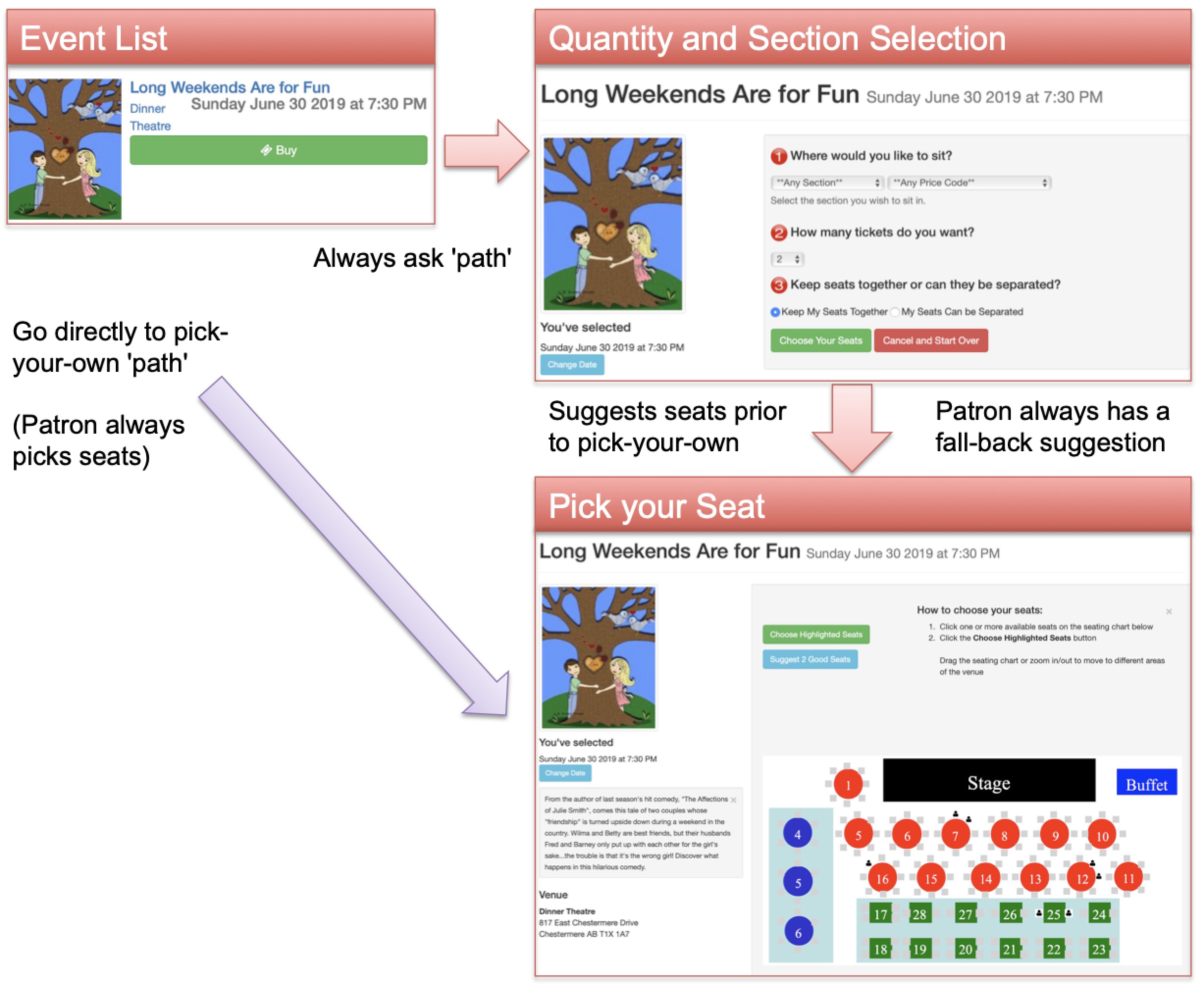 |
|||
| Use Default Route as decided by the system | This describes the path taken from the event list to the seat selection for reserved seating events. There are two explicit options provided (described below).
Unless explicitly selected below, the web listeners will take the default path to the seat selection window as decided by Arts Man. Currently, the default path is to ask the patron where they want to sit and the number of tickets (first option), but that may change as a result of feedback from venues in accordance with dominant marketing thinking. If you prefer one option over the other, please select it. Note: if not using pick your own seating in a venue, events sold in that venue will always use the ask for quantity/section approach. |
||
| Always ask for quantity/section before offering seats | For this path from the event list to the seat selection window, the user is given an intermediate step that asks for the number of tickets they want and the section they may want to sit in. This adds one page to the selection process and has the advantage that a user will always be guaranteed seats before they start the pick your own process. | ||
| Proceed Directly to Pick your own | This path indicates that the user will be taken directly from the event list to pick your own, with no tickets selected for them. It is one web page click shorter, but seats must be manually selected.
In the case of large onsales, arriving at pick your own with no saved seats may cause frustration for users if they try to pick some and find their selection being taken by others. you can:
|
||
Ticket Selection |
|
| Show sales promotion on offered ticket | When selected, the sales promotion's external description will be visible to patrons online during seat selection. This appears on the seat selection window where tickets are offered to the patron AFTER Theatre Manager has found them. it confirms the external sales promotion name to the patron. |
| Show price code on offered ticket | When selected, the Price Code description will be visible to patrons online during seat selection. This appears on the seat selection window where tickets are offered to the patron AFTER Theatre Manager has found them. It confirms the price code that will be on the ticket. |
| Map Display | This setting indicates how you would like the map to display for web sales. You can show only the seats available to the patron, all others are blank, or you can choose to show all the seats, those that are taken have their codes masked or not, or a generic map of the venue. These setting can be overridden for individual performances, click here for more information. Options are:
|
Passes and Gift Gertificates |
|
| Enable Pass/G.C. Redemption | Allows Pass/G.C.'s to be used as payment online. Only those Pass/G.C.'s that have been set for redemption online in the Pass/GC setup can be used online. |
| Enable Pass/G.C. Renewal | Allows the renewal of Pass/G.C.'s that have been configured to be renewed online in the Pass/GC setup |
Donation Options |
|
| Suggest adding general donation in cart | When selected, patrons will see a reminder at the top of a shopping cart to include a donation with their order at checkout. If clicked, the partron is taken to the donation screen to give to any campaign allowed online. Once a donation is given, the message disappears from the cart window. |
| Suggest adding round-up donation to cart | If round up donation is enabled and a campaign is specified, then a message will appear in the shopping cart window and/or checkout window encouraging the patron to round up their payment to the nearest even dollar (or 5 or 10 - the amount can be easily customized in rowcartdonationroundup). Once the payment amount for the cart is an even dollar, then the message will not appear.
The campaign must be enabled online (and you might not want to make it visible) - and we'd suggest making a separate one that might be named like Round Up My Bill Donations or using your existing annual individual giving campaign. |
Web Options - Carts and Checkout
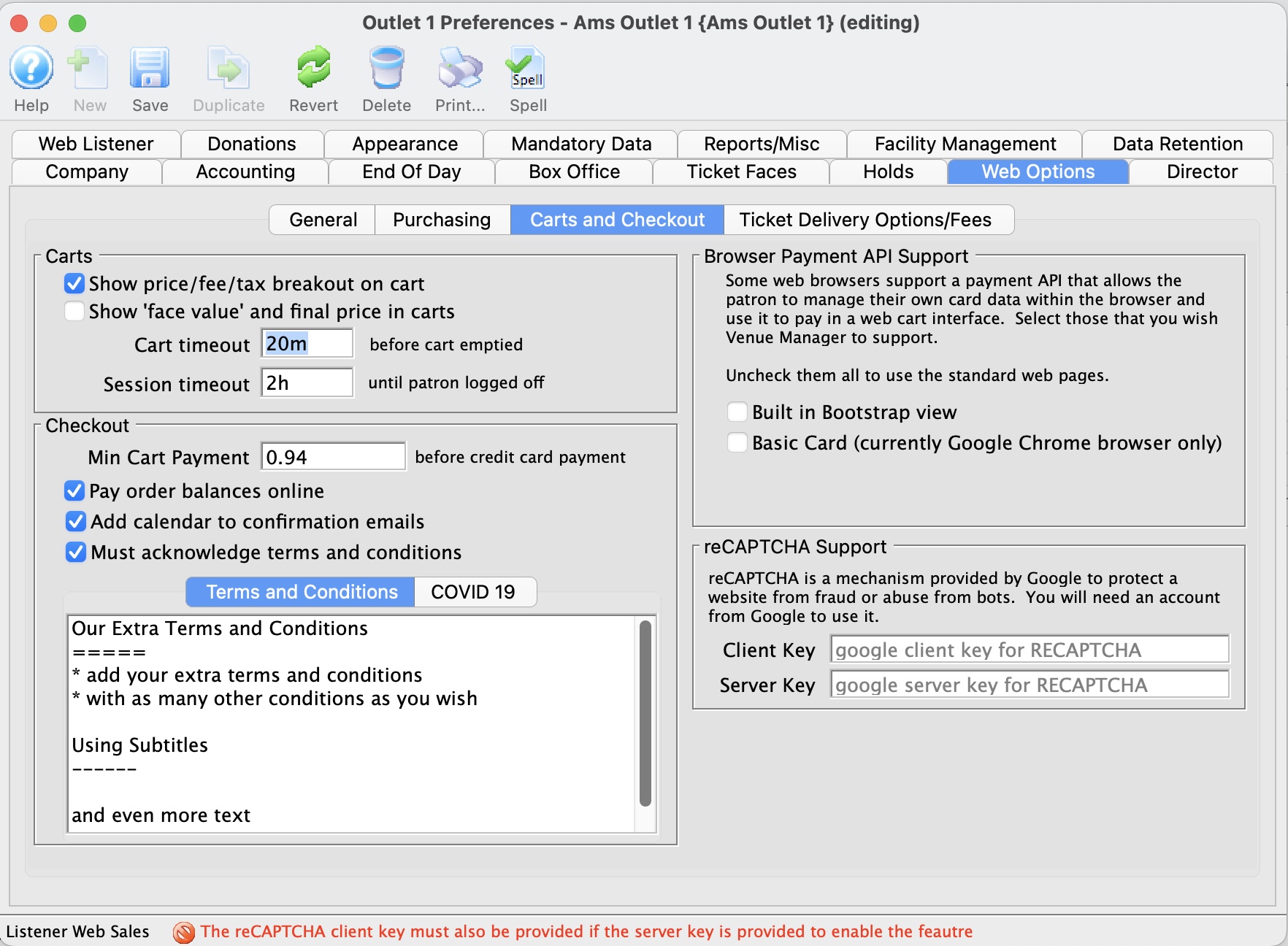
Carts |
|||
| Show price/fee/tax breakout | 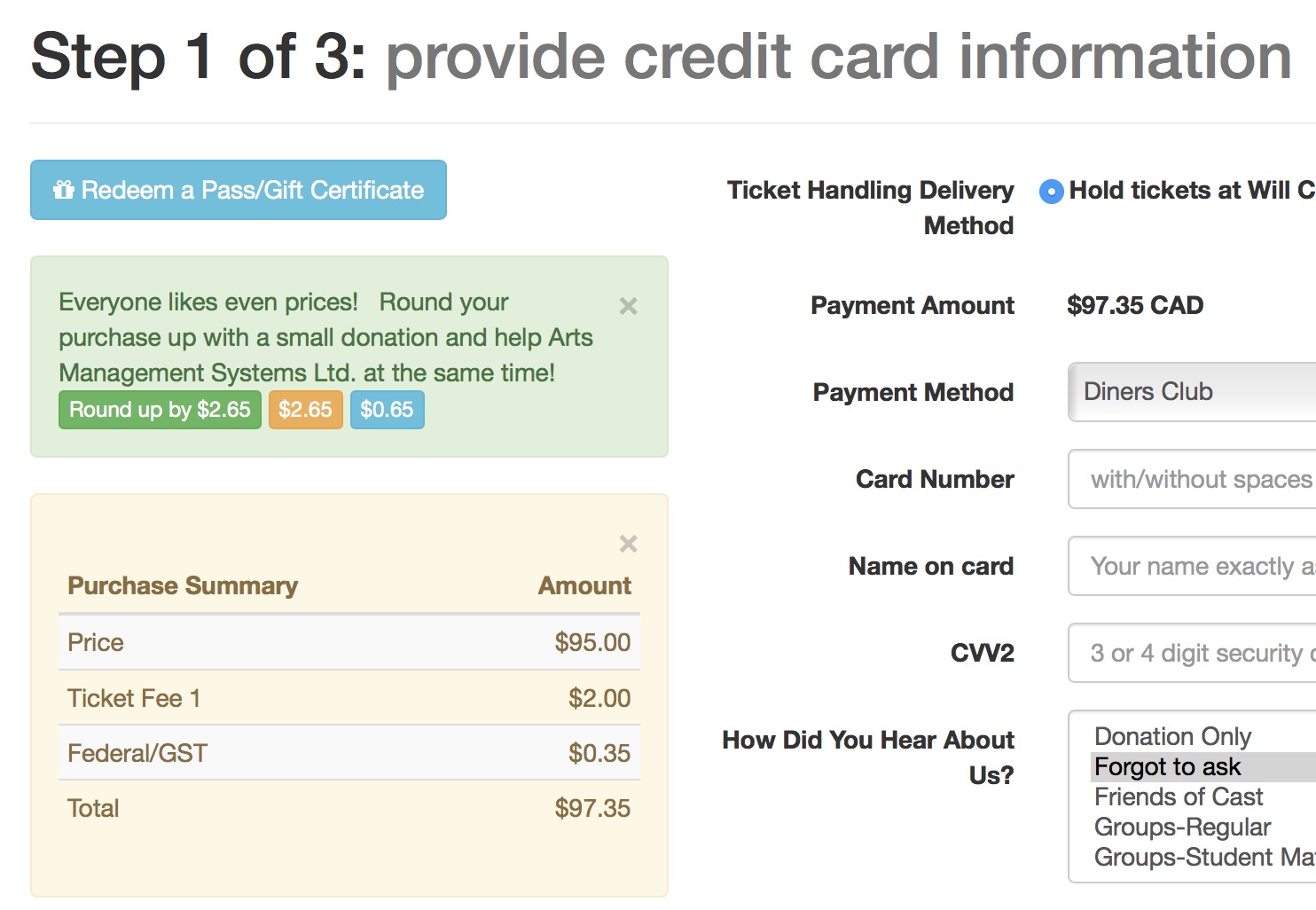 if enabled, shows a breakout of ticket prices, fees, taxes etc on the checkout page as per the image to the right. if enabled, shows a breakout of ticket prices, fees, taxes etc on the checkout page as per the image to the right.
|
||
| Show 'Face Value' price and final price in carts | If enabled, this will show the face value of a ticket (as determined in the Web Options tab) on all online web pages and any e-ticket emailed to a patron. | ||
| Cart Timeout | The number of minutes a patron can do nothing after accessing a page before the cart becomes inactive and the items released. Whenever the patron requests another page to resume shopping, the timer is reset.
|
||
| Session Timeout | The number of minutes a patron can be idle on the web site before they are logged out. This must be the same or larger than the cart timeout.
The difference between session and cart time out:
|
||
Checkout |
|||
| Min Cart Payment |
You can specify a value that the cart must be before a credit card checkout would be attempted. This can be used to prevent 'bad guys' using your web site to try verify if stolen credit cards could be accepted.
Set it zero to ignore the check completely. Carts containing only comp tickets or ticket completely paid for by passes are ignored by this test. |
||
| Pay Order Balances Online | When selected, patrons will be able to pay for any outstanding order balances online if the order is marked as such when putting on account. If this is disabled, then the feature of paying prior order balances is disabled completely.
|
||
| Must Acknowledge Terms and Conditions | When selected, patrons will be required to read/accept the terms and conditions at checkout. You may be able to place certain restrictions in the terms and conditions to cover exchange and refund policies, patron behaviour, age limits, scalping,etc.
Refer to tmtermsandconditions.html for more information. |
||
| Add Calendar to Confirmation Emails | If selected, then a calendar will be attached to the outgoing confirmation email as an ICS file. This can be double clicked by the user to add their purchase dates to their calendar on their own devices. | ||
| Terms and Conditions | You can add your extra terms and conditions here that will show when they are requested on the checkout window.
|
||
| Covid 19 | You can enter your Covid 19 policy in plain text, HTML or markup language and it will appear in the web site automatically.
Adding words to covid 19 tab also causes the 'accept terms and conditions' checkbox on the web site to say that there are Covid 19 conditions. We recommend using this in conjunction with event list notes so that people will see instructions both before and after ordering.
|
||
| Notification | You can set up a notification which specifies a list of email addresses that will receive a copy of all completed shopping cart emails. This can be used for audit or backup purposes.
If implemented, you will have to clean out the emails from the specified email account yourself and use of this feature is not recommended if you have rate limiters at your ISP (such as google mail) |
||
Browser Payment API SupportSome web browsers support card payment options natively that allows the patron to manage their own card data within the browser and use it to pay in a web cart interface. If selected, Theatre Manager will attempt to use alternate payment screens on checkout to try to simplify the payment interface. If all are unchecked, then Theatre Manager does not try to take advantage of the API's in a browser and uses the existing web page payment screen that is designed to be the same on all browsers. Note: these options currently cannot be used with Acknowledge terms and conditions option (above) |
|
| Built in Bootstrap View | If enabled, Theatre Manager will show a summary of the purchase and credit card input on one modal dialog using bootstrap. This causes other checkout options like delivery options to default. It is meant to use as a quick pay option |
| Basic Card | If enabled and the browser supports it, the browser will use the built in payment screen from the browser. Google chrome is currently the only browser that implements this (since they invented it). If this option is not supported by your browser, then the Built in Bootstrap view will be used (if enabled here) |
reCAPTCHA Support
reCAPTCHA uses an advanced risk analysis engine and adaptive challenges to keep malicious software from engaging in abusive activities on your website. Meanwhile, legitimate users will be able to login, make purchases, view pages, or create accounts and fake users will be blocked. |
|
| Client Key | If enabled, enter the client key that you obtained from the google web site when you signed up for the feature. |
| Server Key | If enabled, enter the server key that you obtained from the google web site when you signed up for the feature. |
 Google has a tool called
 Web Options - Ticket Delivery
- Mailing Tickets - which is generally standard since it costs money to mail tickets
- Hold at Will Call - which seems to be an emerging trend in some locations if the customer is given the choice of print at home and picking up tickets -- a fee such as this might bias the customer to chose to print at home
- Print at Home - which would charge a fee for tickets printed at home. We have not had and venue ask for this yet - but it exists for completeness
|
Turning off any of these options mean that cannot be selected by the patron on the checkout window, regardless of any settings for each event. |
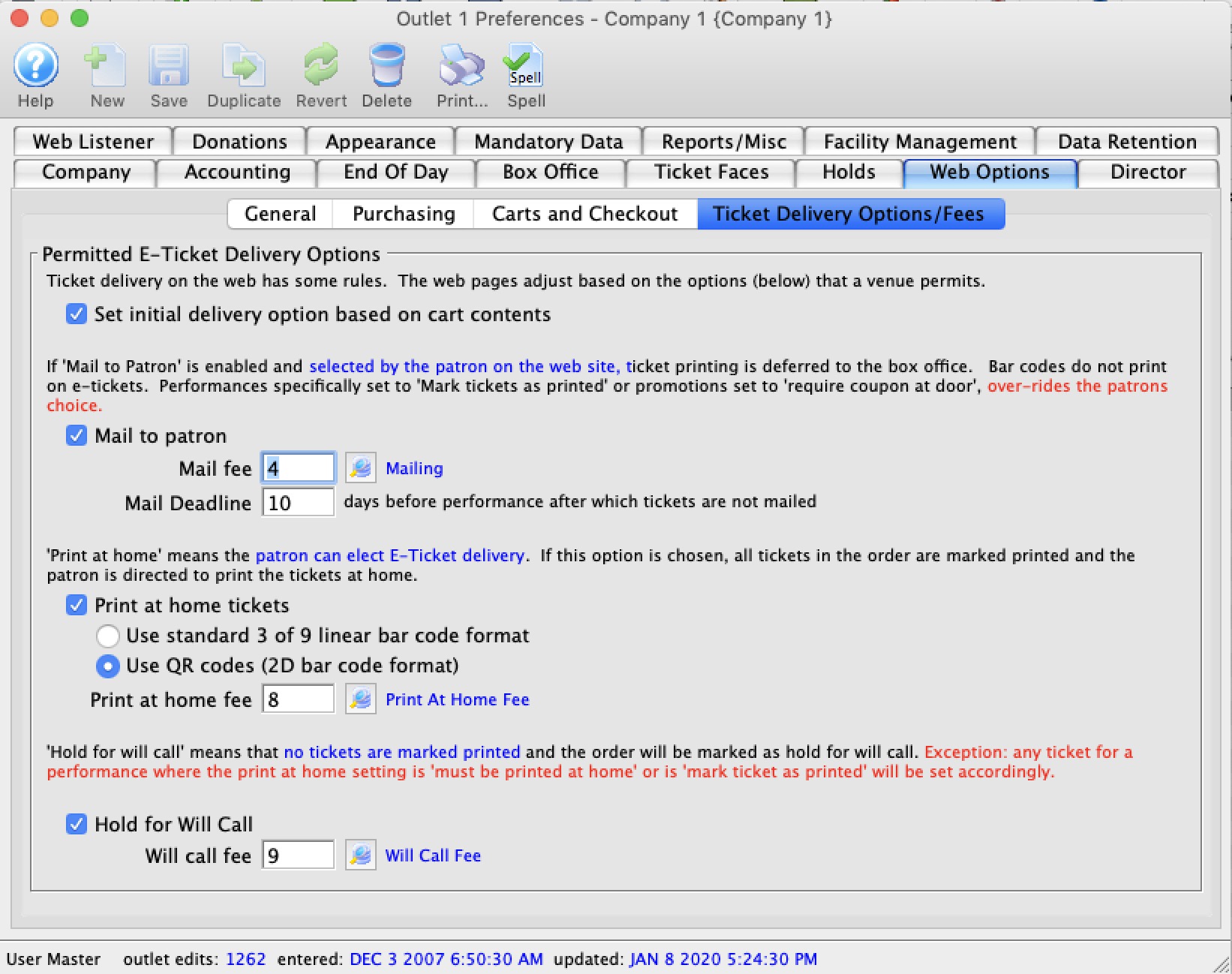
Permitted E-Ticket Delivery Options |
|||
| Set initial delivery option based on cart contents | Tells the web server how to best set the ticket delivery options on the cart checkout page. If
|
||
| Mail to patron | Tickets purchased on the internet are marked for printing and mailing by the box office. A Mail Fee must be entered above in order for this option to be selected. When selected, online patrons are presented with a Mail My Tickets option at checkout. | ||
| Mail Fee | The number of the order fee designated as a Mail Fee in Fee Tables. | ||
| Print At Home Tickets | Tickets purchased on the internet are marked as printed and patrons are presented with the option to print their own bar-coded tickets. Click here for information on turning on Print at Home for a selected event or performance.
If you are printing at home, you can print using one of two types of bar codes.
Additional Action Items: If you enable print at home tickets in company preferences, there are some other things you might also want to:
|
||
| Print at Home Fee | The number of the order fee designated as a Print at home Fee in Fee Tables. This fee will be charged to patrons who print their tickets at home. Leave blank if you don't want a fee for this option. | ||
| Hold for Will Call | When selected, patrons online can select to have the box office print and hold their tickets in Will Call. The exception is, any ticket for a performance where the print at home setting is 'must print at home' or is 'mark ticket as printed' will be set accordingly. | ||
| Will Call Fee | The number of the order fee designated as a Will Call Fee in Fee Tables. This fee will be charged to patrons who elect to have their tickets picked up at the box office. You do not have to have a fee - leave blank if you don't want one. | ||
Director Tab
NGINX is the the web server software used by Theatre Manager and requires minimal configuration to work properly. The Director tab in Company Preferences is where you define most settings.
- To install and setup TM Server in web services mode, click here.
- For more information on the ports used by Theatre Manager, click here.
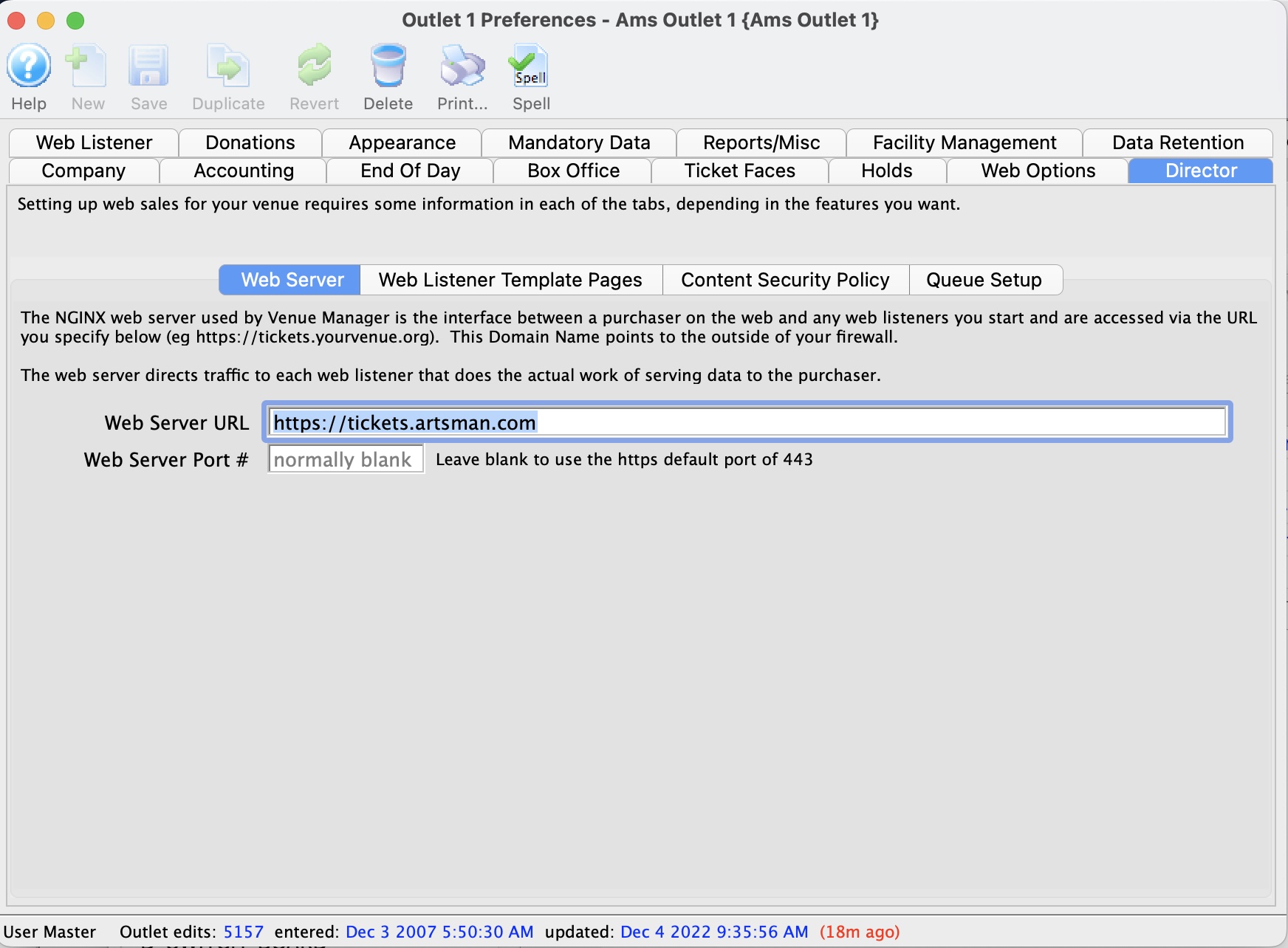
Parts of the Director Tab
To set up the 'Directors' for web sales, there are 4 settings that need to be made:
- Web Server - essentially indicates the URL of your ticketing web site
- Web Listener Template Pages - indicates which web listener inside your firewall hosts any of your customized template pages
- Content Security Policy - indicates which external web sites are allowed to be imbedded in your web site (normally only pixel providers)
- Queue Setup - indicates how to handle large amounts of unexpected web traffic
Web Server Setup
External Web Server Ticket Sales URL |
|
| Web Server URL | The domain for the ticketing site. Normally, this should look like |
| Web Server Port | Enter the port number that the web server will be using for incoming connections.
Normally, leave this blank to use the standard port 443 for incoming secure connections. |
Web Listener Template Page Location
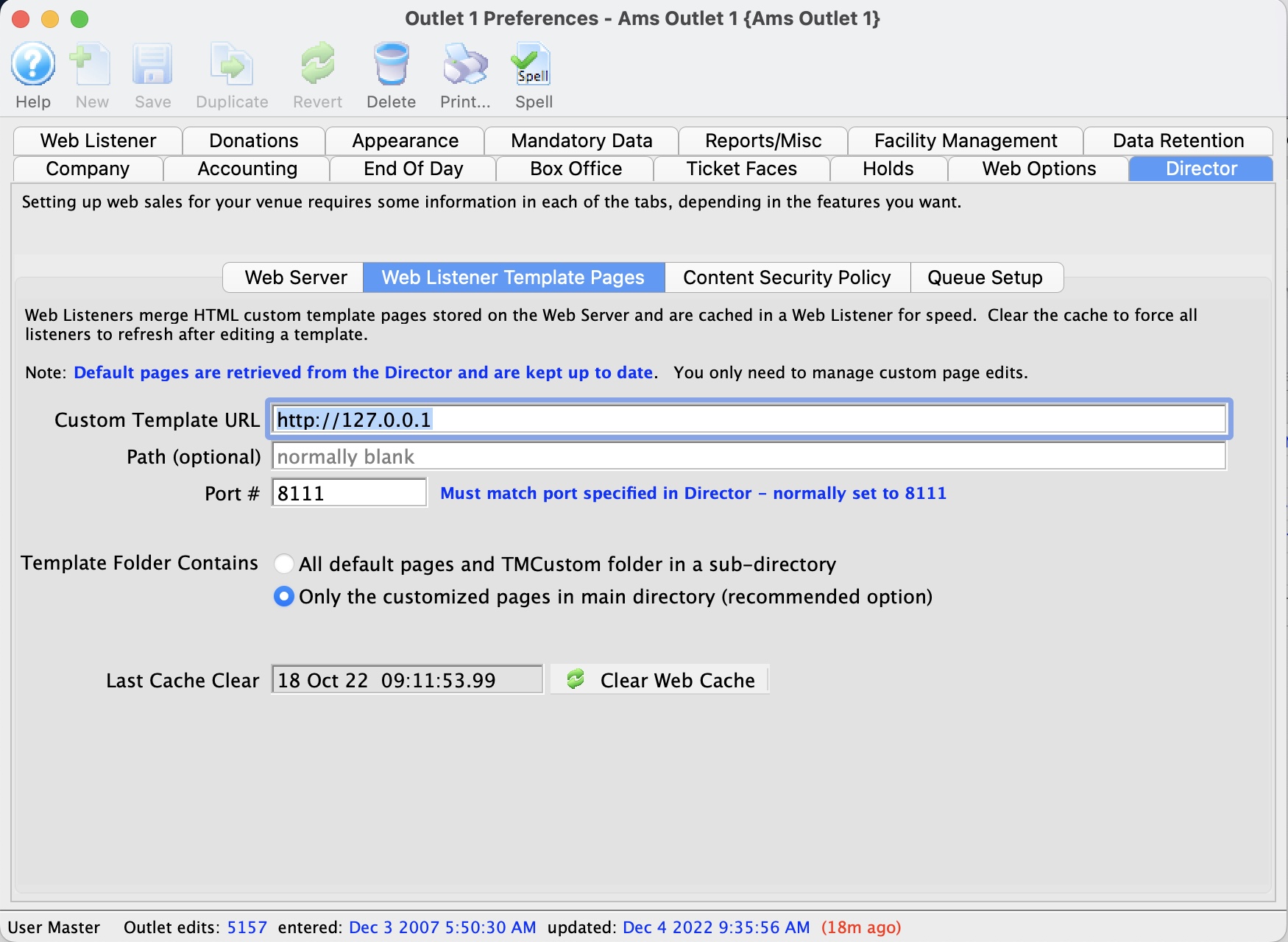
Template Page Management |
|||||||
| Custom Template URL |
This normally is the address of the primary TM Web Server which has been designated to host your template pages. It will typically be an IP Address that looks like:
http://192.168.x.x |
||||||
| Port # |
This is typically set to 8111
for the server that Theatre Manager uses to retrieve web page templates. This is generally never changed unless there is a desire by your network administrator to use alternate internal ports. |
||||||
| Template Folder Contains | Note: TM server always gets the latest templates from its internal resources so the standard pages are always kept up to date. There are two choices for this setting to indicate how you want to store the custom pages
|
||||||
| Last Cache Clear | The date the cache on the Classic web listener was last cleared. The Clear Web Cache button to the right of this field can be used to reset or clear the cache on all currently running listeners by sending them a message that the web pages are al invalidated. Tt may take a few seconds as each listener re-reads them.
Note: The listeners generally detect page changes within a minute and starts using them automatically - but it will do it right away if you press this button. You can also clear the cache on the status page of any web listener |
||||||
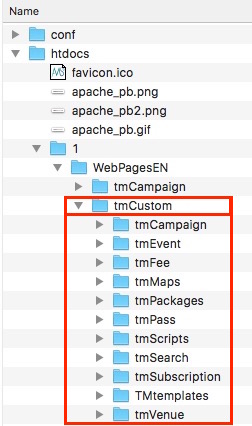
Web Content Security Policy
Support for xFrames and Content-Security-Policy |
|
| xFrame Option |
Your options are
We are passing both Content-Security-Policy and X-Content-Security-Policy and using Content Security Policy 1.0 — this gives support in most browsers so the fallback issues are limited to a very small number of browsers. |
| Allowable URL's | When a list of allowable URL's is specified, enter the URL's that you want in this space, separated with a comma. |
|
The technical meaning of the x-frame options are described in google searches. |
Web Queue Setup
However, there are instances when every web server in the world can get overwhelmed with requests and no amount of hardware can prevent it. Theatre Manager offers you a choice of two queueing system that are designed to become involved in periods of high load to mitigate overloading your systems.
When implemented, a Queue:
- intercepts web traffic to the servers and
- allows only so many people into the web store at a time, and
- presents a dialog to those that are waiting and not in the web store that indicates where they are line waiting for access. As people finish their cart, the next person in line is allowed in
Queue Setup |
|
| Enable Queue | Click to enable one of the available queuing options.
Generally speaking, a queue will only engage if your sales volume reaches a specified thresh hold. |
|
If you enable the queue, then select which queueing option you want.
Theatre Manager offers you a choice of three queueing options:
|
|
Web Server Built In Queue
Theatre Manager's built-in queue is free to use. It is self-contained within your systems and leaves the traffic to be managed by the Web Server using Nginx and a very fast caching system.
It should reasonably work into many thousands of simultaneous visitors to your Web Servers.
Built In Queue
Store Timeout
The amount of time an inactive user has before being removed from the online store. Inactivity means the amount of time the user doesn't click their mouse or enter a keystroke. In other words, if they get into the online store and don't do anything for X amount of time, the system will remove them and allow the next person waiting in the queue into the store.
Store Capacity
The number of patrons allowed into the online store at one time. For most clients, Artsman suggests setting an initial Store Capacity at 50. That means the system will allow the first 50 patrons into the online store, and the 51st person will wait in the queue until someone already in the store exits the store.
Info Note & Warning Note
The Info and Warning Note will display text to online shoppers waiting in the queue. The difference between the Info and Warning Note will be the colour of the note, with Info typically being blue, and Warning being red. However, the colours of the background for the Info and Warning Notes are determined by the Bootstrap theme the organization has selected.
Redis Cluster Storage DB Info
This is a temporary storage place for the Built In Queue to hold data for the queue system. For example, how many people are in line, what place they have in-line, etc.
Database Number
Users can select the Database number if more than 1 is available. By default, if an organization only has a single database (non-outlet clients) then the number for the database should be set to 0.
IP Address
Traditionally the database server will be set up to enable cluster storage. This address should reflect the IP of the machine where Cluster Storage is enabled in the Theatre Manager Server configuration.
Port #
The port number to access the cluster storage. The default is 8204.
Web Server Queue-It Setup
|
Queue-it is a pay-for-use service that creates a queue external to Theatre Manager server environment.
Refer to the built in queue that is free and is built into TheatreManager servers |
External Web Server Ticket Sales URL |
|
| Web Server URL | The domain for the ticketing site. Normally, this should look like |
| Web Server Port | Enter the port number that the web server will be using for incoming connections.
Normally, leave this blank to use the standard port 443 for incoming secure connections. |
The Queue-it process
When Queue-it is enabled in Theatre Manager, the customer experience will be like:
- When they reach your web site they will either:
- Be able to enter right away if the traffic on your web site is below the thresh holds you set in the queue-it online management portal
- If the site is considered busy, you'll see an image lie the one on the right. (Not this was customized for the Hamilton onsale by Proctors Theatre
- If the patron is required to wait their turn, they'll see a countdown bar that shows their approximate place in line
- Once they are allowed to enter the web site, they can select tickets, add them to their cart, give donations, all the typical things supported on your commerce web site.
- after checkout, if the customer attempts to go and buy more tickets, they will be put back in the queue to ait their turn.
- NoteL: There may be a time limit in Queue-it so that if a customer takes too long in the purchase process, they could be ejected from the store
Web Listener Tab
Parts of the Web Listener Tab
| Employee ID | This is the user id under which all web sales will occur and is reserved for use by the web listener processes | Default Email/Eblast and Performance Settings |
|
| Eblast Chunks | The default number of emails to send per hour through the SMTP server. Set to zero of there are no limits imposed by the SMTP server or your ISP. Set to a value a bit smaller than any hourly rate imposed by your ISP. | ||
| Email Retries | If an email fails, the number of times that it should be retried before being marked as in error. This should normally always be zero -- and should only be changed upon consultation with AMS support. | ||
| Transactions - create at time of sale | The web listener (like the Box Office) creates transactions at the completion of the order. However you can change this to defer transaction creation in order to improve the performance of the web listener (this is the default setting).
Deferring transaction creation for web sales affects when notifications are sent for web sales. |
||
| Google Analytics Account | If you have a google analytics account number, then all you need to do is enter it here - and TM will automatically enable analytics for the entire web site. For more on Google Analytics, click here. | ||
| Bootstrap Web Page Footer | Any code that goes here will appear at the bottom of your web site or emails. For more on eblasts, click here. | ||
| Web Languages | The languages supported in your WebPages folder (web pages). Each is designated by a two-character language code (eg, EN for English, FR for French) and will also be designated in the name of the WebPages folder(s) inside WebPages (eg. WebPagesEN and WebPagesFR). | Pixel/tracking Code |
|
| Header | If the tracking code your use is required to go into the header of the page, paste it into this area. Please test your web pages after putting anything here. | ||
| Footer | If the tracking code your use is required to go into the footer of the page, paste it into this area. Please test your web pages after putting anything here. | ||
| Checkout | If the tracking code your use is required to go on the checkout page, paste it into this area. Please test your web pages after putting anything here.
|
Web Page Languages
You can add multiple languages to your web site by doing a couple of things:
- Adding a folder to your web site called WebPagesXX, where XX is the language code. There will already be a WebPagesEN folder.
- Translating the web pages and the TMError.txt file
- Adding the language code 'XX' to Theatre Manager so that it knows to look for that folder.
- Modifying the tmnavlanguages.html file to reflect the languages you want to support
- Restarting your web listeners
Donations Tab
- the patron's name in the program when a donation is received.
- Charitable number (required in Canada)
- Typical number of donation receipts to print (normally 3 on individual receipts in Canada, 1 on statement receipts0
- Last used tax receipt number (normally starts at 0 and is never changed)
- Facsimile Signature for the tax receipt
- Has some rules imposed by Canada Revenue Agency that seem to imply it must go on custom forms
- These are not the same as electronic signature and encryption which is suggested for emailing donation tax receipts.
Donation Program Recognition Name
You can over-ride the default behaviour for a patron by entering a specific publication name on their patron record. While normally blank, a donor specific publication name might be useful for foundations, government grants and other such agencies. Even if the default program name is suggested based on these rules, it can be changed at time of entry (or after the fact) to be anything desired such as Anonymous or some thing for In Memoriam of ... or In Honor of ... |
|
| Last Name, First Name | If selected the name of the donor will appear on the program derived based on Last Name, First Name - if the publication name is not entered in the patron record. |
| First Name, Last Name | If selected the name of the donor will appear on the program as First Name Last Name - if the publication name is not entered in the patron record. |
| Formal Name | If selected the name of the donor will appear on the program as Formal Name that is in the patron record - if the publication name is not entered in the patron record. |
 This options determine the default program recognition name for a donation when it is entered to try to save you time. Each donation has its own recognition since a patron can give many times and may want to be recognized differently depending on the amount and/or purpose of the donation.
Misc Donation Information |
|
| Next Contact Date | The default number of months to set for the next contact with a donor. This value can be changed on a per-donation basis to override the default. |
Donation Tax Receipts | |||||
| Signature for Tax Receipts | This is a facsimile signature to print at the bottom of a tax receipt. Revenue Canada has some strict rules regarding their use and acceptability for tax receipts. Facsimile signature are NOT the same as the electronic signatures and encryption required for emailing receipts.
Note: we recommend that the signature be a png with a transparent background (so that it lays on top of any colour or background on your pre-printed forms)
|
||||
| Charitable Number | The organization's government-issued Charitable Organization Number. | ||||
| Government Web Site | Revenue Canada requires that all tax receipts have their specific donation related web site on every tax receipt. If you enter the web site here, it will print on your tax receipts. if you leave it blank, it will not, but you will then need to preprint it on you charitable receipt forms.
There is an IRS web site a well - to our knowledge it is not mandatory on charitable receipts. |
||||
| # of Copies | The number of copies of the donation receipt to print. | ||||
| Last Tax Receipt # |
 This indicates the last used tax receipt number. The net printed receipt will take on the first number greater than this.
You can change this number forward, or backward. You will receive a message similar to the one the on the right to alert you that this is not a recommended action to skip receipt numbers.
|
||||
| Starting Address Height | The space to leave between the top of the receipt and the address. | ||||
| 3 per 8.5x11" page | Prints three receipts per 8.5x11" page. | ||||
| 4 per 8.5x14" legal page | Prints four receipts per 8.5x14" page. | ||||
| Comment or Issuing Location | The general message on the receipt for every donation. | ||||
Data Rentention Tab
|
Some may find this interesting reading for Revenue Canada's records Retention Requirements. It covers areas such as:
|
Web Logs and Shopping Cart Retention Policy |
|
| Purge completed carts after "xx" days | After this many days, purge web logs for carts where a patron signed in. Only logs are purged, not actual carts. |
| Purge anonymous carts after "xx" days | After this many days, purge web logs for carts which remained anonymous or were not attached to a patron. Only logs are purged, not actual carts. |
| Purge misc data after "xx" days | After this many days, purge miscellaneous data entry online that is not confirmed or saved by the patron. |
| Purge unconfirmed mail list after "xx" hours |
This represents the amount of time (in hours) that a pending subscribe to a mail list will remain without confirmation to the web email. If a patron does not confirm addition to the mail list in less than the number of hours specified, the patron will be removed from the mail list.
If the patron does confirm they want added to a mail list after the time out, they will be re-added to the mail list in double-opt-in status (for CASL) |
| Keep cart content data | Shopping carts have multiple lines that describe what the patron placed in their cart. One data element is a very important part of the checkout process as it contains data about prices, promotions, seats, donation amounts, levels, resources, etc.
When a cart is checked out, this data is copied to the actual tickets, donations, resources, gift certificates and is no longer needed. It is also not needed if carts are abandoned. However, it can take up significant space on a database. We recommend keeping this data for about 14 days or so as part of the audit trail, should AMS have to inspect carts to resolved issues. Other than that, it is worthwhile purging this data. |
Document Retention |
|
| Keep etickets/calendar items |
Indicate how long eticket and calendar files attached to emails sent to a patron are to be kept around. This number indicates the number of days after the performance before the eticket data is cleared from the document record.
The document record is kept around to track that the patron was sent the information - it is only the contents that are removed. Removing the content helps reduce the size of the database anf packups significantly. |
Email, Letters and Correspondance HistoryThe settings are for retaining letters and correspondence history sent to patrons. You can now purge data from the part of the database with the most text data (and takes the most space in backups). Letters can be purged 'en masse'. Two exceptions to the mass purge are:
|
|
| Keep Printed Letter History for xx days | The default is 0, which means - keep anything printed forever. Set to 1000 to keep any printed letter for 1000 days after it is printed. |
| Keep eblast history for xxx days. | The default is 0, which means keep forever. If you set this, then anything sent from the batch email merge, or added to a patron individually by the employee to email later will be deleted. |
| Keep web listener emails for xxx days. | Refers to any email originated by the web listener, in response to a customer request. Includs: requests for passwords, confirmation emails, and notes regarding patron info changes. These are less useful. The default is to remove them after 1000 days. Set it to 0 if you want to keep these forever. |
| Clear Searchable Notes in letters. | The default is turned on. Letters and eblasts which are sent to people have also contained a text only version (i.e. no html, images). This means there are essentially two copies of each letter kept for each communication with a patron. The field is not used for searching, which allows the field to be emptied (and save space). It is also possible to reconstitute this data if need be. |
| Delete history for letters with no merge fields. | Some letter merges and eblasts contain no merge fields. For example, a pure HTML eblast. By tracking that, the history is the same as the original letter. It is possible to always see the content, without needing to track the merged data. Any customized letter would, of course, not be the same as the original letter an not be compressed using this technique. |
Appearance Tab
button.
|
Changing these values will change the corresponding information on the web site - so care should be taken to pick words that both you and your patrons are familiar with to establish a common vocabulary. |
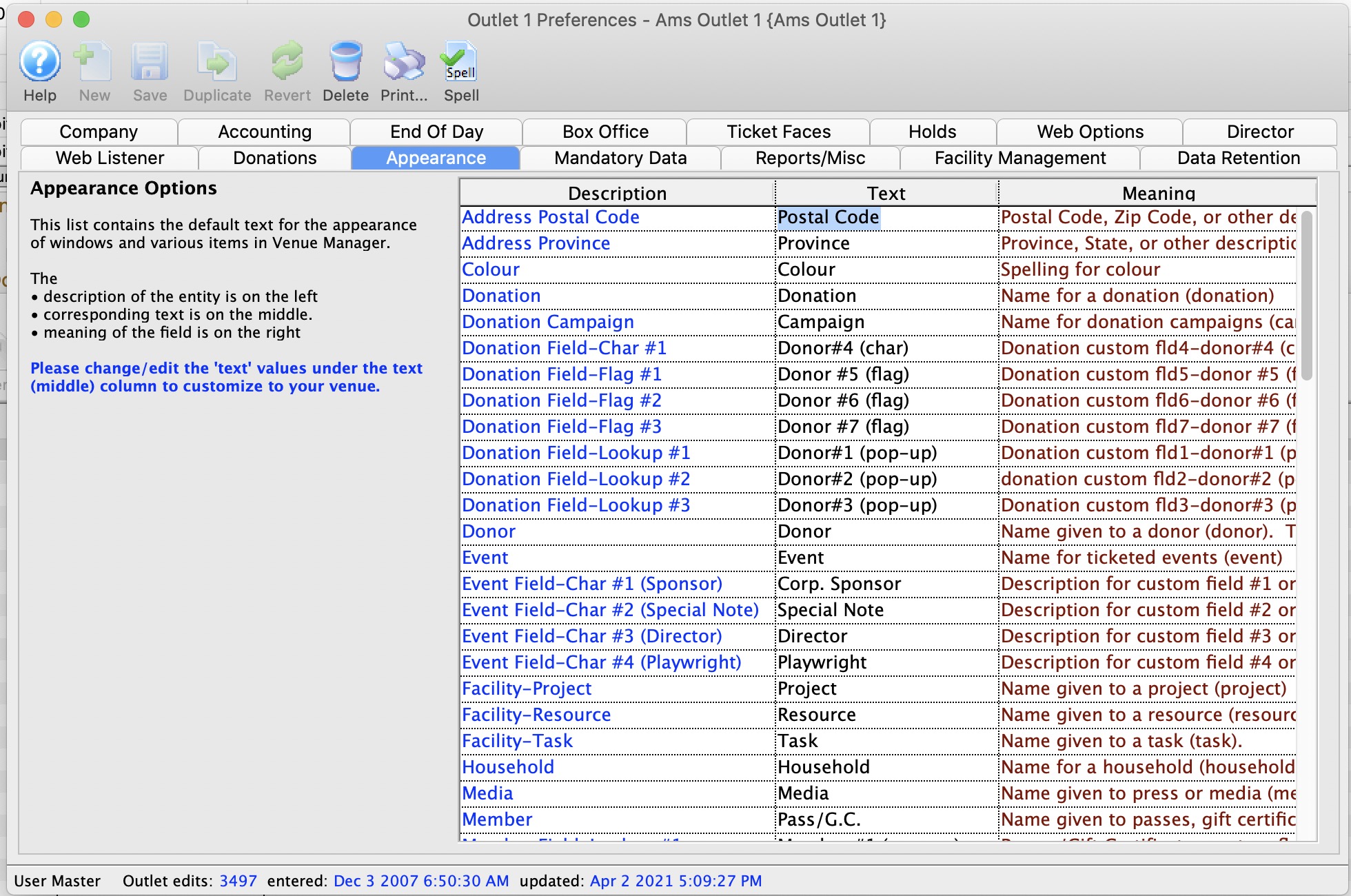
Some examples of alternate titles are listed below.
| Donor | Donor, Sponsor |
| Donation | Donation, Gift |
| Event | Event, Play, Show, Game, Rodeo, Movie |
| Festival Seating | Festival, General |
| Household | Household, Family |
| Internet Fee | Internet Fee, Convenience Fee |
| Media | Media, Press |
| Member | Member, Voucher, Pass, Gift Certificate |
| Membership | Membership, Pass, Certificate |
| Patron | Patron, Customer, Client |
| Performance | Performance, Show |
| Personnel | Personnel, Volunteer, Actor, Staff |
| Postal Code | Postal Code, Zip Code |
| Province | Province, State, Territory |
| Seat | Seat, Chair |
| Section | Section, Door |
| Social Security | Social Security, Social Insurance |
| Spouse | Spouse, Partner, Parent |
| Ticket Type | Regular, Subscription, Group Sales, Fundraising Events |
| Venue | Venue, Theatre, Arena |
Mandatory Data Tab
Default Data on Patron Insert |
|
| City | Enabling this box ensures a default City is entered into the City field when a new patron is inserted. The default City comes from the city field under the Company Tab. |
| Province | Enabling this box ensures a default Province/State is entered into the Province/State field when a new patron is inserted. The Province/State comes from the Province/State field under the Company Tab. |
| Postal Code | Enabling this box ensures a default Postal/Zip Code is entered into the Postal/Zip Code field when a new patron is inserted. The Postal/Zip Code comes from the Postal/Zip Code field under the Company Tab. |
Mandatory Marketing Data Fields on Patron Window |
|
| Patron age code | Patron Age Marketing field. |
| Marketing #1 | Customizable marketing field defined by the user. |
| Marketing #2 | Customizable marketing field defined by the user. |
| Marketing #3 | Customizable marketing field defined by the user. |
| Marketing #4 | Customizable marketing field defined by the user. |
| Marketing #5 | Customizable marketing field defined by the user. |
| Marketing #6 | Customizable marketing field defined by the user. |
| Marketing #7 | Customizable marketing field defined by the user. |
| Marketing #8 | Customizable marketing field defined by the user. |
Default Values for Postal Code on Order Insert |
|
| Postal Code for Before Event sales ("xx") | When checked, sales entered during Before Event Sales will all pull the postal code value from the Company Tab into the Postal Code field on the Order Window. |
| Postal Code for PWYC ("xx") | When checked, sales entered during Pay What You Can (PWYC) mode will all pull the postal code value from the Company Tab into the Postal Code field on the Order Window. |
| Postal Code for all other sales (default to value on patron address) | When checked, all sales will pull the value from the postal code in the patron's primary address into the postal code field on the Order window. |
Mandatory Fields On Order Window |
|
| Allow postal code to be entered on order | When selected, a field for the postal code will appear on the Order Window and may be filled in (but is not required). |
| Require postal code to be entered. | When selected, a field for the postal code will appear on the Order Window and must be filled in.
It can be defaulted in the Set Default Values for Order Insert section.
The key reason to use this field is to capture generalize location data if your venue draws from a wide area during walk up sales. |
Mandatory Fields On Donor Window |
|
| Donor #1 (Donor#1 (pop-up)) | Customizable pop-up donor field defined by the user. |
| Donor #2 (Donor#2 (pop-up)) | Customizable pop-up donor field defined by the user. |
| Donor #3 (Donor#3 (pop-up)) | Customizable pop-up donor field defined by the user. |
| Donor #4 (Donor#4 (Char)) | Customizable character donor field defined by the user. |
Mandatory Fields On Pass/GC Window |
|
| Member #1 (Member#1 (pop-up)) | Customizable pop-up membership classification field defined by the user that appears on the pass/gc data entry screen. |
| Member #2 (Member#2 (pop-up)) | Customizable pop-up membership classification field defined by the userthat appears on the pass/gc data entry screen. |
| Member #3 (Member#3 (pop-up)) | Customizable pop-up membership classification field defined by the user that appears on the pass/gc data entry screen. |
Reports/Misc Tab
Date & Time |
|
| Date Format | The format for the date. Use the list window for all possible options. |
| Time Format | The format for the time. Use the list widow for all possible options. |
| Time Zone | Select the time zone that your venue is in. When Theatre Manager
starts, it will tell the server that this is the local time zone -- and if your time is different (accounting for time zone awareness), TM will inform you of the mismatch.
If any of your workstations are located in a different timezone than the database setting, you can set a specific time zone at a specific workstation by configuring the preferences file and set it to one from the list of timezones (its rare you would ever need to do this). |
Maintenance Jobs |
|
| Maintenance Jobs | Maintenance Jobs are tasks performed by TM Server that can be deferred to non-peak hours. |
| Run Between | Enter the Start Time and End Time. Maintenance jobs will only run within that time interval. The default is 1:00am to 5:00am, but you can schedule this to be 23:00 (11pm) to 3:00am or any such time as you wish. You many want to schedule to be after your late-night backup. |
Batch Printing Queue |
The Printer Batch Queue allows users to setup reports to be created and printed during nonprime business hours. |
| Weekdays | The time of day for the reports in the printer queue to start printing for Monday through Friday. |
| Weekends | The time of day for the reports in the printer queue to start printing for Saturday and Sunday. |
| Warn on Quit | Click to warn a 'logging off employee' if there are any reports in the Batch Printer Queue to be printed. At least one employee must remain logged on to have the reports in the queue to be printed during nonprime time hours. |
Employee Access Management |
|||
| Inactivity or Auto Logout Timeout | Number of minutes of inactivity before Theatre Manager will automatically log out the current user and quit the application completely.
|
||
Company Icons |
|||
| Company Icon for Ticket Trove | 250x200 pixel jpg that the iPhone Application will use for your logo thumbnail in the Ticket Trove Application. Click here for more information on how to add images to Theatre Manager for Ticket Trove. | Company Overview for the Web | A description of the organization to appear in the web mobile application. It is to give the patron insight into what the organization stands for. |
| Company Logo for Reports | Click on the picture to select a new graphic or drag and drop an image filento the graphic area to use a custom logo on your reports.
|
||
Facility Management Tab
Gantt Chart Default Settings |
|
Wash Type |
This is the type of bar you wish displayed on the Gantt chart in the Facility Management Projects window. |
Fill Colour |
Select the default fill colour for new bars in the Gantt chart. |
Text Colour |
Select the default text colour for new bars in the Gantt chart. |
Local Time Zone and Hardware Preferences
 This window can be used to:
- Set a local time zone of this workstation if you need Theatre Manager to be Time Zone aware
- Indicate devices connected to the workstation
Time Zone
Click to uncheck 'Default' and then select the time zone that you are working in, if it is different from the one in company preferences.
Devices
Your computer may be connected to some physical devices that are part of the point of sale process. These can include:
- Up to two ticket printers. The ticket printer that is actually used is dependant on each ticket face. In the ticket face options tab, you can indicate if the ticket is to print on
- Printer 1 - if selected on the ticket face, the ticket will print on what ever you assign to Printer1 on this window
- Printer 2 - if selected on the ticket face, the ticket will print on what ever you assign to Printer2 on this window
- A cash drawer
- A USB credit card swipe that will take input from track II on the credit card mag strip and populate the payment window
- An EMV based credit card swipe that is provided by a specific merchant and is supported by Theatre Manager. At this time, only Moneris and only one specific setup of devices.
|
Each device must be previously set up before you can reference it in this window and some devices (like ethernet printers) can be shared. |
|
The devices are specific to this user id and workstation. If you share workstations or use terminal server, each employee will need to set up their own devices. |
Issues preventing EMV device from being used
 After selecting an EMV device for use with a workstation, you may see some red warning messages in the area indicated on the image to the left. If there are any, selecting a credit card during payment will NOT be enabled.
Typical issues that might be identified are one or more of:
- EMV device has not been paired with Moneris Cloud
- Merchant Account is
- not active
- not enabled for use at the box office
- in emergency mode
- for a different outlet to the device - which affects workstations shared amongst multiple outlets or a single person who acts for multiple outlets
These will need to be fixed before continuing.
Batch Functions
 The Batch menu allows a number of batch functions to be performed. Batch functions are used for processing items in a group. For example, the printing of all tickets to a performance that have not been printed is done as a batch function rather than through each patron's record.
- Click Setup on the main menu bar
- Select the Batch Functions sub menu
- Select the item you want from the sub menu
| Print Uprinted Tickets | Used for the printing of all tickets that have not been printed for a performance. For more information on using the Print Unprinted Tickets function, click here. |
| Unprint Batch of Tickets | Used for reprinting a previously printed batch of tickets. This removes the 'Printed' flag from the tickets. For more information on the Unprint Batch of Tickets function, click here. |
| Print Ticket Invoices | Used for printing all ticket invoices that have been marked for printing. For more information on the Print Ticket Invoices function, click here. |
| Print Unprinted Passes | Used for printing all passes that have not been printed. For more information on the Print Unprinted Passes function, click here. |
| Unprint Batch of Passes | Used for reprinting a previously printed batch of passes. This removes the 'Printed' flag from the pass(es). For more information on the Unprint Batch of Passes function, click here. |
| Print Charitable Receipts for Donor | Used for printing all charitable receipts that have been marked for printing. For more information on the Print Charitable Receipts for Donor function, click here. |
| Print Annual Summary Charitable Receipts for Donor | Used for printing all charitable receipts that have been marked for printing in an Annual Statement style. For more information on the Print Annual Summary Charitable Receipts for Donor function, click here. |
| Unprint Batch of Charitable Receipts | Used for reprinting a previously printed batch of charitable receipts. This removes the 'Printed' flag from the receipts. For more information on the Unprint Batch of Charitable Receipts function, click here. |
| Order Balances | Used for recalculating the order balances of all orders within a given range. For more information on the Order Balances function, click here. |
| Patron Balances | Used for recalculating the patron balances within a given range. For more information on the Patron Balances, click here. |
| Orders Currently Being Sold | Opens a window displaying a list of all orders currently flagged as being sold. This is useful if a workstation crashes in the middle of an order. For more information on the Orders Currently Being Sold function, click here. |
| Worker Jobs | Theatre Manager defers some data managment into worker jobs so that you can continue to use your workstation and sell tickets. The TM servers monitor the jobs and are responsible for making them run at the the right time. For example, jobs that save a users window preferences generally run right away. jobs that create indexes or purge expired data will run off hours.
You may receive a message at startup that some jobs have not run. You can review outstanding jobs and let ArtsMan support know - we'll make sure that they run. |
| Check Patron Field for PCI data | This feature is used to search your entire database within a list of note or text data fields that might un-encrypted credit card data.
Under PCI rules, card data shold only be entered in the credit card payment fields. Sometimes, a user or a patorn may put a full credit card number in order notes (instead if setting up a post date payment). This will help you find out what field it might have occurred in and then correct it. When the window opens:
 |
| Clear/Replace Patron Fields | This function will be implemented at a later date. |
Print or Email Unprinted Tickets
From the main menu bar, go to Setup >> Batch Functions >> Print Unprinted Tickets.
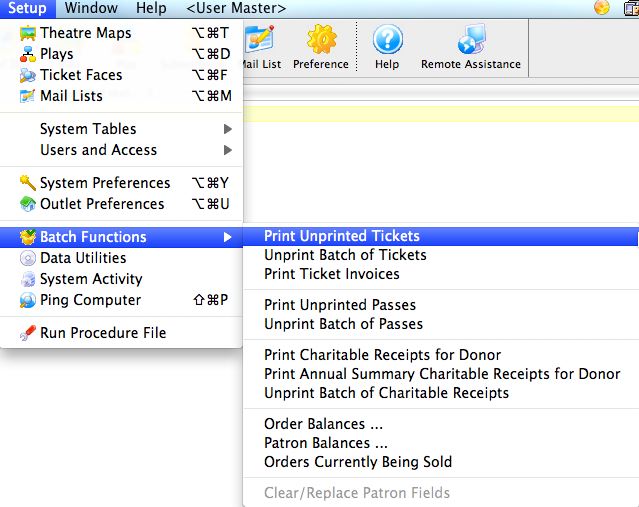
This will open two windows, with the Parameter window in front.
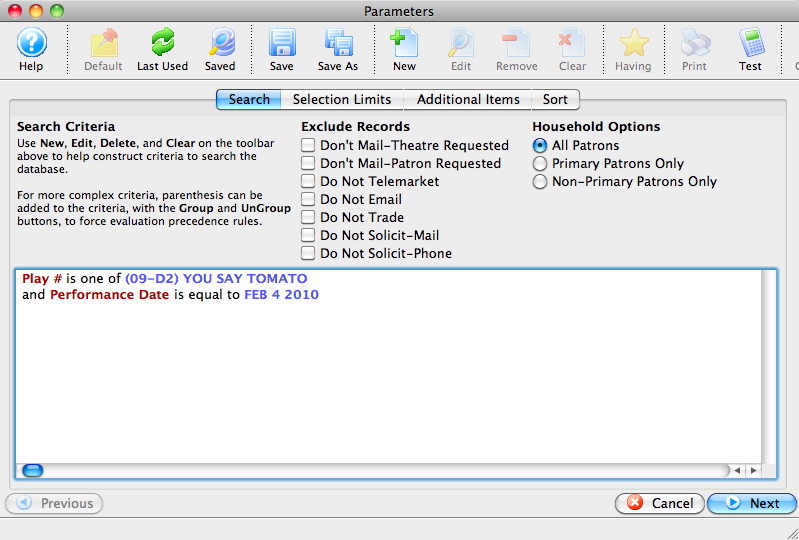
Parts of the Unprinted Parameters Window
 |
If available, uses the default search criteria for this report. |
 |
If this report has previously been run, this button will add the previous criteria. |
 |
Opens a list of saved criteria for this report. |
|
Saves the current criteria to be used later. |
 |
Saves the current criteria to be used later and opens a dialog to name this criteria. |
|
Opens the Add/Edit Parameter window to facilitate adding new criteria. Click here for more information on the Add/Edit Parameter window. |
|
Opens the currently selected criteria in the Add/Edit Parameter window to allow adjustments. |
 |
Deletes the currently selected criteria. |
 |
Deletes all criteria from the Search tab. |
 |
Allows for adjustments to the criteria if more specialization is available. |
 |
Prints a listing of the criteria currently in the Search tab. |
 |
Tests the current criteria to see how many records will be returned. A message will appear at the bottom of the window showing the number of records to be returned. |
 |
Groups the currently selected criteria. This forces the criteria to take precedence in the search. |
 |
Ungroups the currently selected criteria. |
 |
The Search tab is used to enter the criteria to be used in the search of records. For more information on the Search tab, click here. |
 |
The Selection Limits tab is used to enter limits for the number of items to be printed. For more information on the Selection Limits tab, click here. |
 |
The Additional Items tab is used to mark any additional items that should be printed when the batch is printed. For more information on the Additional Items tab, click here. |
 |
The Sort tab is used to determine how the batch should be sorted when printed. For more information on the Sort tab, click here. |
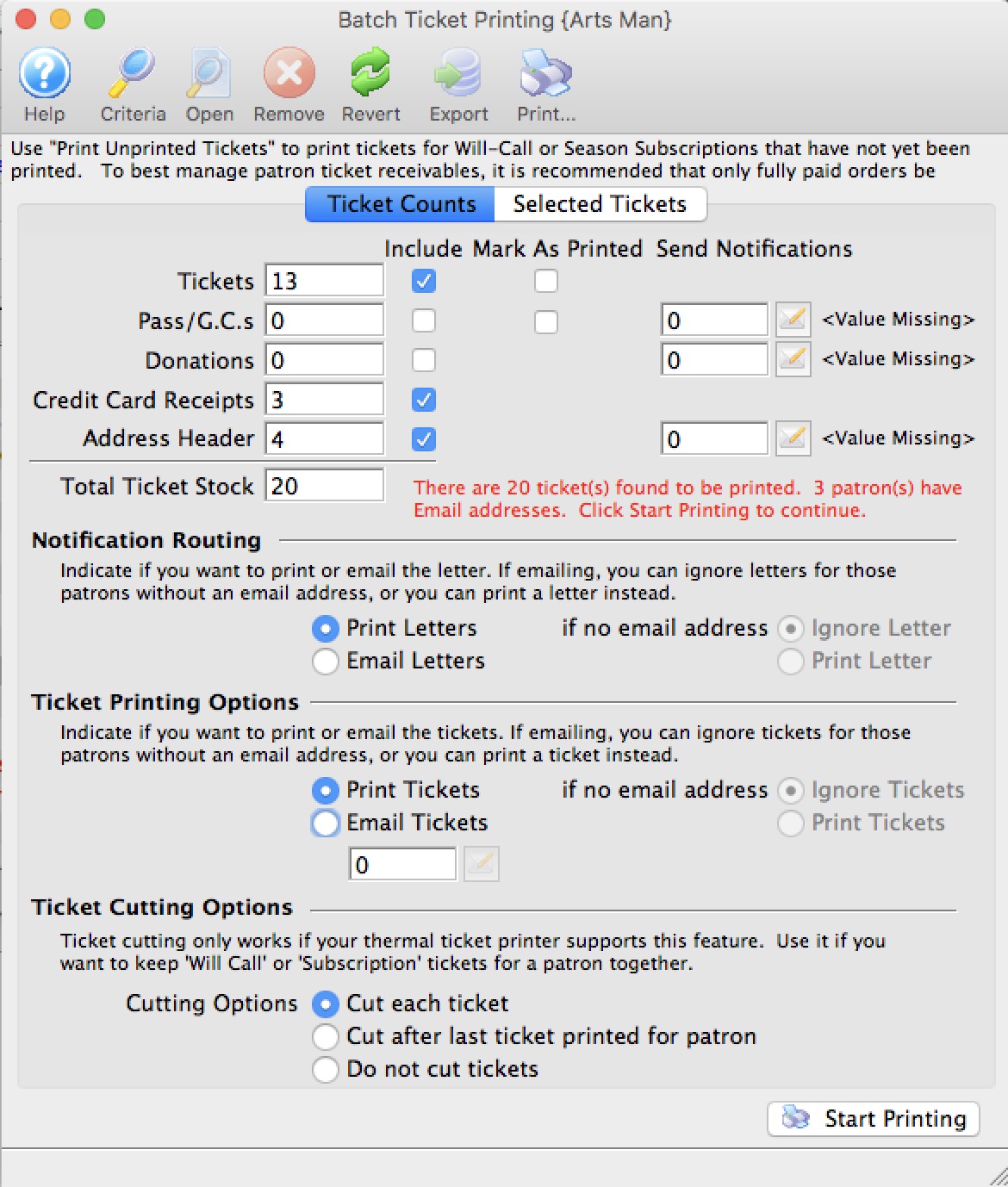
For more information on the Batch Printing window for batch ticket printing, click here.
Search tab
The Print Unprinted Tickets function is commonly used to print all tickets for a performance that have not been printed. Multiple performances can be printed in one batch, but it is recommended that each batch be a separate performance.
- From the main menu bar, go to Setup >> Batch Functions >> Print Unprinted Tickets.
This will open two windows, with the Parameter window in front.
- Enter the criteria for the batch.
In the example above, one event and performance date have been selected.
- Click the
 button once the criteria has been entered.
Selection Limits
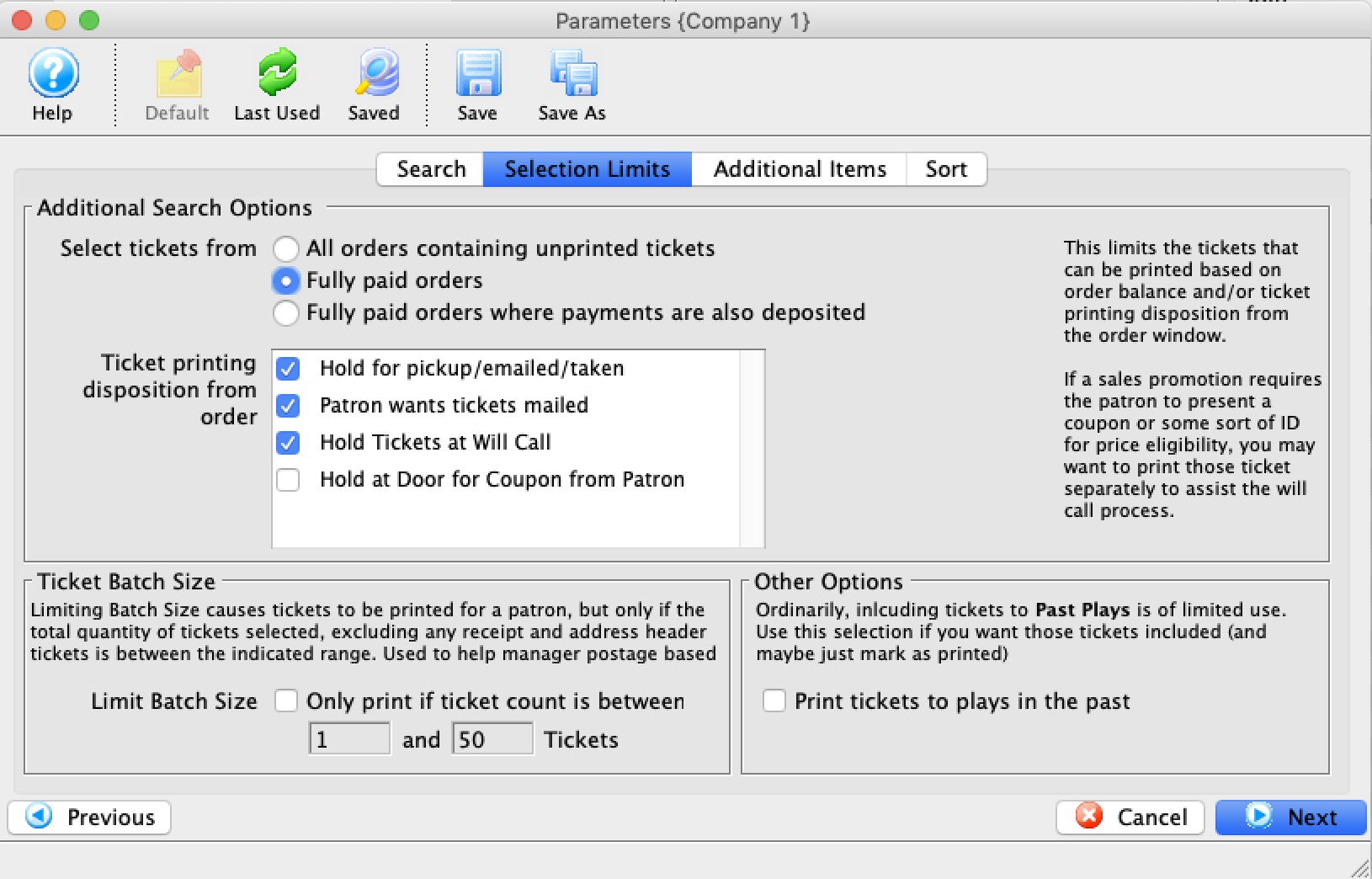
Set the selections in the window. These options include:
| Select Tickets from |
|
| Ticket Printing Disposition |
When an order is taken, the order is marked with how tickets are to be managed. When batch printing, you can include any tickets (not yet printed), that are in orders with one or more of the following status:
|
| Limit Batch Size (optional) | Allows you to limit the batch print size to accommodate ticket printing capacity and stock currently loaded in the printer. |
| Past Plays/Events (optional) | Allows you to print tickets for past events that may not have been printed, if they meet the selection criteria. This is useful if you wish to provide a patron who missed the event with a ticket (as a receipt) of their purchase. |
button.
This will move to the next tab in the Parameter window.
Additional Items tab
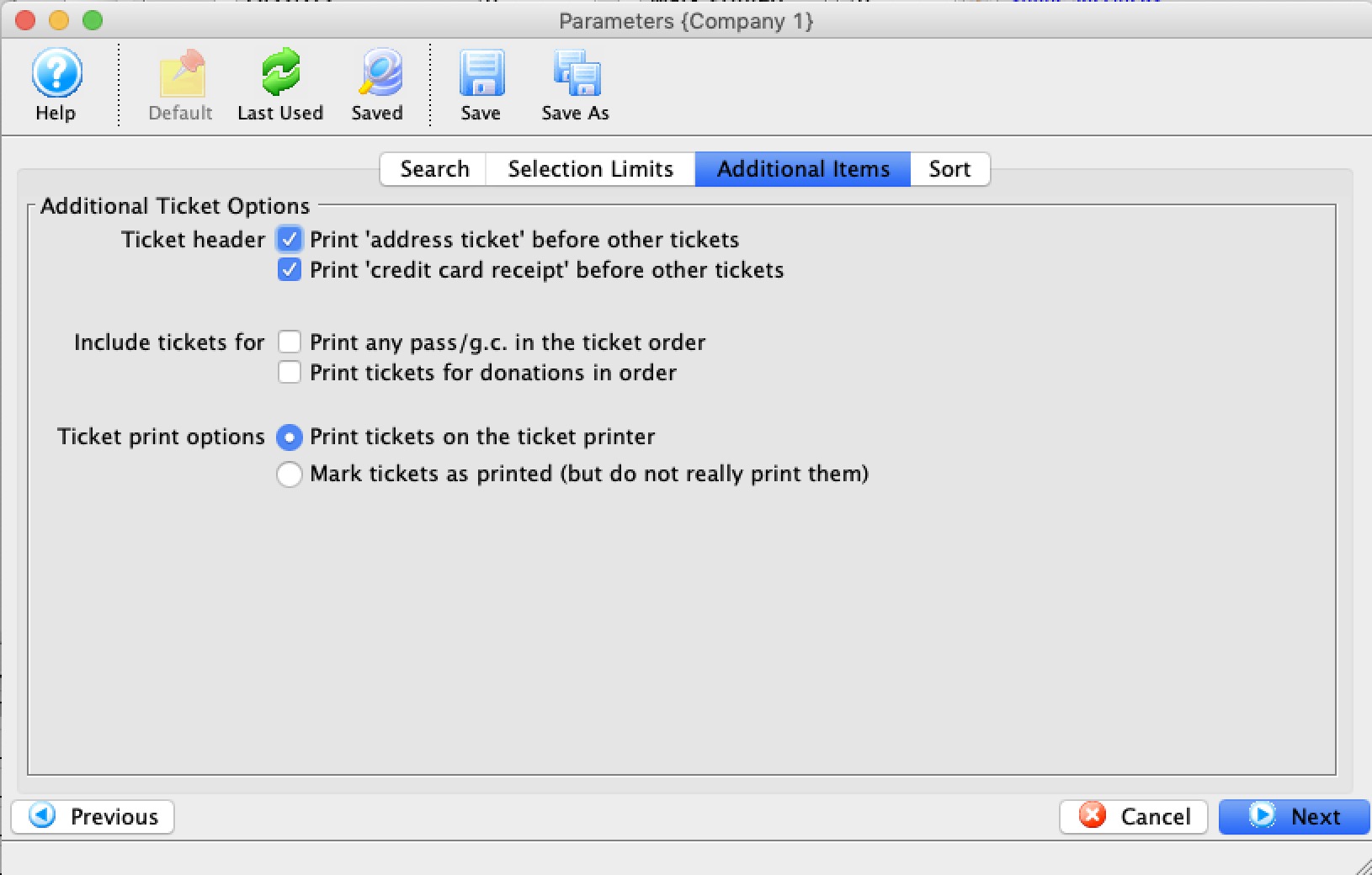
Set the additional items to be printed. These items include (each of which are optional):
| Print Address Ticket | Prints an address ticket at the head of each order. This is useful when batch printing season tickets to be mailed. |
| Print Credit Card Receipt | Prints a credit card receipt following each completed order. |
| Include Memberships | Includes membership ticket faces (if one has been assigned in the membership setup). |
| Include Donations | Includes donation ticket faces (if one has been assigned in the donation setup). |
| Mark Tickets as Printed | Changes the ticket printed status on the ticket from "Not Printed" to "Printed." Use this option to indicate in the patron record that the tickets have been printed. |
Click the button.
This will move you to the next tab in the Parameters window.
Sort Options
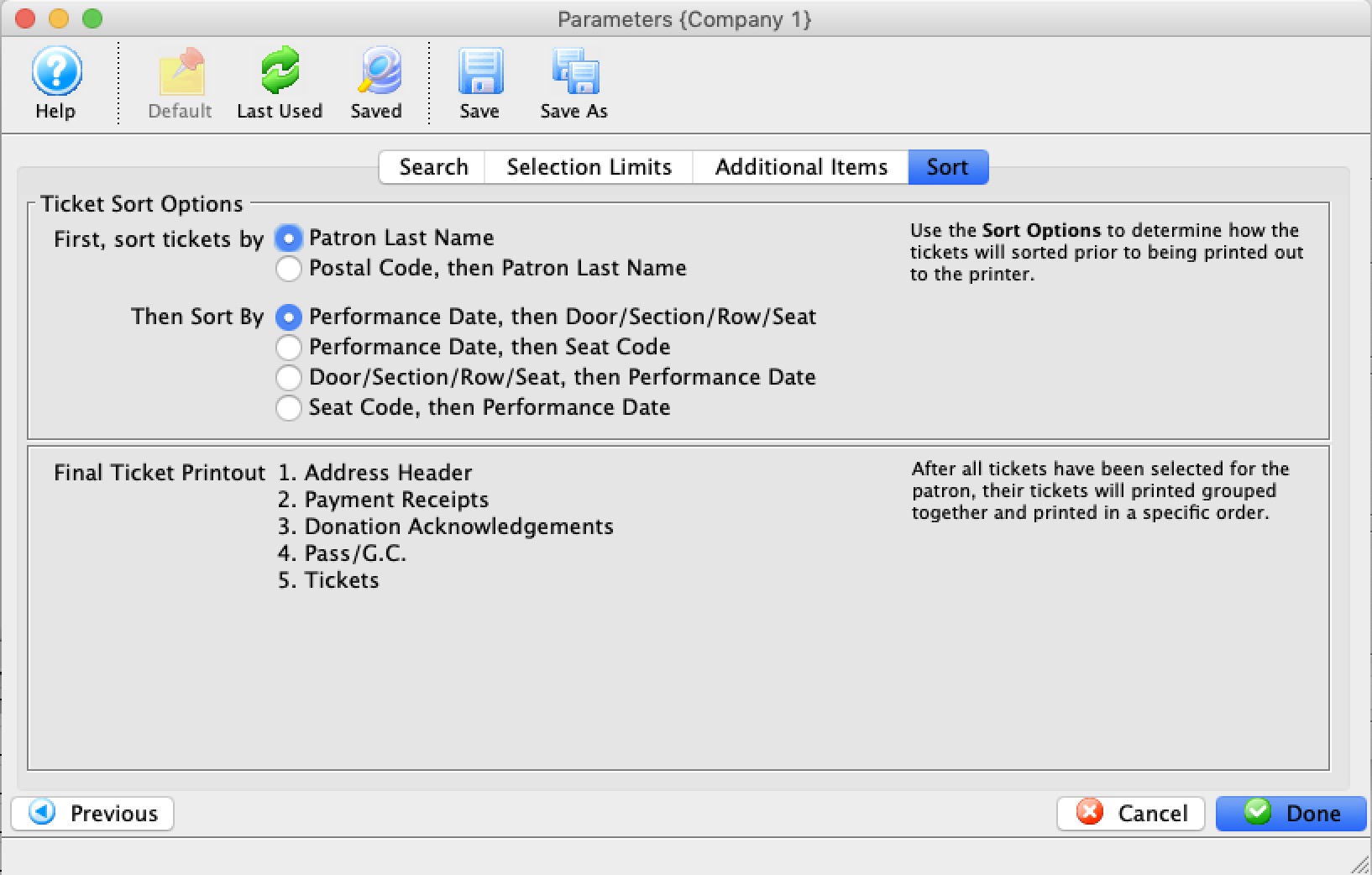
Set the sort options for the tickets. These options include:
| Sort Tickets By | Options to sort either by Patron Last Name or Postal Code, then Patron last Name. The latter can be useful if mailing susbcription tickets by postal code. |
| And then sort by |
|
When complete, click the Done  button.
This will close the Parameters window and reveal the Batch Ticket Printing window.
|
The type of a field (character, date, numeric) influences the order that the ticket comes out. Refer to the list of field types, especially the note about character fields and it may influence how you set some up. |
Ticket Printing - Ticket Printing Sort Order
- Numeric and Date sort orders are relatively intuitive
- Character sort order may need leading zero's in fields to have them sort in a way you expect. (Seat Code is one we are ofter asked about)
|
Character fields use Character Sorts which is not the same as numeric sort order.
Examples of seat code sort order
|
| Field Name | Sort Order | Sort Type |
| Patron Last Name | Ascending | Character |
| Patron First Name | Ascending | Character |
| Patron Number | Ascending | Numeric |
| Performance Date | Descending | Date |
| Performance Time | Descending | Time |
| Performance Code | Descending | Character |
| Section | Descending | Character |
| Row | Descending | Character |
| Seat | Descending | Character |
| Seat Code | Descending | Character |
The Batch Printing/Emailing Window
The Batch Printing/Emailing window allows for the final options to be set prior to printing a batch.
Parts of the Batch Printing Window
 |
Opens the Parameter window for adjustments to be made to the search parameters. For more information on the Parameters window, click here. |
 |
Opens the selected item. |
 |
Removes the selected item from the batch. |
 |
Reverts to the last saved search criteria. |
|
Exports the list of items in the batch to a TXT file. |
|
Prints the list of items in the batch. |
 |
The Ticket Counts tab gives a summary of the items in the batch. Additional final options can also be set prior to printing the batch. For more information on the Ticket Counts tab, click here. |
 |
The Selected Tickets tab lists all of the items that will be printed in the batch. For more information on the Selected Tickets tab, click here. |
Ticket Counts
Once you have clicked the button on the Sort Options window, the second window in the Batch Print process will come to the front.
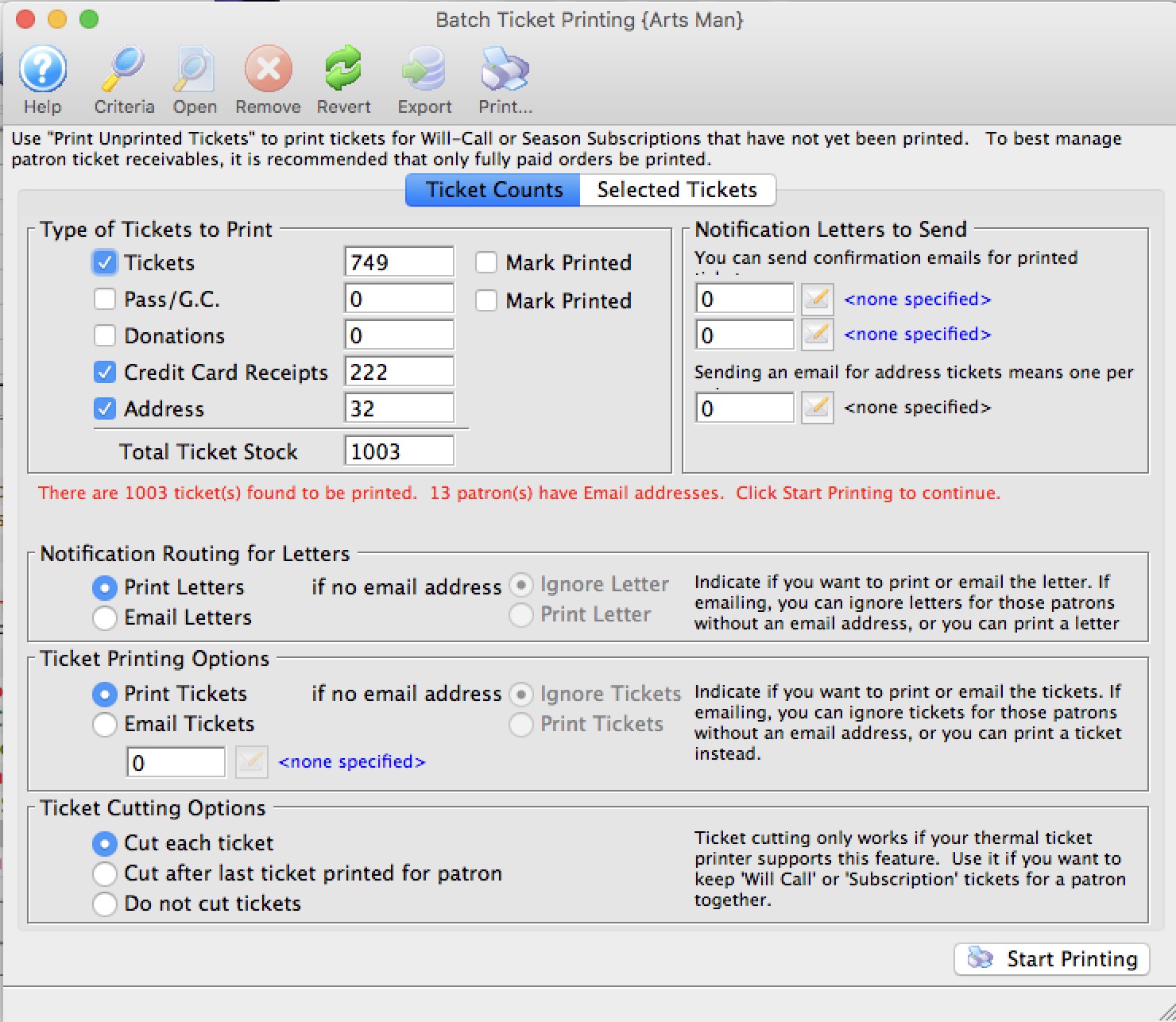
The number of tickets to be printed will appear in the Tickets field. For more information on the Batch Printing window, click here.
Set any final printing options, and click the Start Printing button.
The tickets will now begin printing to the selected ticket printer.
Parts of the Batch Printing Ticket Counts Tab
|
The Selected Tickets tab lists all of the items that will be printed in the batch. For more information on the Selected Tickets tab, click here. |
| Tickets | The total number of tickets to be printed in the batch. |
| Include | When checked, this item will be printed in the batch. |
| Mark As Printed | When checked, this item will be marked as printed, but nothing will be printed. |
| Memberships | The total number of memberships in the batch. |
| Send Notifications | The letter associated with this item that will be included. |
| Donations | The total number of donations in the batch. |
| Credit Card Receipts | The total number of credit card receipts in the batch. |
| Address Header | The total number of address header tickets in the batch. |
| Total Ticket Stock | The grand total number of tickets that will be printed so that the stock in the printer can be verified prior to printing. |
Notification Routing for Letters/emails confirming tickets have been printed. |
|
| Print Letters | If a notification letter has been created and set for any of the items above (eg tickets, passes, donations), the notification letter will be printed so you can mail it to the patron. |
| Email Letter | If notification letter has been set for any of the items, the notifications will be emailed if the patron has an email address. This is useful for things like 'your season tickets are in the mail'. Optionally you can.
|
Ticket Printing Options |
|
| Print Tickets | If selected, will print all tickets that have been found to print. |
| Email Tickets | If selected, will email tickets (where print at home is enabled) to patrons that have an email address and optionally (when selected):
When you select the email option, you will be asked for the content of the form letter to send/. This can be from pre-existing form letter(s) marked as cover letter for invoice or something you type yourself. Note: you can also manually email tickets at the end of an order on a per order basis if you want. This feature is useful for emailing batches of tickets. |
Ticket Cutting Options |
|
| Cut each ticket - if printer has a ticket cutter | Tells the ticket printer to cut the stock after each ticket. |
| Cut after last ticket printed for patron | Tells the ticket printer to cut the stock after the last ticket for each patron is printed. This has an advantage in that there will be a ribbon of tickets that belongs to a single patron and lessens the chance that the patron will receive the wrong tickets. |
| Do not cut tickets | Tells the printer to not cut the stock until the end of the batch - tickets will not be cut. You will have to find the demarcation between patrons and manually rip the tickets. |
 |
Starts the printing of the batch. |
Selected Tickets Tab
The Batch Printing window allows for the final options to be set prior to printing a batch.
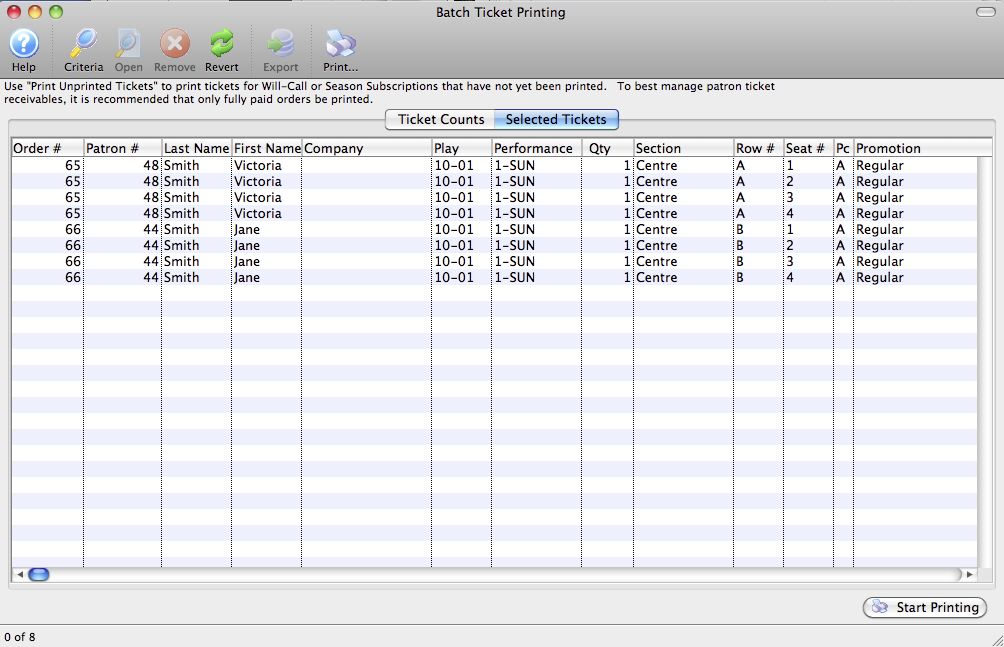
Parts of the Batch Printing Selected Tickets Tab
|
The Ticket Counts tab gives a summary of the items in the batch. Additional final options can also be set prior to printing the batch. For more information on the Ticket Counts tab, click here. |
| Order # | The Order number associated with the item. |
| Patron # | The Patron Number to whom the tickets were sold. |
| Last Name | The last name of the patron. |
| First Name | The first name of the patron |
| Company | The company of the patron. |
| Event/Play | The event the item is for. |
| Performance | The performance the item is for. |
| Qty | The quantity of the item. |
| Section | The section the ticket is in. |
| Row # | The row number the ticket is in. |
| Seat # | The seat number the ticket is in. |
| PC | The price code that was used with the ticket. |
| Promotion | The promotion that was used with the ticket. |
|
Starts the printing of the batch. |
Other Fields Not Shown |
|
| Total | The total price of the ticket. |
| Date Printed | The date the tickets were printed. Normally blank, but if the tickets were previously printed, their original print date would appear here. |
| Date | The date of the performance. |
| Time | The time of the performance. |
| Play/Event Title | The play or event title. |
| Ticket # | The serial number of the ticket. |
| Notes | Any order notes for the selected ticket. |
Unprint or Refund Batch of Tickets
The Unprint or Refund Batch of Tickets function allows you to search for tickets in a variety of ways and:
- Unprint the tickets to reset the 'Printed' flag so that they can be printed again. This is helpful when a batch of tickets needs to be reprinted -or-
- perform a mass refund on selected the tickets which can cross event and performance boundaries.
To access the Unprint or Refund Batch Of Tickets function:
From the main menu bar, select Setup >> Batch Functions >> Unprint Batch of Tickets.
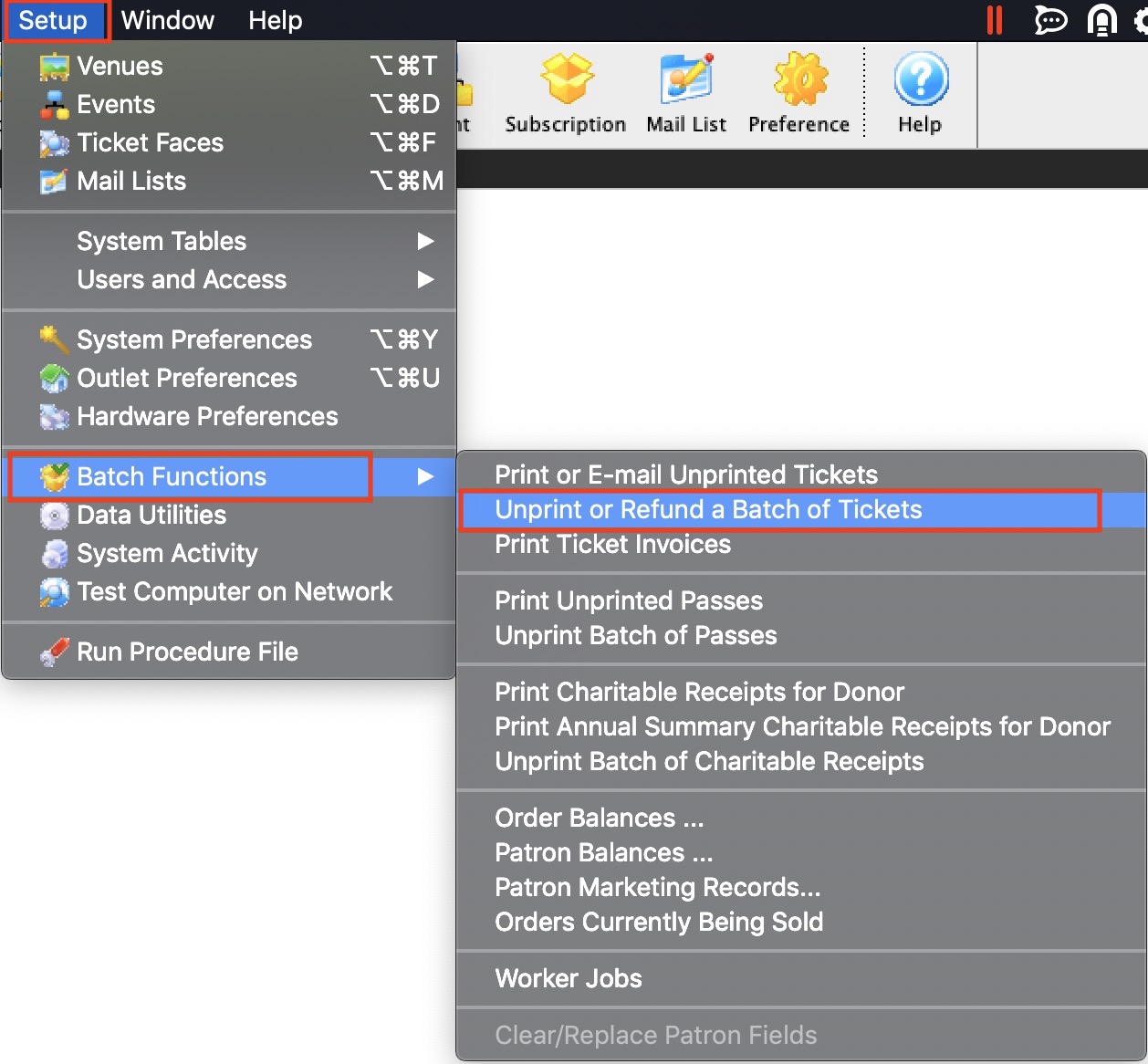
The Unprint or Refund a Batch of Tickets window opens.
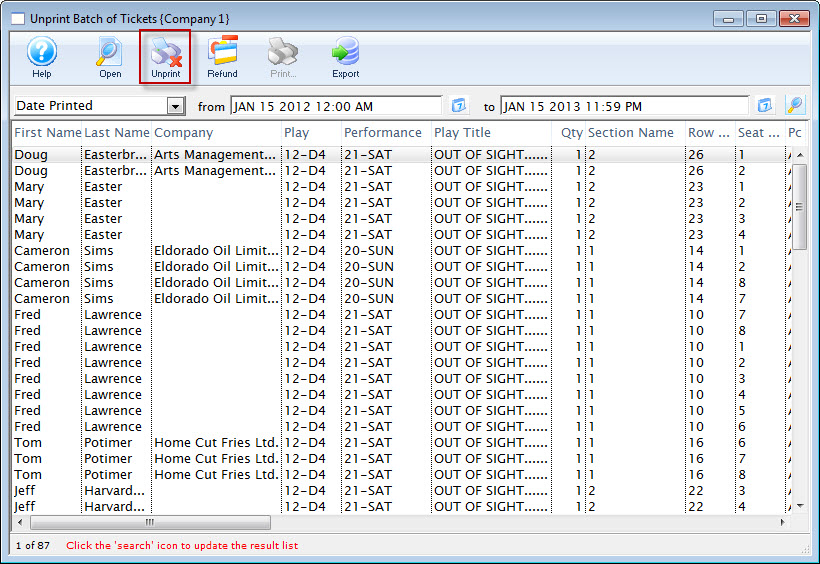
Parts of the Unprint or Refund a Batch of Tickets Window
|
Opens the highlighted ticket detail window. For more on the Ticket Data window, click here. |
 |
Click the Unprint button to set the print status on the selected ticket(s) to "unprinted." |
 |
Clicking the Refund button will open the Refund Wizard and refund the selected tickets using the same tools as mass refunding from the attendance tab on play and dates.
In this window, there are different search options, instead of just being restricted to those attending a performance. |
 |
Prints the selected tickets. This option is only available if the selected tickets have the ticket status of "unprinted." |
Ticket Data Window
The ticket detail window allows you to view the specific details surrounding the sale of the selected ticket.
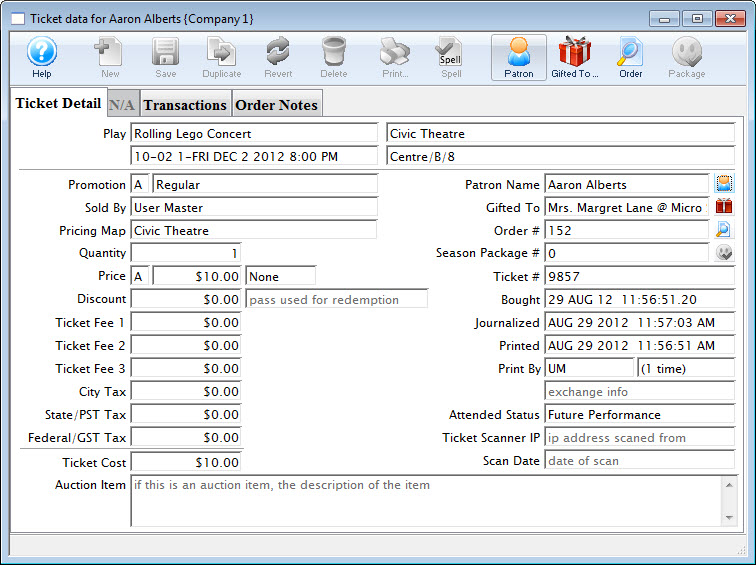
Ticket Detail Tab
The ticket detail window allows you to view the specific details surrounding the sale of the selected ticket.
Parts of the Ticket Detail Tab
Play |
Information about the selected ticket - Event Name, Venue, Performance Date and time and seat |
Promotion |
Letter and Internal description of the promotion code |
Sold By |
Employee who sold the ticket to the patron |
Pricing Map |
Internal name of the pricing map used in the sales window |
Quantity |
Number of tickets. It is always 1 for reserved seating. It maybr more than one for festival events sold as group tickets. |
Price |
Price Code, The base price before markups, taxes discounts. and Tax Codes |
Discount |
Total amount the ticket was discounted due to the promotion used. And the control number and type for the pass g.c. used to discount the price. |
Ticket Fees 1,2 & 3 |
Values for each of the fees added to the ticket. |
Taxes |
Amount of the taxes added to the ticket. |
Ticket Cost |
The total amount of the ticket including discounts, markups, taxes and fees. |
Auction Item |
If this is an auction item, the descripption of the item. |
Patron Name |
Name of the patron who purchased the ticket. Clicking the Patron |
Gifted To |
Name of the patron who the ticket was gifted to. Clicking the Gift |
Order # |
Order number the ticket is part of. Clicking the Search |
Season # |
The Subscrition the tickets are associated with. |
Ticket # |
The internal number of the ticket, assigmned by the system. |
Bought |
The Date and time the ticket was bought. |
Journalized |
The date the ticket was journailzed by the create sales entry process. |
Printed |
The date the ticket was last printed |
Printed By |
The initials of the employee who printed the ticket and how many times the ticket has been printed. |
Attended Status |
Sets to YES if the patron attended. |
Ticket Scanner IP |
The IP Address of the scanner used to scan the ticket |
Scan Date |
The date the ticket was scanned |
 icon opens the Patron Record.
  icon opens the Patron Record.
 Transactions Tab
The Transactions tab allows you to view the specific details surrounding the audit transactions of the selected ticket.
Parts of the Transactions Tab
Seq # |
The transaction reference number. |
Trans Date |
Date the transaction took place |
Journal No |
Journal Entry reference number. |
Code |
Theatre Manager reference code used to determine the type of transaction. |
Transaction Desc |
Brief description of what the transaction was. |
Order # |
Reference number used to tract the components of the order. |
Play Code |
Play code reference the donation is associated with. |
Performance Code |
Performance code reference the donation is associated with. |
Order Notes tab
The Order Notes tab allows you to view the specific details surrounding the processing of the order of the selected ticket. The tab discloses the Ticket Handling, Why Patron Bought, Ticket Comments, and any Order Notes.
Parts of the Order Noted Tab
Ticket Handling |
Indicates how the ticket handling option are set in the Payments window. Click here for more information. |
Purchase Order # |
Displays the Purchase Order Number if one was entered on the Payments window. Click here for more information. |
Why Bought |
Displays the The Reason Bought if one was entered on the Payments window. Click here for more information. |
Ticket Comment |
Displays any ticket comments entered on the Payments window. Click here for more information. |
Order Notes |
Any specific notes about the order if any were entered on the Payments window. Click here for more information. |
Ticket Refund Wizard
|
It is highly recommended that:
|
|
Please refer to Mass Refunds from Attendance Tab to see detail information about the refund options.
This page only outlines the basic steps. |
Mass Refund of Tickets from Batch Functions->Unprint or Refund a Batch of Tickets
The Ticket Refund Wizard allows you to refund tickets selected tickets the Unprint Tickets window.
- Search for tickets using up to two of: event name, performance date range, type of ticket, season package, etc. Take care that you have found the tickets you want.
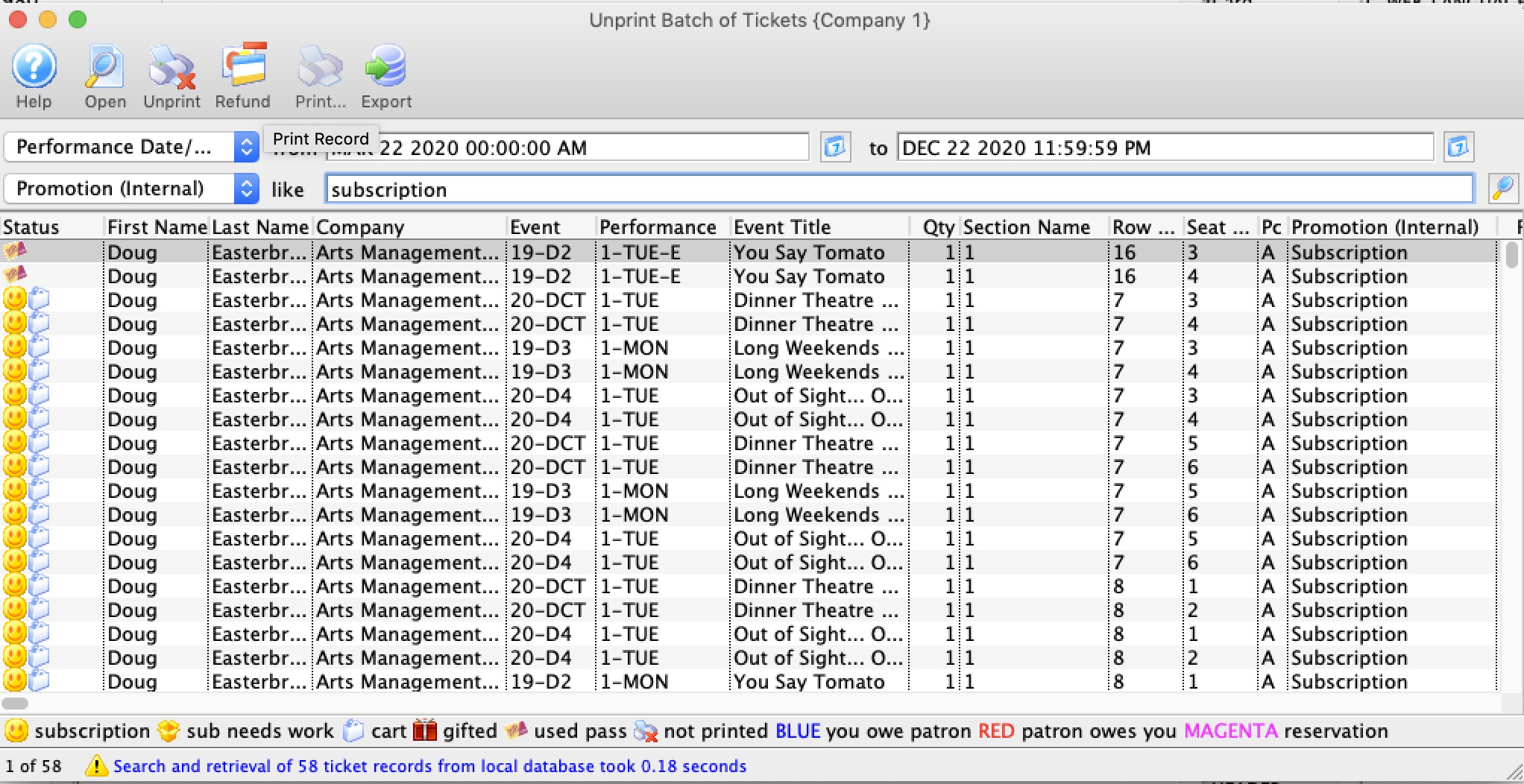
- Select the tickets you wish to refund. Options include:
- Refunding only the selected tickets
- Refunding ALL the tickets in the list, which may cross event and performance boundaries
- (optional) Select the option to refund only tickets paid for via Credit Card
- Select whether to refund payments.
Options include:
- Do not create refund payments. Ticket will be refunded, but the payment will not, leaving a credit balance on the patron's account.
- Create a payment if a credit card was originally used to pay for the order. This will add a refund to the credit card that was used to pay for the order, and will appear in your End Of Day.
- Refund the tickets to a donation campaign
- Refund the tickets to a gift certificate
- Click the button.
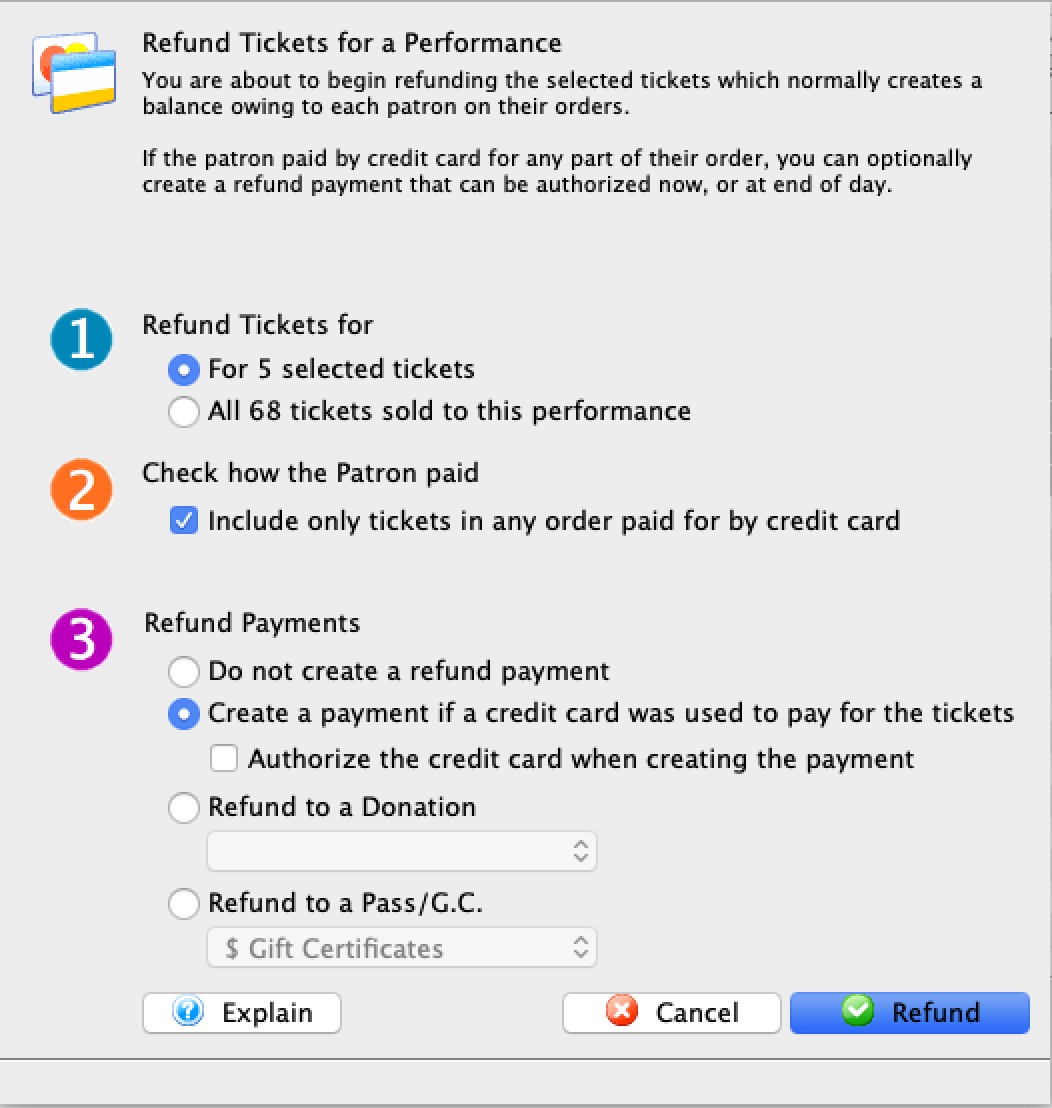
Unprinting a Batch of Tickets
The Unprint Batch of Tickets function allows for the 'Printed' flag to be removed from tickets so that they can be printed again. This is helpful when a batch of tickets needs to be reprinted.
- From the main menu bar, select Setup >> Batch Functions >> Unprint Batch of Tickets.
The Unprint Batch of Tickets window opens.
- Enter the date the tickets were printed in the From and To fields.
- Click the Search button to begin the search.
Any tickets printed in the date range given will display.
- Highlight the tickets to be unprinted.
Use the <SHIFT> key to highlight a range of tickets. To highlight multiple individual tickets, hold the <CTRL> key (Windows) or the <OPTION> key (Mac).
- Click the Unprint
 button to remove the 'Printed' flag.
The tickets can now be added to a new batch of tickets to be printed.
Print Ticket Invoices
Invoices can be created for any order at any time. Using the proper criteria, it is easy to create invoices for orders. To access the Print Ticket Invoices function, you can go to either:
- Setup >> Batch Functions >> Print Ticket Invoices.
Or through the Reports >> Ticket Printing, Invoicing and Inventory Analysis >> Print Invoices function.
The Print Invoice Criteria window opens.
For more information on the Print Invoice Criteria window, click here.
The Print invoices Criteria Window
Parts of the Print Invoices Criteria Window
|
If available, uses the default search criteria for this report. |
|
If this report has previously been run, this button will add the previous criteria. |
|
Opens a list of saved criteria for this report. |
|
Saves the current criteria to be used later. |
|
Saves the current criteria to be used later and opens a dialog to name this criteria. |
|
Opens the Add/Edit Parameter window to facilitate adding new criteria. Click here for more information on the Add/Edit Parameter window. |
|
Opens the currently selected criteria in the Add/Edit Parameter window to allow adjustments. |
|
Deletes the currently selected criteria. |
|
Deletes all criteria from the Search tab. |
|
Allows for adjustments to the criteria if more specialization is available. |
|
Prints a listing of the criteria currently in the Search tab. |
|
Tests the current criteria to see how many records will be returned. A message will appear at the bottom of the window showing the number of records to be returned. |
|
Groups the currently selected criteria. This forces the criteria to take precedence in the search. |
|
Ungroups the currently selected criteria. |
 |
The Search tab is used to enter the criteria to be used in the search of records. For more information on the Search tab, click here. |
 |
The Header tab is used to enter options regarding the Address Label, format of the invoice (Invoice, Statement, Payment Reminder, Confirmation, or Contract), and layout. For more information on the Header tab, click here. |
 |
The Footer tab is used to enter options for a tear off section, and comments to the recipient. For more information on the Footer tab, click here. |
 |
The Tickets tab is used to choose options for ticket summary and details to be included in the invoice. For more information on the Tickets tab, click here. |
 |
The Membership tab is used to choose options for membership (pass/gift certificate) summary and details to be included in the invoice. For more information on the Membership tab, click here. |
 |
The Donations tab is used to choose options for donation summary and details to be included in the invoice. For more information on the Donations tab, click here. |
 |
The Projects tab is used to choose options for project summary and details to be included in the invoice (Facilities Management module only). For more information on the Projects tab, click here. |
 |
The Payments tab is used to choose options for the payment summary and details to be included in the invoice. For more information on the Payments tab, click here. |
 |
The Fees & Taxes tab is used to choose options for fee and tax summary and details to be included in the invoice. For more information on the Fees & Taxes tab, click here. |
 |
The Sort tab is used to enter the sort order parameters for the printed batch. For more information on the Sort tab, click here. |
 |
The Search tab is used to enter optional titles and descriptions for the printed invoice. For more information on the Titles tab, click here. |
 |
Proceeds to the next tab in the Print Invoices Criteria. |
|
|
Cancels that adding of criteria and returns the user to the Report window. |
|
|
Completes the addition of criteria and the sorting of data, and
begins to generate the report. Click here |
Search Tab
Parts of the Print Invoices Search Tab
Exclude Records |
These checkboxes provide the opportunity to exclude patrons based on the settings within the Marketing tab on the patron record. For more information on the Marketing tab click here. |
Household Options |
Use Household Options to indicate which patrons will receive the invoice. Options include: |
The criteria window |
Criteria used to batch print invoices is entered here using the |
|
|
Proceeds to the next tab in the Print Invoices Criteria. |
|
|
Cancels the adding of criteria and clears the window. |
|
|
Completes the addition of criteria and the sorting of data, and begins to generate the invoice. |
Header Tab
The Header tab allows you to choose options regarding layout of the address portion, the columns included and the overall look of the Invoice.
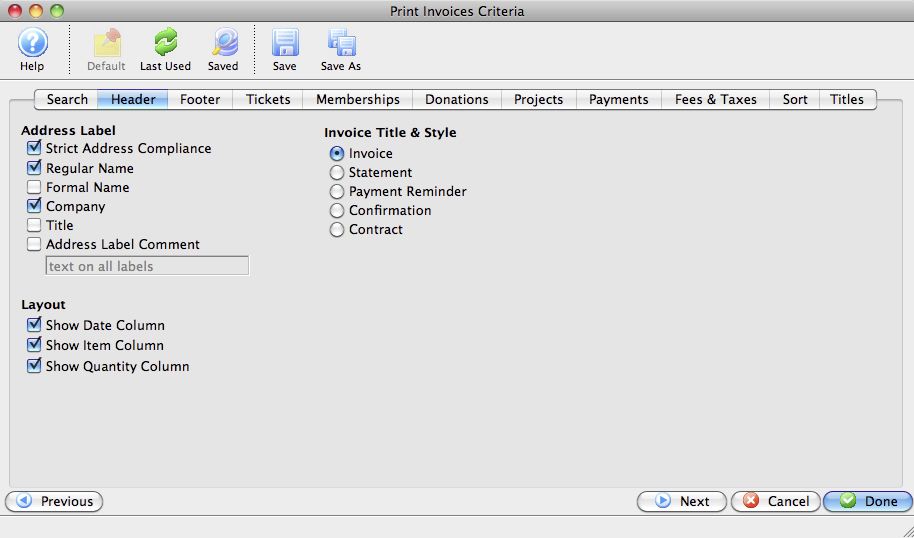
Parts of the Header Tab
Address Label |
Allows you to select how the address portion of the Invoice will appear. |
Layout |
Allows you to select which columns will appear on the Invoice. |
Invoice Title & Style |
Allows you to select the style of the invoice. |
|
|
Returns to the previous tab in the Print Invoices Criteria. |
|
|
Proceeds to the next tab in the Print Invoices Criteria. |
|
|
Cancels the adding of criteria and clears the window. |
|
|
Completes the addition of criteria and the sorting of data, and begins to generate the invoice. |
Footer Tab
The Footer tab allows you to decide whether to include a tear-off section at the bottom of the invoice or not. It also allows you to indicate how many minutes prior to an event patrons should arrive, and add any comments to the invoice.
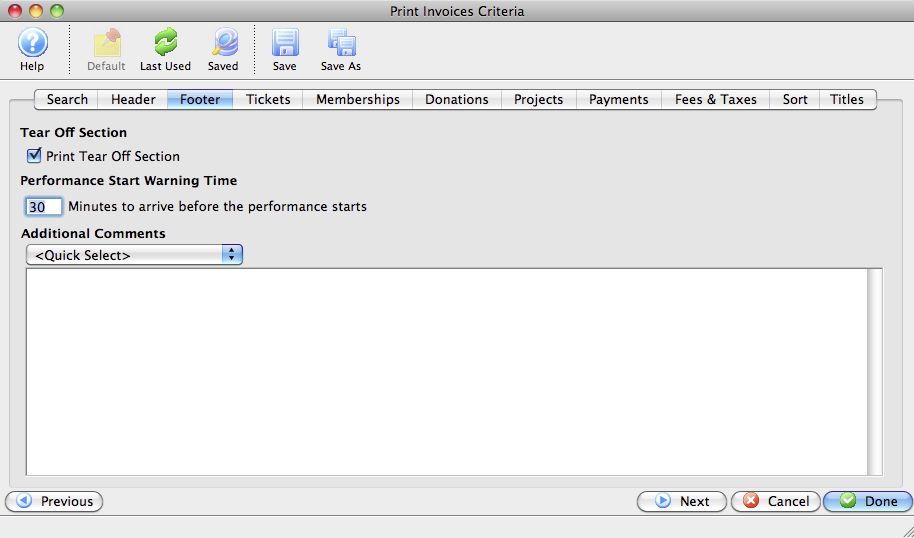
Parts of the Footer Tab
Print Tear Off Section |
By checking this option, a tear off section will appear at the bottom of the invoice. |
Performance Start Warning Time |
Allows entry of a suggested arrival time prior to the performance. Use of this is helpful on invoices to school or tour groups, indicating they should arrive in order to be properly seated. |
Additional Comments |
An opportunity to add any comments to the invoice in the body of the document. Alternatively, you can choose standardized comments from the "Quick Select" drop down. For more information on adding standard invoice comments click here. |
|
|
Returns to the previous tab in the Print Invoices Criteria. |
|
|
Proceeds to the next tab in the Print Invoices Criteria. |
|
|
Cancels the adding of criteria and clears the window. |
|
|
Completes the addition of criteria and the sorting of data, and begins to generate the invoice. |
Tickets Tab
The Tickets tab determines the level of detail regarding the tickets that will be printed on the invoice.
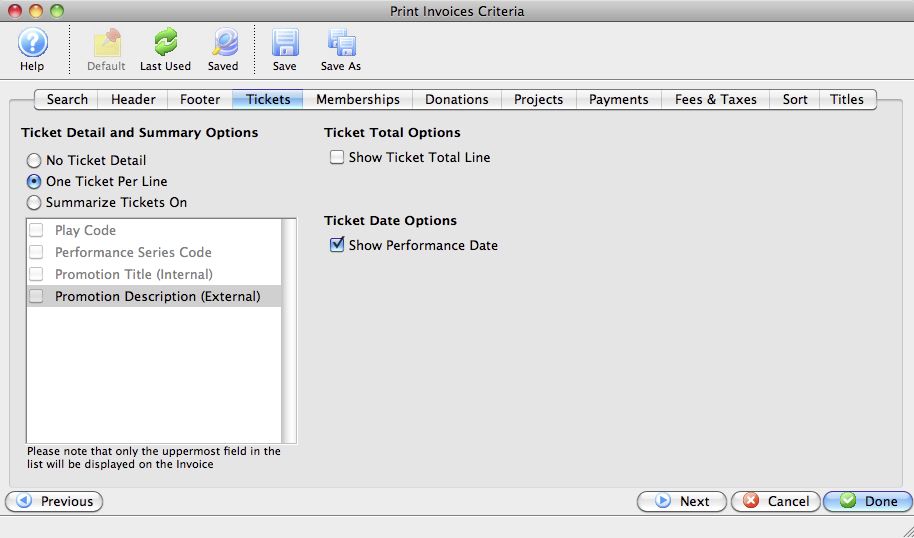
Parts of the Tickets Tab
Ticket Detail and Summary Options |
Determines whether the tickets will be printed (if at all) with a detail of one ticket per line, or summarized. The summary options include: |
Ticket Total Options |
When checked, Theatre Manager will calculate the total dollar amount of the tickets and print it below the ticket detail or summary. |
Ticket Date Options |
When checked, Theatre Manager will print performance dates for the tickets within the invoice. |
|
|
Returns to the previous tab in the Print Invoices Criteria. |
|
|
Proceeds to the next tab in the Print Invoices Criteria. |
|
|
Cancels the adding of criteria and clears the window. |
|
|
Completes the addition of criteria and the sorting of data, and begins to generate the invoice. |
Memberships Tab
The Memberships tab determines the level of detail regarding the memberships that will be printed on the invoice
|
Depending on how your database is configured, this may appear as the GC/Pass tab, or Voucher tab. |
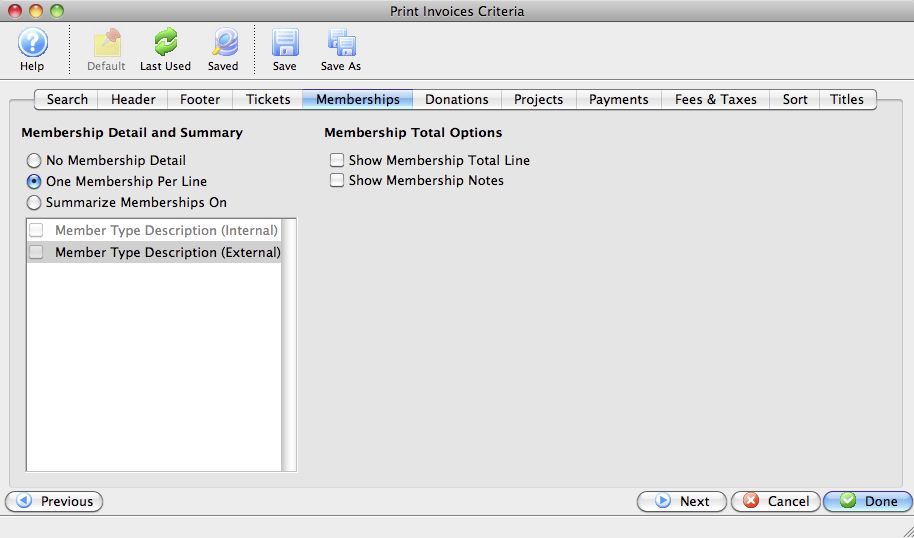
Parts of the Memberships Tab
Membership Detail and Summaryn |
Determines whether the Memberships will be printed (if at all) with a detail of one Membership per line, or summarized. The summary options include: |
Membership Total Options |
Options to include either one or both of Membership total (dollar amount) and any Membership notes, which are drawn from the Membership . For more on adding notes to a Membership, click here. |
|
|
Returns to the previous tab in the Print Invoices Criteria. |
|
|
Proceeds to the next tab in the Print Invoices Criteria. |
|
|
Cancels the adding of criteria and clears the window. |
|
|
Completes the addition of criteria and the sorting of data, and begins to generate the invoice. |
Donations Tab
The Donations tab determines the level of detail regarding the donations that will be printed on the invoice.
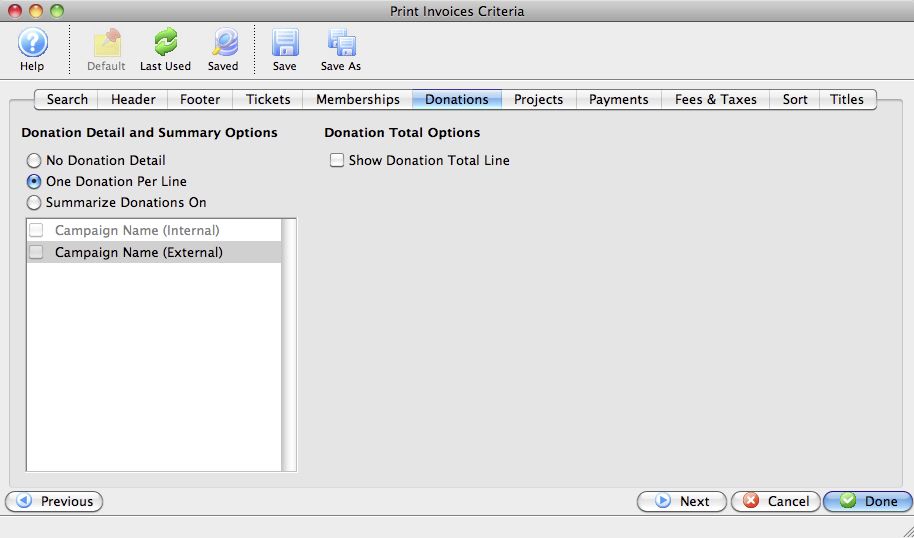
Parts of the Donations Tab
Donation Detail and Summary Options |
Determines whether the Donations will be printed (if at all) with a detail of one Donation per line, or summarized. The summary options include: |
|
|
Returns to the previous tab in the Print Invoices Criteria. |
|
|
Proceeds to the next tab in the Print Invoices Criteria. |
|
|
Cancels the adding of criteria and clears the window. |
|
|
Completes the addition of criteria and the sorting of data, and begins to generate the invoice. |
Projects Tab
The Projects tab determines the level of detail regarding the Facilities Management Projects that will be printed on the invoice.
|
This tab will only be available if you have the Facilities Management module. For more information on Facilities Management, click here. |
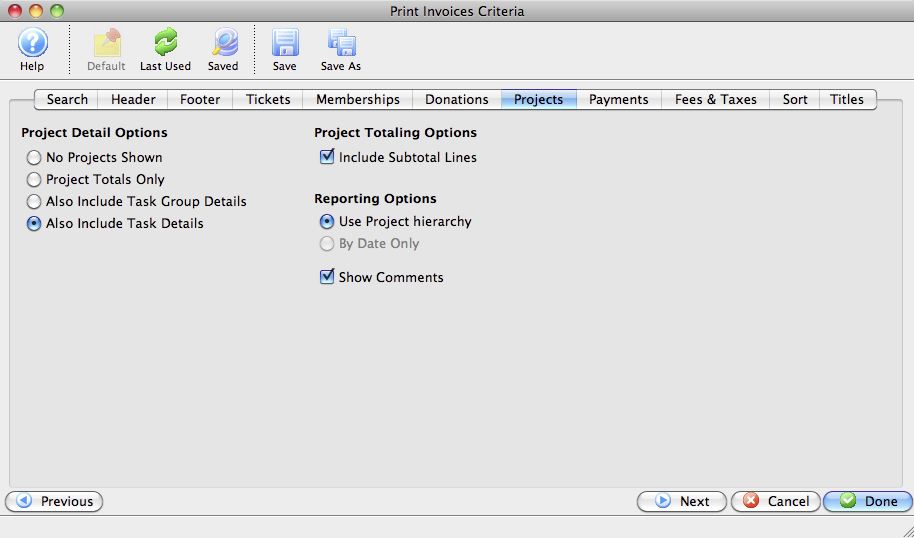
Parts of the Projects Tab
Project Detail Options |
Determines whether the Projects will be printed (if at all) with a detail of one task per line, or summarized. The options include: |
Project Totaling Options |
Indicates whether each Group will have a subtotal line associated with it. |
Reporting Options |
Includes options to either list items on the invoice by the project hierarchy or by date. Project hierarchy means that the tasks will be listed with the groups, the tasks underneath them, in the order the project displays in in the Gantt chart, regardless of the date order. At current, the "By Date" option has not yet been implemented. |
Show Comments |
When checked, Theatre Manager will show line by line any comments associated with any of the individual tasks in the list. |
|
|
Returns to the previous tab in the Print Invoices Criteria. |
|
|
Proceeds to the next tab in the Print Invoices Criteria. |
|
|
Cancels the adding of criteria and clears the window. |
|
|
Completes the addition of criteria and the sorting of data, and begins to generate the invoice. |
Payments Tab
The Payments tab determines the level of detail regarding the payments that will be printed on the invoice.
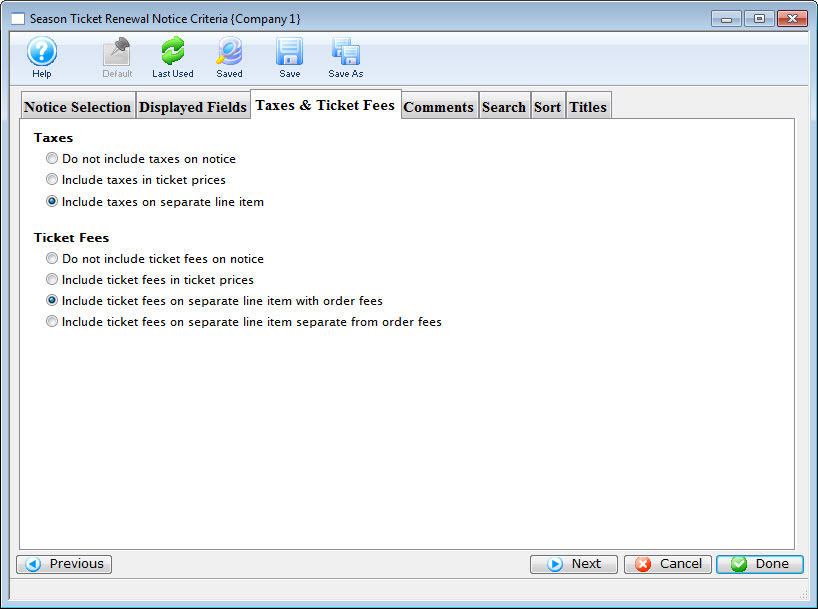
Parts of the Payments Tab
Payment Detail and Summary Options |
Determines whether the Payments will be printed (if at all) with a detail of one Payment per line, or summarized. At this time, payments may only be summarized based on payment method (cash, check, Visa, MasterCard, etc.) |
Payment Total Options |
When checked, Theatre Manager will include the total (dollar amount) of any payments. |
|
|
Returns to the previous tab in the Print Invoices Criteria. |
|
|
Proceeds to the next tab in the Print Invoices Criteria. |
|
|
Cancels the adding of criteria and clears the window. |
|
|
Completes the addition of criteria and the sorting of data, and begins to generate the invoice. |
Fees & Taxes Tab
The Fees & Taxes tab determines the level of detail regarding the fees and taxes that will be printed on the invoice.
Parts of the Fees & Taxes Tab
| Tax Options | The options to print are:
|
| Ticket Fee Options | The options to print are:
|
 |
Returns to the previous tab in the Print Invoices Criteria. |
 |
Proceeds to the next tab in the Print Invoices Criteria. |
|
Cancels the adding of criteria and clears the window. |
 |
Completes the addition of criteria and the sorting of data, and begins to generate the invoice. |
Sort Tab
The Sort tab determines the sort order of the patron invoices that will be printed.
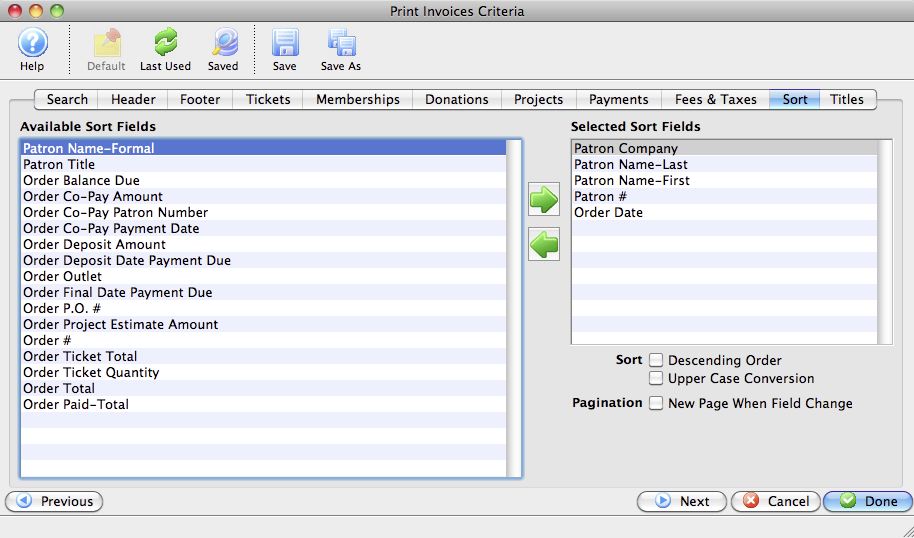
Parts of the Sort Tab
Available Sort Fields |
A list of fields available to sort by. |
|
|
Adds the currently selected field to the sort field list. |
|
|
Removes the currently selected field from the sort field list. |
Selected Sort Fields |
The fields currently used for sorting. Default sort fields may appear here. There is a limit of nine sort fields. |
Sort In Descending Order |
When checked, the currently selected sort field will sort in descending order. |
Upper Case Conversion |
When checked, the currently selected sort field will be converted to upper case letters. |
New Page When Field Changes |
When checked, the currently selected sort field will start on a new page when the field changes. |
|
|
Returns to the previous tab in the Print Invoices Criteria. |
|
|
Proceeds to the next tab in the Print Invoices Criteria. |
|
|
Cancels the adding of criteria and clears the window. |
|
|
Completes the addition of criteria and the sorting of data, and begins to generate the invoice. |
Titles Tab
At this time, changes to this tab do not affect the printed output of the Invoice.
Parts of the Titles Tab
|
|
Returns to the previous tab in the Print Invoices Criteria. |
|
|
Cancels the adding of criteria and clears the window. |
|
|
Completes the addition of criteria and the sorting of data, and begins to generate the invoice. |
Printing Ticket Invoices
Invoices can be created for any order at any time. Using the proper criteria, it is easy to create invoices for orders.
- Go to Setup >> Batch Functions >> Print Ticket Invoices.
This will open the Print Invoice Criteria window.
For more information on the Print Invoice Criteria window, click here.
- Click the New button to add criteria to the search.
This will open the Add/Edit Parameters window.
For more information on the Add/Edit Parameters window, click here.
- Select that appropriate paramaeters based on the invoice to be created, then click the Save
 button.
This will place the parameters in the Search tab of the Print Invoices Criteria window.
- Either adjust the options on the tabs, or click the Done button to display all invoices to be printed.
The invoices will be printed to the screen before being routed to the printer.
- Click the Print button at the top of the window to print the invoices.
Alternatively the Invoice can be emailed directly to the patron. To learn more about emailing invoices click here.
Invoice Examples
- Invoice
- Statement
- Payment Reminder
- Confirmation, and
- Contract
Selection of any of these styles will create different invoice formats to be printed.
|
While many of the items included in the invoices in terms of tickets, donations and memberships and their detail and summary level are customizable based on your organizations needs, placement of specific fields has been set by Theatre Manager in an effort to adhere to standard A-10 Window envelope format. Placement of fields such as logo, address (sender and recipient), and the tear off section may not be altered. As an alternative, you may build a Form Letter to use as a completely customized Invoice. For more on building form letters, click here. |
Invoice
An example of an Invoice.
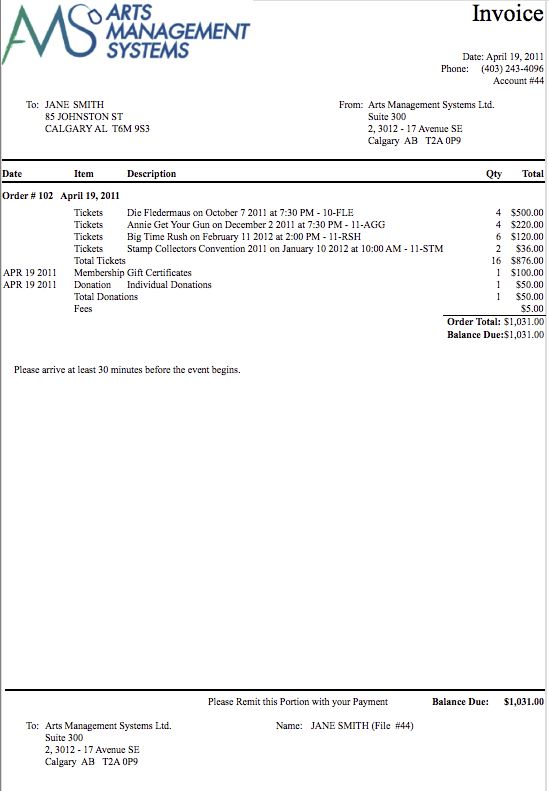
Statement
An example of a Statement.
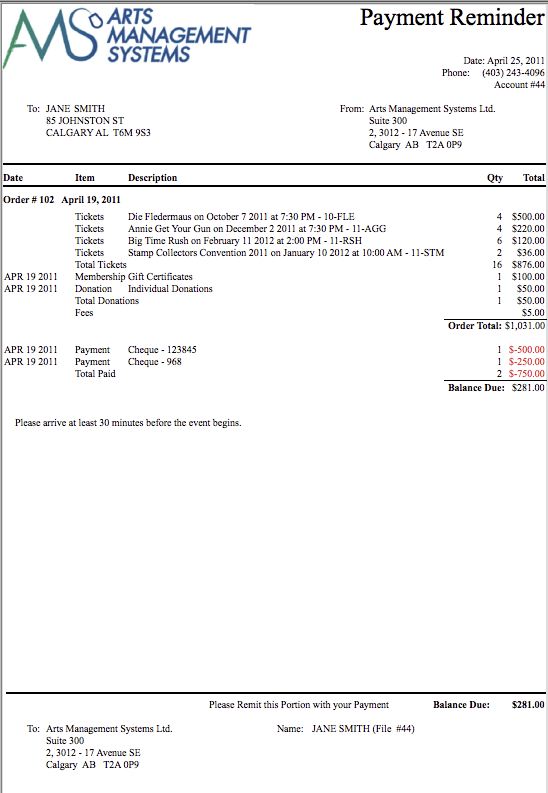
Payment Reminder
An example of a Payment Reminder.
|
The verbiage indicated in the document is customizable under the |
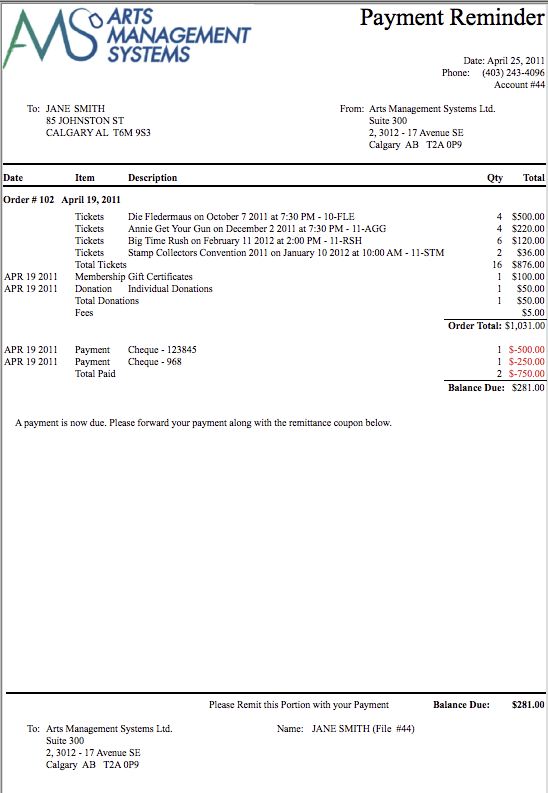
Confirmation
An example of a Confirmation.
|
The verbiage indicated in the document is customizable under the |
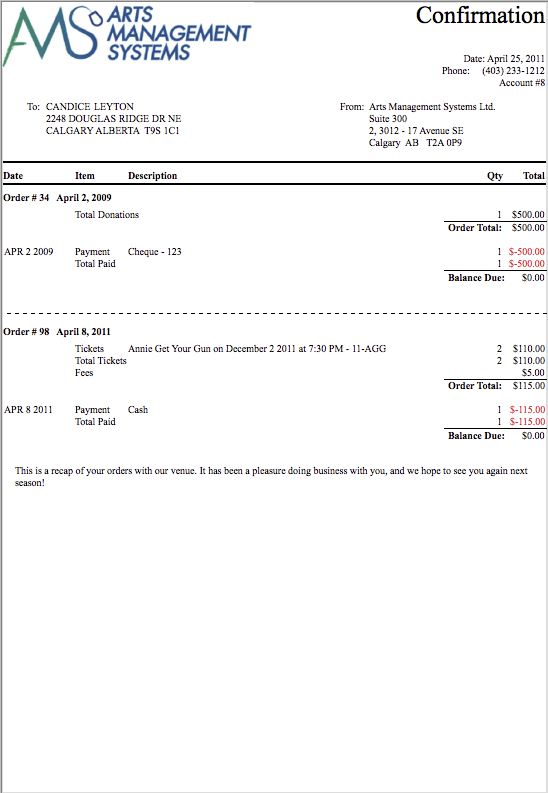
Contract
An example of a Contract.
|
The verbiage indicated in the document is customizable under the |
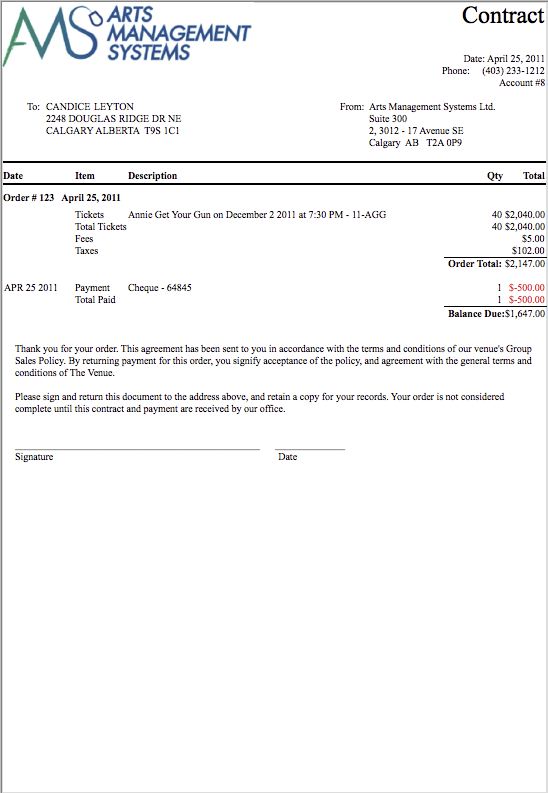
Print Unprinted Passes
The Print Unprinted Passes function is commonly used to print all passes, memberships, gift certificates and vouchers that have not been printed.
|
Only Memberships and Passes with ticket faces associated with them that have been based on Member Data will be printed |
For more on Membership Setup Overview click here.
For more on creating a ticket face click here.
- From the main menu bar, go to Setup >> Batch Functions >> Print Unprinted Passes.
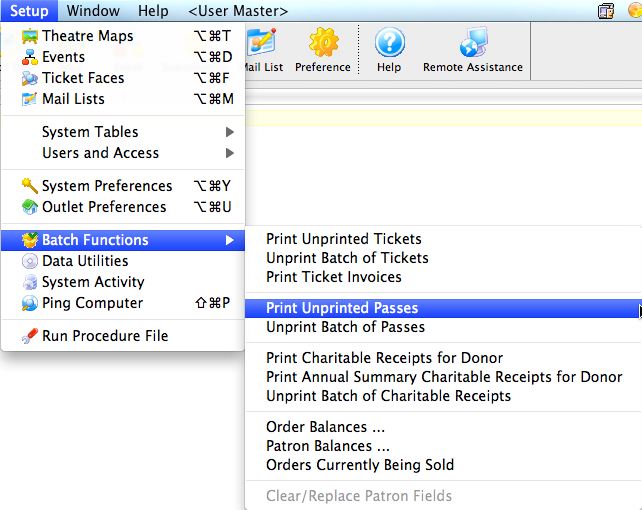
This will open two windows, with the Parameter window in front.
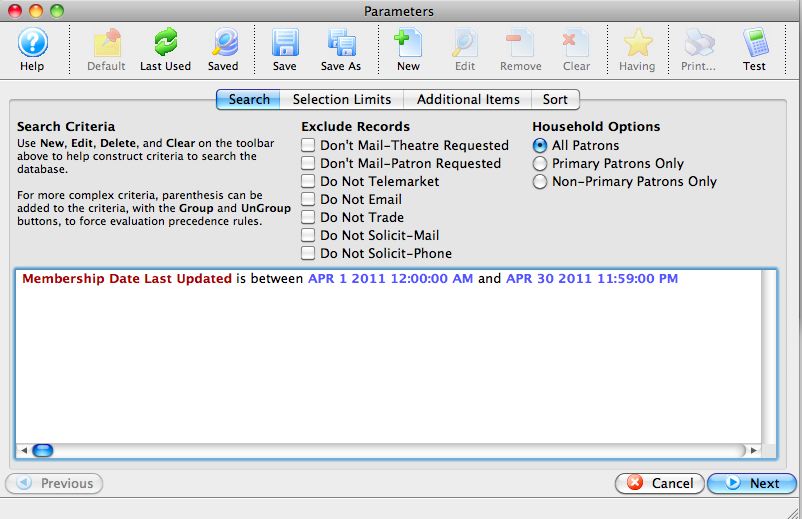
For more information on the Parameters window for batch ticket printing, click here.
- Enter the criteria for the batch.
In the example above, all passes that have been updated in a range have been selected.
- Click the Next button once the criteria has been entered.
This will move to the next tab in the Parameter window.
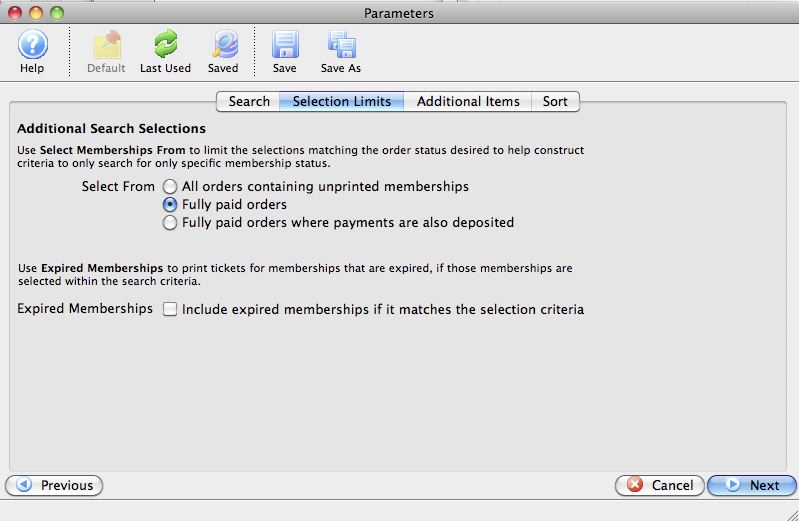
- Set the selections in the window, and then click the Next button.
This will move to the next tab in the Parameter window.
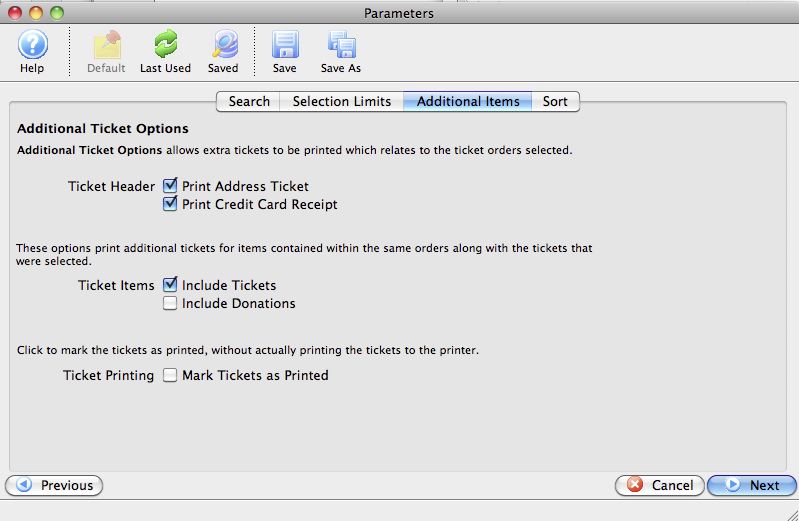
- Set the additional items to be printed, and then click the Next button.
This will move to the next tab in the Parameters window.
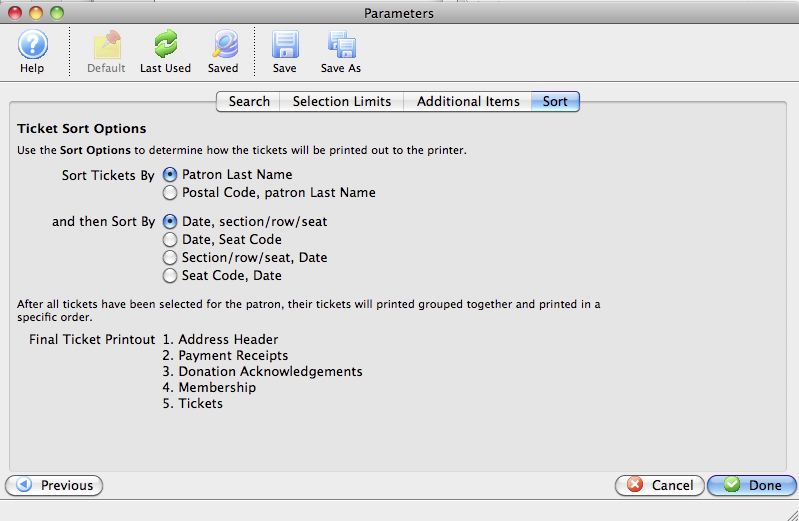
- Set the sort options for the tickets, and then click the Done button.
This will close the Parameters window and reveal the Batch Pass Printing window.
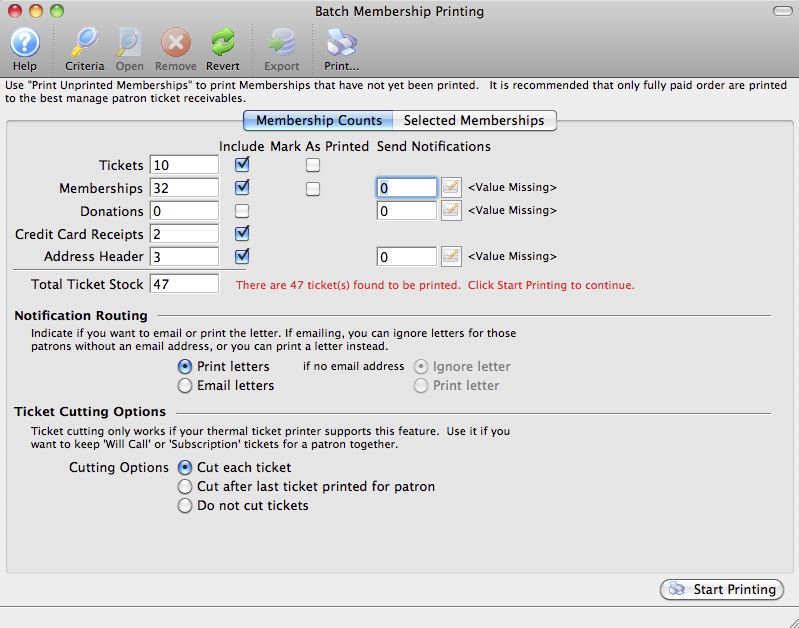
The number of passes to be printed will appear in the Memberships field. For more information on the Batch Printing window, click here.
- Set any final printing options, and click the Start Printing button.
The passes will now begin printing to the selected ticket printer.
Unprint Batch of Passes
The Unprint Batch of Passes function allows for the 'Printed' flag to be removed from passes (Memberships, Gift Certificates, Vouchers) so that they can be printed again. This is helpful when a batch of passes needs to be reprinted. To access the Unprint Batch Of Passes function:
From the main menu bar, select Setup >> Batch Functions >> Unprint Batch of Passes.
The Unprint Batch of Passess window opens.
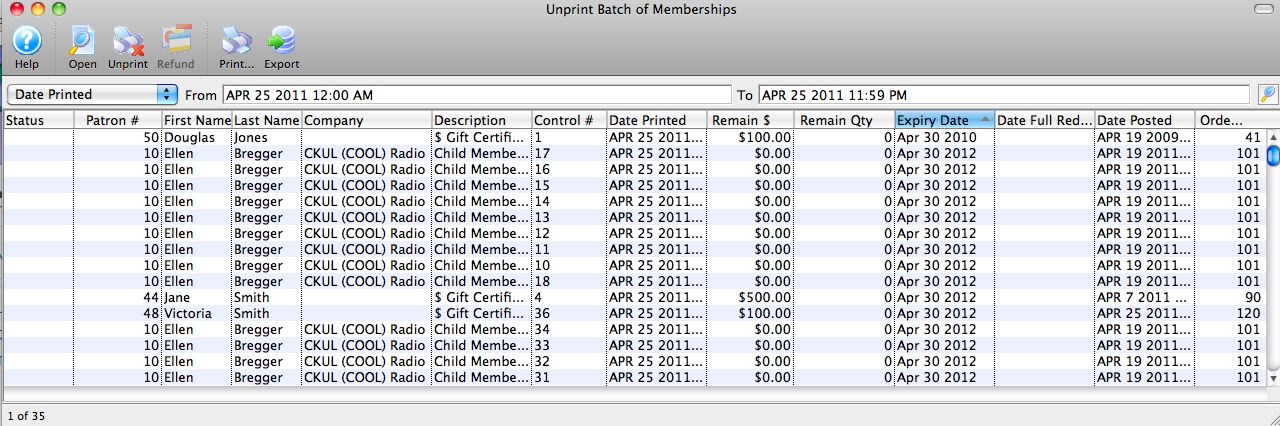
Parts of the Unprint Batch of Passes Window
|
Clicking "Open" with a pass highlighted opens the Membership detail window. For more on the Membership Detail window, click here. |
|
Clicking the Unprint button will set the print status on the selected pass(es) to "unprinted." |
|
Prints the selected pass(es). This option is only available if the selected pass(es) have the print status of "unprinted." |
|
Exports the selected pass(es) to your choice of text or Excel files |
| Status | The current status of the pass |
| Patron # | The Patron Number to whom the pass(es) were sold |
| First Name | The first name of the patron |
| Last Name | The last name of the patron |
| Company | The company of the patron |
| Description | The type of pass |
| Control # | The unique control number of the pass |
| Date Printed | The date the pass was previously printed |
| Remain $ | The remaining dollar amount (if applicable) on the pass |
| Remain Qty | The remaining quantity of admissions (if applicable) on the pass. |
| Expiry Date | The expiration date (if applicable) of the pass |
| Date Full Redemption | The date the pass was fully redeemed (if applicable). |
| Date Posted | The date the sale of the pass was posted to the General Ledger |
| Order # | The Order number associated with the item |
Other Fields Not Shown |
|
| Membership # | The sequence number (not the control number) of the pass within the database |
| Membership Year-Fiscal | The fiscal year in which the pass was originally sold |
Unprinting a Batch of Passes
- From the main menu bar, choose Setup >> Batch Functions >> Unprint Batch of Passes.
The Unprint Batch of Passes window opens.
- Enter the date the passes were printed in the From and To fields.
- Click the Search button to begin the search.
Any passes printed in the date range given will appear.
- Highlight the passes to be unprinted.
Use the <SHIFT> key to highlight a range of passes. To highlight multiple individual passes, hold the <CTRL> key (Windows) or the <OPTION> key (Mac).
- Click the Unprint
 button to remove the 'Printed' flag.
The passes can now be added to a new batch of passes to be printed.
Print Charitable Receipts for Donor
 The Print Charitable Receipts for Donor batch function allows you to print all unprinted donation receipts, using parameters such as:
- All Donation Campaigns (or just one) and/or
- Patron Name, and/or
- Calendar Year
The Print Charitable Receipts for Donor is accessed under the Setup>>Batch Functions>>Print Charitable Receipts for Donor menu.
|
Receipts only print if a payment is received, the print options on the donation require one, and the Campaign allows receipts to be printed. |
Parts of the Print Charitable Receipts for Donor Window
 |
If this report has previously been run, this button will add the previous criteria |
 |
Opens a list of saved criteria for this report. |
 |
Saves the current criteria to be used later. |
 |
Saves the current criteria to be used later and opens a dialog to name this criteria |
 |
Allows editing of the batch print parameter for included donations. For more on the Donation Receipt tab, click here. |
|
The Sort tab allows adjustment of the sort order of the columns found in the report. For more on the Sort tab, click here. |
|
The Titles tab allows you to give the report a name that is meaningful to your requirements. For more on the Titles tab, click here. |
|
Proceeds to the next tab in the Charitable Receipts for Donor Criteria. |
|
Cancels that adding of criteria and closes the criteria window. |
|
Completes the addition of criteria and the sorting of data, and begins to generate the donation receipts |
Donation Receipt Report Parameter Tab
Parts of the Donation Receipt Tab
| Next Receipt # | The next starting number for receipts. You may override this value if you wish to assign a different starting number to the next donation receipt number. However after printing this selection of receipts, Theatre Manager will revert back to the "next tax receipt #" as defined in Company Preferences.
If the starting "next tax receipt #" for all future donation receipts is required to be set to a different number, set the "next tax receipt #" in the Company Preferences. |
||
| Select Donation For | A drop down to limit your donation receipts by specific campaign, or All Campaigns. By default, Theatre Manager will include receipts for all campaigns | ||
| Last Name Between | An opportunity to limit the donation receipts to a specific patron or group of patrons based on Patron Last Name. By default, this is normally blank | ||
| Calendar Year | Allows you to print all unprinted charitable receipts for a specific calendar year. This may be used in January to print all unprinted receipts from the previous year.
|
||
| Print on Receipt | Options for including:
|
||
| # of Copies | Allows you to adjust the number of copies printed for each receipt. For example, if you enter "3", you will get a page with 3 copies of the same receipt on the page. This may be helpful if you are providing a copy for the patron, one for the patron's accountant and one for your files | ||
| Comments For Receipts | Allows for limited comments to be printed on the receipts | ||
|
Proceeds to the next tab in the Charitable Receipts for Donor Criteria | ||
|
Cancels the adding of criteria and clears the window | ||
|
Completes the addition of criteria and the sorting of data, and begins to generate the Charitable Receipts for Donors |
Sort Tab
The Sort tab determines the sort order of the patron invoices that will be printed.
Parts of the Sort Tab
| Available Sort Fields | A list of fields available to sort by. |
 |
Adds the currently selected field to the sort field list. |
 |
Removes the currently selected field from the sort field list. |
| Selected Sort Fields | The fields currently used for sorting. Default sort fields may appear here. There is a limit of nine sort fields. |
| Sort In Descending Order | When checked, the currently selected sort field will sort in descending order. |
| Upper Case Conversion | When checked, the currently selected sort field will be converted to upper case letters. |
| New Page When Field Changes | When checked, the currently selected sort field will start on a new page when the field changes. |
 |
Returns to the previous tab in the Charitable Receipts for Donor Criteria. |
|
|
Proceeds to the next tab in the Charitable Receipts for Donor Criteria. |
|
|
Cancels the adding of criteria and clears the window. |
|
|
Completes the addition of criteria and the sorting of data, and begins to generate the Charitable Receipts for Donors. |
Titles Tab
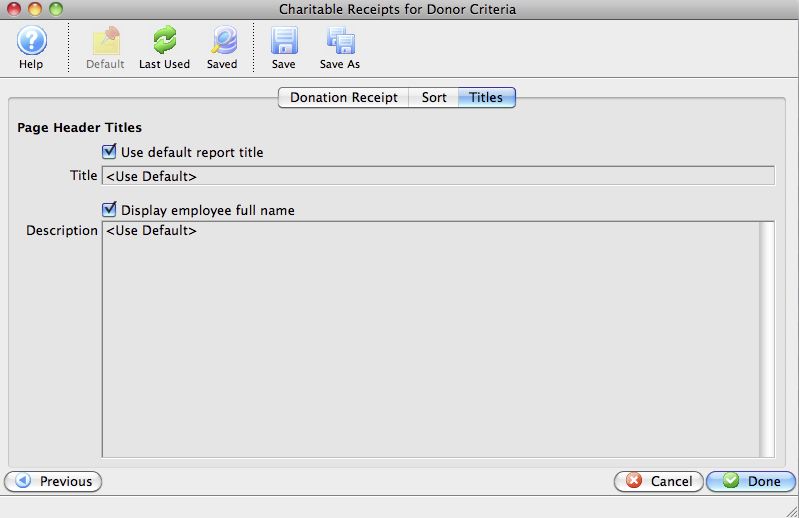
Parts of the Titles Tab
| Page Header Titles | |
| Use default report title | If enabled, the default report tile will print. If disabled, you can specify a specific title for the report. |
| Title | Enter the title you want the report to have. |
| Display employee full name | The name of the employee logged into Theatre Manager will print on the report. |
| Description | You can enter a description of the report and/or the criteria you have selected. |
|
|
Returns to the previous tab in the Charitable Receipts for Donors criteria. |
|
|
Cancels that adding of criteria and closes the window. |
|
|
Completes the addition of criteria and the sorting of data, and begins to generate the Charitable Receipts for Donors. |
Charitable Receipt Example
|
You can place most of the items below like logo, address, signature and other Canada Revenue Agency requirements into company preferences donations tab. |
|
There will be TWO dates on the tax receipt if the date of payment for the donation is different than the date tat the receipt was printed. This is a Revenue Canada requirement for official tax receipts |
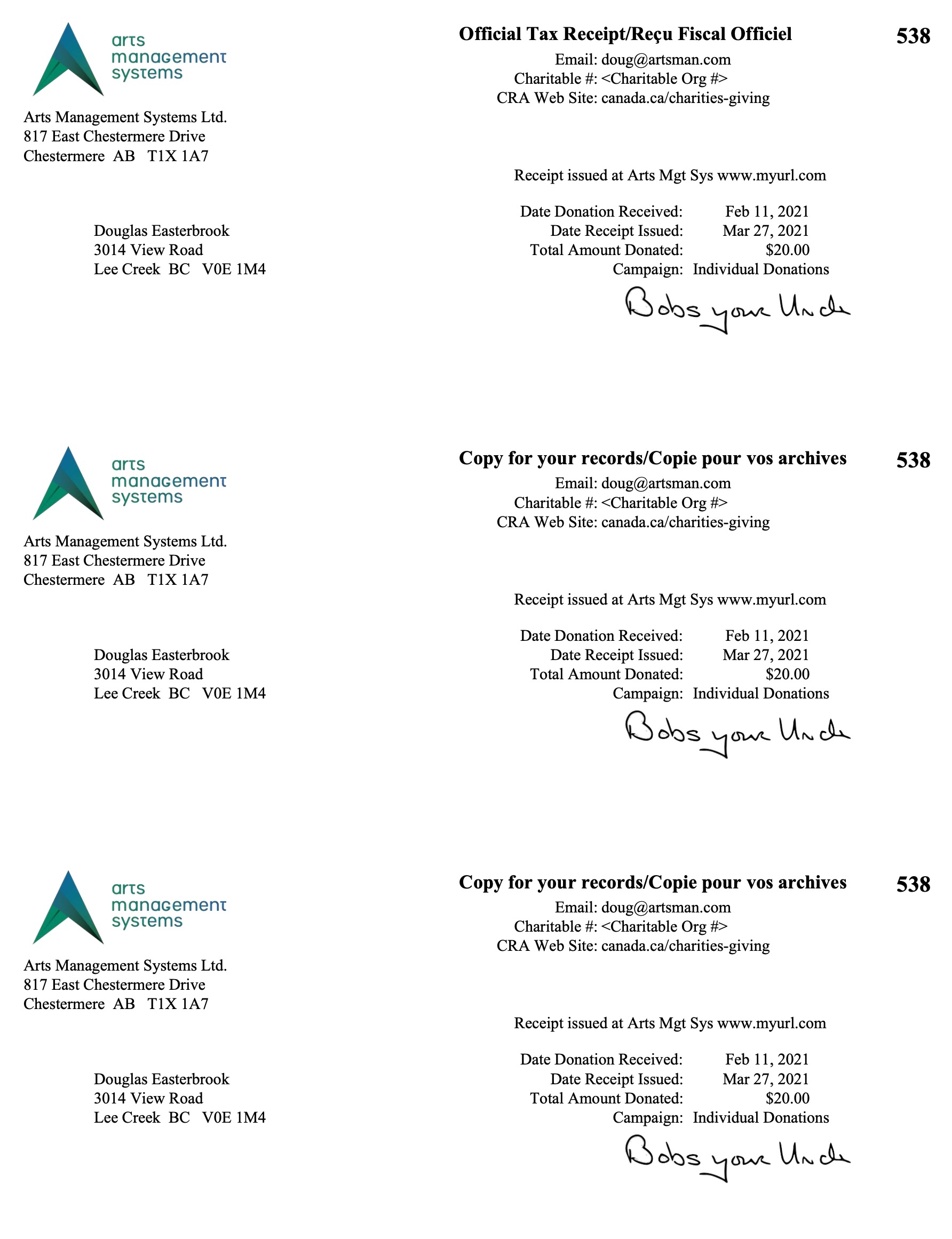 The image to the left an example of a Charitable Receipt
- One per Payment for a donation.
- refer also to Annual Statement Style receipts for an alternative
The parameters used indicated to print 3 copies of each receipt. The intention of donation receipts is that data from the database will be printed on a pre-printed, perforated form that contains other required data for a receipt.
Data preprinted on a tax receipt form is set in Company Preferences and may include (per government requirements):
- Your Company Name
- Your Company Address
- Your Company Phone Number
- Your Company's Tax ID #
In addition, you may want to include:
- A Company Logo
- A signature line
- Other background graphic items or watermarks as desired
Print Annual Summary Charitable Receipts for Donor
The Print Annual Summary Charitable Receipts for Donor batch function allows you to print all unprinted donation receipts in summary format, using parameters such as:
- Campaign
- Last Name, or
- Calendar Year (required for Annual Summary receipts)
|
Receipts only print if a payment is received, the donation receipt print options on the donation require one, and the Campaign allows receipts to be printed. |
The Print Annual Summary Charitable Receipts for Donor is accessed under the Setup>>Batch Functions>>Print Annual Summary Charitable Receipts for Donor menu.
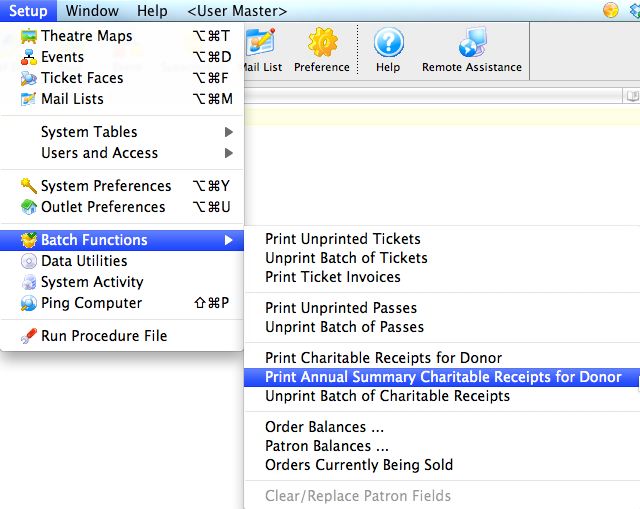
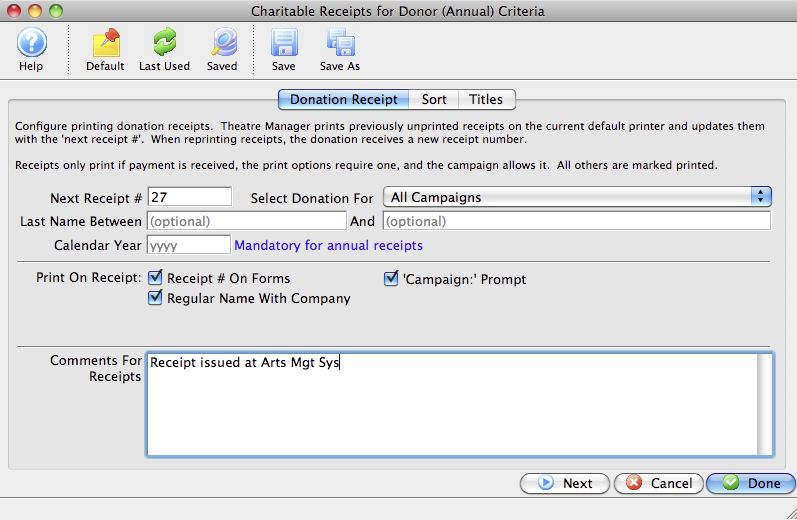
Parts of the Print Annual Summary Charitable Receipts for Donor Window
If this report has previously been run, this button will add the previous criteria. |
|
Opens a list of saved criteria for this report. |
|
Saves the current criteria to be used later. |
|
Saves the current criteria to be used later and opens a dialog to name this criteria. |
|
Allows editing of the batch print parameter for included donations. For more on the Donation Receipt tab, click here. |
|
The Sort tab allows adjustment of the sort order of the columns found in the report. For more on the Sort tab, click here. |
|
The Titles tab allows you to give the report a name that is meaningful to your requirements. For more on the Titles tab, click here. |
|
|
|
Proceeds to the next tab in the Charitable Receipts for Donor Criteria. |
|
|
Cancels that adding of criteria and closes the criteria window. |
|
|
Completes the addition of criteria and the sorting of data, and begins to generate the annual summary donation receipts. |
Annual Summary Charitable Receipt Example
This is an example of an Annual Summary Charitable Receipt for a Donor. The parameters used indicated all gifts in Calendar Year 2010. The intention of donation receipts is that they will be printed on a pre-printed form that contains other required data for a receipt. This data may include (check your local requirements):
- Your Company Name
- Your Company Address
- Your Company Phone Number
- Your Company's Tax ID #
In addition, you may want to include:
- Your Company Logo
- A signature line
- Other graphic items as desired

Unprint Batch of Charitable Receipts
The Unprint Batch of Charitable Receipts function allows for the 'Printed' flag to be removed from donation receipts so that they can be printed again.
The Unprint Batch of Charitable Receipts for Donor is accessed under the Setup >> Batch Functions >> Unprint Batch of Charitable Receipts menu.
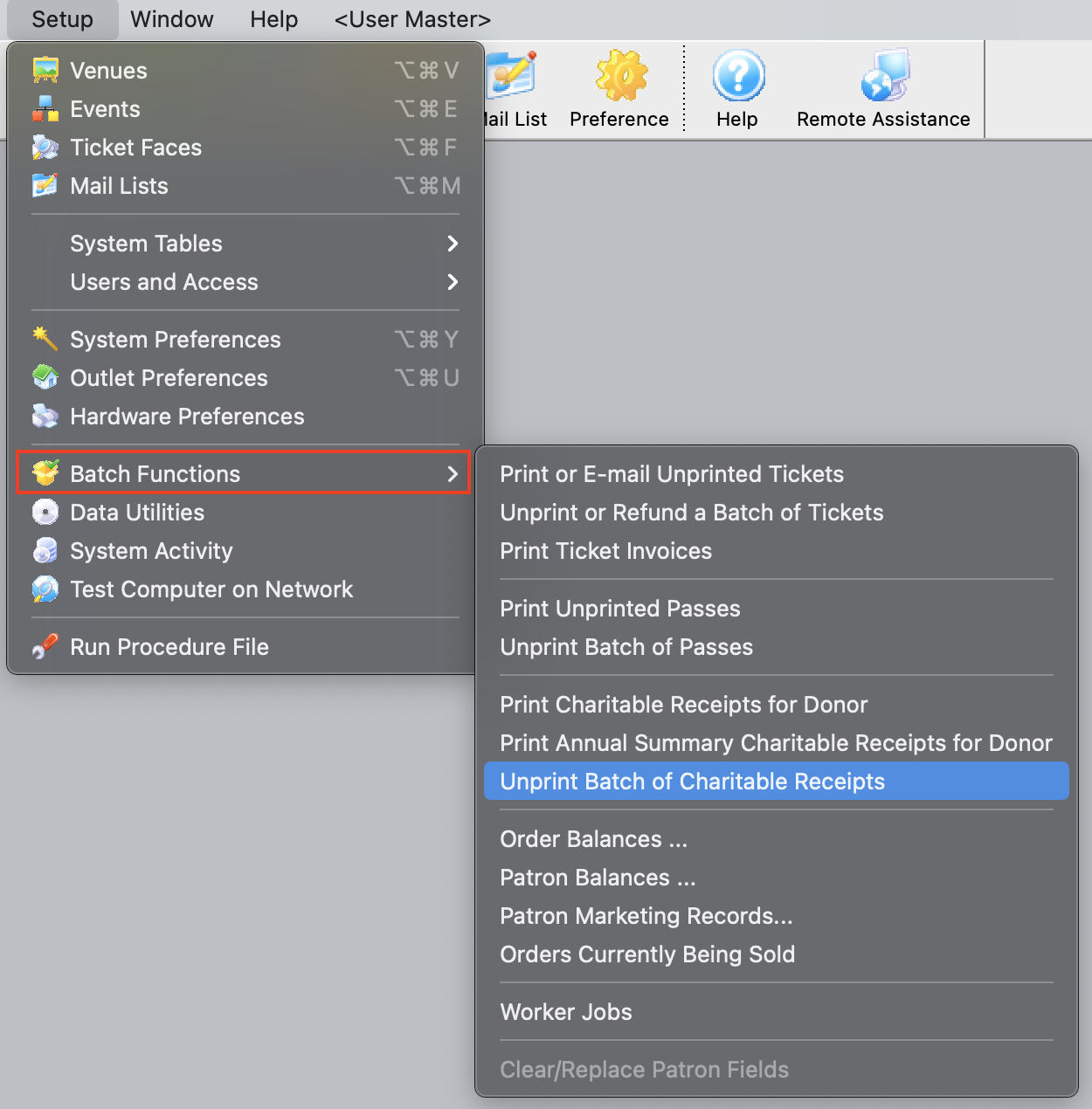
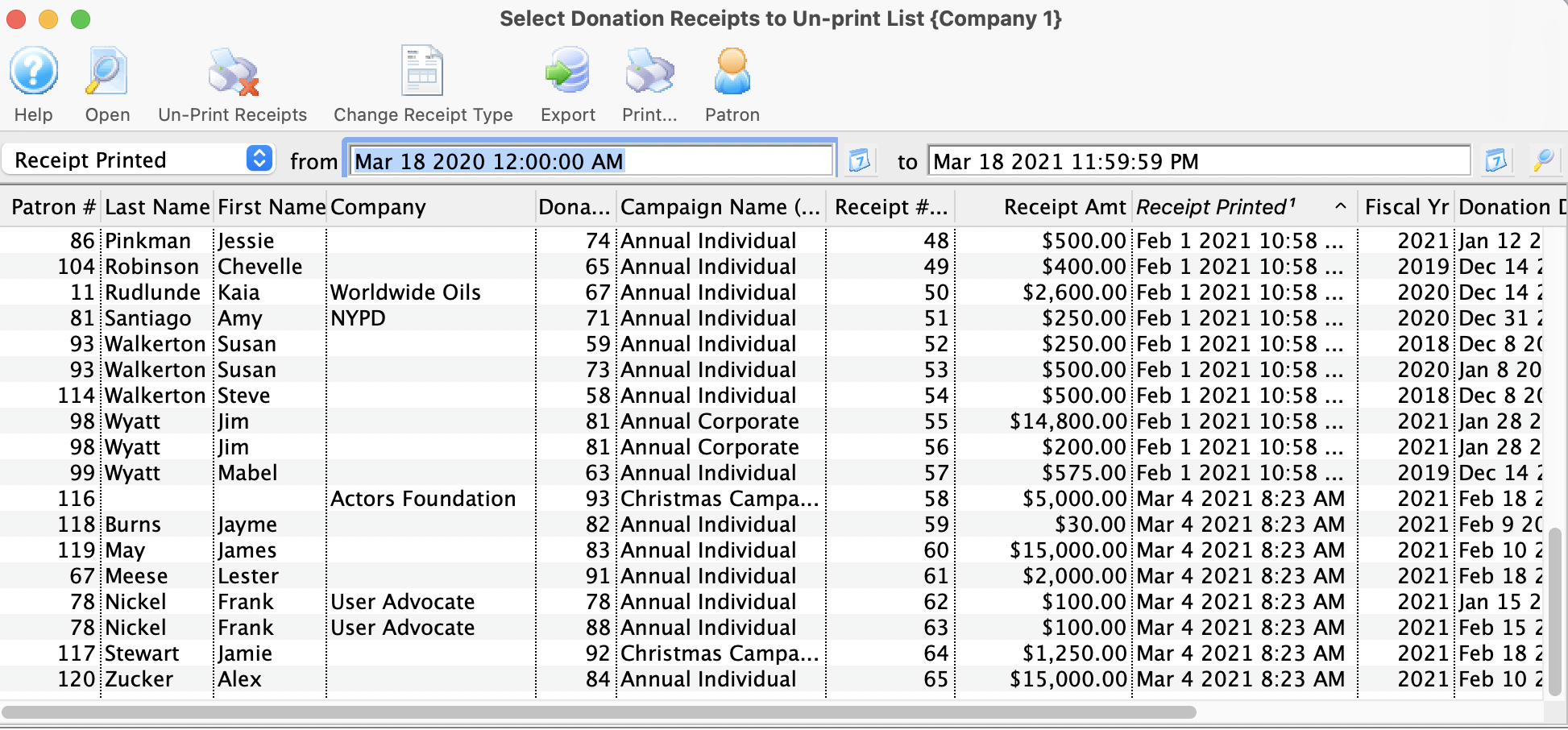
Parts of the Donation Receipts List
 |
Opens the donation record for the selected receipt. |
 |
Unprints the selected receipt(s). |
 |
Allows the user to select a different Tax Receipt Type for the selected donations.
This is helpful to change multiple donations to one per payment or annual style before you reprint the tax receipts in a different style. |
|
Exports the current Donation Receipt List to a text file for use in Excel. |
|
Prints the Donation Receipt List as shown to a report. |
 |
Opens the Patron record for the selected donor. |
| Last Name | Last name of the donor. |
| First Name | First name of the donor. |
| Company | Company name (if applicable) of the donor. |
| Campaign Name (Internal) | Campaign name (internal) to which the donation was made. |
| Receipt Number | Current receipt number of the selected receipt. This number will be "retired" once the receipt is unprinted. |
| Receipt Amount | Donation amount the receipt is for. |
| Receipt Printed | Date the receipt was previously printed. |
| Fiscal Year | Fiscal Year the donation was attributed to. |
| Donation Date | Date of the donation. |
| Actual Amount | Amount of the originating donation. |
Unprinting a Batch of Charitable Receipts
- From the main menu bar, go to Setup >> Batch Functions >> Unprint Batch of Charitable Receipts.
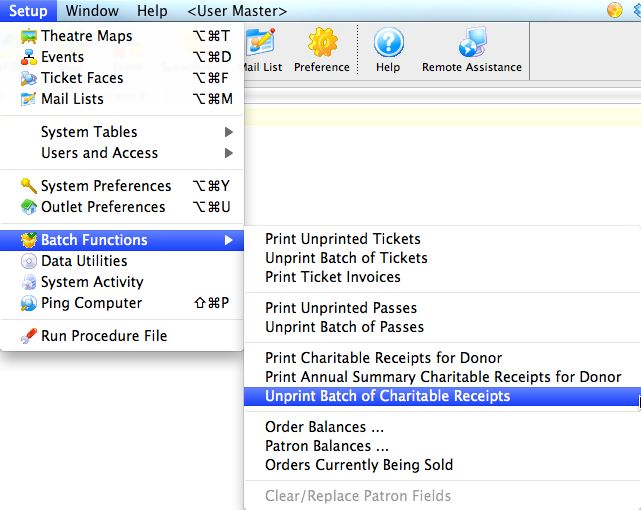
This will open the Donation Receipt List window.
- Enter the date the receipts were printed in the From and To fields.
- Click the Search button to begin the search.
Any receipts printed in the date range given will appear.
- Highlight the receipts to be unprinted.
Use the <SHIFT> key to highlight a range of tickets. To highlight multiple individual tickets, hold the <CTRL> key (Windows) or the <OPTION> key (Mac).
- Click the Unprint button to remove the 'Printed' flag.
The receipts can now be added to a new batch to be printed.
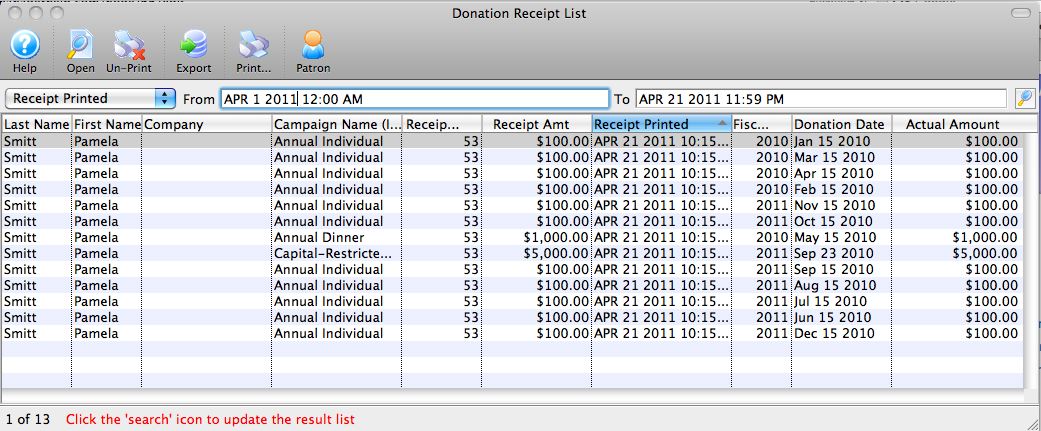
Order Balances ...
This can also be done for one or more orders for a specific patron on the patron's order tab.
- From the main menu bar, go to Setup >> Batch Functions >> Order Balances...
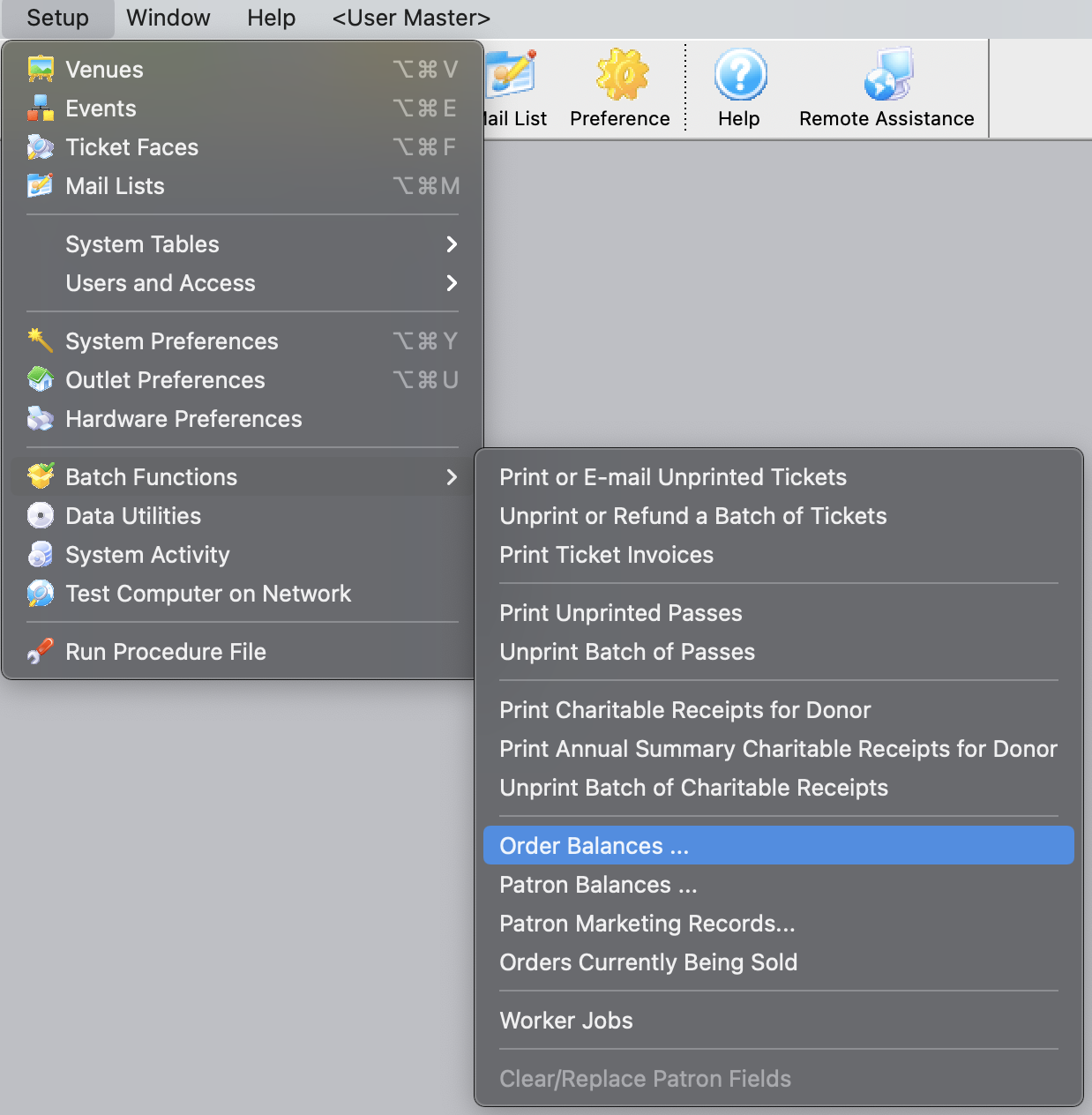
This will open the Verify Order Balances window.
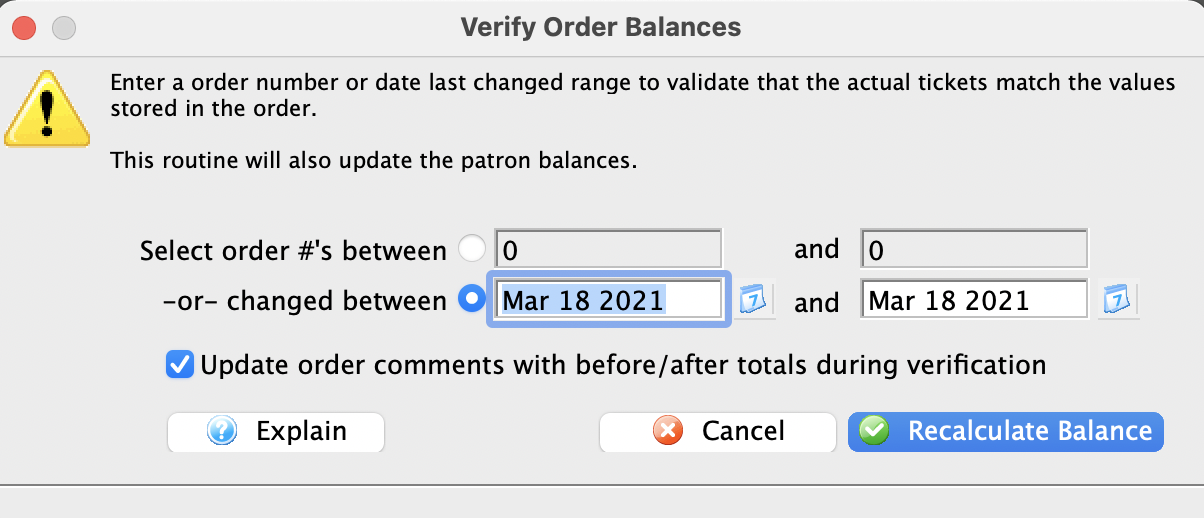
- Enter the range of orders to be verified.
Orders can be verified either based on order number or by a date range of when the order was last changed.
Optionally, you can have Theatre Manager update the order comments field with the order totals from both before and after the recalculation. By default, this option is selected.
- Click the Recalculate Balance
 button.
A confirmation window will appear.
- Click the Yes button.
The orders within the range will now be verified and upon completion, the window will close.
Patron Balances ...
The rebuild Patron Balances function is used to verify that the totals on all the orders for a specified patron are in balance. This is useful when working through problems in the End of Day.
- From the main menu bar, go to Setup >> Batch Functions >> Patron Balances...
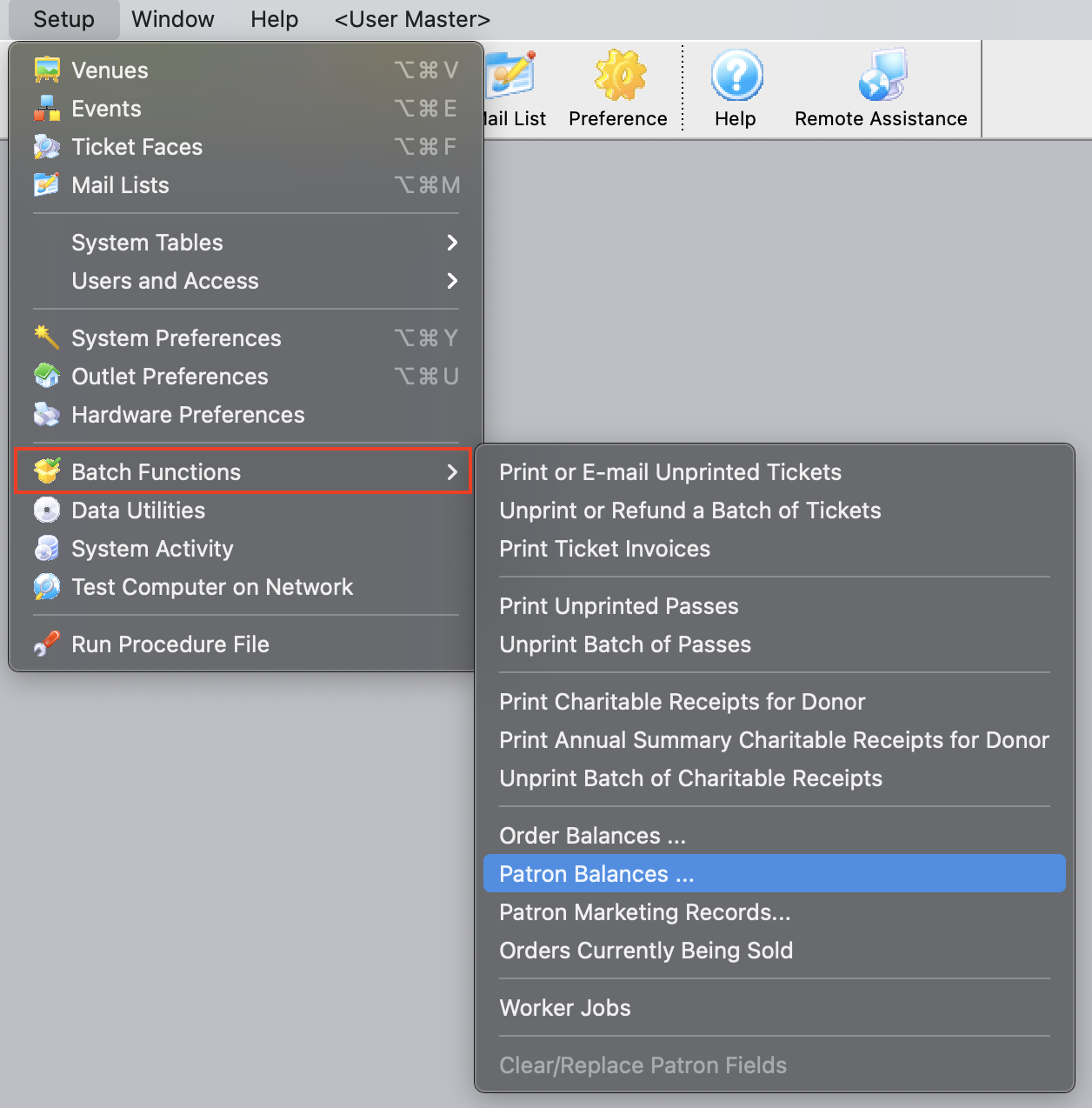
This will open the Verify Patron Balances window.
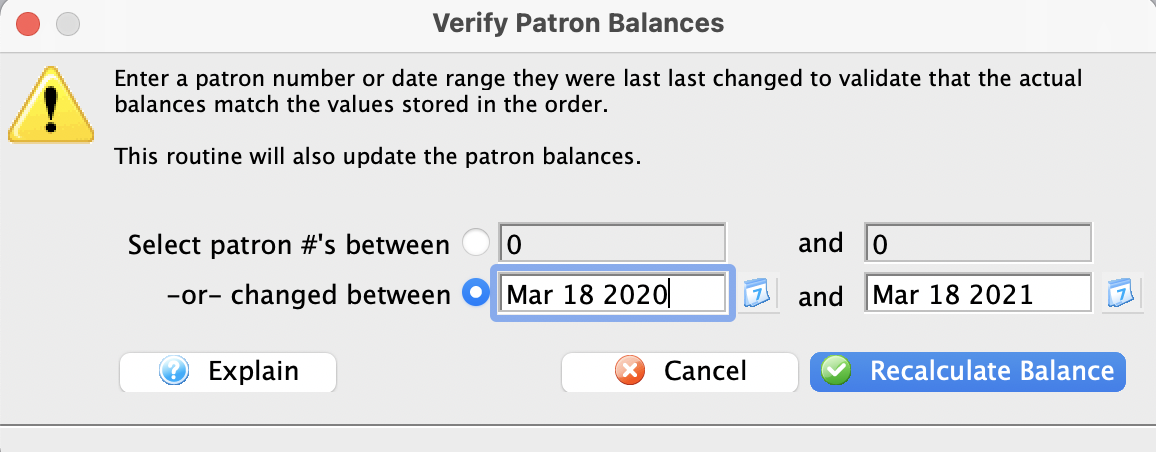
- Enter the range of patrons for whom you wish to verify all order balances (or a single patron).
Patron balances can be verified either based on Patron number or by a date range of when the patron account was last changed.
- Click the Recalculate Balance button
A confirmation window will appear.
- Click the Yes button.
The patron balances within the range will now be verified and upon completion, the window will close.
Job List
You can accomplish 3 things on this window:
- Pause a particular job (jobs dependant on that job will no longer run)
- Resume any paused job or job that is in error status (assuming the error condition has been fixed)
|
If a job is stuck in the running state and never ends, or simply will not start, please contact AMS support for assistance.
ONLY AMS SUPPORT CAN RESTART JOBS since we need to see what the job was that failed |
|
If a job looks like it is paused or in error, you may try to use the Set Status button to the status to Resume/Restart Job to see if that clears it up |
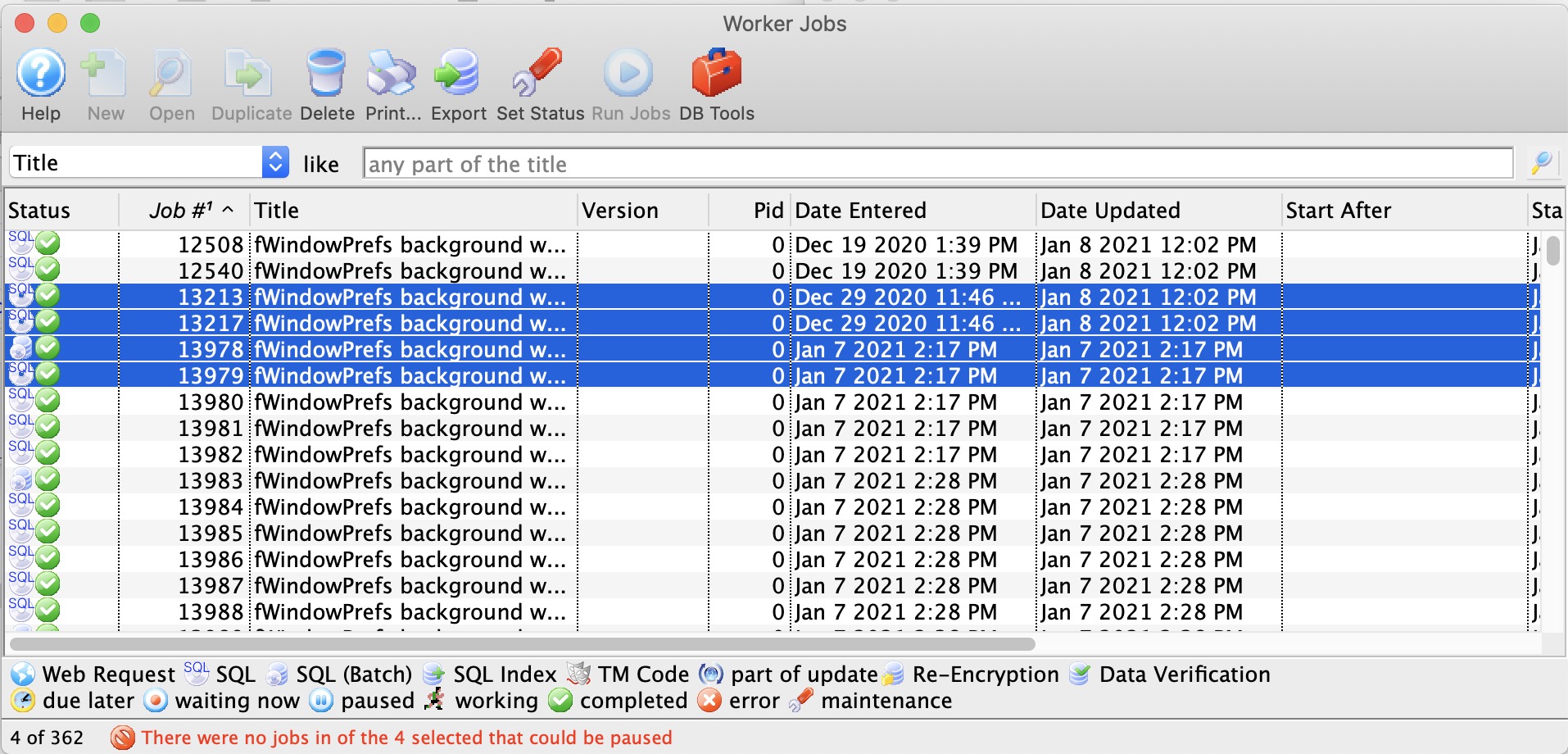
Running Jobs
While the jobs are running, the Application Name status in PGAdmin will show running jobs so that you can tell what processes are doing.
|
If job are stuck or not running, Arts Man will need to start them for you. |
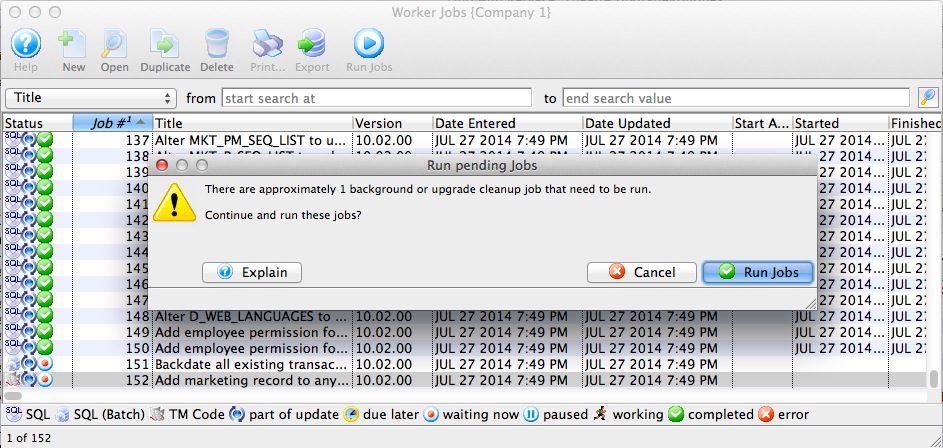
Patron Marketing Record
This should be used if a patron is known to exist in the database (i.e they can be found using quick find) but cannot be found using the patron list window.
Order Currently Being Sold
This may help resolve issues where:
- the End of Day seems to be out of balance or
- if a workstation crashes or is forced quit in the middle of working on an order.
|
NOTE: is an order is in use, users generally cannot see the order in the 'order tab' on the patron window. That is so that nobody attempts to edit, change, or rebuild it. | |
You should only clear orders where you are absolutely sure nobody is actually working in them.
For any order that is current, please check with any other users to ensure they are not working with that order. |
- From the main menu bar, go to Setup >> Batch Functions >> Orders Currently Being Sold.
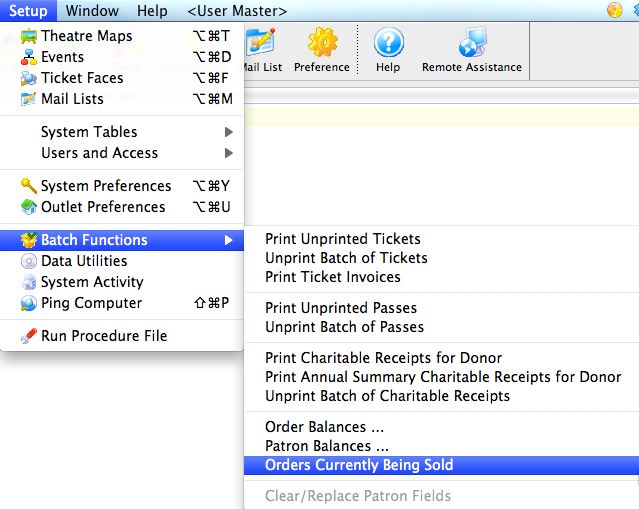
The Order Currently Being Sold window opens.
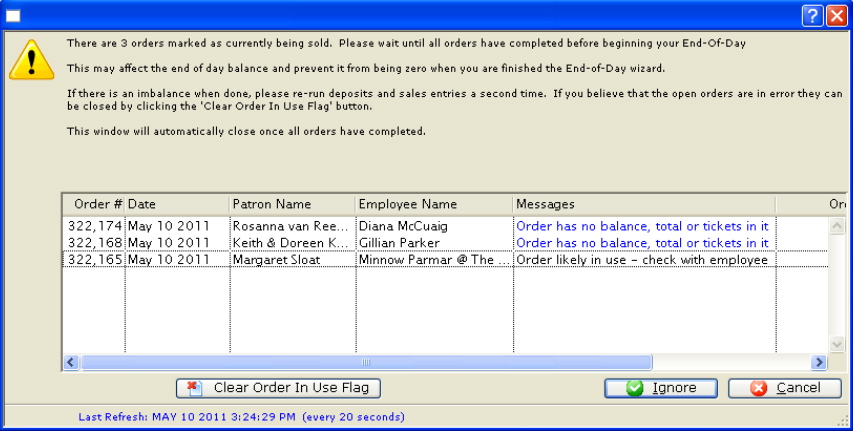
- Select the order you want to clear the 'being sold' flag, by single clicking on it.
You should only clear old orders or those where you are sure nobody is actually working in them. For any order that is current, please check with any other users to ensure they are not working with that order.
- Click the Clear Order In Use Flag
 button.
This will clear the order and allow the order to be accessed again.
Clear/Replace Patron Fields
System Activity
The System Activity monitor keeps track of various system processes such as upgrades, and more importantly the IP address from where the upgrade was run. This helps your organization fulfill the PCI DSS Cross Reference/Index Requirement 10: Track and monitor all access to network, where you are required to track and monitor all access to network resources and cardholder data. Logging mechanisms and the ability to track user activities are critical for effective forensics and vulnerability management. The presence of logs in all environments allows thorough tracking and analysis if something goes wrong. Determining the cause of a compromise is very difficult without system activity logs.
For more on the PCI DSS Cross Reference/Index, click here.
For more on Requirement 10 of PCI Compliance, click here.
The System Activity Monitor is accessed under the Setup>>System Activity menu.
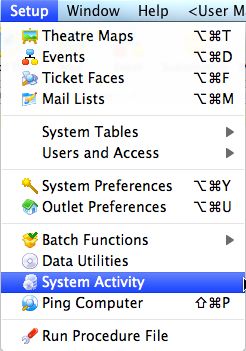
The System Activity window will open.
Enter the date range for which you wish to examine the logs.
Parts of the System Activity Window
Prints a report of the log file. |
|
Exports the logfile to either a text file or Excel. |
|
Date |
Date the particular activity took place. |
IP Address |
The IP address from where the activity was requested. |
Type |
The System Activity Record Type |
Note |
Description of the activity. |
Count |
Is a generic/multi-purpose field: |
Entered |
Date and Time the activity was initiated. |
Updated |
Date and Time the activity was completed. |
Changed By |
Log on name of the employee (if known) initiating the activity. |
Ping Computer
The Ping function allows a computer to send a message to another computer and look for a response in its simplest form. The Ping function is useful for making sure that a workstation is "talking" to the server or that a computer is talking to the outside world.
- From the main menu bar, go to Setup >> Ping Computer.
This will open the Ping Computer window.
For more information on the Ping Computer window, click here. For more information on how to ping a computer, click here.
The Ping Window
The Ping window is used to ping another computer to check for communication. The function of ping is to send and receive a message from another computer.
Parts of the Ping Window
Your IP Address |
The IP address of the machine that is currently being used. This is the internal address. |
Firewall IP Address |
The IP address of the network. This is the outside IP address. This is the address that Artsman Support connects to for access to Timbuktu. |
Status |
Verifies that the IP address of the workstation is valid. |
Ping Computer at |
The IP address or URL of the machine to send a ping to. |
Begins the ping process. For more information on using the Ping function, click here. |
|
Port |
An optional port to check on the remote computer. A port check is more specific than a general ping. Leave this blank to generically ping the remote computer. |
A drop down menu listing machines that would be pinged on a regular basis. |
|
The drop down menu when the Pick button is selected. Selecting any of the items will enter the default IP and port number into the proper fields. |
|
Message |
The message received back from the ping. |

How to use the Ping Function
The Ping function allows a computer to send a message to another computer and look for a response in its simplest form. The Ping function is useful for making sure that a workstation is "talking" to the server or that a computer is talking to the outside world.
- From the main menu bar, go to Setup >> Ping Computer.
This will open the Ping Computer window.
For more information on the Ping Computer window, click here.
- Enter an IP address or URL into the "Ping Computer at" field.
Optionally, the Pick
 button can be used to choose a default computer to ping.
 - Enter the port number to be pinged if necessary.
- Click the Ping
 button to begin the process.
After a few seconds, a message should be displayed showing that the ping was successful.

If the ping was unsuccessful, verify the address settings. If it continues to be unsuccessful, there is either a problem with the workstation or with the remote computer.
Run Procedure File
The Run Procedure File is a utility function that will allow the running of special files created by the Development Team at Arts Management Systems to directly address any required changes unique to your database. ( ProcedureFileName.TM2 ) This could vary from altering a date on records to clearing specific field(s) on all records, to name a couple. It is important to know that this utility function is only used when instructed by a member of the Arts Management Technical Support team. It is a utility function that is extremely rare to use.
- From the main menu bar, go to Setup >> Run Procedure File.
This will open your navigation window to allow you to locate the .TM2 file provided by Arts Management Systems.
The file will simply run, you may or may not not see a progress indicator and in most cases should only take a brief moment to complete the routine. When completed you will need to log out of Theatre Manager then log back in. Any changes or alterations as defined by the procedure file will have taken place.